9. Imports
The error encountered in version 1 of the application exercise leads us to examine the role of the [import] statement in greater detail.
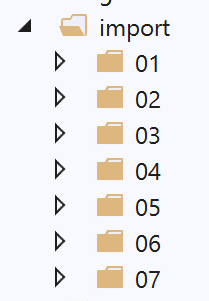
9.1. [import_01] Scripts
The [imported] script will be imported by various scripts (also called modules):
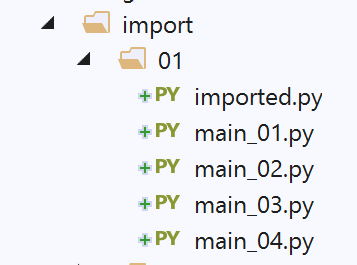
# imported module
# this instruction will be executed each time the module is imported
print("2")
# variable belonging to the imported module
x=4
A module is executed when it is imported. Thus, when the module [imported] is imported:
- line 3 will be displayed;
- the variable x in line 5 will be assigned its value;
The script [main_01] is as follows:
# an imported module is executed
import imported
# use of the x variable of the imported module
print(imported.x)
- Line 2: The [imported] module is imported. This will cause it to run:
- the value 2 will be displayed;
- The variable x is created with the value 4;
- Line 4: The variable x from the imported module is used;
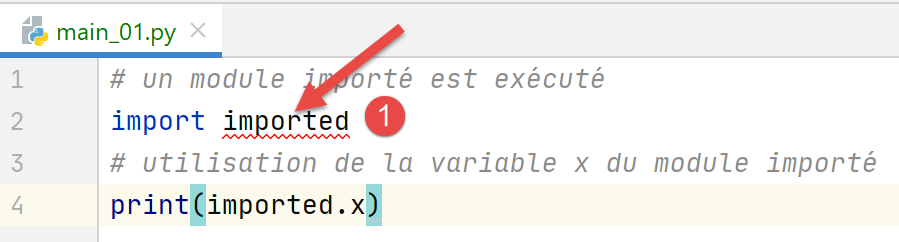
In PyCharm, an error is reported:
In [1], PyCharm indicates that it does not recognize the module [imported]. In technical terms, this means that the folder containing the [imported] module is not in the Python Path of PyCharm. The Python Path is the set of directories in which imported modules are searched for. To resolve this issue, simply specify the folder containing the [imported] module—in this case, the [import/01] folder—as the [Sources root] folder:
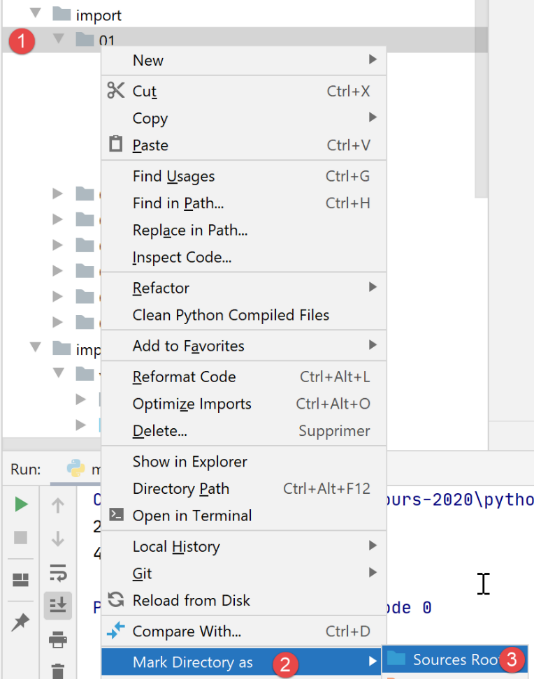
After this operation, the [import/01] folder is added to the Python Path project in PyCharm, and the error disappears:
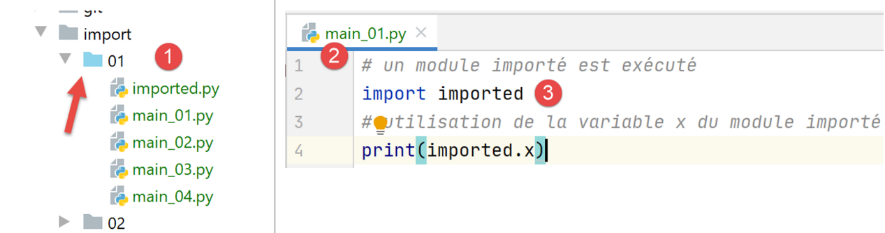
- In [1], the [01] folder has changed color;
- in [2-3], there are no more errors;
The execution results are as follows:
Comments
- Line 2 is the result of executing the imported module;
- Line 3 displays the value of the variable x from the imported module;
The key takeaway from this example is the important concept that an imported module (or script) is executed.
The script [main_02] is as follows:
# import the x variable from the imported module
from imported import x
# we display it
print(x)
- In line 2, we have a different import syntax: [from module import objet1, objet2, …]. Here, we import the variable [imported.x]. With this syntax, the variable x becomes a variable of the script [main_02]. We no longer need to prefix it with its module [imported];
- Line 4: We display the variable x from [main_02];
The results of the execution are as follows:
The [main_03] script is as follows:
# import everything visible in the imported module
from imported import *
# use the x variable of the imported module
print(x)
The notation [import *] in line 2 means that we import all visible objects from the imported module (variables, functions).
The results are as follows:
The [main_04] script is as follows:
# import the x variable from the imported module
# and rename it y
from imported import x as y
# display variable y
print(y)
Line 3 shows that you can import an object from the imported module and give it an alias. Here, the variable [imported.x] becomes the variable [main_04.y]. The results are the same as before.
9.2. Script [import_02]
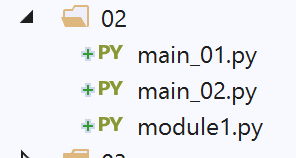
The imported module [module1.py] is as follows:
# a function
def f1():
    print("f1")
The imported module defines a function, a common scenario.
The script [main_01] is as follows:
# import
import module1
# execution f1
module1.f1()
- Line 2: the module is imported. It will be executed. Here, it does not display anything;
- line 4: the function [f1] from the imported module is executed;
The results of the execution are as follows:
Note: To prevent PyCharm from reporting an error on the import in line 2, you must place the folder containing [module1] inside the [Sources Root] folder of PyCharm:
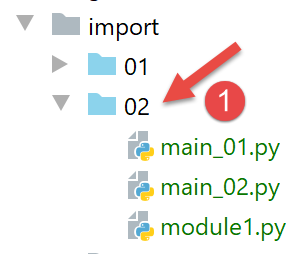
In [1], the [02] folder placed inside [Sources Root] turns blue. Note that the reported error does not prevent the scripts from running correctly here. In fact, when the [main_0x] script is executed, the script’s folder is automatically placed in the Python Path. As a result, [module1] is found. From now on, when a folder appears in blue on a screenshot, it means it has been placed in the [Sources Root] of PyCharm.
The [main_02] script is as follows:
# import
from module1 import f1
# execution f1
f1()
- Line 2 imports the [f1] function from the [module1] module;
- line 4 uses the f1 function;
The results are identical to those of the [main_01] script.
9.3. Scripts [import_03]
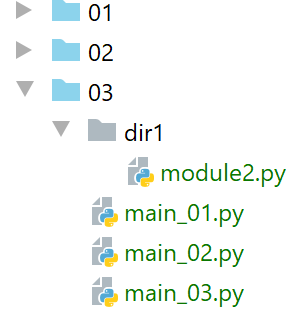
Note: [03] is located in the [Sources Root] folder of the project.
The new scripts will import the [module2] module, which is not in the same folder as them.
The [module2] script is as follows:
# a function
def f2():
    print("f2")
The script therefore defines a function [f2].
The script [main_01] is as follows:
# class2 module import
import dir1.module2
# execution f2
dir1.module2.f2()
- Line 2: We use a special notation to indicate how to find the module [module2]. [dir1.module2] should be read as the path [dir1/module2]: To find [module2], start from the current script folder [main_01], then go to [dir1], and there you will find [module2]. Keep in mind that the starting point of the path is the folder of the script that imports it;
- Line 4: to execute the [f2] function from [module2];
The results are as follows:
Line 2, the result of the [f2] function.
The [main_02] script is as follows:
# import module dir1.module2 and rename it
import dir1.module2 as module2
# execution f2
module2.f2()
In line 2, we rename the module [dir1.module] to simplify the writing of line 4.
The script [main_03] is as follows:
# import function f2 from module dir1.module2
from dir1.module2 import f2
# execution f2
f2()
This time, on line 2, we import only the [f2] function, which then becomes a function of the [main_03] script (line 4).
All these scripts work just as well in the PyCharm context as they do in a Python console. The reason is that in both cases, the directory of the executed script—here, the [03] directory—is part of Python Path. As a result, the [dir1/module2] folder is found.
9.4. [import_04] Scripts
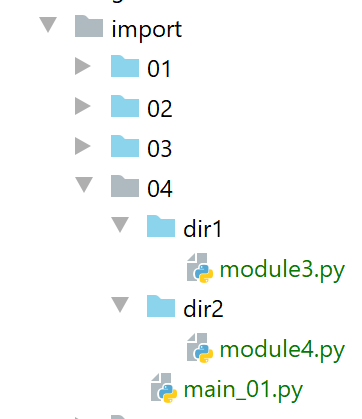
Here, the [dir1] and [dir2] folders have been placed in the [Sources Root] folder of the PyCharm project.
The first imported module is [module3]:
# a function
def f3():
    print("f3")
The second module imported is [module4]:
from module3 import f3

# a function
def f4():
    f3()
    print("f4")
- In line 1, the function [f3] is imported from [module3]. Here, [module3] is visible because its folder [dir1] was placed in [Sources Root];
- Lines 4–6: We define a function [f4] that calls the function [f3] from [module3];
The main script [main_01] is as follows:
# import module4
from module4 import f4
# execution f4
f4()
- line 2: import the [module4] module. This is visible because its [dir2] folder was placed within the [Sources Root] folder of PyCharm;
- Line 4: Execution of the [f4] function from [module4];
The results of executing [main_01] within PyCharm are as follows:
Now, let’s run [main_01] in a Python terminal (console):
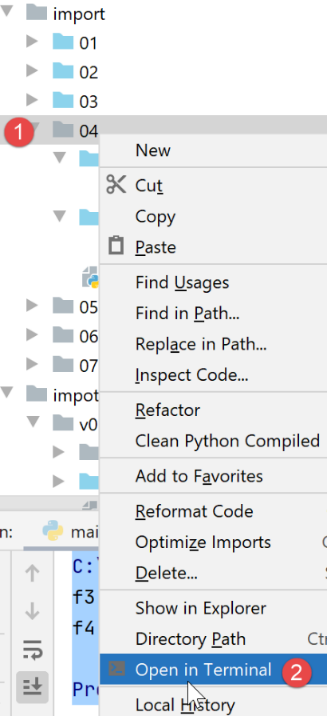
The results are as follows:
What happened? The Python terminal has no knowledge of Python Path or [Sources Root] from PyCharm. It has its own Python Path. In this version, we still have the directory of the script being executed, in this case the [main_01] script. It therefore recognizes the [import/04] directory. In the executed script, it finds the line:
from module4 import f4
The Python interpreter searches for [module4] in the directories of its Python Path. However, [module4] is not found in [import/04], which is indeed present in the Python environment Path, but in [import/04/dir2], where it is not present. Hence the error.
So we have a problem we’ve encountered before: a script that runs correctly in PyCharm may crash in a Python terminal environment. This is a recurring issue that we’ll need to resolve.
9.5. [import_05] Scripts
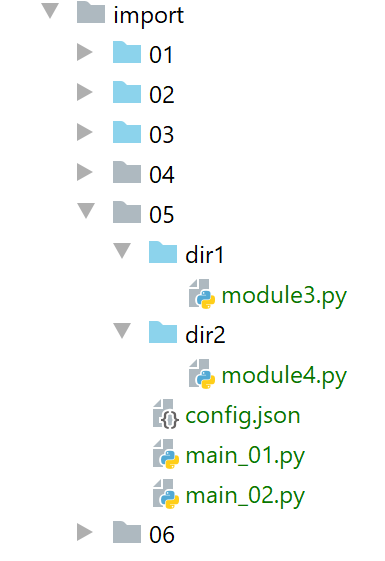
Note: the [dir1] and [dir2] folders are placed in the Python Path directory. Note that there is a conflict here: [module3] and [module4] will be found in two locations within the Python Path directory of PyCharm:
- in [import/04/dir1] and [import/05/dir1] for [module3];
- in [import/04/dir2] and [import/05/dir2] for [module4];
We can then extract [import/04/dir1] and [import/04/dir2] from [Sources Root] in the PyCharm project. It turns out that here, [import/05/dir1] is a copy of [import/04/dir1] (the same applies to [dir2]), so there is no problem. However, it should be noted that within PyCharm itself, care must be taken with the list of folders in [Sources Root] to avoid conflicts.
The [main_01] script becomes the following:
import sys
# modify sys.path to include folders
# containing the classes to be imported
sys.path.append(".")
sys.path.append("./dir1")
sys.path.append("./dir2")
# import module4
from module4 import f4
# execution f4
f4()
We are trying to resolve the Python Path issue. We want one that works just as well under PyCharm as it does in a Python terminal. To do this, we will fix it ourselves.
- Lines 4–6: We add the [., ./dir1, ./dir2] directories to the Python Path environment. For this to work, the current directory at runtime must be the [import/05] directory. This will be true in PyCharm but not necessarily true in a Python terminal, as we will see;
- Line 8: We import [module4]. Based on what we just did, it should be found in [./dir2];
Execution in PyCharm yields the following results:
Now, in a Python terminal:
(venv) C:\Data\st-2020\dev\python\cours-2020\python3-flask-2020\import\05>python main_01.py
f3
f4
Line 1, the execution directory is [import/05].
Now let’s go up one level in the [import/05] directory tree:
(venv) C:\Data\st-2020\dev\python\cours-2020\python3-flask-2020\import\05>cd ..

(venv) C:\Data\st-2020\dev\python\cours-2020\python3-flask-2020\import>python 05/main_01.py
Traceback (most recent call last):
  File "05/main_01.py", line 8, in <module>
    from module4 import f4
ModuleNotFoundError: No module named 'module4'
- Line 2: When [main_01] is executed, we are no longer in the [import/05] directory but in [import]. However, we wrote:
sys.path.append(".")
sys.path.append("./dir1")
sys.path.append("./dir2")
This adds the [import, import/dir1, import/dir2] folders to the Python Path path, which is not what we want at all. Note that adding folders that do not exist (import/dir1, import/dir2) to the Python Path path does not cause any errors.
We’ve made progress, but it’s not enough. We need to add to the Python Path not relative paths, but absolute paths.
The [main_02] script is a variant of [main_01] that uses a configuration file named [config.json]:
{
  "dependencies": [
    "C:/Data/st-2020/dev/python/cours-2020/python3-flask-2020/import/05/dir1",
    "C:/Data/st-2020/dev/python/cours-2020/python3-flask-2020/import/05/dir2"
  ]
}
The value of the key [dependencies] is the list of folders to be added to Python Path. Note that absolute paths are used here, not relative ones.
The [main_02] script uses the [config.json] file as follows:
import codecs
import json
import sys

# configuration file
config_filename="C:/Data/st-2020/dev/python/cours-2020/python3-flask-2020/import/05/config.json"
# read configuration file json
with codecs.open(config_filename, "r", "utf-8") as file:
    config = json.load(file)

# modification of sys.path
for directory in config['dependencies']:
    sys.path.append(directory)

# import module4
from module4 import f4
# execution f4
f4()
- line 6: note that we used the absolute path to the configuration file;
- lines 8-9: the configuration file is read. A dictionary [config] (line 9) is constructed from its contents;
- lines 11-13: the elements of the array [config['dependencies']] are added to the Python Path. Note that since we put absolute folder names in [config.json], we add absolute names to the Python Path;
- Line 16: [module4] is imported. It should be found since [dir2] is now in the Python file Path;
Execution yields the same results as for [main_02], except that the script continues to run when the execution directory is no longer [import/05]:
(venv) C:\Data\st-2020\dev\python\cours-2020\python3-flask-2020\import>python 05/main_02.py
f3
f4
Line 1, the execution directory is [import].
We’ve made progress. We’ve seen:
- that we had to build the Python Path environment ourselves;
- that we had to include the absolute paths of all folders containing the modules imported by the application;
However, putting absolute paths in scripts is not a solution. As soon as the project is moved to another site, it no longer works. We need to find another solution.
9.6. [import_06] scripts
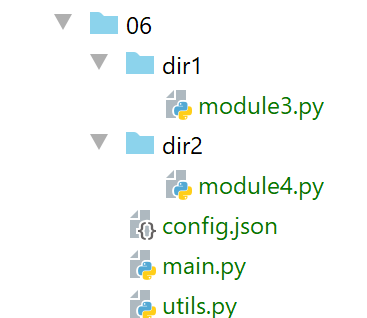
Note: The [06, dir1, dir2] folders have been placed inside the [Sources Root] folders of the PyCharm project. The [dir1, dir2] folders are identical to those in the previous examples.
The [config.json] file is as follows:
{
  "rootDir": "C:/Data/st-2020/dev/python/cours-2020/v-02/imports/06",
  "relativeDependencies": [
    "dir1",
    "dir2"
  ],
  "absoluteDependencies": [
   ]
}
We are introducing two types of paths:
- absolute paths, lines 7–8;
- relative paths, lines 3–6. These are relative to the root on line 2. Thus, when the project is moved to a new location, only this line needs to be modified;
The script [utils.py] uses the file [config.json] and generates the Python script Path:
# imports
import codecs
import json
import os
import sys

# application configuration
def config_app(config_filename: str) -> dict:
    # config_filename: name of configuration file
    # we let the exceptions rise

    # using the configuration file
    with codecs.open(config_filename, "r", "utf-8") as file:
        config = json.load(file)
    # add dependencies to sys.path
    rootDir = config['rootDir']
    # add the project's relative dependencies to the syspath
    for directory in config['relativeDependencies']:
        # add the dependency at the beginning of the syspath
        sys.path.insert(0, f"{rootDir}/{directory}")
    # we add the project's absolute dependencies to the syspath
    for directory in config['absoluteDependencies']:
        # add the dependency at the beginning of the syspath
        sys.path.insert(0, directory)
    # return the configuration dictionary
    return config

# executed script file
def get_scriptdir():
    return os.path.dirname(os.path.abspath(__file__))
- line 8: the [config_app] function receives the name of the configuration file as a parameter;
- lines 12–14: the configuration file is used to create the dictionary [config];
- line 20: [sys.path] is the list of directories for the Python module Path;
- lines 17–20: the relative dependencies of the configuration file are added to Python Path. They are added to the beginning of the [sys.path] table, line 20. This is because when Python searches for a module, it explores the directories in [sys.path] in order. However, in this document, modules with the same names will be located in different directories within [sys.path]. By placing the application’s dependencies at the beginning of the [sys.path] table, we ensure that these will be searched before other folders in [sys.path] that might contain modules with the same names;
- lines 21–24: the absolute dependencies of the configuration file are added to the Python file Path;
- line 26: the application configuration is returned;
- lines 29–30: the [get_scriptdir] function returns the absolute path of the directory containing the currently running script (the one where the function call is located);
The main script [main] is as follows:
# imports
import sys

from utils import config_app


def affiche_path(msg: str):
    # message
    print(f"{msg}------------------------------")
    # sys.path
    for path in sys.path:
        print(path)


# hand -------------
try:
    # the sys.path is configured
    affiche_path("avant....")
    config = config_app(f"{get_scriptdir()}/config.json")
    affiche_path("après....")
    # import module4
    from module4 import f4
    # execution f4
    f4()
except BaseException as erreur:
    print(f"L'erreur suivante s'est produite : {erreur}")
finally:
    print("done")
- Line 4: The function [config_app] is imported. Note that since [utils] and [main] are in the same folder, this [import] works every time. This is because the main script's folder is automatically added to the Python Path;
- Lines 7–12: The [affiche_path] function displays the list of folders from the Python Path script;
- line 19: the application is configured. Note that the absolute path to the configuration file is passed to the [config_app] function. After this instruction, the Python module Path has been rebuilt;
- line 22: [module4] is imported. Thanks to the rebuilding of Python Path, this module will be found;
- line 24: the function [f4] is executed;
In the PyCharm context, the execution results are as follows:
C:\Data\st-2020\dev\python\cours-2020\python3-flask-2020\venv\Scripts\python.exe C:/Data/st-2020/dev/python/cours-2020/python3-flask-2020/import/06/main.py
avant....------------------------------
C:\Data\st-2020\dev\python\cours-2020\python3-flask-2020\import\06
C:\Data\st-2020\dev\python\cours-2020\python3-flask-2020
C:\Data\st-2020\dev\python\cours-2020\python3-flask-2020\fonctions\shared
C:\Data\st-2020\dev\python\cours-2020\python3-flask-2020\impots\v01\shared
…
C:\Program Files\Python38\python38.zip
C:\Program Files\Python38\DLLs
C:\Program Files\Python38\lib
C:\Program Files\Python38
C:\Data\st-2020\dev\python\cours-2020\python3-flask-2020\venv
C:\Data\st-2020\dev\python\cours-2020\python3-flask-2020\venv\lib\site-packages
après....------------------------------
C:/Data/st-2020/dev/python/cours-2020/v-02/imports/06/dir2
C:/Data/st-2020/dev/python/cours-2020/v-02/imports/06/dir1
C:\Data\st-2020\dev\python\cours-2020\python3-flask-2020\import\06
C:\Data\st-2020\dev\python\cours-2020\python3-flask-2020
C:\Data\st-2020\dev\python\cours-2020\python3-flask-2020\fonctions\shared
C:\Data\st-2020\dev\python\cours-2020\python3-flask-2020\impots\v01\shared
….
C:\Program Files\Python38\python38.zip
C:\Program Files\Python38\DLLs
C:\Program Files\Python38\lib
C:\Program Files\Python38
C:\Data\st-2020\dev\python\cours-2020\python3-flask-2020\venv
C:\Data\st-2020\dev\python\cours-2020\python3-flask-2020\venv\lib\site-packages
f3
f4
done

Process finished with exit code 0
Comments
- lines 2–13: the Python Path from PyCharm. It contains all the files included in the [Sources Root] files of the project;
- lines 14-29: the Python Path built by the [config_app] function. Lines 15-16 contain the two dependencies we added;
- lines 22–27: the system directories of the Python interpreter that executed the script;
- lines 28–29: execution proceeds normally;
Now, let’s return to the context that previously caused a runtime error:
- open a Python terminal;
- change to a directory other than the one containing the script being executed;
(venv) C:\Data\st-2020\dev\python\cours-2020\python3-flask-2020\import>python 06/main.py
avant....------------------------------
C:\Data\st-2020\dev\python\cours-2020\python3-flask-2020\import\06
C:\Program Files\Python38\python38.zip
C:\Program Files\Python38\DLLs
C:\Program Files\Python38\lib
C:\Program Files\Python38
C:\Data\st-2020\dev\python\cours-2020\python3-flask-2020\venv
C:\Data\st-2020\dev\python\cours-2020\python3-flask-2020\venv\lib\site-packages
après....------------------------------
C:/Data/st-2020/dev/python/cours-2020/v-02/imports/06/dir2
C:/Data/st-2020/dev/python/cours-2020/v-02/imports/06/dir1
C:\Data\st-2020\dev\python\cours-2020\python3-flask-2020\import\06
C:\Program Files\Python38\python38.zip
C:\Program Files\Python38\DLLs
C:\Program Files\Python38\lib
C:\Program Files\Python38
C:\Data\st-2020\dev\python\cours-2020\python3-flask-2020\venv
C:\Data\st-2020\dev\python\cours-2020\python3-flask-2020\venv\lib\site-packages
f3
f4
done
This time it works (lines 20-21). Note that [sys.path] does not contain the same folders as when the execution runs under PyCharm.
9.7. [import_07] Scripts
We are improving the previous solution in two ways:
- we are replacing the configuration file [config.json] with a script [config.py]. This is because the file jSON poses a significant problem: it cannot be commented on. The [config.json] dictionary can be replaced by a Python dictionary, which has the advantage of being commentable;
- we use a module visible to all Python projects on the machine;
9.7.1. Installing a machine-wide module
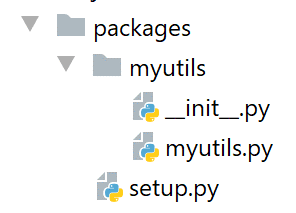
Above, we create a folder named [packages/myutils] within the PyCharm project (the names do not matter).
The [myutils.py] script is as follows:
# imports
import sys
import os


def set_syspath(absolute_dependencies: list):
    # absolute_dependencies: a list of absolute folder names

    # add the project's absolute dependencies to the syspath
    for directory in absolute_dependencies:
        # we check the existence of the file
        existe = os.path.exists(directory) and os.path.isdir(directory)
        if not existe:
            # an exception is lifted
            raise BaseException(f"[set_syspath] le dossier du Python Path [{directory}] n'existe pas")
        else:
            # add the folder at the beginning of the syspath
            sys.path.insert(0, directory)
- lines 6-18: the [set_syspath] function creates a Python Path with the list of directories passed to it as a parameter;
- lines 12-15: we verify that the directory to be added to the Python Path exists;
The [__init.py__] script (with two underscores before and after the name; this naming convention is required) is as follows:
from .myutils import set_syspath
We import the [set_syspath] function from the [myutils] script. The notation [.myutils] refers to the path [./myutils], meaning the script [myutils] is located in the same folder as [__init.py]. We could have used the notation [myutils]. However, we are going to create a machine-scope module named [myutils]. As a result, the notation [from myutils import set_syspath] would then become ambiguous. Does this refer to importing the script [myutils] from the current folder or the machine-scope script [myutils]? The notation [.myutils] resolves this ambiguity.
The script [setup.py] (here too, the name is fixed) is as follows:
from setuptools import setup

setup(name='myutils',
      version='0.1',
      description='Utilitaire fixant le Python Path',
      url='#',
      author='st',
      author_email='st@gmail.com',
      license='MIT',
      packages=['myutils'],
      zip_safe=False)
In this script, we describe the module we are going to create. Here, we will create it locally. However, the same process is used to create an officially distributed module (see |pypi|). The important points here are as follows:
- line 3: the name of the module being created;
- line 4: the module’s version;
- line 5: its description;
- lines 7–8: the module’s author;
To install this module with a machine scope, proceed as follows:
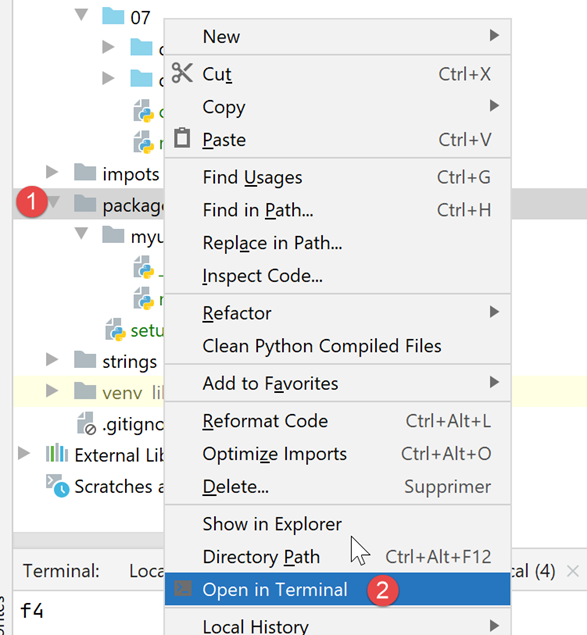
Then, in the Python terminal, enter the following command:
(venv) C:\Data\st-2020\dev\python\cours-2020\python3-flask-2020\packages>pip install .
Processing c:\data\st-2020\dev\python\cours-2020\python3-flask-2020\packages
Using legacy setup.py install for myutils, since package 'wheel' is not installed.
Installing collected packages: myutils
  Attempting uninstall: myutils
    Found existing installation: myutils 0.1
    Uninstalling myutils-0.1:
      Successfully uninstalled myutils-0.1
    Running setup.py install for myutils ... done
Successfully installed myutils-0.1
From now on, any script on the machine can import the [myutils] module without it being in the project code.
9.7.2. The [config.py] script
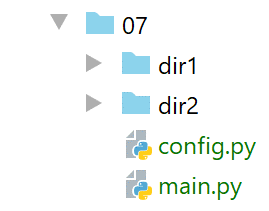
The [config.py] script handles the application configuration:
def configure():
    import os

    # absolute name of the configuration script folder
    script_dir = os.path.dirname(os.path.abspath(__file__))
    # absolute paths of folders to put in the syspath
    absolute_dependencies = [
        # local files
        f"{script_dir}/dir1",
        f"{script_dir}/dir2",
    ]
    # update syspath
    from myutils import set_syspath
    set_syspath(absolute_dependencies)

    # returns the config
    return {}
- line 1: the [configure] function handles the application configuration;
- lines 7–10: the dictionary that was previously in [config.json];
- lines 9–10: because we are in a script, we can directly access the absolute names of the [dir1, dir2] folders;
- Lines 12–14: We use the [set_syspath] function from the [myutils] module that we just created to define the Path Python configuration;
- line 20: we return the application configuration dictionary. Here, it is empty;
9.7.3. The [main.py] script
The main script [main] is as follows:
# configure the application
import config

config = config.configure()

# syspath is configured - imports can be made
from module4 import f4

# hand -------------
try:
    f4()
except BaseException as erreur:
    print(f"L'erreur suivante s'est produite : {erreur}")
finally:
    print("done")
- lines 2-4: we configure the application using the [config.py] module. This module is accessible because it is in the same directory as the main script. However, the main script’s directory is still part of Python Path;
- When we reach line 6, the Python Path environment has been built with the [module4] module folder included. We can therefore import it on line 7;
- lines 10–15: all that remains is to execute the [f4] function;
The results of the execution in PyCharm are as follows:
In a Python terminal outside the main script's directory, the results are as follows:
From now on, we will always follow the same procedure to set up an application:
- the presence of a script named [config.py] in the main script folder. This script contains a function named [configure] that serves two purposes:
- to build the Python Path for the application. To do this, [config.py] declares all folders containing the modules used by the application and builds the Python Path with their absolute names;
- build the [config] dictionary of the application configuration;
We apply this scheme to the second version in the application exercise. We recall that version 1 worked in the PyCharm environment but not in a Python terminal. The problem stemmed from the Python Path.