10. [Assignment]: Implementation of the [ui] layer using a Swing interface-
Keywords: multi-layer architecture, Spring, dependency injection, Swing component library.
 |
10.1. Support
 |
In the [UI] layer, we want to build a Swing GUI. NetBeans has a [Matisse] tool for building these Swing interfaces that is superior to what Eclipse offers. Swing interfaces are increasingly being replaced by JavaFX interfaces. NetBeans and Eclipse use the same tool to build the latter. Therefore, if we build JavaFX interfaces, we can use Eclipse throughout the entire layered architecture.
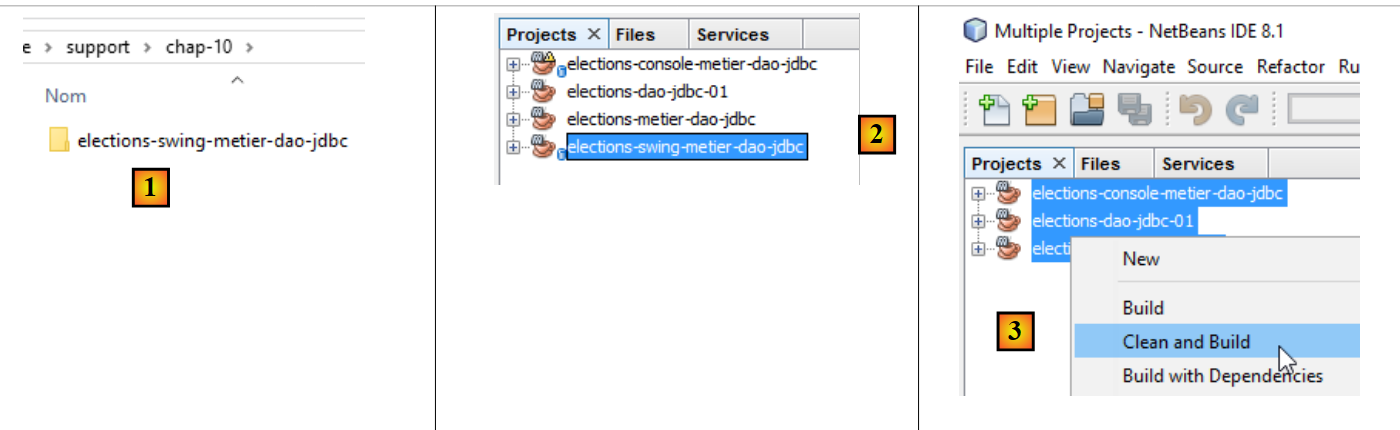
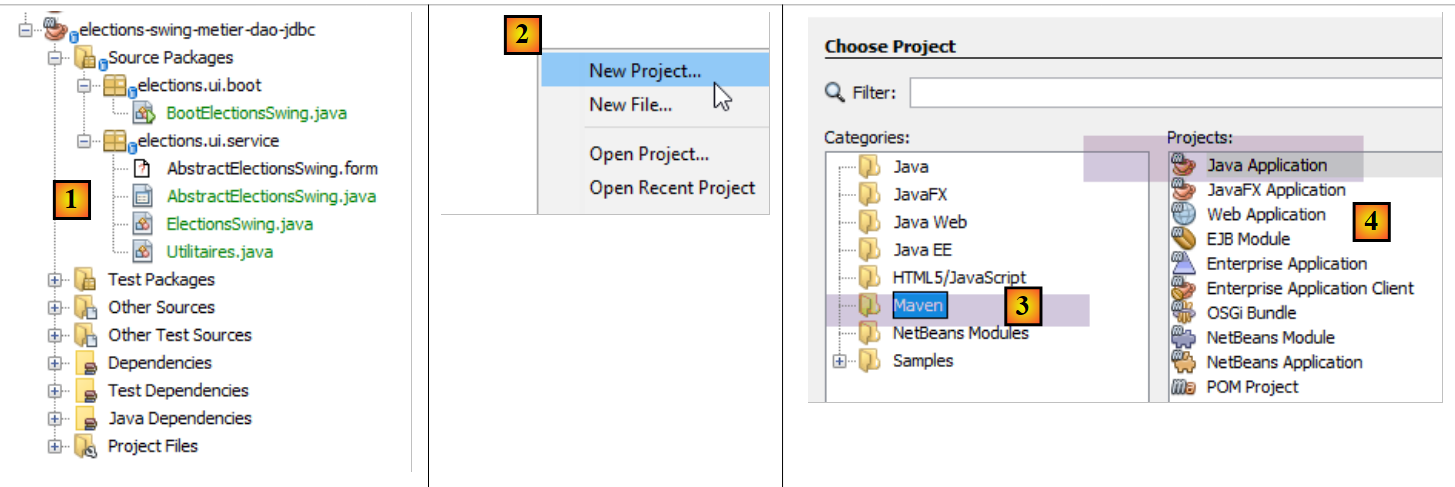
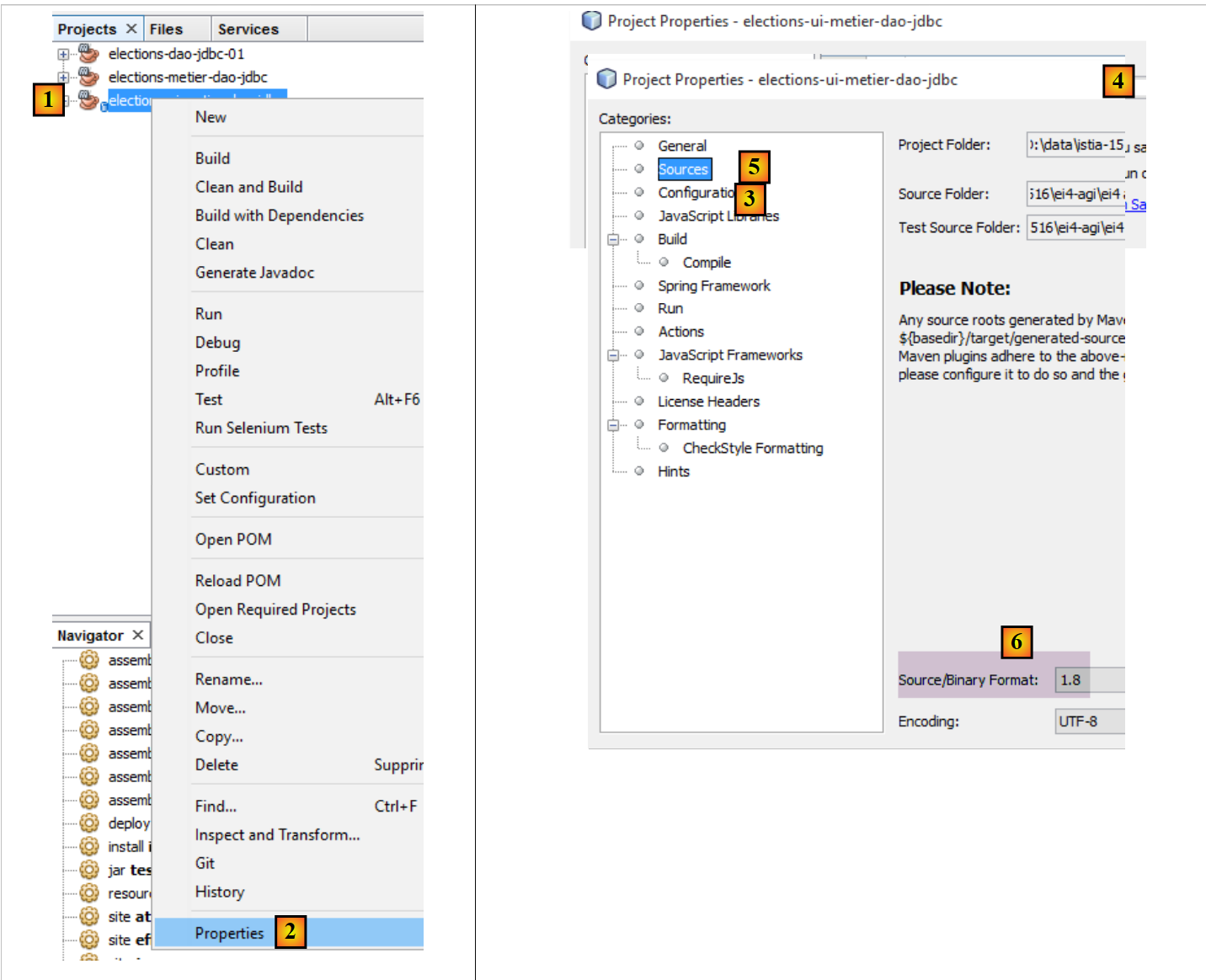
NetBeans can open any Maven project. We will therefore use the previous Maven project and add a Swing interface to it. In [2], we load (File / Open Project) the Maven projects for the three layers we built with Eclipse. Then, we build their binaries [3]. The [Build] and [Clean and Build] options build the binary for the project to which they are applied. These binaries are placed in the project’s [target] folder [4-5]:
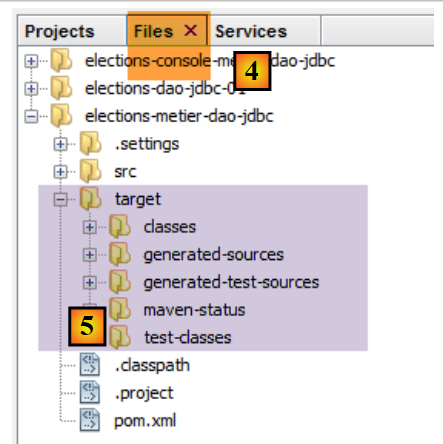 |
The [Clean] option deletes this [target] folder. The [Build] option rebuilds it. Experience shows that when unexpected problems arise, the first thing to do is a [Clean and Build] on the project to ensure you are working with the latest version. This is particularly necessary when you have configuration files that, if modified, do not trigger an automatic recompilation when the project is run. You must then force this recompilation with a [Clean and Build] so that their new versions are installed in the [target] folder.
10.2. How the Application Works
Let’s return to the overall architecture of the [Elections] application:
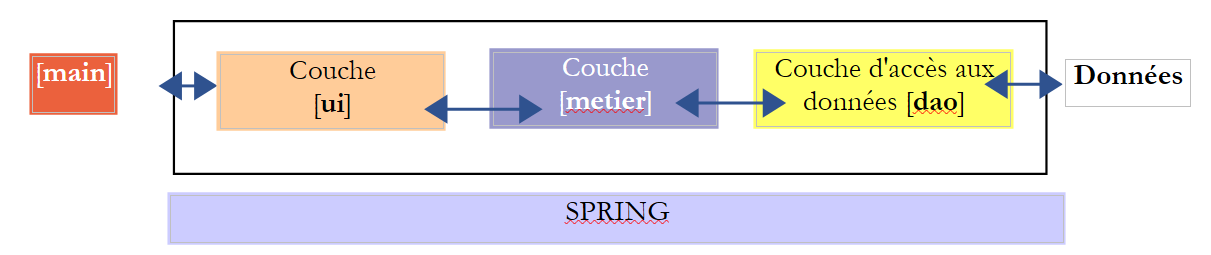 |
We are now focusing on a new implementation of the [ui] layer. The only implementation currently in place is a console interface. We are now creating a graphical user interface.
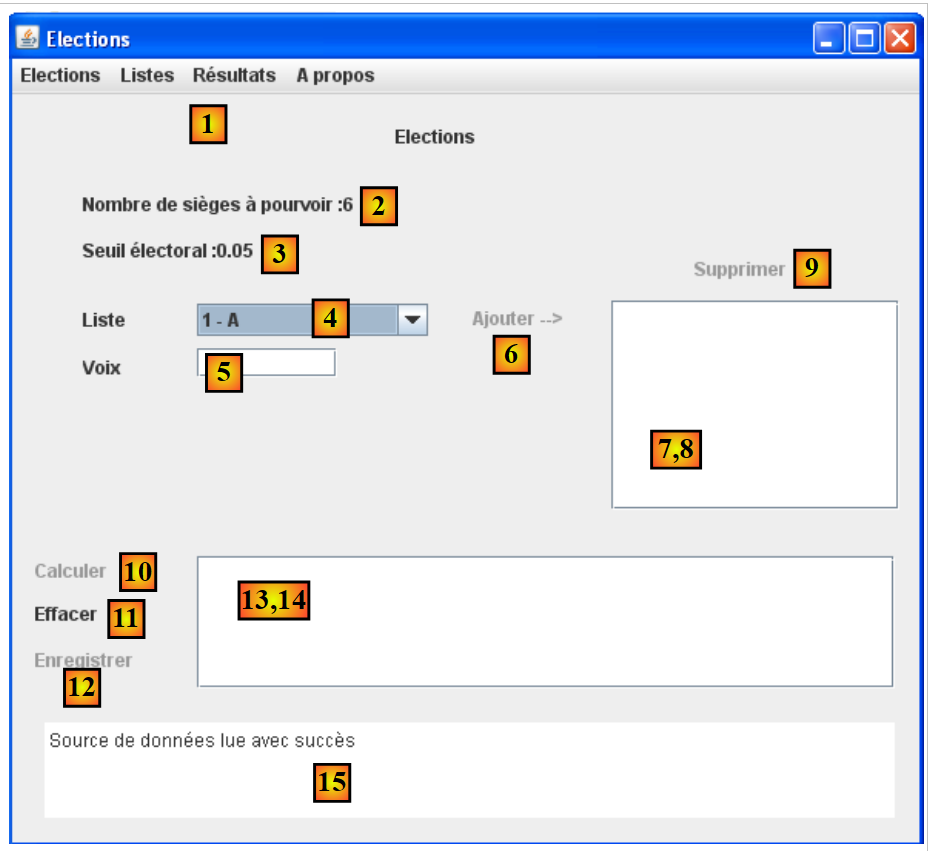
The user will have the following interface to interact with the [Elections] application:
 |
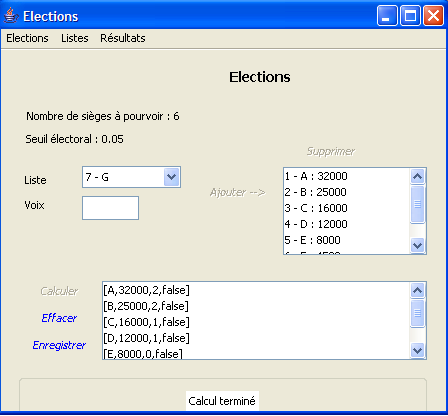 |
The graphical user interface is located in the [ui] layer. It is this layer that interacts with the user.
- Upon startup, the [main] console application instantiates the application’s three layers using Spring. This is done before the graphical user interface is even visible. Also during this initialization phase, information characterizing the election (number of seats to be filled, electoral threshold, competing lists) is requested from the [dao] layer. If this initialization phase fails (e.g., inability to access the data), an error message is displayed on the console and the graphical user interface is not displayed.
- If the data was successfully read, the graphical interface is displayed with the following information (see screenshot above):
- the number of seats to be filled in (2)
- the electoral threshold in (3)
- the IDs and names of the candidate lists in (4)
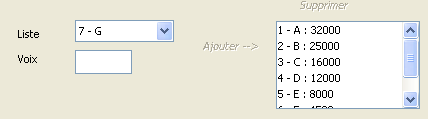
- The user then assigns the number of votes to each candidate list using fields 4 (ID - Name), 5 (Votes), and 6 (Add).
- You can then use the link (10) to calculate the seats:
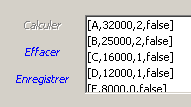
- The [Save] link (12) allows you to save the results to the data source.
10.3. The [ElectionsSwing] class implementing the [ui] layer
10.3.1. The NetBeans project
Note: Section 22.4 explains how to obtain NetBeans.
The final NetBeans project for the application will look like this [1]. Build it by following steps [2–5]:
 |
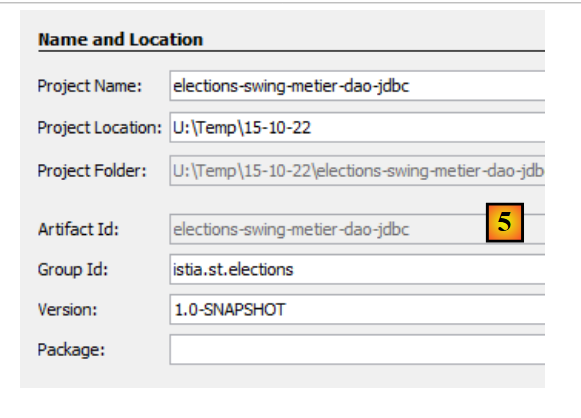 |
Ensure that the project is configured to be compiled by a JDK 1.8 [1-6]:
 |
10.3.2. Maven Configuration
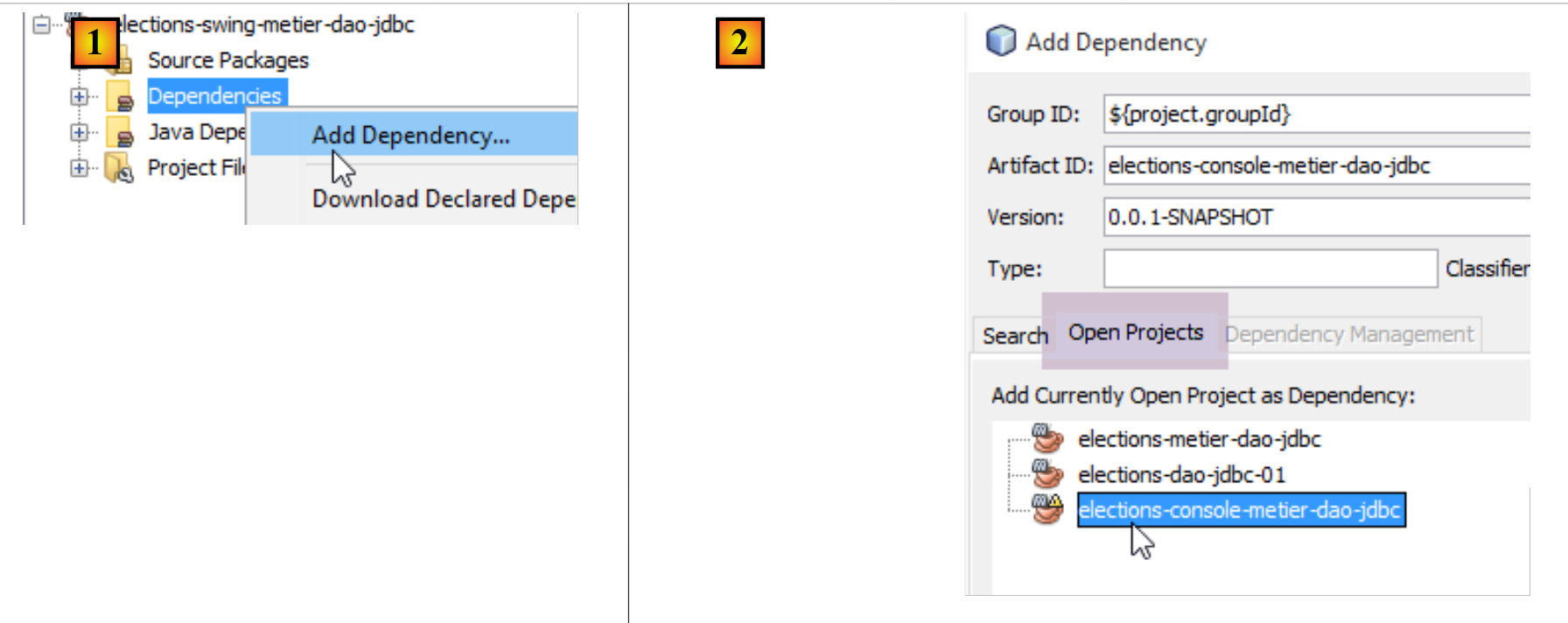
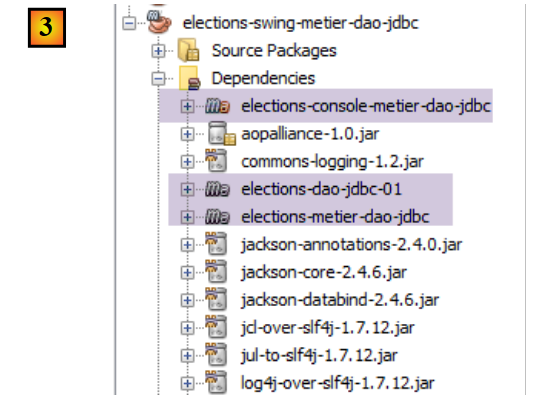
The new project [elections-swing-business-dao-jdbc] will build upon the previous project [elections-console-business-dao-jdbc]. To do this, add a Maven dependency as follows [1-3]:
 |
 |
10.3.3. Building the GUI
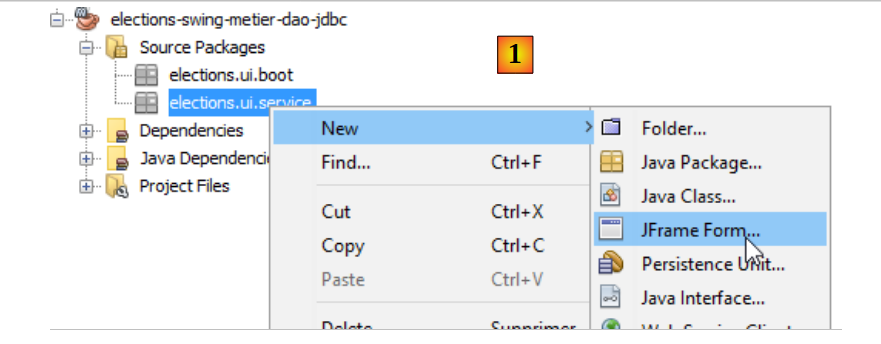
To create the GUI, we can proceed as follows:
 |
 |
- [1]: Add an object to the [elections.ui.service] package
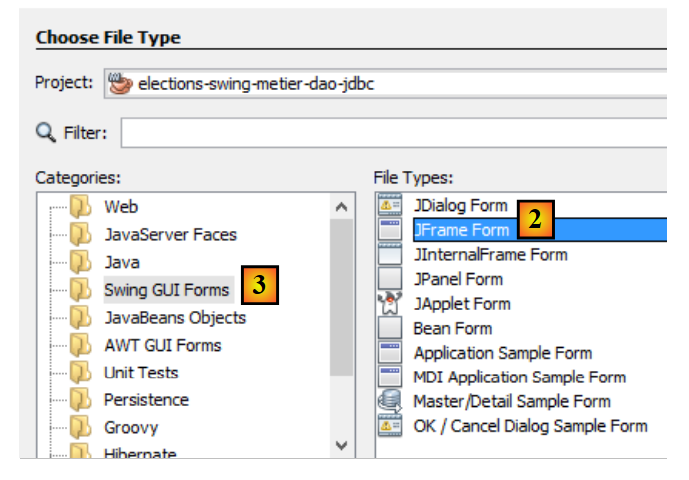
- [2]: Select the [JFrame Form] option in the [Swing GUI Forms] category
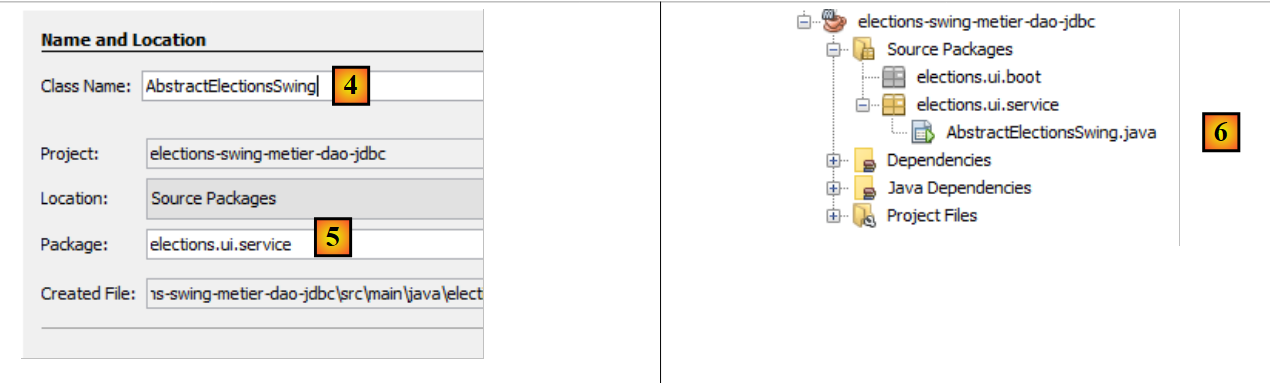 |
- [4]: Name the class
- [5]: The class package.
- Finish the wizard.
- [6]: The generated class
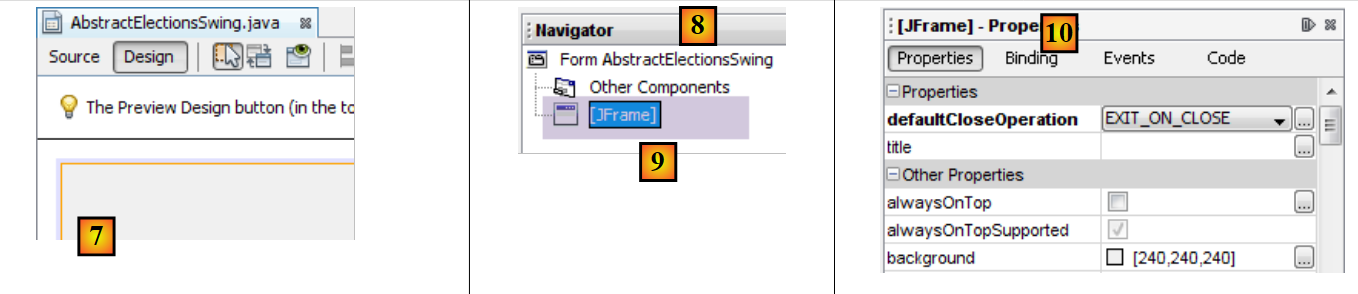 |
- [7]: the [AbstractElectionsSwing] class in [Design] mode
- [8]: the [Navigator] tab displaying the tree [9] of window components
- [10]: the [Properties] tab, which displays the properties of the [JFrame] component selected in [9]
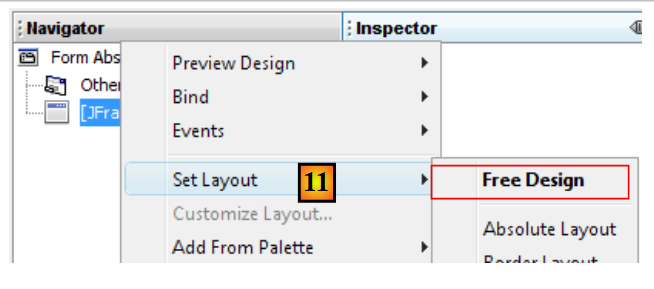 |
- [11]: [JFrame] is a component container. Components can be arranged within the container according to various positioning rules called layouts. Here, we choose the [Free Design] layout [14], which allows components to be positioned freely within the container.
We find the components in the toolbar called the Palette:
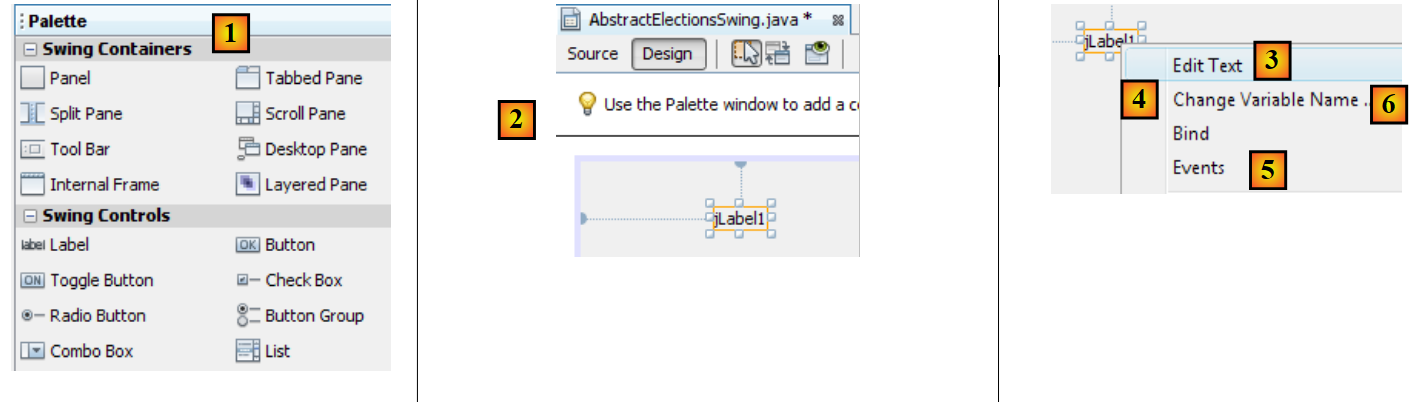 |
- [1]: the palette
- [2]: A JLabel component is dropped into the component container
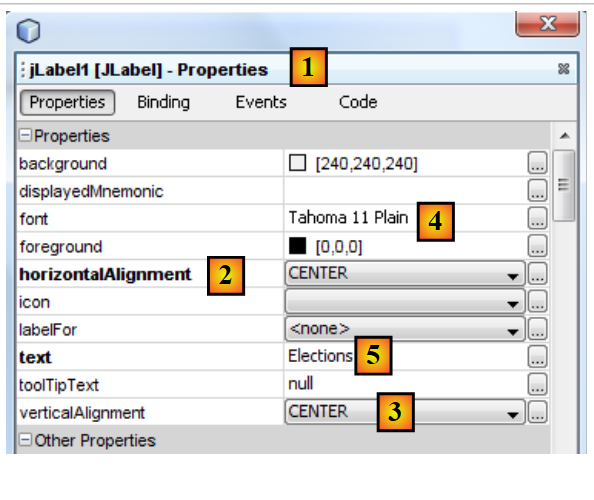
- By right-clicking on it, we can access various properties: its name [4], its text [3], or its event handlers [5]. We use [3] to set the text [6].
 |
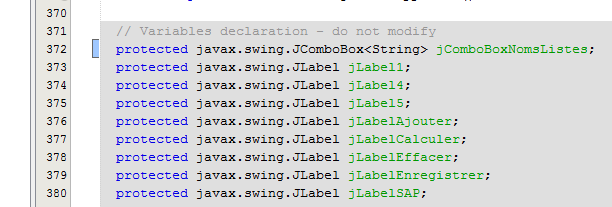
- [1]: The [Properties] tab of the [JLabel] component provides access to its properties: its horizontal position [2], vertical position [3], text font [4], and text [5].
When a component is dropped and configured on the graphical interface and you save (Ctrl-S) your work, code is generated in the [AbstractElectionsSwing] class:
 |
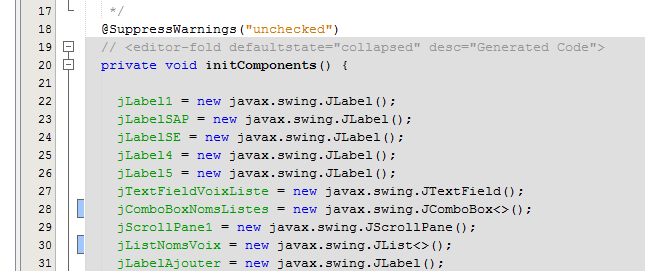 |
Do not modify this grayed-out code, as it is deleted and regenerated upon the next save. Any changes made would then be lost.
A tutorial on creating a graphical user interface with NetBeans can be found at the URL [https://netbeans.org/kb/docs/java/quickstart-gui.html?print=yes#design] (November 2015).
We will now build the following interface:
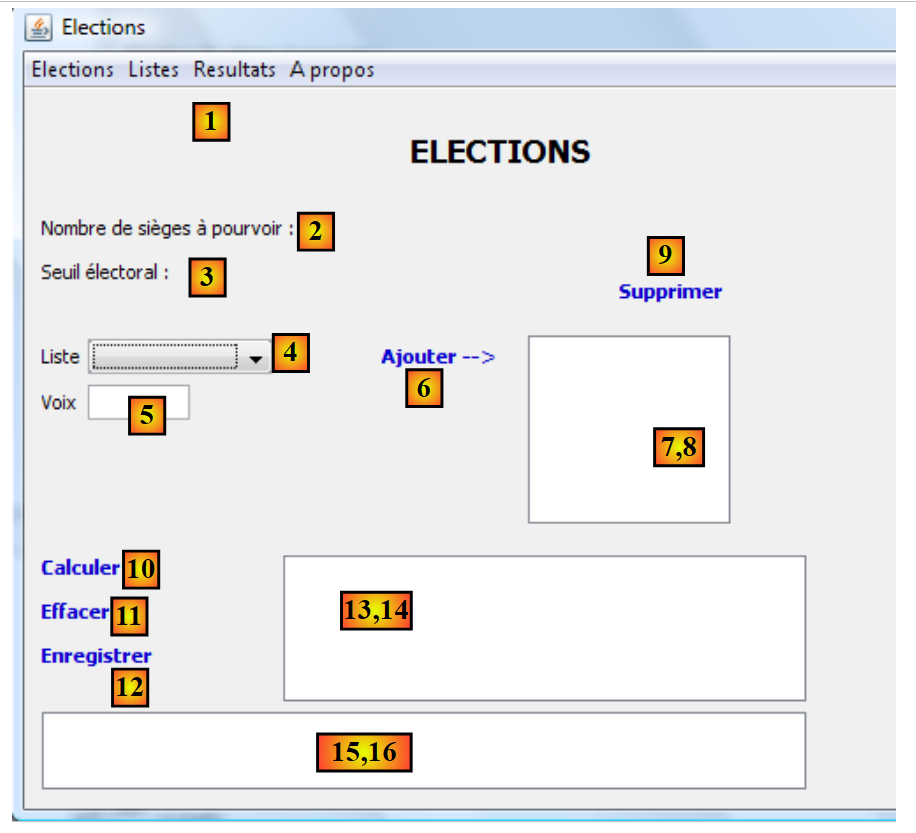 |
The interface components are as follows:
No. | type | name | role |
JMenuBar | jMenuBar1 | a menu | |
JLabel | jLabelSAP | the number of seats available | |
JLabel | jLabelSE | the electoral threshold | |
JComboBox | jComboBoxListNames | list of names of competing lists | |
JTextField | jTextFieldVotesList | the number of votes for a list | |
JLabel | jLabelAdd | to add a list to (8) | |
(JScrollPane, JList) | jListNamesVoices | the names and voices of the lists | |
JLabel | jLabelDelete | to remove from (8) the list selected in (8) | |
JLabel | jLabelCalculate | to calculate the election results | |
JLabel | jLabelClear | to clear the election results | |
JLabel | jLabelSave | to save the election results | |
(JScrollPane, JList) | jListResults | to display the election results | |
(JScrollPane, JTextPane) | jTextPaneMessages | to display follow-up messages |
The annotation (JScrollPane, JList) [13-14] is there to indicate that when a [JList] component is dropped into the window, it is automatically inserted into a [JScrollPane] component that allows scrolling through the list. It is the [JScrollPane] component that allows you to view all items in the list, even though only a limited number of them are visible at any given time. The same applies to the [JTextPane] component [15-16].
The menu can be created as follows:
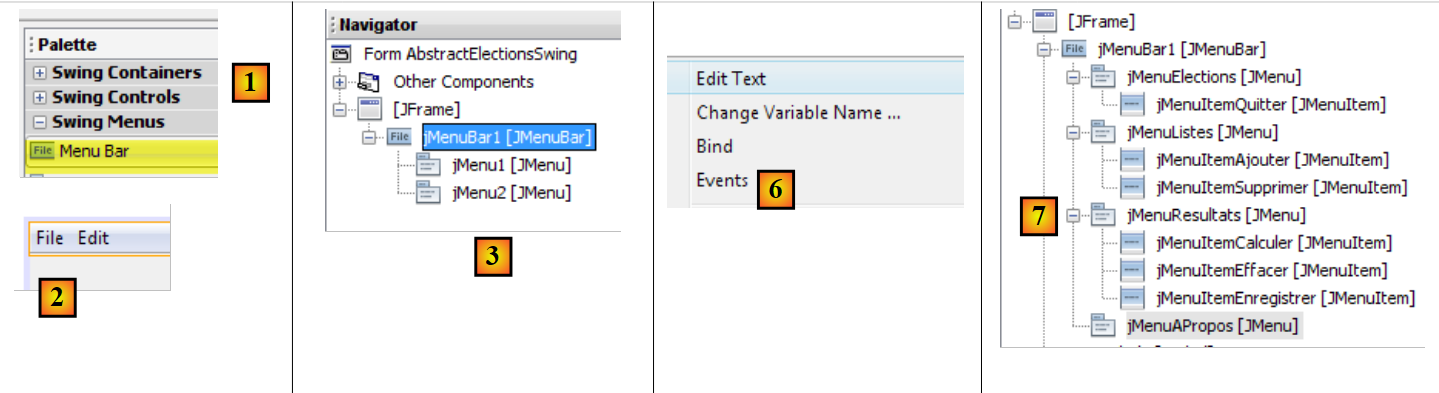 |
- [1, 2]: A [Menu Bar] component is placed on the window
- [3]: the default menu as shown in the [Navigator] tab
- [4,5,6]: by right-clicking on a menu option, you can:
- change its text [4], its name [5]
- manage its events [6]
- [7]: The desired menu
The desired menu is as follows:
Level 1 | Level 2 |
Elections | |
Exit | |
Lists | |
Add | |
Delete | |
Results | |
Calculate | |
Clear | |
Save | |
About |
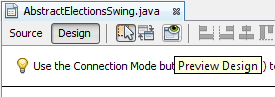
You can test the graphical interface at any time:
 |
When building the interface, you must associate an event handler with certain labels and menus [Add, Delete, ...]. Here’s how to do it:
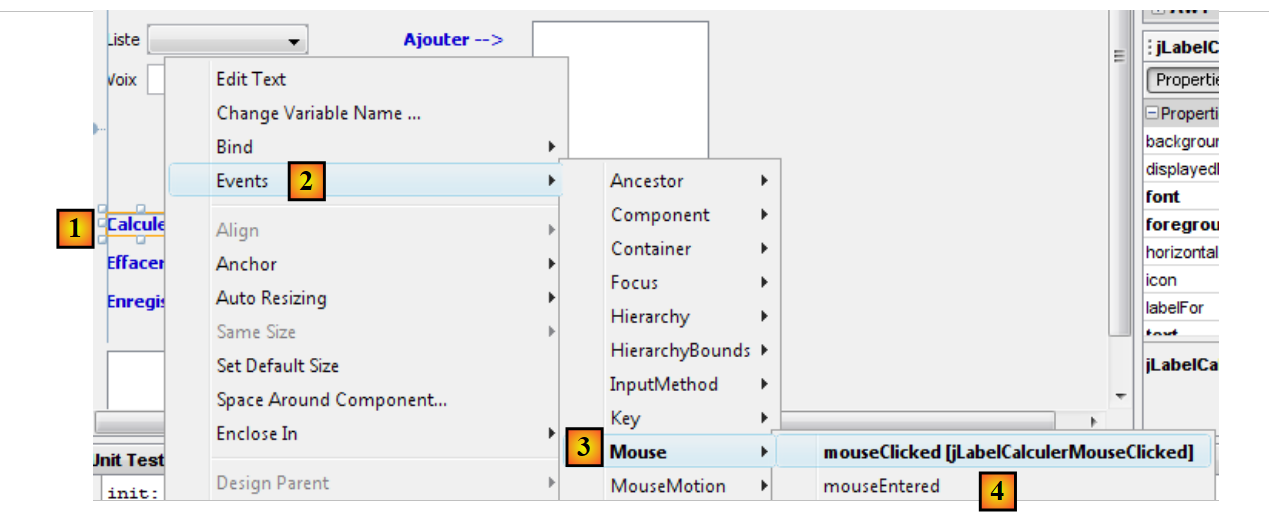 |
- [1]: Right-click on the component for which you want to manage an event
- [2]: Select the [Events] option
- [3]: Select an event category
- [4]: Select the event you want to handle
The Java code generated by this operation is as follows:
    jLabelCalculer.addMouseListener(new java.awt.event.MouseAdapter() {
      public void mouseClicked(java.awt.event.MouseEvent evt) {
        jLabelCalculerMouseClicked(evt);
      }
    });
...

  private void jLabelCalculerMouseClicked(java.awt.event.MouseEvent evt) {
    // TODO add your handling code here:
}
- Lines 1–5: An event handler is added to the jLabelCalculer component. The addMouseListener method expects as a parameter a class that implements the following MouseListener interface:
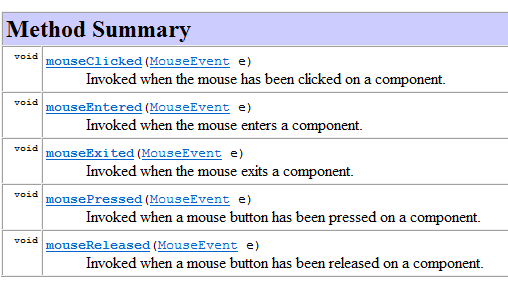 |
The MouseListener interface is implemented by various classes, including the MouseAdapter class. This class implements the five methods of the MouseListener interface, but these methods do nothing. Therefore, you must subclass this class to implement the method(s) of your choice. This is done in the code above and shown below:
    jLabelCalculer.addMouseListener(new java.awt.event.MouseAdapter() {
      public void mouseClicked(java.awt.event.MouseEvent evt) {
        jLabelCalculerMouseClicked(evt);
      }
});
The code above uses the anonymous class technique described in Section 2.5 of the course [ref1].
In line 1, the parameter of the addMouseListener method is an anonymous class, defined on the fly. It is an instance of a class derived from the MouseAdapter class (line 1), whose mouseClicked method is overridden (lines 2–4) so that it performs a specific action.
The jLabelCalculerMouseClicked method called on line 3 is defined as follows:
  private void jLabelCalculerMouseClicked(java.awt.event.MouseEvent evt) {
    // TODO add your handling code here:
}
The developer handles the "MouseClicked" event by placing code in this method.
All event handlers are generated by NetBeans in this way. The developer can ignore the lines of code generated by NetBeans to associate a method with a component's event. They can simply place their code on line 2 above. Here is an example:
  private void jLabelCalculerMouseClicked(java.awt.event.MouseEvent evt) {
    System.out.println("Mouse Clicked");
}
If you run the GUI and click the [Calculate] button, a message appears on the console:
 |
- [1]: Click the [Calculate] label twice
- [2]: The event handler was executed and produced the mouseClicked messages in the NetBeans console.
The components [jComboBoxNomsListes, jListNomsVoix, jListResultats] are declared as follows:
protected javax.swing.JComboBox jComboBoxNomsListes;
protected javax.swing.JList jListNomsVoix;
protected javax.swing.JList jListResultats;
These components are lists that are normally configured with a type T: the type of the elements in the model displayed by the components. This type T can be any type. The value displayed in the list component is of type [String]. By default, the [T.toString()] method is used for display. To better control what is displayed, the type T will be the String type here. Therefore, the correct declaration of our lists is as follows:
protected javax.swing.JComboBox<String> jComboBoxNomsListes;
protected javax.swing.JList<String> jListNomsVoix;
protected javax.swing.JList<String> jListResultats;
We achieve this result by modifying one of the component’s properties:
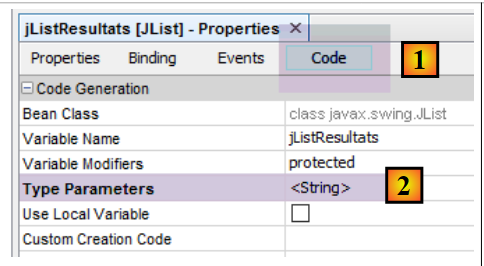 |
10.3.4. Code Separation
Let’s return to the structure of our application:
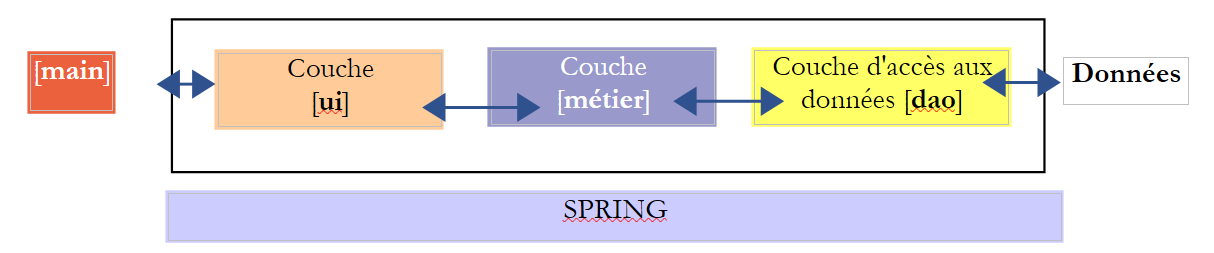 |
The [AbstractElectionsSwing] class must implement the [ui] layer above. Its code, generated by NetBeans, currently contains only window management code and event handlers that do nothing at this point. Above, we see that the [AbstractElectionsSwing] class will need to handle interactions with the [business] layer. This handling will take place in the event handlers. To clarify the code structure, we decide to place it in two classes:
- [AbstractElectionsSwing], which will remain as generated by NetBeans with a few minor changes. This class will not handle any events itself. The event handlers will be empty and declared abstract. They will be implemented by a class derived from [AbstractElectionsSwing].
- [ElectionsSwing], a class derived from [AbstractElectionsSwing] that will implement all event handlers.
This type of separation is not unusual. It can be found, for example, in ASP.NET web pages (non-MVC version). The NetBeans project evolves as follows:
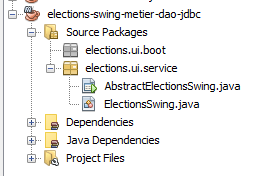 |
The code for the [AbstractElectionsSwing] class evolves as follows:
public abstract class AbstractElectionsSwing {
....
    private void jMenuItemCalculerActionPerformed(java.awt.event.ActionEvent evt) {
        doCalculer();
    }

...

    private void jLabelCalculerMouseClicked(java.awt.event.MouseEvent evt) {
        if (jLabelCalculer.isEnabled()) {
            doCalculer();
        }
    }

....
    // event managers
    abstract protected void doSupprimer();

    abstract protected void doCalculer();

    abstract protected void doQuitter();

    abstract protected void doEffacer();

    abstract protected void doEnregistrer();

    abstract protected void doAjouter();

    abstract protected void doInformer();

    abstract protected void doMajLabelAjouter();

    abstract protected void doMajLabelSupprimer();
...
}
- line 1: the class is declared abstract
- lines 3–5: handling the click on the menu option [jMenuItemCalculer]. We see that event handling is delegated to the doCalculer method on line 19. This method is not implemented and is declared abstract. It will be implemented by the derived class [ElectionsSwing];
- lines 9–13: the handler for the click event on the label [jLabelCalculer]. A click always triggers an event, whether the [jLabel] component is active (enabled=true) or inactive (enabled=false). Here, we ensure that it is indeed active to handle the event;
- lines 15 and beyond: this technique of delegating event handling to an abstract method is applied to all event handlers.
The [ElectionsSwing] class, derived from [AbstractElectionsSwing], implements all event handlers not implemented by [AbstractElectionsSwing]:
package elections.ui.service;;
...
public class ElectionsSwing extends AbstractElectionsSwing {

    // event managers

    @Override
    protected void doInformer() {
...
    }

    @Override
    protected void doAjouter() {
    ...
    }

    @Override
    protected void doCalculer() {
    ...
    }

    @Override
    protected void doEffacer() {
    ...
    }

    @Override
    protected void doEnregistrer() {
...
    }

    @Override
    protected void doQuitter() {
        System.exit(0);
    }

    @Override
    protected void doSupprimer() {
...
    }

    @Override
    protected void doMajLabelAjouter() {
...
    }

    @Override
    protected void doMajLabelSupprimer() {
...
    }

}
- line 3: [ElectionsSwing] extends [AbstractElectionsSwing]
- lines 7–50: the event handlers for the graphical window
The methods of the derived class [ElectionsSwing] will manipulate the components of the parent class [AbstractElectionsSwing]. Currently, these components have a private scope, preventing the child class [ElectionsSwing] from accessing them:
private JMenuItem jMenuItemAPropos = null;

private JLabel jLabelAjouter = null;
To resolve this issue, we will ensure that the scope of the GUI components is [protected]:
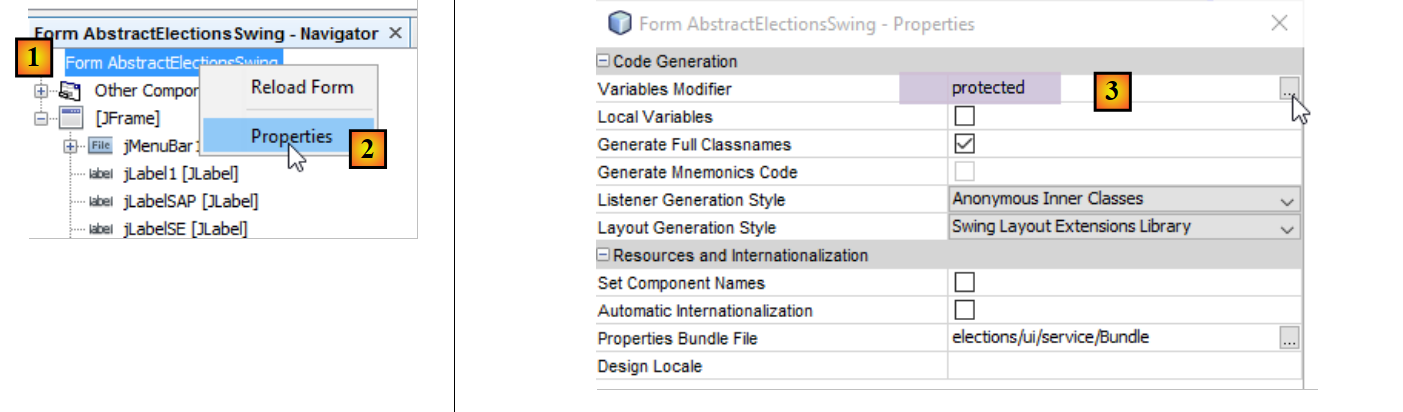 |
- set the [protected] attribute in [3];
10.3.5. Implementation of the [IElectionsUI] interface
Let’s return to the structure of our application:
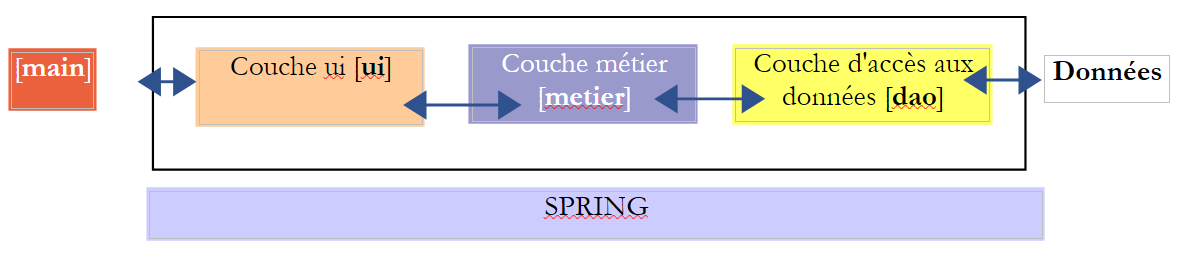 |
Above, the [ui] layer must present the [IElectionsUI] interface to the [main] object:
package elections.ui.service;

public interface IElectionsUI {
    /**
     * lance le dialogue avec l'utilisateur
     */
    public void run();
}
This interface was defined in the [elections-console-metier-dao-jdbc] project and described in Section 9.4. Since this project is a dependency of the [swing] project, this interface is known.
Because the [AbstractElectionsSwing] class has become abstract, it can no longer be instantiated by Spring. The [ElectionsSwing] class must now be instantiated instead. The [ElectionsSwing] class must implement the [IElectionsUI] interface. Its code therefore changes as follows:
public class ElectionsSwing extends AbstractElectionsSwing implements IElectionsUI {

    // interface [ElectionsUI] run method
    public void run() {
...
    }
- line 1: the [ElectionsSwing] class implements the [IElectionsUI] interface
- lines 4–6: the [run] method of this interface
What should the run method do? Display the GUI window. How do we do that? We can use the [main] method generated by NetBeans in the [AbstractElectionsSwing] class as a guide, which does exactly what we want:
public static void main(String args[]) {
    /* Set the Nimbus look and feel */
    //<editor-fold defaultstate="collapsed" desc=" Look and feel setting code (optional) ">
    /* If Nimbus (introduced in Java SE 6) is not available, stay with the default look and feel.
         * For details see http://download.oracle.com/javase/tutorial/uiswing/lookandfeel/plaf.html
     */
    try {
      for (javax.swing.UIManager.LookAndFeelInfo info : javax.swing.UIManager.getInstalledLookAndFeels()) {
        if ("Nimbus".equals(info.getName())) {
          javax.swing.UIManager.setLookAndFeel(info.getClassName());
          break;
        }
      }
    } catch (ClassNotFoundException ex) {
      java.util.logging.Logger.getLogger(NewJFrame.class.getName()).log(java.util.logging.Level.SEVERE, null, ex);
    } catch (InstantiationException ex) {
      java.util.logging.Logger.getLogger(NewJFrame.class.getName()).log(java.util.logging.Level.SEVERE, null, ex);
    } catch (IllegalAccessException ex) {
      java.util.logging.Logger.getLogger(NewJFrame.class.getName()).log(java.util.logging.Level.SEVERE, null, ex);
    } catch (javax.swing.UnsupportedLookAndFeelException ex) {
      java.util.logging.Logger.getLogger(NewJFrame.class.getName()).log(java.util.logging.Level.SEVERE, null, ex);
    }
    //</editor-fold>

    /* Create and display the form */
    java.awt.EventQueue.invokeLater(new Runnable() {
      public void run() {
        new NewJFrame().setVisible(true);
      }
    });
  }
The [AbstractElectionsSwing] constructor used on line 28 is as follows:
  public AbstractElectionsSwing() {
    initComponents();
}
- Line 2: The [initComponents] method is a private method generated by the GUI generator. Its code cannot be changed.
The [run] method of the [ElectionsSwing] class could then be as follows:
  @Override
  public void run() {
    // on affiche l'interface graphique
    SwingUtilities.invokeLater(new Runnable() {
      public void run() {
        init();
        setVisible(true);
      }
    });
}
- Line 6: The GUI is initialized using the [init] method. Here, we would like to call the [initComponents] method of the parent class, but it is private. We therefore add the following [init] method to the parent class [AbstractElectionsSwing]:
  protected void init(){
    initComponents();
}
- (continued)
- Because it is in the [AbstractElectionsSwing] class, the [init] method has access to the private [initComponents] method of the same class;
- because it has the [protected] attribute, it is visible in the child class [ElectionsSwing];
- line 7: the GUI is made visible;
Note: once the [run] method has been written in the [ElectionsSwing] class, the [main] method of the abstract class [AbstractElectionsSwing] can be removed.
10.3.6. The executable class
Let’s return to the structure of our application:
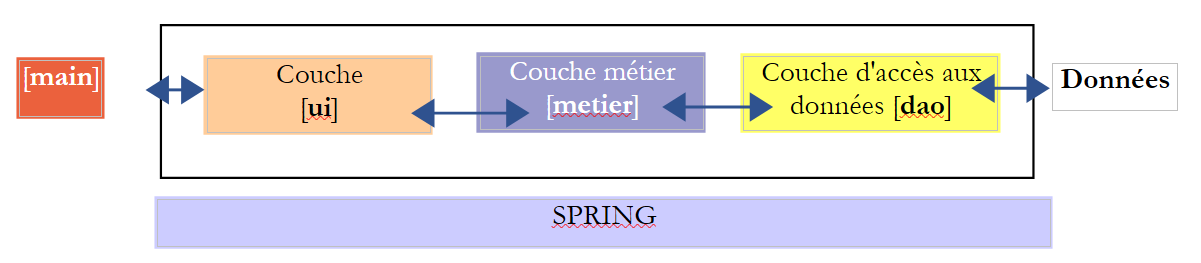 |
We would like Spring to instantiate the [ui] layer as it was done when it was implemented by a console application. To do this, the implementation class [ElectionsSwing] must have a reference to the [business] layer:
@Component
public class ElectionsSwing extends AbstractElectionsSwing implements IElectionsUI{

  // reference on the [business] layer
  @Autowired
  private IElectionsMetier metier;
...
- line 1: the [ElectionsSwing] class is a Spring component;
- lines 5–6: Spring injects a reference into the [business] layer;
The graphical user interface is launched by executing the following [BootElectionsSwing] class:
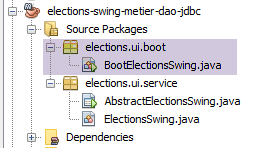 |
package elections.ui.boot;

import elections.ui.service.IElectionsUI;

public class BootElectionsSwing extends AbstractBootElections {
    public static void main(String[] arguments) {
        new BootElectionsSwing().run();
    }

    @Override
    protected IElectionsUI getUI() {
        return ctx.getBean("electionsSwing", IElectionsUI.class);
    }
}
We explained similar code in Section 9.5 when discussing the code for the [AbstractBootElections] and [BootElectionsConsole] classes. On line 12, we retrieve the bean named [electionsSwing], which corresponds to the standard Spring name for the [ElectionsSwing] class.
10.3.7. Initialization of the graphical user interface
When the GUI is displayed, some of its components have been initialized:
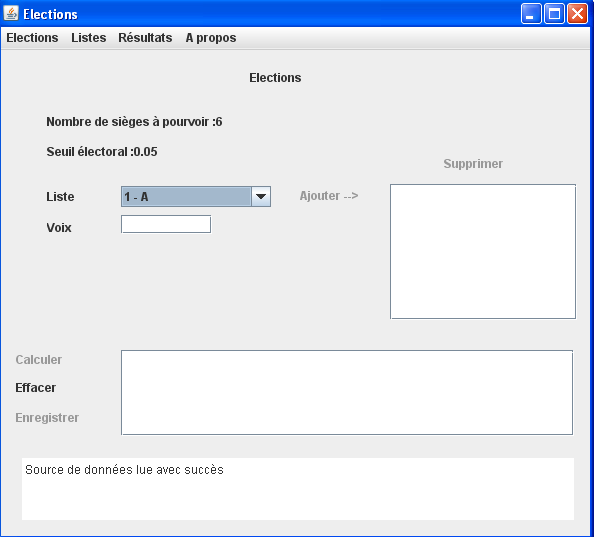
As shown above:
- that the combo box has been populated with the names of the lists;
- that the number of seats to be filled and the electoral threshold are displayed;
- that some links have been disabled;
- a success message is displayed at the bottom of the window;
When will these initializations take place? They can only occur after the [electionsMetier] field of the [ElectionsSwing] class has been initialized. This is because the list names will be requested from the [metier] layer. Spring will initialize this field in the following order:
- using the parameterless constructor of the [ElectionsSwing] class;
- injection of dependencies, in this case the reference to the [business] layer;
- execution of the [run] method of the [ElectionsSwing] class:
    @Override
    public void run() {
        // on affiche l'interface graphique
        SwingUtilities.invokeLater(new Runnable() {
            public void run() {
                init();
                setVisible(true);
            }
        });
}
- In line 12, we specified that we would call the [init] method of the parent class, which will draw the GUI components. We will override this method locally in the [ElectionsSwing] class. It is within this method that we will initialize the window components (combo boxes, labels) with data this time:
The local [init] method could have the following skeleton:
public class ElectionsSwing extends AbstractElectionsSwing implements IElectionsUI {

    ...
  // reference on the [business] layer
  @Autowired
  private IElectionsMetier metier;

    // initializations
    public void init() {
      // generation of components by the parent class
    super.init();

    // lists are requested from the [metier] layer
        ...
        // associate list names with the jComboBoxNomsListes combo
        ...
        // and election parameters
        ...
        // we initialize the labels linked to these two pieces of information
        ...
        // message of success
        ...
        // initialization status of certain components form
...
}
Note, on line 11, the call to the [init] method of the parent class.
10.3.8. The [Utilities] class
A number of static utility methods have been grouped together in the [Utilities] class:
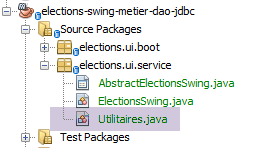 |
The [Utilities] class is as follows:
package istia.st.elections.ui;

import javax.swing.JLabel;
import javax.swing.JMenuItem;

//utility class
class Utilitaires {
    // manage label array status
    public static void setEnabled(JLabel[] labels, boolean value) {
        for (int i = 0; i < labels.length; i++) {
            labels[i].setEnabled(value);
        }
    }

    // manage the status of a table of menu options
    public static void setEnabled(JMenuItem[] menuItems, boolean value) {
        ...
    }

}
- Line 9: The setEnabled method sets the state of JLabel components defined in an array. The setEnabled method of a JLabel component allows you to enable or disable the JLabel.
Task: Following the example of the setEnabled method on line 9, write the setEnabled method on line 16 that does the same thing with *JMenuItem* components.
10.3.9. The code for the [ElectionsSwing] class
Let’s review the general structure of the [ElectionsSwing] class:
package istia.st.elections.ui;

...
public class ElectionsSwing extends AbstractElectionsSwing implements IElectionsUI {

  // reference on the [business] layer
  @Autowired
  private IElectionsMetier metier;


    // initializations
    public void init() {
    ...
    }

    // event managers

    @Override
    protected void doInformer() {
...
    }

    @Override
    protected void doAjouter() {
...
    }

    @Override
    protected void doCalculer() {
    ...
    }

    @Override
    protected void doEffacer() {
...
    }

    @Override
    protected void doEnregistrer() {
...
    }

    @Override
    protected void doQuitter() {
        System.exit(0);
    }

    @Override
    protected void doSupprimer() {
...
    }

    @Override
    protected void doMajLabelAjouter() {
    ...
    }

    @Override
    protected void doMajLabelSupprimer() {
...
    }

}
We will examine the methods of the class one by one.
10.3.9.1. The [init] method
Let’s go back to the graphical interface:
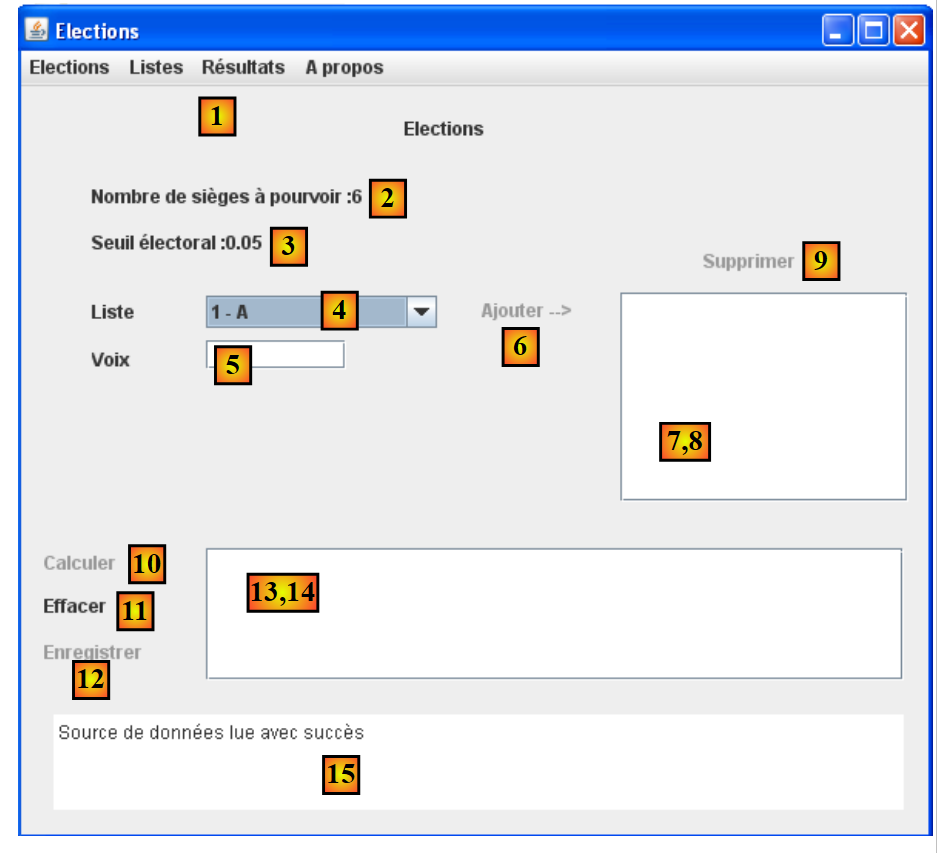 |
The [init] method has the following objectives:
- to populate the combo box [4] with the IDs and names of the lists in the format [ID - name]
- to display a success message in [15]
- to initialize labels [2] and [3]
- to disable certain links
The skeleton of the [init] method could be as follows:
@Override
    protected void init() {
        // génération des composants par la classe parent
        super.init();
        // initialisations locales
        modèleNomsVoix = new DefaultListModel<>();
        jListNomsVoix.setModel(modèleNomsVoix);
        modèleRésultats = new DefaultListModel<>();
        jListResultats.setModel(modèleRésultats);
        String info;
        try {
            // on demande les listes à la couche [métier]
            listes = ...
            // on associe les noms des listes au combo jComboBoxNomsListes
            ...
            // ainsi que les paramètres de l'election
            int nbSiegesAPourvoir = ...
            double seuilElectoral = ...
            // on initialise les labels liés à ces deux informations
            ...
            // message de succès
            info = "Source de données lue avec succès";
        } catch (ElectionsException ex1) {
            // on note l'error
            info = getInfoForException("Les erreurs suivantes se sont produites :", ex1);
        } catch (RuntimeException ex2) {
            // on note l'error
            info = getInfoForException("Les erreurs suivantes se sont produites :", ex2);
        }
        // on affiche l'info
        jTextPaneMessages.setText(info);
        jTextPaneMessages.setCaretPosition(0);
        // état formulaire
        Utilitaires.setEnabled(new JLabel[] { jLabelAjouter, jLabelCalculer, jLabelEnregistrer, jLabelSupprimer }, false);
        Utilitaires.setEnabled(
                new JMenuItem[] { jMenuItemAjouter, jMenuItemCalculer, jMenuItemEnregistrer, jMenuItemSupprimer }, false);
        // centrer la fenêtre
        Dimension screenSize = Toolkit.getDefaultToolkit().getScreenSize();
        Dimension frameSize = getSize();
        if (frameSize.height > screenSize.height) {
            frameSize.height = screenSize.height;
        }
        if (frameSize.width > screenSize.width) {
            frameSize.width = screenSize.width;
        }
        setLocation((screenSize.width - frameSize.width) / 2, (screenSize.height - frameSize.height) / 2);
    }

    private String getInfoForException(String message, ElectionsException ex) {
        // on affiche le message
        StringBuffer info = new StringBuffer(String.format("%s -------------\n", message));
        info.append(String.format("Code erreur : %d\n", ex.getCode()));
        // on affiche les erreurs
        for (String erreur : ex.getErreurs()) {
            info.append(String.format("-- %s\n", erreur));
        }
        return info.toString();
    }

    private String getInfoForException(String message, RuntimeException ex) {
        // on affiche le message
        StringBuffer info = new StringBuffer(String.format("%s -------------\n", message));
        // on affiche la pile des exceptions
        Throwable cause = ex;
        while (cause != null) {
            info.append(String.format("-- %s\n", cause.getMessage()));
            cause = cause.getCause();
        }
        return info.toString();
    }
Task: Complete the code for the [init] method.
Read in the course: JTextField and JLabel components
Note:
A JList component displays the data in a model. By default, this model is of type DefaultListModel (lines 2 and 3). A DefaultListModel object behaves somewhat like an ArrayList:
- To add an object o to the model:
[DefaultListModel].addElement(Object o);
In this application, the object o will always be of type String.
- To remove element i from the model:
[DefaultListModel].remove(int i);
- To retrieve element i from the model:
[DefaultListModel].elementAt(int i);
To add an item to the [jComboBoxNomsListes] combo box, use the [addItem] method:
jComboBoxNomsListes.addItem(chaîne de caractères)
A JTextPane component has the getText() and setText() methods to read/write the displayed text.
10.3.9.2. Managing the state of the [Add] link
The [Add] button [6] is only active when the [5] field for votes is not empty. In the [AbstractElectionsSwing] class, the handler that tracks cursor movements in the [5] field is as follows:
  private void jTextFieldVoixListeCaretUpdate(javax.swing.event.CaretEvent evt) {
    doMajLabelAjouter()
}
Line 2 calls the [doMajLabelAjouter] method of the [ElectionsSwing] class.
    protected void doMajLabelAjouter() {
        // on fixe l'état du label [jLabelAjouter]
        ...
        // on fixe l'état du menu [jMenuItemAjouter]
        ...
}
Task: Complete the code for the [doMajLabelAjouter] method.
10.3.9.3. Assign votes to each list
For each candidate list from (4), proceed as follows:
- select a list from (4)
- enter the number of votes in (5)
- confirm by clicking the [Add] link
Input errors are flagged as shown in the following example:
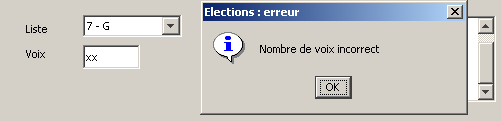
If the number of votes is correct, the list is added to component (8), the number of votes is cleared, and the [Add] link is disabled:
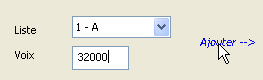 | 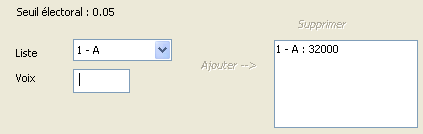 |
In the [AbstractElectionsSwing] class, the handler that handles the click on the [Add] link is as follows:
    private void jLabelAjouterMouseClicked(java.awt.event.MouseEvent evt) {
        if (jLabelAjouter.isEnabled()) {
            doAjouter();
        }
}
Line 3 calls the [doAjouter] method of the [ElectionsSwing] class:
  // modèles des listes JList
  private DefaultListModel<String> modèleNomsVoix = null;
  private DefaultListModel<String> modèleRésultats = null;

  // les listes en compétition
  private ListeElectorale[] listes;

  // listes saisies par l'user
  private final List<ListeElectorale> listesSaisies = new ArrayList<>();
  private ListeElectorale[] tListesSaisies;
...
  @Override
  protected void doAjouter() {
    // le nombre de voix est-il correct ?
    ...
    // si erreur, alors on la signale
    if (erreur) {
      JOptionPane.showMessageDialog(null, "Nombre de voix incorrect", "Elections : erreur",
              JOptionPane.INFORMATION_MESSAGE);
      jTextFieldVoixListe.requestFocus();
      // retour à l'graphic interface
      return;
    }
    // pas d'error - save the list
    listesSaisies.add(...);
    modèleNomsVoix.addElement(...);
    // on nettoie le nombre de voix
    jTextFieldVoixListe.setText("");
    // état formulaire (menus, labels)
...
}
- Line 25: Every time the user adds voices to a list and confirms their selection, this list is stored in the [listesSaisies] field on line 9. The list is saved there with the information [id, version, name, voice]. The first three pieces of information come from the lists initially stored in the array on line 6. The combo box’s [getSelectedIndex] method returns the index of the selected list;
Task: Complete the code for the [doAjouter] method.
10.3.9.4. Manage the status of the [Delete] link
The [Delete] link [9] is active only when an item is selected in [8].
In the [AbstractElectionsSwing] class, the handler that responds to a click on an item in list [8] is as follows:
  private void jListNomsVoixValueChanged(javax.swing.event.ListSelectionEvent evt) {
    doMajLabelSupprimer();
}
Line 2 calls the [doMajLabelSupprimer] method of the [ElectionsSwing] class.
    @Override
    protected void doMajLabelSupprimer() {
            // on allume le label [jLabelSupprimer] et l'corresponding menu option
            ...
}
Task: Complete the code for the [doMajLabelSupprimer] method.
10.3.9.5. Delete a candidate list
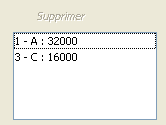
The [Delete] link [9] allows you to delete the (name,vote) pair selected in (8). Once the deletion is complete, the [Delete] link is disabled. It will only be enabled again when a new list is selected in (8).
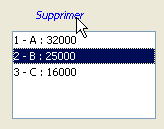 |  |
In the [AbstractElectionsSwing] class, the handler that responds to a click on the [Delete] link is as follows:
  private void jLabelSupprimerMouseClicked(java.awt.event.MouseEvent evt) {
    if(jLabelSupprimer.isEnabled()){
      doSupprimer();
    }
}
Line 3 calls the [doSupprimer] method of the [ElectionsSwing] class.
@Override
    protected void doSupprimer() {
        // suppression de la liste sélectionnée, du modèle modèleNomsVoix et des listes saisies
        ...
        // maj de l'status of labels and form menu options
        Utilitaires.setEnabled(...);
    ...
}
Work to be done: complete the code for the [doSupprimer] method.
10.3.9.6. Manage the state of the [Calculate] link
The [Calculate] link [10] is active only when there is at least one item in [8].
Task: Add the necessary code to handle this link in the [doAdd] and [doDelete] methods written earlier. The corresponding menu option will also be handled.
Note: The number of items in a DefaultListModel is obtained using the size() method.
10.3.9.7. Calculate Seats
The [Calculate] link [10] allows you to start the seat calculation and display the results in (14). If the calculation fails (all lists have been eliminated), an error message is displayed in [15]. In any case, after the calculation, the [Calculate] link [10] is disabled.
In the [AbstractElectionsSwing] class, the handler that responds to a click on the [Calculate] link is as follows:
  private void jLabelCalculerMouseClicked(java.awt.event.MouseEvent evt) {
    if(jLabelCalculer.isEnabled()){
      doCalculer();
    }
}
Line 3 calls the [doCalculer] method of the [ElectionsSwing] class.
  // listes saisies par l'utilisateur
  private final List<ListeElectorale> listesSaisies = new ArrayList<>();
  private ListeElectorale[] tListesSaisies;

...
  @Override
  protected void doCalculer() {
    tListesSaisies = listesSaisies.toArray(new ListeElectorale[0]);
    // calcul des sièges
    try {
      ...
    } catch (ElectionsException ex) {
      // on affiche l'exception
      ...
      return;
    }
    // affichage des résultats
    ...
    // maj état formulaire
    Utilitaires.setEnabled(...);
}
Task: Complete the code for the [doCalculer] method.
10.3.9.8. Save the results to the data source
The [Save] link (12) allows you to save the seat calculation results to the data source. Once the save is successful, the [Save] link is disabled. If the save fails, an error message is displayed in [15]. In either case, the [Save] link is then disabled.
In the [AbstractElectionsSwing] class, the handler that manages the click on the [Save] label is as follows:
  private void jLabelEnregistrerMouseClicked(java.awt.event.MouseEvent evt) {
    if(jLabelEnregistrer.isEnabled()){
      doEnregistrer();
    }
}
Line 3 calls the [doEnregistrer] method of the [ElectionsSwing] class:
@Override
    protected void doEnregistrer() {
        // on demande l'enregistrement à la couche métier
        try {
            ...
        } catch (ElectionsException ex) {
            // on affiche l'exception
            ...
            // retour à l'interface graphique
            return;
        }
        // maj du formulaire
        Utilitaires.setEnabled(...);
...
}
Task: Complete the code for the [doEnregistrer] method.
10.3.9.9. Clear results
The [Clear] link (11) clears the results displayed in (14).
In the [AbstractElectionsSwing] class, the handler that manages the click on the [Clear] label is as follows:
  private void jLabelEffacerMouseClicked(java.awt.event.MouseEvent evt) {
    if(jLabelEffacer.isEnabled()){
      doEffacer();
    }
}
Line 3 calls the [doEffacer] method of the [ElectionsSwing] class:
    @Override
    protected void doEffacer() {
        // on vide la liste des résultats
        ....
        // maj du formulaire
        Utilitaires.setEnabled(...);
}
Task: Complete the code for the [doEffacer] method.
Note: The DefaultListModel class has a clear() method that removes all its elements.
10.3.10. Improvements
The previous graphical interface can be improved in various ways: the user might forget to enter the votes for all the lists present in the combo box, and they might also accidentally enter the votes for the same list multiple times.
Task: Improve the algorithm so that neither of these cases can occur. A simple solution is to maintain a dictionary of the entered lists, where the keys are the combo box’s items. We will also ensure that the [Calculate] button is enabled only when all lists have been entered.
See the course [ref1]: the HashTable class in section 3.8.