22. Appendices
Here we describe how to install the tools used in this document on Windows 7 or 8 machines. The screenshots generally show the 64-bit versions of the SGBD and installed tools. The reader should adapt to their own environment.
22.1. Installing JDK
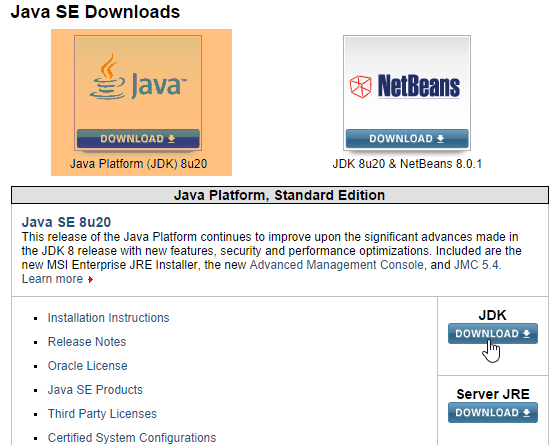
The URL is based on [http://www.oracle.com/technetwork/java/javase/downloads/index.html] (October 2014), while JDK is the most recent version. We will refer to the JDK installation directory as <jdk-install>.
 |
22.2. Installing Maven
Maven is a tool for managing dependencies in a Java project and more. It is available (October 2014) at URL [http://maven.apache.org/download.cgi].
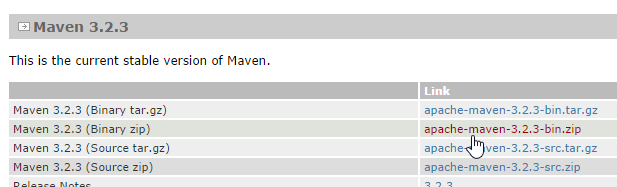 |
Download and unzip the archive. We will refer to the Maven installation folder as <maven-install>.
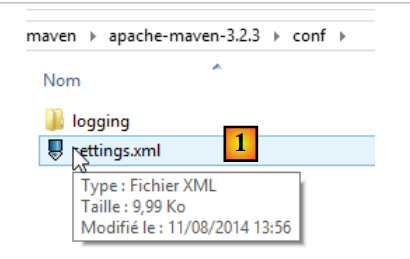 |
- In [1], the file [conf / settings.xml] configures Maven;
It contains the following lines:
  <!-- localRepository
   | The path to the local repository maven will use to store artifacts.
   |
   | Default: ${user.home}/.m2/repository
  <localRepository>/path/to/local/repo</localRepository>
-->
The default value on line 4 may cause issues for some software using Maven if, like me, your {user.home} has a space in its path (for example, [C:\Users\Serge Tahé]). We will specify (line 7) a different folder for the local Maven repository:
  <!-- localRepository
   | The path to the local repository maven will use to store artifacts.
   |
   | Default: ${user.home}/.m2/repository
  <localRepository>/path/to/local/repo</localRepository>
  -->
<localRepository>D:\Programs\devjava\maven\.m2\repository</localRepository>
On line 7, avoid using a path that contains spaces.
22.3. Installing STS (Spring Tool Suite)
We will install SpringSource Tool Suite [http://www.springsource.com/developer/sts] (October 2014), an Eclipse environment pre-configured with numerous plugins related to the Spring framework and also with a pre-installed Maven configuration.
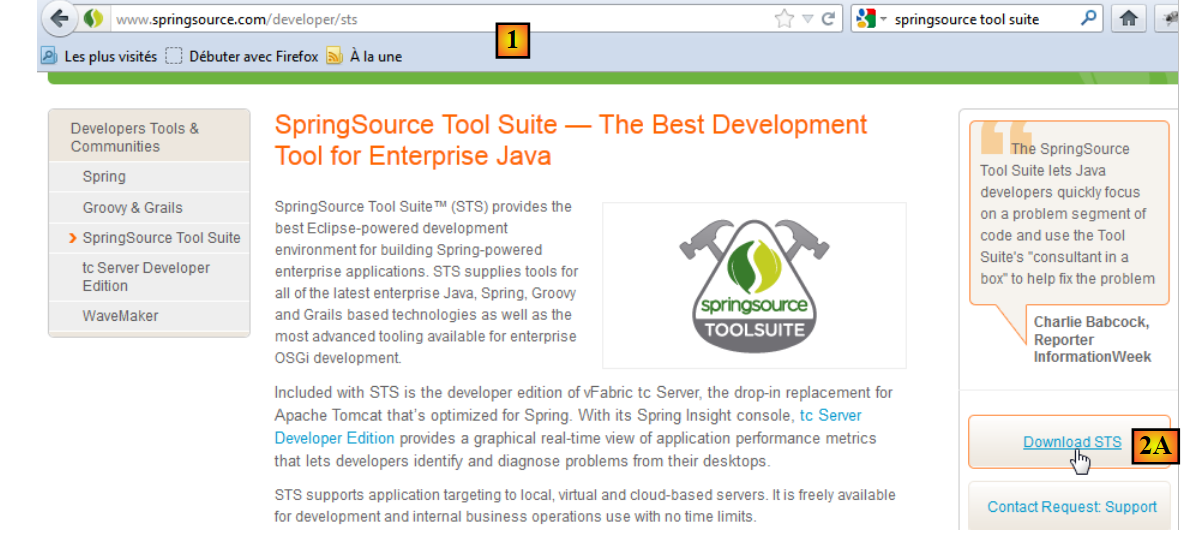 |
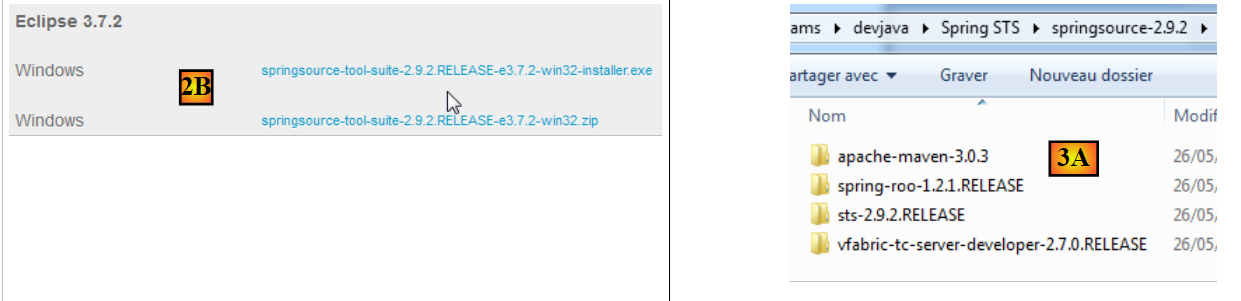
- Go to the SpringSource Tool Suite (STS) website [1], to download the current version of version from STS [2A] [2B],
 |
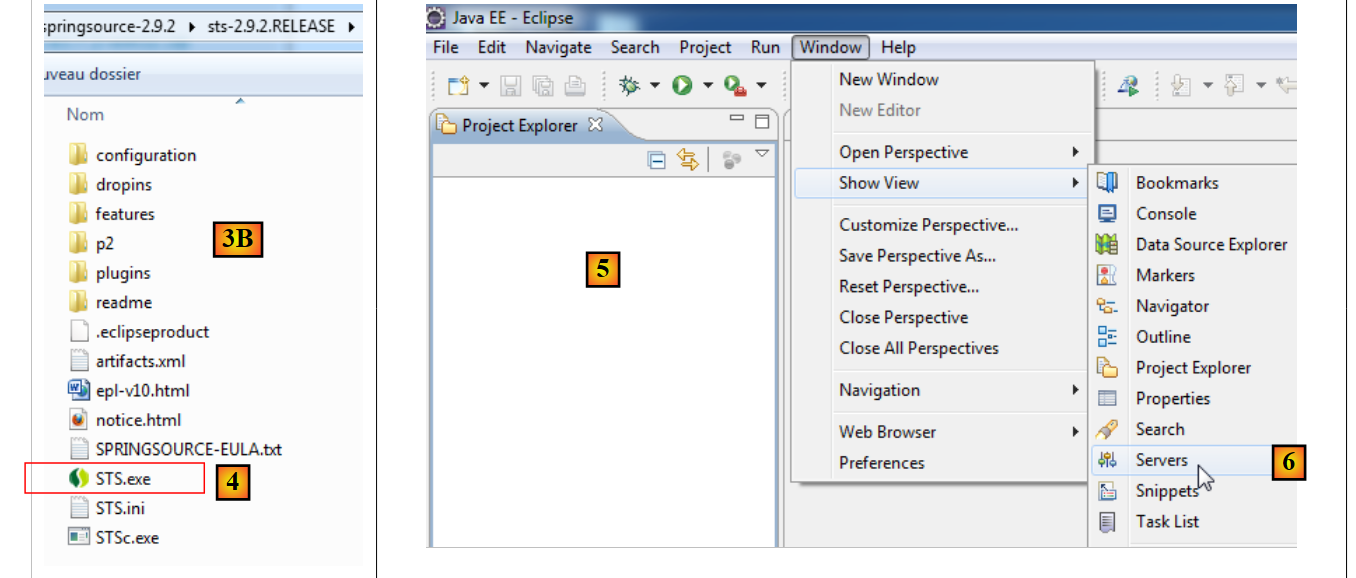 |
- the downloaded file is an installer that creates the [3A] [3B] file tree. In [4], launch the executable,
- in [5], the IDE work window appears after closing the welcome window. In [6], the application servers window is displayed,
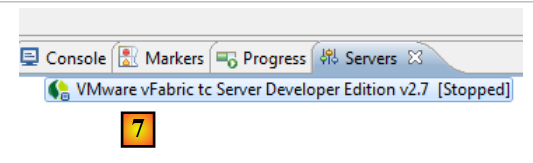 |
- in [7], the servers window. A server is registered. It is a Tomcat-compatible VMware server.
You must specify the Maven installation directory in STS:
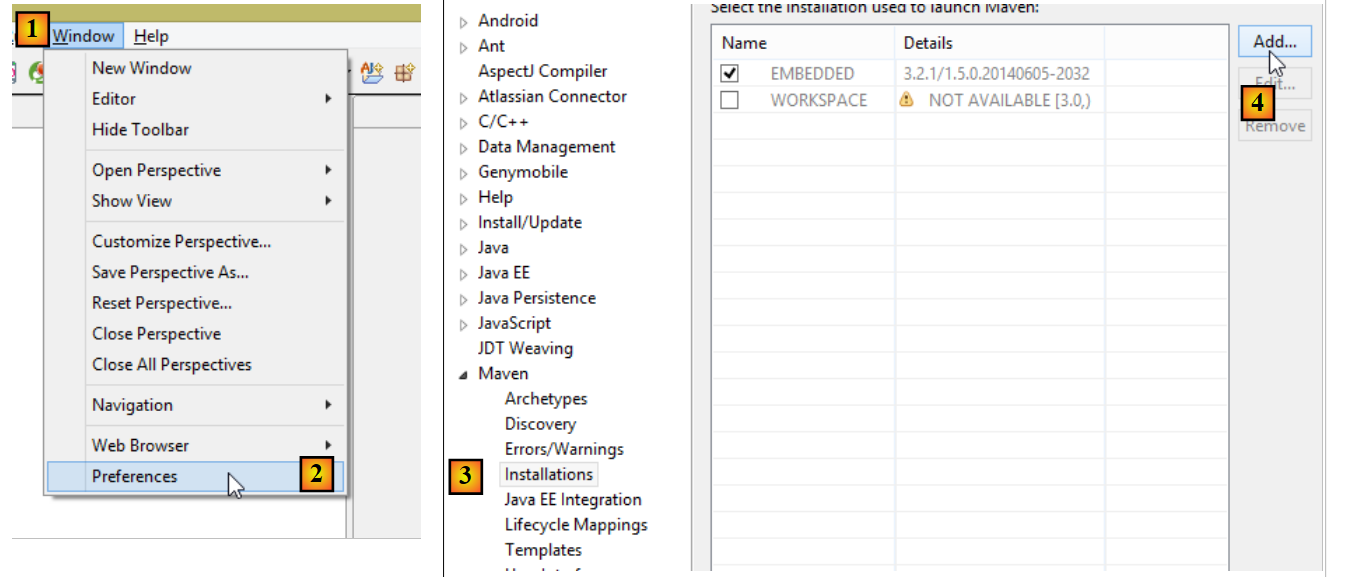 |
- in [1-2], configure STS;
- in [3-4], add a new Maven installation;
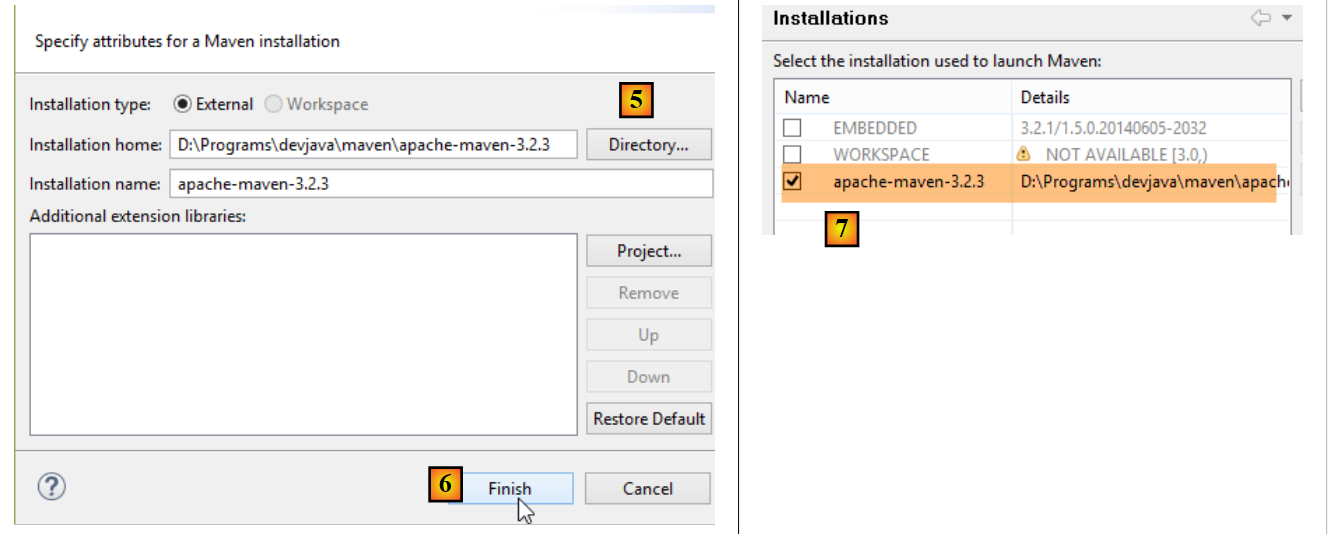 |
- In [5], specify the Maven installation directory;
- In [6], we finish the wizard;
- In [7], set the new Maven installation as the default;
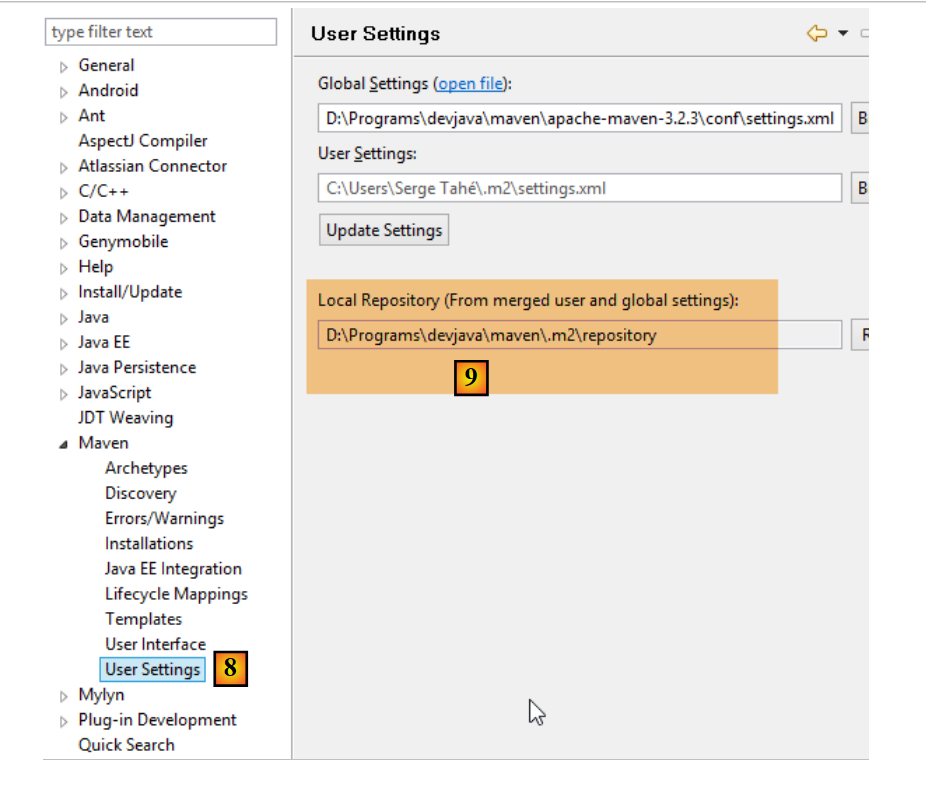 |
- In [8-9], verify the local Maven repository—the folder where it will store the dependencies it downloads and where STS will place the artifacts that will be built;
You must also select a JDK (Java Development Kit) to run both Eclipse projects with and without Maven [1-5].
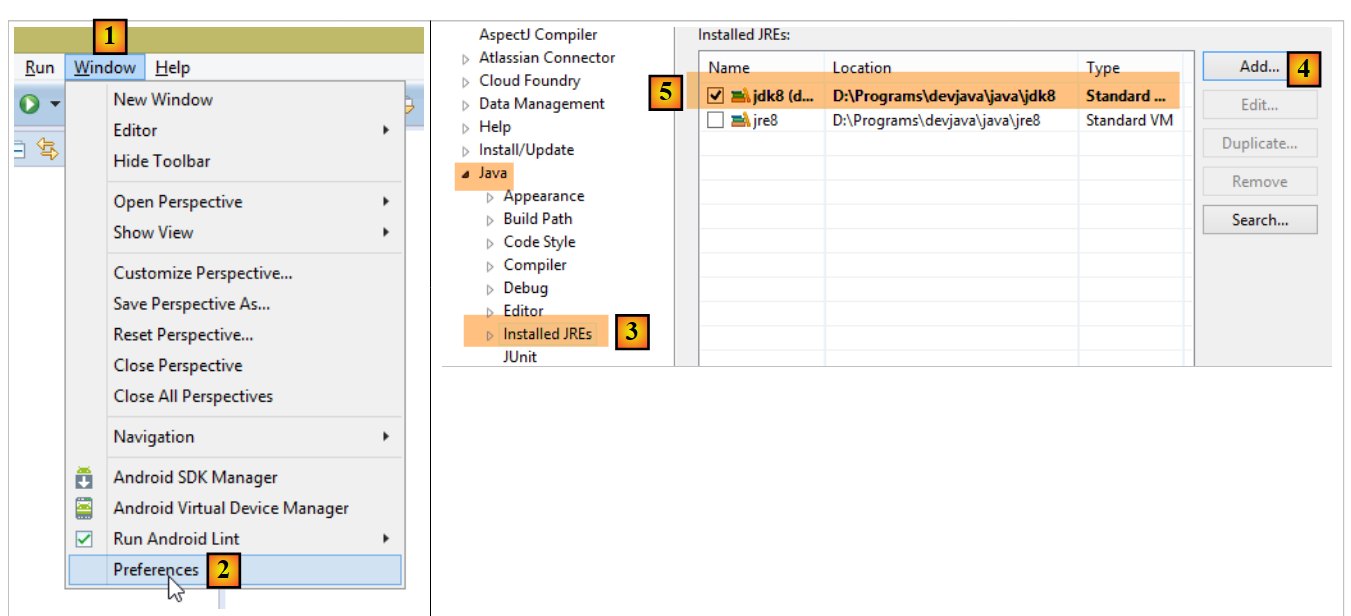 |
With [4], you can add JDK (Java Development Kit) or JRE (Java Runtime Environment). The latter can execute .class files but cannot compile .java files to produce them. JDK can do both. We will choose JDK because certain Maven operations require JDK.
To create an Eclipse project, proceed as follows:
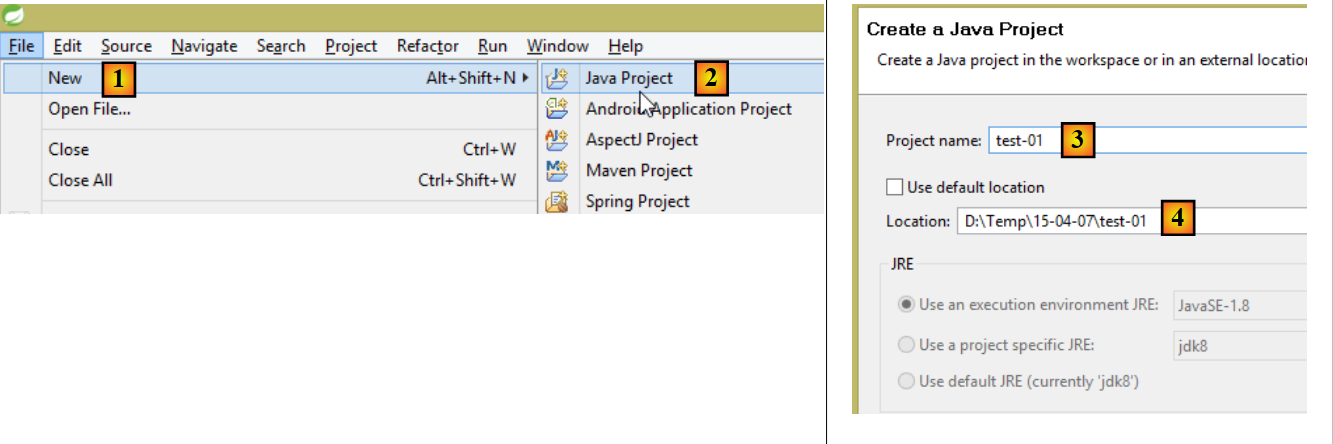 |
- In [3], give the project a name;
- in [4], select an existing, empty folder;
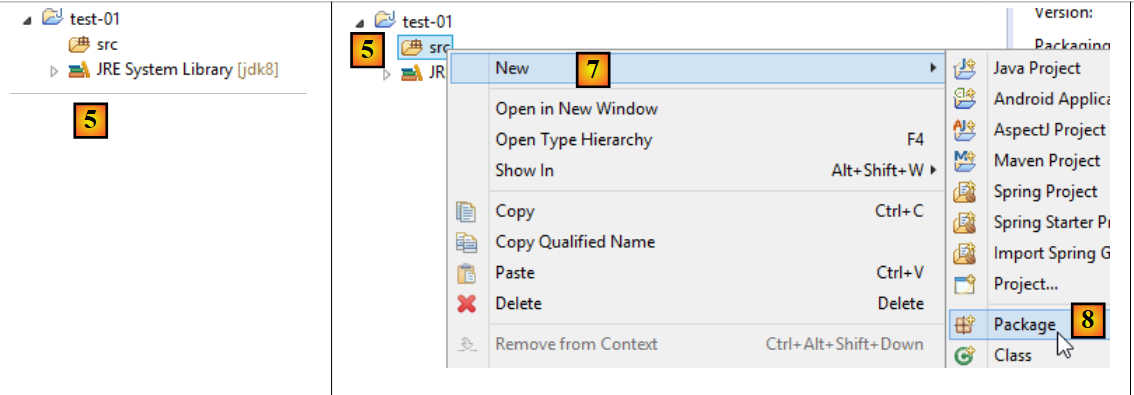 |
- in [5], the project is created;
- In [5-8], create a package. A package is a folder that contains Java code. Two classes can have the same name if they belong to different packages. Within a project, there cannot be two packages with the same name. Therefore, you cannot use a package name that already exists in one of the project’s dependencies. A company will use a package name that specifies the company, the project, and its various branches;
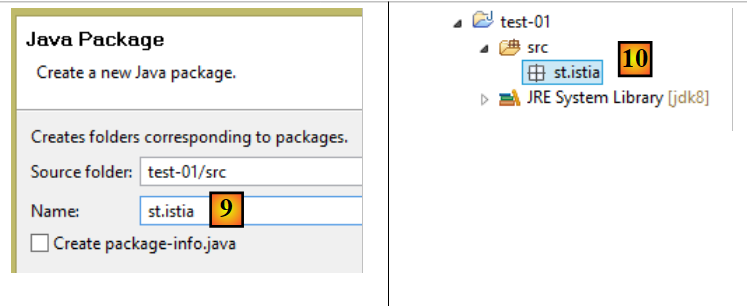 |
- In [9], give the package a name;
- In [10], the package is created;
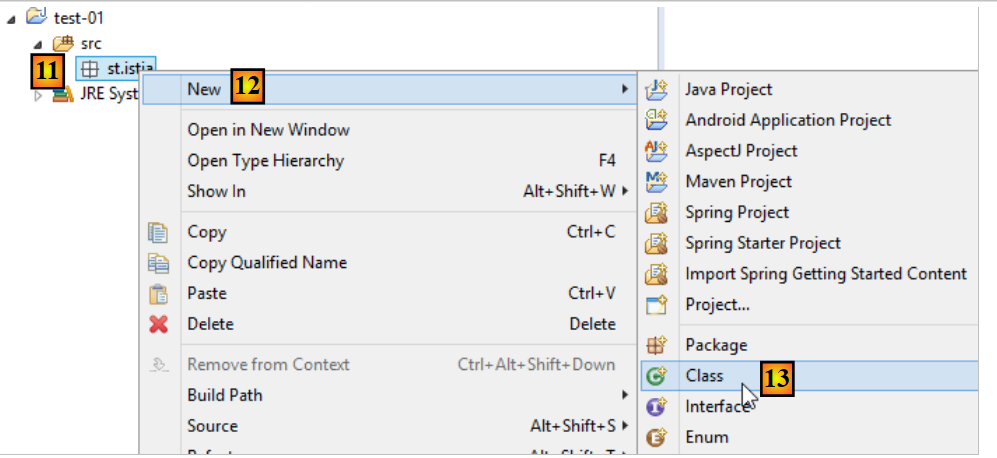 |
- In [11-13], create a class in the package that was created;
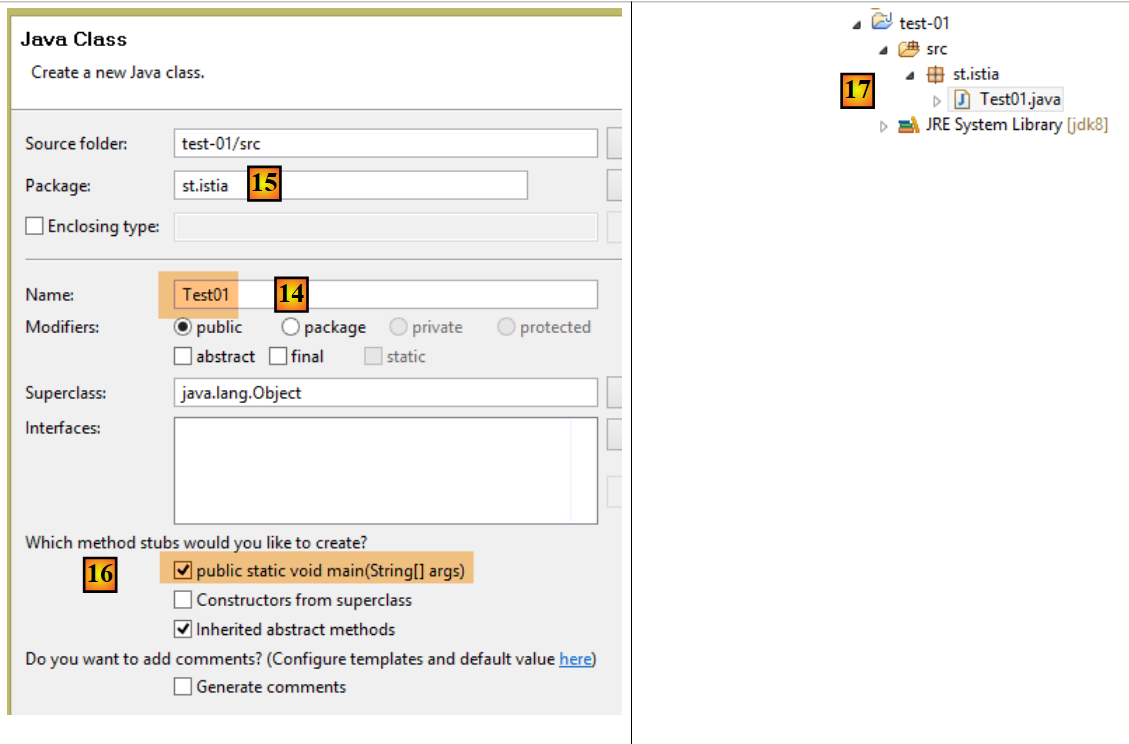 |
- In [14], give the class a name (must comply with the CamelCase standard—each word in the name must begin with a capital letter followed by lowercase letters);
- In [15], verify the package;
- In [16], check the box. This requests that the static method [main] be generated. This method makes a class executable, i.e., the first class to be executed in a project;
- In [17], the class created this way;
In the [main] method, enter the following code, which displays text on the console:
package st.istia;

public class Test01 {

    public static void main(String[] args) {
        System.out.println("test01");
    }

}
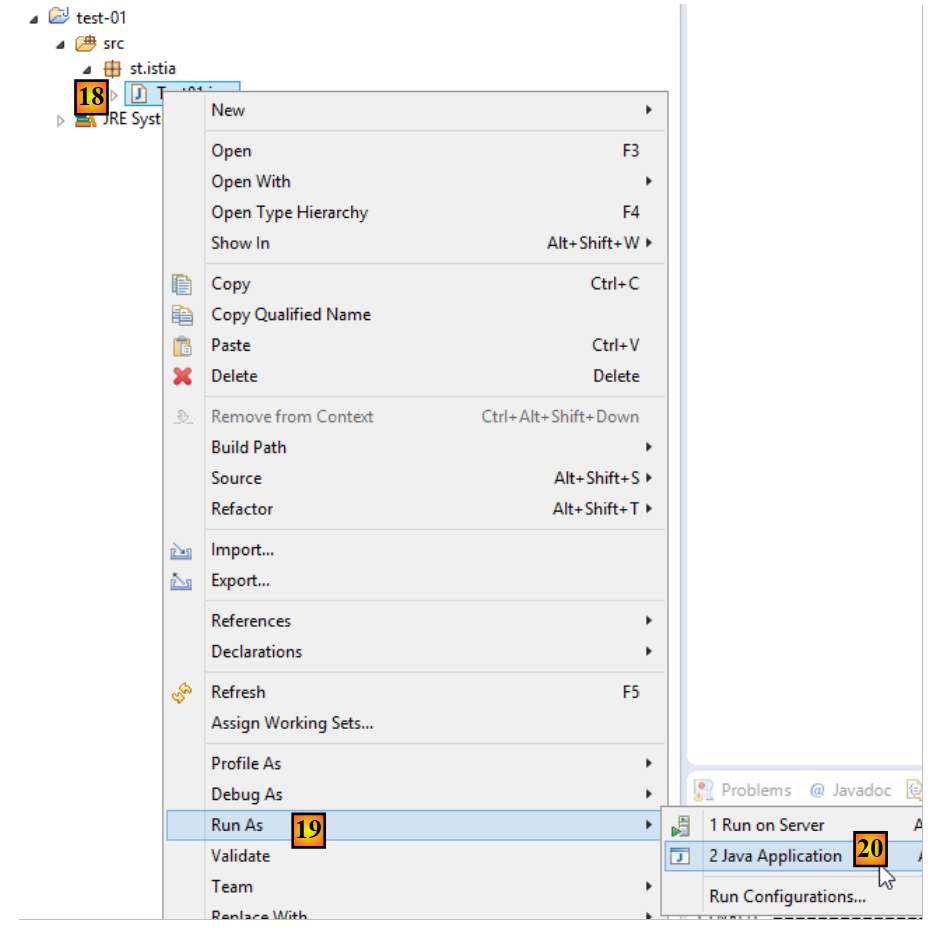 |
- in [18-20], run the class. Its method [main] will then be executed;
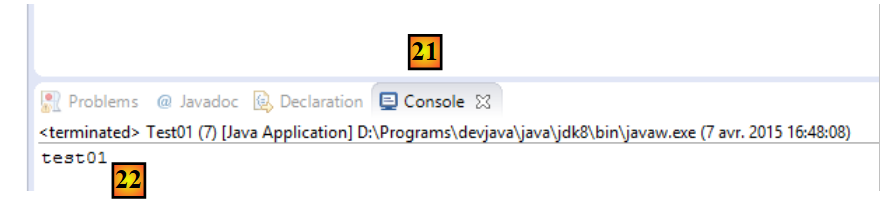 |
- in [21-22], the result of the application;
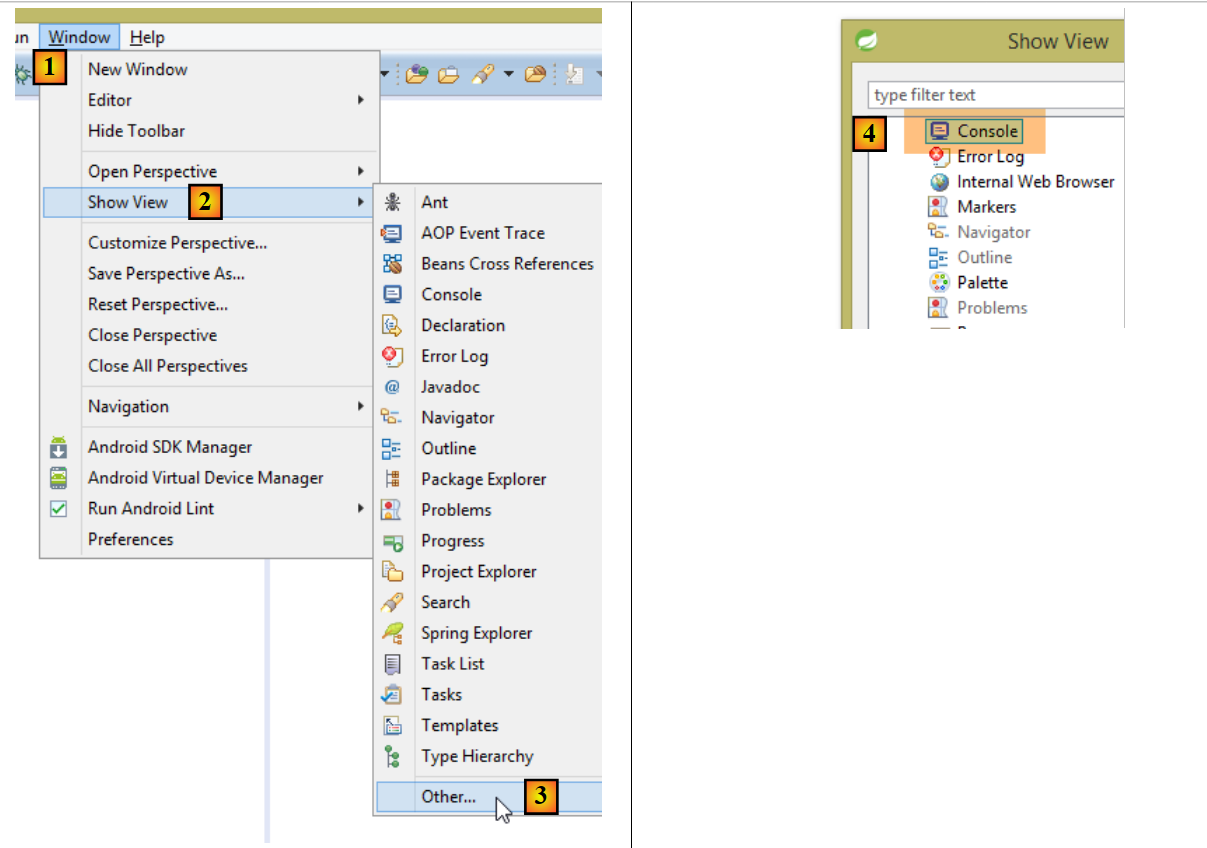
If the [Console] view is not present, proceed as follows [1-4]:
 |
When importing an Eclipse project, it may contain errors. This may be due to an incorrect project configuration. To correct the error (if there is one), proceed as follows:
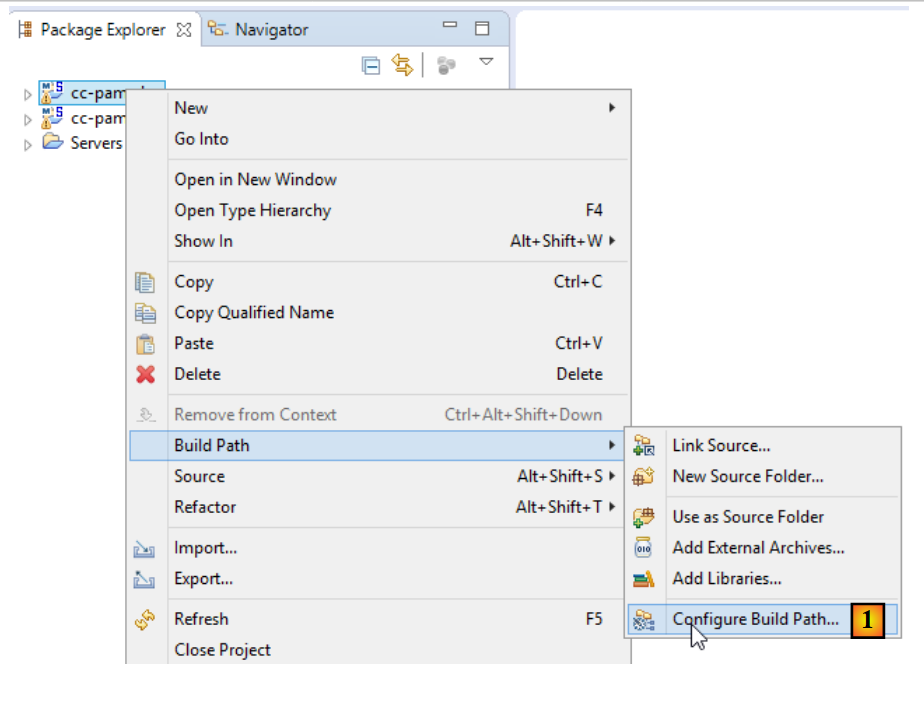 |
- In [1], modify the project’s [Build Path];
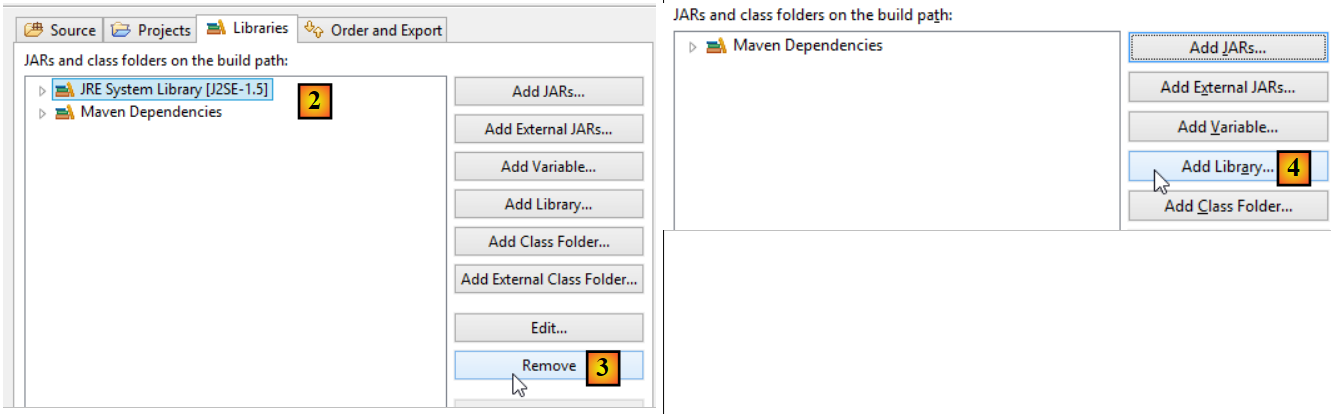 |
- In [2], the project is configured to use a JVM 1.5;
- In [3], remove this dependency;
- in [4], add a new dependency;
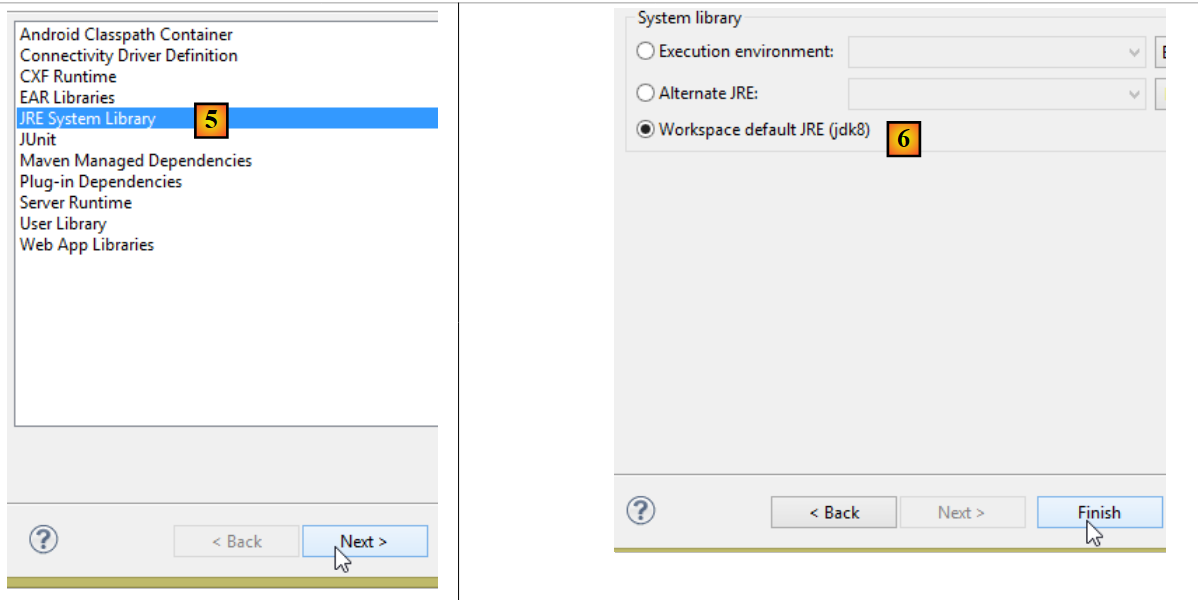 |
- In [5], add a JVM;
- In [6], select the JVM from the item;
Once this is done, validate everything and then move on to the [Java compiler] property of the [7] project:
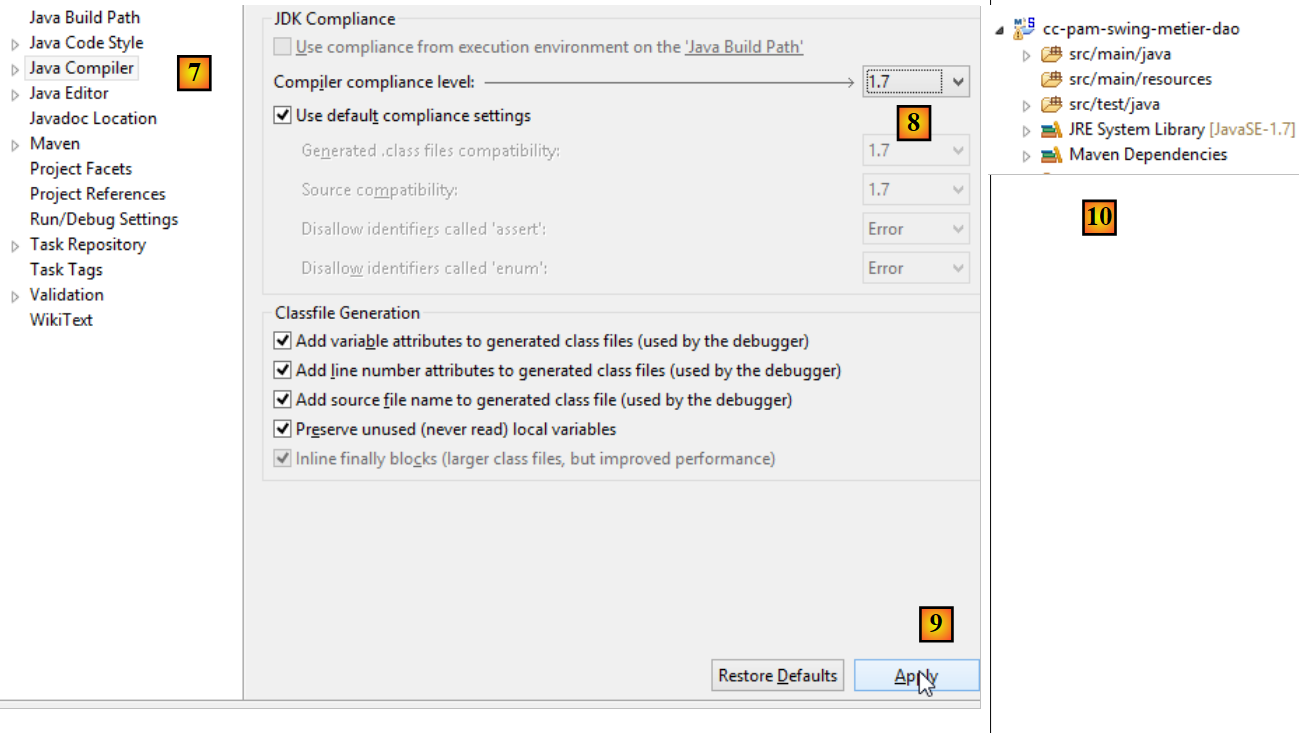 |
- In [8], instruct the compiler to accept all Java language features up to and including version 1.7 (or 1.8);
- In [9], we validate;
- In [10], the reconfigured project should no longer contain any errors;
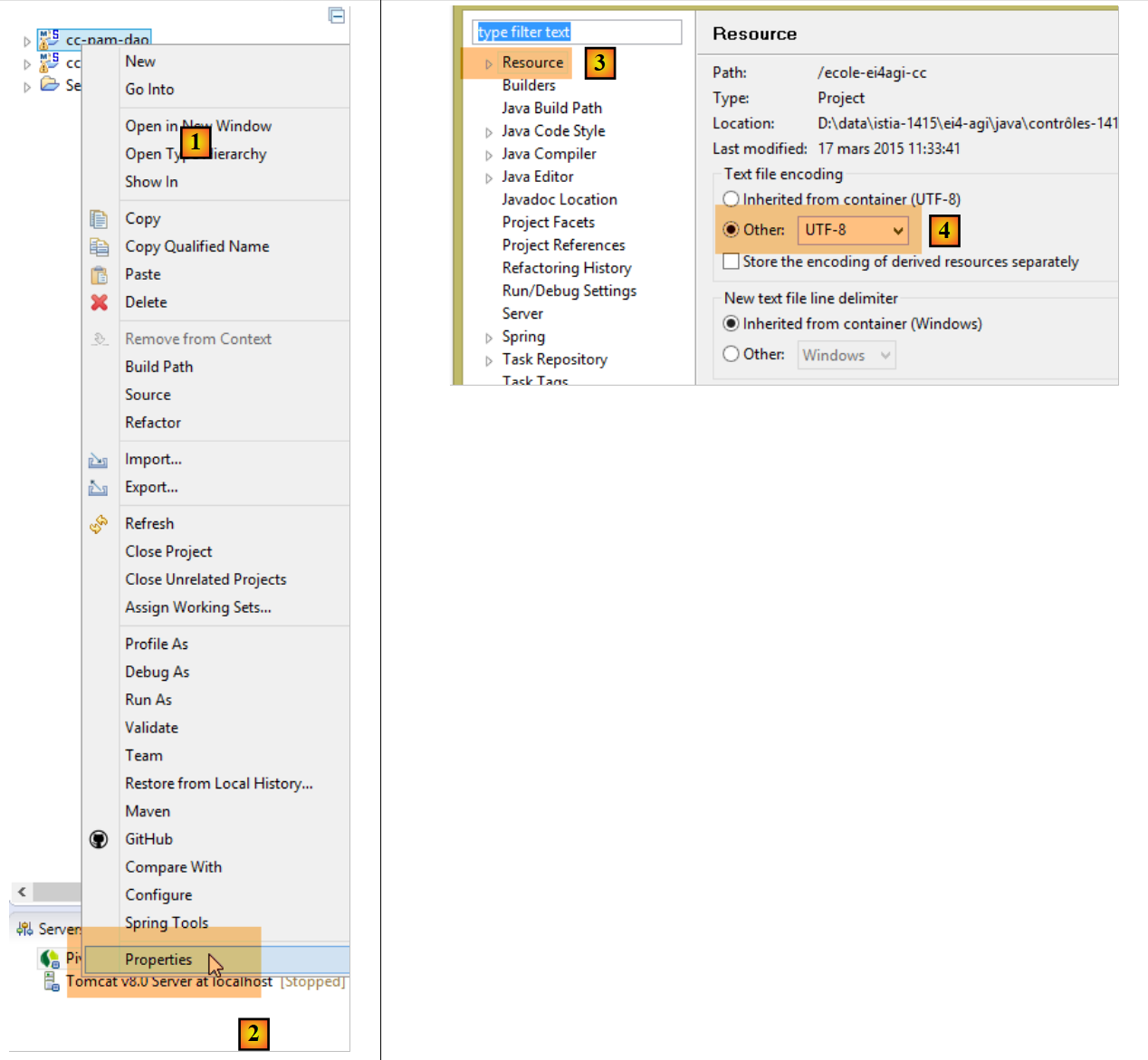
Additionally, the imported project may use UTF-8 character encoding. Follow these steps to set this encoding in the imported project:
 |
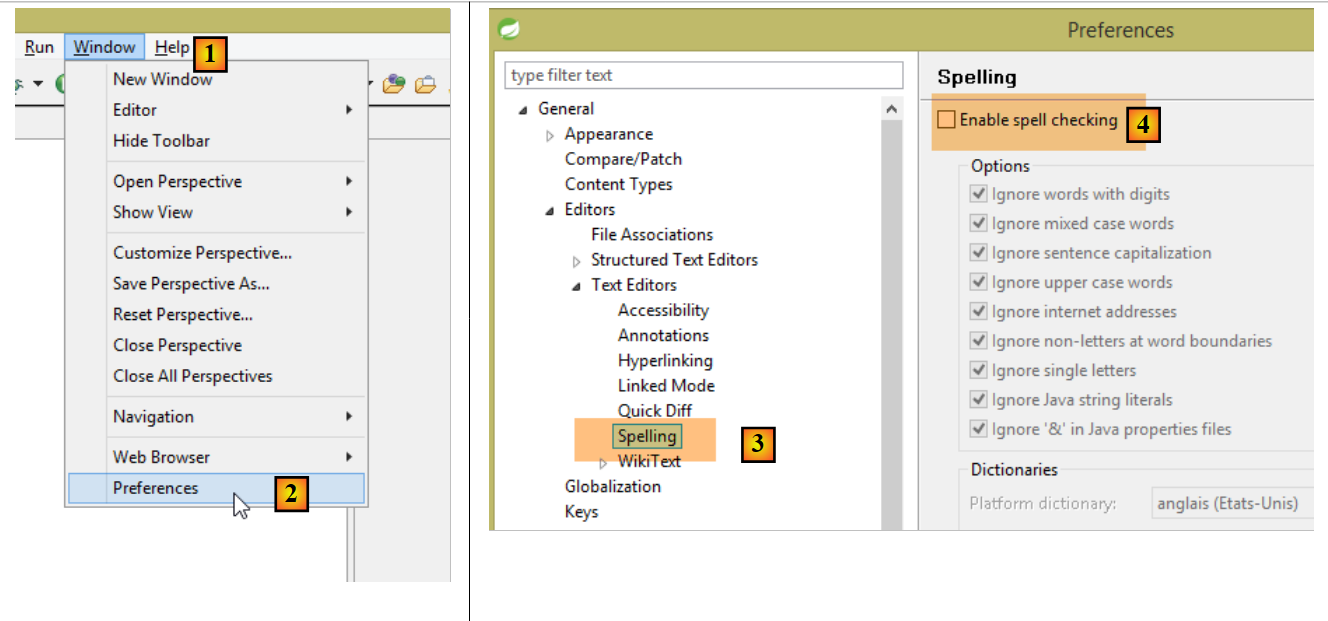
Additionally, it may be helpful to disable spell checking in the project to prevent French comments from being underlined as incorrect. Follow the steps below:
 |
22.4. Installation of IDE Netbeans
Netbeans is available at URL [http://netbeans.org/downloads/].
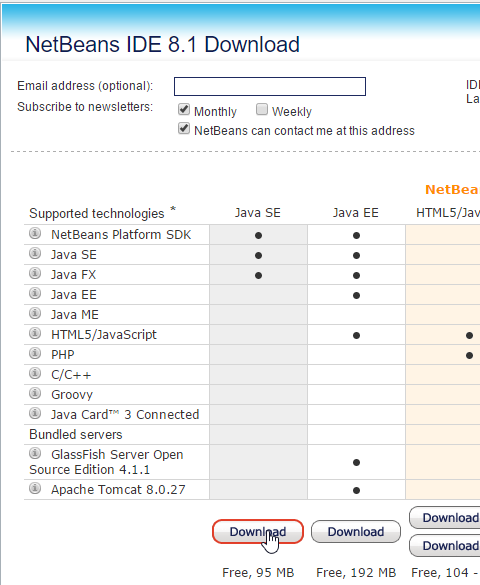 |
You can download the version Java SE (Standard Edition) above.
22.5. Installing the Chrome plugin [Advanced Rest Client]
In this document, we are using Google's Chrome browser (http://www.google.fr/intl/fr/chrome/browser/). We will add the [Advanced Rest Client] extension to it. Here's how to do it:
- Go to the [Google Web store] website (https://chrome.google.com/webstore) using the Chrome browser;
- search for the [Advanced Rest Client] application:
 |
- the app is then available for download:
 |
- to get it, you’ll need to create a Google account. [Google Web Store] then asks for confirmation [1]:
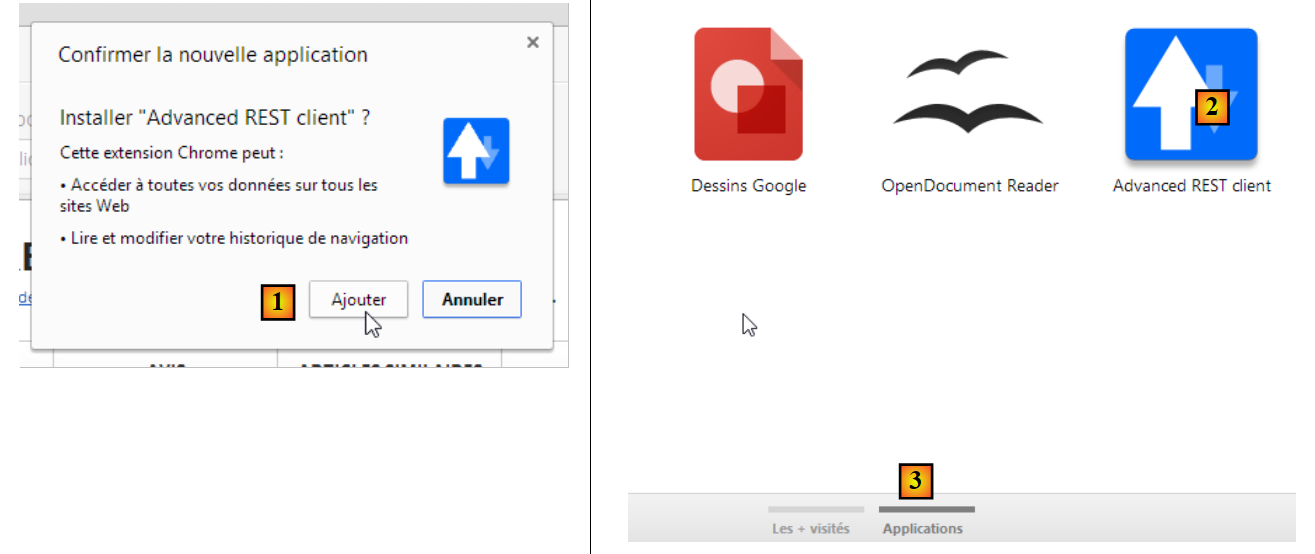 |
- In [2], the added extension is available in the option [Applications] [3]. This option is displayed on every new tab you create (CTRL-T) in the browser.
22.6. Managing jSON in Java
In a way that is trans nsparent to the developer, the [Spring MVC] framework uses the jSON [Jackson] library. To illustrate what jSON (JavaScript Object Notation), we present here a program that serializes objects into jSON and performs the reverse operation by deserializing the generated jSON strings to recreate the original objects.
The 'Jackson' library allows you to construct:
- the jSON string of an object: new ObjectMapper().writeValueAsString(object);
- an object from a string jSON: new ObjectMapper().readValue(jsonString, Object.class).
Both methods are likely to throw a IOException. Here is an example.
The project above is a Maven project with the following [pom.xml] file;
<?xml version="1.0" encoding="UTF-8"?>
<project xmlns="http://maven.apache.org/POM/4.0.0"
         xmlns:xsi="http://www.w3.org/2001/XMLSchema-instance"
         xsi:schemaLocation="http://maven.apache.org/POM/4.0.0 http://maven.apache.org/xsd/maven-4.0.0.xsd">
  <modelVersion>4.0.0</modelVersion>

  <groupId>istia.st.pam</groupId>
  <artifactId>json</artifactId>
  <version>1.0-SNAPSHOT</version>

  <dependencies>
    <dependency>
      <groupId>com.fasterxml.jackson.core</groupId>
      <artifactId>jackson-databind</artifactId>
      <version>2.3.3</version>
    </dependency>
  </dependencies>
</project>
- lines 12-16: the dependency that brings in the 'Jackson' library;
The [Personne] class is as follows:
package istia.st.json;

public class Personne {
    // data
    private String nom;
    private String prenom;
    private int age;

    // manufacturers
    public Personne() {

    }

    public Personne(String nom, String prénom, int âge) {
        this.nom = nom;
        this.prenom = prénom;
        this.age = âge;
    }

    // signature
    public String toString() {
        return String.format("Personne[%s, %s, %d]", nom, prenom, age);
    }

    // getters and setters
...
}
The [Main] class is as follows:
package istia.st.json;

import com.fasterxml.jackson.databind.ObjectMapper;

import java.io.IOException;
import java.util.HashMap;
import java.util.Map;

public class Main {
  // the serialization / deserialization tool
  static ObjectMapper mapper = new ObjectMapper();

  public static void main(String[] args) throws IOException {
    // creation of a person
    Personne paul = new Personne("Denis", "Paul", 40);
    // display jSON
    String json = mapper.writeValueAsString(paul);
    System.out.println("Json=" + json);
    // instantiation Person from Json
    Personne p = mapper.readValue(json, Personne.class);
    // person display
    System.out.println("Personne=" + p);
    // a picture
    Personne virginie = new Personne("Radot", "Virginie", 20);
    Personne[] personnes = new Personne[]{paul, virginie};
    // display Json
    json = mapper.writeValueAsString(personnes);
    System.out.println("Json personnes=" + json);
    // dictionary
    Map<String, Personne> hpersonnes = new HashMap<String, Personne>();
    hpersonnes.put("1", paul);
    hpersonnes.put("2", virginie);
    // display Json
    json = mapper.writeValueAsString(hpersonnes);
    System.out.println("Json hpersonnes=" + json);
  }
}
Executing this class produces the following screen output:
Key takeaways from the example:
- the object [ObjectMapper] required for the transformations jSON / Object: line 11;
- the transformation [Personne] --> jSON: line 17;
- the transformation jSON --> [Personne]: line 20;
- the exception [IOException] thrown by both methods: line 13.
22.7. Installation of [WampServer]
[WampServer] is a software package for developing in PHP / MySQL / Apache on a Windows machine. We will use it only for SGBD MySQL.
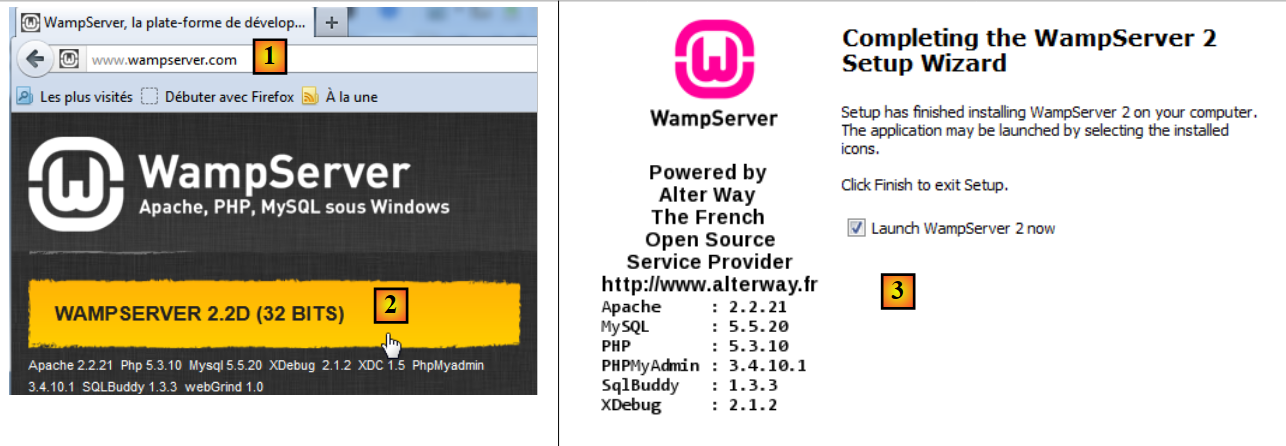 |
- On the [WampServer] [1] website, select the appropriate version [2],
- The downloaded executable is an installer. Various pieces of information are requested during installation. They do not concern MySQL. You can therefore ignore them. The [3] window appears at the end of the installation. Launch [WampServer],
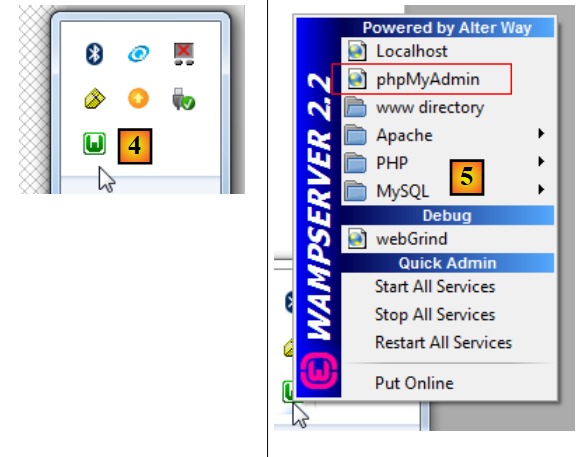 |
- in [4], the [WampServer] icon is installed in the taskbar at the bottom right of the screen [4],
- and when you click on it, the [5] menu appears. It allows you to manage the Apache server and the SGBD MySQL. To manage this, use the option [PhpPmyAdmin],
- which brings up the window shown below.
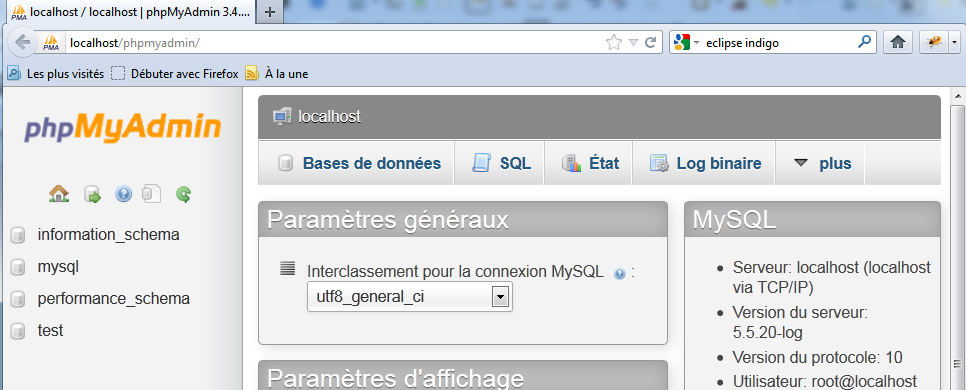
We will provide few details on the use of [PhpMyAdmin]. In section 6.4.2, we show how to use it to create a database from a SQL script.