2. Setting up a development environment
The scripts were written and tested in the following environment:
- an Apache web server / MySQL DBMS / PHP 7.3 environment called Laragon;
- the NetBeans 10.0 development IDE;
2.1. Installing Laragon
Laragon is a package that combines several software components:
- an Apache web server. We will use it to write web scripts in PHP;
- the MySQL database management system;
- the PHP scripting language;
- a Redis server that provides caching for web applications:
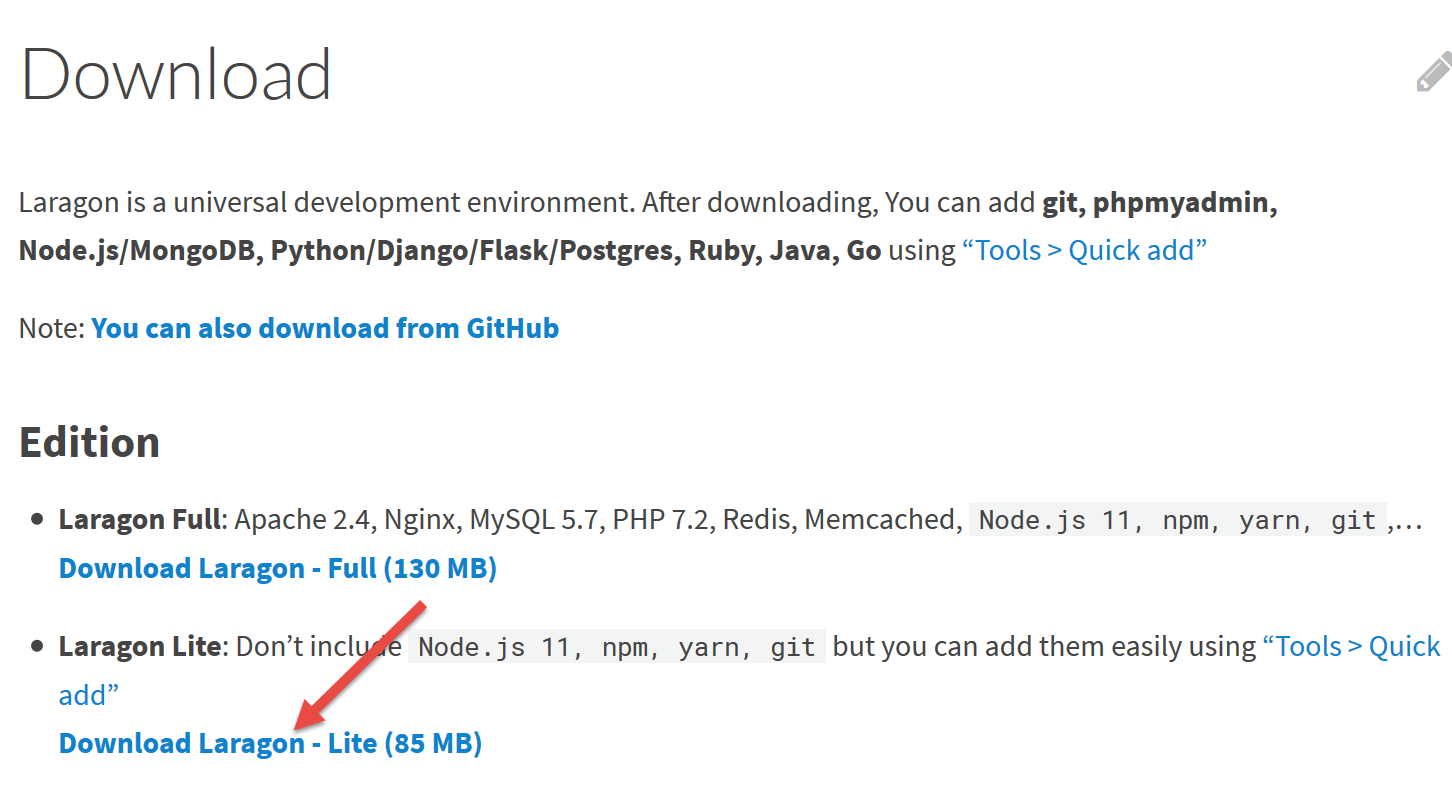
Laragon can be downloaded (March 2019) at the following address:
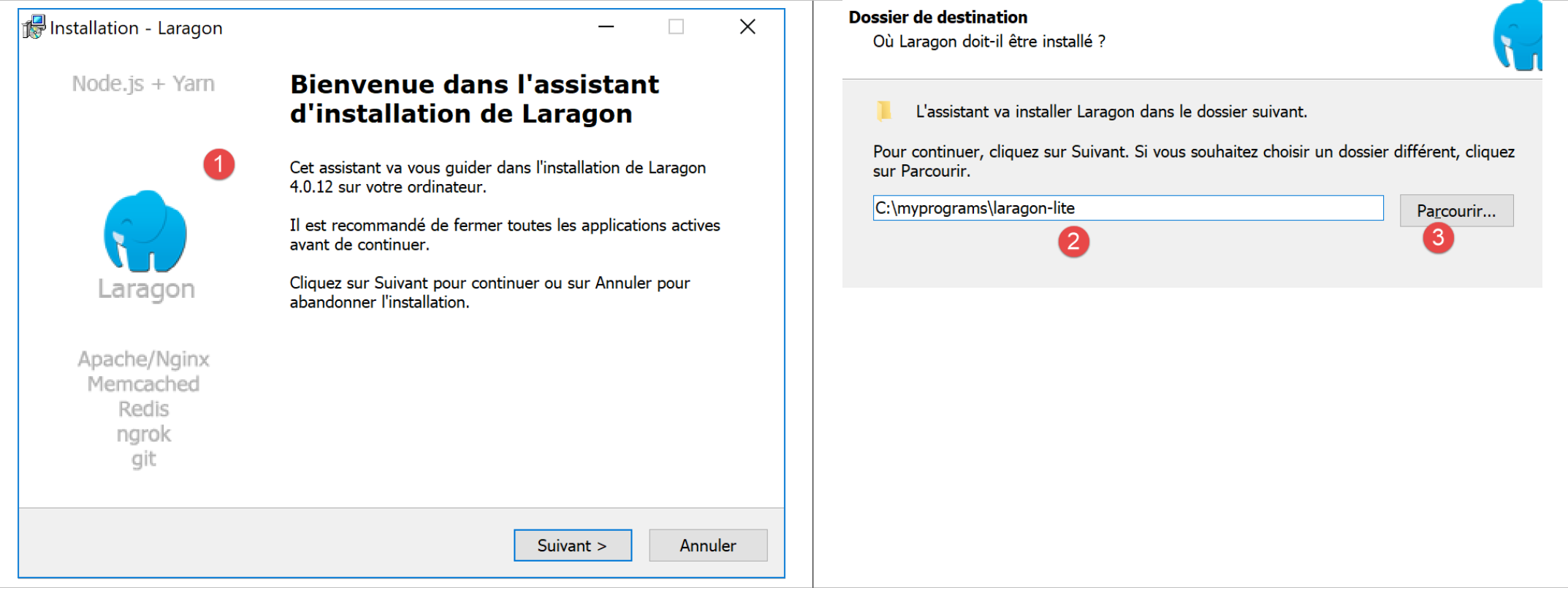
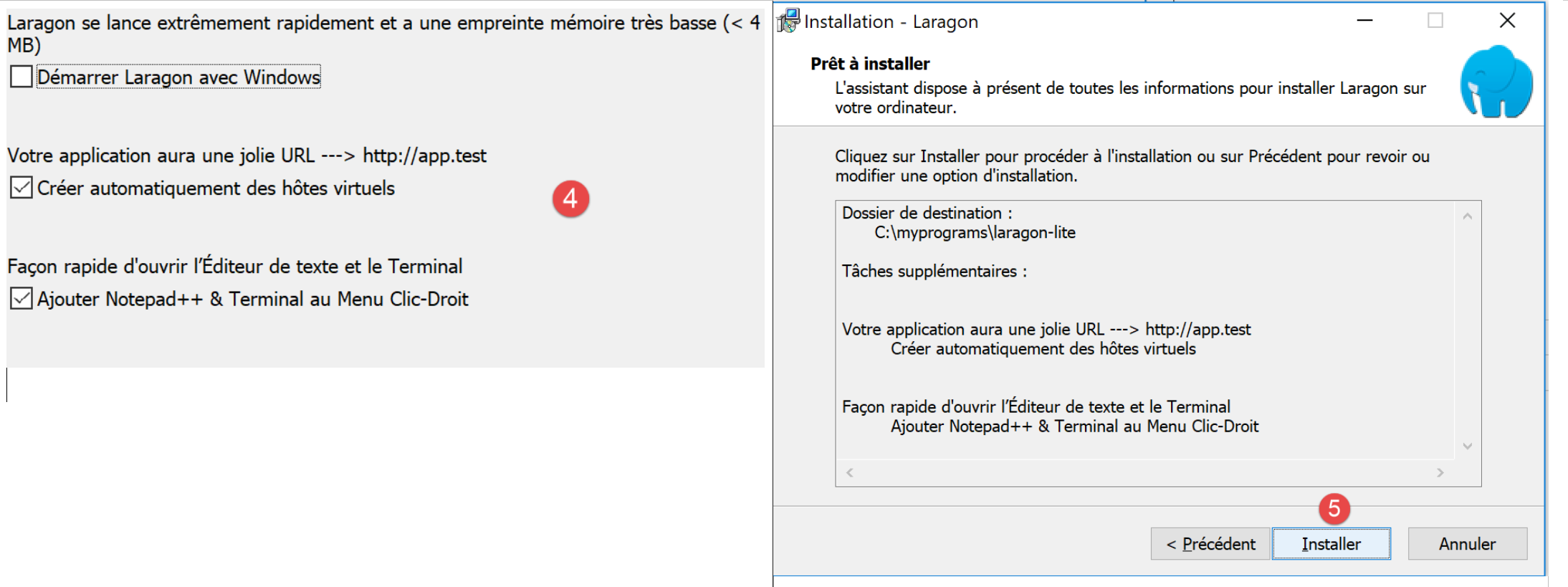
- The installation [1-5] results in the following directory structure:
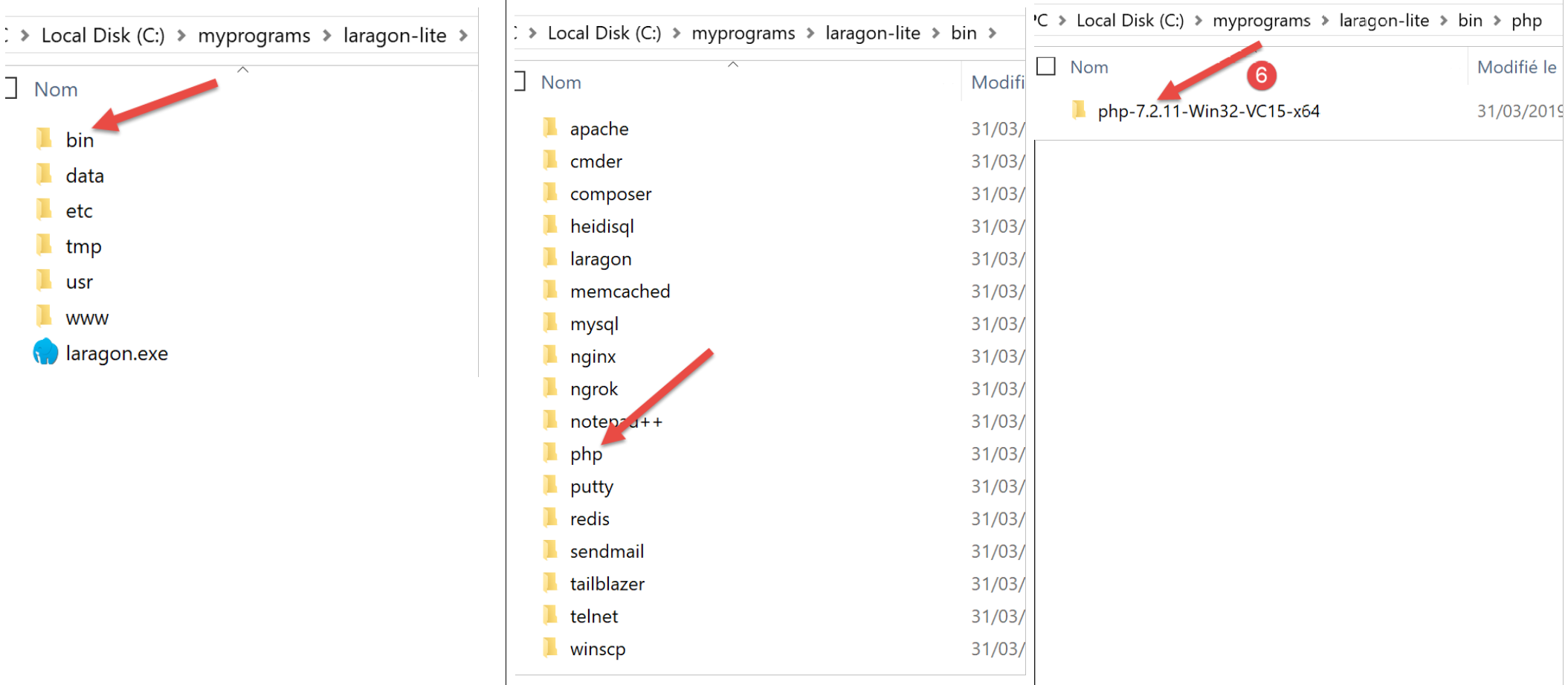
- in [6] the PHP installation folder;
Launching [Laragon] displays the following window:
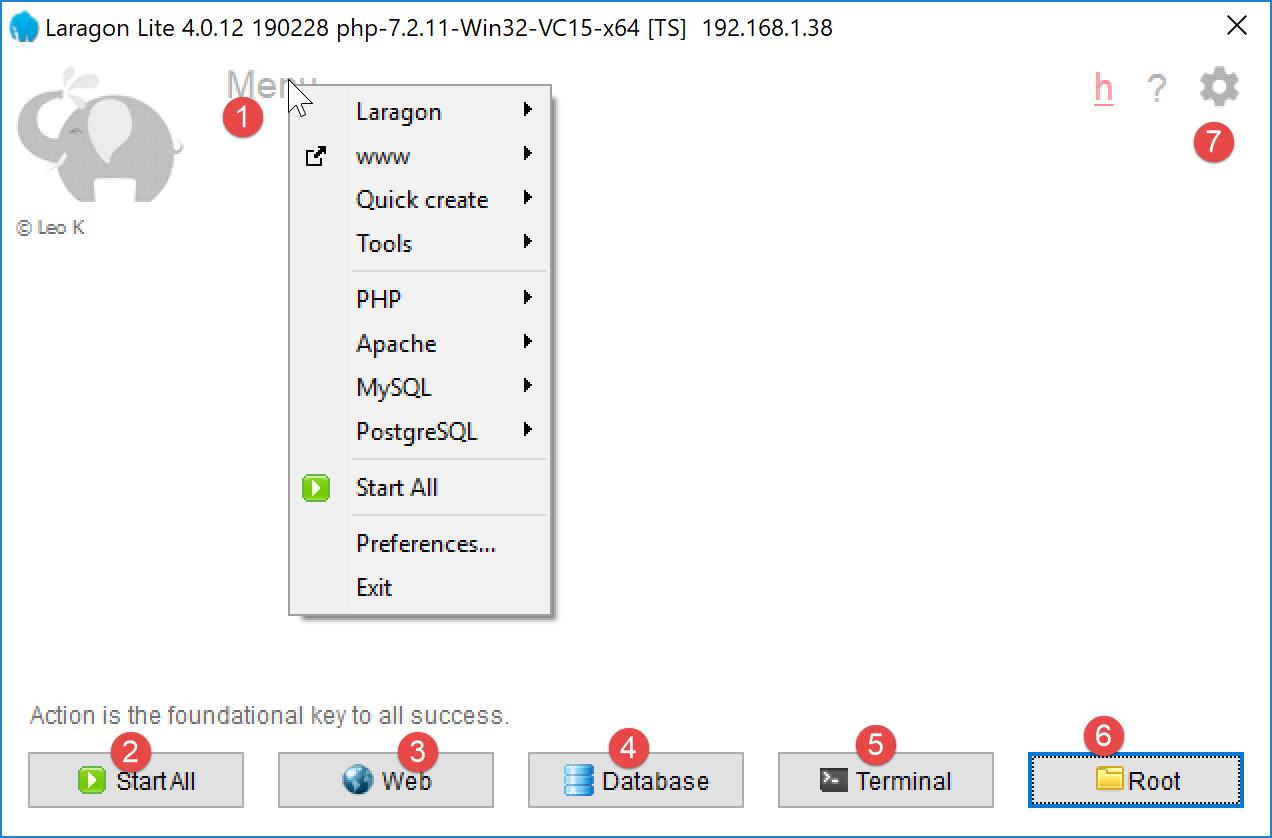
- [1]: the Laragon main menu;
- [2]: the [Start All] button launches the Apache web server and the MySQL database;
- [3]: The [WEB] button displays the web page [http://localhost], which corresponds to the PHP file [<laragon>/www/index.php], where <laragon> is the Laragon installation folder;
- [4]: the [Database] button allows you to manage the MySQL database using the [phpMyAdmin] tool. You must install this tool beforehand;
- [5]: The [Terminal] button opens a command terminal;
- [6]: The [Root] button opens a Windows Explorer window positioned on the [<laragon>/www] folder, which is the root directory of the [http://localhost] website. This is where you should place all web applications managed by Laragon’s Apache server;
Let’s open a Laragon terminal [5]:
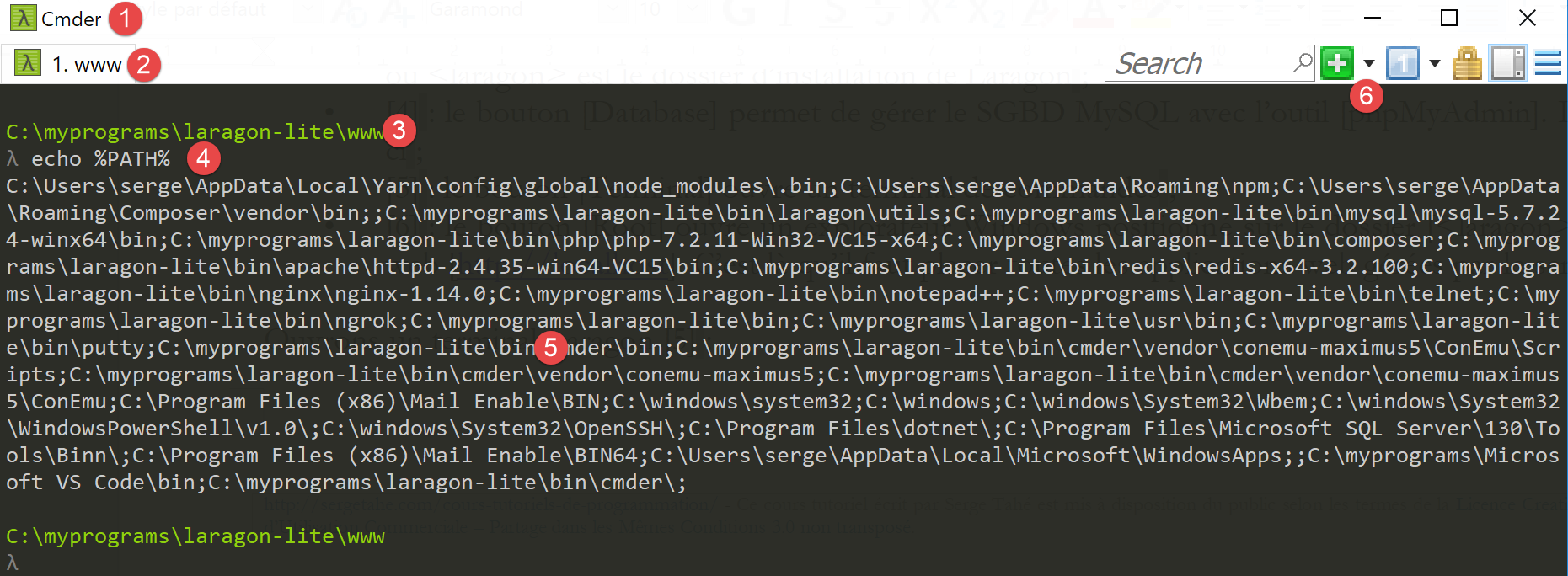
- in [1], the terminal type. Three types of terminals are available in [6];
- in [2, 3]: the current directory;
- In [4], type the command [echo %PATH%], which displays the list of directories searched when looking for an executable. All of Laragon’s main folders are included in this executable path, which would not be the case if you opened a command prompt [cmd] window in Windows. In this document, when you are asked to type commands to install a particular piece of software, these commands are generally typed in a Laragon terminal;
2.2. Installing the NetBeans 10.0 IDE
The NetBeans 10.0 IDE can be downloaded from the following address (March 2019):
https://netbeans.apache.org/download/index.HTML
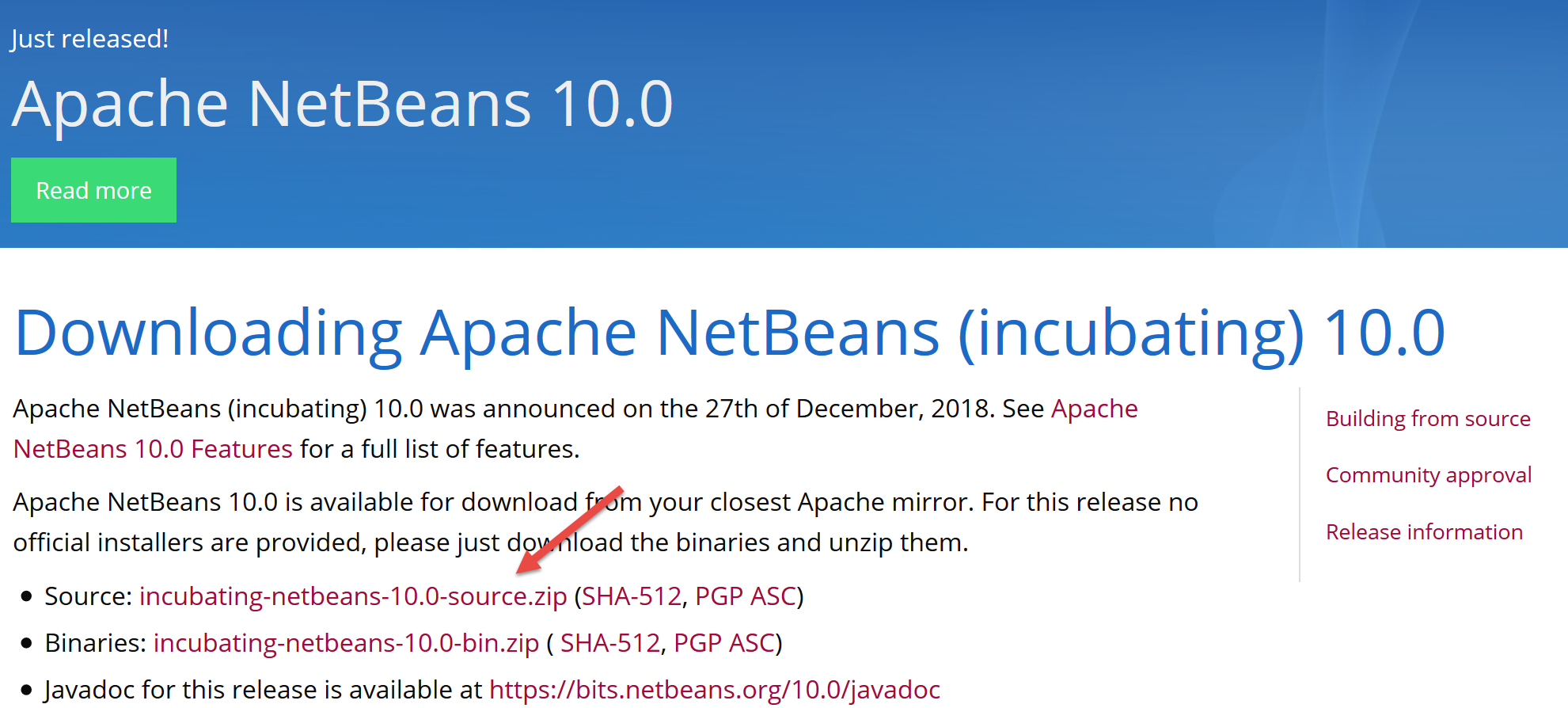
The downloaded file is a ZIP file that simply needs to be unzipped. Once NetBeans is installed and launched, you can create your first PHP project.
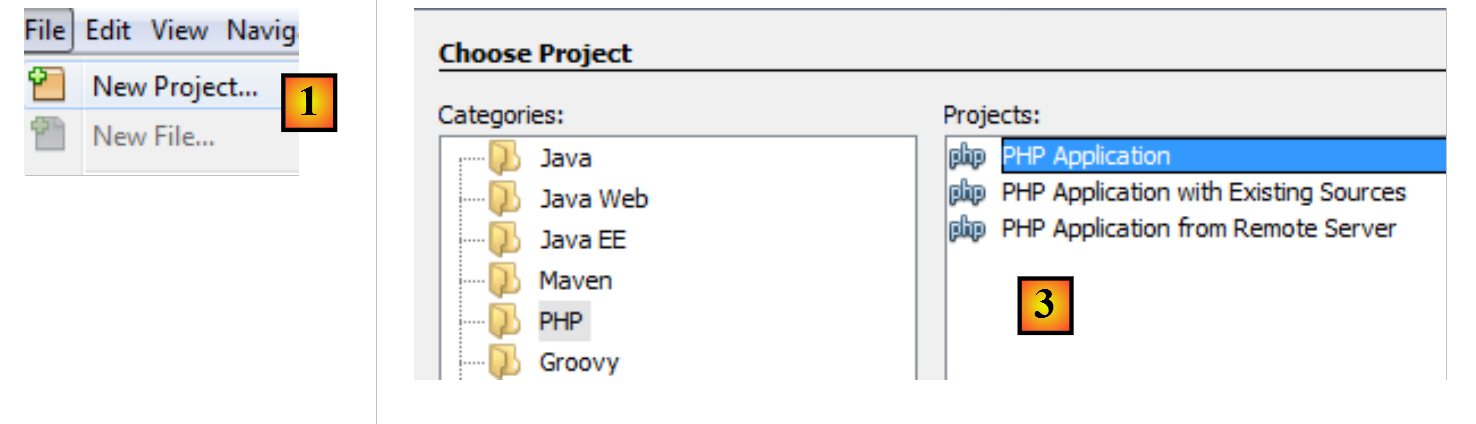
- In [1], select the File / New Project option;
- In [2], select the [PHP] category;
- in [3], select the project type [PHP Application];
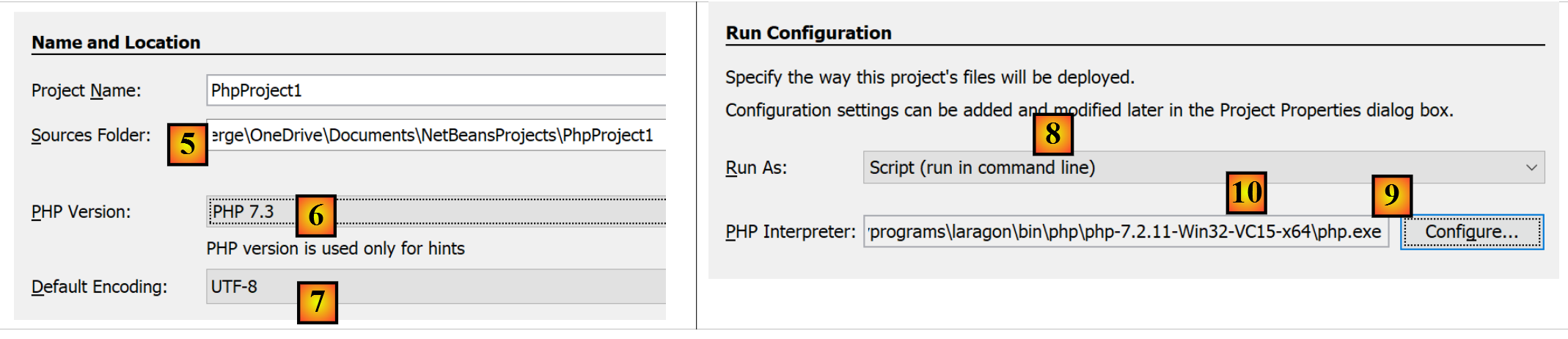
- In [4], give the project a name;
- In [5], choose a folder for the project;
- In [6], select the downloaded PHP version;
- in [7], select UTF-8 encoding for PHP files;
- In [8], select the [Script] mode to run PHP scripts in command-line mode. Select [Local WEB Server] to run a PHP script in a web environment;
- In [9,10], specify the installation directory for the Laragon package's PHP interpreter:
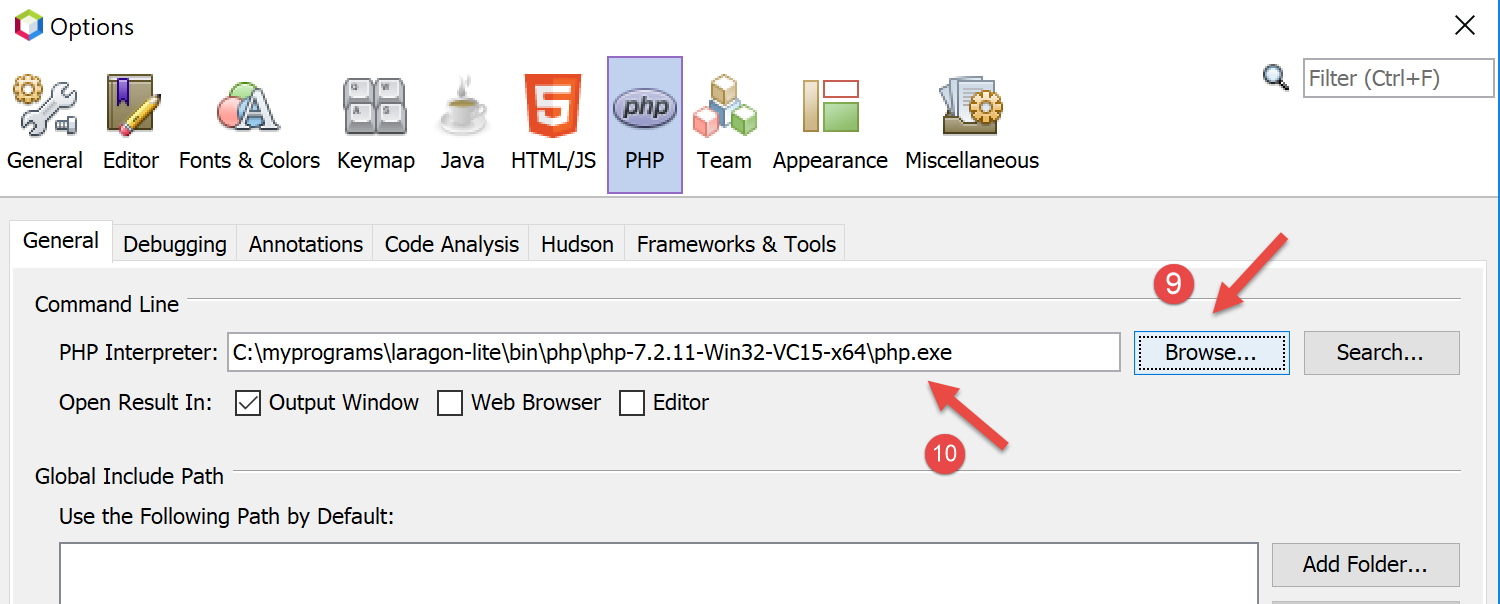
- Select [Finish] to complete the PHP project creation wizard;
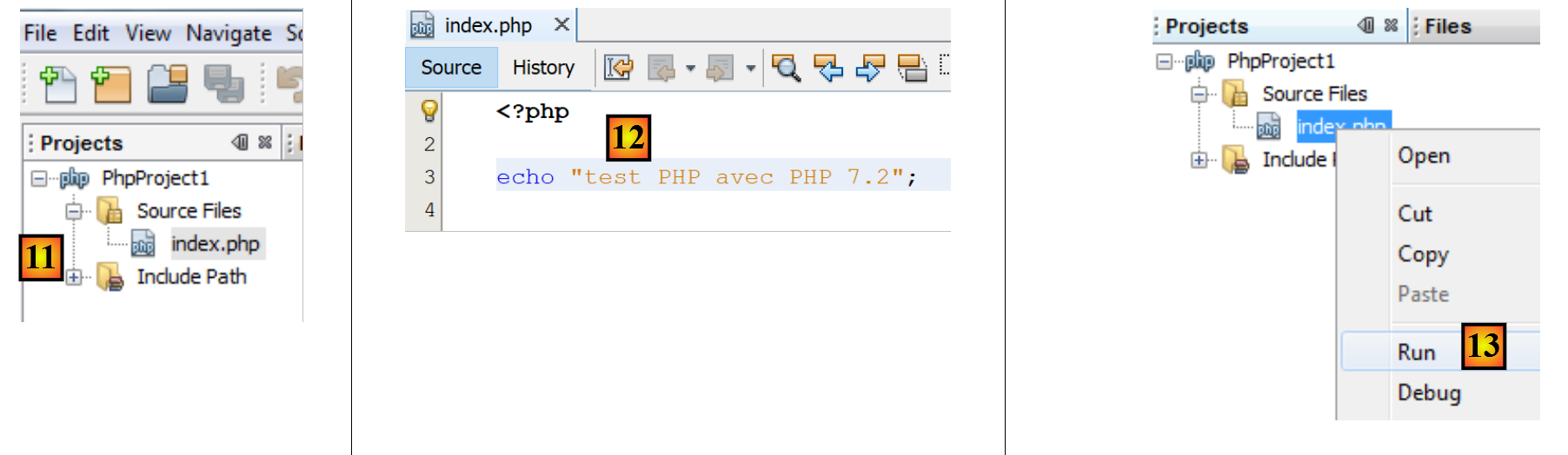
- in [11], the project is created with an [index.php] script;
- in [12], write a minimal PHP script;
- in [13], run [index.php];

- in [14], the results in the NetBeans [output] window;
- In [15], create a new script;
- in [16], the new script;
The reader can create all the scripts that follow in different folders within the same PHP project. The source code for the scripts in this document is available in the following NetBeans directory structure:
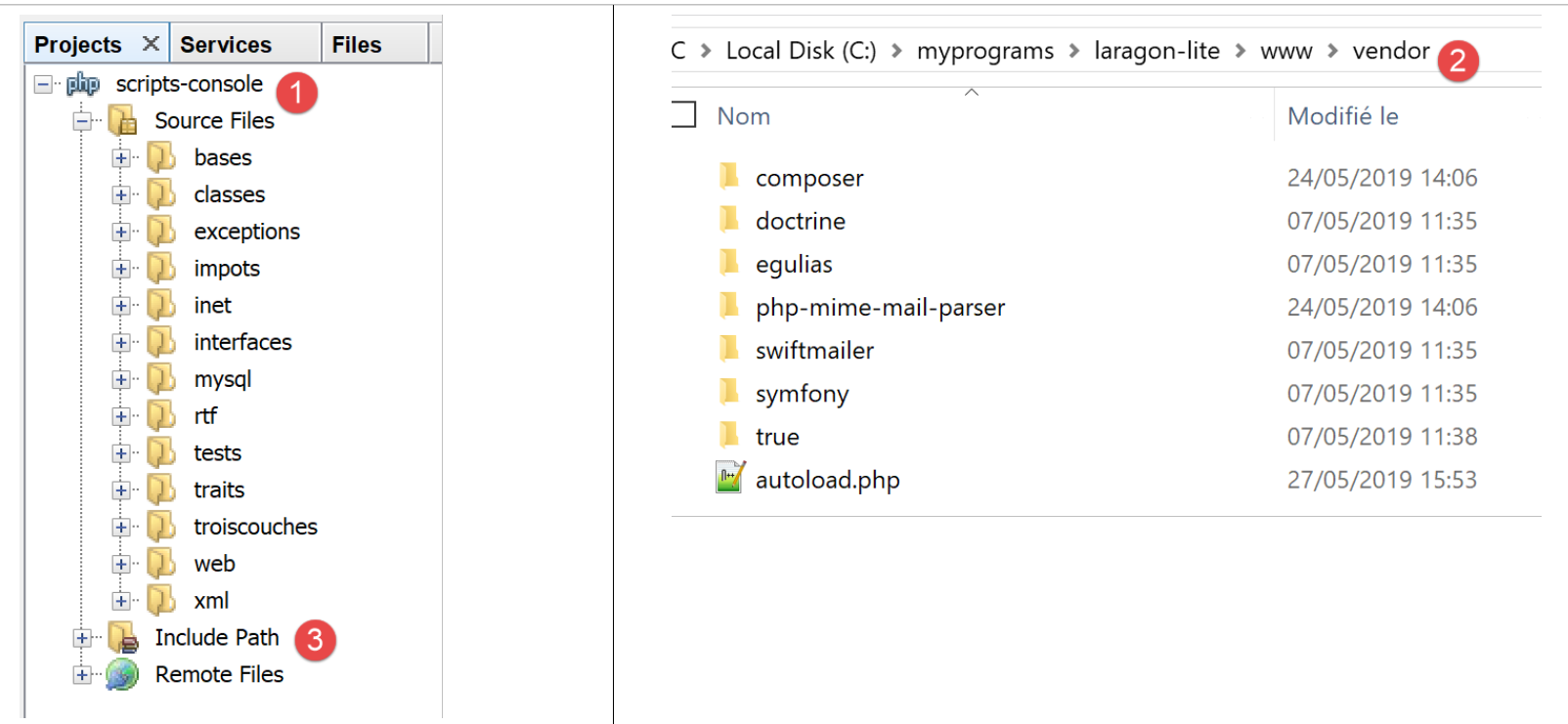
The scripts in this document are located in the [scripts-console] project directory [1]. We will also use PHP libraries that will be placed in the [<laragon-lite>/www/vendor] folder [2], where <laragon-lite> is the installation directory for the Laragon software. In order for NetBeans to recognize the libraries in [2] as part of the [scripts-console] project, we need to include the [vendor] folder [2] in the project’s [Include Path] [3]. We will configure NetBeans so that the [<laragon-lite>/www/vendor] [2] folder is included in every new PHP project, not just the [scripts-console] project:
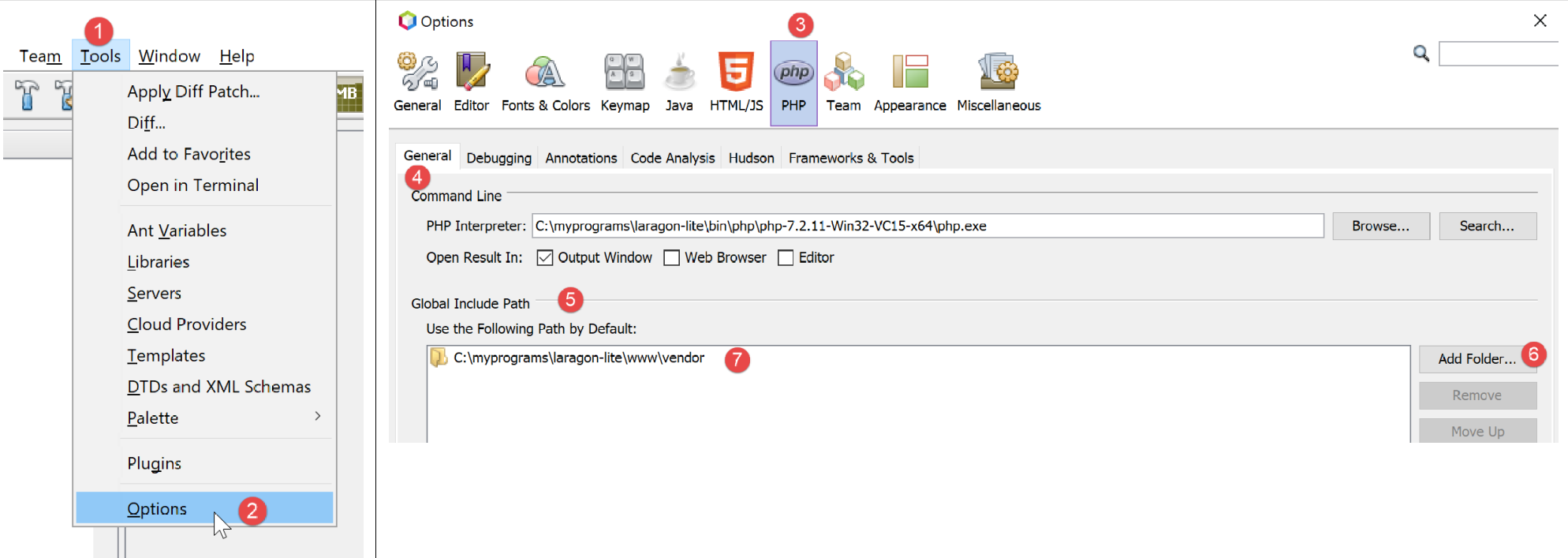
- In [1-2], go to the NetBeans options;
- In [3-4], configure the PHP options;
- In [5-7], configure PHP's [Global Include Path]: the folders listed in [7] are automatically included in the [Include Path] for every PHP project;
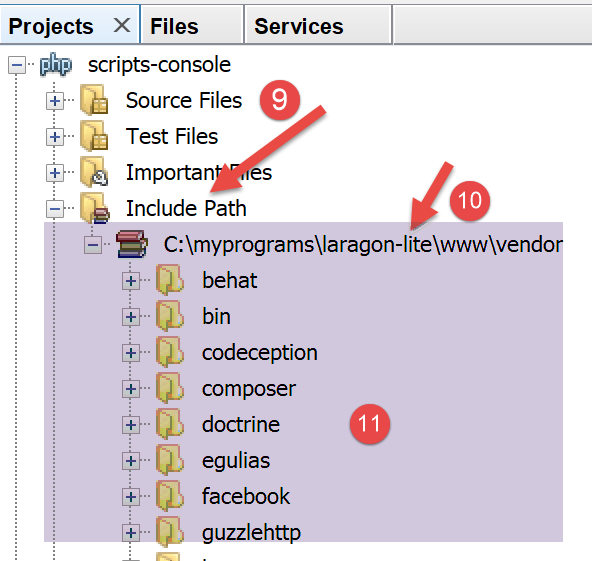
- In [9], access the properties of the [Include Path] branch;
- In [10-11], the new libraries explored by NetBeans. NetBeans scans the PHP code in these libraries and stores their classes, interfaces, functions, etc., in order to provide assistance to the developer;
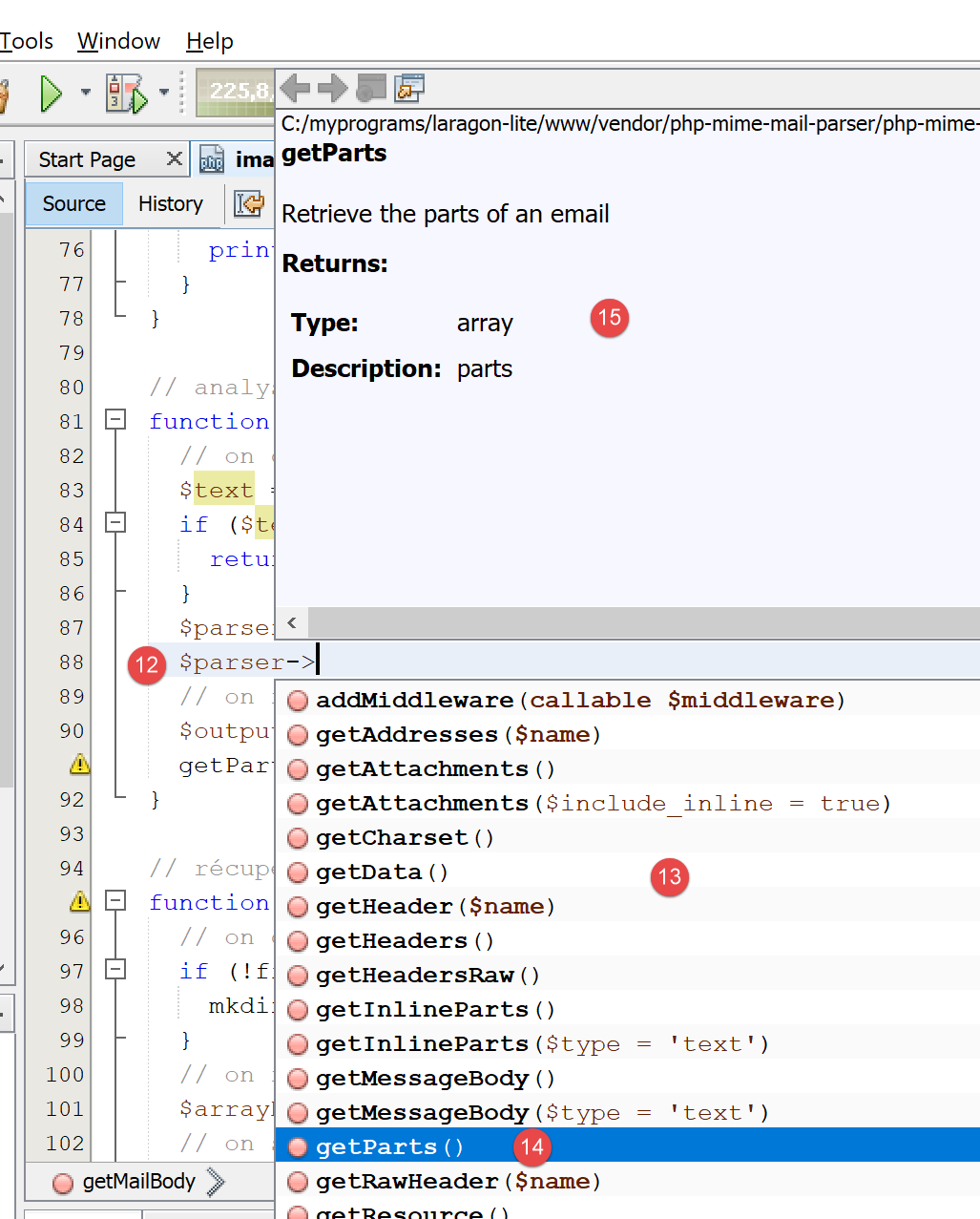
- in [12], a code snippet uses the [PhpMimeMailParser\Parser] class from the [vendor/php-mime-mail-parser] library;
- in [13], NetBeans suggests the methods of this class;
- In [14-15], NetBeans displays the documentation for the selected method;
The concept of [Include Path] is specific to NetBeans. PHP also has this concept, but they are, in principle, two different concepts.
Now that the development environment has been set up, we can cover the basics of PHP.