9. Example 07 – Form Tags
We will build and use the following form:
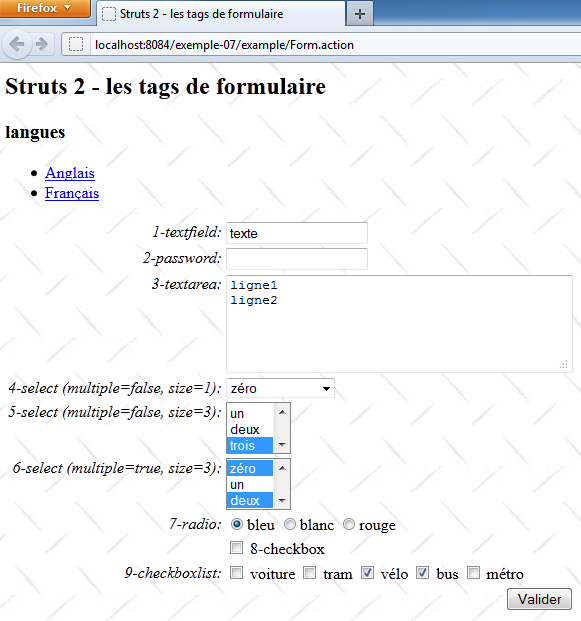
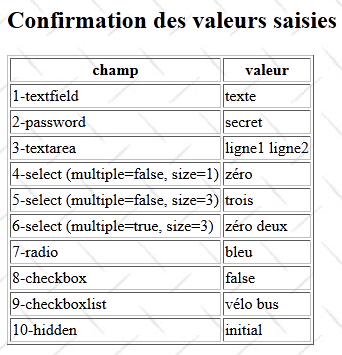
We will extend the concept of parameter injection seen for a text input field to other Html elements in a form.
9.1. The Netbeans
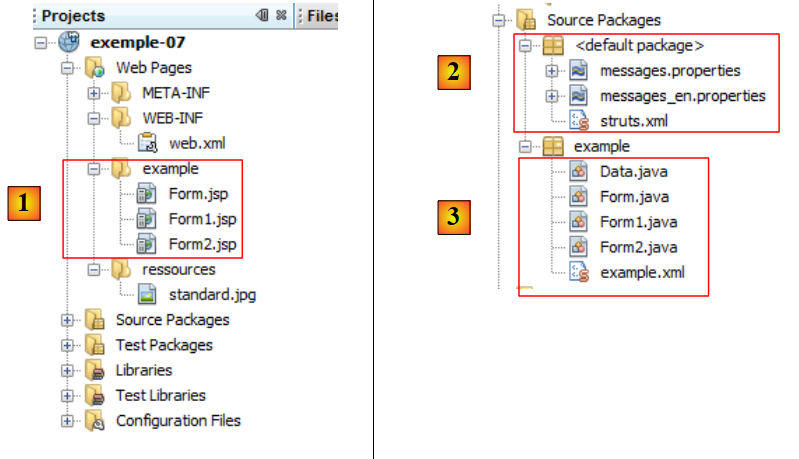 |
- in [1], the views of the project [Formx.jsp]
- to [2], the Struts configuration file and the internationalized messages
- to [3], the actions from [Formx.java], and another Struts configuration file.
9.2. Struts configuration
The file [struts.xml] is as follows:
<?xml version="1.0" encoding="UTF-8" ?>
<!DOCTYPE struts PUBLIC
    "-//Apache Software Foundation//DTD Struts Configuration 2.0//EN"
    "http://struts.apache.org/dtds/struts-2.0.dtd">

<struts>
  <constant name="struts.custom.i18n.resources" value="messages" />

  <include file="example/example.xml"/>

  <package name="default" namespace="/" extends="struts-default">
    <default-action-ref name="index" />
    <action name="index">
      <result type="redirectAction">
        <param name="actionName">Form</param>
        <param name="namespace">/example</param>
      </result>
    </action>
  </package>
</struts>
- Line 9: Includes another configuration file, [example.xml]. This file configures the actions.
- Lines 11–19: the default package. Defines a redirect address for Url/. It will be redirected to Url/example/Form.action.
The [example.xml] file that configures the actions is as follows:
<?xml version="1.0" encoding="UTF-8" ?>
<!DOCTYPE struts PUBLIC
        "-//Apache Software Foundation//DTD Struts Configuration 2.0//EN"
        "http://struts.apache.org/dtds/struts-2.0.dtd">

<struts>
  <package name="example" namespace="/example" extends="struts-default">
    <action name="Form" class="example.Form">
      <result name="success">/example/Form.jsp</result>
    </action>
    <action name="Form1" class="example.Form1">
      <result name="success">/example/Form1.jsp</result>
    </action>
    <action name="Form2" class="example.Form2">
      <result name="success">/example/Form2.jsp</result>
    </action>
  </package>
</struts>
- lines 7–17: define the actions /example/Form, /example/Form1, /example/Form2, where /example is the namespace (line 7) and Formx are the actions.
- lines 8-10: executing the Form action will display the view /example/Form.jsp.
- lines 11-13: executing the Form1 action will display the /example/Form1.jsp view.
- Lines 14–16: Executing the Form2 action will display the /example/Form2.jsp view.
9.3. Message files
We will not dwell on the internationalization of the project. We have already covered this in Example 01. We provide the contents of the file [messages.properties] so that the reader can understand the views that follow.
Form.francais=Fran\u00E7ais
Form.anglais=Anglais
Form.titre=Struts 2 - les tags de formulaire
Form.message=Struts 2 - les tags de formulaire
Form.langues=langues
Form.textfield=1-textfield
Form.password=2-password
Form.textarea=3-textarea
Form.select1=4-select (multiple=false, size=1)
Form.select1.header=<-- select1 -->
Form.select2=5-select (multiple=false, size=3)
Form.select3=6-select (multiple=true, size=3)
Form.radio=7-radio
Form.checkbox=8-checkbox
Form.checkboxlist=9-checkboxlist
Form.hidden=10-hidden
Form.submitText=Valider
Form.buttonRazText=Raz
Confirmation.message=Confirmation des valeurs saisies
Confirmation.champ=champ
Confirmation.valeur=valeur
Confirmation.textfield=1-textfield
Confirmation.password=2-password
Confirmation.textarea=3-textarea
Confirmation.select1=4-select (multiple=false, size=1)
Confirmation.select2=5-select (multiple=false, size=3)
Confirmation.select3=6-select (multiple=true, size=3)
Confirmation.radio=7-radio
Confirmation.checkbox=8-checkbox
Confirmation.checkboxlist=9-checkboxlist
Confirmation.hidden=10-hidden
9.4. View [Form.jsp] – data entry section
It looks like this:
It is as follows:
<%@ page contentType="text/html; charset=UTF-8" pageEncoding="UTF-8"%>
<%@ taglib prefix="s" uri="/struts-tags" %>
<html>
  <head>
    <title><s:text name="Form.titre"/></title>
    <s:head/>
  </head>

  <body background="<s:url value="/ressources/standard.jpg"/>">
    <h2><s:text name="Form.message"/></h2>
    <h3><s:text name="Form.langues"/></h3>
    <ul>
      <li>
        <s:url id="url" action="Form">
          <s:param name="request_locale">en</s:param>
        </s:url>
        <s:a href="%{url}"><s:text name="Form.anglais"/></s:a>
      </li>
      <li>
        <s:url id="url" action="Form">
          <s:param name="request_locale">fr</s:param>
        </s:url>
        <s:a href="%{url}"><s:text name="Form.francais"/></s:a>
      </li>
    </ul>
    <s:form name="formulaire">
      <s:textfield name="textfield" key="Form.textfield" />
      <s:password name="password" key="Form.password"/>
      <s:textarea name="textarea" key="Form.textarea" cols="40" rows="5"/>
      <s:select name="select1" list="select1Values" size="1" key="Form.select1" headerValue="<-- select 1 -->" headerKey="-1" />
      <s:select name="select2" size="3" list="select2Values" key="Form.select2"/>
      <s:select name="select3" size="3" list="select3Values" key="Form.select3" multiple="true"/>
      <s:radio name="radio" list="radioValues" key="Form.radio"/>
      <s:checkbox name="checkbox" key="Form.checkbox"/>
      <s:checkboxlist name="checkboxlist" list="checkboxlistValues" key="Form.checkboxlist"/>
      <s:hidden name="hidden" key="Form.hidden"/>
      <s:submit key="Form.submitText" name="submitText"/>
    </s:form>
    <hr/>
 ...
  </body>
</html>
- The form begins on line 26 and ends on line 38. On line 26, the action attribute is missing. This attribute specifies which action the form data will be posted to. In the absence of the action attribute, the data will be posted to the action that caused the view to be displayed, in this case the action [Form].
- Line 27: an input field. The key attribute specifies its label. The attribute name is the name of the parameter that will be posted. The string posted for this field will be in the form:
textfield=entered_text
The parameter name corresponds to a field in the [Form] action. The value of the texte_saisi input field will be injected here into the textfield field of the [Form] action. Conversely, if the view [Form.jsp] is displayed following action [Form], the value of the input field will be that of the textfield field in action [Form]. This field is therefore used for both reading and writing. The class [Form] must have the methods getTextField and setTextField for this purpose.
This applies to all the input tags that follow. We won't repeat it.
- Line 28: password entry. The string posted to action [Form] will be in the form
password=entered_password
A password field with its get / set must exist in the [Form] action.
- Line 29: Entering multi-line text in a 5-row, 40-column area. The string posted to the [Form] action will be in the form
textarea=input
A textarea field with its get / set must exist in the [Form] action.
- Line 30: a single-select dropdown list (size=1). Only one value from the list can be selected. The string posted to the [Form] action will be in the form:
select1=selected_value
A select1 field with its get / set must exist in the [Form] action.
The key attribute is the label of the list. The list attribute defines the list of values to be placed in the combo box. Here, the getSelect1Values method of the [Form] action will be called to populate the combo box. This method can return a collection, a dictionary, or an array. Here, it will return an array of strings [chaine1, chaine2, ...], which will generate the following code Html:
<option value="string1">string1</option>
<option value="string2">string2</option>
...
The text between the <option>...</option> tags will be displayed in the combo box. The value attribute specifies the value to be posted if the option is selected by the user. Here, the value attribute and the text displayed in the combo box are identical. Most often, this is not the case. If the second option is selected, the following string will be posted to the [Form] action:
select1=string2
The field [Form].select1 will then receive the value string2. Conversely, if at the time the form is displayed, this field is set to string3, then visually, the third element
<option value="string3">string3</option>
will appear selected in the combo box.
The headerValue attribute sets the text to be displayed as the first option in the combo box, and headerKey sets the value to be submitted if this option is selected by the user.
- Line 31: Here again is a list of size 3 (size=3): unlike the previous list where only one item is visible, here 3 items from the list will be visible. The selection mode remains the same. Only one item can be selected.
- line 32: another list, but with multiple selection (multiple=true). In this case, the value posted to the [Form] action will be in the form:
select3=string2&select3=string5
if the options string2 and string5 have been selected. When multiple values are posted for the same parameter—in this case, select3—the action must have a field with the parameter’s name and be of the array type. So, for example, here the action [Form] could have a field like this:
String[] select3 ;
and the corresponding get / set methods. The select3 array will then receive the [chaine2,chaine5] array of character strings. Conversely, when the [Form.jsp] view is displayed, the values of the [Form].select3 field determine which options in the select3 list will appear selected. This is still a read/write operation.
- Line 33: a group of radio buttons. The group label is provided by the key attribute. The labels of the individual buttons are provided by the list attribute. The value of this attribute is the name of a method of the [Form] action that must return a collection, a dictionary, or an array. Here, the method [Form].getRadioValues will return an array of strings [chaine1,chaine2,...] that will generate the following tags Html:
<input type="radio" name="radio" ... value="string1"/>string1
<input type="radio" name="radio" ... value="channel2"/>channel2
...
If the radio button for channel2 is selected, the posted value will be
radio=channel2
and this value will be injected into the [Form].radio field.
- line 34: a checkbox. If it is checked, the following parameter string will be posted to the [Form] action
checkbox=true
If it is not checked, no parameter string is posted. Struts 2 has an internal mechanism that makes everything happen as if the string
checkbox=false
had been posted.
- Line 35: a list of checkboxes. Multiple checkboxes can be selected. The group label is provided by the key attribute. The labels of the individual checkboxes are provided by the list attribute. The value of this attribute is the name of a method of the [Form] action that must return a collection, a dictionary, or an array. Here, the method [Form].getCheckboxlistValues will return an array of strings [chaine1,chaine2,...], which will generate the following tags Html:
<input type="checkbox" name="checkboxlist" ... value="string1"/>string1
<input type="checkbox" name="checkboxlist" ... value="string2"/>string2
...
If the user selects the checkboxes labeled string2 and string5, the following string will be posted to the [Form] action:
checkboxlist=string2&checkboxlist=string5
The array [chaine2, chaine5] will be assigned to the field [Form].checkboxlist, which must therefore be of the string array type, as with multiple-selection lists. Conversely, when the [Form.jsp] view is displayed, the values of the [Form].checkboxlist field determine which checkboxes will be checked.
- Line 36: a hidden field. A hidden field is a field that is submitted without being entered by the user. Its value is set by the programmer. Here, the hidden field will take its value from the field [Form].hidden. This same value will be submitted in the form:
hidden=something
and reassigned to the field [Form].hidden.
- Line 37: a button of type submit. Clicking this button will post all the form values to the action [Form]. The string of posted parameters will look like this:
textfield=text&password=&textarea=line1%0D%0Aline2%0D%0A&select1=zero&select2=three&select3=zero&select3=two&__multiselect_select3=&radio=blue&checkbox=true&__checkbox_checkbox=true&checkboxlist=bike&checkboxlist=bus&__multiselect_checkboxlist=&hidden=initial&submitText=Submit
9.5. Action [Form] – data entry section
Its code is as follows:
package example;

import com.opensymphony.xwork2.ActionSupport;

public class Form extends ActionSupport {

  // constructor without parameters
  public Form() {
  }
  // form fields
  private String textfield = "texte";
  private String password = "secret";
  private String textarea = "ligne1\nligne2\n";
  private String select1 = "zéro";
  private String[] select1Values = new String[]{"zéro", "un", "deux"};
  private String select2 = "trois";
  private String[] select2Values = new String[]{"zéro", "un", "deux", "trois", "quatre"};
  private String[] select3 = new String[]{"zéro", "deux"};
  private String[] select3Values = new String[]{"zéro", "un", "deux", "trois", "quatre"};
  private String radio = "bleu";
  private String[] radioValues = new String[]{"bleu", "blanc", "rouge"};
  private Boolean checkbox = false;
  private String[] checkboxlist = new String[]{"vélo", "bus"};
  private String[] checkboxlistValues = new String[]{"voiture", "tram", "vélo", "bus", "métro"};
  private String hidden = "initial";
  private String submitText;

  // values selected in select3 field
  public String getSelect3SelectedValues() {
    return getValue(select3);
  }

  // values selected in checkboxlist field
  public String getCheckboxlistSelectedValues() {
    return getValue(checkboxlist);
  }

  // utilitarian method
  public String getValue(String[] values) {
    String result = "";
    for (String value : values) {
      result += " " + value;
    }
    return result;
  }

// field getters and setters
  ....
}
- line 1: the field associated with the form's textfield tag. Used to initialize this input field as well as to retrieve its value. Receives the value entered in this field at the time of POST.
- line 2: the field associated with the form's password tag. Receives the value entered in this field at the time of POST.
- Line 13: Associated with the form’s textarea tag. Receives the text entered in this field at the time of POST.
- Line 14: Associated with the form’s `select1` tag, a single-select list. Its initial value selects an item from the dropdown. The item with the `value` attribute equal to this value will be selected. At the time of POST, receives the value attribute of the option selected in the combo box.
- Line 15: the character strings that will populate the select1 combo box.
- Lines 16 and 17: Same as select1
- Line 18: associated with the form’s select1 tag, a multiple-choice list. The initial values in the array select the corresponding elements from the list. The elements whose value attribute matches one of these values will be selected. When POST runs, it receives the value attributes of the various options selected in the combo box.
- line 19: the character strings that will populate the select3 list
- Line 20: associated with the form’s radio tag. Its value is used to select one of the radio buttons—the one whose value attribute matches this value. Receives the value of the selected radio button during the POST process.
- Line 21: The various labels and values of the radio buttons.
- Line 22: Associated with the form’s checkbox tag. Its initial value is used to check or uncheck the checkbox. Receives the value true at the time of POST if the checkbox has been checked, false otherwise.
- line 23: associated with the form’s checkboxlist tag. The initial values in the array select the corresponding checkboxes. The checkboxes whose value attribute matches one of these initial values will be checked. Upon POST, it receives the value attributes of the various checked checkboxes.
- Line 24: The character strings that will populate the labels of the checkboxlist boxes.
- Line 25: Associated with the hidden field. Its initial value will set the value of the hidden field. During the POST process, it will receive this same value because the user cannot modify it.
- Line 26: associated with the submit tag. During the POST process, it receives the button label. This field is optional.
- The methods in lines 29, 34, and 39 will be discussed in more detail later.
9.6. The [Form.jsp] view – Confirmation section
The view [Form.jsp] has a "Confirmation of Entries" section that has not yet been viewed:
Its code is as follows:
<%@ page contentType="text/html; charset=UTF-8" pageEncoding="UTF-8"%>
<%@ taglib prefix="s" uri="/struts-tags" %>
...
    <hr/>
    <h2><s:text name="Confirmation.message"/></h2>
    <table border="1">
      <tr>
        <th><s:text name="Confirmation.champ"/></th>
        <th><s:text name="Confirmation.valeur"/></th>
      </tr>
      <tr>
        <td><s:text name="Form.textfield"/></td>
        <td><s:property value="textfield"/>
      </tr>
      <tr>
        <td><s:text name="Form.password"/></td>
        <td><s:property value="password"/>
      </tr>
      <tr>
        <td><s:text name="Form.textarea"/></td>
        <td><s:property value="textarea"/>
      </tr>
      <tr>
        <td><s:text name="Form.select1"/></td>
        <td><s:property value="select1"/>
      </tr>
      <tr>
        <td><s:text name="Form.select2"/></td>
        <td><s:property value="select2"/>
      </tr>
      <tr>
        <td><s:text name="Form.select3"/></td>
        <td><s:property value="select3SelectedValues"/>
      </tr>
      <tr>
        <td><s:text name="Form.radio"/></td>
        <td><s:property value="radio"/>
      </tr>
      <tr>
        <td><s:text name="Form.checkbox"/></td>
        <td><s:property value="checkbox"/>
      </tr>
      <tr>
        <td><s:text name="Form.checkboxlist"/></td>
        <td><s:property value="checkboxlistSelectedValues"/>
      </tr>
      <tr>
        <td><s:text name="Form.hidden"/></td>
        <td><s:property value="hidden"/>
      </tr>
    </table>
  </body>
</html>
- line 13: displays the value of the [Form].textfield field
- line 17: displays the value of the [Form].password field
- line 21: displays the value of the [Form].textarea field
- line 25: displays the value of the [Form].select1 field
- line 29: displays the value of the [Form].select2 field
- Line 33: Displays the values from table [Form].select3. To do this, it uses the method [Form].getSelect3SelectedValues.
- Line 37: Displays the value of the [Form].radio field
- Line 41: Displays the value of the field [Form].checkbox
- line 45: displays the values of the [Form].checkboxlist array. To do this, it uses the [Form].getCheckboxlistSelectedValues method.
- Line 49: Displays the value of the [Form].hidden field
9.7. The [Form] action – confirmation section
The methods getSelect3SelectedValues and getCheckboxlistSelectedValues mentioned above are defined in the class [Form]:
  // values selected in select3 field
  public String getSelect3SelectedValues() {
    return getValue(select3);
  }

  // values selected in checkboxlist field
  public String getCheckboxlistSelectedValues() {
    return getValue(checkboxlist);
  }

  // utilitarian method
  public String getValue(String[] values) {
    String result = "";
    for (String value : values) {
      result += " " + value;
    }
    return result;
}
They simply concatenate the elements of the arrays they need to display.
9.8. The tests
When running project Netbeans, the following initial page is displayed:
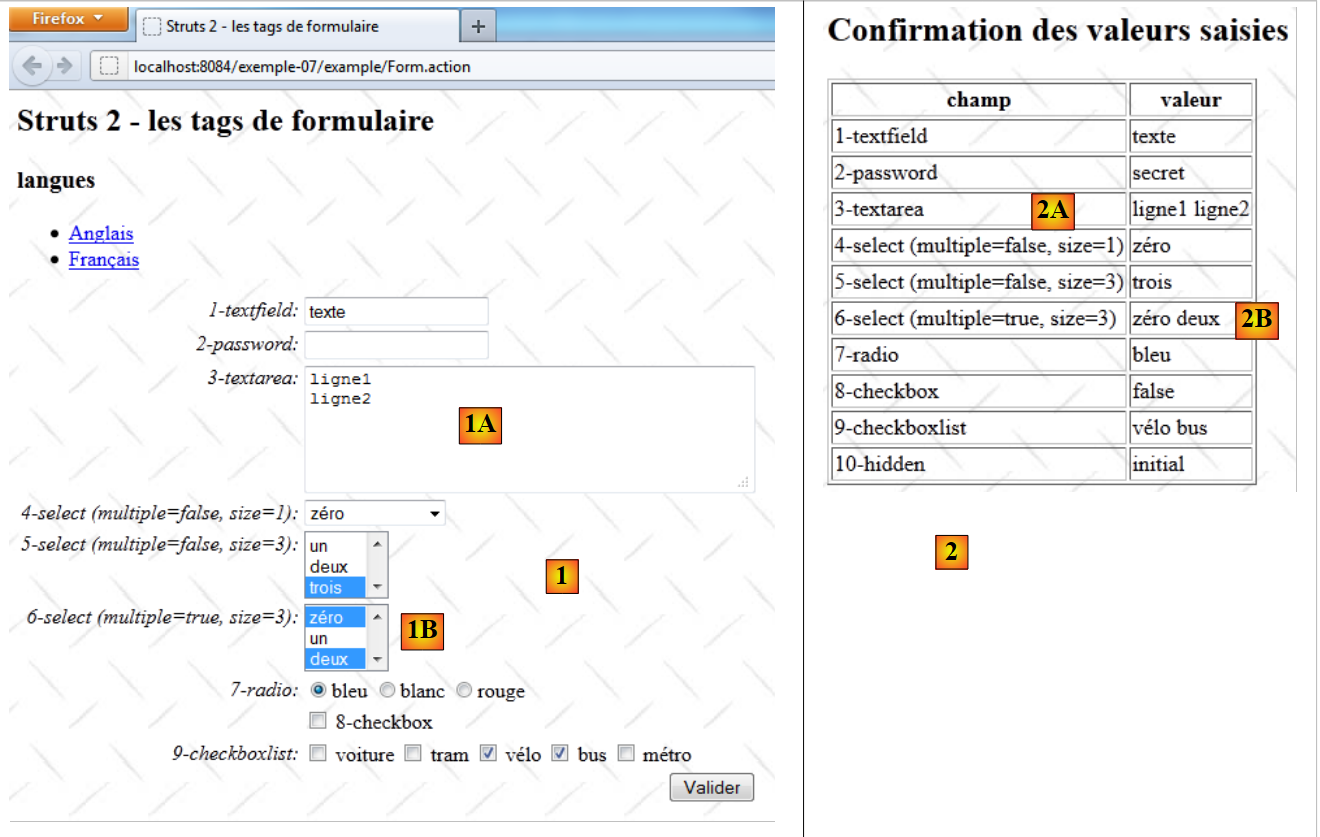 |
The values displayed in [1] and [2] come from the initial values of the fields in action [Form]. Let’s look at a few examples:
private String textarea = "ligne1\nligne2\n";
The value of the textarea field explains the displays [1A] and [2A].
private String[] select3 = new String[]{"zéro", "deux"};
private String[] select3Values = new String[]{"zéro", "un", "deux", "trois", "quatre"};
The value of the select3Values field determines the contents of the list in [1B]. The value of the select3 field determines the selected items in [1B] and those displayed in [2B].
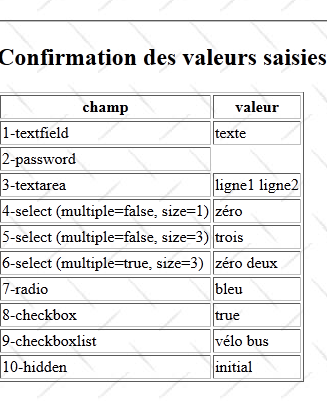
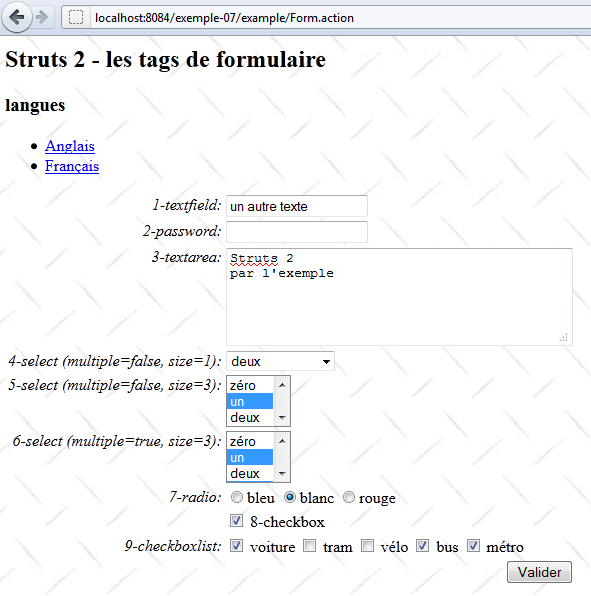
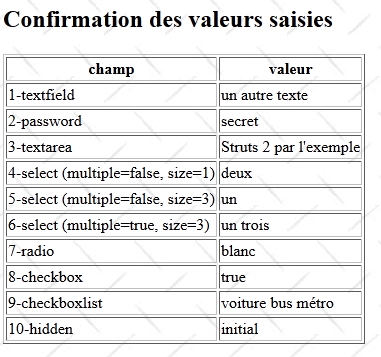
If we enter other values in the form and submit it, the entered values will be posted to the corresponding fields in the [Form] action. Then, the [Form.jsp] view will be redisplayed. We are therefore in the same situation as before, except that the initial values have been replaced by the posted values. Here is an example:
9.9. Action [Form1] and view [Form1.jsp]
The configuration file [example.xml] configures the following action [Form1]:
<?xml version="1.0" encoding="UTF-8" ?>
<!DOCTYPE struts PUBLIC
        "-//Apache Software Foundation//DTD Struts Configuration 2.0//EN"
        "http://struts.apache.org/dtds/struts-2.0.dtd">

<struts>
  <package name="example" namespace="/example" extends="struts-default">
    <action name="Form" class="example.Form">
      <result name="success">/example/Form.jsp</result>
    </action>
    <action name="Form1" class="example.Form1">
      <result name="success">/example/Form1.jsp</result>
    </action>
    <action name="Form2" class="example.Form2">
      <result name="success">/example/Form2.jsp</result>
    </action>
  </package>
</struts>
Lines 11–13: The call to the [Form1] action generates the [Form1.jsp] view.
The action [Form1] is as follows:
package example;

import com.opensymphony.xwork2.ActionSupport;

public class Form1 extends ActionSupport{

  // constructor without parameters
  public Form1() {
  }
  // form fields
  private Data data=new Data();

  /**
   * @return the data
   */
  public Data getData() {
    return data;
  }

  /**
   * @param data the data to set
   */
  public void setData(Data data) {
    this.data = data;
  }
}
The [Form1] action is identical to the [Form] action, except that its model part has been moved to a separate class, the [Data] class, line 11. The [Data] class is as follows:
package example;

public class Data {

  // constructor without parameters
  public Data() {
  }

// form fields
  private String textfield = "texte";
  private String password = "secret";
  private String textarea = "ligne1\nligne2\n";
  private String select1 = "zéro";
  private String[] select1Values = new String[]{"zéro", "un", "deux"};
  private String select2 = "trois";
  private String[] select2Values = new String[]{"zéro", "un", "deux", "trois", "quatre"};
  private String[] select3 = new String[]{"zéro", "deux"};
  private String[] select3Values = new String[]{"zéro", "un", "deux", "trois", "quatre"};
  private String radio="bleu";
  private String[] radioValues = new String[]{"bleu", "blanc", "rouge"};
  private Boolean checkbox = false;
  private String[] checkboxlist = new String[]{"vélo", "bus"};
  private String[] checkboxlistValues = new String[]{"voiture", "tram", "vélo", "bus", "métro"};
  private String hidden = "initial";
  private String submitText;

  // values selected in select3 field
  public String getSelect3SelectedValues() {
    return getValue(select3);
  }

  // values selected in checkboxlist field
  public String getCheckboxlistSelectedValues() {
    return getValue(checkboxlist);
  }

  // utilitarian method
  public String getValue(String[] values) {
    String result = "";
    for (String value : values) {
      result += " " + value;
    }
    return result;
  }

  // getters and setters
....

}
We find the fields previously declared in the [Form] action.
Quite logically, the [Form1.jsp] view is similar to the [Form.jsp] view:
<%@ page contentType="text/html; charset=UTF-8" pageEncoding="UTF-8"%>
<%@ taglib prefix="s" uri="/struts-tags" %>
<html>
  <head>
    <title><s:text name="Form.titre"/></title>
    <s:head/>
  </head>

  <body background="<s:url value="/ressources/standard.jpg"/>">
    <h2><s:text name="Form.message"/></h2>
    <h3><s:text name="Form.langues"/></h3>
    <ul>
      <li>
        <s:url id="url" action="Form">
          <s:param name="request_locale">en</s:param>
        </s:url>
        <s:a href="%{url}"><s:text name="Form.anglais"/></s:a>
      </li>
      <li>
        <s:url id="url" action="Form">
          <s:param name="request_locale">fr</s:param>
        </s:url>
        <s:a href="%{url}"><s:text name="Form.francais"/></s:a>
      </li>
    </ul>
    <s:form name="formulaire">
      <s:textfield name="data.textfield" key="Form.textfield" />
      <s:password name="data.password" key="Form.password"/>
      <s:textarea name="data.textarea" key="Form.textarea" cols="40" rows="5"/>
      <s:select name="data.select1" list="data.select1Values" size="1" key="Form.select1" headerValue="<-- select 1 -->" headerKey="-1" />
      <s:select name="data.select2" size="3" list="data.select2Values" key="Form.select2"/>
      <s:select name="data.select3" size="3" list="data.select3Values" key="Form.select3" multiple="true"/>
      <s:radio name="data.radio" list="data.radioValues" key="Form.radio"/>
      <s:checkbox name="data.checkbox" key="Form.checkbox"/>
      <s:checkboxlist name="data.checkboxlist" list="data.checkboxlistValues" key="Form.checkboxlist"/>
      <s:hidden name="data.hidden" key="Form.hidden"/>
      <s:submit key="Form.submitText" name="data.submitText"/>
    </s:form>
    <hr/>
    <h2><s:text name="Confirmation.message"/></h2>
    <table border="1">
      <tr>
        <th><s:text name="Confirmation.champ"/></th>
        <th><s:text name="Confirmation.valeur"/></th>
      </tr>
      <tr>
        <td><s:text name="Form.textfield"/></td>
        <td><s:property value="data.textfield"/>
      </tr>
      <tr>
        <td><s:text name="Form.password"/></td>
        <td><s:property value="data.password"/>
      </tr>
      <tr>
        <td><s:text name="Form.textarea"/></td>
        <td><s:property value="data.textarea"/>
      </tr>
      <tr>
        <td><s:text name="Form.select1"/></td>
        <td><s:property value="data.select1"/>
      </tr>
      <tr>
        <td><s:text name="Form.select2"/></td>
        <td><s:property value="data.select2"/>
      </tr>
      <tr>
        <td><s:text name="Form.select3"/></td>
        <td><s:property value="data.select3SelectedValues"/>
      </tr>
      <tr>
        <td><s:text name="Form.radio"/></td>
        <td><s:property value="data.radio"/>
      </tr>
      <tr>
        <td><s:text name="Form.checkbox"/></td>
        <td><s:property value="data.checkbox"/>
      </tr>
      <tr>
        <td><s:text name="Form.checkboxlist"/></td>
        <td><s:property value="data.checkboxlistSelectedValues"/>
      </tr>
      <tr>
        <td><s:text name="Form.hidden"/></td>
        <td><s:property value="data.hidden"/>
      </tr>
    </table>
  </body>
</html>
The difference between views [Form] and [Form1] can be illustrated by line 27 shown below:
<s:textfield name="data.textfield" key="Form.textfield" />
The input field is linked for reading and writing to the data.textfield field of the [Form1] action. Note that after execution, the properties of the [Form1] action are accessible to the view. Thus, the preceding name attribute will be evaluated as [Form1].getData().getTextField(). Therefore, the two preceding get methods must exist.
9.10. The action [Form2] and the view [Form2.jsp]
The configuration file [example.xml] configures the following action [Form2]:
<?xml version="1.0" encoding="UTF-8" ?>
<!DOCTYPE struts PUBLIC
        "-//Apache Software Foundation//DTD Struts Configuration 2.0//EN"
        "http://struts.apache.org/dtds/struts-2.0.dtd">

<struts>
  <package name="example" namespace="/example" extends="struts-default">
    <action name="Form" class="example.Form">
      <result name="success">/example/Form.jsp</result>
    </action>
    <action name="Form1" class="example.Form1">
      <result name="success">/example/Form1.jsp</result>
    </action>
    <action name="Form2" class="example.Form2">
      <result name="success">/example/Form2.jsp</result>
    </action>
  </package>
</struts>
Lines 14–16: The call to the [Form2] action generates the [Form2.jsp] view.
The action [Form2] is as follows:
package example;

import com.opensymphony.xwork2.ActionSupport;
import com.opensymphony.xwork2.ModelDriven;

public class Form2 extends ActionSupport implements ModelDriven {

  // constructor without parameters
  public Form2() {
  }
  // action model
  public Object getModel() {
    return new Data();
  }
}
- Line 6: The [Form2] action implements the [ModelDriven] interface. There is only one method to implement: the getModel method on line 12. This method returns an instance of the [Data] class discussed earlier.
The fact that the action [Form2] implements the interface [ModelDriven] has the following consequence: the view displayed following the [Form2] action has direct access to the properties of the [Form2] action model, which is rendered by the getModel() method. Therefore, the view [Form2.jsp] reverts to what it was with the initial action [Form]:
<%@ page contentType="text/html; charset=UTF-8" pageEncoding="UTF-8"%>
<%@ taglib prefix="s" uri="/struts-tags" %>
<html>
  <head>
    <title><s:text name="Form.titre"/></title>
    <s:head/>
  </head>

  <body background="<s:url value="/ressources/standard.jpg"/>">
    <h2><s:text name="Form.message"/></h2>
    <h3><s:text name="Form.langues"/></h3>
    <ul>
      <li>
        <s:url id="url" action="Form">
          <s:param name="request_locale">en</s:param>
        </s:url>
        <s:a href="%{url}"><s:text name="Form.anglais"/></s:a>
      </li>
      <li>
        <s:url id="url" action="Form">
          <s:param name="request_locale">fr</s:param>
        </s:url>
        <s:a href="%{url}"><s:text name="Form.francais"/></s:a>
      </li>
    </ul>
    <s:form name="formulaire">
      <s:textfield name="textfield" key="Form.textfield" />
      <s:password name="password" key="Form.password"/>
      <s:textarea name="textarea" key="Form.textarea" cols="40" rows="5"/>
      <s:select name="select1" list="select1Values" size="1" key="Form.select1" headerValue="<-- select 1 -->" headerKey="-1" />
      <s:select name="select2" size="3" list="select2Values" key="Form.select2"/>
      <s:select name="select3" size="3" list="select3Values" key="Form.select3" multiple="true"/>
      <s:radio name="radio" list="radioValues" key="Form.radio"/>
      <s:checkbox name="checkbox" key="Form.checkbox"/>
      <s:checkboxlist name="checkboxlist" list="checkboxlistValues" key="Form.checkboxlist"/>
      <s:hidden name="hidden" key="Form.hidden"/>
      <s:submit key="Form.submitText" name="submitText"/>
    </s:form>
    <hr/>
    <h2><s:text name="Confirmation.message"/></h2>
    <table border="1">
      <tr>
        <th><s:text name="Confirmation.champ"/></th>
        <th><s:text name="Confirmation.valeur"/></th>
      </tr>
      <tr>
        <td><s:text name="Form.textfield"/></td>
        <td><s:property value="textfield"/>
      </tr>
      <tr>
        <td><s:text name="Form.password"/></td>
        <td><s:property value="password"/>
      </tr>
      <tr>
        <td><s:text name="Form.textarea"/></td>
        <td><s:property value="textarea"/>
      </tr>
      <tr>
        <td><s:text name="Form.select1"/></td>
        <td><s:property value="select1"/>
      </tr>
      <tr>
        <td><s:text name="Form.select2"/></td>
        <td><s:property value="select2"/>
      </tr>
      <tr>
        <td><s:text name="Form.select3"/></td>
        <td><s:property value="select3SelectedValues"/>
      </tr>
      <tr>
        <td><s:text name="Form.radio"/></td>
        <td><s:property value="radio"/>
      </tr>
      <tr>
        <td><s:text name="Form.checkbox"/></td>
        <td><s:property value="checkbox"/>
      </tr>
      <tr>
        <td><s:text name="Form.checkboxlist"/></td>
        <td><s:property value="checkboxlistSelectedValues"/>
      </tr>
      <tr>
        <td><s:text name="Form.hidden"/></td>
        <td><s:property value="hidden"/>
      </tr>
    </table>
  </body>
</html>
So line 27, which was previously:
<s:textfield name="data.textfield" key="Form.textfield" />
becomes:
<s:textfield name="textfield" key="Form.textfield" />
The advantage of placing the model outside the view is that this architecture more clearly delineates the functionalities of each element in the MVC architecture. The M model is clearly identified by a class. Furthermore, the model may pre-exist the actions. Thus, if a web application manages a database of people, it is likely that the Person class exists. If an action provides an input form to create a new person, the model for that action is obvious: it is the Person class.
We have seen how simple it was to switch from action [Form] to action [Form2]:
- the model M of the view V has been encapsulated in a separate class
- the action that generates the view using this model implements the ModelDriven interface with the getModel method, which returns an instance of the M model. The action can then be viewed as an extension of the Struts 2 C controller, the FilterDispatcher class.
The reader can apply this approach to any action described below.