3. 第一个 [nuxt.js] 应用程序
3.1. 创建应用程序
在我们的 [nuxt.js] 开发中,我们将继续使用 VS Code。我们已创建了一个空的 [dvp] 文件夹,用于存放示例代码。然后打开该文件夹:
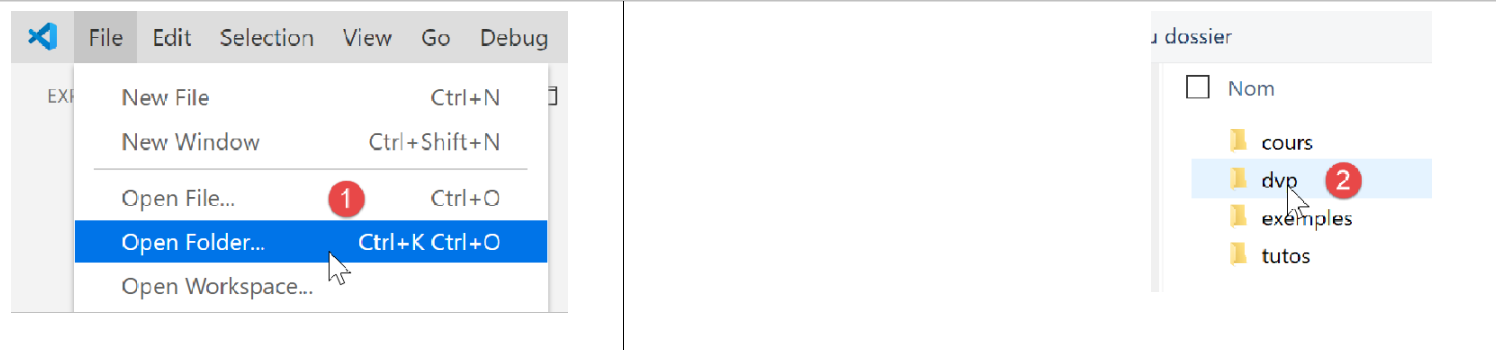
我们将此工作区保存为 [intro-nuxtjs] [3-5]:
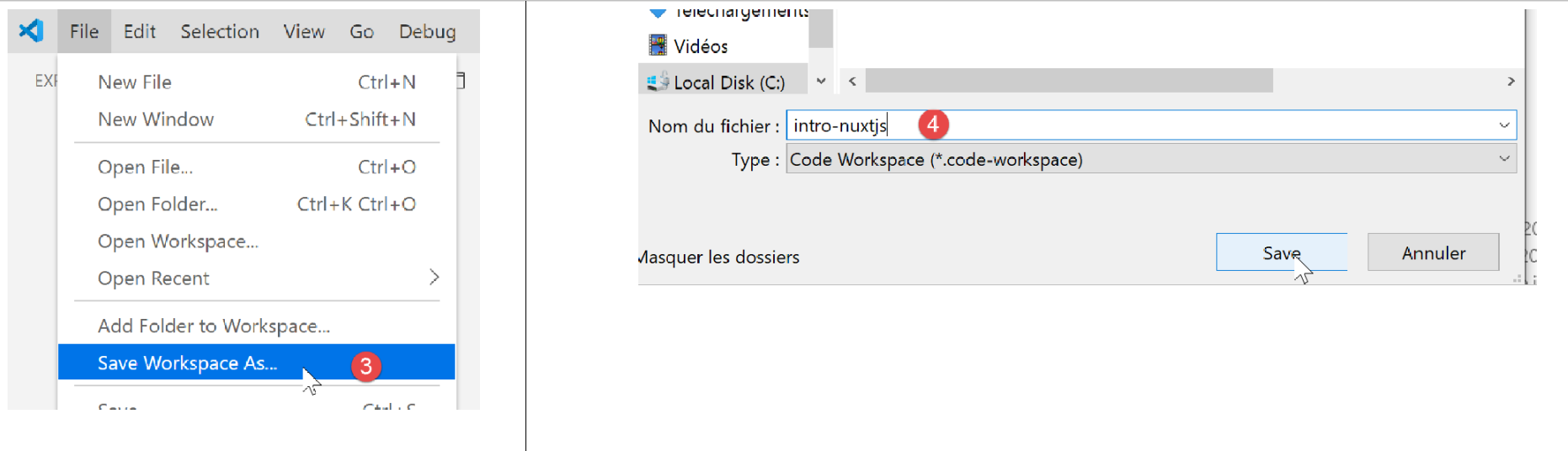
我们打开终端 [6-7]:

到目前为止,我们一直使用 JavaScript 包管理器 [npm]。为了换个方式,这里我们将使用 [yarn] 管理器。与 [npm] 一样,它已随最新版本的 [node.js] 一起安装。要创建第一个 [nuxt] 应用程序,我们使用命令 [yarn create nuxt-app <folder>] [1]。 该命令会要求提供有关待生成项目的一些信息,一旦提供这些信息,它就会生成该项目 [2]:
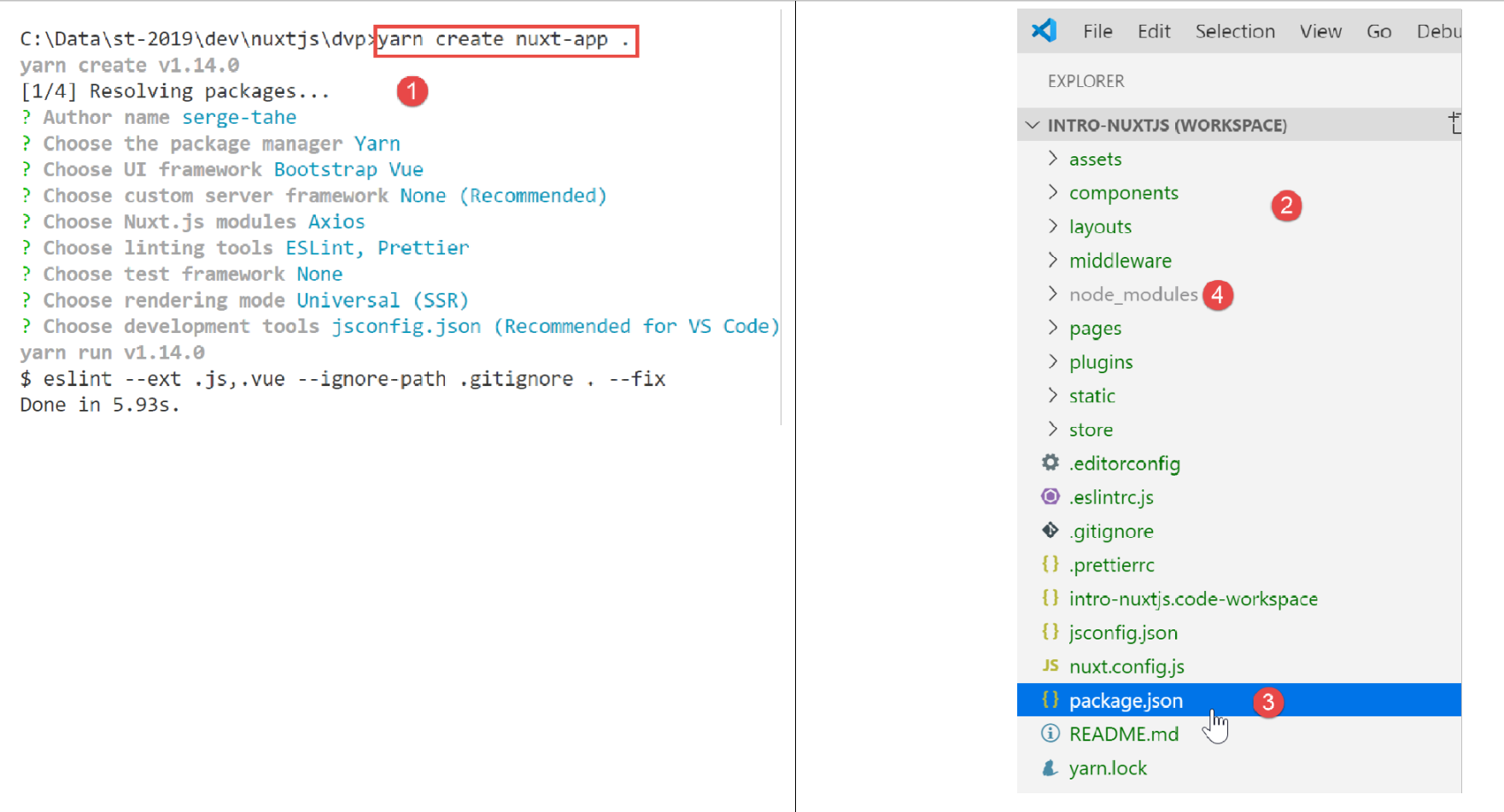
在 [2] 中,已生成完整的文件树。[package.json] 文件列出了下载到 [node-modules] 文件夹中的 JavaScript 库 [4]:
{
  "name": "nuxt-intro",
  "version": "1.0.0",
  "description": "nuxt-intro",
  "author": "serge-tahe",
  "private": true,
  "scripts": {
    "dev": "nuxt",
    "build": "nuxt build",
    "start": "nuxt start",
    "generate": "nuxt generate",
    "lint": "eslint --ext .js,.vue --ignore-path .gitignore ."
  },
  "dependencies": {
    "nuxt": "^2.0.0",
    "bootstrap-vue": "^2.0.0",
    "bootstrap": "^4.1.3",
    "@nuxtjs/axios": "^5.3.6"
  },
  "devDependencies": {
    "@nuxtjs/eslint-config": "^1.0.1",
    "@nuxtjs/eslint-module": "^1.0.0",
    "babel-eslint": "^10.0.1",
    "eslint": "^6.1.0",
    "eslint-plugin-nuxt": ">=0.4.2",
    "eslint-config-prettier": "^4.1.0",
    "eslint-plugin-prettier": "^3.0.1",
    "prettier": "^1.16.4"
  }
}
此文件反映了针对 [create nuxt-app] 命令所提供的响应,用于定义创建的项目(2019年11月)。读者的 [package.json] 文件可能有所不同:
- 他们可能对相关问题给出了不同的回答;
- 自本文撰写以来,[create nuxt-app] 命令可能已有所更新:依赖项和版本可能已发生变化;
脚本的第 8 行是启动应用程序的命令:
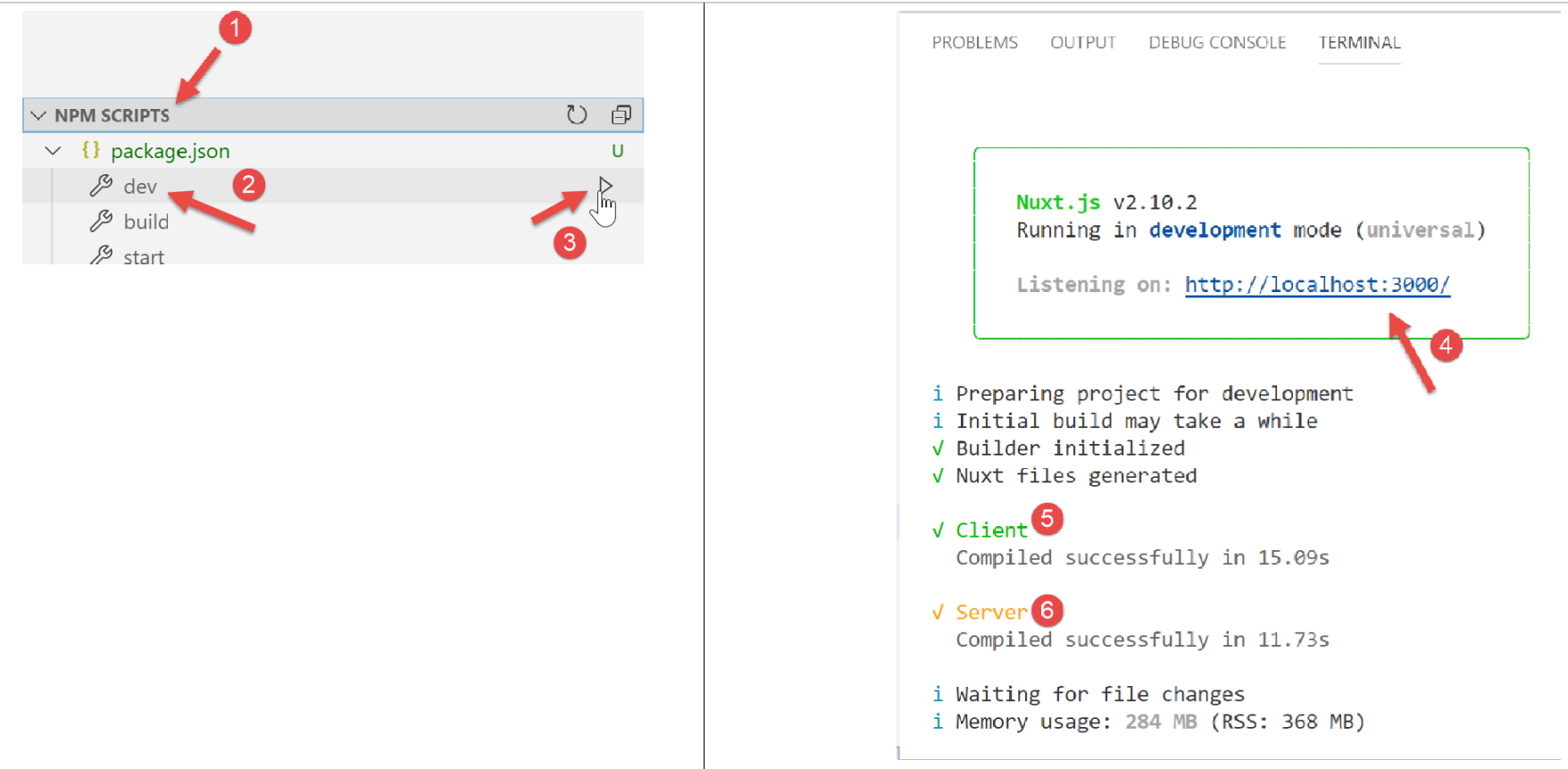
- 在 [4] 中,我们可以看到应用程序可通过 URL [localhost:3000] 访问;
- 在 [5-6] 中,我们可以看到应用程序启动了一个服务器 [6] 和一个客户端(该服务器的客户端)[5];
现在,让我们在浏览器中访问 URL [http://localhost:3000/]:

3.2. [nuxt] 应用程序的目录结构说明
让我们看看已创建应用程序的目录结构:
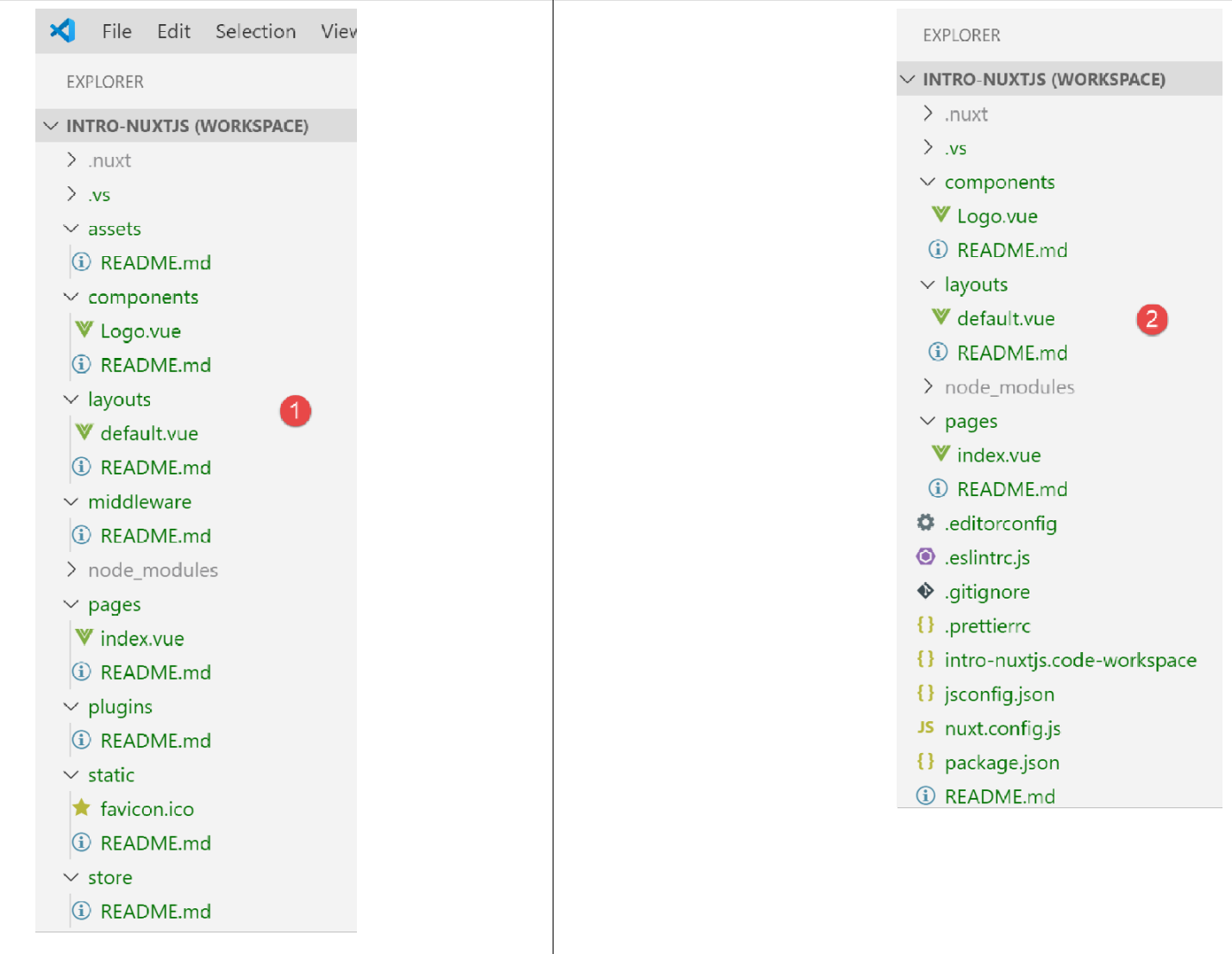
各文件夹的作用如下:
assets | 未编译的应用程序资源(图像等); |
static | 此文件夹中的文件将位于应用程序的根目录下。我们将需要出现在应用程序根目录下的文件放置在此文件夹中,例如供搜索引擎使用的 [robots.txt] 文件; |
组件 | 在 [layouts] 和 [pages] 中使用的应用程序 [view] 组件; |
布局 | 用于布局 [pages] 的应用程序 [Vue] 组件; |
pages | 由应用程序各路由显示的 [Vue] 组件。这些可以称为应用程序的视图。页面在 [Nuxt] 中扮演着特殊角色:路由会根据 [pages] 文件夹中的目录结构动态创建; |
中间件 | 每当路由发生变化时执行的脚本。它们允许您控制这些路由; |
插件 | 这个名称容易引起误解。该文件夹既可包含插件,也可包含标准脚本。此文件夹中的脚本会在应用程序启动时执行; |
store | 如果包含脚本 [index.js],则该脚本定义了一个 [Vuex] 存储实例; |
如果某个文件夹为空,可以将其从目录结构中移除。如上所述,[assets、static、middleware、plugins、store] 这些文件夹均可移除 [2]。
3.3. 配置文件 [nuxt.config]
应用程序的运行由以下 [nuxt.config.js] 文件控制:
export default {
  mode: 'universal',
  /*
   ** Headers of the page
   */
  head: {
    title: process.env.npm_package_name || '',
    meta: [
      { charset: 'utf-8' },
      { name: 'viewport', content: 'width=device-width, initial-scale=1' },
      {
        hid: 'description',
        name: 'description',
        content: process.env.npm_package_description || ''
      }
    ],
    link: [{ rel: 'icon', type: 'image/x-icon', href: '/favicon.ico' }]
  },
  /*
   ** Customize the progress-bar color
   */
  loading: { color: '#fff' },
  /*
   ** Global CSS
   */
  css: [],
  /*
   ** Plugins to load before mounting the App
   */
  plugins: [],
  /*
   ** Nuxt.js dev-modules
   */
  buildModules: [
    // Doc: https://github.com/nuxt-community/eslint-module
    '@nuxtjs/eslint-module'
  ],
  /*
   ** Nuxt.js modules
   */
  modules: [
    // Doc: https://bootstrap-vue.js.org
    'bootstrap-vue/nuxt',
    // Doc: https://axios.nuxtjs.org/usage
    '@nuxtjs/axios'
  ],
  /*
   ** Axios module configuration
   ** See https://axios.nuxtjs.org/options
   */
  axios: {},
  /*
   ** Build configuration
   */
  build: {
    /*
     ** You can extend webpack config here
     */
    extend(config, ctx) {}
  }
}
- 第 2 行:生成的应用程序类型:
- [universal]:客户端/服务器应用程序。当应用程序首次加载时,以及每次在浏览器中刷新页面时,都会向服务器请求提供页面;
- [sap]:[单页应用程序] 类型:服务器初始时交付整个应用程序。此后,客户端独立运行,即使在浏览器中刷新页面时也是如此;
- 第 6–18 行:定义应用程序各页面的 HTML 页眉 `<head>`:
- 第 7 行:用于页面标题的 <title> 标签;
- 第 8–16 行:<meta> 标签;
- 第 17 行:<link> 标签
在生成的应用程序中,<head> 标签如下所示(浏览器中显示的页面源代码):
<title>nuxt-intro</title>
<meta data-n-head="ssr" charset="utf-8">
<meta data-n-head="ssr" name="viewport" content="width=device-width, initial-scale=1">
<meta data-n-head="ssr" data-hid="description" name="description" content="nuxt-intro">
<link data-n-head="ssr" rel="icon" type="image/x-icon" href="/favicon.ico">
<link rel="preload" href="/_nuxt/runtime.js" as="script">
<link rel="preload" href="/_nuxt/commons.app.js" as="script">
<link rel="preload" href="/_nuxt/vendors.app.js" as="script">
<link rel="preload" href="/_nuxt/app.js" as="script">
现在,让我们按以下方式修改 [nuxt.config] 文件:
head: {
    title: 'Introduction à [nuxt.js]',
    meta: [
      { charset: 'utf-8' },
      { name: 'viewport', content: 'width=device-width, initial-scale=1' },
      {
        hid: 'description',
        name: 'description',
        content: 'ssr routing loading asyncdata middleware plugins store'
      }
    ],
    link: [{ rel: 'icon', type: 'image/x-icon', href: '/favicon.ico' }]
},
当我们重新运行应用程序时,<head> 标签已变为如下内容(浏览器中显示的页面源代码):
  <head >
    <title>Introduction à [nuxt.js]</title>
    <meta data-n-head="ssr" charset="utf-8">
    <meta data-n-head="ssr" name="viewport" content="width=device-width, initial-scale=1">
    <meta data-n-head="ssr" data-hid="description" name="description" content="ssr routing loading asyncdata middleware plugins store">
    <link data-n-head="ssr" rel="icon" type="image/x-icon" href="/favicon.ico">
    <link rel="preload" href="/_nuxt/runtime.js" as="script">
    <link rel="preload" href="/_nuxt/commons.app.js" as="script">
    <link rel="preload" href="/_nuxt/vendors.app.js" as="script">
<link rel="preload" href="/_nuxt/app.js" as="script">
让我们回到 [nuxt.config] 文件:
export default {
  mode: 'universal',
  /*
   ** Headers of the page
   */
  head: {
    ...
  },
  /*
   ** Customize the progress-bar color
   */
  loading: { color: '#fff' },
  /*
   ** Global CSS
   */
  css: [],
  /*
   ** Plugins to load before mounting the App
   */
  plugins: [],
  /*
   ** Nuxt.js dev-modules
   */
  buildModules: [
    // Doc: https://github.com/nuxt-community/eslint-module
    '@nuxtjs/eslint-module'
  ],
  /*
   ** Nuxt.js modules
   */
  modules: [
    // Doc: https://bootstrap-vue.js.org
    'bootstrap-vue/nuxt',
    // Doc: https://axios.nuxtjs.org/usage
    '@nuxtjs/axios'
  ],
  /*
   ** Axios module configuration
   ** See https://axios.nuxtjs.org/options
   */
  axios: {},
  /*
   ** Build configuration
   */
  build: {
    /*
     ** You can extend webpack config here
     */
    extend(config, ctx) {}
  }
}
- 第 12 行:在 [nuxt] 客户端的每个路由之间,如果路由切换需要一点时间,会显示一条加载条。通过 [loading] 属性可以配置这条加载条;此处配置的是加载条的颜色;
- 第 16 行:全局 [css] 文件。它们将被自动包含在应用程序的所有页面中;
- 第 24–27 行:构建应用程序所需的 JavaScript 模块;
- 第 31–36 行:应用程序使用的 JavaScript 模块;
- 第 41 行:当用户选择使用 [axios] 库与第三方服务器进行 HTTP 交互时的配置;
- 第 45–50 行:项目构建配置;
您可以在配置文件中添加其他键。特别是,您可以配置服务端口(默认值为 3000)和项目根目录(默认是项目的根文件夹)。接下来我们将通过添加以下键来实现这一点:
// source code directory
  srcDir: '.',
  router: {
    // URL root of application pages
    base: '/nuxt-intro/'
  },
  // server
  server: {
    // service port - default 3000
    port: 81,
    // network addresses listened to - default localhost=127.0.0.1
    host: '0.0.0.0'
  }
- 第 2 行:项目源代码的位置。它位于当前目录下,即与 [nuxt.config.js] 文件处于同一层级。这是默认值;
- 第 8–13 行:配置服务器(请注意,[nuxt] 类型的 [universal] 应用程序既安装在服务器上,也安装在客户端浏览器中);
- 第 10 行:应用程序的页面将通过服务器的 81 端口提供;
- 第 12 行:默认值为 [localhost](网络地址 127.0.0.1)。如果一台机器属于多个网络,它可能拥有多个网络地址。地址 0.0.0.0 表示 Web 服务器监听该机器的所有网络地址;
- 第 3–6 行:配置 [nuxt] 应用程序路由器;
- 第 5 行:应用程序的页面将通过 URL [http://localhost:81/nuxt-intro/] 提供;
我们将这些行添加到 [nuxt.config.js] 文件中,然后运行项目(npm dev 脚本)。结果如下:
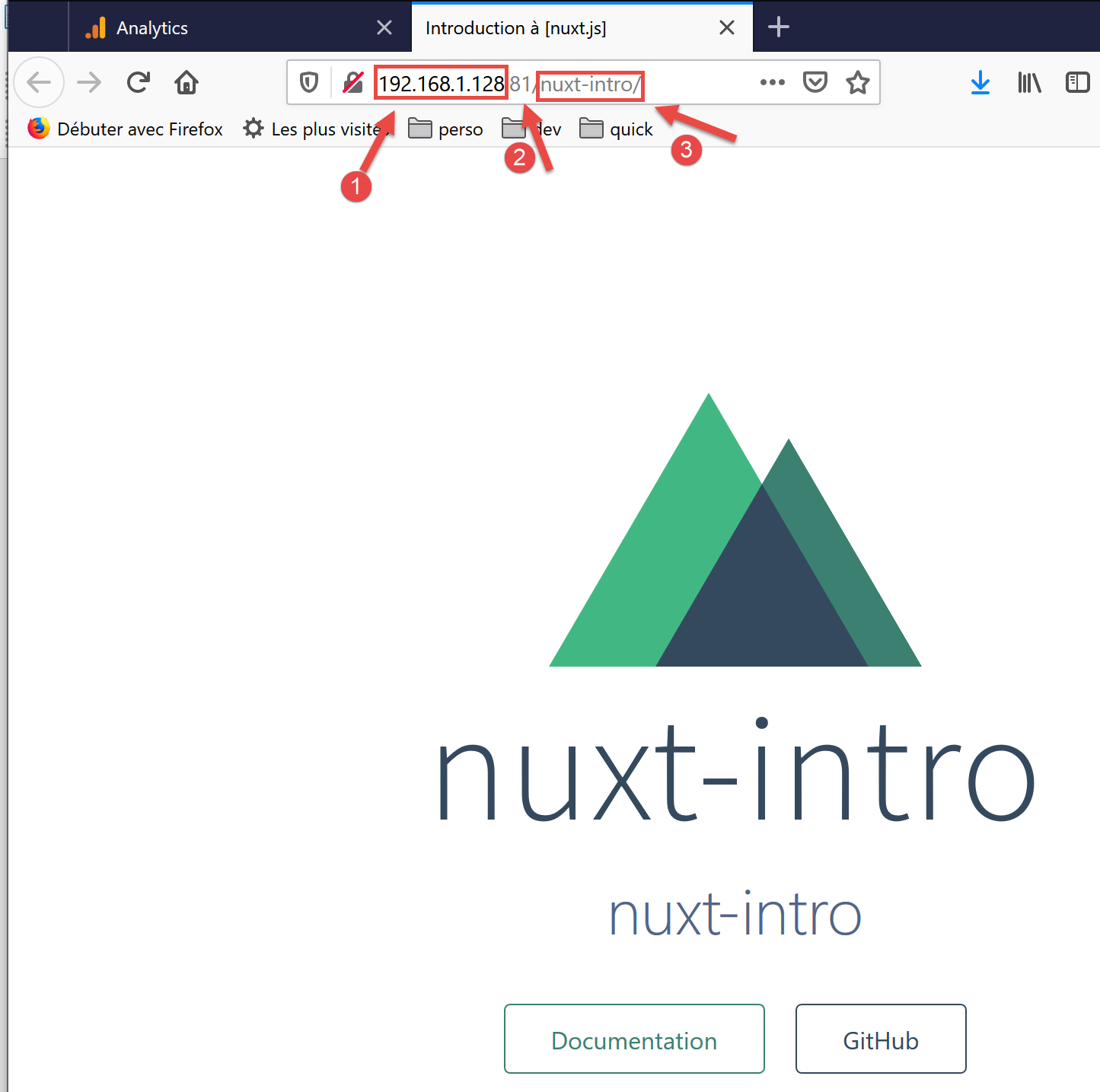
- [1] 是机器在公共网络上的地址;
- [2] 表示服务端口;
- [3] 表示应用程序的根 URL;
3.4. [layouts] 文件夹
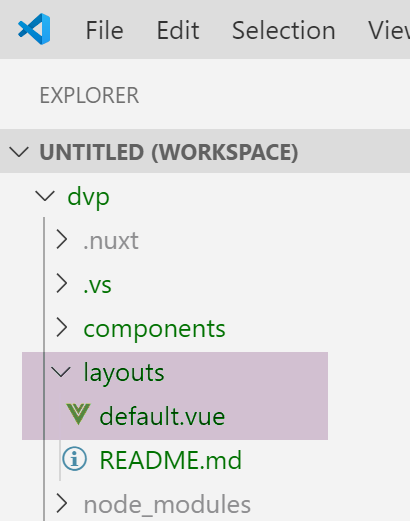
[layouts] 文件夹用于存放布局组件。默认情况下,使用名为 [default.vue] 的组件。在本项目中,其内容如下:
<template>
  <div>
    <nuxt />
  </div>
</template>

<style>
html {
  font-family: 'Source Sans Pro', -apple-system, BlinkMacSystemFont, 'Segoe UI',
    Roboto, 'Helvetica Neue', Arial, sans-serif;
  font-size: 16px;
  word-spacing: 1px;
  -ms-text-size-adjust: 100%;
  -webkit-text-size-adjust: 100%;
  -moz-osx-font-smoothing: grayscale;
  -webkit-font-smoothing: antialiased;
  box-sizing: border-box;
}

*,
*:before,
*:after {
  box-sizing: border-box;
  margin: 0;
}

.button--green {
  display: inline-block;
  border-radius: 4px;
  border: 1px solid #3b8070;
  color: #3b8070;
  text-decoration: none;
  padding: 10px 30px;
}

.button--green:hover {
  color: #fff;
  background-color: #3b8070;
}

.button--grey {
  display: inline-block;
  border-radius: 4px;
  border: 1px solid #35495e;
  color: #35495e;
  text-decoration: none;
  padding: 10px 30px;
  margin-left: 15px;
}

.button--grey:hover {
  color: #fff;
  background-color: #35495e;
}
</style>
评论
- 第 1-5 行:组件的 [template];
- 第 3 行:<nuxt /> 标签指定了当前路由页面;
- 第 7–55 行:布局组件嵌入的样式。由于该组件包含当前路由页面,因此此样式将应用于应用程序中的所有路由页面;
我们可以看出,此处 [default.vue] 页面的主要目的是为路由页面应用样式。
3.5. [pages] 文件夹
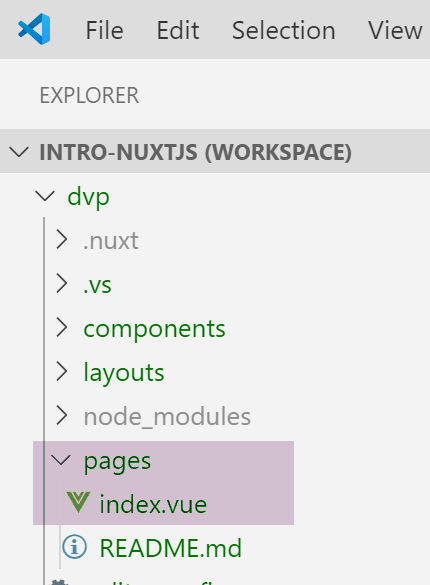
[pages] 文件夹包含路由视图,即用户所看到的页面。[index.vue] 页面是应用程序的首页。 在 [nuxt.js] 中,没有单独的路由配置文件。路由是根据 [pages] 文件夹的结构自动确定的。在此,[index.vue] 文件的存在会自动创建一个名为 [index] 的路由,其路径为 [/index],由于它是首页,因此该路径被简化为 [/]。因此,会生成以下路由:
[index.vue] 文件内容如下:
<template>
  <div class="container">
    <div>
      <logo />
      <h1 class="title">
        nuxt-intro
      </h1>
      <h2 class="subtitle">
        nuxt-intro
      </h2>
      <div class="links">
        <a href="https://nuxtjs.org/" target="_blank" class="button--green">
          Documentation
        </a>
        <a
          href="https://github.com/nuxt/nuxt.js"
          target="_blank"
          class="button--grey"
        >
          GitHub
        </a>
      </div>
    </div>
  </div>
</template>

<script>
import Logo from '~/components/Logo.vue'

export default {
  components: {
    Logo
  }
}
</script>

<style>
.container {
  margin: 0 auto;
  min-height: 100vh;
  display: flex;
  justify-content: center;
  align-items: center;
  text-align: center;
}

.title {
  font-family: 'Quicksand', 'Source Sans Pro', -apple-system, BlinkMacSystemFont,
    'Segoe UI', Roboto, 'Helvetica Neue', Arial, sans-serif;
  display: block;
  font-weight: 300;
  font-size: 100px;
  color: #35495e;
  letter-spacing: 1px;
}

.subtitle {
  font-weight: 300;
  font-size: 42px;
  color: #526488;
  word-spacing: 5px;
  padding-bottom: 15px;
}

.links {
  padding-top: 15px;
}
</style>
第 1–25 行中的 [模板] 显示以下视图:

图片 [1] 由 [template] 的第 4 行生成。我们可以看到,该页面使用了一个名为 [logo] 的组件。该组件在页面脚本的第 27–35 行中定义。在第 28 行中,符号 [~] 表示项目根目录。
3.6. [Logo]组件
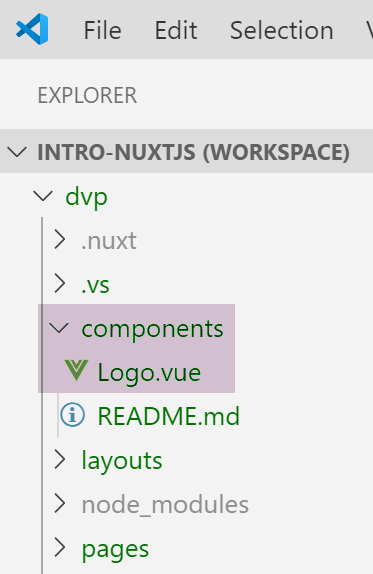
[Logo.vue] 组件如下所示:
<template>
  <div class="VueToNuxtLogo">
    <div class="Triangle Triangle--two" />
    <div class="Triangle Triangle--one" />
    <div class="Triangle Triangle--three" />
    <div class="Triangle Triangle--four" />
  </div>
</template>

<style>
.VueToNuxtLogo {
  display: inline-block;
  animation: turn 2s linear forwards 1s;
  transform: rotateX(180deg);
  position: relative;
  overflow: hidden;
  height: 180px;
  width: 245px;
}

.Triangle {
  position: absolute;
  top: 0;
  left: 0;
  width: 0;
  height: 0;
}

.Triangle--one {
  border-left: 105px solid transparent;
  border-right: 105px solid transparent;
  border-bottom: 180px solid #41b883;
}

.Triangle--two {
  top: 30px;
  left: 35px;
  animation: goright 0.5s linear forwards 3.5s;
  border-left: 87.5px solid transparent;
  border-right: 87.5px solid transparent;
  border-bottom: 150px solid #3b8070;
}

.Triangle--three {
  top: 60px;
  left: 35px;
  animation: goright 0.5s linear forwards 3.5s;
  border-left: 70px solid transparent;
  border-right: 70px solid transparent;
  border-bottom: 120px solid #35495e;
}

.Triangle--four {
  top: 120px;
  left: 70px;
  animation: godown 0.5s linear forwards 3s;
  border-left: 35px solid transparent;
  border-right: 35px solid transparent;
  border-bottom: 60px solid #fff;
}

@keyframes turn {
  100% {
    transform: rotateX(0deg);
  }
}

@keyframes godown {
  100% {
    top: 180px;
  }
}

@keyframes goright {
  100% {
    left: 70px;
  }
}
</style>
该组件主要由样式和动画组成,用于创建动态图像。
3.7. Vue DevTools
[Vue DevTools] 是一款浏览器扩展程序,可让您在浏览器中检查 [nuxt.js] 和 [vue.js] 对象。我们在 [vue.js] 相关章节中已经使用过它。现在,让我们看看当应用程序的主页显示时,该工具会检测到什么:
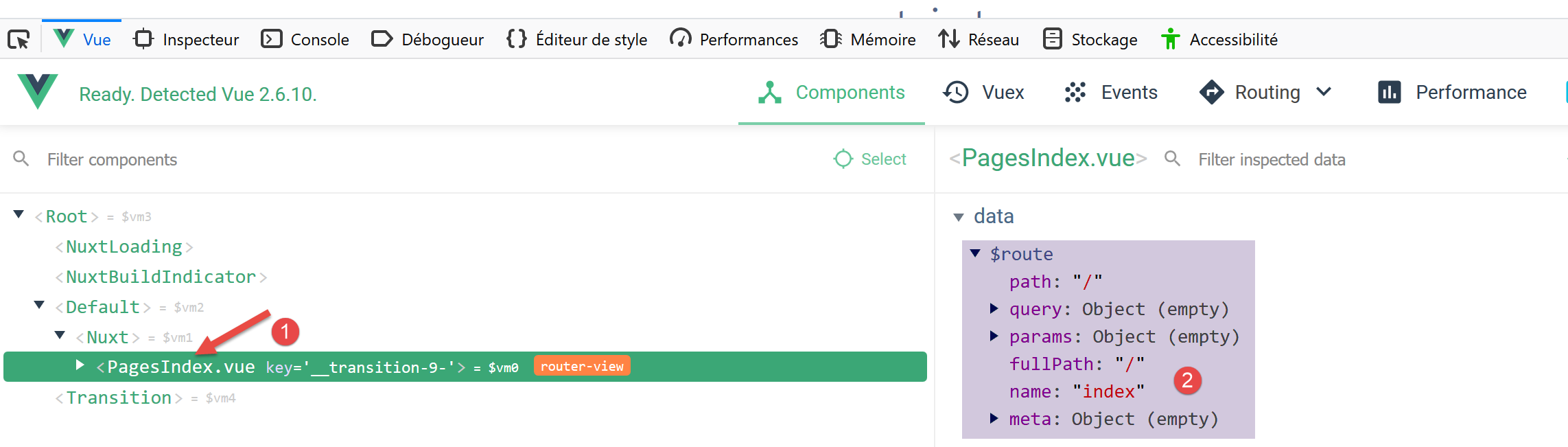
- 在 [1] 中,[PagesIndex] 组件指向 [pages/index.vue] 页面;
- 在 [2] 中,我们可以看到该组件有一个 [$route] 属性,它表示引导至 [index] 页面的路由;
作为一个简单的练习,让我们在控制台显示这条路由。
3.8. 修改首页
我们将修改 [index.vue] 文件。在项目配置中,我们已安装了两个依赖项:
- [eslint]:用于检查 JavaScript 文件和 Vue 组件的语法。如果已安装 VSCode 的 [ESLint] 扩展,则会在您输入时实时检查语法,并立即标记错误;
- [prettier]:用于以标准格式美化 JavaScript 代码;
这些依赖项在 [package.json] 文件中列出:
"devDependencies": {
    "@nuxtjs/eslint-config": "^1.0.1",
    "@nuxtjs/eslint-module": "^1.0.0",
    "babel-eslint": "^10.0.1",
    "eslint": "^6.1.0",
    "eslint-config-prettier": "^4.1.0",
    "eslint-plugin-nuxt": ">=0.4.2",
    "eslint-plugin-prettier": "^3.0.1",
    "prettier": "^1.16.4"
}
我注意到(2019年11月),当通过 [yarn create nuxt-app] 命令进行安装时,[eslint, prettier] 工具在编写代码时无法正常工作。错误仅在编译时才会被报告。经过一番研究,我找到了一套有效的配置方案:
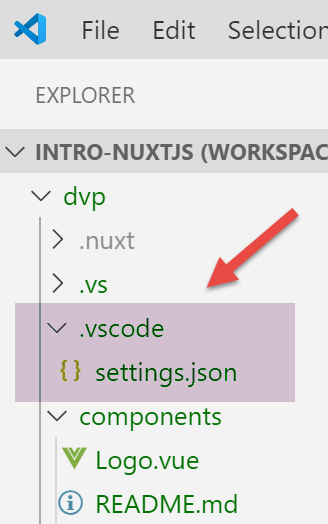
在项目根目录下创建一个 [.vscode] 文件夹,并在其中放入以下 [settings.json] 文件:
{
  "eslint.validate": [
    {
      "language": "vue",
      "autoFix": true
    },
    {
      "language": "javascript",
      "autoFix": true
    }
  ],
  "eslint.autoFixOnSave": true,
  "editor.formatOnSave": false
}
- 第 2–11 行:指定当 [eslint] 验证 .vue 和 .js 文件时,应修复其能处理的任何错误;
- 第 12 行:保存文件时,[eslint] 应修复其能处理的任何错误;
- 第 13 行:禁用 VSCode 保存时的默认格式化功能。[prettier] 将负责处理此操作;
通过此配置:
- 只要输入文本,语法或格式错误就会立即被标记出来;
- 保存文件时,格式化错误会自动更正;
[prettier] 库通过 [.prettierrc] 文件进行配置:
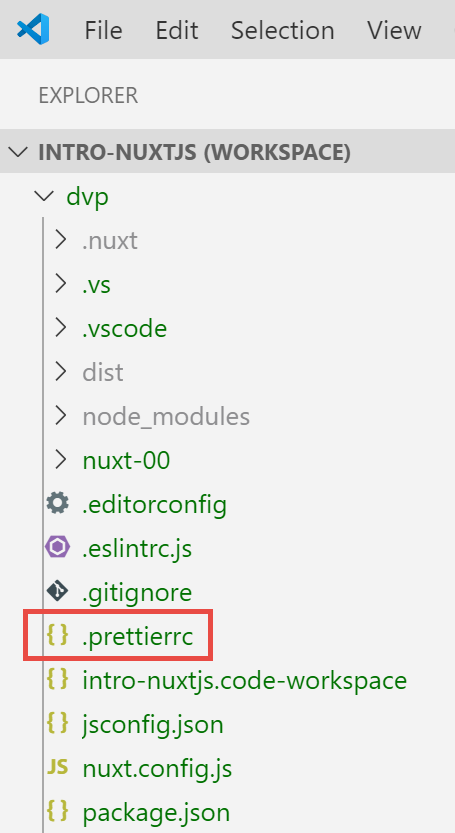
默认情况下,该文件内容如下:
{
  "semi": false,
  "arrowParens": "always",
  "singleQuote": true
}
- 第 1 行:语句末尾不加分号;
- 第 2 行:如果箭头函数只有一个参数,则用圆括号括起来;
- 第 3 行:字符串应使用单引号(而非双引号);
我们添加以下两条规则:
{
  "semi": false,
  "arrowParens": "always",
  "singleQuote": true,
  "printWidth": 120,
  "endOfLine": "auto"
}
- 第 5 行:代码行长度最多为 120 个字符;
- 第6行:换行符可以是CRLF(Windows)或LF(Unix);
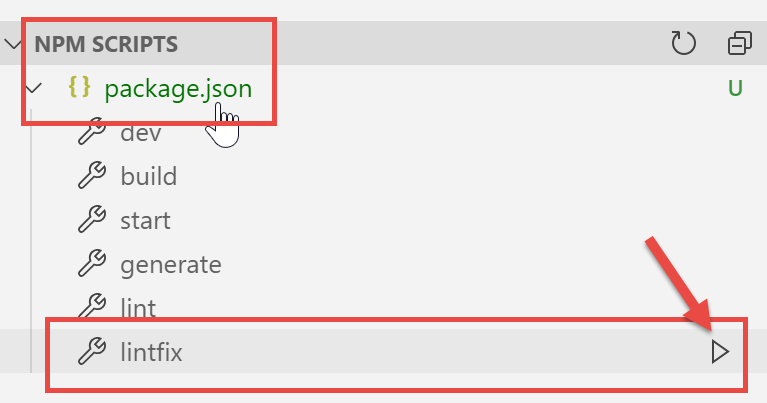
最后,[package.json] 文件修改如下:
"scripts": {
    "dev": "nuxt",
    "build": "nuxt build",
    "start": "nuxt start",
    "generate": "nuxt generate",
    "lint": "eslint --ext .js,.vue --ignore-path .gitignore .",
    "lintfix": "eslint --fix --ext .js,.vue --ignore-path .gitignore ."
},
- 第 7 行:我们添加了 [lintfix] 命令,它与第 6 行的 [lint] 命令完全相同,只是多了一个 [--fix] 参数。 [lint] 命令会检查项目中所有文件的语法和格式,并报告任何错误。[lintfix] 也会执行同样的检查,但会自动修复所有可修正的格式问题。如果构建因文件格式问题而失败,请使用 [lintfix] 命令;
完成上述操作后,我们将 [index.vue] 文件修改如下:
<script>
/* eslint-disable no-console */
import Logo from '~/components/Logo.vue'

export default {
  components: {
    Logo
  },
  // cycle de vie
  created() {
    console.log('created, route=', this.$route)
  }
}
</script>
- 第 10–12 行:我们添加了 [created] 函数,该函数会在组件创建时自动执行;
- 第 11 行:显示当前路由;
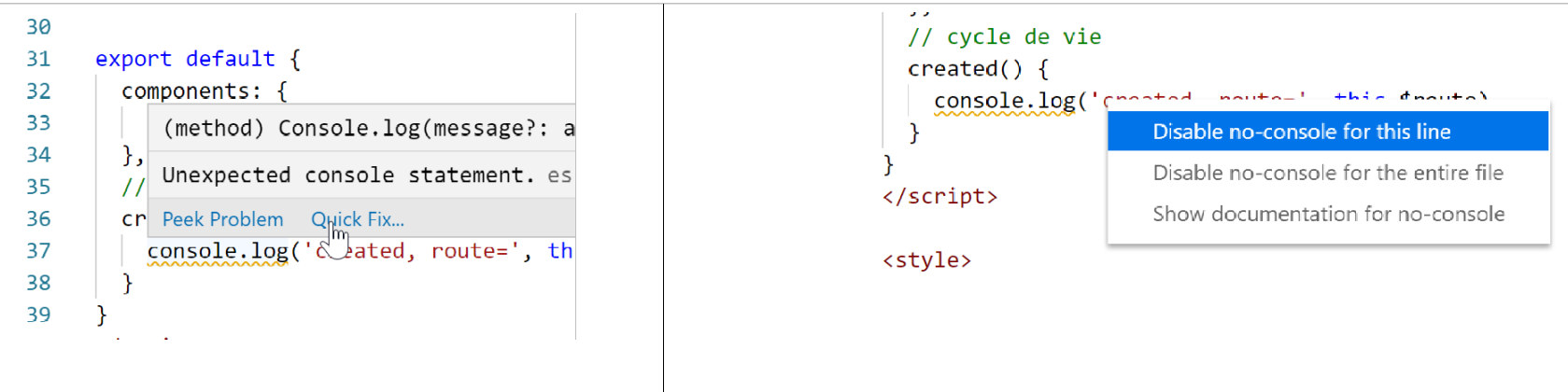
- 第 2 行:这是一条针对 [eslint] 的注释。如果没有这条注释,[eslint] 会报告错误;第 11 行:它不允许在生命周期函数中使用 [console] 语句。[eslint] 是可配置的。我们将保留其默认配置,并使用类似第 2 行那样的注释来禁用特定的 [eslint] 规则。我们将使用两种类型的注释:
- /* 禁用 [eslint] 规则 */:禁用整个文件中的某条规则;
- // 禁用 [eslint] 规则:仅禁用后续一行中的规则;
在您输入时,系统会标记错误,并提供 [快速修复] 功能:
运行项目:
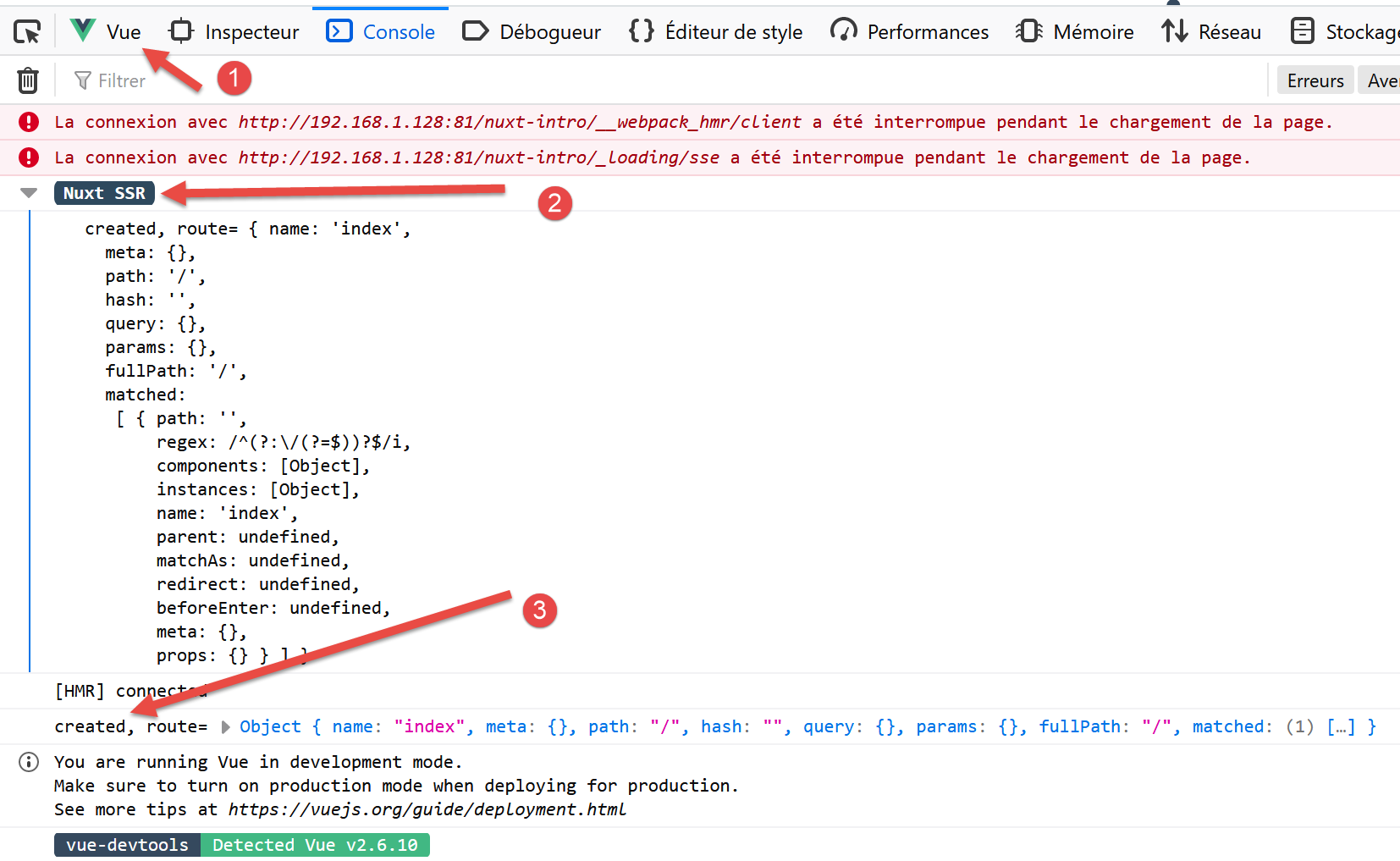
- 在 [1] 中,浏览器开发者工具(F12)的 [视图] 选项卡;
- 在 [2] 和 [3] 中,显示路由;
为什么需要两个视图,而不是一个?
一个 [Nuxt] 应用程序由两个组件构成:服务器端和客户端:
- 服务器在应用程序启动时提供页面,并在浏览器刷新页面(F5)或用户手动输入应用程序 URL 时提供页面;
- 浏览器呈现的每个页面不仅包含请求的页面内容,还包含整个应用程序的 JavaScript 代码,这些代码随后会在浏览器中执行。这就是客户端。只要浏览器中没有页面刷新,应用程序就会像经典的 Vue 应用程序一样在 [SPA](单页应用程序)模式下运行。一旦用户手动触发页面刷新,页面就会从服务器端请求,我们便回到上一步骤 1。
您需要理解的是,无论由服务器还是客户端提供,这些都是来自 [pages] 文件夹的相同页面。因此,[nuxt] 的开发者将此类页面称为同构页面。相同的 [.vue] 页面既可由客户端解析,也可由服务器解析。让我们以 [index] 页面为例:
<template>
  <div class="container">
    <div>
      <logo />
      <h1 class="title">
        nuxt-intro
      </h1>
      <h2 class="subtitle">
        nuxt-intro
      </h2>
      <div class="links">
        <a href="https://nuxtjs.org/" target="_blank" class="button--green">
          Documentation
        </a>
        <a
          href="https://github.com/nuxt/nuxt.js"
          target="_blank"
          class="button--grey"
        >
          GitHub
        </a>
      </div>
    </div>
  </div>
</template>

<script>
/* eslint-disable no-console */
import Logo from '~/components/Logo.vue'

export default {
  components: {
    Logo
  },
  // cycle de vie
  created() {
    console.log('created, route=', this.$route)
  }
}
</script>
由于这是首页,因此应用程序启动时由服务器提供该页面。服务器上的页面也有一个生命周期,与经典的 [Vue] 页面相同,只是 [beforeMount] 和 [mounted] 函数在服务器端并不存在。 此时会执行 [created] 函数,这解释了第一个日志。顺便提一下,这意味着服务器能够执行 JavaScript 脚本。在此处以及一般情况下,该服务器是一个 [node.js] 服务器。页面在服务器上创建后,会传送到浏览器中,并在那里再次经历生命周期。此时 [created] 函数会被第二次执行,从而产生第二个日志。
一个 [nuxt] 应用程序的架构可能如下所示:
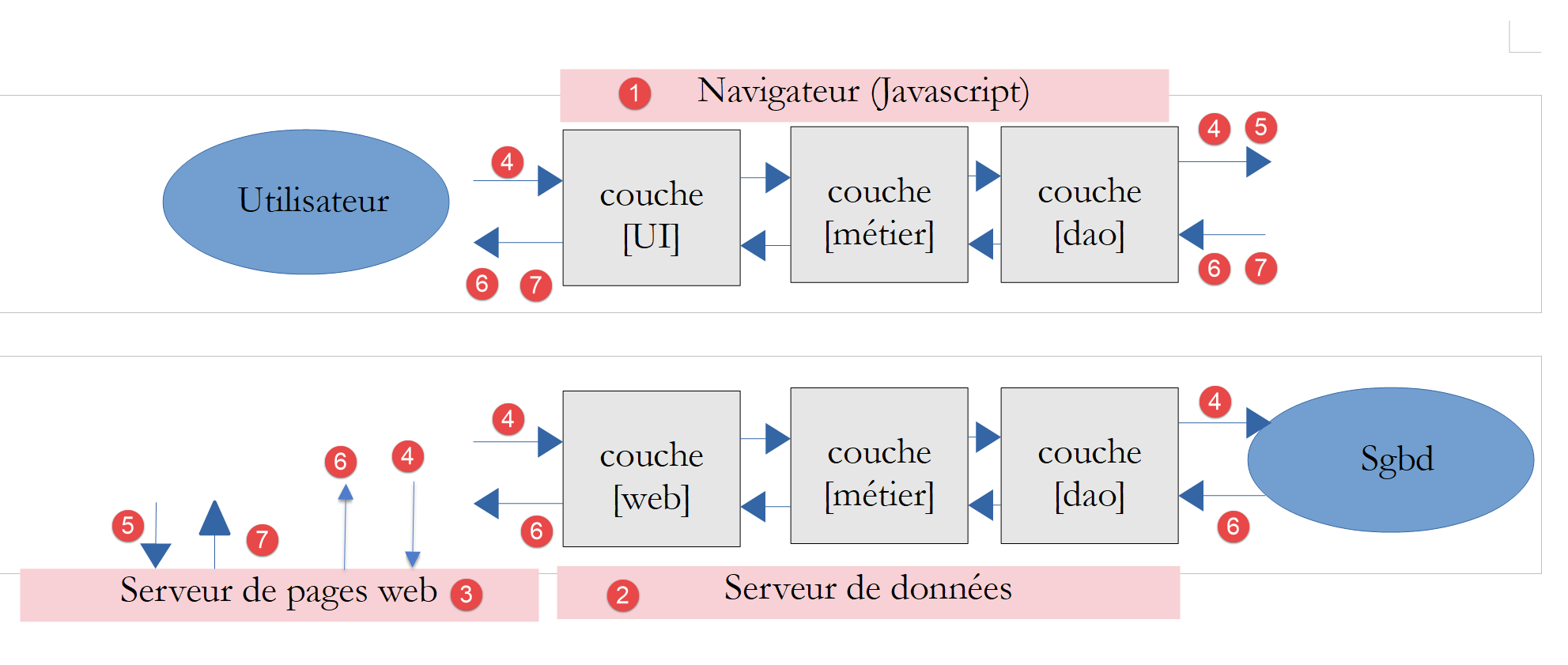
- [1]:[nuxt] 应用程序加载到浏览器后运行的浏览器。这就是我们所说的 [nuxt] 客户端;
- [3]:最初托管 [nuxt] 应用程序的服务器。当应用程序启动时,以及每次用户刷新当前浏览器页面或手动输入应用程序 URL 时,它都会被加载到浏览器 [1] 中。这正是其与经典 Vue 应用程序在运行机制上的区别所在。对于经典 Vue 应用程序,一旦加载到浏览器中,服务器便不再被调用。 另一个我们尚未提及的重要区别在于:Vue 应用程序的服务器是静态服务器,无法解析 [.vue] 页面;而 [universal] Nuxt 应用程序的服务器则是 JavaScript 服务器。在将页面发送至浏览器之前,该服务器可以执行脚本,例如从服务器 [2] 获取数据;
- [2]:是指向 [nuxt] 客户端 [1] 或 [nuxt] 服务器 [3] 提供数据的服务器;
在上图中,我们可以区分出三个客户端/服务器子系统:
- [1, 3]:托管 [nuxt] 应用程序。[3] 在应用程序启动时提供首页,并在用户每次手动请求页面时提供。[1] 托管从 [3] 接收的 [nuxt] 应用程序,只要未从 [3] 手动请求页面,该应用程序便以 [SAP] 模式运行;
- [1, 2]:在 [SAP] 模式下,[nuxt] 客户端从一个或多个服务器检索外部数据;
- [3, 2]:在生成用户请求的页面时,服务器 [3] 也可从一个或多个服务器检索外部数据;
因此,正是服务器 [3] 使 [Nuxt] 应用区别于 [Vue] 应用。每当用户手动请求页面时,都会调用该服务器。它处理的 [.vue] 页面与 [Vue] 客户端 [1] 相同。 这是一个能够执行页面中脚本的 JavaScript 服务器。例如,这可以改变首页利用外部数据生成的方式:虽然 [Vue] 应用程序必须从客户端 [1] 获取这些数据,但在此处,服务器 [3] 可以在页面发送给客户端之前先获取这些数据。因此,首页变得更有意义,并有助于提升应用程序的 SEO。
注:在开发模式下,这三个组件 [1, 2, 3] 通常位于同一台机器上。本文中的所有示例均采用此配置。
3.9. 将应用程序源代码移至独立文件夹
接下来,我们将在同一个 [dvp] 文件夹中创建多个 [nuxt] 应用程序。这是因为每个 [nuxt] 项目生成的 [node_modules] 依赖项文件夹可能达到数百兆字节。 我们将在 [dvp] 文件夹内创建多个子文件夹 [nuxt-00, nuxt-01, ...],用于存放待测试示例的源代码。随后,我们将通过配置文件 [nuxt-config.js] 指定 [dvp] 项目的源代码位置,该项目在本教程中将作为唯一的 [nuxt] 项目存在。
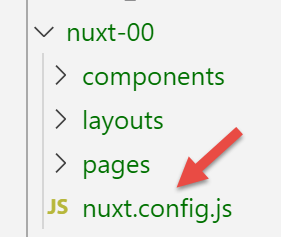
我们将 [yarn create nuxt-app] 命令初始生成的应用程序源代码移动到 [nuxt-00] 文件夹中:
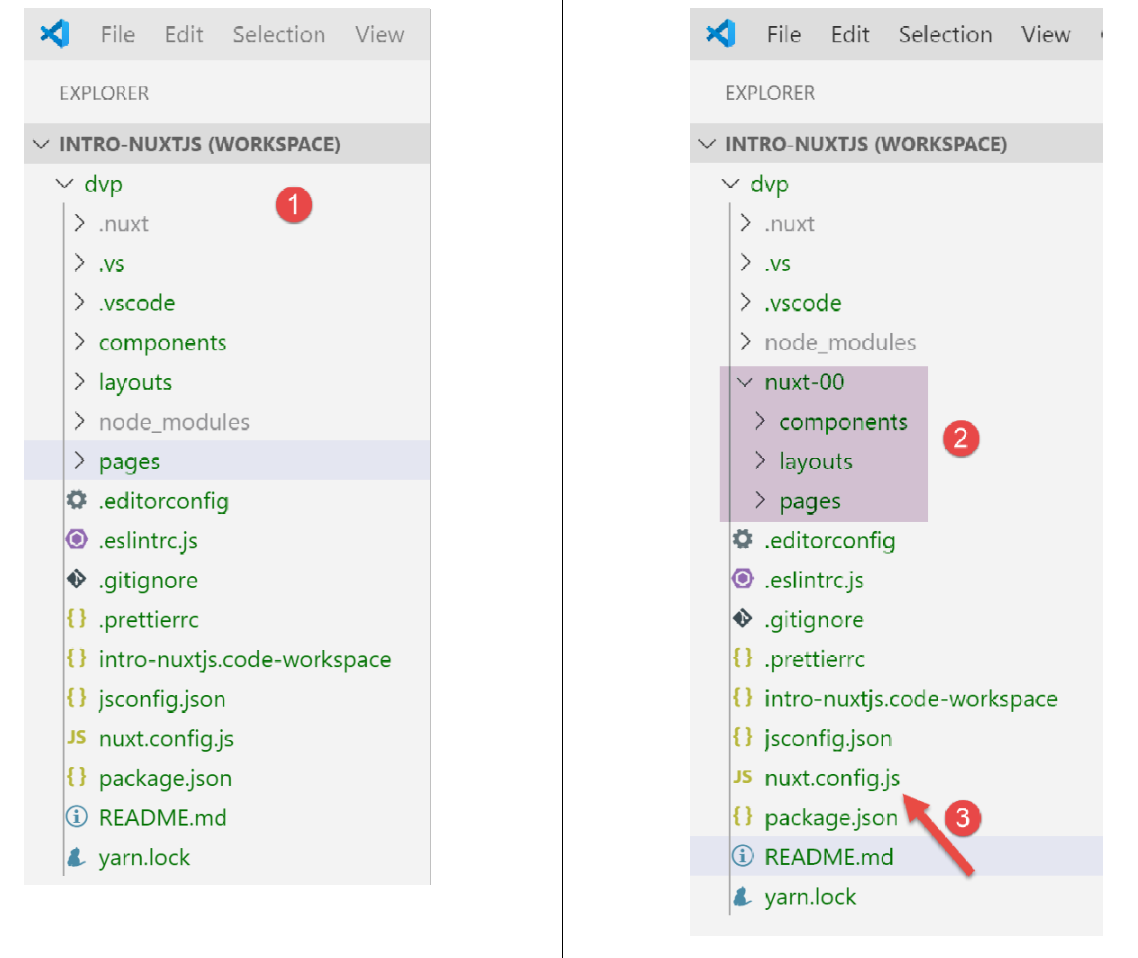
- 在 [2] 中,我们将 [components、layouts、pages] 文件夹移入 [nuxt-00] 文件夹;
- 在 [3] 中,我们需要修改 [nuxt.config.js] 文件;
我们将 [nuxt.config.js] 文件修改如下:
export default {
  mode: 'universal',
  /*
   ** Headers of the page
   */
  ...
  /*
   ** Build configuration
   */
  build: {
    /*
     ** You can extend webpack config here
     */
    extend(config, ctx) {}
  },
  // source code directory
  srcDir: 'nuxt-00',
  // router
  router: {
    // application URL root
    base: '/nuxt-00/'
  },
  // server
  server: {
    // service port, default 3000
    port: 81,
    // network addresses listened to, default localhost: 127.0.0.1
    // 0.0.0.0 = all the machine's network addresses
    host: '0.0.0.0'
  }
}
该文件有两处修改:
- 第 17 行:我们指定 [dvp] 项目的源代码位于 [nuxt-00] 文件夹中;
- 第 21 行:我们指定应用程序的根 URL 现为 [/nuxt-00/]。此更改并非强制要求。我们本可以省略该属性,此时 URL 的根目录将为 [/]。此处这样做有助于我们记住,正在执行的源代码来自 [nuxt-00] 文件夹;
完成上述操作后,[dvp] 项目将如前所述运行:
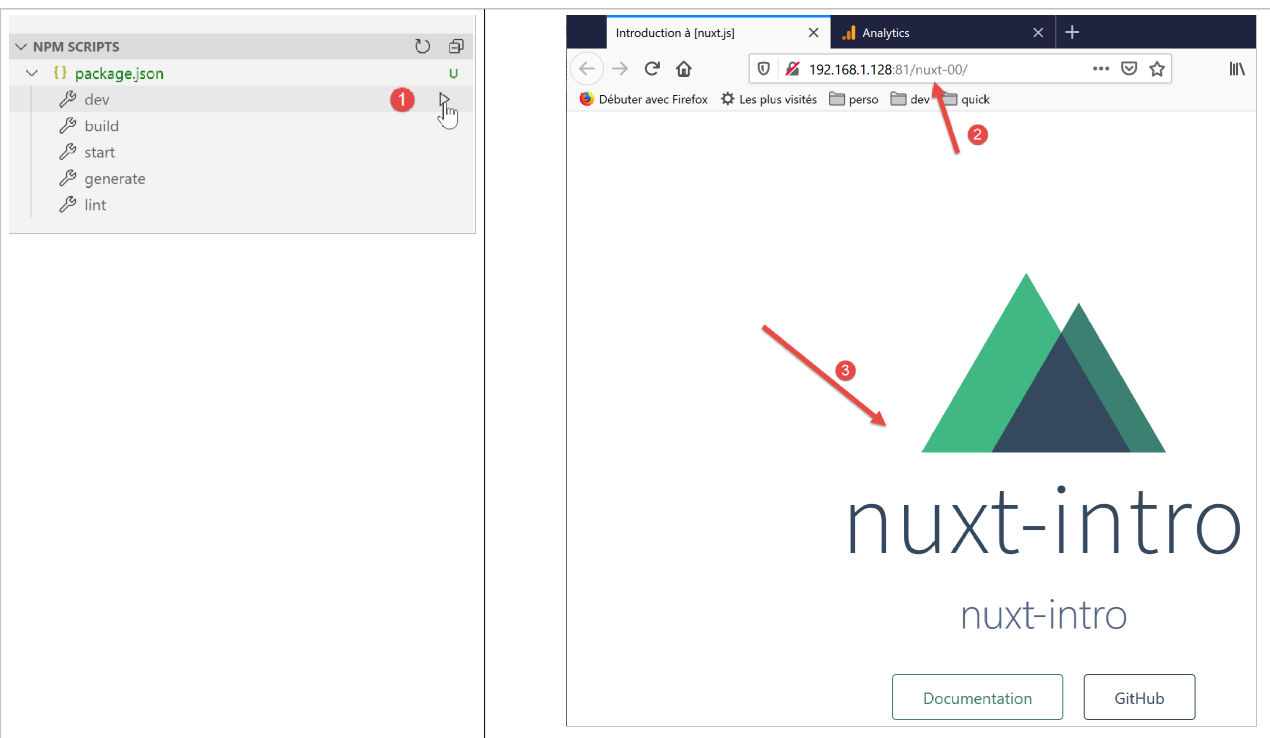
3.10. 部署 [nuxt-00] 应用程序
我们将把 [nuxt-00] 应用程序运行在 VSCode 内置环境之外的其他环境中。
首先,我们编译应用程序:
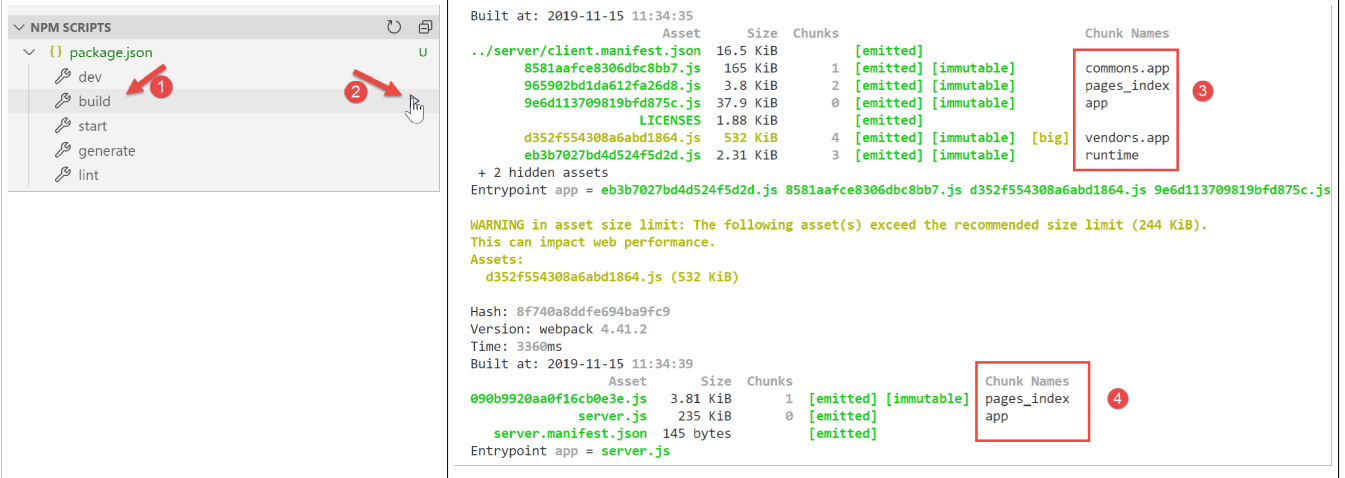
- 在 [3] 中,是客户端编译的结果。这将由浏览器执行;
- 在 [4] 中,是服务器端编译的结果。这将由 [node.js] 服务器执行;
编译输出位于 [.nuxt] 文件夹中:
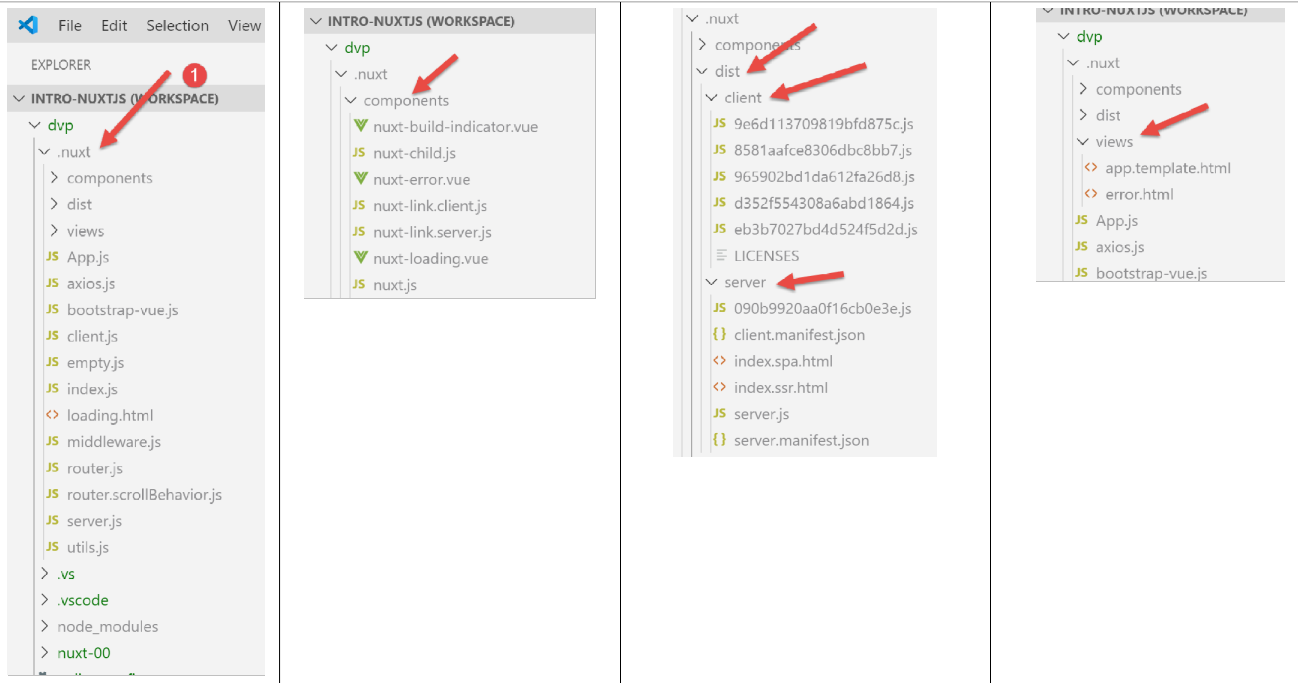
我们将 [.nuxt、node_modules] 文件夹以及 [package.json、nuxt.config.js] 文件复制到一个单独的文件夹中:
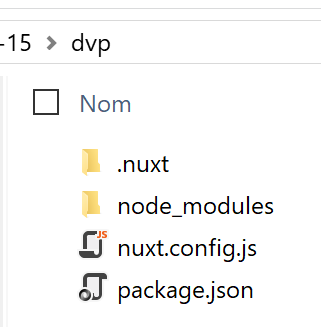
[package.json] 文件简化如下:
{
  "scripts": {
    "start": "nuxt start"
  }
}
- 我们仅保留 [start] 脚本,该脚本用于运行项目的编译版本;
[nuxt.config.js] 文件简化如下:
export default {
  // router
  router: {
    // application URL root
    base: '/nuxt-00/'
  },
  // server
  server: {
    // service port, default 3000
    port: 81,
    // network addresses listened to, default localhost: 127.0.0.1
    // 0.0.0.0 = all the machine's network addresses
    host: '0.0.0.0'
  }
}
- 第 5 行:设置编译后应用程序的基准 URL;
- 第 8–14 行:定义服务端口及监听的网络地址;
完成上述操作后,打开 Laragon 终端并导航至包含项目编译版本的文件夹。您可以打开任何类型的终端,但 [npm] 可执行文件必须位于终端的 PATH 环境变量中。Laragon 终端默认已满足此条件。
完成上述操作后,输入命令 [npm run start]:
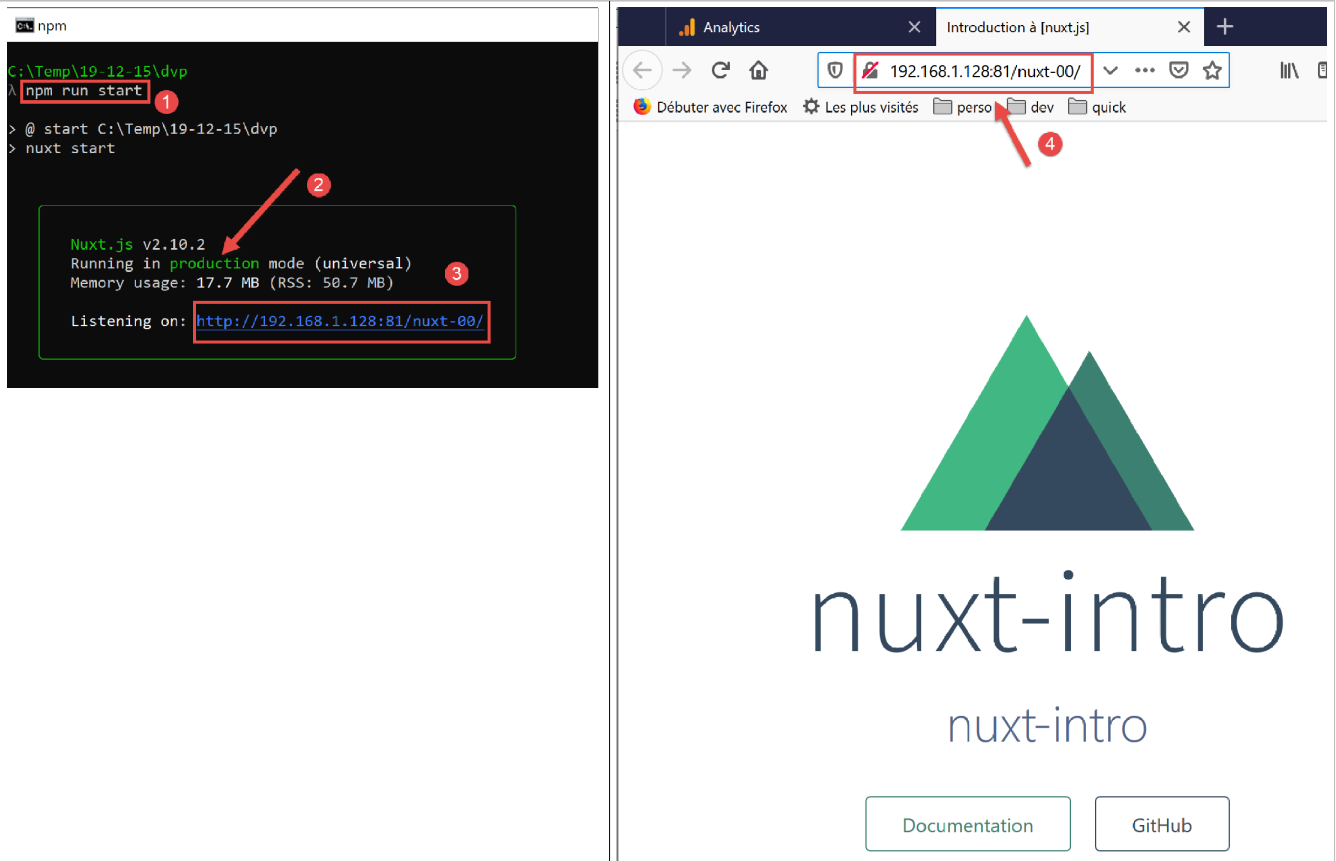
在 [3] 中,我们可以看到服务器已启动,并正在监听 URL [http://192.168.1.128:81/nuxt-00/]。 现在,让我们使用浏览器访问该 URL [4]。我们看到与之前相同的结果。终端中已记录日志 [5]。这是 [index.vue] 页面中 [created] 方法内的日志,该方法由 [node.js] 服务器执行。
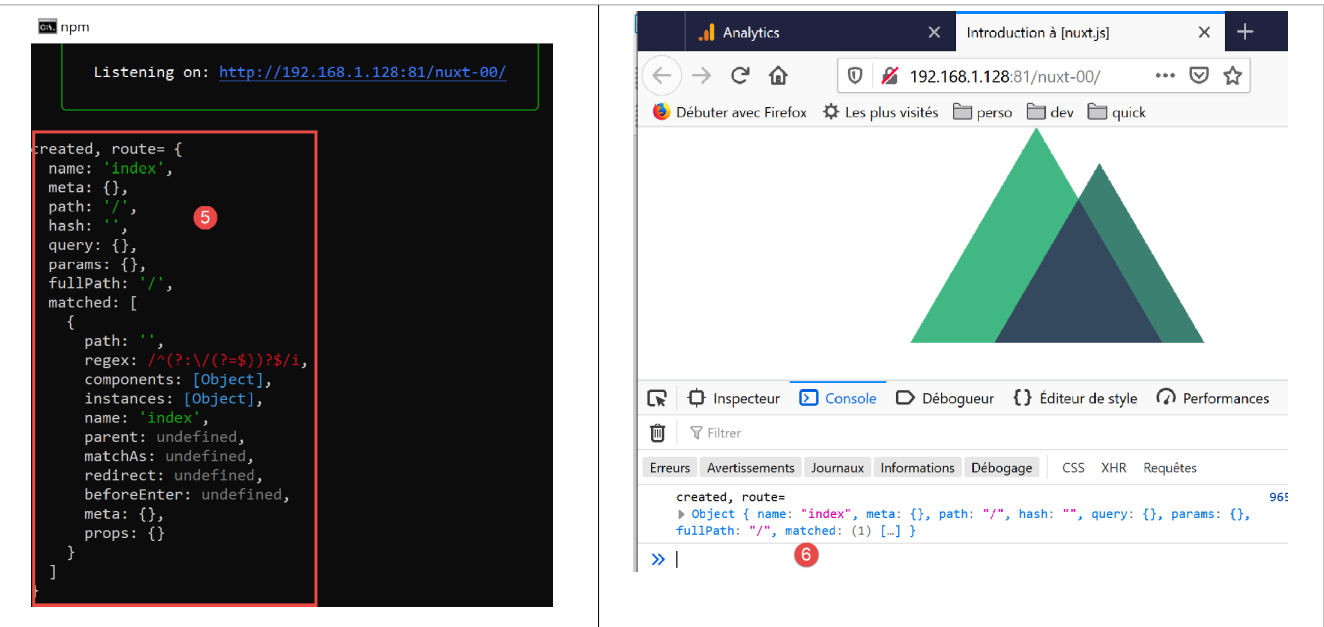
在浏览器端 [6],我们同样看到了来自 [index.vue] 页面 [created] 方法的日志,但这次是由客户端执行的。
3.11. 搭建安全服务器
上文中,应用程序的 URL 是 [http://192.168.1.128/nuxt-00/]。我们希望将其改为 [https://192.168.1.128/nuxt-00/]。因此,我们需要搭建一个安全服务器。具体操作如下。
注:此方法摘自文章 [https://stackoverflow.com/questions/56966137/how-to-run-nuxt-npm-run-dev-with-https-in-localhost]。
首先,我们使用 [openssl] 生成一个私钥和一个公钥。[openssl] 通常会随 Laragon 服务器一同安装。因此,在任何 Laragon 终端中都可以使用此命令。现在,让我们打开 Laragon 终端,并导航至已部署应用程序的文件夹:
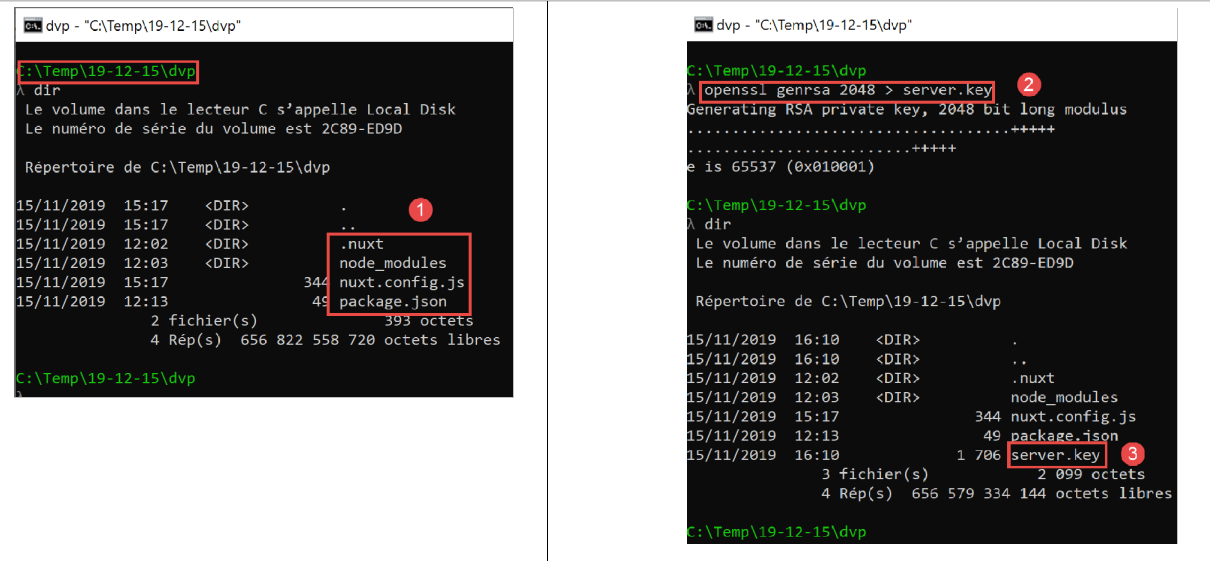
- 在 [2] 中,输入命令 [openssl genrsa 2048 > server.key];
- 在 [3] 中,将生成一个 [server.key] 文件;
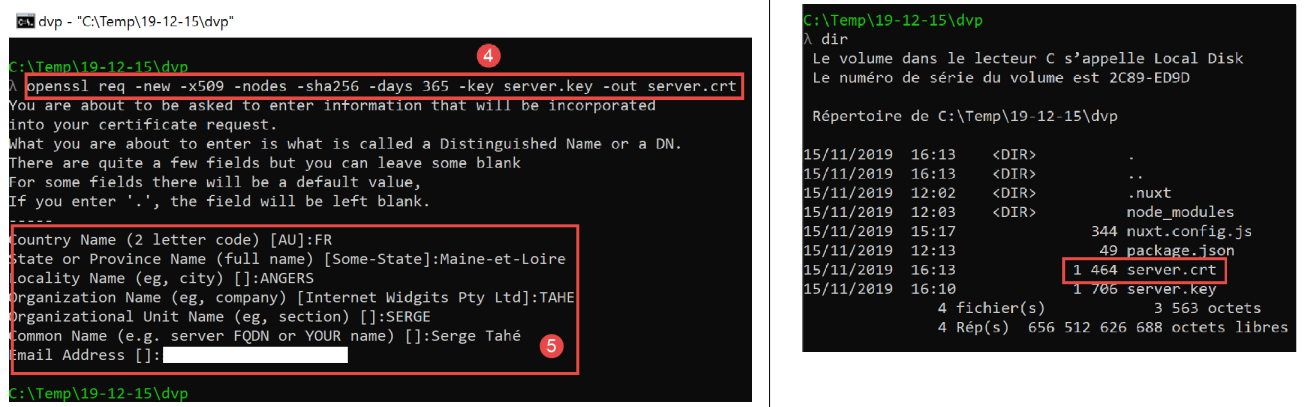
- 在 [4] 中,输入命令 [openssl req -new -x509 -nodes -sha256 -days 365 -key server.key -out server.crt];
- 在 [5] 中,将生成一个名为 [server.crt] 的文件;
这两个文件共同构成了一份自签名证书。大多数浏览器仅在请求该页面的用户批准后才会接受它们。
现在,Web 应用程序必须使用 [server.key, server.crt] 文件。为此,需按以下方式修改 [nuxt.config.js] 文件:
import path from 'path'
import fs from 'fs'

export default {
  // router
  router: {
    // application URL root
    base: '/nuxt-00/'
  },
  // server
  server: {
    // service port, default 3000
    port: 81,
    // network addresses listened to, default localhost: 127.0.0.1
    // 0.0.0.0 = all the machine's network addresses
    host: '0.0.0.0',
    // self-signed certificate
    https: {
      key: fs.readFileSync(path.resolve(__dirname, 'server.key')),
      cert: fs.readFileSync(path.resolve(__dirname, 'server.crt'))
    }
  }
}
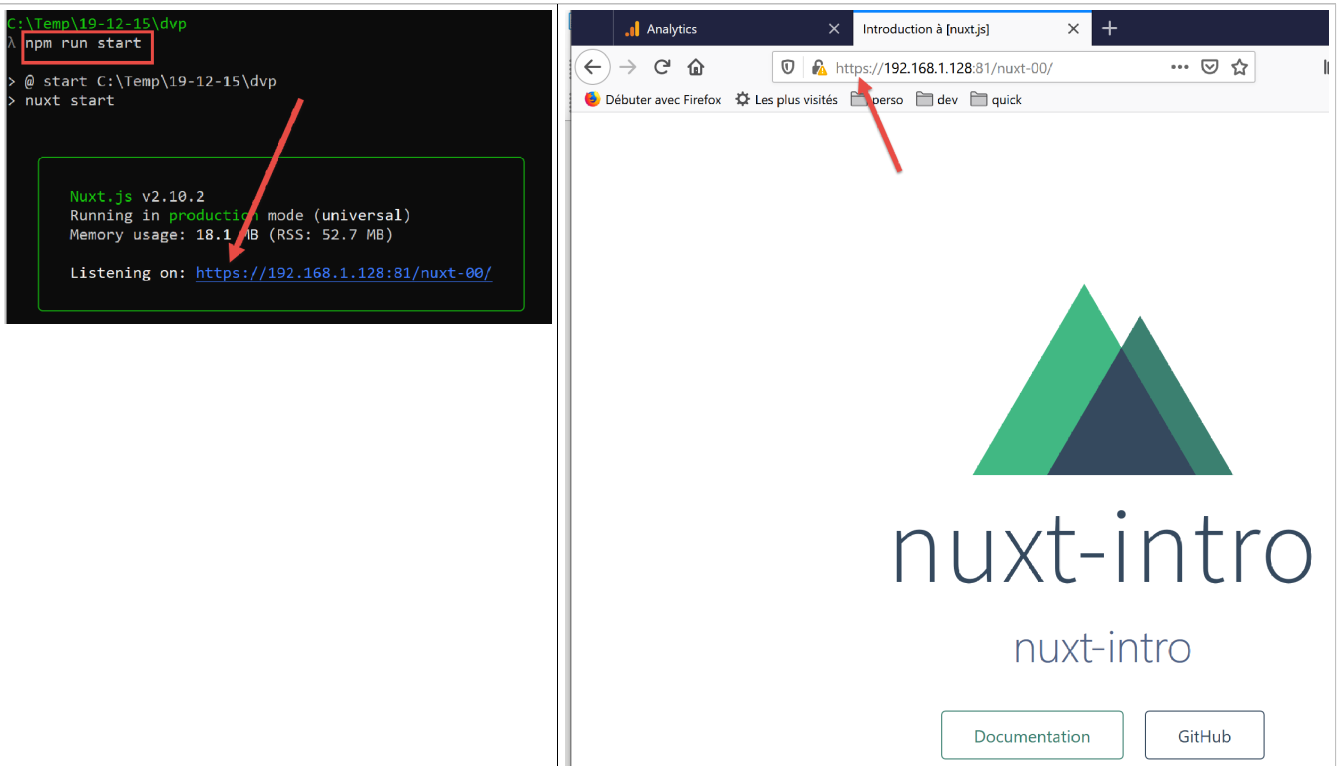
第 18–21 行实现了 [https] 协议。
现在让我们再次运行该应用程序:
3.12. 第一个示例结束
第一个示例现已完成。它向我们介绍了许多 [nuxt] 概念。接下来我们将开发其他示例,并将其放置在 [nuxt-01、nuxt-02、...] 等文件夹中。由于这些示例将使用不同的 [nuxt.config.js] 文件,因此我们将把运行每个示例所用的 [nuxt.config.js] 文件保存在各自对应的文件夹中: