12. Web Services
12.1. Introduction
In the previous chapter, we presented several Tcp-Ip client-server applications. Since the clients and the server exchange lines of text, they can be written in any language. The client simply needs to know the communication protocol expected by the server.
Web services are also Tcp-Ip server applications. They have the following characteristics:
- They are hosted by web servers, and the client-server exchange protocol is HTTP (HyperText Transport Protocol), a protocol built on top of TCP-IP.
- The web service has a standard communication protocol regardless of the service provided. A web service offers various services S1, S2, .., Sn. Each of them expects parameters provided by the client and returns a result to the client. For each service, the client needs to know:
- the exact name of the service If
- the list of parameters to be provided and their types
- the type of result returned by the service
Once these elements are known, the client-server dialogue follows the same format, regardless of the web service being queried. The notation clients is thus standardized.
- For security reasons related to attacks originating from the Internet, many organizations have private networks and only open certain ports on their servers to the Internet: primarily port 80 for the web service. All other ports are locked. Consequently, client-server applications such as those presented in the previous chapter are built within the private network (intranet) and are generally not accessible from the outside. Hosting a service on a web server makes it accessible to the entire Internet community.
- The web service can be modeled as a remote object. The services offered then become methods of this object. A client can access this remote object as if it were local. This hides the entire network communication layer and allows for the development of a client independent of this layer. If this layer changes, the client does not need to be modified.
- As with the Tcp-Ip client-server applications presented in the previous chapter, the client and server can be written in any language. They exchange lines of text. These consist of two parts:
- the headers required by the HTTP protocol
- the message body. For a server response to the client, the body is in XML format (eXtensible Markup Language). For a client request to the server, the message body can take several forms, including XML. The client’s XML request may have a specific format called SOAP (Simple Object Access Protocol). In this case, the server’s response also follows the SOAP format.
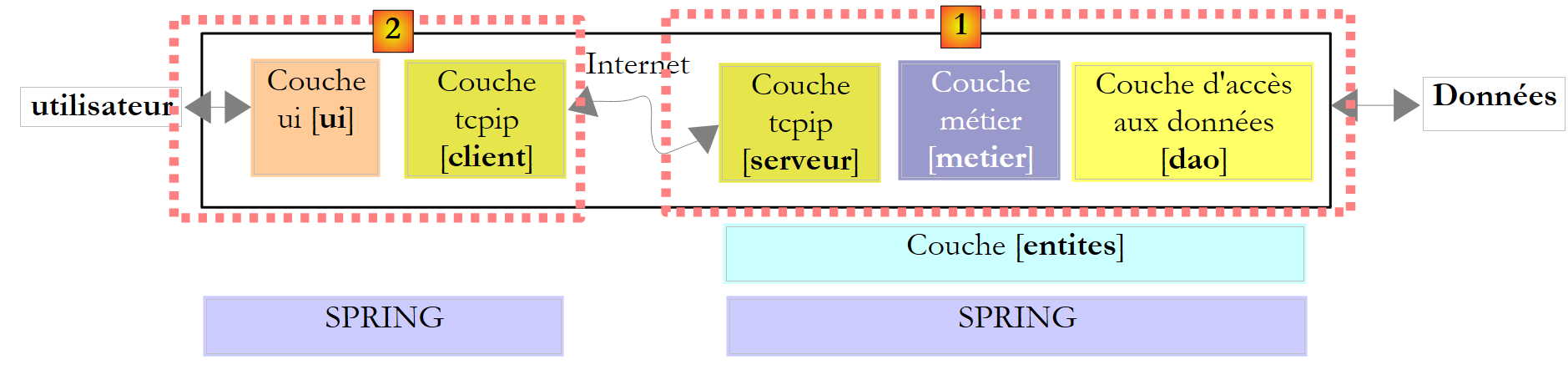
The architecture of a web service-based client/server application is as follows:
 |
It is an extension of the three-tier architecture to which specialized network communication classes are added. We have already encountered a similar architecture with the Windows GUI client/Tcp server tax application in Section 11.9.1.
Let’s illustrate these general concepts with an initial example.
12.2. A First Web Service with Visual Web Developer
We will build a first client/server application with the following simplified architecture:
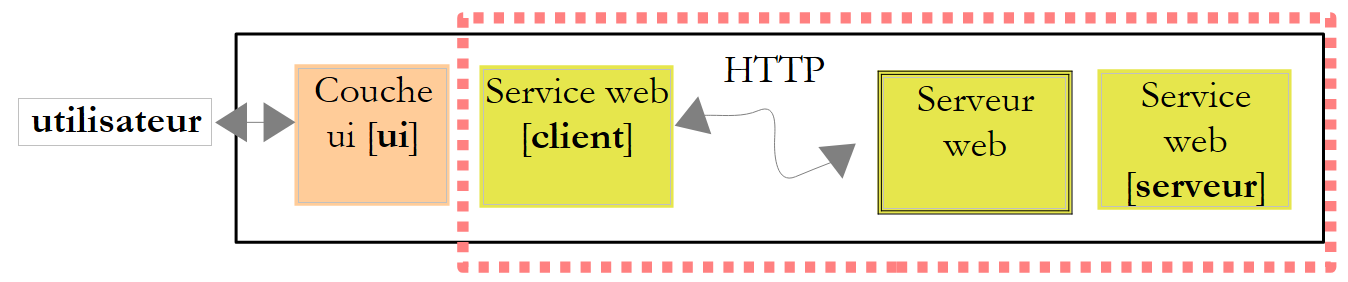 |
12.2.1. The server side
We noted that a web service is hosted by a web server. Writing a web service falls under the general framework of server-side web programming. We previously had the opportunity to write clients web applications, which is also web programming but client-side this time. The term "web programming" most often refers to server-side programming rather than client-side programming. Visual C# is not the appropriate tool for developing web services or, more generally, web applications. We will use Visual Developer, one of the Express versions of Visual Studio 2008, which can be downloaded at [2] from the following address: [1]: [http://msdn.microsoft.com/fr-fr/express/future/bb421473(en-us).aspx] (May 2008):
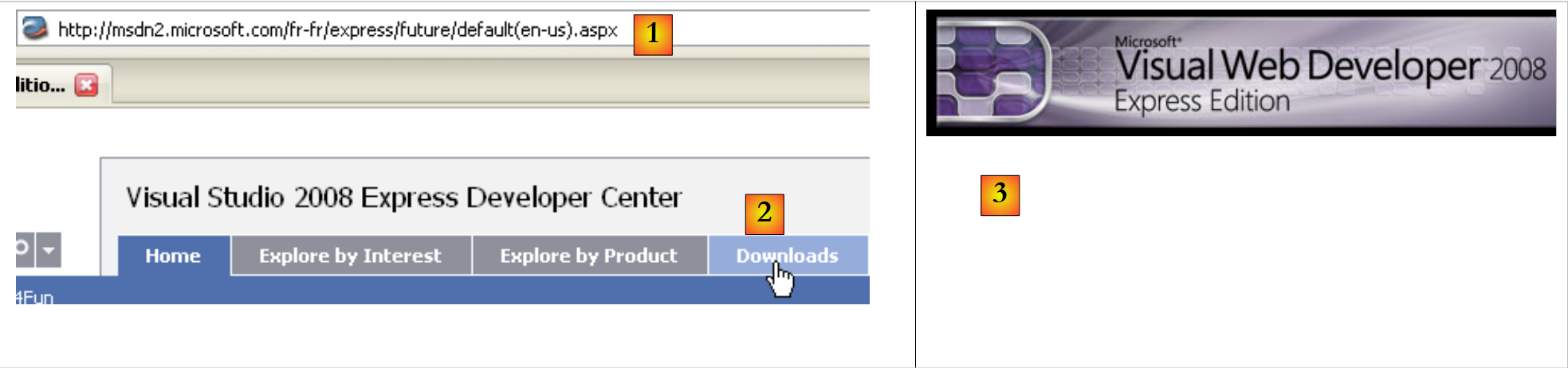 |
- [1]: the download address
- [2]: the downloads tab
- [3]: Download Visual Developer 2008
To create your first web service, follow these steps after launching Visual Developer:
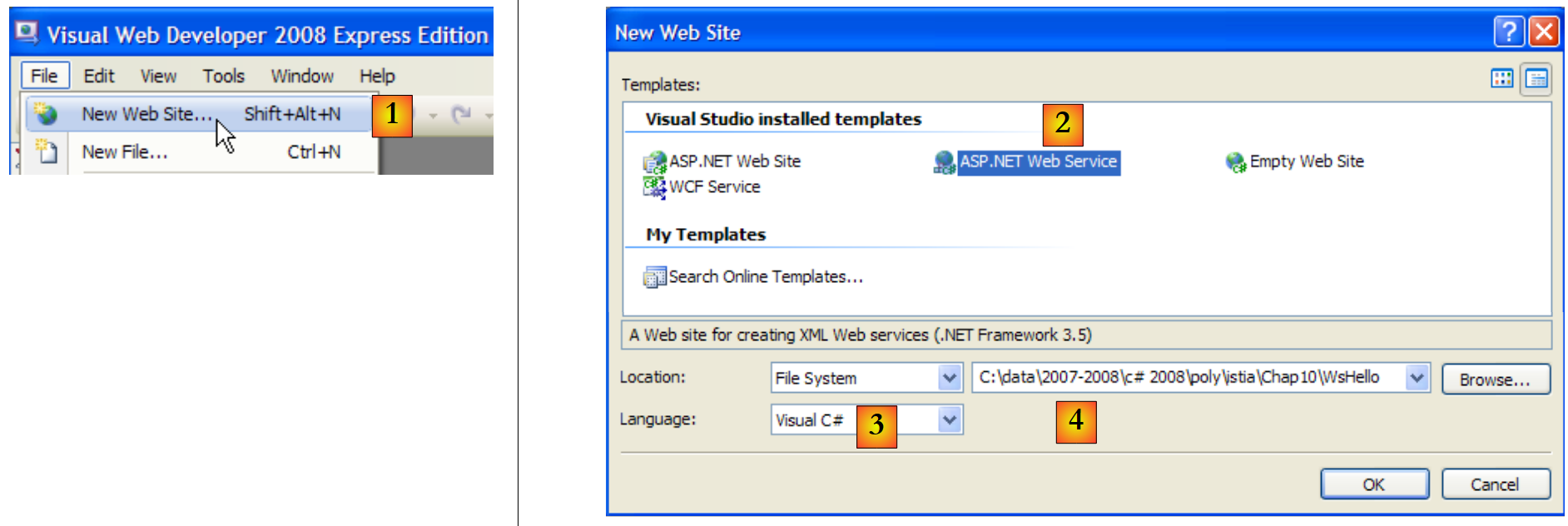 |
- [1]: Select File / New Web Site
- [2]: Select the ASP.NET Web Service application type
- [3]: Select the development language: C#
- [4]: Specify the folder where the project will be created
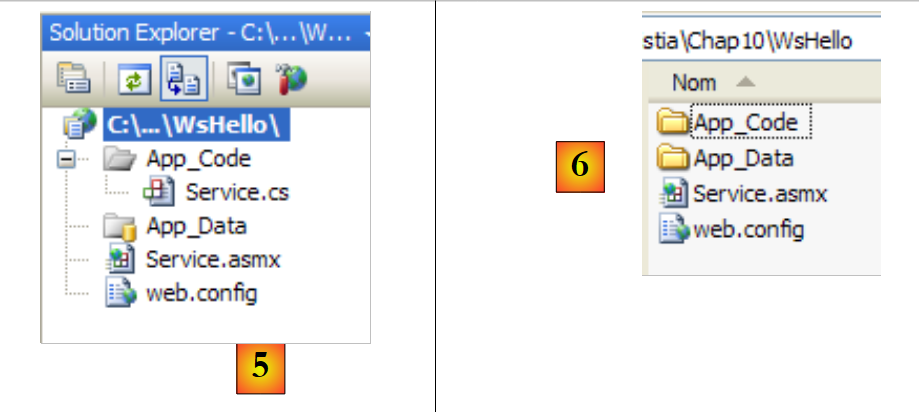 |
- [5]: the project created in Visual Web Developer
- [6]: the project folder on the disk
A web application is structured as follows in Web Developer:
- a root directory containing the website’s files (static web pages Html, images, dynamic .aspx web pages, .asmx web services, etc.). It also contains the [web.config] file, which is the web application’s configuration file. It serves the same purpose as the [App.config] file in Windows applications and is structured in the same way.
- A folder named [App_Code] containing the website’s classes and interfaces intended for compilation.
- A folder named [App_Data], where data used by the classes in [App_Code] will be placed. For example, it may contain a SQL Server *.mdf database.
[Service.asmx] is the web service we requested to be created. It contains only the following line:
<%@ WebService Language="C#" CodeBehind="~/App_Code/Service.cs" Class="Service" %>
The source code above is intended for the web server that will host the application. In production mode, this server is typically IIS (Internet Information Server), Microsoft’s web server. Visual Web Developer includes a lightweight web server that is used in development mode. The previous directive instructs the web server:
- [Service.asmx] is a web service (WebService directive)
- written in C# (Language attribute)
- that the C# code for the web service is located in the file [~/App_Code/Service.cs] (CodeBehind attribute). This is where the web server will retrieve it to compile.
- that the class implementing the web service is called Service (Class attribute)
The C# code [Service.cs] for the web service generated by Visual Developer is as follows:
using System.Web.Services;

[WebService(Namespace = "http://tempuri.org/")]
[WebServiceBinding(ConformsTo = WsiProfiles.BasicProfile1_1)]
// To allow this Web Service to be called from script, using ASP.NET AJAX, uncomment the following line.
// [System.Web.Script.Services.ScriptService]
public class Service : System.Web.Services.WebService
{
    public Service () {

        //Uncomment the following line if using designed components
        //InitializeComponent();
    }

    [WebMethod]
    public string HelloWorld() {
        return "Hello World";
    }

}
The Service class resembles a standard C# class, with a few points to note:
- line 7: the class derives from the WebService class defined in the System.Web.Services namespace. This inheritance is not always required. In this example, in particular, it could be omitted.
- line 3: the class itself is preceded by a [WebService(Namespace="http://tempuri.org/")] attribute intended to provide a namespace for the web service. A class vendor assigns a namespace to its classes to give them a unique name and thus avoid conflicts with classes from other vendors that might have the same name. The same applies to web services. Each web service must be identifiable by a unique name, in this case http://tempuri.org/. This name can be anything. It does not necessarily have to be in the form of Uri Http.
- Line 15: The method HelloWorld is preceded by an attribute [WebMethod] that tells the compiler that the method must be made visible to remote clients of the web service. A method not preceded by this attribute is not visible to the web service’s clients. This could be an internal method used by other methods but not intended for publication.
- Line 9: the web service constructor. It is not needed in our application.
The generated [Service.cs] class is transformed as follows:
using System.Web.Services;

[WebService(Namespace = "http://st.istia.univ-angers.fr")]
[WebServiceBinding(ConformsTo = WsiProfiles.BasicProfile1_1)]
public class Service : System.Web.Services.WebService
{
    [WebMethod]
    public string DisBonjourALaDame(string nomDeLaDame) {
        return string.Format("Bonjour Mme {0}", nomDeLaDame);
    }

}
The [web.config] configuration file generated for the web application is as follows:
<?xml version="1.0"?>
<!--
    Note: As an alternative to hand editing this file you can use the
    web admin tool to configure settings for your application. Use
    the Website->Asp.Net Configuration option in Visual Studio.
    A full list of settings and comments can be found in
    machine.config.comments usually located in
    \Windows\Microsoft.Net\Framework\v2.x\Config
-->
<configuration>


    <configSections>
      <sectionGroup name="system.web.extensions" type="System.Web.Configuration.SystemWebExtensionsSectionGroup, System.Web.Extensions, Version=3.5.0.0, Culture=neutral, PublicKeyToken=31BF3856AD364E35">
...
      </sectionGroup>
    </configSections>


    <appSettings/>
    <connectionStrings/>
...
</configuration>
The file is 140 lines long. It is complex, so we will not comment on it. We will leave it as is. Above, we see the tags <configuration>, <configSections>, <sectionGroup>, <appSettings>, and <connectionString> that we encountered in the [App.config] file for Windows applications.
We have a working web service that can be run:
 |
- [1,2]: right-click on [Service.asmx] and select "View page in browser"
- [3]: Visual Web Developer launches its built-in web server and places its icon in the bottom-right corner of the taskbar. The web server is launched on a random port, in this case 1906. The Uri displayed /WsHello is the name of the website [4].
Visual Web Developer has also launched a browser to display the requested page, namely [Service.asmx]:
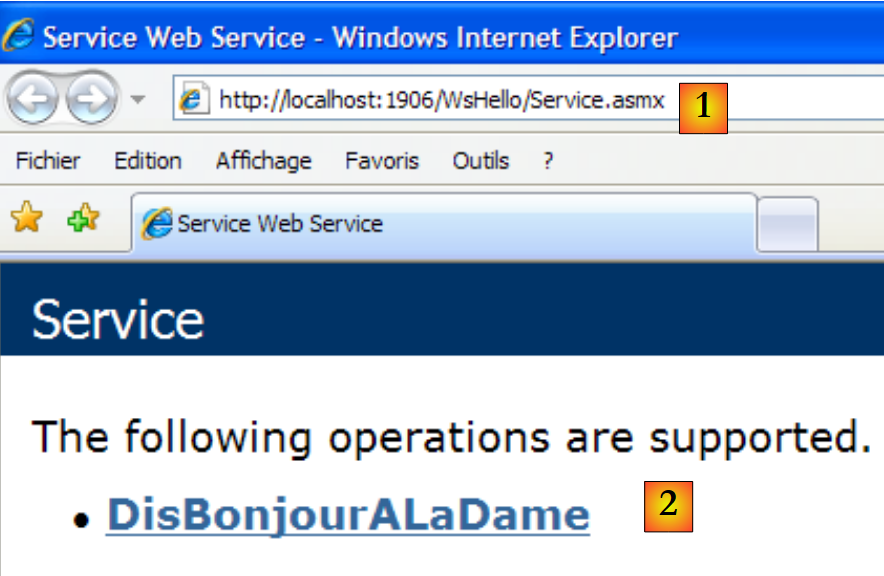 |
- at [1], the Uri of the page. We find the Uri of the site [http://localhost:1906/WsHello] followed by that of the page /Service.asmx.
- In [2], the .asmx suffix indicated to the web server that this was not a normal web page (with the .aspx suffix) generating a Html page, but rather a web service page. It then automatically generates a web page displaying a link for each of the web service methods with the attribute [WebMethod]. These links allow you to test the methods.
Clicking on the [2] link above takes us to the following page:
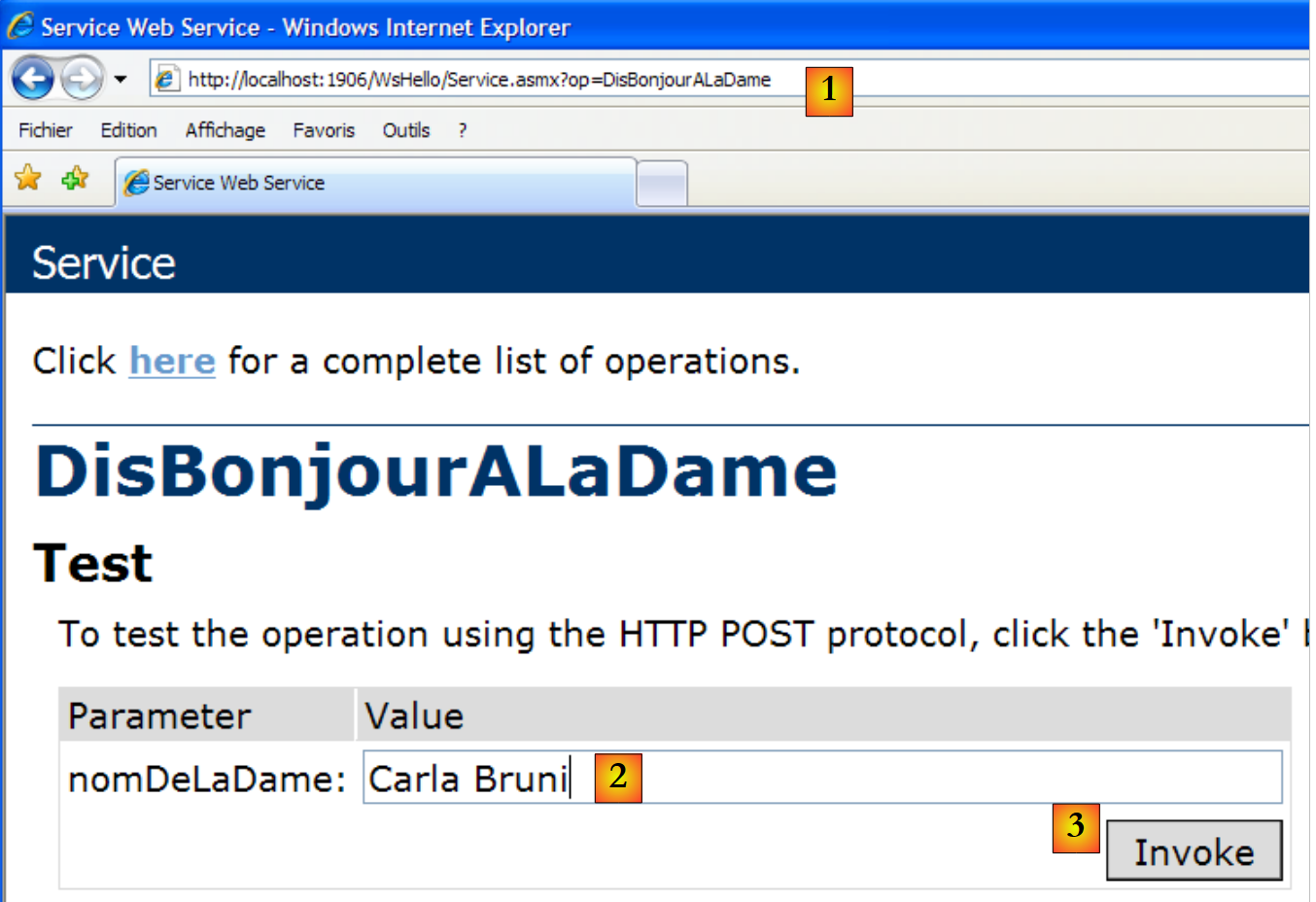 |
- In [1], note the Uri and [http://localhost:1906/WsHello/Service.asmx?op=DisBonjourALaDame] of the new page. This is the Uri of the web service with a parameter op=M, where M is the name of one of the web service methods.
- Recall the signature of the [DisBonjourALaDame] method:
public string DisBonjourALaDame(string nomDeLaDame) ;
The method accepts a parameter of type string and returns a result of type string as well. The page allows us to execute the [DisBonjourALaDame] method: in [2], we set the value of the parameter nomDeLaDame, and in [3], we request execution of the method. We obtain the following result:
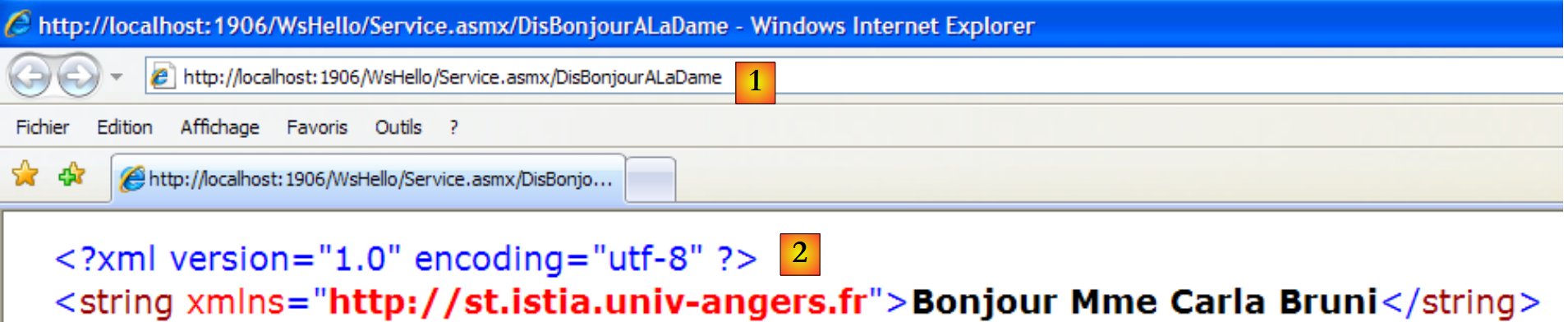 |
- In [1], note that the Uri in the response is not identical to the one in the request. It has changed.
- In [2], the web server’s response. Note the following points:
- it is a XML response and not HTML
- The result of the [DisBonjourALaDame] method is encapsulated in a <string> tag representing its type.
- the <string> tag has an xmlns attribute (xml name space) which is the namespace we assigned to our web service (line 1 below).
[WebService(Namespace = "http://st.istia.univ-angers.fr")]
[WebServiceBinding(ConformsTo = WsiProfiles.BasicProfile1_1)]
public class Service : System.Web.Services.WebService
To see how the web browser made its request, look at the code Html in the test form:
- Line 11: The form values (form tag) will be posted (method attribute) to Url [ http://localhost:1906/WsHello/Service.asmx/DisBonjourALaDame] (action attribute).
- line 19: the input field is named nomDeLaDame (name attribute).
Calling the [/Service.asmx] web service allowed us to test its methods and gain a basic understanding of client-server communication.
12.2.2. The client side
 |
It is possible to implement the client for the above remote web service using a basic Tcp-Ip client. Here is an example of the client/server dialogue using a PuTTY client connected to the remote web service (localhost,1906):
- lines 1-5: messages sent by the putty client
- line 1: command POST
- lines 6-10: server response. This means the client can send the values for POST.
- line 11: values posted in the form param1=val1¶m2=val2& .... Certain characters must be valid characters in a Url. This is what was previously referred to as an encoded Url. Here, the form has only a single parameter named nomDeLaDame. The posted value has a total of 23 characters. This size must be declared in the Http header on line 4.
- lines 12–22: the server’s response
- Line 22: the result of the [DisBonjourALaDame] web method.
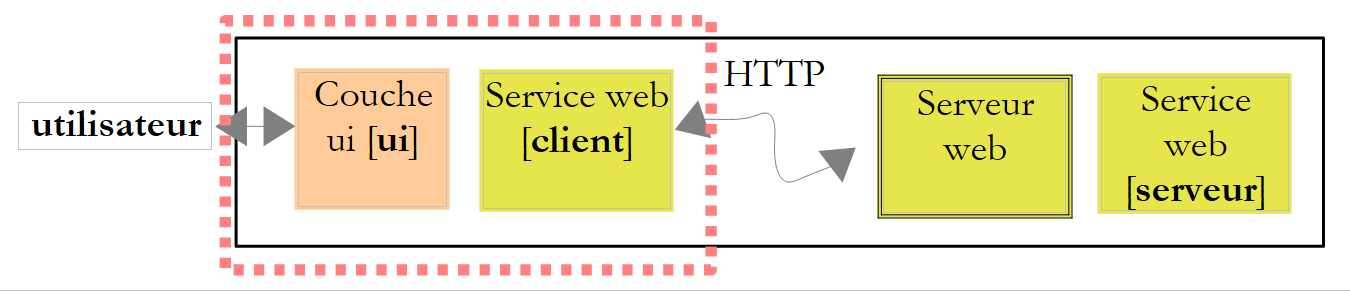
With Visual C#, it is possible to generate a client for a remote web service using a wizard. This is what we will now examine.
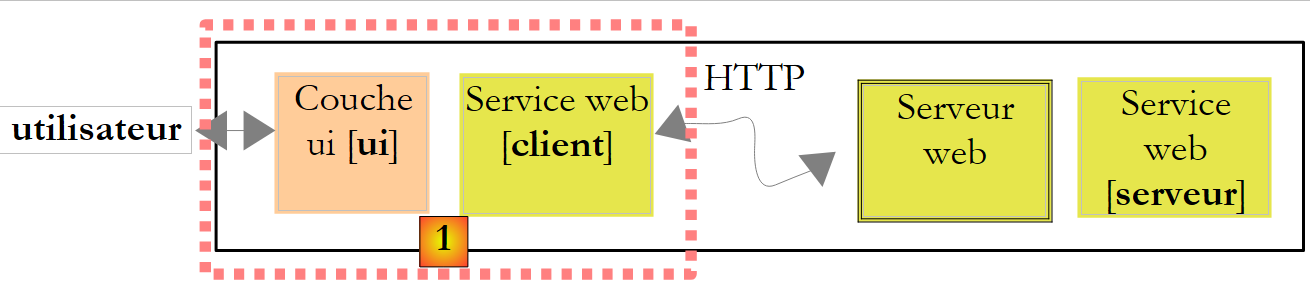 |
The [1] layer above is implemented by a Visual Studio C# project of the Windows Application type named ClientWsHello:
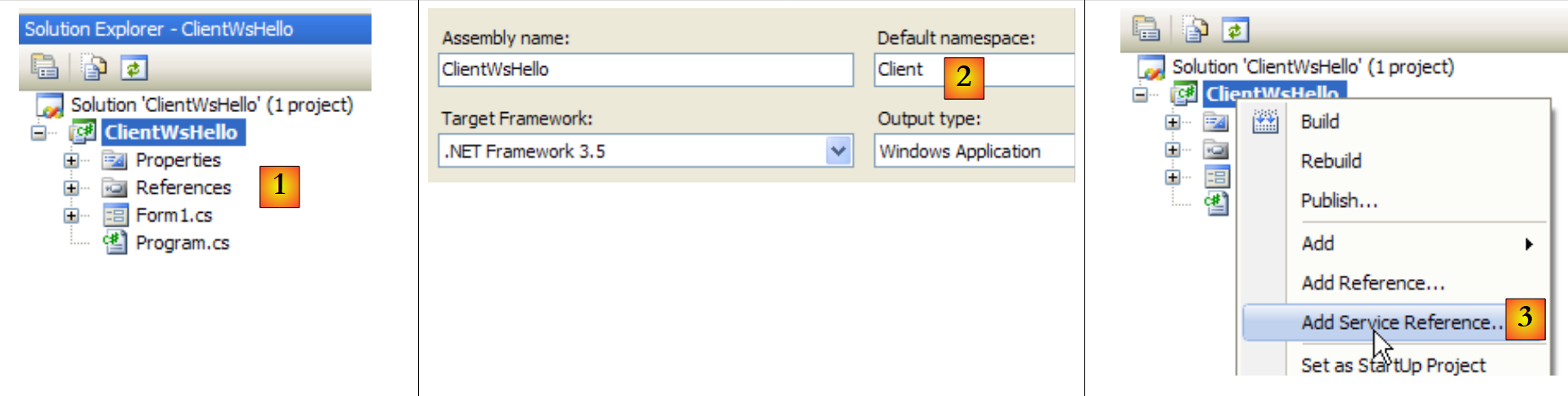 |
- in [1], the ClientWsHello project in Visual C#
- In [2], the project’s default namespace will be Client (right-click on the project / Properties / Application). This namespace will be used to construct the namespace of the client that will be generated.
- In [3], right-click the project to add a reference to a remote web service
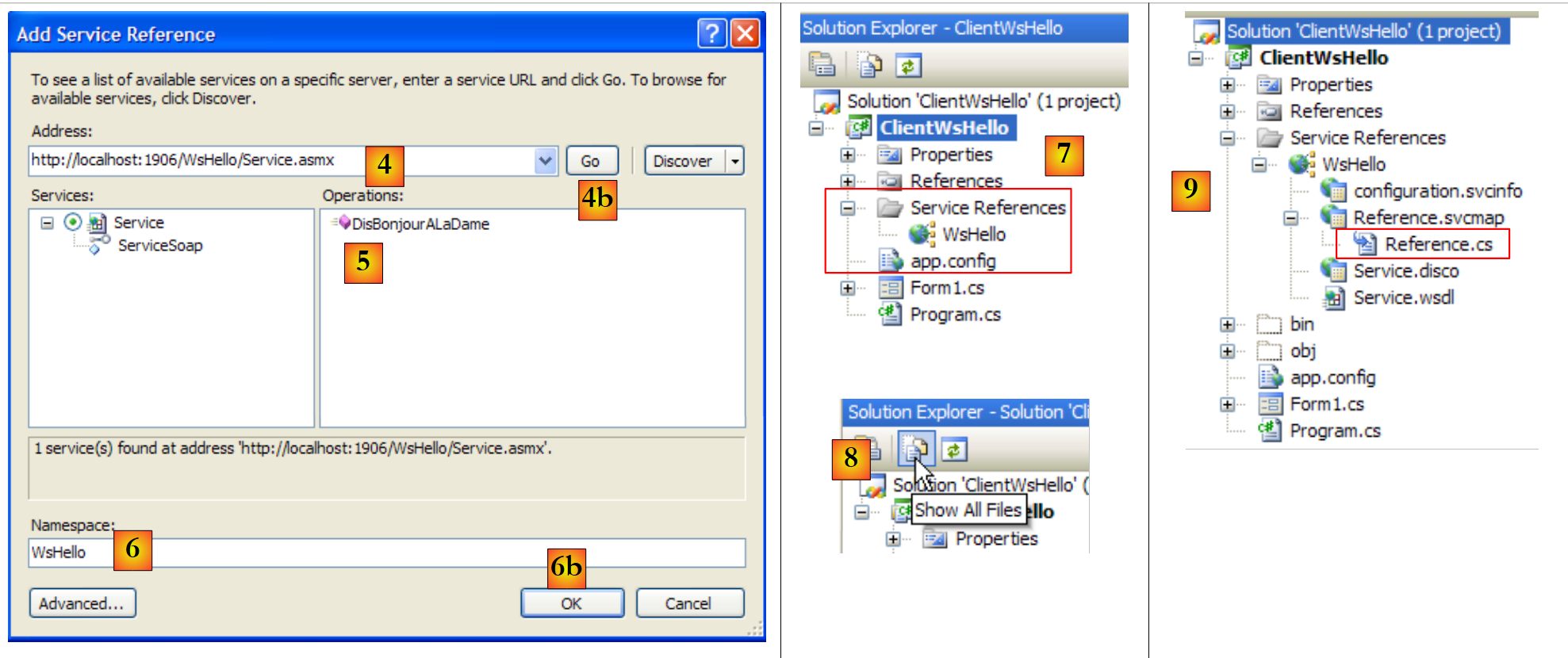 |
- In [4], enter the Uri of the web service built previously
- In [4b], connect Visual C# to the web service specified by [4]. Visual C# will retrieve the web service description and, using this description, will be able to generate a client.
- In [5], once the web service description has been retrieved, Visual C# can display its public methods
- In [6], specify a namespace for the client that will be generated. This will be added to the namespace defined in [2]. Thus, the client’s namespace will be Client.WsHello.
- In [6b], confirm the wizard.
- In [7], the reference to the web service WsHello appears in the project. Additionally, a configuration file [app.config] has been created.
- In [8], view all project files.
- In [9], the reference to the web service WsHello contains various files that we will not explain in detail. However, we will take a look at the file [Reference.cs], which is the generated C# client code:
namespace Client.WsHello {
...
    public partial class ServiceSoapClient : System.ServiceModel.ClientBase<Client.WsHello.ServiceSoap>, Client.WsHello.ServiceSoap {

        public ServiceSoapClient() {
        }
...
        public string DisBonjourALaDame(string nomDeLaDame) {
            Client.WsHello.DisBonjourALaDameRequest inValue = new Client.WsHello.DisBonjourALaDameRequest();
            inValue.Body = new Client.WsHello.DisBonjourALaDameRequestBody();
            inValue.Body.nomDeLaDame = nomDeLaDame;
            Client.WsHello.DisBonjourALaDameResponse retVal = ((Client.WsHello.ServiceSoap)(this)).DisBonjourALaDame(inValue);
            return retVal.Body.DisBonjourALaDameResult;
        }
    }
}
- Line 1: The namespace of the generated client is Client.WsHello. If you want to change this namespace, this is where you do it.
- Line 3: The class ServiceSoapClient is the generated client class. It is a proxy class in the sense that it hides from the Windows application the fact that a remote web service is being used. The Windows application will use the remote class WsHello via the local class Client.WsHello.ServiceSoapClient. To create an instance of the client, use the constructor on line 5:
- Line 8: The DisBonjourALaDame method is the client-side counterpart of the DisBonjourALaDame method of the web service. The Windows application will use the remote method DisBonjourALaDame via the local method Client.WsHello.ServiceSoapClient.DisBonjourALaDame in the following form:
The generated [app.config] file is as follows:
<?xml version="1.0" encoding="utf-8" ?>
<configuration>
    <system.serviceModel>
        <bindings>
         ....
        </bindings>
        <client>
            <endpoint address="http://localhost:1906/WsHello/Service.asmx"... />
        </client>
    </system.serviceModel>
</configuration>
From this file, we will only retain line 8, which contains the Uri of the web service. If this changes to Uri, the Windows client does not need to be rebuilt. Simply change the Uri in the [app.config] file.
Let’s return to the architecture of the Windows application we want to build:
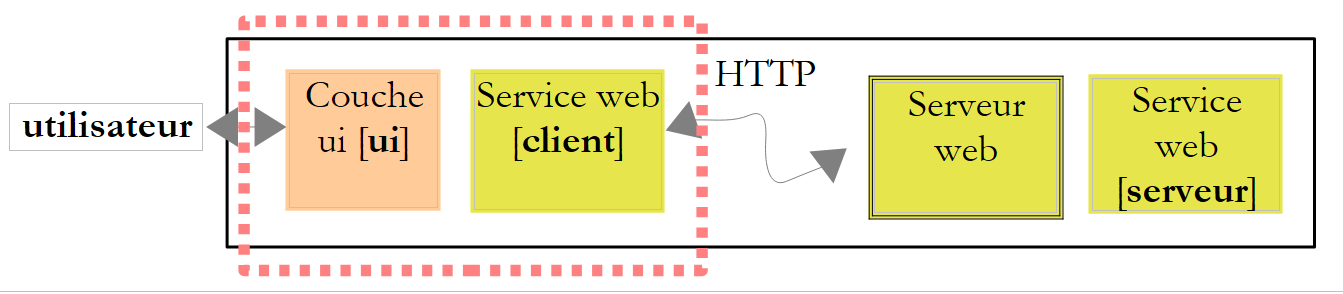 |
We have built the [client] layer of the web service. The [ui] layer will be the next one:
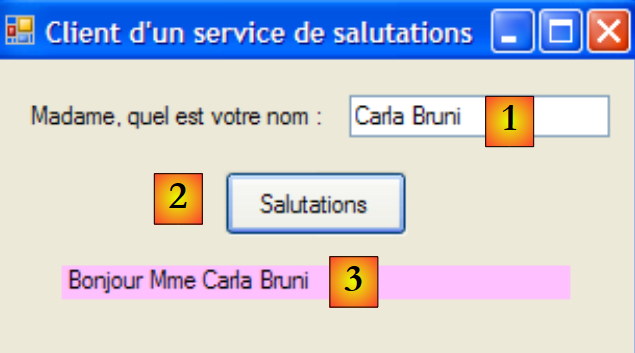 |
No. | type | name | role |
1 | TextBox | textBoxNomDame | woman's name |
2 | Button | buttonSalutations | to connect to the remote web service WsHello and call the method DisBonjourALaDame. |
3 | Label | labelBonjour | the result returned by the web service |
The code for the [Form1.cs] form is as follows:
using System;
using System.Windows.Forms;
using Client.WsHello;

namespace ClientSalutations {
    public partial class Form1 : Form {
        public Form1() {
            InitializeComponent();
        }

        private void buttonSalutations_Click(object sender, EventArgs e) {
            // hourglass
            Cursor=Cursors.WaitCursor;
            // web service query
            labelBonjour.Text = new ServiceSoapClient().DisBonjourALaDame(textBoxNomDame.Text.Trim());
            // normal slider
            Cursor = Cursors.Arrow;
        }
    }
}
- Line 15: The web service client is instantiated. It is of type Client.WsHello.ServiceSoapClient. The Client.WsHello namespace is declared on line 3. The local method ServiceSoapClient().DisBonjourALaDame is called. We know that it, in turn, calls the remote method of the same name in the web service.
12.3. A Web Service for Arithmetic Operations
We will build a second client/server application, again with the following simplified architecture:
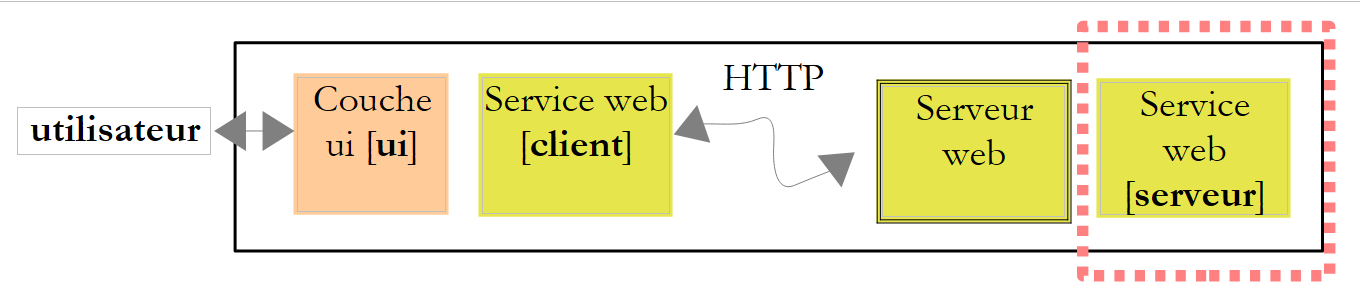 |
The previous web service offered a single method. We are considering a web service that will offer the four arithmetic operations:
- add(a,b), which returns a+b
- subtract(a,b), which returns a-b
- multiply(a,b), which returns a*b
- divide(a,b), which returns a/b
and which will be queried by the following graphical interface:
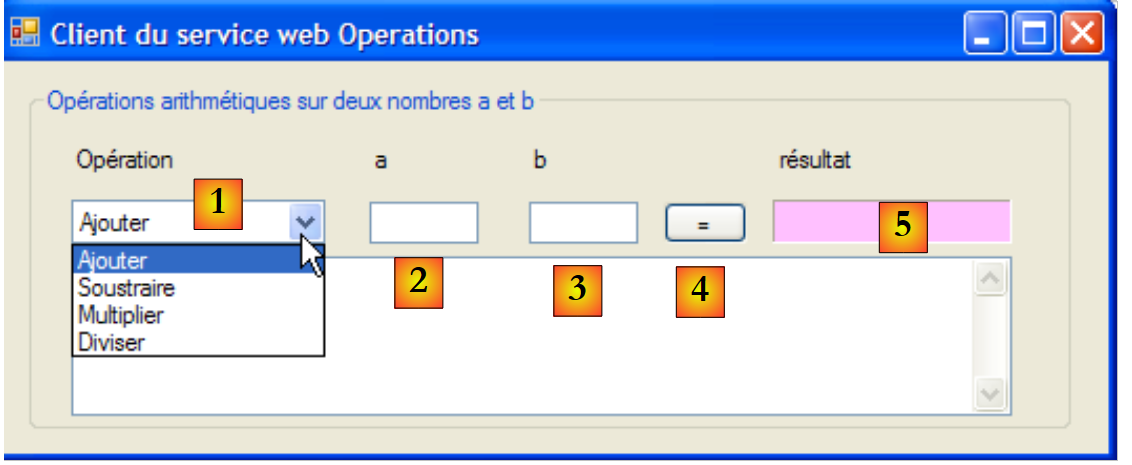 |
- in [1], the operation to be performed
- in [2,3]: the operands
- in [4], the web service call button
- in [5], the result returned by the web service
12.3.1. The server side
We are building a web service project with Visual Web Developer:
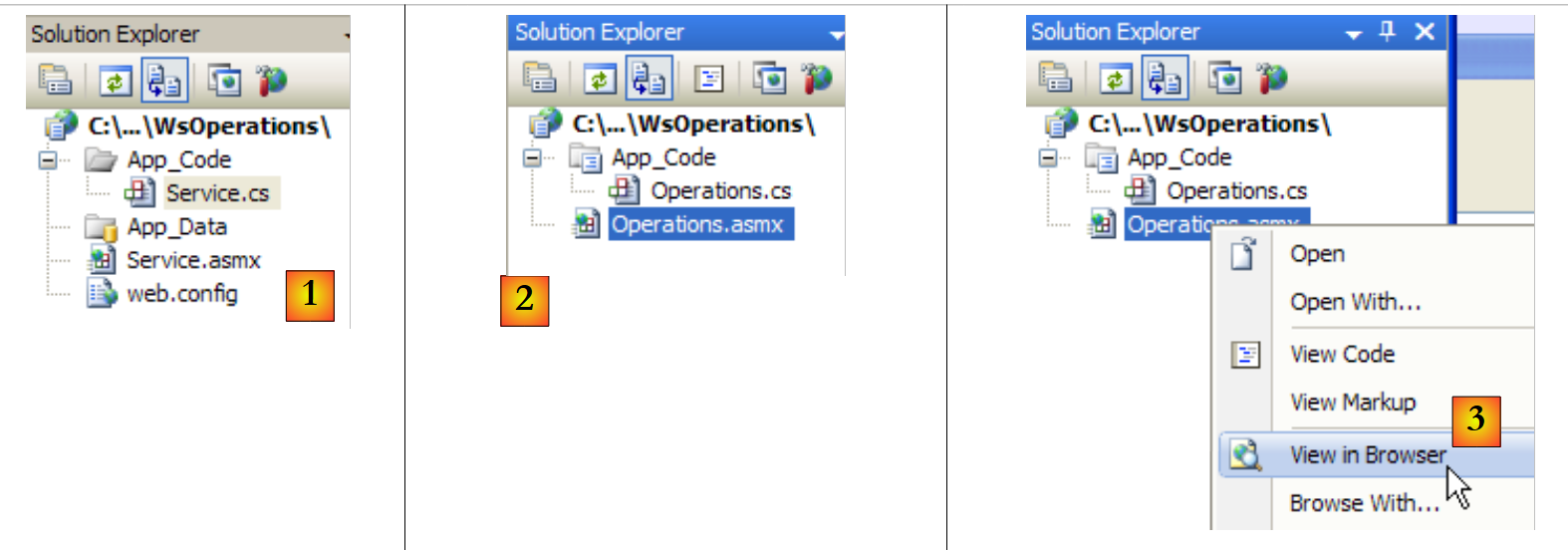 |
- in [1], the web application WsOperations generated
- in [2], the web application WsOperations redesigned as follows:
- the web page [Service.asmx] has been renamed [Operations.asmx]
- the class [Service.cs] was renamed to [Operations.cs]
- The file [web.config] has been deleted to show that it is not essential.
The web page [Service.asmx] contains the following line:
<%@ WebService Language="C#" CodeBehind="~/App_Code/Operations.cs" Class="Operations" %>
The web service is provided by the following [Operations.cs] class:
using System.Web.Services;

[WebService(Namespace = "http://st.istia.univ-angers.fr/")]
[WebServiceBinding(ConformsTo = WsiProfiles.BasicProfile1_1)]
public class Operations : System.Web.Services.WebService
{
    [WebMethod]
    public double Ajouter(double a, double b)
    {
        return a + b;
    }

    [WebMethod]
    public double Soustraire(double a, double b)
    {
        return a - b;
    }

    [WebMethod]
    public double Multiplier(double a, double b)
    {
        return a * b;
    }

    [WebMethod]
    public double Diviser(double a, double b)
    {
        return a / b;
    }

}
To deploy the web service, we follow the steps outlined in [3]. We then obtain the test page for the 4 methods of the WsOperations web service:
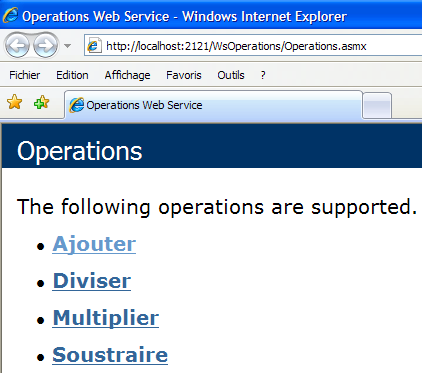
The reader is invited to test the 4 methods.
12.3.2. The client side
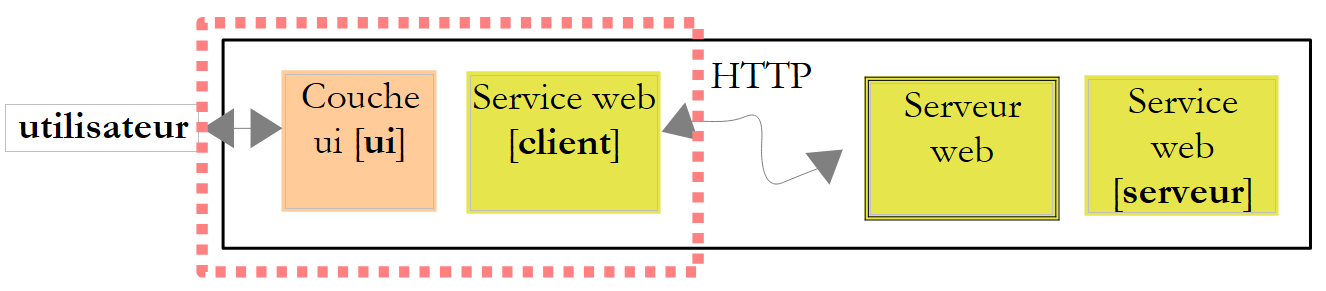 |
Using Visual C#, we create a Windows application ClientWsOperations:
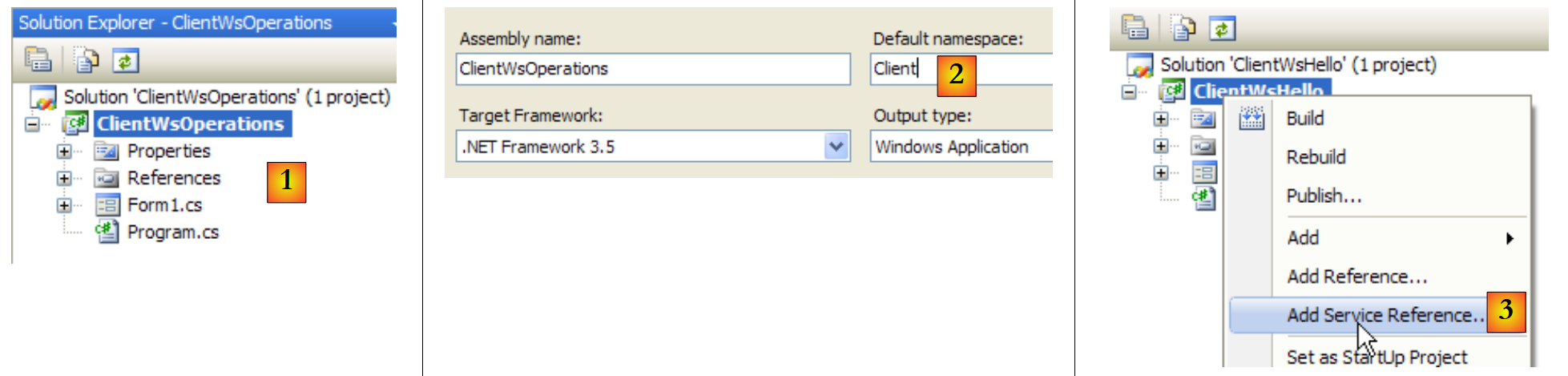 |
- in [1], the ClientWsOperations project in Visual C#
- In [2], the project’s default namespace will be Client (right-click on the project / Properties / Application). This namespace will be used to construct the client namespace that will be generated.
- In [3], right-click on the project to add a reference to an existing web service
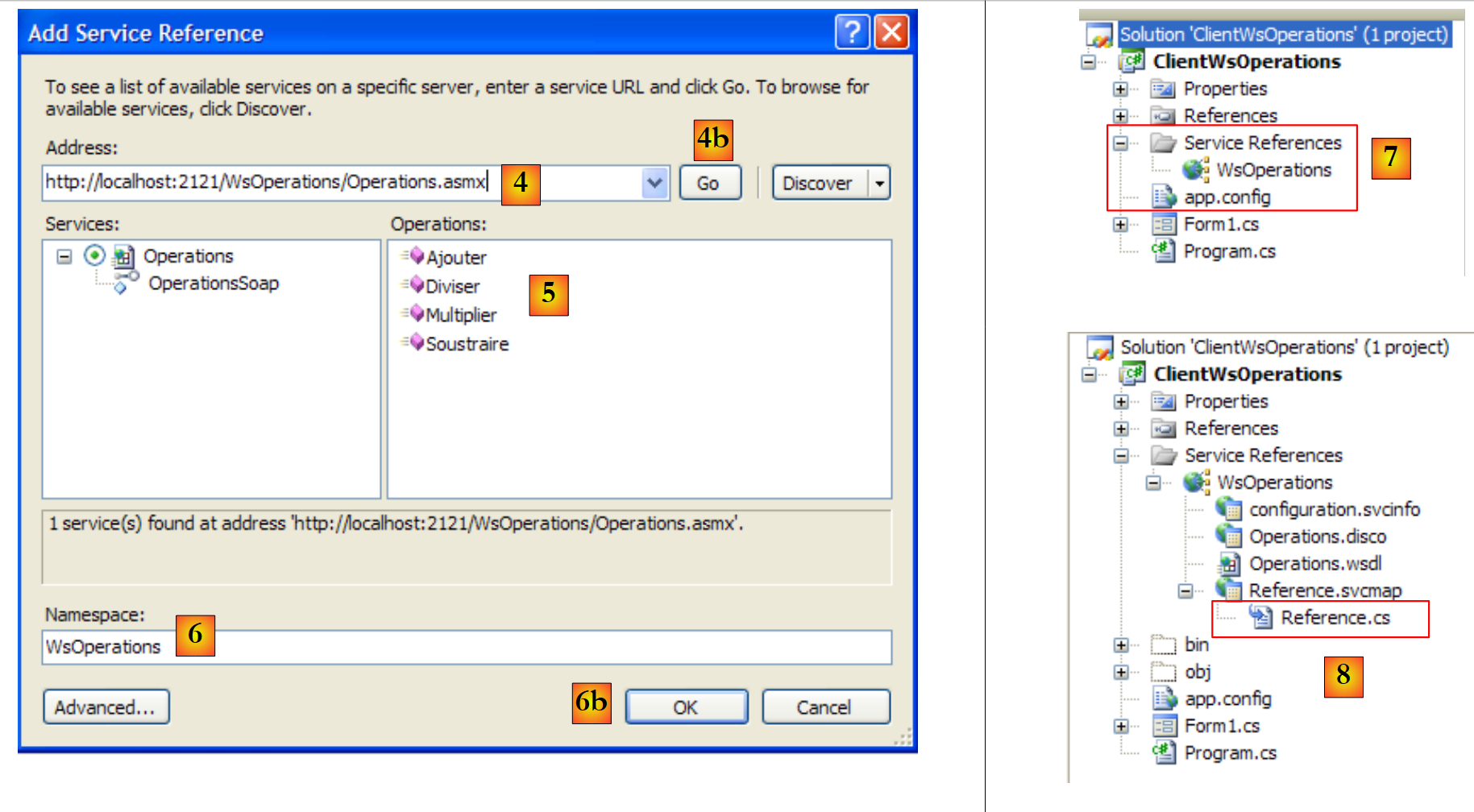 |
- In [4], enter the Uri of the web service created previously. To do this, look at what is displayed in the address bar of the browser showing the web service test page.
- In [4b], connect Visual C# to the web service specified by [4]. Visual C# will retrieve the web service description and, using this description, will be able to generate a client.
- In [5], once the web service description has been retrieved, Visual C# can display its public methods
- In [6], specify a namespace for the client that will be generated. This will be added to the namespace defined in [2]. Thus, the client's namespace will be Client.WsOperations.
- In [6b], confirm the wizard.
- In [7], the reference to the WsOperations web service appears in the project. Additionally, a [app.config] configuration file has been created.
Note that the generated client is of type Client.WsOperations.OperationsSoapClient, where
- Client.WsOperations is the namespace of the web service client
- Operations is the class of the remote web service.
Although there is a logical way to construct this name, it is often easier to find it in the [Reference.cs] file, which is hidden by default. Its contents are as follows:
namespace Client.WsOperations {
 ...
    public partial class OperationsSoapClient : System.ServiceModel.ClientBase<Client.WsOperations.OperationsSoap>, Client.WsOperations.OperationsSoap {

        public OperationsSoapClient() {
        }
...
        public double Ajouter(double a, double b) {
            ...
        }

        public double Soustraire(double a, double b) {
            ...
        }

        public double Multiplier(double a, double b) {
            ...
        }

        public double Diviser(double a, double b) {
            ...
        }
    }
}
The Add, Subtract, Multiply, and Divide methods of the remote web service will be accessed via the proxy methods of the same name (lines 8, 12, 16, 20) in the client of type Client.WsOperations.OperationsSoapClient (line 3).
We still need to build the graphical interface:
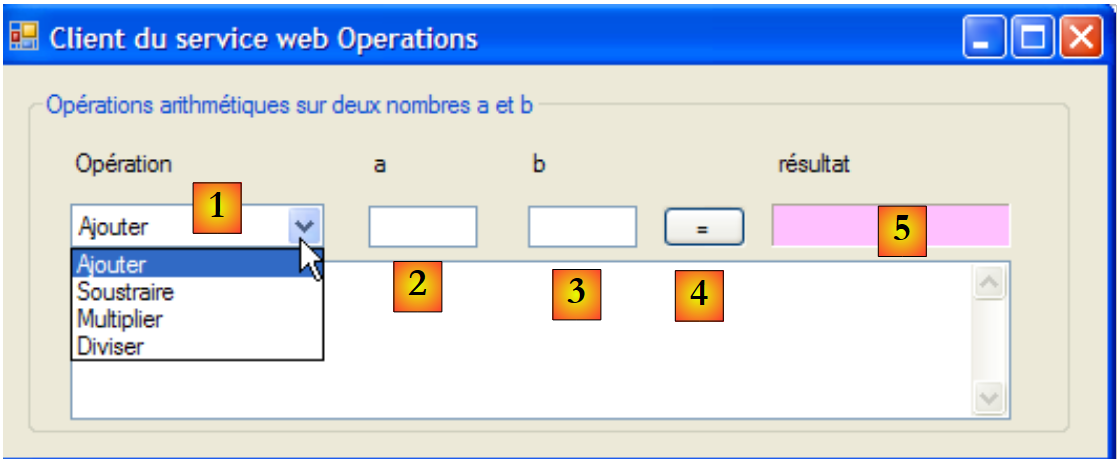 |
No. | type | name | role |
1 | ComboBox | comboBoxOperations | List of arithmetic operations |
2 | TextBox | textBoxA | number a |
3 | TextBox | textBoxB | number b |
4 | Button | buttonExécuter | Queries the remote web service |
5 | Label | labelRésultat | the result of the operation |
The code for [Form1.cs] is as follows:
using System;
using System.Windows.Forms;
using Client.WsOperations;

namespace ClientWsOperations {
    public partial class Form1 : Form {
        // operations table
        private string[] opérations = { "Ajouter", "Soustraire", "Multiplier", "Diviser" };
        // contact web service
        private OperationsSoapClient opérateur = new OperationsSoapClient();

        // manufacturer
        public Form1() {
            InitializeComponent();
        }

        private void Form1_Load(object sender, EventArgs e) {
            // combo filling of operations
            comboBoxOperations.Items.AddRange(opérations);
            comboBoxOperations.SelectedIndex = 0;
        }

        private void buttonExécuter_Click(object sender, EventArgs e) {
            // checking operation parameters a and b
            textBoxMessage.Text = "";
            bool erreur = false;
            Double a = 0;
            if (!Double.TryParse(textBoxA.Text, out a)) {
                textBoxMessage.Text += "Nombre a erroné...";
            }
            Double b = 0;
            if (!Double.TryParse(textBoxB.Text, out b)) {
                textBoxMessage.Text += String.Format("{0}Nombre b erroné...", Environment.NewLine);
            }
            if (erreur) {
                return;
            }
            // operation execution
            Double c=0;
            try {
                switch (comboBoxOperations.SelectedItem.ToString()) {
                    case "Ajouter":
                        c=opérateur.Ajouter(a, b);
                        break;
                    case "Soustraire":
                        c=opérateur.Soustraire(a, b);
                        break;
                    case "Multiplier":
                        c=opérateur.Multiplier(a, b);
                        break;
                    case "Diviser":
                        c=opérateur.Diviser(a, b);
                        break;
                }
                // result display
                labelRésultat.Text = c.ToString();
            } catch (Exception ex) {
                textBoxMessage.Text = ex.Message;
            }
        }
    }
}
- line 3: the namespace of the remote web service client
- line 10: the remote web service client is instantiated at the same time as the form
- lines 17–21: the operations dropdown is populated when the form is initially loaded
- line 23: execution of the operation requested by the user
- lines 25–37: we verify that the inputs a and b are indeed real numbers
- lines 41–54: a switch statement to execute the remote operation requested by the user
- lines 43, 46, 49, 52: the local client is queried. Transparent to the user, the client then queries the remote web service.
12.4. A tax calculation web service
We return to the now well-known tax calculation application. The last time we worked with it, we turned it into a remote Tcp server that could be called over the internet. We are now turning it into a web service.
The architecture of version 8 was as follows:
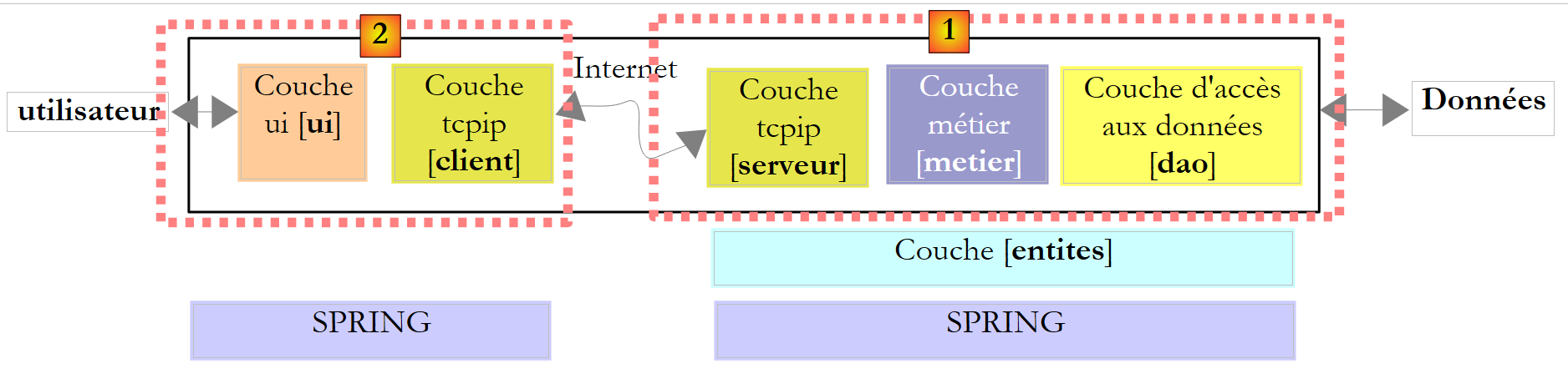 |
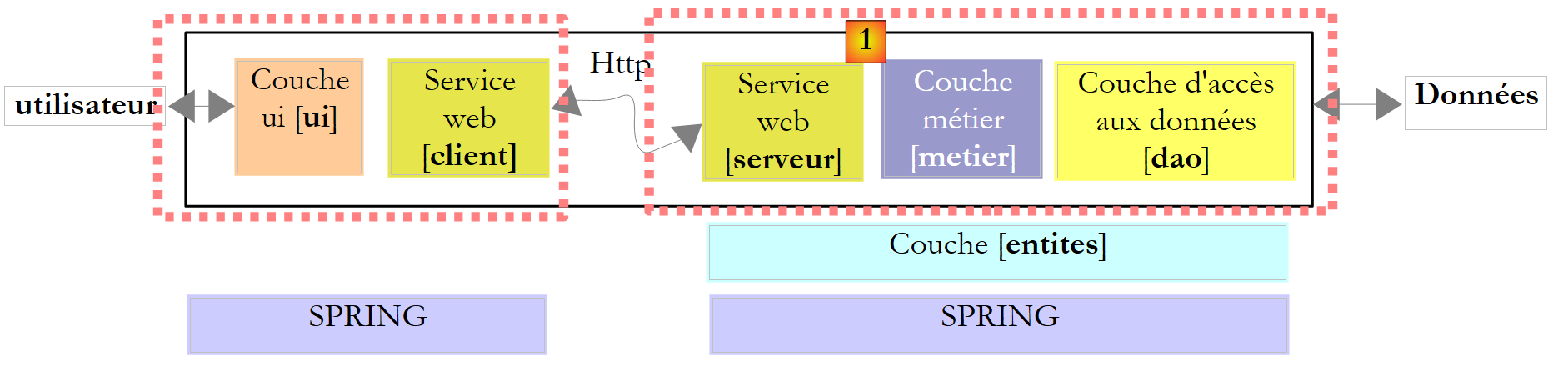
The architecture of version 9 will be similar:
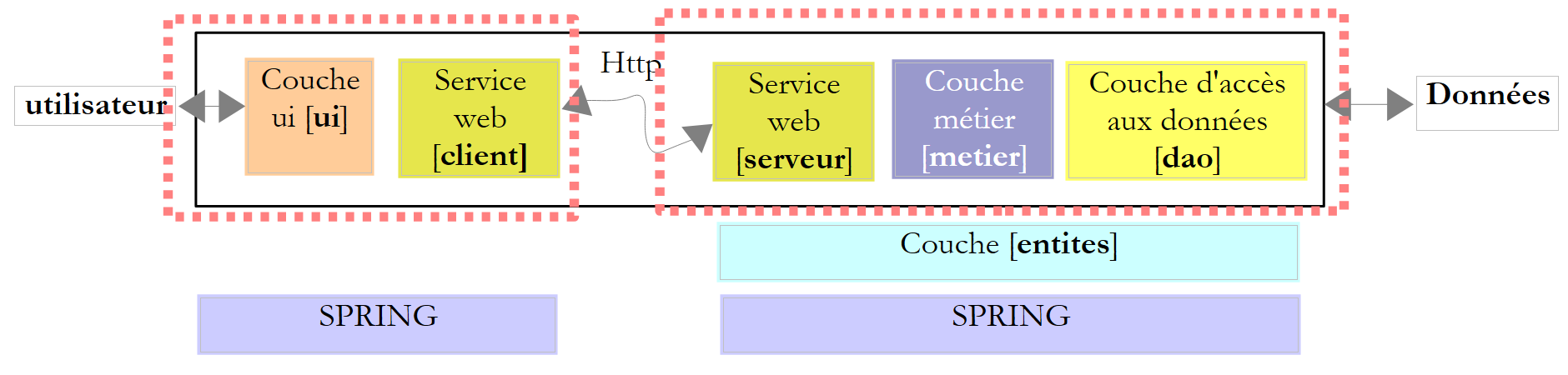 |
This architecture is similar to that of version 8 discussed in Section 11.9.1, but with the server and client Tcp replaced by a web service and its proxy client. We will reproduce in full the [ui], [metier], and [dao] layers from the version 8.
12.4.1. The server side
We are building a web service project with Visual Web Developer:
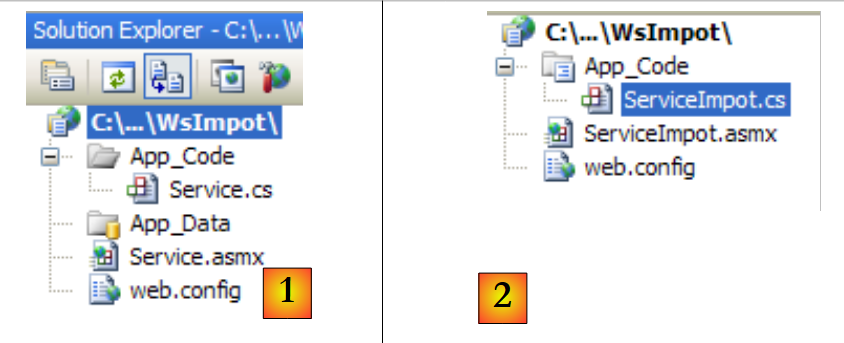 |
- in [1], the web application WsImpot generated
- in [2], the web application WsImpot redesigned as follows:
- the web page [Service.asmx] has been renamed [ServiceImpot.asmx]
- The class [Service.cs] has been renamed to [ServiceImpot .cs]
The web page [ServiceImpot.asmx] contains the following line:
<%@ WebService Language="C#" CodeBehind="~/App_Code/ServiceImpot.cs" Class="ServiceImpot" %>
The web service is provided by the following class [ServiceImpot.cs]:
using System.Web.Services;

[WebService(Namespace = "http://st.istia.univ-angers.fr/")]
[WebServiceBinding(ConformsTo = WsiProfiles.BasicProfile1_1)]
public class ServiceImpot : System.Web.Services.WebService
{

    [WebMethod]
    public int CalculerImpot(bool marié, int nbEnfants, int salaire)
    {
        return 0;
    }

}
The web service will only expose the CalculerImpot method on line 9.
Let’s return to the client/server architecture of version 8:
 |
The Visual Studio project for the [1] server was as follows:
 |
- in [1], the project. It contained the following elements:
- [ServeurImpot.cs]: the Tcp/Ip tax calculation server in the form of a console application.
- [dbimpots.sdf]: the SQL Server Compact database for version 7 described in section 9.8.5.
- [App.config]: the application configuration file.
- In [2], the [lib] folder contains the DLL files required for the project:
- [ImpotsV7-dao]: the [dao] layer of version 7
- [ImpotsV7-metier]: the [metier] layer of version 7
- [antlr.runtime, CommonLogging, Spring.Core] for Spring
- in [3], the project references
The layers [metier] and [dao] of version already exist: these are the ones used in versions 7 and 8. They are in the form of DLL, which we integrate into the project as follows:
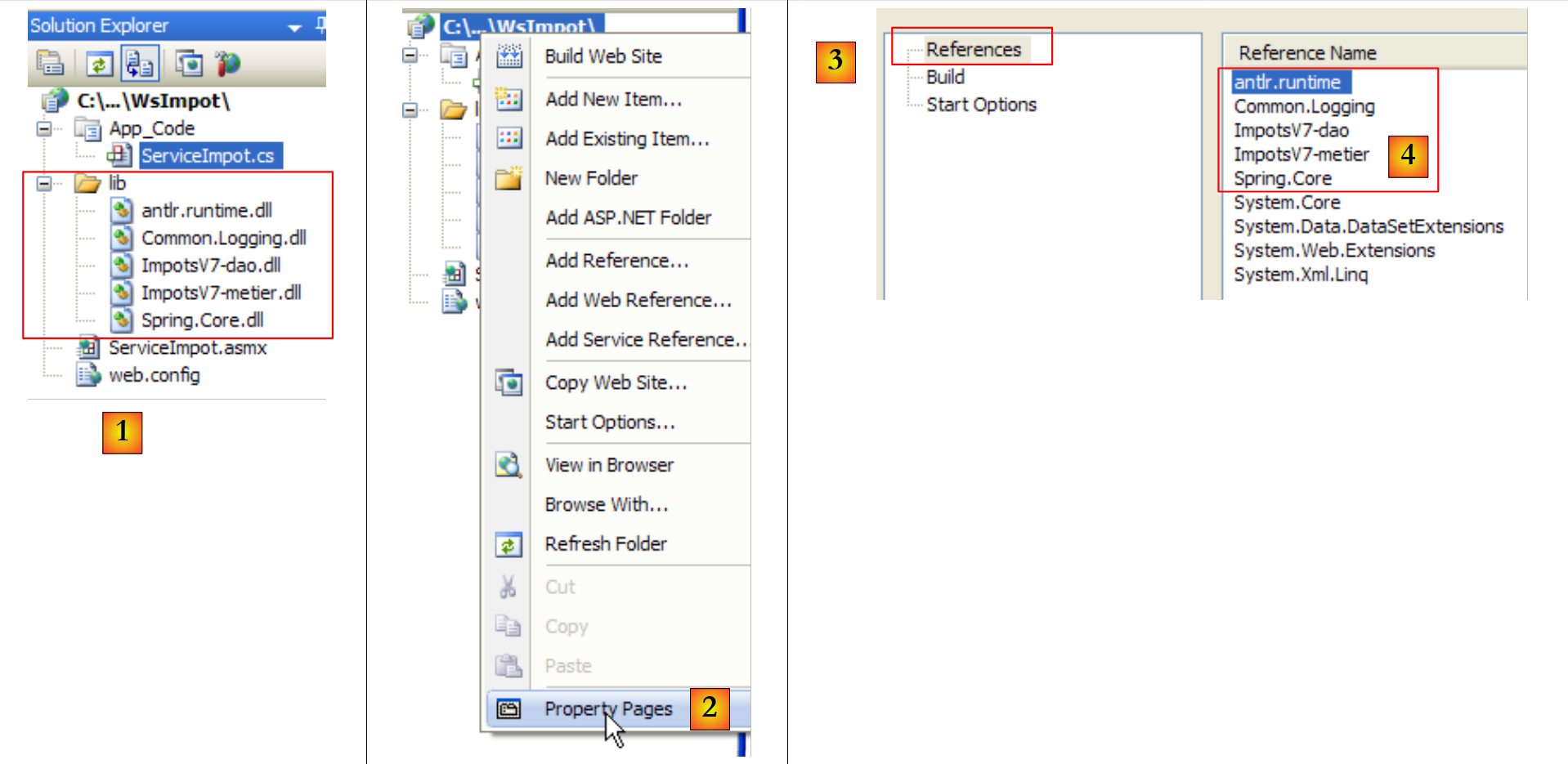 |
- In [1], the [lib] folder from the version 8 server has been copied into the version 9 web service project.
- In [2], we modify the page properties to add the DLL files from the [lib] and [4] folders to the references of the [3] project.
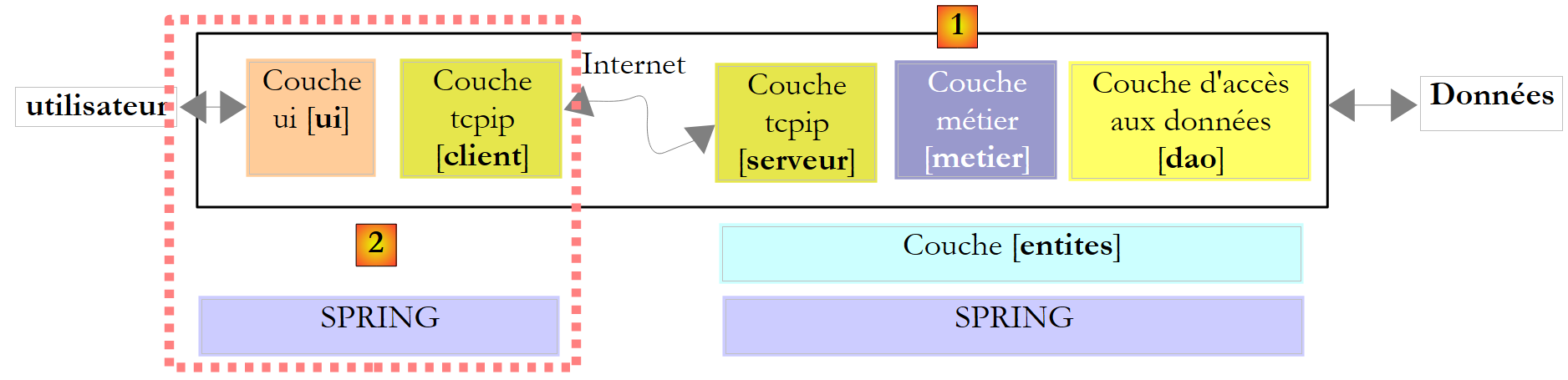
After this operation, we have all the layers required for the [1] server below:
 |
If the elements of the [1], [serveur], [metier], [dao], [entites], and [spring] are all present in the Visual Studio project, we are missing the element that will instantiate them when the web application starts. In version 8, a main class containing the static method [Main] handled instantiating the layers using Spring. In a web application, the class capable of performing a similar task is the class associated with the file [Global.asax] :
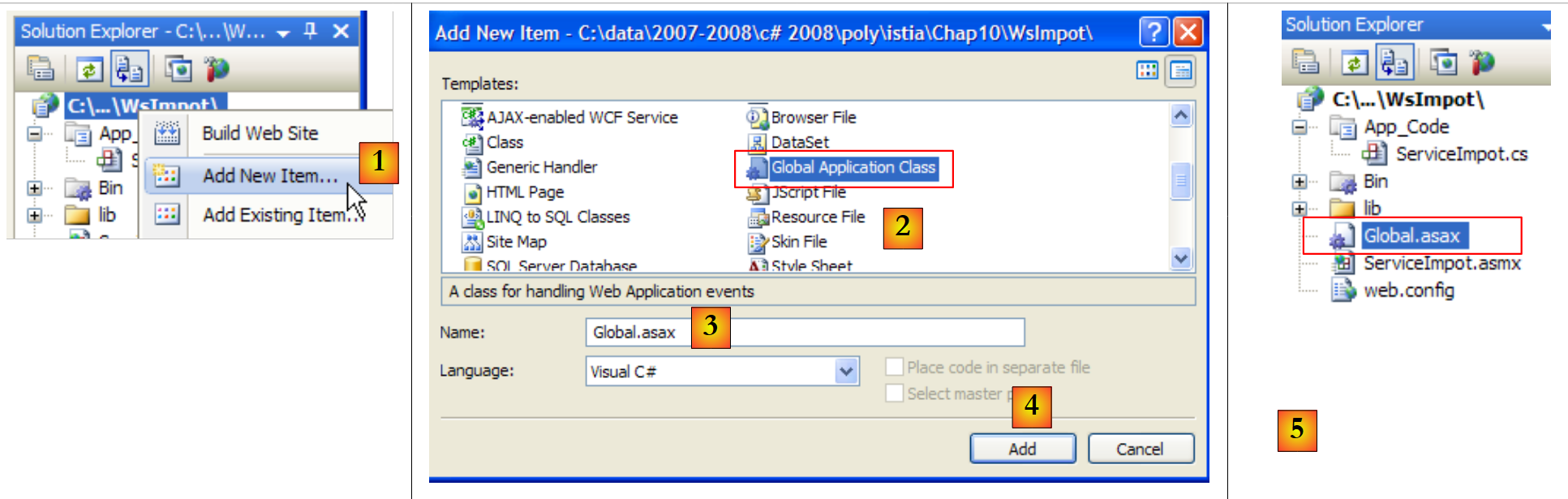 |
- In [1], a new element is added to the web project
- In [2], we select the Global Application Class type
- In [3], the default name suggested for this element
- In [4], confirm the addition
- In [5], the new element has been added to the project
Let’s look at the contents of the [Global.asax] file:
<%@ Application Language="C#" %>

<script runat="server">

    void Application_Start(object sender, EventArgs e)
    {
        // Code that runs on application startup
    }

    void Application_End(object sender, EventArgs e)
    {
        //  Code that runs on application shutdown
    }

    void Application_Error(object sender, EventArgs e)
    {
        // Code that runs when an unhandled error occurs
    }

    void Session_Start(object sender, EventArgs e)
    {
        // Code that runs when a new session is started
    }

    void Session_End(object sender, EventArgs e)
    {
        // Code that runs when a session ends.
    }

</script>
The file is a mix of tags intended for the web server (lines 1, 3, 30) and C# code. This method was the only one used with ASP, the predecessor of ASP.NET, which is Microsoft’s current technology for web programming. With ASP.NET, this method is still usable but is not the default method. The default method is the so-called "CodeBehind" method, which we encountered in the web services pages, for example here in [ServiceImpot.asmx]:
<%@ WebService Language="C#" CodeBehind="~/App_Code/ServiceImpot.cs" Class="ServiceImpot" %>
The CodeBehind attribute specifies where the source code for the [ServiceImpot.asmx] page is located. Without this attribute, the source code would be in the [ServiceImpot.asmx] page with syntax similar to that found in [Global.asax]. We will not keep the [Global.asax] file as it was generated, but its code helps us understand its purpose:
- the class associated with Global.asax is instantiated when the application starts. Its lifetime spans the entire application. In practice, it only disappears when the web server is shut down.
- The Application_Start method is then executed. This is the only time it will be executed. Therefore, it is used to instantiate objects shared among all users. These objects are placed:
- either in static fields of the class associated with Global.asax. Since this class is always present, any user can read information from it in any request.
- or in the Application container. This container is also created when the application starts and has the same lifespan as the application.
- To place data in this container, write Application["clé"]=value;
- To retrieve it, write T value=(T)Application["clé"]; where T is the value type.
- The method Session_Start is executed every time a new user makes a request. How do we recognize a new user? Each user (usually a browser) receives, upon completing their first request, a session token, which is a unique string of characters for each user. The user then sends the session token they received with every new request they make. This allows the web server to recognize them. As the same user makes multiple requests, data specific to them can be stored in the Session container:
- to store data in this container, write Session["clé"]=value;
- to retrieve it, write T value=(T)Session["clé"]; where T is the value type.
The session lifetime is limited by default to 20 minutes of user inactivity (c.a.d, meaning the user has not sent their session token for 20 minutes).
- The method Application_Error is executed when an exception not handled by the web application is propagated up to the web server.
- The other methods are used less frequently.
Having covered these general points, how can Global.asax be useful to us? We will use its method Application_Start to initialize the layers [metier], [dao], and [entites] contained within DLL and [ImpotsV7-metier, ImpotsV7-dao]. We will use Spring to instantiate them. The references to the layers thus created will then be stored in static fields of the class associated with Global.asax.
First step: we move the C# code from Global.asax into a separate class. The project evolves as follows:
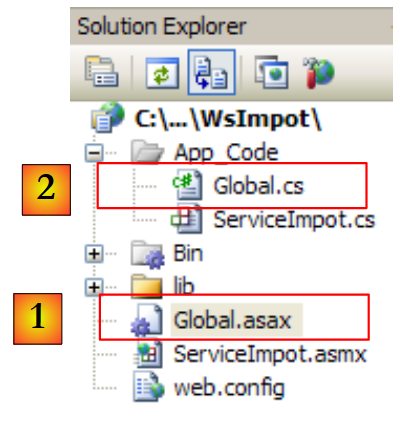 |
In [1], the file [Global.asax] will be associated with the class [Global.cs] [2] with the following single line:
<%@ Application Language="C#" Inherits="WsImpot.Global"%>
The Inherits="WsImpot.Global" attribute indicates that the class associated with Global.asax inherits from the WsImpot.Global class. This class is defined in [Global.cs] as follows:
using System;
using Metier;
using Spring.Context.Support;
namespace WsImpot
{
    public class Global : System.Web.HttpApplication
    {
        // business layer
        public static IImpotMetier Metier;

        // method executed at application startup
        private void Application_Start(object sender, EventArgs e)
        {
            // instantiations layers [metier] and [dao]
            Metier = ContextRegistry.GetContext().GetObject("metier") as IImpotMetier;
        }
    }
}
- line 4: the class namespace
- line 6: the Global class. You can name it whatever you want. The important thing is that it derives from the System.Web.HttpApplication class.
- line 9: a public static field that will contain a reference to the [metier] layer.
- line 12: the Application_Start method, which will be executed when the application starts.
- Line 15: Spring is used to process the [web.config] file, where it will find the objects to instantiate in order to create the [metier] and [dao] layers. There is no difference between using Spring with [App.config] in a Windows application and using Spring with [web.config] in a web application. [web.config] and [App.config] also have the same structure. Line 15 stores the reference to layer [metier] in the static field on line 9, so that this reference is available for all requests from all users.
The file [web.config] will be as follows:
<?xml version="1.0" encoding="utf-8" ?>
<configuration>

  <configSections>
    <sectionGroup name="spring">
      <section name="context" type="Spring.Context.Support.ContextHandler, Spring.Core" />
      <section name="objects" type="Spring.Context.Support.DefaultSectionHandler, Spring.Core" />
    </sectionGroup>
  </configSections>

  <spring>
    <context>
      <resource uri="config://spring/objects" />
    </context>
    <objects xmlns="http://www.springframework.net">
      <object name="dao" type="Dao.DataBaseImpot, ImpotsV7-dao">
        <constructor-arg index="0" value="MySql.Data.MySqlClient"/>
        <constructor-arg index="1" value="Server=localhost;Database=bdimpots;Uid=admimpots;Pwd=mdpimpots;"/>
        <constructor-arg index="2" value="select limite, coeffr, coeffn from tranches"/>
      </object>
      <object name="metier" type="Metier.ImpotMetier, ImpotsV7-metier">
        <constructor-arg index="0" ref="dao"/>
      </object>
    </objects>
  </spring>
</configuration>
This is the [App.config] file used in the version 7 application and discussed in Section 9.8.4.
- Lines 16–20: define a [dao] layer working with a MySQL5 database. This database was described in Section 9.8.1.
- lines 21-23: define the [metier] layer
Let’s return to the server puzzle:
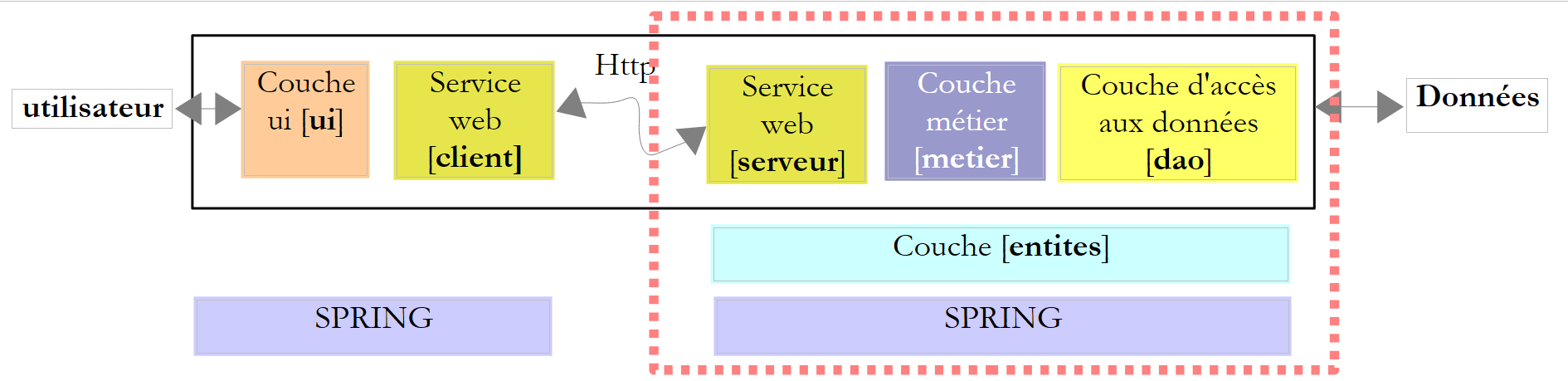 |
When the application starts, the [metier] and [dao] layers are instantiated. The lifetime of the layers is that of the application itself. When is the web service instantiated? In fact, with every request made to it. At the end of the request, the object that served it is deleted. A web service is therefore, at first glance, stateless. It cannot store information between requests in fields that belong to it. It can store information in the user’s session. To do this, the methods it exposes must be tagged with a special attribute:
    [WebMethod(EnableSession=true)]
    public int CalculerImpot(bool marié, int nbEnfants, int salaire)
....
In the code above, line 1 allows the CalculerImpot method to access the Session container we discussed earlier. We will not need to use this attribute in our application. The WsImpot web service will therefore be instantiated with each request and will be stateless.
We can now write the [ServiceImpot.cs] code that implements the web service:
using System.Web.Services;
using WsImpot;

[WebService(Namespace = "http://st.istia.univ-angers.fr/")]
[WebServiceBinding(ConformsTo = WsiProfiles.BasicProfile1_1)]
public class ServiceImpot : System.Web.Services.WebService
{

    [WebMethod]
    public int CalculerImpot(bool marié, int nbEnfants, int salaire)
    {
        return Global.Metier.CalculerImpot(marié, nbEnfants, salaire);
    }

}
- line 10: the only method of the web service
- line 12: we use the CalculerImpot method from the [metier] layer. A reference to this layer is found in the static Metier field of the Global class. This belongs to the WsImpot namespace (line 2).
We are ready to launch the web service. First, we must launch SGBD and MySQL5 so that the bdimpots database is accessible. Once this is done, we launch the web service [1]:
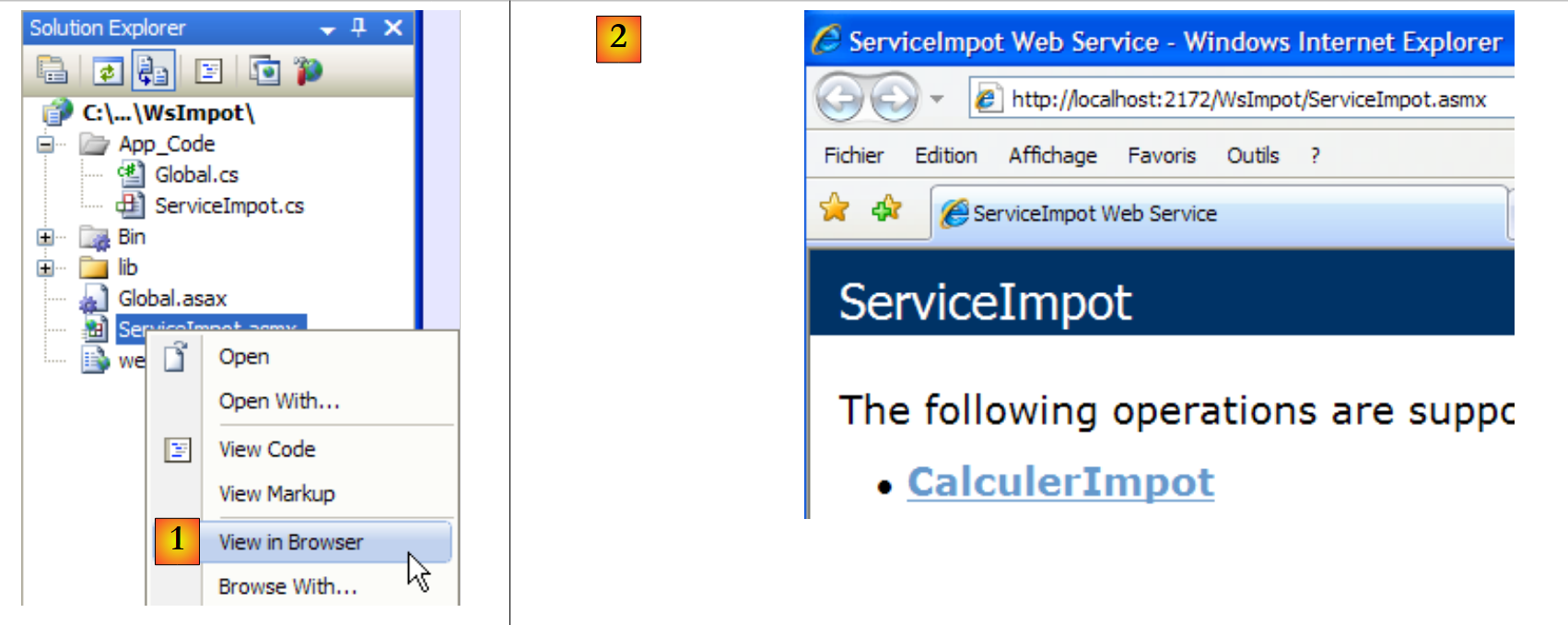 |
The browser then displays the [2] page. We follow the link:
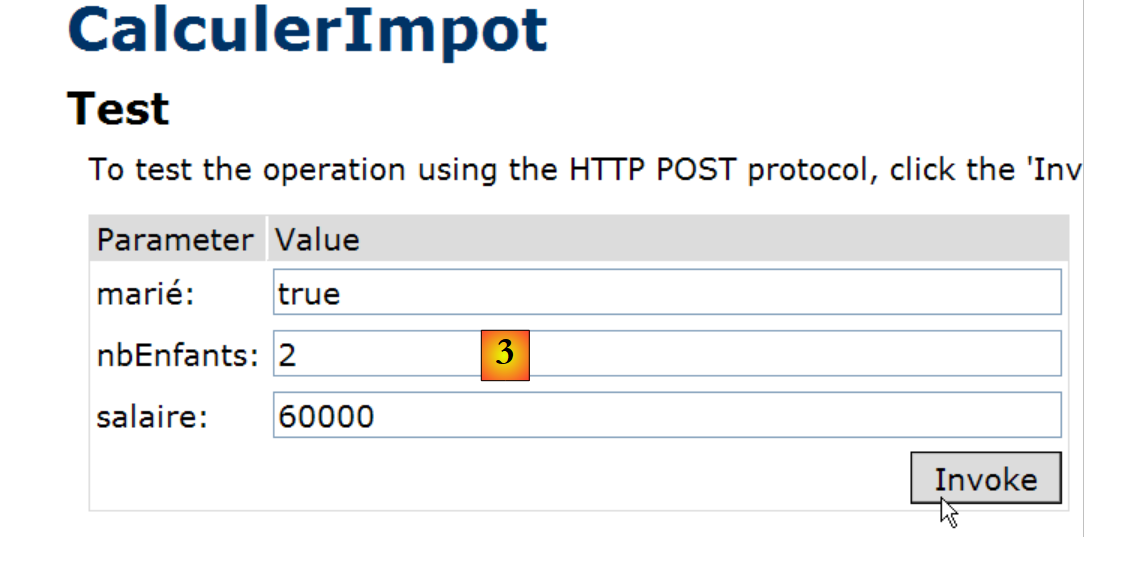 |
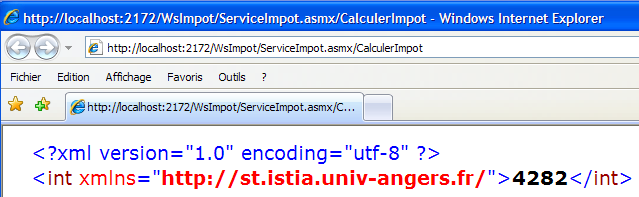
We assign a value to each of the three parameters of the CalculerImpot method and request that the method be executed. We obtain the following result, which is correct:
12.4.2. A Windows GUI client for the remote web service
Now that the web service has been written, we move on to the client. Let’s revisit the client/server application architecture:
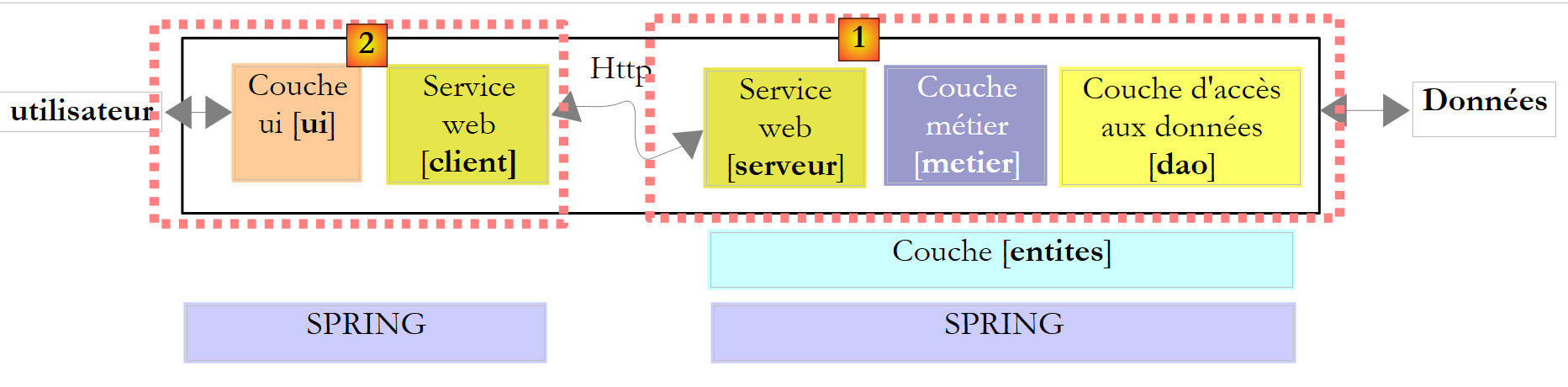 |
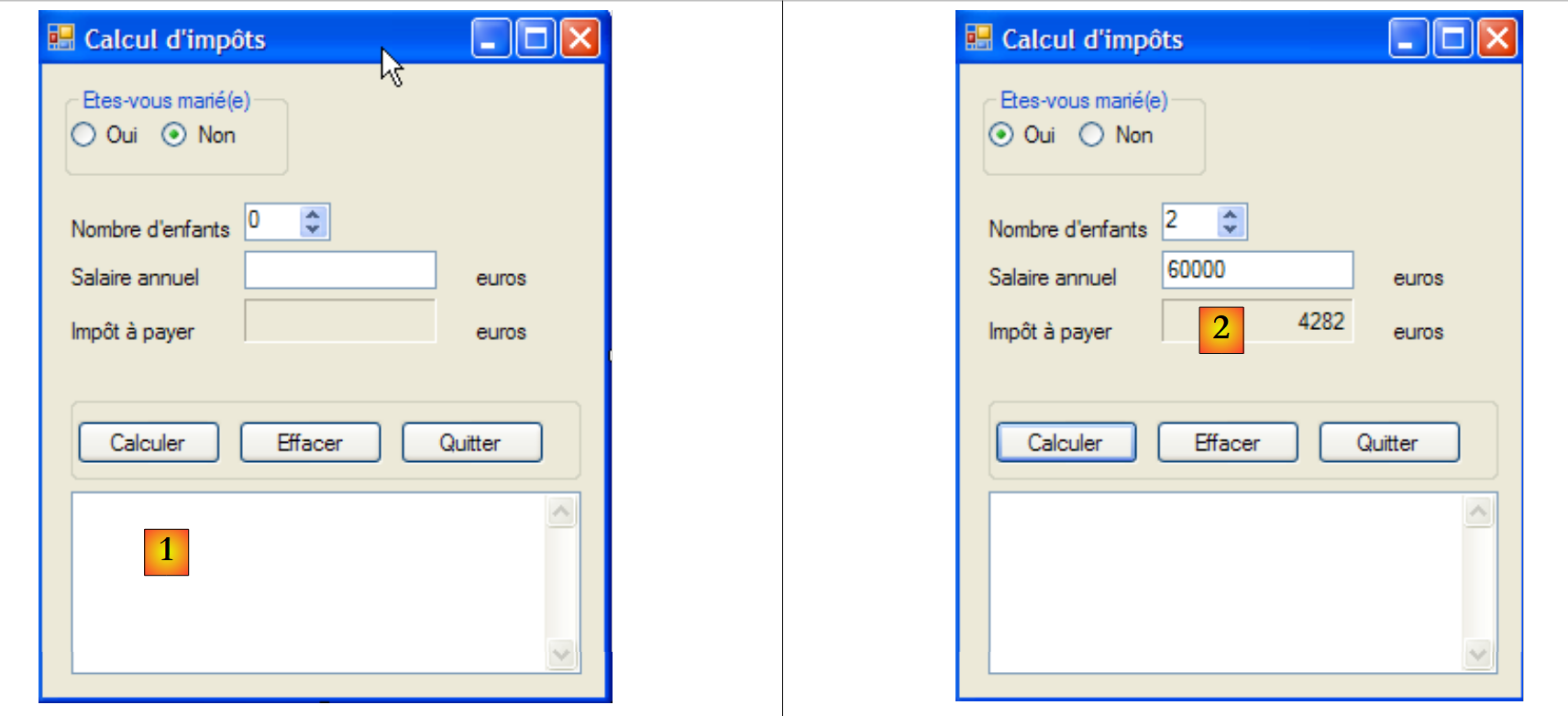
We need to write the client [2]. The graphical interface will be identical to that of version 8:
 |
To write the [client] part of version 9, we will start with the [client] part of version 8, then make the necessary changes. We duplicate the Visual Studio project discussed in section 11.9.4.1, rename it ClientWsImpot, and load it into Visual Studio:
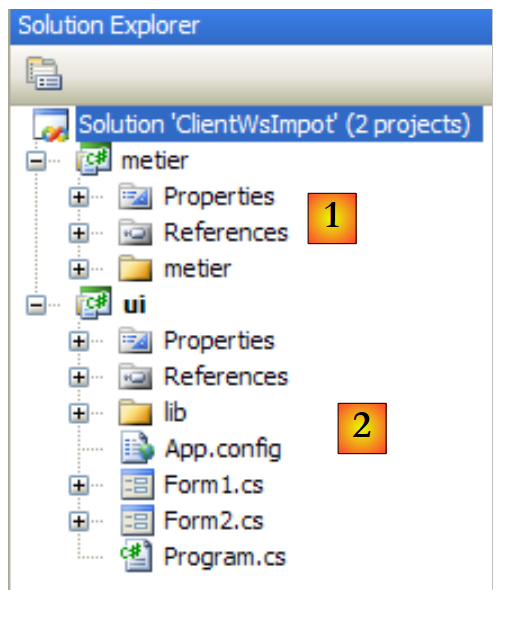 |
The Visual Studio solution for version 8 consisted of two projects:
- the [metier] project, which was a client of the Tcp tax calculation server
- the [ui] [2] graphical interface project.
The changes to be made are as follows:
- The [metier] project must now be a client of a web service
- The [ui] project must reference DLL from the new [metier] layer
- The configuration of layer [metier] in [App.config] must be changed.
12.4.2.1. The new layer [metier]
 |
- In [1], IImpotMetier is the interface of layer [metier] and ImpotMetierTcp is its implementation by a client Tcp
- In [2], we remove the implementation ImpotMetierTcp. We must create another implementation of the interface IImpotMetier that will be a client of a web service.
- In [3], we name the default namespace of the [metier] project "Client." The DLL that will be generated will be named [ImpotsV9-metier.dll].
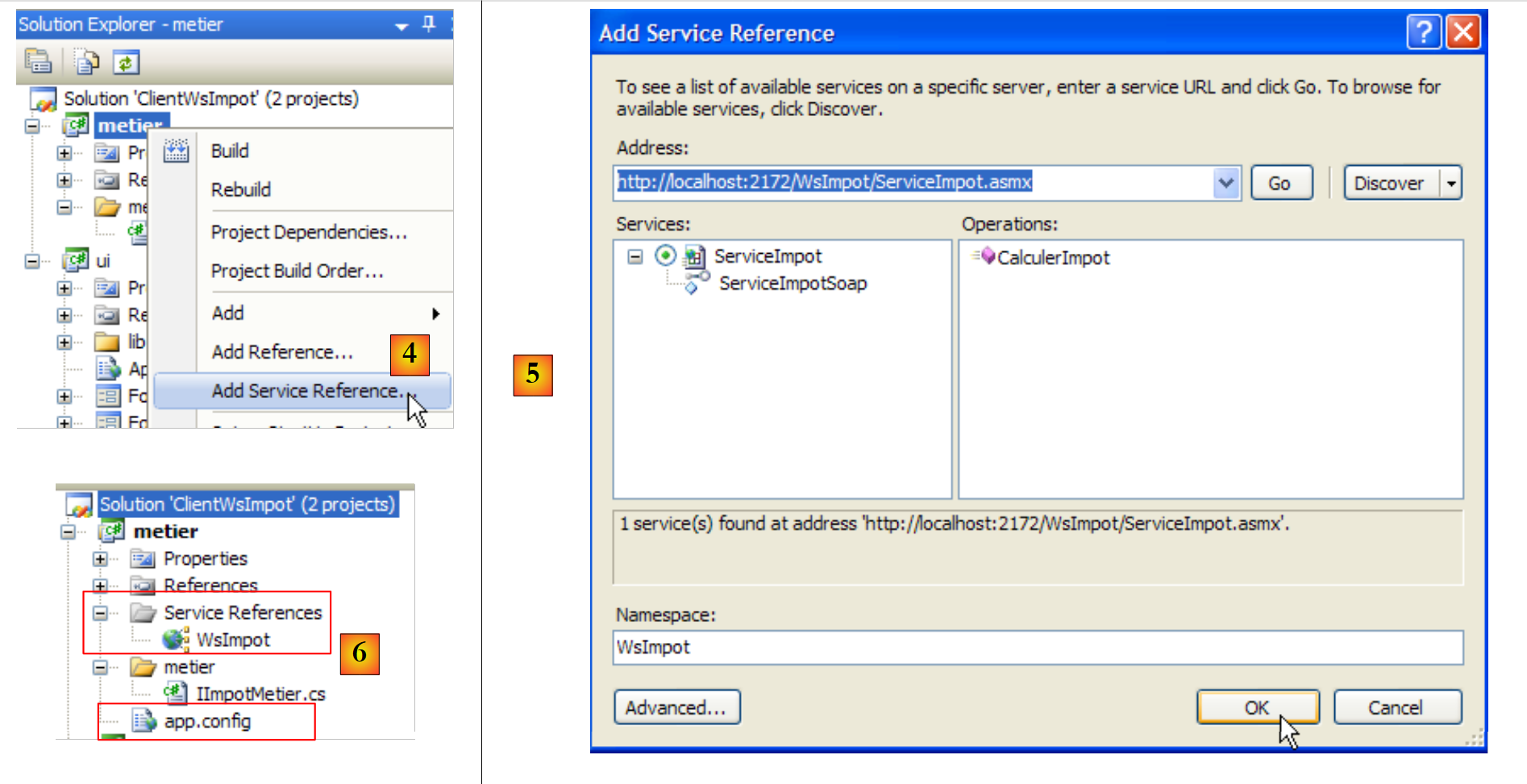 |
- In [4], we create a reference to the web service WsImpot.
- In [5], we configure and validate it.
- In [6], the reference to the web service WsImpot has been created and a file named [app.config] has been generated.
In the hidden file [Reference.cs]:
- the namespace is Client.WsImpot
- the client class is named ServiceImpotSoapClient
- it has a single method with the following signature:
public int CalculerImpot(bool marié, int nbEnfants, int salaire) ;
We still need to implement the IImpotMetier interface:
namespace Metier {
    public interface IImpotMetier {
        int CalculerImpot(bool marié, int nbEnfants, int salaire);
    }
}
We implement it with the following ImpotMetierWs class:
using System.Net.Sockets;
using System.IO;
using Client.WsImpot;

namespace Metier {
    public class ImpotMetierWs : IImpotMetier {

        // remote web service client
        private ServiceImpotSoapClient client = new ServiceImpotSoapClient();

        // tAX CALCULATION
        public int CalculerImpot(bool marié, int nbEnfants, int salaire) {
            return client.CalculerImpot(marié, nbEnfants, salaire);
        }

    }
}
- line 6: the class ImpotMetierWs implements the interface IImpotMetier.
- line 9: When an instance of ImpotMetierWs is created, the client field is initialized with an instance of a client from the tax calculation web service.
- line 12: the only method of the IImpotMetier interface to be implemented.
- Line 13: We use the CalculerImpot method of the remote tax calculation web service client. Ultimately, it is the CalculerImpot method of the remote web service that will be called.
We can generate the DLL for the project:
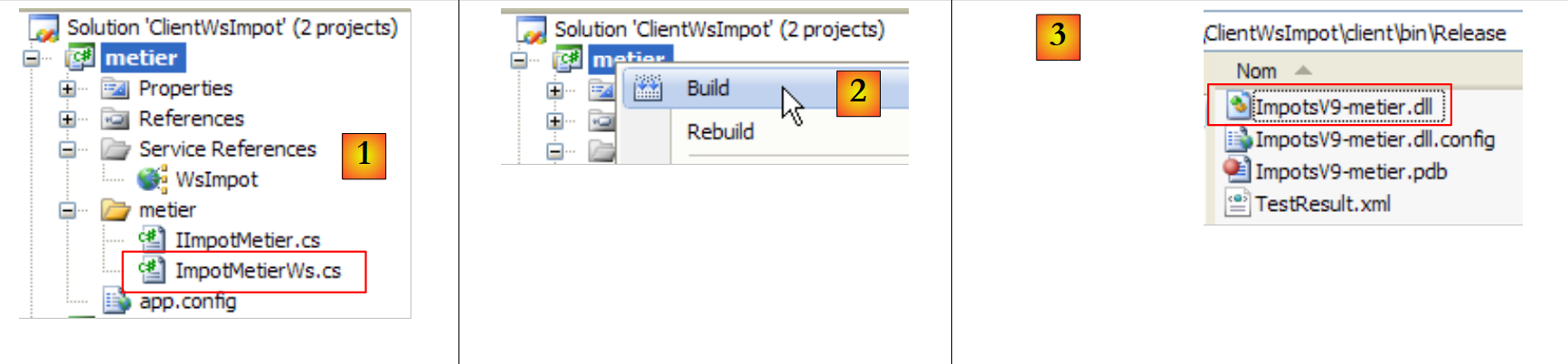 |
- as [1], the [client] project in its final state
- into [2], generating the project’s DLL
- to [3], DLL ImpotsV9-metier.dll is in the project's /bin/Release folder.
12.4.2.2. The new [ui] layer
 |
The client layer [client] has been written. We still need to write the layer [ui]. Let’s go back to the Visual Studio project:
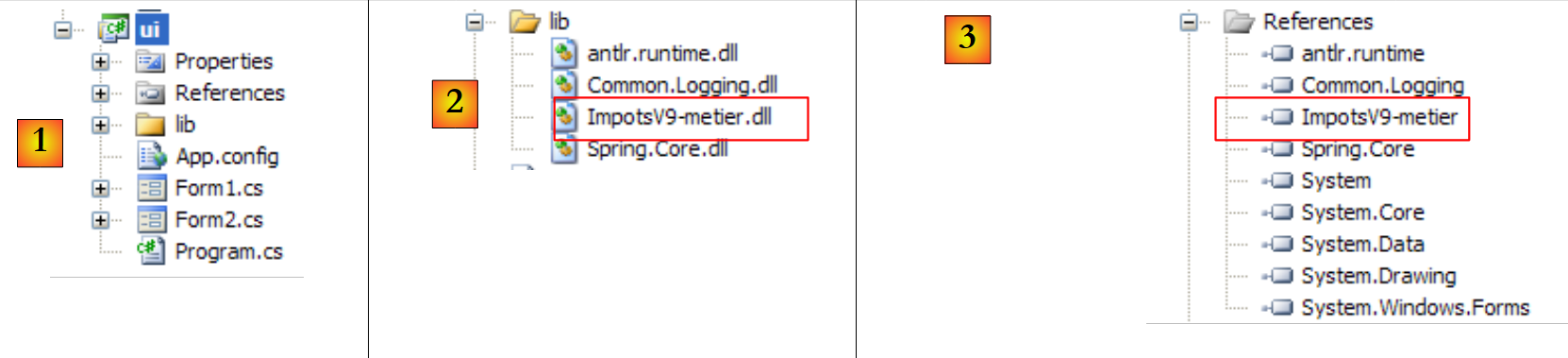 |
- in [1], the [ui] project derived from version 8
- In [2], the DLL ImpotsV8-metier from the old layer [metier] is replaced by the DLL ImpotsV9-metier from the new layer
- in [3], the DLL ImpotsV9-metier is added to the project references.
The second change occurs in [App.config]. Keep in mind that this file is used by Spring to instantiate the [metier] layer. Since that layer has changed, the configuration of [App.config] must change. Additionally, [App.config] must have the configuration to connect to the remote tax calculation web service. This configuration was generated in the [app.config] file of the [metier] project when the reference to the remote web service was added there.
The file [App.config] therefore becomes as follows:
<?xml version="1.0" encoding="utf-8" ?>
<configuration>

    <configSections>
        <sectionGroup name="spring">
            <section name="context" type="Spring.Context.Support.ContextHandler, Spring.Core" />
            <section name="objects" type="Spring.Context.Support.DefaultSectionHandler, Spring.Core" />
        </sectionGroup>
    </configSections>

    <spring>
        <context>
            <resource uri="config://spring/objects" />
        </context>
        <objects xmlns="http://www.springframework.net">
            <object name="metier" type="Metier.ImpotMetierWs, ImpotsV9-metier">
            </object>
        </objects>
    </spring>

    <!-- web service -->
    <system.serviceModel>
        <bindings>
            <basicHttpBinding>
                <binding name="ServiceImpotSoap" closeTimeout="00:01:00" openTimeout="00:01:00"
                        receiveTimeout="00:10:00" sendTimeout="00:01:00" allowCookies="false"
                        bypassProxyOnLocal="false" hostNameComparisonMode="StrongWildcard"
                        maxBufferSize="65536" maxBufferPoolSize="524288" maxReceivedMessageSize="65536"
                        messageEncoding="Text" textEncoding="utf-8" transferMode="Buffered"
                        useDefaultWebProxy="true">
                    <readerQuotas maxDepth="32" maxStringContentLength="8192" maxArrayLength="16384"
                            maxBytesPerRead="4096" maxNameTableCharCount="16384" />
                    <security mode="None">
                        <transport clientCredentialType="None" proxyCredentialType="None"
                                realm="" />
                        <message clientCredentialType="UserName" algorithmSuite="Default" />
                    </security>
                </binding>
            </basicHttpBinding>
        </bindings>
        <client>
            <endpoint address="http://localhost:2172/WsImpot/ServiceImpot.asmx"
                    binding="basicHttpBinding" bindingConfiguration="ServiceImpotSoap"
                    contract="WsImpot.ServiceImpotSoap" name="ServiceImpotSoap" />
        </client>
    </system.serviceModel>
</configuration>
- lines 15-18: Spring instantiates only one object, the [metier] layer
- line 16: the [metier] layer is instantiated by the [Metier.ImpotMetierWs] class, which is located in the DLL ImpotsV9-metier project.
- Lines 22–46: the remote web service client configuration. This is a copy/paste of the contents of the [app.config] file from the [metier] project.
We’re ready. Run the application by pressing Ctrl-F5 (the web service must be running, SGBD and MySQL5 must be running, and the port on line 42 above must be correct):
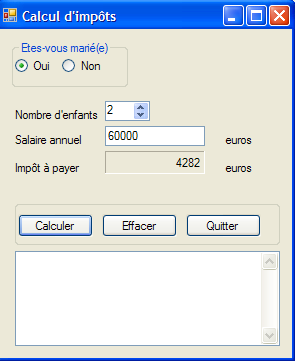 |
12.5. A web client for the tax calculation web service
Let’s review the architecture of the client/server application we just wrote:
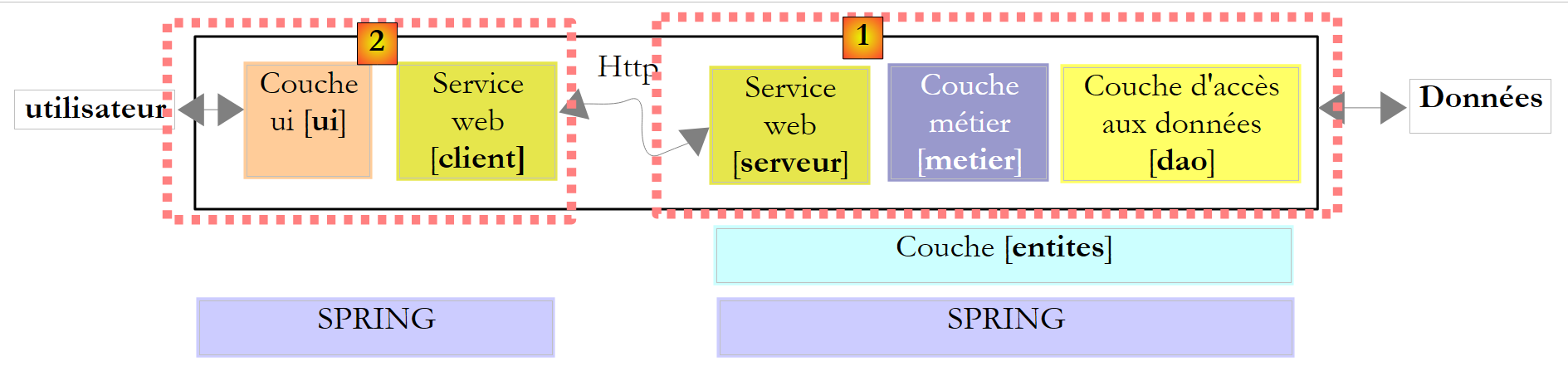 |
The [ui] layer above was implemented by a Windows GUI client. We are now implementing it with a web interface:
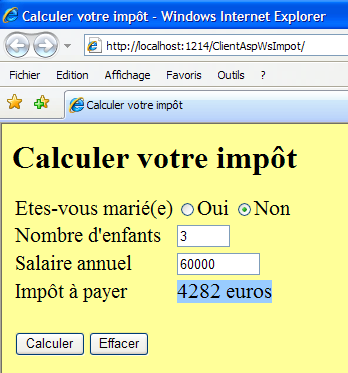 |
This is a significant change for users. Currently, our client/server application, version 9, can serve multiple clients instances simultaneously. This is an improvement over version 8, which could only serve one client at a time. The limitation is that users wishing to use the tax calculation web service must have the Windows client we developed installed on their computers. In this new version, which we will call version 10, users will be able to access the tax calculation web service using their browser.
In the architecture above:
- the server side remains unchanged. It stays as it is in version 9.
- On the client side, the [client du service web] layer remains unchanged. It has been encapsulated within DLL and [ImpotsV9-metier]. We will reuse this DLL.
- Ultimately, the only change is replacing a Windows GUI with a web interface.
We will cover new concepts in server-side web programming. Since the purpose of this document is not to teach web programming, we will try to explain the approach we will take without going into detail. There will therefore be a somewhat “magical” aspect to this section. However, we believe it is worthwhile to take this approach to demonstrate a new example of a multi-layer architecture where one of the layers is changed.
The architecture of version 10 is therefore as follows:
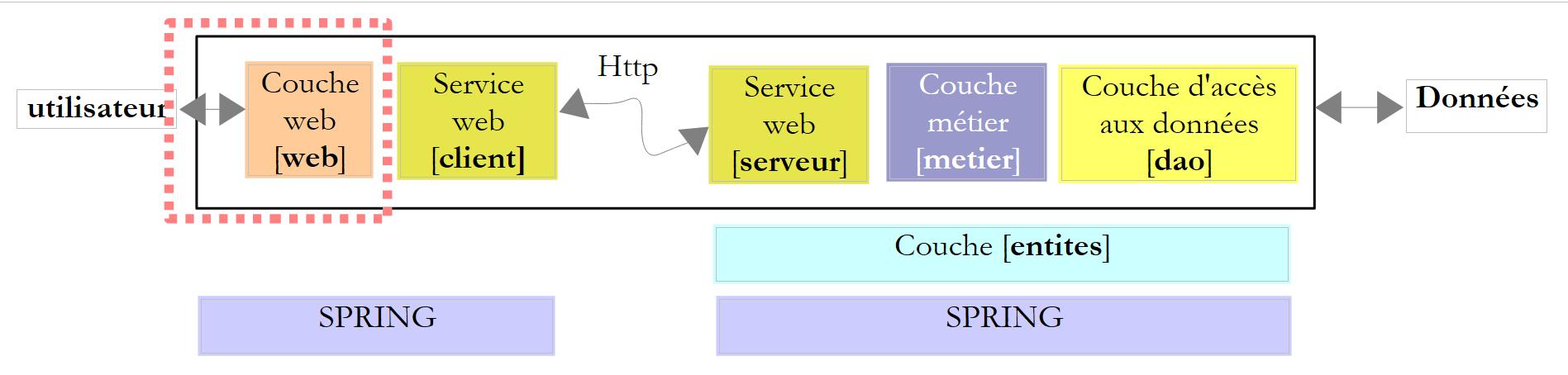 |
We already have all the layers, except for the [web] layer. To better understand what will be done, we need to be more specific about the client architecture. It will be as follows:
 |
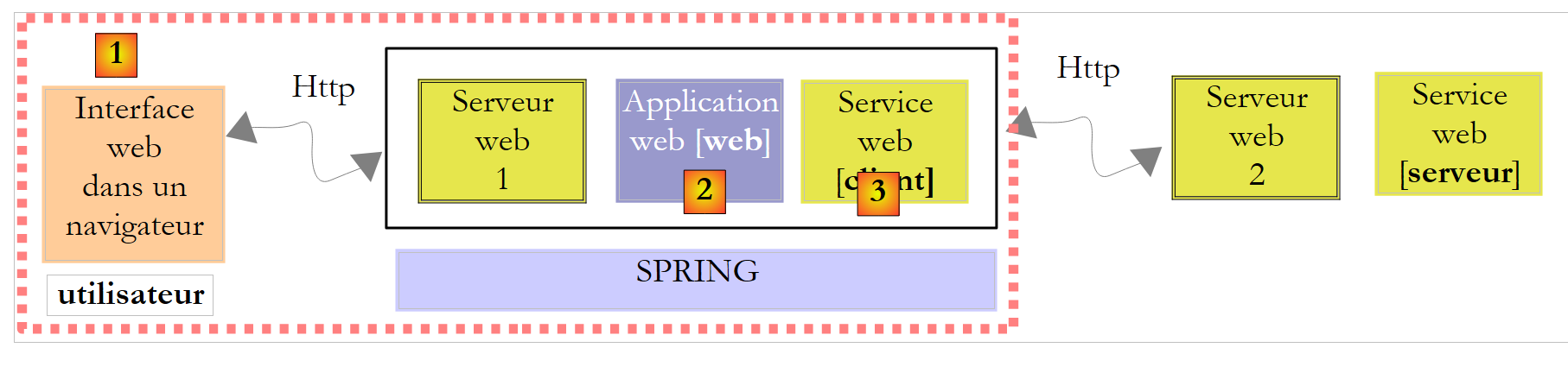
- the web user has a web form in their browser
- this form is posted to web server 1, which has it processed by the [web] layer
- The [web] layer will require the services of the remote web service client, encapsulated in [ImpotsV9-metier.dll].
- the remote web service client will communicate with web server 2, which hosts the remote web service
- The response from the remote web service will travel back up to the client’s web layer, which will render it into a page to be sent to the user.
Our task here is therefore:
- to build the web form that the user will see in their browser
- to write the web application that will process the user’s request and send them a response in the form of a new web page. This will actually be the same as the form, with the amount of tax due added
- to write the "glue" that makes it all work together.
All of this will be done using a new website created with Visual Web Developer:
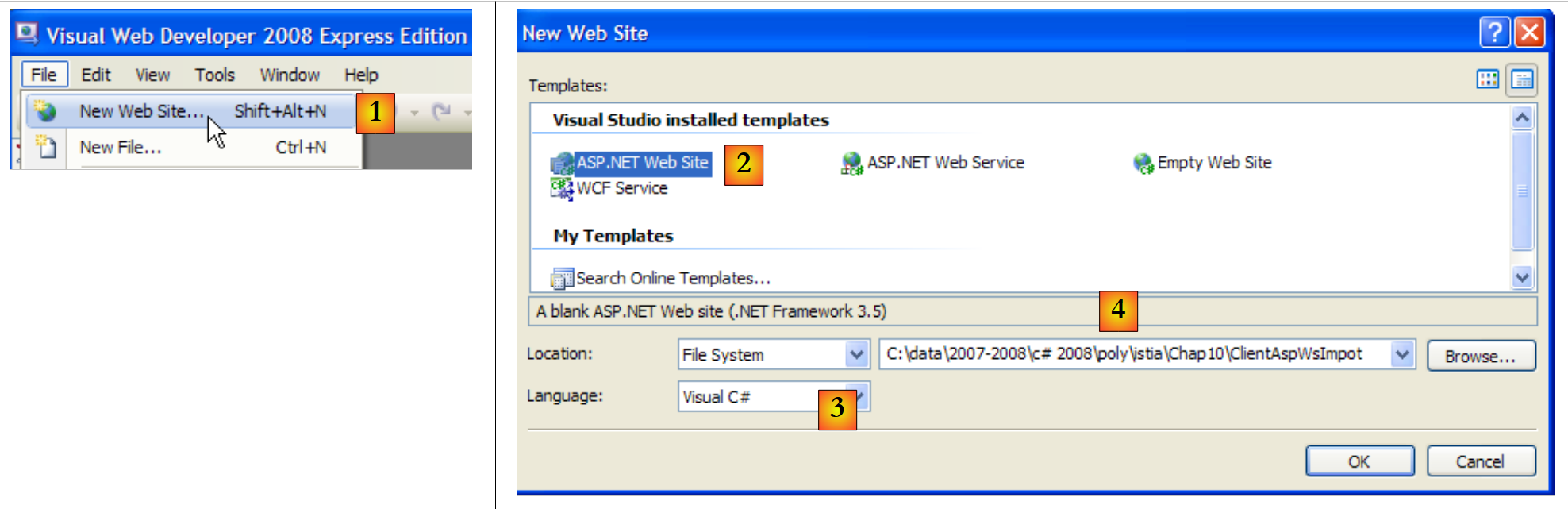 |
- [1]: select File / New Web Site
- [2]: choose the application type ASP.NET Web Site
- [3]: Select the development language: C#
- [4]: Specify the folder where the project will be created
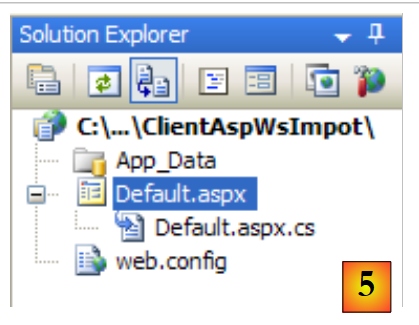 |
- [5]: the project created in Visual Web Developer
- [Default.aspx] is a web page called the default page. This is the page that will be served if the URL Url http://.../ClientAspImpot without specifying a document. This is the page that will contain the tax calculation form that the user will see in their browser.
- [Default.aspx.cs] is the class associated with the page; it generates the form sent to the user and processes it once the user has filled it out and submitted it.
- [web.config] is the application's configuration file. Unlike before, we're going to keep it.
Returning to the architecture we need to build:
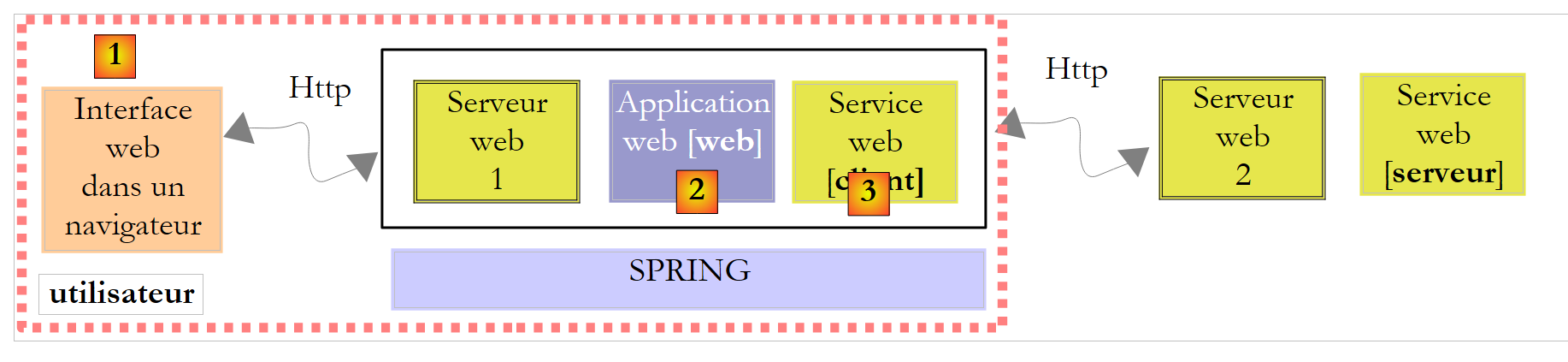 |
- [1] will be implemented by [Default.aspx]
- [2] will be implemented by [Default.aspx.cs]
- [3] will be implemented by DLL and [ImpotV9-metier]
Let’s start by implementing the [3] layer. There are several steps:
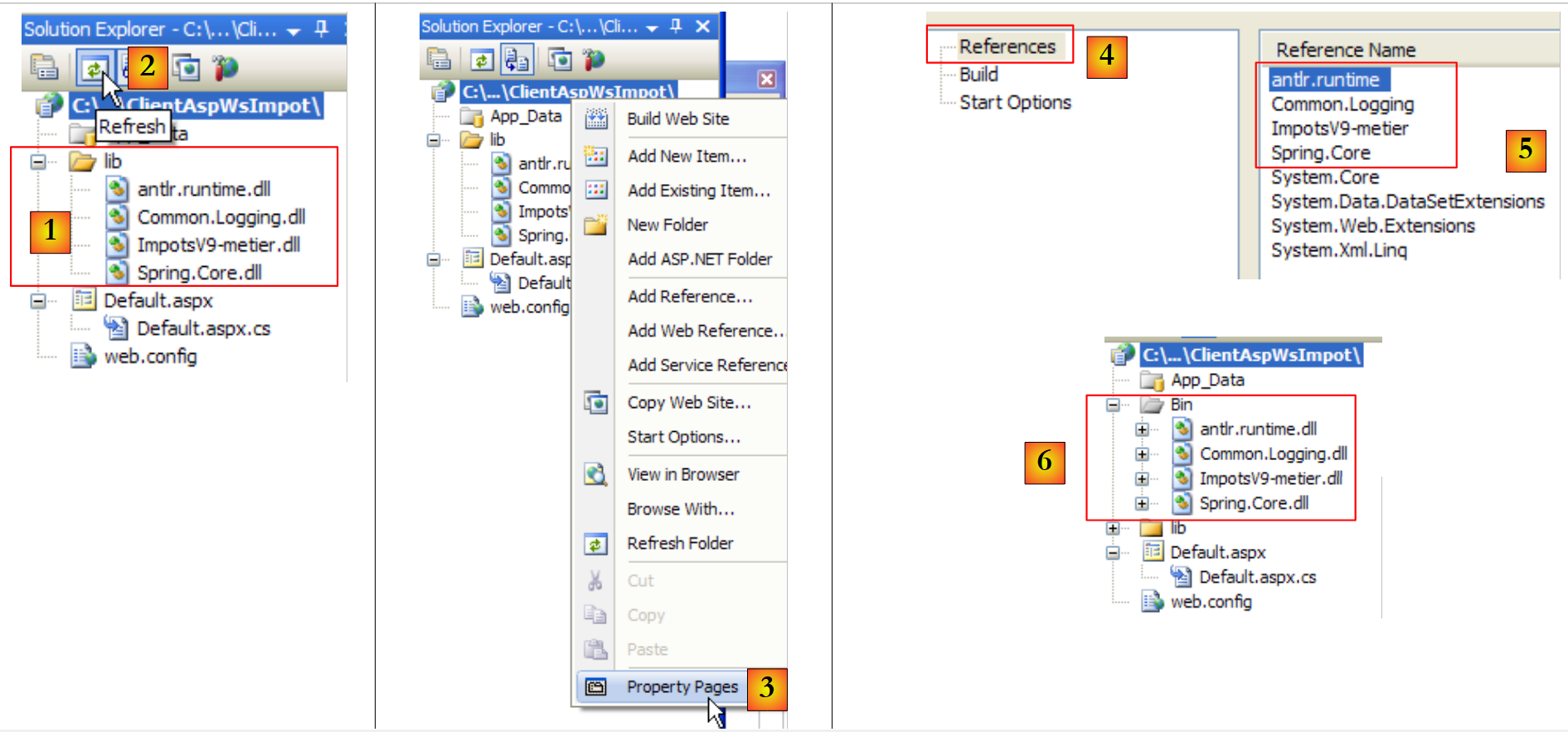 |
- In [1], the [lib] folder from the Windows GUI client version 9 is copied to the [ClientAspWsImpot] web project folder. This is done using Windows Explorer. To make this folder appear in the Web Developer solution, you must refresh the solution using the [2] button.
- Then add them to the project references [3,4,5]. The referenced DLLs are automatically copied to the /bin folder of the [6] project.
We now have the DLLs required for Spring to function, and the client layer of the remote web service is also implemented. While the code for the remote web service is present, its configuration still needs to be set up. In version 9, it was configured by the following [App.config] file:
<?xml version="1.0" encoding="utf-8" ?>
<configuration>

    <configSections>
        <sectionGroup name="spring">
            <section name="context" type="Spring.Context.Support.ContextHandler, Spring.Core" />
            <section name="objects" type="Spring.Context.Support.DefaultSectionHandler, Spring.Core" />
        </sectionGroup>
    </configSections>

    <spring>
        <context>
            <resource uri="config://spring/objects" />
        </context>
        <objects xmlns="http://www.springframework.net">
            <object name="metier" type="Metier.ImpotMetierWs, ImpotsV9-metier">
            </object>
        </objects>
    </spring>

    <!-- web service -->
    <system.serviceModel>
        <bindings>
            <basicHttpBinding>
...
            </basicHttpBinding>
        </bindings>
        <client>
            <endpoint address="http://localhost:2172/WsImpot/ServiceImpot.asmx"
                    binding="basicHttpBinding" bindingConfiguration="ServiceImpotSoap"
                    contract="WsImpot.ServiceImpotSoap" name="ServiceImpotSoap" />
        </client>
    </system.serviceModel>
</configuration>
We copy this configuration exactly as is and integrate it into the [web.config] file as follows:
<?xml version="1.0"?>
<configuration>


    <configSections>
      <sectionGroup name="system.web.extensions"...>
...
      </sectionGroup>
      <!-- start Spring section -->
        <sectionGroup name="spring">
          <section name="context" type="Spring.Context.Support.ContextHandler, Spring.Core" />
          <section name="objects" type="Spring.Context.Support.DefaultSectionHandler, Spring.Core" />
        </sectionGroup>
      <!-- end Spring section -->
    </configSections>

  <!-- start Spring configuration -->
  <spring>
    <context>
      <resource uri="config://spring/objects" />
    </context>
    <objects xmlns="http://www.springframework.net">
      <object name="metier" type="Metier.ImpotMetierWs, ImpotsV9-metier">
      </object>
    </objects>
  </spring>
  <!-- end Spring configuration -->

  <!-- start remote web service client configuration -->
  <system.serviceModel>
    <bindings>
      <basicHttpBinding>
...
      </basicHttpBinding>
    </bindings>
    <client>
      <endpoint address="http://localhost:2172/WsImpot/ServiceImpot.asmx"
                    binding="basicHttpBinding" bindingConfiguration="ServiceImpotSoap"
                    contract="WsImpot.ServiceImpotSoap" name="ServiceImpotSoap" />
    </client>
  </system.serviceModel>
  <!-- end remote web service client configuration -->

   <!-- other configurations already present in the generated web.config -->
...
</configuration>
Note that line 37 references the remote web service port. This port may change since Visual Developer launches the web service on a random port.
Let’s return to the architecture of the web client we need to build:
 |
- [1] will be implemented by [Default.aspx]
- [2] will be implemented by [Default.aspx.cs]
- [3] has been implemented by DLL [ImpotV9-metier]
We have just implemented the [3] layer. We are moving to the [1] web interface implemented by the [Default.aspx] page. Double-click on the [Default.aspx] page to switch to design mode.
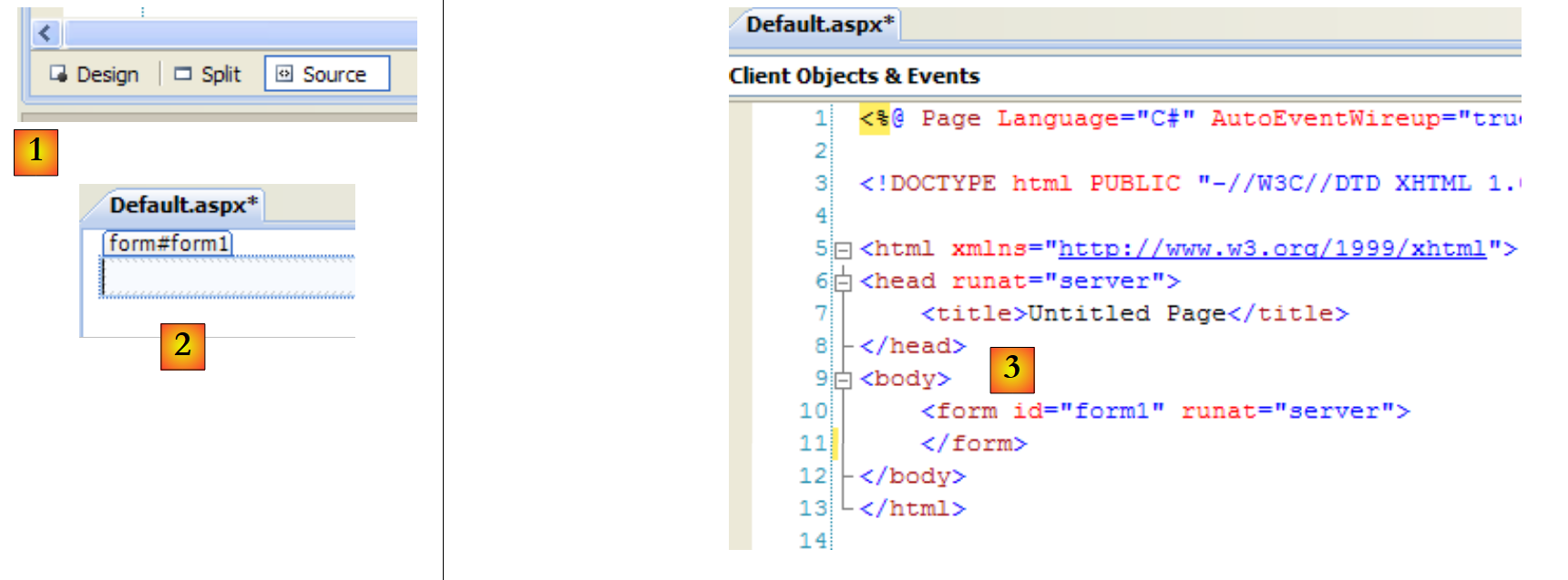 |
There are two ways to build a web page:
- graphically, as in [2]. To do this, select [Design] mode in [1]. You’ll find this button bar at the bottom of the web page editor’s status bar.
- using a markup language, as in [3]. You must then select [Source] mode in [1].
The [Design] and [Source] modes are bidirectional: a change made in [Design] mode results in a change in [Source] mode, and vice versa. Note that the web form to be displayed in the browser is as follows:
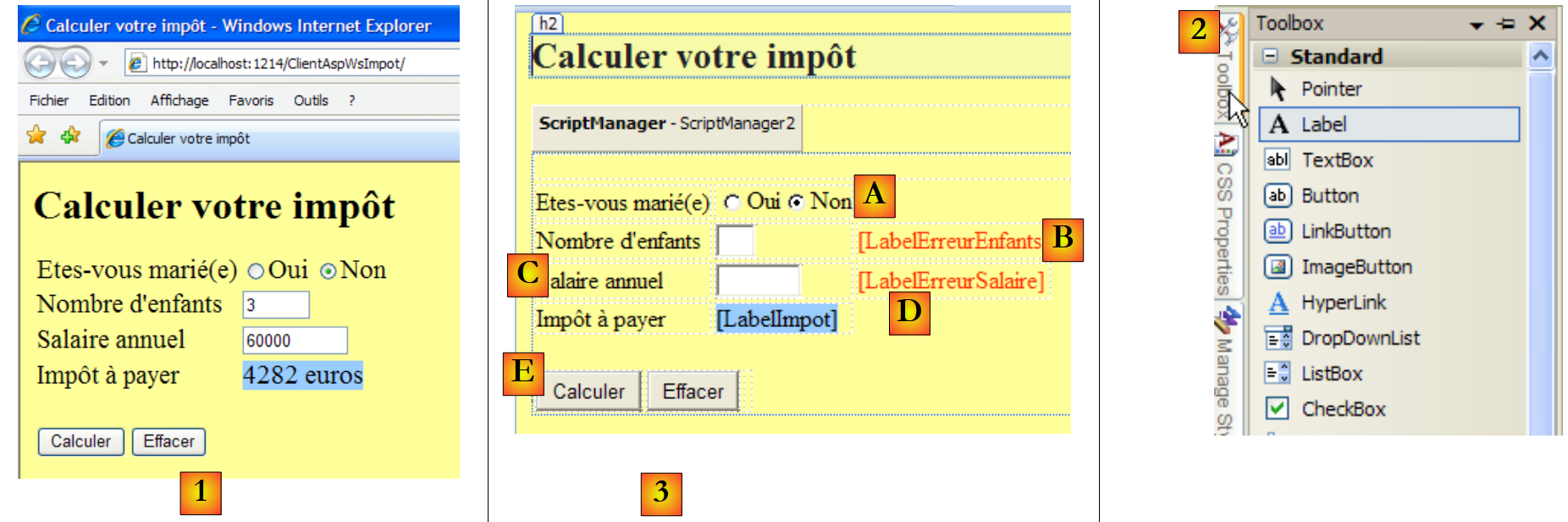 |
- in [1], the form displayed in a browser
- in [2], the components used to build it
- in [3], the form design page. It includes the following elements:
- row A, two radio buttons named RadioButtonOui and RadioButtonNon
- row B, an input field named TextBoxEnfants and a label named LabelErreurEnfants
- row C, an input field named TextBoxSalaire and a label named LabelErreurSalaire
- row D, a label named LabelImpot
- line E, two buttons named ButtonCalculer and ButtonEffacer
Once a component has been placed on the design surface, you can access its properties:
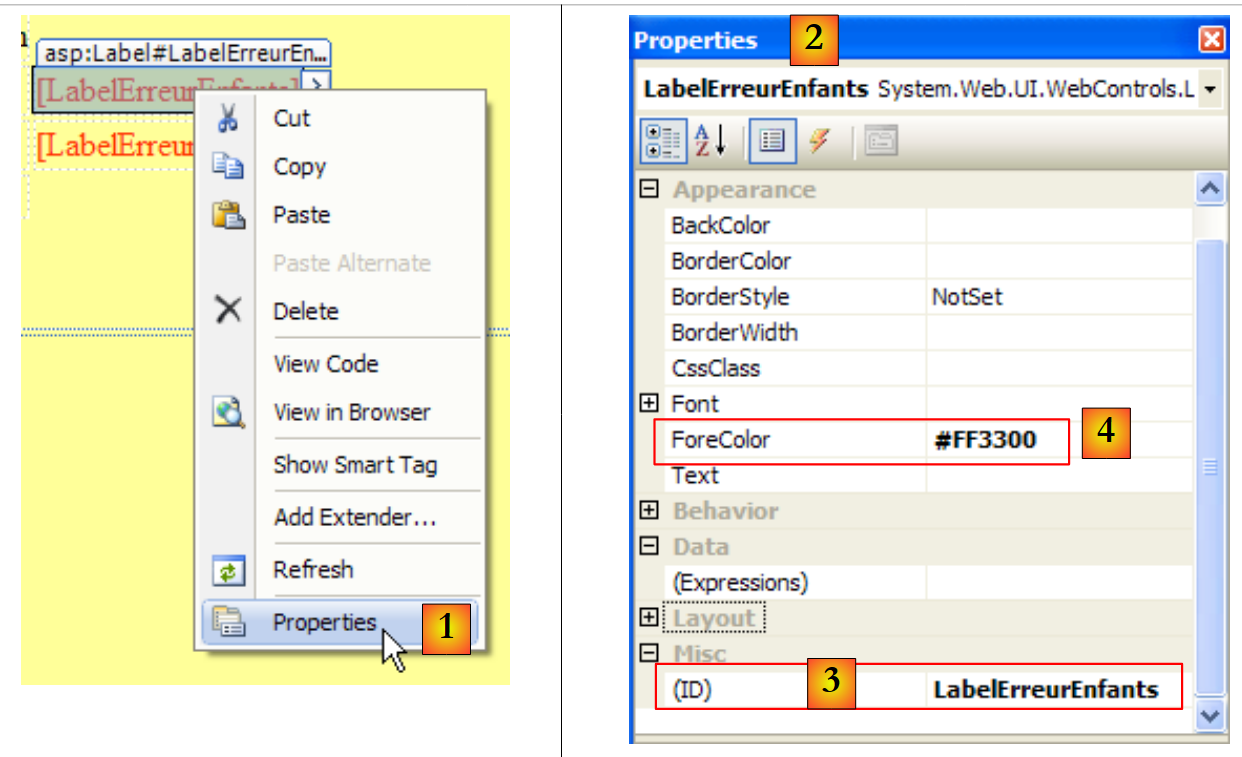 |
- in [1], accessing the properties of a component
- in [2], the properties sheet for component [LabelErreurEnfants ]
- in [3], (ID) is the component name
- in [4], we have set the label text to red.
It is not enough to simply place components on the form and then set their properties. You must also organize their layout. In a Windows graphical interface, this layout is absolute. You drag the component to where you want it to be. On a web page, it is different—more complex but also more powerful. This aspect will not be covered here.
The source code [Default.aspx] generated by this design is as follows:
<%@ Page Language="C#" AutoEventWireup="true" CodeFile="Default.aspx.cs" Inherits="_Default" %>
<!DOCTYPE html PUBLIC "-//W3C//DTD XHTML 1.0 Transitional//EN" "http://www.w3.org/TR/xhtml1/DTD/xhtml1-transitional.dtd">
<html xmlns="http://www.w3.org/1999/xhtml">
<head runat="server">
<title>Calculer votre impôt</title>
</head>
<body bgcolor="#ffff99">
<h2>
Calculer votre impôt</h2>
<form id="form1" runat="server">
<asp:ScriptManager ID="ScriptManager2" runat="server" EnablePartialRendering="true" />
<asp:UpdatePanel runat="server" ID="UpdatePanelPam">
<ContentTemplate>
<div>
</div>
<table>
<tr>
<td>
Etes-vous marié(e)
</td>
<td>
<asp:RadioButton ID="RadioButtonOui" runat="server" GroupName="statut" Text="Oui" />
<asp:RadioButton ID="RadioButtonNon" runat="server" GroupName="statut" Text="Non"
Checked="True" />
</td>
</tr>
<tr>
<td>
Nombre d'children
</td>
<td>
<asp:TextBox ID="TextBoxEnfants" runat="server" Columns="3"></asp:TextBox>
</td>
<td>
<asp:Label ID="LabelErreurEnfants" runat="server" ForeColor="#FF3300"></asp:Label>
</td>
</tr>
<tr>
<td>
Salaire annuel
</td>
<td>
<asp:TextBox ID="TextBoxSalaire" runat="server" Columns="8"></asp:TextBox>
</td>
<td>
<asp:Label ID="LabelErreurSalaire" runat="server" ForeColor="#FF3300"></asp:Label>
</td>
</tr>
<tr>
<td>
Impôt à payer
</td>
<td>
<asp:Label ID="LabelImpot" runat="server" BackColor="#99CCFF"></asp:Label>
</td>
</tr>
</table>
<br />
<table>
<tr>
<td>
<asp:Button ID="ButtonCalculer" runat="server" Text="Calculer" OnClick="ButtonCalculer_Click" />
</td>
<td>
<asp:Button ID="ButtonEffacer" runat="server" Text="Effacer" OnClick="ButtonEffacer_Click" />
</td>
<td>
</td>
</tr>
</table>
</div>
</ContentTemplate>
</asp:UpdatePanel>
</form>
</body>
</html>
The form components can be identified on lines 23, 24, 33, 36, 44, 47, 55, 63, and 66. The rest is essentially formatting.
Let’s return to the architecture we need to build:
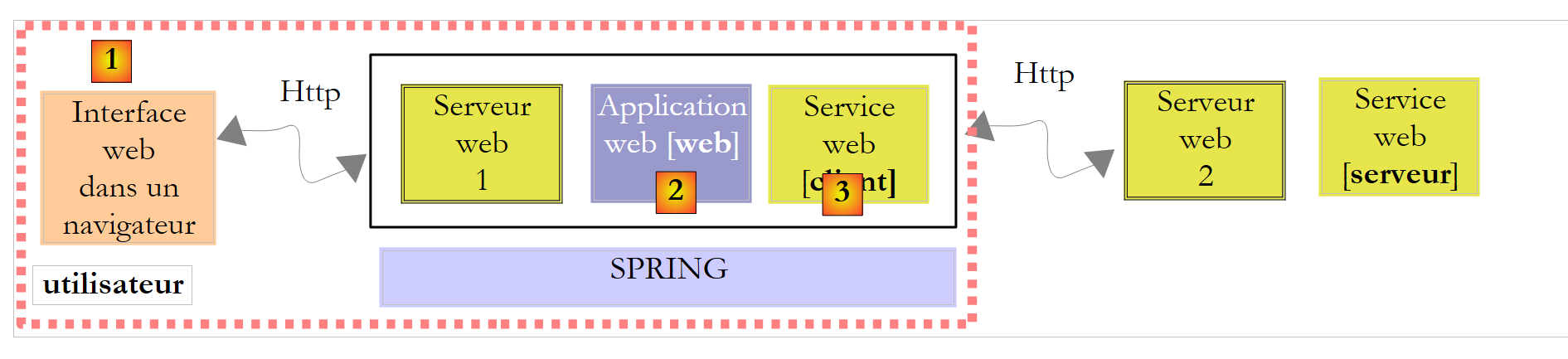 |
- [1] was implemented by [Default.aspx]
- [2] will be implemented by [Default.aspx.cs]
- [3] has been implemented by DLL and [ImpotV9-metier]
Layers [1] and [3] are now implemented. We still need to write the [2] layer, which generates the form, sends it to the user, processes it when the user returns it filled out, uses the [3] layer to calculate the tax, generates the response web page for the user, and sends it back to them. The [Default.aspx.cs] code does all this work:
using System;
using WsImpot;

public partial class _Default : System.Web.UI.Page
{
    protected void ButtonCalculer_Click(object sender, EventArgs e)
    {
  ...
    }
    protected void ButtonEffacer_Click(object sender, EventArgs e)
    {
...
    }
}
This code is very similar to that of a classic Windows form. This is the main advantage of the ASP.NET technology: there is no disconnect between the Windows programming model and the ASP.NET web programming model. You simply need to always keep the following structure in mind:
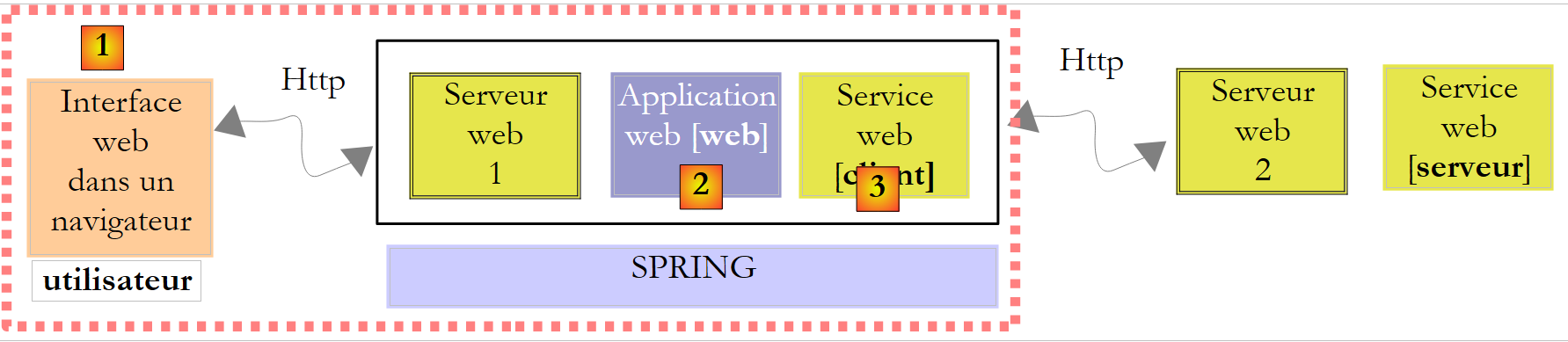 |
When, in [1], the user clicks the [Calculer] button, the ButtonCalculer_Click procedure on line 6 of [Default.aspx.cs] will be executed. But in the meantime:
- the values from the completed form will be transmitted from the browser to the web server via the Http protocol
- the ASP.NET server will analyze the request and forward it to the [Default.aspx] page
- the [Default.aspx] page will be instantiated.
- Its components (RadioButtonOui, RadioButtonNon, TextBoxEnfants, TextBoxSalaire, LabelErreurEnfants, LabelErreurSalaire, LabelImpot) will be initialized with the values they had when the form was initially sent to the browser using a mechanism called "ViewState".
- The posted values will be assigned to their corresponding components (RadioButtonOui, RadioButtonNon, TextBoxEnfants, TextBoxSalaire). Thus, if the user entered 2 as the number of children, we will have TextBoxEnfants.Text="2".
- If the page [Default.aspx] has a method [Page_Load], that method will be executed
- the method [ButtonCalculer_Click] on line 6 will be executed if the button [Calculer] was clicked
- The method [ButtonEffacer_Click] on line 10 will be executed if the button [Effacer] was clicked
Between the moment the user triggers an event in their browser and the moment it is processed in [Default.aspx.cs], there is a great deal of complexity. This complexity is hidden, and we can treat it as if it did not exist when writing the event handlers for the web page. But we must never forget that there is a network connection between the event and its handler, and therefore we must avoid handling mouse events such as Mouse_Move that would cause costly client-server round trips...
The code for the click handlers for the [Calculer] and [Effacer] buttons is the same as what you would write for a traditional Windows application:
protected void ButtonCalculer_Click(object sender, EventArgs e)
    {
        // data verification
        int nbEnfants;
        bool erreur = false;
        if (!int.TryParse(TextBoxEnfants.Text.Trim(), out nbEnfants) || nbEnfants < 0)
        {
            LabelErreurEnfants.Text = "Valeur incorrecte...";
            erreur = true;
        }
        int salaire;
        if (!int.TryParse(TextBoxSalaire.Text.Trim(), out salaire) || salaire < 0)
        {
            LabelErreurSalaire.Text = "Valeur incorrecte...";
            erreur = true;
        }
        // mistake?
        if (erreur) return;
        // erase any errors
        LabelErreurEnfants.Text = "";
        LabelErreurSalaire.Text = "";
        // marital status
        bool marié = RadioButtonOui.Checked;
        // tAX CALCULATION
        try
        {
            LabelImpot.Text = String.Format("{0} euros",Global.Metier.CalculerImpot(marié, nbEnfants, salaire));
        }
        catch (Exception ex)
        {
            LabelImpot.Text = ex.Message;
        }
    }
- To understand this code, you need to know
- that at the start of its execution, the form [Default.aspx] is in the state the user filled it out. Thus, the fields (RadioButtonOui, RadioButtonNon, TextBoxEnfants, TextBoxSalaire) contain the values entered by the user.
- and that upon completion of its execution, the same page [Default.aspx] will be returned to the user. This is done automatically.
The procedure ButtonCalculer_Click must therefore use the current values of the fields (RadioButtonOui, RadioButtonNon, TextBoxEnfants, TextBoxSalaire) to set the values of all fields (RadioButtonOui, RadioButtonNon, TextBoxEnfants, TextBoxSalaire, LabelErreurEnfants, LabelErreurSalaire, LabelImpot) of the new page [Default.aspx] that will be returned to the user.
There are no particular difficulties with this code. Only line 27 warrants explanation. It uses the method CalculerImpot of a field Global.Metier that has not been encountered. We will return to this shortly.
The ButtonEffacer_Click method is as follows:
    protected void ButtonEffacer_Click(object sender, EventArgs e)
    {
        // raz form
        TextBoxEnfants.Text = "";
        TextBoxSalaire.Text = "";
        LabelImpot.Text = "";
        LabelErreurEnfants.Text = "";
        LabelErreurSalaire.Text = "";
}
Let's return to the architecture we need to build:
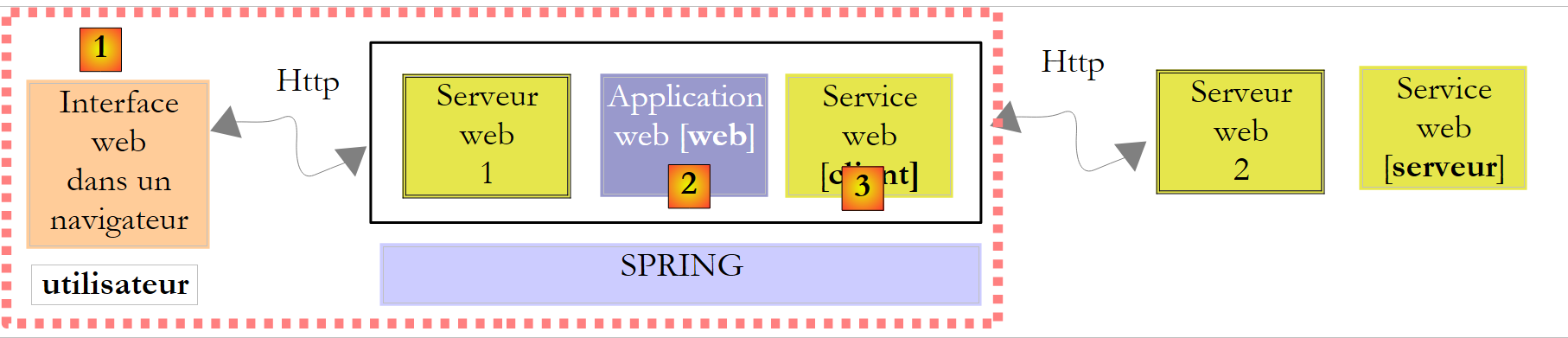 |
- [1] was implemented by [Default.aspx]
- [2] was implemented by [Default.aspx.cs]
- [3] was implemented by DLL and [ImpotV9-metier]
We still need to add the "glue" around these three layers. Essentially, this involves:
- instantiating the [3] layer when the application starts
- placing a reference to it in a location where the [Default.aspx.cs] web page can retrieve it each time it is instantiated and asked to calculate the tax.
This is not a new problem. It has already been encountered in the construction of the remote web service and discussed in Section 12.4.1. We know that the solution consists of:
- creating a [Global.asax] file associated with a [Global.cs] class
- instantiating the [3] layer in the Application_Start method of [Global.cs]
- placing the reference to the [3] layer in a static field of the [Global.cs] class, since the lifetime of this class is that of the application.
As a result, our web project is evolving as follows:
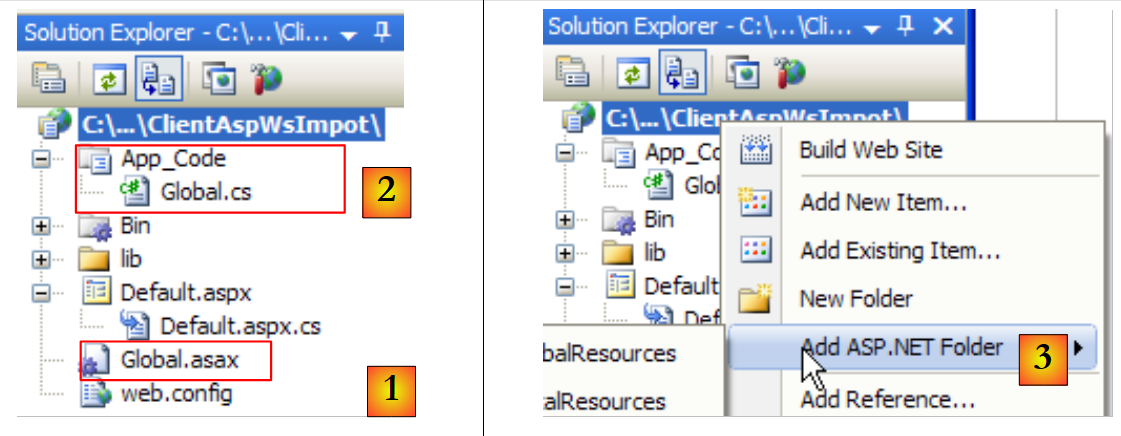 |
- in [1], the file [Global.asax].
- to [2], the associated code [Global.cs]. The folder [App_Code] containing this file is not present by default in the web solution. Use [3] to create it.
The Global.asax file is as follows:
<%@ Application Language="C#" Inherits="WsImpot.Global"%>
The code for [Global.cs] is as follows:
using System;
using Metier;
using Spring.Context.Support;
namespace WsImpot
{
    public class Global : System.Web.HttpApplication
    {
        // business layer
        public static IImpotMetier Metier;

        // method executed at application startup
        private void Application_Start(object sender, EventArgs e)
        {
            // instantiations layers [metier] and [dao]
            Metier = ContextRegistry.GetContext().GetObject("metier") as IImpotMetier;
        }
    }
}
- Line 6: The class is named Global and is part of the WsImpot namespace (line 4). Therefore, its full name is WsImpot.Global, and this is the name that must be entered in the Inherits attribute of Global.asax.
- Line 6: We know that the class associated with Global.asax must derive from the class System.Web.HttpApplication.
- Line 12: The Application_Start method executed when the web application starts.
- Line 15: We instantiate the [metier] layer ([3] layer of the application currently under development) using Spring and the following configuration in [web.config]:
  <!-- spring objects -->
  <spring>
    <context>
      <resource uri="config://spring/objects" />
    </context>
    <objects xmlns="http://www.springframework.net">
      <object name="metier" type="Metier.ImpotMetierWS, ImpotsV9-metier">
      </object>
    </objects>
</spring>
The class [Metier.ImpotMetierWS] from line (g) above is located in [ImpotsV9-metier.dll].
The reference to the created layer [metier] is placed in the static field of line 9. This field is used in line 27 of the procedure ButtonCalculer_Click:
LabelImpot.Text = String.Format("{0} euros",Global.Metier.CalculerImpot(marié, nbEnfants, salaire));
We are ready to test. Run SGBD and MySQL5, the remote web service, and note the port on which it operates:
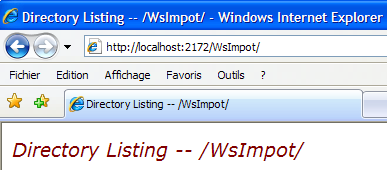 |
Once this is done, verify that the port for the remote web service is correct in the [web.config] file of the web client:
 |
Once this is done, the web client for the remote web service can be launched by pressing Ctrl-F5:
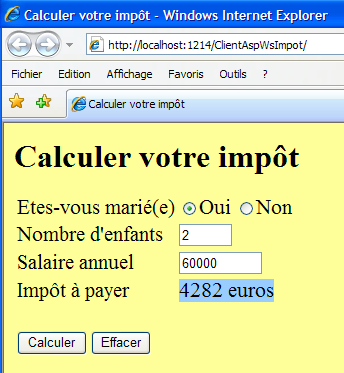 |
12.6. A Java console client for the tax calculation web service
To demonstrate that web services are accessible via clients written in any language, we will write a basic Java console client. The client/server application architecture will be as follows:
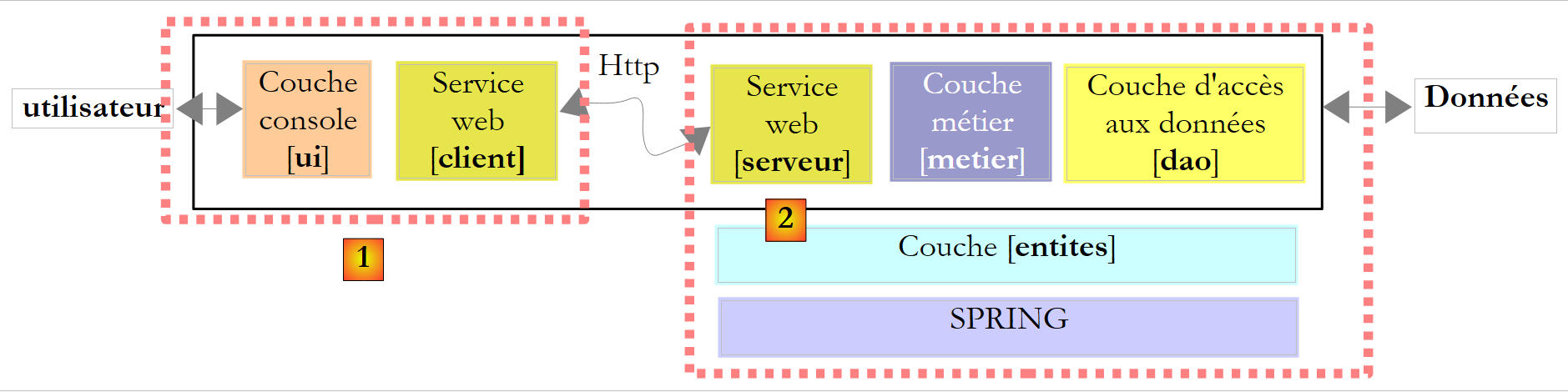 |
- the [1] client will be written in Java
- the server [2] is written in C#
First, we will change a detail in our tax calculation web service. Its current definition in [ServiceImpot.cs] is as follows:
...
public class ServiceImpot : System.Web.Services.WebService
{

    [WebMethod]
    public int CalculerImpot(bool marié, int nbEnfants, int salaire)
    {
        return Global.Metier.CalculerImpot(marié, nbEnfants, salaire);
    }

}
Tests have shown that the case sensitivity of the *married* parameter in lines 6 and 8 could cause issues with Java/C# interoperability. We will adopt the following new definition:
...
public class ServiceImpot : System.Web.Services.WebService
{

    [WebMethod]
    public int CalculerImpot(bool marie, int nbEnfants, int salaire)
    {
        return Global.Metier.CalculerImpot(marie, nbEnfants, salaire);
    }

}
This service will be placed in a new Web Developer project named WsImpotsSansAccents. The web service will then have the Url [/WsImpotSansAccents/ServiceImpot.asmx].
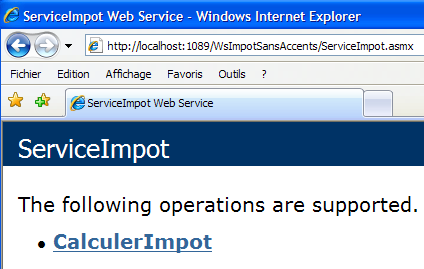
To write the Java client, we will use IDE, Netbeans, and [http://www.netbeans.org/]:
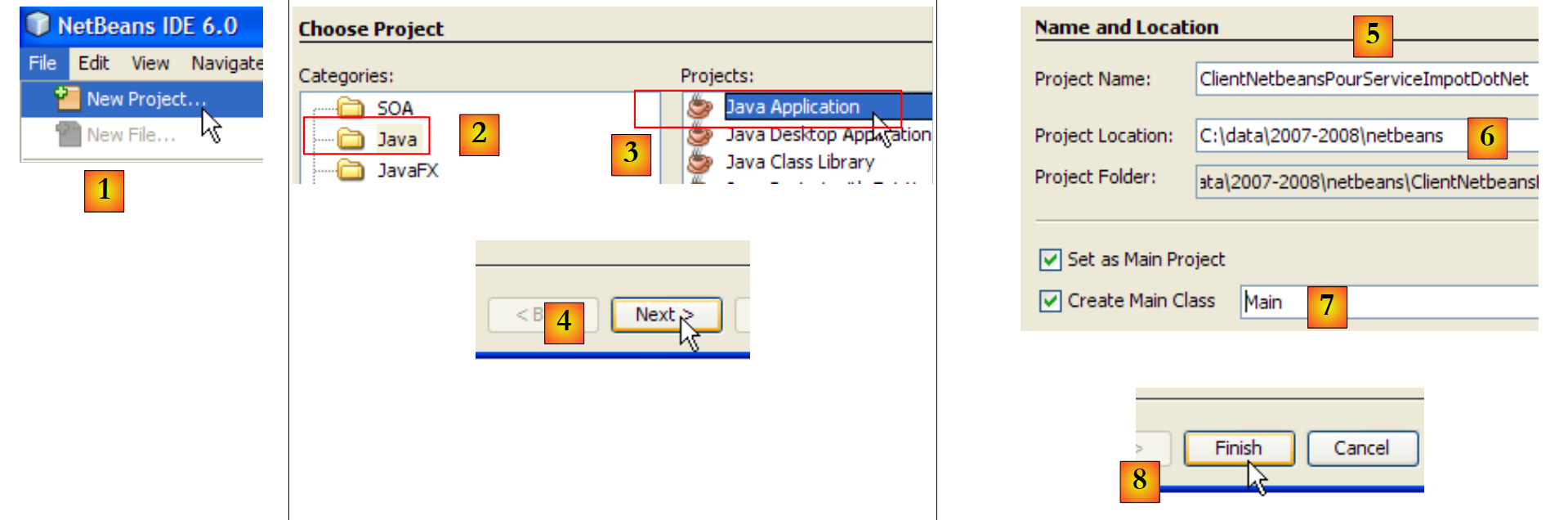 |
- In [1], create a new project
- In [2,3], select a Java project of type Java Application.
- In [4], proceed to the next step
- In [5], name the project
- In [6], specify the folder where a subfolder with the project name will be created for it
- In [7], name the class that will contain the main method executed when the application starts
- in [8], finish the wizard
 |
- in [9]: the generated Java project
- in [10]: right-click on the project to generate the client for the tax calculation web service
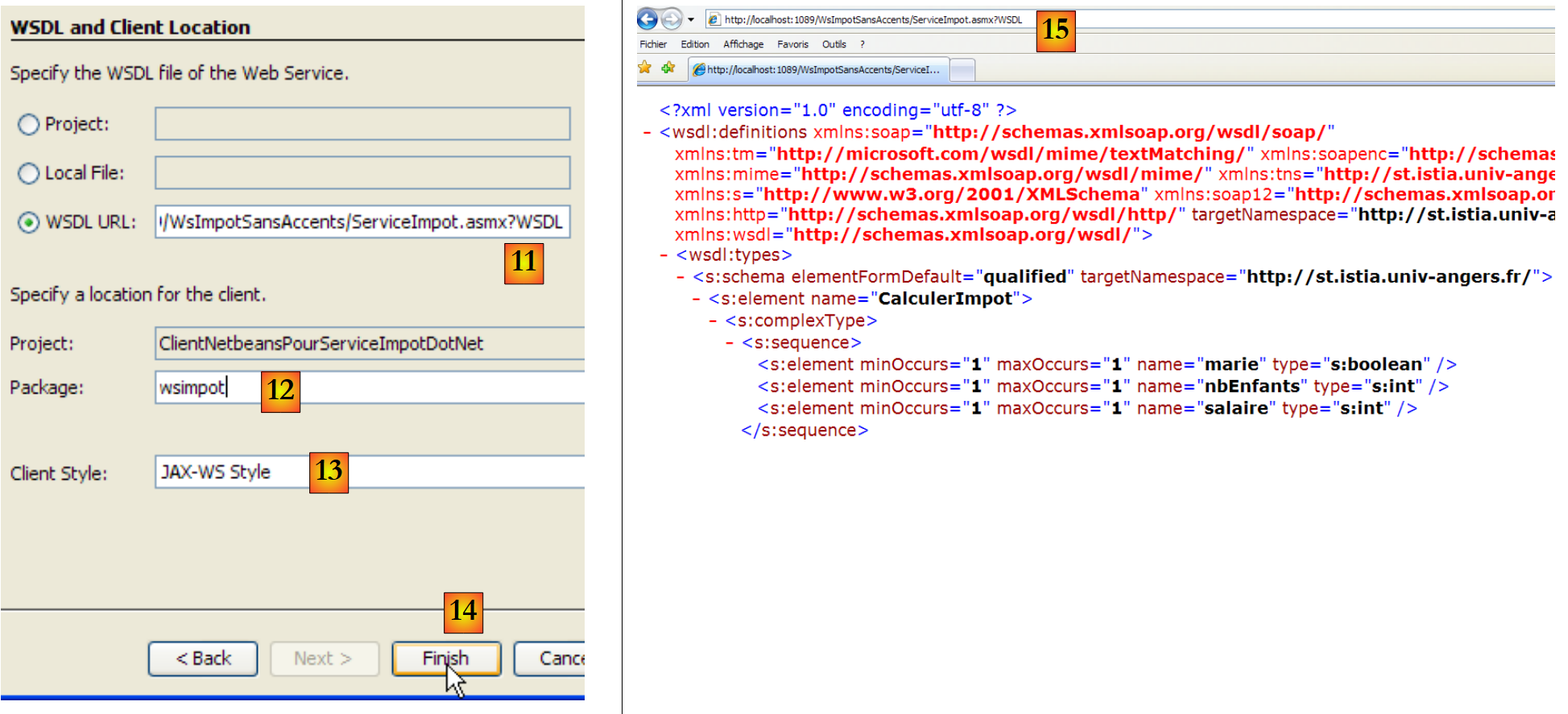 |
- in [11], the Url file describing the tax calculation web service:
http://localhost:1089/WsImpotSansAccents/ServiceImpot.asmx?WSDL
This Url is the URL for the [ServiceImpot.asmx] service, to which the parameter ?WSDL is added. The document located at this Url describes in Xml language what the [15] service can do. It is a standard component of a web service.
- in [12], the package (equivalent to the C# namespace) in which to place the classes that will be generated
- In [13], leave the default value
- In [14], finish the wizard
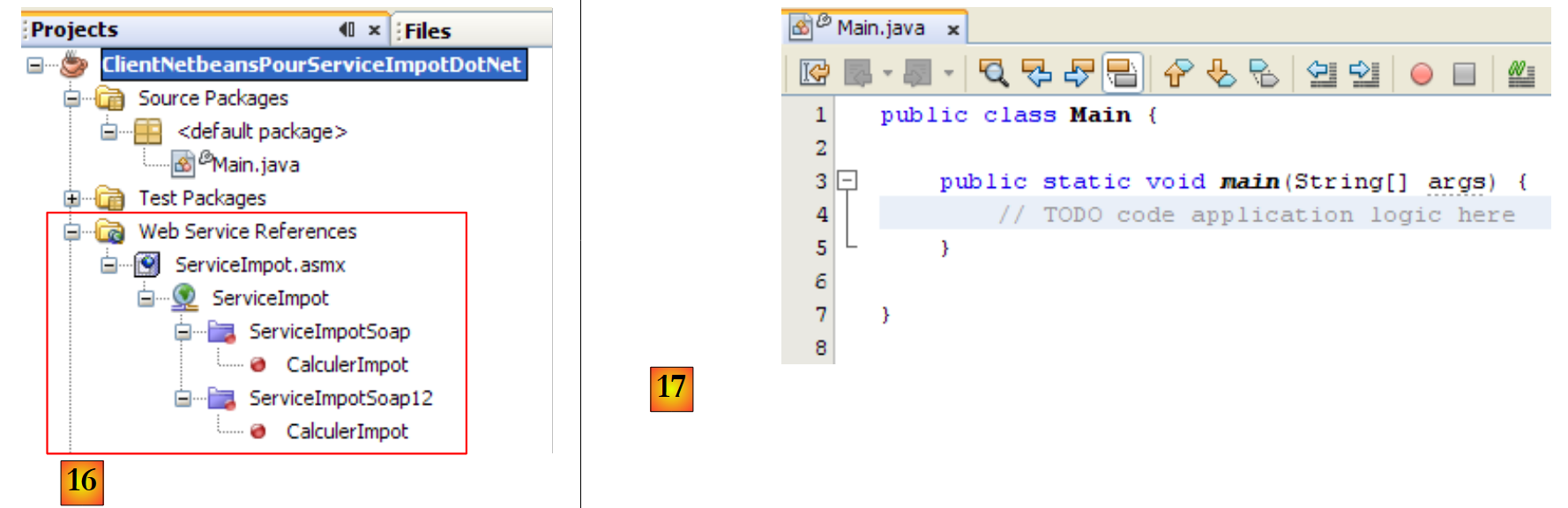 |
- In [16], the imported web service has been integrated into the Java project. It supports two communication protocols: SOAP and SOAP12.
- In [17], the [Main] class in which we will use the generated client
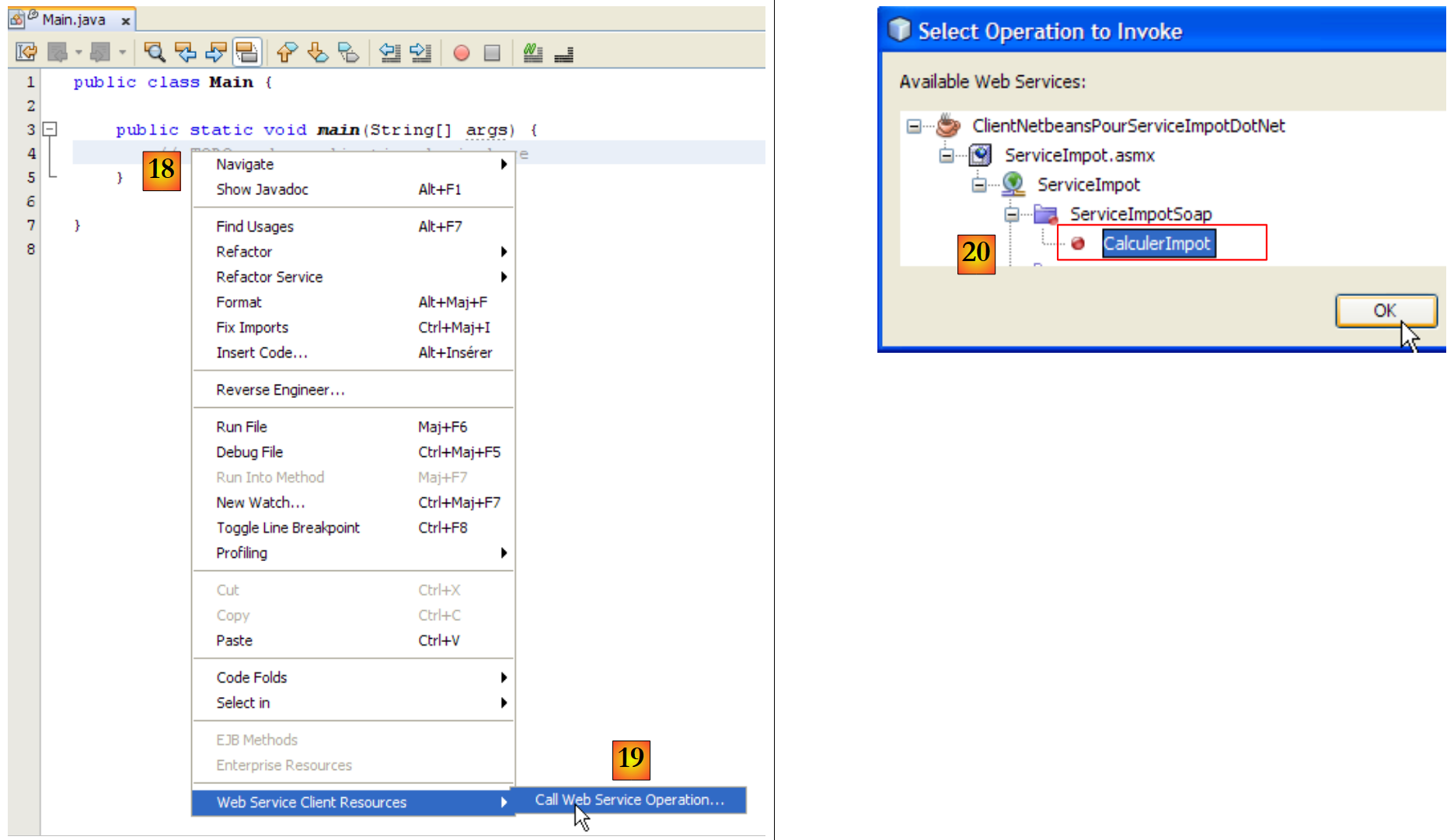 |
- In [18], we will insert code into the [main] method. Place the cursor where the code should be inserted, right-click, and select option [19]
- In [20], specify that you want to generate the call code for the CalculerImpot function of the remote tax calculation service, then perform Ok.
The code generated in [Main] is as follows:
The generated code shows how to call the CalculerImpot function of the remote tax calculation service. If we draw a parallel with what we saw in C#, the port variable on line 7 is the equivalent of the client used in C#. We will not comment further on this code. We will reorganize it as follows:
- Line 1: We import the ServiceImpot class, which represents the client generated by the wizard.
- line 6: we call the remote method CalculerImpot following the procedure specified in the code generated in main.
The results displayed in the console upon execution (F6) are as follows: