7. Graphical User Interfaces with C# and VS.NET
7.1. The basics of graphical user interfaces
7.1.1. A First Project
Let’s build a first “Windows Application” project:
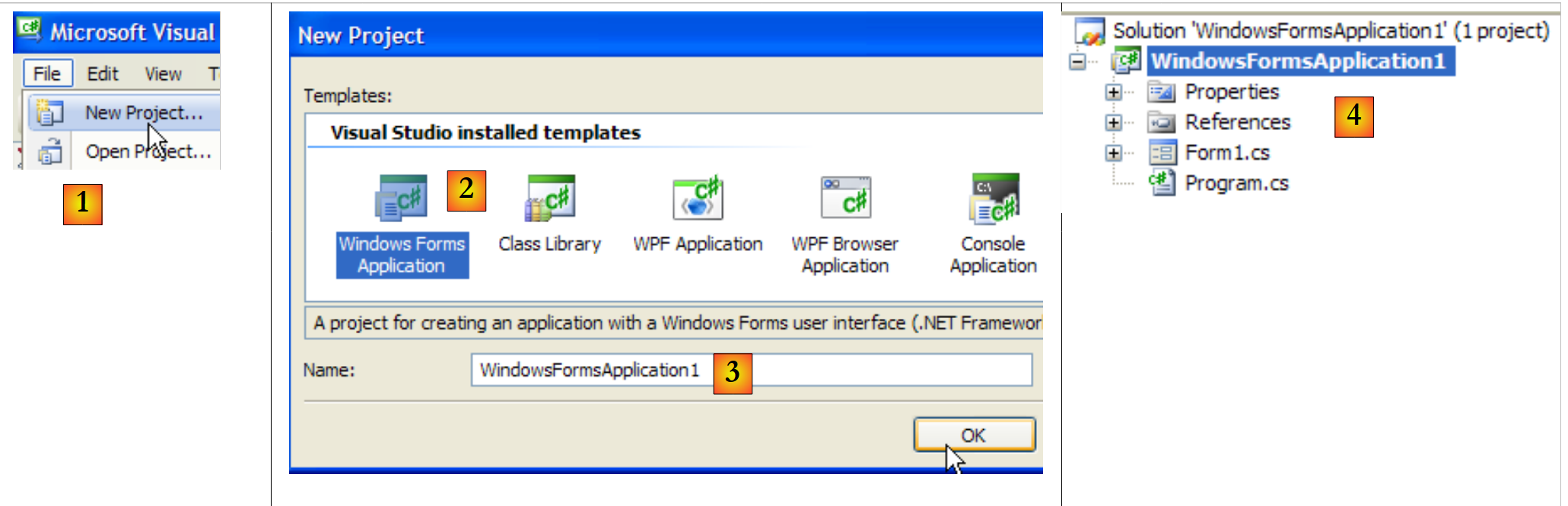 |
- [1]: Create a new project
- [2]: of the Windows Application type
- [3]: The project name doesn’t matter for now
- [4]: The project has been created
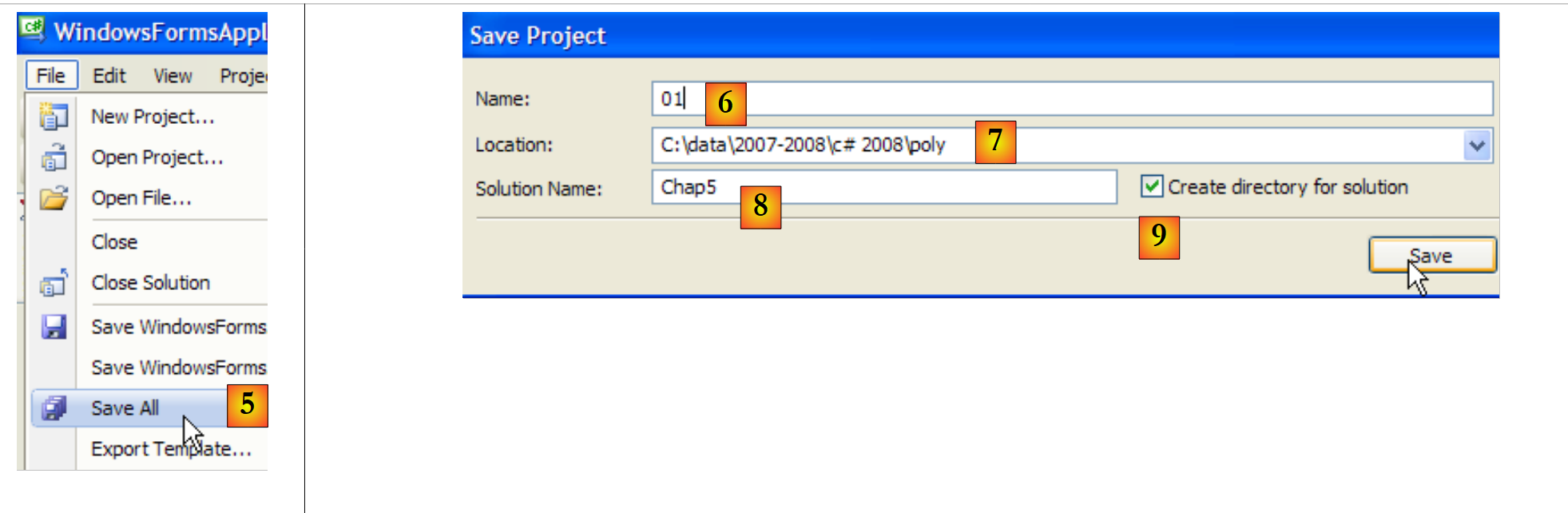 |
- [5]: Save the current solution
- [6]: Project name
- [7]: Solution folder
- [8]: solution name
- [9]: A folder will be created for the [Chap5] solution. Its projects will be in subfolders.
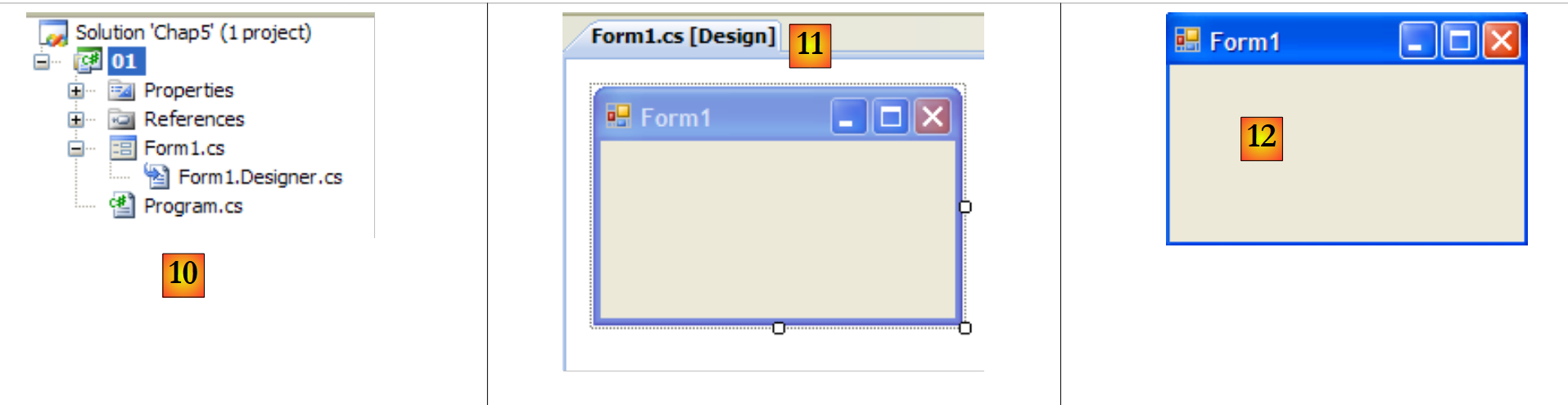 |
- [10]: Project [01] in the [Chap5] solution:
- [Program.cs] is the main class of the project
- [Form1.cs] is the source file that will manage the behavior of window [11]
- [Form1.Designer.cs] is the source file that will encapsulate the information about the window's components [11]
- [11]: the [Form1.cs] file in "design" mode
- [12]: The generated application can be run by pressing (Ctrl-F5). The [Form1] window appears. You can move it, resize it, and close it. You now have the basic elements of a graphical window.
The main class [Program.cs] is as follows:
using System;
using System.Windows.Forms;

namespace Chap5 {
    static class Program {
        /// <summary>
        /// The main entry point for the application.
        /// </summary>
        [STAThread]
        static void Main() {
            Application.EnableVisualStyles();
            Application.SetCompatibleTextRenderingDefault(false);
            Application.Run(new Form1());
        }
    }
}
- Line 2: Applications with forms use the System.Windows.Forms namespace.
- line 4: the initial namespace has been renamed to Chap5.
- line 10: When the project is run (Ctrl-F5), the [Main] method is executed.
- lines 11–13: The Application class belongs to the System.Windows.Forms namespace. It contains static methods to start and stop Windows graphical applications.
- Line 11: Optional—allows you to apply different visual styles to controls placed on a form
- Line 12: Optional—sets the text rendering engine for controls: GDI+ (true), GDI (false)
- Line 13: The only essential line in the [Main] method: instantiates the [Form1] class, which is the form class, and instructs it to run.
The source file [Form1.cs] is as follows:
using System;
using System.Windows.Forms;

namespace Chap5 {
    public partial class Form1 : Form {
        public Form1() {
            InitializeComponent();
        }
    }
}
- Line 5: The Form1 class derives from the [System.Windows.Forms.Form] class, which is the base class for all forms. The partial keyword indicates that the class is partial and can be extended by other source files. This is the case here, where the Form1 class is split across two files:
- [Form1.cs]: which contains the form’s behavior, including its event handlers
- [Form1.Designer.cs]: which contains the form’s components and their properties. This file is regenerated every time the user modifies the window in [Design] mode.
- Lines 6–8: the constructor of the Form1 class
- Line 7: calls the InitializeComponent method. Note that this method is not present in [Form1.cs]. It is found in [Form1.Designer.cs].
The source file [Form1.Designer.cs] is as follows:
namespace Chap5 {
    partial class Form1 {
        /// <summary>
        /// Required designer variable.
        /// </summary>
        private System.ComponentModel.IContainer components = null;

        /// <summary>
        /// Clean up any resources being used.
        /// </summary>
        /// <param name="disposing">true if managed resources should be disposed; otherwise, false. </param>
        protected override void Dispose(bool disposing) {
            if (disposing && (components != null)) {
                components.Dispose();
            }
            base.Dispose(disposing);
        }

        #region Windows Form Designer generated code

        /// <summary>
        /// Required method for Designer support - do not modify
        /// the contents of this method with the code editor.
        /// </summary>
        private void InitializeComponent() {
            this.SuspendLayout();
            //
            // Form1
            //
            this.AutoScaleDimensions = new System.Drawing.SizeF(6F, 13F);
            this.AutoScaleMode = System.Windows.Forms.AutoScaleMode.Font;
            this.ClientSize = new System.Drawing.Size(196, 98);
            this.Name = "Form1";
            this.Text = "Form1";
            this.ResumeLayout(false);

        }

        #endregion

    }
}
- line 2: this is still the Form1 class. Note that it is no longer necessary to specify that it derives from the Form class.
- lines 25–37: the InitializeComponent method called by the [Form1] class constructor. This method creates and initializes all the form’s components. It is regenerated every time the form is changed in [design] mode. A section, called a region, is created to delimit it on lines 19–39. The developer must not add code to this region: it will be overwritten during the next regeneration.
It is simpler at first not to concern yourself with the code in [Form1.Designer.cs]. It is generated automatically and is the C# translation of the choices the developer makes in [Design] mode. Let’s look at a first example:
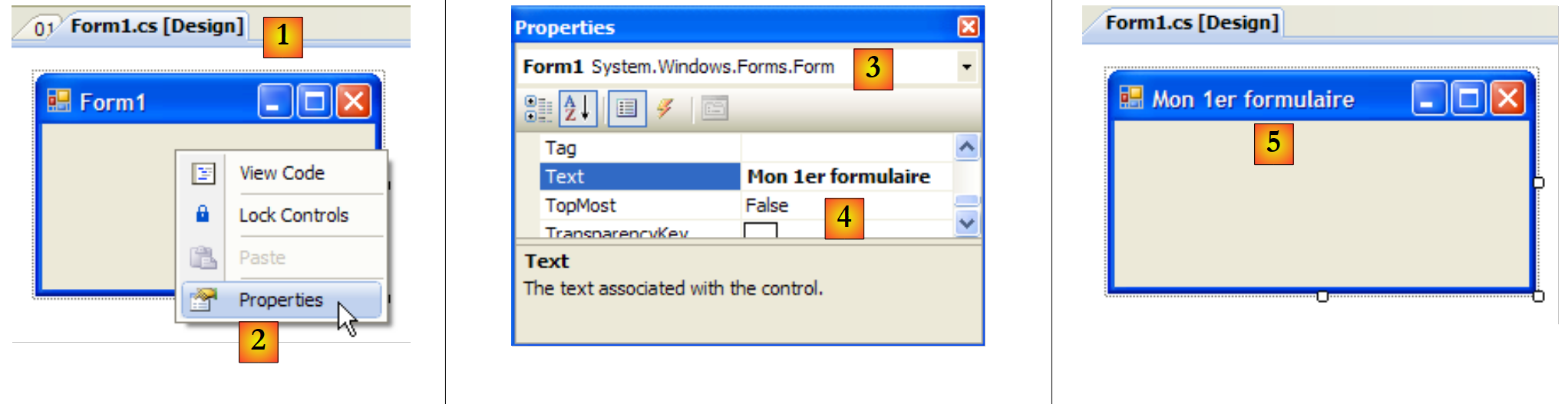 |
- [1]: Select [Design] mode by double-clicking the [Form1.cs] file
- [2]: Right-click on the form and select [Properties]
- [3]: The [Form1] Properties window
- [4]: The [Text] property represents the window title
- [5]: The change to the [Text] property is reflected in [Design] mode as well as in the source code [Form1.Designer.cs]:
        private void InitializeComponent() {
            this.SuspendLayout();
...
            this.Text = "My First Form";
...
}
7.1.2. A second project
7.1.2.1. The form
We are starting a new project called 02. To do this, we follow the procedure described earlier to create a project. The window to be created is as follows:
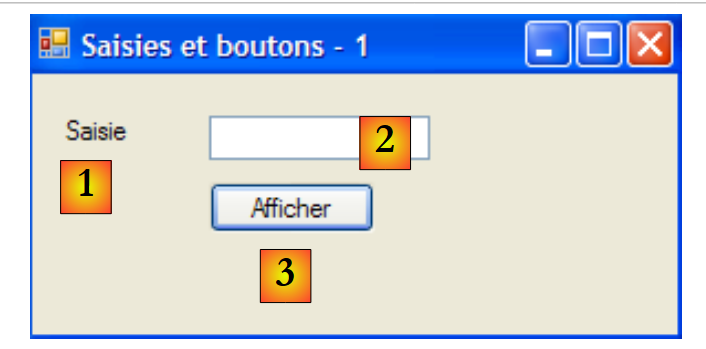 |
The form components are as follows:
No. | name | Type | role |
1 | labelInput | Label | a label |
2 | textBoxInput | TextBox | an input field |
3 | buttonShow | Button | to display the contents of the textBoxSaisie text box in a dialog box |
You can proceed as follows to build this window:
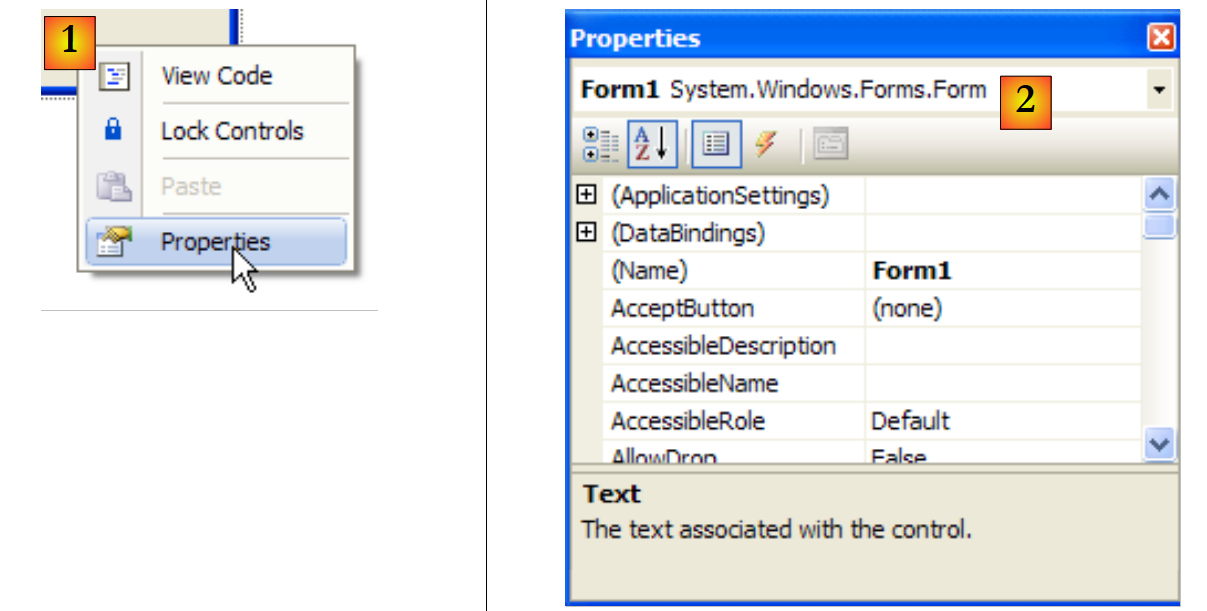 |
- [1]: Right-click on the form outside of any component and select the [Properties] option
- [2]: The window's properties sheet appears in the lower-right corner of Visual Studio
Among the form properties to note:
to set the window’s background color | |
to set the color of the graphics or text on the window | |
to associate a menu with the window | |
to give the window a title | |
to set the window type | |
to set the font for text in the window | |
to set the window name |
Here, we set the Text and Name properties:
Inputs and buttons - 1 | |
frmInputsButtons |
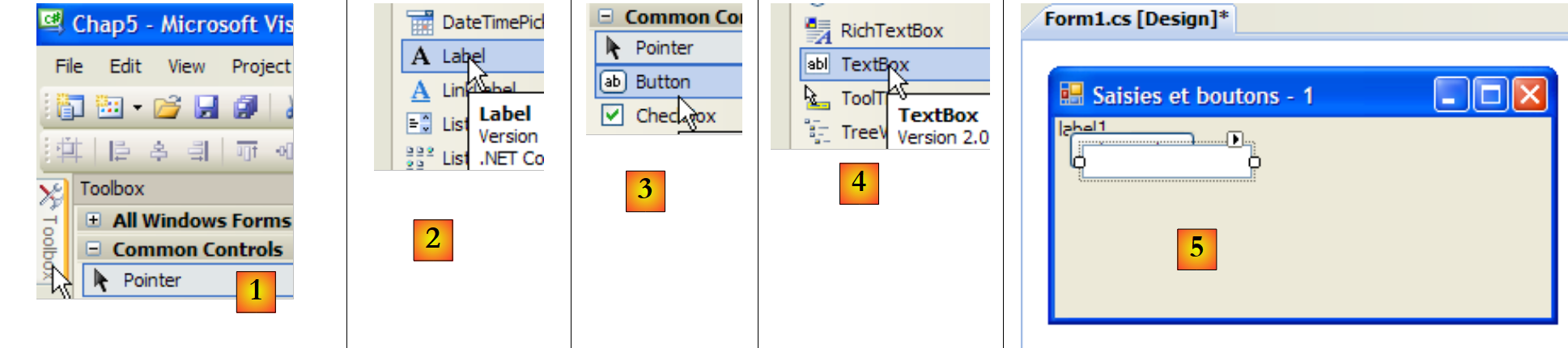 |
- [1]: Select the [Common Controls] toolbox from the toolboxes offered by Visual Studio
- [2, 3, 4]: Double-click successively on the [Label], [Button], and [TextBox] components
- [5]: The three components are now on the form
To align and resize the components correctly, you can use the toolbar items:
 |
 |  |  |  |  |  |  |  | ||
 |  |  |  |  | |||||
The formatting process works as follows:
- Select the various components to be formatted together (hold down the Ctrl key while clicking to select the components)
- select the desired formatting type:
- (continued)
- The Align options allow you to align components at the top, bottom, left, right, or center
- The Make Same Size options allow components to have the same height or width
- The Horizontal Spacing option allows you to align components horizontally with equal spacing between them. The same applies to the Vertical Spacing option for vertical alignment.
- The Center option centers a component horizontally (Horizontally) or vertically (Vertically) in the window
Once the components are placed, we set their properties. To do this, right-click on the component and select the Properties option:
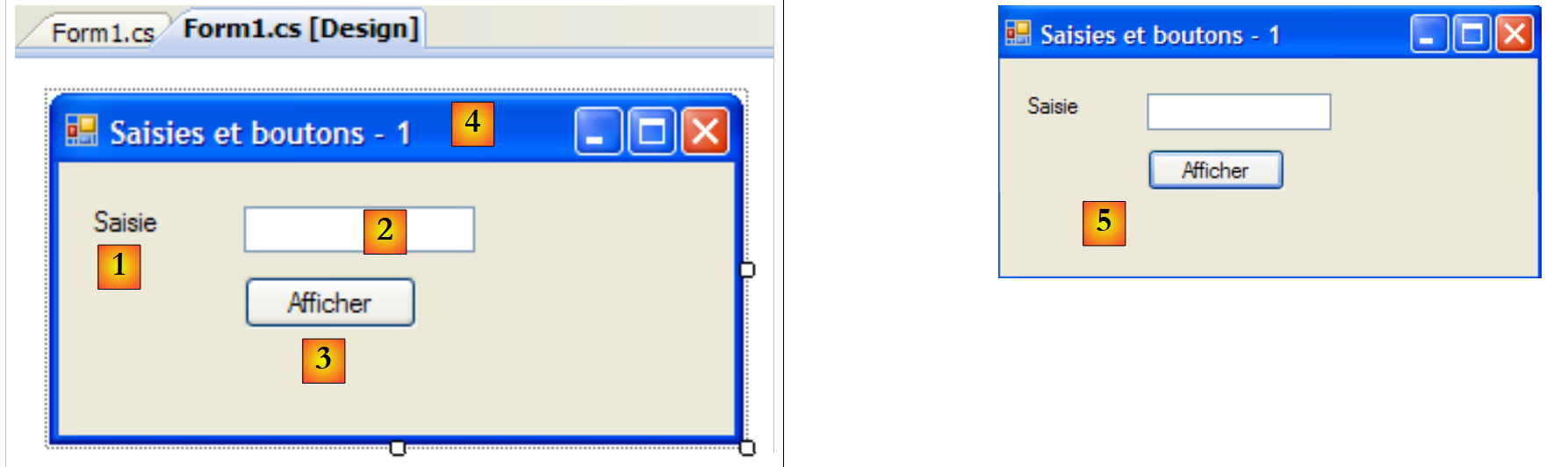 |
- [1]: Select the component to open its Properties window. In this window, modify the following properties: name: labelSaisie, text: Saisie
- [2]: Do the same: name: textBoxSaisie, text: leave blank
- [3]: name: buttonAfficher, text: Afficher
- [4]: The window itself: name: frmSaisiesBoutons, text: Entries and buttons - 1
- [5]: Run (Ctrl-F5) the project to get a first preview of the window in action.
What was done in [Design] mode has been translated into the code in [Form1.Designer.cs]:
namespace Chap5 {
    partial class frmButtonInput {
...
        private System.ComponentModel.IContainer components = null;
...
        private void InitializeComponent() {
            this.labelSaisie = new System.Windows.Forms.Label();
            this.displayButton = new System.Windows.Forms.Button();
            this.inputTextBox = new System.Windows.Forms.TextBox();
            this.SuspendLayout();
            //
            // inputLabel
            //
            this.inputLabel.AutoSize = true;
            this.labelSaisie.Location = new System.Drawing.Point(12, 19);
            this.inputLabel.Name = "inputLabel";
            this.inputLabel.Size = new System.Drawing.Size(35, 13);
            this.inputLabel.TabIndex = 0;
            this.inputLabel.Text = "Input";
            //
            // buttonDisplay
            //
            this.buttonDisplay.Location = new System.Drawing.Point(80, 49);
            this.buttonDisplay.Name = "buttonDisplay";
            this.buttonAfficher.Size = new System.Drawing.Size(75, 23);
            this.buttonAfficher.TabIndex = 1;
            this.buttonDisplay.Text = "Display";
            this.buttonDisplay.UseVisualStyleBackColor = true;
            this.buttonDisplay.Click += new System.EventHandler(this.buttonDisplay_Click);
            //
            // textBoxSaisie
            //
            this.textBoxSaisie.Location = new System.Drawing.Point(80, 19);
            this.textBoxSaisie.Name = "textBoxSaisie";
            this.textBoxSaisie.Size = new System.Drawing.Size(100, 20);
            this.textBoxSaisie.TabIndex = 2;
            //
            // frmInputButtons
            //
            this.AutoScaleDimensions = new System.Drawing.SizeF(6F, 13F);
            this.AutoScaleMode = System.Windows.Forms.AutoScaleMode.Font;
            this.ClientSize = new System.Drawing.Size(292, 118);
            this.Controls.Add(this.textBoxSaisie);
            this.Controls.Add(this.buttonDisplay);
            this.Controls.Add(this.labelSaisie);
            this.Name = "frmButtonInputs";
            this.Text = "Input fields and buttons - 1";
            this.ResumeLayout(false);
            this.PerformLayout();

        }

        private System.Windows.Forms.Label inputLabel;
        private System.Windows.Forms.Button displayButton;
        private System.Windows.Forms.TextBox textBoxInput;

    }
}
- lines 53–55: The three components have created three private fields in the [Form1] class. Note that the names of these fields are the names given to the components in [Design] mode. This is also the case for the form on line 2, which is the class itself.
- lines 7-9: the three objects of type [Label], [TextBox], and [Button] are created. It is through them that the visual components are managed.
- Lines 14–19: Configuration of the labelSaisie label
- Lines 23–29: Configuration of the buttonAfficher button
- Lines 33–36: Configuration of the textBoxSaisie input field
- Lines 40–47: Configuration of the frmSaisiesBoutons form. Note, in lines 43–45, how components are added to the form.
This code is straightforward. It allows you to build forms using code without using [Design] mode. Numerous examples of this are provided in the Visual Studio MSDN documentation. Mastering this code allows you to create forms at runtime: for example, creating a form on the fly to update a database table, where the structure of that table is only discovered at runtime.
We still need to write the procedure to handle a click on the Display button. Select the button to access its Properties window. This window has several tabs:
 |
- [1]: list of properties in alphabetical order
- [2]: events related to the control
A control’s properties and events can be accessed by category or in alphabetical order:
- [3]: Properties or events by category
- [4]: Properties or events in alphabetical order
The Events tab in Categories mode for the buttonAfficher button is as follows:
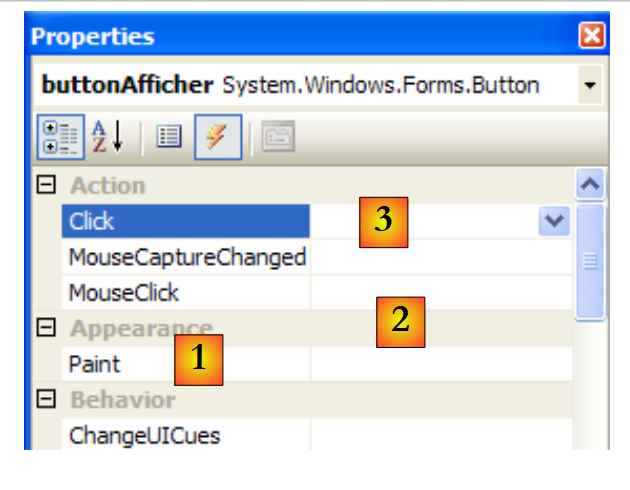 |
- [1]: The left column of the window lists the possible events for the button. Clicking a button corresponds to the Click event.
- [2]: The right column contains the name of the procedure called when the corresponding event occurs.
- [3]: If you double-click the Click event cell, you are automatically taken to the code window to write the Click event handler for the buttonAfficher button:
using System;
using System.Windows.Forms;

namespace Chap5 {
    public partial class frmSaisiesBoutons : Form {
        public frmSaisiesBoutons() {
            InitializeComponent();
        }

        private void buttonDisplay_Click(object sender, EventArgs e) {

        }
    }
}
- Lines 10–12: The skeleton of the Click event handler for the button named buttonAfficher. Note the following points:
- The method is named according to the pattern ComponentName_EventName
- The method is private. It takes two parameters:
- sender: is the object that triggered the event. If the procedure is executed following a click on the buttonAfficher button, sender will be equal to buttonAfficher. We can imagine that the buttonAfficher_Click procedure is executed from within another procedure. That procedure would then be free to set the sender object of its choice as the first parameter.
- EventArgs: an object containing information about the event. For a Click event, it contains nothing. For an event related to mouse movements, it contains the mouse coordinates (X, Y).
- We will not use any of these parameters here.
Writing an event handler involves filling in the code skeleton above. Here, we want to display a dialog box containing the contents of the textBoxSaisie field if it is not empty [1], or an error message otherwise [2]:
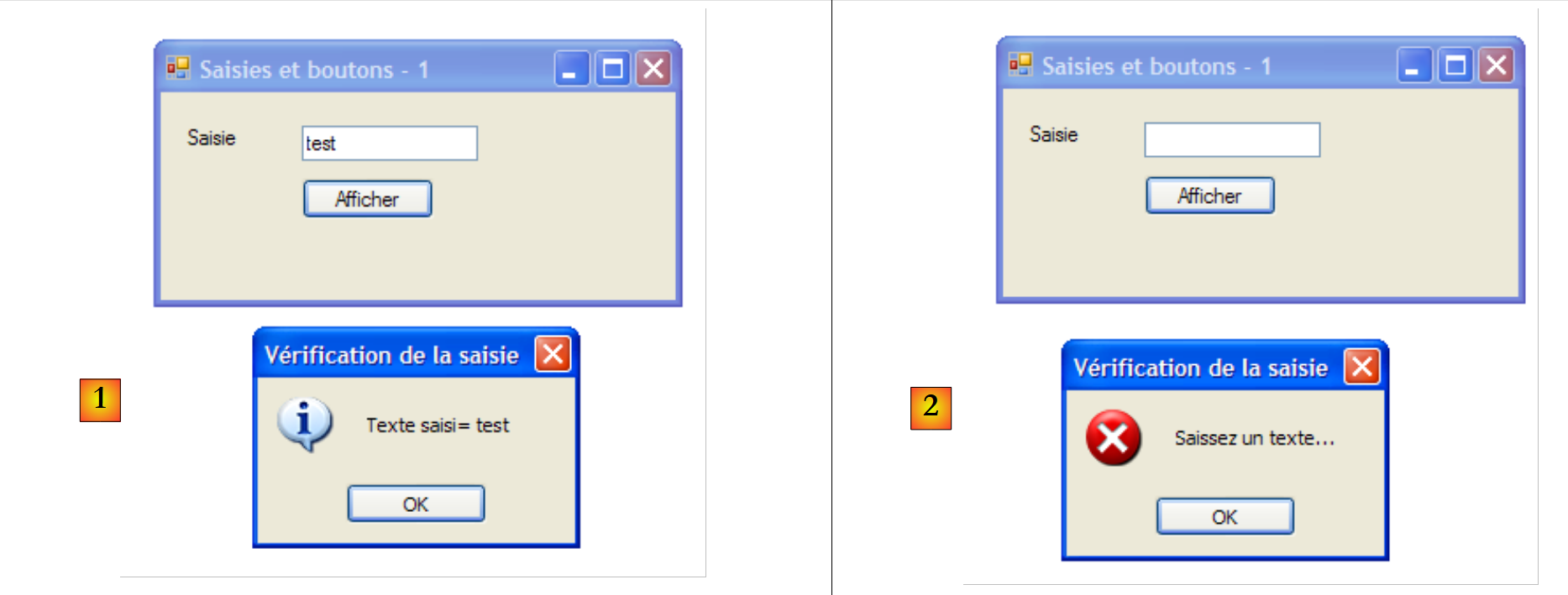 |
The code to achieve this could be as follows:
        private void buttonAfficher_Click(object sender, EventArgs e) {
            // display the text entered in the textBoxSaisie TextBox
            string text = textBoxSaisie.Text.Trim();
            if (text.Length != 0) {
                MessageBox.Show("Text entered= " + text, "Input verification", MessageBoxButtons.OK, MessageBoxIcon.Information);
            } else {
                MessageBox.Show("Enter text...", "Input verification", MessageBoxButtons.OK, MessageBoxIcon.Error);
}
The MessageBox class is used to display messages in a window. Here, we used the following Show method:
public static DialogResult Show(string text, string caption, MessageBoxButtons buttons, MessageBoxIcon icon);
with
the message to display | |
the window title | |
the buttons in the window | |
the icon in the window |
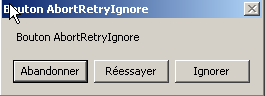
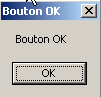
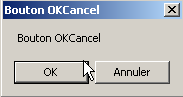
The buttons parameter can take values from the following constants (prefixed with *MessageBoxButtons,* as shown in line 7) above:
buttons | |
 | |
 | |
 | |
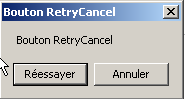 | |
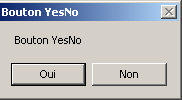 | |
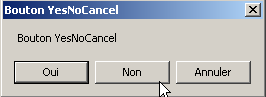 |
The icon parameter can take values from the following constants (prefixed with MessageBoxIcon as shown in line 10) above:
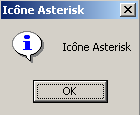 | Same as above Stop | ||
same as Warning | 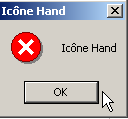 | ||
same as Asterisk | 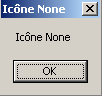 | ||
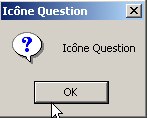 | Same as Hand | ||
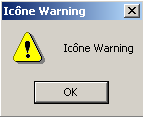 |
The Show method is a static method that returns a result of type [System.Windows.Forms.DialogResult], which is an enumeration:
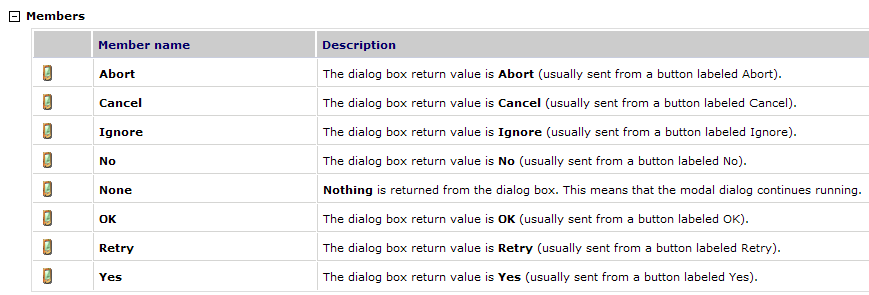
To find out which button the user clicked to close the MessageBox window, we write:
7.1.2.2. Code related to event handling
In addition to the buttonAfficher_Click function we wrote, Visual Studio generated the following line in the InitializeComponents method of [Form1.Designer.cs], which creates and initializes the form’s components:
this.buttonAfficher.Click += new System.EventHandler(this.buttonAfficher_Click);
Click is an event of the Button class [1, 2, 3]:
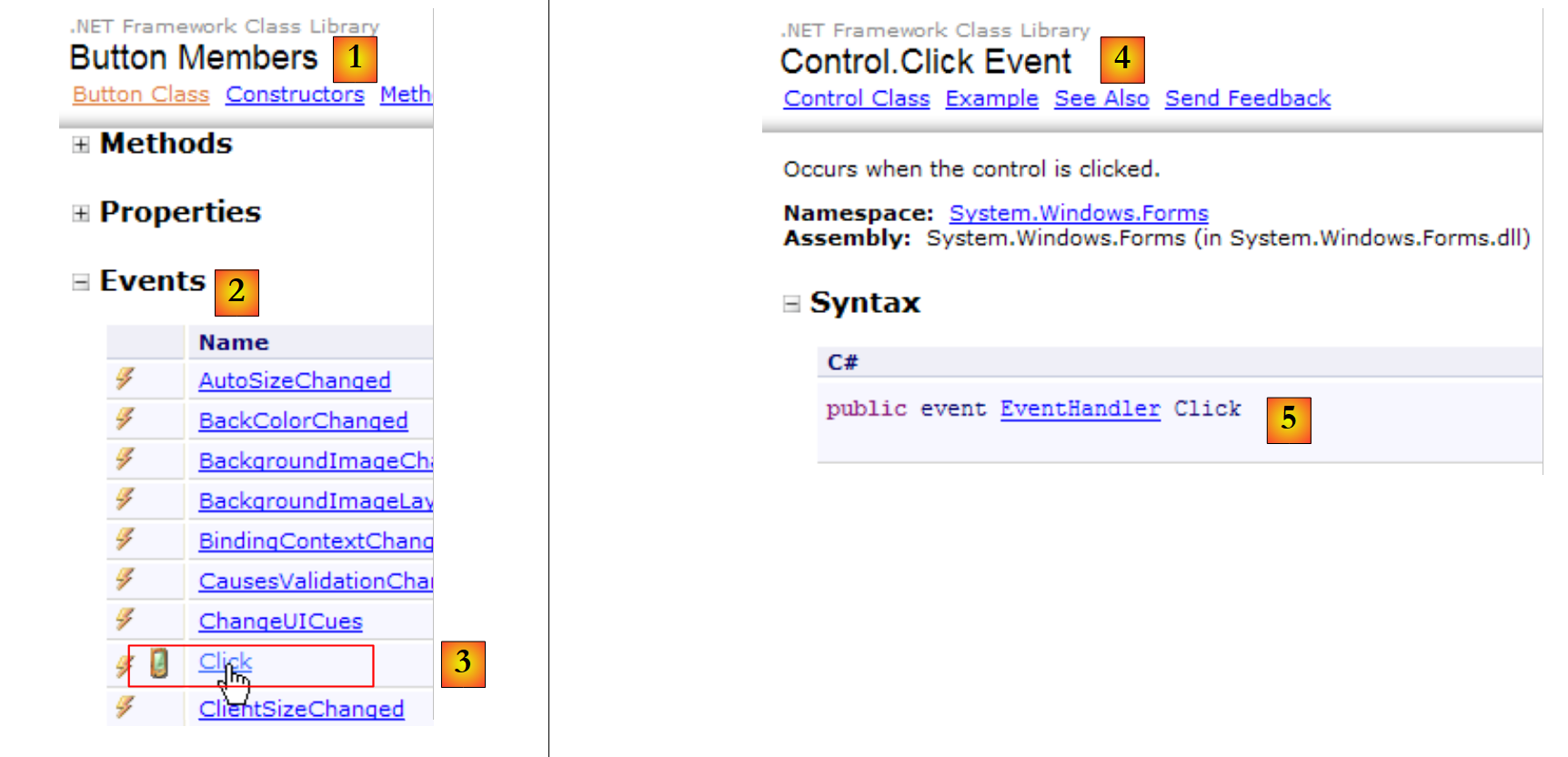 |
- [5]: the declaration of the [Control.Click] event [4]. Thus, we see that the Click event is not specific to the [Button] class. It belongs to the [Control] class, the parent class of the [Button] class.
- EventHandler is a method prototype (a template) called a delegate. We’ll come back to this.
- event is a keyword that restricts the functionality of the EventHandler delegate: a delegate object has richer functionality than an event object.
The EventHandler delegate is defined as follows:
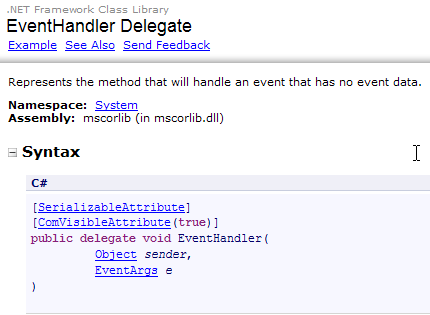 |
The EventHandler delegate refers to a method template:
- with a first parameter of type Object
- with a second parameter of type EventArgs
- returning no result
This is the case with the click handler for the buttonAfficher button generated by Visual Studio:
private void buttonAfficher_Click(object sender, EventArgs e);
Thus, the buttonAfficher_Click method corresponds to the prototype defined by the EventHandler type. To create an object of type EventHandler, proceed as follows:
EventHandler evtHandler = new EventHandler(method corresponding to the prototype defined by the EventHandler type);
Since the buttonAfficher_Click method corresponds to the prototype defined by the EventHandler type, we can write:
A variable of type delegate is actually a list of references to methods of the delegate’s type. To add a new method M to the evtHandler variable above, use the following syntax:
The += notation can be used even if evtHandler is an empty list.
Let’s return to the line in [InitializeComponent] that adds an event handler to the Click event of the buttonAfficher object:
this.buttonAfficher.Click += new System.EventHandler(this.buttonAfficher_Click);
This statement adds a method of type EventHandler to the list of methods for the buttonAfficher.Click field. These methods will be called whenever the Click event on the buttonAfficher component is detected. There is often only one. It is called the "event handler."
Let’s revisit the EventHandler signature:
private delegate void EventHandler(object sender, EventArgs e);
The second parameter of the delegate is an object of type EventArgs or a derived class. The EventArgs type is very general and does not actually provide any information about the event that occurred. For a button click, this is sufficient. For a mouse move on a form, we would have a MouseMove event of the [Form] class defined by:
The MouseEventHandler delegate is defined as:
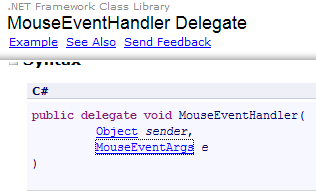 |
It is a delegate function with the signature void f(object, MouseEventArgs). The MouseEventArgs class is defined as:
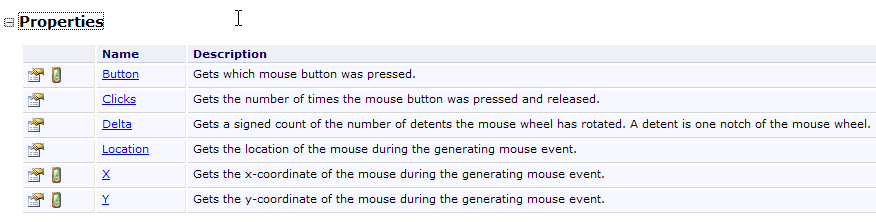 |
The MouseEventArgs class is more feature-rich than the EventArgs class. For example, you can obtain the mouse’s X and Y coordinates at the moment the event occurs.
7.1.2.3. Conclusion
From the two projects studied, we can conclude that once the graphical user interface is built with Visual Studio, the developer’s work consists mainly of writing the event handlers for the events they want to handle for that interface. Code is automatically generated by Visual Studio. This code, which can be complex, can be ignored initially. Later, studying it can lead to a better understanding of form creation and management.
7.2. Basic Components
We will now present various applications that utilize the most common components to explore their main methods and properties. For each application, we will present the graphical user interface and the relevant code, primarily that of the event handlers.
7.2.1. Form
We’ll start by introducing the essential component: the form, onto which components are placed. We’ve already covered some of its basic properties. Here, we’ll focus on a few important events associated with a form.
The form is loading | |
The form is closing | |
The form is closed |
The Load event occurs before the form is even displayed. The Closing event occurs when the form is being closed. You can still stop this closing process programmatically.
We are creating a form named Form1 without any components:
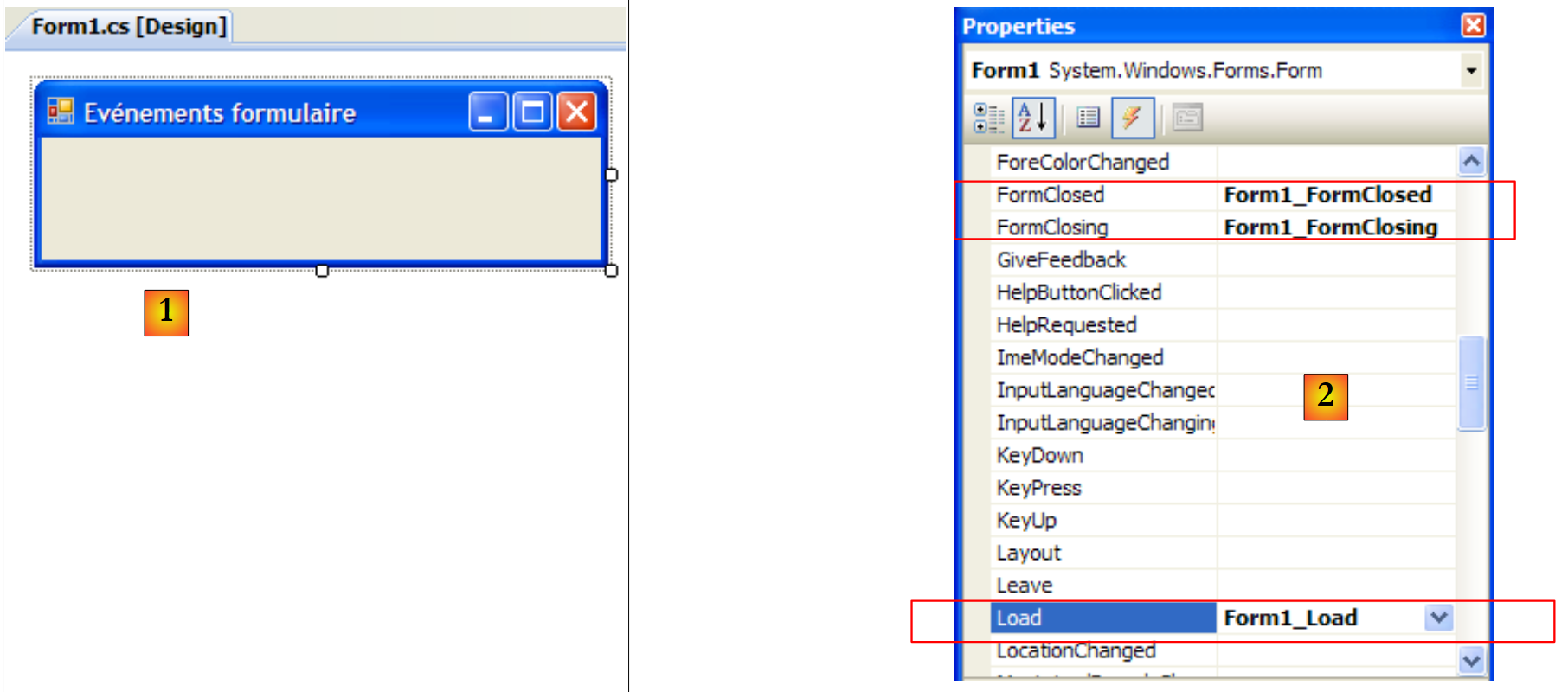 |
- [1]: the form
- [2]: the three events handled
The code for [Form1.cs] is as follows:
using System;
using System.Windows.Forms;

namespace Chap5 {
    public partial class Form1 : Form {
        public Form1() {
            InitializeComponent();
        }

        private void Form1_Load(object sender, EventArgs e) {
            // Initial form load
            MessageBox.Show("Evt Load", "Load");
        }

        private void Form1_FormClosing(object sender, FormClosingEventArgs e) {
            // the form is closing
            MessageBox.Show("Evt FormClosing", "FormClosing");
            // asking for confirmation
            DialogResult response = MessageBox.Show("Do you really want to exit the application?", "Closing", MessageBoxButtons.YesNo, MessageBoxIcon.Question);
            if (response == DialogResult.No)
                e.Cancel = true;
        }

        private void Form1_FormClosed(object sender, FormClosedEventArgs e) {
            // The form is about to be closed
            MessageBox.Show("Evt FormClosed", "FormClosed");
        }
    }
}
We use the MessageBox function to be notified of various events.
Line 10: The Load event will occur when the the application, even before the form is displayed: | 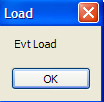 |
line 15: The FormClosing event will occur when the user closes the window. | 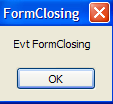 |
Line 19: We then ask the user if they really want to exit the application: | 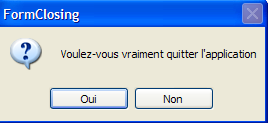 |
line 20: If they answer No, we set the Cancel property of the CancelEventArgs object that the method received as a parameter. If we set this property to False, closing of the window is canceled; otherwise, it proceeds. The FormClosed event will then occur: | 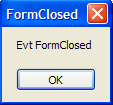 |
7.2.2. Label and TextBox components
We have already encountered these two components. Label is a text component and TextBox is an input field component. Their main property is Text, which refers to either the content of the input field or the label text. This property is read/write.
The event typically used for TextBox is TextChanged, which signals that the user has modified the input field. Here is an example that uses the TextChanged event to track changes in an input field:
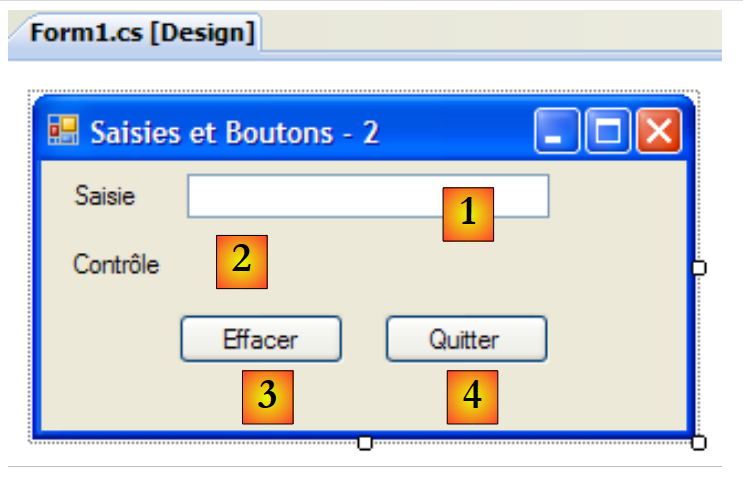 |
No. | type | name | role |
1 | TextBox | textBoxInput | input field |
2 | Label | labelControl | displays the text from 1 in real time AutoSize=False, Text=(none) |
3 | Button | buttonClear | to clear fields 1 and 2 |
4 | Button | buttonExit | to exit the application |
The code for this application is as follows:
using System.Windows.Forms;

namespace Chap5 {
    public partial class Form1 : Form {
        public Form1() {
            InitializeComponent();
        }

        private void textBoxSaisie_TextChanged(object sender, System.EventArgs e) {
            // The content of the TextBox has changed—we copy it to the Label labelControle
            labelControle.Text = textBoxSaisie.Text;
        }

        private void buttonClear_Click(object sender, System.EventArgs e) {
            // Clear the contents of the text box
            textBoxSaisie.Text = "";
        }

        private void buttonExit_Click(object sender, System.EventArgs e) {
            // Click on the Exit button - exit the application
            Application.Exit();
        }

        private void Form1_Shown(object sender, System.EventArgs e) {
            // Set focus on the text box
            textBoxSaisie.Focus();
        }
    }
}
- Line 24: The [Form].Shown event occurs when the form is displayed
- line 26: the focus is then set (for input) on the textBoxSaisie component.
- line 9: the [TextBox].TextChanged event occurs whenever the content of a TextBox component changes
- line 11: the content of the [TextBox] component is copied to the [Label] component
- Line 14: Handles the click on the [Clear] button
- line 16: the empty string is placed in the [TextBox] component
- Line 19: Handles the click on the [Exit] button
- line 21: to stop the currently running application. Recall that the Application object is used to launch the application in the [Main] method of [Form1.cs]:
        static void Main() {
            Application.EnableVisualStyles();
            Application.SetCompatibleTextRenderingDefault(false);
            Application.Run(new Form1());
}
The following example uses a multi-line TextBox:
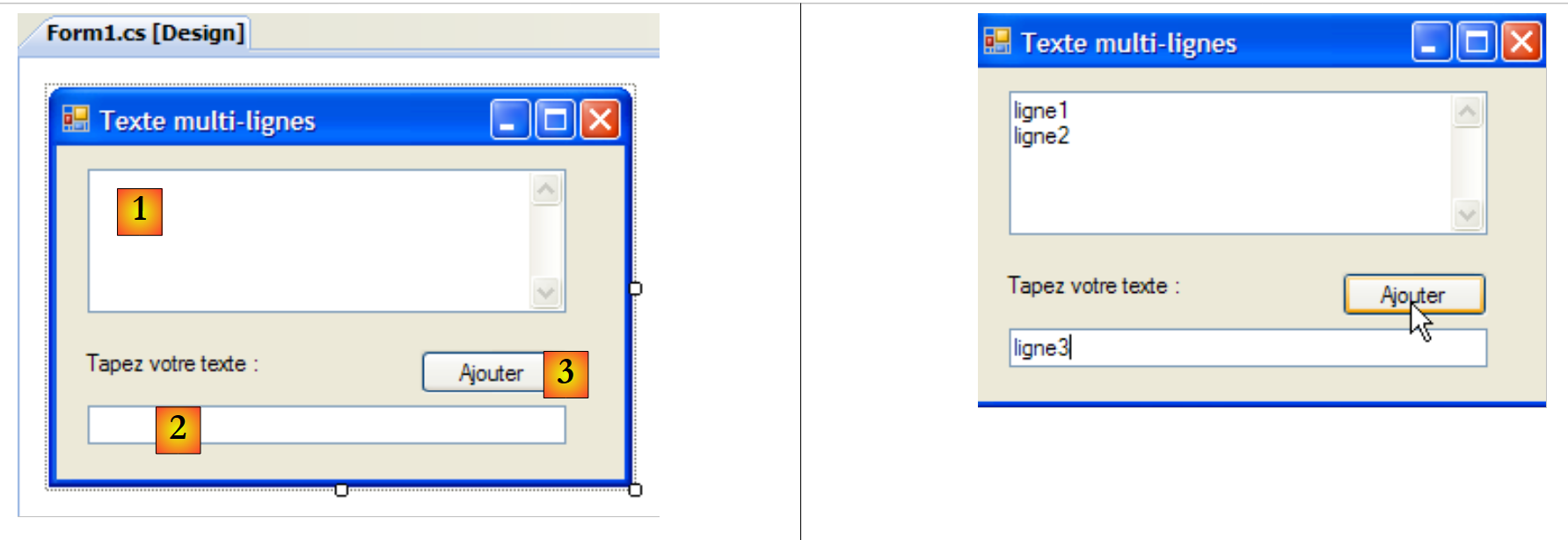 |
The list of controls is as follows:
No. | Type | name | role |
1 | TextBox | textBoxLines | multiline input field Multiline=true, ScrollBars=Both, AcceptReturn=True, AcceptTab=True |
2 | TextBox | textBoxLine | single-line input field |
3 | Button | AddButton | Adds the content from 2 to 1 |
To make a TextBox multiline, set the following control properties:
to allow multiple lines of text | |
to specify whether the control should have scroll bars (Horizontal, Vertical, Both) or not (None) | |
if set to true, the Enter key will move to the next line | |
if set to true, the Tab key will insert a tab in the text |
The application allows you to type lines directly into [1] or add them via [2] and [3].
The application code is as follows:
using System.Windows.Forms;
using System;

namespace Chap5 {
    public partial class Form1 : Form {
        public Form1() {
            InitializeComponent();
        }

        private void buttonAdd_Click(object sender, System.EventArgs e) {
            // Append the contents of textBoxLigne to those of textBoxLignes
            textBoxLines.Text += textBoxLine.Text + Environment.NewLine;
            textBoxLigne.Text = "";
        }

        private void Form1_Shown(object sender, EventArgs e) {
            // Set focus on the text box
            textBoxLigne.Focus();
        }
    }
}
- Line 18: When the form is displayed (or Shown), set the focus on the textBoxLigne input field
- Line 10: Handles the click on the [Add] button
- line 12: the text from the textBoxLigne input field is appended to the text in the textBoxLignes input field, followed by a line break.
- Line 13: The textBoxLigne input field is cleared
7.2.3. ComboBox drop-down lists
We create the following form:
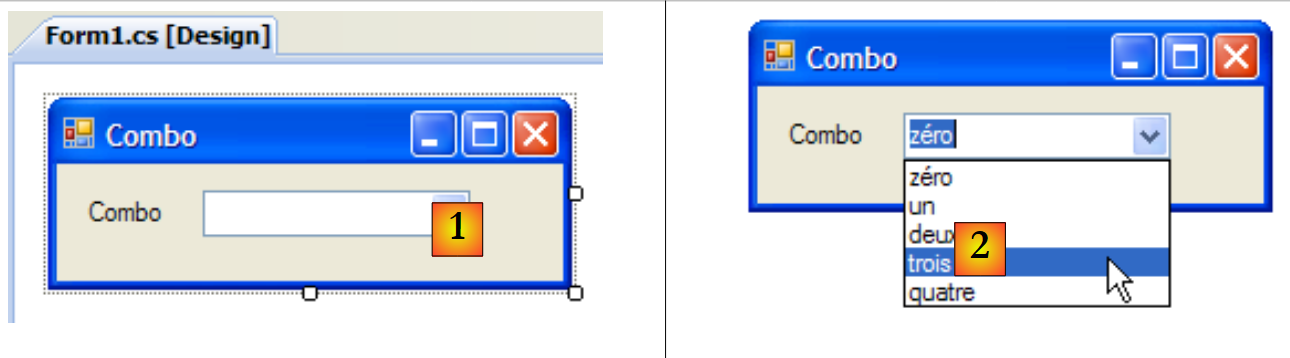 |
No. | Type | name | role |
1 | ComboBox | comboNumbers | contains strings DropDownStyle=DropDownList |
A ComboBox component is a drop-down list combined with an input field: the user can either select an item from (2) or type text into (1). There are three types of ComboBox defined by the DropDownStyle property:
non-dropdown list with edit box | |
drop-down list with edit box | |
drop-down list without an edit box |
By default, the type of a ComboBox is DropDown.
The ComboBox class has a single constructor:
creates an empty combo box |
The items in the ComboBox are available in the Items property:
This is an indexed property, where Items[i] refers to the i-th item in the ComboBox. It is read-only.
Let C be a ComboBox and C.Items its list of items. We have the following properties:
number of items in the ComboBox | |
element i of the combo | |
adds object o as the last item in the combo box | |
adds an array of objects to the end of the combo | |
adds the object o at position i in the combo box | |
removes element i from the combo box | |
removes object o from the combo box | |
clears all items from the combo box | |
returns the position i of object o in the combo box | |
index of the selected item | |
selected item | |
displayed text of the selected item | |
displayed text of the selected item |
It may seem surprising that a combo box can contain objects when visually it displays strings. If a ComboBox contains an object obj, it displays the string obj.ToString(). Recall that every object has a ToString method inherited from the object class, which returns a string that "represents" the object.
The selected Item in combo box C is C.SelectedItem or C.Items[C.SelectedIndex], where C.SelectedIndex is the index of the selected item, starting from zero for the first item. The selected text can be obtained in various ways: C.SelectedItem.Text, C.Text
When an item is selected from the drop-down list, the SelectedIndexChanged event is triggered, which can then be used to detect a change in the combo box selection. In the following application, we use this event to display the item that was selected from the list.
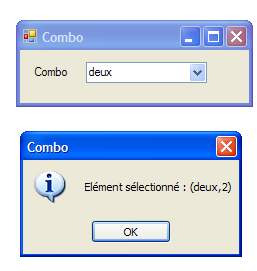 |
The application code is as follows:
using System.Windows.Forms;

namespace Chap5 {
    public partial class Form1 : Form {
        private int previousSelectedIndex = 0;

        public Form1() {
            InitializeComponent();
            // populate combo box
            comboBoxNumbers.Items.AddRange(new string[] { "zero", "one", "two", "three", "four" });
            // Select item #0
            comboBoxNumbers.SelectedIndex = 0;
        }

        private void comboBoxNumbers_SelectedIndexChanged(object sender, System.EventArgs e) {
            int newSelectedIndex = comboBoxNumbers.SelectedIndex;
            if (newSelectedIndex != previousSelectedIndex) {
                // The selected item has changed—display it
                MessageBox.Show(string.Format("Selected item: ({0},{1})", comboBoxNumbers.Text, newSelectedIndex), "Combo", MessageBoxButtons.OK, MessageBoxIcon.Information);
                // save the new index
                previousSelectedIndex = newSelectedIndex;
            }
        }
    }
}
- Line 5: previousSelectedIndex stores the last selected index in the combo box
- line 10: populates the combo box with an array of strings
- line 12: the first item is selected
- line 15: the method executed every time the user selects an item from the combo box. Contrary to what the event name might suggest, this occurs even if the selected item is the same as the previous one.
- line 16: the index of the selected item is noted
- line 17: if it is different from the previous one
- line 19: the number and text of the selected item are displayed
- Line 21: Record the new index
7.2.4. ListBox Component
We propose to build the following interface:
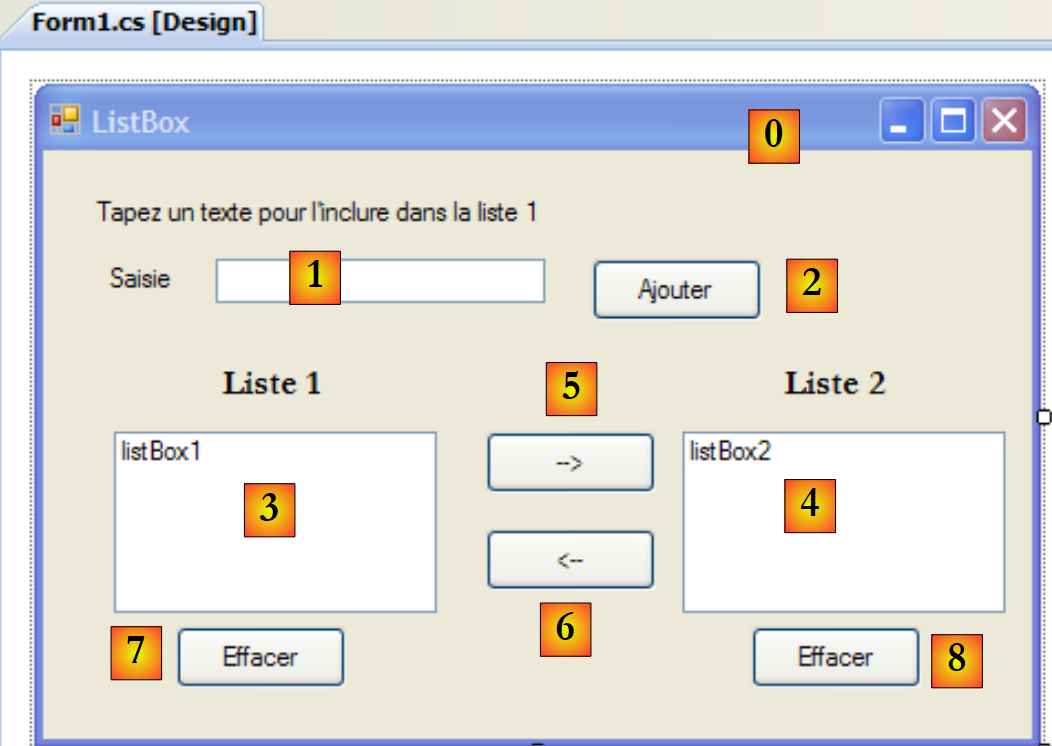 |
The components of this window are as follows:
No. | type | name | role/properties |
0 | Form | Form1 | form FormBorderStyle=FixedSingle (non-resizable border) |
1 | TextBox | textBoxInput | input field |
2 | Button | buttonAdd | button to add the contents of the input field [1] to the list [3] |
3 | ListBox | listBox1 | List 1 SelectionMode=MultiExtended: |
4 | ListBox | listBox2 | List 2 SelectionMode=MultiSimple: |
5 | Button | button1to2 | transfers the selected items from list 1 to list 2 |
6 | Button | button2to1 | does the opposite |
7 | Button | buttonClear1 | clears list 1 |
8 | Button | buttonClear2 | clears list 2 |
ListBox components have a selection mode for their items that is defined by their SelectionMode property:
only one item can be selected | |
multi-selection is possible: holding down the SHIFT key and clicking on an item extends the selection from the previously selected item to the current item. | |
multi-selection possible: an item is selected/deselected by a mouse click or by pressing the spacebar. |
- The user types text into field 1. They add it to list 1 using the Add button (2). The input field (1) is then cleared, and the user can add a new item.
- They can transfer items from one list to another by selecting the item to be transferred in one of the lists and choosing the appropriate transfer button 5 or 6. The transferred item is added to the end of the destination list and removed from the source list.
- They can double-click on an item in List 1. This item is then transferred to the input box for editing and removed from List 1.
The buttons are enabled or disabled according to the following rules:
- the Add button is lit only if there is non-empty text in the input field
- the [5] button for transferring from list 1 to list 2 is enabled only if an item is selected in list 1
- The [6] button for transferring from List 2 to List 1 is enabled only if an item is selected in List 2
- The [7] and [8] buttons for clearing lists 1 and 2 are enabled only if the list to be cleared contains items.
Under the above conditions, all buttons must be disabled when the application starts. To achieve this, the Enabled property of the buttons must be set to false. This can be done at design time, which will generate the corresponding code in the InitializeComponent method, or done manually in the constructor as shown below:
        public Form1() {
            InitializeComponent();
            // --- additional initializations ---
            // we disable a number of buttons
            buttonAdd.Enabled = false;
            button1to2.Enabled = false;
            button2to1.Enabled = false;
            buttonDelete1.Enabled = false;
            buttonDelete2.Enabled = false;
}
The state of the Add button is controlled by the content of the text box. The TextChanged event allows us to track changes to this content:
        private void textBoxSaisie_TextChanged(object sender, System.EventArgs e) {
            // the content of textBoxSaisie has changed
            // the Add button is enabled only if the input is not empty
            buttonAdd.Enabled = textBoxInput.Text.Trim() != "";
        }
The state of the transfer buttons depends on whether or not an item has been selected in the list they control:
        private void listBox1_SelectedIndexChanged(object sender, System.EventArgs e) {
            // an item has been selected
            // enable the button to transfer from 1 to 2
            button1to2.Enabled = true;
        }

        private void listBox2_SelectedIndexChanged(object sender, System.EventArgs e) {
            // An item has been selected
            // Enable the button to transfer from 2 to 1
            button2to1.Enabled = true;
}
The code associated with the Add button click is as follows:
        private void buttonAdd_Click(object sender, System.EventArgs e) {
            // Add a new item to List 1
            listBox1.Items.Add(textBoxSaisie.Text.Trim());
            // Clear the input
            textBoxSaisie.Text = "";
            // List 1 is not empty
            buttonClear1.Enabled = true;
            // Return focus to the text box
            textBoxSaisie.Focus();
}
Note the Focus method, which allows you to set the "focus" on a form control. The code associated with clicking the Clear buttons:
        private void buttonClear1_Click(object sender, System.EventArgs e) {
            // clear list 1
            listBox1.Items.Clear();
            // Clear button
            buttonClear1.Enabled = false;
        }

        private void buttonClear2_Click(object sender, System.EventArgs e) {
            // Clear list 2
            listBox2.Items.Clear();
            // Clear button
            buttonClear2.Enabled = false;
}
The code to transfer selected items from one list to another:
        private void button1to2_Click(object sender, System.EventArgs e) {
            // Transfer the selected item from List 1 to List 2
            transfer(listBox1, button1to2, buttonDelete1, listBox2, button2to1, buttonDelete2);
        }

        private void button2to1_Click(object sender, System.EventArgs e) {
            // Transfer the selected item from List 2 to List 1
            transfer(listBox2, button2to1, buttonClear2, listBox1, button1to2, buttonClear1);
        }
The two methods above delegate the transfer of selected items from one list to another to a single private method called transfer:
        // transfer
        private void transfer(ListBox l1, Button button1to2, Button buttonDelete1, ListBox l2, Button button2to1, Button buttonDelete2) {
            // Transfer the selected items from list l1 to list l2
            for (int i = l1.SelectedIndices.Count - 1; i >= 0; i--) {
                // index of the selected element
                int index = l1.SelectedIndices[i];
                // add to l2
                l2.Items.Add(l1.Items[index]);
                // Remove from l1
                l1.Items.RemoveAt(index);
            }
            // Clear buttons
            buttonClear2.Enabled = l2.Items.Count != 0;
            buttonClear1.Enabled = l1.Items.Count != 0;
            // Transfer buttons
            button1to2.Enabled = false;
}
- Line b: The transfer method takes six parameters:
- a reference to the list containing the selected items, referred to here as l1. When the application runs, l1 is either listBox1 or listBox2. Examples of calls can be seen in lines 3 and 8 of the buttonXtoY_Click transfer procedures.
- a reference to the transfer button linked to list l1. For example, if l1 is listBox2, it will be button2to1 (see call on line 8)
- a reference to the button for clearing list l1. For example, if l1 is listBox1, it will be buttonEffacer1 (see call on line 3)
- The other three references are similar but refer to list l2.
- Line d: The collection [ListBox].SelectedIndices represents the indices of the selected items in the [ListBox] component. It is a collection:
- [ListBox].SelectedIndices.Count is the number of elements in this collection
- [ListBox].SelectedIndices[i] is the i-th element of this collection
We iterate through the collection in reverse order: we start at the end of the collection and finish at the beginning. We will explain why.
- line f: index of a selected item in list l1
- line h: this element is added to list l2
- line j: and removed from list l1. Because it is removed, it is no longer selected. The collection l1.SelectedIndices from line d will be recalculated. It will lose the element that has just been removed. All elements following it will have their indices change from n to n-1.
- If the loop for line (d) is ascending and has just processed element #0, it will next process element #1. However, the element that had the number 1 before the deletion of element #0 will now have the number 0. It will then be skipped by the loop.
- If the loop in line (d) is descending and has just processed element n, it will next process element n-1. After element n is deleted, element n-1 does not change its number. It is therefore processed in the next iteration of the loop.
- Lines m–n: The state of the [Delete] buttons depends on whether or not there are elements in the associated lists
- line p: list l2 no longer has any selected elements: its transfer button is turned off.
7.2.5. Checkboxes, Radio Buttons
We propose to write the following application:
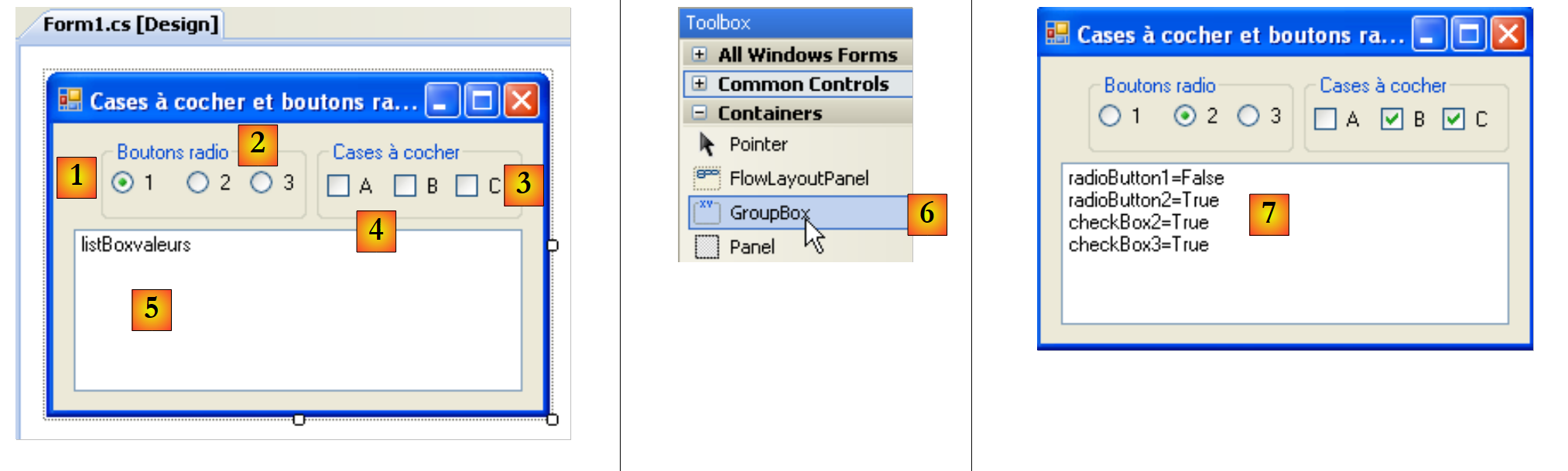 |
The window components are as follows:
No. | type | name | role |
1 | GroupBox see [6] | groupBox1 | A container for components. Other components can be placed inside it. Text=Radio buttons |
2 | RadioButton | radioButton1 radioButton2 radioButton3 | 3 radio buttons - radioButton1 has the Checked property set to True and the Text property set to 1 - radioButton2 has the Text property set to 2 - radioButton3 has the Text property set to 3 Radio buttons within the same container, in this case the GroupBox, are mutually exclusive: only one of them is selected. |
3 | GroupBox | groupBox2 | |
4 | CheckBox | checkBox1 checkBox2 checkBox3 | 3 checkboxes. checkBox1 has the property Checked=True and the property Text=A - checkBox2 has the property Text=B - checkBox3 has the property Text=C |
5 | ListBox | listBoxValues | A list that displays the values of the radio buttons and checkboxes as soon as a change occurs. |
6 | shows where to find the GroupBox container |
The event of interest for these six controls is the CheckChanged event, which indicates that the state of the checkbox or radio button has changed. In both cases, this state is represented by the Boolean property Checked; when set to true, it means the control is checked. Here, we will use only one method to handle the six CheckChanged events: the Display method. To ensure that the six CheckChanged events are handled by the same Display method, we can proceed as follows:
Select the radioButton1 component and right-click on it to access its properties:
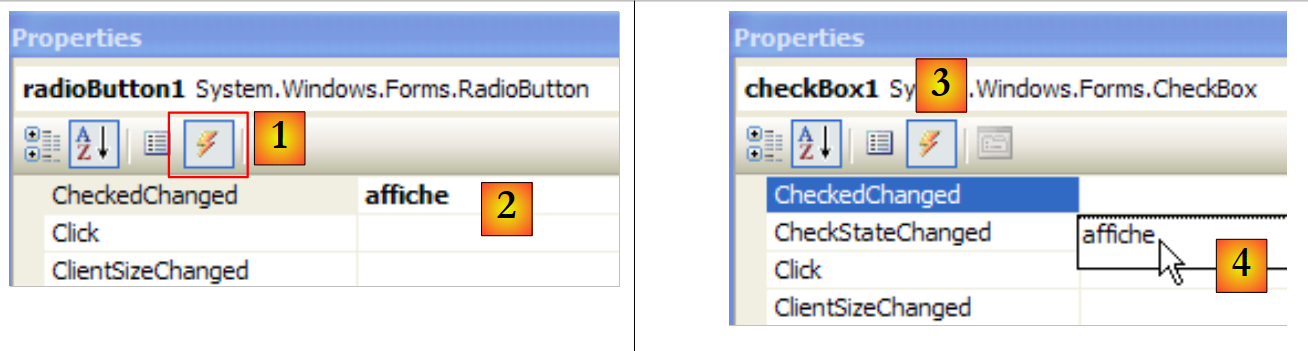 |
In the Events tab [1], associate the affiche method [2] with the CheckChanged event. This means that we want a click on option A1 to be handled by a method called affiche. Visual Studio automatically generates the affiche method in the code window:
private void display(object sender, EventArgs e) {
        }
The Display method is an EventHandler method.
For the other five components, we proceed in the same way. For example, let’s select the CheckBox1 option and its events [3]. Next to the Click event, there is a drop-down list [4] containing the existing methods that can handle this event. Here, we only have the affiche method. We select it. We repeat this process for all the other components.
In the InitializeComponent method, the code has been generated. The affiche method has been declared as the handler for the six CheckedChanged events as follows:
this.radioButton1.CheckedChanged += new System.EventHandler(this.display);
this.radioButton2.CheckedChanged += new System.EventHandler(this.display);
this.radioButton3.CheckedChanged += new System.EventHandler(this.display);
this.checkBox1.CheckedChanged += new System.EventHandler(this.display);
this.checkBox2.CheckedChanged += new System.EventHandler(this.display);
this.checkBox3.CheckedChanged += new System.EventHandler(this.display);
The affiche method is completed as follows:
        private void display(object sender, System.EventArgs e) {
            // displays the state of the radio button or checkbox
            // Is it a checkbox?
            if (sender is CheckBox) {
                CheckBox chk = (CheckBox)sender;
                listBoxValues.Items.Add(chk.Name + "=" + chk.Checked);
            }
            // Is it a radio button?
            if (sender is RadioButton) {
                RadioButton rdb = (RadioButton)sender;
                listBoxValues.Items.Add(rdb.Name + "=" + rdb.Checked);
            }
}
The syntax
if (sender is CheckBox) {
allows us to verify that the sender object is of type CheckBox. This then allows us to cast it to the exact type of sender. The display method writes the name of the component that triggered the event and the value of its Checked property to the listBoxValues list. During execution [7], we see that clicking a radio button triggers two CheckChanged events: one on the previously checked button, which becomes "unchecked," and the other on the new button, which becomes "checked."
7.2.6. ScrollBar Controls
There are several types of scroll bars: the horizontal scroll bar (HscrollBar), the vertical scroll bar (VscrollBar), the numeric up/down control (NumericUpDown). |    |
Let's create the following application:
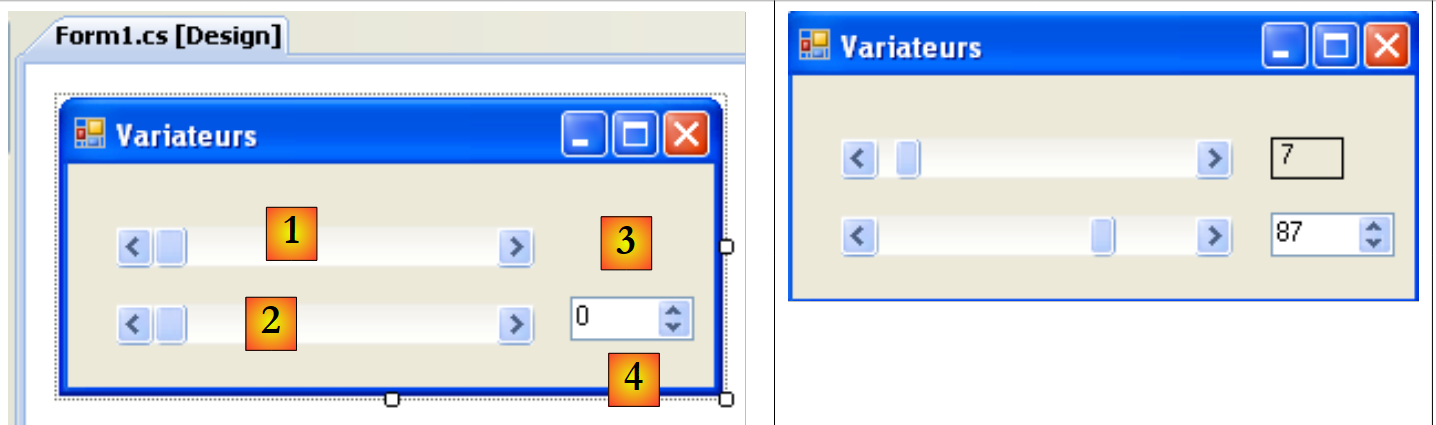 |
No. | type | name | role |
1 | hScrollBar | hScrollBar1 | a horizontal scrollbar |
2 | hScrollBar | hScrollBar2 | a horizontal slider that follows the changes in slider 1 |
3 | Label | labelValueHS1 | displays the value of the horizontal slider |
4 | NumericUpDown | numericUpDown2 | allows you to set the value of slider 2 |
A ScrollBar slider allows the user to select a value from a range of integer values represented by the slider's "bar," along which a cursor moves. The slider's value is available in its Value property.
- For a horizontal slider, the left end represents the minimum value of the range, the right end the maximum value, and the cursor the currently selected value. For a vertical slider, the minimum is represented by the top end, and the maximum by the bottom end. These values are represented by the Minimum and Maximum properties and default to 0 and 100.
- Clicking on the ends of the slider changes the value by one increment (positive or negative) based on the clicked end, referred to as SmallChange, which defaults to 1.
- Clicking on either side of the slider changes the value by one increment (positive or negative) depending on which end is clicked, a setting called LargeChange, which defaults to 10.
- When you click on the top end of a vertical slider, its value decreases. This may surprise the average user, who normally expects to see the value "increase." You can resolve this issue by setting the SmallChange and LargeChange properties to negative values
- These five properties (Value, Minimum, Maximum, SmallChange, LargeChange) are accessible for both reading and writing.
- The slider’s main event is the one that signals a change in value: the Scroll event.
A NumericUpDown component is similar to a slider: it also has Minimum, Maximum, and Value properties, with default values of 0, 100, and 0, respectively. However, in this case, the Value property is displayed in an input box that is an integral part of the control. The user can modify this value themselves unless the control’s ReadOnly property has been set to true. The increment value is set by the Increment property, which defaults to 1. The main event of the NumericUpDown component is the one that signals a value change: the ValueChanged event
The application code is as follows:
using System.Windows.Forms;

namespace Chap5 {
    public partial class Form1 : Form {
        public Form1() {
            InitializeComponent();
            // Set the properties of control 1
            hScrollBar1.Value = 7;
            hScrollBar1.Minimum = 1;
            hScrollBar1.Maximum = 130;
            hScrollBar1.LargeChange = 11;
            hScrollBar1.SmallChange = 1;
            // We give drive 2 the same characteristics as drive 1
            hScrollBar2.Value = hScrollBar1.Value;
            hScrollBar2.Minimum = hScrollBar1.Minimum;
            hScrollBar2.Maximum = hScrollBar1.Maximum;
            hScrollBar2.LargeChange = hScrollBar1.LargeChange;
            hScrollBar2.SmallChange = hScrollBar1.SmallChange;
            // same for the incrementer
            numericUpDown2.Value = hScrollBar1.Value;
            numericUpDown2.Minimum = hScrollBar1.Minimum;
            numericUpDown2.Maximum = hScrollBar1.Maximum;
            numericUpDown2.Increment = hScrollBar1.SmallChange;

            // Set the Label to the value of slider 1
            labelHS1Value.Text = hScrollBar1.Value.ToString();
        }

        private void hScrollBar1_Scroll(object sender, ScrollEventArgs e) {
            // Change in the value of slider 1
            // Update the value of slider 2 and the label
            hScrollBar2.Value = hScrollBar1.Value;
            labelValueHS1.Text = hScrollBar1.Value.ToString();
        }

        private void numericUpDown2_ValueChanged(object sender, System.EventArgs e) {
            // the slider has changed value
            // we set the value of slider 2
            hScrollBar2.Value = (int)numericUpDown2.Value;
        }
    }
}
7.3. Mouse Events
When drawing in a container, it is important to know the mouse position so that, for example, a point can be displayed when the mouse is clicked. Mouse movements trigger events in the container within which the mouse is moving.
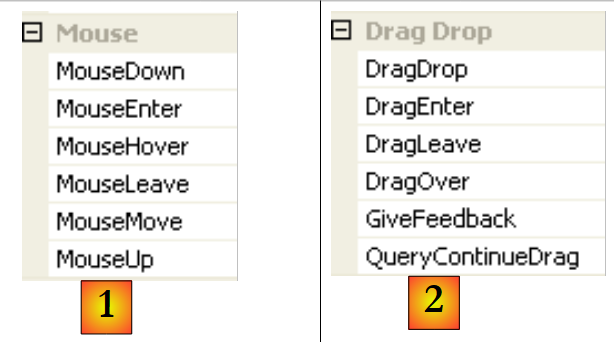 |
- [1]: events that occur when the mouse moves over the form or a control
- [2]: events that occur during a drag-and-drop (Drag'nDrop)
The mouse has just entered the control's area | |
the mouse has just left the control's area | |
the mouse is moving within the control's area | |
Left mouse button pressed | |
Left mouse button released | |
The user drops an object onto the control | |
The user enters the control's area while dragging an object | |
The user exits the control's area while dragging an object | |
The user moves over the control's area while dragging an object |
Here is an application that helps you better understand when the various mouse events occur:
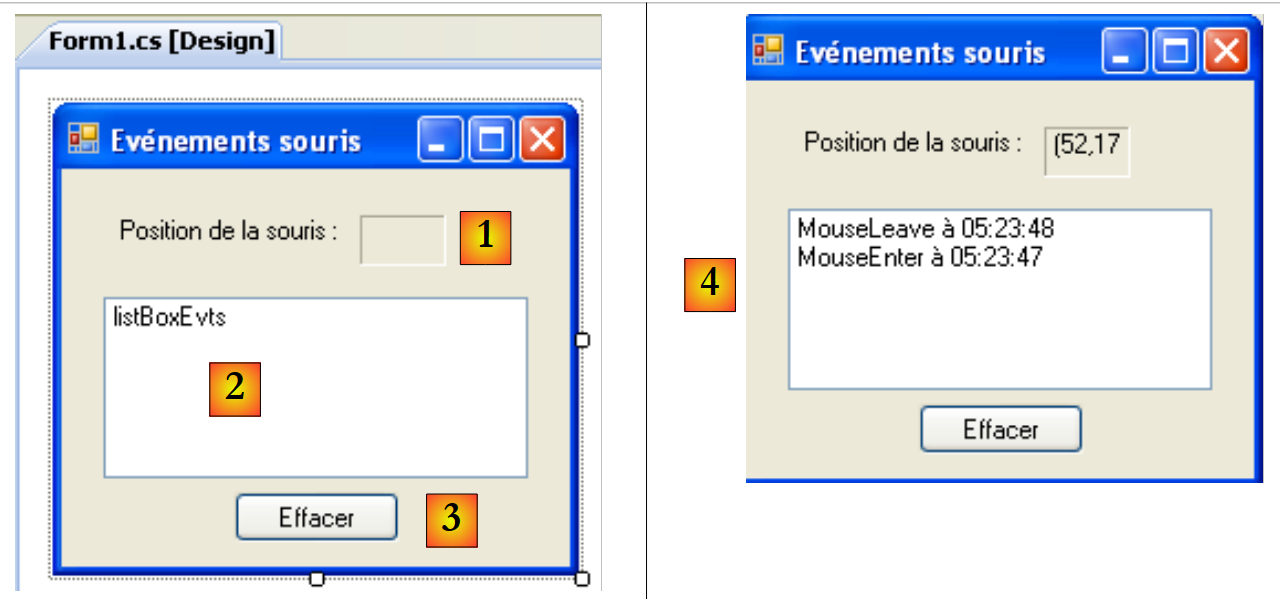 |
No. | type | name | role |
1 | Label | lblMousePosition | to display the mouse position in form 1, list 2, or button 3 |
2 | ListBox | listBoxEvts | to display mouse events other than MouseMove |
3 | Button | buttonClear | to clear the contents of 2 |
To track mouse movements across the three controls, we write a single handler, the display handler:
 |
The code for the Display procedure is as follows:
        private void display(object sender, MouseEventArgs e) {
            // mouse movement - display its coordinates (X,Y)
            labelPositionSouris.Text = "(" + e.X + "," + e.Y + ")";
}
Every time the mouse enters a control’s area, its coordinate system changes. Its origin (0,0) is the upper-left corner of the control it is currently on. Thus, during runtime, when you move the mouse from the form to the button, you can clearly see the change in coordinates. To better visualize these changes in the mouse’s area, you can use the Cursor [1] property of the controls:
 |
This property allows you to set the shape of the mouse cursor when it enters the control’s area. Thus, in our example, we have set the cursor to Default for the form itself [2], Hand for List 2 [3], and Cross for Button 3 [4].
Furthermore, to detect when the mouse enters and leaves List 2, we handle the MouseEnter and MouseLeave events for that list:
        private void listBoxEvts_MouseEnter(object sender, System.EventArgs e) {
            // log the event
            listBoxEvts.Items.Insert(0, string.Format("MouseEnter at {0:hh:mm:ss}", DateTime.Now));
        }

        private void listBoxEvts_MouseLeave(object sender, EventArgs e) {
            // report the event
            listBoxEvts.Items.Insert(0, string.Format("MouseLeave at {0:hh:mm:ss}", DateTime.Now));
}
To handle clicks on the form, we handle the MouseDown and MouseUp events:
        private void listBoxEvts_MouseDown(object sender, MouseEventArgs e) {
            // report the event
            listBoxEvts.Items.Insert(0, string.Format("MouseDown at {0:hh:mm:ss}", DateTime.Now));
        }

        private void listBoxEvts_MouseUp(object sender, MouseEventArgs e) {
            // report the event
            listBoxEvts.Items.Insert(0, string.Format("MouseUp at {0:hh:mm:ss}", DateTime.Now));
}
- Lines 3 and 8: Messages are placed in the first position in the ListBox so that the most recent events appear first in the list.
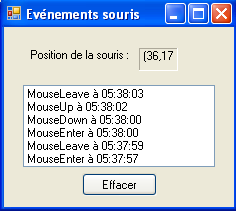 |
Finally, the code for the Clear button click handler:
        private void buttonClear_Click(object sender, EventArgs e) {
            listBoxEvts.Items.Clear();
}
7.4. Creating a Window with a Menu
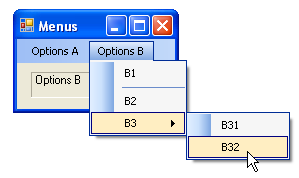
Now let's see how to create a window with a menu. We will create the following window:
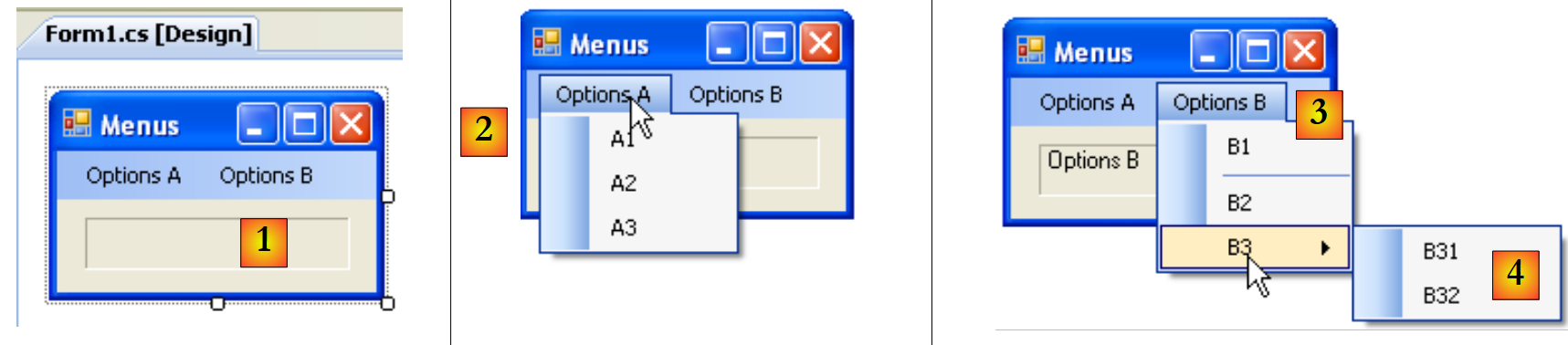 |
To create a menu, select the "MenuStrip" component from the "Menus & Toolbars" bar:
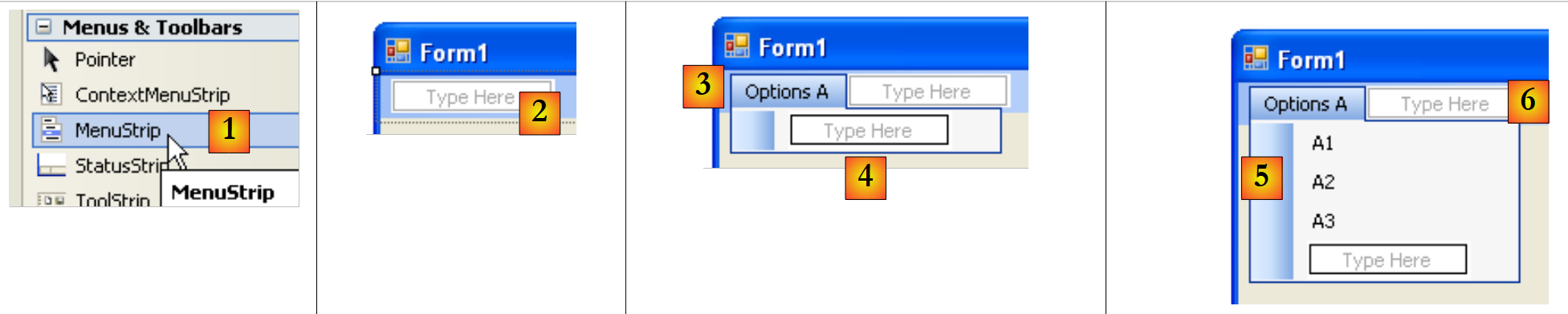 |
- [1]: Select the [MenuStrip] component
- [2]: A menu is then added to the form with empty fields labeled "Type Here." Simply enter the various menu options there.
- [3]: The label "Options A" has been entered. Move on to label [4].
- [5]: The labels for the A options have been entered. Move on to label [6]
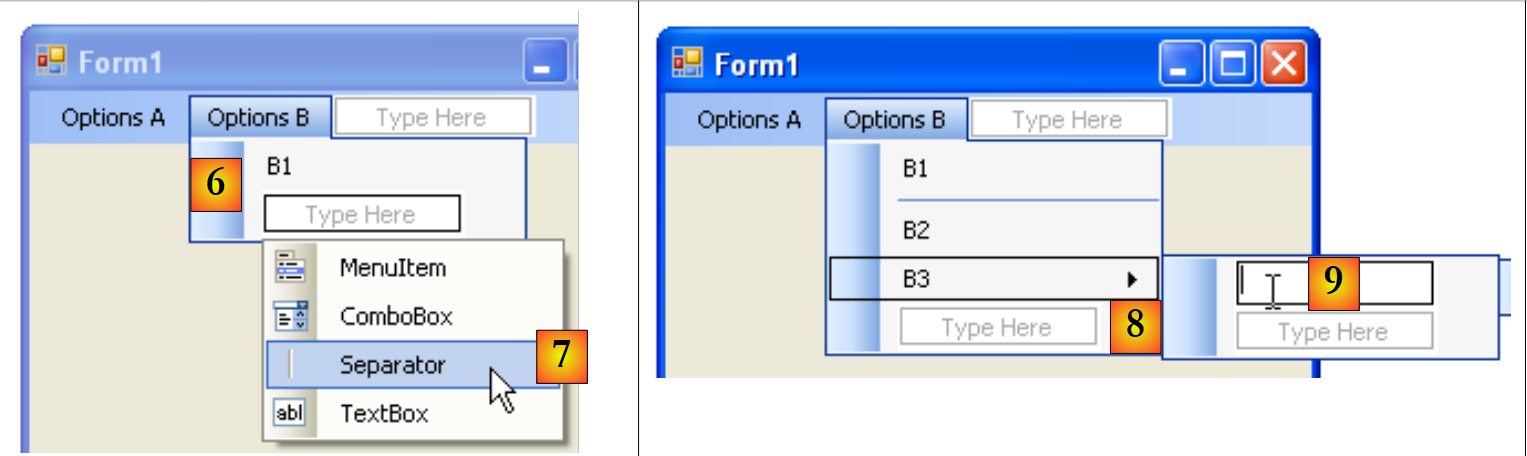 |
- [6]: The first options for B
- [7]: Under B1, insert a separator. This is available in a dropdown menu labeled "Type Here"
- [8]: To create a submenu, use the [8] arrow and type the submenu in [9]
Now you need to name the various components of the form:
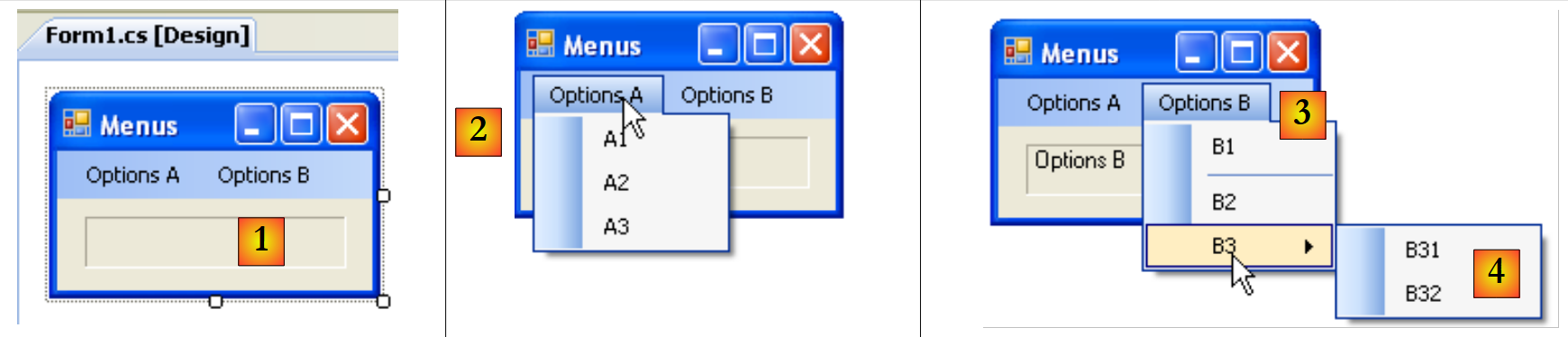 |
No. | type | name(s) | role |
1 | Label | labelStatus | to display the text of the clicked menu option |
2 | toolStripMenuItem | toolStripMenuItemOptionsA toolStripMenuItemA1 toolStripMenuItemA2 toolStripMenuItemA3 | menu options under the main option "Options A" |
3 | toolStripMenuItem | toolStripMenuItemOptionsB toolStripMenuItemB1 toolStripMenuItemB2 toolStripMenuItemB3 | menu options under the main option "Options B" |
4 | toolStripMenuItem | toolStripMenuItemB31 toolStripMenuItemB32 | Menu options under the main option "B3" |
Menu options are controls just like other visual components and have properties and events. For example, the properties of menu option A1 are as follows:
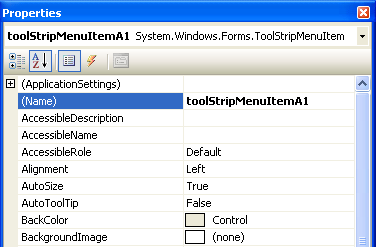 |
Two properties are used in our example:
the name of the menu control | |
the label of the menu option |
In the menu structure, select option A1 and right-click to access the control’s properties:
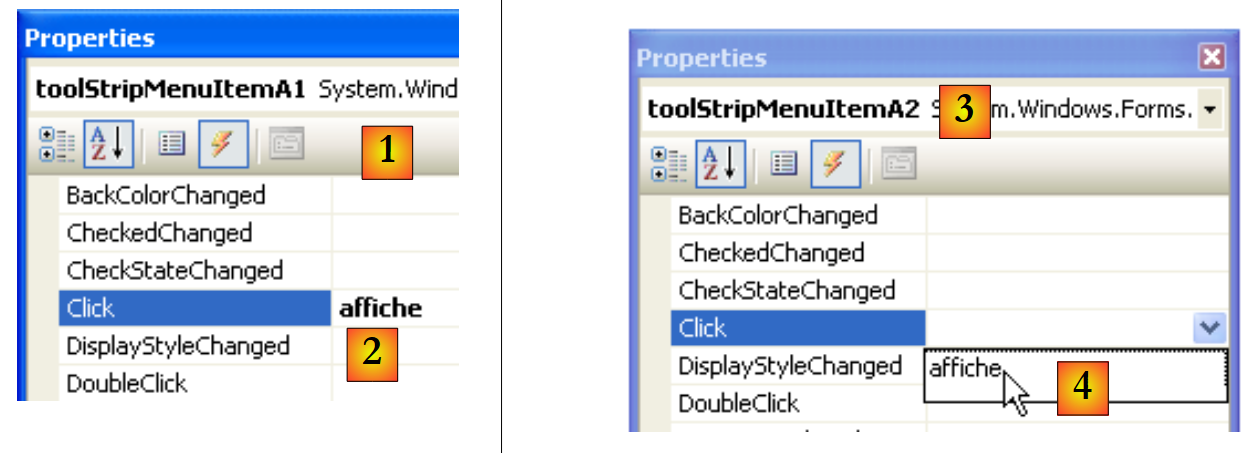 |
In the Events tab [1], we associate the display method [2] with the Click event. This means that we want a click on option A1 to be handled by a method called display. Visual Studio automatically generates the display method in the code window:
private void display(object sender, EventArgs e) {
        }
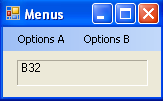
In this method, we will simply display the Text property of the clicked menu option in the labelStatut label:
private void display(object sender, EventArgs e) {
            // Displays the name of the selected submenu in the TextBox
            labelStatus.Text = ((ToolStripMenuItem)sender).Text;
}
The source of the sender event is of type object. The menu options are of type ToolStripMenuItem, so we must cast from object to ToolStripMenuItem.
For all menu options, we set the click handler to the display method [3,4].
Let’s run the application and select a menu item:
 |  |
7.5. Non-visual components
We will now look at a number of non-visual components: these are used during design but are not visible at runtime.
7.5.1. , OpenFileDialog, and SaveFileDialog dialog boxes
We will build the following application:
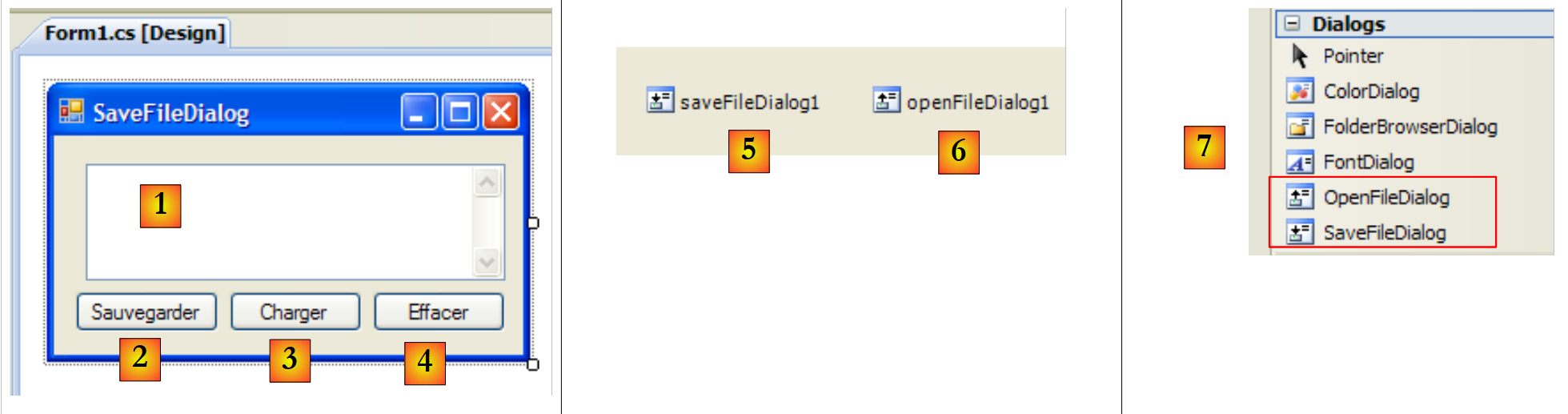 |
The controls are as follows:
No. | Type | name | role |
1 | TextBox | TextBoxLines | text typed by the user or loaded from a file MultiLine=True, ScrollBars=Both, AccepReturn=True, AcceptTab=True |
2 | Button | SaveButton | saves the text from [1] to a text file |
3 | Button | buttonLoad | allows you to load the contents of a text file into [1] |
4 | Button | buttonClear | clears the contents of [1] |
5 | SaveFileDialog | saveFileDialog1 | component that allows you to choose the name and location of the file to save [1]. This component is dragged from the toolbar [7] and simply dropped onto the form. It is then saved but does not take up any space on the form. It is a non-visual component. |
6 | OpenFileDialog | openFileDialog1 | component that allows you to select the file to load into [1]. |
The code associated with the Delete button is simple:
        private void buttonClear_Click(object sender, EventArgs e) {
            // set the TextBox to an empty string
            textBoxLines.Text = "";
}
We will use the following properties and methods of the SaveFileDialog class:
Field | Type | Role |
Property | the file types available in the file type drop-down list in the | |
Property | The number of the file type suggested by default in the list above. Starts at 0. | |
Property | The directory initially displayed for saving the file | |
Property | The name of the backup file ( ) specified by the user | |
Method | Method that displays the backup dialog box. Returns a DialogResult. |
The ShowDialog method displays a dialog box similar to the following:
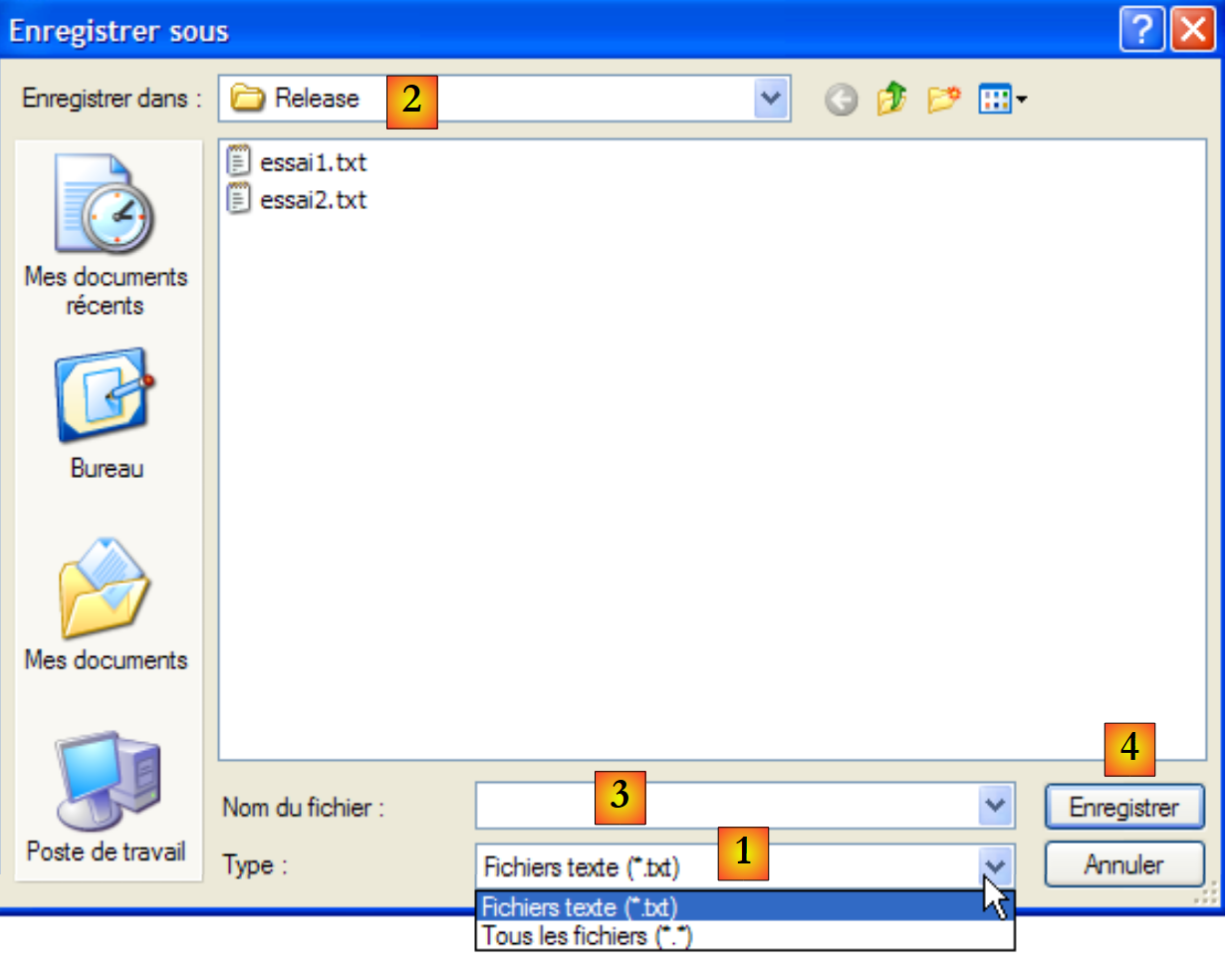 |
drop-down list built from the Filter property. The default file type is determined by FilterIndex | |
current folder, set by InitialDirectory if this property has been specified | |
Name of the file selected or typed directly by the user. Will be available in the FileName property | |
Save/Cancel buttons. If the Save button is used, the ShowDialog function returns the result DialogResult.OK |
The save procedure can be written as follows:
private void buttonSave_Click(object sender, System.EventArgs e) {
            // save the text box to a text file
            // configure the savefileDialog1 dialog box
            saveFileDialog1.InitialDirectory = Application.ExecutablePath;
            saveFileDialog1.Filter = "Text files (*.txt)|*.txt|All files (*.*)|*.*";
            saveFileDialog1.FilterIndex = 0;
            // display the dialog box and retrieve its result
            if (saveFileDialog1.ShowDialog() == DialogResult.OK) {
                // retrieve the file name
                string filename = saveFileDialog1.FileName;
                StreamWriter file = null;
                try {
                    // open the file for writing
                    file = new StreamWriter(fileName);
                    // Write the text to the file
                    file.Write(textBoxLines.Text);
                } catch (Exception ex) {
                    // problem
                    MessageBox.Show("Problem writing the file (" +
                    ex.Message + ")", "Error", MessageBoxButtons.OK, MessageBoxIcon.Error);
                    return;
                } finally {
                    // close the file
                    if (file != null) {
                        file.Dispose();
                    }
                }
            }
        }
- Line 4: Set the initial directory (InitialDirectory) to the directory (Application.ExecutablePath) containing the application's executable.
- line 5: We specify the file types to display. Note the filter syntax: filter1|filter2|..|filteren where filteri = Text|file pattern. Here, the user can choose between *.txt and *.* files.
- line 6: We set the file type to be presented first to the user. Here, index 0 refers to *.txt files.
- Line 8: The dialog box is displayed, and its result is retrieved. While the dialog box is displayed, the user no longer has access to the main form (this is known as a modal dialog box). The user specifies the name of the file to save and exits the dialog box either by clicking the Save button, the Cancel button, or by closing the dialog box. The result of the ShowDialog method is DialogResult.OK only if the user used the Save button to exit the dialog box.
- Once this is done, the name of the file to be created is now in the FileName property of the saveFileDialog1 object. We then return to the standard process of creating a text file. We write the contents of the TextBox—textBoxLignes.Text—while handling any exceptions that may occur.
The OpenFileDialog class is very similar to the SaveFileDialog class. You will use the same methods and properties as before. The ShowDialog method displays a dialog box similar to the following:
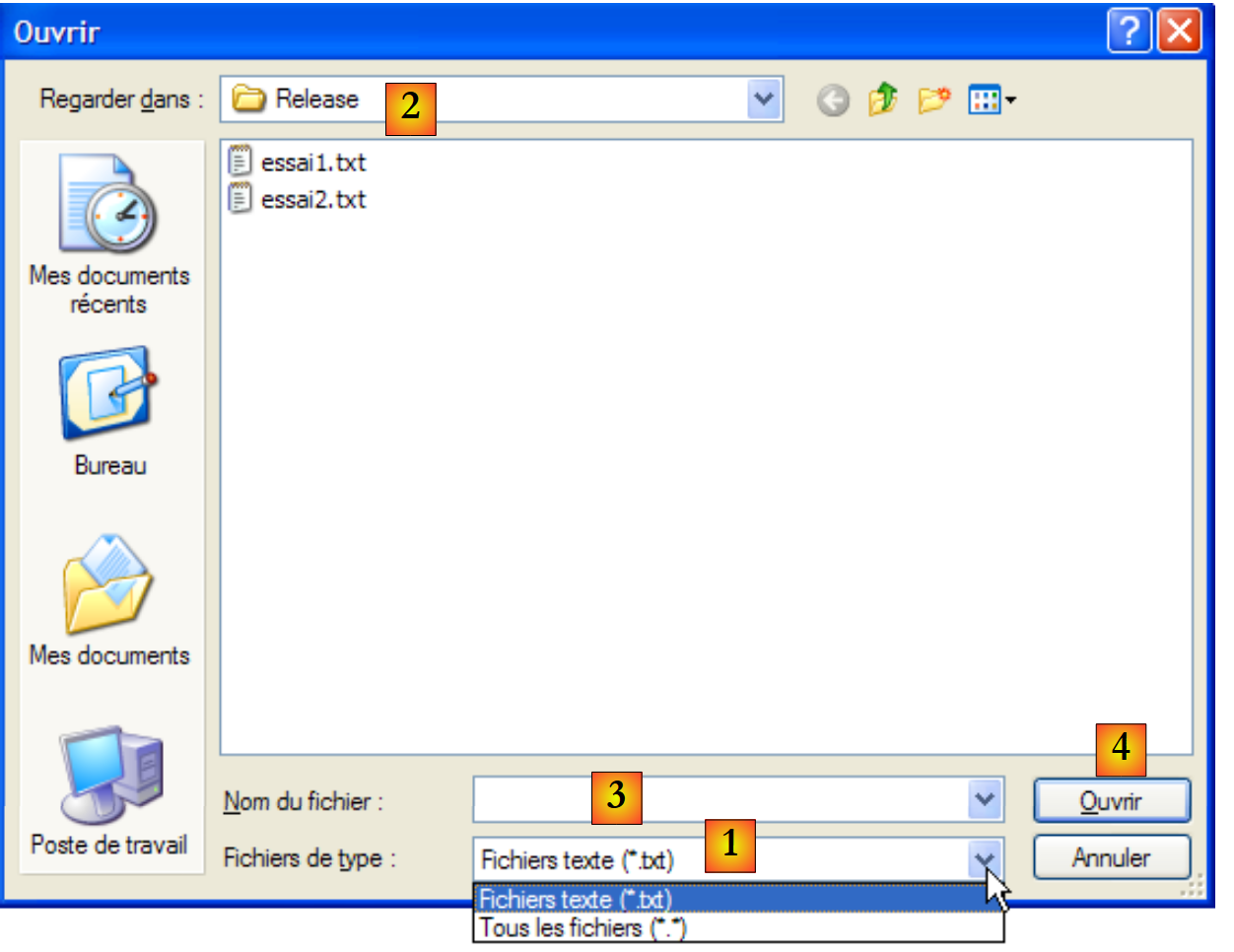 |
drop-down list built from the Filter property. The default file type is set by FilterIndex | |
current folder, set by InitialDirectory if this property has been specified | |
Name of the file selected or typed directly by the user. Will be available in the FileName property | |
Open/Cancel buttons. If the Open button is used, the ShowDialog function returns the result DialogResult.OK |
The procedure for loading the text file can be written as follows:
private void buttonCharger_Click(object sender, EventArgs e) {
            // load a text file into the text box
            // configure the openfileDialog1 dialog box
            openFileDialog1.InitialDirectory = Application.ExecutablePath;
            openFileDialog1.Filter = "Text files (*.txt)|*.txt|All files (*.*)|*.*";
            openFileDialog1.FilterIndex = 0;
            // display the dialog box and retrieve its result
            if (openFileDialog1.ShowDialog() == DialogResult.OK) {
                // retrieve the file name
                string fileName = openFileDialog1.FileName;
                StreamReader file = null;
                try {
                    // open the file for reading
                    file = new StreamReader(fileName);
                    // read the entire file and display it in the TextBox
                    textBoxLines.Text = file.ReadToEnd();
                } catch (Exception ex) {
                    // problem
                    MessageBox.Show("Problem reading the file (" +
                    ex.Message + ")", "Error", MessageBoxButtons.OK, MessageBoxIcon.Error);
                    return;
                } finally {
                    // close the file
                    if (file != null) {
                        file.Dispose();
                    }
                }//finally
            }//if
        }
- Line 4: Set the initial directory (InitialDirectory) to the directory (Application.ExecutablePath) containing the application's executable.
- line 5: We specify the file types to display. Note the filter syntax: filter1|filter2|..|filteren where filteri = Text|file pattern. Here, the user can choose between *.txt and *.* files.
- line 6: We set the file type to be presented first to the user. Here, index 0 refers to *.txt files.
- Line 8: The dialog box is displayed, and its result is retrieved. While the dialog box is displayed, the user no longer has access to the main form (this is known as a modal dialog box). The user specifies the name of the file to save and exits the dialog box either by clicking the Open button, the Cancel button, or by closing the dialog box. The result of the ShowDialog method is DialogResult.OK only if the user used the Save button to exit the dialog box.
- Once this is done, the name of the file to be created is now in the FileName property of the openFileDialog1 object. We then return to the standard reading of a text file. Note, on line 16, the method that allows the entire file to be read.
7.5.2. FontColor and ColorDialog Dialog Boxes
We continue the previous example by adding two new buttons and two new non-visual controls:
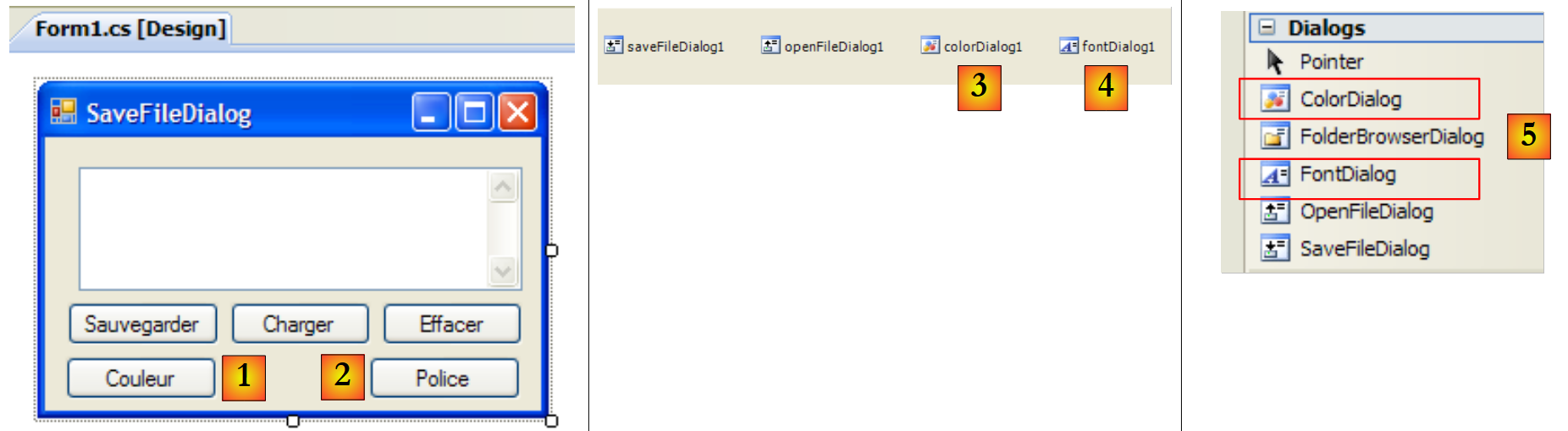 |
67
No. | type | name | role |
1 | Button | buttonColor | to set the text color of the TextBox |
2 | Button | buttonFont | to set the font of the TextBox |
3 | ColorDialog | colorDialog1 | the component that allows you to select a color—taken from the toolbox [5]. |
4 | FontDialog | colorDialog1 | the component that allows you to select a font—taken from the toolbox [5]. |
The FontDialog and ColorDialog classes have a ShowDialog method analogous to the ShowDialog method of the OpenFileDialog and SaveFileDialog classes.
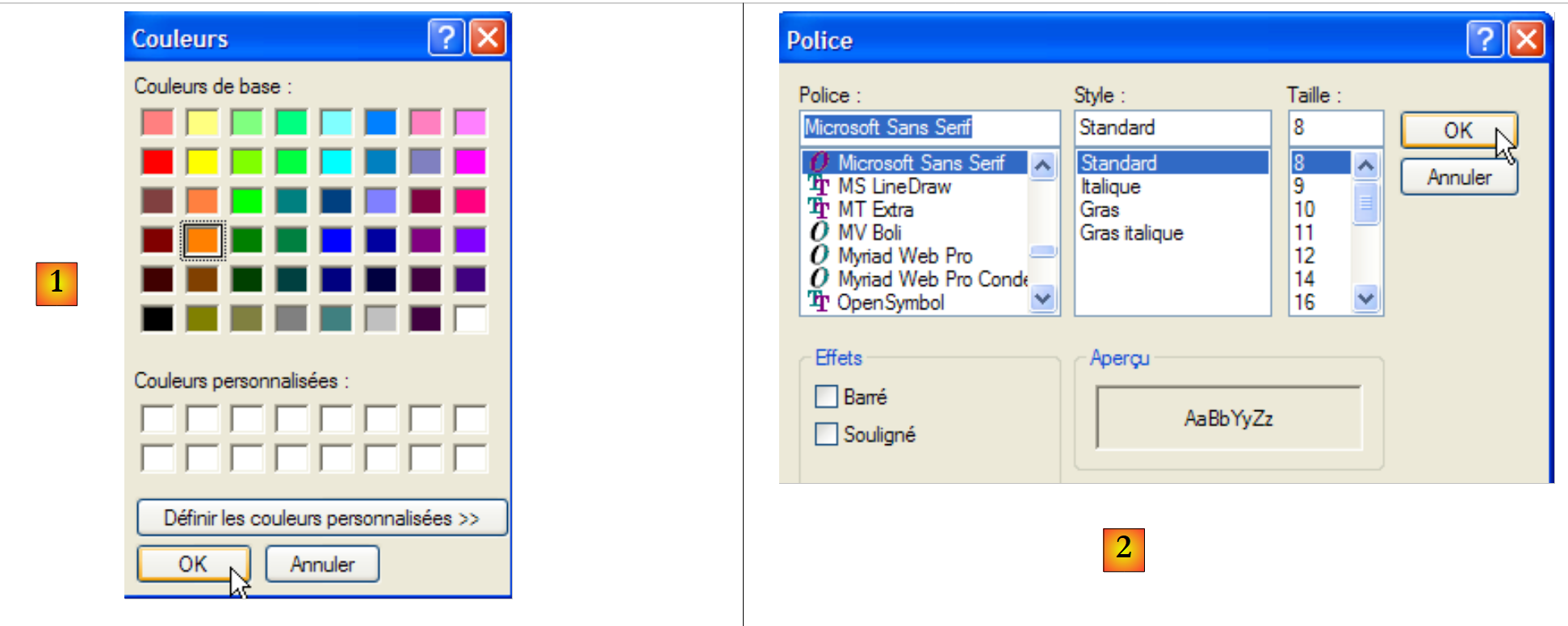 |
The ShowDialog method of the ColorDialog class allows you to choose a color [1]. The one in the FontDialog class allows you to choose a font [2]:
- [1]: if the user closes the dialog box using the OK button, the result of the ShowDialog method is DialogResult.OK and the selected color is in the Color property of the ColorDialog object used.
- [2]: If the user closes the dialog box using the OK button, the result of the ShowDialog method is DialogResult.OK, and the selected font is stored in the Font property of the FontDialog object used.
We now have the elements to handle clicks on the Color and Font buttons:
        private void buttonColor_Click(object sender, EventArgs e) {// select a text color
            if (colorDialog1.ShowDialog() == DialogResult.OK) {
                // change the TextBox's ForeColor property
                textBoxLines.ForeColor = colorDialog1.Color;
            }//if
        }

        private void buttonPolice_Click(object sender, EventArgs e) {
            // Select a font
            if (fontDialog1.ShowDialog() == DialogResult.OK) {
                // change the Font property of the TextBox
                textBoxLines.Font = fontDialog1.Font;
}
- line [4]: The [ForeColor] property of a TextBox component specifies the [Color] type of the TextBox characters. Here, this color is the one selected by the user in the [ColorDialog] dialog box.
- line [12]: The [Font] property of a TextBox component specifies the font of the TextBox characters. Here, this font is the one selected by the user in the [FontDialog] dialog box.
7.5.3. Timer
Here, we will write the following application:
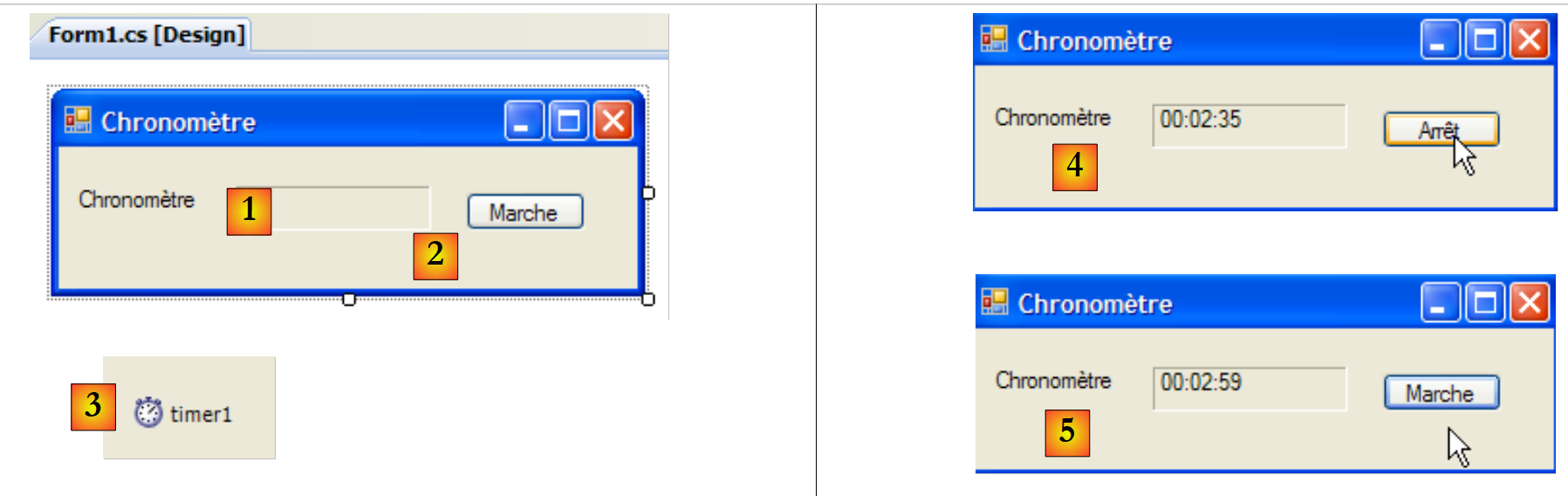 |
No. | Type | Name | Role |
1 | Label | labelChrono | displays a stopwatch |
2 | Button | buttonStopStart | Stop/Start button for the stopwatch |
3 | Timer | timer1 | component emitting an event every second |
In [4], we see the timer running; in [5], the timer is stopped.
To change the content of the LabelChrono label every second, we need a component that generates an event every second, an event that we can intercept to update the stopwatch display. This component is the Timer [1] available in the Components toolbox [2]:
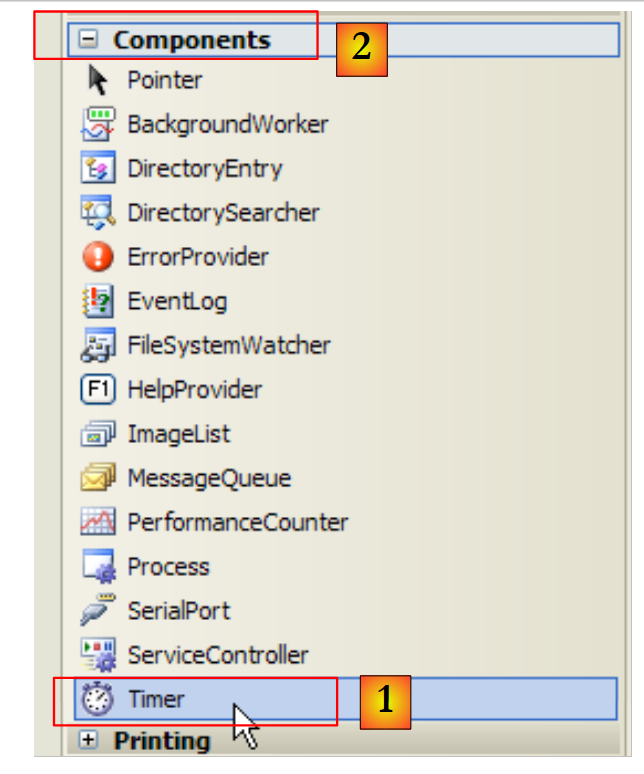 |
The Timer component properties used here are as follows:
number of milliseconds after which a Tick event is emitted. | |
The event produced at the end of the Interval milliseconds | |
sets the timer to active (true) or inactive (false) |
In our example, the timer is called timer1 and timer1.Interval is set to 1000 ms (1s). The Tick event will therefore occur every second. Clicking the Stop/Start button is handled by the following buttonArretMarche_Click procedure:
using System;
using System.Windows.Forms;

namespace Chap5 {
    public partial class Form1 : Form {
        public Form1() {
            InitializeComponent();
        }

        // instance variable
        private DateTime start = DateTime.Now;
...
        private void buttonStopStart_Click(object sender, EventArgs e) {
            // Stop or Start?
            if (buttonArretMarche.Text == "Start") {
                // record the start time
                start = DateTime.Now;
                // display it
                labelChrono.Text = "00:00:00";
                // Start the timer
                timer1.Enabled = true;
                // change the button label
                buttonArretMarche.Text = "Stop";
                // end
                return;
            }//
            if (buttonArretMarche.Text == "Stop") {
                // stop the timer
                timer1.Enabled = false;
                // change the button label
                buttonOnOff.Text = "On";
                // end
                return;
            }
        }

    }
}
- Line 13: the procedure that handles the click on the Stop/Start button.
- line 15: the label of the Start/Stop button is either "Stop" or "Start". We therefore have to check this label to determine what to do.
- line 17: if the label is "Start", we store the start time in a variable called `start`, which is a global variable (line 11) of the form object
- Line 19: Initializes the content of the LabelChrono label
- Line 21: The timer is started (Enabled=true)
- Line 23: The button label changes to "Stop".
- Line 27: In the case of "Stop"
- line 29: the timer is stopped (Enabled=false)
- line 31: the button label changes to "Start".
We still need to handle the Tick event on the timer1 object, which occurs every second:
private void timer1_Tick(object sender, EventArgs e) {
            // One second has elapsed
            DateTime now = DateTime.Now;
            TimeSpan duration = now - start;
            // we update the timer
            labelChrono.Text = duration.Hours.ToString("d2") + ":" + duration.Minutes.ToString("d2") + ":" + duration.Seconds.ToString("d2");
        }
- Line 3: We record the current time
- line 4: we calculate the time elapsed since the stopwatch was started. We obtain a TimeSpan object that represents a duration in time.
- line 6: this must be displayed in the timer in the format hh:mm:ss. To do this, we use the Hours, Minutes, and Seconds properties of the TimeSpan object, which represent the hours, minutes, and seconds of the duration, respectively. We display them using the ToString("d2") format to ensure a two-digit display.
7.6. Example Application - version 6
We return to the IMPOTS sample application. The latest version was discussed in Section 6.4. It was the following three-tier application:
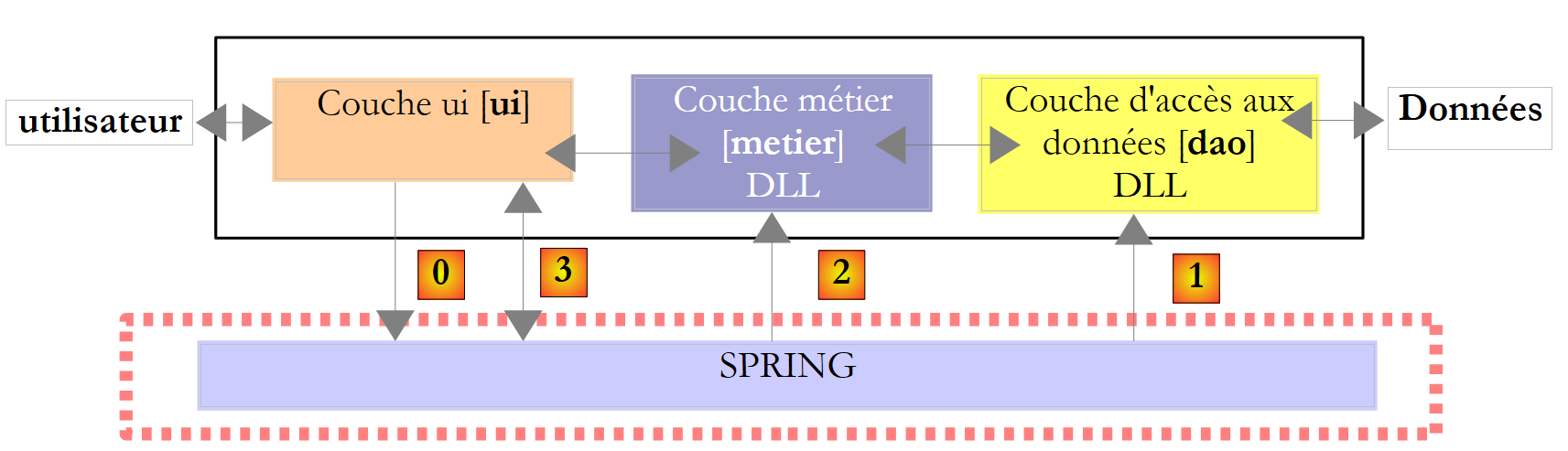 |
- the [business] and [DAO] layers were encapsulated in DLLs
- the [ui] layer was a [console] layer
- the instantiation of the layers and their integration into the application were handled by Spring.
In this new version, the [ui] layer will be provided by the following graphical interface:
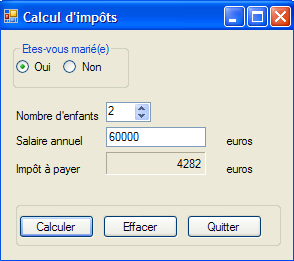 |
7.6.1. The Visual Studio Solution
The Visual Studio solution consists of the following elements:
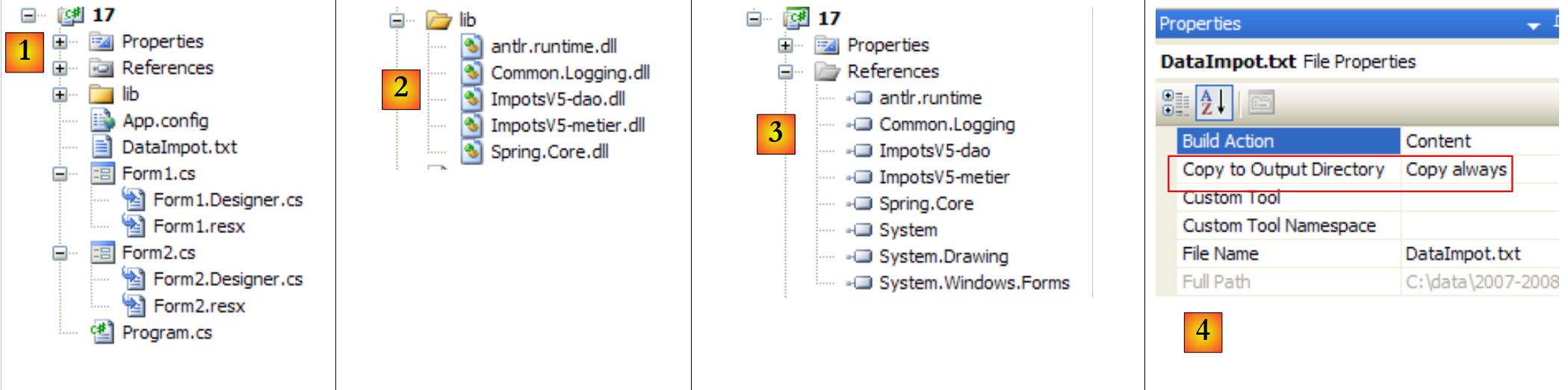 |
- [1]: The project consists of the following elements:
- [Program.cs]: the class that launches the application
- [Form1.cs]: the class for the first form
- [Form2]: the class for a second form
- [lib] detailed in [2]: this contains all the DLLs required for the project:
- [ImpotsV5-dao.dll]: the DLL for the [dao] layer generated in section 6.4.3;
- [ImpotsV5-metier.dll]: the DLL for the [dao] layer generated in section 6.4.4;
- [Spring.Core.dll], [Common.Logging.dll], [antlr.runtime.dll]: the Spring DLLs already used in the previous version (see section 6.4.6).
- [references] detailed in [3]: the project references. A reference has been added for each of the DLLs in the [lib] folder
- [App.config]: the project configuration file. It is identical to the one from the previous version described in section 6.4.6;
- [DataImpot.txt]: the tax bracket file configured to be automatically copied to the project’s runtime folder [4]
The [Form1] form is the form for entering the tax calculation parameters [A] already presented above. The [Form2] form [B] is used to display an error message:
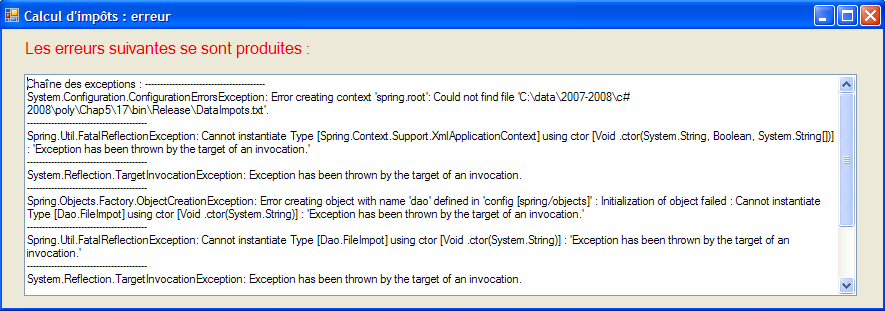 |
7.6.2. The [ Program.cs] class
The [Program.cs] class launches the application. Its code is as follows:
using System;
using System.Windows.Forms;
using Spring.Context;
using Spring.Context.Support;
using Metier;
using System.Text;

namespace Chap5 {
    static class Program {
        /// <summary>
        /// The main entry point for the application.
        /// </summary>
        [STAThread]
        static void Main() {
            // code generated by Visual Studio
            Application.EnableVisualStyles();
            Application.SetCompatibleTextRenderingDefault(false);

            // --------------- Developer code
            // instantiate the [business] and [DAO] layers
            IApplicationContext ctx = null;
            Exception ex = null;
            IImpotMetier business = null;
            try {
                // Spring context
                ctx = ContextRegistry.GetContext();
                // request a reference to the [business] layer
                business = (IImpotMetier)ctx.GetObject("business");
            } catch (Exception e1) {
                // store the exception
                ex = e1;
            }
            // form to display
            Form form = null;
            // Was there an exception?
            if (ex != null) {
                // yes - create the error message to display
                StringBuilder errorMessage = new StringBuilder(String.Format("Exception stack trace: {0}{1}", "".PadLeft(40, '-'), Environment.NewLine));
                Exception e = ex;
                while (e != null) {
                    errorMessage.Append(String.Format("{0}: {1}{2}", e.GetType().FullName, e.Message, Environment.NewLine));
                    errorMessage.Append(String.Format("{0}{1}", "".PadLeft(40, '-'), Environment.NewLine));
                    e = e.InnerException;
                }
                // Create an error window to which the error message to be displayed is passed
                Form2 form2 = new Form2();
                form2.ErrorMessage = errorMessage.ToString();
                // this will be the window to display
                form = form2;
            } else {
                // everything went well
                // create the graphical interface [Form1] to which we pass the reference from the [business] layer
                Form1 form1 = new Form1();
                form1.Business = business;
                // this will be the window to display
                form = form1;
            }
            // display window
            Application.Run(form);
        }
    }
}
The code generated by Visual Studio has been completed starting from line 19. The application uses the following [ App.config] file:
<?xml version="1.0" encoding="utf-8" ?>
<configuration>

    <configSections>
        <sectionGroup name="spring">
            <section name="context" type="Spring.Context.Support.ContextHandler, Spring.Core" />
            <section name="objects" type="Spring.Context.Support.DefaultSectionHandler, Spring.Core" />
        </sectionGroup>
    </configSections>

    <spring>
        <context>
            <resource uri="config://spring/objects" />
        </context>
        <objects xmlns="http://www.springframework.net">
            <object name="dao" type="Dao.FileImpot, ImpotsV5-dao">
                <constructor-arg index="0" value="DataImpot.txt"/>
            </object>
            <object name="business" type="Business.BusinessTax, TaxesV5-business">
                <constructor-arg index="0" ref="dao"/>
            </object>
        </objects>
    </spring>
</configuration>
- lines 24-32: using the previous [App.config] file to instantiate the [business] and [DAO] layers
- line 26: using the [App.config] file
- line 28: retrieving a reference to the [business] layer
- line 31: logging any exceptions
- line 34: the form reference will specify the form to display (form1 or form2)
- Lines 36–50: If an exception occurred, prepare to display a [Form2] form
- lines 38–44: constructing the error message to display. It consists of concatenating the error messages from the various exceptions in the exception chain.
- line 46: a form of type [Form2] is created.
- line 47: as we will see later, this form has a public property MsgError, which is the error message to be displayed:
public string MsgError { private get; set; }
We populate this property.
- Line 49: The form reference that designates the window to be displayed is initialized. Note the polymorphism at work. form2 is not of type [Form] but of type [Form2], a type derived from [Form].
- Lines 50–57: No exception occurred. We are preparing to display a form of type [Form1].
- Line 53: A form of type [Form1] is created.
- Line 54: As we will see later, this form has a public Metier property that is a reference to the [metier] layer:
public IImpotMetier Metier { private get; set; }
We populate this property.
- Line 56: The form reference, which designates the window to be displayed, is initialized. Note again the polymorphism at work. form1 is not of type [Form] but of type [Form1], a type derived from [Form].
- Line 59: The window referenced by form is displayed.
7.6.3. The [Form1] form
In [Design] mode, the [Form1] form is as follows:
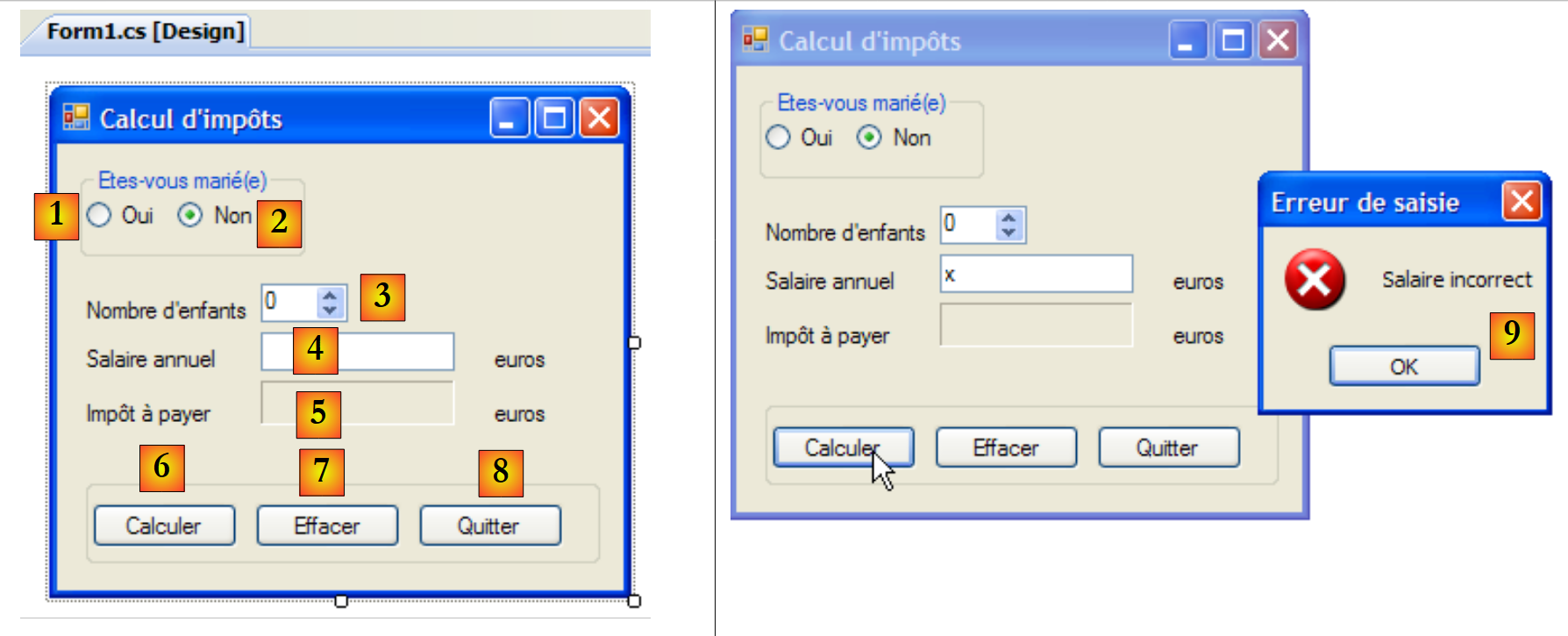 |
The controls are as follows
No. | Type | Name | role |
0 | GroupBox | groupBox1 | Text=Are you married? |
1 | RadioButton | radioButtonYes | checked if married |
2 | RadioButton | radioButtonNo | Checked if not married Checked=True |
3 | NumericUpDown | numericUpDownChildren | number of children of the taxpayer' Minimum=0, Maximum=20, Increment=1 |
4 | TextBox | textSalary | taxpayer's annual salary in euros |
5 | Label | taxLabel | amount of tax due BorderStyle=Fixed3D |
6 | Button | buttonCalculate | Starts the tax calculation |
7 | Button | buttonClear | resets the form to its state when it was loaded |
8 | Button | buttonExit | to exit the application |
Form operating rules
- The Calculate button remains disabled as long as the salary field is empty
- If, when the calculation is run, the salary turns out to be incorrect, an error is reported [9]
The class code is as follows:
using System.Windows.Forms;
using Metier;
using System;

namespace Chap5 {
    public partial class Form1 : Form {
        // [business] layer
        public IImpotMetier Metier { private get; set; }

        public Form1() {
            InitializeComponent();
        }

        private void buttonCalculate_Click(object sender, System.EventArgs e) {
            // Is the salary correct?
            int salary;
            bool ok = int.TryParse(textSalaire.Text.Trim(), out salary);
            if (!ok || salary < 0) {
                // error message
                MessageBox.Show("Invalid salary", "Input error", MessageBoxButtons.OK, MessageBoxIcon.Error);
                // return to the incorrect field
                textSalaire.Focus();
                // Select text in the input field
                textSalary.SelectAll();
                // return to the input interface
                return;
            }
            // The salary is correct—we can calculate the tax
            labelTax.Text = Job.CalculateTax(radioButtonYes.Checked, (int)numericUpDownChildren.Value, salary).ToString();
        }

        private void buttonQuitter_Click(object sender, System.EventArgs e) {
            Environment.Exit(0);
        }

        private void buttonClear_Click(object sender, System.EventArgs e) {
            // Clear form
            labelImpot.Text = "";
            numericUpDownEnfants.Value = 0;
            textSalary.Text = "";
            radioButtonNo.Checked = true;
        }

        private void textSalaire_TextChanged(object sender, EventArgs e) {
            // [Calculate] button state
            buttonCalculate.Enabled = textSalary.Text.Trim() != "";
        }

    }
}
We will only comment on the important parts:
- line [8]: the public Metier property that allows the launch class [Program.cs] to inject a reference to the [metier] layer into [Form1].
- line [14]: the tax calculation procedure
- lines 15–27: checking the validity of the salary (an integer >= 0).
- line 29: calculation of the tax using the [CalculateTax] method of the [business] layer. Note the simplicity of this operation, achieved by encapsulating the [business] layer in a DLL.
7.6.4. The [ Form2] form
In [Design] mode, the [Form2] form looks like this:
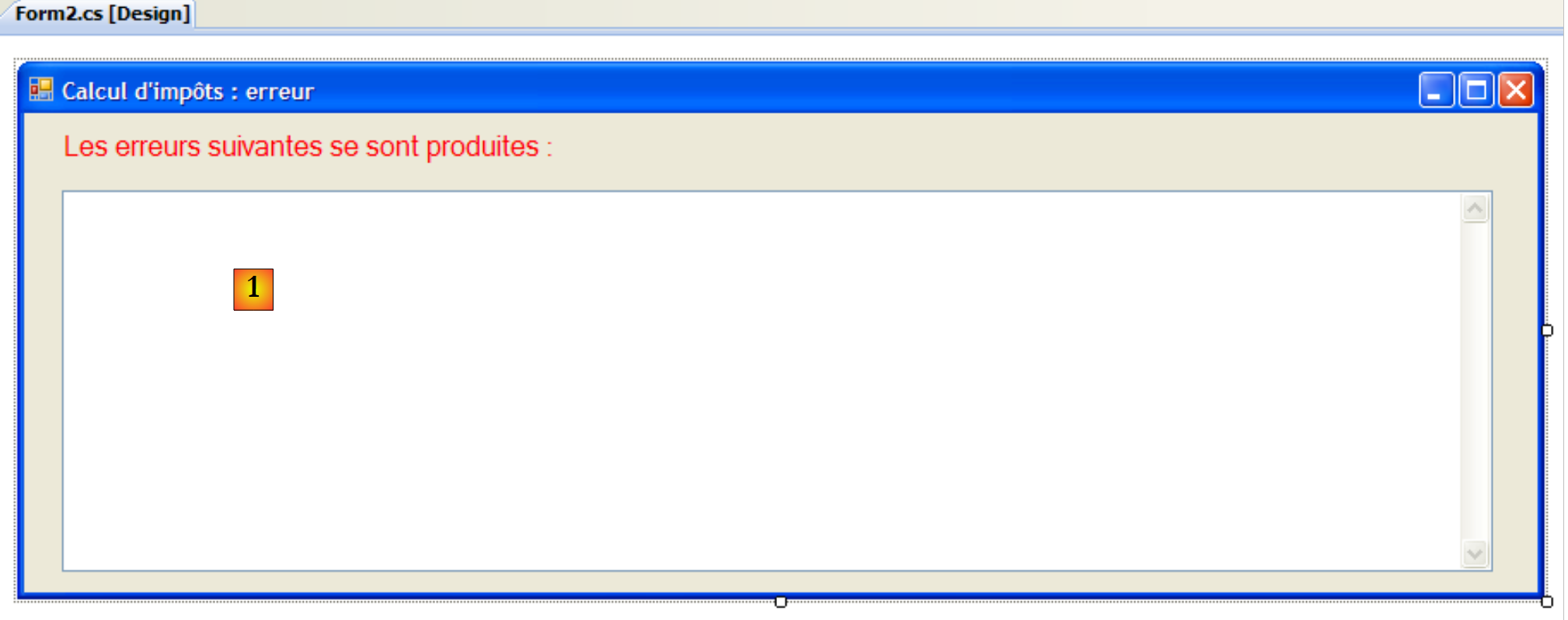 |
The controls are as follows
No. | Type | name | role |
1 | TextBox | errorTextBox | Multiline=True, Scrollbars=Both |
The class code is as follows:
using System.Windows.Forms;

namespace Chap5 {
    public partial class Form2 : Form {
        // error message
        public string ErrorMessage { private get; set; }

        public Form2() {
            InitializeComponent();
        }

        private void Form2_Load(object sender, System.EventArgs e) {
            // Display the error message
            textBoxError.Text = errorMessage;
            // deselect all text
            errorTextBox.Select(0, 0);
        }
    }
}
- Line 6: The public MsgError property, which allows the launch class [Program.cs] to inject the error message to be displayed into [Form2]. This message is displayed during the Load event handler, lines 12–16.
- line 14: the error message is placed in the TextBox
- line 16: the selection made in the previous operation is removed. [TextBox].Select(start,length) selects (highlights) length characters starting from character #start. [TextBox].Select(0,0) deselects all text.
7.6.5. Conclusion
Let’s revisit the three-tier architecture used:
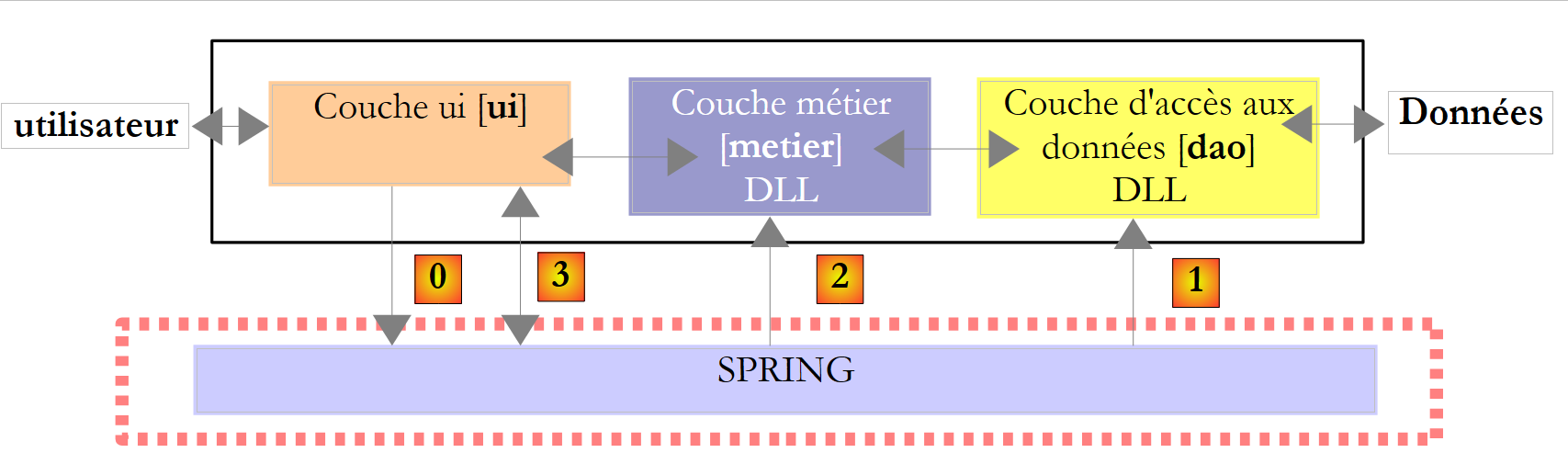 |
This architecture allowed us to replace the console implementation of the existing [ui] layer with a graphical implementation, without changing anything in the [business] and [dao] layers. We were able to focus on the [ui] layer without worrying about potential impacts on the other layers. This is the main advantage of three-tier architectures. We’ll see another example of this later, when the [dao] layer—which currently processes data from a text file—is replaced by a [dao] layer that processes data from a database. We’ll see that this can be done without affecting the [ui] and [business] layers.