1. Introduction
The document’s PDF is HERE.
The document’s codes are HERE.
This document is a product of Anthropic’s AI Claude. It follows the course “Step-by-Step Introduction to the React Web Framework,” from which it borrows the outline, examples, and case study, while changing the target:
- In the courses [React], [Vue.js], and [Angular], the application runs in a browser; it is built using HTML, CSS, and [JavaScript];
- In this course, the application is a mobile app, written using the [Flutter] framework and the [Dart] language, which runs on a [Android] phone. The same code, without any changes, also generates a web application (and a [Windows], [macOS], or [Linux] application).
The server, however, remains the same: it is the JSON [RdvMedecins] server from previous lessons, written using [NestJS]. And the application screens are the ones that readers of the other lessons are already familiar with (login with CAPTCHA, doctor’s schedule, appointment window, patient portal, doctor and client management, account creation, English and French), adapted for a phone screen.
The document follows the same structure as its predecessors: first, numerous short examples, each focusing on a concept from [Flutter], followed by a complete case study—the [Flutter] client for the [RdvMedecins] application—with all files fully commented. The 25 examples have the same numbers as those in the [React] course: Readers familiar with [React], [Vue.js], or [Angular] will find the same examples, written in the style of [Flutter].
A course on this topic already exists: An Example of a Flutter Client/Server / NestJS (2026), which presents a complete client right from the start. This document differs in its approach: we learn [Flutter] step by step, through small examples, before tackling the complete client; and the server is treated as a black box, of which only the API and JSON are of interest to us.
A basic understanding of the [Dart] language is assumed: these fundamentals are covered in the course “Introduction to the Dart Language Through Examples” (2026). However, language features specific to [Flutter] (named parameters, classes, [async] / [await], collections, etc.) are reviewed throughout the examples as they are used.
1.1. The Role of Flutter in a Client/Server Application
The application has two parts, which communicate with each other only through HTTP requests:
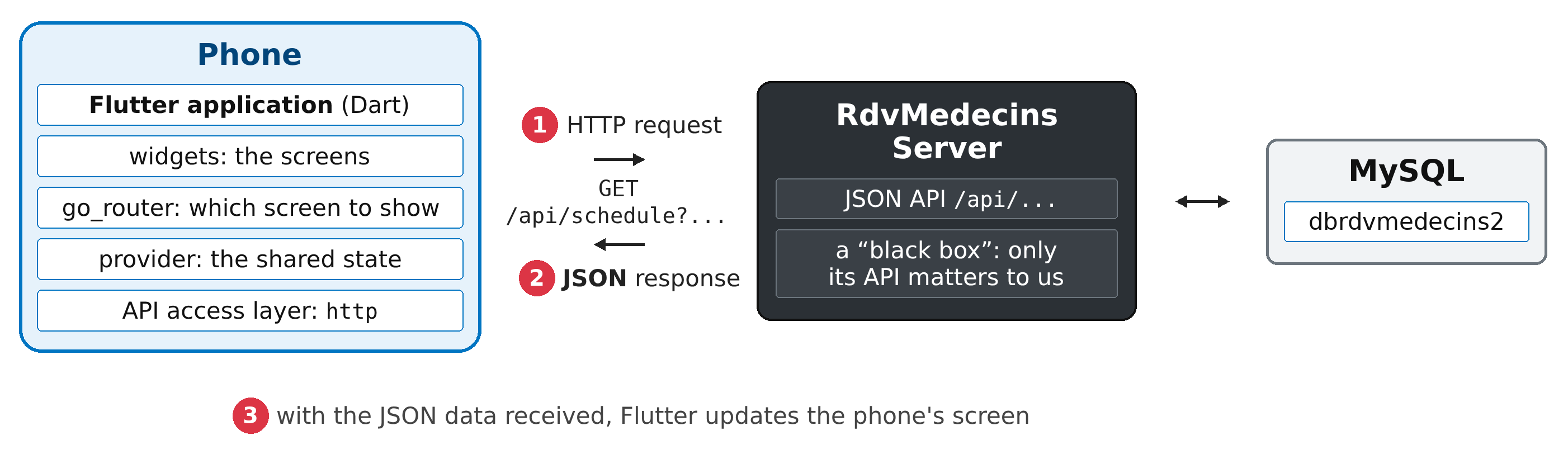
- 1: The [Flutter] application, running on the phone, sends a HTTP request to the server, for example, [GET /api/schedule?doctorId=1&day=2026-10-05];
- 2: The server responds with data JSON: this doctor’s schedule for that day. It does not generate any pages;
- 3: Using this data, [Flutter] updates the phone’s screen.
This is exactly the architecture of the clients [React], [Vue.js], and [Angular]: the only difference is what generates the display. Whereas a browser builds a page from HTML and CSS, [Flutter] draws every pixel on the screen itself, using its own graphics engine. It does not use the system’s components (the buttons from [Android] or [iOS]): it mimics them or provides its own. This is what allows it to display the same application, down to the pixel, on a [Android] phone, a [iPhone], in a browser, or on a computer.
[Flutter] is a framework created by [Google] and released in 2018. It is currently the most widely used framework for writing mobile apps for [Android] and [iOS] using a single codebase. It is based on three core concepts:
- everything is a widget: the screen is described by a tree of widgets, objects that each represent a part of the interface—such as text, a button, a margin, a column, or an entire screen. You create your own widgets by assembling those provided by [Flutter];
- the interface is a function of state: a widget has a method [build()] that describes what to display based on its data. When the data changes ([setState()]), [Flutter] calls [build()], compares the new tree to the old one, and redraws what has changed. We never write code that modifies the screen: we describe the screen based on its state. Readers of the [React] course will recognize this principle: it is the same as that of components and [useState];
- a language, [Dart], compiled into machine code for the phone (resulting in fast applications), or into [JavaScript] or [WebAssembly] for the browser. During development, [Dart] enables hot reloading: a code change is applied to the running application in one second, without losing its state.
Like [React], [Flutter] is not an “all-in-one” framework for communicating with a server: the HTTP client, the router, shared state, and translations are provided by packages (libraries) published on the pub.dev website. This course uses the packages recommended in the [Flutter] documentation and maintained, for the most part, by the [Flutter] team itself: [http] (HTTP requests), [go_router] (the router), [provider] (shared state), [shared_preferences] (on-device storage), [intl] (dates and numbers in each language), [flutter_svg] (images SVG).
1.2. Tools Used
The examples were written and tested using the following tools (their installation is described in the appendix):
- SDK [Flutter] 3.44, which includes SDK [Dart] 3.12;
- the [Visual Studio Code] editor and its extension [Flutter] (which also installs the [Dart] extension);
- [Android Studio], only for its emulator manager, and SDK [Android]: an emulator [Android] (a simulated phone on the computer), or a real phone [Android] connected to the computer;
- the [Chrome] browser, for the web version of the applications;
- the DBMS [MySQL] (or [MariaDB]), for example, the one for [Laragon] under [Windows] and [Node.js]: these are required by the JSON server, as described in the chapter introducing it;
- the command-line tool [curl], which displays the raw HTTP responses.
The packages used are those from the [pubspec.yaml] files: [go_router] 16, [provider] 6, [http] 1.5, [shared_preferences] 2.5, [flutter_svg] 2, [intl], and the packages [flutter_localizations] and [flutter_test] included with [Flutter].
1.3. Screenshots
The screenshots in this document were generated automatically by [Flutter] tests ([test/captures] project folders): Each test launches an example, interacts with it as a user would (entering text, tapping buttons), and then instructs the [Flutter] engine to render the screen as an image file at the resolution of a [Android] phone (1080 x 2340 pixels). These are therefore actual screens from the app, rendered by the same engine as on the phone; the only elements missing are the phone’s status bar (time, battery) and the on-screen keyboard. The chapter on the first example shows the same app running on a [Android] emulator.
1.4. The Examples
The code in this document is organized into three folders:
The examples make up a single project, [Flutter], with each example located in a folder within [lib/]:
The platform-specific folders ([android/], [web/], [windows/]) are not provided in their entirety: these are small projects—[Android] (web) and [Windows]—that [Flutter] can generate, and which depend on the version of [Flutter] installed. You build them once, then download the packages in a console opened to the [examples_flutter] folder (in [VS Code]: Terminal menu / New Terminal):
[flutter create .] (the period indicates the current folder) completes the project without modifying existing files: the provided [android/app/src/main/AndroidManifest.xml] file (see Example 22) is preserved. If you skip this step, [flutter run] fails on a phone with a misleading message: “Build failed due to use of deleted Android v1 embedding” ([Flutter] cannot find the [Android] project and assumes it is very old).
Then run an example by specifying the [main.dart] file with the [-t] option (for “target”):
[flutter run] asks which device to run the application on if it finds multiple devices (an emulator [Android], [Chrome], [Windows]...). You can specify this using the [-d] option (for “device”):
While the application is running, the console accepts a few single-letter commands: r (hot reload: code changes are applied, and the state is preserved), R (hot restart: the application restarts from scratch), q (stop). In [VS Code], you can also open the example file [main.dart] and press F5; the device is then selected in the status bar at the bottom right of the window.
Examples 22 through 25 query the JSON and [RdvMedecins] servers: you will need to have them installed and running, as explained in the chapter dedicated to them.
1.5. Document Contents
Chapter | Contents | Examples |
Getting Started | A Flutter Project, Widgets, State (setState), Events, Input Fields, A Reducer, Validation, Form and FormField, Formatting (intl) | 01 to 09 |
Widgets | parameters, functions as parameters, composition (child, builders), lifecycle, inherited data (InheritedWidget), reusable behaviors (mixins, animations), confirmation dialog | 10 to 16 |
Routing | go_router: routes, parameters, shell, redirects, guards | 17 and 18 |
Asynchronous Processing and Shared State | Future, Stream, timers, debounce, expired responses, FutureBuilder, StreamBuilder, provider, shared_preferences | 19 and 20 |
Internationalization | An Application in French and English | 21 |
The server, a black box | Installation of the JSON server, its API, curl examples | - |
Communicating with the server | The http package, the server address, the token cookie, an access layer to the API, a view model, server errors | 22–25 |
Case Study | The Flutter client for the RdvMedecins application | - |
Deployment | The compiled web client, served by the JSON server; the Android app | - |
Each example is presented with its complete code, commented line by line, and screenshots of its execution. The code itself is extensively commented: these comments are part of the course.