3. Getting Started with Flutter
3.1. Example 01: The Structure of a Flutter Application
3.1.1. The Project
A [Flutter] project is created using the [flutter create] command:
| flutter create --org fr.stahe --platforms=android,web,windows my_application
|
- [--org fr.stahe]: the prefix of the app ID, reversed like a domain name. The app [Android] will be named [fr.stahe.my_application]; two apps installed on the same phone must have different IDs;
- [--platforms=...]: the target platforms. For each one, [flutter create] creates a folder ([android/], [web/], [windows/], and also [ios/], [macos/], [linux/] if requested): a small, platform-specific project that simply launches the [Flutter] engine and loads the application into it. We rarely make changes to it (the application’s name, icon, and permissions);
- [my_application]: the project name, which is also the package name [Dart]: lowercase letters, numbers, and underscores.
The command generates a complete, ready-to-run application (a counter). The example project was created in the same way, and then its [lib/] folder was filled in manually to combine twenty-five applications into a single project: this way, they share the same packages, which are downloaded only once.
3.1.2. The pubspec.yaml file
The [pubspec.yaml] file describes the project: its name, the required version of [Dart], the packages used, and the files included with the application. The one for the examples:
| # ==========================================================================
# pubspec.yaml - the description of the examples project
# --------------------------------------------------------------------------
# A single Flutter project for the 25 examples: each one has its folder in
# lib/ and its own entry point (main.dart), given to the command
# flutter run with the -t (target) option:
#
# flutter run -t lib/ex05_controlled_fields/main.dart
#
# The libraries (the "packages") are downloaded from pub.dev by the
# flutter pub get command (run automatically by flutter run).
# ==========================================================================
name: examples_flutter
description: The 25 small examples of the course Step-by-step introduction to the Flutter framework.
# no publication on pub.dev: this is an application, not a library
publish_to: none
version: 1.0.0
environment:
# the required version of the Dart language
sdk: ^3.12.0
dependencies:
flutter:
sdk: flutter
# "clean" addresses on the web (example 17)
flutter_web_plugins:
sdk: flutter
# the texts of Flutter itself (dialog buttons, calendar...)
# in English and in French (examples 05, 21)
flutter_localizations:
sdk: flutter
# dates and numbers formatted according to the language (examples 09, 21)
intl: any
# the router (examples 17, 18)
go_router: ^16.2.0
# a state shared by the whole application (examples 20, 24, 25)
provider: ^6.1.5
# a small key -> value dictionary, kept on the device (examples 20, 21, 23)
shared_preferences: ^2.5.3
# HTTP requests (examples 22 to 25)
http: ^1.5.0
# displaying SVG images (example 03, captcha of examples 22 to 25)
flutter_svg: ^2.2.1
dev_dependencies:
# the tests (and the course screenshots, see test/captures)
flutter_test:
sdk: flutter
# the style rules recommended by the Flutter team (see analysis_options.yaml)
flutter_lints: ^6.0.0
flutter:
# the Material Design icons (Icons.add, Icons.delete...)
uses-material-design: true
# the files shipped WITH the application: they are read by their path
assets:
- assets/
- assets/i18n/
# a monospaced font (to display JSON), shipped with the application
fonts:
- family: RobotoMono
fonts:
- asset: assets/fonts/RobotoMono-Regular.ttf
- asset: assets/fonts/RobotoMono-Bold.ttf
weight: 700
|
- Lines 14–18: the project name (which is also the package name—the project files are imported via [package:examples_flutter/...]), its description, and its version. [publish_to: none]: This project is not a library; it will never be published on [pub.dev];
- lines 20–22: the required version of the [Dart] language. The prefix [^] accepts any newer version within the same major version (3.12, 3.13… but not 4.0);
- lines 24–45: the packages required by the application. Some come from the [Flutter] SDK itself ([sdk: flutter]): [flutter] (the framework), [flutter_localizations] (the texts from [Flutter] translated into each language), [flutter_web_plugins] (a web-specific configuration). The others are downloaded from pub.dev, the repository for the [Dart] packages: their purpose is explained in the comments, and each will be demonstrated in the example that uses it. [intl: any]: any version ([flutter_localizations] dictates its own);
- lines 47–52: packages used only for development and not included in the shipped application: [flutter_test] (tests) and [flutter_lints] (parser style rules);
- lines 54–67: the configuration specific to [Flutter]:
- [uses-material-design: true]: the application uses the icon font from [Material Design] ([Icons.add], [Icons.delete]...) ;
- [assets]: the files included with the application (images, dictionaries, etc.), which are read by their path. Specifying a folder ([assets/]) delivers all the files it contains directly;
- [fonts]: a font included with the application; [Roboto Mono], a monospaced font, is used to display JSON. The standard font for [Material Design], [Roboto], is the system font [Android]: there is no need to include it.
Package versions follow the same convention as [npm]: [^16.2.0] accepts any version of 16.x.y starting from 16.2.0. The command [flutter pub get] downloads the packages and writes the exact selected versions to the file [pubspec.lock]. It is launched automatically by [flutter run] when [pubspec.yaml] has changed; [VS Code] also runs it as soon as this file is saved. To add a package, rather than editing the file manually, you can type [flutter pub add go_router]: the command adds the line with the latest version of the package.
3.1.3. The analysis_options.yaml file
The [Dart] parser checks the code as you type: [VS Code] underlines errors in red and warnings in yellow or blue. You can also run it for the entire project with [flutter analyze]. Its rules:
| # ==========================================================================
# analysis_options.yaml - the rules of the Dart code analyzer
# --------------------------------------------------------------------------
# The analyzer checks the code while it is typed (VS Code underlines the
# errors) and through the flutter analyze command. We start from the rules
# recommended by the Flutter team (flutter_lints package)...
# ==========================================================================
include: package:flutter_lints/flutter.yaml
analyzer:
language:
# ... made stricter: no implicit conversion of a dynamic type
strict-casts: true
strict-raw-types: true
linter:
rules:
# single quotes everywhere, as in the course examples
prefer_single_quotes: true
# "final" for a local variable that is never reassigned
prefer_final_locals: true
# strings that are too long are allowed (texts of the examples)
lines_longer_than_80_chars: false
|
- line 9: the rules recommended by the [Flutter] team ([flutter_lints] package): a widget must have a constructor [const] if possible, a controller must be released, etc.;
- Lines 14–15: stricter typing. [Dart] is a statically typed language, but it has a type [dynamic] (“anything”): the decoded JSON, for example, is made up of [dynamic]. [strict-casts] prohibits implicit conversion to another type: you must write it explicitly ([json['lastName'] as String]), and any error occurs there and is visible;
- Lines 20–24: a few style rules: use single quotes for strings (double quotes if the string contains an apostrophe: ["it's"]), and [final] for variables that are never reassigned.
3.1.4. The entry point: main.dart
For example, there is a file named [main.dart], which contains the function [main]—the entry point for any program named [Dart]. The one from Example 01:
| // =========================================================================
// lib/ex01_first_application/main.dart - a first application
// -------------------------------------------------------------------------
// Everything, in a Flutter application, is a WIDGET: an object that describes
// a piece of the screen (a text, a button, a margin, a column...).
// Widgets are nested inside one another and form a TREE.
// A widget has a build() method, which RETURNS the widgets that
// make it up. Flutter calls build() to produce the screen; it
// CALLS IT AGAIN each time the state of the widget changes (setState), and
// updates the screen with the new result.
// =========================================================================
import 'package:flutter/material.dart';
// "ordinary" data, outside the widgets: they never change
const title = 'Welcome to Flutter';
const languages = ['Dart', 'Flutter', 'Material Design'];
// "12:05:09": the current time, on two digits
String currentTime() {
final d = DateTime.now();
String twoDigits(int n) => n.toString().padLeft(2, '0');
return '${twoDigits(d.hour)}:${twoDigits(d.minute)}:${twoDigits(d.second)}';
}
// the entry point of every Dart program
void main() {
// runApp: Flutter takes over the screen and displays the ROOT widget on it
runApp(const Application());
}
// the root widget: it configures the application (title, theme, first screen).
// StatelessWidget: a widget WITHOUT state, entirely described by its parameters
class Application extends StatelessWidget {
const Application({super.key});
@override
Widget build(BuildContext context) {
// MaterialApp: an application with the colors and the behavior of
// Material Design, Google's visual language
return MaterialApp(
title: 'Example 01',
// no "DEBUG" banner in the corner of the screen
debugShowCheckedModeBanner: false,
// the colors of the whole application, derived from a base color
theme: ThemeData(colorSchemeSeed: Colors.indigo),
home: const HomePage(),
);
}
}
// a widget WITH state: it comes in two parts, the widget itself (which never
// changes) and a State object (which holds the data that change)
class HomePage extends StatefulWidget {
const HomePage({super.key});
@override
State<HomePage> createState() => _HomePageState();
}
// the "_": this class is PRIVATE, invisible outside this file
class _HomePageState extends State<HomePage> {
// the STATE: simple fields of the State object
int _counter = 0;
String _time = currentTime();
// the function called by the button
void _increment() {
// setState: the state is modified INSIDE the function passed to setState;
// Flutter then calls build() again to update the screen. We never
// modify the screen ourselves
setState(() {
_counter++;
_time = currentTime();
});
}
@override
Widget build(BuildContext context) {
// Scaffold: the structure of a Material screen (top bar, body...)
return Scaffold(
appBar: AppBar(title: const Text('Example 01 - a first application')),
// Padding: a margin around its child
body: Padding(
padding: const EdgeInsets.all(16),
// Column: children placed one below the other
child: Column(
crossAxisAlignment: CrossAxisAlignment.start,
children: [
Text(title, style: Theme.of(context).textTheme.headlineSmall),
const SizedBox(height: 12),
const Text(
'This screen is produced by Flutter, from the main function '
'and the Application and HomePage widgets.',
),
const SizedBox(height: 8),
// ${expression} inserts the value of an expression into a string
Text('It is written in ${languages.join(', ')} (${languages.length} languages).'),
const SizedBox(height: 16),
// onPressed: the function to call when the button is pressed (see example 04)
FilledButton(onPressed: _increment, child: const Text('Click me')),
const SizedBox(height: 16),
Text(
'You clicked $_counter times (last click: $_time).',
style: const TextStyle(fontWeight: FontWeight.bold, color: Color(0xFF087EA4)),
),
],
),
),
);
}
}
|
Let’s start at the end: the program.
- Line 13: the [Material] library from [Flutter]: all the widgets from [Material Design], the visual language of [Google] (buttons, input fields, bars, windows, etc.). It imports the rest of [Flutter] itself;
- lines 16–17: two ordinary data values, declared outside the widgets: they never change. [const]: a constant known at compile time;
- lines 20–23: an ordinary function that returns the current time in the format “12:05:09.” It contains a small function of its own, [twoDigits], written on a single line with [=>];
- lines 27–29: the function [main], called at launch. [runApp] starts [Flutter]: it takes control of the screen and displays the widget provided to it—the root of the application.
The root widget, [Application]:
- Line 34: A widget is a class. This class inherits from [StatelessWidget], a stateless widget: what it displays depends solely on its parameters and never changes on its own;
- Line 29: its constructor. [{super.key}]: an optional named parameter passed to the parent class. Every widget has one: the “key” that identifies it (see Example 04). The constructor is [const]: [Application()] can be a constant that [Flutter] never needs to reconstruct;
- Lines 38–47: the [build] method, the core of a widget. It returns the widgets that make it up. [@override]: it overrides the [build] method of the parent class. The parameter [context] is the widget’s position in the widget tree: it is used to retrieve what its ancestors provide (the theme, for example, line 90);
- lines 41–47: [MaterialApp] is the widget that turns a widget tree into an application [Material]: a title ([title], the application’s name in the phone’s recent apps list or the browser tab), a theme ([theme]), and a home screen ([home]). [debugShowCheckedModeBanner: false] removes the “DEBUG” banner that a development app displays in a corner. [ThemeData(colorSchemeSeed: Colors.indigo)]: All colors in the application (buttons, bars, fields, etc.) are derived from a single base color, according to the rules in [Material Design] 3.
The first screen, [HomePage], has data that changes: it is a stateful widget.
- Lines 54–58: A [StatefulWidget] consists of two parts. The widget itself, like any widget, never changes (its fields would be [final]); its sole task is to create, via [createState], a [State] object, which in turn contains the data that changes. [Flutter] creates this object once and retains it as long as the widget remains in the same place in the tree;
- line 62: the object [State]. Its name begins with an underscore: in [Dart], everything beginning with [_] is private and invisible outside the file;
- lines 64–65: the state: simple fields of the [State] object;
- lines 68–75: the method called by the button. It does not affect the screen: it changes the state within the function passed to [setState]. [setState] executes this function, then notifies [Flutter] that the state has changed: [Flutter] will call [build], compare the new widget tree to the old one, and redraw what has changed;
- lines 79–105: the [build] for the screen:
- [Scaffold] (“scaffolding”) is the structure of a screen [Material]: a top bar ([appBar]), a body ([body]), and, if requested, a bottom bar, a floating button, and a side menu;
- [AppBar]: the top bar; its title is a widget ([Text]), as is almost everything in [Flutter];
- [Padding]: a margin around its single child, [child]. [EdgeInsets.all(16)]: 16 points on each side (a logical “point,” independent of screen density: approximately 2.6 pixels on the phone shown in the screenshots);
- [Column]: its children, [children], arranged one below the other. [crossAxisAlignment: CrossAxisAlignment.start]: left-aligned (the “transverse” axis of a column is the horizontal axis);
- [Text]: text. Its style may be derived from the theme: [Theme.of(context).textTheme.headlineSmall] is the style for “small headings”;
- [SizedBox]: an empty box with a specified height—a space between two widgets;
- line 98: [${expression}] inserts the value of an expression into a string; [$_counter] is sufficient for a simple variable (line 104);
- line 101: a button. [onPressed] takes the function to be called when the button is pressed. We specify the function itself, without parentheses: [onPressed: _increment()] would call it immediately, during screen construction;
- lines 104–105: text that depends on the state. When the state changes, [build] is called, and this text changes.
Two notes regarding [Dart]:
- almost all widget arguments are named parameters ([title: ...], [child: ...]): the widget tree reads like a description, and the order of the arguments does not matter. A named parameter is optional, unless it is declared as [required];
- the keyword [const] preceding a widget ([const SizedBox(height: 12)]) creates it once and for all at compile time. [Flutter] then knows that it never changes and doesn’t waste time comparing it. The parser flags any [const] that have been omitted; [VS Code] knows how to add them on its own.
The screen’s widget tree, as shown by the [Flutter DevTools] tool (widget inspector):
| Application
└── MaterialApp
└── HomePage
└── Scaffold
├── AppBar
│ └── Text
└── Padding
└── Column
├── Text (the title)
├── SizedBox
├── Text
├── SizedBox
├── Text
├── SizedBox
├── FilledButton
│ └── Text
├── SizedBox
└── Text (the counter)
|
In a [Flutter] application, you write very little “implementation” code and a lot of “descriptive” code: the screen is a tree of widgets, each configured by its parameters. This is the same concept as JSX from [React], but without a template language: the tree is written in [Dart].
3.1.5. Execution
In the console open to the [examples_flutter] folder, with the [Android] emulator running:
| flutter run -d emulator-5554 -t lib/ex01_first_application/main.dart
|
The console displays:
| Launching lib/ex01_first_application/main.dart on sdk gphone16k x86 64 in debug mode...
Running Gradle task 'assembleDebug'... 24,1s
√ Built build\app\outputs\flutter-apk\app-debug.apk
Installing build\app\outputs\flutter-apk\app-debug.apk... 1 523ms
Syncing files to device sdk gphone16k x86 64... 88ms
Flutter run key commands.
r Hot reload.
R Hot restart.
h List all available interactive commands.
d Detach (terminate "flutter run" but leave application running).
c Clear the screen
q Quit (terminate the application on the device).
A Dart VM Service on sdk gphone16k x86 64 is available at: http://127.0.0.1:54321/...
The Flutter DevTools debugger and profiler on sdk gphone16k x86 64 is available at: http://127.0.0.1:9101?uri=...
|
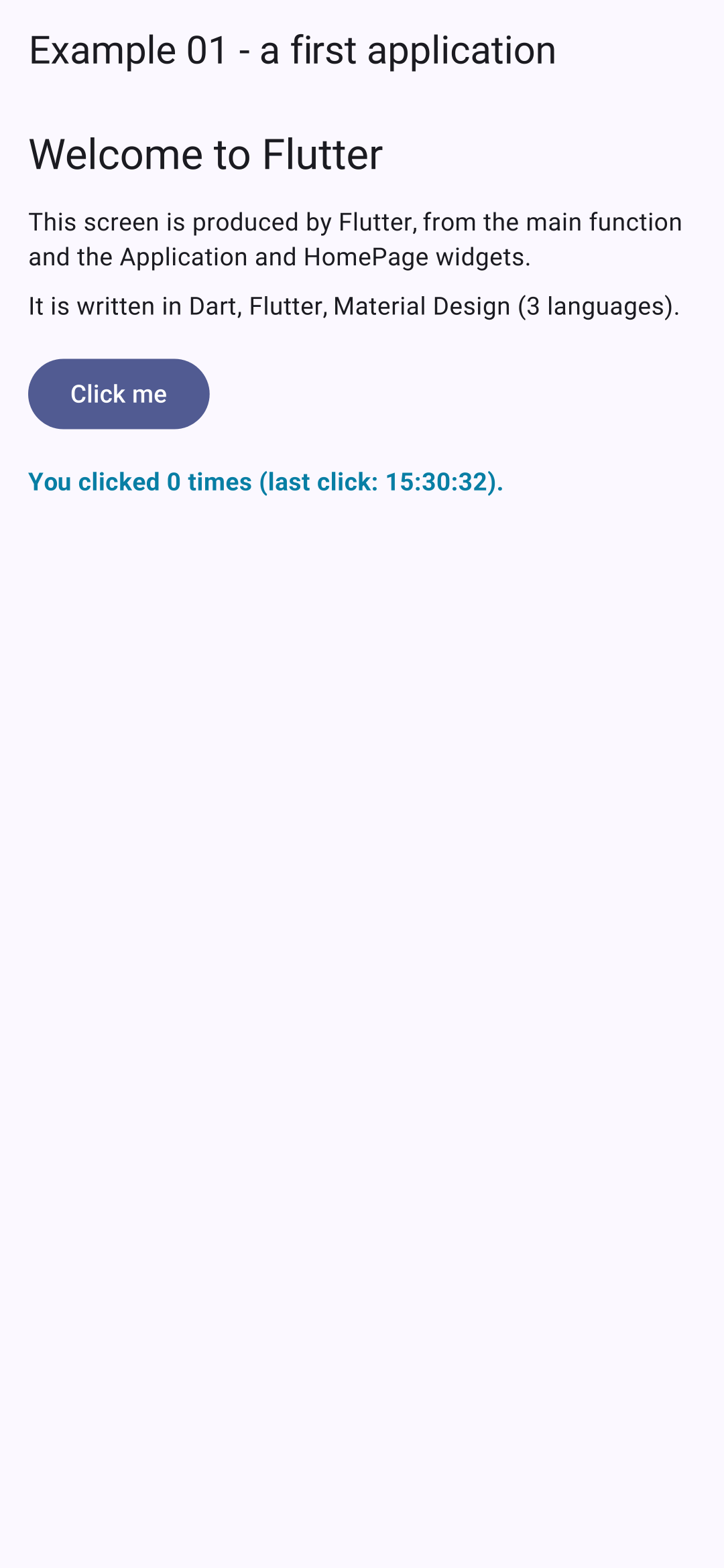
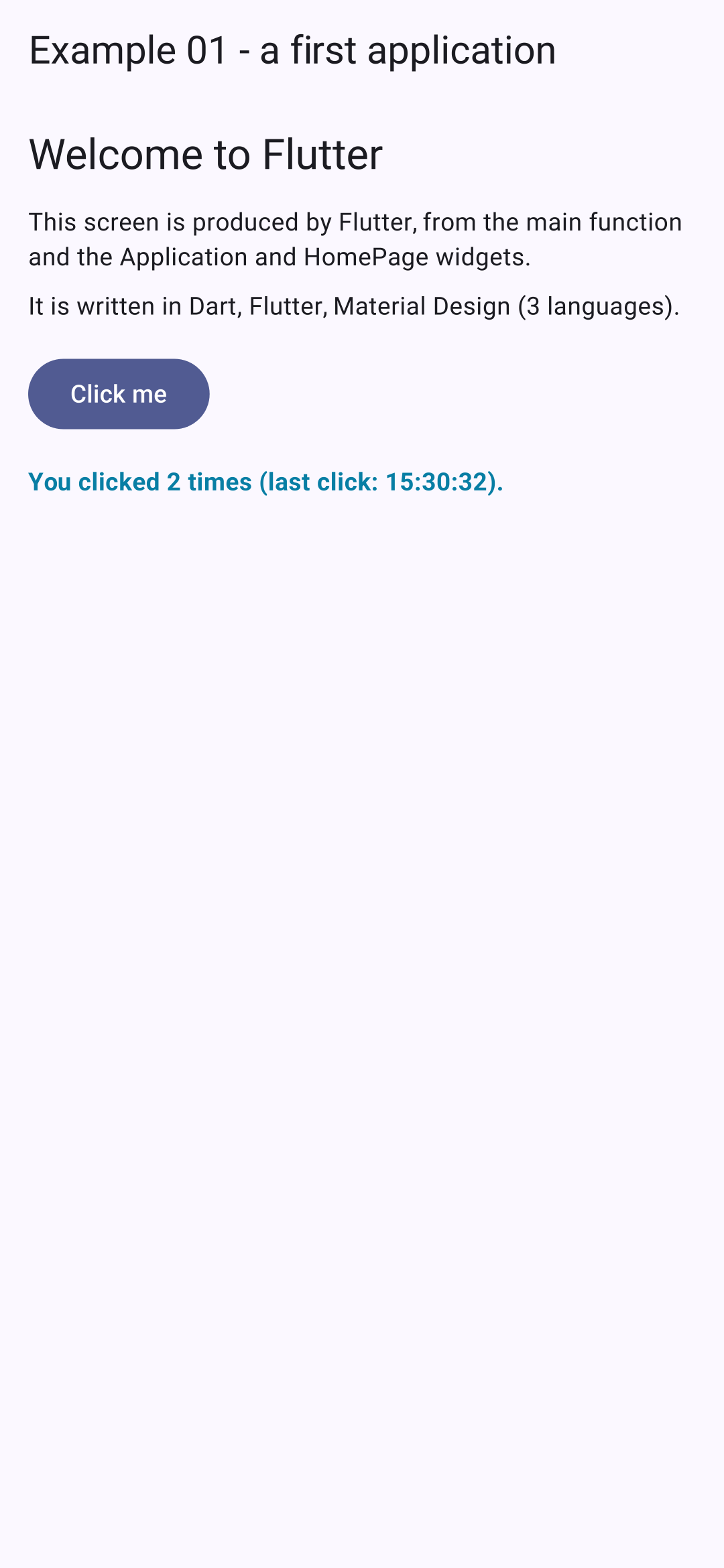
The first time, building the [Android] application (using the [Gradle] tool) takes one or two minutes; subsequent builds take just a few seconds. The application installs on the emulator and starts. On the left, the startup screen; on the right, after pressing the button twice:
Two experiments to try:
- Change the title text in [main.dart], save the file, and type `r` in the console (or simply save the file in [VS Code]): the screen updates in one second, and the counter retains its value. This is a “hot reload”: the new code is injected into the running application; [Flutter] calls [build], but the [State] objects are preserved. R (“hot restart”) restarts the application from [main]: the counter resets to 0;
- Launch the same application in the browser: [flutter run -d chrome -t lib/ex01_first_application/main.dart]. It is the same screen, rendered by the same engine; only the window size changes. With [-d windows], it is an application [Windows].
3.2. Example 02: The state and calculated values
The status is the core of [Flutter], just as it is for [React]. This example calculates the price including VAT of an item:
| // =========================================================================
// lib/ex02_state/main.dart - the state and the computed values
// -------------------------------------------------------------------------
// A small calculator of prices including VAT:
// - the STATE: the fields of the State object; changing them INSIDE setState()
// makes build() run again, which produces the screen with the new values;
// - a value COMPUTED from the state is NOT state: it is a
// "getter" (or a local variable of build), recomputed on each call
// of build(). It is always up to date, with nothing to synchronize;
// - a piece of data that depends on the SUCCESSIVE values of the state (the history
// of the totals) is updated where the state changes: in setState;
// - the title of the application (browser tab, list of the
// phone's recent applications) is a widget too, Title:
// it follows the state like the rest of the screen.
// =========================================================================
import 'package:flutter/material.dart';
import 'package:intl/intl.dart';
// a formatter of amounts in euros, the American way (€1,234.50), see example 09
final euros = NumberFormat.currency(locale: 'en_US', symbol: '€');
void main() {
runApp(
MaterialApp(
debugShowCheckedModeBanner: false,
theme: ThemeData(colorSchemeSeed: Colors.indigo),
home: const CalculatorPage(),
),
);
}
class CalculatorPage extends StatefulWidget {
const CalculatorPage({super.key});
@override
State<CalculatorPage> createState() => _CalculatorPageState();
}
class _CalculatorPageState extends State<CalculatorPage> {
// the state
String _label = 'Pen';
double _priceExclVat = 2.5;
int _quantity = 1;
double _vatRate = 20; // in %
// the history of the last 5 changes of the total including VAT
final List<String> _history = [];
// a controller gives access to the TEXT of an input field: we need one
// here to put it back to its initial value (Reset). Example 05
// studies them in detail
final _labelField = TextEditingController(text: 'Pen');
final _priceField = TextEditingController(text: '2.5');
// COMPUTED values: getters, recomputed on each read
double get _totalExclVat => _quantity * _priceExclVat;
double get _vatAmount => _totalExclVat * _vatRate / 100;
double get _totalInclVat => _totalExclVat + _vatAmount;
// ALL the changes of the state go through this method: it notes the
// total including VAT before the change, applies the change, and completes
// the history if the total has changed
void _change(void Function() change) {
final oldTotal = _totalInclVat;
setState(() {
change();
if (_totalInclVat != oldTotal) {
_history.insert(0, '${euros.format(oldTotal)} -> ${euros.format(_totalInclVat)}');
if (_history.length > 5) {
_history.removeLast();
}
}
});
}
// changing the item resets the quantity to 1: we do it where we know
// WHY the state changes
void _changeLabel(String newValue) {
_change(() {
_label = newValue;
_quantity = 1;
});
}
void _reset() {
_change(() {
_label = 'Pen';
_priceExclVat = 2.5;
_quantity = 1;
_vatRate = 20;
});
_labelField.text = 'Pen';
_priceField.text = '2.5';
}
// the State object disappears (we leave the screen): the controllers are released
@override
void dispose() {
_labelField.dispose();
_priceField.dispose();
super.dispose();
}
@override
Widget build(BuildContext context) {
final totalStyle = Theme.of(context).textTheme.titleMedium!.copyWith(fontWeight: FontWeight.bold);
// Title: the title of the application FOLLOWS the state, like everything else
return Title(
title: 'Incl. VAT: ${euros.format(_totalInclVat)}',
color: Colors.indigo,
child: Scaffold(
appBar: AppBar(title: const Text('Example 02 - the state')),
// ListView: a column that scrolls if it exceeds the height of the screen
body: ListView(
padding: const EdgeInsets.all(16),
children: [
Card(
child: Padding(
padding: const EdgeInsets.all(16),
child: Column(
children: [
// onChanged: called on each keystroke, with the new text
TextField(
controller: _labelField,
decoration: const InputDecoration(labelText: 'Item'),
onChanged: _changeLabel,
),
TextField(
controller: _priceField,
decoration: const InputDecoration(labelText: 'Unit price excl. VAT'),
// the numeric keyboard of the phone, with the decimal point
keyboardType: const TextInputType.numberWithOptions(decimal: true),
// tryParse: null if the text is not a number; a comma is accepted too
onChanged: (text) => _change(() => _priceExclVat = double.tryParse(text.replaceAll(',', '.')) ?? 0),
),
const SizedBox(height: 12),
Row(
children: [
const Expanded(child: Text('Quantity (back to 1 if the item changes)')),
IconButton(
icon: const Icon(Icons.remove),
// null: the button is disabled
onPressed: _quantity > 0 ? () => _change(() => _quantity--) : null,
),
Text('$_quantity', style: totalStyle),
IconButton(icon: const Icon(Icons.add), onPressed: () => _change(() => _quantity++)),
],
),
const SizedBox(height: 8),
// buttons of which only ONE is selected: the VAT rate
SegmentedButton<double>(
segments: const [
ButtonSegment(value: 5.5, label: Text('5.5%')),
ButtonSegment(value: 10, label: Text('10%')),
ButtonSegment(value: 20, label: Text('20%')),
],
selected: {_vatRate},
onSelectionChanged: (choice) => _change(() => _vatRate = choice.first),
),
const SizedBox(height: 12),
OutlinedButton(onPressed: _reset, child: const Text('Reset')),
],
),
),
),
Card(
child: Padding(
padding: const EdgeInsets.all(16),
child: Column(
crossAxisAlignment: CrossAxisAlignment.start,
children: [
Text('$_quantity x $_label', style: Theme.of(context).textTheme.titleLarge),
const Divider(),
_line('Total excl. VAT', euros.format(_totalExclVat)),
_line('VAT ($_vatRate%)', euros.format(_vatAmount)),
_line('Total incl. VAT', euros.format(_totalInclVat), style: totalStyle),
],
),
),
),
Card(
child: Padding(
padding: const EdgeInsets.all(16),
child: Column(
crossAxisAlignment: CrossAxisAlignment.start,
children: [
Text('History of the total incl. VAT', style: Theme.of(context).textTheme.titleSmall),
// one line of text per element of the history (see example 03)
for (final line in _history) Text('• $line'),
],
),
),
),
],
),
),
);
}
// a "label ....... amount" line: a method that produces widgets
Widget _line(String label, String amount, {TextStyle? style}) {
return Padding(
padding: const EdgeInsets.symmetric(vertical: 4),
child: Row(
children: [
Expanded(child: Text(label, style: style)),
Text(amount, style: style),
],
),
);
}
}
|
- Line 21: A US English-style amount formatter (€1,234.50), created once and for all outside the widgets, using the [intl] package (see Example 09). [final]: a variable that is assigned only once, but whose value is not known until runtime (unlike [const]);
- lines 23–28: the program; this time, [MaterialApp] is written directly into [main]. This is how most examples will begin;
- lines 42–45: four state data items, simple fields, typed as: [String], [double], [int]. In [Dart], [int], and [double], there are two distinct types of numbers;
- line 47: the history of the last five changes to the total, a list. The field is [final]: the list will never be replaced; it will be modified (additions, removals);
- Lines 52–53: two input field controllers. An input field [Flutter] stores its text in a controller, which is created and assigned to it: the text can then be read or changed from within the code (Reset button). Example 05 covers these in detail;
- lines 56–58: three values calculated from the state. These are NOT state fields; they are getters—methods without parentheses that are used like fields ([_totalInclVat]). They are recalculated each time they are read, so they are always up to date. This is the same rule we’ve already seen with [React]: we only store in the state what we cannot calculate; everything else is calculated;
- Lines 63–73: The history of the totals including VAT depends on successive values of the total, which a getter cannot express. Therefore, ALL state changes go through the [_change] method, which receives the change to be made as a parameter (a function with no parameters or return value, of type [void Function()]): it records the total before the change, applies the change in `[setState]`, compares it with the total after the change, and updates the history if it has changed. This is the natural place for this calculation: where the state changes, and not in `[build]` (which should only describe the screen);
- lines 78–81: Changing the item resets the quantity to 1. This is done in the method that handles the field change, where we know why the state is changing;
- lines 85–93: multiple state changes within a single [setState]: [build] will be called only once. Then the controllers receive their initial text: the fields display it immediately;
- lines 98–101: [dispose] is called when the [State] object disappears permanently (the screen is exited). Here, the created objects—in this case, the controls—are released. Example 13 will illustrate the lifecycle of an object [State].
The [build] method:
- line 106: a text style, calculated based on the theme—the medium-sized heading style ([titleMedium]), in bold. [copyWith] creates a copy of an object whose properties are modified: this is a convention of [Flutter] that we’ll see often. [!] tells [Dart] that the value is not [null] (the type of [titleMedium] is [TextStyle?], a style, or [null]);
- Lines 109–111: The [Title] widget provides the application’s title: on the web, this is the browser tab title; on [Android], it is the name displayed in the list of recent applications. Whereas [React] used an effect ([useEffect]) to modify [document.title] after it was displayed, [Flutter] doesn’t require anything special: the title is a widget, described by [build] just like the rest of the screen, and it updates its state automatically;
- line 115: [ListView] is a column that scrolls when it exceeds the screen height. On a phone, this is almost always what’s needed: a [Column] that’s too tall would be cut off (and [Flutter] would display a yellow and black band, indicating an “overflow”);
- lines 124–127: an input field ([TextField]): its controller, its label ([decoration: InputDecoration(labelText: ...)]), and [onChanged], the function called with each keystroke, along with the new text;
- lines 130–135: the price. [keyboardType] selects the phone’s keyboard: in this case, the numeric keypad, including the comma. The entered text is converted to a number by [double.tryParse], which returns [null] if the text is not a number ([?? 0]: in this case, 0). The French comma is accepted by replacing it with a period;
- lines 138–147: the quantity, with two buttons, “–” and “+.” [Row] places its children side by side; [Expanded] gives its child the entire remaining width. [IconButton]: a button that is just an icon. [onPressed: null] disables a button: the value cannot go below 0;
- lines 152–159: the VAT rate, three “segmented” buttons, only one of which is selected. [selected] receives a set of values ([{_vatRate}]: a [Set] for an element), [onSelectionChanged] the new selected set;
- lines 173–177: the results: three lines generated by the [_line] method;
- line 190: one line of text per element in the history, generated by a [for] loop written in the list of children (see Example 03);
- lines 202–208: a method that creates widgets. [{TextStyle? style}]: an optional named parameter that defaults to [null] if not provided. Breaking down a [build] into methods makes it more readable; Example 10 will show that it is often better to turn them into actual widgets.
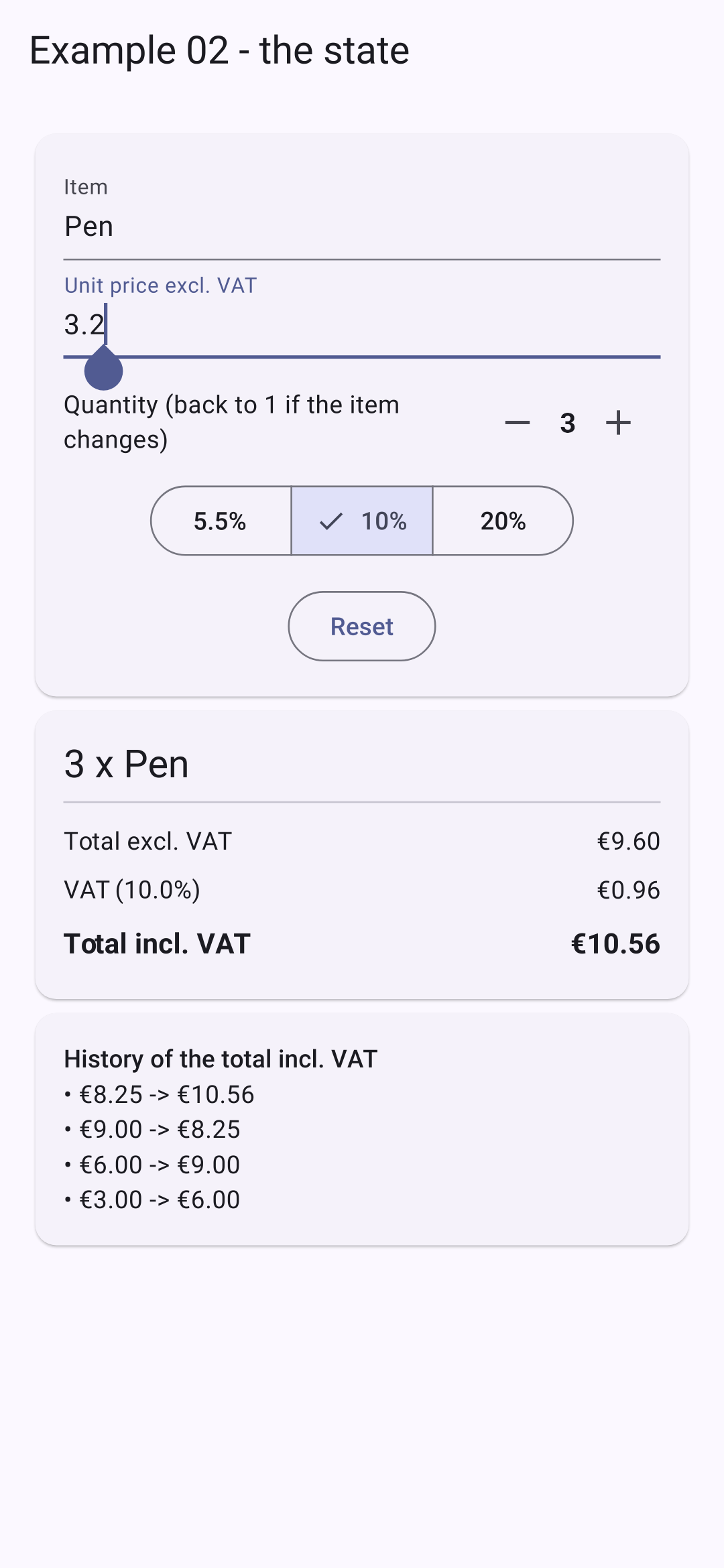
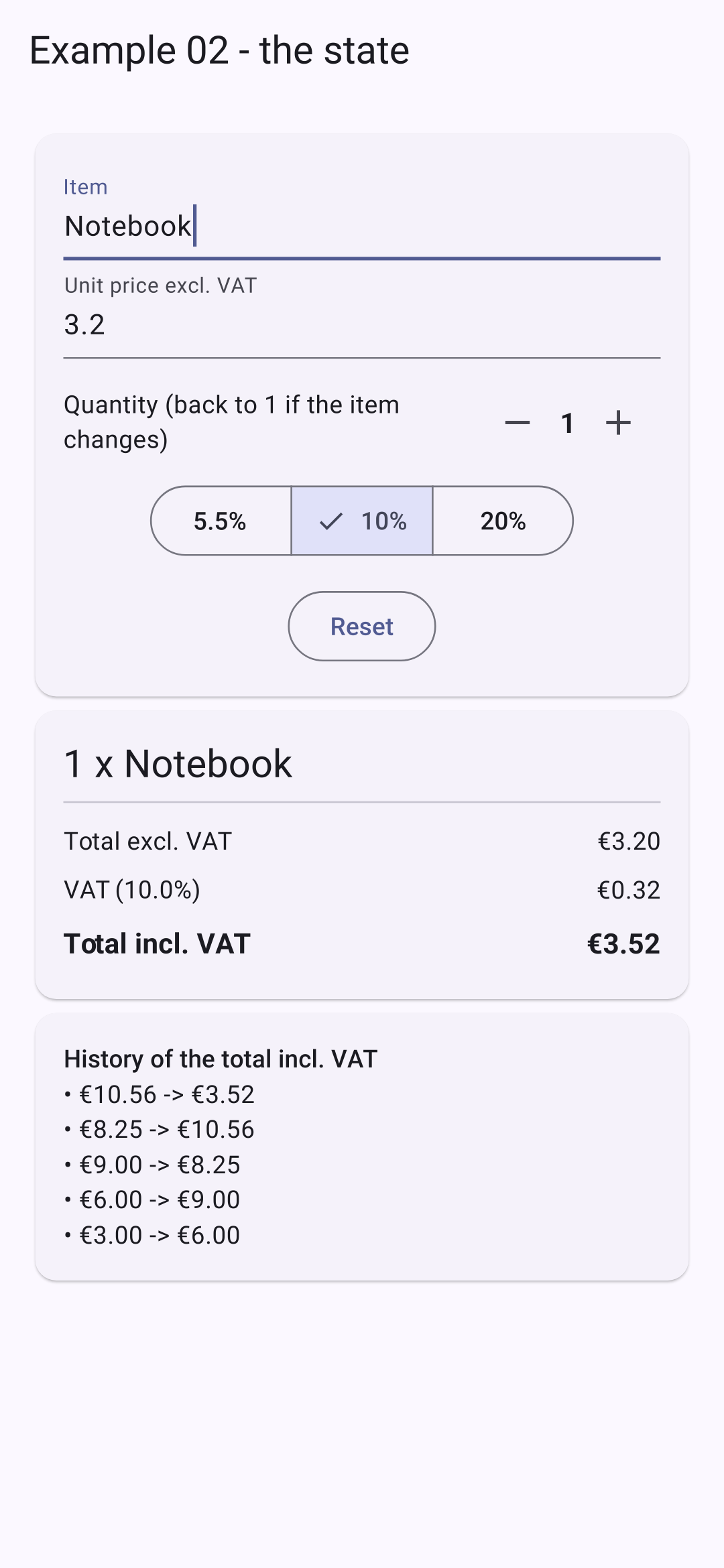
We modify the price, quantity, and rate, then the item:
Each time the total incl. VAT changes, a line is added to the history. Changing the item resets the quantity to 1 (on the right).
The difference from [React] lies in one detail: [React] reflects the component’s behavior, which recreates its variables each time; the state must therefore be stored separately, via [useState]. In [Flutter], the state resides in an object ([State]), created once and retained: these are its fields, and [build] is just one of its methods. Therefore, we need neither hooks nor their rules (such as not calling them within a condition or managing their dependencies). The golden rule remains the same: we modify the state only in [setState], and [build] simply describes the screen based on the state.
There is no template language in [Flutter]: the screen is written in [Dart]. For conditions and loops, [Dart] provides tools for creating lists of children. This example displays a list of doctors, which can be filtered:
| // =========================================================================
// lib/ex03_widgets/main.dart - writing a tree of widgets
// -------------------------------------------------------------------------
// Flutter has no template language (no HTML, no JSX): the
// screens are written in Dart, with nested widget constructors.
// For conditions and loops, Dart offers tools made to
// build LISTS of children (children: [...]):
// - if (condition) widget : a child that only EXISTS if the
// condition is true ("collection if");
// - if (c) widgetA else widgetB : one OR the other;
// - condition ? widgetA : widgetB : the same, in an expression;
// - for (final x in list) widget : one child per element of the list
// ("collection for");
// - ...otherList : the elements of another list,
// inserted at this place ("spread");
// - switch (value) { pattern => ... } : one value among several.
// And everything before the return of build() is ordinary code.
// =========================================================================
import 'package:flutter/material.dart';
import 'package:flutter_svg/flutter_svg.dart';
// an "enumeration": the only possible values of a specialty
enum Specialty { generalPractitioner, pediatrician, cardiologist }
// a data class: its fields are final, a Doctor object never
// changes. The "const" constructor allows making constants of it
class Doctor {
final int id;
final String title;
final String firstName;
final String lastName;
final Specialty specialty;
final bool available;
const Doctor(this.id, this.title, this.firstName, this.lastName, this.specialty, this.available);
}
const doctors = [
Doctor(1, 'Mme', 'Marie', 'PELISSIER', Specialty.generalPractitioner, true),
Doctor(2, 'Mr', 'Paul', 'TATOU', Specialty.pediatrician, false),
Doctor(3, 'Melle', 'Sophie', 'DUPONT', Specialty.cardiologist, true),
];
// "one value among several, depending on a value": a switch EXPRESSION.
// The compiler checks that all the cases of the enumeration are handled
String label(Specialty s) => switch (s) {
Specialty.generalPractitioner => 'general practitioner',
Specialty.pediatrician => 'pediatrician',
Specialty.cardiologist => 'cardiologist',
};
Icon icon(Specialty s) => switch (s) {
Specialty.pediatrician => const Icon(Icons.child_care, color: Colors.orange),
Specialty.cardiologist => const Icon(Icons.favorite, color: Colors.red),
_ => const Icon(Icons.medical_services, color: Colors.teal), // "_": all the other cases
};
void main() {
runApp(
MaterialApp(
debugShowCheckedModeBanner: false,
theme: ThemeData(colorSchemeSeed: Colors.indigo),
home: const DoctorsPage(),
),
);
}
class DoctorsPage extends StatefulWidget {
const DoctorsPage({super.key});
@override
State<DoctorsPage> createState() => _DoctorsPageState();
}
class _DoctorsPageState extends State<DoctorsPage> {
String _filter = ''; // the searched text
bool _onlyAvailable = false;
bool _showHelp = true;
@override
Widget build(BuildContext context) {
// the displayed list: an ordinary variable, recomputed on each build()
final text = _filter.trim().toLowerCase();
final displayed = doctors
.where(
(m) =>
(!_onlyAvailable || m.available) &&
'${m.firstName} ${m.lastName} ${label(m.specialty)}'.toLowerCase().contains(text),
)
.toList();
// "one of the three blocks": it is computed BEFORE the return, with ifs
final Widget content;
if (doctors.isEmpty) {
content = const Text('No doctor.');
} else if (displayed.isEmpty) {
content = Text('No doctor matches "$_filter".', style: const TextStyle(color: Colors.deepOrange));
} else {
content = Column(
children: [
// one child per doctor: "collection for", with its rank (indexed)
for (final (i, m) in displayed.indexed)
// Opacity: the unavailable doctors are grayed out
Opacity(
opacity: m.available ? 1 : 0.5,
// ListTile: a Material list row (icon, title, subtitle, trailing)
child: ListTile(
leading: CircleAvatar(child: Text('${i + 1}')),
title: Text('${m.title} ${m.firstName} ${m.lastName}'),
// Wrap: like a Row, but which wraps to the next line if space runs out
subtitle: Wrap(
spacing: 6,
crossAxisAlignment: WrapCrossAlignment.center,
children: [icon(m.specialty), Text(label(m.specialty))],
),
trailing: Chip(
label: Text(m.available ? 'available' : 'unavailable'),
// a color chosen by a conditional expression
backgroundColor: m.available ? Colors.green.shade100 : Colors.grey.shade300,
),
),
),
],
);
}
return Scaffold(
appBar: AppBar(
// an SVG image shipped with the application (assets/ folder, see pubspec.yaml)
leading: Padding(padding: const EdgeInsets.all(12), child: SvgPicture.asset('assets/doctor.svg')),
title: const Text('Example 03 - the widgets'),
),
body: ListView(
padding: const EdgeInsets.all(16),
children: [
TextField(
decoration: const InputDecoration(hintText: 'search...', prefixIcon: Icon(Icons.search)),
onChanged: (value) => setState(() => _filter = value),
),
// SwitchListTile: a switch, with its label
SwitchListTile(
title: const Text('available only'),
value: _onlyAvailable,
onChanged: (value) => setState(() => _onlyAvailable = value),
),
Align(
alignment: Alignment.centerLeft,
child: TextButton(
onPressed: () => setState(() => _showHelp = !_showHelp),
child: Text(_showHelp ? 'Hide help' : 'Show help'),
),
),
// "collection if": this widget only EXISTS if _showHelp is true
if (_showHelp)
Card(
color: Colors.lightBlue.shade50,
child: const Padding(
padding: EdgeInsets.all(12),
child: Text('Type a name or a specialty. The unavailable doctors are grayed out.'),
),
),
content,
const SizedBox(height: 12),
// a COMPUTED style: the size of the text depends on the number of displayed doctors
Text(
'${displayed.length} doctor(s) displayed - the size of this text depends on it.',
style: TextStyle(fontSize: 12 + displayed.length * 2.0),
),
],
),
);
}
}
|
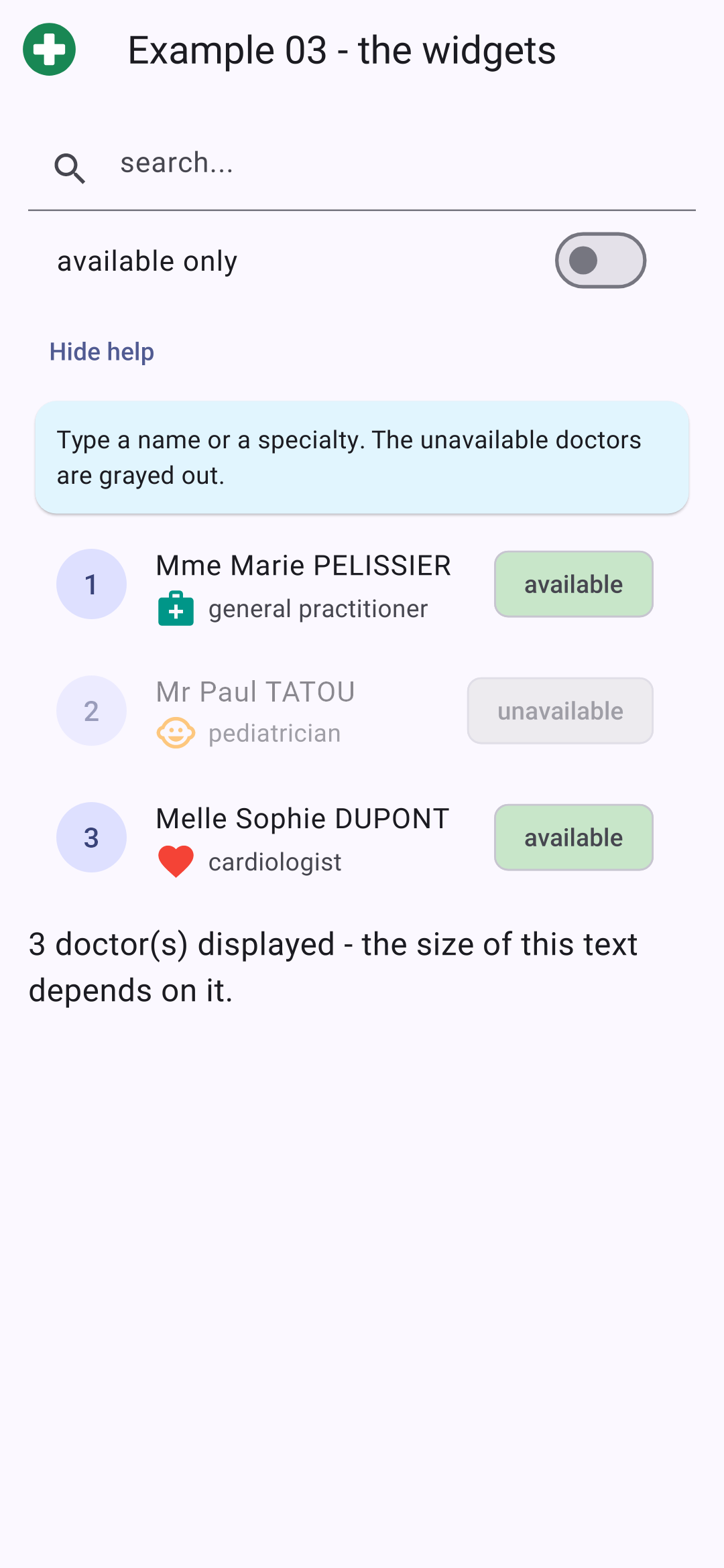
- line 24: an enumeration: the only three possible values for a specialty ([Specialty.pediatrician]...);
- lines 28–36: a data class. Its fields are [final]: a [Doctor] never changes. The constructor [Doctor(this.id, this.title, ...)] directly assigns its arguments to the fields of the same name. It is [const]: constant doctors can be created (line 39);
- lines 47–50: “one value among several, depending on a value”: a [switch] expression (not an instruction), which has a value. Each case is written as [pattern => value]. For an enumeration, the compiler verifies that all cases are handled: adding a specialty without completing this [switch] would result in a compilation error;
- lines 53–56: the same principle applies when selecting an icon; the pattern [_] means “all other cases.” The icons in [Material Design] are constants of the class [Icons];
- lines 77–79: the screen state.
The method [build]:
- lines 84–91: the displayed list: a variable recalculated with each call to [build]. [where] retains the elements that satisfy a condition; [toList()] converts the result into a list;
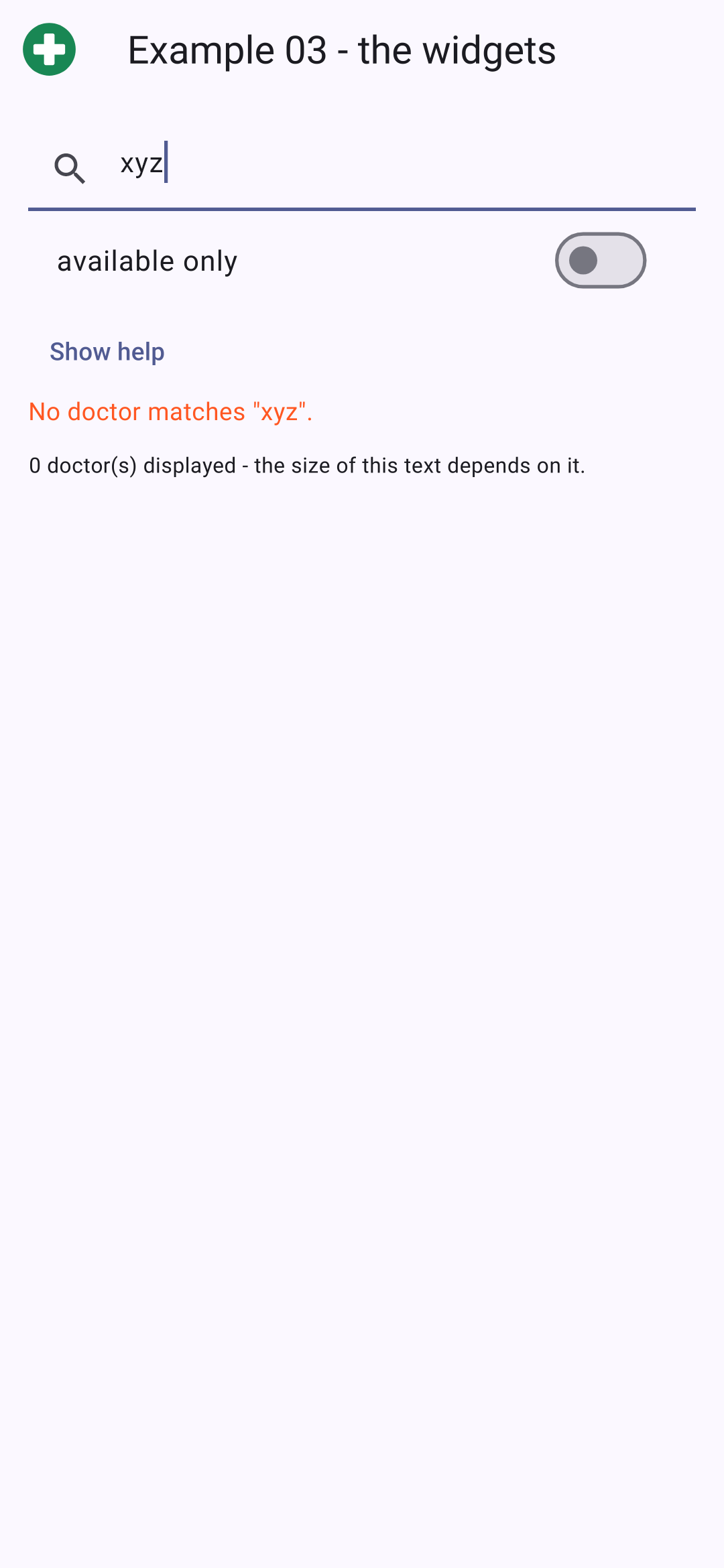
- lines 94–100: one of three possible values, selected using [if] before [return]. A widget is a value like any other: it can be stored in a variable. [final Widget content;] declares the variable without initializing it: the compiler verifies that each branch assigns a value to it exactly once;
- lines 103–117: the list. A `[for]` written to a literal list (`[children: [ ... ]]`) adds an element to it on each loop iteration: this is a “collection for.” [displayed.indexed] returns tuples (rank, doctor), which [(i, m)] “unpacks” into two variables;
- line 106: [Opacity] makes its child partially transparent: unavailable doctors are grayed out. The value is calculated by the operator [? :];
- lines 108–112: [ListTile] is the list entry for [Material Design]: a header element ([leading], here a disk showing the rank), a title, a subtitle, and an end element ([trailing]). All of these are widgets: any widgets. The subtitle is a [Wrap]: a [Row] that wraps to the next line when there isn’t enough space (on a phone, the icon and specialty wouldn’t always fit next to the “available” label);
- Lines 117–120: a “bullet” ([Chip]), whose text and color depend on the doctor. [Colors.green.shade100]: a light shade of green.
[return]:
- line 131: an image SVG, included with the application (folder [assets/], declared in [pubspec.yaml]). [Flutter] cannot render SVG on its own: the [flutter_svg] package provides the [SvgPicture] widget. For an image PNG or JPEG, [Flutter] has the widget [Image.asset];
- Lines 138–139: the search field. [hintText] is the grayed-out text displayed as long as the field is empty; [prefixIcon] is an icon on the left. This time, no controller: we only need the entered value, received by [onChanged];
- lines 142–145: a toggle switch, with its label: a list item that you tap to toggle;
- line 150: an anonymous function, written directly within the parameter: it toggles the state;
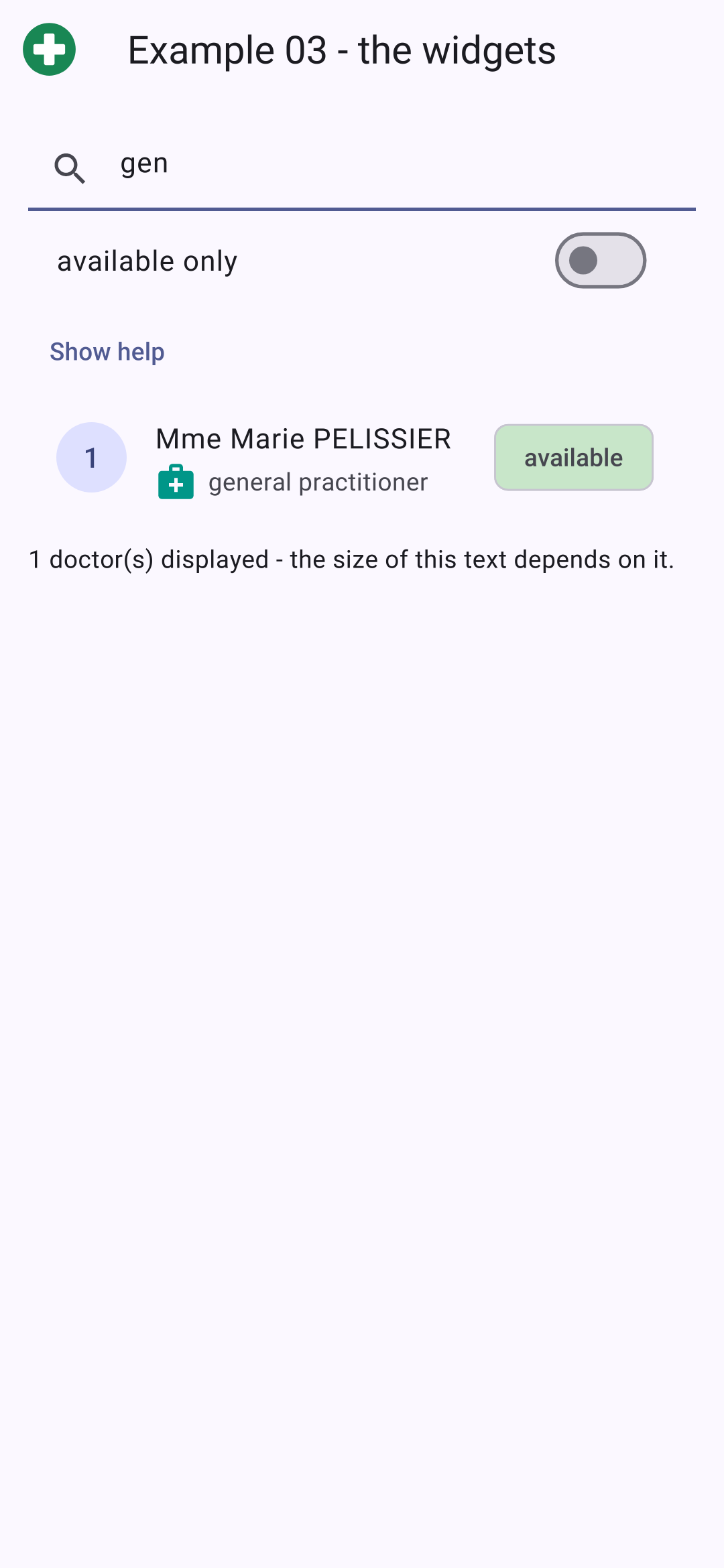
- lines 155–160: an “if collection”: the help card exists only if [_showHelp] is true. There is no “hidden” widget: when the condition is false, the list of children has one fewer item;
- line 163: the content selected earlier;
- lines 167–168: a computed style: the text size depends on the number of doctors displayed.
To summarize the tools in [Dart] that replace, within a list of children, what other frameworks write in their templates:
In Dart | Role |
if (condition) widget | a child that exists only if the condition is true |
if (c) widgetA else widgetB | one or the other |
condition? widgetA : widgetB | either one, in an expression |
for (final x in list) widget | one child per element in the list |
...otherList | the elements of another list, inserted at this location |
...[widgetA, widgetB] | multiple children at once (often after an `if` statement) |
switch (value) { pattern => widget } | one child among several, based on a value |
At startup, then after typing “gen” and hiding the help, then with “xyz”:
3.4. Example 04: Events
An interactive widget receives functions as parameters to be called when something happens; these are often called “callbacks.” This example manages a to-do list:
| // =========================================================================
// lib/ex04_events/main.dart - reacting to the user's actions
// -------------------------------------------------------------------------
// An interactive widget receives as parameters the FUNCTIONS to call when
// something happens ("callbacks"):
// - onPressed: f : f is called on a press (buttons);
// - onPressed: () => remove(t) : an anonymous function, to pass its
// own arguments;
// - onChanged, onSubmitted... : the function receives a piece of data (the
// text, the checked box...);
// - GestureDetector : adds gestures (tap, long press,
// double tap, drag...) to
// ANY widget;
// - Dismissible : swiping a row to remove it,
// the typical gesture of a mobile.
// To act on an input field from the code (read or clear its
// text, give it the focus), we attach a CONTROLLER and a FocusNode to it.
// =========================================================================
import 'package:flutter/material.dart';
import 'package:flutter/services.dart';
class Task {
final int id;
final String label;
bool done;
Task(this.id, this.label, {this.done = false});
}
void main() {
runApp(
MaterialApp(
debugShowCheckedModeBanner: false,
theme: ThemeData(colorSchemeSeed: Colors.indigo),
home: const TasksPage(),
),
);
}
class TasksPage extends StatefulWidget {
const TasksPage({super.key});
@override
State<TasksPage> createState() => _TasksPageState();
}
class _TasksPageState extends State<TasksPage> {
final List<Task> _tasks = [
Task(1, 'Install Flutter', done: true),
Task(2, 'Read the chapter on events'),
];
final List<String> _log = [];
// the controller of the field: its text (reading, writing);
// the FocusNode: its focus (the cursor and the keyboard of the phone)
final _field = TextEditingController();
final _focus = FocusNode();
// a field of the State object that is NOT displayed: modifying it
// requires no setState
int _nextId = 3;
@override
void dispose() {
_field.dispose();
_focus.dispose();
super.dispose();
}
void _trace(String message) {
final t = TimeOfDay.now();
_log.insert(0, '${t.format(context)} $message');
}
// called by the button AND by the Enter key of the keyboard (onSubmitted)
void _add() {
final label = _field.text.trim();
if (label.isEmpty) {
return;
}
setState(() {
_tasks.add(Task(_nextId++, label));
_trace('added "$label"');
});
_field.clear();
// the focus returns to the field: the next task can be typed
_focus.requestFocus();
}
void _toggle(Task task, bool done) {
setState(() {
task.done = done;
_trace('"${task.label}": ${done ? 'done' : 'to do'}');
});
}
void _remove(Task task, String how) {
setState(() {
_tasks.remove(task);
_trace('removed "${task.label}" ($how)');
});
}
// the details of a tap: its position, relative to the touched widget
void _position(TapDownDetails details) {
final p = details.localPosition;
setState(() => _trace('tap at (${p.dx.round()}, ${p.dy.round()})'));
}
@override
Widget build(BuildContext context) {
return Scaffold(
appBar: AppBar(title: const Text('Example 04 - the events')),
body: ListView(
padding: const EdgeInsets.all(16),
children: [
Row(
children: [
Expanded(
// CallbackShortcuts: keyboard shortcuts (a physical
// keyboard: computer, emulator, tablet); Esc clears the field
child: CallbackShortcuts(
bindings: {const SingleActivator(LogicalKeyboardKey.escape): _field.clear},
child: TextField(
controller: _field,
focusNode: _focus,
decoration: const InputDecoration(hintText: 'new task (Esc to clear)'),
// the "Enter" key of the phone's keyboard
textInputAction: TextInputAction.done,
onSubmitted: (_) => _add(),
),
),
),
const SizedBox(width: 8),
FilledButton(onPressed: _add, child: const Text('Add')),
],
),
const SizedBox(height: 12),
for (final t in _tasks)
// Dismissible: swiping the row to the left removes it.
// key: the IDENTITY of the row, so that Flutter knows which one
// has disappeared (see the explanation in the course)
Dismissible(
key: ValueKey(t.id),
direction: DismissDirection.endToStart,
background: Container(
color: Colors.red.shade100,
alignment: Alignment.centerRight,
padding: const EdgeInsets.only(right: 16),
child: const Icon(Icons.delete),
),
onDismissed: (_) => _remove(t, 'swipe'),
child: CheckboxListTile(
// the box is ON THE LEFT, as in a task list
controlAffinity: ListTileControlAffinity.leading,
value: t.done,
// the box passes its new value (bool?, hence the "!")
onChanged: (checked) => _toggle(t, checked!),
title: Text(
t.label,
style: t.done ? const TextStyle(decoration: TextDecoration.lineThrough, color: Colors.grey) : null,
),
// an anonymous function: the task of THIS row as argument
secondary: IconButton(
icon: const Icon(Icons.delete_outline, color: Colors.red),
onPressed: () => _remove(t, 'button'),
),
),
),
const SizedBox(height: 12),
// GestureDetector: any widget becomes sensitive to gestures
GestureDetector(
onTapDown: _position,
onDoubleTap: () => setState(() => _trace('double tap')),
onLongPress: () => setState(() => _trace('long press')),
child: Container(
height: 80,
alignment: Alignment.center,
decoration: BoxDecoration(color: const Color(0xFFE7F5FF), borderRadius: BorderRadius.circular(8)),
child: const Text('Touch this area (tap, double tap, long press)'),
),
),
const SizedBox(height: 16),
Text('Log', style: Theme.of(context).textTheme.titleSmall),
for (final line in _log) Text(line, style: const TextStyle(fontSize: 12)),
],
),
);
}
}
|
- lines 23–28: a task. [done] is not [final]: we’ll modify it. [{this.done = false}]: an optional named parameter, with its default value;
- lines 49–53: the state: the list of tasks and an event log;
- lines 56–57: to manipulate the input field from within the code, two objects are associated with it: a controller ([TextEditingController]), which provides access to its text, and a [FocusNode], which provides access to its focus (the blinking cursor and the phone’s keyboard, which opens when a field has focus);
- Line 60: A field of the [State] object that is not displayed: modifying it does not require a [setState]. This is what [React] calls a “reference” ([useRef]); in [Flutter], it is an ordinary field;
- lines 63–66: the controller and the [FocusNode] are released when the screen disappears;
- lines 69–71: one additional line at the top of the log. [TimeOfDay] is the time of day from [Flutter]; [format(context)] formats it according to the conventions of the application’s language;
- lines 75–86: adding a task, triggered by the button AND by the Enter key on the keyboard. We read the text in the control ([_field.text]), add the task (in [setState]), clear the field ([_field.clear()]), and return focus to it ([_focus.requestFocus()]): you can now type the next task;
- Lines 89–92: Check or uncheck a task: We modify the [Task] object itself, in [setState]. Unlike [React], there is no need to create a new list: [setState] notifies [Flutter] that the status has changed, regardless of how it changed;
- lines 96–99: deletion, either via the button or by swiping (see below);
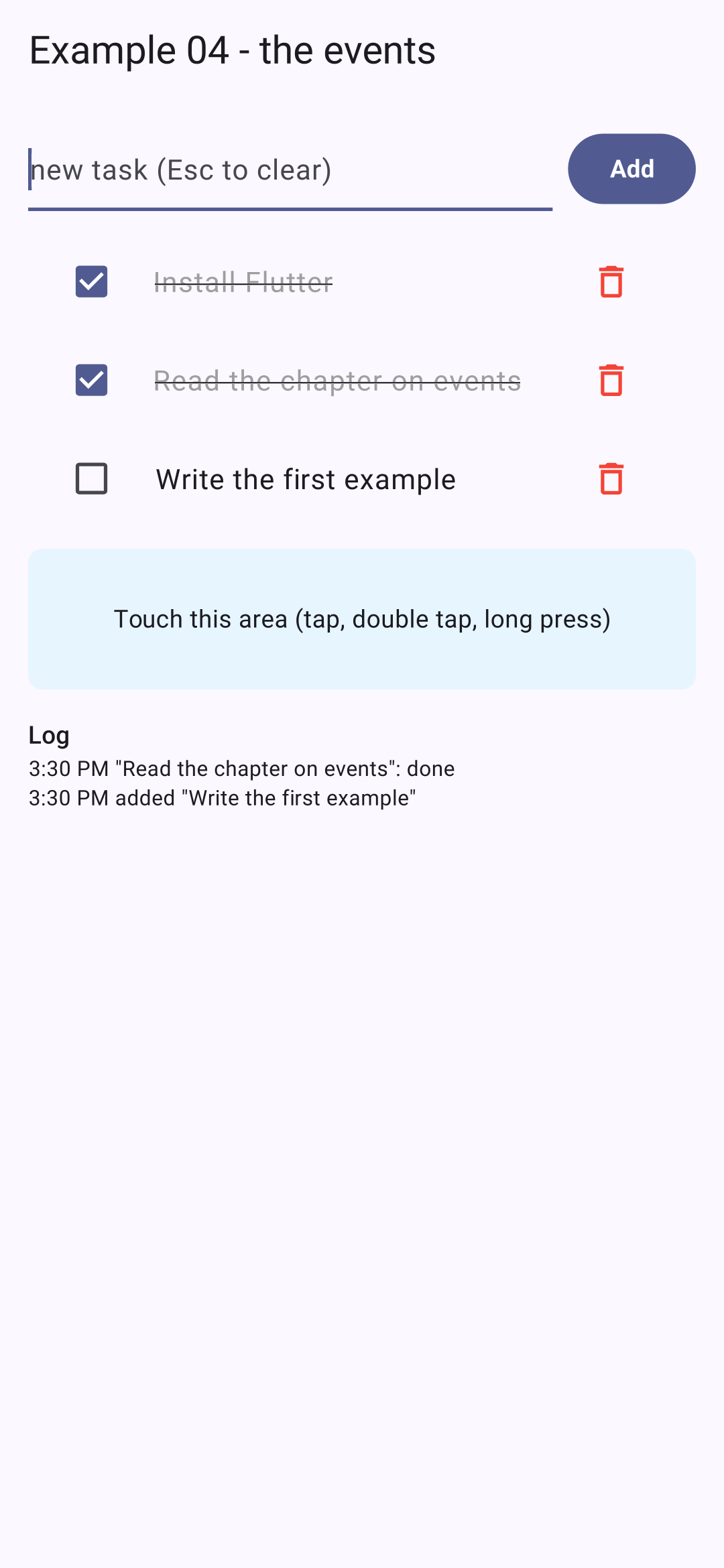
- Lines 104–106: The function called when the bottom area is tapped. It receives the event details: in this case, [localPosition], the finger's position relative to the tapped widget.
The [build] method:
- Lines 121–122: [CallbackShortcuts] associates keyboard shortcuts with functions for a physical keyboard (computer, emulator, tablet with keyboard): the Esc key clears the field. [{ key: function }] is a literal [Map];
- Lines 124–129: The input field, linked to its controller and its [FocusNode]. [textInputAction] selects the “Enter” key on the phone’s keyboard; [onSubmitted] is called when it is pressed, along with the text (which is not used: the parameter is named [_], by convention);
- line 134: the button calls the same method;
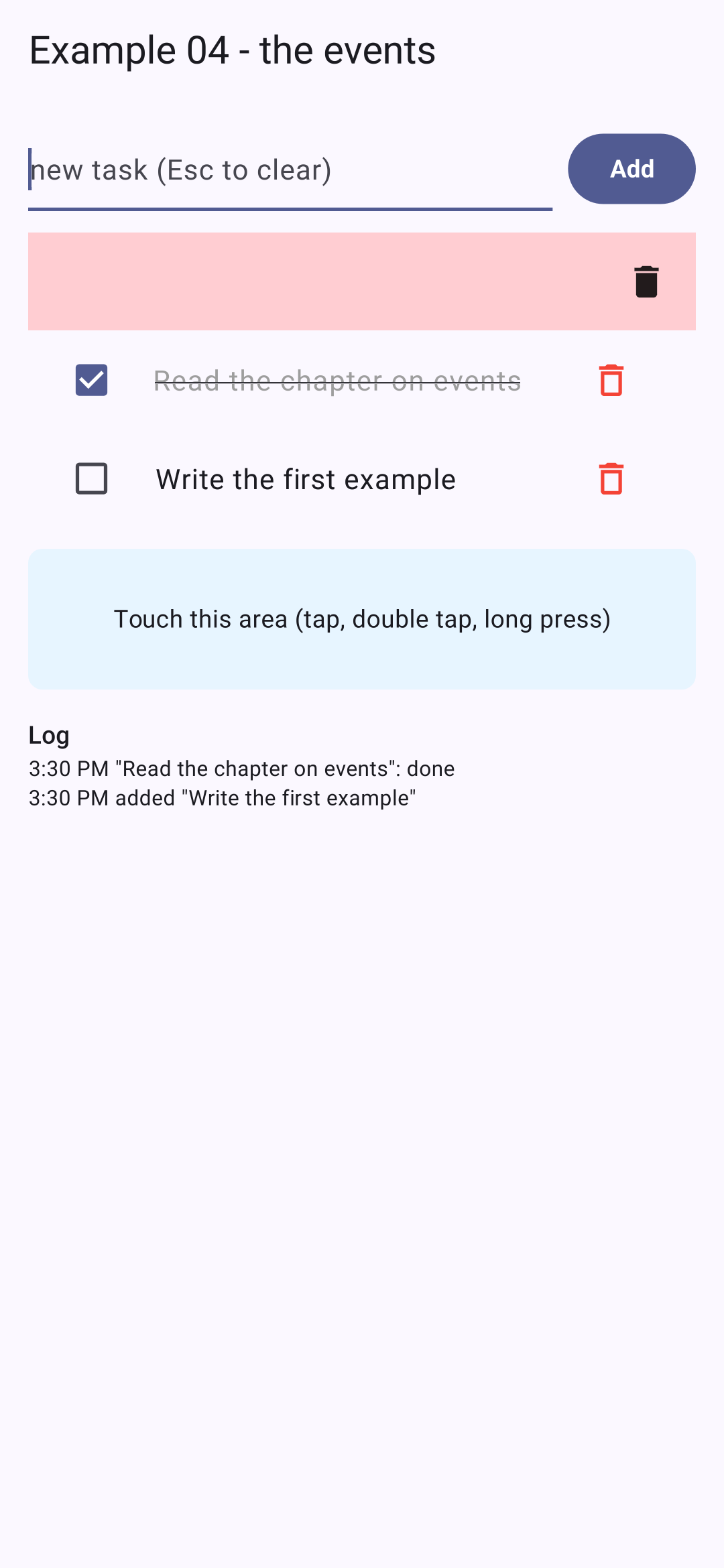
- lines 138–151: one line per task, in a [Dismissible]: a widget that you swipe with your finger to remove, the typical gesture for a list on a phone. [direction]: only to the left; [background]: what appears below the row during the swipe (a trash can icon on a red background); [onDismissed]: the function called when the row is swiped off the screen;
- line 143: the key for [Dismissible]. When a list of widgets changes, [Flutter] compares the old list to the new one to determine which widgets to keep: without a key, it pairs them by their rank (the first to the first, the second to the second, and so on). If the first task disappears, the second would take its place… with the state of the first. A key gives each widget an identity: [Flutter] then matches the widgets by their keys. The key must be unique among siblings and stable: the task’s identifier, not its rank. A [Dismissible] requires a key;
- lines 152–157: a list item with a checkbox. [controlAffinity] places the checkbox on the left. [onChanged] receives the new value of the checkbox, of type [bool?] (a checkbox can have a third state, “undetermined”): [!] indicates that it is not [null];
- line 160: the label’s style depends on the task: struck through and gray if it’s done, the default style ([null]) otherwise;
- lines 163–165: a “trash can” button. The anonymous function [() => _remove(t, 'button')] allows arguments to be passed: the task on this line;
- Lines 171–174: [GestureDetector] makes any widget responsive to gestures: tap ([onTap], [onTapDown]...), double-tap, long press, swipe, pinch... Here, a simple colored box ([Container]) responds to three gestures;
- lines 175–178: [Container] is a box, specifying margin, background, border, size, and alignment. [decoration] describes its background: a color, rounded corners. [Color(0xFFE7F5FF)]: a color specified by its code ARGB (opacity FF, then red, green, blue);
- line 184: the log.
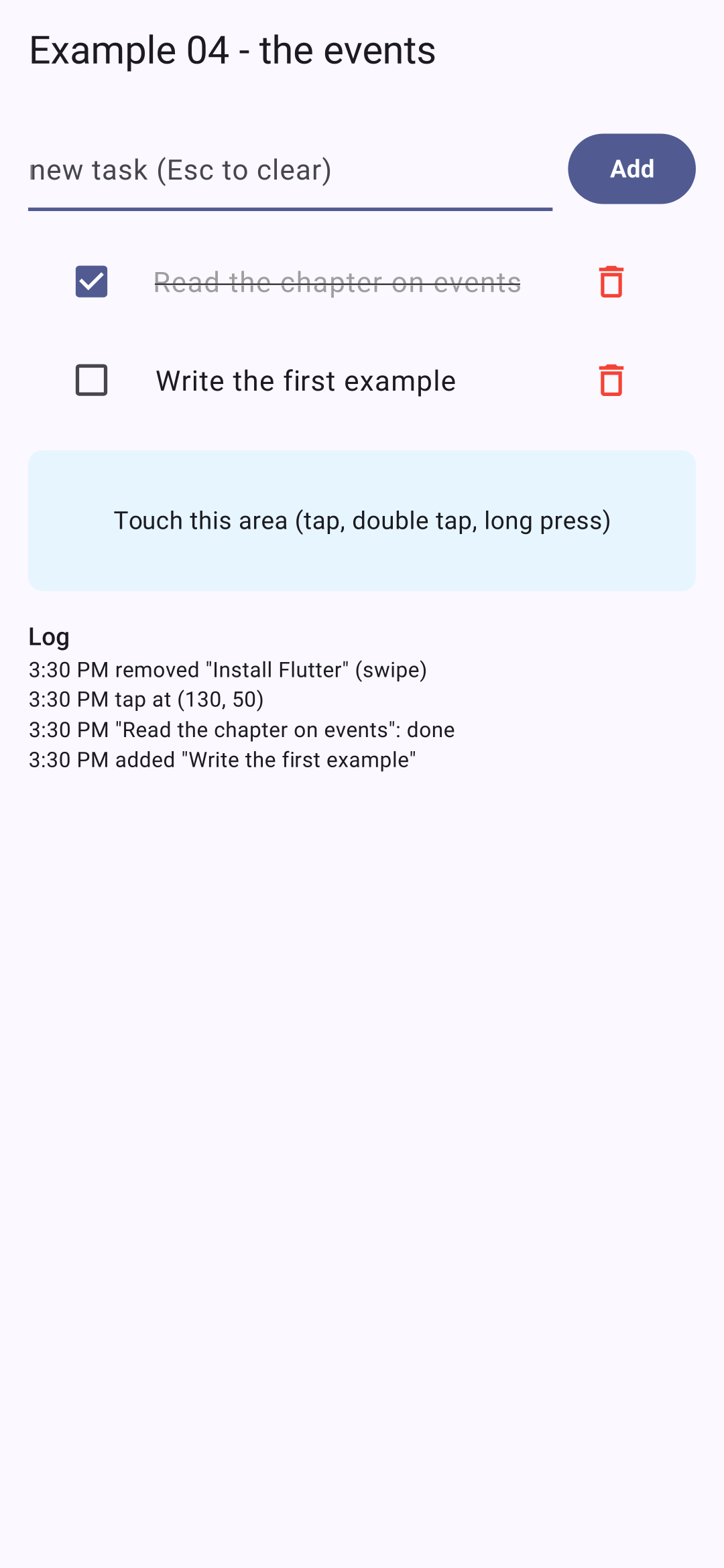
Add a task, check the second one, tap the bottom area; then drag the first task to the left (to the middle while dragging; to the right once the line is removed):
In [React], the browser events ([click], [keydown]...) are the same for all elements; in [Flutter], each interactive widget declares its own, with typed parameters ([onPressed], [onChanged], [onSubmitted]...), and [GestureDetector] adds gestures to those that do not have any. The editor, which knows the parameters for each widget, suggests them as you type.
3.5. Example 05: All Field Types
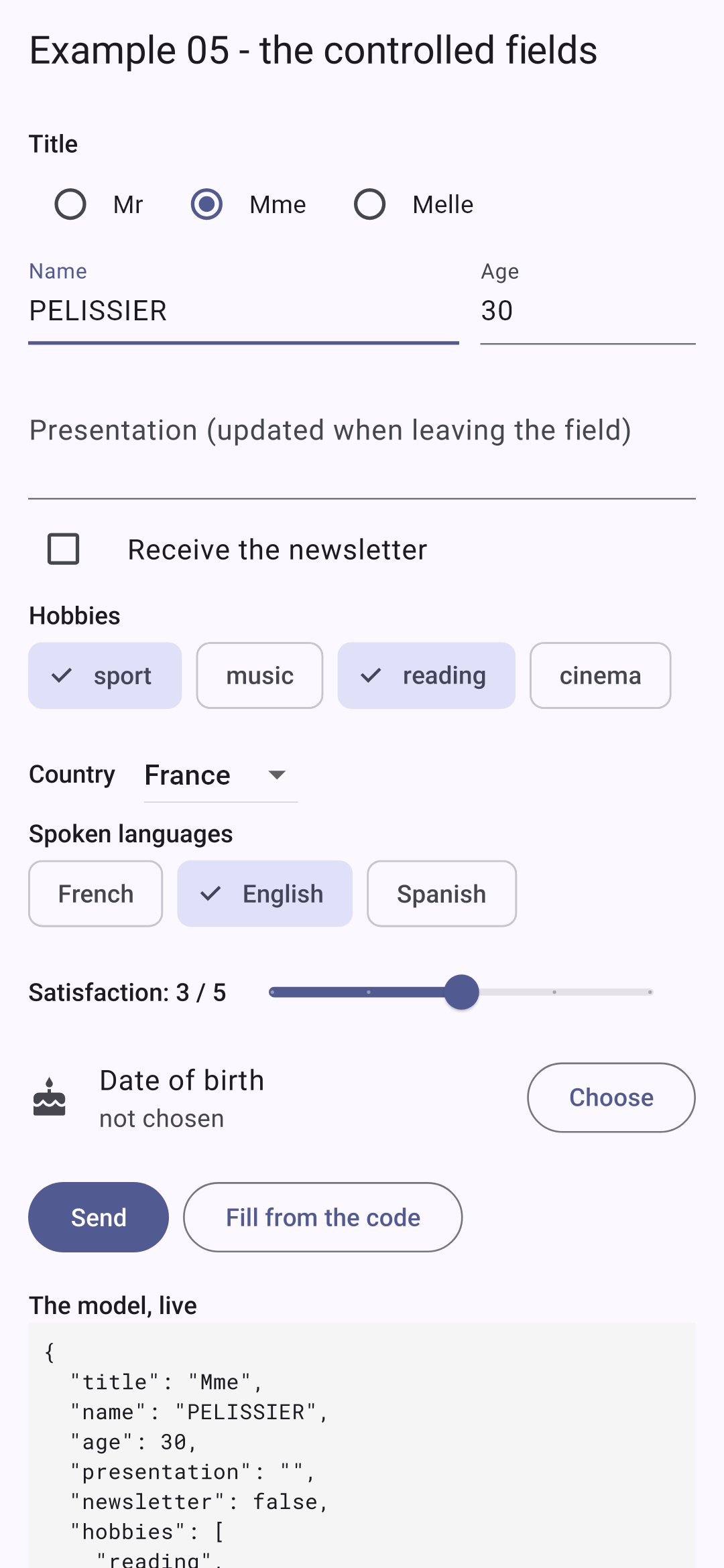
This example uses the form from Example 05 of course [React], with the input fields from [Flutter]: text boxes, radio buttons, checkboxes, drop-down lists, bulleted lists, sliders, and calendars.
| // =========================================================================
// lib/ex05_controlled_fields/main.dart - all the types of fields
// -------------------------------------------------------------------------
// A CONTROLLED field displays a value of the state and notifies the widget of
// each change (onChanged), which updates the state: the state is the
// single source of truth. Modifying the state (from the code) modifies the field.
// What onChanged passes depends on the field:
// - TextField (with a controller) -> the text (String);
// - Checkbox, Switch -> bool? / bool;
// - Radio (in a RadioGroup) -> the value of the chosen button;
// - DropdownButton -> the value of the chosen item;
// - FilterChip -> bool: is the chip selected?
// - Slider -> double;
// - showDatePicker (a dialog) -> a Future<DateTime?>.
// The TextField is a special case: it keeps its text in a
// TextEditingController, which we create, read (controller.text),
// modify... and release (dispose).
// Same form as example 05 of the React course; everything happens on the
// phone, without a server.
// =========================================================================
import 'dart:convert';
import 'package:flutter/material.dart';
import 'package:flutter_localizations/flutter_localizations.dart';
const titles = ['Mr', 'Mme', 'Melle'];
const hobbies = ['sport', 'music', 'reading', 'cinema'];
const countries = {'fr': 'France', 'be': 'Belgium', 'ch': 'Switzerland'};
const languages = {'fr': 'French', 'en': 'English', 'es': 'Spanish'};
void main() {
runApp(
MaterialApp(
debugShowCheckedModeBanner: false,
theme: ThemeData(colorSchemeSeed: Colors.indigo),
// the texts of Flutter itself (calendar, OK / CANCEL buttons) in
// English (see example 21)
locale: const Locale('en'),
supportedLocales: const [Locale('en'), Locale('fr')],
localizationsDelegates: GlobalMaterialLocalizations.delegates,
home: const FormPage(),
),
);
}
class FormPage extends StatefulWidget {
const FormPage({super.key});
@override
State<FormPage> createState() => _FormPageState();
}
class _FormPageState extends State<FormPage> {
// one state per field of the form
String _title = 'Mme';
final _name = TextEditingController();
final _age = TextEditingController(text: '30');
String _presentation = '';
bool _newsletter = false;
final Set<String> _hobbies = {'reading'}; // a SET: no duplicates
String _country = 'fr';
final Set<String> _languages = {};
DateTime? _birthDate; // null: not chosen yet
double _satisfaction = 3;
String? _sent;
@override
void initState() {
super.initState();
// a controller NOTIFIES its listeners on each change of the text:
// the screen is redrawn (the model displayed live)
_name.addListener(_redraw);
_age.addListener(_redraw);
}
void _redraw() => setState(() {});
@override
void dispose() {
_name.dispose();
_age.dispose();
super.dispose();
}
// "2026-10-05": the date format of the RdvMedecins API
String? get _birthDateText => _birthDate?.toIso8601String().substring(0, 10);
// all the values, gathered into one object (what would be sent to a server)
Map<String, Object?> get _model => {
'title': _title,
'name': _name.text.trim(),
'age': int.tryParse(_age.text), // null if the field is empty
'presentation': _presentation,
'newsletter': _newsletter,
'hobbies': _hobbies.toList(),
'country': _country,
'languages': _languages.toList(),
'birthDate': _birthDateText,
'satisfaction': _satisfaction.round(),
};
// the date of birth: a calendar dialog. showDatePicker returns
// a Future, the chosen date (or null: dialog closed without a choice)
Future<void> _chooseBirthDate() async {
final choice = await showDatePicker(
context: context,
initialDate: _birthDate ?? DateTime(2000, 1, 1),
firstDate: DateTime(1900),
lastDate: DateTime.now(),
);
if (choice != null) {
setState(() => _birthDate = choice);
}
}
// the state modified BY THE CODE: the fields follow
void _example() {
setState(() {
_title = 'Mr';
_name.text = 'MARTIN';
_age.text = '42';
_hobbies
..clear()
..addAll(['sport', 'cinema']);
_country = 'be';
});
}
void _send() {
// JsonEncoder.withIndent: indented JSON; jsonEncode: on one line
setState(() => _sent = jsonEncode(_model));
}
@override
Widget build(BuildContext context) {
final titleStyle = Theme.of(context).textTheme.titleSmall;
return Scaffold(
appBar: AppBar(title: const Text('Example 05 - the controlled fields')),
body: ListView(
padding: const EdgeInsets.all(16),
children: [
Text('Title', style: titleStyle),
// RadioGroup: the chosen value (groupValue) and the function called
// when one of the Radio buttons it contains is chosen
RadioGroup<String>(
groupValue: _title,
onChanged: (value) => setState(() => _title = value!),
child: Row(
children: [
for (final t in titles) ...[Radio<String>(value: t), Text(t), const SizedBox(width: 12)],
],
),
),
Row(
children: [
Expanded(
flex: 2,
child: TextField(
controller: _name,
decoration: const InputDecoration(labelText: 'Name'),
),
),
const SizedBox(width: 12),
Expanded(
child: TextField(
controller: _age,
decoration: const InputDecoration(labelText: 'Age'),
keyboardType: TextInputType.number,
),
),
],
),
const SizedBox(height: 8),
// Focus: notifies when its child GAINS or LOSES the focus. The field
// is not linked to the state on each keystroke: its text is only read when
// leaving the field (like onBlur in HTML)
Focus(
onFocusChange: (hasFocus) {
if (!hasFocus) setState(() {});
},
child: TextFormField(
initialValue: _presentation,
maxLines: 2,
decoration: const InputDecoration(labelText: 'Presentation (updated when leaving the field)'),
onChanged: (text) => _presentation = text, // WITHOUT setState: nothing is redrawn
),
),
// a single box: true / false
CheckboxListTile(
contentPadding: EdgeInsets.zero,
controlAffinity: ListTileControlAffinity.leading,
title: const Text('Receive the newsletter'),
value: _newsletter,
onChanged: (checked) => setState(() => _newsletter = checked!),
),
Text('Hobbies', style: titleStyle),
// several chips for ONE set: the value is added or removed
Wrap(
spacing: 8,
children: [
for (final l in hobbies)
FilterChip(
label: Text(l),
selected: _hobbies.contains(l),
onSelected: (selected) => setState(() => selected ? _hobbies.add(l) : _hobbies.remove(l)),
),
],
),
const SizedBox(height: 8),
Row(
children: [
Text('Country', style: titleStyle),
const SizedBox(width: 16),
// a drop-down list: value tells which item is chosen
DropdownButton<String>(
value: _country,
items: [
for (final MapEntry(key: code, value: name) in countries.entries)
DropdownMenuItem(value: code, child: Text(name)),
],
onChanged: (code) => setState(() => _country = code!),
),
],
),
Text('Spoken languages', style: titleStyle),
Wrap(
spacing: 8,
children: [
for (final MapEntry(key: code, value: name) in languages.entries)
FilterChip(
label: Text(name),
selected: _languages.contains(code),
onSelected: (selected) => setState(() => selected ? _languages.add(code) : _languages.remove(code)),
),
],
),
const SizedBox(height: 8),
Row(
children: [
Text('Satisfaction: ${_satisfaction.round()} / 5', style: titleStyle),
Expanded(
// a slider: 5 notches, from 1 to 5
child: Slider(
value: _satisfaction,
min: 1,
max: 5,
divisions: 4,
onChanged: (v) => setState(() => _satisfaction = v),
),
),
],
),
ListTile(
contentPadding: EdgeInsets.zero,
leading: const Icon(Icons.cake),
title: const Text('Date of birth'),
subtitle: Text(_birthDateText ?? 'not chosen'),
trailing: OutlinedButton(onPressed: _chooseBirthDate, child: const Text('Choose')),
),
const SizedBox(height: 8),
// Wrap: the buttons wrap to the next line on a narrow screen
Wrap(
spacing: 8,
runSpacing: 8,
children: [
FilledButton(onPressed: _send, child: const Text('Send')),
OutlinedButton(onPressed: _example, child: const Text('Fill from the code')),
],
),
const SizedBox(height: 16),
Text('The model, live', style: titleStyle),
Container(
padding: const EdgeInsets.all(8),
color: Colors.grey.shade100,
// JsonEncoder.withIndent(' '): the JSON, indented by 2 spaces
child: Text(
const JsonEncoder.withIndent(' ').convert(_model),
style: const TextStyle(fontFamily: 'RobotoMono', fontSize: 12),
),
),
// a block that only exists after a send; ...[ ] inserts SEVERAL widgets
if (_sent != null) ...[
const SizedBox(height: 8),
Text('Last send', style: titleStyle),
Container(
padding: const EdgeInsets.all(8),
color: Colors.green.shade50,
child: Text(_sent!, style: const TextStyle(fontFamily: 'RobotoMono', fontSize: 12)),
),
],
],
),
);
}
}
|
A controlled field displays a value from the state and notifies the widget of any changes ([onChanged]), which updates the state: the state is the single source of truth. This is true for all fields in [Flutter]... except for text boxes, which store their text in a controller.
- Lines 39–41: The text in [Flutter] itself (the days and months of the calendar, the “OK” and “CANCEL” buttons in its windows) is in English by default. We declare the application’s languages ([supportedLocales]), the selected language ([locale]), and the “delegates” that provide translations for [Flutter], in the [flutter_localizations] package. Example 21 will revisit this;
- lines 56–66: one state per field. [final _name = TextEditingController()]: for a text field, the state is the control itself; [Set<String>]: a set (without duplicates) of hobbies and languages; [DateTime? _birthDate]: a date, or [null] until one is selected;
- lines 69–74: [initState] is called once, when the object [State] is created (see Example 13). A controller notifies its listeners ([addListener]) of every change to its text: the screen is redrawn so that the model displayed at the bottom keeps up with the input. [setState(() {})]: nothing needs to be changed, only redrawn;
- line 87: the date in the format of API [RdvMedecins], “2026-10-05.” [_birthDate?.toIso8601String()]: the [?.] operator calls the method only if [_birthDate] is not [null] (otherwise, the result is [null]);
- lines 90–100: all values, combined into a [Map] (which would be sent to a server). [int.tryParse(_age.text)]: the age, or [null] if the field is not a number;
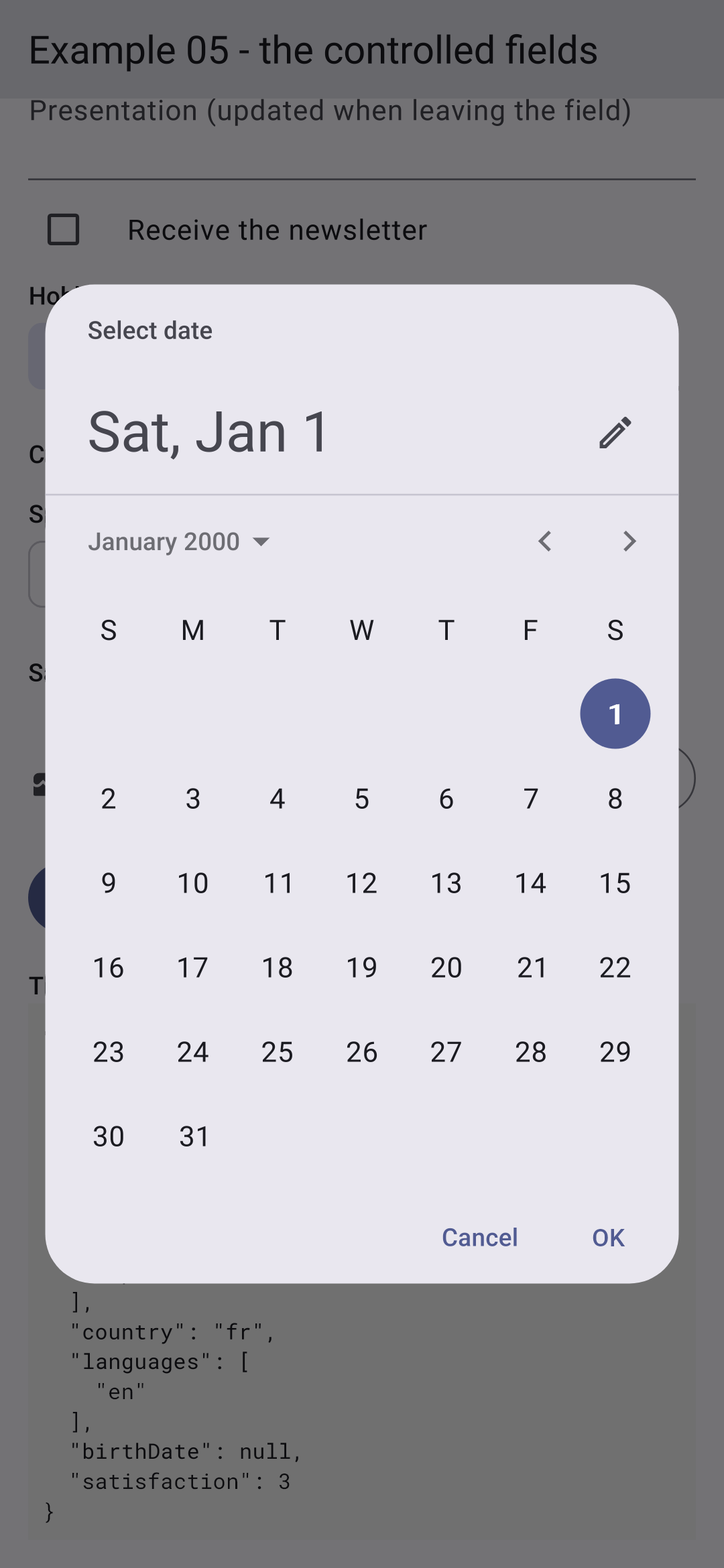
- lines 105–113: the date of birth is selected from a calendar window. [showDatePicker] opens the window and returns a [Future]: the selected date, later, when the user has closed the window (or [null] if they closed it without making a selection). The method is [async]: [await] waits for [Future] to finish without blocking the application. This mechanism is used wherever there is a need to wait (for a window, a server);
- lines 118–126: the state modified by the code: the fields follow. For a text box, we write to its controller. [..clear()..addAll([...])]: the “cascade” of [Dart], multiple method calls on the same object;
- line 132: [jsonEncode] (from [dart:convert]) creates the JSON from a [Map].
The fields in [build]:
- lines 146–151: radio buttons. [RadioGroup] contains the selected value ([groupValue]) and the function called when another value is selected ([onChanged]); it contains the buttons [Radio], each with its own value. [...[a, b, c]] inserts multiple widgets at once: for each title, a button, its label, and a space;
- lines 160–169: two text fields side by side, in a [Row]. [Expanded(flex: 2, ...)]: the name takes up twice as much space as the age. The age field’s keyboard is numeric;
- Lines 178–186: An uncontrolled field: [TextFormField] can receive an initial value ([initialValue]) instead of a controller, and manage its own text. The text is updated with each keystroke, WITHOUT [setState]: nothing is redrawn. The [Focus] widget notifies when its child gains or loses focus ([onFocusChange]): redrawing only occurs when the field is exited. This is equivalent to the [blur] event of the HTML;
- lines 190–195: a single checkbox and its label;
- lines 199–206: multiple choices for ONE set: checkboxes to select ([FilterChip]). Each bullet is selected if the set contains its value; tapping it adds or removes the value. [Wrap] places its children side by side and wraps to the next line when there is no more space;
- lines 216–222: a drop-down list. [value] specifies which item is selected; [items] lists the items, each with its value and widget. [for (final MapEntry(key: code, value: name) in countries.entries)] iterates through the entries of the [Map] [countries] by “unpacking” each one into two variables, [code] and [name];
- lines 230–234: spoken languages, also listed with bullets. (In [Flutter], there is no multiple-choice list: bullets or checkboxes serve this purpose);
- lines 244–249: a slider, from 1 to 5, in four intervals ([divisions]). Its value is a [double];
- lines 254–259: the date of birth and the button that opens the calendar;
- lines 278–279: the model, live: its JSON, indented by two spaces, in the monospaced font included with the application;
- lines 283–289: a block that only appears after a message is sent: [if] followed by [...[ ]] inserts several widgets, or none at all.
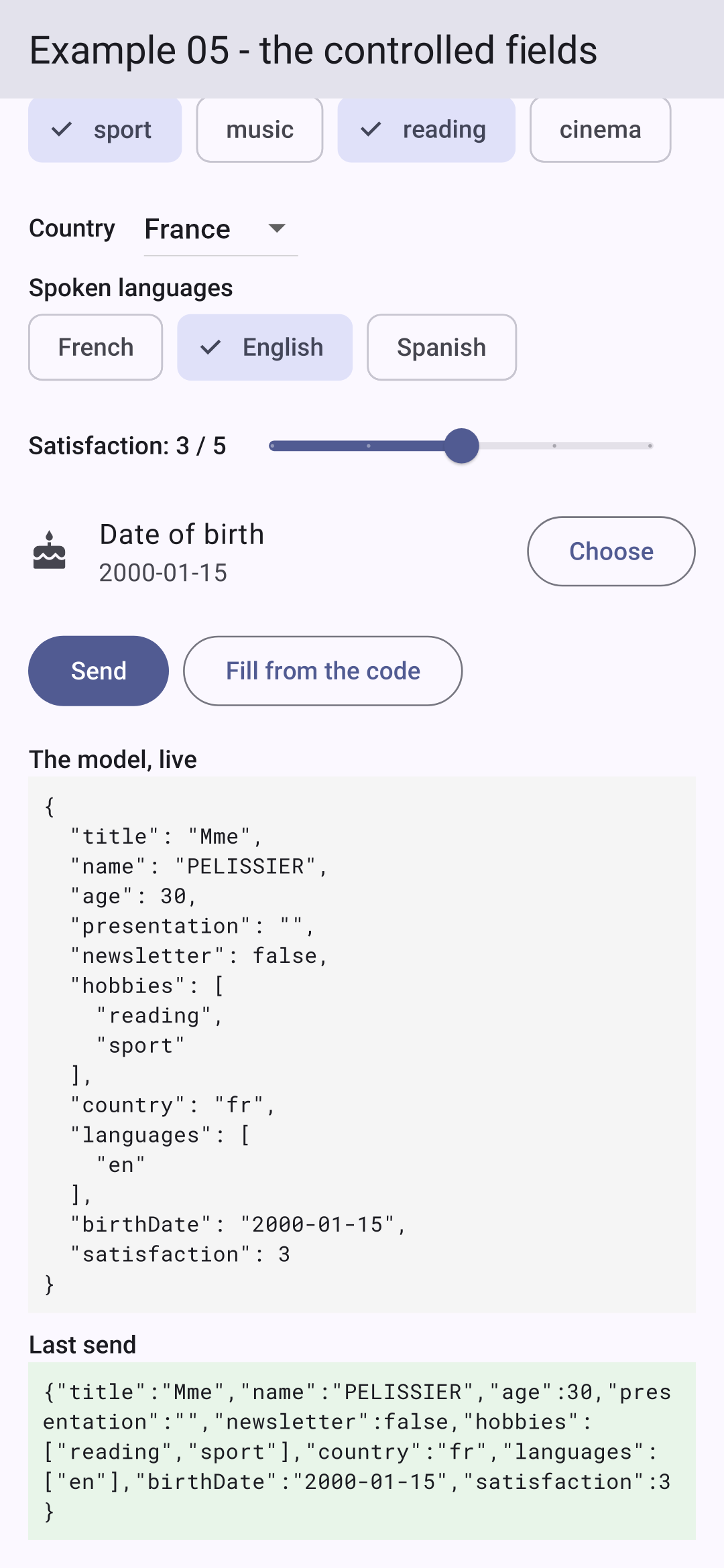
You choose the title, a name, hobbies, and a language; then you open the calendar; then you send:
The following table summarizes what each field transmits to its corresponding function, [onChanged]:
Field | Value Transmitted |
TextField, TextFormField | String (text); or the controller is read |
Checkbox, CheckboxListTile | bool? (checked, unchecked, or undetermined) |
Switch, SwitchListTile | bool |
Radio (in a RadioGroup) | the value of the selected button (T?) |
DropdownButton<T> | the value of the selected element (T?) |
FilterChip | bool: Is the bullet point selected? |
SegmentedButton<T> | Set<T>: the selected values |
Slider | double |
showDatePicker | Future<DateTime?>: the selected date, at a later time |
Example 05 had a state field for each form field. For a real form, we prefer an object that contains all the values—the model—and we describe its changes in a single function, the reducer: [reducer(currentState, action) -> newState]. This is what the hook [useReducer] does for [React]; in [Flutter], there is nothing to import: [Dart] provides everything needed.
| // =========================================================================
// lib/ex06_reducer/main.dart - a form, an object, a reducer
// -------------------------------------------------------------------------
// Example 05 had one state field per field of the form. For a real
// form, we prefer ONE object that holds all the values, the
// MODEL (here a Profile object, not modifiable), and we describe its
// changes in a single function, the REDUCER:
//
// reducer(currentState, action) -> newState
//
// The widget no longer modifies the state: it DESCRIBES what happened, with a
// ProfileAction object (Edit(Field.lastName, 'Dupont'), Leave(Field.lastName)...), and
// the reducer deduces the new state from it. All the logic is in one
// place, in a PURE function (same input, same output, no side
// effect), easy to test.
// Dart lends itself well to this: a "sealed" class lists all the possible
// actions, and a switch on an action is checked by the compiler
// (a forgotten case is an error).
//
// The state also keeps, for each field, whether it has been "touched" (left at
// least once); from it we deduce whether it is "modified" (its value differs from
// the initial value) and whether it is disabled.
// =========================================================================
import 'dart:convert';
import 'package:flutter/material.dart';
// the name of each field of the form
enum Field { title, firstName, lastName, age, newsletter, email, country, birthDate, presentation }
// the data of the form: a NON-MODIFIABLE object (all its fields are
// final). To "modify" it, we build a new one (copyWith)
class Profile {
final String title;
final String firstName;
final String lastName;
final int age;
final bool newsletter;
final String email;
final String country;
final String birthDate;
final String presentation;
const Profile({
required this.title,
required this.firstName,
required this.lastName,
required this.age,
required this.newsletter,
required this.email,
required this.country,
required this.birthDate,
required this.presentation,
});
// a copy, in which a few fields are changed (the others are kept);
// "??": the new value if it is provided, otherwise the old one
Profile copyWith({
String? title,
String? firstName,
String? lastName,
int? age,
bool? newsletter,
String? email,
String? country,
String? birthDate,
String? presentation,
}) {
return Profile(
title: title ?? this.title,
firstName: firstName ?? this.firstName,
lastName: lastName ?? this.lastName,
age: age ?? this.age,
newsletter: newsletter ?? this.newsletter,
email: email ?? this.email,
country: country ?? this.country,
birthDate: birthDate ?? this.birthDate,
presentation: presentation ?? this.presentation,
);
}
// the value of a field, designated by its name
Object value(Field c) => switch (c) {
Field.title => title,
Field.firstName => firstName,
Field.lastName => lastName,
Field.age => age,
Field.newsletter => newsletter,
Field.email => email,
Field.country => country,
Field.birthDate => birthDate,
Field.presentation => presentation,
};
// a copy in which ONE field, designated by its name, has a new value
Profile withField(Field c, Object v) => switch (c) {
Field.title => copyWith(title: v as String),
Field.firstName => copyWith(firstName: v as String),
Field.lastName => copyWith(lastName: v as String),
Field.age => copyWith(age: v as int),
Field.newsletter => copyWith(newsletter: v as bool),
Field.email => copyWith(email: v as String),
Field.country => copyWith(country: v as String),
Field.birthDate => copyWith(birthDate: v as String),
Field.presentation => copyWith(presentation: v as String),
};
Map<String, Object> toJson() => {for (final c in Field.values) c.name: value(c)};
}
const initial = Profile(
title: 'Mme',
firstName: 'Marie',
lastName: 'PELISSIER',
age: 30,
newsletter: false,
email: '',
country: 'fr',
birthDate: '',
presentation: '',
);
// the complete state: the values, and the fields already left
class ProfileState {
final Profile values;
final Set<Field> touched;
const ProfileState(this.values, this.touched);
}
// the possible actions. "sealed": there are no others than those of
// this file, the compiler knows it
sealed class ProfileAction {
const ProfileAction();
}
class Edit extends ProfileAction {
final Field field;
final Object value;
const Edit(this.field, this.value);
}
class Leave extends ProfileAction {
final Field field;
const Leave(this.field);
}
class Uppercase extends ProfileAction {
const Uppercase();
}
class Reset extends ProfileAction {
const Reset();
}
// the reducer: it NEVER modifies the state it receives, it returns a new one.
// The switch "destructures" each action: Edit(:final field, ...) reads
// its fields into variables of the same name
ProfileState reducer(ProfileState state, ProfileAction action) => switch (action) {
Edit(:final field, :final value) => ProfileState(state.values.withField(field, value), state.touched),
Leave(:final field) => ProfileState(state.values, {...state.touched, field}),
Uppercase() => ProfileState(
state.values.copyWith(firstName: state.values.firstName.toUpperCase(), lastName: state.values.lastName.toUpperCase()),
state.touched,
),
Reset() => const ProfileState(initial, {}),
};
const titles = ['Mr', 'Mme', 'Melle'];
const trackedFields = [Field.firstName, Field.lastName, Field.age, Field.email];
// the text fields: each one will have its controller
const textFields = [Field.firstName, Field.lastName, Field.email, Field.presentation];
void main() {
runApp(
MaterialApp(
debugShowCheckedModeBanner: false,
theme: ThemeData(colorSchemeSeed: Colors.indigo),
home: const ProfilePage(),
),
);
}
class ProfilePage extends StatefulWidget {
const ProfilePage({super.key});
@override
State<ProfilePage> createState() => _ProfilePageState();
}
class _ProfilePageState extends State<ProfilePage> {
ProfileState _state = const ProfileState(initial, {});
// one controller per text field; a "map": Field -> controller
final _controllers = {for (final c in textFields) c: TextEditingController(text: initial.value(c) as String)};
@override
void dispose() {
for (final c in _controllers.values) {
c.dispose();
}
super.dispose();
}
// THE only way to change the state: describing what happened
void _dispatch(ProfileAction action) {
setState(() => _state = reducer(_state, action));
// the reducer may have changed a text (Uppercase, Reset): the
// input fields must show it
for (final MapEntry(key: field, value: controller) in _controllers.entries) {
final value = _state.values.value(field) as String;
if (controller.text != value) {
controller.text = value;
}
}
}
Profile get _v => _state.values;
// values DEDUCED from the state
bool _modified(Field c) => _v.value(c) != initial.value(c);
bool _disabled(Field c) => c == Field.email && !_v.newsletter; // the e-mail requires the newsletter
bool get _formModified => Field.values.any(_modified);
// a text field linked to the model: a method that builds it
Widget _field(Field field, String label, {int lines = 1}) {
// Focus: we know when the field is LEFT (it loses the focus)
return Focus(
onFocusChange: (hasFocus) {
if (!hasFocus) _dispatch(Leave(field));
},
child: TextField(
controller: _controllers[field],
enabled: !_disabled(field),
maxLines: lines,
decoration: InputDecoration(labelText: label),
onChanged: (text) => _dispatch(Edit(field, text)),
),
);
}
@override
Widget build(BuildContext context) {
final titleStyle = Theme.of(context).textTheme.titleSmall;
return Scaffold(
appBar: AppBar(title: const Text('Example 06 - a reducer')),
body: ListView(
padding: const EdgeInsets.all(16),
children: [
RadioGroup<String>(
groupValue: _v.title,
onChanged: (t) => _dispatch(Edit(Field.title, t!)),
child: Row(
children: [
for (final t in titles) ...[Radio<String>(value: t), Text(t), const SizedBox(width: 12)],
],
),
),
Row(
children: [
Expanded(child: _field(Field.firstName, 'First name')),
const SizedBox(width: 12),
Expanded(child: _field(Field.lastName, 'Last name')),
],
),
Row(
children: [
Text('Age: ${_v.age}', style: titleStyle),
Expanded(
child: Slider(
value: _v.age.toDouble(),
max: 120,
divisions: 120,
onChanged: (a) => _dispatch(Edit(Field.age, a.round())),
// the slider is released: the field has been "left"
onChangeEnd: (_) => _dispatch(const Leave(Field.age)),
),
),
],
),
SwitchListTile(
contentPadding: EdgeInsets.zero,
title: const Text('Receive the newsletter'),
value: _v.newsletter,
onChanged: (yes) => _dispatch(Edit(Field.newsletter, yes)),
),
_field(Field.email, 'E-mail (if newsletter)'),
const SizedBox(height: 8),
DropdownButton<String>(
value: _v.country,
items: const [
DropdownMenuItem(value: 'fr', child: Text('France')),
DropdownMenuItem(value: 'be', child: Text('Belgium')),
DropdownMenuItem(value: 'ch', child: Text('Switzerland')),
],
onChanged: (p) => _dispatch(Edit(Field.country, p!)),
),
_field(Field.presentation, 'Presentation', lines: 2),
const SizedBox(height: 12),
Wrap(
spacing: 8,
children: [
OutlinedButton(onPressed: () => _dispatch(const Uppercase()), child: const Text('Name in upper case')),
OutlinedButton(onPressed: () => _dispatch(const Reset()), child: const Text('Reset')),
],
),
const SizedBox(height: 16),
Text('The model, live', style: titleStyle),
Container(
padding: const EdgeInsets.all(8),
color: Colors.grey.shade100,
child: Text(
const JsonEncoder.withIndent(' ').convert(_v.toJson()),
style: const TextStyle(fontFamily: 'RobotoMono', fontSize: 12),
),
),
const SizedBox(height: 16),
Text('The state of the fields', style: titleStyle),
// DataTable: a table, with its columns and its rows
DataTable(
columnSpacing: 16,
headingRowHeight: 36,
dataRowMinHeight: 28,
dataRowMaxHeight: 32,
columns: const [
DataColumn(label: Text('field')),
DataColumn(label: Text('touched')),
DataColumn(label: Text('modified')),
DataColumn(label: Text('disabled')),
],
rows: [
for (final c in trackedFields)
DataRow(
cells: [
DataCell(Text(c.name)),
DataCell(Text('${_state.touched.contains(c)}')),
DataCell(Text('${_modified(c)}')),
DataCell(Text('${_disabled(c)}')),
],
),
],
),
const SizedBox(height: 8),
Text.rich(
TextSpan(
children: [
const TextSpan(text: 'form modified: '),
TextSpan(
text: '$_formModified',
style: const TextStyle(fontWeight: FontWeight.bold),
),
],
),
),
],
),
);
}
}
|
The model:
- line 30: the name of each field in the form;
- lines 34–43: the form data: a non-editable object, all of whose fields are [final];
- lines 45–54: a constructor with named parameters, all of which are required ([required]);
- lines 59–79: To “modify” a non-editable object, a copy is created in which some fields are changed: this is the method [copyWith], a variation of [Flutter] (which we encountered with [TextStyle]). Each parameter is optional ([String? title]: a string or [null]); [title ?? this.title]: the new value if provided, otherwise the old one;
- lines 84–93: the value of a field designated by its name: an expression [switch] on the enumeration;
- lines 97–106: a copy in which ONE field, designated by its name, has a new value. [v as String]: the received value (of type [Object], which can be anything) is converted to a string; if it were not a string, it would result in a runtime error;
- line 109: a [Map] “field name -> value,” created by a [for] within a literal [Map]. [c.name]: the name of an enumeration value (“firstName”);
- lines 112–121: the initial values;
- lines 125–129: the complete state: the values, and all fields that have already been processed (“touched”).
Actions and the reducer:
- lines 134–154: the possible actions: a sealed class ([sealed]) and its four subclasses. [sealed] tells the compiler that there are no subclasses other than those in this file. An action describes what happened: [Edit(Field.lastName, 'Dupont')], [Leave(Field.lastName)]...;
- lines 160–167: the reducer. It is a pure function: same input, same output, no side effects; it never modifies the received state, but returns a new one. The [switch] applies to the action, and each case is a pattern that tests its type: [Edit(:final field, :final value)] verifies that the action is an [Edit], and stores its [field] and [value] fields in variables of the same name. Since the class is sealed, the compiler verifies that all four actions are handled; adding a fifth one without completing the reducer would result in a compilation error;
- line 162: a new set, composed of elements from the old set ([...state.touched]) and the field being exited.
The screen:
- line 193: the screen state: ONE field, the object [ProfileState];
- line 195: a text field control, in a [Map] created by a [for];
- Lines 206–213: the ONLY method for changing the state: describe what happened. [_dispatch] (the name [React] gives it) calculates the new state using the reducer, in [setState]. Then, since the reducer may have modified some text (Uppercase, Reset), the values are copied to the controllers that do not already have them;
- lines 221–223: values derived from the state: a field is modified if its value differs from the initial value; email is disabled without the newsletter; the form is modified if any of its fields are modified ([any]). [Field.values]: the list of enumeration values;
- lines 226–237: a method that creates a text field linked to the model: its controller, its disabled state ([enabled]), and two actions: [Edit] on each keystroke, [Leave] when it loses focus;
- In [build], each field describes its changes using an action: [_dispatch(Edit(Field.title, t!))], [_dispatch(const Uppercase())]...;
- lines 320–338: a table ([DataTable]), with its columns and rows: the status of each field being tracked;
- lines 344–349: a text composed of several sections with different styles: [Text.rich] and its [TextSpan].
We change the name, exit the field, and subscribe to the newsletter; then we capitalize the name:
All the form’s logic is contained in the reducer—a function of just a few lines, without any widgets—which can be tested on its own. The widgets now simply display the status and describe what is happening.
A pure function, [validate(account)], returns field errors; it is called each time [build] is executed, so the errors are always up to date. They are not displayed immediately (an empty form covered in red is unpleasant), only for a field that has already been left. Submitting the form displays all errors.
| // =========================================================================
// lib/ex07_validation/main.dart - validating a form, by hand
// -------------------------------------------------------------------------
// A PURE function, validate(account), returns the errors of the fields; we
// call it on each build(), so the errors are always up to date.
// We do not show them right away (an empty form covered in red is
// unpleasant): only for a field already left ("touched"). Sending
// marks all the fields as touched, then only acts if the form
// is valid. A TextField displays an error below the field, in red,
// when it is given an error text: InputDecoration(errorText: ...).
//
// Same rules as the RdvMedecins server ("Create an account" form).
// WARNING: this validation is only a CONVENIENCE for the user (an
// immediate answer, without a round trip to the server). It protects
// nothing: anyone can send the server a request built by
// hand (curl...). The server therefore ALWAYS validates everything again (see example 25).
// =========================================================================
import 'package:flutter/material.dart';
enum Field { title, firstName, lastName, login, password, confirmation }
// a "record": a small group of named values, without a class to write
typedef Account = ({String title, String firstName, String lastName, String login, String password, String confirmation});
const titles = ['Mr', 'Mme', 'Melle'];
final loginFormat = RegExp(r'^[a-z0-9._-]{1,30}$');
const passwordMin = 6;
// the rules: a pure function, which only depends on its argument.
// It returns, for each field in error, its message
Map<Field, String> validate(Account c) {
final errors = <Field, String>{};
if (!titles.contains(c.title)) errors[Field.title] = 'Choose a title from the list.';
if (c.firstName.trim().isEmpty) {
errors[Field.firstName] = 'The first name is required.';
} else if (c.firstName.length > 20) {
errors[Field.firstName] = 'The first name must not exceed 20 characters.';
}
if (c.lastName.trim().isEmpty) {
errors[Field.lastName] = 'The last name is required.';
} else if (c.lastName.length > 20) {
errors[Field.lastName] = 'The last name must not exceed 20 characters.';
}
if (c.login.isEmpty) {
errors[Field.login] = 'The login is required.';
} else if (!loginFormat.hasMatch(c.login)) {
errors[Field.login] = 'Unaccented lower-case letters, digits, dot, hyphen, underscore.';
}
if (c.password.isEmpty) {
errors[Field.password] = 'The password is required.';
} else if (c.password.length < passwordMin) {
errors[Field.password] = 'At least $passwordMin characters.';
}
// a rule that compares TWO fields
if (c.confirmation != c.password) {
errors[Field.confirmation] = 'The confirmation does not match the password.';
}
return errors;
}
void main() {
runApp(
MaterialApp(
debugShowCheckedModeBanner: false,
theme: ThemeData(colorSchemeSeed: Colors.indigo),
home: const AccountPage(),
),
);
}
class AccountPage extends StatefulWidget {
const AccountPage({super.key});
@override
State<AccountPage> createState() => _AccountPageState();
}
class _AccountPageState extends State<AccountPage> {
String _title = 'Mr';
// one controller per text field
final _texts = {
for (final c in [Field.firstName, Field.lastName, Field.login, Field.password, Field.confirmation])
c: TextEditingController(),
};
final Set<Field> _touched = {};
bool _submitAttempted = false;
bool _success = false;
@override
void dispose() {
for (final c in _texts.values) {
c.dispose();
}
super.dispose();
}
// the account, as typed: a record built on demand
Account get _account => (
title: _title,
firstName: _texts[Field.firstName]!.text,
lastName: _texts[Field.lastName]!.text,
login: _texts[Field.login]!.text,
password: _texts[Field.password]!.text,
confirmation: _texts[Field.confirmation]!.text,
);
void _send() {
setState(() {
_submitAttempted = true;
_touched.addAll(Field.values); // all the errors appear
// here, the account would be sent to the server (see example 25)
_success = validate(_account).isEmpty;
});
}
@override
Widget build(BuildContext context) {
// the errors: recomputed on each build(), never stored in the state
final errors = validate(_account);
// the error to DISPLAY for a field: only if it has been touched
String? error(Field c) => _touched.contains(c) ? errors[c] : null;
// a text field: label, error, and a green check mark if it is touched and valid
Widget field(Field c, String label, {bool secret = false}) {
final valid = _touched.contains(c) && !errors.containsKey(c);
return Focus(
onFocusChange: (hasFocus) {
if (!hasFocus) setState(() => _touched.add(c));
},
child: TextField(
controller: _texts[c],
obscureText: secret, // the characters are hidden
decoration: InputDecoration(
labelText: label,
errorText: error(c),
// the error may span two lines
errorMaxLines: 2,
suffixIcon: valid ? const Icon(Icons.check_circle, color: Colors.green) : null,
),
onChanged: (_) => setState(() => _success = false),
),
);
}
return Scaffold(
appBar: AppBar(title: const Text('Example 07 - the validation')),
body: ListView(
padding: const EdgeInsets.all(16),
children: [
DropdownButton<String>(
value: _title,
items: [for (final t in titles) DropdownMenuItem(value: t, child: Text(t))],
onChanged: (t) => setState(() => _title = t!),
),
field(Field.firstName, 'First name'),
field(Field.lastName, 'Last name'),
field(Field.login, 'Login'),
field(Field.password, 'Password', secret: true),
field(Field.confirmation, 'Confirmation', secret: true),
const SizedBox(height: 16),
FilledButton(onPressed: _send, child: const Text('Create the account')),
const SizedBox(height: 12),
if (_submitAttempted && errors.isNotEmpty)
_Message('The form contains ${errors.length} error(s).', color: Colors.red.shade50),
if (_success)
_Message('Valid form: it could be sent to the server.', color: Colors.green.shade50),
],
),
);
}
}
// a small private widget: a message on a colored background
class _Message extends StatelessWidget {
final String text;
final Color color;
const _Message(this.text, {required this.color});
@override
Widget build(BuildContext context) {
return Container(
padding: const EdgeInsets.all(12),
decoration: BoxDecoration(color: color, borderRadius: BorderRadius.circular(8)),
child: Text(text),
);
}
}
|
- line 24: the account entered is a record: a small group of named values, with no class to write. [typedef] assigns it a name. A record is written as [(title: 'Mr', firstName: 'Marie', ...)] and read as [account.firstName];
- lines 27–28: a regular expression (the format of a login) and a constant: the same rules as the server [RdvMedecins];
- lines 32–59: the rules: a pure function that depends only on its argument and returns a [Map] “error field → message.” The last rule compares TWO fields: the confirmation and the password;
- lines 82–84: one validator per text field;
- line 86: fields that have already been exited;
- lines 99–105: the account, as entered: a record generated on demand based on the validators. [_texts[Field.firstName]!]: Accessing a [Map] returns a value or [null] (the key may be missing); the [!] confirms that it is present;
- lines 108–113: the submission marks all fields as touched (errors appear), then takes action only if the form is valid;
- line 120: in [build], errors are recalculated each time; they are never stored in the state;
- line 123: a local function: the error to display for a field, only if it has been touched;
- Lines 126–142: a local function that creates a field. [InputDecoration] knows how to display an error: [errorText]. When it is not [null], the field is outlined in red and the message is displayed below it (on no more than two lines: [errorMaxLines]). [suffixIcon]: an icon to the right of the field—in this case, a green checkmark for a filled-in and valid field. [obscureText] masks the characters of a password;
- lines 165–168: end-of-form messages;
- lines 176–187: a small private widget, to avoid repeating the same colored box twice.
Fill in a few fields, then submit; then correct everything, and resubmit:
ATTENTION: This validation is merely a convenience for the user—an immediate response without back-and-forth communication with the server. It doesn’t protect anything: anyone can send a manually crafted request to the server ([curl]…), and the code of a mobile app can be modified. The server therefore always revalidates everything (see Example 25).
The form from Example 07, written using the tools provided by [Flutter] itself. Whereas [React] requires a library ([React Hook Form]), [Flutter] has its own form widgets:
| // =========================================================================
// lib/ex08_form/main.dart - Flutter's forms: Form and FormField
// -------------------------------------------------------------------------
// The form of example 07, written with the form tools that
// Flutter provides itself:
// - Form: a widget that GROUPS form fields (FormField);
// it is reached through a "global key", GlobalKey<FormState>;
// - TextFormField, DropdownButtonFormField...: fields that know how to
// validate themselves. Their validator parameter is a function:
// (value) -> null if the value is fine, otherwise the error message;
// - autovalidateMode: WHEN to validate (here, as soon as the user has
// modified the field, then on each keystroke);
// - form.validate(): validates ALL the fields, displays their
// errors, and returns true if everything is fine;
// - form.save(): calls the onSaved of each field, which stores its
// value wherever we want.
// The fields are NOT controlled: each one keeps its value, the Form only
// reads it at validation and at saving time.
// =========================================================================
import 'dart:convert';
import 'package:flutter/material.dart';
const titles = ['Mr', 'Mme', 'Melle'];
void main() {
runApp(
MaterialApp(
debugShowCheckedModeBanner: false,
theme: ThemeData(colorSchemeSeed: Colors.indigo),
home: const AccountPage(),
),
);
}
class AccountPage extends StatefulWidget {
const AccountPage({super.key});
@override
State<AccountPage> createState() => _AccountPageState();
}
class _AccountPageState extends State<AccountPage> {
// the key that gives access to the state of the form (validate, save, reset)
final _formKey = GlobalKey<FormState>();
// the key of ONE field: to validate the confirmation again when the password changes
final _confirmationKey = GlobalKey<FormFieldState<String>>();
// the password is read in the rule of the confirmation: a controller
final _password = TextEditingController();
// the values stored by the onSaved callbacks
final Map<String, String> _account = {};
// null: no send yet; '': send refused; otherwise, the JSON sent
String? _sent;
@override
void dispose() {
_password.dispose();
super.dispose();
}
void _create() {
final form = _formKey.currentState!;
if (!form.validate()) {
setState(() => _sent = '');
return;
}
form.save(); // each onSaved stores its value in _account
setState(() => _sent = jsonEncode(_account));
}
// rule FACTORIES: each one returns a validation function
FormFieldValidator<String> _required(String message) =>
(v) => (v == null || v.trim().isEmpty) ? message : null;
FormFieldValidator<String> _maximum(int max, FormFieldValidator<String> other) =>
(v) => other(v) ?? (v!.length > max ? 'At most $max characters.' : null);
@override
Widget build(BuildContext context) {
return Scaffold(
appBar: AppBar(title: const Text('Example 08 - Form and FormField')),
body: Form(
key: _formKey,
child: ListView(
padding: const EdgeInsets.all(16),
children: [
// initialValue: the initial value; the field then manages its own
DropdownButtonFormField<String>(
initialValue: 'Mr',
decoration: const InputDecoration(labelText: 'Title'),
items: [for (final t in titles) DropdownMenuItem(value: t, child: Text(t))],
onChanged: (_) {},
onSaved: (t) => _account['title'] = t!,
),
TextFormField(
decoration: const InputDecoration(labelText: 'First name'),
autovalidateMode: AutovalidateMode.onUserInteraction,
validator: _maximum(20, _required('The first name is required.')),
onSaved: (v) => _account['firstName'] = v!.trim(),
),
TextFormField(
decoration: const InputDecoration(labelText: 'Last name'),
autovalidateMode: AutovalidateMode.onUserInteraction,
validator: _maximum(20, _required('The last name is required.')),
onSaved: (v) => _account['lastName'] = v!.trim(),
),
TextFormField(
decoration: const InputDecoration(labelText: 'Login', errorMaxLines: 2),
autovalidateMode: AutovalidateMode.onUserInteraction,
// a rule written directly: an anonymous function
validator: (v) {
if (v == null || v.isEmpty) return 'The login is required.';
if (!RegExp(r'^[a-z0-9._-]{1,30}$').hasMatch(v)) {
return 'Unaccented lower-case letters, digits, dot, hyphen, underscore.';
}
return null;
},
onSaved: (v) => _account['login'] = v!,
),
TextFormField(
controller: _password,
obscureText: true,
decoration: const InputDecoration(labelText: 'Password'),
autovalidateMode: AutovalidateMode.onUserInteraction,
validator: (v) {
if (v == null || v.isEmpty) return 'The password is required.';
return v.length < 6 ? 'At least 6 characters.' : null;
},
// the password changes: the confirmation is validated again
// (if it has already been typed)
onChanged: (_) {
final confirmation = _confirmationKey.currentState!;
if (confirmation.value?.isNotEmpty ?? false) confirmation.validate();
},
onSaved: (v) => _account['password'] = v!,
),
TextFormField(
key: _confirmationKey,
obscureText: true,
decoration: const InputDecoration(labelText: 'Confirmation', errorMaxLines: 2),
autovalidateMode: AutovalidateMode.onUserInteraction,
// a rule that reads ANOTHER field
validator: (v) => v == _password.text ? null : 'The confirmation does not match the password.',
),
const SizedBox(height: 16),
FilledButton(onPressed: _create, child: const Text('Create the account')),
const SizedBox(height: 12),
if (_sent != null)
Container(
padding: const EdgeInsets.all(12),
decoration: BoxDecoration(
color: _sent!.isEmpty ? Colors.red.shade50 : Colors.green.shade50,
borderRadius: BorderRadius.circular(8),
),
child: Text(_sent!.isEmpty ? 'Invalid form.' : 'Valid form: $_sent'),
),
],
),
),
);
}
}
|
- Line 46: A form named [Form] contains form fields. To interact with it from the code (validate, save), we assign it a global key, [GlobalKey]: an object that provides access to the state of a widget in the tree ([_formKey.currentState]);
- line 48: the key of ONE field, so it can be revalidated on its own;
- line 50: a controller for the password: the confirmation rule must read it;
- line 52: the values stored upon submission;
- lines 62–69: [validate()] validates all form fields, displays any errors, and returns [true] if everything is correct. [save()] then calls the function [onSaved] for each field, which sets its value;
- Lines 73–77: rule generators. A validation rule ([FormFieldValidator]) is a function that receives the field’s value and returns [null] if it is valid; otherwise, it returns the error message. [_required('...')] creates a rule; [_maximum(20, other)] creates a rule that first applies the rule [other], then its own ([??]: if the first one finds nothing);
- line 83: the form and its key;
- lines 89–94: a drop-down list that is also a form field. [initialValue]: its initial value; after that, the field manages its own value;
- lines 96–100: a [TextFormField] is a [TextField] that is also a form field: it has a rule ([validator]), a save function ([onSaved]), and an automatic validation mode: [AutovalidateMode.onUserInteraction] validates the field as soon as the user modifies it, and then with every keystroke;
- lines 112–117: a rule written directly, with two tests;
- lines 132–134: when the password changes, the confirmation is revalidated using the field’s key, if it has already been entered;
- line 144: a rule that reads ANOTHER field.
Enter some incorrect values and submit; then correct them:
Which of the two methods should you choose? [Form] and [TextFormField] are sufficient for a form whose rules are written in the application. But in this course, the server’s rules take precedence: the case study has no rules in the application and displays the error returned by the server beneath each field (Example 25). This is the method used in Example 07, which covers fields and their errors.
Each row of the table shows a piece of code and what it displays.
[Flutter] has no built-in formatting mechanism (the “pipes” from [Angular]): in [build], we call standard functions, stored in a file and testable separately:
| // =========================================================================
// lib/ex09_formatting/formatting.dart - "home-made" formatting functions
// -------------------------------------------------------------------------
// Flutter has no mechanism of its own for formatting (Angular has its
// "pipes"): in build(), we call ordinary FUNCTIONS, stored
// in a file and testable on their own:
// timeRange(slot) -> "8:00 - 8:20"
// timeRange(slot, Part.start) -> "8:00"
// Dart also allows ADDING methods to an existing type, with an
// "extension": 'marie pelissier'.capitalized -> 'Marie Pelissier'.
// For dates, numbers, amounts, the intl package knows the
// conventions of each language (see main.dart).
// =========================================================================
// a time slot, as described by the RdvMedecins API
class Slot {
final int startHour;
final int startMinute;
final int endHour;
final int endMinute;
const Slot(this.startHour, this.startMinute, this.endHour, this.endMinute);
}
enum Part { all, start, end }
// "8:05" rather than "8:5"
String _time(int h, int m) => '$h:${m.toString().padLeft(2, '0')}';
// an OPTIONAL parameter, with its default value: [Part part = Part.all]
String timeRange(Slot c, [Part part = Part.all]) => switch (part) {
Part.start => _time(c.startHour, c.startMinute),
Part.end => _time(c.endHour, c.endMinute),
Part.all => '${_time(c.startHour, c.startMinute)} - ${_time(c.endHour, c.endMinute)}',
};
// an EXTENSION of the String type: new methods for ALL the strings
extension Formatting on String {
// "marie pelissier" -> "Marie Pelissier"; \p{L}: a letter, accented or not
String get capitalized => replaceAllMapped(
RegExp(r'\p{L}+', unicode: true),
(m) => m[0]![0].toUpperCase() + m[0]!.substring(1).toLowerCase(),
);
// "Marie PELISSIER" -> "MP"
String get initials =>
split(RegExp(r'\s+')).where((word) => word.isNotEmpty).map((word) => word[0].toUpperCase()).join();
}
// "2026-10-05" (the format of the RdvMedecins API) -> a date
DateTime toDate(String day) => DateTime.parse(day);
|
- lines 16–22: a time slot, as described in API [RdvMedecins]: hours and minutes, as numbers;
- line 28: “8:05” rather than “8:5”: [padLeft(2, '0')] pads with zeros on the left;
- lines 31–34: a function with an optional positional parameter (in square brackets), along with its default value: [timeRange(c)] or [timeRange(c, Part.start)];
- lines 38–47: an extension: it adds methods (in this case, getters) to the type [String], to ALL the strings: ['marie pelissier'.capitalized]. This is a special feature of [Dart], which is very useful for formatting. [replaceAllMapped] replaces each word (a sequence of letters, accented or unaccented: [\p{L}+] with [unicode: true]) with the function’s return value;
- line 51: “2026-10-05” (the format of API) -> a date ([DateTime]).
3.9.2. The screen
| // =========================================================================
// lib/ex09_formatting/main.dart - formatting values
// -------------------------------------------------------------------------
// Each row of the table shows a piece of code and what it displays.
// The formatters of the intl package (DateFormat, NumberFormat) are created
// once and for all, outside the widgets: building them costs more than
// using them.
// The names of the days and months of each language are not loaded
// by default: initializeDateFormatting() loads them, BEFORE runApp.
// =========================================================================
import 'dart:convert';
import 'package:flutter/material.dart';
import 'package:intl/date_symbol_data_local.dart';
import 'package:intl/intl.dart';
import 'formatting.dart';
// dates: "ready-made" formats (yMMMd, yMMMMEEEEd, Hms...), or a pattern
final shortDate = DateFormat.yMMMd('en_US');
final fullDate = DateFormat.yMMMMEEEEd('en_US');
final timeOnly = DateFormat.Hms('en_US');
final frenchDay = DateFormat.yMMMMd('fr_FR');
final pattern = DateFormat('MM/dd/yyyy HH:mm', 'en_US');
// numbers and amounts
final euros = NumberFormat.currency(locale: 'en_US', symbol: '€');
final integer = NumberFormat.decimalPattern('en_US');
final percent = NumberFormat.decimalPercentPattern(locale: 'en_US', decimalDigits: 1);
const day = '2026-10-05'; // a date in the format of the RdvMedecins API
const price = 1234.5;
const rate = 0.055;
const name = 'marie pelissier';
const doctor = {'title': 'Mme', 'firstName': 'Marie', 'lastName': 'PELISSIER'};
const languages = ['Dart', 'Flutter', 'Kotlin', 'Swift', 'SQL'];
const slots = [Slot(8, 0, 8, 20), Slot(8, 20, 8, 40), Slot(14, 5, 14, 25)];
// main can be ASYNCHRONOUS: we wait for the languages to be loaded
Future<void> main() async {
await initializeDateFormatting('fr_FR');
await initializeDateFormatting('en_US');
runApp(
MaterialApp(
debugShowCheckedModeBanner: false,
theme: ThemeData(colorSchemeSeed: Colors.indigo),
home: const FormattingPage(),
),
);
}
class FormattingPage extends StatefulWidget {
const FormattingPage({super.key});
@override
State<FormattingPage> createState() => _FormattingPageState();
}
class _FormattingPageState extends State<FormattingPage> {
DateTime _now = DateTime.now();
@override
Widget build(BuildContext context) {
// (displayed code, value): a row of the table, as a "record"
final rows = <(String, String)>[
('shortDate.format(now)', shortDate.format(_now)),
('fullDate.format(now)', fullDate.format(_now)),
('timeOnly.format(now)', timeOnly.format(_now)),
('pattern.format(now)', pattern.format(_now)),
('fullDate.format(toDate(day))', fullDate.format(toDate(day))),
('frenchDay.format(toDate(day))', frenchDay.format(toDate(day))),
('now.toString()', _now.toString()),
('euros.format(price)', euros.format(price)),
('integer.format(price)', integer.format(price)),
('price.toStringAsFixed(1)', price.toStringAsFixed(1)),
('percent.format(rate)', percent.format(rate)),
('name.toUpperCase()', name.toUpperCase()),
('name.capitalized', name.capitalized),
("'RDV'.toLowerCase()", 'RDV'.toLowerCase()),
("languages.take(3).join(', ')", languages.take(3).join(', ')),
('jsonEncode(doctor)', jsonEncode(doctor)),
// two transformations in a row: the result of the first goes to the second
('name.capitalized.initials', name.capitalized.initials),
];
const codeStyle = TextStyle(fontFamily: 'RobotoMono', fontSize: 11, color: Color(0xFFC7254E));
return Scaffold(
appBar: AppBar(title: const Text('Example 09 - the formatting')),
body: ListView(
padding: const EdgeInsets.all(12),
children: [
// Table: a simple table; the first column takes 55% of the width
Table(
columnWidths: const {0: FractionColumnWidth(0.55)},
border: TableBorder(horizontalInside: BorderSide(color: Colors.grey.shade300)),
children: [
const TableRow(
children: [
Padding(
padding: EdgeInsets.all(4),
child: Text('In the code', style: TextStyle(fontWeight: FontWeight.bold)),
),
Padding(
padding: EdgeInsets.all(4),
child: Text('Displayed', style: TextStyle(fontWeight: FontWeight.bold)),
),
],
),
// a record can be "destructured": (code, value)
for (final (code, value) in rows)
TableRow(
children: [
Padding(
padding: const EdgeInsets.all(4),
child: Text(code, style: codeStyle),
),
Padding(padding: const EdgeInsets.all(4), child: Text(value)),
],
),
],
),
const SizedBox(height: 16),
Text('Iterating over the entries of a Map', style: Theme.of(context).textTheme.titleSmall),
for (final MapEntry(:key, :value) in doctor.entries) Text('$key = $value'),
const SizedBox(height: 16),
Text('A home-made function: timeRange', style: Theme.of(context).textTheme.titleSmall),
for (final c in slots) Text('${timeRange(c)} (start: ${timeRange(c, Part.start)})'),
const SizedBox(height: 16),
Align(
alignment: Alignment.centerLeft,
child: OutlinedButton(
onPressed: () => setState(() => _now = DateTime.now()),
child: const Text('Refresh the time'),
),
),
],
),
);
}
}
|
- lines 21–25: date formatters from the [intl] package. [DateFormat] contains “predefined” formats, identified by the parts to be displayed: [yMMMd] (year, abbreviated month, day), [yMMMMEEEEd] (plus the full day of the week), [Hms] (hours, minutes, seconds)... You can also specify a pattern: ['MM/dd/yyyy HH:mm']. The second parameter is the language;
- lines 27–29: number formatters: amounts, integers, percentages;
- lines 40–42: the names of the days and months for each language are not loaded by default: [initializeDateFormatting] loads them, before [runApp]. [main] can be asynchronous;
- lines 65–83: the table: a list of positional records [(code, value)], without field names;
- lines 93–111: [Table] draws a simple table. [columnWidths]: the first column takes up 55% of the width; [border]: lines between rows. [for (final (code, value) in rows)] breaks down each record;
- line 124: iterate through the entries in a [Map]: [:key] is a shortcut for [key: key];
- line 127: the custom function.
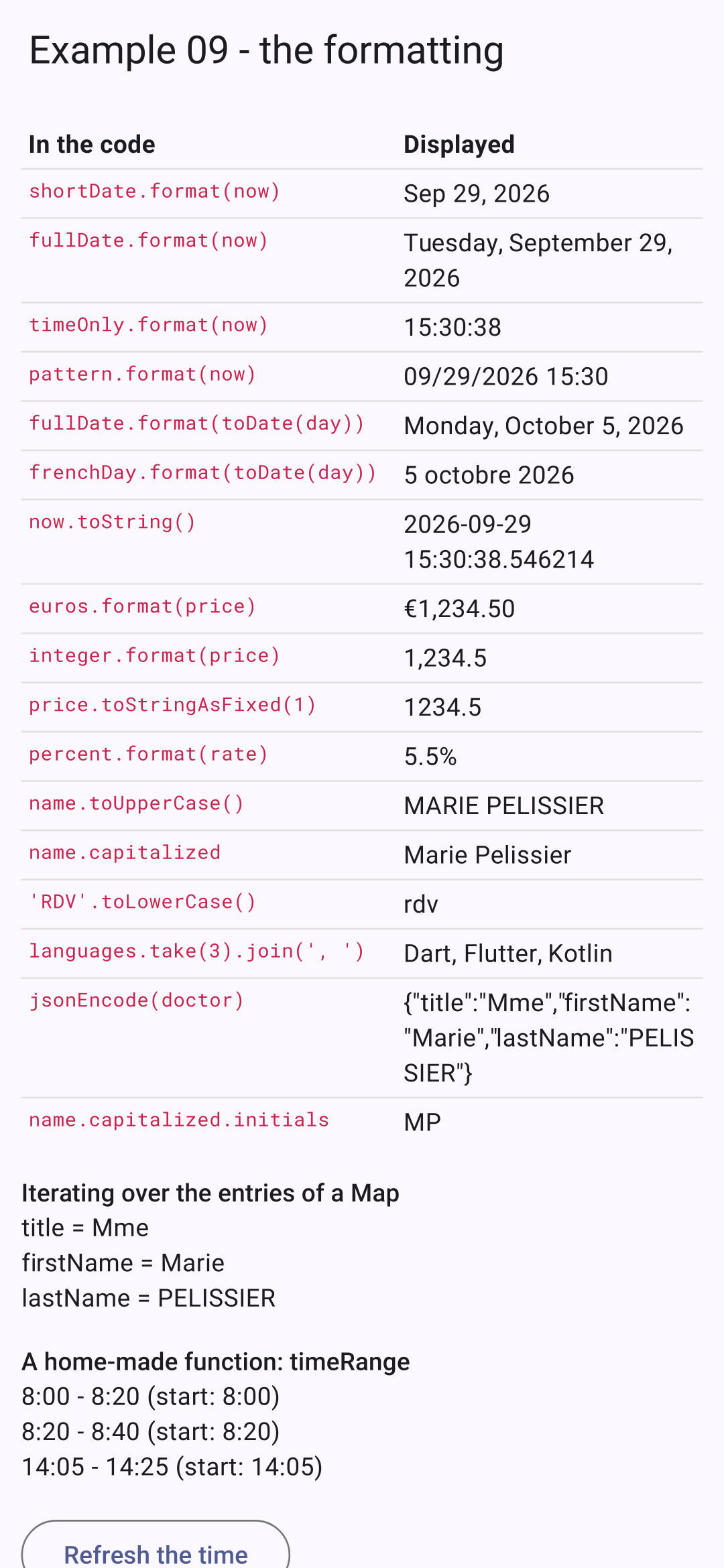 | 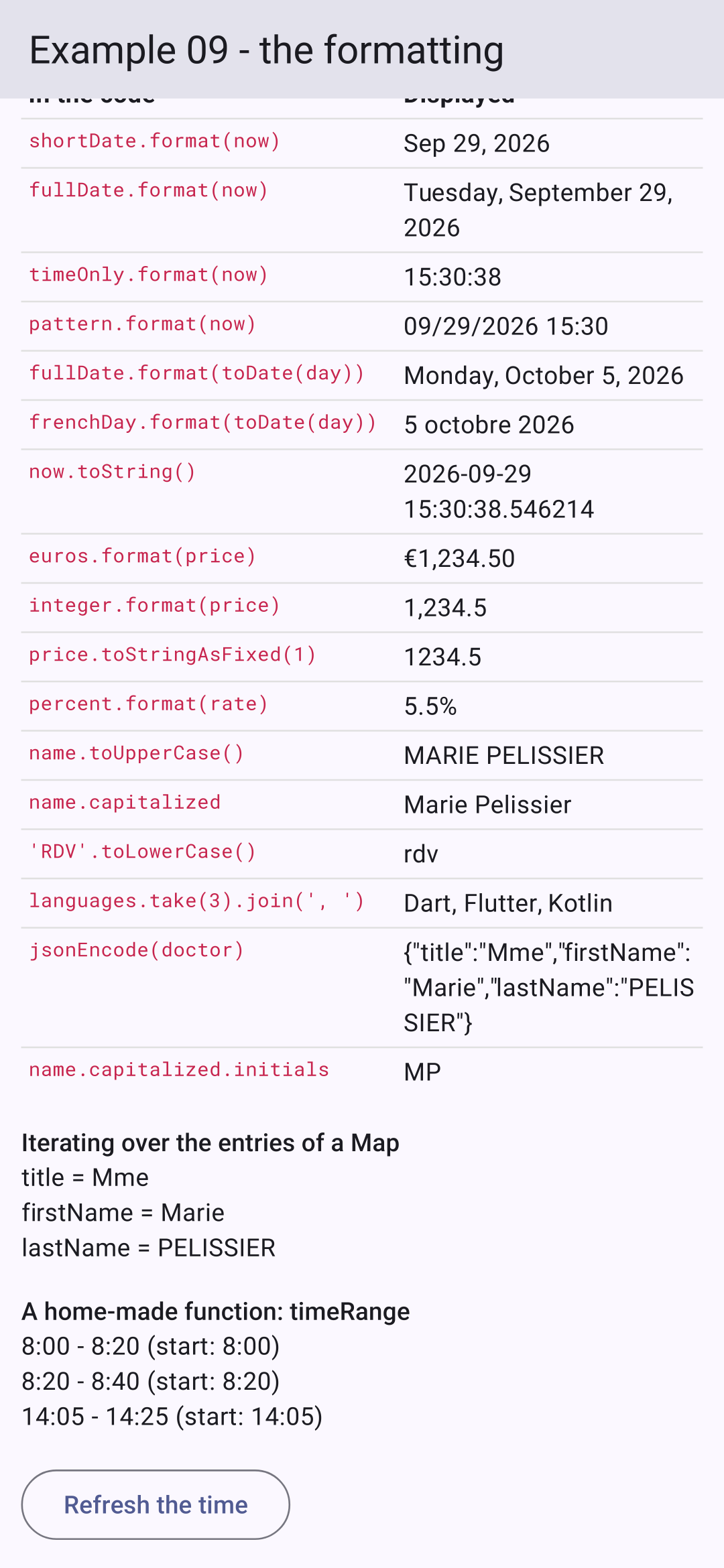 |
For dates, numbers, and amounts, [intl] serves the same purpose as the [Intl] API in web browsers: it understands the conventions of each language (separators, month names, order of components). The table uses the US English conventions (€1,234.50, “month day, year”); note that in French, a thin non-breaking space separates the thousands (1 234,50 €), and the order is “day month year” (the [frenchDay] row).