13. Track your site with Google Analytics and Google Search Console
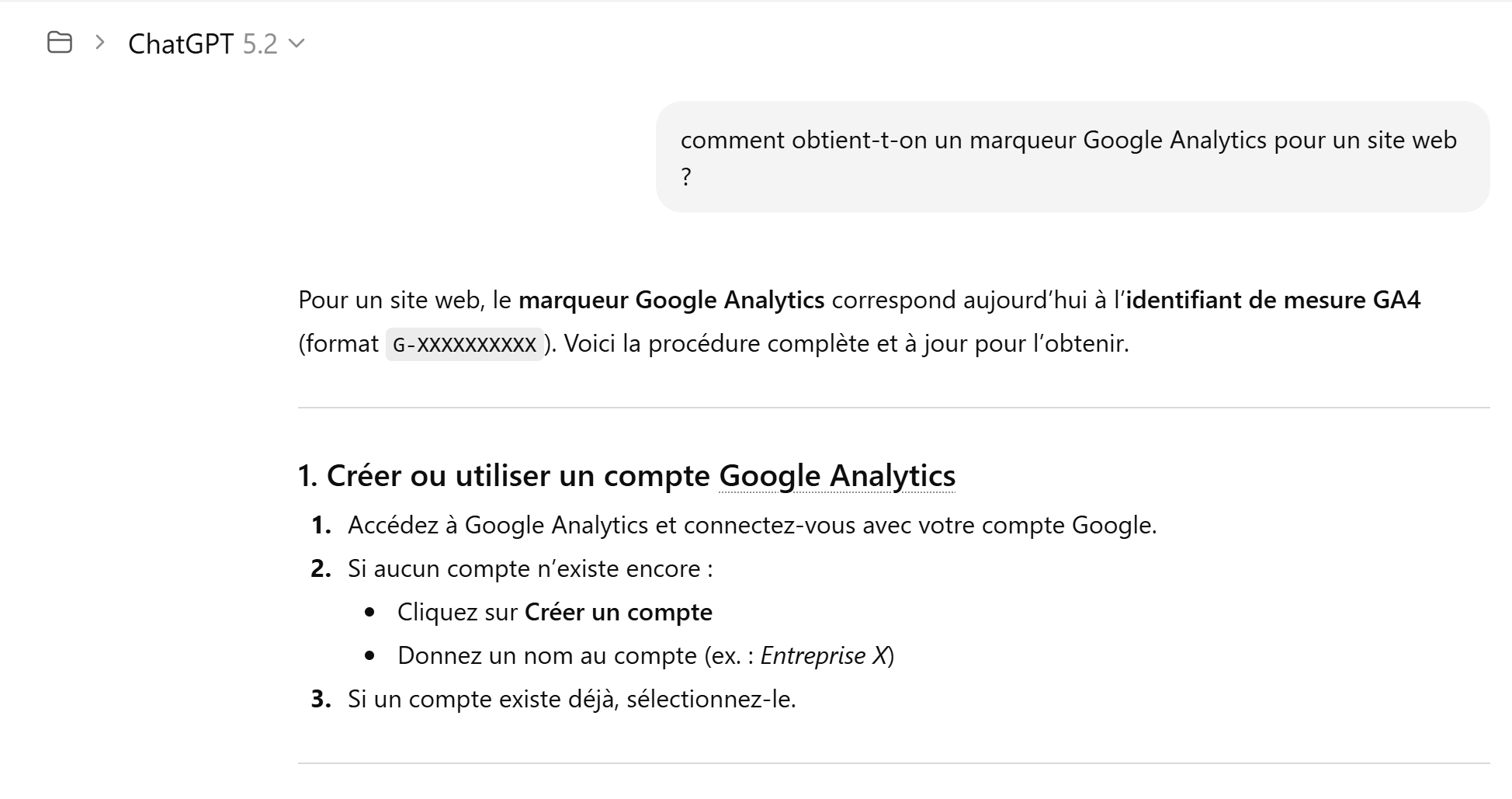
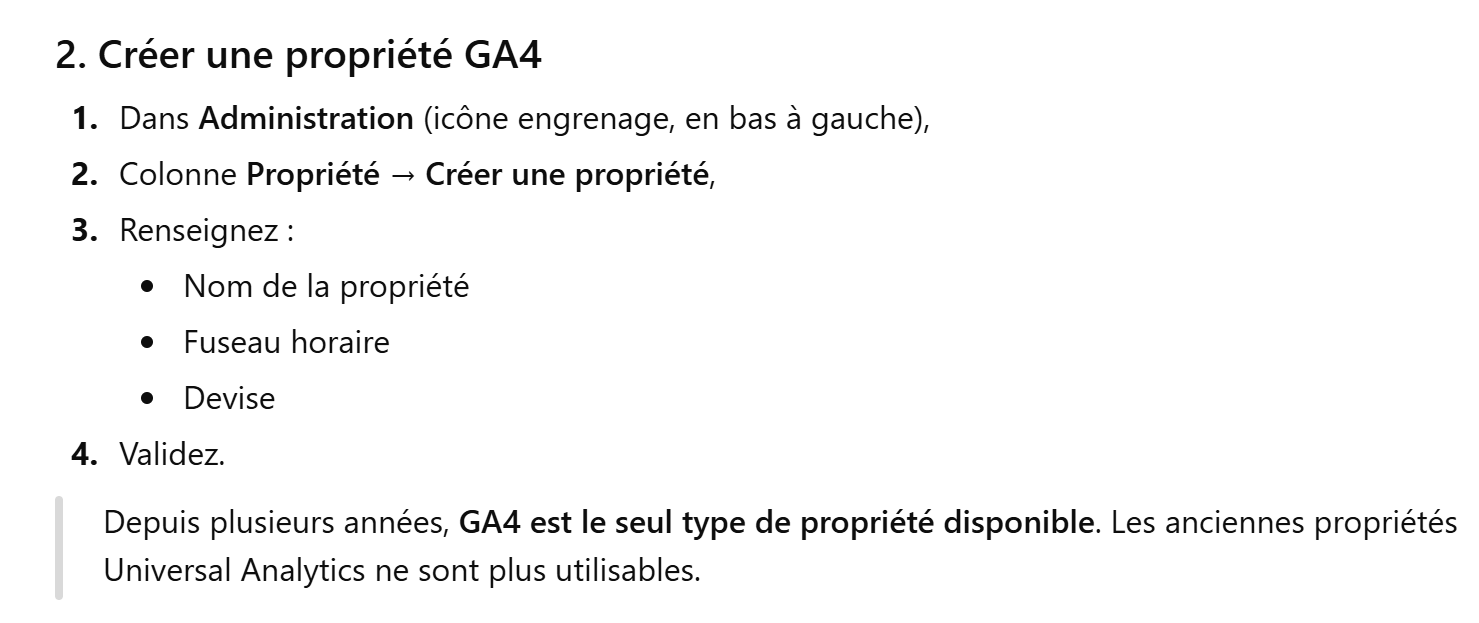
If you host your site on GitHub, you’ll likely want to know how many visitors your site gets. To do this, you’ll need a Google Analytics (GA) tag. We’ll ask ChatGPT how to create a GA tag:
 |
 |
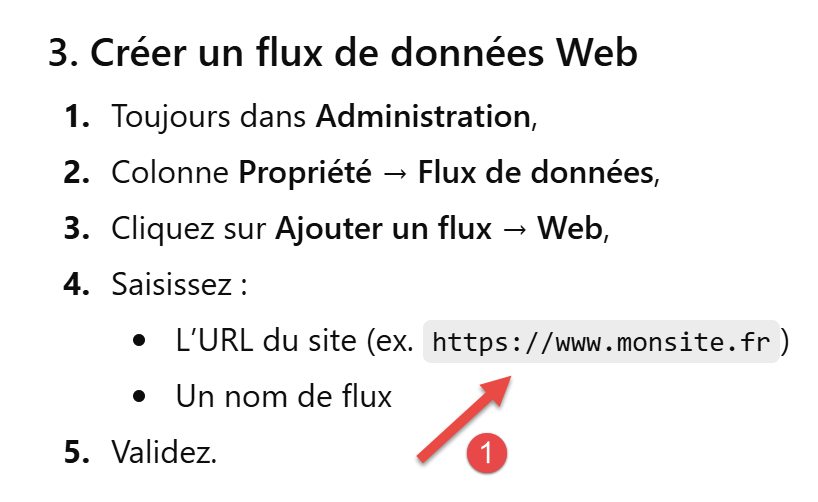 |
- In [1], enter the URL of your website on GitHub;
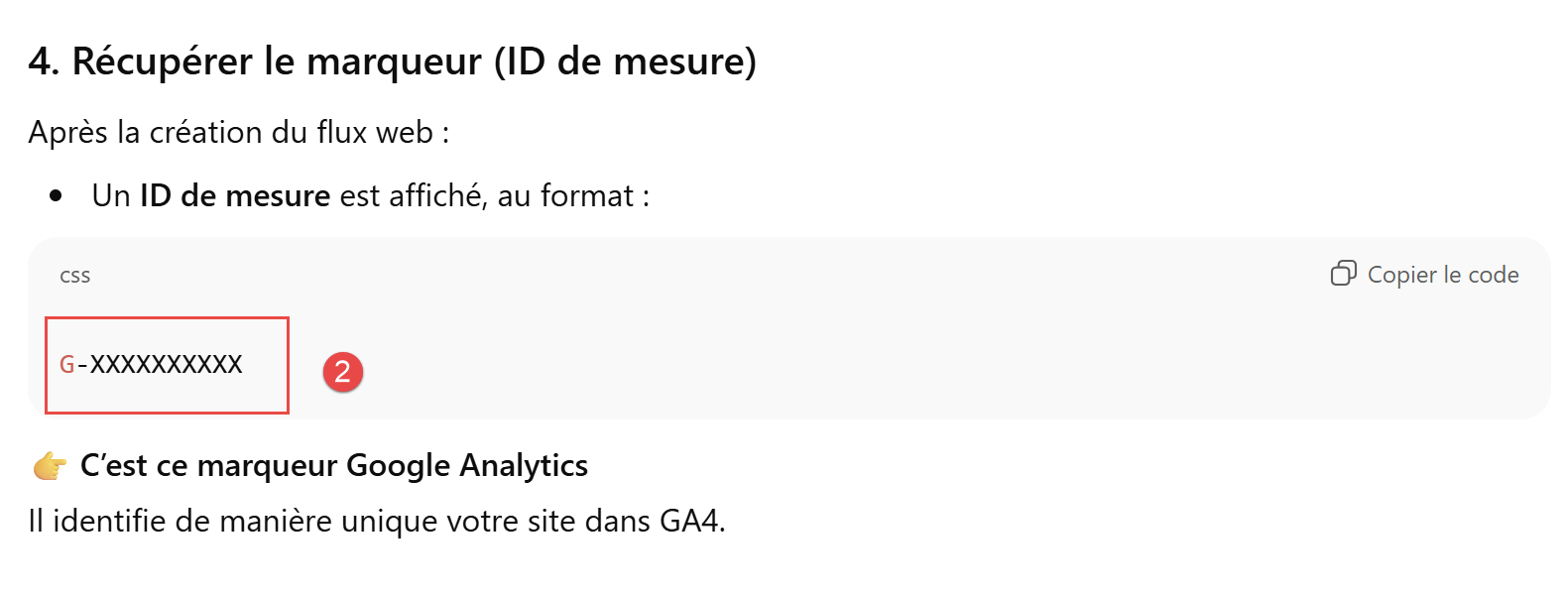 |
- In [2], note your site’s tag;
Add this tag to the configuration file [config.py]:
On line 4, enter your tracking code. MkDocs will automatically insert it into all your HTML pages when it generates the HTML site. Therefore, you do not need to follow the other instructions from ChatGPT that show how to install the GA tracking code in your HTML pages.
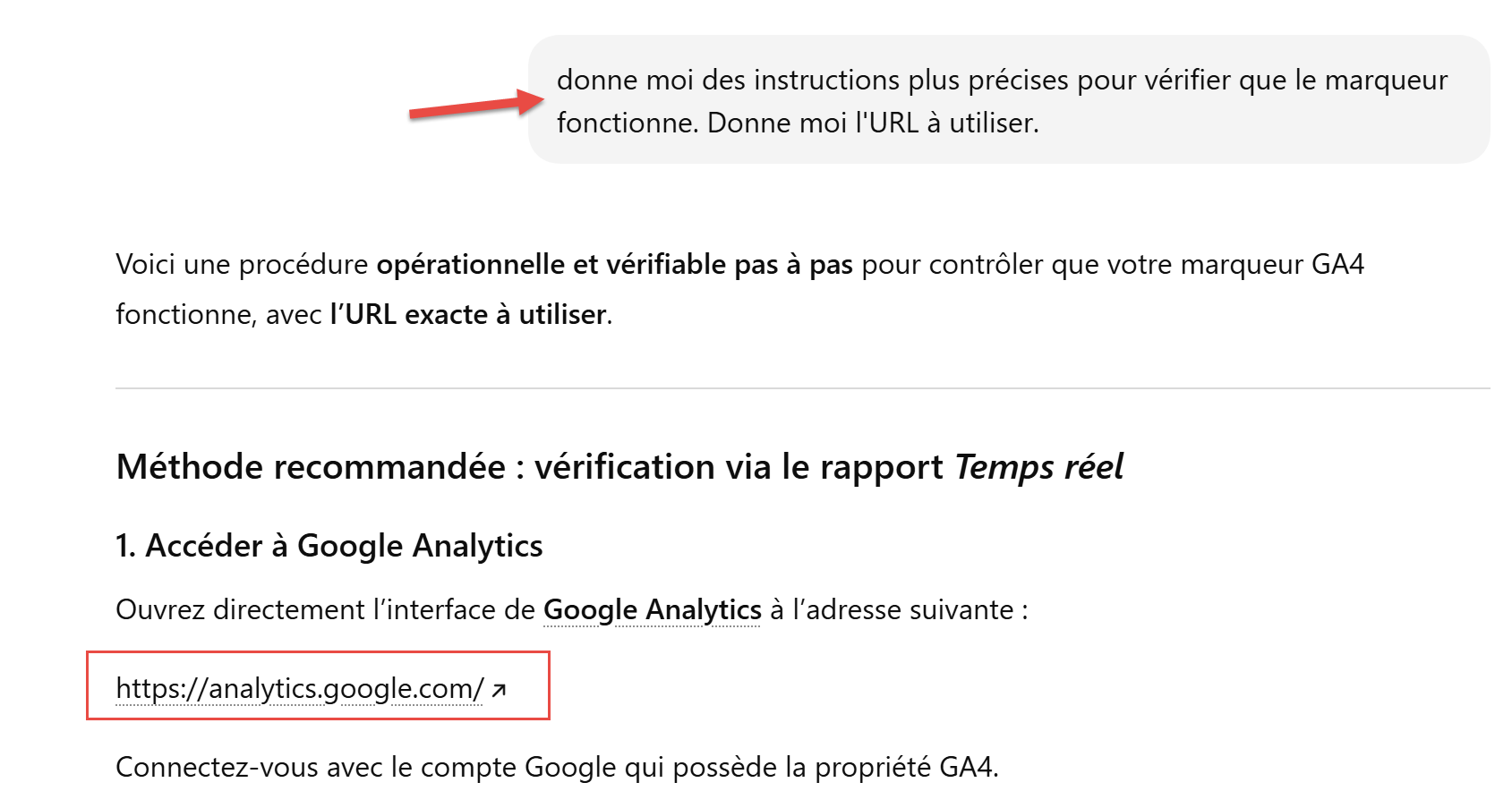
We’ll ask ChatGPT for specific instructions to verify that the tag is working:
 |
 |
The previous step isn’t clear enough. Here are some screenshots to help you:
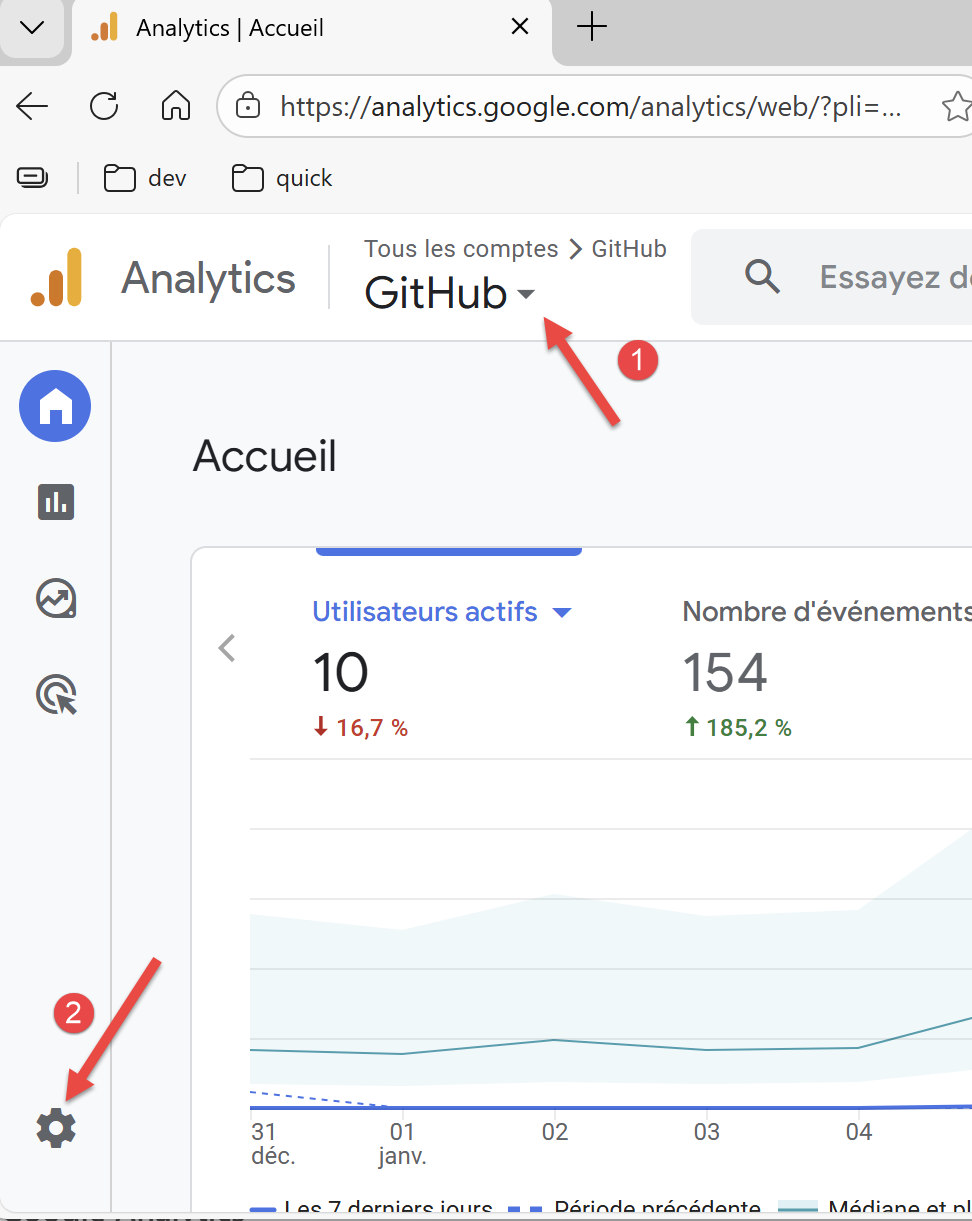 |
- In [1], select the account you want to track (in case you have multiple accounts);
- In [2], select the admin button;
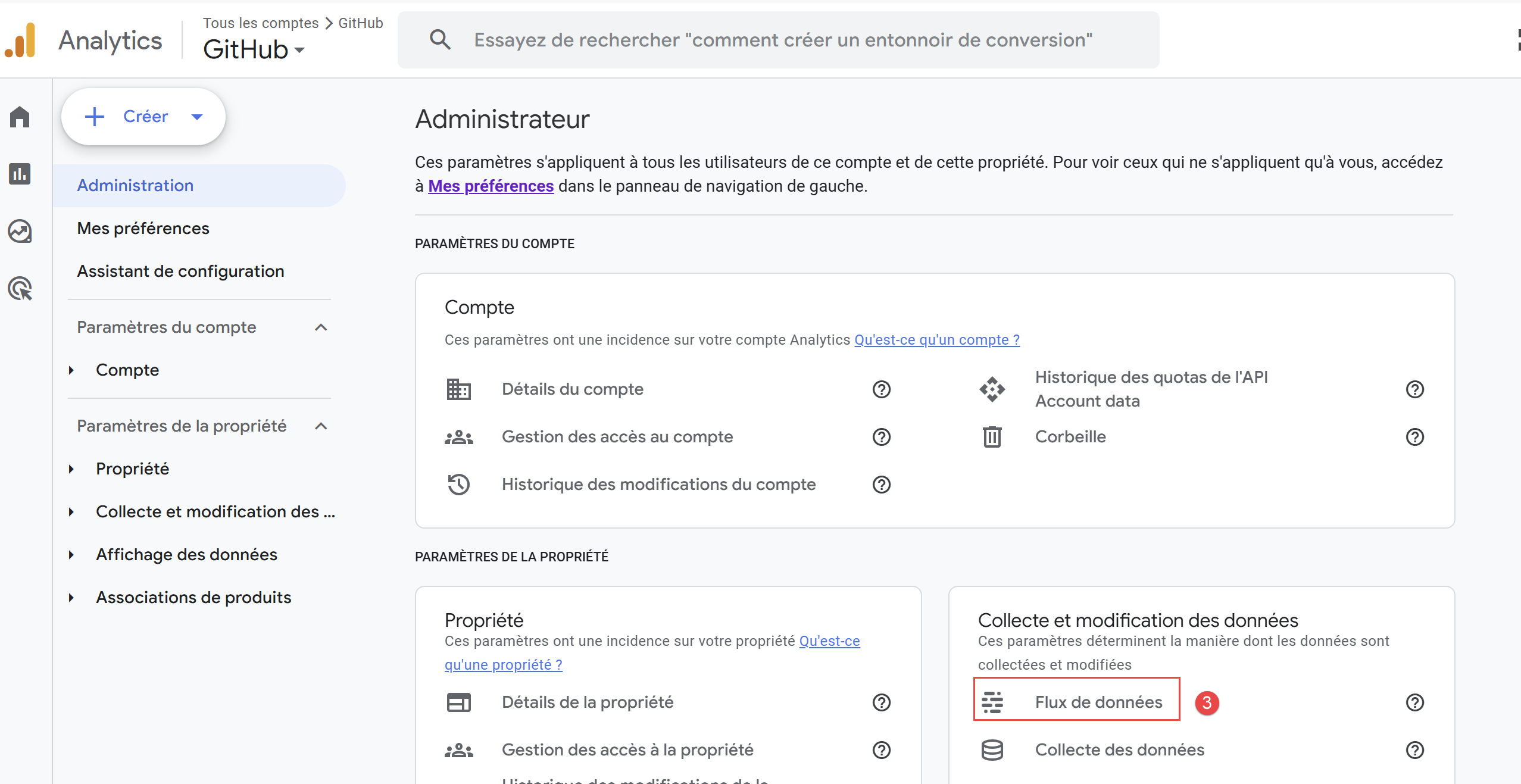 |
- In [3], select [Data Stream];
 |
- In [4], click on the data stream;
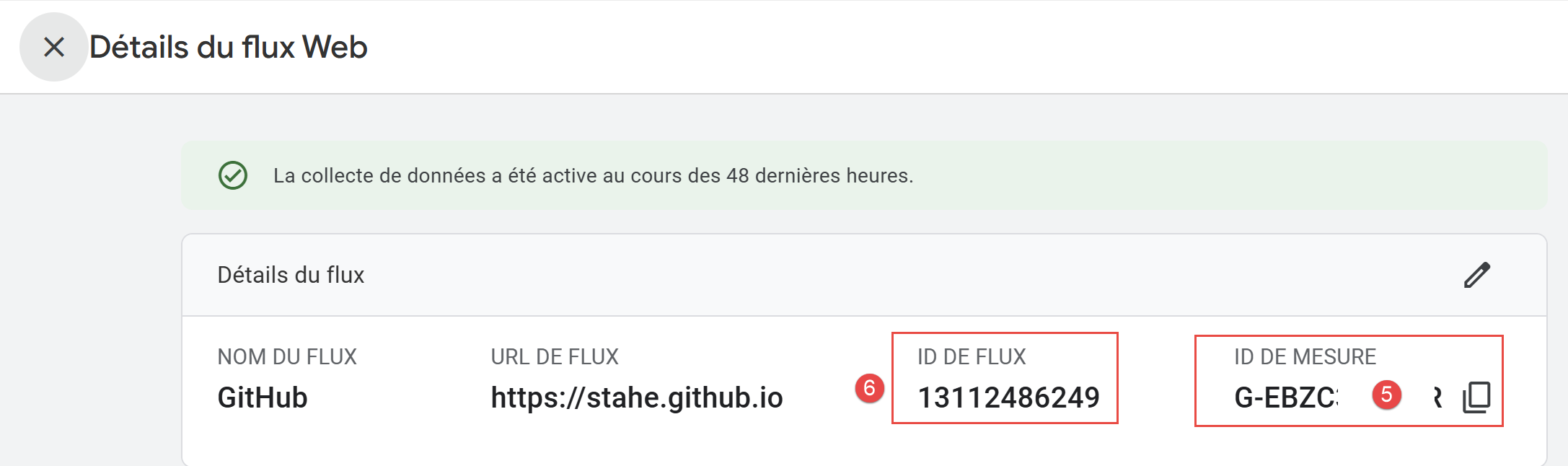 |
- In [5], you’ll find the GA4 tag you created;
- In [6], the stream ID. This is different from the measurement ID;
Let’s go back to the GA homepage:
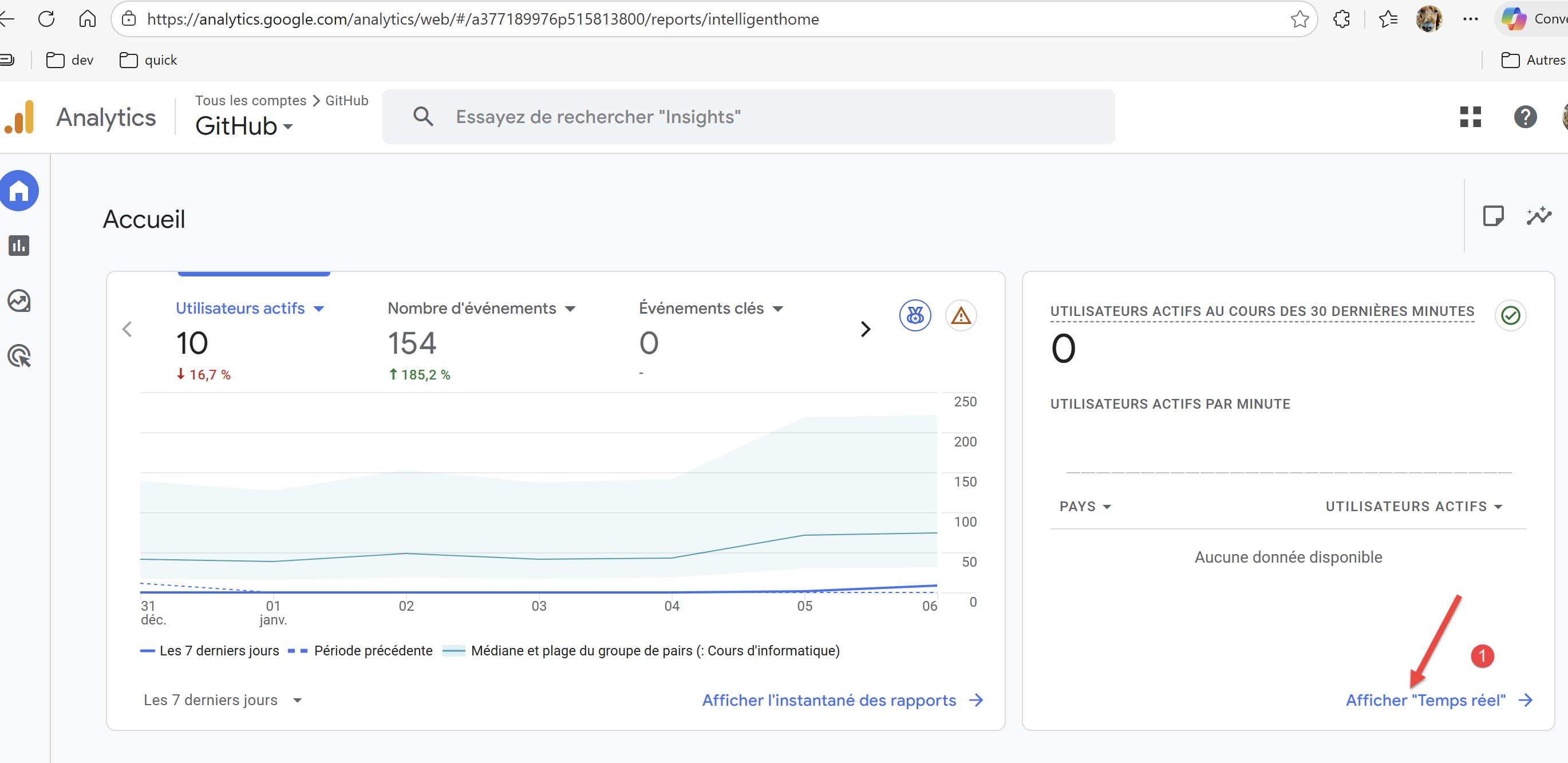 |
- In [1], select the real-time view of visits;
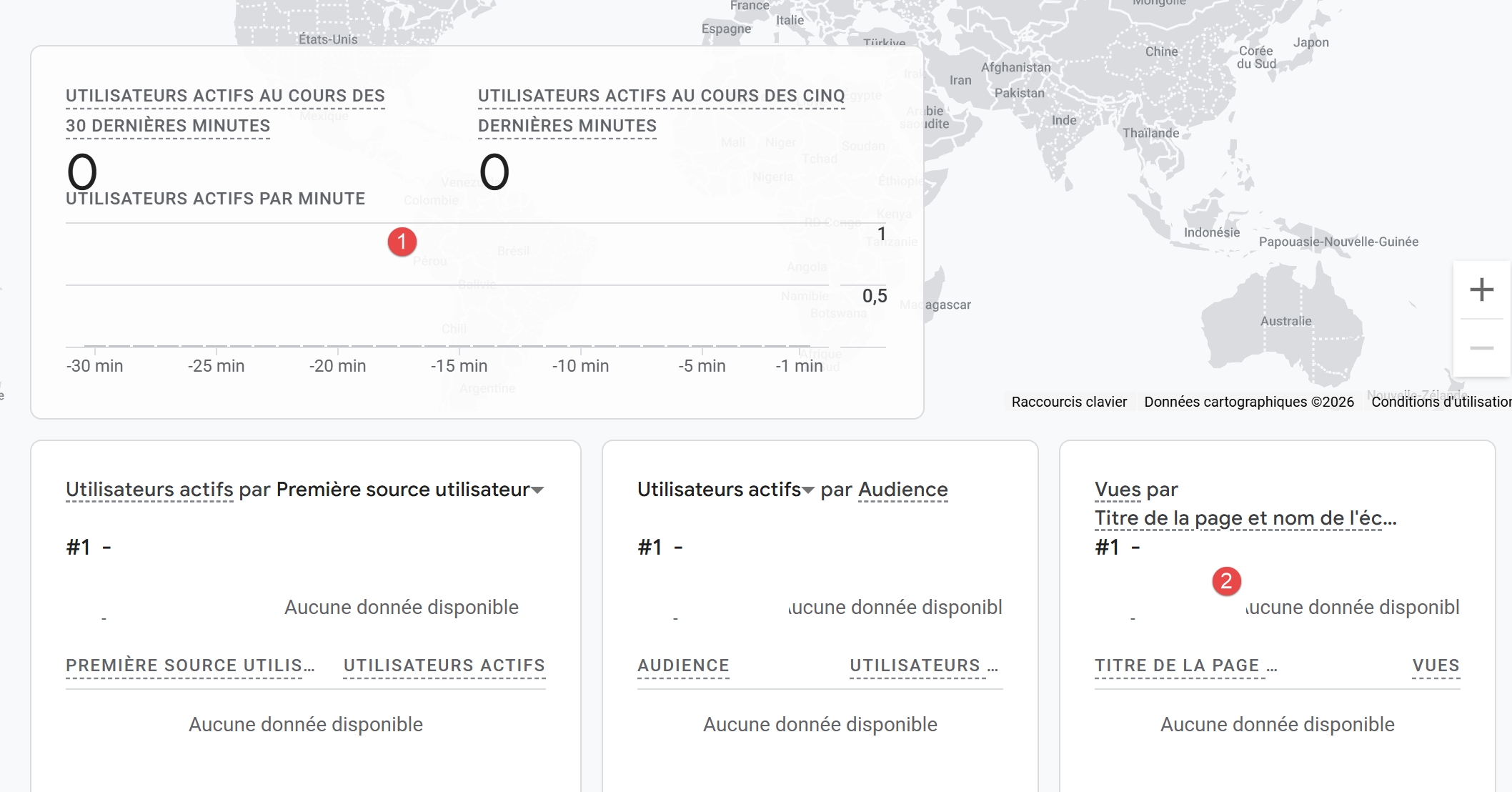 |
- In [1], you’ll see your visitors;
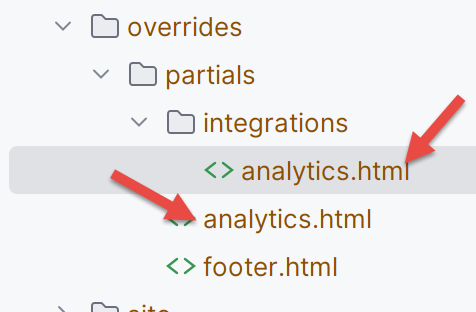
- In [2], the page that was visited. I asked the Gemini converter to associate the site name rather than the page name with the GA4 tag. The [analytics.html] file handles this renaming associated with GA4:
 |
Now we can continue with ChatGPT’s explanations:
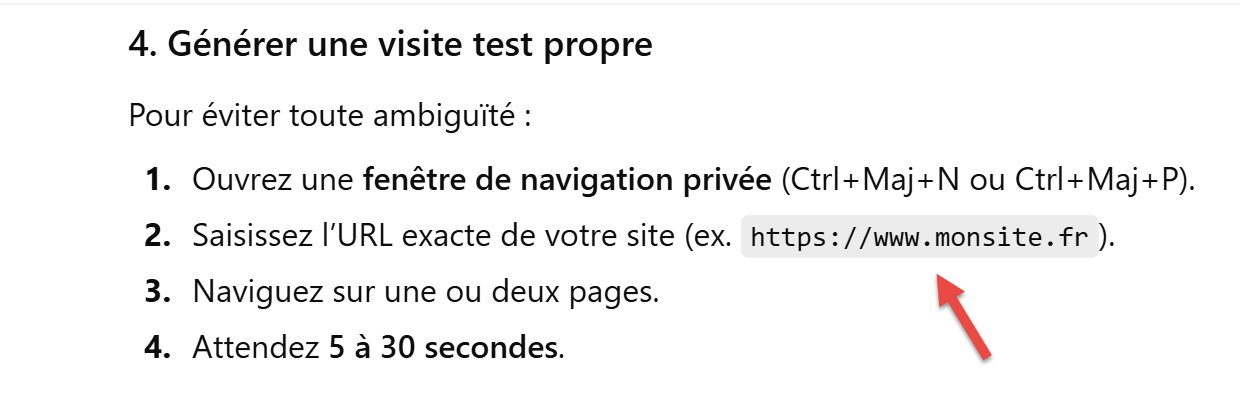 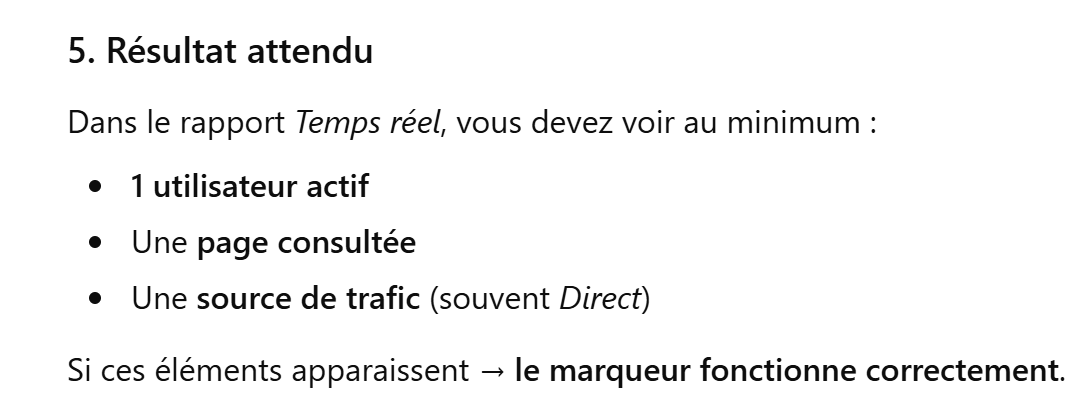 |
I did what was requested in [4] without using an incognito window. And I got this:
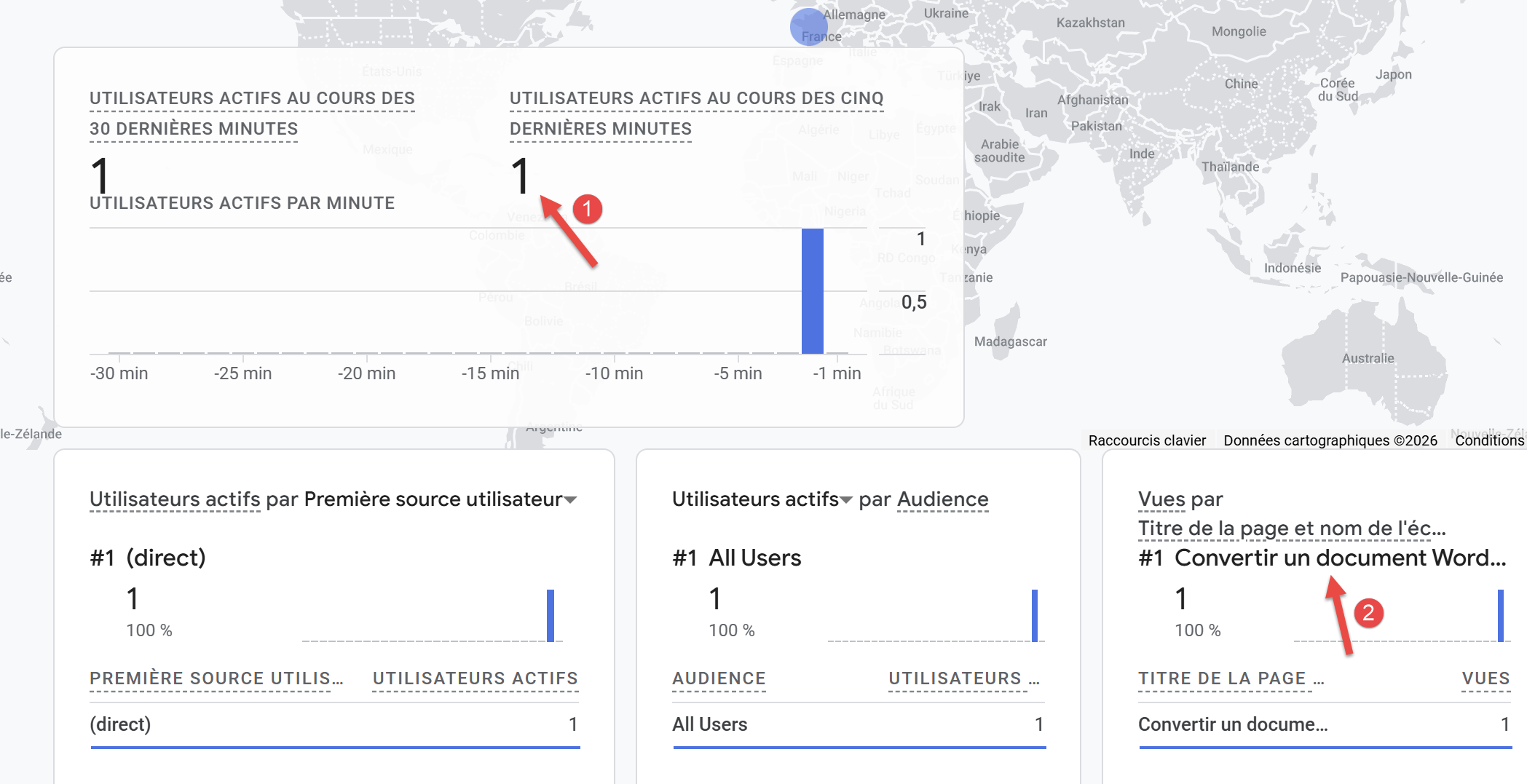 |
The Google Analytics GA4 tag is working properly.
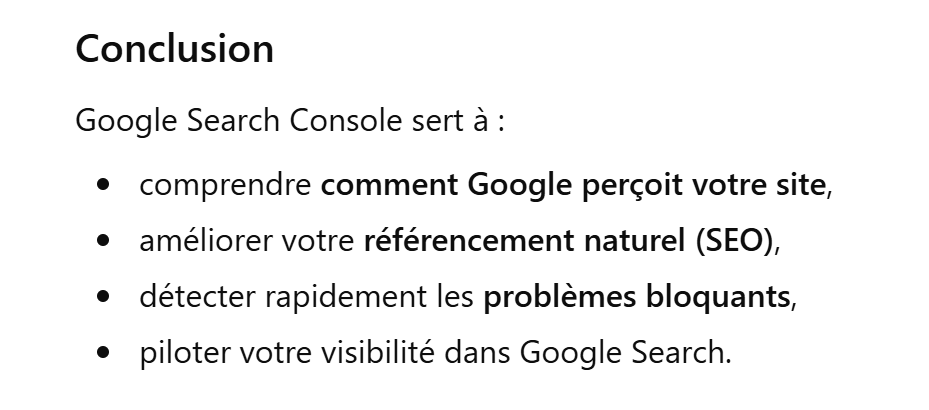
Now we’ll introduce another tool for monitoring your site [Google Search Console]. Let’s ask ChatGPT what this tool is used for:
 |
I almost never use this tool. I only use it to encourage the Google search engine to crawl and index the site so that users can find it.
The tool’s URL [https://search.google.com/search-console]:
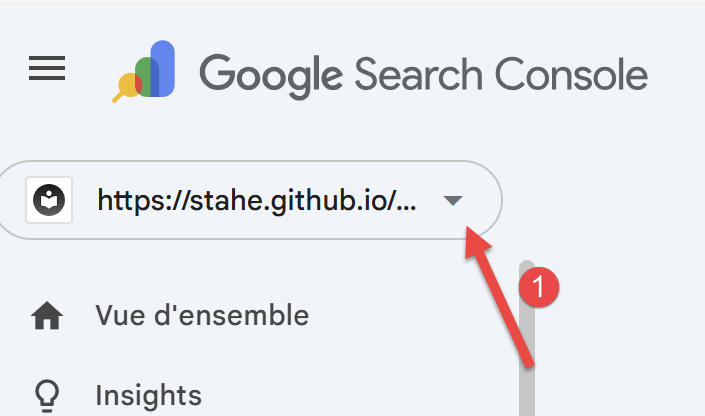 | 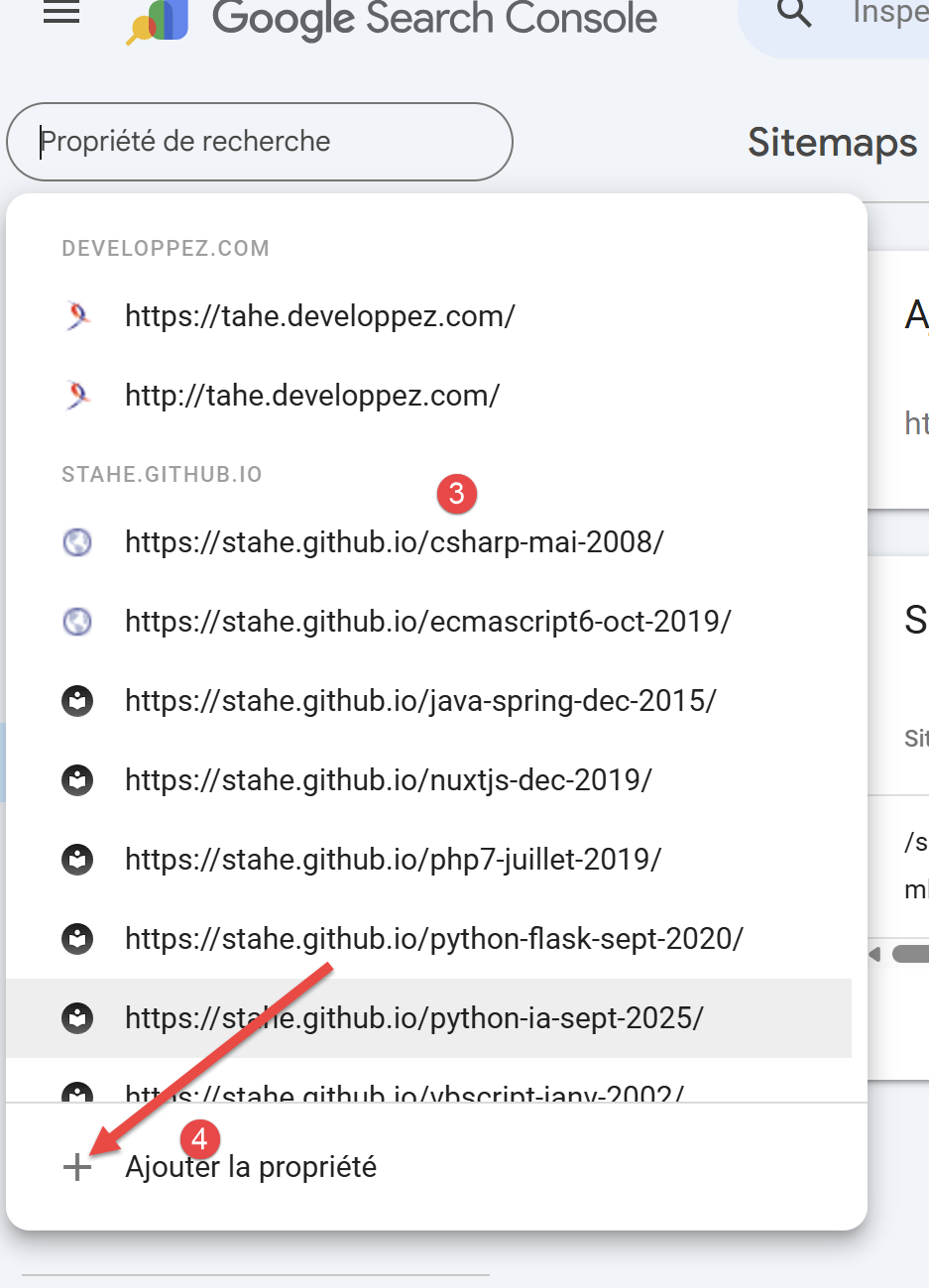 |
- In [1], the list of sites that have been submitted to Google;
- In [3], the list of your sites;
- In [4], add your new site;
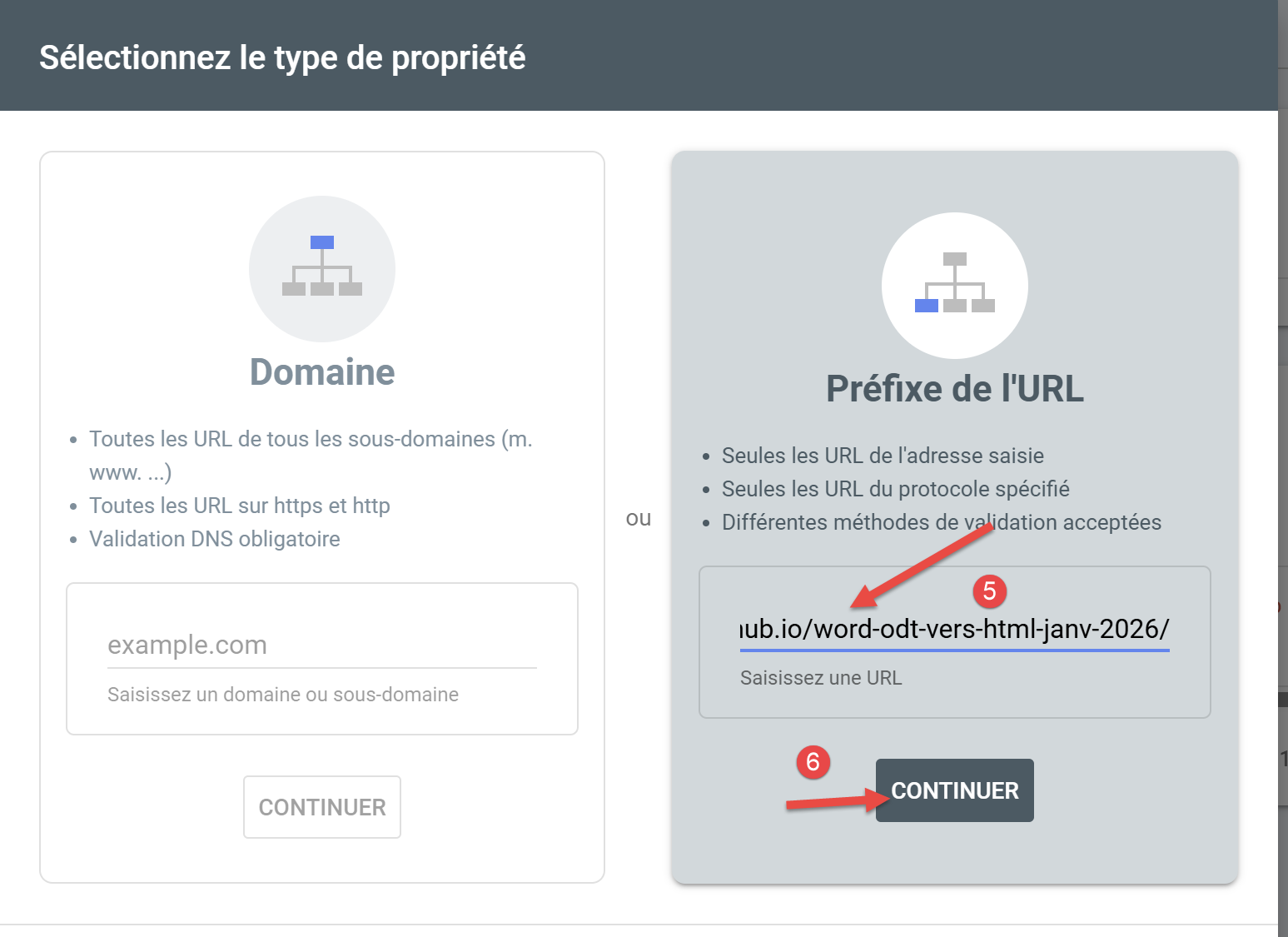 |
- In [5], enter your site’s URL. It’s in the [config.py] file:
- In [6], proceed to the next step;
Normally, at this step, Google Search Console will offer you a [googlexxxxx.html] file that you need to download. I didn’t see this screen because I already had this file on the deployed site. It is one of the two files declared in [config.py]
Place the [googlexxxxx.html] file in the root of your working directory and enter its name on line 2 above in the [config.py] file. The [convert] script handles placing the two files above in the root of the MkDocs site it generates. The [build] script will place them in the root of the generated HTML site.
Once you have copied the [googlexxxxx.html] file to the root of your working directory, check the contents of the [robots.txt] file:
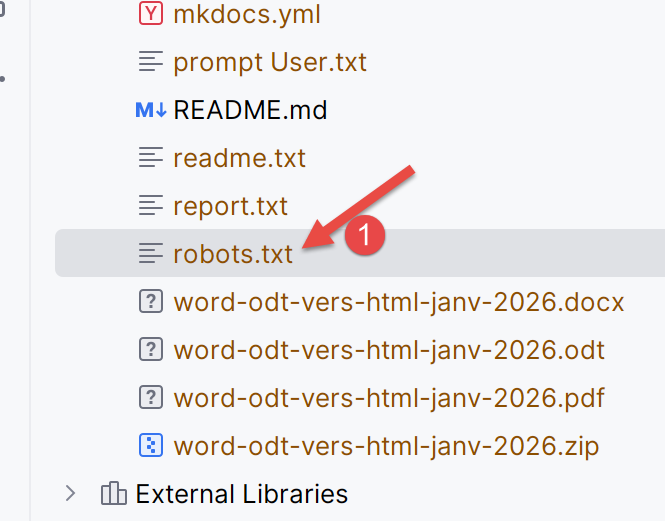 |
The contents of the [robots.txt] file are as follows:
On line 3, make sure that the URL is your site’s URL, the same as in the [config.py] file.
Deploy your website to GitHub by entering the following three commands in your Python terminal:
Once this is done, return to [Google Search Console] and select the property you created earlier.
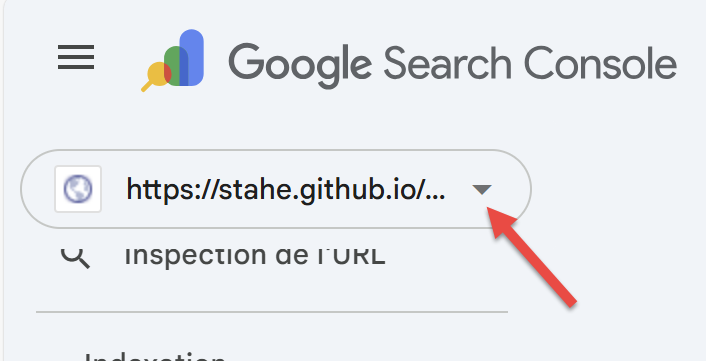 |
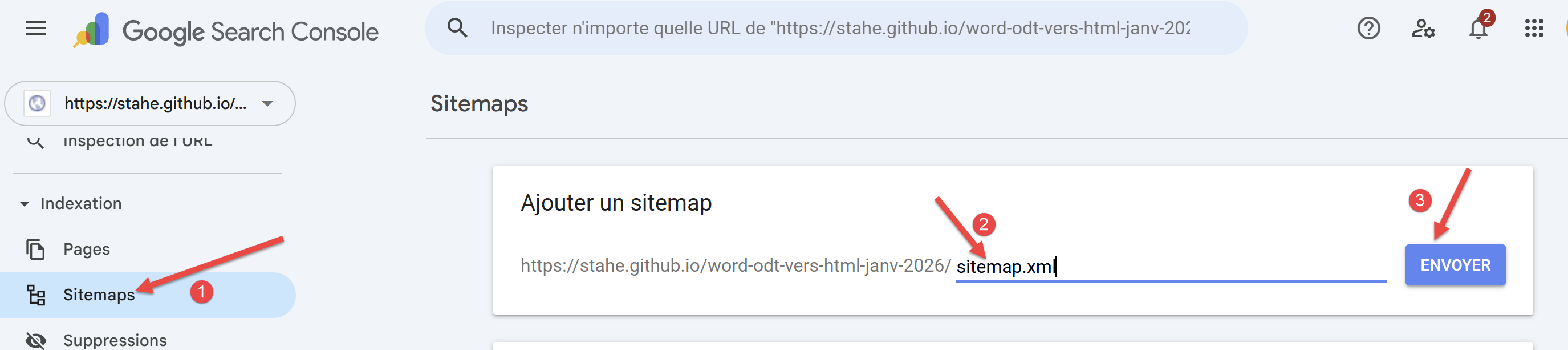 |
- In [1], select the [Sitemaps] option;
- In [2], type [sitemap.xml];
- In [3], validate the URL;
The [sitemap.xml] file is a file that Mkdocs placed in the root directory of the HTML site exported to GitHub. You can verify its presence by typing its URL directly:
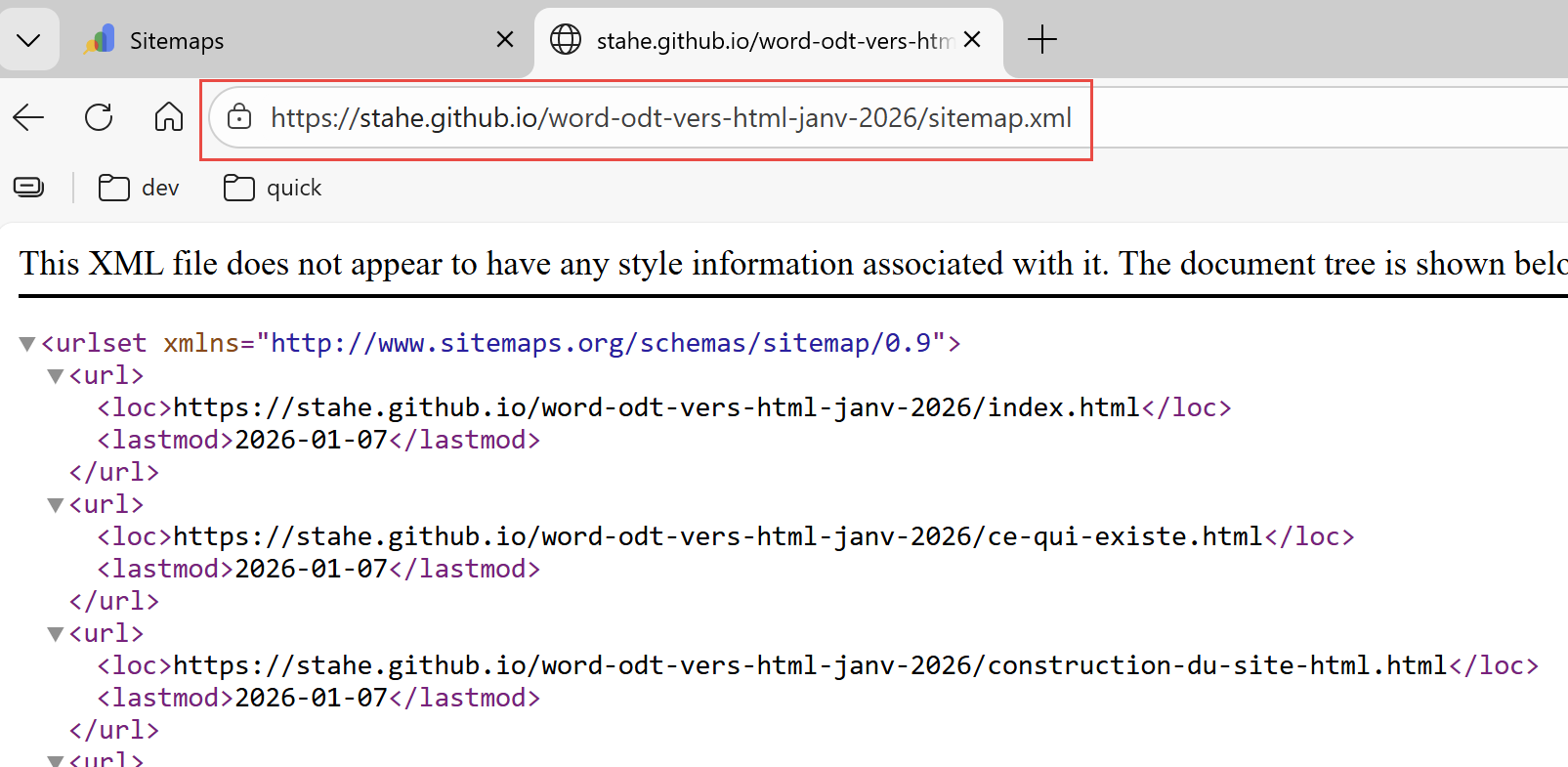 |
The [sitemap.xml] file lists all the HTML pages on the site.
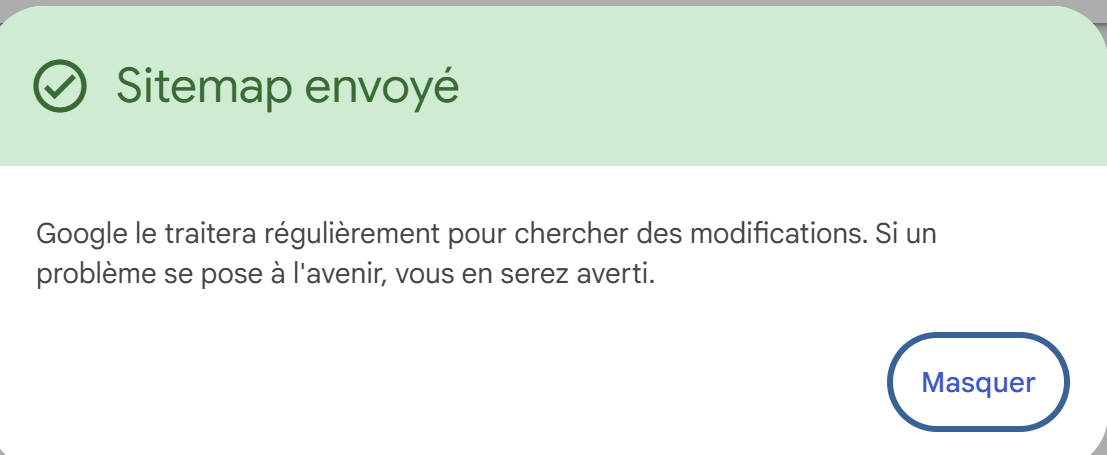
If everything goes well, you’ll see the following screen:
 |
That’s it. You’ll need to index the site’s pages yourself:
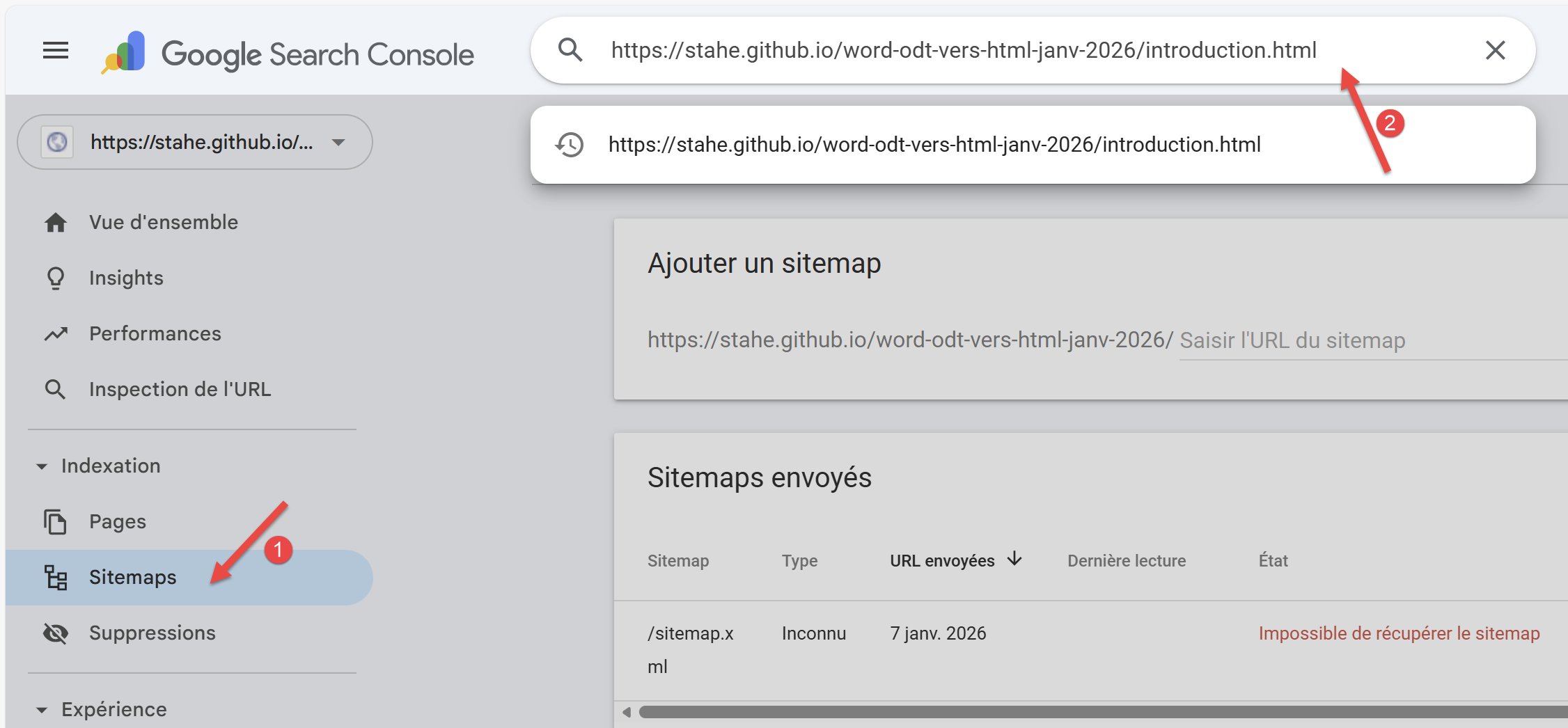 |
- In [2], enter the URL of one of your site’s pages;
Here, the result is as follows:
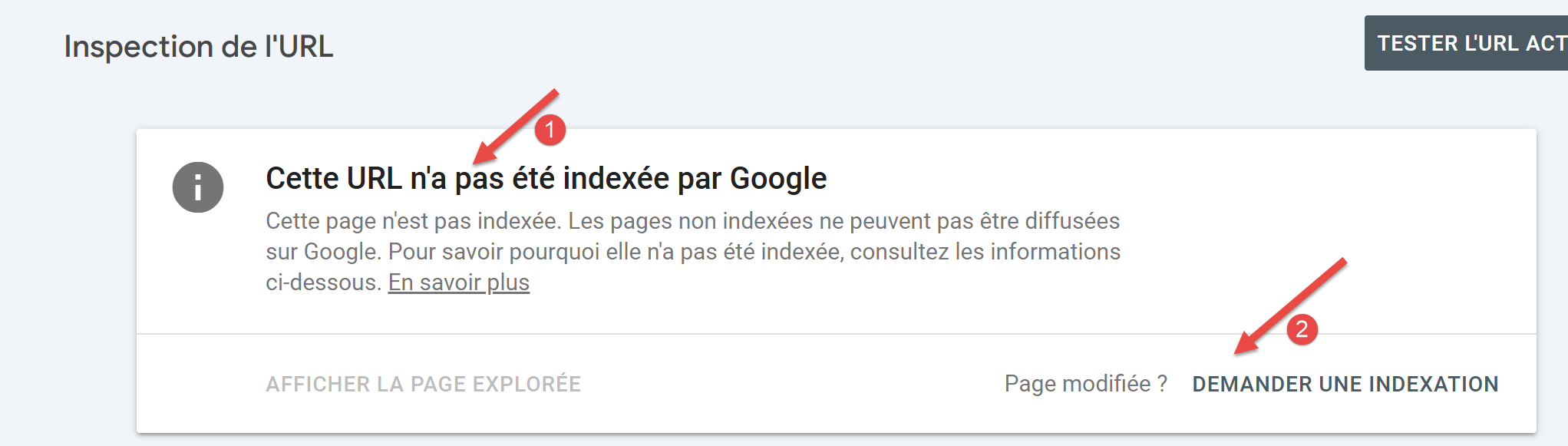 |
- In [1], Google says the page isn’t indexed yet;
- In [2], you can request that it be indexed;
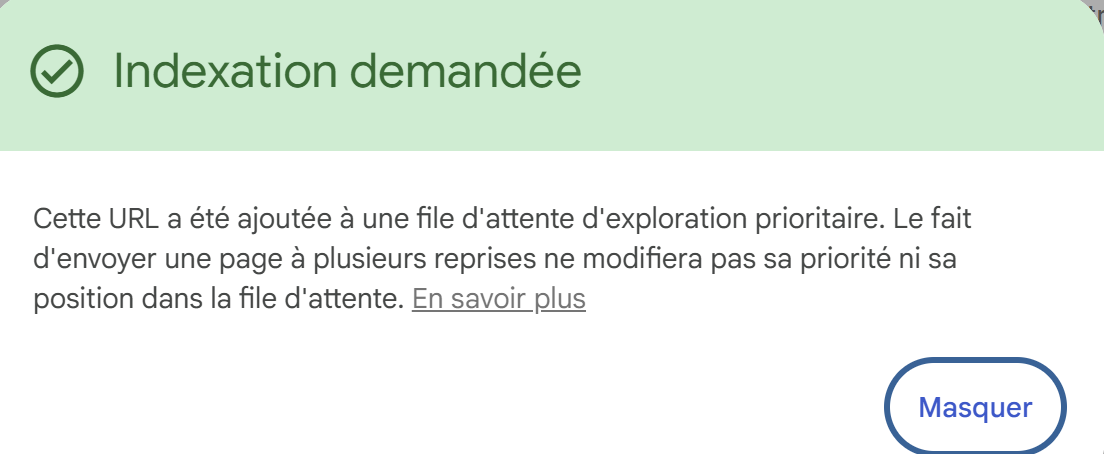
Google Search Console then checks whether the requested page can be indexed. If so, you’ll see the following message:
 |
You can do this for all the pages on your site to ensure that it is properly indexed by Google’s search engine.