4. Commonly used .NET classes
Here we present a few classes from the .NET platform that are of interest, even for a beginner. First, we show how to obtain information about the hundreds of available classes.
4.1. Seeking help with SDK.NET
4.1.1. wincv
If you have installed only SDK and not Visual Studio.NET, you can use the wincv.exe program, which is normally located in the sdk directory tree, for example C:\Program Files\Microsoft Visual Studio .NET 2003\SDK\v1.1. When you launch this utility, you see the following interface:
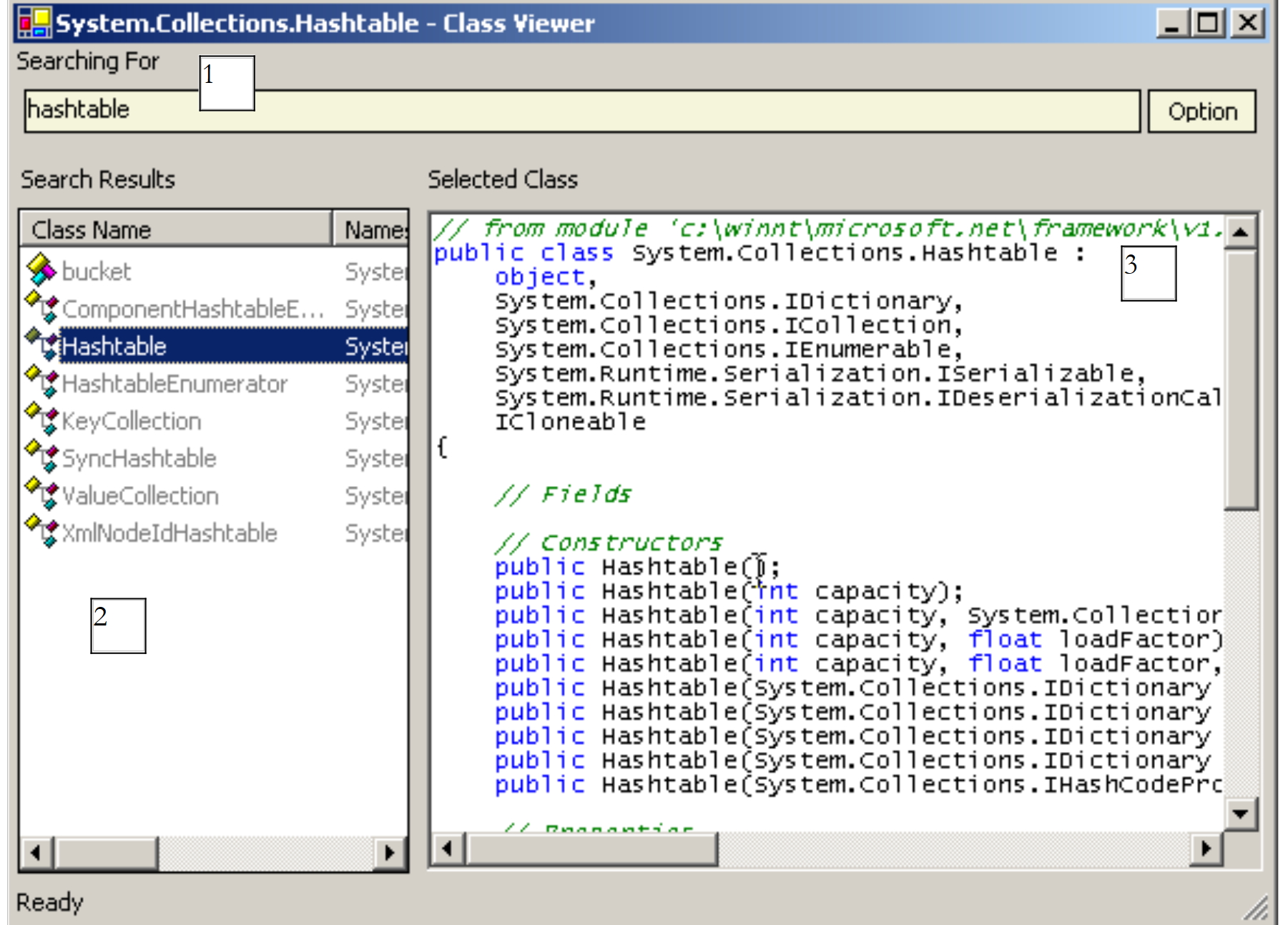 |
Enter the name of the desired class in (1). This returns various possible options in (2). Select the appropriate one, and the result appears in (3), in this case the class HashTable. This method is suitable if you know the name of the class you are looking for. If you want to explore the list of options offered by the .NET platform, you can use the HTML or StartHere.htm file, which is also located directly in the SSK installation folder.Net, for example C:\Program Files\Microsoft Visual Studio .NET 2003\SDK\v1.
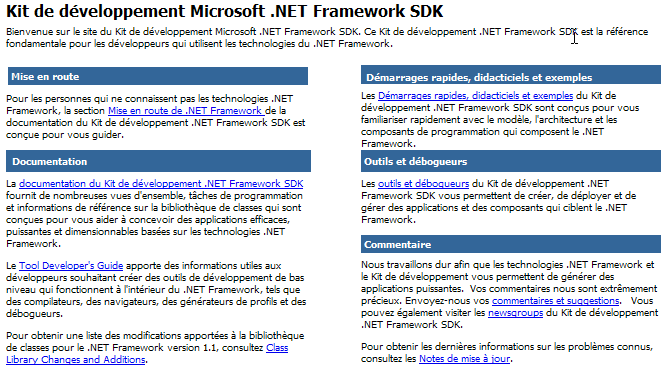
The link .NET Framework SDK Documentation is the one to follow to get an overview of the .NET classes:
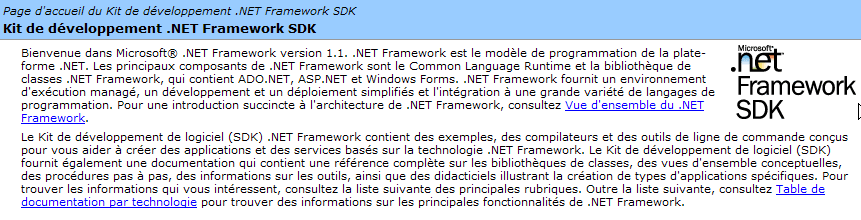
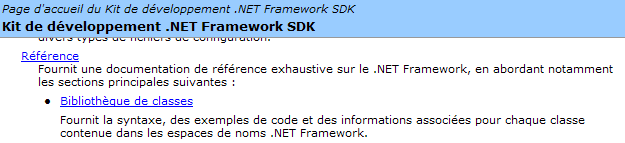
From there, follow the link [Bibliothèque de classes]. It contains a list of all classes in .NET:
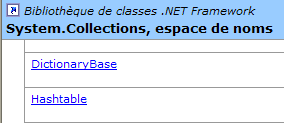
For example, let’s follow the link System.Collections. This namespace contains various classes that implement collections, including the class HashTable:

Let’s follow the link HashTable below:
We get the following page:
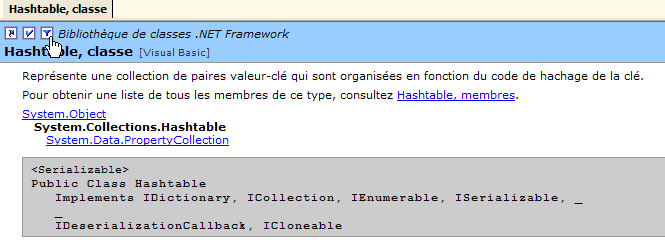
Note the position of the hand below. It is pointing to a link that allows you to select the desired language, in this case Visual Basic.
There you will find the class prototype as well as usage examples. Let’s follow the link [Hashtable, membres] below:

This provides the complete description of the class:
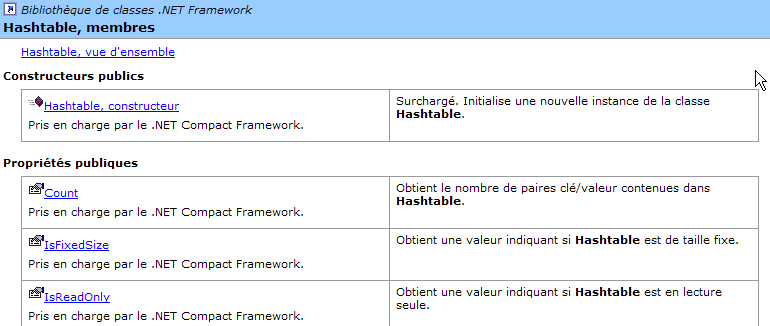
This method is the best way to explore SDK and its classes. The WinCV tool is useful when you already know a little about the class but have forgotten some of its members. WinCV then allows you to quickly find the class and its members.
4.2. Searching for help on classes with VS.NET
Here are some tips for finding help with Visual Studio.NET
4.2.1. Option Help
Let’s select option [?] from the menu.
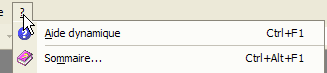
The following window appears:
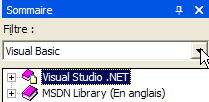
In the drop-down list, you can select a help filter. Here, we’ll choose the [Visual Basic] filter.
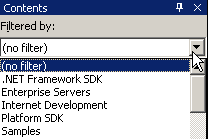
Two help topics are useful:
- help on the VB.NET language itself (syntax)
- help on the classes.NET that can be used by the VB.NET language
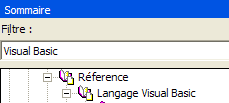
Help for the VB.NET language is accessible via [Visual Studio.NET/Visual Basic et Visual C#/Reference/Visual Basic]:
The following help page appears:
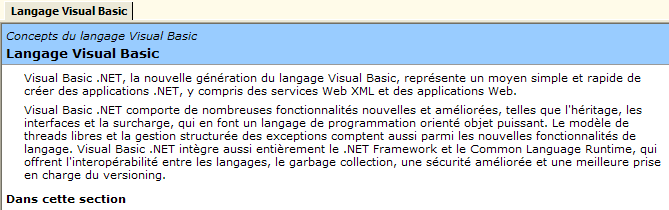
From there, the various subheadings provide help on different topics related to VB.NET. Pay special attention to the VB.NET tutorials:
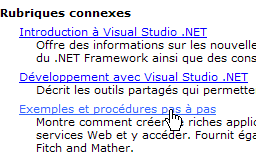
To access the various classes of the .NET platform, select the [Visual Studio.NET/.NET Framework] help.
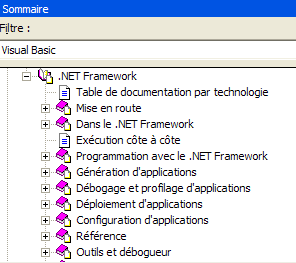
We will focus in particular on the [Référence/Bibliothèque de classes] section:
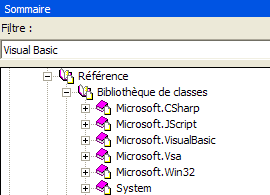
Suppose we are interested in the class [ArrayList]. It is located in the namespace [System.Collections]. It is important to know this; otherwise, we would prefer the search method described below. We obtain the following help:
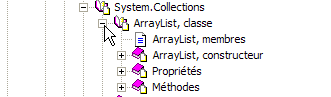
The link [ArrayList, classe] provides an overview of the class:
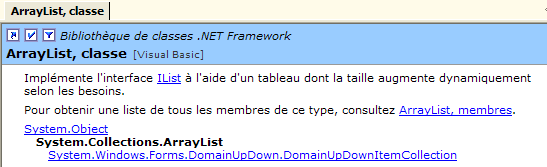
This type of page exists for all classes. It provides a summary of the class with examples. For a description of the class members, follow the link [ArrayList, membres]:
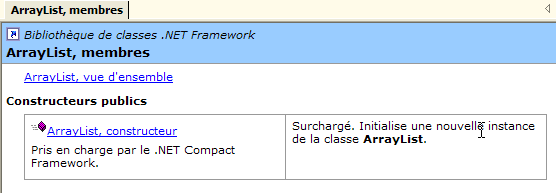
4.2.2. Help/Index
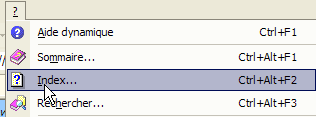
The option [Aide/index] allows you to search for more targeted help than the previous help. Simply type in the keyword you are looking for:
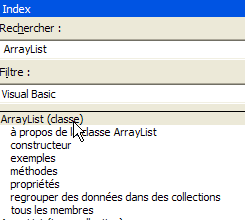
The advantage of this method over the previous one is that you don’t need to know where to find what you’re looking for in the help system. This is likely the preferred method for targeted searches, while the other method is better suited for exploring everything the help system has to offer.
4.3. The String class
The String class has many properties and methods. Here are a few of them:
number of characters in the string | |
default indexed property. [String].Chars(i) is the i-th character of the string | |
returns true if the string ends with value | |
Returns true if the string starts with value | |
returns true if the string is equal to value | |
returns the first position in the string where the string value begins—the search starts at character 0 | |
returns the first position in the string where the string value appears—the search starts from character # startIndex | |
class method - returns a string resulting from concatenating the values in the value array with the separator separator | |
returns a copy of the current string where the character oldChar has been replaced by the character newChar | |
The string is treated as a sequence of fields separated by the characters in the separator array. The result is an array of these fields | |
substring of the current string starting at position startIndex and having length characters | |
converts the current string to lowercase | |
converts the current string to uppercase | |
removes leading and trailing spaces from the current string |
A C string can be considered an array of characters. Thus
- C.Chars(i) is the i-th character of C
- C.Length is the number of characters in C
Consider the following example:
' options
Option Strict On
Option Explicit On

' namespaces
Imports System

Module test
    Sub Main()
        Dim uneChaine As String = "l'oiseau vole au-dessus des nuages"
        affiche("uneChaine=" + uneChaine)
        affiche("uneChaine.Length=" & uneChaine.Length)
        affiche("chaine[10]=" + uneChaine.Chars(10))
        affiche("uneChaine.IndexOf(""vole"")=" & uneChaine.IndexOf("vole"))
        affiche("uneChaine.IndexOf(""x"")=" & uneChaine.IndexOf("x"))
        affiche("uneChaine.LastIndexOf('a')=" & uneChaine.LastIndexOf("a"c))
        affiche("uneChaine.LastIndexOf('x')=" & uneChaine.LastIndexOf("x"c))
        affiche("uneChaine.Substring(4,7)=" + uneChaine.Substring(4, 7))
        affiche("uneChaine.ToUpper()=" + uneChaine.ToUpper())
        affiche("uneChaine.ToLower()=" + uneChaine.ToLower())
        affiche("uneChaine.Replace('a','A')=" + uneChaine.Replace("a"c, "A"c))
        Dim champs As String() = uneChaine.Split(Nothing)
        Dim i As Integer
        For i = 0 To champs.Length - 1
            affiche("champs[" & i & "]=[" & champs(i) & "]")
        Next i
        affiche("Join("":"",champs)=" + System.String.Join(":", champs))
        affiche("(""  abc  "").Trim()=[" + "  abc  ".Trim() + "]")
    End Sub

    ' poster
    Sub affiche(ByVal msg As [String])
        ' poster msg
        Console.Out.WriteLine(msg)
    End Sub
End Module
Execution yields the following results:
dos>vbc string1.vb

dos>string1
uneChaine=l'oiseau vole au-dessus des nuages
uneChaine.Length=34
chaine[10]=o
uneChaine.IndexOf("vole")=9
uneChaine.IndexOf("x")=-1
uneChaine.LastIndexOf('a')=30
uneChaine.LastIndexOf('x')=-1
uneChaine.Substring(4,7)=seau vo
uneChaine.ToUpper()=L'OISEAU VOLE AU-DESSUS DES NUAGES
uneChaine.ToLower()=l'oiseau vole au-dessus des nuages
uneChaine.Replace('a','A')=l'oiseAu vole Au-dessus des nuAges
champs[0]=[l'oiseau]
champs[1]=[vole]
champs[2]=[au-dessus]
champs[3]=[des]
champs[4]=[nuages]
Join(":",champs)=l'oiseau:vole:au-dessus:des:nuages
("  abc  ").Trim()=[abc]
Let's consider a new example:
' options
Option Strict On
Option Explicit On

' namespaces
Imports System

Module string2
    Sub Main()
        ' the line to be analyzed
        Dim ligne As String = "un:deux::trois:"
        ' field separators
        Dim séparateurs() As Char = {":"c}
        ' split
        Dim champs As String() = ligne.Split(séparateurs)
        Dim i As Integer
        For i = 0 To champs.Length - 1
            Console.Out.WriteLine(("Champs[" & i & "]=" & champs(i)))
        Next i
        ' join
        Console.Out.WriteLine(("join=[" + System.String.Join(":", champs) + "]"))
    End Sub
End Module
and the execution results:
The Split method of the String class is used to split the fields of a string into an array. The definition of the method used here is as follows:
array of characters. These characters represent the characters used to separate the fields in the string. Thus, if the string is [champ1, champ2, champ3], we can use separator=new char() {","c}. If the separator is a sequence of spaces, we use separator=nothing. | |
array of strings where each element is a field of the string. |
The Join method is a static method of the String class:
array of strings | |
a string that will serve as the field separator | |
a string formed by concatenating the elements of the value array, separated by the separator string. |
4.4. The Array class
The Array class implements an array. In our example, we will use the following properties and methods:
property - number of elements in the array | |
class method - returns the position of value in the sorted array array - searches starting from position index and with length elements | |
class method - copies length elements from sourceArray to destinationArray - destinationArray is created for this purpose | |
Class method - sorts the array array - this must contain a data type with a default sorting function (strings, numbers). |
The following program illustrates the use of the Array class:
' options
Option Strict On
Option Explicit On

' namespaces
Imports System

Module test
    Sub Main()
        ' read table elements typed on keyboard
        Dim terminé As [Boolean] = False
        Dim i As Integer = 0
        Dim éléments1 As Double() = Nothing
        Dim éléments2 As Double() = Nothing
        Dim élément As Double = 0
        Dim réponse As String = Nothing
        Dim erreur As [Boolean] = False

        While Not terminé
            ' question
            Console.Out.Write(("Elément (réel) " & i & " du tableau (rien pour terminer) : "))
            ' reading the answer
            réponse = Console.ReadLine().Trim()
            ' end of input if string empty
            If réponse.Equals("") Then
                Exit While
            End If
            ' input verification
            Try
                élément = [Double].Parse(réponse)
                erreur = False
            Catch
                Console.Error.WriteLine("Saisie incorrecte, recommencez")
                erreur = True
            End Try
            ' if no error
            If Not erreur Then
                ' new table to accommodate the new element
                éléments2 = New Double(i) {}
                ' copy old panel to new panel
                If i <> 0 Then
                    Array.Copy(éléments1, éléments2, i)
                End If
                ' new table becomes old table
                éléments1 = éléments2
                ' no need for the new panel
                éléments2 = Nothing
                ' insert new element
                éléments1(i) = élément
                ' one more element in the picture
                i += 1
            End If
        End While
        ' unsorted table display
        System.Console.Out.WriteLine("Tableau non trié")
        For i = 0 To éléments1.Length - 1
            Console.Out.WriteLine(("éléments[" & i & "]=" & éléments1(i)))
        Next i
        ' table sorting
        System.Array.Sort(éléments1)
        ' sorted table display
        System.Console.Out.WriteLine("Tableau trié")
        For i = 0 To éléments1.Length - 1
            Console.Out.WriteLine(("éléments[" & i & "]=" & éléments1(i)))
        Next i
        ' Search
        While Not terminé
            ' question
            Console.Out.Write("Elément cherché (rien pour arrêter) : ")
            ' reading-checking response
            réponse = Console.ReadLine().Trim()
            ' finished?
            If réponse.Equals("") Then
                Exit While
            End If
            ' check
            Try
                élément = [Double].Parse(réponse)
                erreur = False
            Catch
                Console.Error.WriteLine("Saisie incorrecte, recommencez")
                erreur = True
            End Try
            ' if no error
            If Not erreur Then
                ' search for the element in the sorted array
                i = System.Array.BinarySearch(éléments1, 0, éléments1.Length, élément)
                ' Display response
                If i >= 0 Then
                    Console.Out.WriteLine(("Trouvé en position " & i))
                Else
                    Console.Out.WriteLine("Pas dans le tableau")
                End If
            End If
        End While
    End Sub
End Module
The screen results are as follows:
Elément (réel) 0 du tableau (rien pour terminer) : 10,4
Elément (réel) 1 du tableau (rien pour terminer) : 5,2
Elément (réel) 2 du tableau (rien pour terminer) : 8,7
Elément (réel) 3 du tableau (rien pour terminer) : 3,6
Elément (réel) 4 du tableau (rien pour terminer) :
Tableau non trié
éléments[0]=10,4
éléments[1]=5,2
éléments[2]=8,7
éléments[3]=3,6
Tableau trié
éléments[0]=3,6
éléments[1]=5,2
éléments[2]=8,7
éléments[3]=10,4
Elément cherché (rien pour arrêter) : 8,7
Trouvé en position 2
Elément cherché (rien pour arrêter) : 11
Pas dans le tableau
Elément cherché (rien pour arrêter) : a
Saisie incorrecte, recommencez
Elément cherché (rien pour arrêter) :
The first part of the program creates an array from numerical data entered via the keyboard. The array cannot be predefined since we do not know how many elements the user will enter. We therefore work with two arrays, elements1 and elements2.
                ' new table to accommodate the new element
                éléments2 = New Double(i) {}
                ' copy old panel to new panel
                If i <> 0 Then
                    Array.Copy(éléments1, éléments2, i)
                End If
                ' new table becomes old table
                éléments1 = éléments2
                ' no need for the new panel
                éléments2 = Nothing
                ' insert new element
                éléments1(i) = élément
                ' one more element in the picture
                i += 1
The elements1 array contains the currently entered values. When the user adds a new value, we create an elements2 array with one more element than elements1, copy the contents of elements1 to elements2 (Array.Copy), set elements1 to point to elements2, and finally add the new element to elements1. This is a complex process that can be simplified by using a variable-size array (ArrayList) instead of a fixed-size array (Array).
The array is sorted using the Array.Sort method. This method can be called with various parameters specifying the sorting rules. Without parameters, ascending sort is performed by default. Finally, the Array.BinarySearch method allows you to search for an element in a sorted array.
4.5. The ArrayList class
The ArrayList class allows for the implementation of variable-size arrays during program execution, which is not possible with the previous Array class. Here are some of the common properties and methods:
creates an empty list | |
number of elements in the collection | |
adds the value object to the end of the collection | |
clears the list | |
The index of the value object in the list, or -1 if it does not exist | |
same as above, but starting from element startIndex | |
Same as above, but returns the index of the last occurrence of value in the list | |
Same as above, but starting from element startIndex | |
Removes the object obj if it exists in the list | |
Removes the element at index from the list | |
returns the position of the value object in the list or -1 if it is not found. The list must be sorted | |
sorts the list. The list must contain objects with a predefined ordering relationship (strings, numbers) | |
sorts the list according to the ordering established by the compare function |
Let’s revisit the example using objects of type Array and process it with objects of type ArrayList:
' options
Option Strict On
Option Explicit On

' namespaces
Imports System
Imports System.Collections

Module test
    Sub Main()
        ' read table elements typed on keyboard
        Dim terminé As [Boolean] = False
        Dim i As Integer = 0
        Dim éléments As New ArrayList
        Dim élément As Double = 0
        Dim réponse As String = Nothing
        Dim erreur As [Boolean] = False

        While Not terminé
            ' question
            Console.Out.Write(("Elément (réel) " & i & " du tableau (rien pour terminer) : "))
            ' reading the answer
            réponse = Console.ReadLine().Trim()
            ' end of input if string empty
            If réponse.Equals("") Then
                Exit While
            End If
            ' input verification
            Try
                élément = Double.Parse(réponse)
                erreur = False
            Catch
                Console.Error.WriteLine("Saisie incorrecte, recommencez")
                erreur = True
            End Try
            ' if no error
            If Not erreur Then
                ' one more element in the picture
                éléments.Add(élément)
            End If
        End While
        ' unsorted table display
        System.Console.Out.WriteLine("Tableau non trié")
        For i = 0 To éléments.Count - 1
            Console.Out.WriteLine(("éléments[" & i & "]=" & éléments(i).ToString))
        Next i        ' table sorting
        éléments.Sort()
        ' sorted table display
        System.Console.Out.WriteLine("Tableau trié")
        For i = 0 To éléments.Count - 1
            Console.Out.WriteLine(("éléments[" & i & "]=" & éléments(i).ToString))
        Next i
        ' Search
        While Not terminé
            ' question
            Console.Out.Write("Elément cherché (rien pour arrêter) : ")
            ' reading-checking response
            réponse = Console.ReadLine().Trim()
            ' finished?
            If réponse.Equals("") Then
                Exit While
            End If
            ' check
            Try
                élément = [Double].Parse(réponse)
                erreur = False
            Catch
                Console.Error.WriteLine("Saisie incorrecte, recommencez")
                erreur = True
            End Try
            ' if no error
            If Not erreur Then
                ' search for the element in the sorted array
                i = éléments.BinarySearch(élément)
                ' Display response
                If i >= 0 Then
                    Console.Out.WriteLine(("Trouvé en position " & i))
                Else
                    Console.Out.WriteLine("Pas dans le tableau")
                End If
            End If
        End While
    End Sub
End Module
The execution results are as follows:
Elément (réel) 0 du tableau (rien pour terminer) : 10,4
Elément (réel) 0 du tableau (rien pour terminer) : 5,2
Elément (réel) 0 du tableau (rien pour terminer) : a
Saisie incorrecte, recommencez
Elément (réel) 0 du tableau (rien pour terminer) : 3,7
Elément (réel) 0 du tableau (rien pour terminer) : 15
Elément (réel) 0 du tableau (rien pour terminer) :
Tableau non trié
éléments[0]=10,4
éléments[1]=5,2
éléments[2]=3,7
éléments[3]=15
Tableau trié
éléments[0]=3,7
éléments[1]=5,2
éléments[2]=10,4
éléments[3]=15
Elément cherché (rien pour arrêter) : a
Saisie incorrecte, recommencez
Elément cherché (rien pour arrêter) : 15
Trouvé en position 3
Elément cherché (rien pour arrêter) : 1
Pas dans le tableau
Elément cherché (rien pour arrêter) :
4.6. The Hashtable class
The Hashtable class allows you to implement a dictionary. A dictionary can be viewed as a two-column array:
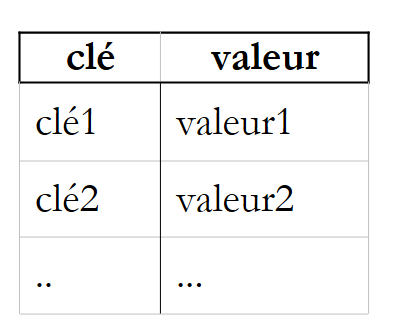 |
The keys are unique, c.a.d. meaning that no two keys can be identical. The main methods and properties of the Hashtable class are as follows:
creates an empty dictionary | |
adds an entry (key, value) to the dictionary, where key and value are object references. | |
removes the entry with key=key from the dictionary | |
clears the dictionary | |
Returns true if the key key is in the dictionary. | |
| Returns true if the value value is in the dictionary. |
property: number of elements in the dictionary (key, value) | |
property: collection of dictionary keys | |
property: collection of dictionary values | |
indexed property: allows you to retrieve or set the value associated with a key |
Consider the following example program:
' options
Option Strict On
Option Explicit On

' namespaces
Imports System
Imports System.Collections

Module test
    Sub Main()
        Dim liste() As [String] = {"jean:20", "paul:18", "mélanie:10", "violette:15"}
        Dim i As Integer
        Dim champs As [String]() = Nothing
        Dim séparateurs() As Char = {":"c}
        ' filling the dictionary
        Dim dico As New Hashtable
        For i = 0 To liste.Length - 1
            champs = liste(i).Split(séparateurs)
            dico.Add(champs(0), champs(1))
        Next i
        ' number of elements in the dictionary
        Console.Out.WriteLine(("Le dictionnaire a " & dico.Count & " éléments"))
        ' kEY LIST
        Console.Out.WriteLine("[Liste des clés]")
        Dim clés As IEnumerator = dico.Keys.GetEnumerator()
        While clés.MoveNext()
            Console.Out.WriteLine(clés.Current)
        End While
        ' list of values
        Console.Out.WriteLine("[Liste des valeurs]")
        Dim valeurs As IEnumerator = dico.Values.GetEnumerator()
        While valeurs.MoveNext()
            Console.Out.WriteLine(valeurs.Current)
        End While
        ' list of keys & values
        Console.Out.WriteLine("[Liste des clés & valeurs]")
        clés.Reset()
        While clés.MoveNext()
            Console.Out.WriteLine(("clé=" & clés.Current.ToString & " valeur=" & dico(clés.Current).ToString))
        End While
        ' delete the "paul" key
        Console.Out.WriteLine("[Suppression d'une clé]")
        dico.Remove("paul")
        ' list of keys & values
        Console.Out.WriteLine("[Liste des clés & valeurs]")
        clés = dico.Keys.GetEnumerator()
        While clés.MoveNext()
            Console.Out.WriteLine(("clé=" & clés.Current.ToString & " valeur=" & dico(clés.Current).ToString))
        End While

        ' dictionary search
        Dim nomCherché As [String] = Nothing
        Console.Out.Write("Nom recherché (rien pour arrêter) : ")
        nomCherché = Console.ReadLine().Trim()
        Dim value As [Object] = Nothing
        While Not nomCherché.Equals("")
            If dico.ContainsKey(nomCherché) Then
                value = dico(nomCherché)
                Console.Out.WriteLine((nomCherché + "," + CType(value, [String])))
            Else
                Console.Out.WriteLine(("Nom " + nomCherché + " inconnu"))
            End If
            ' next search
            Console.Out.Write("Nom recherché (rien pour arrêter) : ")
            nomCherché = Console.ReadLine().Trim()
        End While
    End Sub
End Module
The execution results are as follows:
Le dictionnaire a 4 éléments
[Liste des clés]
mélanie
paul
violette
jean
[Liste des valeurs]
10
18
15
20
[Liste des clés & valeurs]
clé=mélanie valeur=10
clé=paul valeur=18
clé=violette valeur=15
clé=jean valeur=20
[Suppression d'une clé]
[Liste des clés & valeurs]
clé=mélanie valeur=10
clé=violette valeur=15
clé=jean valeur=20
Nom recherché (rien pour arrêter) : paul
Nom paul inconnu
Nom recherché (rien pour arrêter) : mélanie
mélanie,10
Nom recherché (rien pour arrêter) :
The program also uses a IEnumerator object to iterate through the collections of keys and values in the ICollection dictionary (see the Keys and Values properties above). A collection is a set of objects that can be iterated over. The ICollection interface is defined as follows:
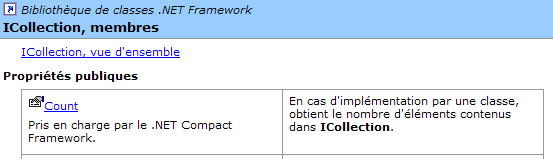
The Count property allows us to determine the number of elements in the collection. The ICollection interface derives from the IEnumerable interface:
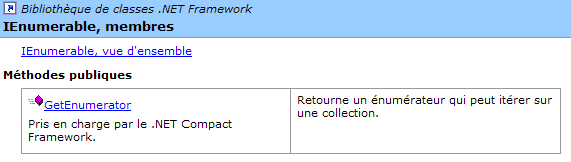
This interface has only one method, GetEnumerator, which allows us to obtain an object of type IEnumerator:
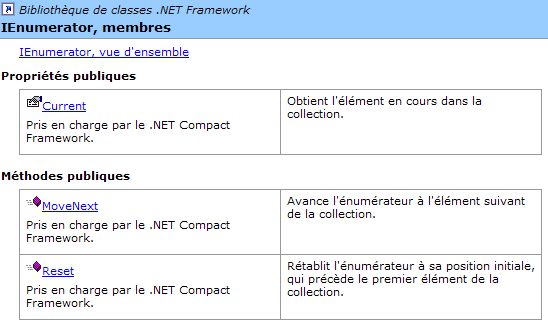
The GetEnumerator() method of a ICollection collection allows us to iterate through the collection using the following methods:
moves to the next element in the collection. Returns true if this element exists, false otherwise. The first MoveNext moves to the first element. The "current" element of the collection is then available in the Current property of the enumerator | |
property: current element of the collection | |
resets the iterator to the beginning of the collection, c.a.d, before the first element. |
The structure for iterating over the elements of a collection (ICollection) in C is therefore as follows:
' define collection
dim C as ICollection C=...
' get an enumerator of this collection
dim itérateur as IEnumerator=C.GetEnumerator();
' browse the collection with this enumerator
while(itérateur.MoveNext())
    ' we have a current element
    ' operate itérateur.Current
end while
4.7. The StreamReader class
The StreamReader class allows you to read the contents of a file. Here are some of its properties and methods:
opens a stream from the path file. An exception is thrown if the file does not exist | |
closes the stream | |
Reads a line from the open stream | |
reads the rest of the stream from the current position |
Here is an example:
' options
Option Strict On
Option Explicit On

' namespaces
Imports System
Imports System.Collections
Imports System.IO

Module test
    Sub Main()
        Dim ligne As String = Nothing
        Dim fluxInfos As StreamReader = Nothing
        ' read file content
        Try
            fluxInfos = New StreamReader("infos.txt")
            ligne = fluxInfos.ReadLine()
            While Not (ligne Is Nothing)
                System.Console.Out.WriteLine(ligne)
                ligne = fluxInfos.ReadLine()
            End While
        Catch e As Exception
            System.Console.Error.WriteLine("L'erreur suivante s'est produite : " & e.ToString)
        Finally
            Try
                fluxInfos.Close()
            Catch
            End Try
        End Try
    End Sub
End Module
and its execution results:
dos>more infos.txt
12620:0:0
13190:0,05:631
15640:0,1:1290,5
24740:0,15:2072,5
31810:0,2:3309,5
39970:0,25:4900
48360:0,3:6898,5
55790:0,35:9316,5
92970:0,4:12106
127860:0,45:16754,5
151250:0,5:23147,5
172040:0,55:30710
195000:0,6:39312
0:0,65:49062

dos>file1
12620:0:0
13190:0,05:631
15640:0,1:1290,5
24740:0,15:2072,5
31810:0,2:3309,5
39970:0,25:4900
48360:0,3:6898,5
55790:0,35:9316,5
92970:0,4:12106
127860:0,45:16754,5
151250:0,5:23147,5
172040:0,55:30710
195000:0,6:39312
0:0,65:49062
4.8. The StreamWriter class
The StreamWriter class allows you to write to a file. Here are some of its properties and methods:
opens a write stream from the path file. An exception is thrown if the file cannot be created | |
If set to true, writing to the stream does not go through a buffer; otherwise, writing to the stream is not immediate: first, data is written to a buffer, and then to the stream when the buffer is full. By default, the buffered mode is used. It is well-suited for file streams but generally not for network streams. | |
to set or retrieve the end-of-line character used by the WriteLine method | |
closes the stream | |
writes a line to the write stream | |
writes the buffer to the stream |
Consider the following example:
' options
Option Strict On
Option Explicit On

' namespaces
Imports System
Imports System.Collections
Imports System.IO

Module test
    Sub Main()
        Dim ligne As String = Nothing        ' one line of text
        Dim fluxInfos As StreamWriter = Nothing        ' the text file
        Try
            ' text file creation
            fluxInfos = New StreamWriter("infos.txt")
            ' read line typed on keyboard
            Console.Out.Write("ligne (rien pour arrêter) : ")
            ligne = Console.In.ReadLine().Trim()
            ' loop as long as the line entered is not empty
            While ligne <> ""
                ' write line to text file
                fluxInfos.WriteLine(ligne)
                ' read new line on keyboard
                Console.Out.Write("ligne (rien pour arrêter) : ")
                ligne = Console.In.ReadLine().Trim()
            End While
        Catch e As Exception
            System.Console.Error.WriteLine("L'erreur suivante s'est produite : " & e.ToString)
        Finally
            ' close file
            Try
                fluxInfos.Close()
            Catch
            End Try
        End Try
    End Sub
End Module
and the execution results:
dos>file2
ligne (rien pour arrêter) : ligne1
ligne (rien pour arrêter) : ligne2
ligne (rien pour arrêter) : ligne3
ligne (rien pour arrêter) :

dos>more infos.txt
ligne1
ligne2
ligne3
4.9. The Regex Class
The Regex class allows the use of regular expressions. These are used to validate the format of a string. For example, you can verify that a string representing a date is in the format dd/mm/aa. To do this, a pattern is used, and the string is compared to that pattern. In this example, j, m, and a must be digits. The pattern for a valid date format is therefore "\d\d/\d\d/\d\d", where the symbol \d represents a digit. The symbols that can be used in a pattern are as follows (Microsoft documentation):
Description | |
Designates the following character as a special character or literal. For example, "n" corresponds to the character "n". "\n" corresponds to a newline character. The sequence "\\" corresponds to "\", while "\(" corresponds to "(". | |
Matches the start of the input. | |
Matches the end of the input. | |
Matches the preceding character zero or more times. Thus, "zo*" matches "z" or "zoo". | |
Matches the preceding character one or more times. Thus, "zo+" matches "zoo", but not "z". | |
Matches the preceding character zero or one time. For example, "a?ve?" matches "ve" in "lever". | |
Matches any single character, except the newline character. | |
| Searches for the pattern and stores the match. The matching substring can be extracted from the resulting Matches collection using Item [0]...[n]. To find matches with characters inside parentheses ( ), use "\(" or "\)". |
Matches either x or y. For example, "z|foot" matches "z" or "foot". "(z|f)oo" matches "zoo" or "foo". | |
| n is a non-negative integer. Matches exactly n occurrences of the character. For example, "o{2}" does not match "o" in "Bob," but matches the first two "o"s in "fooooot". |
| n is a non-negative integer. Matches at least n occurrences of the character. For example, "o{2,}" does not match "o" in "Bob," but matches all "o"s in "fooooot." "o{1,}" is equivalent to "o+" and "o{0,}" is equivalent to "o*". |
| m and n are non-negative integers. Matches at least n and at most m occurrences of the character. For example, "o{1,3}" matches the first three "o"s in "foooooot" and "o{0,1}" is equivalent to "o?". |
| Character set. Matches any of the specified characters. For example, "[abc]" matches "a" in "plat". |
| Negative character set. Matches any character not listed. For example, "[^abc]" matches "p" in "plat". |
| Character range. Matches any character in the specified range. For example, "[a-z]" matches any lowercase letter between "a" and "z". |
| Negative character range. Matches any character not included in the specified range. For example, "[^m-z]" matches any character not between "m" and "z". |
Matches a word boundary, that is, the position between a word and a space. For example, "er\b" matches "er" in "lever," but not "er" in "verb." | |
Matches a boundary that does not represent a word. "en*t\B" matches "ent" in "bien entendu". | |
Matches a character representing a digit. Equivalent to [0-9]. | |
Matches a character that is not a digit. Equivalent to [^0-9]. | |
Matches a form feed character. | |
Corresponds to a newline character. | |
Equivalent to a carriage return character. | |
Matches any whitespace, including spaces, tabs, page breaks, etc. Equivalent to "[ \f\n\r\t\v]". | |
Matches any non-whitespace character. Equivalent to "[^ \f\n\r\t\v]". | |
Matches a tab character. | |
Matches a vertical tab character. | |
Matches any character representing a word, including an underscore. Equivalent to "[A-Za-z0-9_]". | |
Matches any character that does not represent a word. Equivalent to "[^A-Za-z0-9_]". | |
| Matches num, where num is a positive integer. Refers to stored matches. For example, "(.)\1" matches two consecutive identical characters. |
| Matches n, where n is an octal escape value. Octal escape values must consist of 1, 2, or 3 digits. For example, "\11" and "\011" both match a tab character. "\0011" is equivalent to "\001" & "1". Octal escape values must not exceed 256. If they do, only the first two digits are taken into account in the expression. Allows the use of ASCII codes in regular expressions. |
| Corresponds to n, where n is a hexadecimal escape value. Hexadecimal escape values must consist of exactly two digits. For example, "\x41" corresponds to "A". "\x041" is equivalent to "\x04" & "1". Allows the use of codes such as ASCII in regular expressions. |
An element in a pattern may appear once or multiple times. Let’s look at some examples involving the \d symbol, which represents a single digit:
pattern | meaning |
a digit | |
0 or 1 digit | |
0 or more digits | |
1 or more digits | |
2 digits | |
at least 3 digits | |
between 5 and 7 digits |
Now let’s imagine a pattern capable of describing the expected format for a string:
target string | model |
\d{2}/\d{2}/\d{2} | |
\d{2}:\d{2}:\d{2} | |
\d+ | |
\s* | |
\s*\d+\s* | |
\s*[+|-]?\s*\d+\s* | |
\s*\d+(.\d*)?\s* | |
\s*[+|]?\s*\d+(.\d*)?\s* | |
\bjuste\b | |
You can specify where to search for the pattern in the string:
pattern | meaning |
the pattern starts the string | |
The template ends the string | |
the pattern starts and ends the string | |
the pattern is searched for anywhere in the string, starting from the beginning. |
search string | pattern |
!$ | |
\.$ | |
^// | |
^\s*\w+\s*$ | |
^\s*\w+\s*\w+\s*$ | |
\bsecret\b |
Sub-patterns of a pattern can be "extracted." Thus, not only can we verify that a string matches a particular pattern, but we can also extract from that string the elements corresponding to the sub-patterns of the pattern that have been enclosed in parentheses. For example, if we parse a string containing a date dd/mm/aa and want to extract the elements dd, mm, and aa from that date, we would use the pattern (\d\d)/(\d\d)/(\d\d).
4.9.1. Checking if a string matches a given pattern
A Regex object is constructed as follows:
The constructor creates a "regular expression" object from a pattern passed as a parameter (pattern). Once the regular expression pattern is constructed, it can be compared to character strings using the IsMatch method:
IsMatch returns true if the input string matches the regular expression pattern. Here is an example:
' options
Option Strict On
Option Explicit On

' namespaces
Imports System
Imports System.Collections
Imports System.Text.RegularExpressions

Module regex1

    Sub Main()
        ' a regular expression template
        Dim modèle1 As String = "^\s*\d+\s*$"
        Dim regex1 As New Regex(modèle1)
        ' compare a copy with the model
        Dim exemplaire1 As String = "  123  "
        If regex1.IsMatch(exemplaire1) Then
            affiche(("[" + exemplaire1 + "] correspond au modèle [" + modèle1 + "]"))
        Else
            affiche(("[" + exemplaire1 + "] ne correspond pas au modèle [" + modèle1 + "]"))
        End If
        Dim exemplaire2 As String = "  123a  "
        If regex1.IsMatch(exemplaire2) Then
            affiche(("[" + exemplaire2 + "] correspond au modèle [" + modèle1 + "]"))
        Else
            affiche(("[" + exemplaire2 + "] ne correspond pas au modèle [" + modèle1 + "]"))
        End If
    End Sub

    ' poster
    Sub affiche(ByVal msg As String)
        Console.Out.WriteLine(msg)
    End Sub
End Module
and the execution results:
dos>vbc /r:system.dll regex1.vb
Compilateur Microsoft (R) Visual Basic .NET version 7.10.3052.4 pour Microsoft (R) .NET Framework version 1.1.4322.573

dos>regex1
[  123  ] correspond au modèle [^\s*\d+\s*$]
[  123a  ] ne correspond pas au modèle [^\s*\d+\s*$]
4.9.2. Find all elements in a string that match a pattern
The Matches method
returns a collection of elements from the input string that match the pattern, as shown in the following example:
' options
Option Strict On
Option Explicit On

' namespaces
Imports System
Imports System.Collections
Imports System.Text.RegularExpressions

Module regex2
    Sub Main()
        ' several occurrences of the model in the copy
        Dim modèle2 As String = "\d+"
        Dim regex2 As New Regex(modèle2)        '
        Dim exemplaire3 As String = "  123  456  789 "
        Dim résultats As MatchCollection = regex2.Matches(exemplaire3)
        affiche(("Modèle=[" + modèle2 + "],exemplaire=[" + exemplaire3 + "]"))
        affiche(("Il y a " & résultats.Count & " occurrences du modèle dans l'exemplaire "))
        Dim i As Integer
        For i = 0 To résultats.Count - 1
            affiche((résultats(i).Value & " en position " & résultats(i).Index))
        Next i
    End Sub

    'poster
    Sub affiche(ByVal msg As String)
        Console.Out.WriteLine(msg)
    End Sub
End Module
The MatchCollection class has a Count property, which is the number of elements in the collection. If results is a MatchCollection object, results(i) is the i-th element of this collection and is of type Match. In our example, results is the set of elements in the string example3 that match the pattern pattern2, and results(i) is one of these elements. The Match class has two properties that are relevant here:
- Value: the value of the Match object, i.e., the element corresponding to the pattern
- Index: the position where the element was found in the explored string
The results of running the previous program:
dos>vbc /r:system.dll regex2.vb
Compilateur Microsoft (R) Visual Basic .NET version 7.10.3052.4p our Microsoft (R) .NET Framework version 1.1.4322.573

dos>regex2
Modèle=[\d+],exemplaire=[  123  456  789 ]
Il y a 3 occurrences du modèle dans l'exemplaire
123 en position 2
456 en position 7
789 en position 12
4.9.3. Extracting parts of a pattern
Sub-sets of a pattern can be "extracted." Thus, not only can we verify that a string matches a particular pattern, but we can also extract from that string the elements corresponding to the pattern’s sub-sets that have been enclosed in parentheses. For example, if we parse a string containing a date dd/mm/aa and want to extract the elements dd, mm, and aa from that date, we would use the pattern (\d\d)/(\d\d)/(\d\d). Let’s examine the following example:
' options
Option Strict On
Option Explicit On

' namespaces
Imports System
Imports System.Collections
Imports System.Text.RegularExpressions

Module regex2
    Sub Main()
        ' capture elements in the model
        Dim modèle3 As String = "(\d\d):(\d\d):(\d\d)"
        Dim regex3 As New Regex(modèle3)
        Dim exemplaire4 As String = "Il est 18:05:49"
        ' model checking
        Dim résultat As Match = regex3.Match(exemplaire4)
        If résultat.Success Then
            ' the copy corresponds to the model
            affiche(("L'exemplaire [" + exemplaire4 + "] correspond au modèle [" + modèle3 + "]"))
            ' display groups
            Dim i As Integer
            For i = 0 To résultat.Groups.Count - 1
                affiche(("groupes[" & i & "]=[" & résultat.Groups(i).Value & "] en position " & résultat.Groups(i).Index))
            Next i
        Else
            ' the copy does not correspond to the model
            affiche(("L'exemplaire[" + exemplaire4 + " ne correspond pas au modèle [" + modèle3 + "]"))
        End If
    End Sub

    'poster
    Sub affiche(ByVal msg As String)
        Console.Out.WriteLine(msg)
    End Sub
End Module
Running this program produces the following results:
dos>vbc /r:system.dll regex3.vb
Compilateur Microsoft (R) Visual Basic .NET version 7.10.3052.4

dos>regex3
L'exemplaire [Il est 18:05:49] correspond au modèle [(\d\d):(\d\d):(\d\d)]
groupes[0]=[18:05:49] en position 7
groupes[1]=[18] en position 7
groupes[2]=[05] en position 10
groupes[3]=[49] en position 13
The new feature is found in the following code snippet:
        ' model checking
        Dim résultat As Match = regex3.Match(exemplaire4)
        If résultat.Success Then
            ' the copy corresponds to the model
            affiche(("L'exemplaire [" + exemplaire4 + "] correspond au modèle [" + modèle3 + "]"))
            ' display groups
            Dim i As Integer
            For i = 0 To résultat.Groups.Count - 1
                affiche(("groupes[" & i & "]=[" & résultat.Groups(i).Value & "] en position " & résultat.Groups(i).Index))
            Next i
        Else
The string example4 is compared to the regex3 pattern using the Match method. This returns a Match object, as previously described. Here, we use two new properties of this class:
- Success: indicates whether a match was found
- Groups: a collection where
- Groups[0] corresponds to the part of the string matching the pattern
- Groups[i] (i>=1) corresponds to parenthesis group number i
If the result is of type Match, résultats.Groups is of type GroupCollection and résultats.Groups[i] is of type Group. The Group class has two properties that we use here:
- Value: the value of the Group object containing the element corresponding to the content of a parenthesis
- Index: the position where the element was found in the parsed string
4.9.4. A practice program
Finding the regular expression that allows us to verify that a string matches a certain pattern can sometimes be a real challenge. The following program allows you to practice. It asks for a pattern and a string and then indicates whether or not the string matches the pattern.
' options
Option Strict On
Option Explicit On

' namespaces
Imports System
Imports System.Collections
Imports System.Text.RegularExpressions
Imports Microsoft.visualbasic

Module regex4
    Sub Main()
        ' a regular expression template
        Dim modèle, chaine As String
        Dim regex As Regex = Nothing
        Dim résultats As MatchCollection
        ' the user is asked for models and samples to compare with this one
        Dim terminé1 As Boolean = False
        Do While Not terminé1
            Dim erreur As Boolean = True
            Do While Not terminé1 And erreur
                ' the model is requested
                Console.Out.Write("Tapez le modèle à tester ou fin pour arrêter :")
                modèle = Console.In.ReadLine()
                ' finished?
                If modèle.Trim().ToLower() = "fin" Then
                    terminé1 = True
                Else
                    ' we create the regular expression
                    Try
                        regex = New Regex(modèle)
                        erreur = False
                    Catch ex As Exception
                        Console.Error.WriteLine(("Erreur : " + ex.Message))
                    End Try
                End If
            Loop
            ' finished?
            If terminé1 Then Exit Sub
            ' the user is asked for the specimens to be compared with the model
            Dim terminé2 As Boolean = False
            Do While Not terminé2
                Console.Out.Write(("Tapez la chaîne à comparer au modèle [" + modèle + "] ou fin pour arrêter :"))
                chaine = Console.In.ReadLine()
                ' finished?
                If chaine.Trim().ToLower() = "fin" Then
                    terminé2 = True
                Else
                    ' we make the comparison
                    résultats = regex.Matches(chaine)
                    ' success?
                    If résultats.Count = 0 Then
                        Console.Out.WriteLine("Je n'ai pas trouvé de correspondances")
                    Else
                        ' the elements corresponding to the model are displayed
                        Dim i As Integer
                        For i = 0 To résultats.Count - 1
                            Console.Out.WriteLine(("J'ai trouvé la correspondance [" & résultats(i).Value & "] en position " & résultats(i).Index))
                            ' sub-elements
                            If résultats(i).Groups.Count <> 1 Then
                                Dim j As Integer
                                For j = 1 To (résultats(i).Groups.Count) - 1
                                    Console.Out.WriteLine((ControlChars.Tab & "sous-élément [" & résultats(i).Groups(j).Value & "] en position " & résultats(i).Groups(j).Index))
                                Next j
                            End If
                        Next i
                    End If
                End If
            Loop
        Loop
    End Sub

    'poster
    Sub affiche(ByVal msg As String)
        Console.Out.WriteLine(msg)
    End Sub
End Module
Here is an example of execution:
Tapez le modèle à tester ou fin pour arrêter :\d+
Tapez la chaîne à comparer au modèle [\d+] ou fin pour arrêter :123 456 789
J'ai trouvé la correspondance [123] en position 0
J'ai trouvé la correspondance [456] en position 4
J'ai trouvé la correspondance [789] en position 8
Tapez la chaîne à comparer au modèle [\d+] ou fin pour arrêter :fin

Tapez le modèle à tester ou fin pour arrêter :(\d\d):(\d\d)
Tapez la chaîne à comparer au modèle [(\d\d):(\d\d)] ou fin pour arrêter :14:15 abcd 17:18 xyzt
J'ai trouvé la correspondance [14:15] en position 0
        sous-élément [14] en position 0
        sous-élément [15] en position 3
J'ai trouvé la correspondance [17:18] en position 11
        sous-élément [17] en position 11
        sous-élément [18] en position 14
Tapez la chaîne à comparer au modèle [(\d\d):(\d\d)] ou fin pour arrêter :fin

Tapez le modèle à tester ou fin pour arrêter :^\s*\d+\s*$
Tapez la chaîne à comparer au modèle [^\s*\d+\s*$] ou fin pour arrêter :  1456
J'ai trouvé la correspondance [  1456] en position 0
Tapez la chaîne à comparer au modèle [^\s*\d+\s*$] ou fin pour arrêter :fin

Tapez le modèle à tester ou fin pour arrêter :^\s*(\d+)\s*$
Tapez la chaîne à comparer au modèle [^\s*(\d+)\s*$] ou fin pour arrêter :1456
J'ai trouvé la correspondance [1456] en position 0
        sous-élément [1456] en position 0
Tapez la chaîne à comparer au modèle [^\s*(\d+)\s*$] ou fin pour arrêter :abcd 1
456
Je n'ai pas trouvé de correspondances
Tapez la chaîne à comparer au modèle [^\s*(\d+)\s*$] ou fin pour arrêter :fin

Tapez le modèle à tester ou fin pour arrêter :fin
4.9.5. The Split method
We have already encountered this method in the String class:
The string is treated as a sequence of fields separated by the characters in the [separator] array. The result is an array of these fields.
The field separator in the string is one of the characters in the separator array. The Split method of the Regex class allows us to specify the separator based on a pattern:
The string [input] is split into fields, which are separated by a separator corresponding to the pattern of the current Regex object. Suppose, for example, that we have lines in a text file of the form field1, field2, .., fieldn. The fields are separated by a comma, but this may be preceded or followed by spaces. The Split method of the string class is therefore not suitable. The method in RegEx provides the solution. If line is the line read, the fields can be obtained by
as shown in the following example:
' options
Option Strict On
Option Explicit On

' namespaces
Imports System
Imports System.Text.RegularExpressions

Module regex5
    Sub Main()
        ' a line
        Dim ligne As String = "abc  , def  , ghi"
        ' a model
        Dim modèle As New Regex("\s*,\s*")
        ' decomposition of line into fields
        Dim champs As String() = modèle.Split(ligne)
        ' display
        Dim i As Integer
        For i = 0 To champs.Length - 1
            Console.Out.WriteLine(("champs[" & i & "]=[" & champs(i) & "]"))
        Next i
    End Sub
End Module
Execution results:
dos>vbc /r:system.dll regex5.vb
Compilateur Microsoft (R) Visual Basic .NET version 7.10.3052.4

dos>regex5
champs[0]=[abc]
champs[1]=[def]
champs[2]=[ghi]
4.10. The classes BinaryReader and BinaryWriter
The classes BinaryReader and BinaryWriter are used to read and write binary files. Consider the following application. We want to write a program that would be called as follows:
// syntax pg text bin
// read a text file (text) and store its contents in a
// binary file
// the text file has lines of the form name: age
// structure string, int
The text file has the following content:
The program is as follows:
' options
Option Strict On
Option Explicit On

' namespaces
Imports System
Imports System.Text.RegularExpressions
Imports System.IO

' BinaryWriter()

Module bw1
    ' syntax pg text bin
    ' read a text file (text) and store its contents in a
    ' binary file
    ' the text file has lines of the form name: age
    ' structure string, int

    Sub Main(ByVal arguments() As String)
        ' you need 2 arguments
        Dim nbArgs As Integer = arguments.Length
        If nbArgs <> 2 Then
            Console.Error.WriteLine("syntaxe : pg texte binaire")
            Environment.Exit(1)
        End If
        ' open text file in read mode
        Dim input As StreamReader = Nothing
        Try
            input = New StreamReader(arguments(0))
        Catch ex As Exception
            Console.Error.WriteLine("Erreur d'ouverture du fichier " & arguments(0) & "(" & ex.Message & ")")
            Environment.Exit(2)
        End Try
        ' open binary file for writing
        Dim output As BinaryWriter = Nothing
        Try
            output = New BinaryWriter(New FileStream(arguments(1), FileMode.Create, FileAccess.Write))
        Catch ex As Exception
            Console.Error.WriteLine("Erreur d'ouverture du fichier " & arguments(1) & "(" & ex.Message & ")")
            Environment.Exit(3)
        End Try
        ' read text file - write binary file
        ' text file line
        Dim ligne As String
        ' line field separator
        Dim séparateur As New Regex("\s*:\s*")
        ' the age model
        Dim modAge As New Regex("\s*\d+\s*")
        Dim numLigne As Integer = 0
        Dim traitementFini As Boolean
        Dim champs As String()
        ligne = input.ReadLine()
        While Not (ligne Is Nothing)
            traitementFini = False
            ' empty line?
            If ligne.Trim() = "" Then
                traitementFini = True
            End If
            ' one more line
            If Not traitementFini Then
                numLigne += 1
                ' one line name: age
                champs = séparateur.Split(ligne)
                ' we need 2 fields
                If champs.Length <> 2 Then
                    Console.Error.WriteLine(("La ligne n° " & numLigne & " du fichier " & arguments(0) & " a un nombre de champs incorrect"))
                    ' next line
                    traitementFini = True
                End If
            End If
            If Not traitementFini Then
                ' the second field must be an integer >=0
                If Not modAge.IsMatch(champs(1)) Then
                    Console.Error.WriteLine(("La ligne n° " & numLigne & " du fichier " & arguments(0) & " a un âge incorrect"))
                    ' next line
                    traitementFini = True
                End If
                ' write data to the binary file
                output.Write(champs(0))
                output.Write(Integer.Parse(champs(1)))
            End If
            'next line
            ligne = input.ReadLine()
        End While
        ' closing files
        input.Close()
        output.Close()
    End Sub
End Module
Let's take a closer look at the operations involving the BinaryWriter class:
- the BinaryWriter object is opened by the operation
output = New BinaryWriter(New FileStream(arguments(1), FileMode.Create, FileAccess.Write))
The constructor argument must be a stream. Here, it is a stream created from a file (FileStream) for which we provide:
- (continued)
- the name
- the operation to perform, here FileMode.Create to create the file
- the access type, here FileAccess.Write for write access to the file
- the write operation
                ' write data to the binary file
                output.Write(champs(0))
                output.Write(Integer.Parse(champs(1)))
The BinaryWriter class has various overloaded Write methods for writing different types of simple data
- the stream closing operation
The results of the previous execution will be provided by the following program. This program also accepts two arguments:
    ' syntax pg bin text
    ' read a binary bin file and store its contents in a text file (text)
    ' the binary file has a structure string, int
    ' the text file has lines of the form name: age
We are therefore performing the reverse operation. We read a binary file to create a text file. If the resulting text file is identical to the original file, we will know that the text --> binary --> text conversion was successful. The code is as follows:
' options
Option Strict On
Option Explicit On

' namespaces
Imports System
Imports System.Text.RegularExpressions
Imports System.IO

Module br1
    ' syntax pg bin text
    ' read a binary bin file and store its contents in a text file (text)
    ' the binary file has a structure string, int
    ' the text file has lines of the form name: age

    Sub Main(ByVal arguments() As String)
        ' you need 2 arguments
        Dim nbArgs As Integer = arguments.Length
        If nbArgs <> 2 Then
            Console.Error.WriteLine("syntaxe : pg binaire texte")
            Environment.Exit(1)
        End If
        ' open binary file for reading
        Dim dataIn As BinaryReader = Nothing
        Try
            dataIn = New BinaryReader(New FileStream(arguments(0), FileMode.Open, FileAccess.Read))
        Catch ex As Exception
            Console.Error.WriteLine("Erreur d'ouverture du fichier " & arguments(0) & "(" & ex.Message & ")")
            Environment.Exit(2)
        End Try
        ' open text file for writing
        Dim dataOut As StreamWriter = Nothing
        Try
            dataOut = New StreamWriter(arguments(1))
            dataOut.AutoFlush = True
        Catch ex As Exception
            Console.Error.WriteLine("Erreur d'ouverture du fichier " & arguments(1) & "(" & ex.Message & ")")
            Environment.Exit(3)
        End Try
        ' read binary file - write text file
        Dim nom As String        ' name of a person
        Dim age As Integer        ' his age
        ' binary file evaluation loop
        While True
            ' read name
            Try
                nom = dataIn.ReadString()
            Catch
                ' end of file
                Exit Sub
            End Try
            ' age reading
            Try
                age = dataIn.ReadInt32()
            Catch
                Console.Error.WriteLine("Le fichier " & arguments(0) + " ne semble pas avoir un format correct")
                Exit Sub
            End Try
            ' writing to text file
            dataOut.WriteLine(nom & ":" & age)
            System.Console.WriteLine(nom & ":" & age)
        End While
        ' we close everything
        dataIn.Close()
        dataOut.Close()
    End Sub
End Module
Let's take a closer look at the operations involving the BinaryReader class:
- the BinaryReader object is opened by the operation
dataIn = New BinaryReader(New FileStream(arguments(0), FileMode.Open, FileAccess.Read))
The constructor argument must be a stream (Stream). Here, it is a stream created from a file (FileStream) for which we provide:
- (continued)
- the name
- the operation to perform, here FileMode.Open to open an existing file
- the access type, here FileAccess.Read for read access to the file
- the read operation
The BinaryReader class has various methods, such as ReadXX, for reading different types of simple data
- the operation to close the stream
If we run the two programs in sequence, converting personnes.txt to personnes.bin and then personnes.bin to personnes.txt2, we get: