2. The Basics
In this chapter, we present the basics of web programming. Its primary goal is to introduce the key principles of web programming before putting them into practice with a specific language and environment. It includes numerous examples that you are encouraged to try out in order to gradually “get a feel” for the philosophy of web development.
2.1. The Components of a Web Application
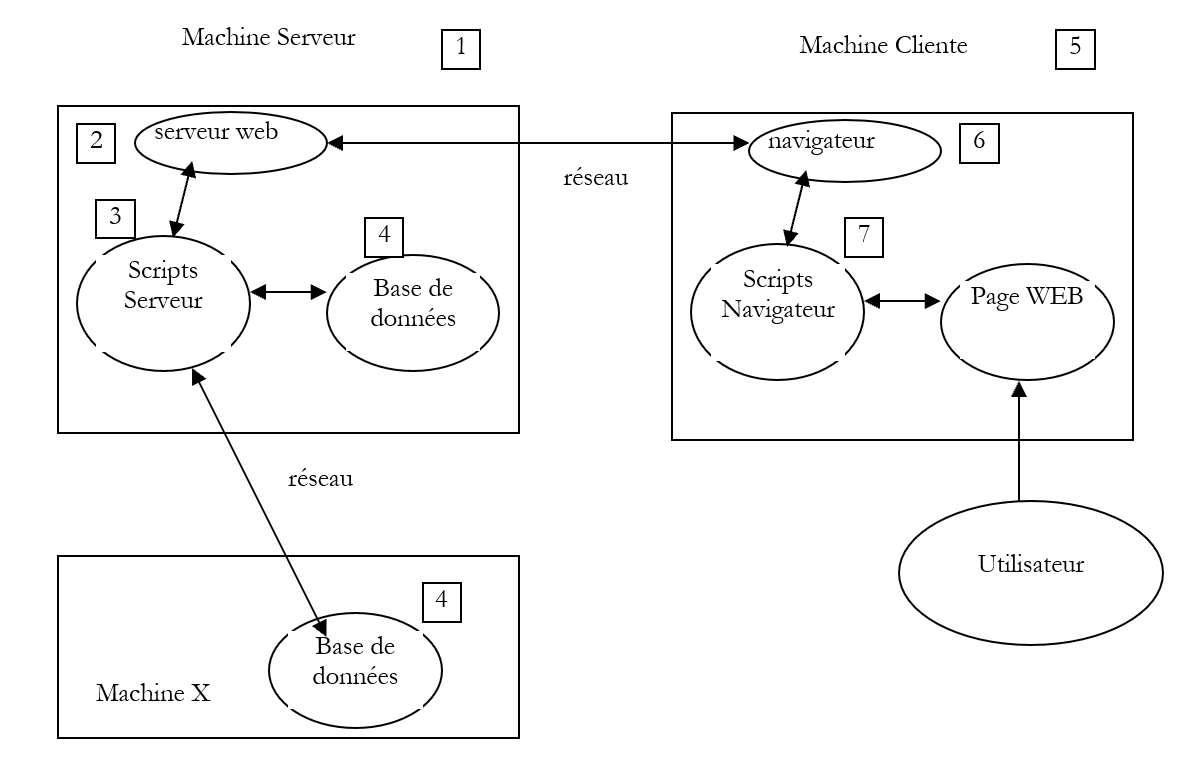
Number | Role | Common Examples |
OS Server | Linux, Windows | |
Web server | Apache (Linux, Windows) IIS (NT), PWS(Win9x) | |
Server-side scripts. They can be executed by server modules or by programs external to the server (CGI). | PERL (Apache, IIS, PWS) VBSCRIPT (IIS, PWS) JAVASCRIPT (IIS, PWS) PHP (Apache, IIS, PWS) JAVA (Apache, IIS, PWS) C#, VB.NET (IIS) | |
Database - This can be on the same machine as the program that uses it or on another machine via the Internet. | Oracle (Linux, Windows) MySQL (Linux, Windows) Access (Windows) SQL Server (Windows) | |
OS Client | Linux, Windows | |
Web browser | Netscape, Internet Explorer | |
Scripts executed on the client side within the browser. These scripts have no access to the client machine's disks. | VBscript (IE) Javascript (IE, Netscape) Perl script (IE) Applets JAVA |
2.2. Data exchange in a web application with a form
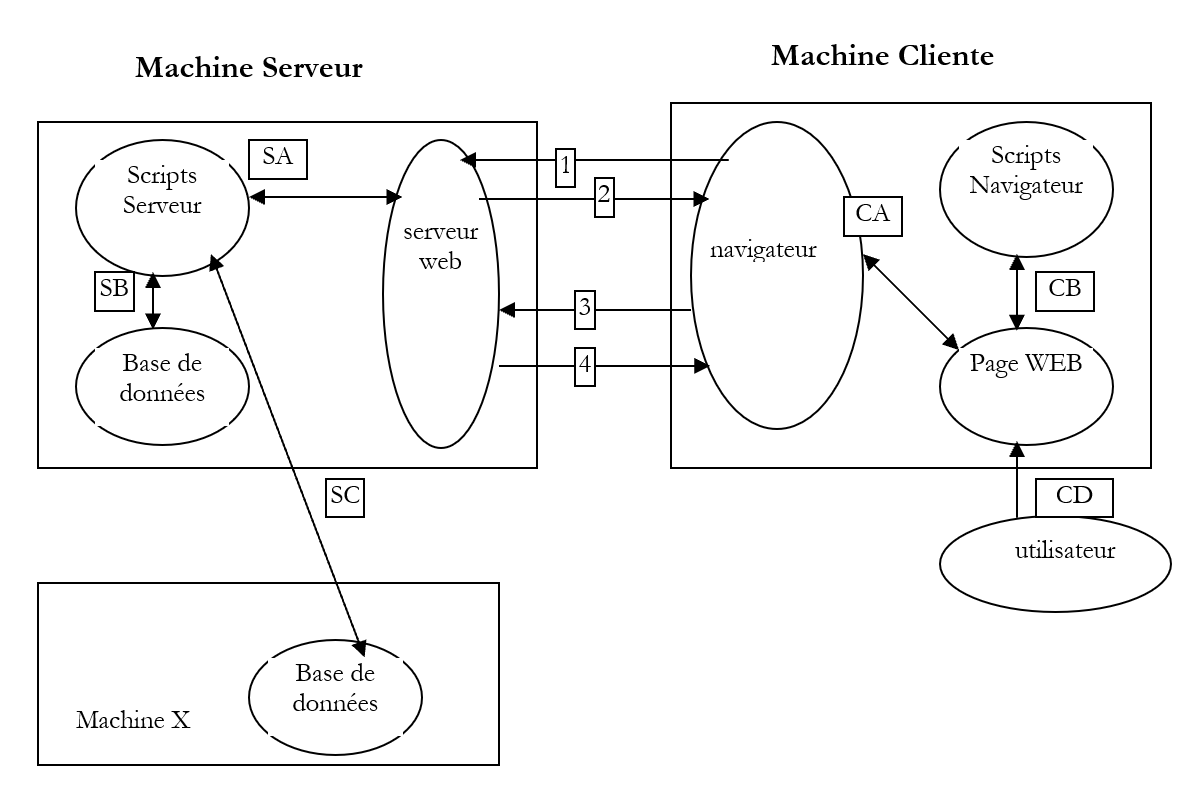
Client MachineServer Machine
Number | Role |
The browser requests a URL for the first time (http://machine/url). No parameters are passed. | |
The web server sends it the web page for this URL. It can be static or dynamically generated by a server-side script (SA) that may have used database content (SB, SC). Here, the script will detect that URL was requested without any parameters and will generate the initial WEB page. The browser receives the page and displays it (CA). Browser-side scripts (CB) may have modified the initial page sent by the server. Then, through interactions between the user (CD) and the scripts (CB), the web page will be modified. In particular, the forms will be filled out. | |
The user submits the form data, which must then be sent to the web server. The browser requests the initial URL or another one, as appropriate, and simultaneously transmits the form values to the server. It can use two methods for this purpose, called GET and POST. Upon receiving the client’s request, the server triggers the script (SA) associated with the requested URL, which detects the parameters and processes them. | |
The server delivers the WEB page generated by the program (SA, SB, SC). This step is identical to the previous step 2. Communication now proceeds according to steps 2 and 3. |
2.3. Some resources
Below is a list of resources for installing and using certain web development tools. The appendix includes installation instructions for these tools.
http://www.apache.org - Apache: Installation and Implementation, O'Reilly | |
http://www.microsoft.com | |
http://www.activestate.com - Programming in Perl, Larry Wall, O'Reilly - Applications in Perl, Neuss and Vromans, O'Reilly - the documentation HTML included with Active Perl | |
http://www.php.net - Web Programming with PHP, Lacroix, Eyrolles - User manual for PHP available on the PHP website | |
http://msdn.microsoft.com/scripting/vbscript/download/vbsdoc.exe http://msdn.microsoft.com/scripting/default.htm?/scripting/vbscript - Interface between WEB and the database under WinNT, Alex Homer, Eyrolles | |
http://msdn.microsoft.com/scripting/jscript/download/jsdoc.exe http://developer.netscape.com/docs/manuals/index.html | |
http://developer.netscape.com/docs/manuals/index.html | |
http://www.sun.com - JAVA Servlets, Jason Hunter, O'Reilly - Network Programming with Java, Elliotte Rusty Harold, O'Reilly - JDBC and Java, George Reese, O'Reilly | |
http://www.mysql.com http://www.oracle.com - The MySQL manual is available on the MySQL website - Oracle 8i on Linux, Gilles Briard, Eyrolles - Oracle 8i on NT, Gilles Briard, Eyrolles |
2.4. Notations
In the following, we will assume that a number of tools have been installed and will use the following notation:
notation | meaning |
root of the Apache server directory tree | |
root directory of the web pages served by Apache. Web pages must be located under this root directory. Thus, URL http://localhost/page1.htm corresponds to the file <apache-DocumentRoot>\page1.htm. | |
The root of the directory tree associated with the cgi-bin alias, where you can place CGI scripts for Apache. Thus, URL http://localhost/cgi-bin/test1.pl corresponds to the file <apache-cgi-bin>\test1.pl. | |
root directory of the web pages served by PWS. Web pages must be located under this root directory. Thus, URL http://localhost/page1.htm corresponds to the file <pws-DocumentRoot>\page1.htm. | |
the root of the Perl directory tree. The executable file perl.exe is usually located in <perl>\bin. | |
root of the PHP language directory. The executable php.exe is usually located in <php>. | |
root of the Java directory tree. Java-related executables are located in <java>\bin. | |
root of the Tomcat server. Examples of servlets can be found in <tomcat>\webapps\examples\servlets and examples of JSP pages in <tomcat>\webapps\examples\jsp |
For each of these tools, refer to the appendix, which provides installation instructions.
2.5. Static Web Pages, Dynamic Web Pages
A static page is represented by a HTML file. A dynamic page, on the other hand, is generated "on the fly" by the web server. In this section, we present various tests using different web servers and programming languages to demonstrate the universality of the web concept.
2.5.1. Static Page HTML (HyperText Markup Language)
Consider the following HTML code:
<html>
  <head>
    <title>essai 1 : une page statique</title>
   </head>
   <body>
     <center>
     <h1>Une page statique...</h1>
   </body>
</html>
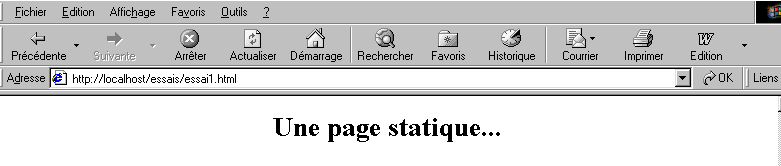
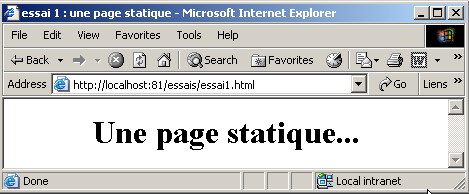
which generates the following web page:
The tests
-
Start the Apache server
-
place the script essai1.html in <apache-DocumentRoot>
-
View the URL http://localhost/essai1.html file using a browser
-
Stop the Apache server
-
Start the PWS server
-
Place the script test1.html in <pws-DocumentRoot>
-
View the URL http://localhost/test1.html page using a browser
2.5.2. A ASP page (Active Server Pages)
The essai2.asp script:
<html>
  <head>
    <title>essai 1 : une page asp</title>
   </head>
   <body>
     <center>
     <h1>Une page asp générée dynamiquement par le serveur PWS</h1>
     <h2>Il est <% =time %></h2>
     <br>
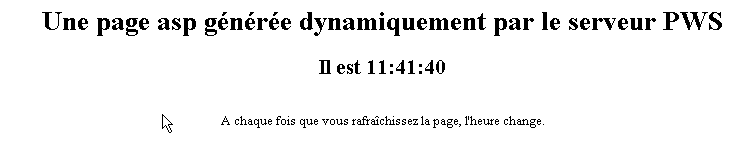
     A chaque fois que vous rafraîchissez la page, l'heure change.
   </body>
</html>
produces the following web page:
The test
-
Start the PWS server
-
Place the script essai2.asp in <pws-DocumentRoot>
-
Request URL http://localhost/essai2.asp using a browser
2.5.3. A PERL script (Practical Extracting and Reporting Language)
The essai3.pl script:
#!d:\perl\bin\perl.exe

($secondes,$minutes,$heure)=localtime(time);

print <<HTML
Content-type: text/html

<html>
  <head>
    <title>essai 1 : un script Perl</title>
   </head>
   <body>
     <center>
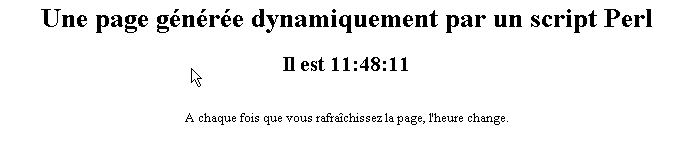
     <h1>Une page générée dynamiquement par un script Perl</h1>
     <h2>Il est $heure:$minutes:$secondes</h2>
     <br>
     A chaque fois que vous rafraîchissez la page, l'heure change.
   </body>
</html>

HTML
;
The first line is the path to the perl.exe executable. You may need to adjust it as needed. Once executed by a web server, the script generates the following page:
The test
-
Web server: Apache
-
For reference, view the configuration file srm.conf or httpd.conf depending on the Apache version in <apache>\confs and look for the line mentioning cgi-bin to determine the <apache-cgi-bin> directory where to place essai3.pl.
-
Place the essai3.pl script in <apache-cgi-bin>
-
Access url via http://localhost/cgi-bin/essai3.pl
Note that it takes longer to load the Perl page than the ASP page. This is because the Perl script is executed by a Perl interpreter that must be loaded before it can run the script. It does not remain in memory permanently.
2.5.4. A PHP script (Personal Home Page)
The script essai4.php
<html>
  <head>
    <title>essai 4 : une page php</title>
   </head>
   <body>
     <center>
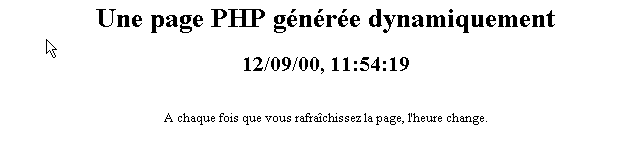
     <h1>Une page PHP générée dynamiquement</h1>
     <h2>
<?
          $maintenant=time();
          echo date("j/m/y, h:i:s",$maintenant);
?>
     </h2>
     <br>
     A chaque fois que vous rafraîchissez la page, l'heure change.
   </body>
</html>
The previous script produces the following web page:
Tests

-
view the Apache configuration file srm.conf or httpd.conf in <Apache>\confs
-
For reference, check the configuration lines for php
-
Start the Apache server
-
place essai4.php in <apache-DocumentRoot>
-
Request URL at http://localhost/essai4.php
-
Start the PWS server
-
For information, check the configuration of PWS regarding php
-
Place test4.php in <pws-DocumentRoot>\php
-
Request URL from http://localhost/essai4.php
2.5.5. A JSP script (Java Server Pages)
The heure.jsp script
<%  //java program displaying time %>

<%@ page import="java.util.*" %>

<%
     // code JAVA to calculate time
  Calendar calendrier=Calendar.getInstance();
  int heures=calendrier.get(Calendar.HOUR_OF_DAY);
  int minutes=calendrier.get(Calendar.MINUTE);
  int secondes=calendrier.get(Calendar.SECOND);
   // hours, minutes, seconds are global variables
   // which can be used in the HTML code
%>

<% // code HTML %>
<html>
  <head>
     <title>Page JSP affichant l'heure</title>
  </head>
  <body>
     <center>
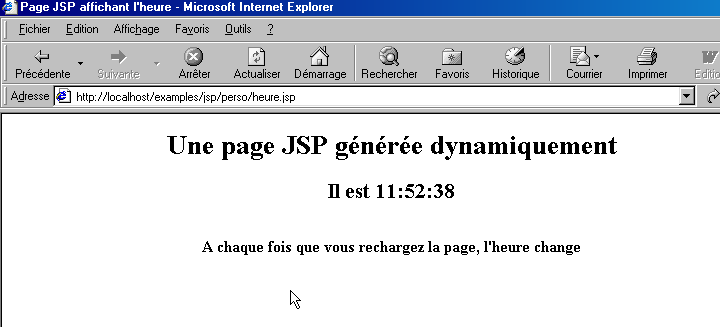
     <h1>Une page JSP générée dynamiquement</h1>
     <h2>Il est <%=heures%>:<%=minutes%>:<%=secondes%></h2>
     <br>
     <h3>A chaque fois que vous rechargez la page, l'heure change</h3>
  </body>
</html>
Once executed by the web server, this script produces the following page:
Tests
- Place the heure.jsp script in <tomcat>\jakarta-tomcat\webapps\examples\jsp (Tomcat 3.x) or in <tomcat>\webapps\examples\jsp (Tomcat 4.x)
- Start the Tomcat server
- Request the URL http://localhost:8080/examples/jsp/heure.jsp
2.5.6. Conclusion
The previous examples have shown that:
- a HTML page can be dynamically generated by a program. This is the whole point of web programming.
- the languages and web servers used can vary. Currently, the following major trends are observed:
- the Apache/PHP (Windows, Linux) and IIS/PHP (Windows) combinations
- ASP.NET technology on Windows platforms that combine the IIS server with a .NET language (C#, VB.NET, ...)
- Java servlet technology and JSP pages running on various servers (Tomcat, Apache, IIS) and on various platforms (Windows, Linux). It is this latter technology that will be discussed in greater detail in this document.
2.6. Browser-side scripts
A HTML page may contain scripts that will be executed by the browser. There are many browser-side scripting languages. Here are a few:
Language | Supported browsers |
Vbscript | IE |
Javascript | IE, Netscape |
PerlScript | IE |
Java | IE, Netscape |
Let's look at a few examples.
2.6.1. A web page with a Vbscript script on the browser side
The page vbs1.html
<html>
  <head>
    <title>essai : une page web avec un script vb</title>
    <script language="vbscript">
      function reagir
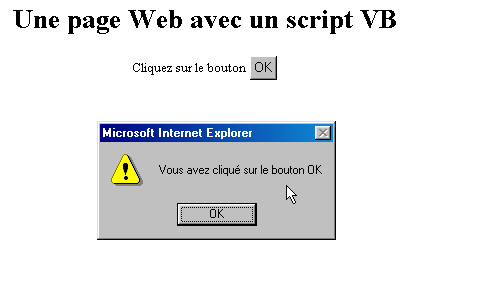
        alert "Vous avez cliqué sur le bouton OK"
      end function
    </script>
   </head>

   <body>
<center>
     <h1>Une page Web avec un script VB</h1>
     <table>
       <tr>
         <td>Cliquez sur le bouton</td>
         <td><input type="button" value="OK" name="cmdOK" onclick="reagir"></td>
       </tr>
      </table>
   </body>
</html>
The page HTML above contains not only the code HTML but also a program intended to be executed by the browser that loads this page. The code is as follows:
    <script language="vbscript">
      function reagir
        alert "Vous avez cliqué sur le bouton OK"
      end function
    </script>
The <script></script> tags are used to delimit scripts on the HTML page. These scripts can be written in different languages, and it is the option language attribute of the <script> tag that specifies the language used. Here it is VBScript. We will not go into detail about this language. The script above defines a function called react that displays a message. When is this function called? The following line of code tells us:
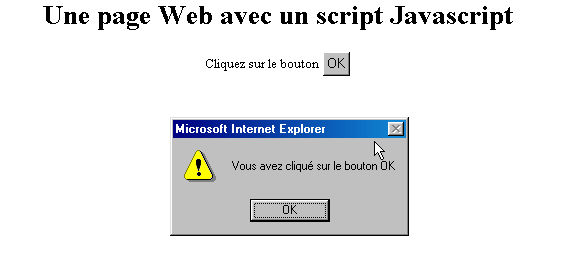
The onclick attribute specifies the name of the function to be called when the user clicks the button OK. Once the browser has loaded this page and the user clicks the button OK, the following page will appear:
Tests
Only the IE browser is capable of executing VBScript scripts. Netscape requires add-ons to do so. The following tests can be performed:
-
Apache server
-
vbs1.html script in <apache-DocumentRoot>
-
Request url http://localhost/vbs1.html using the IE browser
-
server PWS
-
vbs1.html script in <pws-DocumentRoot>
-
Request url http://localhost/vbs1.html using the IE browser
2.6.2. A web page with a Javascript script, browser-side
The page: js1.html
<html>
  <head>
    <title>essai 4 : une page web avec un script Javascript</title>
    <script language="javascript">
      function reagir(){
        alert ("Vous avez cliqué sur le bouton OK");
      }
    </script>
   </head>

   <body>
     <center>
     <h1>Une page Web avec un script Javascript</h1>
     <table>
       <tr>
         <td>Cliquez sur le bouton</td>
         <td><input type="button" value="OK" name="cmdOK" onclick="reagir()"></td>
       </tr>
    </table>
   </body>
</html>
This is identical to the previous page, except that we have replaced the VBScript language with the Javascript language. The latter has the advantage of being accepted by both IE and Netscape browsers. Running it produces the same results:
The tests
-
Apache server
-
js1.html script in <apache-DocumentRoot>
-
request url http://localhost/js1.html using the IE or Netscape browser
-
PWS server
-
script js1.html in <pws-DocumentRoot>
-
Request url http://localhost/js1.html using the IE or Netscape browser
2.7. Client-server interactions
Let’s return to our initial diagram illustrating the components of a web application:
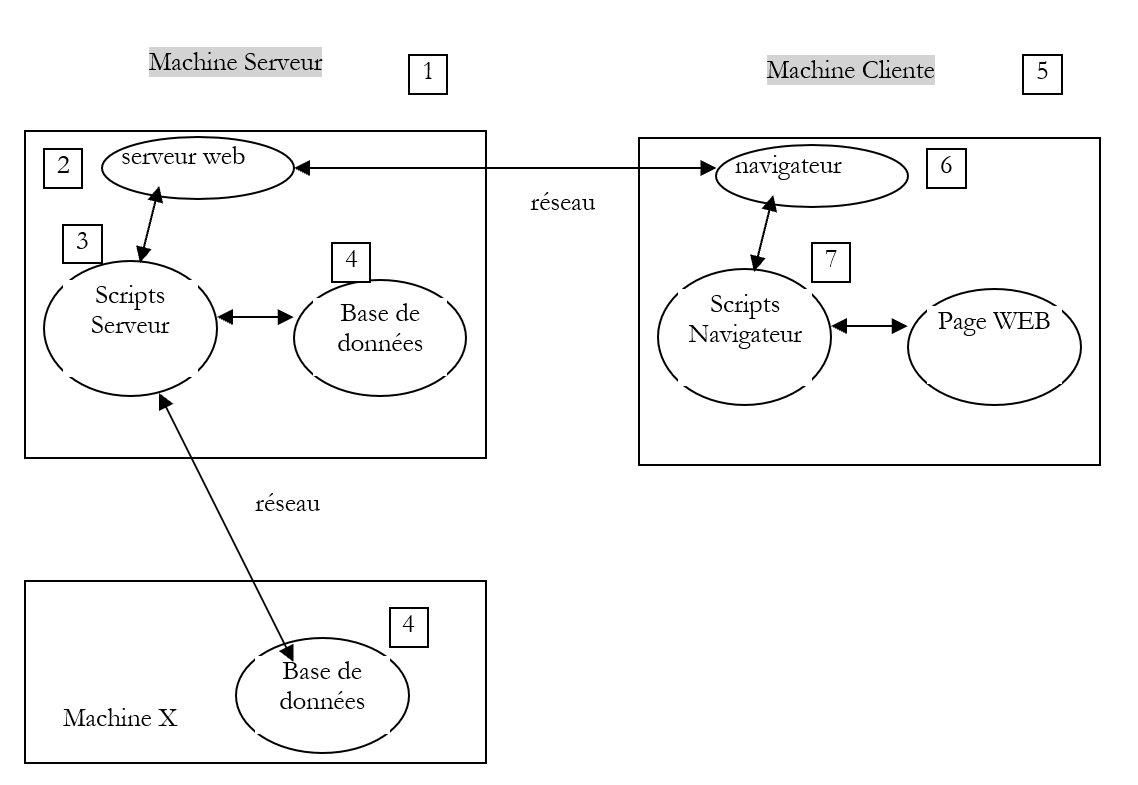 |
Here, we are focusing on the exchanges between the client machine and the server machine. These occur over a network, and it is worth reviewing the general structure of exchanges between two remote machines.
2.7.1. The OSI model
The open network model known as OSI (Open Systems Interconnection Reference Model), defined by the ISO (International Standards Organization), describes an ideal network where communication between machines can be represented by a seven-layer model:
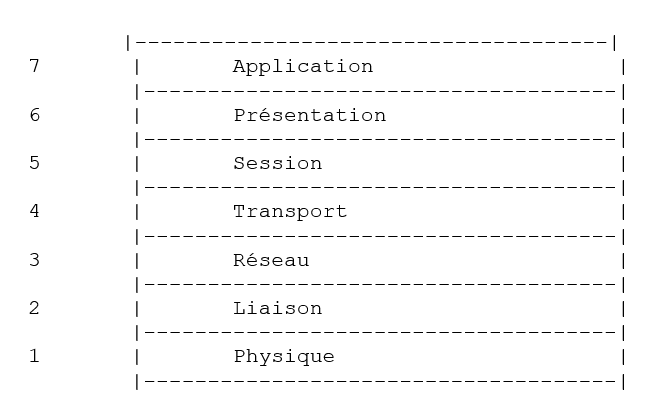 |
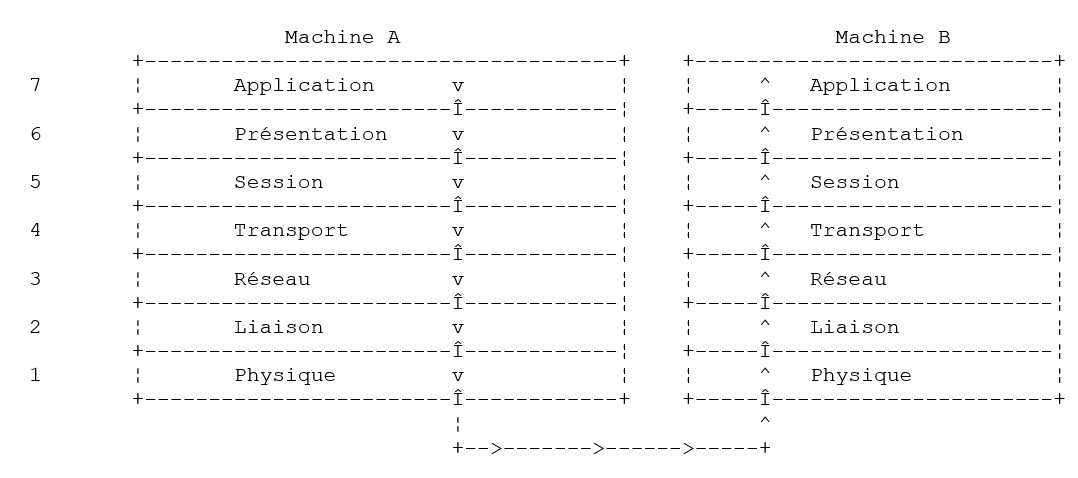
Each layer receives services from the lower layer and provides its own to the upper layer. Suppose two applications located on different machines A and B want to communicate: they do so at the Application layer. They do not need to know all the details of how the network operates: each application passes the information it wishes to transmit to the layer below it: the Presentation layer. The application therefore only needs to know the rules for interfacing with the Presentation layer. Once the information is in the Presentation layer, it is passed according to other rules to the Session layer, and so on, until the information reaches the physical medium and is physically transmitted to the destination machine. There, it will undergo the reverse process of what it underwent on the sending machine.
At each layer, the sender process responsible for sending the information sends it to a receiver process on the other machine belonging to the same layer as itself. It does so according to certain rules known as the layer protocol. We therefore have the following final communication diagram:
 |
The roles of the different layers are as follows:
Ensures the transmission of bits over a physical medium. This layer includes data processing terminal equipment (E.T.T.D.) such as terminals or computers, as well as data circuit termination equipment (E.T.C.D.) such as modulators/demodulators, multiplexers, and concentrators. Key points at this level are: . the choice of information encoding (analog or digital) . the choice of transmission mode (synchronous or asynchronous). | |
Hides the physical characteristics of the Physical Layer. Detects and corrects transmission errors. | |
Manages the path that information sent over the network must follow. This is called routing: determining the route that information must take to reach its destination. | |
Enables communication between two applications, whereas the previous layers only allowed communication between machines. A service provided by this layer can be multiplexing: the transport layer can use a single network connection (from machine to machine) to transmit data belonging to multiple applications. | |
This layer contains services that allow an application to open and maintain a working session on a remote machine. | |
It aims to standardize the representation of data across different machines. Thus, data originating from machine A will be "formatted" by machine A’s Presentation layer according to a standard format before being sent over the network. Upon reaching the Presentation layer of the destination machine B, which will recognize them thanks to their standard format, they will be formatted in a different way so that the application on machine B can recognize them. | |
At this level, we find applications that are generally close to the user, such as email or file transfer. |
2.7.2. The TCP/IP model
The OSI model is an ideal model. The TCP/IP protocol suite approximates it in the following form:
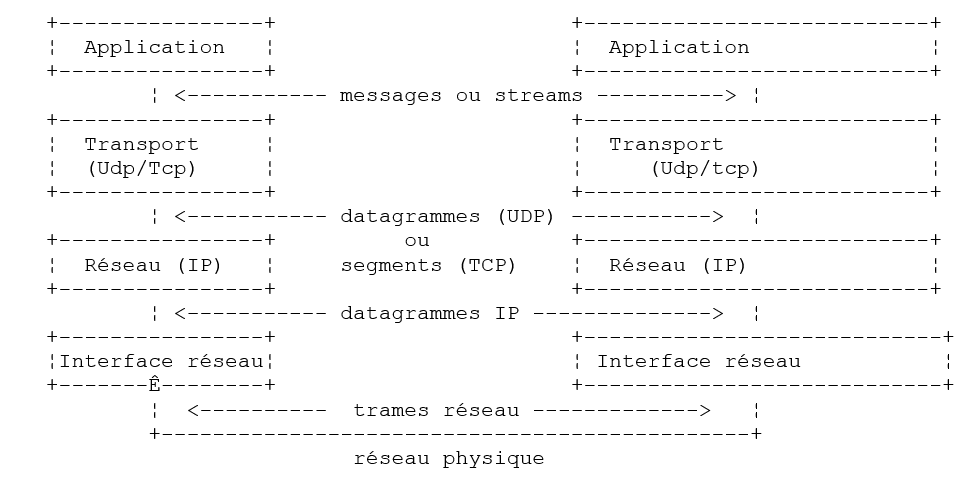 |
- the network interface (the computer's network card) performs the functions of layers 1 and 2 of the OSI model
- the IP layer (Internet Protocol) performs the functions of Layer 3 (network)
- the TCP layer (Transfer Control Protocol) or UDP (User Datagram Protocol) performs the functions of Layer 4 (transport). The TCP protocol ensures that the data packets exchanged by the machines reach their destination. If this is not the case, it resends the lost packets. The UDP protocol does not perform this task, so it is up to the application developer to do so. This is why, on the Internet—which is not a 100% reliable network—the TCP protocol is the most widely used. This is referred to as the TCP-IP network.
- The Application layer covers the functions of layers 5 through 7 of the OSI model.
Web applications reside in the Application layer and therefore rely on the TCP-IP protocols. The Application layers of the client and server machines exchange messages that are entrusted to layers 1 through 4 of the model to be routed to their destination. To communicate with each other, the application layers of both machines must "speak" the same language or protocol. The protocol used by web applications is called HTTP (HyperText Transfer Protocol). It is a text-based protocol, c.a.d, whereby machines exchange lines of text over the network to communicate. These exchanges are standardized, meaning that the client has a set of messages to tell the server exactly what it wants, and the server also has a set of messages to give the client its response. This message exchange takes the following form:
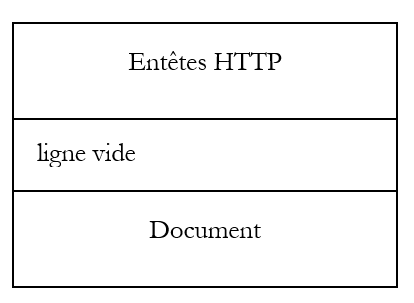 |
Client --> Server
When the client makes a request to the web server, it sends
- text lines in the format HTTP to indicate what it wants
- an empty line
- optionally a document
Server --> Client
When the server responds to the client, it sends
- text lines in the format HTTP to indicate what it is sending
- an empty line
- optionally a document
Communications therefore follow the same format in both directions. In both cases, a document may be sent, even though it is rare for a client to send a document to the server. But the HTTP protocol provides for this. This is what allows, for example, subscribers of an ISP to upload various documents to their personal website hosted by that ISP. The exchanged documents can be of any type. Consider a browser requesting a web page containing images:
- the browser connects to the web server and requests the page it wants. The requested resources are uniquely identified by URL (Uniform Resource Locator). The browser sends only HTTP headers and no document.
- The server responds. It first sends HTTP headers indicating what type of response it is sending. This may be an error if the requested page does not exist. If the page exists, the server will indicate in the HTTP headers of its response that it will send a HTML document (HyperText Markup Language) following these headers. This document is a sequence of text lines in HTML format. A HTML text contains tags (markers) that provide the browser with instructions on how to display the text.
- The client knows from the server’s HTTP headers that it will receive a HTML document. It will parse the document and may notice that it contains image references. These images are not included in the HTML document. It therefore sends a new request to the same web server to request the first image it needs. This request is identical to the one made in step 1, except that the requested resource is different. The server will process this request by sending the requested image to the client. This time, in its response, the headers will specify that the document sent is an image and not a HTML document.
- The client retrieves the sent image. Steps 3 and 4 will be repeated until the client (usually a browser) has all the documents needed to display the entire page.
2.7.3. The HTTP Protocol
Let’s explore the HTTP protocol using examples. What do a browser and a web server exchange?
2.7.3.1. The response from a HTTP server
Here we will explore how a web server responds to requests from its clients. The web service or HTTP service is a TCP-IP service that typically runs on port 80. It could run on a different port. In that case, the client browser would have to specify that port in the URL request it sends. A URL generally takes the following form:
protocol://[:port] machine/path/info
where
protocol | http for the web service. A browser can also act as a client for FTP, news, Telnet, and other services. |
machine | name of the machine hosting the web service |
port | Web service port. If it is 80, the port number can be omitted. This is the most common case |
path | path to the requested resource |
info | additional information provided to the server to specify the client's request |
What does a browser do when a user requests to load a URL?
- It opens a TCP-IP connection with the machine and port specified in the machine[:port] section of the URL. Opening a TCP-IP connection means creating a communication "pipe" between two machines. Once this pipe is created, all information exchanged between the two machines will pass through it. The creation of this TCP-IP channel does not yet involve the HTTP web protocol.
- Once the TCP-IP pipe is created, the client will send its request to the web server by sending it lines of text (commands) in the HTTP format. It will send the path/info portion of URL to the server
- the server will respond in the same way and over the same channel
- one of the two parties will decide to close the connection. This depends on the HTTP protocol used. With the HTTP 1.0 protocol, the server closes the connection after each of its responses. This forces a client that must make multiple requests to obtain the various documents that make up a web page to open a new connection for each request, which incurs a cost. With the HTTP/1.1 protocol, the client can instruct the server to keep the connection open until it tells the server to close it. It can therefore retrieve all the documents for a web page using a single connection and close the connection itself once the last document has been obtained. The server will detect this closure and close the connection as well.
To explore the exchanges between a client and a web server, we will use a generic TCP client. This is a program that can act as a client for any service using a text-based communication protocol, such as the HTTP protocol. These text lines will be typed by the user on the keyboard. This requires the user to know the communication protocol of the service they are trying to access. The server’s response is then displayed on the screen. The program was written in Java and can be found in the appendix. Here, we use it in a DOS window under Windows and call it as follows:
java clientTCPgenerique machine port
with
machine | name of the machine where the service to be contacted is running |
port | port where the service is provided |
With this information, the program will open a connection named TCP-IP to the specified machine and port. This connection will be used to exchange text lines between the client and the web server. The client’s lines are typed by the user on the keyboard and sent to the server. The text lines returned by the server as a response are displayed on the screen. A dialogue can thus take place directly between the user at the keyboard and the web server. Let’s try this with the examples already presented. We had created the following static page: HTML:
<html>
  <head>
    <title>essai 1 : une page statique</title>
   </head>
   <body>
     <center>
     <h1>Une page statique...</h1>
   </body>
</html>
which we view in a browser:
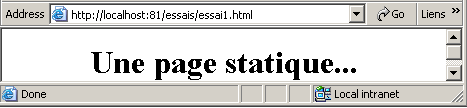
We see that the requested URL is: http://localhost:81/tests/test1.html. The web server machine is therefore localhost (=local machine) and port 81. If we request to view the text HTML of this web page (View/Source), we find the text HTML that was initially created:
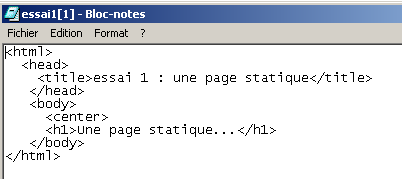
Now let’s use our generic TCP client to request the same URL:
Dos>java clientTCPgenerique localhost 81

Commandes :
GET /essais/essai1.html HTTP/1.0

<-- HTTP/1.1 200 OK
<-- Date: Mon, 08 Jul 2002 08:07:46 GMT
<-- Server: Apache/1.3.24 (Win32) PHP/4.2.0
<-- Last-Modified: Mon, 08 Jul 2002 08:00:30 GMT
<-- ETag: "0-a1-3d29469e"
<-- Accept-Ranges: bytes
<-- Content-Length: 161
<-- Connection: close
<-- Content-Type: text/html
<--
<-- <html>
<--   <head>
<--     <title>Test 1: a static page</title>
<--    </head>
<--    <body>
<--      <center>
<--      <h1>A static page...</h1>
<--    </body>
<-- </html>
When the client was launched using the command java clientTCPgenerique localhost 81, a connection was established between the program and the web server running on the same machine (localhost) on port 81. Client-server communication in the HTTP format can now begin. Note that these messages consist of three components:
- HTTP headers
- empty line
- optional data
In our example, the client sends only one request:
GET /tests/test1.html HTTP/1.0
This line has three components:
command HTTP to request a resource. There are others: HEAD requests a resource but limits itself to the headers HTTP in the server’s response. The resource itself is not sent. PUT allows the client to send a document to the server | |
requested resource | |
HTTP protocol level used. Here, 1.0. This means that the server will close the connection as soon as it has sent its response |
HTTP headers must always be followed by a blank line. This is what the client has done here. This is how the client or server knows that the HTTP part of the exchange is complete. Here, the client is finished. It has no document to send. The server’s response then begins, consisting in our example of all lines starting with the <-- character. It first sends a series of HTTP headers followed by a blank line:
<-- HTTP/1.1 200 OK
<-- Date: Mon, 08 Jul 2002 08:07:46 GMT
<-- Server: Apache/1.3.24 (Win32) PHP/4.2.0
<-- Last-Modified: Mon, 08 Jul 2002 08:00:30 GMT
<-- ETag: "0-a1-3d29469e"
<-- Accept-Ranges: bytes
<-- Content-Length: 161
<-- Connection: close
<-- Content-Type: text/html
<--
the server says
| |
the date/time of the response | |
the server identifies itself. Here it is an Apache server | |
date of the last modification of the resource requested by the client | |
... | |
unit of measurement for the data sent. Here, the byte | |
number of bytes in the document that will be sent after the headers HTTP. This number is actually the size in bytes of the file essai1.html: | |
the server says it will close the connection once the document is sent | |
The server indicates that it will send text in the format HTML (html). |
The client receives these headers HTTP and now knows that it will receive 161 bytes representing a document HTML. The server sends these 161 bytes immediately after the blank line that signaled the end of the headers HTTP:
<-- <html>
<--   <head>
<--     <title>Test 1: a static page</title>
<--    </head>
<--    <body>
<--      <center>
<--      <h1>A static page...</h1>
<--    </body>
<-- </html>
Here we recognize the HTML file that was initially created. If our client were a browser, after receiving these lines of text, it would interpret them to display the following page to the user:
Let’s use our generic TCP client again to request the same resource, but this time with the HEAD command, which requests only the response headers:
Dos>java.bat clientTCPgenerique localhost 81
Commandes :
HEAD /essais/essai1.html HTTP/1.1
Host: localhost:81

<-- HTTP/1.1 200 OK
<-- Date: Mon, 08 Jul 2002 09:07:25 GMT
<-- Server: Apache/1.3.24 (Win32) PHP/4.2.0
<-- Last-Modified: Mon, 08 Jul 2002 08:00:30 GMT
<-- ETag: "0-a1-3d29469e"
<-- Accept-Ranges: bytes
<-- Content-Length: 161
<-- Content-Type: text/html
<--
We get the same result as before without the HTML document. Note that in its request HEAD, the client indicated that it was using the HTTP version 1.1 protocol. This requires the client to send a second header specifying the machine:port pair the client wishes to query: Host: localhost:81.
Now let’s request an image using both a browser and the generic TCP client. First, using a browser:
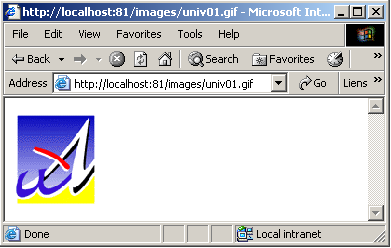
The file univ01.gif is 3167 bytes:
Now let’s use the generic TCP client:
E:\data\serge\JAVA\SOCKETS\client générique>java clientTCPgenerique localhost 81
Commandes :
HEAD /images/univ01.gif HTTP/1.1
host: localhost:81

<-- HTTP/1.1 200 OK
<-- Date: Tue, 09 Jul 2002 13:53:24 GMT
<-- Server: Apache/1.3.24 (Win32) PHP/4.2.0
<-- Last-Modified: Fri, 14 Apr 2000 11:37:42 GMT
<-- ETag: "0-c5f-38f70306"
<-- Accept-Ranges: bytes
<-- Content-Length: 3167
<-- Content-Type: image/gif
<--
Note the following points in the server's response:
| |
| |
|
2.7.3.2. A request from a client HTTP
Now, let’s ask ourselves the following question: if we want to write a program that “communicates” with a web server, what commands must it send to the web server to obtain a given resource? We’ve seen the beginnings of an answer in the previous examples. We’ve encountered three commands:
| |
| |
|
There are other commands. To explore them, we will now use a generic TCP server. It is a program written in Java, which you will also find in the appendix. It is launched by: java serveurTCPgenerique portEcoute, where portEcoute is the port to which the clients must connect. The serveurTCPgenerique program
- displays on the screen the commands sent by clients
- sends them the lines of text typed on the keyboard by a user as a response. It is therefore the user who acts as the server. In our example, the user at the keyboard will play the role of a web service.
Let’s now simulate a web server by launching our generic server on port 88:
Dos> java serveurTCPgenerique 88
Serveur générique lancé sur le port 88
Now let’s open a browser and request the URL http://localhost:88/example.html. The browser will then connect to port 88 on the localhost machine and request the page /example.html:
Now let’s look at our server window, which displays what the client sent it (some lines specific to the operation of the serveurTCPgenerique program have been omitted for simplicity):
Dos>java serveurTCPgenerique 88
Serveur générique lancé sur le port 88
...
<-- GET /exemple.html HTTP/1.1
<-- Accept: image/gif, image/x-xbitmap, image/jpeg, image/pjpeg, application/msword, */*
<-- Accept-Language: fr
<-- Accept-Encoding: gzip, deflate
<-- User-Agent: Mozilla/4.0 (compatible; MSIE 6.0; Windows NT 5.0; .NET CLR 1.0.3705; .NET CLR 1.0.2 914)
<-- Host: localhost:88
<-- Connection: Keep-Alive
<--
Lines preceded by the <-- symbol are those sent by the client. We thus discover HTTP headers that we had not yet encountered:
| |
| |
| |
| |
|
The HTTP headers sent by the browser end with a blank line, as expected.
Let’s craft a response for our client. The user at the keyboard is the actual server here and can craft a response manually. Recall the response sent by a web server in a previous example:
<-- HTTP/1.1 200 OK
<-- Date: Mon, 08 Jul 2002 08:07:46 GMT
<-- Server: Apache/1.3.24 (Win32) PHP/4.2.0
<-- Last-Modified: Mon, 08 Jul 2002 08:00:30 GMT
<-- ETag: "0-a1-3d29469e"
<-- Accept-Ranges: bytes
<-- Content-Length: 161
<-- Connection: close
<-- Content-Type: text/html
<--
<-- <html>
<--   <head>
<--     <title>Test 1: a static page</title>
<--    </head>
<--    <body>
<--      <center>
<--      <h1>A static page...</h1>
<--    </body>
<-- </html>
Let's try to manually (on the keyboard) craft a similar response. The lines beginning with --> : are sent to the client:
...
<-- Host: localhost:88
<-- Connection: Keep-Alive
<--
--> : HTTP/1.1 200 OK
--> : Server: generic tcp server
--> : Connection: close
--> : Content-Type: text/html
--> :
--> : <html>
--> : <head><title>Generic server</title></head>
--> :   <body>
--> :     <center>
--> :       <h2>Generic server response</h2>
--> : </center>
--> : </body>
--> : </html>
fin
The end command is specific to the operation of the serveurTCPgenerique program. It stops the program from running and closes the connection between the server and the client. In our response, we have limited ourselves to the following HTTP headers:
HTTP/1.1 200 OK
--> : Server: generic tcp server
--> : Connection: close
--> : Content-Type: text/html
--> :
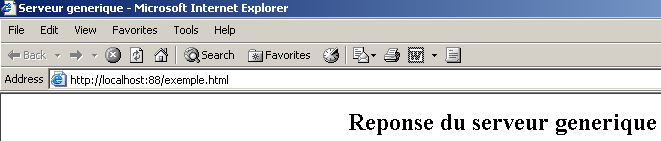
We do not specify the size of the file we are sending (Content-Length), but simply indicate that we will close the connection (Connection: close) after sending it. This is sufficient for the browser. When it sees that the connection is closed, it will know that the server’s response is complete and will display the page HTML that was sent to it. The page is as follows:
--> : <html>
--> : <head><title>Generic server</title></head>
--> :   <body>
--> :     <center>
--> :       <h2>Generic server response</h2>
--> : </center>
--> : </body>
--> : </html>
The browser then displays the following page:
If, in the example above, you select View/Source to see what the browser received, you get:
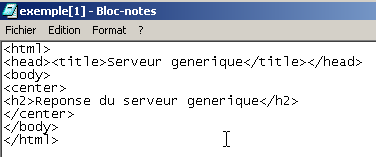
that is, exactly what was sent from the generic server.
2.8. The HTML language
A web browser can display various documents, the most common being the HTML document (HyperText Markup Language). This is formatted text with tags of the form <tag>text</tag>. Thus, the text <B>important</B> will display the text "important" in bold. There are standalone tags such as the <hr> tag, which displays a horizontal line. We will not review all the tags that can be found in a HTML text. There are many WYSIWYG software tools that allow you to build a web page without writing a single line of HTML code. These tools automatically generate the HTML code for a layout created using the mouse and predefined controls. You can thus insert (using the mouse) a table into the page and then view the HTML code generated by the software to discover the tags to use for defining a table on a web page. It’s as simple as that. Furthermore, knowledge of the HTML language is essential, since dynamic web applications must generate the HTML code themselves to send to the clients web. This code is generated programmatically, and you must, of course, know what to generate so that the client receives the web page they want.
In short, there is no need to know the entire HTML language to start web programming. However, this knowledge is necessary and can be acquired through the use of WYSIWYG web page construction software such as Word, FrontPage, DreamWeaver, and dozens of others. Another way to discover the intricacies of the HTML language is to browse the web and view the source code of pages that feature interesting characteristics you are not yet familiar with.
2.8.1. An example
Consider the following example, created with FrontPage Express, a free tool included with Internet Explorer. The code generated by FrontPage has been simplified here. This example features some elements commonly found in a web document, such as:
- a table
- an image
- a link
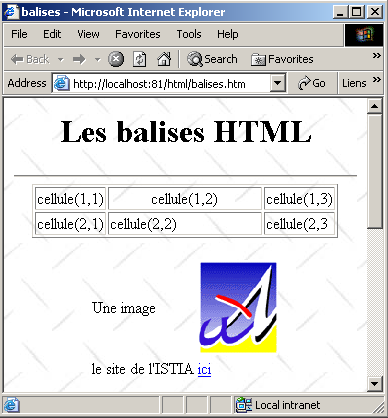
A HTML document generally has the following form:
The entire document is enclosed within the tags <html>...</html>. It consists of two parts:
- <head>...</head>: this is the non-displayable part of the document. It provides information to the browser that will display the document. It often contains the <title>...</title> tag, which sets the text to be displayed in the browser's title bar. Other tags may be found here, notably tags defining the document’s keywords, which are then used by search engines. This section may also contain scripts, most often written in javascript or vbscript, which will be executed by the browser.
- <body attributes>...</body>: this is the section that will be displayed by the browser. The HTML tags contained in this section tell the browser the "desired" visual layout for the document. Each browser will interpret these tags in its own way. Two browsers may therefore display the same web document differently. This is generally one of the headaches for web designers.
The code for our example document is as follows:
<html>

  <head>
      <title>balises</title>
  </head>

  <body background="/images/standard.jpg">
      <center>
        <h1>Les balises HTML</h1>
        <hr>
      </center>

    <table border="1">
      <tr>
        <td>cellule(1,1)</td>
        <td valign="middle" align="center" width="150">cellule(1,2)</td>
        <td>cellule(1,3)</td>
      </tr>
      <tr>
        <td>cellule(2,1)</td>
        <td>cellule(2,2)</td>
        <td>cellule(2,3</td>
      </tr>
    </table>

    <table border="0">
      <tr>
        <td>Une image</td>
        <td><img border="0" src="/images/univ01.gif" width="80" height="95"></td>
      </tr>
      <tr>
        <td>le site de l'ISTIA</td>
        <td><a href="http://istia.univ-angers.fr">ici</a></td>
      </tr>
    </table>
  </body>
</html>
Only the points of interest to us have been highlighted in the code:
Element | tags and examples HTML |
<title>tags</title> tags will appear in the browser's title bar when the document is displayed | |
<hr>: displays a horizontal line | |
<table attributes>....</table>: to define the table <tr attributes>...</tr>: to define a row <td attributes>...</td>: to define a cell examples: <table border="1">...</table>: the border attribute defines the thickness of the table border <td valign="middle" align="center" width="150">cell(1,2)</td>: defines a cell whose content will be cell(1,2). This content will be centered vertically (valign="middle") and horizontally (align="center"). The cell will have a width of 150 pixels (width="150") | |
<img border="0" src="/images/univ01.gif" width="80" height="95">: defines an image with no border (border="0"), 95 pixels high (height="95"), 80 pixels wide (width="80"), and whose source file is /images/univ01.gif on the web server (src="/images/univ01.gif"). This link is located on a web document that was generated using the URL http://localhost:81/html/balises.htm. Also, the browser will request URL http://localhost:81/images/univ01.gif to retrieve the image referenced here. | |
<a href="http://istia.univ-angers.fr">here</a>: makes the text "here" serve as a link to URL http://istia.univ-angers.fr. | |
<body background="/images/standard.jpg">: indicates that the image to be used as the page background is located at URL /images/standard.jpg on the web server. In the context of our example, the browser will request the URL URL://localhost:81/images/http to retrieve this background image. |
We can see in this simple example that to build the entire document, the browser must make three requests to the server:
- http://localhost:81/html/balises.htm to retrieve the document source
- http://localhost:81/images/univ01.gif to retrieve the image univ01.gif
- http://localhost:81/images/standard.jpg to get the background image standard.jpg
The following example shows a web form also created with FrontPage.
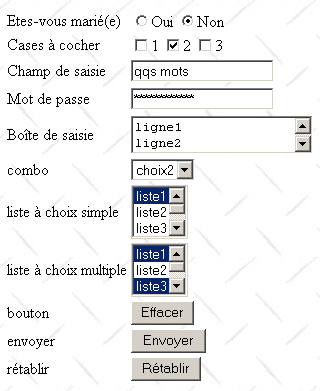
The HTML code generated by FrontPage and slightly streamlined is as follows:
<html>

  <head>
      <title>balises</title>
    <script language="JavaScript">
        function effacer(){
          alert("Vous avez cliqué sur le bouton Effacer");
      }//delete
        </script>
  </head>

  <body background="/images/standard.jpg">

    <form method="POST" >

      <table border="0">
        <tr>
          <td>Etes-vous marié(e)</td>
          <td>
              <input type="radio" value="Oui" name="R1">Oui
              <input type="radio" name="R1" value="non" checked>Non
          </td>
        </tr>
        <tr>
          <td>Cases à cocher</td>
          <td>
              <input type="checkbox" name="C1" value="un">1
              <input type="checkbox" name="C2" value="deux" checked>2
              <input type="checkbox" name="C3" value="trois">3
          </td>
        </tr>
        <tr>
          <td>Champ de saisie</td>
          <td>
              <input type="text" name="txtSaisie" size="20" value="qqs mots">
          </td>
        </tr>
        <tr>
          <td>Mot de passe</td>
          <td>
              <input type="password" name="txtMdp" size="20" value="unMotDePasse">
          </td>
        </tr>
        <tr>
          <td>Boîte de saisie</td>
          <td>
               <textarea rows="2" name="areaSaisie" cols="20">
ligne1
ligne2
ligne3
</textarea>
          </td>
        </tr>
        <tr>
          <td>combo</td>
          <td>
              <select size="1" name="cmbValeurs">
                <option>choix1</option>
                <option selected>choix2</option>
                <option>choix3</option>
              </select>
          </td>
        </tr>
        <tr>
          <td>liste à choix simple</td>
          <td>
              <select size="3" name="lst1">
                <option selected>liste1</option>
                <option>liste2</option>
                <option>liste3</option>
                <option>liste4</option>
                <option>liste5</option>
              </select>
          </td>
        </tr>
        <tr>
          <td>liste à choix multiple</td>
          <td>
              <select size="3" name="lst2" multiple>
                <option>liste1</option>
                <option>liste2</option>
                <option selected>liste3</option>
                <option>liste4</option>
                <option>liste5</option>
              </select>
          </td>
        </tr>
        <tr>
          <td>bouton</td>
          <td>
              <input type="button" value="Effacer" name="cmdEffacer" onclick="effacer()">
          </td>
        </tr>
        <tr>
          <td>envoyer</td>
          <td>
              <input type="submit" value="Envoyer" name="cmdRenvoyer">
          </td>
        </tr>
        <tr>
          <td>rétablir</td>
          <td>
              <input type="reset" value="Rétablir" name="cmdRétablir">
          </td>
        </tr>
      </table>
      <input type="hidden" name="secret" value="uneValeur">

    </form>
  </body>
</html>
The visual-to-tag mapping for HTML is as follows:
Check | tag HTML |
<form method="POST" > | |
<input type="text" name="txtSaisie" size="20" value="a few words"> | |
<input type="password" name="txtMdp" size="20" value="unMotDePasse"> | |
<textarea rows="2" name="areaSaisie" cols="20"> line1 line2 line3 </textarea> | |
<input type="radio" value="Yes" name="R1">Yes <input type="radio" name="R1" value="No" checked>No | |
<input type="checkbox" name="C1" value="one">1 <input type="checkbox" name="C2" value="two" checked>2 <input type="checkbox" name="C3" value="three">3 | |
<select size="1" name="cmbValeurs"> <option>choice1</option> <option selected>option2</option> <option>option3</option> </select> | |
<select size="3" name="lst1"> <option selected>list1</option> <option>list2</option> <option>list3</option> <option>list4</option> <option>list5</option> </select> | |
<select size="3" id="lst2" multiple> <option>list1</option> <option>list2</option> <option selected>list3</option> <option>list4</option> <option>list5</option> </select> | |
<input type="submit" value="Submit" name="cmdRenvoyer"> | |
<input type="reset" value="Reset" name="cmdRétablir"> | |
<input type="button" value="Clear" name="cmdEffacer" onclick="clear()"> |
Let's review these different controls.
2.8.1.1. The
<form method="POST" > |
<form name="..." method="..." action="...">...</form> | |
name="frmexample": form name method="..." : method used by the browser to send the values collected in the form to the web server action="..." : URL to which the values collected in the form will be sent. A web form is enclosed within the tags <form>...</form>. The form can have a name (name="xx"). This applies to all controls found within a form. This name is useful if the web document contains scripts that need to reference form elements. The purpose of a form is to collect information entered by the user via the keyboard or mouse and send it to a web server URL. Which one? The one referenced in the action="URL" attribute. If this attribute is missing, the information will be sent to the web server of the document in which the form is located. This would be the case in the example above. So far, we have always viewed the web client as “requesting” information from a web server, never as “providing” information to it. How does a web client provide information (the data contained in the form) to a web server? We will return to this in detail a little later. It can use two different methods called POST and GET. The method="method" attribute, where method is set to GET or POST, in the <form> tag tells the browser which method to use to send the information collected in the form to the URL specified by the action="URL" attribute. When the method attribute is not specified, the default method is GET. |
2.8.1.2. Input field


<input type="text" name="txtSaisie" size="20" value="a few words"> <input type="password" name="txtMdp" size="20" value="unMotDePasse"> |
<input type="..." name="..." size=".." value=".."> The input tag exists for various controls. It is the type attribute that distinguishes these different controls from one another. | |
type="text": specifies that this is a text input field type="password": the characters in the input field are replaced by asterisks (*). This is the only difference from a normal input field. This type of control is suitable for entering passwords. size="20": number of characters visible in the field—does not prevent the entry of more characters name="txtInput": name of the control value="some words": text that will be displayed in the input field. |
2.8.1.3. Multi-line input field

<textarea rows="2" name="areaSaisie" cols="20"> line1 line2 line3 </textarea> |
<textarea ...>text</textarea> displays a multi-line text field that initially contains text | |
rows="2": number of rows cols="'20" : number of columns name="areaSaisie": control name |
2.8.1.4. Radio buttons

<input type="radio" value="Yes" name="R1">Yes <input type="radio" name="R1" value="no" checked>No |
<input type="radio" attribute2="value2" ....>text displays a radio button with text next to it. | |
name="radio": name of the control. Radio buttons with the same name form a mutually exclusive group: only one of them can be selected. value="value": value assigned to the radio button. Do not confuse this value with the text displayed next to the radio button. The text is for display purposes only. checked: if this keyword is present, the radio button is selected; otherwise, it is not. |
2.8.1.5. Checkboxes
<input type="checkbox" name="C1" value="one">1 <input type="checkbox" name="C2" value="two" checked>2 <input type="checkbox" name="C3" value="three">3 |

<input type="checkbox" attribute2="value2" ....>text displays a checkbox with text next to it. | |
name="C1": control name. Checkboxes may or may not have the same name. Checkboxes with the same name form a group of associated checkboxes. value="value": value assigned to the checkbox. Do not confuse this value with the text displayed next to the radio button. The latter is for display purposes only. checked: if this keyword is present, the radio button is checked; otherwise, it is not. |
2.8.1.6. Drop-down list (combo)
<select size="1" name="cmbValeurs"> <option>choice1</option> <option selected>option2</option> <option>option3</option> </select> |

<select size=".." name=".."> <option [selected]>...</option> ... </select> displays the text between the tags <option>...</option> | |
name="cmbValeurs": control name. size="1": number of visible list items. size="1" makes the list equivalent to a combo box. selected: if this keyword is present for a list item, that item appears selected in the list. In our example above, the list item choice2 appears as the selected item in the combo box when it is first displayed. |
2.8.1.7. Single-selection list
<select size="3" name="lst1"> <option selected>list1</option> <option>list2</option> <option>list3</option> <option>list4</option> <option>list5</option> </select> |
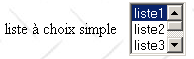
<select size=".." name=".."> <option [selected]>...</option> ... </select> displays the text between the <option>...</option> | |
the same as for the drop-down list displaying only one item. This control differs from the previous drop-down list only in its size>1 attribute. |
2.8.1.8. Multi-select list
<select size="3" name="lst2" multiple> <option selected>list1</option> <option>list2</option> <option selected>list3</option> <option>list4</option> <option>list5</option> </select> |
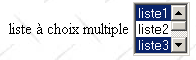
<select size=".." name=".." multiple> <option [selected]>...</option> ... </select> displays the text between the tags <option>...</option> | |
multiple: allows multiple items to be selected from the list. In the example above, items list1 and list3 are both selected. |
2.8.1.9. Button
<input type="button" value="Clear" name="cmdEffacer" onclick="clear()"> |

<input type="button" value="..." name="..." onclick="effacer()" ....> | |
type="button": defines a button control. There are two other button types: submit and reset. value="Clear": the text displayed on the button onclick="function()": allows you to define a function to be executed when the user clicks the button. This function is part of the scripts defined in the displayed web document. The syntax above is javascript syntax. If the scripts are written in vbscript, you would write onclick="function" without the parentheses. The syntax remains the same if parameters need to be passed to the function: onclick="function(val1, val2,...)" In our example, clicking the Clear button calls the following javascript clear function: The clear function displays a message: 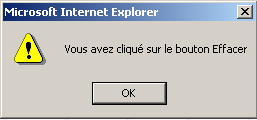 |
2.8.1.10. Button type submit
<input type="submit" value="Submit" name="cmdRenvoyer"> |

<input type="submit" value="Submit" name="cmdRenvoyer"> | |
type="submit": defines the button as a button for sending form data to the web server. When the user clicks this button, the browser will send the form data to the URL defined in the action attribute of the <form> tag, using the method specified by the method attribute of that same tag. value="Submit": the text displayed on the button |
2.8.1.11. Reset button
<input type="reset" value="Reset" name="cmdRétablir"> |

<input type="reset" value="Reset" name="cmdRétablir"> | |
type="reset": defines the button as a form reset button. When the user clicks this button, the browser will restore the form to the state in which it was received. value="Reset": the text displayed on the button |
2.8.1.12. Hidden field
<input type="hidden" name="secret" value="uneValeur"> |
<input type="hidden" name="..." value="..."> | |
type="hidden": specifies that this is a hidden field. A hidden field is part of the form but is not displayed to the user. However, if the user were to ask their browser to display the source code, they would see the presence of the <input type="hidden" value="..."> tag and thus the value of the hidden field. value="aValue": value of the hidden field. What is the purpose of the hidden field? It allows the web server to retain information across a client’s requests. Consider an online shopping application. The customer purchases a first item art1 in quantity q1 on the first page of a catalog and then moves to a new page in the catalog. To remember that the customer purchased q1 items of art1, the server can place these two pieces of information in a hidden field in the web form on the new page. On this new page, the client purchases q2 units of item art2. When the data from this second form is sent to the server (submit), the server will not only receive the information (q2,art2) but also (q1,art1), which is also part of the form as a hidden field that cannot be modified by the user. The web server will then place the information (q1,art1) and (q2,art2) into a new hidden field and send a new catalog page. And so on. |
2.8.2. Sending form values to a web server by a web client
We mentioned in the previous study that the web client has two methods for sending the values of a form it has displayed to a web server: the methods GET and POST. Let’s look at an example to see the difference between the two methods. We’ll revisit the previous example and handle it as follows:
- A browser requests the URL form from the example from a web server
- once the form is obtained, we fill it out
- before sending the form values to the web server by clicking the submit-type Submit button, we stop the web server and replace it with the generic TCP server used previously. Remember that this server displays on the screen the lines of text sent to it by the web client. This way, we will see exactly what the browser sends.
The form is filled out as follows:
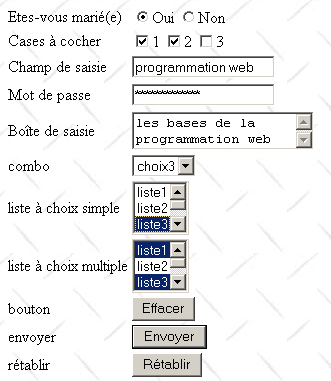
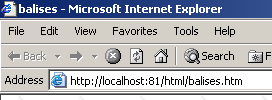
The URL used for this document is as follows:
2.8.2.1. GET method
The HTML document is programmed so that the browser uses the GET method to send the form values to the web server. We have therefore written:
We stop the web server and launch our generic TCP server on port 81:
E:\data\serge\JAVA\SOCKETS\serveur générique>java serveurTCPgenerique 81
Serveur générique lancé sur le port 81
Now, we return to our browser to send the form data to the web server using the Submit button:
Here is what the generic TCP server receives:
<-- GET /html/balises.htm?R1=Oui&C1=un&C2=deux&txtSaisie=programmation+web&txtMdp=ceciestsecret&area
Saisie=les+bases+de+la%0D%0Aprogrammation+web&cmbValeurs=choix3&lst1=liste3&lst2=liste1&lst2=liste3&
cmdRenvoyer=Envoyer&secret=uneValeur HTTP/1.1
<-- Accept: image/gif, image/x-xbitmap, image/jpeg, image/pjpeg, application/msword, application/vnd
.ms-powerpoint, application/vnd.ms-excel, */*
<-- Referer: http://localhost:81/html/balises.htm
<-- Accept-Language: fr
<-- Accept-Encoding: gzip, deflate
<-- User-Agent: Mozilla/4.0 (compatible; MSIE 6.0; Windows NT 5.0; .NET CLR 1.0.3705)
<-- Host: localhost:81
<-- Connection: Keep-Alive
<--
It's all in the first header, HTTP, sent by the browser:
<-- GET /html/balises.htm?R1=Oui&C1=un&C2=deux&txtSaisie=programmation+web&txtMdp=ceciestsecret&area
Saisie=les+bases+de+la%0D%0Aprogrammation+web&cmbValeurs=choix3&lst1=liste3&lst2=liste1&lst2=liste3&
cmdRenvoyer=Envoyer&secret=uneValeur HTTP/1.1
We can see that it is much more complex than what we have encountered so far. We see the syntax GET URL HTTP/1.1 but in a specific form: GET URL?param1=value1¶m2=value2&... HTTP/1.1 where the parameters are the names of the web form controls and the values are the values associated with them. Let’s take a closer look. Below is a three-column table:
- Column 1: contains the definition of a HTML control from the example
- Column 2: shows how this control appears in a browser
- Column 3: shows the value sent to the server by the browser for the control in Column 1, in the form it takes in the GET request from the example
HTML control | Visual | returned value(s) |
<input type="radio" value="Yes" name="R1">Yes <input type="radio" name="R1" value="no" checked>No |  | R1=Yes - the value of the value attribute of the radio button selected by the user. |
<input type="checkbox" name="C1" value="one">1 <input type="checkbox" name="C2" value="two" checked>2 <input type="checkbox" name="C3" value="three">3 |  | C1=one C2=two - values of the value attributes of the checkboxes selected by the user |
<input type="text" name="txtSaisie" size="20" value="a few words"> |  | txtInput=web+programming - text typed by the user in the input field. Spaces have been replaced by the + sign |
<input type="password" name="txtMdp" size="20" value="unMotDePasse"> |  | txtPassword=thisissecret - text typed by the user in the input field |
<textarea rows="2" name="areaSaisie" cols="20"> line1 line2 line3 </textarea> |  | input-area=the+basics+of+%0D%0A web+programming - text typed by the user in the input field. %OD%OA is the end-of-line marker. Spaces have been replaced by the + sign |
<select size="1" name="cmbValeurs"> <option>choice1</option> <option selected>choice2</option> <option>option3</option> </select> |  | cmbValues=choice3 - value selected by the user from the single-select list |
<select size="3" name="lst1"> <option selected>list1</option> <option>list2</option> <option>list3</option> <option>list4</option> <option>list5</option> </select> | 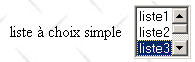 | lst1=list3 - value selected by the user from the single-select list |
<select size="3" name="lst2" multiple> <option selected>list1</option> <option>list2</option> <option selected>list3</option> <option>list4</option> <option>list5</option> </select> | 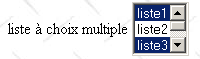 | lst2=list1 lst2=list3 - values selected by the user from the multi-select list |
<input type="submit" value="Submit" name="cmdRenvoyer"> | cmdResend=Submit - name and value attribute of the button used to send the form data to the server | |
<input type="hidden" name="secret" value="uneValeur"> | secret=aValue - value attribute of the hidden field |
Let’s do the same thing again, but this time let the web server generate the response and see what it is. The page returned by the web server is as follows:
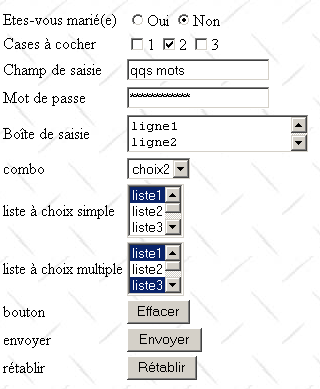
It is exactly the same as the one initially received before the form was filled out. To understand why, we need to look again at the URL requested by the browser when the user clicks the Submit button:
<-- GET /html/balises.htm?R1=Oui&C1=un&C2=deux&txtSaisie=programmation+web&txtMdp=ceciestsecret&area
Saisie=les+bases+de+la%0D%0Aprogrammation+web&cmbValeurs=choix3&lst1=liste3&lst2=liste1&lst2=liste3&
cmdRenvoyer=Envoyer&secret=uneValeur HTTP/1.1
The requested URL is /html/balises.htm. Additionally, we pass the values from the form to this URL. For now, the URL /html/balises.htm, which is a static page, does not use these values. Therefore, the previous GET is equivalent to
and that is why the server sent us the initial page again. Note that the browser does display the complete URL that was requested:

2.8.2.2. POST Method
The HTML document is configured so that the browser now uses the POST method to send the form values to the web server:
We stop the web server and launch the generic TCP server (already encountered but slightly modified for this purpose) on port 81:
E:\data\serge\JAVA\SOCKETS\serveur générique>java serveurTCPgenerique2 81
Serveur générique lancé sur le port 81
Now, we return to our browser to send the form data to the web server using the Submit button:
Here is what the generic TCP server receives:
<-- POST /html/balises.htm HTTP/1.1
<-- Accept: image/gif, image/x-xbitmap, image/jpeg, image/pjpeg, application/msword, application/vnd
.ms-powerpoint, application/vnd.ms-excel, */*
<-- Referer: http://localhost:81/html/balises.htm
<-- Accept-Language: fr
<-- Content-Type: application/x-www-form-urlencoded
<-- Accept-Encoding: gzip, deflate
<-- User-Agent: Mozilla/4.0 (compatible; MSIE 6.0; Windows NT 5.0; .NET CLR 1.0.3705)
<-- Host: localhost:81
<-- Content-Length: 210
<-- Connection: Keep-Alive
<-- Cache-Control: no-cache
<--
<-- R1=Oui&C1=un&C2=deux&txtSaisie=programmation+web&txtMdp=ceciestsecret&areaSaisie=les+bases+de+la%0D%0Aprogrammation+web&cmbValeurs=choix3&lst1=liste3&lst2=liste1&lst2=liste3&cmdRenvoyer=Envoyer&secret=uneValeur
Compared to what we already know, we note the following changes in the browser request:
- The initial header HTTP is no longer GET but POST. The syntax is POST URL HTTP/1.1, where URL is the URL requested by the browser. At the same time, POST indicates that the browser has data to send to the server.
- The line Content-Type: application/x-www-form-urlencoded indicates what type of data the browser will send. This is form data (x-www-form) that is URL-encoded. This encoding causes certain characters in the transmitted data to be transformed in order to prevent the server from misinterpreting them. Thus, the space is replaced by +, the line break by %OD%OA,... Generally speaking, all characters contained in the data that could be misinterpreted by the server (&, +, %, ...) are converted to %XX, where XX is their hexadecimal code.
- The line Content-Length: 210 tells the server how many characters the client will send once the headers are complete, following the empty line that signals the end of the headers.
- The data (210 characters): R1=Yes&C1=one&C2=two&txtSaisie=web+programming&txtMdp=thisissecret&areaSaisie=the+basics+of+web%0D%0Aweb+programming&cmbValeurs=choice3&lst1=list3&lst2=list1&lst2=list3&cmdRenvoyer=Submit&secret=uneValeur
Note that the data transmitted by POST is in the same format as that transmitted by GET.
Is one method better than the other? We have seen that if the values of a form were sent by the browser using the GET method, the browser displayed the requested URL in its Address field in the form URL?param1=val1¶m2=val2&.... This can be seen as either an advantage or a disadvantage:
- an advantage if you want to allow the user to add this configured URL to their bookmarks
- a disadvantage if you do not want the user to have access to certain information in the form, such as hidden fields
Going forward, we will use the POST method almost exclusively in our forms.
2.8.2.3. Retrieving values from a web form
A static page requested by a client that also sends parameters via POST or GET cannot retrieve these parameters in any way. Only a program can do this, and it is the program that will then generate a response to the client—a response that will be dynamic and generally based on the received parameters. This falls under the domain of web programming, a topic we will cover in more detail in the next chapter with an introduction to Java web programming technologies: servlets and JSP pages.