5. The view and its model
5.1. Introduction
Let’s return to the architecture of an ASP.NET MVC application:
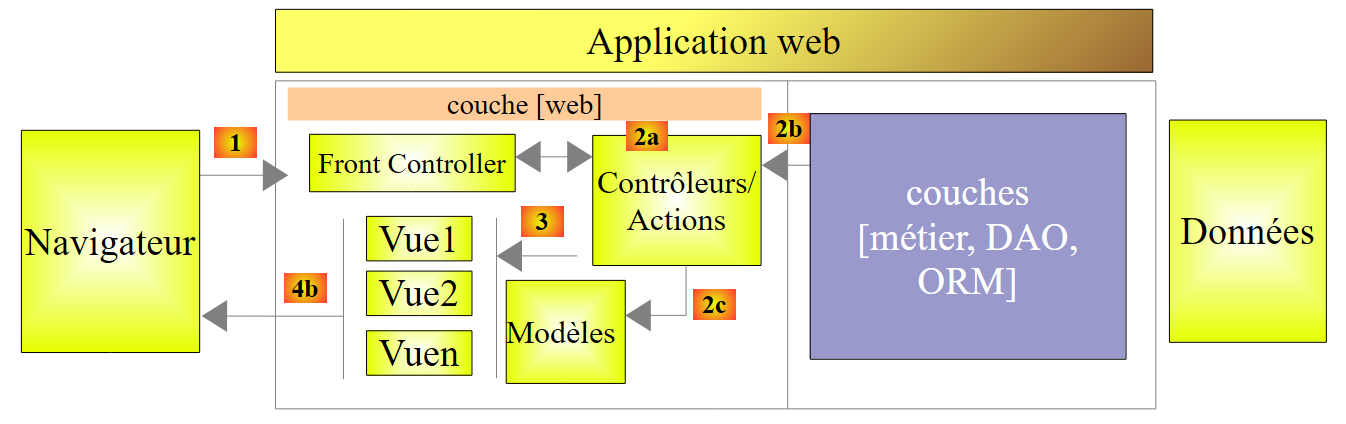 |
In the previous chapter, we examined how ASP.NET MVC presents request information [1] to an action [2a] in the form of a model that may contain validation constraints. This model was passed as input to the action, and we referred to it as the action model. We will now focus on the most common result of an action, the [ViewResult] type, which corresponds to a view V [3] accompanied by its model M [2c]. This model will be called the view model V, not to be confused with the action model we just studied. One is the input to the action, the other is the output.
Let’s start by creating a new project [Example-03] [1] within the same solution, of the basic ASP.NET MVC type:
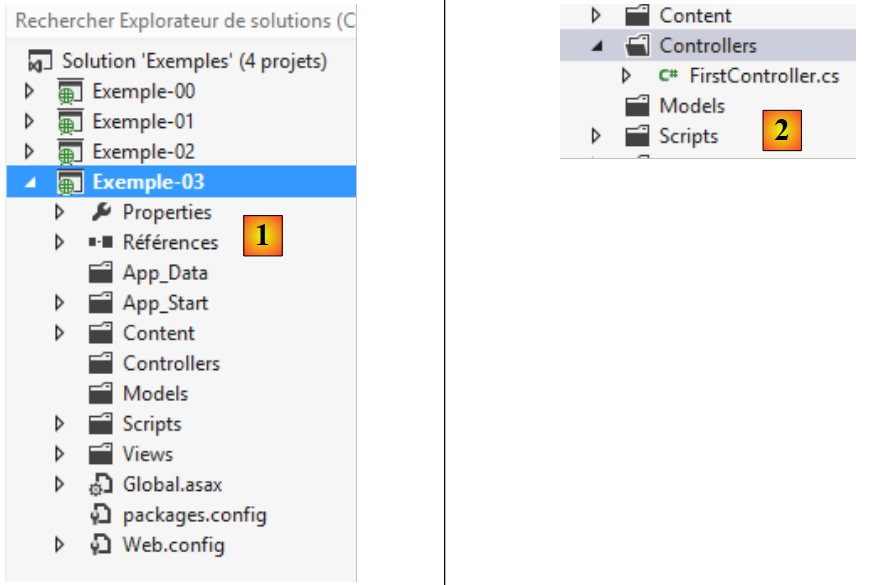 |
Let’s create a controller named [First] [2]. The code generated for this controller is as follows:
using System.Web.Mvc;

namespace Exemple_03.Controllers
{
  public class FirstController : Controller
  {
    public ActionResult Index()
    {
      return View();
    }

  }
}
- lines 7–10: an [Index] action has been created. The return type of the [Index] method is that of the [ActionResult] class, from which most possible action results are derived;
- line 9: the [View] method of the [Controller] class (line 5) returns a [ViewResult] type, which derives from [ActionResult]. This method supports numerous overloads. We will look at a few of them. The main one is as follows:
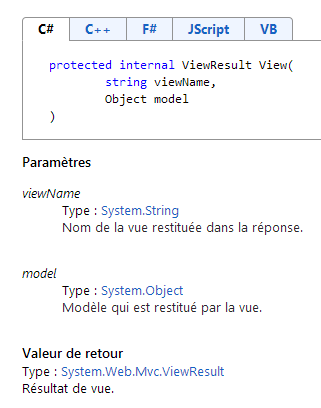
- the first parameter is the name of the view. If it is omitted, the view used is the one with the same name as the action that produces the [ViewResult], and it will be looked for in the [/Views/{controller}] folder, where {controller} is the name of the controller;
- the second is the view template. If it is omitted, the view has no template.
The [Index] method below:
public ActionResult Index()
    {
      return View();
}
requests that the [ /Views/First/Index.cshtml ] view be displayed. It does not pass any template to it. Let’s create [1] the [/Views/First] folder:
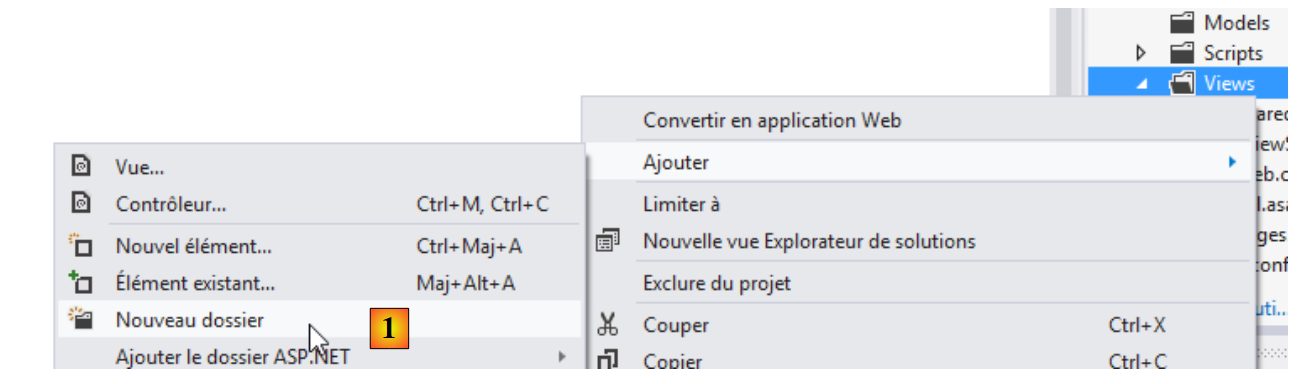 |
then create the [Index] view [2] inside it:
 |
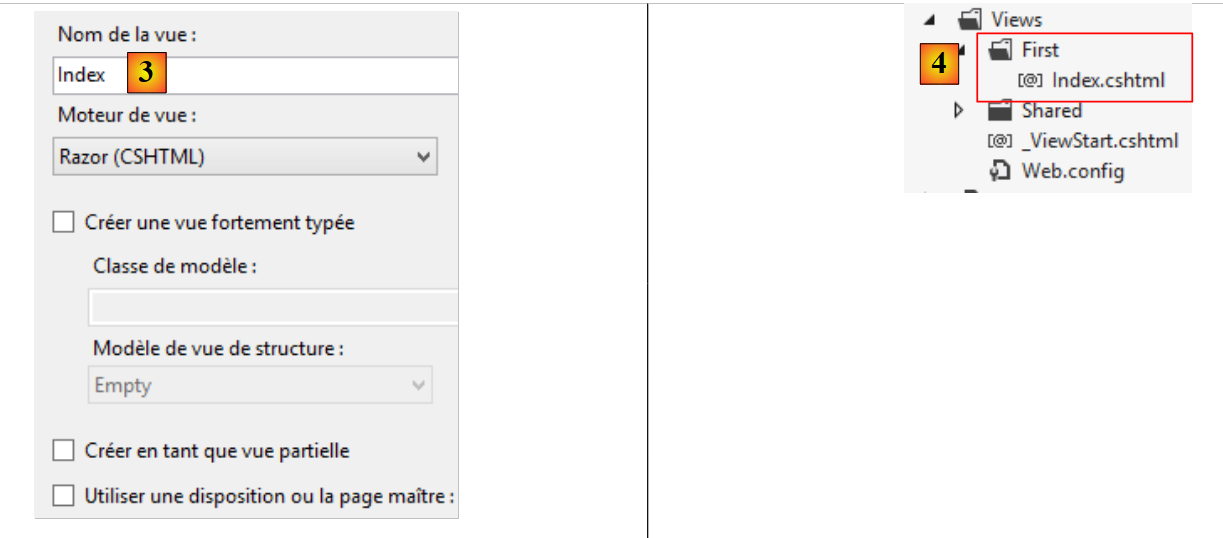 |
We specify the view name in [3]. It is created in [4]. The generated code is as follows:
@{
    Layout = null;
}

<!DOCTYPE html>

<html>
<head>
    <meta name="viewport" content="width=device-width" />
    <title>Index</title>
</head>
<body>
    <div>

    </div>
</body>
</html>
This is standard HTML except for lines 1–3, which are C# code. The program that manages the views is called a view engine. It handles everything that isn’t HTML and converts it into HTML. Ultimately, this is what will be sent to the client’s . The view engine used here is [Razor]. It allows you to include C# code within a view. [Razor] interprets this C# code and generates HTML from it. Here are some basic rules for including C# code in a view:
- The transition from HTML to C# occurs when the @ character is encountered (line 1). If this character introduces a code block, curly braces are used (lines 1 and 3). If it introduces a variable whose value you want to retrieve, you simply write @variable;
- The transition from C# to HTML occurs when the < character is encountered (line 5). Sometimes, you may need to force this transition, particularly when including plain text without HTML tags in the page. In that case, use the <text> tag to insert the text: <text>plain text here</text>.
Line 2 above indicates that the [Index] view has no master page.
Let’s modify the view as follows:
@{
  Layout = null;
  string vue = "Index";
}

<!DOCTYPE html>

<html>
<head>
  <meta name="viewport" content="width=device-width" />
  <title>Index</title>
</head>
<body>
  <div>
    <h3>Vue @vue</h3>
  </div>
</body>
</html>
- Line 3: defines a C# variable;
- line 15: displays the value of this variable.
Now let's request the URL [/First/Index]:
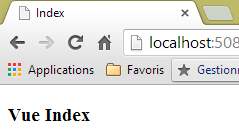
The HTML code received is as follows:
This is a pure HTML document. All C# code has been removed.
5.2. Using [ViewBag] to pass information to the view
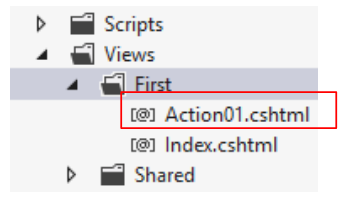
We create a new action called [Action01] associated with the [Action01.cshtml] view:
 |
The [Action01] action is as follows:
    // Action01
    public ViewResult Action01()
    {
      ViewBag.info = string.Format("Contrôleur={0}, Action={1}", RouteData.Values["controller"], RouteData.Values["action"]);
      return View();
}
- Line 4: We use the controller's [ViewBag] property. This is a dynamic object to which properties can be added, as shown on line 4. A key feature of this object is that it is also accessible to the view. It is therefore a way to pass information to the view;
- line 5: the default view for the action is requested. This is the [/First/Action01.cshtml] view. No model is passed to it.
The [Action01.cshtml] view is as follows:
@{
  Layout = null;
}

<!DOCTYPE html>

<html>
<head>
  <meta name="viewport" content="width=device-width" />
  <title>Action01</title>
</head>
<body>
  <div>
    <h4>@ViewBag.info</h4>
  </div>
</body>
</html>
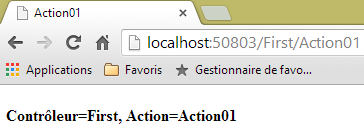
- Line 14: The [ViewBag.info] property is displayed.
Let's test it. We request the URL [/First/Action01]:
5.3. Using a strongly typed model to pass information to the view
The previous method has the drawback of not allowing for error detection before execution. Thus, if the view [Action01.cshtml] uses the code
<h4>@ViewBag.Info</h4>
An error will occur because the [Info] property does not exist. The one created by the [Action01] action is named [info]. We can therefore use a strongly typed model to avoid this issue.
In one of the examples discussed earlier, the action was as follows:
    // Action10
    public ContentResult Action10(ActionModel03 modèle)
    {
      string erreurs = getErrorMessagesFor(ModelState);
      string texte = string.Format("email={0}, jour={1}, info1={2}, info2={3}, info3={4}, erreurs={5}",
        modèle.Email, modèle.Jour, modèle.Info1, modèle.Info2, modèle.Info3, erreurs);
      return Content(texte, "text/plain", Encoding.UTF8);
}
The [Action10] action was passing six pieces of information (Email, Day, Info1, Info2, Info3, errors) to its client as a string. We will pass this information to a view model [ViewModel01]. Since this model uses information from [ActionModel03], we will derive it from that class.
We start by copying [ActionModel03] from the [Example-02] project into the current [Example-03] project:
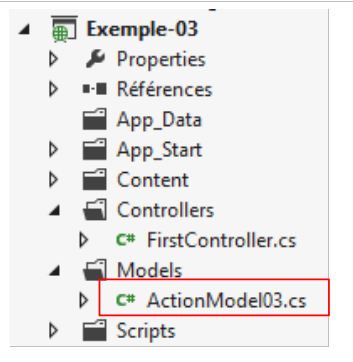 |
and we change its namespace to match that of the [Example-03] project:
using System.ComponentModel.DataAnnotations;
namespace Exemple_03.Models
{
  public class ActionModel03
  {
    [Required(ErrorMessage = "Le paramètre email est requis")]
    [EmailAddress(ErrorMessage = "Le paramètre email n'a pas un format valide")]
    public string Email { get; set; }

    [Required(ErrorMessage = "Le paramètre jour est requis")]
    [RegularExpression(@"^\d{1,2}$", ErrorMessage = "Le paramètre jour doit avoir 1 ou 2 chiffres")]
    public string Jour { get; set; }

    [Required(ErrorMessage = "Le paramètre info1 est requis")]
    [MaxLength(4, ErrorMessage = "Le paramètre info1 ne peut avoir plus de 4 caractères")]
    public string Info1 { get; set; }

    [Required(ErrorMessage = "Le paramètre info2 est requis")]
    [MinLength(2, ErrorMessage = "Le paramètre info2 ne peut avoir moins de 2 caractères")]
    public string Info2 { get; set; }

    [Required(ErrorMessage = "Le paramètre info3 est requis")]
    [MinLength(4, ErrorMessage = "Le paramètre info3 doit avoir 4 caractères exactement")]
    [MaxLength(4, ErrorMessage = "Le paramètre info3 doit avoir 4 caractères exactement")]
    public string Info3 { get; set; }
  }
}
- line 2: the new namespace;
Then we create the [ViewModel01] class:
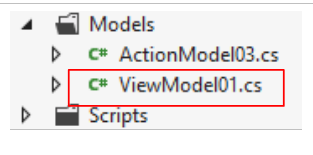 |
The code for [ViewModel01] is as follows:
namespace Exemple_03.Models
{
  public class ViewModel01 : ActionModel03
  {
    public string Erreurs { get; set; }
  }
}
- Line 3: The class inherits from [ActionModel03] and therefore the properties [Email, Day, Info1, Info2, Info3];
- line 5: we add the [Errors] property to it.
We now write the action [Action02] which:
- takes the action model [ActionModel03] as input;
- and returns the view model [ViewModel01].
Its code is as follows:
    // Action02
    public ViewResult Action02(ActionModel03 modèle)
    {
      string erreurs = getErrorMessagesFor(ModelState);
      return View(new ViewModel01(){Email=modèle.Email, Jour=modèle.Jour, Info1=modèle.Info1, Info2=modèle.Info2, Info3=modèle.Info3, Erreurs=erreurs});
}
- line 1: [Action02] receives the action model [ActionModel03]. It returns a result of type [ViewResult];
- line 4: errors related to the action model [ActionModel03] are aggregated into the string [errors]. The [getErrorMessagesFor] method was described on page60 and was included in the [First] controller of the new project;
- line 5: the [View] method is called with a parameter. This is the view model. The view itself is not specified. Therefore, the default view [/Views/First/Action02] will be used. The view model [ViewModel01] is instantiated and initialized with the five pieces of information from the action model [ActionModel03] and the [errors] information constructed on line 4.
We now build the view [/First/Action02.cshtml]:
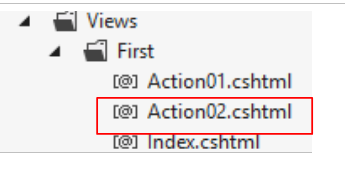 |
Its code is as follows:
@model Exemple_03.Models.ViewModel01
@{
  Layout = null;
}

<!DOCTYPE html>

<html>
<head>
  <meta name="viewport" content="width=device-width" />
  <title>Action02</title>
</head>
<body>
  <h3>Informations du modèle de vue</h3>
  <ul>
    <li>Email : @Model.Email</li>
    <li>Jour : @Model.Jour</li>
    <li>Info1 : @Model.Info1</li>
    <li>Info2 : @Model.Info2</li>
    <li>Info3 : @Model.Info3</li>
    <li>Erreurs : @Model.Erreurs</li>
  </ul>
</body>
</html>
- The new feature is on line 1. The [@model] notation sets the type of the view model. This model is then referenced by the [@Model] notation (lines 16–21);
- Lines 15–22: The model’s information is displayed in a list.
Let’s look at a few examples of executing the [Action02] action.
First, without parameters:
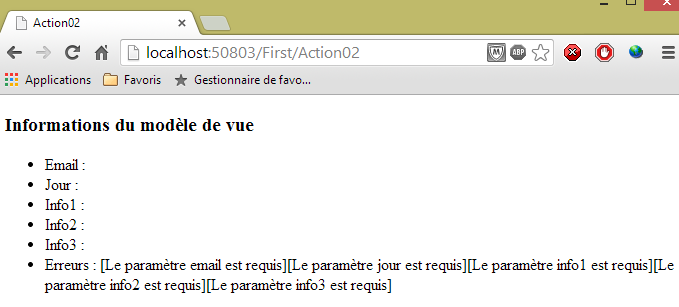
then with incorrect parameters:
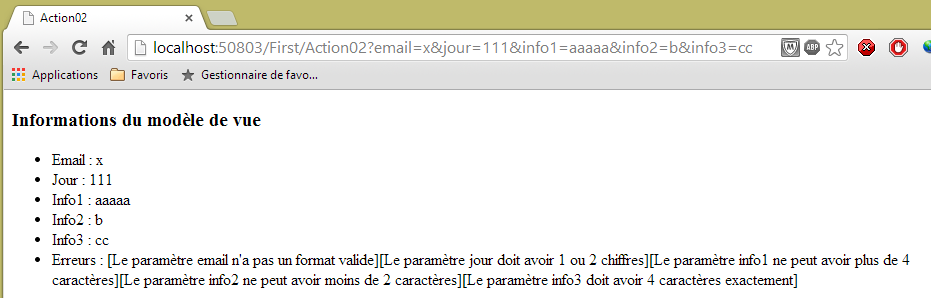
then with correct parameters:
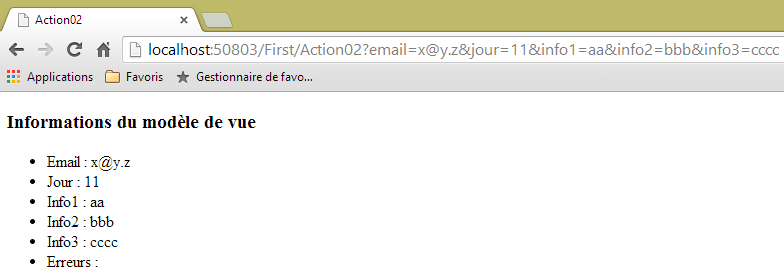
In this example, the view model [ViewModel01] uses the information from the action model [ActionModel03]. This is often the case. We can then use a single model that serves as both the action model and the view model. We create a new model [ActionModel04]:
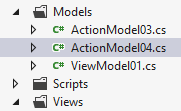
which will be as follows:
using System.ComponentModel.DataAnnotations;
using System.Web.Mvc;
namespace Exemple_03.Models
{
  [Bind(Exclude="Erreurs")]
  public class ActionModel04
  {
    // ---------------------- Action --------------------------------
    [Required(ErrorMessage = "Le paramètre email est requis")]
    [EmailAddress(ErrorMessage = "Le paramètre email n'a pas un format valide")]
    public string Email { get; set; }

    [Required(ErrorMessage = "Le paramètre jour est requis")]
    [RegularExpression(@"^\d{1,2}$", ErrorMessage = "Le paramètre jour doit avoir 1 ou 2 chiffres")]
    public string Jour { get; set; }

    [Required(ErrorMessage = "Le paramètre info1 est requis")]
    [MaxLength(4, ErrorMessage = "Le paramètre info1 ne peut avoir plus de 4 caractères")]
    public string Info1 { get; set; }

    [Required(ErrorMessage = "Le paramètre info2 est requis")]
    [MinLength(2, ErrorMessage = "Le paramètre info2 ne peut avoir moins de 2 caractères")]
    public string Info2 { get; set; }

    [Required(ErrorMessage = "Le paramètre info3 est requis")]
    [MinLength(4, ErrorMessage = "Le paramètre info3 doit avoir 4 caractères exactement")]
    [MaxLength(4, ErrorMessage = "Le paramètre info3 doit avoir 4 caractères exactement")]
    public string Info3 { get; set; }

    // ---------------------- view --------------------------------
    public string Erreurs { get; set; }
  }
}
- lines 8–28: the action model with its integrity constraints. These fields will also be part of the view;
- line 31: a property specific to the view model. It was excluded from the action model by the annotation on line 5.
We create the following new action [Action03]:
    // Action03
    public ViewResult Action03(ActionModel04 modèle)
    {
      modèle.Erreurs = getErrorMessagesFor(ModelState);
      return View(modèle);
}
- line 2: [Action03] receives the action model of type [ActionModel04];
- line 5: and returns this same model as the view model;
- line 4: supplemented with the [Errors] information;
All that remains is to create the view [/First/Action03.cshtml]:
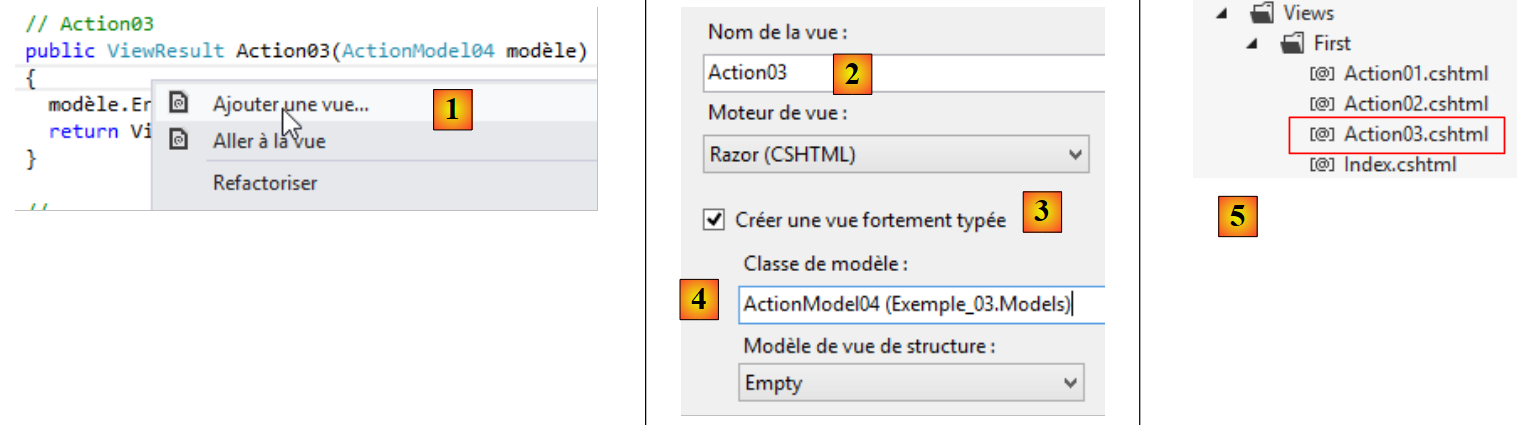 |
- in [1]: right-click in the [Action03] code, then [Add View];
- in [2]: the default view name;
- in [3]: specify that we are creating a strongly typed view;
- in [4]: select the correct class from the drop-down list, in this case the [ActionModel04] class;
- in [5]: the view created.
We give the [Action03] view the same code as the [Action02] view. Only the view template (line 1) and the page title (line 11) change:
@model Exemple_03.Models.ActionModel04
@{
  Layout = null;
}

<!DOCTYPE html>

<html>
<head>
  <meta name="viewport" content="width=device-width" />
  <title>Action03</title>
</head>
<body>
  <h3>Informations du modèle de vue</h3>
  <ul>
    <li>Email : @Model.Email</li>
    <li>Jour : @Model.Jour</li>
    <li>Info1 : @Model.Info1</li>
    <li>Info2 : @Model.Info2</li>
    <li>Info3 : @Model.Info3</li>
    <li>Erreurs : @Model.Erreurs</li>
  </ul>
</body>
</html>
Now let's call the action [Action03] without any parameters:
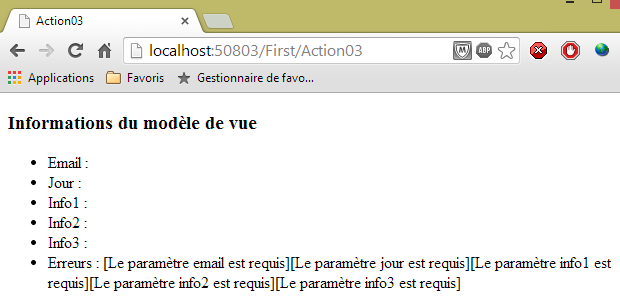
The results are the same as before. It is common to use the same model for both the action and the view, since the view model often reuses information from the action model. We therefore use a broader model that can be used by both the action and the view it generates. We must take care to exclude information that does not belong to the action model from the data binding. Otherwise, a savvy user could initialize parts of the view model without our knowledge.
5.4. [Razor] – Getting Started
We will now introduce some elements of [Razor] views, primarily the foreach and if statements.
Suppose we want to display a list of people in an HTML table. The view model could be as follows [ViewModel02]:
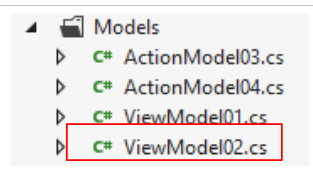 |
namespace Exemple_03.Models
{
  public class ViewModel02
  {
    public Personne[] Personnes { get; set; }
    public ViewModel02()
    {
      Personnes = new Personne[] { new Personne { Nom = "Pierre", Age = 44 }, new Personne { Nom = "Pauline", Age = 12 } };
    }
  }

  public class Personne
  {
    public string Nom { get; set; }
    public int Age { get; set; }
  }
}
- The model view is the [ViewModel02] class, lines 3–10;
- line 5: the model has an array of people of type [Person] defined on lines 12–16;
- lines 6–10: the model’s constructor initializes the [People] property from line 5 with an array of two people.
The action that produces this model as output will be the following [Action04]:
    // Action04
    public ViewResult Action04()
    {
      return View(new ViewModel02());
}
- line 2: the action has no input model;
- line 4: it passes its default view, an instance of the [ViewModel02] model we just defined.
The view [Action04.cshtml] will display the model [ViewModel02]:
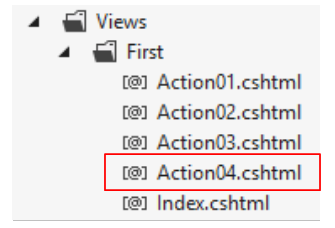 |
The code for the view [Action04.cshtml] is as follows:
@model Exemple_03.Models.ViewModel02
@using Exemple_03.Models

@{
  Layout = null;
}

<!DOCTYPE html>

<html>
<head>
  <meta name="viewport" content="width=device-width" />
  <title>Action04</title>
</head>
<body>
  <table border="1">
    <thead>
      <tr>
        <th>Nom</th>
        <th>Age</th>
      </tr>
    </thead>
    <tbody>
      @foreach (Personne p in Model.Personnes)
      {
        <tr>
          <td>@p.Nom</td>
          <td>@p.Age</td>
        </tr>
      }
    </tbody>
  </table>
</body>
</html>
- line 1: the view template;
- line 2: import of the namespace for the [Person] class used on line 24;
- lines 16–32: the HTML table that displays the people from the model;
- Line 24: The start of the C# code is marked by the @ character. The [foreach] statement will loop through all the people in the model;
- lines 26–27: the < character ends the C# code and begins the HTML. Then, the @ character appears again to switch back to C# and write the person’s name. Then, the < character appears again to switch back to HTML mode;
- Line 28: The person’s age is written.
Executing the [Action04] action yields the following result:
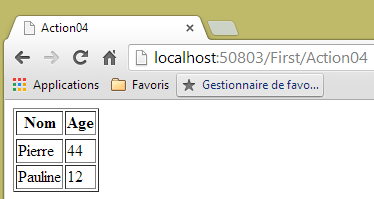
Other elements of a view can be populated by a collection: lists (dropdown or otherwise), radio buttons, and checkboxes. Consider the following new example, which displays a dropdown list.
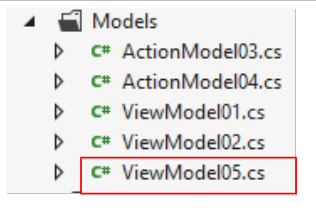
The model [ViewModel05] will be as follows:
 |
namespace Exemple_03.Models
{
  public class ViewModel05
  {
    public Personne2[] Personnes { get; set; }
    public int SelectedId { get; set; }

    public ViewModel05()
    {
      Personnes = new Personne2[] {
        new Personne2 { Id = 1, Prénom = "Pierre", Nom = "Martino" },
        new Personne2 { Id = 2, Prénom = "Pauline", Nom = "Pereiro" },
        new Personne2 { Id = 3, Prénom = "Jacques", Nom = "Alfonso" } };
      SelectedId = 2;
    }
  }

  public class Personne2
  {
    public int Id { get; set; }
    public string Nom { get; set; }
    public string Prénom { get; set; }
  }
}
- line 18: a [Person2] class with three properties;
- line 3: the [ViewModel05] model for the view;
- line 5: the list of people to display in the drop-down list in the format [First Name Last Name];
- line 6: the [Id] of the person to select from the drop-down list;
- lines 8–16: the constructor that creates an array of three people (lines 10–13) and sets the [Id] of the person who should appear selected.
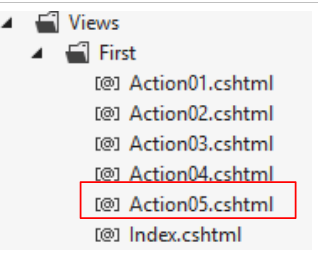
The [Action05.cshtml] view will display this template:
 |
Its code is as follows:
@model Exemple_03.Models.ViewModel05
@using Exemple_03.Models

@{
  Layout = null;
}

<!DOCTYPE html>

<html>
<head>
  <meta name="viewport" content="width=device-width" />
  <title>Action05</title>
</head>
<body>
  <select>
    @foreach (Personne2 p in Model.Personnes)
    {
      string selected = "";
      if (p.Id == Model.SelectedId)
      {
        selected = "selected=\"selected\"";
      }
      <option value="@p.Id" @selected>@p.Prénom @p.Nom</option>
    }
  </select>
</body>
</html>
The characteristics of the HTML dropdown list were presented in section 2.5.2.6. Let’s review them:
Combo | <select size="1" name="cmbValues"> <option value="1">choice1</option> <option selected="selected" value="2">option2</option> <option value="3">Option 3</option> </select> |

HTML tag | <select size=".." name=".."> <option [selected="selected"] value=”v”>...</option> ... </select> displays the text between the <option>...</option> tags in a list |
attributes | name="cmbValeurs": control name. size="1": number of visible list items. size="1" makes the list equivalent to a combo box. selected="selected": if this keyword is present for a list item, that item appears selected in the list. In our example above, the list item choice2 appears as the selected item in the combo box when it is first displayed. value=”v”: if the item is selected by the user, this value [v] is posted to the server. If this attribute is absent, the displayed and selected text is posted to the server. |
The code in lines 17–25 generates the <option> tags that are placed within the <select> tag on line 16.
- line 17: we iterate through the list of people in the model;
- line 20: we check if the current person is the one to be selected. If so, we prepare the text selected="selected" to be inserted into the <option> tag;
- Line 24: The <option> tag is written.
Let’s call the action [Action05]:
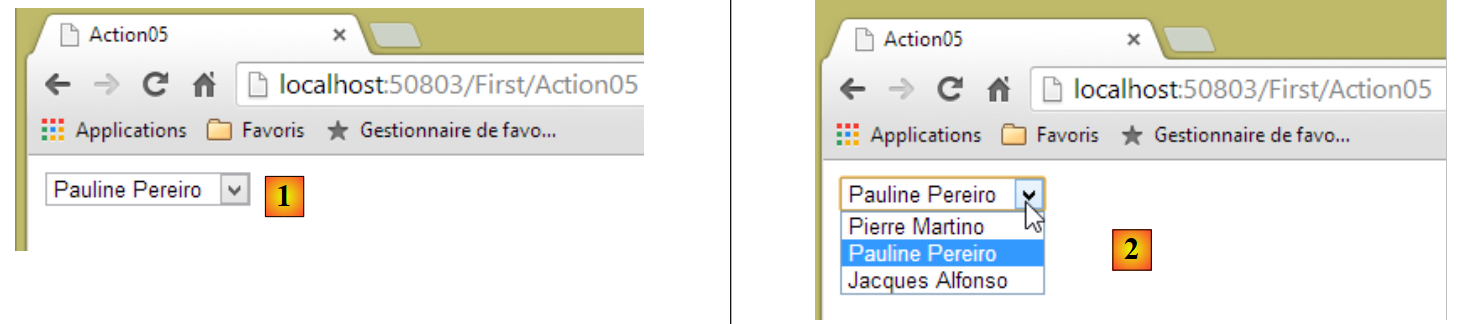 |
- in [1,2], the people are displayed in the format [First Name Last Name];
- in [1,2], the selected person is the one with an [Id] equal to 2.
Let’s now examine the HTML source code for the page above:
<!DOCTYPE html>
<html>
<head>
<meta name="viewport" content="width=device-width" />
<title>Action05</title>
</head>
<body>
<select>
<option value="1" >Pierre Martino</option>
<option value="2" selected="selected">Pauline Pereiro</option>
<option value="3" >Jacques Alfonso</option>
</select>
</body>
</html>
- lines 10–12: the three <option> tags generated by the [Razor] code;
- line 11: the person with [Id]=2 has indeed been selected.
The two examples above will suffice. When writing a [Razor] view, you must resist the temptation to put logic inside it. The C# code would allow us to do so. However, in the MVC model, logic must be in the action or in the lower layers [Business Logic, DAO] but not in the view. Even when adhering to the MVC pattern, you may end up with a lot of logic in the view to calculate intermediate values. This may mean that the model being used isn’t detailed enough. The model must contain the final values the view needs so that it doesn’t have to calculate them itself. A good view is one with minimal logic and a clear HTML structure. If too much C# code is inserted, the HTML structure can become unreadable.
In the example above, the dropdown list could be used by a user, and we would then want to know which person they selected. For this, we need a form.
5.5. Forms – Getting Started
The form presented to the user will be as follows:
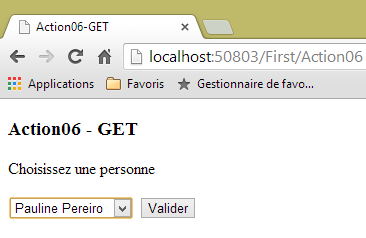
The view model will be the [ViewModel05] model used previously. The action that will display this view will be as follows:
    // Action06-GET
    [HttpGet]
    public ViewResult Action06()
    {
      return View("Action06Get",new ViewModel05());
}
- Line 2: The action can only be requested via an HTTP GET request;
- line 5: the view [/First/Action06Get.cshtml] will be displayed using an instance of type [ViewModel05] as its model.
The view [/First/Action06Get.cshtml] will be as follows:
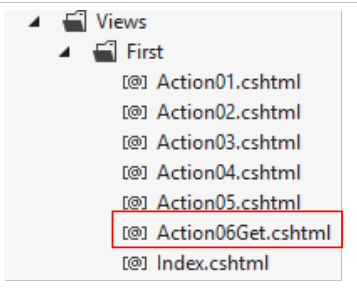 |
@model Exemple_03.Models.ViewModel05
@using Exemple_03.Models

@{
  Layout = null;
}

<!DOCTYPE html>

<html>
<head>
  <meta name="viewport" content="width=device-width" />
  <title>Action06-GET</title>
</head>
<body>
  <h3>Action06 - GET</h3>
  <p>Choisissez une personne</p>
  <form method="post" action="/First/Action06">
    <select name="personneId">
      @foreach (Personne2 p in Model.Personnes)
      {
        string selected = "";
        if (p.Id == Model.SelectedId)
        {
          selected = "selected=\"selected\"";
        }
        <option value="@p.Id" @selected>@p.Prénom @p.Nom</option>
      }
    </select>
    <input name="valider" type="submit" value="Valider" />
  </form>
</body>
</html>
The main new features are as follows:
- line 18: In order for the browser to transmit the information entered by a user, we need a form. It is delimited by the <form> tag on lines 18 and 31.
The HTML <form> tag was introduced in section 2.5.2.1. Let’s review its characteristics:
form | |
HTML tag | <form name="..." method="..." action="...">...</form> |
attributes | name="frmexample": form name - optional method="..." : method used by the browser to send the values collected in the form to the web server action="..." : URL to which the values collected in the form will be sent. A web form is enclosed within the tags <form>...</form>. The form can have a name (name="xx"). This applies to all controls found within a form. The purpose of a form is to collect information entered by the user via the keyboard or mouse and send it to a web server URL. Which one? The one referenced in the action="URL" attribute. If this attribute is missing, the information will be sent to the URL of the document containing the form. A web client can use two different methods, called POST and GET, to send data to a web server. The method="method" attribute, where method is set to GET or POST, in the <form> tag tells the browser which method to use to send the information collected in the form to the URL specified by the action="URL" attribute. When the method attribute is not specified, the GET method is used by default. |
- line 18: we see that the form values will be sent to the URL [/First/Action06] via an HTTP POST request;
- Line 30: A form must have a [submit] button. This button triggers the submission of the entered values to the URL specified by the [action] attribute of the <form> tag.
What exactly will the browser send when the user clicks the [Submit] button? This was explained in section 2.5.3.1. Let’s recap what was said:
HTML control | visual | returned value(s) |
<input type="radio" value="Yes" name="R1"/>Yes <input type="radio" name="R1" value="No" checked="checked"/>No | 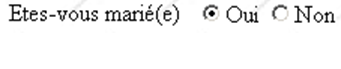 | R1=Yes - the value of the value attribute of the radio button selected by the user. |
<input type="checkbox" name="C1" value="one"/>1 <input type="checkbox" name="C2" value="two" checked="checked"/>2 <input type="checkbox" name="C3" value="three"/>3 |  | C1=one C2=two - values of the value attributes of the checkboxes selected by the user |
<input type="text" name="txtInput" size="20" value="a few words"/> |  | txtInput=Web+programming - text typed by the user in the input field. Spaces have been replaced by the + sign |
<input type="password" name="txtMdp" size="20" value="aPassword"/> |  | txtPassword=thisIsSecret - text typed by the user in the input field |
<textarea rows="2" name="inputArea" cols="20"> line1 line2 line3 </textarea> |  | inputField=the+basics+of+Web%0D%0A Web+programming - text typed by the user in the input field. %OD%OA is the end-of-line marker. Spaces have been replaced by the + sign |
<select size="1" name="cmbValues"> <option value='1'>choice1</option> <option selected="selected" value='2'>choice2</option> <option value='3'>choice3</option> </select> | 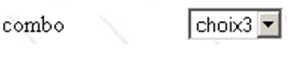 | cmbValues=3 - [value] attribute of the element selected by the user |
<select size="3" name="lst1"> <option selected="selected" value='1'>list1</option> <option value='2'>list2</option> <option value='3'>list3</option> <option value='4'>list4</option> <option value='5'>list5</option> </select> | 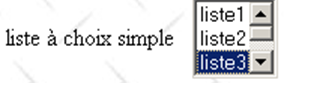 | lst1=3 - [value] attribute of the element selected by the user |
<select size="3" name="lst2" multiple="multiple"> <option selected="selected" value='1'>list1</option> <option value='2'>list2</option> <option selected="selected" value='3'>list3</option> <option value='4'>list4</option> <option value='5'>list5</option> </select> | 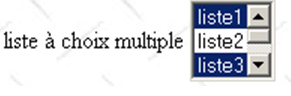 | lst2=1 lst2=3 - [value] attributes of the elements selected by the user |
<input type="submit" value="Submit" name="cmdSubmit"/> | cmdRenvoyer=Submit - name and value attribute of the button used to send the form data to the server | |
<input type="hidden" name="secret" value="aValue"/> | secret=aValue - value attribute of the hidden field |
In our form, we have two tags that can send a value:
    <select name="personneId">
...
</select>
and
<input name="valider" type="submit" value="Valider" />
If the user selects person #2, the values will be posted in the following format:
The parameter names are the [name] attributes of the tags involved in the POST. Without this attribute, the tags do not send a value. Thus, in the example above, we could omit the name="valider" attribute from the [submit] button. The value sent is the [value] attribute of the button's . Here, this information is not relevant to us. Sometimes forms have multiple [submit] buttons. In such cases, it is important to know which button was clicked. We will therefore assign the [name] attribute to the different buttons.
The <select> tag consists of a series of <option> tags:
<select name="personneId">
<option value="1" >Pierre Martino</option>
<option value="2" selected="selected">Pauline Pereiro</option>
<option value="3" >Jacques Alfonso</option>
</select>
The value of the [value] attribute of the selected option is posted. If this attribute is missing, the text displayed by the option—for example, [Pierre Martino]—is posted.
The string
will be posted to the following URL [/First/Action06]:
    // Action06-POST
    [HttpPost]
    public ViewResult Action06(ActionModel06 modèle)
    {
      return View("Action06Post",modèle);
}
You may recall that we already had an action [Action06]:
    // Action06-GET
    [HttpGet]
    public ViewResult Action06()
    {
      return View("Action06Get",new ViewModel05());
}
It is possible to have two actions with the same name provided they do not handle the same HTTP requests:
- [Action06] on line 3 handles a POST (line 2);
- [Action06] on line c handles a GET (line b).
The [Action06] action that handles the POST request will receive the following parameter string:
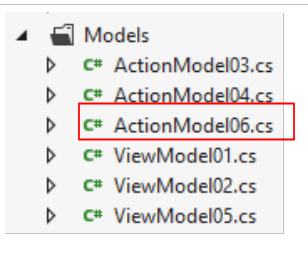
We need an action model to encapsulate these values. This will be the following [ActionModel06] model:
 |
using System.ComponentModel.DataAnnotations;
namespace Exemple_03.Models
{
  public class ActionModel06
  {
    [Required(ErrorMessage = "Le paramètre [personneId] est requis")]
    public int PersonneId { get; set; }

    [Required(ErrorMessage = "Le paramètre [valider] est requis")]
    public string Valider { get; set; }
  }
}
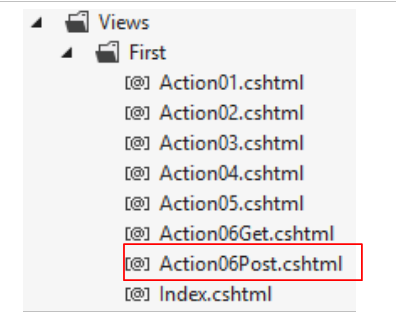
The [Action06] action receives this model and passes it as-is to the following [Action06Post] view (line 5 of the action):
 |
@model Exemple_03.Models.ActionModel06

@{
  Layout = null;
}

<!DOCTYPE html>

<html>
<head>
  <meta name="viewport" content="width=device-width" />
  <title>Action06Post</title>
</head>
<body>
  <h3>Action06 - POST</h3>
  Valeurs postées :
  <ul>
    <li>ID de la personne sélectionnée : @Model.PersonneId</li>
    <li>Commande utilisée : @Model.Valider</li>
  </ul>
</body>
</html>
The model is displayed on lines 18 and 19.
Let's look at an example:
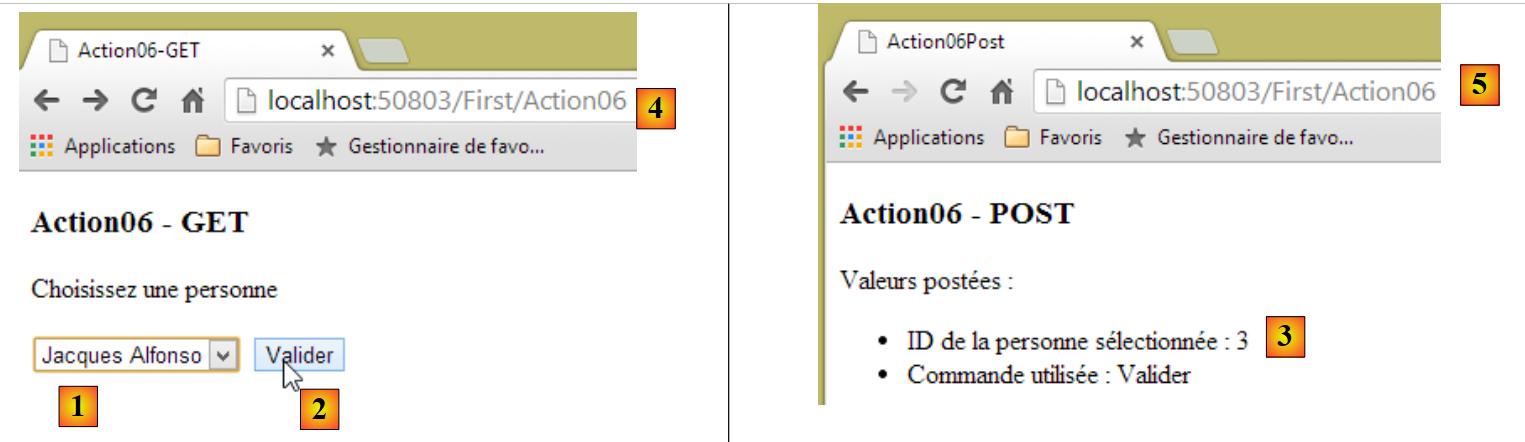 |
In [1], we select the third person with an [Id] equal to 3. In [2], we submit the form. In [3], the received values. In [4,5], we see that the same URL was called, one via a GET [4], the other via a POST [5]. This is not visible in the URL.
In the view displayed following the POST, we might want the first and last name of the selected person rather than their number. We must therefore update the POST view and its model.
We create an action [Action07] to handle this case. This action will need to use the user’s session to store the list of people. We will follow the pattern discussed in Section 4.10, which allows us to include data from the [Application] and [Session] scopes in the action’s model.
The session model will be the following [SessionModel] class:
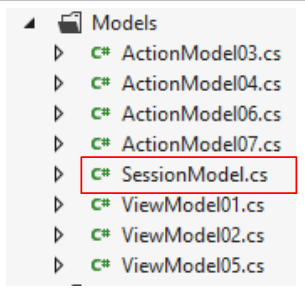 |
namespace Exemple_03.Models
{
  public class SessionModel
  {
    public Personne2[] Personnes { get; set; }
  }
}
- Line 2: The session will store the list of people displayed in the drop-down list;
We need to bind the previous type [SessionModel] to a binder that we will call [SessionModelBinder]. This will be the same as the one described on page74 :
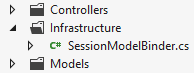
using System.Web.Mvc;

namespace Exemple_03.Infrastructure
{
  public class SessionModelBinder : IModelBinder
  {
    public object BindModel(ControllerContext controllerContext, ModelBindingContext bindingContext)
    {
      // render scope data [Session]
      return controllerContext.HttpContext.Session["data"];
    }
  }
}
The binding between the [SessionModel] model and its [SessionModelBinder] is defined in [Global.asax]:
public class MvcApplication : System.Web.HttpApplication
  {
    protected void Application_Start()
    {
      ...

      // model binders
      ModelBinders.Binders.Add(typeof(SessionModel), new SessionModelBinder());
    }
    // Session
    public void Session_Start()
    {
      Session["data"] = new SessionModel();
    }
  }
- Line 8: The model is bound to its binder in [Application_Start];
- line 13: an instance of type [SessionModel] is added to the session associated with the key [data].
Once this is done, the [Action07] action is as follows:
    // Action07-GET
    [HttpGet]
    public ViewResult Action07(SessionModel session)
    {
      ViewModel05 modèleVue = new ViewModel05();
      session.Personnes= modèleVue.Personnes;
      return View("Action07Get", modèleVue);
}
- line 3: the action retrieves a [SessionModel] type, i.e., the [Session] scope data associated with the [data] key;
- line 5: we create the view model;
- line 6: the array of people is placed in the session. We will need it in the next request, the POST request. The HTTP protocol is a stateless protocol. A session must be used to maintain state between requests. A session is specific to a user and is managed by the web server;
- line 7: the view [Action07Get.cshtml] is displayed. It is as follows:
@model Exemple_03.Models.ViewModel05
@using Exemple_03.Models
...
<body>
  <h3>Action07 - GET</h3>
  <p>Choisissez une personne</p>
  <form method="post" action="/First/Action07">
....
  </form>
</body>
</html>
It is identical to the [Action06Get.cshtml] view we already examined. The main difference is on line 7: the URL to which the form values will be posted. These will be processed by the following [Action07] action:
    // Action07-POST
    [HttpPost]
    public ViewResult Action07(SessionModel session, ActionModel06 modèle)
    {
      Personne2 personne = session.Personnes.Where(p => p.Id == modèle.PersonneId).First<Personne2>();
      string strPersonne = string.Format("{0} {1}", personne.Prénom, personne.Nom);
      return View("Action07Post", (object)strPersonne);
}
- Line 3: The posted values are encapsulated in the action model [ActionModel06] already used previously (below):
using System.ComponentModel.DataAnnotations;
namespace Exemple_03.Models
{
  public class ActionModel06
  {
    [Required(ErrorMessage = "Le paramètre [personneId] est requis")]
    public int PersonneId { get; set; }

    [Required(ErrorMessage = "Le paramètre [valider] est requis")]
    public string Valider { get; set; }
  }
}
- line 3: the first parameter is the [Session] scope data associated with the [data] key;
- line 5: a LINQ query retrieves the person with the [Id] that was posted;
- line 6: we construct the string to be displayed by the [Action07Post] view (line 8);
- line 7: to call the correct [View] constructor, the [string] type must be cast to [object].
The [Action07Post.cshtml] view is as follows:
@model string

@{
  Layout = null;
}

<!DOCTYPE html>

<html>
<head>
  <meta name="viewport" content="width=device-width" />
  <title>Action07-Post</title>
</head>
<body>
  <h3>Action07-POST</h3>
  Vous avez sélectionné [@Model].
</body>
</html>
- line 1: the model is of type [string];
- line 16: the string is displayed.
Here is an example of execution:
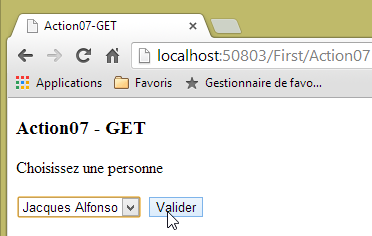
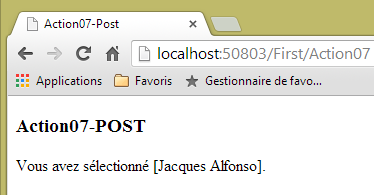
5.6. Form – a complete example
In section 2.5.2.1, we examined the following HTML form:
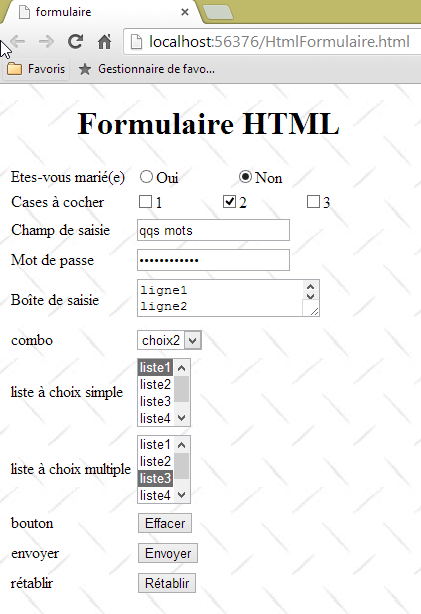
We will examine an action [Action08Get] that displays (GET) this form and an action [Action08Post] that processes (POST) the values entered by the user. A classic setup.
The view model [1] above will be an instance of the [ViewModel08] class. This class will serve as both:
- the view model produced by a GET request on the [Action08Get] action;
- the model for the [Action08Post] action for a POST request.
 |
 |
5.6.1. The [Application] scope model
We will assume that the elements displayed by the radio buttons, checkboxes, and various lists are [Application] scope data. A common scenario. This information comes from a configuration file or a database accessed when the application starts in the [Application_Start] method of [Global.asax]. This method evolves as follows:
    protected void Application_Start()
    {
....

      // model binders
      ModelBinders.Binders.Add(typeof(SessionModel), new SessionModelBinder());
      ModelBinders.Binders.Add(typeof(ApplicationModel), new ApplicationModelBinder());

      // scope data [Application]
      Application["data"] = new ApplicationModel();
}
- line 7: the [ApplicationModel] type, which we will describe shortly, is associated with the [ApplicationModelBinder] data binder that we have already introduced on page74 ;
- line 10: an instance of type [ApplicationModel] is stored in the application dictionary, associated with the key [data].
The [ApplicationModel] class is used to encapsulate all data within the [Application] scope. Here, it will encapsulate the data that the form needs to display:
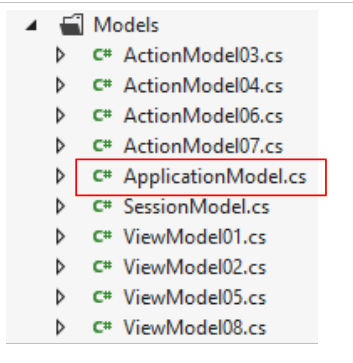 |
namespace Exemple_03.Models
{
  public class ApplicationModel
  {
    // the collections to be displayed in the form
    public Item[] RadioButtonFieldItems { get; set; }
    public Item[] CheckBoxesFieldItems { get; set; }
    public Item[] DropDownListFieldItems { get; set; }
    public Item[] SimpleChoiceListFieldItems { get; set; }
    public Item[] MultipleChoiceListFieldItems { get; set; }

    // initializing fields and collections
    public ApplicationModel()
    {
      RadioButtonFieldItems = new Item[]{
        new Item {Value="1",Label="oui"},
        new Item {Value="2", Label="non"}
      };
      CheckBoxesFieldItems = new Item[]{
        new Item {Value="1",Label="1"},
        new Item {Value="2", Label="2"},
        new Item {Value="3", Label="3"}
      };
      DropDownListFieldItems = new Item[]{
        new Item {Value="1",Label="choix1"},
        new Item {Value="2", Label="choix2"},
        new Item {Value="3", Label="choix3"}
      };
      SimpleChoiceListFieldItems = new Item[]{
        new Item {Value="1",Label="liste1"},
        new Item {Value="2", Label="liste2"},
        new Item {Value="3", Label="liste3"},
        new Item {Value="4", Label="liste4"},
        new Item {Value="5", Label="liste5"}
      };
      MultipleChoiceListFieldItems = new Item[]{
        new Item {Value="1",Label="liste1"},
        new Item {Value="2", Label="liste2"},
        new Item {Value="3", Label="liste3"},
        new Item {Value="4", Label="liste4"},
        new Item {Value="5", Label="liste5"}
      };
    }
    // the collections item
    public class Item
    {
      public string Label { get; set; }
      public string Value { get; set; }
    }

  }
}
- lines 45–49: the form control representing the various collections. [Label] is the text displayed by the form control, [Value] is the value submitted by this control when it is selected;
- line 6: the collection displayed by the radio button;
- line 7: the collection displayed by the checkboxes;
- line 8: the collection displayed by the drop-down list;
- line 9: the collection displayed by the single-select list;
- line 10: the collection displayed by the multi-select list;
- lines 13–43: these collections are initialized by the class’s parameterless constructor.
The various collections will populate the following form:
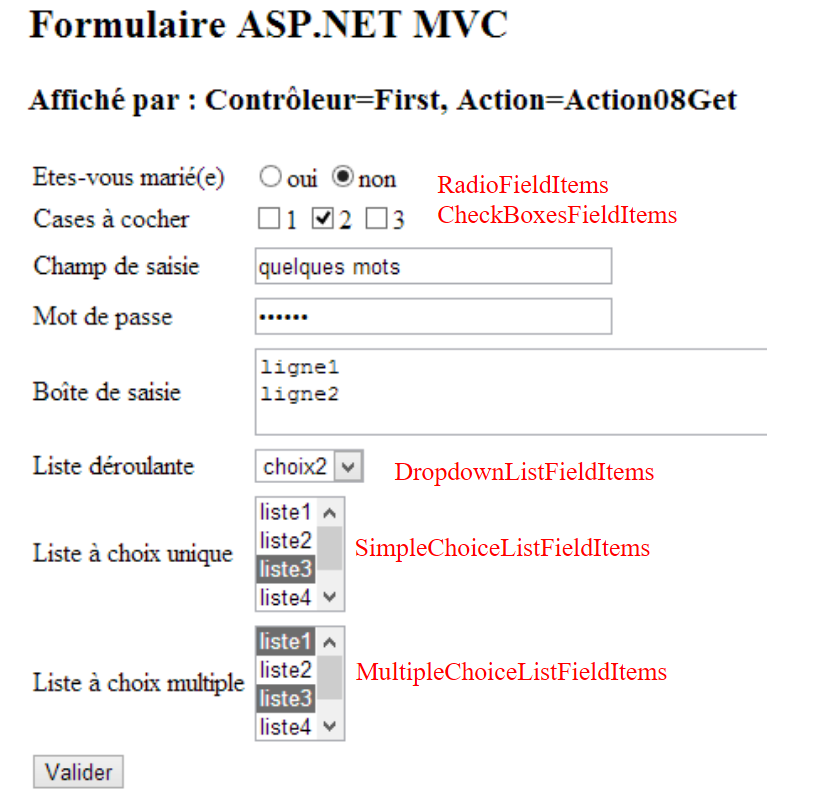 |
5.6.2. The model for the [Action08Get] action
The previous form will be displayed by the following [Action08Get] action:
    // Action08-GET
    [HttpGet]
    public ViewResult Action08Get(ApplicationModel application)
    {
      ViewBag.info = string.Format("Contrôleur={0}, Action={1}", RouteData.Values["controller"], RouteData.Values["action"]);
      return View("Formulaire", new ViewModel08(application));
}
- Line 2: [Action08Get] will only respond to a [GET] request;
- line 3: it receives as a parameter the application model we just described;
- line 5: it initializes data in the dynamic container [ViewBag];
- line 6: it renders the view [/First/Formulaire.cshtml] using the [ViewModel08] model. This model is the one from the form presented earlier. To do this, we pass the application model—which defines the elements to be displayed—to the constructor.
5.6.3. The [Form] view model
The [ViewModel08] class will be the form's model. This class is as follows:
using System.ComponentModel.DataAnnotations;
using System.Web.Mvc;
using Exemple_03.Models;

namespace Exemple_03.Models
{
  public class ViewModel08
  {
    // input fields
    public string RadioButtonField { get; set; }
    public string[] CheckBoxesField { get; set; }
    public string TextField { get; set; }
    public string PasswordField { get; set; }
    public string TextAreaField { get; set; }
    public string DropDownListField { get; set; }
    public string SimpleChoiceListField { get; set; }
    public string[] MultipleChoiceListField { get; set; }

    // the collections to be displayed in the form
    public ApplicationModel.Item[] RadioButtonFieldItems { get; set; }
    public ApplicationModel.Item[] CheckBoxesFieldItems { get; set; }
    public ApplicationModel.Item[] DropDownListFieldItems { get; set; }
    public ApplicationModel.Item[] SimpleChoiceListFieldItems { get; set; }
    public ApplicationModel.Item[] MultipleChoiceListFieldItems { get; set; }

    // manufacturers
    public ViewModel08()
    {
    }

    public ViewModel08(ApplicationModel application)
    {
      // initialization collections
      RadioButtonFieldItems = application.RadioButtonFieldItems;
      CheckBoxesFieldItems = application.CheckBoxesFieldItems;
      DropDownListFieldItems = application.DropDownListFieldItems;
      SimpleChoiceListFieldItems = application.SimpleChoiceListFieldItems;
      MultipleChoiceListFieldItems = application.MultipleChoiceListFieldItems;
      // field initialization
      RadioButtonField = "2";
      CheckBoxesField = new string[] { "2" };
      TextField = "quelques mots";
      PasswordField = "secret";
      TextAreaField = "ligne1\nligne2";
      DropDownListField = "2";
      SimpleChoiceListField = "3";
      MultipleChoiceListField = new string[] { "1", "3" };
    }
  }
}
- In a form, there are two types of elements: those that are displayed and those that are entered;
- Lines 20–24 define the elements to be displayed. These are the form’s various collections. They are found in the application model (lines 34–38);
- Lines 10–17: define the form’s input fields;
- line 10: [RadioButtonField] will retrieve the value submitted by the following lines of the form:
<!-- radio buttons -->
<tr>
<td>Etes-vous marié(e)</td>
<td>
<input type="radio" name="RadioButtonField" value="1" />oui
<input type="radio" name="RadioButtonField" value="2" checked="checked"/>non
</td>
</tr>
Note in lines 5 and 6 that the [name] attribute of the two radio buttons is the name of the property that will be initialized. In the posted data, you will find a string in the form:
param1=val1&RadioButtonField=2¶m2=val2
if the user has checked the option labeled [no]. It is, in fact, the [value] attribute of the checked option that is posted.
- Line 11: [CheckBoxesField] will retrieve the values posted by the following lines of the form:
<!-- checkboxes -->
<tr>
<td>Cases à cocher</td>
<td>
<input type="checkbox" name="CheckBoxesField" value="1" />1
<input type="checkbox" name="CheckBoxesField" value="2" checked="checked"/>2
<input type="checkbox" name="CheckBoxesField" value="3" />3
</td>
Note in lines 5 and 6 that the [name] attribute of the checkboxes is the name of the property that will be initialized. In the posted data, you will find a string in the following format:
param1=val1&CheckBoxesField=2&CheckBoxesField=3¶m2=val2
if the user has checked the checkboxes labeled [2] and [3]. It is the [value] attribute of the checked options that is posted. Because multiple parameters with the same name can be posted, [CheckBoxesField] is an array of values rather than a single value. If no checkboxes are selected, the [CheckBoxesField] parameter will be absent from the posted string, and the model property of the same name will not be initialized. This can be problematic, as we will see.
- Line 12: [TextField] will retrieve the value posted by the following lines of the form:
          <!-- single-line text input field -->
          <tr>
            <td>Champ de saisie</td>
            <td>
              <input type="text" name="TextField" value="quelques mots" size="30" />
            </td>
</tr>
Line 5: The [name] attribute of the input field is the name of the property that will be initialized. In the posted data, you will find a string in the following format:
param1=val1&TextField=abcdef¶m2=val2
if the user entered [abcdef] in the input field.
- Line 13: [PasswordField] will retrieve the value posted by the following lines of the form:
        <!-- password entry field -->
        <tr>
          <td>Mot de passe</td>
          <td>
            <input type="password" name="PasswordField" value="secret" size="30" />
          </td>
</tr>
Line 5: The [name] attribute of the input field is the name of the property that will be initialized. In the posted data, you will find a string in the following format:
param1=val1&PasswordField=abcdef¶m2=val2
if the user entered [abcdef] in the input field.
- Line 14: [TextAreaField] will retrieve the value posted by the following lines of the form:
        <!-- le champ de saisie texte multilignes -->
        <tr>
          <td>Boîte de saisie</td>
          <td>
            <textarea name="TextAreaField" cols="40" rows="3">ligne1
ligne2</textarea>
          </td>
</tr>
Line 5: The [name] attribute of the input field is the name of the property that will be initialized. In the posted data, you will find a string in the following format:
param1=val1&TextAreaField=abcdef%0D%OAhijk¶m2=val2
if the user entered [abcdef] followed by a line break and [ijk] in the input field.
- Line 15: [DropDownListField] will retrieve the value posted by the following lines of the form:
<!-- the drop-down list -->
<tr>
<td>Liste déroulante</td>
<td>
<select name="DropDownListField">
<option value="1" >choix1</option>
<option value="2" selected="selected">choix2</option>
<option value="3" >choix3</option>
</select>
</tr>
Line 5: The [name] attribute of the <select> tag is the name of the property that will be initialized. In the posted data, you will find a string in the following format:
param1=val1&DropDownListField=1¶m2=val2
if the user has selected the [choice1] option. It is the [value] attribute of the selected option that is posted.
- Line 16: [SingleChoiceListField] will retrieve the value posted by the following lines of the form:
<!-- single-choice list -->
<tr>
<td>Liste à choix unique</td>
<td>
<select name="SimpleChoiceListField" size="3">
<option value="1" >liste1</option>
<option value="2" >liste2</option>
<option value="3" selected="selected">liste3</option>
<option value="4" >liste4</option>
<option value="5" >liste5</option>
</select>
</tr>
Line 5: The [name] attribute of the <select> tag is the name of the property that will be initialized. The [size="3"] attribute ensures that we do not have a drop-down list. In the posted data, we will find a string in the following format:
param1=val1&SimpleChoiceListField=3¶m2=val2
if the user has selected the [liste3] option. It is the [value] attribute of the selected option that is posted. The [SingleChoiceListField] parameter may be absent from the posted string if no item has been selected.
- Line 17: [MultipleChoiceListField] will retrieve the values posted by the following lines of the form:
<!-- multiple choice list -->
<tr>
<td>Liste à choix multiple</td>
<td>
<select name="MultipleChoiceListField" size="3" multiple="multiple">
<option value="1" selected="selected">liste1</option>
<option value="2" >liste2</option>
<option value="3" selected="selected">liste3</option>
<option value="4" >liste4</option>
<option value="5" >liste5</option>
</select>
</tr>
Line 5: The [name] attribute of the <select> tag is the name of the property that will be initialized. The [size="3"] attribute ensures that there is no drop-down list, and the [multiple] attribute allows the user to select multiple items by holding down the [Ctrl] key. In the posted data, you will find a string in the following format:
param1=val1&MultipleChoiceListField=1&MultipleChoiceListField=3¶m2=val2
if the user has selected options [list1] and [list3]. It is the [value] attribute of the selected options that is posted. Because multiple parameters with the same name can be posted, [MultipleChoiceListField] is an array of values rather than a single value. If no checkbox is selected, the [MultipleChoiceListField] parameter will be absent from the posted string, and the model property of the same name will not be initialized.
The various input fields presented earlier will receive the values posted by the form. They can also be initialized before submitting the form. This is what has been done here:
      // initialisation champs
      RadioButtonField = "2";
      CheckBoxesField = new string[] { "2" };
      TextField = "quelques mots";
      PasswordField = "secret";
      TextAreaField = "ligne1\nligne2";
      DropDownListField = "2";
      SimpleChoiceListField = "3";
MultipleChoiceListField = new string[] { "1", "3" };
If these values were obtained after a POST request from the form, this would mean that the user has:
- line 2: selected the [no] option from the radio buttons;
- line 3: selected the [2] option in the checkboxes;
- line 4: typed [a few words] in the input field;
- line 5: entered [secret] as the password;
- line 6: typed [line1\nline2] in the multi-line input field;
- line 7: selected the [option2] option from the drop-down list;
- line 8: selected option [list3] from the single-choice list;
- line 9: selected the options [list1] and [list3] from the multi-select list;
We will proceed as if a POST request had been made and we wanted to return the form exactly as it was entered. This is specifically what happens when an incorrect form is returned to the user. The form is returned exactly as it was entered.
5.6.4. The [Form] view
The [/First/Formulaire.cshtml] view displays the form:
 |
@model Exemple_03.Models.ViewModel08
@using Exemple_03.Models
@{
  Layout = null;
}
<html>
<head>
  <meta name="viewport" content="width=device-width" />
  <title>Formulaire</title>
</head>
<body>
  <form method="post" action="Action08Post">
    <h2>Formulaire ASP.NET MVC</h2>
    <h3>Affiché par : @ViewBag.info</h3>
    <table>
      <thead></thead>
      <tbody>
        <!-- radio buttons -->
        <tr>
          <td>Etes-vous marié(e)</td>
          <td>
            @foreach (ApplicationModel.Item item in @Model.RadioButtonFieldItems)
            {
              string strChecked = item.Value == @Model.RadioButtonField ? "checked=\"checked\"" : "";
              <input type="radio" name="RadioButtonField" value="@item.Value" @strChecked/>@item.Label
              <text/>
            }
          </td>
        </tr>
...
      </tbody>
    </table>
    <input type="submit" value="Valider" />
  </form>
</body>
</html>
- line 1: [ViewModel08] is the form model;
- line 12: the <form> tag for the form. This form will be submitted using the [POST] method (method attribute) to the URL [/First/Action08Post] (action attribute);
- line 33: the [submit] button used to submit the form;
- lines 22–27: display the radio buttons:

- line 22: we iterate through the collection displayed by the radio button;
- line 24: the button whose [value] attribute corresponds to the value of the [RadioButtonField] property must be checked. To do this, it must have the [checked="checked"] attribute;
- line 25: generates the <input type="radio"> tag with the value [@item.Value] and the label [@item.Label];
- line 26: the <text/> tag is not a recognized HTML tag. It is there for [Razor]. When encountered, [Razor] will generate a line break. This has no effect on the displayed form but does affect the generated HTML code. The <input type="radio"> tags are then on two different lines instead of being on the same line. This makes the code more readable when you view the source code of the displayed page in the browser;
Let’s review the other elements of the view:
        <!-- checkboxes -->
        <tr>
          <td>Cases à cocher</td>
          <td>
            @{
              foreach (ApplicationModel.Item item in @Model.CheckBoxesFieldItems)
              {
                string strChecked = @Model.CheckBoxesField.Contains(item.Value) ? "checked=\"checked\"" : "";
              <input type="checkbox" name="CheckBoxesField" value="@item.Value" @strChecked/>@item.Label
              <text/>
              }
            }
</td>
- line 6: we iterate through the collection displayed by the checkboxes;
- line 8: a checkbox whose [value] attribute is one of the values of the [CheckBoxesField] property must be checked. To do this, it must have the [checked="checked"] attribute. We use a LINQ expression to determine if a value is contained in an array;
- line 25: generates the <input type="checkbox"> tag with the value [@item.Value] and the label [@item.Label];
<!-- single-line text input field -->
          <tr>
            <td>Champ de saisie</td>
            <td>
              <input type="text" name="TextField" value="@Model.TextField" size="30" />
            </td>
          </tr>
        <!-- password entry field -->
        <tr>
          <td>Mot de passe</td>
          <td>
            <input type="password" name="PasswordField" value="@Model.PasswordField" size="30" />
          </td>
        </tr>
        <!-- multiline text input field -->
        <tr>
          <td>Boîte de saisie</td>
          <td>
            <textarea name="TextAreaField" cols="40" rows="3">@Model.TextAreaField</textarea>
          </td>
        </tr>
- lines 5, 12: we assign the value of the model to the [value] attribute of the tag;
- line 19: same as above, but with different syntax.
        <!-- the drop-down list -->
        <tr>
          <td>Liste déroulante</td>
          <td>
            <select name="DropDownListField">
              @{
                foreach (ApplicationModel.Item item in @Model.DropDownListFieldItems)
                {
                  string strChecked = item.Value == @Model.DropDownListField ? "selected=\"selected\"" : "";
                <option value="@item.Value" @strChecked>@item.Label</option>
                }
              }
            </select>
</tr>
- line 7: we iterate through the collection displayed by the drop-down list;
- line 9: an option whose [value] attribute matches the value of the [DropDownListField] property must then be selected. To do this, it must have the [selected="selected"] attribute;
- line 25: generates the <option value="value">label</option> tag with the value [@item.Value] and the label [@item.Label];
        <!-- single-choice list -->
        <tr>
          <td>Liste à choix unique</td>
          <td>
            <select name="SimpleChoiceListField" size="3">
              @{
                foreach (ApplicationModel.Item item in @Model.SimpleChoiceListFieldItems)
                {
                  string strChecked = item.Value == @Model.SimpleChoiceListField ? "selected=\"selected\"" : "";
                <option value="@item.Value" @strChecked>@item.Label</option>
                }
              }
            </select>
</tr>
The explanation is the same as for the drop-down list.
        <!-- multiple choice list -->
        <tr>
          <td>Liste à choix multiple</td>
          <td>
            <select name="MultipleChoiceListField" size="3" multiple="multiple">
              @{
                foreach (ApplicationModel.Item item in @Model.MultipleChoiceListFieldItems)
                {
                  string strChecked = @Model.MultipleChoiceListField.Contains(item.Value) ? "selected=\"selected\"" : "";
                <option value="@item.Value" @strChecked>@item.Label</option>
                }
              }
            </select>
</tr>
- line 7: we iterate through the collection displayed by the list;
- line 9: an option whose [value] attribute is one of the values of the [MultipleChoiceListField] property must be selected. To do this, it must have the [selected="selected"] attribute. We use a LINQ expression to determine if a value is contained in an array;
- line 10: generation of the <option value="value">label</option> tag with [@item.Value] as the value and [@item.Label] as the label;
5.6.5. Processing the form POST
We saw that the form would be posted to the [Action08Post] action:
<form method="post" action="Action08Post">
The [Action08Post] action is as follows:
    // Action08-POST
    [HttpPost]
    public ViewResult Action08Post(ApplicationModel application, FormCollection posted)
    {
      ViewBag.info = string.Format("Contrôleur={0}, Action={1}", RouteData.Values["controller"], RouteData.Values["action"]);
      ViewModel08 modèle = new ViewModel08(application);
      TryUpdateModel(modèle,posted);
      return View("Formulaire", modèle);
}
- Line 3: The application model is passed as a parameter, along with the posted values. These are available in a [FormCollection] type. The value of the posted [RadioButtonField] parameter is obtained using the expression posted["RadioButtonField"]. This returns a string or the null pointer. If you write posted["CheckBoxesField"], you will get an array of strings or the null pointer;
- so why not write:
public ViewResult Action08Post(ApplicationModel application, ViewModel08 posted)
There are two reasons:
- the first is that the framework will instantiate the [ViewModel08] model using the parameterless constructor, which will result in the model’s collections not being initialized;
- the second is that we want to control what goes into the model. We know there are four possible sources for the model: the parameters of a GET or POST request, the route used, and those from an uploaded file. Here, we want to initialize the model only with the posted values.
- Line 6: We instantiate the model using the correct constructor;
- line 7: we initialize it with the posted values. After this operation, the model corresponds to the user’s input;
- Line 8: We display the form again. The user will see it exactly as it was entered.
Let’s look at an example:
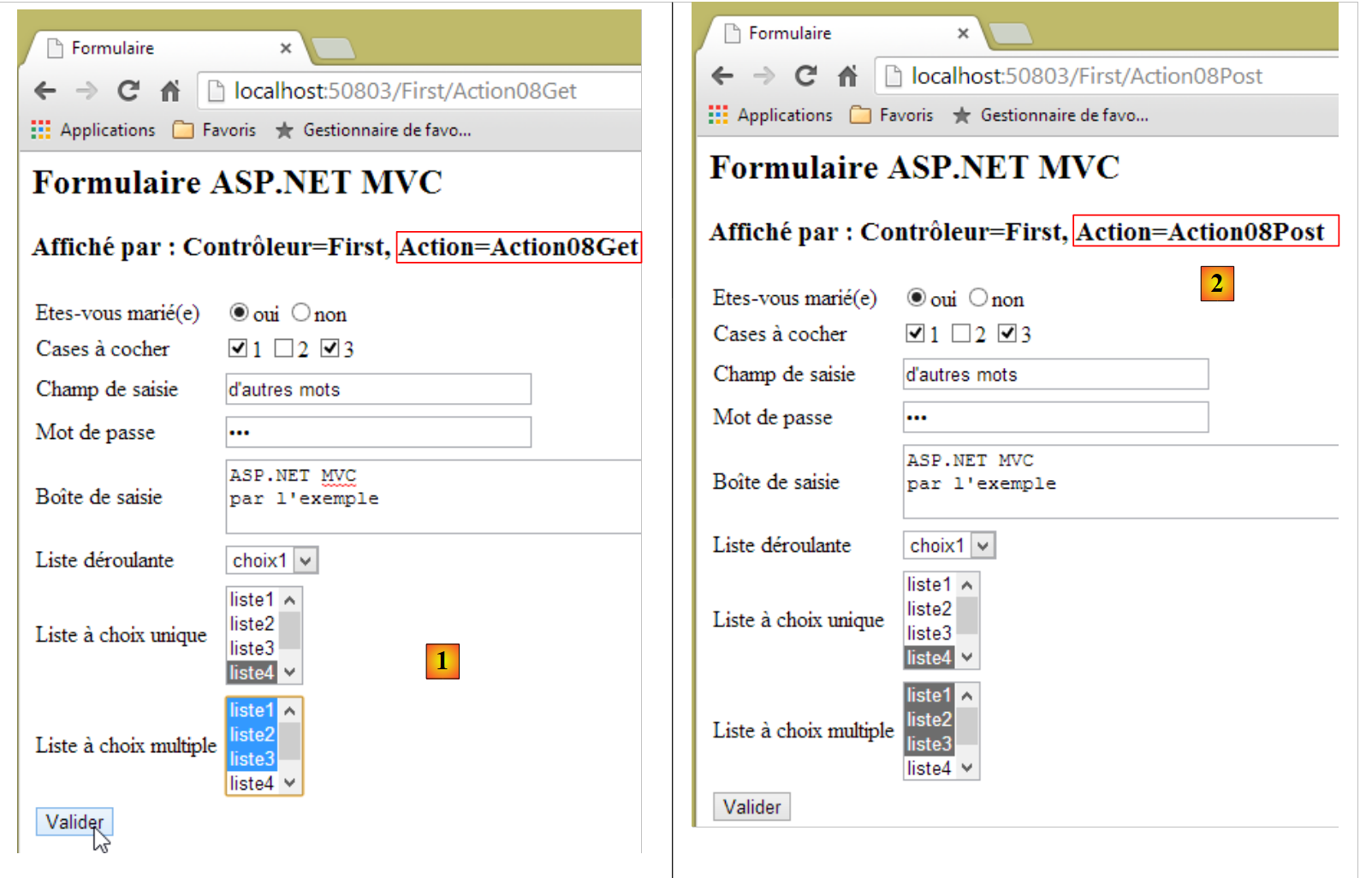 |
In [2], the result of the [POST] accurately reflects what was entered in [1].
5.6.6. Handling POST Errors
We mentioned that if no value was checked or selected for the [CheckBoxesField, SimpleChoiceListField, MultipleChoiceListField] fields, then the corresponding parameters were not part of the posted string, and therefore the model properties with the same names were not initialized.
Let’s look at the following example:
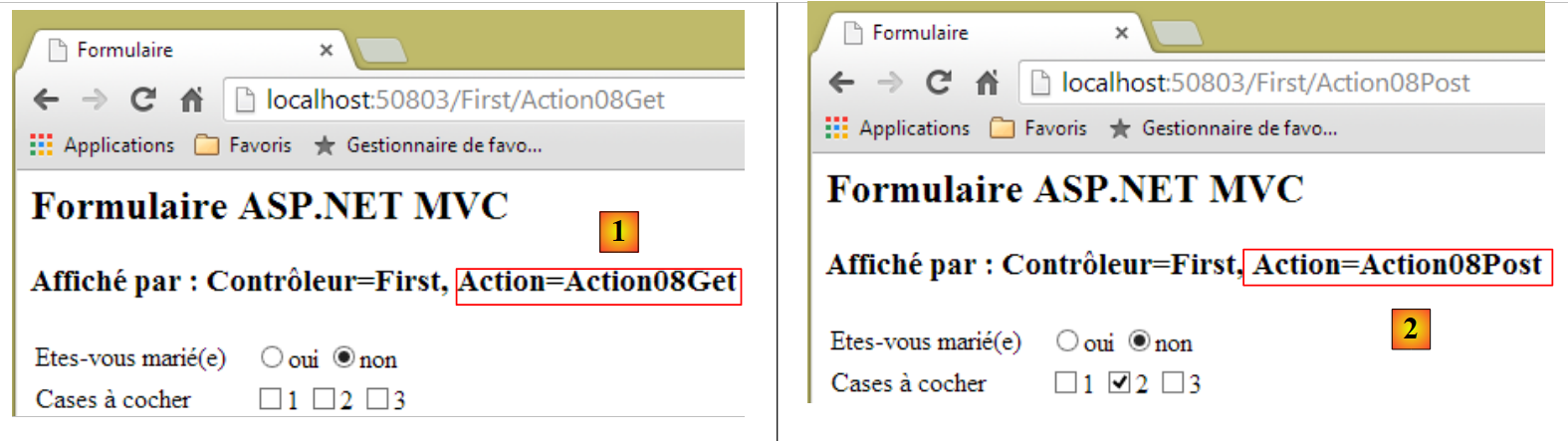 |
- in [1], no checkbox was checked;
- in [2], the [POST] returns a checked checkbox.
The explanation is as follows:
- because no checkboxes are selected, the [CheckBoxesField] parameter is not included in the posted values;
- the [Action08Post] action proceeds as follows:
    [HttpPost]
    public ViewResult Action08Post(ApplicationModel application, FormCollection posted)
    {
      ViewBag.info = ...
      ViewModel08 modèle = new ViewModel08(application);
      TryUpdateModel(modèle,posted);
      return View("Formulaire", modèle);
}
- Line 5: The form model is instantiated. However, the constructor used assigns the array ["2"] to the [CheckBoxesField] property;
- Line 6: The posted values are saved to the model. Since the [CheckBoxesField] parameter is not part of the posted values, the property of the same name is not assigned a value. It therefore retains its value ["2"], which means that when the form is displayed, checkbox #2 is checked when it should not be.
This issue can be resolved in various ways. We choose to resolve it in the code for the [Action08Post] action:
// Action08-POST
    [HttpPost]
    public ViewResult Action08Post(ApplicationModel application, FormCollection posted)
    {
      ViewBag.info = string.Format("Contrôleur={0}, Action={1}", RouteData.Values["controller"], RouteData.Values["action"]);
      ViewModel08 modèle = new ViewModel08(application);
      TryUpdateModel(modèle,posted);
      // processing of non-posted values
      if (posted["CheckBoxesField"] == null)
      {
        modèle.CheckBoxesField = new string[] { };
      }
      if (posted["SimpleChoiceListField"] == null)
      {
        modèle.SimpleChoiceListField = "";
      }
      if (posted["MultipleChoiceListField"] == null)
      {
        modèle.MultipleChoiceListField = new string[] { };
      }
      // form display
      return View("Formulaire", modèle);
    }
- Lines 9–20: We check whether certain parameters have been submitted or not. If not, we initialize them with the value corresponding to the user not having entered anything. This check was not performed for the drop-down list, which always has an item selected, unlike the other lists.
Readers are invited to test this new version.
5.7. Using methods specialized in form generation
5.7.1. The new form
We create a new form [Form2.cshtml] that will generate a form identical to the previous one:
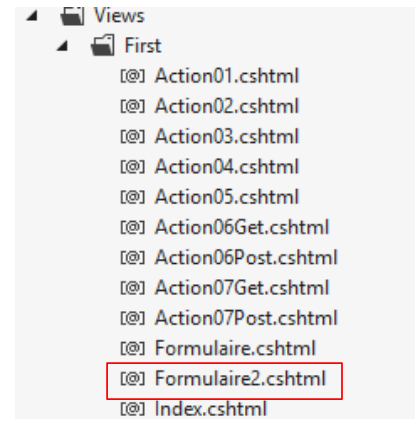 |
Let’s revisit the code used to generate the form’s dropdown list:
        <!-- the drop-down list -->
        <tr>
          <td>Liste déroulante</td>
          <td>
            <select name="DropDownListField">
              @{
                foreach (ApplicationModel.Item item in @Model.DropDownListFieldItems)
                {
                  string strChecked = item.Value == @Model.DropDownListField ? "selected=\"selected\"" : "";
                <option value="@item.Value" @strChecked>@item.Label</option>
                }
              }
            </select>
</tr>
This code has two drawbacks:
- the most significant is that the nature of the component—in this case, a drop-down list—is lost due to the complexity of the code;
- Line 5: If you make a mistake in the name of the model property to be used as the [name] attribute, you won't notice it until runtime.
ASP.NET MVC provides specialized methods called [HTML Helpers] which, as their name suggests, are designed to facilitate HTML generation, particularly for forms. Using these classes, the dropdown list shown above is written as follows:
        <!-- the drop-down list -->
        <tr>
          <td>Liste déroulante</td>
          <td>@Html.DropDownListFor(m => m.DropDownListField,
           new SelectList(@Model.DropDownListFieldItems, "Value", "Label"))
          </td>
</tr>
The drop-down list is generated by lines 4–5. The code is significantly less complex. The HTML code generated for the drop-down list is as follows:
        <!-- the drop-down list -->
        <tr>
          <td>Liste déroulante</td>
          <td><select id="DropDownListField" name="DropDownListField"><option value="1">choix1</option>
<option selected="selected" value="2">choix2</option>
<option value="3">choix3</option>
</select></td>
</tr>
- line 4: the [name] attribute is correct;
- Lines 4–6: The options are generated correctly, and the correct option has been selected.
Let's go back to the code that generated these HTML lines:
@Html.DropDownListFor(m => m.DropDownListField, new SelectList(@Model.DropDownListFieldItems, "Value", "Label"))
- The first parameter is a lambda function (that's what it's called), where `m` represents the view model and `m.DropDownListField` is a property of that model. The HTML code generator will use the name of this property to generate the [id] and [name] attributes of the [select] element that will be generated. If a non-existent property is used, an error will occur at compile time rather than at runtime. This is an improvement over the previous solution, where naming errors were only detected at runtime;
- the second parameter is used to specify the collection of elements that will populate the drop-down list. The [SelectList] class allows you to build this collection:
- its first parameter is any collection of elements. Here we have a collection of type [Item];
- its second parameter is the property of the elements that will provide the value of the <option> tag. Here, it is the [Value] property of the [Item] class;
- its third parameter is the property of the elements that will provide the label for the <option> tag. Here, it is the [Label] property of the [Item] class;
- To determine which option should be selected (the selected attribute), the framework does what we do: it compares the value of the option to the current value of the [DropDownListField] property.
Now let’s look at the other methods we can use:
Radio buttons
The new code is as follows:
        <!-- les boutons radio -->
        <tr>
          <td>Etes-vous marié(e)</td>
          <td>
            @{
    foreach (ApplicationModel.Item item in @Model.RadioButtonFieldItems)
    {
              @Html.RadioButtonFor(m => m.RadioButtonField, @item.Value)@item.Label
              <text/>
    }
            }
          </td>
</tr>
The generated HTML code is as follows:
        <!-- radio buttons -->
        <tr>
          <td>Etes-vous marié(e)</td>
          <td>
<input id="RadioButtonField" name="RadioButtonField" type="radio" value="1" />oui
<input checked="checked" id="RadioButtonField" name="RadioButtonField" type="radio" value="2" />non
          </td>
</tr>
The method used is [Html.RadioButtonFor]:
- the first parameter is the model property that will be associated with the radio button (the [name] attribute);
- the second parameter is the value to be assigned to the radio button (the [value] attribute).
Checkboxes
The code changes as follows:
        <!-- les cases à cocher -->
        <tr>
          <td>Cases à cocher</td>
          <td>
            @{
              @Html.CheckBoxFor(m=>m.CheckBoxField1) @Model.CheckBoxesFieldItems[0].Label
              @Html.CheckBoxFor(m=>m.CheckBoxField2) @Model.CheckBoxesFieldItems[1].Label
              @Html.CheckBoxFor(m=>m.CheckBoxField3) @Model.CheckBoxesFieldItems[2].Label
            }
</td>
The method used to generate checkboxes is [Html.CheckBoxFor]:
The parameter is the model’s Boolean property that will be associated with the checkbox. If [Property=true], the checkbox will be checked. If [Property=false], the checkbox will not be checked. In all cases, the [value] attribute is set to true. The generated HTML code is as follows:
<input id="Propriété" name="Propriété" type="checkbox" value="true" />
<input name="Propriété" type="hidden" value="false" />
- line 1: the checkbox with the [value="true"] attribute;
- line 2: a hidden field (type=hidden) with the same name [Property] as the checkbox, with the [value="false"] attribute. Why are there two [input] tags with the same name? There are two cases:
- the checkbox on line 1 is checked. Then the posted parameter string is Property=true&Property=false (lines 1 and 2). Since the property [Property] expects only one value, one might think that the framework assigns the value [true] to [Property]. It would simply need to perform a logical OR between the received values to achieve this;
- the checkbox on line 1 is not checked. In this case, the posted parameter string is Property=false (line 2 only), and the property [Property] is assigned the value [false], which is correct (the checkbox was not checked).
Single-line input field
The new code is as follows:
          <!-- le champ de saisie texte monoligne -->
          <tr>
            <td>Champ de saisie</td>
            <td>
              @Html.TextBoxFor(m => m.TextField, new { size = "30" })
            </td>
</tr>
The generated HTML code is as follows:
          <!-- single-line text input field -->
          <tr>
            <td>Champ de saisie</td>
            <td>
              <input id="TextField" name="TextField" size="30" type="text" value="quelques mots" />
            </td>
</tr>
The method used is as follows:
@Html.TextBoxFor(m => m.TextField, new { size = "30" })
- The first parameter specifies the property of the model associated with the input field. The property name will be used in the [name] and [id] attributes of the generated <input> tag, and its value will be assigned to the [value] attribute;
- The second parameter is an anonymous class specifying certain attributes of the generated HTML tag, in this case the [size] attribute.
Password input field
The new code is as follows:
        <!-- le champ de saisie d'un mot de passe -->
        <tr>
          <td>Mot de passe</td>
          <td>
            @Html.PasswordFor(m => m.PasswordField, new { size = "15" })
          </td>
</tr>
The generated HTML code is as follows:
        <!-- password entry field -->
        <tr>
          <td>Mot de passe</td>
          <td>
            <input id="PasswordField" name="PasswordField" size="15" type="password" />
          </td>
</tr>
The method used is as follows:
@Html.PasswordFor(m => m.PasswordField, new { size = "15" })
The behavior is similar to that of the [Html.TextBoxFor] method.
Multi-line input field
The new code is as follows:
        <!-- le champ de saisie texte multilignes -->
        <tr>
          <td>Boîte de saisie</td>
          <td>
            @Html.TextAreaFor(m => m.TextAreaField, new { cols = "30", rows = "5" })
          </td>
</tr>
The generated HTML code is as follows:
        <!-- le champ de saisie texte multilignes -->
        <tr>
          <td>Boîte de saisie</td>
          <td>
            <textarea cols="30" id="TextAreaField" name="TextAreaField" rows="5">
ligne1
ligne2</textarea>
          </td>
</tr>
The method used is as follows:
@Html.TextAreaFor(m => m.TextAreaField, new { cols = "30", rows = "5" })
The behavior is similar to that of the [Html.TextBoxFor] method.
Single-select list
The new code is as follows:
        <!-- single-choice list -->
        <tr>
          <td>Liste à choix unique</td>
          <td>
          @Html.DropDownListFor(m => m.SimpleChoiceListField, new SelectList(@Model.SimpleChoiceListFieldItems, "Value", "Label"), new { size = "3" })
</tr>
and the generated HTML code is as follows:
        <!-- single-choice list -->
        <tr>
          <td>Liste à choix unique</td>
          <td>
          <select id="SimpleChoiceListField" name="SimpleChoiceListField" size="3">
<option value="1">liste1</option>
<option value="2">liste2</option>
<option selected="selected" value="3">liste3</option>
<option value="4">liste4</option>
<option value="5">liste5</option>
</select>
</tr>
We have already covered the [Html.DropDownListFor] method. The only difference here is the third parameter, which is used to specify a [size] attribute other than 1. It is this feature that changes a drop-down list [size=1] into a simple list.
The multi-select list
The new code is as follows:
        <!-- multiple choice list -->
        <tr>
          <td>Liste à choix multiple</td>
          <td>
          @Html.ListBoxFor(m => m.MultipleChoiceListField, new SelectList(@Model.MultipleChoiceListFieldItems, "Value", "Label"), new { size = "5" })
</tr>
and the generated HTML code is as follows:
        <!-- multiple choice list -->
        <tr>
          <td>Liste à choix multiple</td>
          <td>
          <select id="MultipleChoiceListField" multiple="multiple" name="MultipleChoiceListField" size="5">
<option selected="selected" value="1">liste1</option>
<option value="2">liste2</option>
<option selected="selected" value="3">liste3</option>
<option value="4">liste4</option>
<option value="5">liste5</option>
</select>
</tr>
The method
@Html.ListBoxFor(m => m.MultipleChoiceListField, new SelectList(@Model.MultipleChoiceListFieldItems, "Value", "Label"), new { size = "5" })
works like the [Html.DropDownListFor] method, except that it generates a multi-select list. The selected options are those whose value (value attribute) is in the [MultipleChoiceListField] array.
The <form> tag can also be generated using a method:
  @using (Html.BeginForm("Action09Post", "First"))
  {
...
  }
The generated HTML code is as follows:
<form action="/First/Action09Post" method="post">
    ...
</form>
The method
Html.BeginForm("Action09Post", "First")
takes the name of an action as its first parameter and the name of a controller as its second parameter.
5.7.2. The actions and the model
The form will be rendered by the following [Action09Get] action:
    // Action09-GET
    [HttpGet]
    public ViewResult Action09Get(ApplicationModel application)
    {
      ViewBag.info = string.Format("Contrôleur={0}, Action={1}", RouteData.Values["controller"], RouteData.Values["action"]);
      return View("Formulaire2", new ViewModel09(application));
}
The view rendered on line 6 is [Form2] associated with the following [ViewModel09] model:
using System.ComponentModel.DataAnnotations;
using System.Web.Mvc;
using Exemple_03.Models;

namespace Exemple_03.Models
{
  public class ViewModel09
  {
    // input fields
    public string RadioButtonField { get; set; }
    public bool CheckBoxField1 { get; set; }
    public bool CheckBoxField2 { get; set; }
    public bool CheckBoxField3 { get; set; }
    public string TextField { get; set; }
    public string PasswordField { get; set; }
    public string TextAreaField { get; set; }
    public string DropDownListField { get; set; }
    public string SimpleChoiceListField { get; set; }
    public string[] MultipleChoiceListField { get; set; }

    // collections to be displayed in the form
    public ApplicationModel.Item[] RadioButtonFieldItems { get; set; }
    public ApplicationModel.Item[] CheckBoxesFieldItems { get; set; }
    public ApplicationModel.Item[] DropDownListFieldItems { get; set; }
    public ApplicationModel.Item[] SimpleChoiceListFieldItems { get; set; }
    public ApplicationModel.Item[] MultipleChoiceListFieldItems { get; set; }

    // manufacturers
    public ViewModel09()
    {
    }

    public ViewModel09(ApplicationModel application)
    {
      // initialization collections
      RadioButtonFieldItems = application.RadioButtonFieldItems;
      CheckBoxesFieldItems = application.CheckBoxesFieldItems;
      DropDownListFieldItems = application.DropDownListFieldItems;
      SimpleChoiceListFieldItems = application.SimpleChoiceListFieldItems;
      MultipleChoiceListFieldItems = application.MultipleChoiceListFieldItems;
      // field initialization
      RadioButtonField = "2";
      CheckBoxField2 = true;
      TextField = "quelques mots";
      PasswordField = "secret";
      TextAreaField = "ligne1\nligne2";
      DropDownListField = "2";
      SimpleChoiceListField = "3";
      MultipleChoiceListField = new string[] { "1", "3" };
    }
  }
}
[ViewModel09] differs from [ViewModel08] in its handling of checkboxes. Instead of having an array of three checkboxes, three separate checkboxes were used (lines 11–13).
The form will be processed by the following [Action09Post] action:
    // Action09-POST
    [HttpPost]
    public ViewResult Action09Post(ApplicationModel application, FormCollection posted)
    {
      ViewBag.info = string.Format("Contrôleur={0}, Action={1}", RouteData.Values["controller"], RouteData.Values["action"]);
      ViewModel09 modèle = new ViewModel09(application);
      TryUpdateModel(modèle, posted);
      // processing of non-posted values
      if (posted["SimpleChoiceListField"] == null)
      {
        modèle.SimpleChoiceListField = "";
      }
      if (posted["MultipleChoiceListField"] == null)
      {
        modèle.MultipleChoiceListField = new string[] { };
      }
      // form display
      return View("Formulaire2", modèle);
}
The [Action09Post] action is identical to the [Action08Post] action except for two points:
- line 18: the [Form2] view is used instead of the [Form] view;
- there is no longer any handling of unchecked checkboxes. This is now handled correctly by the [Html.CheckBoxFor] method.
5.8. Generating a form from the model's metadata
There are other methods besides the ones mentioned above for generating a form. One of them involves associating information with a model property that tells the MVC framework which input tag to generate. This information is called metadata.
Consider the following view model [ViewModel10]:
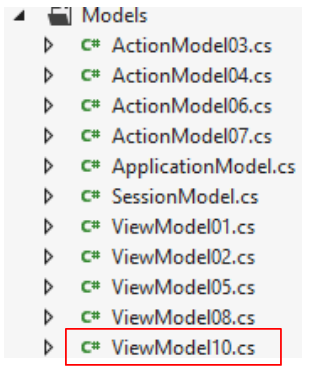 |
using System;
using System.ComponentModel.DataAnnotations;
using System.Drawing;

namespace Exemple_03.Models
{
  public class ViewModel10
  {
    [Display(Name="Text")]
    [DataType(DataType.Text)]
    public string Text { get; set; }

    [Display(Name = "TextArea")]
    [DataType(DataType.MultilineText)]
    public string MultiLineText { get; set; }

    [Display(Name = "Number")]
    public int Number { get; set; }

    [Display(Name = "Decimal")]
    [UIHint("Decimal")]
    public double Decimal { get; set; }

    [Display(Name = "Tel")]
    [DataType(DataType.PhoneNumber)]
    public string Tel { get; set; }

    [Display(Name = "Date")]
    [DataType(DataType.Date)]
    public DateTime Date { get; set; }

    [Display(Name = "Time")]
    [DataType(DataType.Time)]
    public DateTime Time { get; set; }

    [Display(Name = "HiddenInput")]
    [UIHint("HiddenInput")]
    public string HiddenInput { get; set; }

    [Display(Name = "Boolean")]
    [UIHint("Boolean")]
    public bool Boolean { get; set; }

    [Display(Name = "Email")]
    [DataType(DataType.EmailAddress)]
    public string Email{ get; set; }

    [Display(Name = "Url")]
    [DataType(DataType.Url)]
    public string Url { get; set; }

    [Display(Name = "Password")]
    [DataType(DataType.Password)]
    public string Password { get; set; }

    [Display(Name = "Currency")]
    [DataType(DataType.Currency)]
    public double Currency { get; set; }

    [Display(Name = "CreditCard")]
    [DataType(DataType.CreditCard)]
    public string CreditCard { get; set; }

    // manufacturer
    public ViewModel10()
    {
      Text = "tra la la";
      MultiLineText = "ligne1\nligne2";
      Number = 4;
      Decimal = 10.2;
      Tel = "0617181920";
      Date = DateTime.Now;
      Time = DateTime.Now;
      HiddenInput = "caché";
      Boolean = true;
      Email = "x@y.z";
      Url = "http://istia.univ-angers.fr";
      Password = "mdp";
      Currency = 4.2;
      CreditCard = "0123456789012345";
    }
  }
}
The metadata consists of the [Display, DataType, UIHint] tags.
This view template will be constructed by the following [Action10Get] action:
    // Action10-GET
    [HttpGet]
    public ViewResult Action10Get()
    {
      return View(new ViewModel10());
}
In line 5 above, we instruct the default view for the action [/First/Action10Get.cshtml] to display the view model of type [ViewModel10]. This view is as follows:
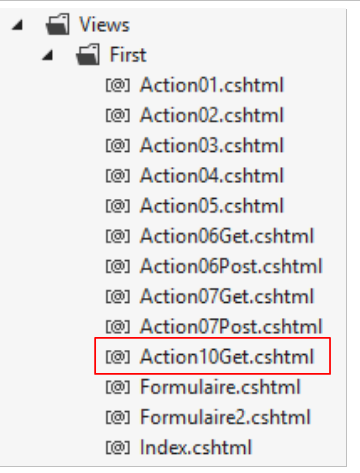 |
@model Exemple_03.Models.ViewModel10

@{
  Layout = null;
}

<!DOCTYPE html>

<html>
<head>
  <meta name="viewport" content="width=device-width" />
  <title>Action10Get</title>
</head>
<body>
  <h3>Formulaire ASP.NET MVC - 2</h3>
  @using (Html.BeginForm("Action10Post", "First"))
  {
    <table>
      <thead>
        <tr>
          <th>LabelFor</th>
          <th>EditorFor</th>
          <th>DisplayFor</th>
        </tr>
      </thead>
      <tbody>
        <tr>
          <td>@Html.LabelFor(m => m.Text)</td>
          <td>@Html.EditorFor(m => m.Text)</td>
          <td>@Html.DisplayFor(m => m.Text)</td>
        </tr>
        <tr>
          <td>@Html.LabelFor(m => m.MultiLineText)</td>
          <td>@Html.EditorFor(m => m.MultiLineText)</td>
          <td>@Html.DisplayFor(m => m.MultiLineText)</td>
        </tr>
        <tr>
          <td>@Html.LabelFor(m => m.Number)</td>
          <td>@Html.EditorFor(m => m.Number)</td>
          <td>@Html.DisplayFor(m => m.Number)</td>
        </tr>
        <tr>
          <td>@Html.LabelFor(m => m.Decimal)</td>
          <td>@Html.EditorFor(m => m.Decimal)</td>
          <td>@Html.DisplayFor(m => m.Decimal)</td>
        </tr>
        <tr>
          <td>@Html.LabelFor(m => m.Tel)</td>
          <td>@Html.EditorFor(m => m.Tel)</td>
          <td>@Html.DisplayFor(m => m.Tel)</td>
        </tr>
        <tr>
          <td>@Html.LabelFor(m => m.Date)</td>
          <td>@Html.EditorFor(m => m.Date)</td>
          <td>@Html.DisplayFor(m => m.Date)</td>
        </tr>
        <tr>
          <td>@Html.LabelFor(m => m.Time)</td>
          <td>@Html.EditorFor(m => m.Time)</td>
          <td>@Html.DisplayFor(m => m.Time)</td>
        </tr>
        <tr>
          <td>@Html.LabelFor(m => m.HiddenInput)</td>
          <td>@Html.EditorFor(m => m.HiddenInput)</td>
          <td>@Html.DisplayFor(m => m.HiddenInput)</td>
        </tr>
        <tr>
          <td>@Html.LabelFor(m => m.Boolean)</td>
          <td>@Html.EditorFor(m => m.Boolean)</td>
          <td>@Html.DisplayFor(m => m.Boolean)</td>
        </tr>
        <tr>
          <td>@Html.LabelFor(m => m.Email)</td>
          <td>@Html.EditorFor(m => m.Email)</td>
          <td>@Html.DisplayFor(m => m.Email)</td>
        </tr>
        <tr>
          <td>@Html.LabelFor(m => m.Url)</td>
          <td>@Html.EditorFor(m => m.Url)</td>
          <td>@Html.DisplayFor(m => m.Url)</td>
        </tr>
        <tr>
          <td>@Html.LabelFor(m => m.Password)</td>
          <td>@Html.EditorFor(m => m.Password)</td>
          <td>@Html.DisplayFor(m => m.Password)</td>
        </tr>
        <tr>
          <td>@Html.LabelFor(m => m.Currency)</td>
          <td>@Html.EditorFor(m => m.Currency)</td>
          <td>@Html.DisplayFor(m => m.Currency)</td>
        </tr>
        <tr>
          <td>@Html.LabelFor(m => m.CreditCard)</td>
          <td>@Html.EditorFor(m => m.CreditCard)</td>
          <td>@Html.DisplayFor(m => m.CreditCard)</td>
        </tr>
      </tbody>
    </table>
    <input type="submit" value="Valider" />
  }
</body>
</html>
For each property of the model, we use the method:
- Html.LabelFor to display the value of the property’s [DisplayName] metadata;
- Html.EditorFor to generate the HTML input tag for the property value. This method uses the property’s [DataType] and [UIHint] metadata;
- Html.DisplayFor to display the property’s value in the format specified by the [DataType] metadata.
Here is an example of how this works in the Chrome browser:
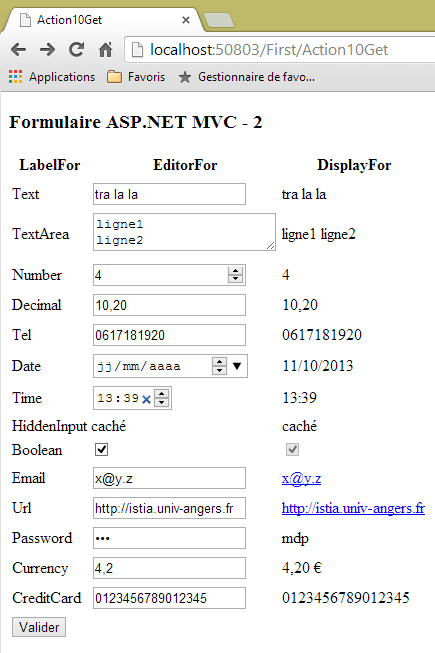
Depending on the browser used, the pages may look different. This is because the generated view uses the new tags introduced by HTML version 5, known as HTML5. Not all browsers support this version yet. In the example above, the Chrome browser supports it partially.
5.8.1. The form's [POST]
The form's [POST] is handled by the following [Action10Post] action:
    // Action10-POST
    [HttpPost]
    public ContentResult Action10Post(ViewModel10 modèle)
    {
      string erreurs = getErrorMessagesFor(ModelState);
      string texte = string.Format("Contrôleur={0}, Action={1}, valide={2}, erreurs={3}", RouteData.Values["controller"], RouteData.Values["action"], ModelState.IsValid, erreurs);
      return Content(texte, "text/plain", Encoding.UTF8);
}
- line 3: the [Action10Post] action uses the submitted form as its input model;
- line 5: we retrieve the validation errors from this form;
- line 6: the text response to the client is prepared;
- line 7: we send it.
Let’s now examine the properties of the [ViewModel10] model one by one and see how the associated metadata influences the generated HTML and the validation of the input fields.
5.8.2. [Text] property
Definition
    [Display(Name="Text")]
    [DataType(DataType.Text)]
    public string Text { get; set; }
...
Text = "tra la la";
View
      <tr>
        <td>@Html.LabelFor(m => m.Text)</td>
        <td>@Html.EditorFor(m => m.Text)</td>
        <td>@Html.DisplayFor(m => m.Text)</td>
</tr>
Visual

Generated HTML
      <tr>
        <td><label for="Text">Text</label></td>
        <td><input class="text-box single-line" id="Text" name="Text" type="text" value="tra la la" /></td>
        <td>tra la la</td>
</tr>
Comments
- The [Html.LabelFor] method generated the <label> tag on line 2. The value of the [for] attribute is the name of the parameter property of the [Html.LabelFor] method
public string Text { get; set; }
The text displayed between the start and end of the tag is the text of the metadata
[Display(Name="Text")]
The [Html.LabelFor] method always works this way. We won’t revisit this for the other properties.
- The [Html.EditorFor] method generated the <input> tag on line 3. Note that it has a [class] attribute that associates the CSS class [text-box single-line] with the tag. The [id] and [name] attributes have the value [Text], which is the name of the parameter property of the [Html.EditorFor] method. The [type] attribute has the value [text] because of the metadata
[DataType(DataType.Text)]
- the [Html.DisplayFor] method generated the text on line 4. This is the value of the parameter property of the [Html.DisplayFor] method. This method is influenced by the metadata
[DataType(DataType.Text)]
, which causes the value to be displayed as unformatted text.
5.8.3. [MultiLineText] property
Definition
    [Display(Name = "TextArea")]
    [DataType(DataType.MultilineText)]
public string MultiLineText { get; set; }
View
      <tr>
        <td>@Html.LabelFor(m => m.MultiLineText)</td>
        <td>@Html.EditorFor(m => m.MultiLineText)</td>
        <td>@Html.DisplayFor(m => m.MultiLineText)</td>
</tr>
Visual

Generated HTML
      <tr>
        <td><label for="MultiLineText">TextArea</label></td>
        <td><textarea class="text-box multi-line" id="MultiLineText" name="MultiLineText">
ligne1
ligne2</textarea></td>
        <td>ligne1
ligne2</td>
</tr>
Comments
- The [Html.EditorFor] method generated the <textarea> tag on line 3. Note that it has a [class] attribute that associates the CSS class [text-box multi-line] with the tag. The [id] and [name] attributes have the value [MultiLineText], which is the name of the parameter property of the [Html.EditorFor] method. This is always the case. We will not mention it again. The generated tag is <textarea> because of the metadata
[DataType(DataType.MultilineText)]
which specified that the property was multi-line text.
- The [Html.DisplayFor] method generated the text for lines 4–5. This is the value of the parameter property of the [Html.DisplayFor] method.
5.8.4. [Number] property
Definition
    [Display(Name = "Number")]
public int Number { get; set; }
View
      <tr>
        <td>@Html.LabelFor(m => m.Number)</td>
        <td>@Html.EditorFor(m => m.Number)</td>
        <td>@Html.DisplayFor(m => m.Number)</td>
</tr>
Visual

Generated HTML
<tr>
        <td><label for="Number">Number</label></td>
        <td><input class="text-box single-line" data-val="true" data-val-number="Le champ Number doit être un nombre." data-val-required="Le champ Number est requis." id="Number" name="Number" type="number" value="4" /></td>
        <td>4</td>
      </tr>
Comments
- The [Html.EditorFor] method generated the <input> tag on line 3 with a [type] attribute set to [number]. Apparently, this is simply because the property has the [int] type. The [data-val], [data-val-number], and [data-val-required] attributes are not recognized by HTML5. They are used by a client-side JavaScript data validation framework;
- The [Html.DisplayFor] method generated the text on line 4, which is the value of the property.
Validation
The [data-x] attributes influence client-side data validation. Here are two examples:
We enter an incorrect number and submit:
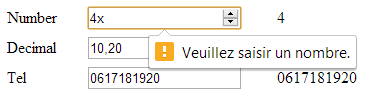
In the example above, validation occurred on the client side. The form will not be submitted until the error has been corrected.
Another example: we enter nothing:
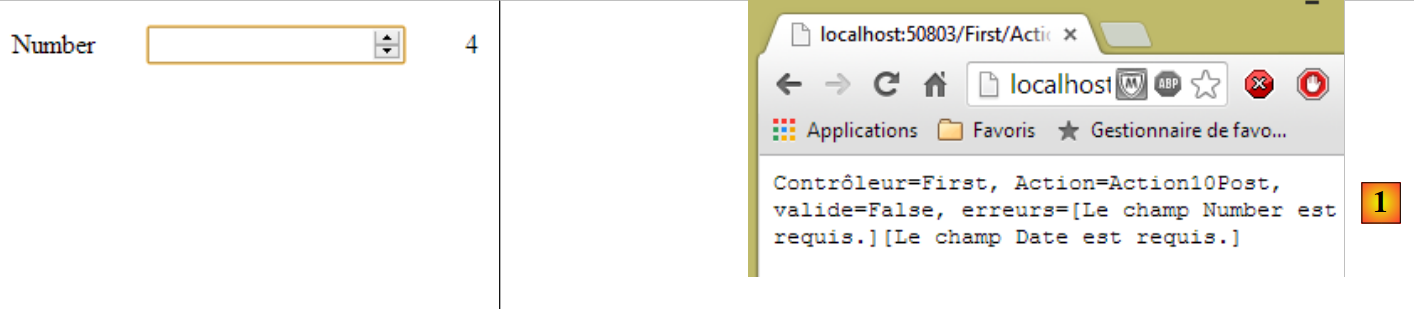 |
In [1] above, [Action10Post] reports an error. You may recall that we previously achieved this behavior by using the [Required] attribute on the property to be validated (see63 ), in this case the [Number] property. Here, we didn’t have to do that.
5.8.5. Property [Decimal]
Definition
    [Display(Name = "Decimal")]
    [UIHint("Decimal")]
public double Decimal { get; set; }
View
      <tr>
        <td>@Html.LabelFor(m => m.Decimal)</td>
        <td>@Html.EditorFor(m => m.Decimal)</td>
        <td>@Html.DisplayFor(m => m.Decimal)</td>
</tr>
Visual

Generated HTML
      <tr>
        <td><label for="Decimal">Decimal</label></td>
        <td><input class="text-box single-line" data-val="true" data-val-number="Le champ Decimal doit être un nombre." data-val-required="Le champ Decimal est requis." id="Decimal" name="Decimal" type="text" value="10,20" /></td>
        <td>10,20</td>
</tr>
Comments
- The [Html.EditorFor] method generated the <input> tag on line 3 with a [type] attribute of type [text]. The other attributes are identical to those generated for the previous [Number] property. The metadata:
[UIHint("Decimal")]
causes the property value to be displayed with two decimal places for both the [Html.EditorFor] and [Html.DisplayFor] methods
Validation
No validation errors are reported on the client side, unlike in the previous case. The error is reported only by the [Action10Post] action. Again, the decimal number is required without needing to set the [Required] attribute.
5.8.6. [Tel] property
Definition
    [Display(Name = "Tel")]
    [DataType(DataType.PhoneNumber)]
public string Tel { get; set; }
View
      <tr>
        <td>@Html.LabelFor(m => m.Tel)</td>
        <td>@Html.EditorFor(m => m.Tel)</td>
        <td>@Html.DisplayFor(m => m.Tel)</td>
</tr>
Visual

Generated HTML
      <tr>
        <td><label for="Tel">Tel</label></td>
        <td><input class="text-box single-line" id="Tel" name="Tel" type="tel" value="0617181920" /></td>
        <td>0617181920</td>
</tr>
Comments
- The [Html.EditorFor] method generated the <input> tag on line 3 with a [type] attribute of type [tel]. This value was generated based on the metadata:
[DataType(DataType.PhoneNumber)]
The [tel] type for a <input> tag is a new feature in HTML5. The Chrome browser treated it as a <input> tag with the [text] type.
Validation
No validation errors are reported on the client or server side. You can enter anything.
5.8.7. [Date] property
Definition
    [Display(Name = "Date")]
    [DataType(DataType.Date)]
public DateTime Date { get; set; }
View
      <tr>
        <td>@Html.LabelFor(m => m.Date)</td>
        <td>@Html.EditorFor(m => m.Date)</td>
        <td>@Html.DisplayFor(m => m.Date)</td>
</tr>
Visual
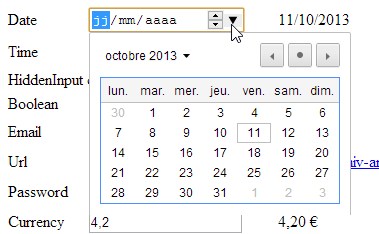
Generated HTML
      <tr>
        <td><label for="Date">Date</label></td>
        <td><input class="text-box single-line" data-val="true" data-val-date="Le champ Date doit être une date." data-val-required="Le champ Date est requis." id="Date" name="Date" type="date" value="11/10/2013" /></td>
        <td>11/10/2013</td>
</tr>
Comments
- The [Html.EditorFor] method generated the <input> tag on line 3 with a [type] attribute of type [date]. This value was generated based on the metadata:
[DataType(DataType.Date)]
The [date] type for a <input> tag is a new feature in HTML5. The Chrome browser recognizes it and allows the date to be entered using a calendar. Furthermore, the entered date is displayed in the [dd/mm/yyyy] format, meaning that Chrome adapts the date format to the browser’s [locale].
- The [Html.DisplayFor] method also wrote the date in the [dd/mm/yyyy] format, again due to the presence of the [Date] metadata.
Validation
An invalid date is flagged on the client side [1], preventing the form from being posted to the server.
 |
The absence of a date is not flagged on the client side but is flagged on the server side [2].
5.8.8. [Time] property
Definition
    [Display(Name = "Time")]
    [DataType(DataType.Time)]
public DateTime Time { get; set; }
View
      <tr>
        <td>@Html.LabelFor(m => m.Time)</td>
        <td>@Html.EditorFor(m => m.Time)</td>
        <td>@Html.DisplayFor(m => m.Time)</td>
</tr>
Visual

Generated HTML
      <tr>
        <td><label for="Time">Time</label></td>
        <td><input class="text-box single-line" data-val="true" data-val-required="Le champ Time est requis." id="Time" name="Time" type="time" value="11:17" /></td>
        <td>11:17</td>
</tr>
Comments
- The [Html.EditorFor] method generated the <input> tag on line 3 with a [type] attribute of type [time]. This value was generated based on the metadata:
[DataType(DataType.Time)]
The [time] type for a <input> tag is a new feature in HTML5. The Chrome browser recognizes it and allows you to enter a time in the format [hh:mm];
- The [Html.DisplayFor] method also displayed the time in the format [hh:mm], again due to the presence of the [Time] metadata.
Validation
It is technically impossible to enter an invalid time. The absence of a time is flagged on the server side:
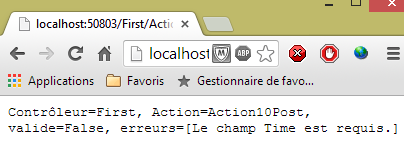
5.8.9. [HiddenInput] property
Definition
    [Display(Name = "HiddenInput")]
    [UIHint("HiddenInput")]
public string HiddenInput { get; set; }
View
      <tr>
        <td>@Html.LabelFor(m => m.HiddenInput)</td>
        <td>@Html.EditorFor(m => m.HiddenInput)</td>
        <td>@Html.DisplayFor(m => m.HiddenInput)</td>
</tr>
Visual

Generated HTML
<tr>
<td><label for="HiddenInput">HiddenInput</label></td>
<td>caché<input id="HiddenInput" name="HiddenInput" type="hidden" value="caché" /></td>
<td>caché</td>
</tr>
Comments
- The [Html.EditorFor] method generated the <input> tag on line 3 with a [type] attribute set to [hidden], i.e., a hidden field (but one that is still submitted). This value was generated due to the metadata:
[UIHint("HiddenInput")]
- The [Html.DisplayFor] method wrote the value of the hidden field.
5.8.10. [Boolean] property
Definition
    [Display(Name = "Boolean")]
public bool Boolean { get; set; }
View
      <tr>
        <td>@Html.LabelFor(m => m.Boolean)</td>
        <td>@Html.EditorFor(m => m.Boolean)</td>
        <td>@Html.DisplayFor(m => m.Boolean)</td>
</tr>
Visual

Generated HTML
      <tr>
        <td><label for="Boolean">Boolean</label></td>
        <td><input checked="checked" class="check-box" data-val="true" data-val-required="Le champ Boolean est requis." id="Boolean" name="Boolean" type="checkbox" value="true" /><input name="Boolean" type="hidden" value="false" /></td>
        <td><input checked="checked" class="check-box" disabled="disabled" type="checkbox" /></td>
</tr>
Comments
- The [Html.EditorFor] method generated the <input> tag on line 3 with a [type] attribute set to [checkbox], i.e., a checkbox. This value was generated because the property is Boolean:
public bool Boolean { get; set; }
- The [Html.DisplayFor] method generated line 4, also a checkbox (type attribute) but disabled (disabled attribute).
5.8.11. [Email] property
Definition
    [Display(Name = "Email")]
    [DataType(DataType.EmailAddress)]
public string Email{ get; set; }
View
      <tr>
        <td>@Html.LabelFor(m => m.Email)</td>
        <td>@Html.EditorFor(m => m.Email)</td>
        <td>@Html.DisplayFor(m => m.Email)</td>
</tr>
Visual

Generated HTML
      <tr>
        <td><label for="Email">Email</label></td>
        <td><input class="text-box single-line" id="Email" name="Email" type="email" value="x@y.z" /></td>
        <td><a href="mailto:x@y.z">x@y.z</a></td>
</tr>
Comments
- The [Html.EditorFor] method generated the <input> tag on line 3 with a [type] attribute of type [email]. This type is new in HTML5. This type was generated because of the metadata:
[DataType(DataType.EmailAddress)]
Chrome appears to have treated this type as a [text] type.
- The [Html.DisplayFor] method generated line 4: a link to the email address.
Validation
An invalid address is reported on the client side [1]:
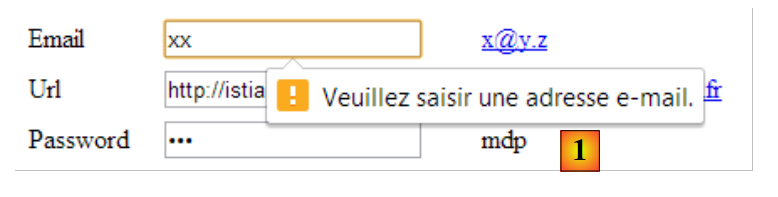 |
Leaving the field blank does not cause an error.
5.8.12. [Url] property
Definition
    [Display(Name = "Url")]
    [DataType(DataType.Url)]
public string Url { get; set; }
View
      <tr>
        <td>@Html.LabelFor(m => m.Url)</td>
        <td>@Html.EditorFor(m => m.Url)</td>
        <td>@Html.DisplayFor(m => m.Url)</td>
</tr>
Visual

Generated HTML
      <tr>
        <td><label for="Url">Url</label></td>
        <td><input class="text-box single-line" id="Url" name="Url" type="url" value="http://istia.univ-angers.fr" /></td>
        <td><a href="http://istia.univ-angers.fr">http://istia.univ-angers.fr</a></td>
</tr>
Comments
- The [Html.EditorFor] method generated the <input> tag on line 3 with a [type] attribute of type [url]. This type is new in HTML5. It was generated because of the metadata:
[DataType(DataType.Url)]
Chrome appears to treat this type as a [text] type.
- The [Html.DisplayFor] method generated line 4: a link to the URL.
Validation
An invalid URL is reported on the client side [1]:
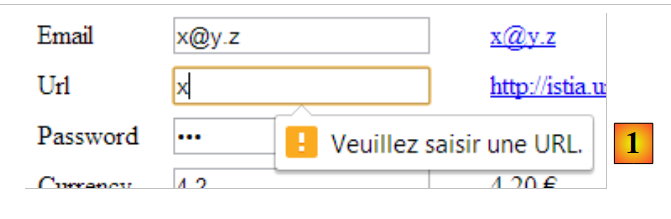 |
No input does not cause an error.
5.8.13. [Password] property
Definition
    [Display(Name = "Password")]
    [DataType(DataType.Password)]
public string Password { get; set; }
View
      <tr>
        <td>@Html.LabelFor(m => m.Password)</td>
        <td>@Html.EditorFor(m => m.Password)</td>
        <td>@Html.DisplayFor(m => m.Password)</td>
</tr>
Visual

Generated HTML
      <tr>
        <td><label for="Password">Password</label></td>
        <td><input class="text-box single-line password" id="Password" name="Password" type="password" value="mdp" /></td>
        <td>mdp</td>
</tr>
Comments
- The [Html.EditorFor] method generated the <input> tag on line 3 with a [type] attribute of type [password]. This type was generated based on the metadata:
[DataType(DataType.Password)]
- The [Html.DisplayFor] method generated line 4.
5.8.14. [Currency] property
Definition
    [Display(Name = "Currency")]
    [DataType(DataType.Currency)]
public double Currency { get; set; }
View
      <tr>
        <td>@Html.LabelFor(m => m.Currency)</td>
        <td>@Html.EditorFor(m => m.Currency)</td>
        <td>@Html.DisplayFor(m => m.Currency)</td>
</tr>
Visual

Generated HTML
      <tr>
        <td><label for="Currency">Currency</label></td>
        <td><input class="text-box single-line" data-val="true" data-val-number="Le champ Currency doit être un nombre." data-val-required="Le champ Currency est requis." id="Currency" name="Currency" type="text" value="4,2" /></td>
        <td>4,20 €</td>
</tr>
Comments
- The [Html.EditorFor] method generated the <input> tag on line 3 with a [type] attribute set to [text];
- The [Html.DisplayFor] method generated line 4, a number with two decimal places and a currency symbol. This format was used because of the metadata:
[DataType(DataType.Currency)]
Validation
An invalid value [1] or a missing value [2] is reported on the server side:
 |
5.8.15. [CreditCard] property
Definition
    [Display(Name = "CreditCard")]
    [DataType(DataType.CreditCard)]
public string CreditCard { get; set; }
View
      <tr>
        <td>@Html.LabelFor(m => m.CreditCard)</td>
        <td>@Html.EditorFor(m => m.CreditCard)</td>
        <td>@Html.DisplayFor(m => m.CreditCard)</td>
</tr>
Visual

Generated HTML
      <tr>
        <td><label for="CreditCard">CreditCard</label></td>
        <td><input class="text-box single-line" id="CreditCard" name="CreditCard" type="text" value="0123456789012345" /></td>
        <td>0123456789012345</td>
</tr>
Comments
- The [Html.EditorFor] method generated the <input> tag on line 3 with a [type] attribute of type [text]. The [Html.DisplayFor] method generated line 4. It is not clear here what the metadata contributes:
[DataType(DataType.CreditCard)]
Validation
No validation is performed, either on the client side or on the server side.
5.9. Form validation
We have already addressed the issue of validating an action’s model in Section 4.5 and the following sections. We revisit this issue in the context of a form:
- how to notify the user of input errors;
- perform validations on both the client-side and server-side to report errors to the user more quickly.
5.9.1. Server-side validation
Consider the following model:
using System;
using System.Collections.Generic;
using System.ComponentModel.DataAnnotations;
using System.Net.Mail;

namespace Exemple_03.Models
{
  public class ViewModel11 : IValidatableObject
  {

    [Required(ErrorMessage = "Information requise")]
    [Display(Name = "Chaîne d'au moins quatre caractères")]
    [RegularExpression(@"^.{4,}$", ErrorMessage = "Information incorrecte")]
    public string Chaine1 { get; set; }

    [Display(Name = "Chaîne d'au plus quatre caractères")]
    [Required(ErrorMessage = "Information requise")]
    [RegularExpression(@"^.{1,4}$", ErrorMessage = "Information incorrecte")]
    public string Chaine2 { get; set; }

    [Required(ErrorMessage = "Information requise")]
    [Display(Name = "Chaîne de quatre caractères exactement")]
    [RegularExpression(@"^.{4,4}$", ErrorMessage = "Information incorrecte")]
    public string Chaine3 { get; set; }

    [Required(ErrorMessage = "Information requise")]
    [Display(Name = "Nombre entier")]
    public int Entier1 { get; set; }

    [Display(Name = "Nombre entier dans l'intervalle [1,100]")]
    [Required(ErrorMessage = "Information requise")]
    [Range(1, 100, ErrorMessage = "Information incorrecte")]
    public int Entier2 { get; set; }

    [Display(Name = "Nombre réel")]
    [Required(ErrorMessage = "Information requise")]
    public double Reel1 { get; set; }

    [Display(Name = "Nombre réel dans l'intervalle [10.2, 11.3]")]
    [Required(ErrorMessage = "Information requise")]
    [Range(10.2, 11.3, ErrorMessage = "Information incorrecte")]
    public double Reel2 { get; set; }

    [Display(Name = "Adresse mail")]
    [Required(ErrorMessage = "Information requise")]
    public string Email1 { get; set; }

    [Display(Name = "Date sous la forme dd/jj/aaaa")]
    [RegularExpression(@"\s*\d{2}/\d{2}/\d{4}\s*", ErrorMessage = "Information incorrecte")]
    [Required(ErrorMessage = "Information requise")]
    public string Regexp1 { get; set; }

    [Display(Name = "Date postérieure à celle d'aujourd'hui")]
    [Required(ErrorMessage = "Information requise")]
    [DataType(DataType.Date)]
    public DateTime Date1 { get; set; }

    // validation
    public IEnumerable<ValidationResult> Validate(ValidationContext validationContext)
    {
      List<ValidationResult> résultats = new List<ValidationResult>();
      // Date 1
      if (Date1.Date <= DateTime.Now.Date)
      {
        résultats.Add(new ValidationResult("Information incorrecte", new string[] { "Date1" }));
      }
      // Email1
      try
      {
        new MailAddress(Email1);
      }
      catch
      {
        résultats.Add(new ValidationResult("Information incorrecte", new string[] { "Email1" }));
      }
      // return the list of errors
      return résultats;
    }
  }
}
This model will be displayed by the following view [Action11Get.cshtml]:
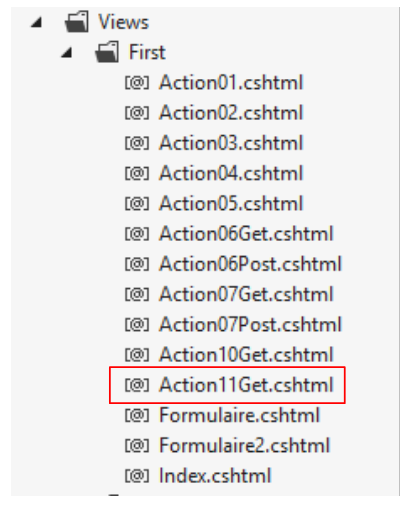 |
@model Exemple_03.Models.ViewModel11
@{
  Layout = null;
}

<!DOCTYPE html>

<html>
<head>
  <meta name="viewport" content="width=device-width" />
  <title>Action11Get</title>
  <link rel="stylesheet" href="~/Content/Site.css" />
</head>
<body>
  <h3>Formulaire ASP.NET MVC – Validation 1</h3>
  @using (Html.BeginForm("Action11Post", "First"))
  {
    <table>
      <thead>
        <tr>
          <th>Type attendu</th>
          <th>Valeur saisie</th>
          <th>Message d'erreur</th>
        </tr>
      </thead>
      <tbody>
        <tr>
          <td>@Html.LabelFor(m => m.Chaine1)</td>
          <td>@Html.EditorFor(m => m.Chaine1)</td>
          <td>@Html.ValidationMessageFor(m => m.Chaine1)</td>
        </tr>
        <tr>
          <td>@Html.LabelFor(m => m.Chaine2)</td>
          <td>@Html.EditorFor(m => m.Chaine2)</td>
          <td>@Html.ValidationMessageFor(m => m.Chaine2)</td>
        </tr>
        <tr>
          <td>@Html.LabelFor(m => m.Chaine3)</td>
          <td>@Html.EditorFor(m => m.Chaine3)</td>
          <td>@Html.ValidationMessageFor(m => m.Chaine3)</td>
        </tr>
        <tr>
          <td>@Html.LabelFor(m => m.Entier1)</td>
          <td>@Html.EditorFor(m => m.Entier1)</td>
          <td>@Html.ValidationMessageFor(m => m.Entier1)</td>
        </tr>
        <tr>
          <td>@Html.LabelFor(m => m.Entier2)</td>
          <td>@Html.EditorFor(m => m.Entier2)</td>
          <td>@Html.ValidationMessageFor(m => m.Entier2)</td>
        </tr>
        <tr>
          <td>@Html.LabelFor(m => m.Reel1)</td>
          <td>@Html.EditorFor(m => m.Reel1)</td>
          <td>@Html.ValidationMessageFor(m => m.Reel1)</td>
        </tr>
        <tr>
          <td>@Html.LabelFor(m => m.Reel2)</td>
          <td>@Html.EditorFor(m => m.Reel2)</td>
          <td>@Html.ValidationMessageFor(m => m.Reel2)</td>
        </tr>
        <tr>
          <td>@Html.LabelFor(m => m.Email1)</td>
          <td>@Html.EditorFor(m => m.Email1)</td>
          <td>@Html.ValidationMessageFor(m => m.Email1)</td>
        </tr>
        <tr>
          <td>@Html.LabelFor(m => m.Regexp1)</td>
          <td>@Html.EditorFor(m => m.Regexp1)</td>
          <td>@Html.ValidationMessageFor(m => m.Regexp1)</td>
        </tr>
        <tr>
          <td>@Html.LabelFor(m => m.Date1)</td>
          <td>@Html.EditorFor(m => m.Date1)</td>
          <td>@Html.ValidationMessageFor(m => m.Date1)</td>
        </tr>
      </tbody>
    </table>
    <p>
      <input type="submit" value="Valider" />
    </p>
  }
</body>
</html>
- line 12: references the [Site.css] stylesheet. By default, it contains classes used to highlight form input errors;
- lines 18–25: a three-column table:
- Column 1 displays text using the [Html.LabelFor] method;
- Column 2 displays the input using the [Html.EditorFor] method,
- Column 3 displays any input errors using the [Html.ValidationMessageFor] method;
The [Action11Get] action is used to display the form:
    // Action11-GET
    [HttpGet]
    public ViewResult Action11Get()
    {
      return View("Action11Get", new ViewModel11());
}
The [Action11Post] action is used to redisplay the form with any input errors:
    // Action11-POST
    [HttpPost]
    public ViewResult Action11Post(ViewModel11 modèle)
    {
      return View("Action11Get", modèle);
}
- Line 3: The [ViewModel11] model is created and then initialized with the posted values. Errors may then occur. Each invalid property P of the model is associated with an error message. This is the message returned by the form’s [Html.ValidationMessageFor] method.
Here is an example of execution:
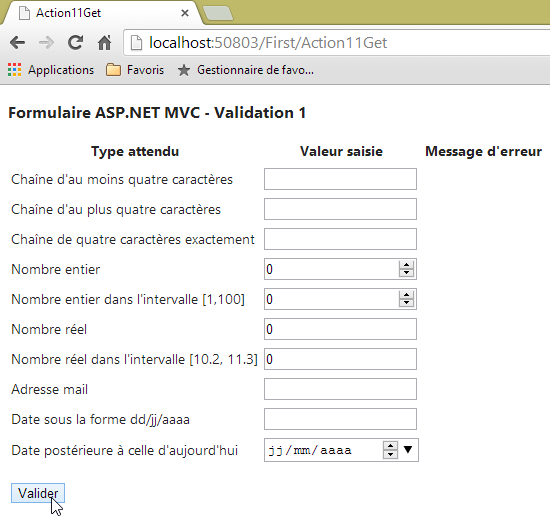
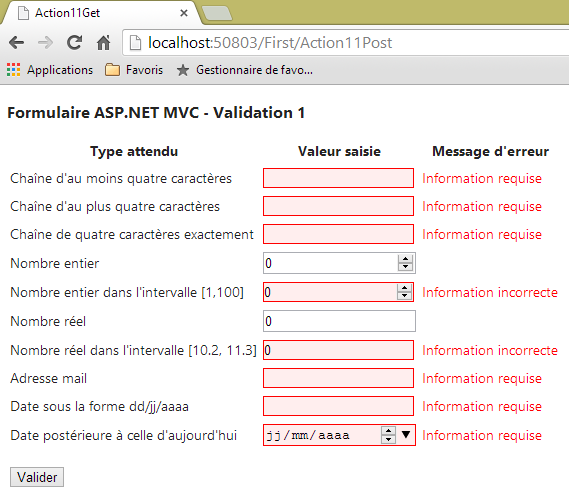
Here is another example:
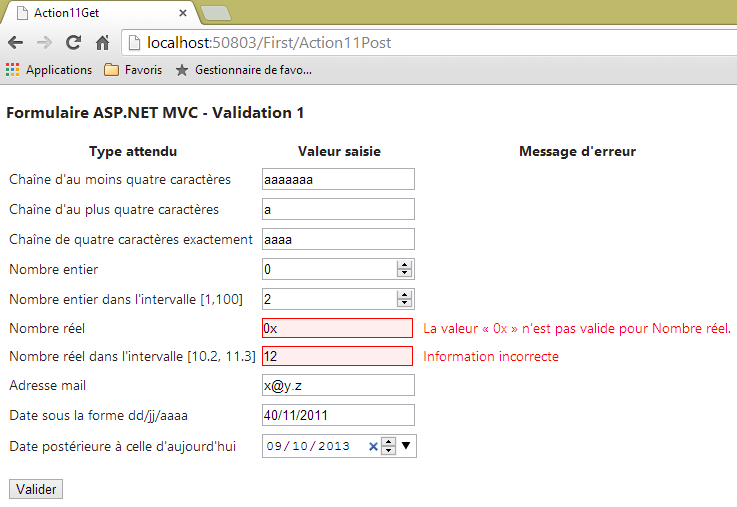
Note that both dates are incorrect (the current date is 10/11/2013) but the errors are not reported. These errors are detected by the model’s [Validate] method:
    // validation
    public IEnumerable<ValidationResult> Validate(ValidationContext validationContext)
    {
      List<ValidationResult> résultats = new List<ValidationResult>();
      // Date 1
      if (Date1.Date <= DateTime.Now.Date)
      {
        résultats.Add(new ValidationResult("Information incorrecte", new string[] { "Date1" }));
      }
      // Email1
      try
      {
        new MailAddress(Email1);
      }
      catch
      {
        résultats.Add(new ValidationResult("Information incorrecte", new string[] { "Email1" }));
      }
      // Regexp1
      try
      {
        DateTime.ParseExact(Regexp1, "dd/MM/yyyy", CultureInfo.CreateSpecificCulture("fr-FR"));
      }
      catch
      {
        résultats.Add(new ValidationResult("Information incorrecte", new string[] { "Regexp1" }));
      }

      // on rend la liste des erreurs
      return résultats;
}
The [Validate] method is only executed once all attribute validations have passed. This is demonstrated in a final example:
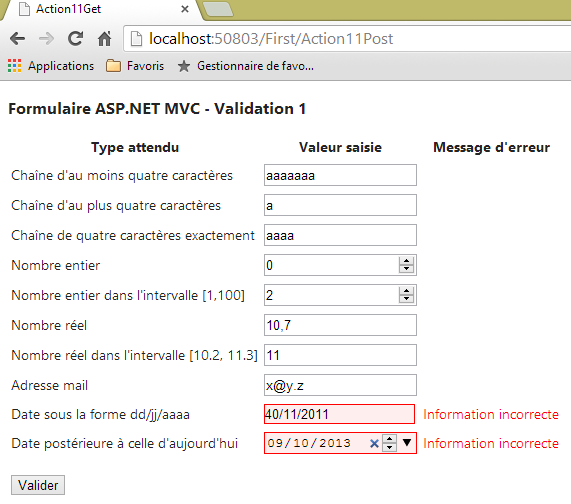
5.9.2. Client-side validation
All previous validations were performed on the server side. This requires a round trip between the client and the server for the user to see their errors. Client-side validation uses JavaScript code to notify the user of errors as early as possible, and in any case before the POST request. The POST request can only occur once all detected errors have been corrected.
We’ll use the previous [ViewModel11] model, but now we’ll display it using the following [Action12Get.cshtml] view:
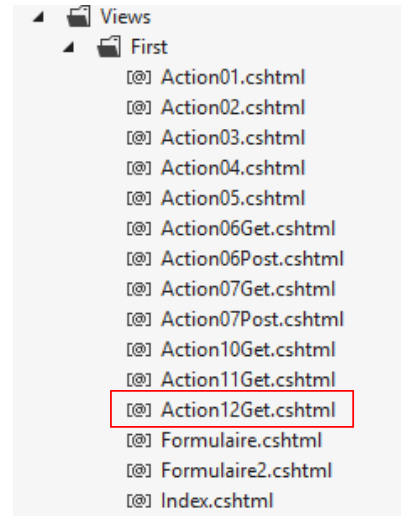 |
@model Exemple_03.Models.ViewModel11
@{
  Layout = null;
}

<!DOCTYPE html>

<html>
<head>
  <meta name="viewport" content="width=device-width" />
  <title>Action12Get</title>
  <link rel="stylesheet" href="~/Content/Site.css" />
  <script type="text/javascript" src="~/Scripts/jquery-1.8.2.min.js" ></script>
  <script type="text/javascript" src="~/Scripts/jquery.validate.min.js" ></script>
  <script type="text/javascript" src="~/Scripts/jquery.validate.unobtrusive.min.js" ></script>
</head>
<body>
  <h3>Formulaire ASP.NET MVC - Validation 1</h3>
  @using (Html.BeginForm("Action11Post", "First"))
  {
    <table>
      <thead>
        <tr>
          <th>Type attendu</th>
          <th>Valeur saisie</th>
          <th>Message d'erreur</th>
        </tr>
      </thead>
      <tbody>
...
      </tbody>
    </table>
    <p>
      <input type="submit" value="Valider" />
    </p>
  }
</body>
</html>
Note: Line 13—adjust the jQuery version to match the one you have with your version of Visual Studio (see below).
Client-side validation requires line 3 below to be present in the application's [Web.config] file.
  <appSettings>
    ...
    <add key="ClientValidationEnabled" value="true" />
</appSettings>
- Lines 1–4: The [appSettings] section must be a direct child of the [configuration] section in the [Web.config] file;
The [Action12Get] view is identical to the previous [Action11Get] view except for lines 13–15. These lines include the JavaScript scripts required for client-side validation in the view. These scripts are located in the project’s [Scripts] folder:
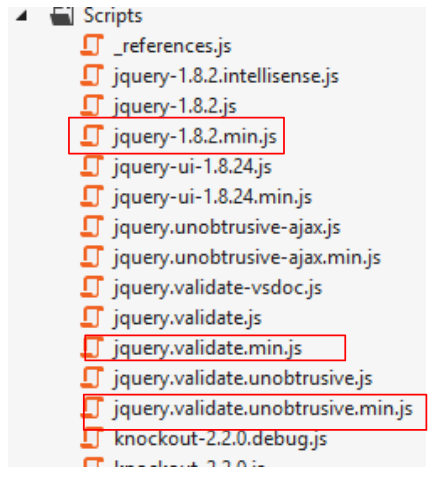 |
Each script has a normal version [.js] and a minified version [min.js]. The latter version is smaller but unreadable. It is used in production. The readable version is used in development.
The [Action12Get.cshtml] view will be displayed by the following [Action12Get] action:
    // Action12-GET
    [HttpGet]
    public ViewResult Action12Get()
    {
      return View("Action12Get", new ViewModel11());
}
The submitted form will be processed by the following [Action12Post] action:
    // Action12-POST
    [HttpPost]
    public ViewResult Action12Post(ViewModel11 modèle)
    {
      return View("Action12Get", modèle);
}
Let's see how this works with an example:
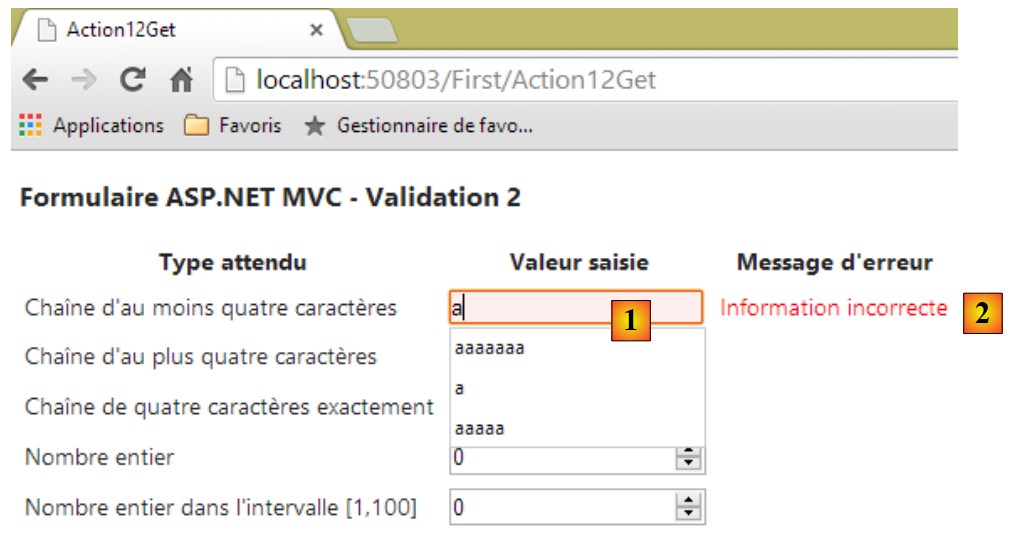 |
As soon as you type a character in [1], the message in [2] appears because the expected value must be at least four characters long. Thus, validation occurs with each new character typed. The error message disappears after the fourth character is typed. With that done, let’s submit the form:
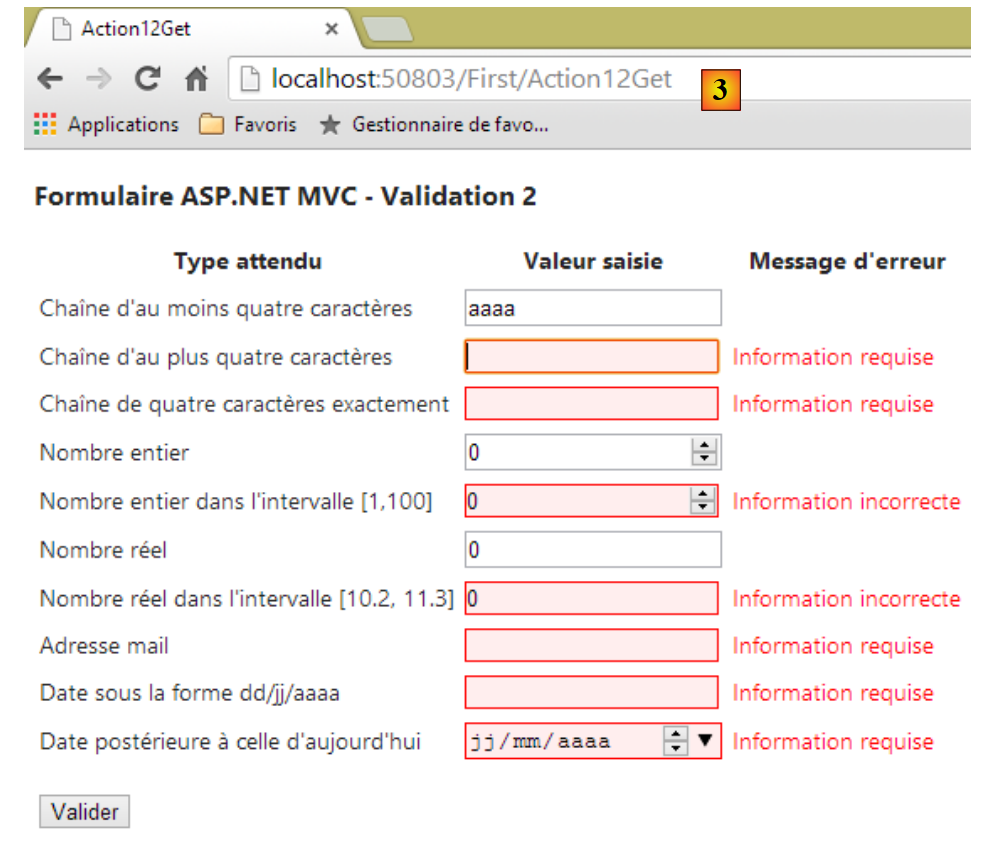 |
The URL [3] shows us that the [POST] did not take place. But clicking the [Validate] button triggered all client-side validations, and new error messages appeared.
Let’s look at the HTML generated for the first entry, for example:
<tr>
<td><label for="Chaine1">Chaîne d'au moins quatre caractères</label></td>
<td><input class="text-box single-line" data-val="true" data-val-regex="Information incorrecte" data-val-regex-pattern="^.{4,}$" data-val-required="Information requise" id="Chaine1" name="Chaine1" type="text" value="" /></td>
<td><span class="field-validation-valid" data-valmsg-for="Chaine1" data-valmsg-replace="true"></span></td>
</tr>
- Line 3 contains:
- the error message for when an entry is missing [data-val-required],
- the error message for when the input is incorrect [data-val-regex],
- the regular expression for the entered string [data-val-regex-pattern];
- line 4, other attributes [data-x] used to display any error messages;
The [data-x] attributes of the generated tags are used by the JavaScript we have embedded in the view. If this JavaScript is missing, these attributes are simply ignored, and there is no client-side validation. It works the same way as in the previous example. Hence the term [unobtrusive] for this technique.
5.10. Handling Navigation and Action Links
We will create the following two views to illustrate link management within a view:
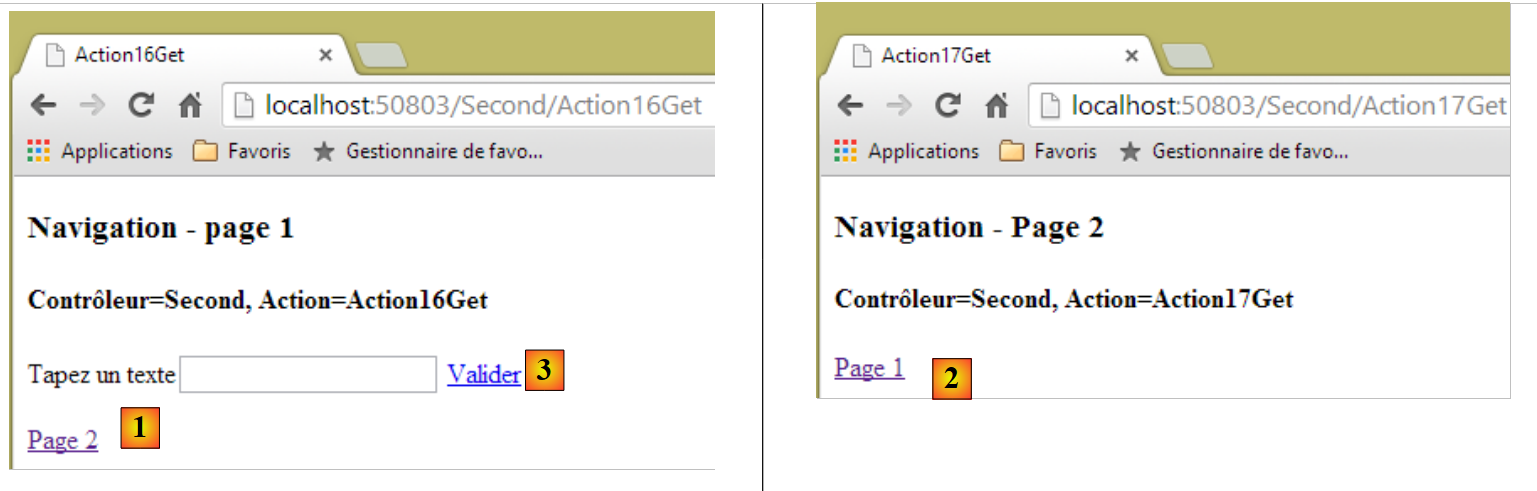 |
- In [1] and [2], we have two navigation links;
- in [3], there is an action link that submits the form. It is not used for navigation.
Page 1 is generated by the following [Action16Get.cshtml] view:
@{
  Layout = null;
}

<!DOCTYPE html>

<html>
<head>
  <meta name="viewport" content="width=device-width" />
  <title>Action16Get</title>
  <script>
    function postForm() {
      // on récupère le formulaire du document
      var form = document.forms[0];
      // soumission
      form.submit();
    }
  </script>
</head>
<body>
  <h3>Navigation - page 1</h3>
  <h4>@ViewBag.info</h4>
  @using (Html.BeginForm("Action16Post", "Second"))
  {
    @Html.Label("data", "Tapez un texte")
    @Html.TextBox("data")
    <a href="javascript:postForm()">Valider</a>
  }
  <p>
    @Html.ActionLink("Page 2", "Action17Get", "Second")
  </p>
</body>
</html>
- line 22: information initialized by the action that will render the view;
- lines 23–28: a form;
- line 25: a label for the [data] field;
- line 26: an input field named [data];
- line 27: a [submit] link. When clicked, the JavaScript function [postForm] is executed (href attribute). This function is defined on lines 12–17;
- line 14: a reference is retrieved for the firstform in the document, the one on line 23;
- line 16: this form is submitted. Ultimately, it behaves as if a [submit] button had been clicked. The form is submitted to the controller and action specified on line 23;
- line 30: a navigation link. The generated HTML code is as follows:
<a href="/Second/Action17Get">Page 2</a>
The method used is ActionLink(Text, Action, Controller).
Page 2 is generated by the following view [Action17Get.cshtml]:
@{
  Layout = null;
}

<!DOCTYPE html>

<html>
<head>
  <meta name="viewport" content="width=device-width" />
  <title>Action17Get</title>
</head>
<body>
  <h3>Navigation - Page 2</h3>
  <h4>@ViewBag.info</h4>
  <p>
    @Html.ActionLink("Page 1", "Action16Get", "Second")
  </p>
</body>
</html>
The actions that generate these views are as follows:
      // Action16-GET
      [HttpGet]
      public ViewResult Action16Get()
      {
        ViewBag.info = string.Format("Contrôleur={0}, Action={1}", RouteData.Values["controller"], RouteData.Values["action"]);
        return View("Action16Get");
      }

      // Action16-POST
      [HttpPost]
      public ViewResult Action16Post(string data)
      {
        ViewBag.info = string.Format("Contrôleur={0}, Action={1}, Data={2}", RouteData.Values["controller"], RouteData.Values["action"], data);
        return View("Action16Get");
      }

      // Action17-GET
      [HttpGet]
      public ViewResult Action17Get()
      {
        ViewBag.info = string.Format("Contrôleur={0}, Action={1}", RouteData.Values["controller"], RouteData.Values["action"]);
        return View();
}
- line 6, the action [Action16Get] renders the view [Action16Get.cshtml], i.e., page 1 of the example. This view is based on the [ViewBag] (line 5);
- line 19: the [Action17Get] action generates the [Action17Get.cshtml] view, i.e., page 2 of the example. This view is based on the [ViewBag] (line 21);
- line 11: the [Action16Post] action processes the POST request from the form in the [Action16Get.cshtml] view. It receives the parameter named [data]. Recall that this is the name of the input field in the form;
- line 13: information is placed in the [ViewBag];
- line 14: the [Action16Get.cshtml] view is displayed.
Readers are encouraged to test this example.