6. Internationalization of Views
Here we will address the issue of view internationalization. This is a complex issue that is well described in the following article by Scott Hanselman:
First, let’s review his definitions of the various terms related to view internationalization:
Internationalization (i18n) | making the application support different languages and locales |
Localization (l10n) | making the application support a specific language/locale pair |
Globalization | the combination of Internationalization and Localization |
Language | spoken language – designated by a code ISO (fr: French, es: Spanish, en: English, ...) |
Locale | a variant of the language – also designated by a code ISO (en_GB: British English, en_US: American English, ...) |
Let’s tackle the problem with a first example.
6.1. Localization of real numbers
We can see an anomaly in the previous input form:
 |
For the real number, we entered [0,3], and it was not accepted. We need to enter [0.3]:
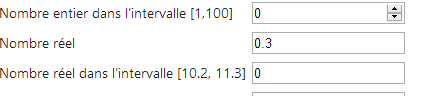 |
The expected format is therefore the Anglo-Saxon format, not the French format. A search on the internet reveals some solutions. Here is one of them.
Actions [GET] and [POST] become the following:
    // Action13-GET
    [HttpGet]
    public ViewResult Action13Get()
    {
      return View("Action13Get", new ViewModel11());
}
    // Action13-POST
    [HttpPost]
    public ViewResult Action13Post(ViewModel11 modèle)
    {
      return View("Action13Get", modèle);
}
The view [Action13Get.cshtml] is identical to the view [Action12Get.cshtml] except for the scripts Javascript:
<head>
  <meta name="viewport" content="width=device-width" />
  <title>Action13Get</title>
  <link rel="stylesheet" href="~/Content/Site.css" />
  <script type="text/javascript" src="~/Scripts/jquery-1.8.2.min.js"></script>
  <script type="text/javascript" src="~/Scripts/jquery.validate.min.js"></script>
  <script type="text/javascript" src="~/Scripts/jquery.validate.unobtrusive.min.js"></script>
...
  <script type="text/javascript" src="~/Scripts/myscripts.js"></script>

</head>
Note: Line 5, change the version from jQuery to match your version from Visual Studio.
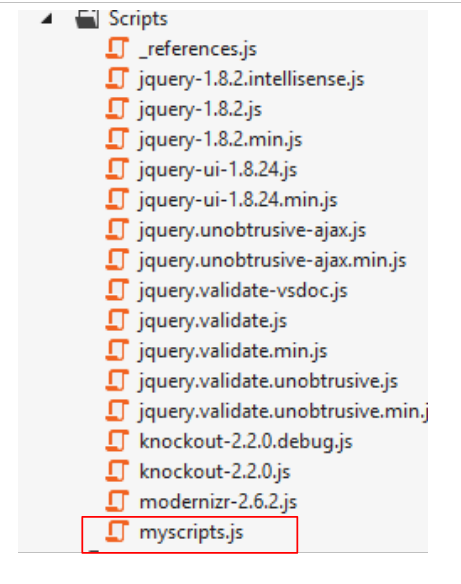
- On line 9, we have added a script named [myscripts.js] . It is as follows:
 |
// http://blog.instance-factory.com/?p=268
$.validator.methods.number = function (value, element) {
  return this.optional(element) ||
      !isNaN(Globalize.parseFloat(value));
}

$.validator.methods.date = function (value, element) {
  return this.optional(element) ||
      !isNaN(Globalize.parseDate(value));
}

jQuery.extend(jQuery.validator.methods, {
  range: function (value, element, param) {
    //Use the Globalization plugin to parse the value
    var val = Globalize.parseFloat(value);
    return this.optional(element) || (
        val >= param[0] && val <= param[1]);
  }
});

// au chargement du document
$(document).ready(function () {
  var culture = 'fr-FR';
  Globalize.culture(culture);
});
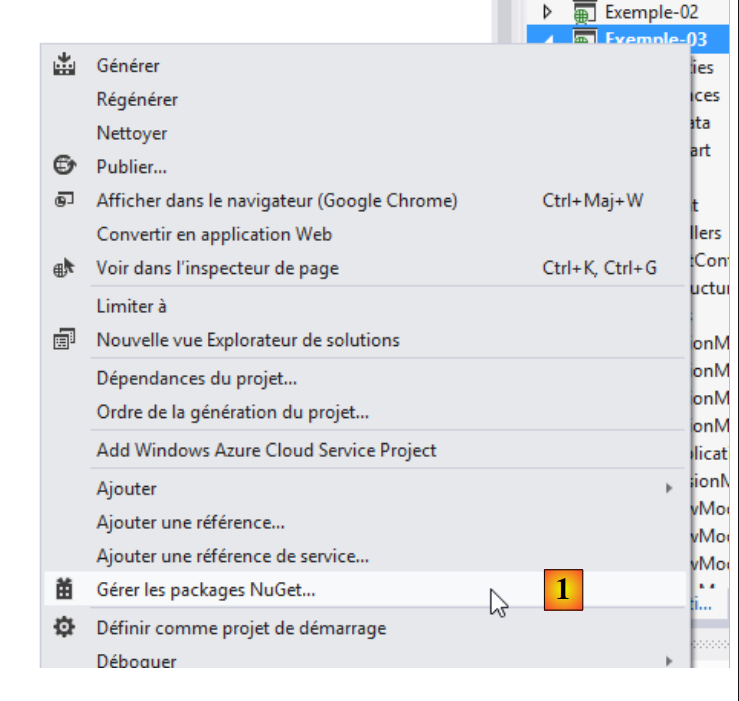
I indicated on line 1 where this script was found. I won’t try to explain it because I don’t understand it. The Javascript can sometimes be a bit cryptic. Lines 4, 9, 15: a [Globalize] object is used. This is provided by the JQuery Globalization library, which can be obtained with [NuGet]:
 |
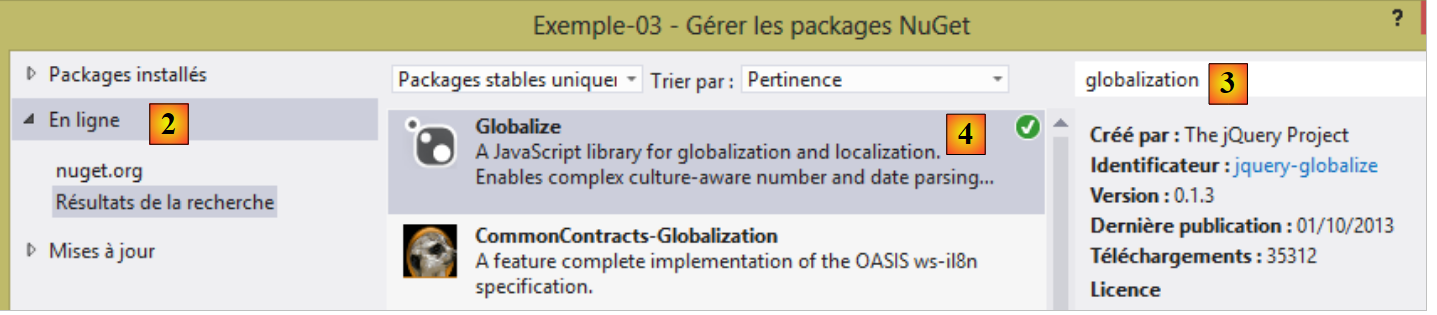 |
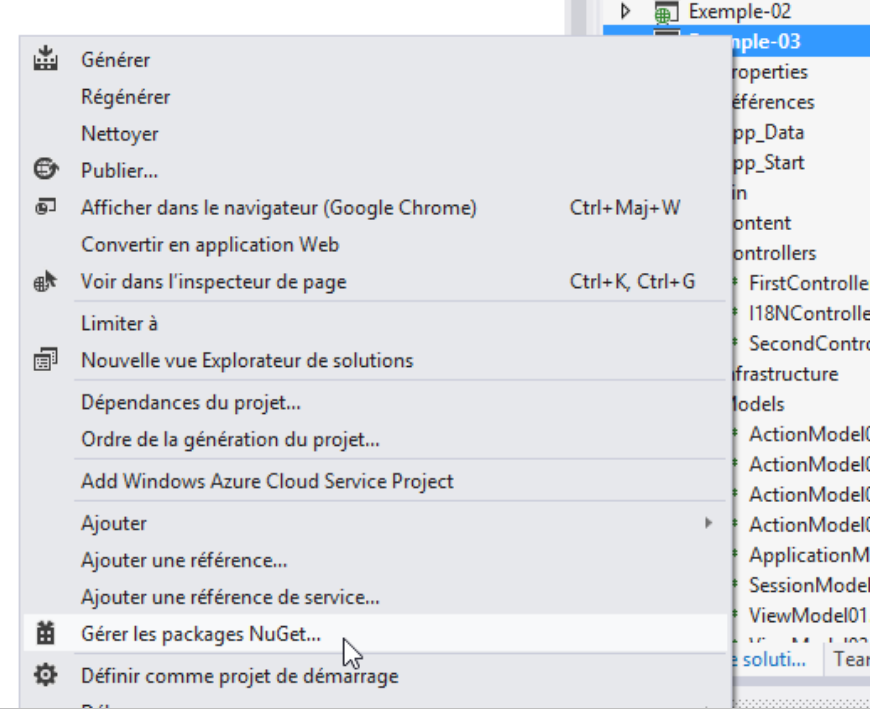
- in [1], manage the [NuGet] packages of the [Exemple-03] project;
- in [2], view the packages online;
- in [3], type the term [globalization];
- in [4], install the [Globalize] package from the JQuery project.
Once the [Globalize] package is installed, a new branch appears in the [Scripts] folder:
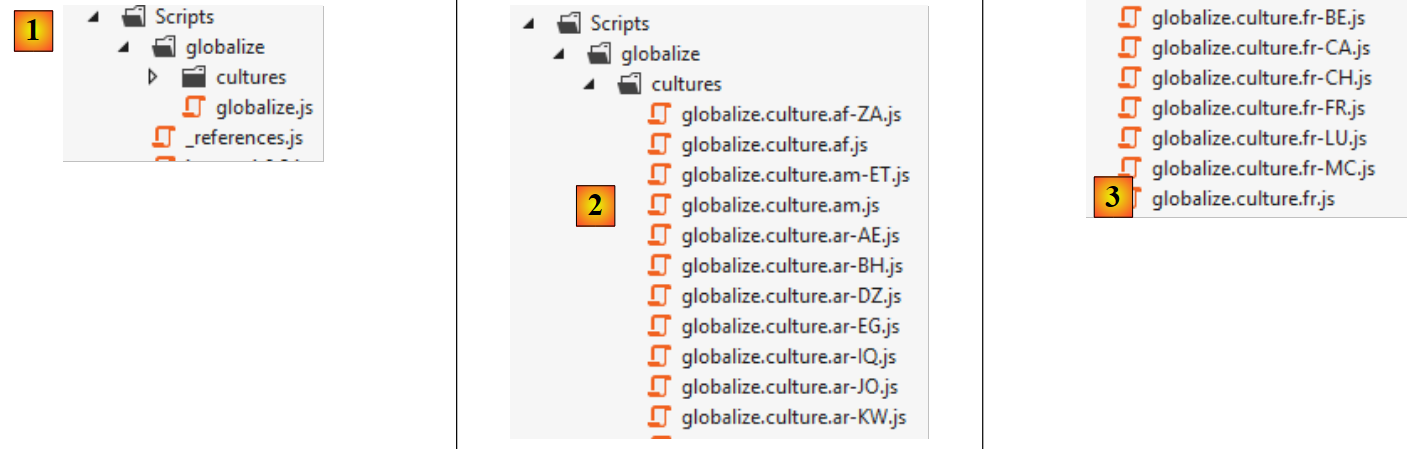 |
- in [1], a [globalize] folder was created with the main script [globalize.js];
- in [2], the main script [globalize.js] is supplemented by scripts specific to a language and locale;
- in [3], the scripts specific to the French language with the Belgian (BE), Canadian (CA), French (FR), Swiss (CH), Luxembourgish (LU), Monegasque (MC).
The script [globalize.js] and the script for our culture [globalize.culture.fr-FR.js] must be included in the list of scripts on our page [Action13Get.cshtml]:
<head>
  <meta name="viewport" content="width=device-width" />
  <title>Action13Get</title>
...
  <script type="text/javascript" src="~/Scripts/globalize/globalize.js"></script>
  <script type="text/javascript" src="~/Scripts/globalize/cultures/globalize.culture.fr-FR.js"></script>
  <script type="text/javascript" src="~/Scripts/myscripts.js"></script>
</head>
- line 5: the script [globalize];
- line 6: the script [globalize.culture.fr-FR.js];
- line 7: the script [myscripts.js];
Let’s take a closer look at this last script:
// http://blog.instance-factory.com/?p=268
$.validator.methods.number = function (value, element) {
  return this.optional(element) ||
      !isNaN(Globalize.parseFloat(value));
}

...

// au chargement du document
$(document).ready(function () {
  var culture = 'fr-FR';
  Globalize.culture(culture);
});
Lines 10–13 set the client-side culture to [fr-FR]:
- line 10: the JQuery [ready] function is executed when the document containing the script has been fully loaded by the browser;
- lines 11–12: the client-side culture is set to [fr-FR]. To do this, the file [globalize.culture.fr-FR.js] must be included in the list of Javascript scripts associated with the document.
Now we can test the new application:
 |
We can now enter [0,3] for the real number, which we could not do before. However, we encounter another issue:
 |
Above, client-side validation allows us to enter [11.2] using the Anglo-Saxon notation. This value is not accepted on the server side when the form is submitted:
 |
You have to type [11,2], and then it works on both the client and server sides. On the client side, the Anglo-Saxon notation should not be accepted. That must be possible...
Now let’s address the internationalization of views. We’ll continue with the example of the previous form by offering it in two languages: French and English.
6.2. Managing a culture
The language of the views is controlled by the [Thread.CurrentThread.CurrentUICulture] object. To display the pages in the [fr-FR] culture, we write:
Localization (dates, numbers, currencies, times, etc.) is controlled by the [Thread.CurrentThread.CurrentCulture] object. Similar to what was written previously, we would write:
These two statements could be included in the constructor of each controller in the application. However, we might also want to factor out this code that is common to all controllers. We will take this approach.
We create two new controllers:
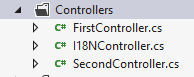 |
- [I18NController] will be the parent class for all controllers using internationalization;
- [SecondController] is a sample controller derived from [I18NController].
The code for the [I18NController] controller is as follows:
using System.Threading;
using System.Web;
using System.Web.Mvc;

namespace Exemples.Controllers
{
  public abstract class I18NController : Controller
  {
    public I18NController()
    {
      // retrieve the context of the current query
      HttpContext httpContext = HttpContext.Current;
      // examine the query for the [lang] parameter
      // look for it in the URL parameters
      string langue = httpContext.Request.QueryString["lang"];
      if (langue == null)
      {
        // look for it in the posted parameters
        langue = httpContext.Request.Form["lang"];
      }
      if (langue == null)
      {
        // search for it in the user's session
        langue = httpContext.Session["lang"] as string;
      }
      if (langue == null)
      {
        // 1st header parameter HTTP AcceptLanguages
        langue = httpContext.Request.UserLanguages[0];
      }
      if (langue == null)
      {
        // culture fr-FR
        langue = "fr-FR";
      }
      // put your tongue in session
      httpContext.Session["lang"] = langue;
      // changing thread cultures
      Thread.CurrentThread.CurrentCulture = new System.Globalization.CultureInfo(langue);
      Thread.CurrentThread.CurrentUICulture = Thread.CurrentThread.CurrentCulture;
    }
  }
}
- line 7: [I18NController] derives from the [Controller] class;
- line 7: the class is declared as [abstract] to prevent direct instantiation: it can only be used if derived;
- line 9: the class constructor will be executed each time a controller derived from [I18NController] is instantiated;
- line 12: the context of the HTTP request currently being processed by the controller is retrieved;
- line 15: we assume that the language is set by a [lang] parameter that can be found in various locations. We search in the following order:
- line 15: in the URL [?lang=en-US] parameters,
- line 19: in the posted parameters [lang=de],
- line 24: in the user's session,
- line 29: in the language preferences sent by the client HTTP,
- line 26: if nothing is found, the locale is set to [fr-FR];
- line 37: the locale is stored in the session. This is where it will be retrieved for subsequent requests. The user can change it by setting it in the parameters of a GET or POST command;
- lines 39–40: the locale of the view to be displayed after the current query is processed is set.
The [SecondController] controller will be as follows:
using Exemple_03.Models;
using Exemples.Controllers;
using System.Web.Mvc;

namespace Exemple_03.Controllers
{
    public class SecondController : I18NController
    {
      // Action14-GET
      [HttpGet]
      public ViewResult Action14Get()
      {
        return View("Action14Get", new ViewModel14());
      }

      // Action14-POST
      [HttpPost]
      public ViewResult Action14Post(ViewModel14 modèle)
      {
        return View("Action14Get", modèle);
      }
    }
}
- line 7: [SecondController] derives from [I18NController]. This ensures that the view to be displayed has been initialized;
- line 13: we use the view template [ViewModel14], which we will present;
- lines 13 and 20: the view [Action14Get.cshtml] handles the display of the form.
6.3. Internationalizing the view template [ViewModel14]
The view template [ViewModel14] is as follows:
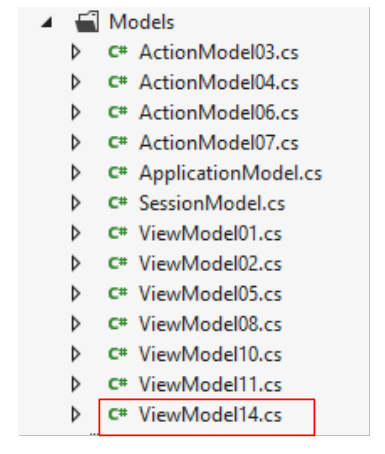 |
using Exemple_03.Resources;
using System;
using System.Collections.Generic;
using System.ComponentModel.DataAnnotations;
using System.Globalization;
using System.Net.Mail;

namespace Exemple_03.Models
{
  public class ViewModel14 : IValidatableObject
  {

    [Required(ErrorMessageResourceType = typeof(MyResources), ErrorMessageResourceName = "infoRequise")]
    [Display(ResourceType = typeof(MyResources), Name = "chaineaumoins4")]
    [RegularExpression(@"^.{4,}$", ErrorMessageResourceType = typeof(MyResources), ErrorMessageResourceName = "infoIncorrecte")]
    public string Chaine1 { get; set; }

    [Display(ResourceType = typeof(MyResources), Name = "chaineauplus4")]
    [Required(ErrorMessageResourceType = typeof(MyResources), ErrorMessageResourceName = "infoRequise")]
    [RegularExpression(@"^.{1,4}$", ErrorMessageResourceType = typeof(MyResources), ErrorMessageResourceName = "infoIncorrecte")]
    public string Chaine2 { get; set; }

    [Required(ErrorMessageResourceType = typeof(MyResources), ErrorMessageResourceName = "infoRequise")]
    [Display(ResourceType = typeof(MyResources), Name = "chaine4exactement")]
    [RegularExpression(@"^.{4,4}$", ErrorMessageResourceType = typeof(MyResources), ErrorMessageResourceName = "infoIncorrecte")]
    public string Chaine3 { get; set; }

    [Required(ErrorMessageResourceType = typeof(MyResources), ErrorMessageResourceName = "infoRequise")]
    [Display(ResourceType = typeof(MyResources), Name = "entier")]
    public int Entier1 { get; set; }

    [Display(ResourceType = typeof(MyResources), Name = "entierentrebornes")]
    [Required(ErrorMessageResourceType = typeof(MyResources), ErrorMessageResourceName = "infoRequise")]
    [Range(1, 100, ErrorMessageResourceType = typeof(MyResources), ErrorMessageResourceName = "infoIncorrecte")]
    public int Entier2 { get; set; }

    [Display(ResourceType = typeof(MyResources), Name = "reel")]
    [Required(ErrorMessageResourceType = typeof(MyResources), ErrorMessageResourceName = "infoRequise")]
    public double Reel1 { get; set; }

    [Display(ResourceType = typeof(MyResources), Name = "reelentrebornes")]
    [Required(ErrorMessageResourceType = typeof(MyResources), ErrorMessageResourceName = "infoRequise")]
    [Range(10.2, 11.3, ErrorMessageResourceType = typeof(MyResources), ErrorMessageResourceName = "infoIncorrecte")]
    public double Reel2 { get; set; }

    [Display(ResourceType = typeof(MyResources), Name = "email")]
    [Required(ErrorMessageResourceType = typeof(MyResources), ErrorMessageResourceName = "infoRequise")]
    [EmailAddress(ErrorMessageResourceType = typeof(MyResources), ErrorMessageResourceName = "infoIncorrecte", ErrorMessage="")]
    public string Email1 { get; set; }

    [Display(ResourceType = typeof(MyResources), Name = "date1")]
    [RegularExpression(@"\s*\d{2}/\d{2}/\d{4}\s*", ErrorMessageResourceType = typeof(MyResources), ErrorMessageResourceName = "infoIncorrecte")]
    [Required(ErrorMessageResourceType = typeof(MyResources), ErrorMessageResourceName = "infoRequise")]
    public string Regexp1 { get; set; }

    [Display(ResourceType = typeof(MyResources), Name = "date2")]
    [Required(ErrorMessageResourceType = typeof(MyResources), ErrorMessageResourceName = "infoRequise")]
    [DataType(DataType.Date)]
    public DateTime Date1 { get; set; }

    // validation
    public IEnumerable<ValidationResult> Validate(ValidationContext validationContext)
    {
      // error list
      List<ValidationResult> résultats = new List<ValidationResult>();
      // the same error msg for all
      string errorMessage=MyResources.ResourceManager.GetObject("infoIncorrecte", new CultureInfo(System.Web.HttpContext.Current.Session["lang"] as string)).ToString();

      // Date 1
      if (Date1.Date <= DateTime.Now.Date)
      {
        résultats.Add(new ValidationResult(errorMessage, new string[] { "Date1" }));
      }
      // Email1
      try
      {
        new MailAddress(Email1);
      }
      catch
      {
        résultats.Add(new ValidationResult(errorMessage, new string[] { "Email1" }));
      }
      // Regexp1
      try
      {
        DateTime.ParseExact(Regexp1, "dd/MM/yyyy", CultureInfo.CreateSpecificCulture("fr-FR"));
      }
      catch
      {
        résultats.Add(new ValidationResult(errorMessage, new string[] { "Regexp1" }));
      }

      // return the list of errors
      return résultats;
    }
  }
}
This template is the internationalized version of the previous template [ViewModel11]. We will describe the internationalization mechanism for the first attribute of the first property. The other attributes follow the same mechanism.
    [Required(ErrorMessageResourceType = typeof(MyResources), ErrorMessageResourceName = "infoRequise")]
public string Chaine1 { get; set; }
In the previous model [ViewModel11], these lines were as follows:
[Required(ErrorMessage = "Information requise")]
public string Chaine1 { get; set; }
In the internationalized version, line 1, the text to be displayed is placed in a resource file. Here, this file is named [MyResources.resx] (typeof) and has been placed in the project root. It is called a resource file.
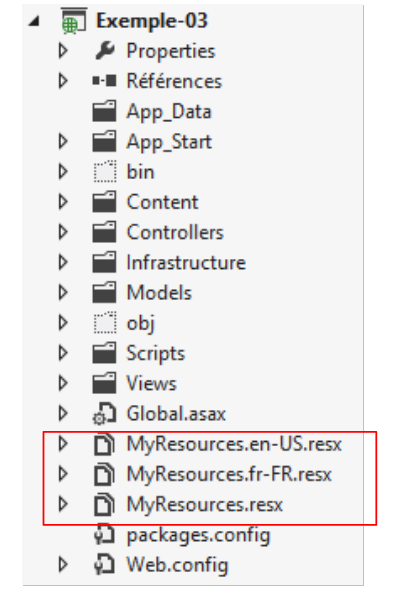 |
We have created three resource files here:
- [MyResources]: default resource when there is no resource for the current locale;
- [MyResources.fr-FR]: resource for the locale [fr-FR];
- [MyResources.en-US]: resource for the locale [en-US];
To create a resource file, proceed as follows: [1, 2, 3]:
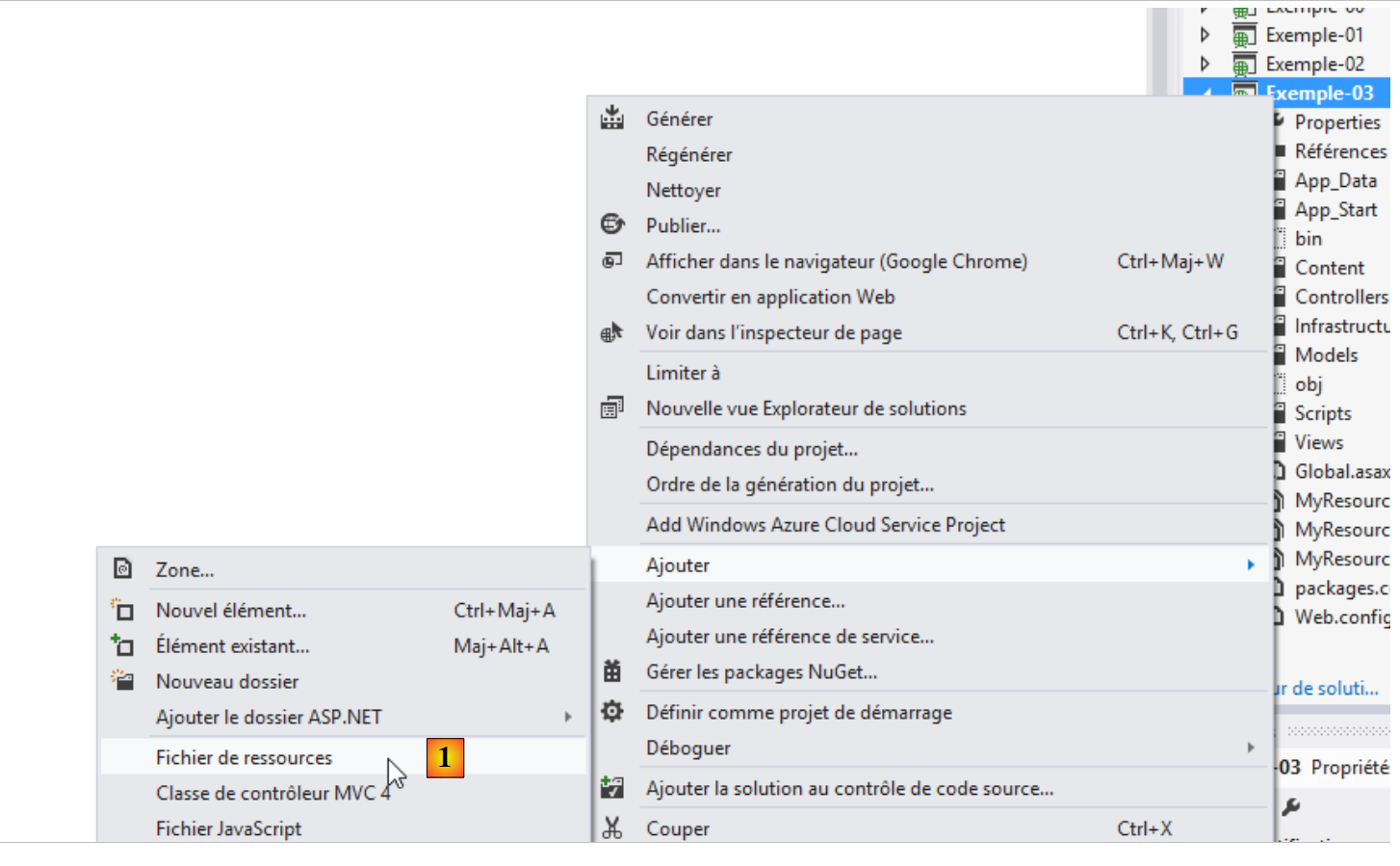 |
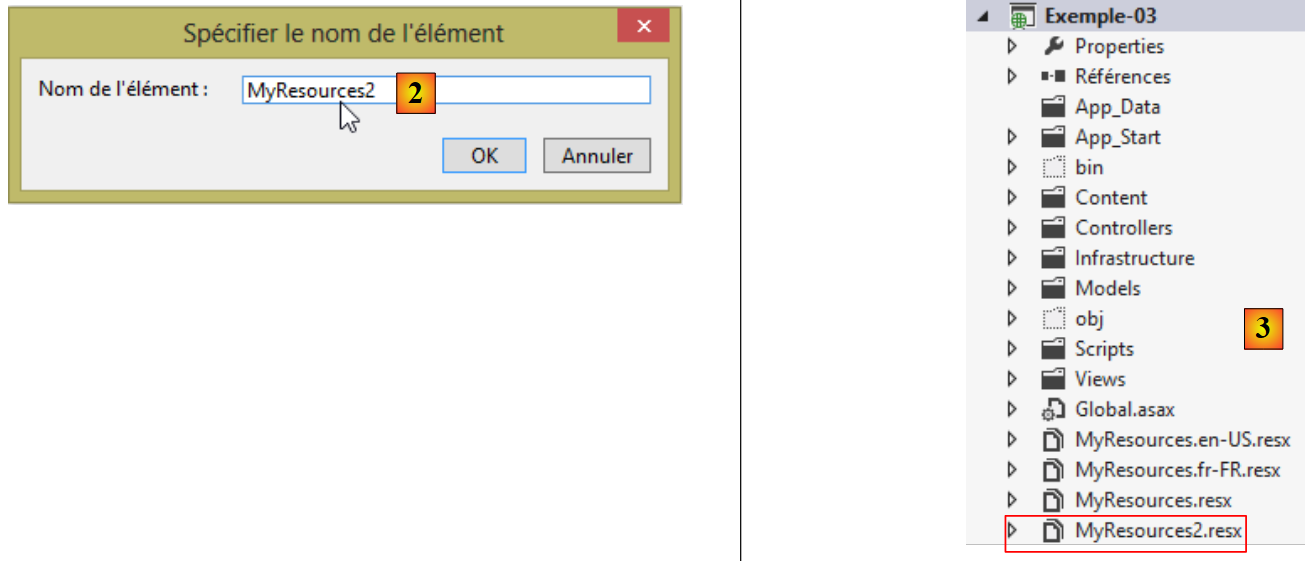 |
This creates the resource file [MyResources2.resx]. When you double-click it, you see the following page:
 |
A resource file is a dictionary containing keys and values associated with those keys. Enter the key in [1], the value in [2], and the resource scope in [3]. For these resources to be readable, they must have the scope [Public]. Let’s go back to the line:
[Required(ErrorMessageResourceType = typeof(MyResources), ErrorMessageResourceName = "infoRequise")]
- [ErrorMessageResourceType]: refers to the resource file. The parameter of [typeof] is the file name. This is converted into a class during the compilation process, and its binary is included in the project assembly. Therefore, [MyResources] is the name of the resource class;
- [ErrorMessageResourceName = "infoRequise"]: refers to a key in the resource file. Ultimately, the line means that the error message to be displayed is the value in the [MyResources] file associated with the key [infoRequise].
To create the key [infoRequise] and the associated value in the file [MyResources], proceed as follows:
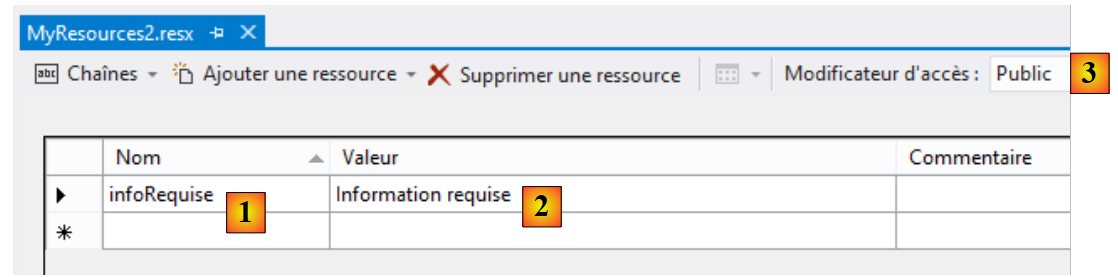 |
Enter the key as [1], the value as [2], and the resource scope as [3].
There is one final point to clarify: the namespace of the [MyResources] class. This is defined in the properties of the [MyResources.resx] file:
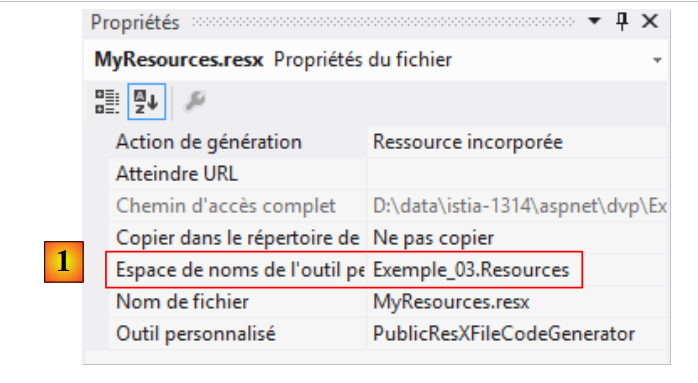 |
In [1], we define the namespace of the [MyResources] class that will be created from the [MyResources.resx] resource file. Let’s return to the internationalized line we examined:
[Required(ErrorMessageResourceType = typeof(MyResources), ErrorMessageResourceName = "infoRequise")]
The typeof operator expects a class, in this case the [MyResources] class. For this class to be found, its namespace must be imported into the [ViewModel14] class:
using Exemple_03.Resources;
For the [MyResources] class to be visible, the project must have been built at least once since the creation of the [MyResources] resource file. The code for this class is visible in the [MyResources.Designer.cs] file:
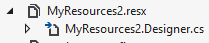 |
When you double-click this file, you access the code for the [MyResources] class:
namespace Exemple_03.Resources {
    using System;


[global::System.CodeDom.Compiler.GeneratedCodeAttribute("System.Resources.Tools.StronglyTypedResourceBuilder", "4.0.0.0")]
    [global::System.Diagnostics.DebuggerNonUserCodeAttribute()]
    [global::System.Runtime.CompilerServices.CompilerGeneratedAttribute()]
    public class MyResources2 {

  ...
         public static string infoRequise {
            get {
                return ResourceManager.GetString("infoRequise", resourceCulture);
            }
        }
    }
}
- line 1: the class namespace;
- line 11: the key [infoRequise] has become a static property of the class [MyResources]. It is accessible via the notation [MyResources.infoRequise]. Additionally, note that this property has a scope of [public]. Without this, it would not be accessible. It is important to remember this because, unfortunately, the default scope is [internal], and this can cause errors that are difficult to understand if you forget to change the scope.
Why three resource files now?
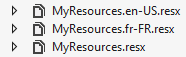 |
We have created [MyResources.resx]. This is the root resource. Next, we create as many [MyResources.locale.resx] resource files as there are locales (languages) to manage. Here we are managing French ([fr-FR]) and American English ([en-US]). When the current locale is neither [fr-FR] nor [en-US], the root resource [MyResources.resx] is used.
The final content of [MyResources.resx] is as follows:
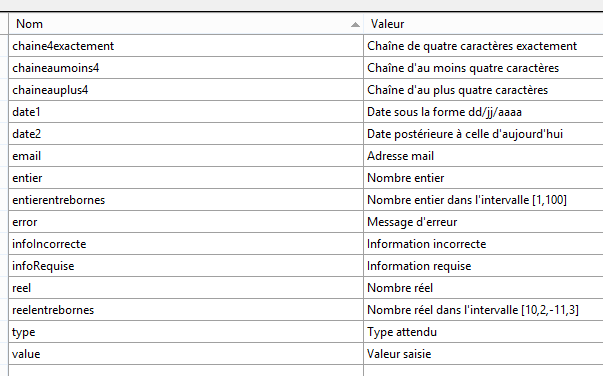 |
Messages will be in French when the locale is not recognized. The final content of [MyResources.fr-FR.resx] is identical and obtained by simply copying the file.
The final content of [MyResources.en-US.resx] is also obtained by copying the file and then modified as follows:
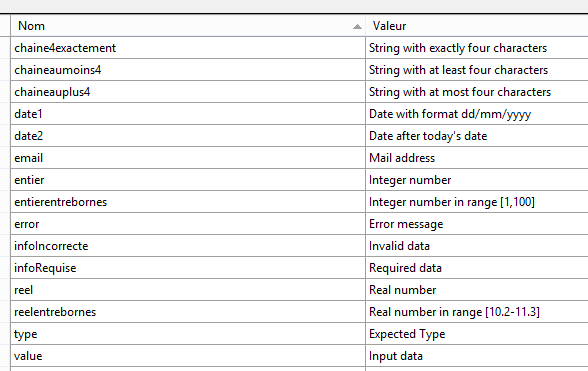 |
Let's take another look at view [ViewModel14] and its method [Validate]:
    // validation
    public IEnumerable<ValidationResult> Validate(ValidationContext validationContext)
    {
      // error list
      List<ValidationResult> résultats = new List<ValidationResult>();
      // the same error msg for all
      string errorMessage=MyResources.ResourceManager.GetObject("infoIncorrecte", new CultureInfo(System.Web.HttpContext.Current.Session["lang"] as string)).ToString();

      // Date 1
      if (Date1.Date <= DateTime.Now.Date)
      {
        résultats.Add(new ValidationResult(errorMessage, new string[] { "Date1" }));
      }
...
      // return the list of errors
      return résultats;
}
Line 7 shows how to retrieve a message from the resource file [MyResources]. Here, we want to retrieve the message associated with the key [infoIncorrecte] in the current locale:
- MyResources.ResourceManager.GetObject("infoIncorrecte", new CultureInfo("en-US")) : retrieves the object associated with the key [infoIncorrecte] from the resource file [MyResources.en-US.resx];
- we saw that the [I18NController] controller sets the current locale in the session associated with the key [lang]. The current culture can therefore be retrieved by System.Web.HttpContext.Current.Session["lang"] as string;
- the resource is retrieved with the type [object]. To obtain the error message, the method [ToString] is applied to it.
6.4. Internationalize the view [Action14Get.cshtml]
We update the form's view as follows:
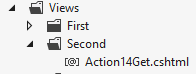 |
@model Exemple_03.Models.ViewModel14
@using Exemple_03.Resources
@{
  Layout = null;
}

<!DOCTYPE html>

<html>
<head>
  <meta name="viewport" content="width=device-width" />
  <title>Action14Get</title>
  <link rel="stylesheet" href="~/Content/Site.css" />
  <script type="text/javascript" src="~/Scripts/jquery-1.8.2.min.js"></script>
  <script type="text/javascript" src="~/Scripts/jquery.validate.min.js"></script>
  <script type="text/javascript" src="~/Scripts/jquery.validate.unobtrusive.min.js"></script>
  <script type="text/javascript" src="~/Scripts/globalize/globalize.js"></script>
  <script type="text/javascript" src="~/Scripts/globalize/cultures/globalize.culture.fr-FR.js"></script>
  <script type="text/javascript" src="~/Scripts/globalize/cultures/globalize.culture.en-US.js"></script>
  <script type="text/javascript" src="~/Scripts/myscripts2.js"></script>
  <script>
    $(document).ready(function () {
      var culture = '@System.Threading.Thread.CurrentThread.CurrentCulture';
        Globalize.culture(culture);
      });
  </script>

</head>
<body>
  <h3>Formulaire ASP.NET MVC - Internationalisation</h3>
  @using (Html.BeginForm("Action14Post", "Second"))
  {
    <table>
      <thead>
        <tr>
          <th>@MyResources.type</th>
          <th>@MyResources.value</th>
          <th>@MyResources.error</th>
        </tr>
      </thead>
      <tbody>
        <tr>
          <td>@Html.LabelFor(m => m.Chaine1)</td>
          <td>@Html.EditorFor(m => m.Chaine1)</td>
          <td>@Html.ValidationMessageFor(m => m.Chaine1)</td>
        </tr>
...
      </tbody>
    </table>
    <p>
      <input type="submit" value="Valider" />
    </p>
  }
</body>
</html>
<!-- language selection -->
@using (Html.BeginForm("Lang", "Second"))
{
  <table>
    <tr>
      <td><a href="javascript:postForm('fr-FR','/Second/Action14Get')">Français</a></td>
      <td><a href="javascript:postForm('en-US','/Second/Action14Get')">English</a></td>
    </tr>
  </table>
}
Note: Line 14, adapt the version from jQuery to match your version in Visual Studio.
Let’s start with the simplest part, lines 36–38. They use the static properties of the [MyResources] class we just described. To access the [MyResources] class, you must import its namespace (line 2).
In internationalized messages, you must also include those displayed by the client-side validation framework. To do this, use the JQuery libraries in lines 17–19. We use the JQuery files for the two locales we support: [fr-FR] and [en-US]. Additionally, you may recall that the [Action13Get] view used the following Javascript and [myscripts.js] scripts:
// document loading
$(document).ready(function () {
  var culture = 'fr-FR';
  Globalize.culture(culture);
});
Now, the culture is no longer just [fr-FR]; it varies. Therefore, these lines are now generated by the [Action14Get] view itself on lines 21–26. These six lines will be included in the HTML page sent to the client.
- Line 23: The variable Javascript [culture] is initialized with the current culture of the thread handling the request. You may recall that this was initialized by the constructor of the [I18NController] class:
      // put your tongue in session
      httpContext.Session["lang"] = langue;
      // changing thread cultures
      Thread.CurrentThread.CurrentCulture = new System.Globalization.CultureInfo(langue);
Thread.CurrentThread.CurrentUICulture = Thread.CurrentThread.CurrentCulture;
If the current culture is [en-US], the Javascript script embedded in the HTML page becomes:
  <script>
    $(document).ready(function () {
      var culture = 'en-US';
        Globalize.culture(culture);
      });
</script>
We have already mentioned that the [$(document).ready] function is executed once the browser has finished loading the page. Its execution will set the culture of the client-side validation framework. With the [en-US] culture, the framework’s error messages will be in English and will come from the [MyResources.en-US.resx] resource file. We’ll see how.
Now let’s examine lines 57–65:
<!-- language selection -->
@using (Html.BeginForm("Lang", "Second"))
{
  <table>
    <tr>
      <td><a href="javascript:postForm('fr-FR','/Second/Action14Get')">Français</a></td>
      <td><a href="javascript:postForm('en-US','/Second/Action14Get')">English</a></td>
    </tr>
  </table>
}
Here is a second form; the first one is on lines 31–53. This form displays the following links at the bottom of the page:
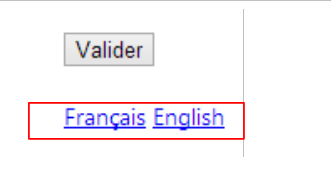 |
- line 2: the form is posted to action [Lang] of controller [Second]. For now, we do not see any values that could be posted;
- lines 6 and 7: clicking on the links triggers the execution of the function Javascript [postForm]. Where is this function located? In the script [myscripts2.js] referenced on line 20 of the view:
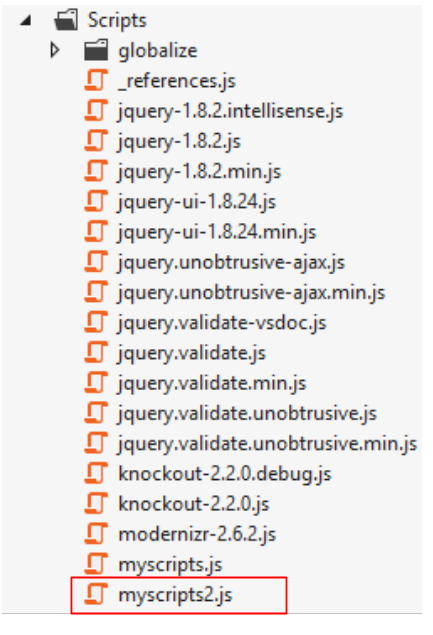 |
Its content is as follows:
function postForm(lang, url) {
  // on récupère le deuxième formulaire du document
  var form = document.forms[1];
  // on lui ajoute l'hidden attribute lang
  var hiddenField = document.createElement("input");
  hiddenField.setAttribute("type", "hidden");
  hiddenField.setAttribute("name", "lang");
  hiddenField.setAttribute("value", lang);
  // ajout du champ caché dans le formulaire
  form.appendChild(hiddenField);
  // on lui ajoute l'hidden attribute url
  var hiddenField = document.createElement("input");
  hiddenField.setAttribute("type", "hidden");
  hiddenField.setAttribute("name", "url");
  hiddenField.setAttribute("value", url);
  // ajout du champ caché dans le formulaire
  form.appendChild(hiddenField);
  // soumission
  form.submit();
}

// http://blog.instance-factory.com/?p=268
$.validator.methods.number = function (value, element) {
  return this.optional(element) ||
      !isNaN(Globalize.parseFloat(value));
}

$.validator.methods.date = function (value, element) {
  return this.optional(element) ||
      !isNaN(Globalize.parseDate(value));
}

jQuery.extend(jQuery.validator.methods, {
  range: function (value, element, param) {
    //Use the Globalization plugin to parse the value
    var val = Globalize.parseFloat(value);
    return this.optional(element) || (
        val >= param[0] && val <= param[1]);
  }
});
Lines 22–40 are the same as those already present in the [myscripts.js] script used in the previous example. We will not revisit them here. The [postForm] function executed when clicking on the language links is on lines 1–20:
- line 1: the function takes two parameters, [lang], which is the culture selected by the user, and [url], which is the URL to which the client browser must be redirected once the culture change has been made. These two parameters are specified in the call:
<td><a href="javascript:postForm('fr-FR','/Second/Action14Get')">Français</a></td>
<td><a href="javascript:postForm('en-US','/Second/Action14Get')">English</a></td>
- line 3: we retrieve a reference to the second form in the document;
- lines 5-8: we programmatically create the tag
where [xx-XX] is the value of the function’s [lang] parameter;
- line 10: still programmatically, we add this tag to the second form. Ultimately, it behaves as if this tag had been present in the second form from the start. Its value will therefore be submitted. This is what we wanted;
- lines 11–17: we repeat the same process for a tag
where [url] is the value of the [url] parameter of the function;
- line 19: the second form is now submitted. To which URL?
We need to go back to the code for the second form on the [Action14Get.cshtml] page:
@using (Html.BeginForm("Lang", "Second"))
{
...
}
The form is therefore posted to URL [/Second/Lang]. We then need to define an action [Lang] in the controller [SecondController]. It will be as follows:
public class SecondController : I18NController
    {
      // Action14-GET
      [HttpGet]
      public ViewResult Action14Get()
      {
        return View("Action14Get", new ViewModel14());
      }

      // Action14-POST
      [HttpPost]
      public ViewResult Action14Post(ViewModel14 modèle)
      {
        return View("Action14Get", modèle);
      }

      // language
      [HttpPost]
      public RedirectResult Lang(string url)
      {
        // the client is redirected to url
        return new RedirectResult(url);
      }

    }
- line 18: the action only responds to a [POST];
- line 19: it retrieves only the parameter named [url];
- line 22: it instructs the client to redirect to this URL.
But what happened to the parameter named [lang]? We must now recall that the controller [SecondController] derives from the class [I18NController] (line 1 below). It is this controller that manages the [lang] parameter:
  public abstract class I18NController : Controller
  {
    public I18NController()
    {
      // retrieve the context of the current query
      HttpContext httpContext = System.Web.HttpContext.Current;
      // examine the query for the [lang] parameter
      // look for it in the URL parameters
      string langue = httpContext.Request.QueryString["lang"];
      if (langue == null)
      {
        // look for it in the posted parameters
        langue = httpContext.Request.Form["lang"];
      }
      if (langue == null)
      {
        // search for it in the user's session
        langue = httpContext.Session["lang"] as string;
      }
      if (langue == null)
      {
        // 1st header parameter HTTP AcceptLanguages
        langue = httpContext.Request.UserLanguages[0];
      }
      if (langue == null)
      {
        // culture fr-FR
        langue = "fr-FR";
      }
      // put your tongue in session
      httpContext.Session["lang"] = langue;
      // changing thread cultures
      Thread.CurrentThread.CurrentCulture = new CultureInfo(langue);
      Thread.CurrentThread.CurrentUICulture = Thread.CurrentThread.CurrentCulture;
}
In our example, the parameter [lang] is passed. It will therefore be found on line 13, added to the session on line 31, and used to update the current thread’s culture on lines 33–34.
What happens next? Let’s revisit the links:
<td><a href="javascript:postForm('fr-FR','/Second/Action14Get')">Français</a></td>
<td><a href="javascript:postForm('en-US','/Second/Action14Get')">English</a></td>
The redirect URL is [/Second/Action14Get]. The action [Action14Get] is therefore executed:
public class SecondController : I18NController
    {
      // Action14-GET
      [HttpGet]
      public ViewResult Action14Get()
      {
        return View("Action14Get", new ViewModel14());
      }
...
}
Previously, the constructor of the [I18NController] class is executed:
  public abstract class I18NController : Controller
  {
    public I18NController()
    {
      // retrieve the context of the current query
      HttpContext httpContext = System.Web.HttpContext.Current;
      // examine the query for the [lang] parameter
      // look for it in the URL parameters
      string langue = httpContext.Request.QueryString["lang"];
      if (langue == null)
      {
        // look for it in the posted parameters
        langue = httpContext.Request.Form["lang"];
      }
      if (langue == null)
      {
        // search for it in the user's session
        langue = httpContext.Session["lang"] as string;
      }
      if (langue == null)
      {
        // 1st header parameter HTTP AcceptLanguages
        langue = httpContext.Request.UserLanguages[0];
      }
      if (langue == null)
      {
        // culture fr-FR
        langue = "fr-FR";
      }
      // put your tongue in session
      httpContext.Session["lang"] = langue;
      // changing thread cultures
      Thread.CurrentThread.CurrentCulture = new CultureInfo(langue);
      Thread.CurrentThread.CurrentUICulture = Thread.CurrentThread.CurrentCulture;
}
This time, the parameter [lang] will be found in the session by line 18. Let’s assume its value is [en-US]. This culture therefore becomes the culture of the thread executing the request (lines 33–34). Let’s return to action [Action14Get]:
      // Action14-GET
      [HttpGet]
      public ViewResult Action14Get()
      {
        return View("Action14Get", new ViewModel14());
}
Line 5, an instance of the view model [ViewModel14] will be created:
  public class ViewModel14 : IValidatableObject
  {

    [Required(ErrorMessageResourceType = typeof(MyResources), ErrorMessageResourceName = "infoRequise")]
    [Display(ResourceType = typeof(MyResources), Name = "chaineaumoins4")]
    [RegularExpression(@"^.{4,}$", ErrorMessageResourceType = typeof(MyResources), ErrorMessageResourceName = "infoIncorrecte")]
    public string Chaine1 { get; set; }
....
Because the culture of the current thread is [en-US], the file [MyResources.en-US.resx] will be used. Error messages will therefore be in English.
Once the [ViewModel14] model is instantiated, the [Action14Get.cshtml] view is displayed:
@model Exemple_03.Models.ViewModel14
@using Exemple_03.Resources
@using System.Threading
@{
  Layout = null;
}

<!DOCTYPE html>

<html>
<head>
  <meta name="viewport" content="width=device-width" />
  <title>Action14Get</title>
  ...
  <script>
    $(document).ready(function () {
      var culture = '@Thread.CurrentThread.CurrentCulture';
        Globalize.culture(culture);
      });
  </script>

</head>
<body>
  <h3>Formulaire ASP.NET MVC - Internationalisation</h3>
  @using (Html.BeginForm("Action14Post", "Second"))
  {
    <table>
      <thead>
        <tr>
          <th>@MyResources.type</th>
          <th>@MyResources.value</th>
          <th>@MyResources.error</th>
        </tr>
      </thead>
      <tbody>
        <tr>
...
        </tr>
<tr>
Because the current thread's culture is [en-US], the script embedded in the page on lines 15–20 is:
  <script>
    $(document).ready(function () {
      var culture = 'en-US';
        Globalize.culture(culture);
      });
  </script>
This ensures that the validation framework will use US formats (date, currency, numbers, etc.). For the same reason, the messages in lines 30–32 will be taken from the resource file [MyResources.en-US.resx] and will therefore be in English.
6.5. Execution examples
Here are a few execution examples:
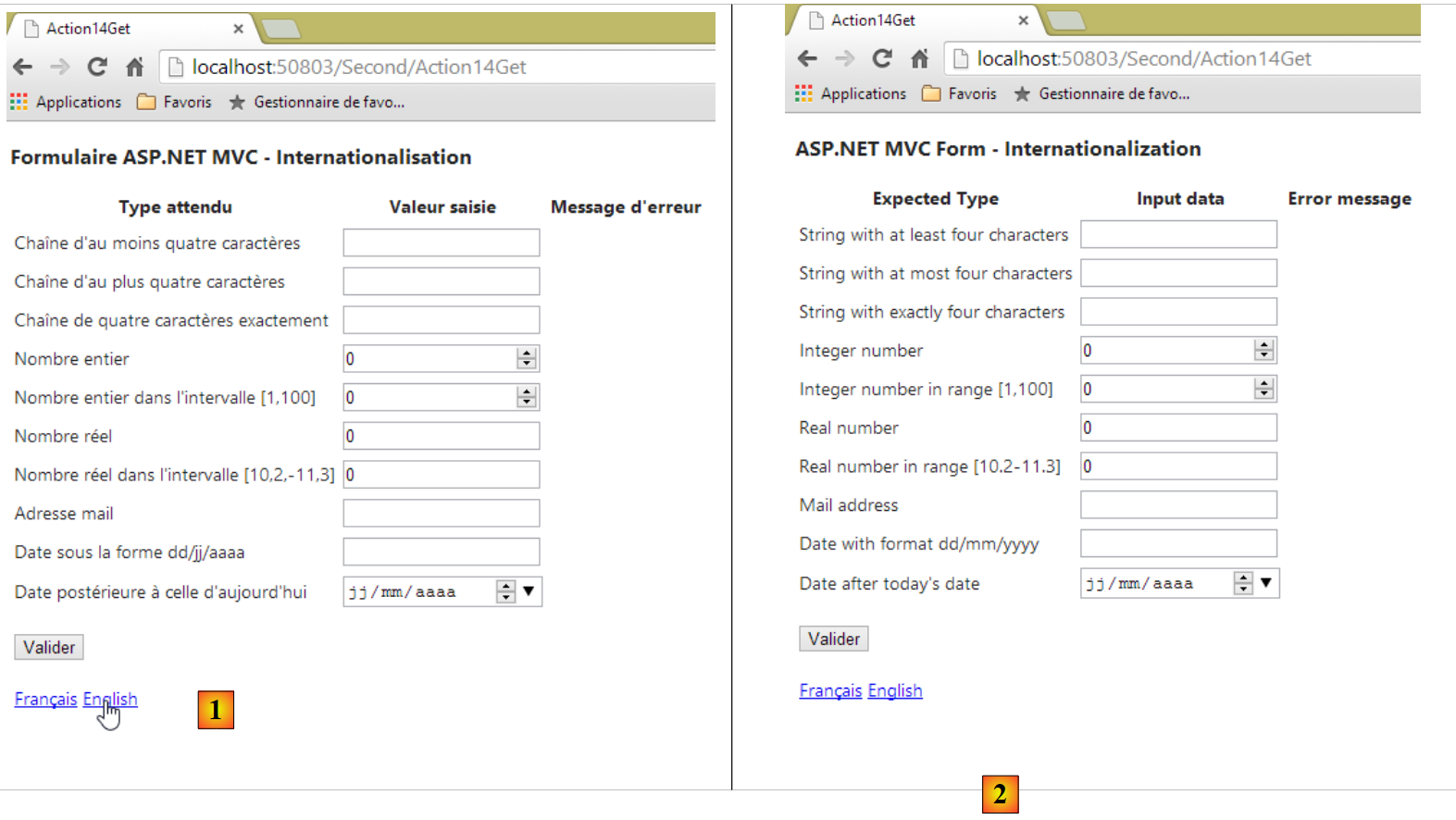 |
- in [1], the form in French; in [2], the form in English.
 |
- In [3], on the client side, the error messages are now in English.
If we look at the page’s source code, we can see that these error messages have been embedded in the page, meaning they were generated by the view ASP.NET [Action14Get] and its template [ViewModel14]:
        <tr>
          <td><label for="Reel1">Real number</label></td>
          <td><input class="text-box single-line" data-val="true" data-val-number="The field Real number must be a number." data-val-required="Required data" id="Reel1" name="Reel1" type="text" value="0" /></td>
          <td><span class="field-validation-valid" data-valmsg-for="Reel1" data-valmsg-replace="true"></span></td>
        </tr>
        <tr>
          <td><label for="Reel2">Real number in range [10.2-11.3]</label></td>
          <td><input class="text-box single-line" data-val="true" data-val-number="The field Real number in range [10.2-11.3] must be a number." data-val-range="Invalid data" data-val-range-max="11.3" data-val-range-min="10.2" data-val-required="Required data" id="Reel2" name="Reel2" type="text" value="0" /></td>
          <td><span class="field-validation-valid" data-valmsg-for="Reel2" data-valmsg-replace="true"></span></td>
</tr>
6.6. Date Internationalization
Internationalization is a complex issue. So let’s look at the property [Date1] and its calendar:
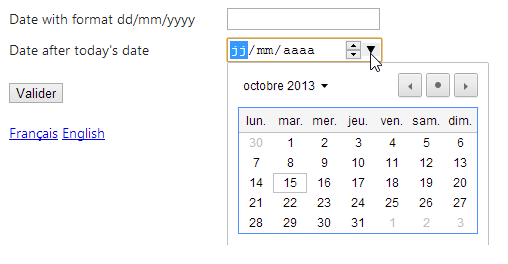 |
We can see that the calendar is a French calendar, whereas the page’s locale is [en-US]. In HTML5, there is an attribute [lang] that allows you to set the language of the page or a page component. You can then write the following code in the [Action14Get.cshtml] view:
@model Exemple_03.Models.ViewModel14
@using Exemple_03.Resources
@using System.Threading
@{
  Layout = null;
  var lang = Session["lang"] as string;
}

<!DOCTYPE html>

<html lang="@lang">
<head>
...
- line 6: retrieve the locale from the session;
- line 11: we set the [lang] attribute of the page to this value.
Tests show that the calendar remains in French even when the page is otherwise displayed in English. There is also an issue with the other date field in the form:
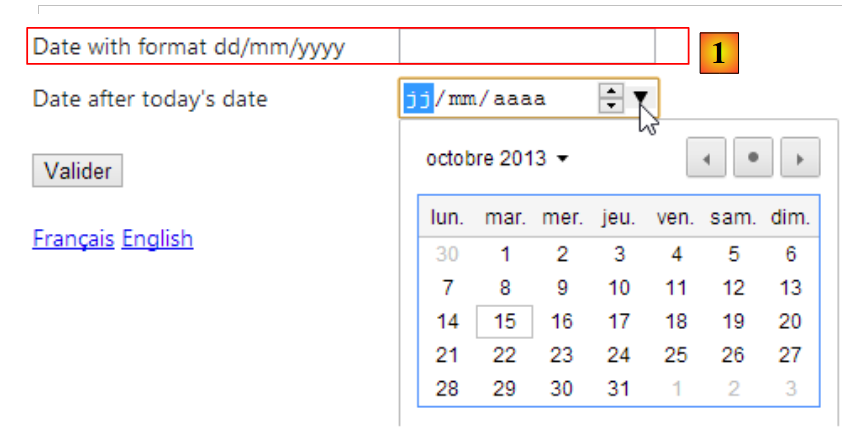 |
In [1], the date is still requested in the French format dd/mm/yyyy (20/11/2013), whereas the American format is mm/dd/yyyy (10/21/2013). We will try to resolve these two issues with a new view and a new view template.
JQuery UI is a project derived from the JQuery project and provides components for forms, including a calendar. This calendar can be internationalized. That is what we will demonstrate.
To begin, let’s add [JQuery UI] to our project.
 |
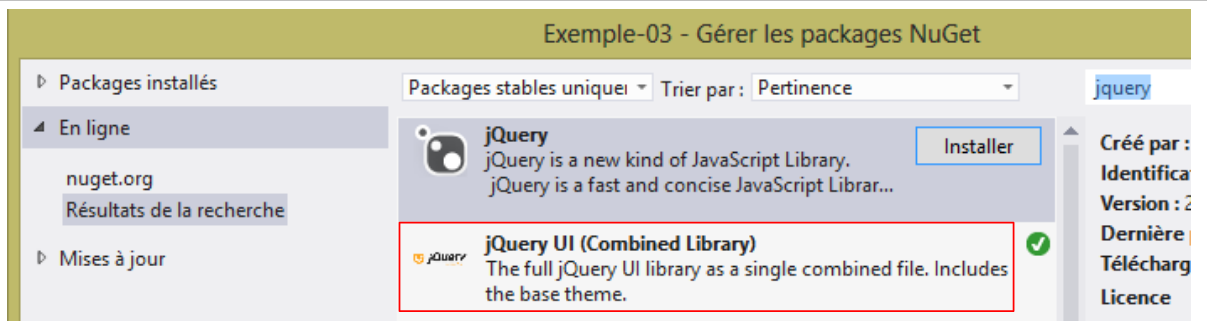 |
Once JQuery and UI are installed, new elements appear in the project:
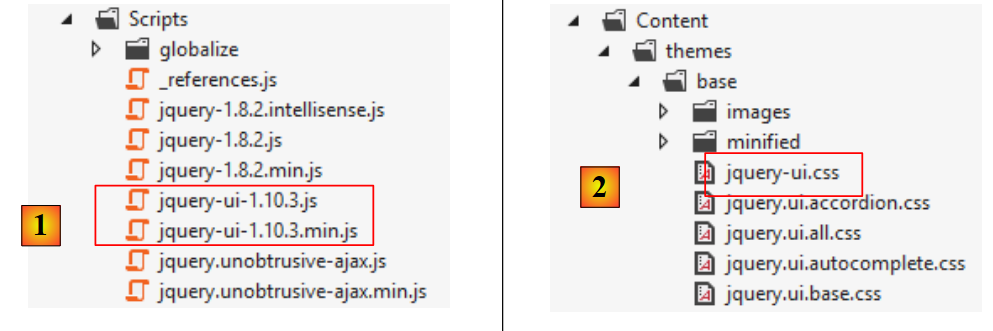 |
- in [1], the [JQuery UI] library in both normal and minified versions;
- in [2], the [JQuery UI] stylesheet;
The JQuery UI calendar is in English by default. To internationalize it, you must add scripts found in URL [https://github.com/jquery/jquery-ui/tree/master/ui/i18n]:
 |
To have the calendar JQuery UI in French, copy the contents of the file [jquery.ui.datepicker-fr.js] above into the [Scripts] folder of the project.
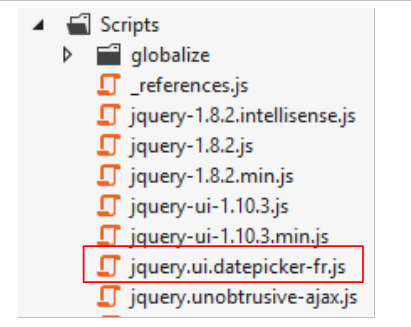 |
The code for the new view [Action15.cshtml] is obtained by copying the previous view [Action14.cshtml] and then modifying it. We are only showing the changes:
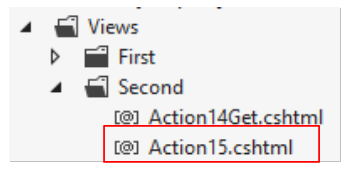 |
@model Exemple_03.Models.ViewModel15
@using Exemple_03.Resources
@using System.Threading
@{
  Layout = null;
}

<!DOCTYPE html>

<html lang="@Model.Culture">
<head>
  <meta name="viewport" content="width=device-width" />
  <title>Action15</title>
...
  <link rel="stylesheet" href="~/Content/themes/base/jquery-ui.css" />
  <script type="text/javascript" src="~/Scripts/jquery-ui-1.10.3.js"></script>
  <script type="text/javascript" src="~/Scripts/jquery.ui.datepicker-fr.js"></script>
  <script>
    $(document).ready(function () {
      var culture = '@Thread.CurrentThread.CurrentCulture';
      Globalize.culture(culture);
      $("#Date1").datepicker($.datepicker.regional['@Model.Regionale']);
    });
  </script>
</head>
<body>
  <h3>@MyResources.titre</h3>
  @using (Html.BeginForm("Action15", "Second"))
  {
    <table>
...
        <tr>
          <td>@Html.LabelFor(m => m.Date1)</td>
          <td>@Html.TextBox("Date1", Model.StrDate1)</td>
          <td>@Html.ValidationMessageFor(m => m.Date1)</td>
        </tr>
      </tbody>
    </table>
    <p>
      <input type="submit" value="Valider" />
    </p>
  }
  <!-- choice of language -->
  @using (Html.BeginForm("Lang", "Second"))
  {
    <table>
      <tr>
        <td><a href="javascript:postForm('fr-FR','/Second/Action15')">Français</a></td>
        <td><a href="javascript:postForm('en-US','/Second/Action15')">English</a></td>
      </tr>
    </table>
  }
</body>
</html>
Note: Line 16, replace jQuery-version with the version you downloaded.
- Line 15: Reference the stylesheet for JQuery UI;
- Line 16: Reference the version from the downloaded JQuery and UI;
- line 17: we reference the French calendar script that we just downloaded;
- line 34: the [Html.TextBox] method will generate a [input] tag of type [text] here, id, [Date1], and name, [Date1];
- line 19: when the page has finished loading, the function JQuery UI [datepicker] will be applied to the element of id [Date1], i.e., the element on line 34. This function ensures that when the user focuses on the [Date1] input field, a calendar will appear allowing them to enter a date. The [datepicker] function accepts a parameter that specifies the calendar’s language. The variable [@Model.Regionale] must be set to:
- 'fr' for a French calendar,
- 'for an English calendar;
The template for the previous view [Action15.cshtml] will be the following template [ViewModel15]:
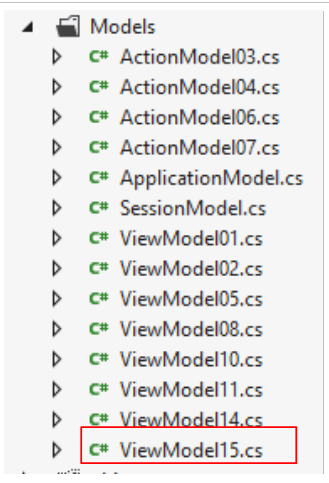 |
Its code is based on the [ViewModel14] template, with minor modifications. We are only showing the changes:
using Exemple_03.Resources;
...
using System.Web;

namespace Exemple_03.Models
{
  [Bind(Exclude = "Culture,Regionale,StrDate1,FormatDate")]
  public class ViewModel15 : IValidatableObject
  {

...
    [Display(ResourceType = typeof(MyResources), Name = "date1")]
    [RegularExpression(@"\s*\d{2}/\d{2}/\d{4}\s*", ErrorMessageResourceType = typeof(MyResources), ErrorMessageResourceName = "infoIncorrecte")]
    [Required(ErrorMessageResourceType = typeof(MyResources), ErrorMessageResourceName = "infoRequise")]
    public string Regexp1 { get; set; }

    [Display(ResourceType = typeof(MyResources), Name = "date2")]
    [Required(ErrorMessageResourceType = typeof(MyResources), ErrorMessageResourceName = "infoRequise")]
    [DataType(DataType.Date)]
    public DateTime Date1 { get; set; }

    // manufacturer
    public ViewModel15()
    {
      // Culture of the moment
      Culture = HttpContext.Current.Session["lang"] as string;
      cultureInfo=new CultureInfo(Culture);
      // Regional calendar JQuery
      Regionale = MyResources.ResourceManager.GetObject("regionale", cultureInfo).ToString();
      // date format
      FormatDate = MyResources.ResourceManager.GetObject("formatDate", cultureInfo).ToString();
    }


    // validation
    public IEnumerable<ValidationResult> Validate(ValidationContext validationContext)
    {
      // error list
      List<ValidationResult> résultats = new List<ValidationResult>();
      // the same error msg for all
      string errorMessage = MyResources.ResourceManager.GetObject("infoIncorrecte", cultureInfo).ToString();
...
      // Regexp1
      try
      {
        DateTime.ParseExact(Regexp1, FormatDate, cultureInfo);
      }
      catch
      {
        résultats.Add(new ValidationResult(errorMessage, new string[] { "Regexp1" }));
      }

      // return the list of errors
      return résultats;

    }

    // fields outside the action model
    public string Culture { get; set; }
    public string Regionale { get; set; }
    public string StrDate1 { get; set; }
    public string FormatDate { get; set; }

    // local data
    private CultureInfo cultureInfo;
  }
}
Compared to the previous model [ViewModel14], we have four additional properties:
- line 60: the view locale, 'fr-FR' or 'en-US'. This locale is initialized in the constructor on line 26;
- line 61: the regional calendar locale JQuery, 'fr' for a French calendar, '' for an English calendar. This field is initialized by line 29 of the constructor;
- line 63: the date format for line 15: 'dd/MM/yyyy' for a French date, 'MM/dd/yyyy' for an English date. This field is initialized on line 31 of the constructor;
- line 62: the string to display in the [Date1] input field. This field will be initialized by the action;
- line 47: the date [Regexp1] is now validated according to the current culture's format.
The values of the properties [Regionale] and [FormatDate] are found in the resource files [MyResources]. The French resource files [MyResources], [MyResources.fr-FR], [1], and the English resource file [2] change as follows:
 |
We are almost ready. We are adding an action [Action15] to the controller [SecondController]:
      // Action15
      public ViewResult Action15(FormCollection formData)
      {
        // method HTTP
        string method = Request.HttpMethod.ToLower();
        // model
        ViewModel15 modèle = new ViewModel15();
        if (method == "get")
        {
          modèle.StrDate1 = "";
        }
        else
        {
          TryUpdateModel(modèle, formData);
          modèle.StrDate1 = modèle.Date1.ToString(modèle.FormatDate);
        }
        // view display
        return View("Action15", modèle);
}
- line 2: the [Action15] method handles both [GET] and [POST]. In the latter case, the posted values are retrieved in the [formData] parameter;
- line 5: the HTTP method is retrieved from the request;
- line 7: the template for the view to be displayed (the form) is created;
- lines 8–11: in the case of a [GET] command, the input field for [Date1] is initialized with an empty string;
- lines 12–16: in the case of an order [POST]:
- line 14: the template is initialized with the posted values,
- line 15: the input field for [Date1] is initialized with a string that is the value of [Date1] formatted according to the current locale [dd/MM/yyyy] for a French date, [MM/dd/yyyy] for an English date;
- Line 18: The view [Action15.cshtml] is displayed with its template.
Let's run some tests:
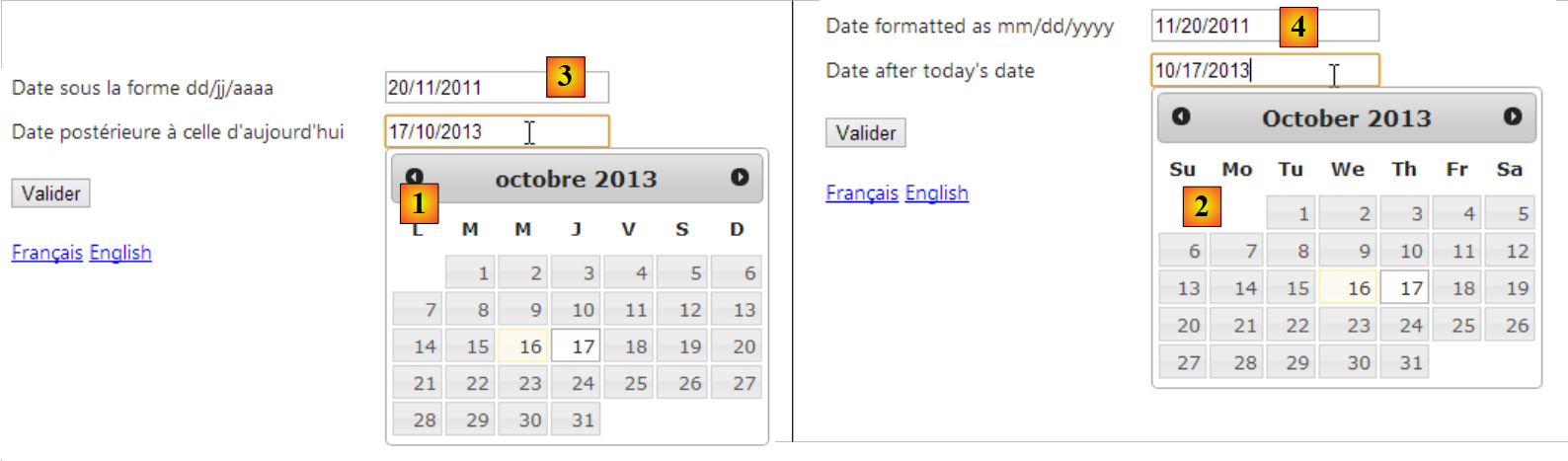 |
- in [1], a French calendar when the page is in French;
- in [2], an English calendar when the page is in English;
- in [3], a date in French format when the page is in French;
- in [4], the same date in English format when the page is in English;
6.7. Conclusion
As we can see, the topic of application internationalization is a complex one...