9. ASP Server Components - 3
9.1. Introduction
We continue our work on the user interface by exploring the capabilities of the [DataList] and [DataGrid] components, particularly in the area of updating the data they display
9.2. Handling events associated with data in data-bound components
9.2.1. The Example
Consider the following page:
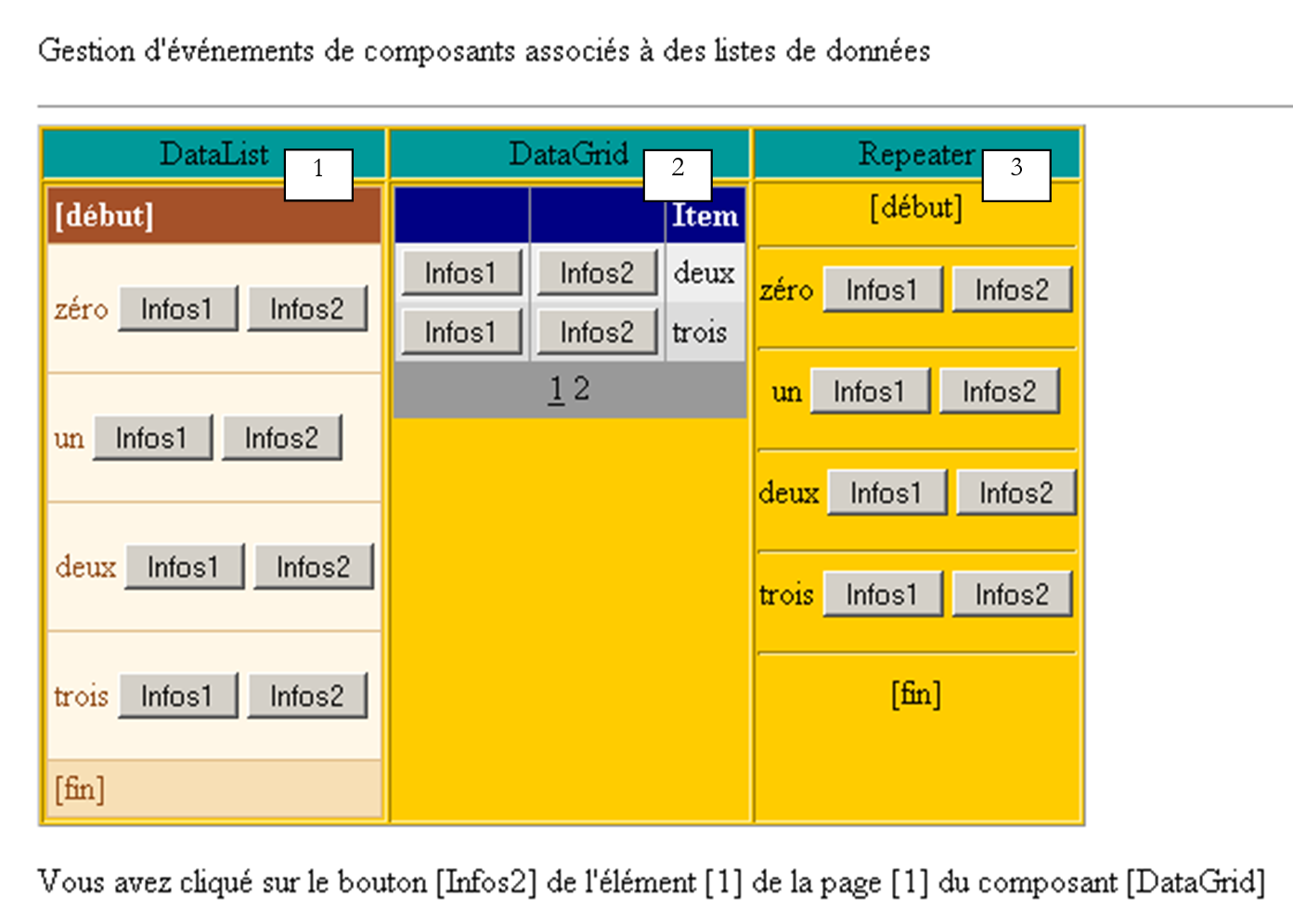 |
The page includes three components associated with a data list:
- a [DataList] component named [DataList1]
- a [DataGrid] component named [DataGrid1]
- a [Repeater] component named [Repeater1]
The associated data list is the array {"zero", "one", "two", "three"}. Each of these data points is associated with a group of two buttons labeled [Info1] and [Info2]. When the user clicks one of the buttons, text displays the name of the clicked button. The goal here is to demonstrate how to manage a list of buttons or links.
9.2.2. Component configuration
The [DataList1] component is configured as follows:
                        <asp:datalist id="DataList1" ... runat="server">
                            <SelectedItemStyle ...</SelectedItemStyle>
                            <HeaderTemplate>
                                [début]
                            </HeaderTemplate>
                            <FooterTemplate>
                                [fin]
                            </FooterTemplate>
                            <ItemStyle ...></ItemStyle>
                            <ItemTemplate>
                                <P><%# Container.DataItem %>
                                    <asp:Button runat="server" Text="Infos1" CommandName="infos1"></asp:Button>
                                    <asp:Button runat="server" Text="Infos2" CommandName="infos2"></asp:Button></P>
                            </ItemTemplate>
                            <FooterStyle ...></FooterStyle>
                            <HeaderStyle ...></HeaderStyle>
                        </asp:datalist>
We have omitted everything related to the appearance of the [DataList] to focus solely on its content:
- the <HeaderTemplate> section defines the header of the [DataList], and the <FooterTemplate> section defines its footer.
- The <ItemTemplate> section is the display template used for each item in the associated data list. It contains the following elements:
- the value of the current data item in the data list associated with the component: <%# Container.DataItem %>
- two buttons labeled [Info1] and [Info2], respectively. The [Button] class has a [CommandName] attribute that is used here. It will allow us to determine which button triggered an event in the [DataList]. To handle button clicks, we will have a single event handler linked to the [DataList] itself, not to the buttons. This handler will receive information indicating which row of the [DataList] the click occurred on. The [CommandName] attribute will let us know which button on that row triggered the click.
The [Repeater1] component is configured in a very similar way:
                        <asp:repeater id="Repeater1" runat="server">
                            <HeaderTemplate>
                                [début]<hr />
                            </HeaderTemplate>
                            <FooterTemplate>
                                <hr />
                                [fin]
                            </FooterTemplate>
                            <SeparatorTemplate>
                                <hr />
                            </SeparatorTemplate>
                            <ItemTemplate>
                                <%# Container.DataItem %>
                                <asp:Button runat="server" Text="Infos1" CommandName="infos1"></asp:Button>
                                <asp:Button runat="server" Text="Infos2" CommandName="infos2"></asp:Button></P>
                            </ItemTemplate>
                        </asp:repeater>
We simply added a <SeparatorTemplate> section so that the successive data displayed by the component is separated by a horizontal bar.
Finally, the [DataGrid1] component is configured as follows:
                        <asp:datagrid id="DataGrid1" ... runat="server" PageSize="2" AllowPaging="True">
                            <SelectedItemStyle ...></SelectedItemStyle>
                            <AlternatingItemStyle ...></AlternatingItemStyle>
                            <ItemStyle ...></ItemStyle>
                            <HeaderStyle ...></HeaderStyle>
                            <FooterStyle ....></FooterStyle>
                            <Columns>
                                <asp:ButtonColumn Text="Infos1" ButtonType="PushButton" CommandName="Infos1">
                              </asp:ButtonColumn>
                                <asp:ButtonColumn Text="Infos2" ButtonType="PushButton" CommandName="Infos2">
                              </asp:ButtonColumn>
                            </Columns>
                            <PagerStyle .... Mode="NumericPages"></PagerStyle>
                        </asp:datagrid>
Here as well, we have omitted the style information (colors, widths, etc.). We are in automatic column generation mode, which is the default mode for the [DataGrid]. This means there will be as many columns as there are in the data source. Here, there is one. We have added two other columns marked with <asp:ButtonColumn>. We define information similar to that defined for the other two components, as well as the button type, which is [PushButton] here. The default type for is [LinkButton], i.e., a link. Additionally, the data will be paginated [AllowPaging=true] with a page size of two items [PageSize=2].
9.2.3. The page layout code
The presentation code for our example page has been placed in a file named [main.aspx]:
<%@ page codebehind="main.aspx.vb" inherits="vs.main" autoeventwireup="false" %>
<HTML>
    <HEAD>
    </HEAD>
    <body>
        <form runat="server">
            <P>Gestion d'événements de composants associés à des listes de données</P>
            <HR width="100%" SIZE="1">
            <table cellSpacing="1" cellPadding="1" bgColor="#ffcc00" border="1">
                <tr>
                    <td ...>DataList</td>
                    <td ...>DataGrid</td>
                    <td ...>Repeater</td>
                </tr>
                <tr>
                    <td ...>

                      <asp:datalist id="DataList1" ... runat="server">
                            <HeaderTemplate>
                                [début]
                            </HeaderTemplate>
                            <FooterTemplate>
                                [fin]
                            </FooterTemplate>
                            <ItemStyle ...></ItemStyle>
                            <ItemTemplate>
                                <P><%# Container.DataItem %>
                                    <asp:Button runat="server" Text="Infos1" CommandName="infos1"></asp:Button>
                                    <asp:Button runat="server" Text="Infos2" CommandName="infos2"></asp:Button></P>
                            </ItemTemplate>
                            <FooterStyle ...></FooterStyle>
                            <HeaderStyle ....></HeaderStyle>
                        </asp:datalist>

                        <P></P>
                    </td>
                    <td ...>

                       <asp:datagrid id="DataGrid1" ... runat="server" PageSize="2" AllowPaging="True">
                            <AlternatingItemStyle ...></AlternatingItemStyle>
                            <ItemStyle ...></ItemStyle>
                            <HeaderStyle ...></HeaderStyle>
                            <FooterStyle ...></FooterStyle>
                            <Columns>
                                <asp:ButtonColumn Text="Infos1" ButtonType="PushButton" CommandName="Infos1">
                              </asp:ButtonColumn>
                                <asp:ButtonColumn Text="Infos2" ButtonType="PushButton" CommandName="Infos2">
                               </asp:ButtonColumn>
                            </Columns>
                            <PagerStyle ... Mode="NumericPages"></PagerStyle>
                        </asp:datagrid>

                  </td>
                    <td ...>

                       <asp:repeater id="Repeater1" runat="server">
                            <HeaderTemplate>
                                [début]<hr />
                            </HeaderTemplate>
                            <FooterTemplate>
                                <hr />
                                [fin]
                            </FooterTemplate>
                            <SeparatorTemplate>
                                <hr />
                            </SeparatorTemplate>
                            <ItemTemplate>
                                <%# Container.DataItem %>
                                <asp:Button runat="server" Text="Infos1" CommandName="infos1"></asp:Button>
                                <asp:Button runat="server" Text="Infos2" CommandName="infos2"></asp:Button></P>
                            </ItemTemplate>
                        </asp:repeater>

                  </td>
                </tr>
            </table>
            <P><asp:label id="lblInfo" runat="server"></asp:label></P>
            <P></P>
        </form>
    </body>
</HTML>
In the code above, we have omitted the formatting code (colors, lines, sizes, etc.)
9.2.4. The page control code
The application control code has been placed in the [main.aspx.vb] file:
Public Class main
    Inherits System.Web.UI.Page

    ' components page
    Protected WithEvents DataList1 As System.Web.UI.WebControls.DataList
    Protected WithEvents lblInfo As System.Web.UI.WebControls.Label
    Protected WithEvents DataGrid1 As System.Web.UI.WebControls.DataGrid
    Protected WithEvents Repeater1 As System.Web.UI.WebControls.Repeater

    ' the data source
    Protected textes() As String = {"zéro", "un", "deux", "trois"}

    Private Sub Page_Load(ByVal sender As System.Object, ByVal e As System.EventArgs) Handles MyBase.Load
        If Not IsPostBack Then
            'data source links
            DataList1.DataSource = textes
            DataGrid1.DataSource = textes
            Repeater1.DataSource = textes
            Page.DataBind()
        End If
    End Sub

    Private Sub DataList1_ItemCommand(ByVal source As Object, ByVal e As System.Web.UI.WebControls.DataListCommandEventArgs) Handles DataList1.ItemCommand
        ' an event has occurred on one of the [datalist] lines
        lblInfo.Text = "Vous avez cliqué sur le bouton [" + e.CommandName + "] de l'élément [" + e.Item.ItemIndex.ToString + "] du composant [DataList]"
    End Sub

    Private Sub Repeater1_ItemCommand(ByVal source As Object, ByVal e As System.Web.UI.WebControls.RepeaterCommandEventArgs) Handles Repeater1.ItemCommand
        ' an event has occurred on one of the [repeater] lines
        lblInfo.Text = "Vous avez cliqué sur le bouton [" + e.CommandName + "] de l'élément [" + e.Item.ItemIndex.ToString + "] du composant [Repeater]"
    End Sub

    Private Sub DataGrid1_ItemCommand(ByVal source As Object, ByVal e As System.Web.UI.WebControls.DataGridCommandEventArgs) Handles DataGrid1.ItemCommand
        ' an event has occurred on one of the [datagrid] lines
        lblInfo.Text = "Vous avez cliqué sur le bouton [" + e.CommandName + "] de l'élément [" + e.Item.ItemIndex.ToString + "] de la page [" + DataGrid1.CurrentPageIndex.ToString() + "] du composant [DataGrid]"
    End Sub

    Private Sub DataGrid1_PageIndexChanged(ByVal source As Object, ByVal e As System.Web.UI.WebControls.DataGridPageChangedEventArgs) Handles DataGrid1.PageIndexChanged
        ' change page
        With DataGrid1
            .CurrentPageIndex = e.NewPageIndex
            .DataSource = textes
            .DataBind()
        End With
    End Sub
End Class
Comments:
- The [textes] data source is a simple array of strings. It will be bound to the three components on the page
- This binding is established in the [Page_Load] procedure during the first request. For subsequent requests, the three components will retrieve their values via the [VIEW_STATE] mechanism.
- The three components have a handler for the [ItemCommand] event. This event occurs when a button or link is clicked in one of the component’s rows. The handler receives two pieces of information:
- source: the reference to the object (button or link) that triggered the event
- a: information about the event of type [DataListCommandEventArgs], [RepeaterCommandEventArgs], or [DataGridCommandEventArgs], as appropriate. The a argument carries various pieces of information. Here, two of them are of interest to us:
- a.Item: represents the row where the event occurred, of type [DataListItem], [DataGridItem], or [RepeaterItem]. Regardless of the exact type, the [Item] element has an [ItemIndex] attribute indicating the row number of the [Item] in the container to which it belongs. Here, we display this row number
- a.CommandName: is the [CommandName] attribute of the button (Button, LinkButton, ImageButton) that triggered the event. This information, combined with the previous one, allows us to determine which button in the container triggered the [ItemCommand] event
9.3. Application - Managing a Subscription List
Now that we know how to intercept events that occur within a data container, we present an example showing how to handle them.
9.3.1. Introduction
The application presented here simulates a mailing list subscription application. These are defined by a three-column [DataTable] object:
name | type | role |
string | primary key | |
string | list theme name | |
string | a description of the topics covered by the list |
To keep our example simple, the [DataTable] object above will be constructed programmatically in an arbitrary manner. In a real-world application, it would likely be provided by a method of a data access class. The list table will be constructed in the [Application_Start] procedure, and the resulting table will be stored in the application. We will call it the [dtThèmes] table. The user will subscribe to certain topics from this table. The list of their subscriptions will be stored in a [DataTable] object called [dtAbonnements], which will have the following structure:
name | type | role |
string | primary key | |
string | list theme name |
The single-page application is as follows:
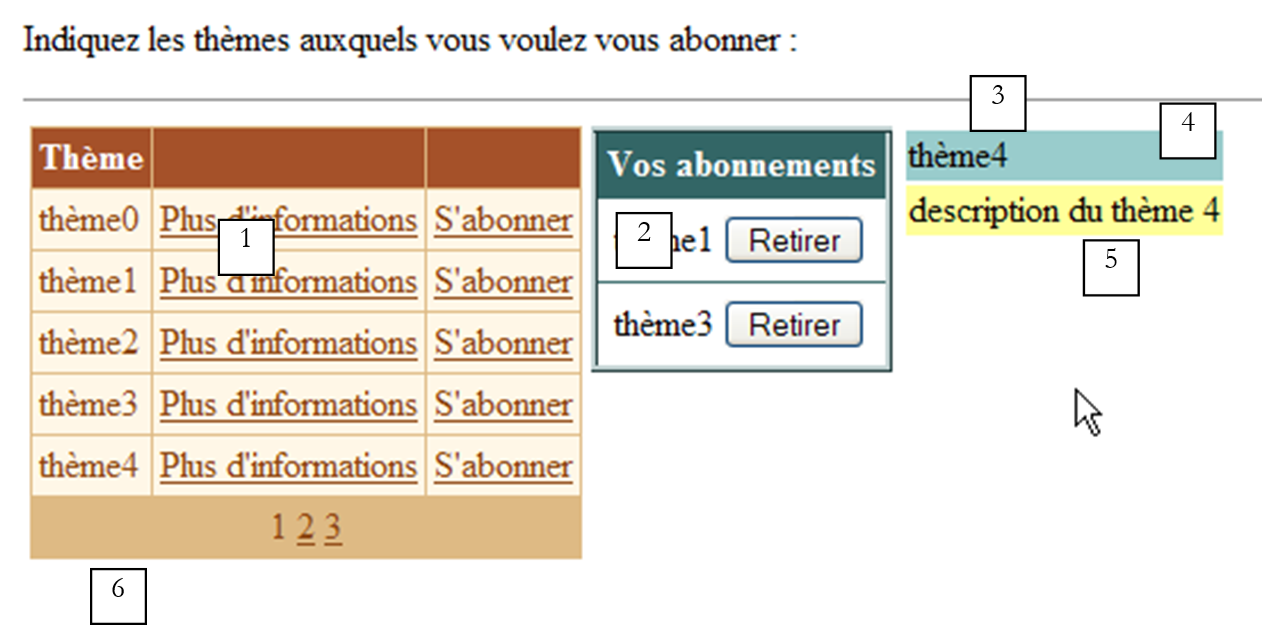 |
No. | name | type | properties | role |
DataGrid | mailing lists available for subscription | |||
DataList | list of the user's subscriptions to the previous lists | |||
panel | information panel on the topic selected by the user with a [More Information] link | |||
Label | part of [panelInfos] | theme name | ||
Label | part of [panelInfos] | theme description | ||
Label | application information message |
Our example aims to illustrate the use of the [DataGrid] and [DataList] components, particularly the handling of events that occur at the row level of these data containers. Therefore, the application does not have a submit button that would save the user's selections to a database, for example. Nevertheless, it is realistic. We are close to an e-commerce application where a user would add products (subscriptions) to their cart.
9.3.2. Functionality
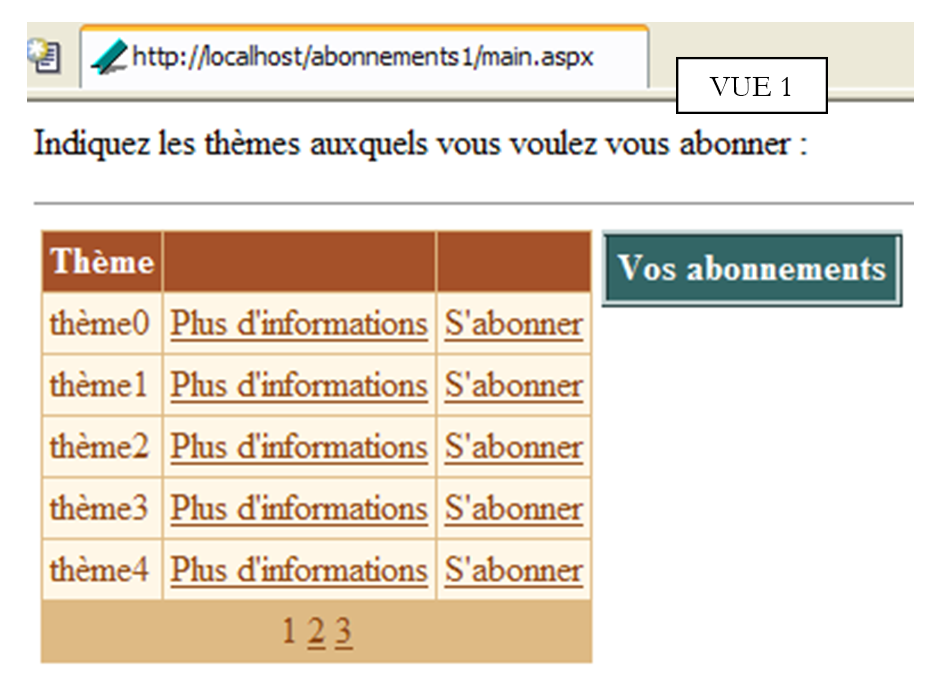
The first view the user sees is as follows:
 |
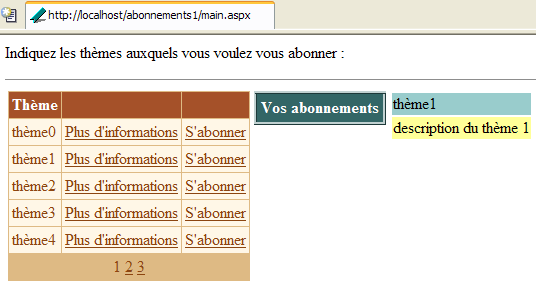
The user clicks on the [More Information] links to get details about a topic. These are displayed in [panelInfos]:
They click the [Subscribe] links to subscribe to a topic. The selected topics are added to the [dlSubscriptions] component:
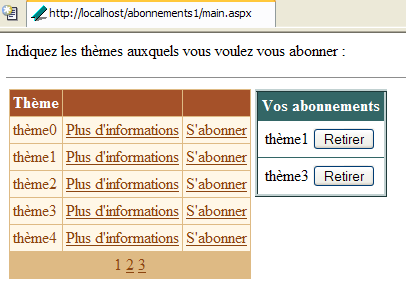
The user may want to subscribe to a list to which they are already subscribed. A message alerts them to this:
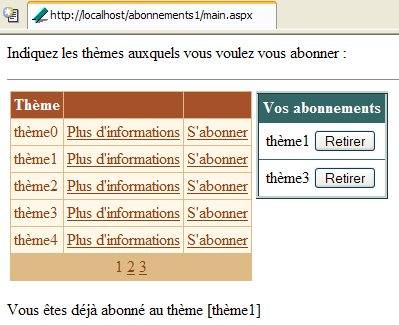
Finally, they can unsubscribe from any of the topics using the [Unsubscribe] buttons above. No confirmation is required. This is not necessary here because the user can easily resubscribe. Here is the view after unsubscribing from [topic1]:
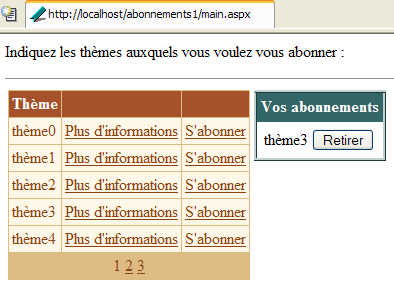
9.3.3. Configuring Data Containers
The [dgThèmes] component of type [DataGrid] is bound to a source of type [DataTable]. Its formatting was done using the [Auto Format] link in the [DataGrid] properties panel. Its properties were defined using the [Property Generator] link in the same panel. The generated code is as follows (the formatting code is omitted):
<asp:datagrid id="dgThèmes" AutoGenerateColumns="False" AllowPaging="True" PageSize="5"
runat="server">
<ItemStyle ...></ItemStyle>
<HeaderStyle ...></HeaderStyle>
<FooterStyle ...></FooterStyle>
<Columns>
<asp:BoundColumn DataField="thème" HeaderText="Thème"></asp:BoundColumn>
<asp:ButtonColumn Text="Plus d'informations" CommandName="infos"></asp:ButtonColumn>
<asp:ButtonColumn Text="S'abonner" CommandName="abonner"></asp:ButtonColumn>
</Columns>
<PagerStyle HorizontalAlign="Center" ... Mode="NumericPages"></PagerStyle>
</asp:datagrid>
Note the following points:
We define the columns to be displayed ourselves in the <columns>...</columns> section | |
for data pagination | |
defines the [theme] column (HeaderText) of the [DataGrid] that will be linked to the [theme] column of the data source (DataField) | |
defines two columns of buttons (or links). To distinguish between the two links in the same row, we will use their [CommandName] property. |
The [DataGrid] component is not fully configured. It will be configured in the controller code.
The [dlAbonnements] component of type [DataList] is linked to a source of type [DataTable]. Its formatting was done using the [AutoFormat] link in the [DataList] properties panel. Its properties were defined directly in the presentation code. This code is as follows (the formatting code is omitted):
                        <asp:DataList id="dlAbonnements" ... runat="server" >
                            <HeaderTemplate>
                                <div align="center">
                                    Vos abonnements</div>
                            </HeaderTemplate>
                            <ItemStyle ...></ItemStyle>
                            <ItemTemplate>
                                <TABLE>
                                    <TR>
                                        <TD><%#Container.DataItem("thème")%></TD>
                                        <TD>
                                            <asp:Button id="lnkRetirer" CommandName="retirer" runat="server" Text="Retirer" /></TD>
                                    </TR>
                                </TABLE>
                            </ItemTemplate>
                            <HeaderStyle ...></HeaderStyle>
                        </asp:DataList>
defines the header text of the [DataList] | |
defines the current item in the [DataList]—here we have placed a table with two columns and one row. The first cell will contain the name of the theme the user wants to subscribe to, and the other will contain the [Unsubscribe] button, which allows the user to cancel their selection. |
9.3.4. The presentation page
The presentation code [main.aspx] is as follows:
<%@ page src="main.aspx.vb" inherits="main" autoeventwireup="false" %>
<HTML>
    <HEAD>
        <title></title>
    </HEAD>
    <body>
        <P>Indiquez les thèmes auxquels vous voulez vous abonner :</P>
        <HR width="100%" SIZE="1">
        <form runat="server">
            <table>
                <tr>
                    <td vAlign="top">
                        <asp:datagrid id="dgThèmes" ... runat="server">
...
                        </asp:datagrid>
                  </td>
                    <td vAlign="top">
                        <asp:DataList id="dlAbonnements" ... runat="server" GridLines="Horizontal" ShowFooter="False">
....
                        </asp:DataList>
                   </td>
                    <td vAlign="top">
                        <asp:Panel ID="panelInfo" Runat="server" EnableViewState="False">
                            <TABLE>
                                <TR>
                                    <TD bgColor="#99cccc">
                                        <asp:Label id="lblThème" runat="server"></asp:Label></TD>
                                </TR>
                                <TR>
                                    <TD bgColor="#ffff99">
                                        <asp:Label id="lblDescription" runat="server"></asp:Label></TD>
                                </TR>
                            </TABLE>
                        </asp:Panel>
                    </td>
                </tr>
            </table>
            <P>
                <asp:Label id="lblInfo" runat="server" EnableViewState="False"></asp:Label></P>
        </form>
    </body>
</HTML>
9.3.5. Controllers
Control logic is distributed between the [global.asax] and [main.aspx] files. The [global.asax] file is as follows:
The associated [global.asax.vb] file contains the following code:
Imports System.Web
Imports System.Web.SessionState
Imports System.Data
Imports System

Public Class global
    Inherits System.Web.HttpApplication

    Sub Application_Start(ByVal sender As Object, ByVal e As EventArgs)
        ' initialize the data source
        Dim thèmes As New DataTable
        ' columns
        With thèmes.Columns
            .Add("id", GetType(System.Int32))
            .Add("thème", GetType(System.String))
            .Add("description", GetType(System.String))
        End With
        ' column id will be primary key
        thèmes.Constraints.Add("cléprimaire", thèmes.Columns("id"), True)
        ' lines
        Dim ligne As DataRow
        For i As Integer = 0 To 10
            ligne = thèmes.NewRow
            ligne.Item("id") = i.ToString
            ligne.Item("thème") = "thème" + i.ToString
            ligne.Item("description") = "description du thème " + i.ToString
            thèmes.Rows.Add(ligne)
        Next
        ' put the data source in the application
        Application("thèmes") = thèmes
    End Sub

    Sub Session_Start(ByVal sender As Object, ByVal e As EventArgs)
        ' start of session - create an empty subscriptions table
        Dim dtAbonnements As New DataTable
        With dtAbonnements
            ' the columns
            .Columns.Add("id", GetType(String))
            .Columns.Add("thème", GetType(String))
            ' the primary key
            .PrimaryKey = New DataColumn() {.Columns("id")}
        End With
        ' the table is placed in the session
        Session.Item("abonnements") = dtAbonnements
    End Sub

End Class
The [Application_Start] procedure, executed when the application receives its very first request, builds the [DataTable] of topics that can be subscribed to. It is constructed arbitrarily using code. Recall the technique we have already encountered. We construct in the following order:
- an empty [DataTable] object, with no structure and no data
- the table structure by defining its columns (name and data type)
- the table rows that represent the useful data
Here we have added a primary key. The "id" column serves as the primary key. There are several ways to express this. Here, we have used a constraint. In SQL, a constraint is a rule that the data in a row must follow in order for that row to be added to a table. There are all sorts of possible constraints. The "Primary Key" constraint forces the column to which it is applied to have unique and non-empty values. A primary key can actually consist of an expression involving values from multiple columns. [DataTable].Constraints is the collection of constraints for a given table. To add a constraint, we use the [DataTable.Constraints.Add] method. This method has several signatures. Here, we used the [Add(Byval name as String, Byval column as DataColumn, Byval primaryKey as Boolean)] method:
constraint name - can be anything | |
column that will be the primary key - of type [DataColumn] | |
must be set to [true] to make [column] a primary key. If [primaryKey=false], only the unique constraint applies to [column] |
To make the column named "id" the primary key of the [dtAbonnements] table, we write:
The [Session_Start] procedure, executed when the application receives the first request from a client. It is used to create objects specific to each client that must persist across the client’s various requests. The procedure builds the [DataTable] of the client’s subscriptions. Only its structure is built, since this table is initially empty. It will be populated as requests are made. Here too, the "id" column serves as the primary key. We used a different technique to declare this constraint:
is the array of columns that make up the primary key—here we have declared a one-element array: the column named "id" |
When the client's request reaches the controller [main.aspx], both [DataTable] objects are available in the application for the themes table and in the session for the subscriptions table. The controller [main.aspx.vb] is as follows:
Imports System.Data

Public Class main
    Inherits System.Web.UI.Page

    Protected WithEvents dgThèmes As System.Web.UI.WebControls.DataGrid
    Protected WithEvents lblThème As System.Web.UI.WebControls.Label
    Protected WithEvents lblDescription As System.Web.UI.WebControls.Label
    Protected WithEvents dlAbonnements As System.Web.UI.WebControls.DataList
    Protected WithEvents lblInfo As System.Web.UI.WebControls.Label
    Protected WithEvents panelInfo As System.Web.UI.WebControls.Panel

    Protected dtThèmes As DataTable
    Protected dtAbonnements As DataTable

    Private Sub Page_Load(ByVal sender As System.Object, ByVal e As System.EventArgs) Handles MyBase.Load
...
    End Sub

    Private Sub liaisons()
...
    End Sub

    Private Sub dgThèmes_PageIndexChanged(ByVal source As Object, ByVal e As System.Web.UI.WebControls.DataGridPageChangedEventArgs) Handles dgThèmes.PageIndexChanged
...
    End Sub

    Private Sub dgThèmes_ItemCommand(ByVal source As Object, ByVal e As System.Web.UI.WebControls.DataGridCommandEventArgs) Handles dgThèmes.ItemCommand
...
    End Sub

    Private Sub infos(ByVal id As String)
...
    End Sub

    Private Sub abonner(ByVal id As String)
...
    End Sub

    Private Sub dlAbonnements_ItemCommand(ByVal source As Object, ByVal e As System.Web.UI.WebControls.DataListCommandEventArgs) Handles dlAbonnements.ItemCommand
...
    End Sub
End Class
The primary role of the [Page_Load] procedure is to:
- retrieve the two tables [dtThèmes] and [dtAbonnements], which are located in the application and session respectively, to make them available to all methods on the page
- binding the data from these two sources to their respective containers. This is done only during the first request. For subsequent requests, the binding does not need to be performed systematically, and when it is necessary, it may sometimes be necessary to wait for an event occurring after [Page_Load] to perform it.
The code for [Page_Load] is as follows:
    Private Sub Page_Load(ByVal sender As System.Object, ByVal e As System.EventArgs) Handles MyBase.Load
        ' retrieve data sources
        dtThèmes = CType(Application("thèmes"), DataTable)
        dtAbonnements = CType(Session("abonnements"), DataTable)
        ' data link
        If Not IsPostBack Then
            liaisons()
        End If
        ' we hide certain information
        panelInfo.Visible = False
    End Sub

    Private Sub liaisons()
        'link the data source to the [datagrid] component
        With dgThèmes
            .DataSource = dtThèmes
            .DataKeyField = "id"
        End With
        ' link the data source to the [datalist] component
        With dlAbonnements
            .DataSource = dtAbonnements
            .DataKeyField = "id"
        End With
        ' assign data to components
        Page.DataBind()
    End Sub
In the [Bindings] procedure, we use the [DataKeyField] property of the [DataList] and [DataGrid] components to define the column in the data source that will be used to uniquely identify the rows in the containers. Typically, this column is the primary key of the data source, but this is not mandatory. It is sufficient for the column to be free of duplicates and empty values. For the [dgThemes] container, the "id" column of the [dtThemes] source will serve as the primary key, and for the [dlSubscriptions] container, it will be the "id" column of the [dtSubscriptions] source. There is no need for the column serving as the container’s primary key to be displayed by the container itself. Here, neither container displays the primary key column. The benefit of a container having a primary key is that it allows you to easily retrieve, from the data source, the information associated with the container row on which an event occurred. In fact, it is common that, starting from a container row where an event occurred, you need to perform an action on the corresponding row in the linked data source. The primary key facilitates this task.
Pagination of the [DataGrid] is handled in the standard way:
    Private Sub dgThèmes_PageIndexChanged(ByVal source As Object, ByVal e As System.Web.UI.WebControls.DataGridPageChangedEventArgs) Handles dgThèmes.PageIndexChanged
        ' change page
        dgThèmes.CurrentPageIndex = e.NewPageIndex
        ' link
        liaisons()
    End Sub
Actions on the [More Information] and [Subscribe] links are handled by the [dgThèmes_ItemCommand] procedure:
    Private Sub dgThèmes_ItemCommand(ByVal source As Object, ByVal e As System.Web.UI.WebControls.DataGridCommandEventArgs) Handles dgThèmes.ItemCommand
        ' evt on a [datagrid] line
        Dim commande As String = e.CommandName
        Select Case commande
            Case "infos"
                infos(dgThèmes.DataKeys(e.Item.ItemIndex))
            Case "abonner"
                abonner(dgThèmes.DataKeys(e.Item.ItemIndex))
        End Select
        ' link
        liaisons()
    End Sub
We use the fact that both links have a [CommandName] attribute to distinguish them. Depending on the value of this attribute, we call the [info] or [subscribe] procedure, passing in both cases the "id" key associated with the [DataGrid] element where the event occurred. Armed with this information, the [info] procedure will display the details of the theme selected by the user:
    Private Sub infos(ByVal id As String)
        ' information on the theme of key id
        ' we retrieve the line from the [datatable] corresponding to the key
        Dim ligne As DataRow
        ligne = dtThèmes.Rows.Find(id)
        If Not ligne Is Nothing Then
            ' display info
            lblThème.Text = CType(ligne("thème"), String)
            lblDescription.Text = CType(ligne("description"), String)
            panelInfo.Visible = True
        End If
    End Sub
Since the [dtThèmes] table has a primary key, the method [dtThèmes.Rows.Find("P")] allows us to find the row with the primary key P. If it is found, we obtain a [DataRow] object. Here, we need to find the row with the primary key [id], where [id] is passed as a parameter. If the row is found, we place the [theme] and [description] information from that row into the information panel, which we then make visible.
The [subscribe(id)] procedure must add the theme with key [id] to the subscription list. Its code is as follows:
    Private Sub abonner(ByVal id As String)
        ' id key theme subscription
        ' we retrieve the line from the [datatable] corresponding to the key
        Dim ligne As DataRow
        ligne = dtThèmes.Rows.Find(id)
        If Not ligne Is Nothing Then
            ' check if you are not already a subscriber
            Dim abonnement As DataRow
            abonnement = dtAbonnements.Rows.Find(id)
            If Not abonnement Is Nothing Then
                ' report the error
                lblInfo.Text = "Vous êtes déjà abonné au thème [" + ligne("thème") + "]"
            Else
                ' add the theme to the subscriptions
                abonnement = dtAbonnements.NewRow
                abonnement("id") = id
                abonnement("thème") = ligne("thème")
                dtAbonnements.Rows.Add(abonnement)
                ' we make the connections
                liaisons()
            End If
        End If
    End Sub
In the list of themes [dtThemes], we first search for the row with the key [id]. If found, we check that this theme is not already present in the list of subscriptions to avoid adding it twice. If it is, we display an error message. Otherwise, we add a new subscription to the [dtSubscriptions] table and link the data list components to their respective sources.
When the user clicks a [Remove] button, an item must be deleted from the [dtAbonnements] table. This is done by the following procedure:
    Private Sub dlAbonnements_ItemCommand(ByVal source As Object, ByVal e As System.Web.UI.WebControls.DataListCommandEventArgs) Handles dlAbonnements.ItemCommand
        ' withdraw a subscription
        Dim commande As String = e.CommandName
        If commande = "retirer" Then
            ' we remove the [datatable] subscription
            With dtAbonnements.Rows
                .Remove(.Find(dlAbonnements.DataKeys(e.Item.ItemIndex)))
            End With
            ' links
            liaisons()
        End If
    End Sub
First, we check the [CommandName] property of the element that triggered the event. This is actually quite unnecessary since the [Remove] button is the only control capable of generating an event in the [DataList] component. There is therefore no ambiguity. To delete a row from a [DataTable] object, we use the [DataList.Remove(DataRow)] method, which removes the [DataRow] row passed as a parameter from the table. This row is found by the [DataList.Find] method, to which we pass the primary key of the row being searched for. Once the row has been deleted, we bind the data to the components
9.4. Managing a paginated [DataList]
We’ll revisit the previous example to paginate the [DataList] component representing the user’s subscription list. Unlike the [DataGrid] component, the [DataList] component offers no built-in pagination functionality. We’ll see that implementing pagination is complex, which will help us appreciate the value of the [DataGrid]’s automatic pagination.
9.4.1. How it works
The only difference is the pagination of the [DataList]. Each page will display two subscriptions. If the user has five subscriptions, there will be three pages. The first page will look like this:
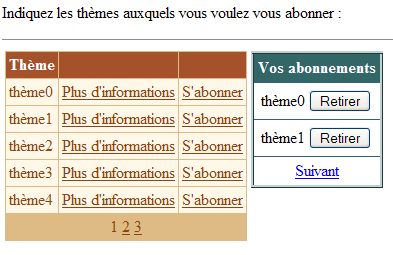
The second page is accessed via the [Next] link:
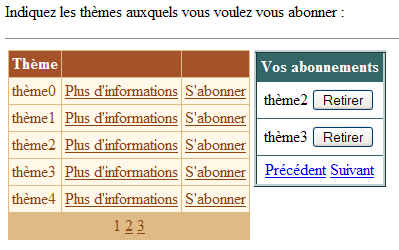
The third page:
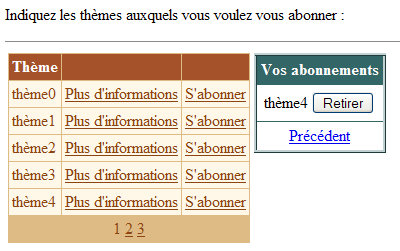
Note that the [Previous] and [Next] links are only visible if there is a page preceding and a page following the current page, respectively.
9.4.2. Presentation code
The [Previous] and [Next] links are created by adding a <FooterTemplate> tag to the [DataList]:
                        <asp:datalist id="dlAbonnements" runat="server" ...>
....
                            <FooterTemplate>
                                <asp:LinkButton id="lnkPrecedent" runat="server" CommandName="precedent">Précédent</asp:LinkButton>
                                <asp:LinkButton id="lnkSuivant" runat="server" CommandName="suivant">Suivant</asp:LinkButton>
                            </FooterTemplate>
....
                        </asp:datalist>
9.4.3. Control code
The associated file [global.asax.vb] changes as follows:
...

Public Class global
    Inherits System.Web.HttpApplication

    Sub Application_Start(ByVal sender As Object, ByVal e As EventArgs)
...
    End Sub

    Sub Session_Start(ByVal sender As Object, ByVal e As EventArgs)
        ' start of session - create an empty subscriptions table
        Dim dtAbonnements As New DataTable
        With dtAbonnements
            ' the columns
            .Columns.Add("id", GetType(String))
            .Columns.Add("thème", GetType(String))
            ' the primary key
            .PrimaryKey = New DataColumn() {.Columns("id")}
        End With
        ' the table is placed in the session
        Session.Item("abonnements") = dtAbonnements
        ' the current page is page 0
        Session.Item("pAC") = 0
        ' the number of subscriptions on this page is 0
        Session.Item("nbAC") = 0
    End Sub
In addition to the subscriptions table [dtAbonnements], two other pieces of information are stored in the session:
of type [Integer]—this is the number of the current page displayed during the last request | |
of type [Integer] - number of rows displayed on the previous current page |
At the start of a session, the current page number and the number of rows on that page are zero.
The [main.aspx.vb] controller evolves as follows:
....

Public Class main
    Inherits System.Web.UI.Page

....

    ' application data
    Protected dtThèmes As DataTable
    Protected dtAbonnements As DataTable
    Protected dtPA As DataTable    ' subscription page displayed
    Protected Const nbAP As Integer = 2    ' subscriptions per page
    Protected pAC As Integer    ' current subscription page
    Protected nbAC As Integer    ' number of subscriptions in current page

    Private Sub Page_Load(ByVal sender As System.Object, ByVal e As System.EventArgs) Handles MyBase.Load
...
    End Sub

    Private Sub terminer()
...
    End Sub

    Private Sub dgThèmes_PageIndexChanged(ByVal source As Object, ByVal e As System.Web.UI.WebControls.DataGridPageChangedEventArgs) Handles dgThèmes.PageIndexChanged
...
    End Sub

    Private Sub dgThèmes_ItemCommand(ByVal source As Object, ByVal e As System.Web.UI.WebControls.DataGridCommandEventArgs) Handles dgThèmes.ItemCommand
...
    End Sub

    Private Sub infos(ByVal id As String)
...
    End Sub

    Private Sub abonner(ByVal id As String)
...
    End Sub

    Private Sub dlAbonnements_ItemCommand(ByVal source As Object, ByVal e As System.Web.UI.WebControls.DataListCommandEventArgs) Handles dlAbonnements.ItemCommand
...
    End Sub

    Private Sub changePAC()
...
    End Sub

    Private Sub setLiens(ByVal ctl As Control, ByVal blPrec As Boolean, ByVal blSuivant As Boolean)
...
    End Sub
End Class
Here, we define new data related to subscription pagination:
    Protected dtPA As DataTable    ' la page d'abonnements affichée
    Protected Const nbAP As Integer = 2    ' nbre abonnements par page
    Protected pAC As Integer    ' page abonnement courant
    Protected nbAC As Integer    ' nombre d'abonnements dans page courante
Some of this information is stored in the session and is retrieved with each request in the [Page_Load] procedure:
    Private Sub Page_Load(ByVal sender As System.Object, ByVal e As System.EventArgs) Handles MyBase.Load
        ' retrieve data sources
        dtThèmes = CType(Application("thèmes"), DataTable)
        dtAbonnements = CType(Session("abonnements"), DataTable)
        ' and subscription display information
        pAC = CType(Session("pAC"), Integer)
        nbAC = CType(Session("nbAC"), Integer)
        ' data link
        If Not IsPostBack Then
            ' display an empty subscription list
            terminer()
        End If
        ' we hide certain information
        panelInfo.Visible = False
    End Sub
The retrieved information [pAC] and [nbAC] are details about the subscriptions page displayed during the previous request:
is the number of the current page displayed during the previous request | |
number of rows displayed on this current page |
The [terminer] method binds the components to their data sources, just as the [liaisons] method did in the previous application. The new feature here is the binding of the [DataList] to the [dtPA] table, which is the subscription page to be displayed:
    Private Sub terminer()
        ' link the data source to the [datagrid] component
        With dgThèmes
            .DataSource = dtThèmes
            .DataKeyField = "id"
        End With
        ' link the subscriptions page to the [datalist] component, taking into account the current page pAC
        changePAC()
        ' page p is displayed
        With dlAbonnements
            .DataSource = dtPA
            .DataKeyField = "id"
        End With
        ' assign data to components
        Page.DataBind()
        ' management of [previous] and [next] links in the [datalist]
        Dim blprec As Boolean = pAC <> 0
        Dim blsuivant As Boolean = pAC <> (dtAbonnements.Rows.Count - 1) \ nbAP
        Dim nbLiensTrouvés As Integer = 0
        setLiens(dlAbonnements, blprec, blsuivant, nbLiensTrouvés)
        ' save current page information in the session
        Session("pAC") = pAC
        Session("nbAC") = dtPA.Rows.Count
    End Sub
The following points should be noted:
- The source [dtPA] depends on the current page number [pAC] to be displayed. The variable [pAC] is a global variable of the class, manipulated by methods that need to change this current page number. The [changePAC] method is responsible for constructing the [dtPA] table, which will be linked to the [dlAbonnements] component.
- The [setLiens] method is responsible for displaying or hiding the [Previous] and [Next] links depending on whether the current page [pAC] displayed is preceded and followed by a page. It has four parameters:
- [dlAbonnements]: the [DataList] control whose control tree we will explore to find the two links. Although these two links are located in a specific place—the footer of the [DataList]—there does not appear to be a simple way to reference them directly. In any case, none has been found here.
- [blPrecedent]: a Boolean to be assigned to the [visible] property of the [Precedent] link—is true if the current page is not 0
- [blNext]: a Boolean to be assigned to the [visible] property of the [Next] link—is true if the current page is not the last page in the subscription list
- [nbLiensTrouvés]: an output parameter that counts the number of links found. As soon as this count reaches two, the method terminates.
- The [pAC] and [nbAC] information is saved in the session for the next request.
The [changePAC] method constructs the [dtPA] table, which will be linked to the [dlAbonnements] component. It does so based on the [pAC] number of the current page to be displayed. The [dtPA] table must display certain rows from the [dtAbonnements] subscription table. Recall that this table is stored in the session and updated (increased or decreased) as requests are made. We begin by setting the [first,last] range of row numbers in the [dtAbonnements] table that the [dtPA] table must display:
    Private Sub changePAC()
        ' makes the pAC page the current subscription page
        ' datalist] page management
        Dim nbAbonnements = dtAbonnements.Rows.Count
        Dim dernièrePage = (nbAbonnements - 1) \ nbAP
        ' first and last subscription
        If pAC < 0 Then pAC = 0
        If pAC > dernièrePage Then pAC = dernièrePage
        Dim premier As Integer = pAC * nbAP
        Dim dernier As Integer = (pAC + 1) * nbAP - 1
        If dernier > nbAbonnements - 1 Then dernier = nbAbonnements - 1
Once this is done, we can create the [dtPA] table. First, we define its structure [id, theme], then we populate it by copying the rows from [dtSubscriptions] whose numbers fall within the range [first, last] calculated earlier.
        ' creation of the datatable dtpa
        dtPA = New DataTable
        With dtPA
            ' the columns
            .Columns.Add("id", GetType(String))
            .Columns.Add("thème", GetType(String))
            ' the primary key
            .PrimaryKey = New DataColumn() {.Columns("id")}
        End With
        Dim abonnement As DataRow
        For i As Integer = premier To dernier
            abonnement = dtPA.NewRow
            With abonnement
                .Item("id") = dtAbonnements.Rows(i).Item("id")
                .Item("thème") = dtAbonnements.Rows(i).Item("thème")
            End With
            dtPA.Rows.Add(abonnement)
        Next
    End Sub
At the end of the [changePAC] method, the [dtPA] table has been built and can be bound to the [DataList] component. This is done in the [terminer] method. In this same method, the [setLiens] procedure is used to set the state of the [Previous] and [Next] links in the [DataList]. The code for this procedure is as follows:
    Private Sub setLiens(ByVal ctl As Control, ByVal blPrec As Boolean, ByVal blSuivant As Boolean, ByRef nbLiensTrouvés As Integer)
        ' search for [previous] and [next] links
        ' in the [datalist] control tree
        ' have all the links been found?
        If nbLiensTrouvés = 2 Then Exit Sub
        ' review of child controls
        Dim c As Control
        For Each c In ctl.Controls
            ' we work deep down first - the links are at the bottom of the tree
            setLiens(c, blPrec, blSuivant, nbLiensTrouvés)
            ' link [Previous] ?
            If c.ID = "lnkPrecedent" Then
                CType(c, LinkButton).Visible = blPrec
                nbLiensTrouvés += 1
            End If
            ' next] link ?
            If c.ID = "lnkSuivant" Then
                CType(c, LinkButton).Visible = blSuivant
                nbLiensTrouvés += 1
            End If
        Next
    End Sub
The procedure is recursive. It first searches among the child controls of the [dlAbonnements] component for components named [lnkPrecedent] and [lnkSuivant], which are the IDs of the two pagination links. It starts the search from the bottom of the control tree because that is where they are located. As soon as a link is found, the [nbLiensTrouvés] counter is incremented, and the [visible] property of the link is set to a value passed as a parameter to the procedure. Once both links have been found, the control tree is no longer traversed, and the recursive procedure ends.
We mentioned that the [changePAC] method, which sets the data source [dtPA] for the [dlAbonnements] component, works with the [pAC] number of the current page to be displayed. Several procedures modify this number:
    Private Sub abonner(ByVal id As String)
        ' id key theme subscription
..
            ' add the theme to the subscriptions
..
            ' update current page number - it's now the last page
            pAC = (dtAbonnements.Rows.Count - 1) \ nbAP
            ' data links
            terminer()
        End If
    End Sub
After adding a subscription, it appears at the end of the subscription list. Therefore, the view is set to the last page of subscriptions so that the user can see the addition that was made.
    Private Sub dlAbonnements_ItemCommand(ByVal source As Object, ByVal e As System.Web.UI.WebControls.DataListCommandEventArgs) Handles dlAbonnements.ItemCommand
        ' withdraw a subscription
        Dim commande As String = e.CommandName
        Select Case commande
            Case "retirer"
                ' we remove the [datatable] subscription
                With dtAbonnements.Rows
                    .Remove(.Find(dlAbonnements.DataKeys(e.Item.ItemIndex)))
                End With
                ' is it necessary to change the current page?
                nbAC -= 1
                If nbAC = 0 Then pAC -= 1
            Case "precedent"
                ' change current page
                pAC -= 1
            Case "suivant"
                ' change current page
                pAC += 1
        End Select
        ' data links
        terminer()
    End Sub
- [nbAC] is the number of lines displayed on the current page before a subscription is canceled. If the new number of lines on the page is equal to 0, the current page number [pAC] is decremented by one.
- If the [Previous] link is clicked, the current page number [pAC] is decremented by one.
- When the [Next] link is clicked, the current page number [pAC] is incremented by one.
The other procedures remain the same as before.
9.4.4. Conclusion
We have shown in this example that we can paginate a [DataList] component. This pagination is complex, and it is preferable to rely on the automatic pagination of the [DataGrid] component whenever possible. This example has also shown us how to access the components present in the footer of the [DataList] component.
9.5. Class for accessing a product database
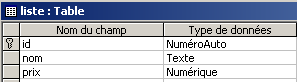
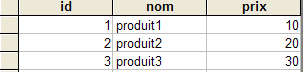
We are once again focusing on the ACCESS [products] database that we have already used. Recall that it has a single table named [list] with the following structure:
 |  |
We will create an access class for the [list] table that will allow us to read from and update it. We will also create a console client that will use the previous class to update the table. Next, we will create a web client to perform the same task.
9.5.1. The ProductException Class
The [Exception] class has a constructor that takes an error message as a parameter. Here, we want an exception class with a constructor that accepts a list of error messages rather than a single error message. This will be the [ExceptionProduits] class below:
    Public Class ExceptionProduits
        Inherits Exception

        ' exception error msg
        Private _erreurs As ArrayList

        ' manufacturer
        Public Sub New(ByVal erreurs As ArrayList)
            Me._erreurs = erreurs
        End Sub

        ' property
        Public ReadOnly Property erreurs() As ArrayList
            Get
                Return _erreurs
            End Get
        End Property
    End Class
9.5.2. The [sProduct] structure
The [product] structure represents a product [id, name, price]:
    ' structure sProduit
    Public Structure sProduit
        ' the fields
        Private _id As Integer
        Private _nom As String
        Private _prix As Double

        ' property id
        Public Property id() As Integer
            Get
                Return _id
            End Get
            Set(ByVal Value As Integer)
                _id = Value
            End Set
        End Property

        ' property name
        Public Property nom() As String
            Get
                Return _nom
            End Get
            Set(ByVal Value As String)
                If IsNothing(Value) OrElse Value.Trim = String.Empty Then Throw New Exception
                _nom = Value
            End Set
        End Property

        ' property price
        Public Property prix() As Double
            Get
                Return _prix
            End Get
            Set(ByVal Value As Double)
                If IsNothing(Value) OrElse Value < 0 Then Throw New Exception
                _prix = Value
            End Set
        End Property
    End Structure
The structure only accepts valid data for the [name] and [price] fields.
9.5.3. The Products Class
The [Products] class is the class that will allow us to update the [list] table in the product database. Its structure is as follows:
    Public Class produits
        ' instance data

        Public Sub New(ByVal chaineConnexionOLEDB As String)
....
        End Sub

        Public Function getProduits() As DataTable
....
        End Function

        Public Sub ajouterProduit(ByVal produit As sProduit)
...
        End Sub

        Public Sub modifierProduit(ByVal produit As sProduit)
...
        End Sub

        Public Sub supprimerProduit(ByVal id As Integer)
...
        End Sub

    End Class
Instance data
The data shared by the various methods of the class is as follows:
        Private connexion As OleDbConnection
        Private Const selectText As String = "select id,nom,prix from liste"
        Private Const insertText As String = "insert into liste(nom,prix) values(?,?)"
        Private Const updateText As String = "update liste set nom=?,prix=? where id=?"
        Private Const deleteText As String = "delete from liste where id=?"
        Private selectCommand As New OleDbCommand
        Dim insertCommand As New OleDbCommand
        Dim updateCommand As New OleDbCommand
        Dim deleteCommand As New OleDbCommand
        Dim adaptateur As New OleDbDataAdapter
The database connection will be opened to execute an SQL command and then closed immediately afterward | |
SQL query [select] retrieving the entire table [list] | |
query allowing the insertion of a row (name, price) into the table [list]. Note that the [id] field is not specified. This is because the DBMS auto-increment this field, so we do not need to specify it. | |
Query to update the fields (name, price) of the row in the [list] table with the key [id] | |
query that deletes the row from the [list] table with the [id] key | |
[OleDbCommand] object that executes the [selectText] query on the [connection] connection | |
[OleDbCommand] object executing the [updateText] query on the [connection] connection | |
[OleDbCommand] object executing the [insertText] query on the [connection] connection | |
[OleDbCommand] object executing the [deleteText] query on the [connection] connection | |
object used to retrieve the result of executing [selectCommand] in a [DataSet] object |
The constructor
The constructor takes a single parameter [OLEDBConnectionString], which is the connection string specifying the database to be used. From this, the four commands for querying and updating the table, as well as the adapter, are prepared. This is merely a preparation step, and no connection is established.
        Public Sub New(ByVal chaineConnexionOLEDB As String)
            ' preparing the connection
            connexion = New OleDbConnection(chaineConnexionOLEDB)
            ' prepare query orders
            Dim commandes() As OleDbCommand = {selectCommand, insertCommand, updateCommand, deleteCommand}
            Dim textes() As String = {selectText, insertText, updateText, deleteText}
            For i As Integer = 0 To commandes.Length - 1
                With commandes(i)
                    .CommandText = textes(i)
                    .Connection = connexion
                End With
            Next
            ' prepare the data access adapter
            adaptateur.SelectCommand = selectCommand
        End Sub
The getProducts method
This method retrieves the contents of the [List] table into a [DataTable] object. Its code is as follows:
        Public Function getProduits() As DataTable
            ' we put the [list] table in a [dataset]
            Dim contenu As New DataSet
            ' create a DataAdapter object to read data from source OLEDB
            Try
                With adaptateur
                    .FillSchema(contenu, SchemaType.Source)
                    .Fill(contenu)
                End With
            Catch e As Exception
                ' pb
                Dim erreursCommande As New ArrayList
                erreursCommande.Add(String.Format("Erreur d'accès à la base de données : {0}", e.Message))
                Throw New ExceptionProduits(erreursCommande)
            End Try
            ' we return the result
            Return contenu.Tables(0)
        End Function
The work is done by the following two statements:
                With adaptateur
                    .FillSchema(contenu, SchemaType.Source)
                    .Fill(contenu)
                End With
The [FillSchema] method sets the structure (columns, constraints, relationships) of the contained [DataSet] based on the structure of the database referenced by [adapter.Connection]. This allows us to retrieve the structure of the [list] table, including its primary key. The [Fill] operation that follows populates the contained [DataSet] with the rows from the [list] table. With this single operation, we would have obtained the data and the structure but not the primary key. However, this will be useful for updating the [list] table in memory. Here, as in the other methods, we handle any errors using the [ProductExceptions] class to obtain a list (ArrayList) of errors rather than a single error. The [getProducts] method returns the [list] table as a [DataTable] object.
The addProducts method
This method allows you to add a row (id, name, price) to the [list] table. This information is provided to it in the form of a [sProduct] structure with fields [id, name, price]. The method’s code is as follows:
        Public Sub ajouterProduit(ByVal produit As sProduit)
            ' add a product [name,price]
            ' we prepare the parameters for the addition
            With insertCommand.Parameters
                .Clear()
                .Add(New OleDbParameter("nom", produit.nom))
                .Add(New OleDbParameter("prix", produit.prix))
            End With
            ' we add
            Try
                ' opening connection
                connexion.Open()
                ' order execution
                insertCommand.ExecuteNonQuery()
            Catch ex As Exception
                ' pb
                Dim erreursCommande As New ArrayList
                erreursCommande.Add(String.Format("Erreur lors de l'ajout : {0}", ex.Message))
                Throw New ExceptionProduits(erreursCommande)
            Finally
                ' locking connection
                connexion.Close()
            End Try
        End Sub
The fields of the [product] structure are passed as parameters to the [insertCommand] command. Let’s review the current configuration of this command (see constructor):
 Private Const insertText As String = "insert into liste(nom,prix) values(?,?)"
 insertCommand.Connexion=connexion
The text of the [insert] SQL command contains formal parameters ? that must be replaced with actual parameters. This is done using the [Parameters] collection of the [OleDbCommand] class. This collection contains elements of type [OleDbParameter] that define the actual parameters that must replace the formal parameters ?. Since these are not named, the index of the actual parameters is used to determine which formal parameter corresponds to a given actual parameter. Here, actual parameter #i in the [Parameters] collection will replace formal parameter ? #i. To create an actual parameter of type [OleDbParameter], we use the constructor [OleDbParameter (Byval name as String, Byval value as Object)], which defines the name and value of the actual parameter. The name can be anything. Furthermore, it will not be used here. The two parameters of the SQL [insert] statement receive as values those of the [name, price] fields of the [product] structure. Once this is done, the insertion is performed by the [insertCommand.ExecuteNonQuery] statement.
The modifyProducts method
This method allows you to modify a row in the [list] table. The information it requires is provided in the [sProduct] structure, which contains the fields [id, name, price].
        Public Sub modifierProduit(ByVal produit As sProduit)
            ' modify a product [id,name,price]
            ' prepare update parameters
            With updateCommand.Parameters
                .Clear()
                .Add(New OleDbParameter("nom", produit.nom))
                .Add(New OleDbParameter("prix", produit.prix))
                .Add(New OleDbParameter("id", produit.id))
            End With
            ' make the change
            Try
                ' opening connection
                connexion.Open()
                ' order execution
                Dim nbLignes As Integer = updateCommand.ExecuteNonQuery()
                If nbLignes = 0 Then Throw New Exception(String.Format("Le produit de clé [{0}] n'existe pas dans la table des données", produit.id))
            Catch ex As Exception
                ' pb
                Dim erreursCommande As New ArrayList
                erreursCommande.Add(String.Format("Erreur lors de la modification : {0}", ex.Message))
                Throw New ExceptionProduits(erreursCommande)
            Finally
                ' locking connection
                connexion.Close()
            End Try
        End Sub
The code is almost identical to that of the [addProducts] method, except that the relevant [OleDbCommand] is [updateCommand] instead of [insertCommand].
The [deleteProducts] method
This method deletes the row from the [list] table with the [id] key passed as a parameter. The code is as follows:
        Public Sub supprimerProduit(ByVal id As Integer)
            ' deletes key product [id]
            ' prepare the parameters for the deletion
            With deleteCommand.Parameters
                .Clear()
                .Add(New OleDbParameter("id", id))
            End With
            ' we delete
            Try
                ' opening connection
                connexion.Open()
                ' order execution
                Dim nbLignes As Integer = deleteCommand.ExecuteNonQuery()
                If nbLignes = 0 Then Throw New Exception(String.Format("Le produit de clé [{0}] n'existe pas dans la table des données", id))
            Catch ex As Exception
                ' pb
                Dim erreursCommande As New ArrayList
                erreursCommande.Add(String.Format("Erreur lors de la suppression : {0}", ex.Message))
                Throw New ExceptionProduits(erreursCommande)
            Finally
                ' locking connection
                connexion.Close()
            End Try
        End Sub
The approach is the same as for the previous methods.
9.5.4. Testing the [products] class
A console-based test program [testproducts.vb] could look like this:
Option Explicit On
Option Strict On

' namespaces
Imports System
Imports System.Data
Imports Microsoft.VisualBasic
Imports System.Collections

Namespace st.istia.univangers.fr

    ' test pg
    Module testproduits
        Dim contenu As DataTable

        Sub Main(ByVal arguments() As String)
            ' displays the contents of a product table
            ' the table is in a ACCESS database whose pg receives the file name
            Const syntaxe1 As String = "pg bdACCESS"

            ' checking program parameters
            If arguments.Length <> 1 Then
                ' error msg
                Console.Error.WriteLine(syntaxe1)
                ' end
                Environment.Exit(1)
            End If
            ' prepare the connection chain
            Dim chaineConnexion As String = "Provider=Microsoft.Jet.OLEDB.4.0; Ole DB Services=-4; Data Source=" + arguments(0)
            ' creation of a product object
            Dim objProduits As produits = New produits(chaineConnexion)
            ' display all products
            afficheProduits(objProduits)
            ' insert a product
            Dim produit As New sProduit
            With produit
                .nom = "xxx"
                .prix = 1
            End With
            Try
                objProduits.ajouterProduit(produit)
            Catch ex As ExceptionProduits
                afficheErreurs(ex.erreurs)
            End Try
            ' display all products
            afficheProduits(objProduits)
            ' retrieve the id of the ahjouté product
            produit.id = CType(contenu.Rows(contenu.Rows.Count - 1)("id"), Integer)
            ' modify the added product
            produit.prix = 200
            Try
                objProduits.modifierProduit(produit)
            Catch ex As ExceptionProduits
                afficheErreurs(ex.erreurs)
            End Try
            ' display all products
            afficheProduits(objProduits)
            ' remove the added product
            Try
                objProduits.supprimerProduit(produit.id)
            Catch ex As ExceptionProduits
                afficheErreurs(ex.erreurs)
            End Try
            ' display all products
            afficheProduits(objProduits)
        End Sub

        Sub afficheProduits(ByRef objProduits As produits)
            ' retrieve the product table from a datatable
            Try
                contenu = objProduits.getProduits()
            Catch ex As ExceptionProduits
                afficheErreurs(ex.erreurs)
                Environment.Exit(2)
            End Try
            Dim lignes As DataRowCollection = contenu.Rows
            For i As Integer = 0 To lignes.Count - 1
                ' table line i
                Console.Out.WriteLine(lignes(i).Item("id").ToString + "," + lignes(i).Item("nom").ToString + _
                "," + lignes(i).Item("prix").ToString)
            Next
            ' stops console flow
            Console.WriteLine("...")
            Console.ReadLine()
        End Sub

        Sub afficheErreurs(ByRef erreurs As ArrayList)
            ' displays errors on the console
            If erreurs.Count <> 0 Then
                Console.WriteLine("Les erreurs suivantes se sont produites :")
                For i As Integer = 0 To erreurs.Count - 1
                    Console.WriteLine(String.Format("-- {0}", CType(erreurs(i), String)))
                Next
            End If
            ' stops console flow
            Console.WriteLine("...")
            Console.ReadLine()
        End Sub
    End Module
End Namespace
Compile the two source files:
dos>vbc /t:library /r:system.dll /r:system.data.dll /r:system.xml.dll produits.vb

dos >vbc /r:produits.dll /r:system.dll /r:system.data.dll /r:system.xml.dll testproduits.vb

dos>dir
07/04/2004  08:40             7 168 produits.dll
04/04/2004  16:38           118 784 produits.mdb
07/04/2004  08:31             6 209 produits.vb
07/04/2004  08:40             5 120 testproduits.exe
03/04/2004  19:02             3 312 testproduits.vb
Then we test:
dos>testproduits produits.mdb
1,produit1,10
2,produit2,20
3,produit3,30
...

1,produit1,10
2,produit2,20
3,produit3,30
8,xxx,1
...

1,produit1,10
2,produit2,20
3,produit3,30
8,xxx,200
...

1,produit1,10
2,produit2,20
3,produit3,30
...
The reader is invited to compare the screen output above with the test program code.
9.6. Web application for updating the cached product table
9.6.1. Introduction
We are now writing a web application to update the product table (add, delete, modify). The updated table will remain in memory in a [DataTable] object and will be shared by all users. We want to highlight two points:
- the management of a [DataTable] object
- the challenges of simultaneous table updates by multiple users.
The application’s MVC architecture will be as follows:
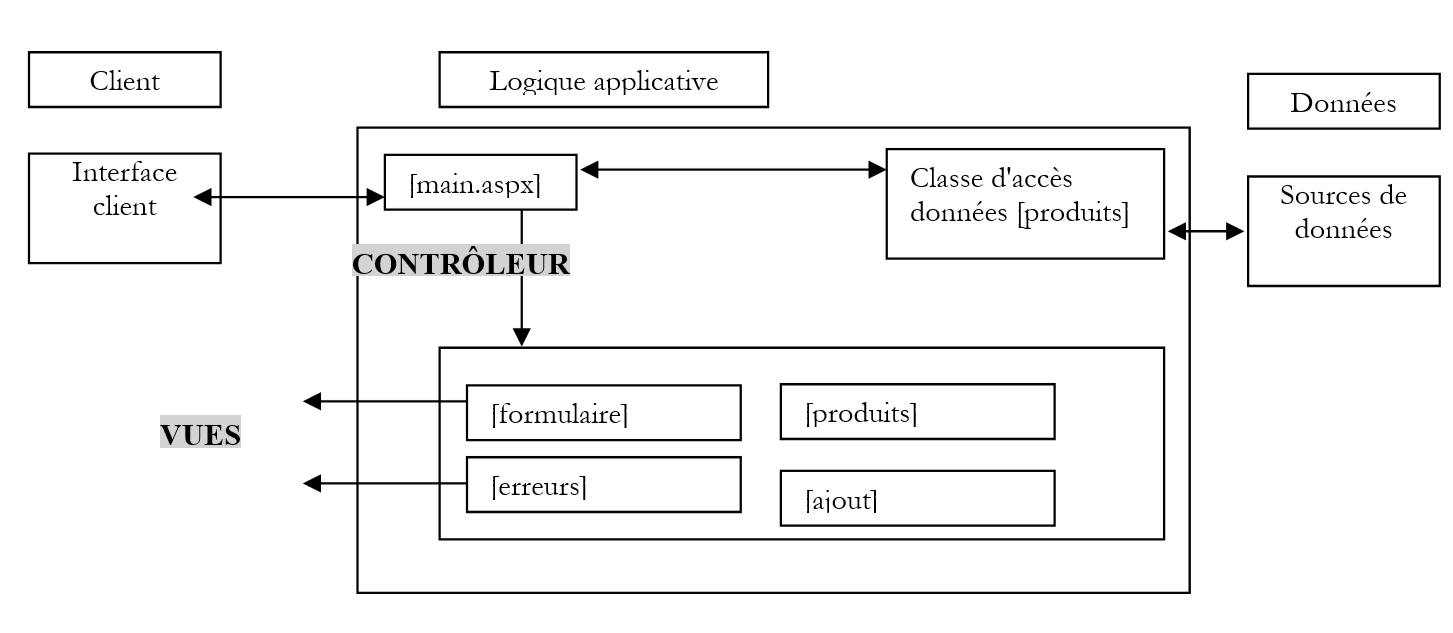 |
9.6.2. Functionality and Views
The application’s home view is as follows:
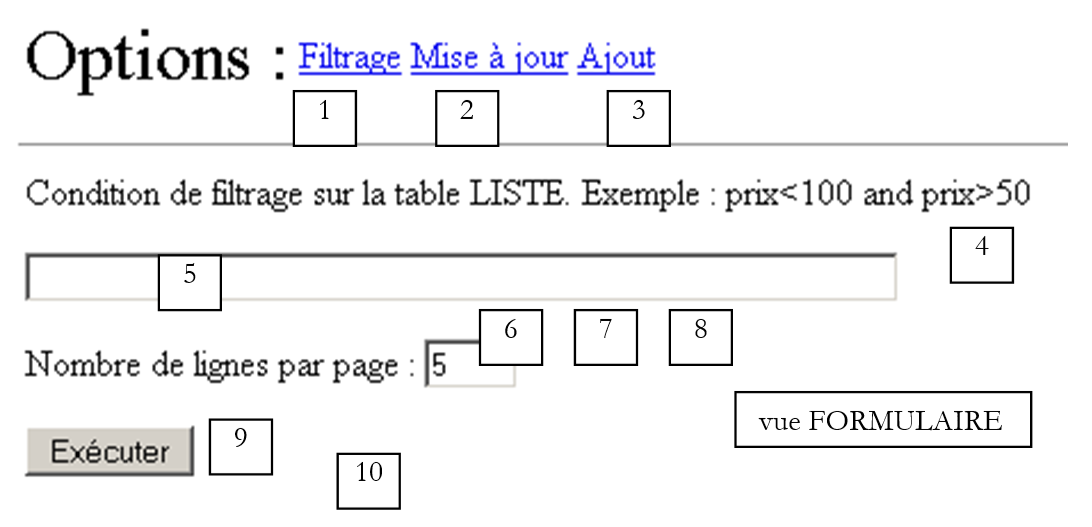
This view, called [form], allows the user to apply a filter condition to the products and set the number of products per page they wish to see.
No. | name | Type | role |
LinkButton | displays the [Form] view used to set the filter condition | ||
LinkButton | displays the [Products] view, which is used to view and update the product table (edit and delete) | ||
LinkButton | displays the [Add] view, which is used to add a product | ||
FormView | the [Form] view | ||
TextBox | the filter condition | ||
TextBox | number of products per page | ||
RequiredFieldValidator | checks for a value in [txtPages] | ||
RangeValidator | checks that txtPages is in the range [3,10] | ||
[submit] button that displays the [products] view filtered by condition (5) | |||
Label | Information text in case of errors |
For example, if the [form] view is filled out as follows:
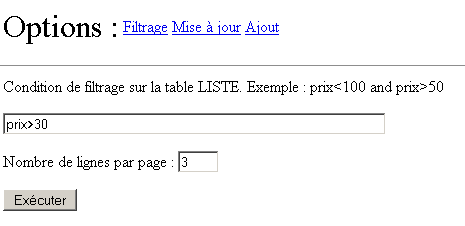
the following result is obtained:
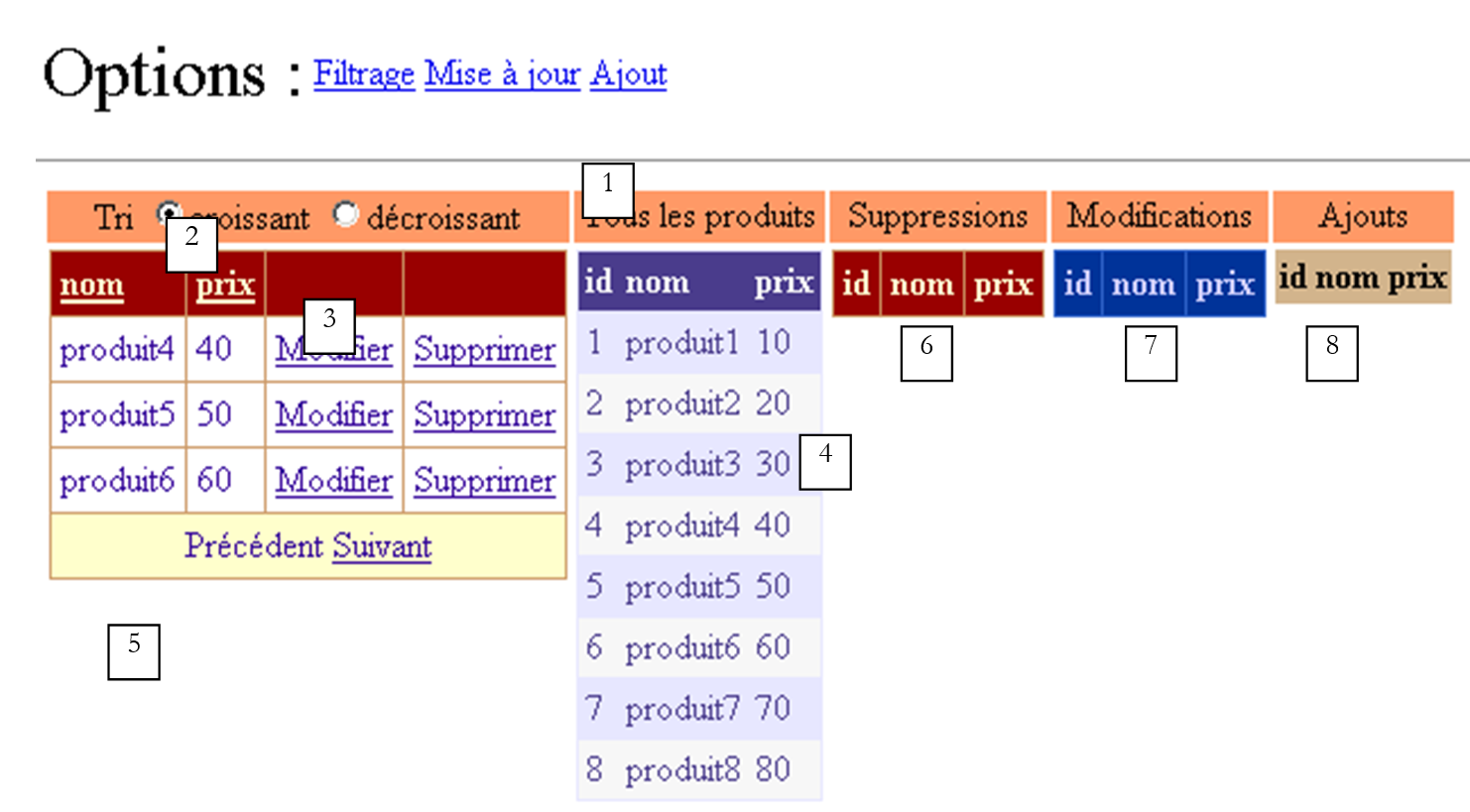 |
No. | name | type | role |
panel | |||
RadioButton | allows the user to set the desired sort order when they click on the title of one of the columns [name], [price]. The two buttons are part of the [rdSort] group. | ||
DataGrid | A grid displaying a filtered view of the product table. The filter is the one set by the [form] view. We also have .AllowPaging=true, .AllowSorting=true | ||
DataGrid | displays the entire product table - allows tracking of updates | ||
Label | informational text, particularly in case of errors | ||
DataGrid | will display deleted products in the product table | ||
DataGrid | will display the modified products in the product table | ||
DataGrid | will display the products added to the product table |
There are five data containers on this page. They all display the same table [dtProduits] through a different [DataView]. A view represents a subset of the rows in the view’s source table. This subset is created using the [RowFilter] and [RowStateFilter] properties of the [DataView] class:
- [RowFilter] allows you to set a filter on the rows, such as [price>30] above. This type of filtering will be used by [DataGrid1].
- [RowStateFilter] allows you to set a filter based on the state of the table row. This indicates the row’s state relative to its original state when the view on the table was created. Here, the [dtProduits] table comes from a database. Initially, all its rows will have a state equal to [Original] to indicate that these are the original rows of the table. This state can then change and take on different values, some of which are listed below:
- [Added]: the row has been added—it was not part of the original table
- [Deleted]: the row has been deleted—it is still in the table but "marked" as "to be deleted"
- [Modified]: the row has been modified
[RowStateFilter] allows you to display the rows in the table that have a certain status:
- (continued)
- [DataViewRowState.Added]: only added rows are displayed. They are shown with their current values.
- [DataViewRowState.ModifiedOriginal]: only modified rows are displayed. They are displayed with their original values.
- [DataViewRowState.ModifiedCurrent]: Only modified rows are displayed. They are displayed with their current values.
- [DataViewRowState.Deleted]: Only deleted rows are displayed. They are displayed with their original values.
- [DataViewRowState.CurrentRows]: Non-deleted rows are displayed. They are displayed with their current values.
Thus, the [RowStateFilter] will have the following values:
no filter on row state | ||
DataViewRowState.CurrentRows | displays the current state of the product table | |
DataViewRowState.Deleted | displays the deleted rows of the product table | |
DataViewRowState.ModifiedOriginal | displays modified rows from the product table along with their original values | |
DataViewRowState.Added | displays the rows added to the original product table |
The [DataGrid1-5] containers will allow us to track updates to the [dtProduits] table. The [DataGrid1] component allows for the modification and deletion of a product. We will see how the component’s configuration enables this update. It is also paginated and sorted. These two features were already covered in a previous example.
The [Add] link provides access to a product addition form:
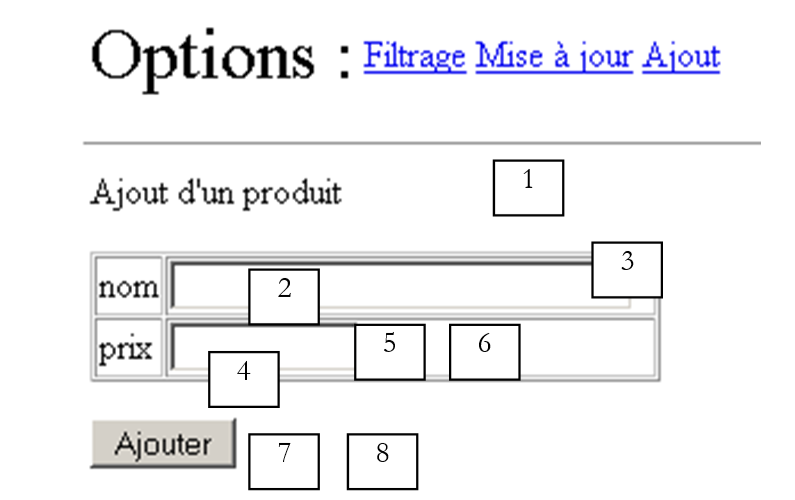 |
No. | name | type | role |
panel | |||
TextBox | product name | ||
RequiredFieldValidator | checks for a value in [txtName] | ||
TextBox | product price | ||
RequiredFieldValidator | checks for a value in [txtPrice] | ||
CompareValidator | checks that price >= 0 | ||
Button | [submit] button to add the product | ||
Label | Information text about the result of the Add operation |
The [products] database may be unavailable when the application starts. In this case, the [errors] view is displayed to the user:
 |
No. | name | type | role |
panel | |||
Repeater | list of errors |
9.6.3. Data container configuration
The five [DataGrid] containers were configured in [WebMatrix]. They were formatted (colors and borders) using the [Auto Configuration] link in their properties panel. The [DataGrid1] container was configured using the [Property Generator] link in the same panel. Sorting was enabled (the [General] tab):
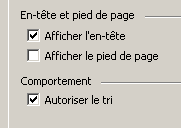
The columns are not generated automatically, unlike in the other four containers. They were defined manually using the wizard:
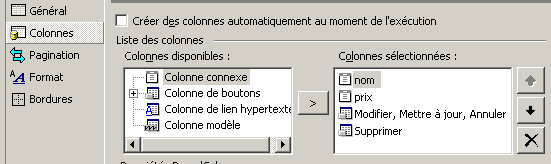
First, two [Related Column] columns named [name] and [price] were created. They were associated respectively with the [name] and [price] fields of the data source that the containers will display. Here, for example, is the configuration of the [name] column:
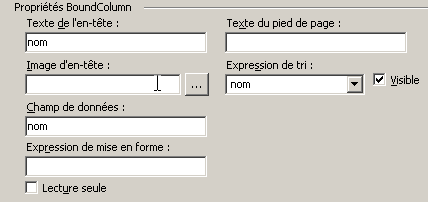
The sort expression is the expression that must be placed after the [order by] clause in the SQL [select] statement that will be executed when the user clicks on the header column [name] associated with the [name] field of the [DataGrid]. Here we have entered [name] so that the sort clause will be [order by name]. We will see that we will modify this to be [order by name asc] or [order by name desc] depending on the sort order chosen by the user.
We have also created two columns of buttons:
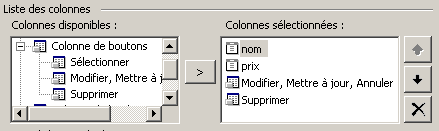
The [Edit, Update, Cancel] column will allow us to edit a product, and the [Delete] column to delete it. Each of these columns can be configured. The [Edit, Update, Cancel] column offers the following configuration:
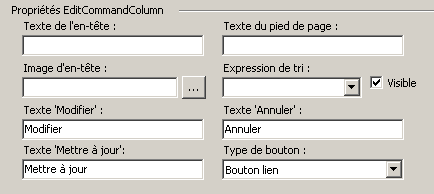
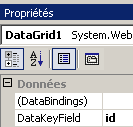
We can see that the button texts can be modified. Regarding buttons, we have the choice between links and buttons (drop-down list above). Links have been chosen here. The configuration of the [Delete] column is similar. In addition to this configuration wizard, we used the [DataGrid] properties window directly to set the [DataKeyField] property, which specifies which field in the data source is used to index the rows of the [DataGrid]. Here, the primary key of the product table is used:
Ultimately, this configuration generates the following presentation code:
<asp:DataGrid id="DataGrid1" runat="server" AllowSorting="True" PageSize="4" AllowPaging="True" AutoGenerateColumns="False" DataKeyField="id">
<SelectedItemStyle ...></SelectedItemStyle>
<HeaderStyle ...></HeaderStyle>
<FooterStyle ...></FooterStyle>
<Columns>
<asp:BoundColumn DataField="nom" SortExpression="nom" HeaderText="nom"></asp:BoundColumn>
<asp:BoundColumn DataField="prix" SortExpression="prix" HeaderText="prix"></asp:BoundColumn>
<asp:EditCommandColumn ButtonType="LinkButton" UpdateText="Mettre à jour" CancelText="Annuler" EditText="Modifier"></asp:EditCommandColumn>
<asp:ButtonColumn Text="Supprimer" CommandName="Delete"></asp:ButtonColumn>
</Columns>
<PagerStyle NextPageText="Suivant" PrevPageText="Précédent" ...></PagerStyle>
</asp:DataGrid>
As always, once you have gained some experience, you can write all or part of the code above directly.
The other [DataGrid] containers have the default configuration obtained by automatically generating the [DataGrid] columns from those of the data source to which it is associated.
The [Repeater] container is used to display a list of errors. Its configuration is done directly in the presentation code:
                            <asp:Repeater id="rptErreurs" runat="server" EnableViewState="False">
                                <HeaderTemplate>
                                    Les erreurs suivantes se sont produites :
                                    <ul>
                                </HeaderTemplate>
                                <ItemTemplate>
                                    <li>
                                        <%# Container.DataItem %>
                                    </li>
                                </ItemTemplate>
                                <FooterTemplate>
                                    </ul>
                                </FooterTemplate>
                            </asp:Repeater>
Each row of the component displays the value [Container.DataItem], i.e., the corresponding value from the data list. This will be of type [ArrayList] and will represent a list of errors.
9.6.4. The application's presentation code
This is located in the [main.aspx] file:
<%@ Page src="main.aspx.vb" inherits="main" autoeventwireup="false" Language="vb" %>
<HTML>
<HEAD>
</HEAD>
<body>
<form id="Form1" runat="server">
<P>
<table>
<tr>
<td><FONT size="6">Options :</FONT></td>
<td>
<asp:linkbutton id="lnkFiltre" runat="server" CausesValidation="False">
Filtrage
</asp:linkbutton>
</td>
<td>
<asp:linkbutton id="lnkMisajour" runat="server" CausesValidation="False">
Mise à jour
</asp:linkbutton>
</td>
<td>
<asp:linkbutton id="lnkAjout" runat="server" CausesValidation="False">
Ajout
</asp:linkbutton>
</td>
</tr>
</table>
</P>
<HR width="100%" SIZE="1">
<table>
<tr>
<td>
<asp:panel id="vueFormulaire" runat="server">
<P>Condition de filtrage sur la table LISTE. Exemple : prix<100 and
prix>50</P>
<P>
<asp:TextBox id="txtFiltre" runat="server" Columns="60"></asp:TextBox></P>
<P>Nombre de lignes par page :
<asp:TextBox id="txtPages" runat="server" Columns="3">5</asp:TextBox>
<asp:RequiredFieldValidator id="rfvLignes" runat="server" Display="Dynamic"
ControlToValidate="txtPages" ErrorMessage="Indiquez le nombre de lignes par page"
EnableClientScript="False">
</asp:RequiredFieldValidator></P>
<P>
<asp:RangeValidator id="rvLignes" runat="server" Display="Dynamic"
ControlToValidate="txtPages" ErrorMessage="Vous devez indiquer un nombre entre 3 et 10"
EnableClientScript="False" MaximumValue="10" MinimumValue="3" Type="Integer"
EnableViewState="False">
</asp:RangeValidator></P>
<P>
<asp:Label id="lblinfo1" runat="server"></asp:Label></P>
<P>
<asp:Button id="btnExécuter" runat="server" CausesValidation="False"
EnableViewState="False" Text="Exécuter">
</asp:Button></P>
</asp:panel>
<asp:panel id="vueProduits" runat="server">
<TABLE>
<TR>
<TD align="center" bgColor="#ff9966">
<P>Tri
<asp:RadioButton id="rdCroissant" runat="server" Text="croissant"
GroupName="rdTri" Checked="True">
</asp:RadioButton>
<asp:RadioButton id="rdDécroissant" runat="server" Text="décroissant"
GroupName="rdTri">
</asp:RadioButton></P>
</TD>
<TD align="center" bgColor="#ff9966">Tous les produits
</TD>
<TD align="center" bgColor="#ff9966">Suppressions
</TD>
<TD align="center" bgColor="#ff9966">Modifications
</TD>
<TD align="center" bgColor="#ff9966">Ajouts
</TD>
<TR>
<TD vAlign="top">
<P>
<asp:DataGrid id="DataGrid1" runat="server" AllowSorting="True" PageSize="4"
AllowPaging="True" .... AutoGenerateColumns="False" DataKeyField="id">
<ItemStyle ...></ItemStyle>
<HeaderStyle ...></HeaderStyle>
<FooterStyle ...></FooterStyle>
<Columns>
<asp:BoundColumn DataField="nom" SortExpression="nom" HeaderText="nom">
</asp:BoundColumn>
<asp:BoundColumn DataField="prix" SortExpression="prix" HeaderText="prix">
</asp:BoundColumn>
<asp:EditCommandColumn ButtonType="LinkButton" UpdateText="Mettre à jour"
CancelText="Annuler" EditText="Modifier">
</asp:EditCommandColumn>
<asp:ButtonColumn Text="Supprimer" CommandName="Delete">
</asp:ButtonColumn>
</Columns>
<PagerStyle NextPageText="Suivant" PrevPageText="Précédent" ....>
</PagerStyle>
</asp:DataGrid>
</P>
</TD>
<TD vAlign="top">
<asp:DataGrid id="DataGrid2" runat="server" ...>
<AlternatingItemStyle ...></AlternatingItemStyle>
<ItemStyle ...></ItemStyle>
<HeaderStyle ....></HeaderStyle>
<FooterStyle ...></FooterStyle>
<PagerStyle ... Mode="NumericPages"></PagerStyle>
</asp:DataGrid>
</TD>
<TD vAlign="top">
<asp:DataGrid id="DataGrid3" runat="server" ...>
<ItemStyle ...></ItemStyle>
<HeaderStyle ...></HeaderStyle>
<FooterStyle ...></FooterStyle>
<PagerStyle ...></PagerStyle>
</asp:DataGrid>
</TD>
<TD vAlign="top">
<asp:DataGrid id="DataGrid4" runat="server" ...>
<ItemStyle ....></ItemStyle>
<HeaderStyle ....></HeaderStyle>
<FooterStyle ...></FooterStyle>
<PagerStyle .... Mode="NumericPages"></PagerStyle>
</asp:DataGrid>
</TD>
<TD vAlign="top">
<asp:DataGrid id="DataGrid5" runat="server....>
<AlternatingItemStyle ...></AlternatingItemStyle>
<HeaderStyle ..></HeaderStyle>
<FooterStyle ...></FooterStyle>
<PagerStyle ....></PagerStyle>
</asp:DataGrid>
</TD>
</TR>
</TABLE>
<P></P>
<P>
<asp:Label id="lblInfo2" runat="server"></asp:Label></P>
</asp:panel>
<asp:panel id="vueErreurs" runat="server">
<asp:Repeater id="rptErreurs" runat="server" EnableViewState="False">
<HeaderTemplate>
Les erreurs suivantes se sont produites :
<ul>
</HeaderTemplate>
<ItemTemplate>
<li>
<%# Container.DataItem %>
</li>
</ItemTemplate>
<FooterTemplate>
</ul>
</FooterTemplate>
</asp:Repeater>
</asp:panel>
<asp:panel id="vueAjout" EnableViewState="False" Runat="server">
<P>Ajout d'un produit</P>
<P>
<TABLE ... border="1">
<TR>
<TD>nom</TD>
<TD>
<asp:TextBox id="txtNom" runat="server" Columns="30"></asp:TextBox>
<asp:RequiredFieldValidator id="rfvNom" runat="server" ControlToValidate="txtNom"
ErrorMessage="Vous devez indiquer un nom">
</asp:RequiredFieldValidator>
</TD>
</TR>
<TR>
<TD>prix</TD>
<TD>
<asp:TextBox id="txtPrix" runat="server" Columns="10"></asp:TextBox>
<asp:RequiredFieldValidator id="rfvPrix" runat="server" ControlToValidate="txtPrix"
ErrorMessage="Vous devez indiquer un prix">
</asp:RequiredFieldValidator>
<asp:CompareValidator id="cvPrix" runat="server" ControlToValidate="txtPrix"
ErrorMessage="CompareValidator" Type="Double" Operator="GreaterThanEqual"
ValueToCompare="0">
</asp:CompareValidator>
</TD>
</TR>
</TABLE>
</P>
<P>
<asp:Button id="btnAjouter" runat="server" CausesValidation="False"
Text="Ajouter">
</asp:Button></P>
<P>
<asp:Label id="lblInfo3" runat="server"></asp:Label></P>
</asp:panel>
</td>
</tr>
</table>
</form>
</body>
</HTML>
Note the following points:
- The page consists of four containers (panels) [vueFormulaire, vueProduits, vueAjout, vueErreurs] that will form the four views of the application.
- Buttons or links of type [submit] have the property [CausesValidation=false]. The [CausesValidation=true] property triggers the execution of all validation checks on the page. However, in this case, not all validation checks need to be performed at the same time. For example, when adding an item, we do not want the checks regarding the number of rows per page to be executed. We will therefore specify ourselves which validation checks should be performed.
9.6.5. The [global.asax] control code
The [global.asax] controller is as follows:
The associated code [global.asax.vb]:
Imports System
Imports System.Web
Imports System.Web.SessionState
Imports st.istia.univangers.fr
Imports System.Configuration
Imports System.Data
Imports Microsoft.VisualBasic
Imports System.Collections

Public Class Global
    Inherits System.Web.HttpApplication

    Sub Application_Start(ByVal sender As Object, ByVal e As EventArgs)
        ' retrieve configuration information
        Dim chaînedeConnexion As String = ConfigurationSettings.AppSettings("OLEDBStringConnection")
        Dim defaultProduitsPage As String = ConfigurationSettings.AppSettings("defaultProduitsPage")
        Dim erreurs As New ArrayList
        If IsNothing(chaînedeConnexion) Then erreurs.Add("Le paramètre [OLEDBStringConnection] n'a pas été initialisé")
        If IsNothing(defaultProduitsPage) Then
            erreurs.Add("Le paramètre [defaultProduitsPage] n'a pas été initialisé")
        Else
            Try
                Dim defProduitsPage As Integer = CType(defaultProduitsPage, Integer)
                If defProduitsPage <= 0 Then Throw New Exception
            Catch ex As Exception
                erreurs.Add("Le paramètre [defaultProduitsPage] a une valeur incorrecte")
            End Try
        End If
        ' configuration errors?
        If erreurs.Count <> 0 Then
            ' errors are noted
            Application("erreurs") = erreurs
            ' we leave
            Exit Sub
        End If
        ' no configuration errors here
        ' create a product object
        Dim dtProduits As DataTable
        Try
            dtProduits = New produits(chaînedeConnexion).getProduits
        Catch ex As ExceptionProduits
            'there has been an error accessing the products, this is noted in the application
            Application("erreurs") = ex.erreurs
            Exit Sub
        Catch ex As Exception
            ' unhandled error
            erreurs.Add(ex.Message)
            Application("erreurs") = erreurs
            ' exit sub
        End Try
        ' no initialization errors here
        ' store the number of products per page
        Application("defaultProduitsPage") = defaultProduitsPage
        ' memorize the product table
        Application("dtProduits") = dtProduits
    End Sub

    Sub Session_Start(ByVal sender As Object, ByVal e As EventArgs)
        ' init session variables
        If IsNothing(Application("erreurs")) Then
            ' view of the product table
            Session("dvProduits") = CType(Application("dtProduits"), DataTable).DefaultView
            ' products per page
            Session("nbProduitsPage") = Application("defaultProduitsPage")
            ' current page displayed
            Session("pageCourante") = 0
        End If
    End Sub
End Class
In [Application_Start], we start by retrieving two pieces of information from the application's [web.config] configuration file:
- OLEDBStringConnection: the OLEDB connection string to the product database
- defaultProductsPage: the default number of products per page displayed
<?xml version="1.0" encoding="utf-8" ?>
<configuration>
    <appSettings>
        <add key="OLEDBStringConnection" value="Provider=Microsoft.Jet.OLEDB.4.0; Ole DB Services=-4; Data Source=D:\data\devel\aspnet\poly\webforms3\vs\majproduits1\produits.mdb" />
        <add key="defaultProduitsPage" value="5" />
    </appSettings>
</configuration>
If either of these two pieces of information is missing, an error list is generated and added to the application. The same applies if the [defaultProduitsPage] parameter exists but is incorrect. If both expected parameters are present and correct, a [dtProduits] table is created and added to the application. This table will be used and updated by the various clients. The database itself will remain unchanged. We will address updating the database in a future application. This table is constructed from an instance of the [products] class discussed earlier and its [getProducts] method. Retrieving the [dtProducts] table may fail. In this case, we know that the [products] class throws an exception of type [ProductException]. It is intercepted here, and the associated error list is stored in the application under the key [errors]. The presence of this key in the information stored in the application will be checked with each request. If it is found, the [errors] view will be sent to the client.
If the [dtProducts] table is shared by all web clients, each of them will nevertheless have its own [dvProducts] view of it. This is because each web client can set a filter on the [dtProducts] table as well as a sort order. This information specific to each web client is stored in the client’s view. Therefore, this view is created in [Session_Start] so that it can be placed in the session specific to each client. We use the [DefaultView] attribute of the [dtProduits] table to have a default view of the table. Initially, there is neither a filter nor a sort order. Additionally, two pieces of information are also placed in the session:
- the number of products per page, identified by the key [nbProduitsPage]. At the start of the session, this number is equal to the default value defined in the configuration file.
- the number of the current product page. Initially, this is the first page.
9.6.6. The controller code [main.aspx.vb]
The controller skeleton is as follows:
Imports System.Collections
Imports Microsoft.VisualBasic
Imports System.Data
Imports st.istia.univangers.fr
Imports System
Imports System.Xml
Imports System.Web.UI.WebControls

Public Class main
    Inherits System.Web.UI.Page

    ' components page
    Protected WithEvents txtPages As System.Web.UI.WebControls.TextBox
    Protected WithEvents btnExécuter As System.Web.UI.WebControls.Button
    Protected WithEvents vueFormulaire As System.Web.UI.WebControls.Panel
    Protected WithEvents DataGrid1 As System.Web.UI.WebControls.DataGrid
    Protected WithEvents lnkErreurs As System.Web.UI.WebControls.LinkButton
    Protected WithEvents vueErreurs As System.Web.UI.WebControls.Panel
    Protected WithEvents rdCroissant As System.Web.UI.WebControls.RadioButton
    Protected WithEvents rdDécroissant As System.Web.UI.WebControls.RadioButton
    Protected WithEvents txtFiltre As System.Web.UI.WebControls.TextBox
    Protected WithEvents lblInfo2 As System.Web.UI.WebControls.Label
    Protected WithEvents lblinfo1 As System.Web.UI.WebControls.Label
    Protected WithEvents lblErreurs As System.Web.UI.WebControls.Label
    Protected WithEvents DataGrid2 As System.Web.UI.WebControls.DataGrid
    Protected WithEvents vueProduits As System.Web.UI.WebControls.Panel
    Protected WithEvents vueAjout As System.Web.UI.WebControls.Panel
    Protected WithEvents lnkMisajour As System.Web.UI.WebControls.LinkButton
    Protected WithEvents lnkFiltre As System.Web.UI.WebControls.LinkButton
    Protected WithEvents txtNom As System.Web.UI.WebControls.TextBox
    Protected WithEvents txtPrix As System.Web.UI.WebControls.TextBox
    Protected WithEvents btnAjouter As System.Web.UI.WebControls.Button
    Protected WithEvents lblInfo3 As System.Web.UI.WebControls.Label
    Protected WithEvents rfvLignes As System.Web.UI.WebControls.RequiredFieldValidator
    Protected WithEvents rvLignes As System.Web.UI.WebControls.RangeValidator
    Protected WithEvents rfvNom As System.Web.UI.WebControls.RequiredFieldValidator
    Protected WithEvents rfvPrix As System.Web.UI.WebControls.RequiredFieldValidator
    Protected WithEvents cvPrix As System.Web.UI.WebControls.CompareValidator
    Protected WithEvents lnkAjout As System.Web.UI.WebControls.LinkButton
    Protected WithEvents DataGrid3 As System.Web.UI.WebControls.DataGrid
    Protected WithEvents DataGrid4 As System.Web.UI.WebControls.DataGrid
    Protected WithEvents DataGrid5 As System.Web.UI.WebControls.DataGrid

    ' data page
    Protected dtProduits As DataTable
    Protected dvProduits As DataView
    Protected defaultProduitsPage As Integer
    Protected erreur As Boolean = False

    ' loading page
    Private Sub Page_Load(ByVal sender As System.Object, ByVal e As System.EventArgs) Handles MyBase.Load
...
    End Sub

    Private Sub afficheErreurs()
...
    End Sub

    Private Sub afficheFormulaire()
...
    End Sub

    Private Sub btnExécuter_Click(ByVal sender As System.Object, ByVal e As System.EventArgs) Handles btnExécuter.Click
....
    End Sub

    Private Sub afficheProduits(ByVal page As Integer, ByVal taillePage As Integer)
...
    End Sub

    Private Sub DataGrid1_PageIndexChanged(ByVal source As Object, ByVal e As System.Web.UI.WebControls.DataGridPageChangedEventArgs) Handles DataGrid1.PageIndexChanged
...
    End Sub

    Private Sub DataGrid1_SortCommand(ByVal source As Object, ByVal e As System.Web.UI.WebControls.DataGridSortCommandEventArgs) Handles DataGrid1.SortCommand
....
    End Sub

    Private Sub DataGrid1_DeleteCommand(ByVal source As Object, ByVal e As System.Web.UI.WebControls.DataGridCommandEventArgs) Handles DataGrid1.DeleteCommand
....
    End Sub

    Private Sub DataGrid1_EditCommand(ByVal source As Object, ByVal e As System.Web.UI.WebControls.DataGridCommandEventArgs) Handles DataGrid1.EditCommand
...
    End Sub

    Private Sub DataGrid1_CancelCommand(ByVal source As Object, ByVal e As System.Web.UI.WebControls.DataGridCommandEventArgs) Handles DataGrid1.CancelCommand
...
    End Sub

    Private Sub DataGrid1_UpdateCommand(ByVal source As Object, ByVal e As System.Web.UI.WebControls.DataGridCommandEventArgs) Handles DataGrid1.UpdateCommand
...
    End Sub

    Private Sub supprimerProduit(ByVal idProduit As Integer)
...
    End Sub

    Private Sub modifierProduit(ByVal idProduit As Integer, ByVal item As DataGridItem)
....
    End Sub

    Private Sub lnkMisajour_Click(ByVal sender As System.Object, ByVal e As System.EventArgs) Handles lnkMisajour.Click
...
    End Sub

    Private Sub lnkAjout_Click(ByVal sender As System.Object, ByVal e As System.EventArgs) Handles lnkAjout.Click
...
    End Sub

    Private Sub afficheAjout()
...
    End Sub

    Private Sub lnkFiltre_Click(ByVal sender As System.Object, ByVal e As System.EventArgs) Handles lnkFiltre.Click
....
    End Sub

    Private Sub btnAjouter_Click(ByVal sender As System.Object, ByVal e As System.EventArgs) Handles btnAjouter.Click
....
    End Sub
End Class
9.6.7. Instance data
The [main] class uses the following instance data:
Public Class main
    Inherits System.Web.UI.Page

    ' components page
    Protected WithEvents txtPages As System.Web.UI.WebControls.TextBox
...

    ' data page
    Protected dtProduits As DataTable
    Protected dvProduits As DataView
    Protected defaultProduitsPage As Integer
the [DataTable] table for products—shared by all clients | |
the [DataView] for products - specific to each customer | |
default number of products per page |
9.6.8. The [Page_Load] procedure for loading the page
The code for the [Page_Load] procedure is as follows:
    ' loading page
    Private Sub Page_Load(ByVal sender As System.Object, ByVal e As System.EventArgs) Handles MyBase.Load
        ' check for application errors
        If Not IsNothing(Application("erreurs")) Then
            ' the application has not initialized correctly
            afficheErreurs(CType(Application("erreurs"), ArrayList))
            Exit Sub
        End If
        ' retrieve a reference from the product table
        dtProduits = CType(Application("dtProduits"), DataTable)
        ' product view
        dvProduits = CType(Session("dvProduits"), DataView)
        ' retrieve the number of products per page
        defaultProduitsPage = CType(Application("defaultProduitsPage"), Integer)
        ' cancels any update in progress
        DataGrid1.EditItemIndex = -1
        '1st request
        If Not IsPostBack Then
            ' the initial form is displayed
            txtPages.Text = defaultProduitsPage.ToString
            afficheFormulaire()
        End If
    End Sub
- First, we check whether the product table was loaded when the application started. If not, we display the [errors] view with the appropriate error messages, then exit the procedure after setting the [error] boolean to true. This indicator will be checked by certain procedures.
- We retrieve the product table [dtProduits] from the application and store it in the instance variable [dtProduits] so that it can be shared by all methods on the page.
- We do the same with the [dvProducts] view retrieved from the session and the default number of products per page retrieved from the application.
- If this is the client’s first request, we display the form for defining filtering and pagination conditions with a default pagination of [defaultProduitsPage] products per page.
- The edit mode of the [dataGrid1] component is canceled. This component has an [EditItemIndex] attribute, which is the index of the item currently being edited. If [EditItemIndex]=-1, then no item is currently being edited. If [EditItemIndex]=i, then item number i of the [DataGrid] component is currently being edited. It is then displayed differently from the other items in the [dataGrid]:
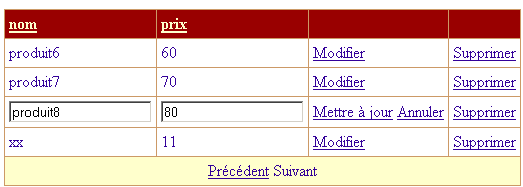
Above, the [Product8, 80] item is in [edit] mode. As shown above, the user can confirm the update using the [Update] link or cancel it using the [Cancel] link. They can also use other links that have nothing to do with the item currently being edited. By setting [DataGrid1.EditItemIndex=-1] each time the page loads, we ensure that the edit mode of [DataGrid1] is systematically canceled. We will only assign it a different value if an [Edit] link has been clicked. We will do this in the procedure handling this event. We will have the following situations:
- The [Edit] link for item #8 in [DataGrid1] has been clicked. [Page_Load] first sets [DataGrid1.EditItemIndex] to -1. Then, the procedure handling the [Edit] event will set [DataGrid1.EditItemIndex] to 8. Ultimately, when the page is sent back to the client, item #8 will indeed be in [edit] mode and will appear as shown above.
- The user edits the product that is in [edit] mode and confirms the change using the [Update] link. [Page_Load] sets [DataGrid1.EditItemIndex] to -1. Then the procedure handling the [Update] event will execute, and item #8 in [dtProduits] will be updated. When the page is sent back to the client, no item in [DataGrid1] will be in edit mode (DataGrid.EditItemIndex=-1).
- If a user has started updating a product, it would make sense for them to cancel this update by clicking [Cancel]. However, nothing prevents them from clicking another link. We must therefore account for this scenario. In this case, as in the previous ones, [Page_Load] begins by setting [DataGrid1.EditItemIndex] to -1, then the procedure handling the event that occurred will execute. It will not modify the [DataGrid1.EditItemIndex] property, which will therefore remain at -1. When the page is sent back to the client, no item in [DataGrid1] will be in edit mode.
We can see that by setting [EditItemIndex] to -1 when the page loads, we avoid having to worry about whether or not the user was in edit mode when they clicked a link.
9.6.9. Displaying the [errors], [form], and [add] views
The [errors] view is displayed when the page loads [Page_Load] if it is detected that the application failed to initialize properly. This is done by binding the [rptErrors] data component to the list of errors passed as parameters and making the appropriate container visible. Finally, the three links [Filter, Update, Add] are hidden because the application cannot be used in the event of an error.
    Private Sub afficheErreurs(ByVal erreurs As ArrayList)
        ' associate the error list with repeater rptErreurs
        With rptErreurs
            .DataSource = erreurs
            .DataBind()
        End With
        'inhibit options
        lnkAjout.Visible = False
        lnkMisajour.Visible = False
        lnkFiltre.Visible = False
        ' the [errors] view is displayed
        vueErreurs.Visible = True
        vueFormulaire.Visible = False
        vueProduits.Visible = False
        vueAjout.Visible = False
    End Sub
The other views are requested based on the options presented to the user:
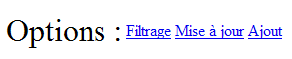
The [Add] view is displayed when the user clicks the [Add] link on the page:
    Private Sub lnkAjout_Click(ByVal sender As System.Object, ByVal e As System.EventArgs) Handles lnkAjout.Click
        ' the [add] view is displayed
        afficheAjout()
    End Sub
    Private Sub afficheAjout()
        ' displays the add view
        vueAjout.Visible = True
        vueFormulaire.Visible = False
        vueProduits.Visible = False
        vueErreurs.Visible = False
    End Sub
The [Form] view is displayed when the user clicks the [Filter] link on the page. We must then display the view that allows the user to define
- the filter for the product table
- the number of products displayed on each web page
A form is displayed that retrieves the values stored in the session:
    Private Sub lnkFiltre_Click(ByVal sender As System.Object, ByVal e As System.EventArgs) Handles lnkFiltre.Click
        ' define filtering conditions
        txtFiltre.Text = dvProduits.RowFilter
        ' set pagination
        txtPages.Text = CType(Session("nbProduitsPage"), String)
        ' the filter form is displayed
        afficheFormulaire()
    End Sub
A view's filter condition is defined in its [RowFilter] property. Recall that the filtered and paginated view is named [dvProducts] and was retrieved from the session when the page loaded [Page_Load]. The filter condition is therefore retrieved from [dvProduits.RowFilter]. The number of products per page is also retrieved from the session. If the user has never defined this information, this number is equal to the default number of products per page. Once this is done, we display the form that allows the user to define these two pieces of information:
    Private Sub afficheFormulaire()
        ' the [form] view is displayed
        vueFormulaire.Visible = True
        vueErreurs.Visible = False
        vueProduits.Visible = False
        vueAjout.Visible = False
    End Sub
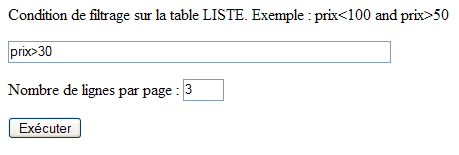
9.6.10. Validating the [form] view
Clicking the [Execute] button above is handled by the following procedure:
    Private Sub btnExécuter_Click(ByVal sender As System.Object, ByVal e As System.EventArgs) Handles btnExécuter.Click
        ' valid page?
        rfvLignes.Validate()
        rvLignes.Validate()
        If Not rfvLignes.IsValid Or Not rvLignes.IsValid Then
            afficheFormulaire()
            Exit Sub
        End If
        ' attaching filtered data to the grid
        Try
            dvProduits.RowFilter = txtFiltre.Text.Trim
        Catch ex As Exception
            lblinfo1.Text = "Erreur de filtrage (" + ex.Message + ")"
            afficheFormulaire()
            Exit Sub
        End Try
        ' store the number of products per page
        Session("nbProduitsPage") = txtPages.Text
        'and the current page
        Session("pageCourante") = 0
        ' all's well - data displayed
        afficheProduits(0, CType(txtPages.Text, Integer))
    End Sub
First, let's recall that the page has two validation components:
No. | name | type | role |
RequiredFieldValidator | checks for a value in [txtPages] | ||
RangeValidator | checks that txtPages is in the range [3,10] |
The procedure begins by executing the validation code for the two components above using their [Validate] method, then checks the value of their [IsValid] attribute. This attribute is set to [true] only if the validated data was found to be valid. If the validity checks for either component fail, the [form] view is re-displayed so the user can correct the error(s). The filter condition is applied to the [dvProduits.RowFilter] attribute. Here, an exception may occur if the user has entered an incorrect filter criterion, as shown below:
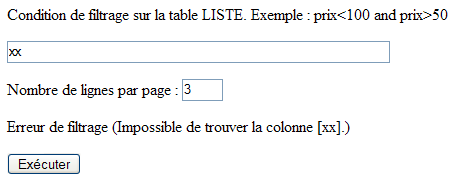
In this case, the [form] view is redisplayed. If both pieces of entered information are correct, then two pieces of data are placed in the session:
- the number of products per page selected by the user
- the page number to be displayed—initially page 0
These two pieces of information are used every time the [products] view is displayed.
9.6.11. Displaying the [products] view
The [products] view is as follows:
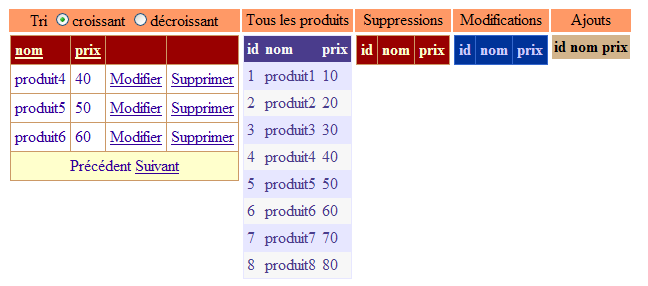
We have 5 [DataGrid] components, each displaying a specific view of the [dtProduits] product table. Starting from the left:
name | role |
Grid displaying a filtered view of the product table. The filter is the one set by the [form] view. We also have .AllowPaging=true, .AllowSorting=true | |
Displays the entire product table—allows tracking of updates | |
will display the deleted products in the product table | |
will display the modified products in the product table | |
will display the added products in the product table |
The [displayProducts] procedure is responsible for displaying the previous view:
    Private Sub afficheProduits(ByVal page As Integer, ByVal taillePage As Integer)
        ' attach the data to the two components [DataGrid]
        Application.Lock()
        With DataGrid1
            .DataSource = dvProduits
            .PageSize = taillePage
            .CurrentPageIndex = page
            .DataBind()
        End With
        Dim dvCurrent As New DataView(dtProduits)
        dvCurrent.RowStateFilter = DataViewRowState.CurrentRows
        With DataGrid2
            .DataSource = dvCurrent
            .DataBind()
        End With
        Dim dvSupp As DataView = New DataView(dtProduits)
        dvSupp.RowStateFilter = DataViewRowState.Deleted
        With DataGrid3
            .DataSource = dvSupp
            .DataBind()
        End With
        Dim dvModif As DataView = New DataView(dtProduits)
        dvModif.RowStateFilter = DataViewRowState.ModifiedOriginal
        With DataGrid4
            .DataSource = dvModif
            .DataBind()
        End With
        Dim dvAjout As DataView = New DataView(dtProduits)
        dvAjout.RowStateFilter = DataViewRowState.Added
        With DataGrid5
            .DataSource = dvAjout
            .DataBind()
        End With
        Application.UnLock()
        ' the [products] view is displayed
        vueProduits.Visible = True
        vueFormulaire.Visible = False
        vueErreurs.Visible = False
        vueAjout.Visible = False
        ' the current page is saved
        Session("pageCourante") = page
    End Sub
The procedure accepts two parameters:
- the page number [page] to display in [DataGrid1]
- the number of products [pageSize] per page
The [DataGrid] is linked to the product table through 5 different views.
- [DataGrid1] is linked to the paginated and sorted view [dvProduits].
        With DataGrid1
            .DataSource = dvProduits
            .PageSize = taillePage
            .CurrentPageIndex = page
            .DataBind()
        End With
It is during this binding of [DataGrid1] to its data source that we need the two pieces of information passed as parameters to the procedure.
- [DataGrid2] is bound to a view displaying all current items in the [dtProduits] table. Like [DataGrid1], it presents an up-to-date view of the [dtProduits] table but without pagination or sorting.
        Dim dvCurrent As New DataView(dtProduits)
        dvCurrent.RowStateFilter = DataViewRowState.CurrentRows
        With DataGrid2
            .DataSource = dvCurrent
            .DataBind()
        End With
Here we are using the [RowStateFilter] property of the [DataView] class. A row in a table—or in this case, a view—has a [RowState] property that indicates the row’s state. Here are a few examples:
- (continued)
- [Added]: the row has been added
- [Modified]: the row has been modified
- [Deleted]: the row has been deleted
- [Unchanged]: the row has not changed
When the [dtProduits] table was initially created in [Application_Start], all its rows were in the [Unchanged] state. This state will change as web clients update the data:
- (continued)
- When a client creates a new product, a row is added to the [dtProduits] table. It will be in the [Added] state.
- When a product is modified, its status changes from [Unchanged] to [Modified].
- When a product is deleted, the row is not physically deleted. Instead, it is marked for deletion and its state changes to [Deleted]. It is possible to undo this deletion.
The [RowStateFilter] attribute of the [DataView] class allows you to filter a view based on the [RowState] of its rows. Its possible values are those of the [DataRowViewState] enumeration:
- (continued)
- DataRowViewState.CurrentRows: Rows that have not been deleted are displayed with their current values
- DataRowViewState.Added: Added rows are displayed with their current values
- DataRowViewState.Deleted: Deleted rows are displayed with their original values
- DataRowViewState.ModifiedOriginal: Modified rows are displayed with their original values
- DataRowViewState.ModifiedCurrent: Modified rows are displayed with their current values
A modified row has two values: the original value, which is the value the row had before the first modification, and the current value, which is the value obtained after one or more modifications. Both of these values are retained simultaneously.
DataGrids 2 through 5 display a view of the [dtProduits] table filtered by the [RowStateFilter] attribute
DataGrid | Filter |
RowStateFilter= DataRowViewState.CurrentRows | |
RowStateFilter = DataRowViewState.Deleted | |
RowStateFilter = DataRowViewState.ModifiedOriginal | |
RowStateFilter= DataRowViewState.Added |
The [dtProducts] table is updated simultaneously by different web clients, which can lead to conflicts when accessing the table. When a client displays its views of the [dtProducts] table, we want to prevent it from doing so while the table is in an unstable state because it is currently being modified by another web client. Therefore, whenever a client needs the [dtProducts] table for reading, as above, or for writing when adding, modifying, or deleting products, it will synchronize with the other clients using the following sequence:
There may be several critical sections in the application code:
The mechanism works as follows:
- One or more clients arrive at the [Application.Lock] statement in critical section 1. This is a single-entry token dispenser. A single client obtains this token. Let’s call it C1.
- Until client C1 returns the token via [Application.Unlock], no other client is allowed to enter a critical section controlled by [Application.Lock]. In the example above, therefore, no client can enter critical sections 1 and 2.
- Client C1 executes [Application.Unlock] and thus returns the entry token. This token can then be given to another client. Steps 1 through 3 are repeated.
With this mechanism, we ensure that only one client has access to the [dtProduits] table, whether for reading or writing.
The [Update] link also displays the [Products] view:

The associated procedure is as follows:
    Private Sub lnkMisajour_Click(ByVal sender As System.Object, ByVal e As System.EventArgs) Handles lnkMisajour.Click
        ' product view display
        afficheProduits(CType(Session("pageCourante"), Integer), CType(Session("nbProduitsPage"), Integer))
    End Sub
We need to display the [products] view. This is done using the [displayProducts] procedure, which takes two parameters: the number of the current page to display and the number of products per page to display. Both of these pieces of information are in the session, possibly with their default values if the user has never defined them themselves.
9.6.12. Pagination and Sorting of [DataGrid1]
We have already encountered the procedures that handle pagination and sorting of a [DataGrid] in another example. When the page changes, we display the [products] view by passing the new page number as a parameter to the [displayProducts] procedure.
    Private Sub DataGrid1_PageIndexChanged(ByVal source As Object, ByVal e As System.Web.UI.WebControls.DataGridPageChangedEventArgs) Handles DataGrid1.PageIndexChanged
        ' change page
        afficheProduits(e.NewPageIndex, DataGrid1.PageSize)
    End Sub
The [DataGrid1_SortCommand] procedure is executed when the user clicks on the header of one of the columns in [DataGrid1]. The sort expression must then be assigned to the [Sort] attribute of the [dvProduits] view displayed by [DataGrid1]. This expression is syntactically equivalent to the sort expression placed after the [order by] clause in the SQL SELECT statement. The [e] argument of the procedure has a [SortExpression] attribute that provides the sort expression associated with the column whose header was clicked. When the [DataGrid1] component's [ ] was created, this sort expression was defined. Below is the one defined for the [name] column of [DataGrid1]:
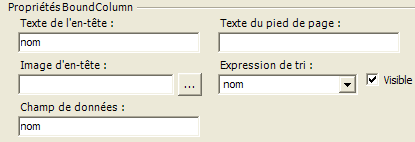
If the sort expression was not defined during the design of the [DataGrid], the name of the data field associated with the [DataGrid] column is used. The sort order (ascending, descending) is set here by the user using the radio buttons [rdAscending, rdDescending]:
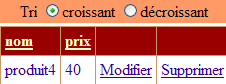
The sorting procedure is as follows:
    Private Sub DataGrid1_SortCommand(ByVal source As Object, ByVal e As System.Web.UI.WebControls.DataGridSortCommandEventArgs) Handles DataGrid1.SortCommand
        ' sort the dataview
        With dvProduits
            .Sort = e.SortExpression + " " + CType(IIf(rdCroissant.Checked, "asc", "desc"), String)
        End With
        ' we display it
        afficheProduits(0, DataGrid1.PageSize)
    End Sub
9.6.13. Deleting a product
To delete a product, the user clicks the [Delete] link in the product row:
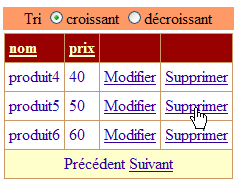
The [DataGrid1_DeleteCommand] procedure is then executed:
    Private Sub DataGrid1_DeleteCommand(ByVal source As Object, ByVal e As System.Web.UI.WebControls.DataGridCommandEventArgs) Handles DataGrid1.DeleteCommand
        ' product deletion
        ' product key to be deleted
        Dim idProduit As Integer = CType(DataGrid1.DataKeys(e.Item.ItemIndex), Integer)
        ' product deletion
        Dim erreur As Boolean = False
        Try
            supprimerProduit(idProduit)
        Catch ex As Exception
            ' pb
            lblInfo2.Text = ex.Message
            erreur = True
        End Try
        ' change page?
        Dim page As Integer = DataGrid1.CurrentPageIndex
        If Not erreur AndAlso DataGrid1.Items.Count = 1 Then
            page = DataGrid1.CurrentPageIndex - 1
            If page < 0 Then page = 0
        End If
        ' product display
        afficheProduits(page, DataGrid1.PageSize)
    End Sub
Products will be updated using the product's [id] key. The [id] column in the [dtProduits] table is the primary key, and using it, we can locate the product row in the [dtProduits] table that is being updated in the [DataGrid1] component. The procedure therefore begins by retrieving the key of the product whose [Delete] link was clicked:
        ' product key to delete
        Dim idProduit As Integer = CType(DataGrid1.DataKeys(e.Item.ItemIndex), Integer)
We know that [e.Item] is the element in [DataGrid1] that triggered the event. Roughly speaking, this element is a row in the [DataGrid]. [e.Item.ItemIndex] is the number of the row that triggered the event. This index is relative to the currently displayed page. Thus, the first row of the displayed page has the [ItemIndex=0] property, even if it has the number 17 in the product table. [DataGrid1.DataKeys] is the list of keys for the [DataGrid]. Because we set [DataGrid1.DataKey=id] during design time, the keys for [DataGrid1] consist of the values from the [id] column of the [dtProduits] table, which is also the primary key. Thus, [DataGrid1.DataKeys(e.Item.ItemIndex)] is the [id] key of the product to be deleted. With this obtained, we request its deletion using the [deleteProduct] procedure:
        ' product deletion
        Dim erreur As Boolean = False
        Try
            supprimerProduit(idProduit)
        Catch ex As Exception
            ' pb
            lblInfo2.Text = ex.Message
            erreur = True
        End Try
This deletion may fail in some cases. We'll see why. An exception is then thrown. It is handled here. If there is an error, the [DataGrid1] does not need to change. Only an error message is added to the [products] view. If there is no error and the user has just deleted the only product on the current page, then the previous page is displayed.
        ' change page?
        Dim page As Integer = DataGrid1.CurrentPageIndex
        If Not erreur AndAlso DataGrid1.Items.Count = 1 Then
            page = DataGrid1.CurrentPageIndex - 1
            If page < 0 Then page = 0
        End If
In any case, the [products] view is redrawn using the [displayProducts] procedure:
The [deleteProduct] procedure is as follows:
    Private Sub supprimerProduit(ByVal idProduit As Integer)
        Dim erreur As String
        Try
            ' synchronization
            Application.Lock()
            ' search for the line to be deleted
            Dim ligne As DataRow = dtProduits.Rows.Find(idProduit)
            If ligne Is Nothing Then
                erreur = String.Format("Produit [{0}] inexistant", idProduit)
            Else
                ' delete line
                ligne.Delete()
            End If
        Catch ex As Exception
            erreur = String.Format("Erreur de suppression : {0}", ex.Message)
        Finally
            ' end of synchronization
            Application.UnLock()
        End Try
        ' throw an exception if error
        If erreur <> String.Empty Then Throw New Exception(erreur)
    End Sub
The procedure receives the key of the product to be deleted as a parameter. If there were only one client performing the updates, this deletion could be done as follows:
With multiple clients performing updates at the same time, it is more complicated. Indeed, consider the following sequence of events:
 |
Time | Action |
T1 | Client A reads the [dtProducts] table—there is a product with key 20 |
T2 | Client B reads the [dtProducts] table - there is a product with key 20 |
T3 | Customer A deletes the product with key 20 |
T4 | Client B deletes the product with key 20 |
When clients A and B read the product table and display its contents on a web page, the table contains the product with key 20. They may therefore want to perform an action on this product, such as deleting it. One of them is bound to do so first. The one who comes next will then try to delete a product that no longer exists. This scenario is handled by the [deleteProducts] procedure in several ways:
- First, there is synchronization using [Application.Lock]. This means that when a client crosses this barrier, no other client can modify or read the product table. In fact, all such operations are synchronized in this way. We have already seen this for reading.
- Next, we check whether the product we want to delete exists. If so, it is deleted; otherwise, an error message is generated.
<div class="odt-code-rich" data-linenums="false" style="counter-reset: odtline 0;"><pre><code class="language-csharp">
<span class="odt-code-line"> ' recherche de la ligne à supprimer</span>
<span class="odt-code-line"> <span style="color:#0000ff">Dim</span> ligne <span style="color:#0000ff">As</span> DataRow = dtProduits.Rows.Find(idProduit)</span>
<span class="odt-code-line"> <span style="color:#0000ff">If</span> ligne <span style="color:#0000ff">Is</span> <span style="color:#0000ff">Nothing</span> <span style="color:#0000ff">Then</span></span>
<span class="odt-code-line"> erreur = <span style="color:#0000ff">String</span>.Format("Produit [{0}] inexistant", idProduit)</span>
<span class="odt-code-line"> <span style="color:#0000ff">Else</span><span style="color:#0000ff"></span></span>
<span class="odt-code-line"> ' suppression de la ligne</span>
<span class="odt-code-line"> ligne.Delete()</span>
<span class="odt-code-line"> <span style="color:#0000ff">End</span> <span style="color:#0000ff">If</span></span>
</code></pre></div>
- We exit the critical section using [Application.Unlock] to allow other clients to perform their updates.
- If the row could not be deleted, the procedure throws an exception associated with an error message.
Let's look at an example. We launch a [Mozilla] client and immediately select the [Update] option (partial view):
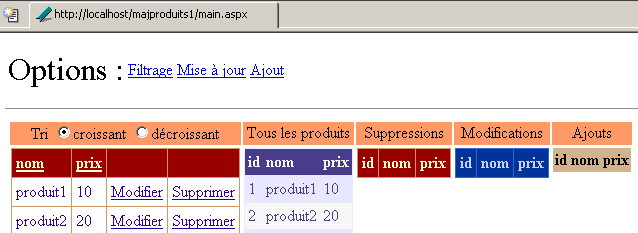
We do the same with an [Internet Explorer] client (partial view):
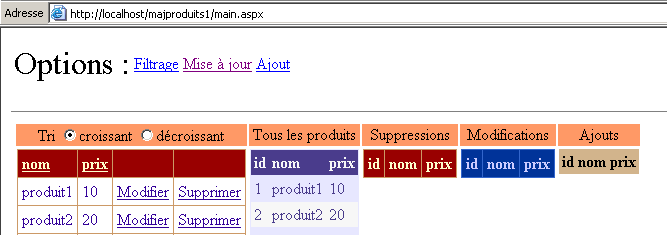
With the [Mozilla] client, we delete the product [product2]. We get the following new page:

The deletion operation was successful. The deleted product appears in the [DataGrid] of deleted products and no longer appears in the product lists of the [DataGrid1] and [DataGrid2] components, which display the products currently present in the table. Let’s do the same with [Internet Explorer]. We delete the [product2] item:
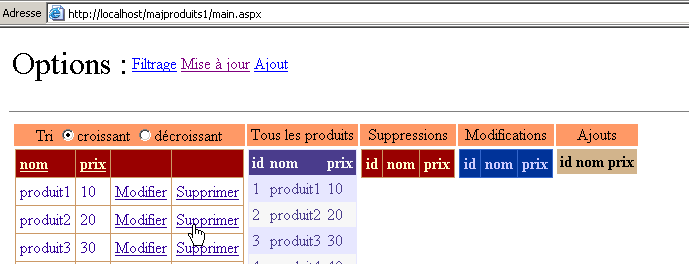
The response received is as follows:
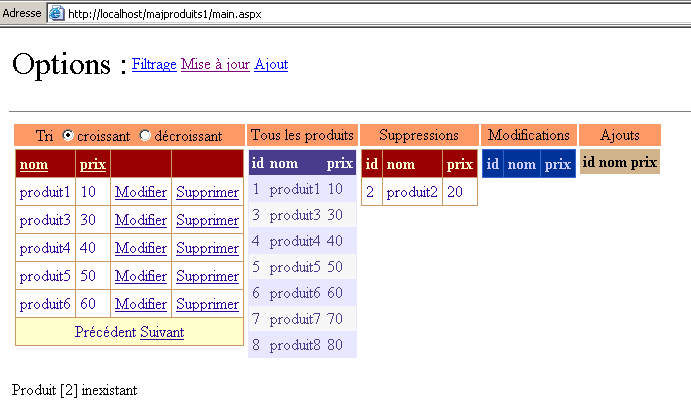
An error message informs the user that the product with key [2] does not exist. The response returns a new view to the client reflecting the current state of the table. We can see that the product with key [2] is indeed in the list of deleted products. The [products] view therefore reflects updates from all clients, not just one.
9.6.14. Adding a product
To add a product, the user clicks the [Add] link in the options. This simply displays the [Add] view:
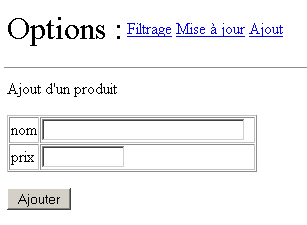
The two procedures involved in this action are as follows:
    Private Sub lnkAjout_Click(ByVal sender As System.Object, ByVal e As System.EventArgs) Handles lnkAjout.Click
        ' the [add] view is displayed
        afficheAjout()
    End Sub

    Private Sub afficheAjout()
        ' displays the add view
        vueAjout.Visible = True
        vueFormulaire.Visible = False
        vueProduits.Visible = False
        vueErreurs.Visible = False
    End Sub
Note that the [Add] view has validation components:
name | type | role |
RequiredFieldValidator | checks for a value in [txtName] | |
RequiredFieldValidator | checks for a value in [txtPrice] | |
CompareValidator | checks that price >= 0 |
The procedure for handling the click on the [Add] button is as follows:
    Private Sub btnAjouter_Click(ByVal sender As System.Object, ByVal e As System.EventArgs) Handles btnAjouter.Click
        ' add a new item to the product table
        ' first of all, the data must be valid
        rfvNom.Validate()
        rfvPrix.Validate()
        cvPrix.Validate()
        If Not rfvNom.IsValid Or Not rfvPrix.IsValid Or Not cvPrix.IsValid Then
            ' the input form again
            afficheAjout()
            Exit Sub
        End If
        ' create a line
        Dim produit As DataRow = dtProduits.NewRow
        produit("nom") = txtNom.Text.Trim
        produit("prix") = txtPrix.Text.Trim
        ' add the row to the
        Application.Lock()
        Try
            dtProduits.Rows.Add(produit)
            lblInfo3.Text = "Ajout réussi"
            ' cleaning
            txtNom.Text = ""
            txtPrix.Text = ""
        Catch ex As Exception
            lblInfo3.Text = String.Format("Erreur : {0}", ex.Message)
        End Try
        Application.UnLock()
    End Sub
First, we perform validity checks on the three components [rfvNom, rfvPrix, cvPrix]. If any of the checks fails, the [Add] view is redisplayed with error messages for the validation components. Here is an example:
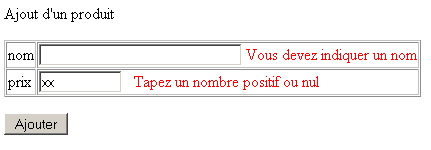
If the data is valid, we prepare the row to be inserted into the [dtProduits] table.
        ' create a line
        Dim produit As DataRow = dtProduits.NewRow
        produit("nom") = txtNom.Text.Trim
        produit("prix") = txtPrix.Text.Trim
First, we create a new row in the [dtProducts] table using the [DataTable.NewRow] method. This row will have the three columns [id, name, price] from the [dtProducts] table. The [name, price] columns are populated with the values entered in the add form. The [id] column is not populated. This column is of type [AutoIncrement], meaning that the DBMS will assign the maximum existing key plus 1 as the key for a new product. The [product] row created here is detached from the [dtProducts] table. We now need to insert it into this table. Since we are going to update the [dtProduits] table, we enable inter-client synchronization:
Once this is done, we attempt to add the row to the [dtProduits] table. If successful, we display a success message; otherwise, an error message.
        Try
            dtProduits.Rows.Add(produit)
            lblInfo3.Text = "Ajout réussi"
            ' nettoyage
            txtNom.Text = ""
            txtPrix.Text = ""
        Catch ex As Exception
            lblInfo3.Text = String.Format("Erreur : {0}", ex.Message)
        End Try
Normally, no exceptions should occur. However, exception handling has been implemented as a precaution. Once the addition is complete, we exit the critical section using [Application.Unlock].
9.6.15. Editing a product
To modify a product, the user clicks the [Edit] link in the product row:
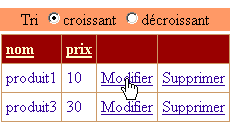
This switches to edit mode:
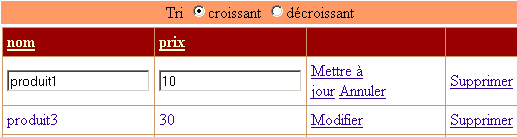
Thanks to the [DataGrid] component, this result is achieved with very little code:
    Private Sub DataGrid1_EditCommand(ByVal source As Object, ByVal e As System.Web.UI.WebControls.DataGridCommandEventArgs) Handles DataGrid1.EditCommand
        ' puts current element in edit mode
        DataGrid1.EditItemIndex = e.Item.ItemIndex
        ' products are re-displayed
        afficheProduits(DataGrid1.CurrentPageIndex, DataGrid1.PageSize)
    End Sub
Clicking the [Edit] link triggers the execution, on the server side, of the [DataGrid1_EditCommand] procedure. The [DataGrid1] component has an [EditItemIndex] field. The row with the index value of [EditItemIndex] is set to edit mode. Each value in the row thus updated can be modified in an input box, as shown in the screenshot above. We therefore retrieve the index of the product on which the [Edit] link was clicked and assign it to the [EditItemIndex] property of the [DataGrid1] component. All that remains is to reload the [products] view. It will appear identical to before but with one row in edit mode.
The [Cancel] link for the product being edited allows the user to abandon the update. The procedure associated with this link is as follows:
    Private Sub DataGrid1_CancelCommand(ByVal source As Object, ByVal e As System.Web.UI.WebControls.DataGridCommandEventArgs) Handles DataGrid1.CancelCommand
        ' products are re-displayed
        afficheProduits(DataGrid1.CurrentPageIndex, DataGrid1.PageSize)
    End Sub
It simply re-displays the [products] view. One might be tempted to set [DataGrid1.EditItemIndex] to -1 to cancel the update mode. In fact, we know that the [Page_Load] procedure does this automatically. There is therefore no need to do it again.
The change is validated by the [Update] link on the row being edited. The following procedure is then executed:
    Private Sub DataGrid1_UpdateCommand(ByVal source As Object, ByVal e As System.Web.UI.WebControls.DataGridCommandEventArgs) Handles DataGrid1.UpdateCommand
        ' product key to be modified
        Dim idProduit As Integer = CType(DataGrid1.DataKeys(e.Item.ItemIndex), Integer)
        ' modified items
        Dim nom As String = CType(e.Item.Cells(0).Controls(0), TextBox).Text.Trim
        Dim prix As String = CType(e.Item.Cells(1).Controls(0), TextBox).Text.Trim
        ' valid modifications?
        lblInfo2.Text = ""
        If nom = String.Empty Then lblInfo2.Text += "[Indiquez un nom]"
        If prix = String.Empty Then
            lblInfo2.Text += "[Indiquez un prix]"
        Else
            Dim nouveauPrix As Double
            Try
                nouveauPrix = CType(prix, Double)
                If nouveauPrix < 0 Then Throw New Exception
            Catch ex As Exception
                lblInfo2.Text += "[prix invalide]"
            End Try
        End If
        '  if error, redisplay update page
        If lblInfo2.Text <> String.Empty Then
            ' return the line to update mode
            DataGrid1.EditItemIndex = e.Item.ItemIndex
            ' product display
            afficheProduits(DataGrid1.CurrentPageIndex, DataGrid1.PageSize)
            ' end
            Exit Sub
        End If
        ' if no error - we modify the table
        Try
            modifierProduit(idProduit, e.Item)
        Catch ex As Exception
            ' pb
            lblInfo2.Text = ex.Message
        End Try
        ' product display
        afficheProduits(DataGrid1.CurrentPageIndex, DataGrid1.PageSize)
    End Sub
As with deletion, we need to retrieve the key of the product to be modified in order to find its row in the product table [dtProduits]:
        ' product key to be modified
        Dim idProduit As Integer = CType(DataGrid1.DataKeys(e.Item.ItemIndex), Integer)
Next, we need to retrieve the new values to assign to the row. These are in the [DataGrid1] component. The [e] argument of the procedure is there to help us. [e.Item] represents the row in [DataGrid1] that triggered the event. This is therefore the row currently being updated, since the [Update] link exists only on this row. This row contains columns designated by the row’s [Cells] collection. Thus, [e.Item.Cells(0)] represents column 0 of the row being updated. We know that the new values are in text boxes. The collection [e.Item.Cells(i).Controls] represents the collection of controls in column i of the [e.Item] row. The following two statements retrieve the values from the text boxes of the row being updated in [DataGrid1]:
        ' modified items
        Dim nom As String = CType(e.Item.Cells(0).Controls(0), TextBox).Text.Trim
        Dim prix As String = CType(e.Item.Cells(1).Controls(0), TextBox).Text.Trim
We now have the new values for the modified row as strings. We then check if this data is valid. The name must not be empty, and the price must be a positive number or zero:
        ' valid modifications?
        lblInfo2.Text = ""
        If nom = String.Empty Then lblInfo2.Text += "[Indiquez un nom]"
        If prix = String.Empty Then
            lblInfo2.Text += "[Indiquez un prix]"
        Else
            Dim nouveauPrix As Double
            Try
                nouveauPrix = CType(prix, Double)
                If nouveauPrix < 0 Then Throw New Exception
            Catch ex As Exception
                lblInfo2.Text += "[prix invalide]"
            End Try
        End If
If an error occurs, the label [lblInfo2] will display an error message, and the same page will simply be reloaded:
        '  if error, redisplay update page
        If lblInfo2.Text <> String.Empty Then
            ' return the line to update mode
            DataGrid1.EditItemIndex = e.Item.ItemIndex
            ' product display
            afficheProduits(DataGrid1.CurrentPageIndex, DataGrid1.PageSize)
            ' end
            Exit Sub
        End If
What the code above does not show is that the entered values are lost. This is because [DataGrid1] is linked to the data in the [dtProduits] table, which contains the original values of the modified row. Here is an example.
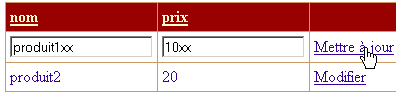
The result is as follows:
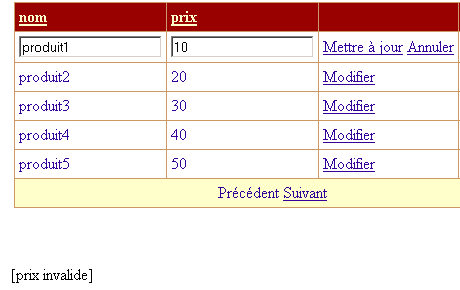
We can see that the initially entered values have been lost. In a professional application, this would likely be unacceptable. Here, we encounter certain limitations of the standard update mode for the [DataGrid] component. It would be preferable to have an [Edit] view analogous to the [Add] view.
If the data is valid, it is used to update the [dtProducts] table:
        ' cas où pas d'erreur - on modifie la table
        Try
            modifierProduit(idProduit, e.Item)
        Catch ex As Exception
            ' pb
            lblInfo2.Text = ex.Message
        End Try
        ' affichage produits
        afficheProduits(DataGrid1.CurrentPageIndex, DataGrid1.PageSize)
For the same reason mentioned when deleting a product, the modification may fail. Indeed, between the time the client reads the [dtProduits] table and the time they attempt to modify one of their products, that product may have been deleted by another client. The [modifyProduct] procedure's " " handles this case by throwing an exception. This exception is handled here. After the update succeeds or fails, the application returns the [products] view to the client. We still need to see how the [modifyProduct] procedure performs the update:
    Private Sub modifierProduit(ByVal idProduit As Integer, ByVal item As DataGridItem)
        Dim erreur As String
        Try
            ' synchronization
            Application.Lock()
            ' search for the line to be modified
            Dim ligne As DataRow = dtProduits.Rows.Find(idProduit)
            If ligne Is Nothing Then
                erreur = String.Format("Produit [{0}] inexistant", idProduit)
            Else
                ' modify the line
                With ligne
                    .Item("nom") = CType(item.Cells(0).Controls(0), TextBox).Text.Trim
                    .Item("prix") = CType(item.Cells(1).Controls(0), TextBox).Text.Trim
                End With
            End If
        Catch ex As Exception
            erreur = String.Format("Erreur lors de la modification : {0}", ex.Message)
        Finally
            ' end of synchronization
            Application.UnLock()
        End Try
        ' throw an exception if error
        If erreur <> String.Empty Then Throw New Exception(erreur)
    End Sub
We won’t go into the details of this procedure, whose code is similar to that of the [deleteProduct] procedure, which has been explained at length. Let’s just look at two examples. First, we’ll change the price of product [product1]:

Clicking the [Update] link above produces the following response:

The change is clearly visible in [DataGrid] components 1 and 2, which reflect the current state of the [dtProducts] table. It is also visible in the [DataGrid4] component, which displays a view of the modified rows, showing them with their original values. Now let’s look at a case of a concurrency conflict. As with the deletion example, we will use two different web clients. A client [Mozilla] reads the [dtProduits] table and begins editing the product [product1]:
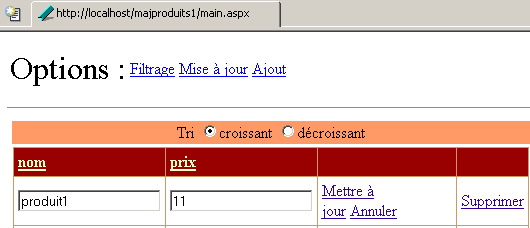
An [Internet Explorer] client is about to delete product [product1]:
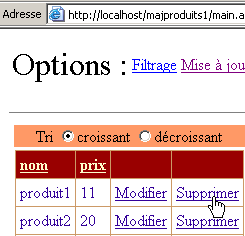
The [Internet Explorer] client deletes [product1]:
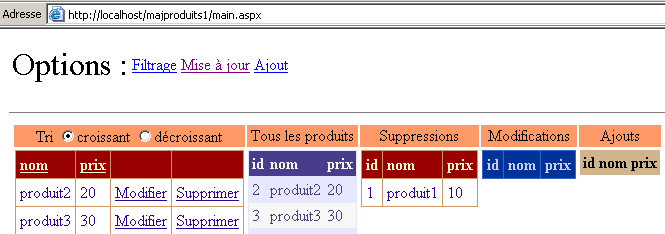
Note that [product1] is no longer in the table of modified rows but in the table of deleted rows. The [Mozilla] client validates its update:
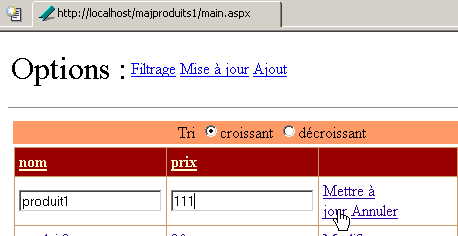
The client [Mozilla] receives the following response to its update:
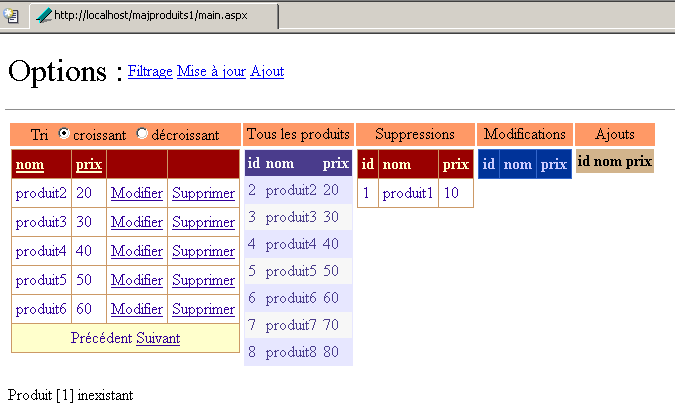
They can see that [product1] has been deleted since it is in the list of deleted products.
9.7. Web application for updating the physical product table
9.7.1. Proposed solutions
The previous application was more of a textbook example intended to demonstrate the management of a cached [DataTable] object than a real-world scenario. Indeed, at some point, the actual data source must be updated. Two different strategies can be chosen:
- We use the [dtProduits] cache in memory to update the data source. A page can be created within the web tree of the previous application to provide access to its [dtProduits] cache. This page would allow an administrator to synchronize changes made to the [dtProduits] cache with the physical data source. To do this, we could add a new method to the [products] access class that takes the [dtProduits] cache as a parameter and uses this cache to update the physical data source.
- The physical data source is updated at the same time as the cache.
Strategy #1 allows opening only one connection to the physical data source. Strategy #2 requires a connection for each update. Depending on connection availability, one strategy may be preferred over the other. Since we have the tools to implement it (the [products] class), we choose Strategy #2.
9.7.2. Solution 1
For the sake of continuity with the previous application, we choose the following strategy:
- the physical source is updated at the same time as the cache
- the cache is built only once during application initialization in [global.asax.vb]. This means that if the physical data source is updated by clients other than web clients, the web clients do not see these changes. They see only the changes they themselves make to the cached table.
To update the physical data source, we need an instance of the product access class. Each client could have its own. We can also share a single instance that would be created by the application at startup. This is the solution we are choosing here. The control code [global.asax.vb] is modified as follows:
Imports System
Imports System.Web
...

Public Class Global
    Inherits System.Web.HttpApplication

    Sub Application_Start(ByVal sender As Object, ByVal e As EventArgs)
        ' retrieve configuration information
        Dim chaînedeConnexion As String = ConfigurationSettings.AppSettings("OLEDBStringConnection")
        Dim defaultProduitsPage As String = ConfigurationSettings.AppSettings("defaultProduitsPage")
        Dim erreurs As New ArrayList
...
        ' no configuration errors here
        ' create a product object
        Dim objProduits As New produits(chaînedeConnexion)
        Dim dtProduits As DataTable
        Try
            dtProduits = objProduits.getProduits
        Catch ex As ExceptionProduits
            'there has been an error accessing the products, this is noted in the application
            Application("erreurs") = ex.erreurs
            Exit Sub
        Catch ex As Exception
            ' unhandled error
            erreurs.Add(ex.Message)
            Application("erreurs") = erreurs
            ' exit sub
        End Try
        ' no initialization errors here
...
        ' the data access instance is stored
        Application("objProduits") = objProduits
    End Sub

    Sub Session_Start(ByVal sender As Object, ByVal e As EventArgs)
...
    End Sub
End Class
An instance of the data access class has been stored in the application, associated with the [objProducts] key. Each client will use this instance to access the physical data source. It will be retrieved in the [Page_Load] procedure of [main.aspx.vb]:
    Protected objProduits As produits
....
    Private Sub Page_Load(ByVal sender As System.Object, ByVal e As System.EventArgs) Handles MyBase.Load
...
        ' retrieve the product access instance
        objProduits = CType(Application("objProduits"), produits)
...
    End Sub
The data access instance [objProducts] is accessible to all methods on the page. It will be used for the three update operations: adding, deleting, and modifying.
The add procedure is modified as follows:
    Private Sub btnAjouter_Click(ByVal sender As System.Object, ByVal e As System.EventArgs) Handles btnAjouter.Click
...
        ' we add the line
        Application.Lock()
        Try
            ' add the line to the cached table
            dtProduits.Rows.Add(produit)
            ' add the line to the physical source
            Dim nouveauProduit As sProduit
            With nouveauProduit
                .nom = CType(produit("nom"), String)
                .prix = CType(produit("prix"), Double)
            End With
            objProduits.ajouterProduit(nouveauProduit)
            ' follow-up
            lblInfo3.Text = "Ajout réussi"
            ' cleaning
            txtNom.Text = ""
            txtPrix.Text = ""
        Catch ex As Exception
            ' error
            lblInfo3.Text = String.Format("Erreur : {0}", ex.Message)
        End Try
        Application.UnLock()
    End Sub
The modification procedure is modified as follows:
    Private Sub modifierProduit(ByVal idProduit As Integer, ByVal item As DataGridItem)
        Dim erreur As String
        Try
            ' synchronization
            Application.Lock()
            ' search for the line to be modified
            Dim ligne As DataRow = dtProduits.Rows.Find(idProduit)
            If ligne Is Nothing Then
                erreur = String.Format("Produit [{0}] inexistant", idProduit)
            Else
                ' modify the line in the cache
                With ligne
                    .Item("nom") = CType(item.Cells(0).Controls(0), TextBox).Text.Trim
                    .Item("prix") = CType(item.Cells(1).Controls(0), TextBox).Text.Trim
                End With
                ' modify the line in the physical source
                Dim nouveauProduit As sProduit
                With nouveauProduit
                    .id = idProduit
                    .nom = CType(ligne.Item("nom"), String)
                    .prix = CType(ligne.Item("prix"), Double)
                End With
                objProduits.modifierProduit(nouveauProduit)
            End If
        Catch ex As Exception
            erreur = String.Format("Erreur lors de la modification : {0}", ex.Message)
        Finally
            ' end of synchronization
            Application.UnLock()
        End Try
        ' throw an exception if error
        If erreur <> String.Empty Then Throw New Exception(erreur)
    End Sub
The delete procedure is modified as follows:
    Private Sub supprimerProduit(ByVal idProduit As Integer)
        Dim erreur As String
        Try
            ' synchronization
            Application.Lock()
            ' search for the line to be deleted
            Dim ligne As DataRow = dtProduits.Rows.Find(idProduit)
            If ligne Is Nothing Then
                erreur = String.Format("Produit [{0}] inexistant", idProduit)
            Else
                ' delete line from cache
                ligne.Delete()
                ' delete the line in the physical source
                objProduits.supprimerProduit(idProduit)
            End If
        Catch ex As Exception
            erreur = String.Format("Erreur de suppression : {0}", ex.Message)
        Finally
            ' end of synchronization
            Application.UnLock()
        End Try
        ' throw an exception if error
        If erreur <> String.Empty Then Throw New Exception(erreur)
    End Sub
9.7.3. Tests
We start with the following data table in an ACCESS file:
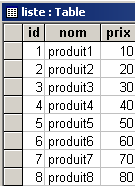
A web client is launched:
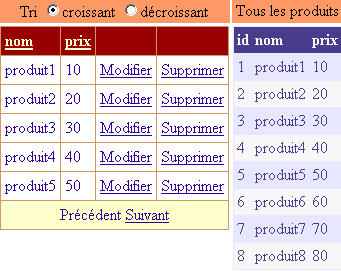
We add a product:
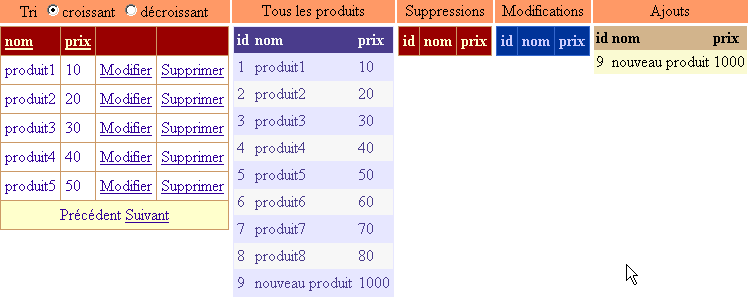
We are discontinuing [product1]:
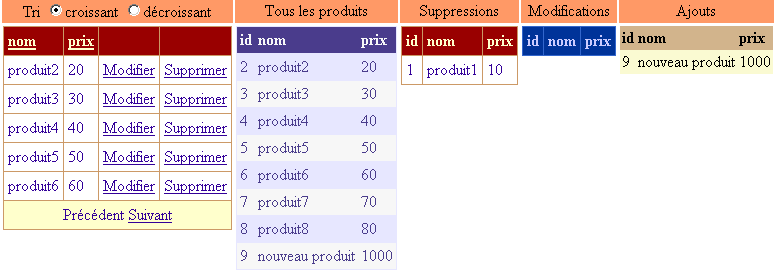
We are changing the price of [product2]:
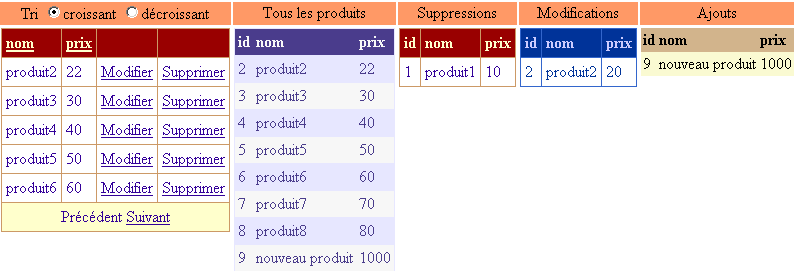
After these changes, we look at the contents of the [list] table in the ACCESS database:
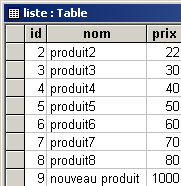
The three changes have been correctly reflected in the physical table. Now let’s examine a conflict scenario. We delete the row for [product2] directly in Access:
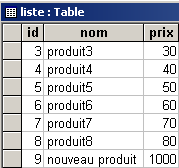
We return to our web client. The client does not see the deletion that was made and wants to delete [product2] as well:
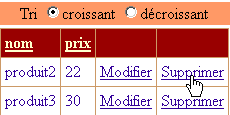
They receive the following response:
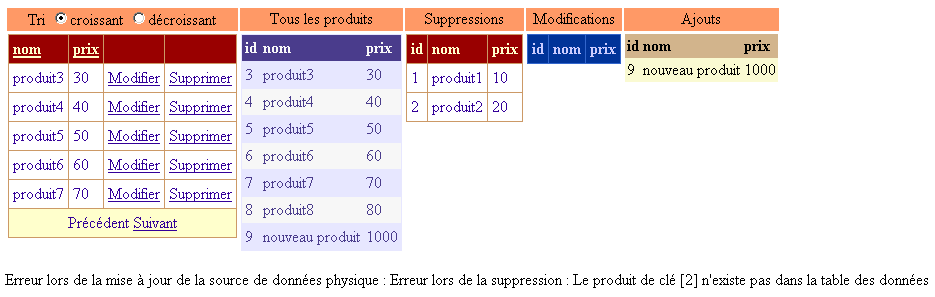
The [product2] row has indeed been removed from the cache, as shown in the list of deleted products. However, the deletion of [product2] in the physical source failed, as indicated by the error message.
9.7.4. Solution 2
In the previous solution, web clients simultaneously update the physical data source but do not see the changes made by other clients. They only see their own. We now want a client to be able to see the physical data source as it currently is, not as it was when the application was launched. To do this, we will offer the client a new option:

With the [Refresh] option, the client forces a re-read of the physical data source. To ensure this does not affect other clients, the table resulting from this read must belong to the client performing the refresh and must not be shared with other clients. This is the first difference from the previous application. The [dtProduits] cache of the data source will be built by each client and not by the application itself. The modification is made in [global.asax.vb]:
Imports System
Imports System.Web
Imports System.Web.SessionState
Imports st.istia.univangers.fr
Imports System.Configuration
Imports System.Data
Imports Microsoft.VisualBasic
Imports System.Collections

Public Class Global
    Inherits System.Web.HttpApplication

    Sub Application_Start(ByVal sender As Object, ByVal e As EventArgs)
        ' retrieve configuration information
...
        ' no configuration errors here
        ' create a product object
        Dim objProduits As New produits(chaînedeConnexion)
        ' store the number of products per page
        Application("defaultProduitsPage") = defaultProduitsPage
        ' the data access instance is stored
        Application("objProduits") = objProduits
    End Sub

    Sub Session_Start(ByVal sender As Object, ByVal e As EventArgs)
        ' init session variables
        If IsNothing(Application("erreurs")) Then
            ' cache the data source
            Dim dtProduits As DataTable
            Try
                Application.Lock()
                dtProduits = CType(Application("objProduits"), produits).getProduits
            Catch ex As ExceptionProduits
                'there has been an error accessing the products, this is noted in the session
                Session("erreurs") = ex.erreurs
                Exit Sub
            Finally
                Application.UnLock()
            End Try
            ' cache [dtProduits] in the session
            Session("dtProduits") = dtProduits
            ' view of the product table
            Session("dvProduits") = dtProduits.DefaultView
            ' products per page
            Session("nbProduitsPage") = Application("defaultProduitsPage")
            ' current page displayed
            Session("pageCourante") = 0
        End If
    End Sub

End Class
The information stored in the session is retrieved with each request in the [Page_Load] procedure:
    ' data page
    Protected dtProduits As DataTable
    Protected dvProduits As DataView
    Protected objProduits As produits
    Protected nbProduitsPage As Integer
    Protected pageCourante As Integer

    Private Sub Page_Load(ByVal sender As System.Object, ByVal e As System.EventArgs) Handles MyBase.Load
        ' check for application errors
        If Not IsNothing(Application("erreurs")) Then
            ' the application has not initialized correctly
            afficheErreurs(CType(Application("erreurs"), ArrayList))
            Exit Sub
        End If
        ' check for session errors
        If Not IsNothing(Session("erreurs")) Then
            ' the session has not initialized correctly
            afficheErreurs(CType(Session("erreurs"), ArrayList))
            Exit Sub
        End If
        ' retrieve a reference from the product table
        dtProduits = CType(Session("dtProduits"), DataTable)
        ' product view
        dvProduits = CType(Session("dvProduits"), DataView)
        ' retrieve the number of products per page
        nbProduitsPage = CType(Session("nbProduitsPage"), Integer)
        ' retrieve the current page
        pageCourante = CType(Session("pageCourante"), Integer)
        ' retrieve the product access instance
        objProduits = CType(Application("objProduits"), produits)
        ' cancels any update in progress
        DataGrid1.EditItemIndex = -1
        '1st request
        If Not IsPostBack Then
            ' the initial form is displayed
            txtPages.Text = nbProduitsPage.ToString
            afficheFormulaire()
        End If
    End Sub
The information retrieved during the session will be saved at the end of the session after each request:
    Private Sub Page_PreRender(ByVal sender As Object, ByVal e As System.EventArgs) Handles MyBase.PreRender
        ' certain information is stored in the session
        Session("dtProduits") = dtProduits
        Session("dvProduits") = dvProduits
        Session("nbProduitsPage") = nbProduitsPage
        Session("pageCourante") = pageCourante
    End Sub
The [PreRender] event signals that the response is about to be sent to the client. We take this opportunity to save all the data that needs to be retained in the session. This is excessive, since quite often only some of the data has changed. This systematic saving has the advantage of relieving us of session management in the page’s other methods.
The cache refresh operation is handled by the following procedure:
    Private Sub lnkRefresh_Click(ByVal sender As System.Object, ByVal e As System.EventArgs) Handles lnkRefresh.Click
        ' refresh the [dtProduits] cache with the physical data source
        ' synchro start
        Application.Lock()
        Try
            ' product table
            dtProduits = CType(Application("objProduits"), produits).getProduits
            ' the current filter is saved
            Dim filtre As String = dvProduits.RowFilter
            ' create the new filtered view
            dvProduits = New DataView(dtProduits)
            ' put the filter back on
            dvProduits.RowFilter = filtre
        Catch ex As ExceptionProduits
            'there has been an error accessing the products, this is noted in the session
            Session("erreurs") = ex.erreurs
            ' display the [errors] view
            afficheErreurs(ex.erreurs)
            ' finish
            Exit Sub
        Finally
            ' end synchro
            Application.UnLock()
        End Try
        ' it went well - the products are displayed from the 1st page
        afficheProduits(0, nbProduitsPage)
    End Sub
The procedure regenerates new values for the cache [dtProduits] and the view [dvProduits]. These will be placed in the session by the [Page_PreRender] procedure described above. Once the cache [dtProduits] has been rebuilt, we display the products starting from the first page.
Here is an example of execution. A client [mozilla] is launched and displays the products:
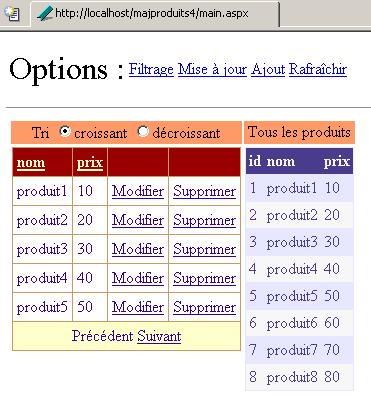
A client [Internet Explorer] does the same:
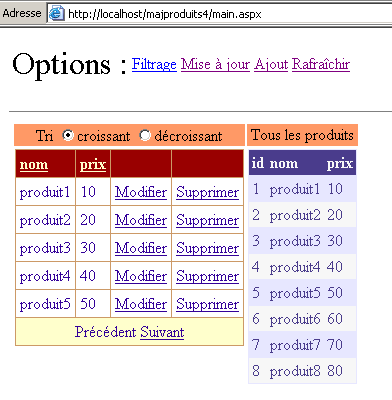
The [Mozilla] client deletes [product1], modifies [product2], and adds a new product. It gets the following new page:
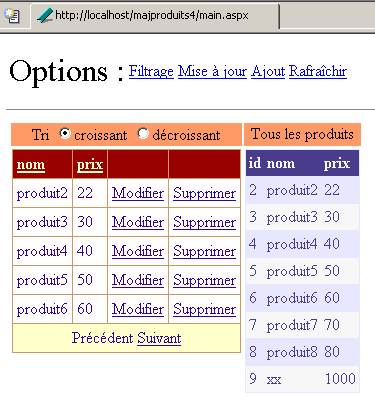
The [Internet Explorer] client wants to delete [product1].
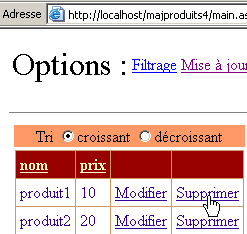
It receives the following response:
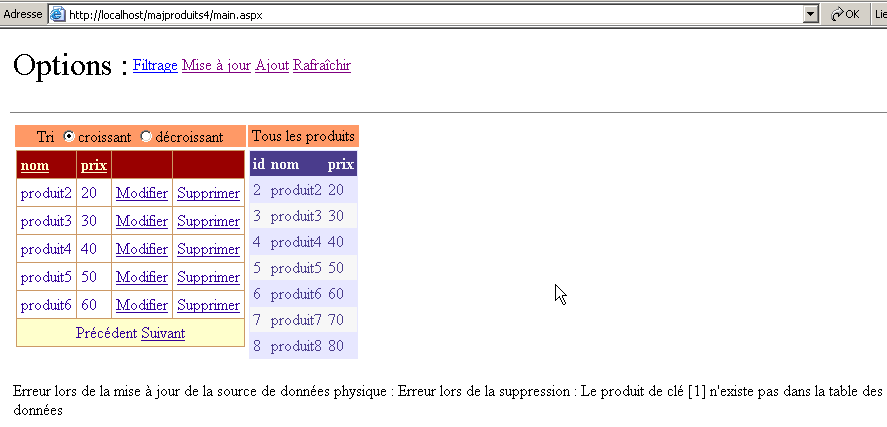
It was notified that [product1] no longer exists. The user then decides to refresh their cache using the [Refresh] link above. They receive the following response:
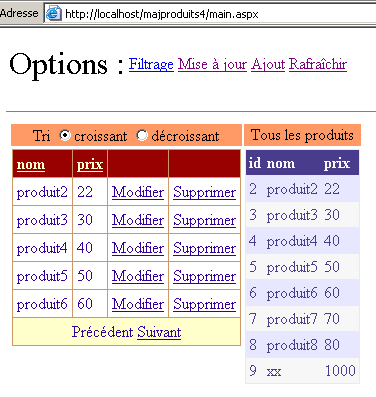
He now has the same data source as the [Mozilla] client.
9.8. Conclusion
In this chapter, we spent a lot of time on data containers and their connections to data sources. We concluded by showing how to update a data source using a [DataGrid] component. We used a database table as our data source. Even though the [DataGrid] component makes data presentation a bit easier, the real challenge lies not in the presentation layer but in managing updates to the data source made by different clients. Access conflicts can arise and must be managed. Here, we handled them in the controller using [Application.Lock]. It would likely be wiser to synchronize access to the data source within the data access class so that the controller does not have to worry about such details that are outside its scope.
In practice, tables in a database are linked to one another through relationships, and their updates must take these into account. This primarily affects the data access class, which becomes more complex than what is required for a standalone table. It also generally impacts the presentation layer of the web application, as it is often necessary to display not a single table but tables linked to one another through relationships.
This chapter has also introduced various data structures such as [DataTable, DataView].