8. ASP Server Components - 2
8.1. Introduction
We continue our work on the user interface by exploring:
- data validation components
- how to bind data to server components
- HTML server components
8.2. al data validation components
8.2.1. Introduction
In form-based applications, it is essential to verify the validity of the data entered into them. In the tax calculation example, we had the following form:
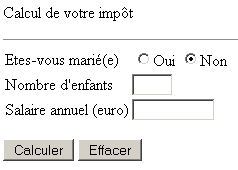
Upon receiving the values from this form, we must verify the validity of the entered data: the number of children and the salary must be positive integers or zero. If this is not the case, the form is returned to the client as entered, along with error messages. We handled this scenario using two views, one for the form above and the other for the errors:
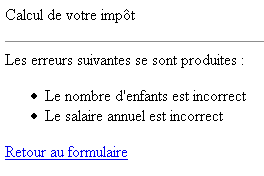
ASP.NET offers components called validation components that allow you to check the following:
Component | Role |
checks that a field is not empty | |
checks two values against each other | |
checks that a value falls between two limits | |
checks that a field matches a regular expression | |
allows the developer to define their own validation rules—this component could replace all the others | |
allows you to gather error messages generated by the previous controls in a single location on the page |
We will now present each of these components.
8.2.2. RequiredFieldValidator
We are building the following page [requiredfieldvalidator1.aspx]:
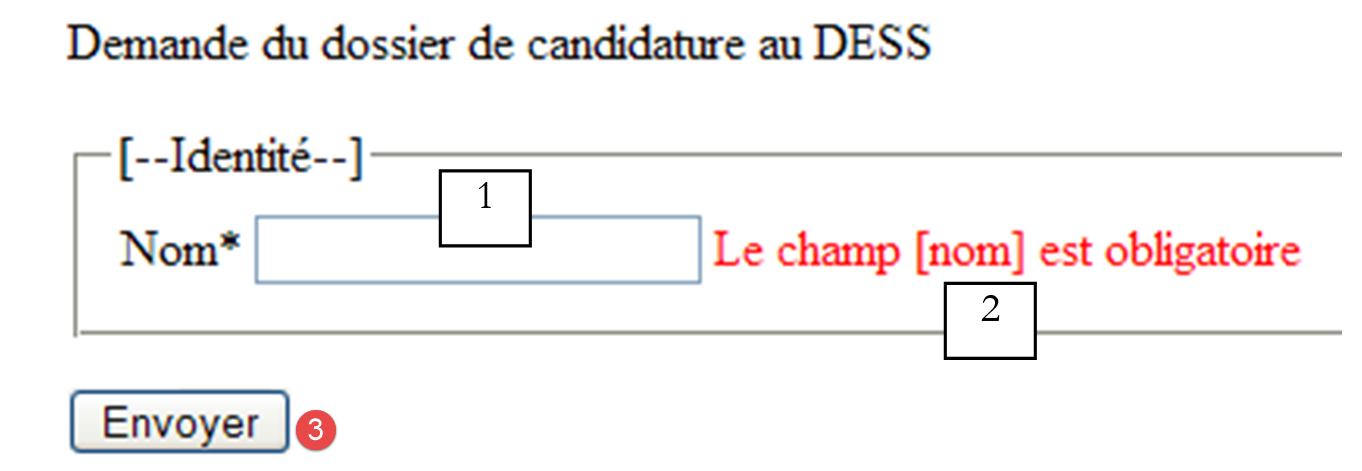 |
No. | name | type | properties | role |
1 | TextBox | EnableViewState=true | input field | |
2 | RequiredFieldValidator | EnableViewState=false EnableClientScript=true ErrorMessage=The [name] field is required | validation component | |
3 | Button | EnableViewState=false ValidationReasons=true | [submit] button |
The [RequiredFieldValidator1] field is used to display an error message if the [txtName] field is empty or contains a string of spaces. Its properties are as follows:
The field whose value must be validated by the component. What does a component’s value mean? It is the value of the [value] attribute of the corresponding HTML tag. For a [TextBox], this is the content of the input field; for a [DropDownList], it is the value of the selected item. | |
Boolean - when true, indicates that the content of the previous field must also be validated on the client side. In this case, the form will only be submitted by the browser if the form contains no errors. However, validation checks are also performed on the server in case the client is not a browser, for example. | |
The error message that the component must display if an error is detected |
Data validation on the page is performed only if the button or link that triggered the page’s [POST] has the [CausesValidation=true] property. [true] is the default value for this property.
Let’s run this application. First, we’ll use a [Mozilla] browser:
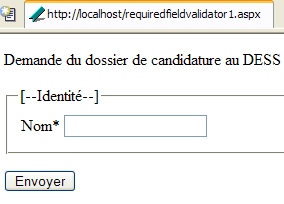
The HTML code received by [Mozilla] is as follows:
<html>
<head>
</head>
<body>
<form name="_ctl0" method="post" action="requiredfieldvalidator1.aspx" id="_ctl0">
<input type="hidden" name="__VIEWSTATE" value="dDwxNDI1MDc1NTU1Ozs+SGtdZvVxefDCDxnsqbDnqCaROsk=" />
<p>
Demande du dossier de candidature au DESS
</p>
<fieldset>
<legend>[--Identité--]</legend>
<table>
<tbody>
<tr>
<td>
Nom*</td>
<td>
<input name="txtNom" type="text" id="txtNom" />
</td>
</tr>
</tbody>
</table>
</fieldset>
<p>
<input type="submit" name="btnEnvoyer" value="Envoyer" onclick="if (typeof(Page_ClientValidate) == 'function') Page_ClientValidate(); " language="javascript" id="btnEnvoyer" />
</p>
</form>
</body>
</html>
We can see that the [btnEnvoyer] button is linked to a JavaScript function via its [onclick] attribute. We can also see that the page contains no [JavaScript] code. The test [typeof(Page_ClientValidate) == 'function'] will fail, and the JavaScript function will not be called. The form will then be submitted to the server, which will perform the validation checks. Let’s use the [Submit] button without entering a name. The server’s response is as follows:
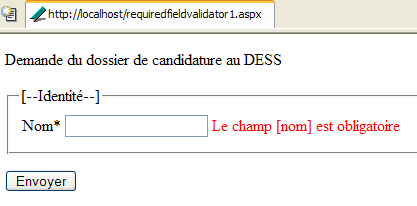
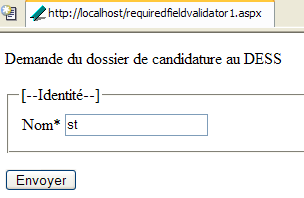
What happened? The form was submitted to the server. The server executed the code for all validation components on the page. Here, there is only one. If at least one validation component detects an error, the server returns the form as it was entered (in fact, for components with [EnableViewState=true], it also includes an error message for each validation component that detected an error). This message is the [ErrorMessage] attribute of the validation component. This is the mechanism we see at work above. If we enter something in the [name] field, the error message no longer appears when the form is submitted:
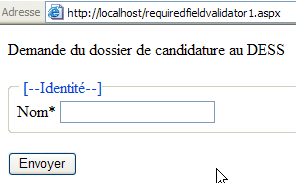
Now, let’s use Internet Explorer and request the URL [http://localhost/requiredfieldvalidator1.aspx]. We get the following page:
The HTML code received by IE is as follows:
<html>
<head>
</head>
<body>
    <form name="_ctl0" method="post" action="requiredfieldvalidator1.aspx" language="javascript" onsubmit="ValidatorOnSubmit();" id="_ctl0">
<input type="hidden" name="__VIEWSTATE" value="dDwxNDI1MDc1NTU1Ozs+SGtdZvVxefDCDxnsqbDnqCaROsk=" />

<script language="javascript" src="/aspnet_client/system_web/1_1_4322/WebUIValidation.js"></script>


        <p>
            Demande du dossier de candidature au DESS
        </p>
        <fieldset>
            <legend>[--Identité--]</legend>
            <table>
                <tbody>
                    <tr>
                        <td>
                            Nom*</td>
                        <td>
                            <input name="txtNom" type="text" id="txtNom" />
                            <span id="RequiredFieldValidator1" controltovalidate="txtNom" errormessage="Le champ [nom] est obligatoire" evaluationfunction="RequiredFieldValidatorEvaluateIsValid" initialvalue="" style="color:Red;visibility:hidden;">Le champ [nom] est obligatoire</span>
                        </td>
                    </tr>
                </tbody>
            </table>
        </fieldset>
        <p>
            <input type="submit" name="btnEnvoyer" value="Envoyer" onclick="if (typeof(Page_ClientValidate) == 'function') Page_ClientValidate(); " language="javascript" id="btnEnvoyer" />
        </p>

<script language="javascript">
<!--
    var Page_Validators =  new Array(document.all["RequiredFieldValidator1"]);
        // -->
</script>


<script language="javascript">
<!--
var Page_ValidationActive = false;
if (typeof(clientInformation) != "undefined" && clientInformation.appName.indexOf("Explorer") != -1) {
    if (typeof(Page_ValidationVer) == "undefined")
        alert("Impossible de trouver la bibliothèque de scripts /aspnet_client/system_web/1_1_4322/WebUIValidation.js. Essayez de placer ce fichier manuellement ou effectuez une réinstallation en exécutant 'aspnet_regiis -c'.");
    else if (Page_ValidationVer != "125")
        alert("Cette page utilise une version incorrecte de WebUIValidation.js. La page requiert la version 125. La bibliothèque de scripts est " + Page_ValidationVer + ".");
    else
        ValidatorOnLoad();
}

function ValidatorOnSubmit() {
    if (Page_ValidationActive) {
        ValidatorCommonOnSubmit();
    }
}
// -->
</script>


        </form>
</body>
</html>
We can see that this code is much longer than the one received by [Mozilla]. We won’t go into the details. The difference stems from the fact that the server included JavaScript functions in the HTML document sent. Why are there two different HTML codes when the URL requested by both browsers is the same? We have previously noted that ASP.NET technology causes the server to adapt the HTML document sent to the client to that client’s specific environment. There are various browsers on the market, and not all of them have the same capabilities. Microsoft and Netscape browsers, for example, do not use the same object model for the document they receive. Consequently, the JavaScript code used to manipulate this document on the client side differs between the two browsers. Similarly, browser vendors have released successive versions of their browsers, continuously improving their capabilities. Thus, an HTML document that IE5 can parse may not be understood by IE3. Above is an example of this server-side adaptation for the client. For a reason not explored in depth here, the web server determined that the client [Mozilla] lacked the capability to handle the validation JavaScript code. Therefore, this code was not included in the HTML document sent to it, and validation was performed on the server side. For [IE6], this JavaScript code was included in the HTML document sent, as we can see. To see it in action, let’s try the following experiment:
- stop the web server
- click the [Submit] button without filling in the [Name] field
We get the following new page:
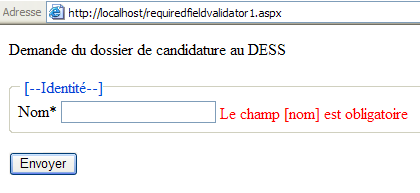
It is indeed the browser that displayed the error message. This is because the server is stopped. We can verify this by entering something in the [name] field and submitting. This time, the response is as follows:
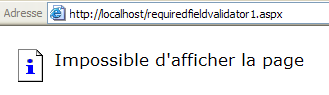
What happened? The browser executed the JavaScript validation code. This code determined that the page was valid. The browser then submitted the form to the web server, which was stopped. The browser realized this and displayed the page above. If we restart the server, everything returns to normal.
What can we learn from this example?
- the value of the validation component concept, which allows any incorrect form to be sent back to the client
- the value of [VIEWSTATE], which allows the form to be returned exactly as it was entered
- the server’s ability to adapt to its client. The client is identified by the HTTP header [User-Agent:] that it sends to the server. It is therefore not the server that “guesses” who it is dealing with. This adaptability is of great interest to the developer, who does not have to worry about the type of client for their application.
8.2.3. CompareValidator
We are building the following page [comparevalidator1.aspx]:
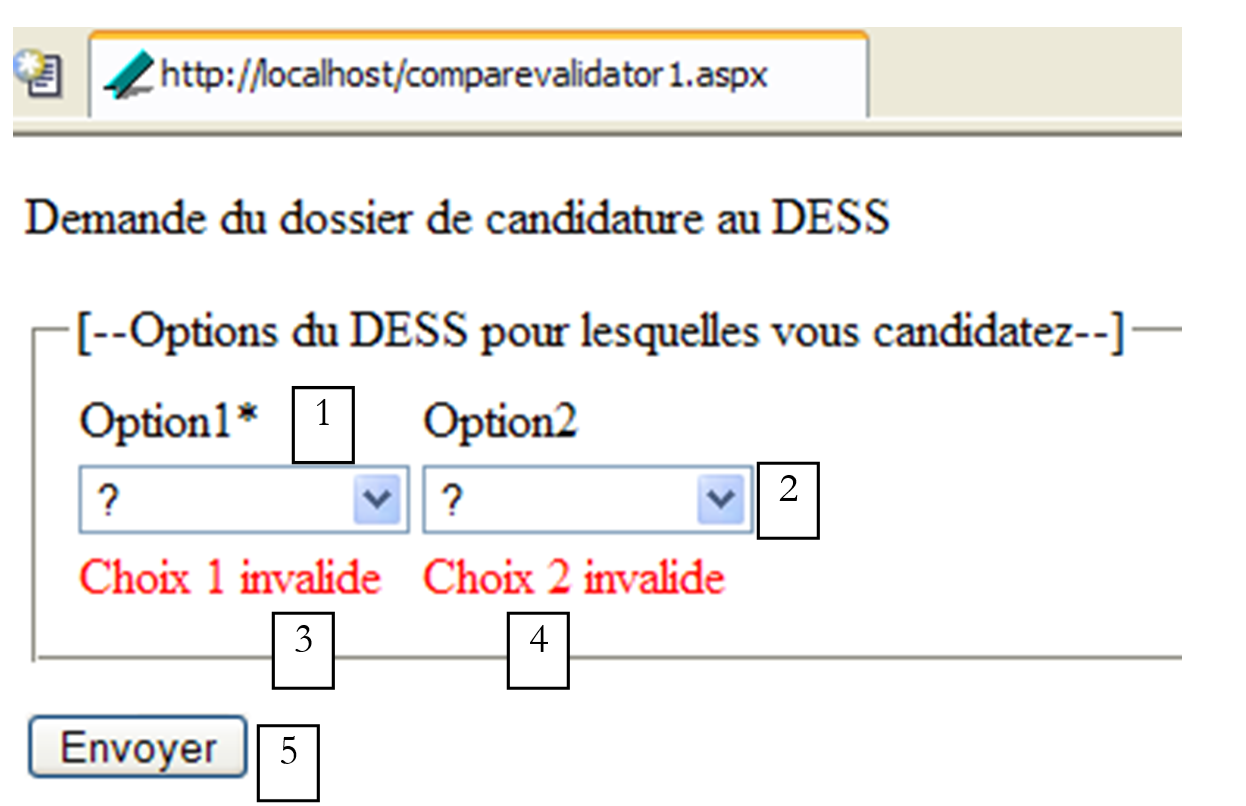
No. | name | type | properties | role |
1 | DropDownList | EnableViewState=true | drop-down list | |
2 | DropDownList | EnableViewState=true | drop-down list | |
3 | CompareValidator | EnableViewState=false EnableClientScript=true ErrorMessage=Invalid choice 1 ValueToCompare=? Operator=NotEqual Type=string | validation component | |
4 | CompareValidator | EnableViewState=false EnableClientScript=true ErrorMessage=Invalid choice 2 ControlToCompare=? Operator=NotEqual Type=string | validation component | |
5 | Button | EnableViewState=false ValidationReasons=true | [submit] button |
The [CompareValidator] component is used to compare two values. The available operators are [Equal, NotEqual, LessThan, LessThanEqual, GreaterThan, GreaterThanEqual]. The first value is set by the [ControlToValidate] property, the second by [ValueToCompare] if the first value is to be compared to a constant, or by [ControlToCompare] if it is to be compared to the value of another component. The important properties of the [CompareValidator] component are as follows:
field whose content must be validated by the component | |
Boolean - when true, indicates that the content of the preceding field must also be validated on the client side | |
the error message that the component should display if an error is detected | |
the value against which the value of the [ControlToValidate] field must be compared | |
the component whose value the value of the [ControlToValidate] field must be compared to | |
comparison operator between the two values | |
Type of the values to be compared |
The HTML code for this page is as follows:
<html>
<head>
</head>
<body>
    <form runat="server">
        <p>
            Demande du dossier de candidature au DESS
        </p>
        <fieldset>
            <legend>[--Options du DESS pour lesquelles vous candidatez--]</legend>
            <table>
                <tbody>
                    <tr>
                        <td>
                            Option1*</td>
                        <td>
                            Option2</td>
                    </tr>
                    <tr>
                        <td>
                            <asp:DropDownList id="cmbChoix1" runat="server">
                                <asp:ListItem Value="?" Selected="True">?</asp:ListItem>
                                <asp:ListItem Value="Automatique">Automatique</asp:ListItem>
                                <asp:ListItem Value="Informatique">Informatique</asp:ListItem>
                            </asp:DropDownList>
                        </td>
                        <td>
                            <asp:DropDownList id="cmbChoix2" runat="server">
                                <asp:ListItem Value="?">?</asp:ListItem>
                                <asp:ListItem Value="Automatique">Automatique</asp:ListItem>
                                <asp:ListItem Value="Informatique">Informatique</asp:ListItem>
                            </asp:DropDownList>
                        </td>
                    </tr>
                    <tr>
                        <td>
                            <asp:CompareValidator id="CompareValidator1" runat="server" ErrorMessage="Choix 1 invalide" ControlToValidate="cmbChoix1" ValueToCompare="?" Operator="NotEqual"></asp:CompareValidator>
                        </td>
                        <td>
                            <asp:CompareValidator id="CompareValidator2" runat="server" ErrorMessage="Choix 2 invalide" ControlToValidate="cmbChoix2" Operator="NotEqual" ControlToCompare="cmbChoix1"></asp:CompareValidator>
                        </td>
                    </tr>
                </tbody>
            </table>
        </fieldset>
        <p>
            <asp:Button id="btnEnvoyer" runat="server" Text="Envoyer"></asp:Button>
        </p>
    </form>
</body>
</html>
The validation constraints for the page are as follows:
- The value selected in [cmbChoix1] must be different from the string "?". This implies the following properties for the [CompareValidator1] component: Operator=NotEqual, ValueToCompare=?, Type=string
- The value selected in [cmbChoix2] must be different from the value selected in [cmbChoix1]. This implies the following properties for the [CompareValidator2] component: Operator=NotEqual, ControlToCompare=cmbChoix1, Type=string
We run this application. Here is an example of a page received during client-server exchanges:
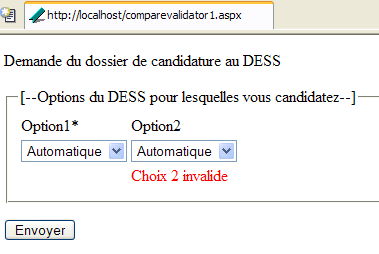
If the same page is requested by Internet Explorer 6, JavaScript code is included in it that results in slightly different behavior. Any errors are reported as soon as the user changes a value in one of the drop-down lists. This improves the user experience.
8.2.4. CustomValidator , RangeValidator
We are building the following page [customvalidator1.aspx]:
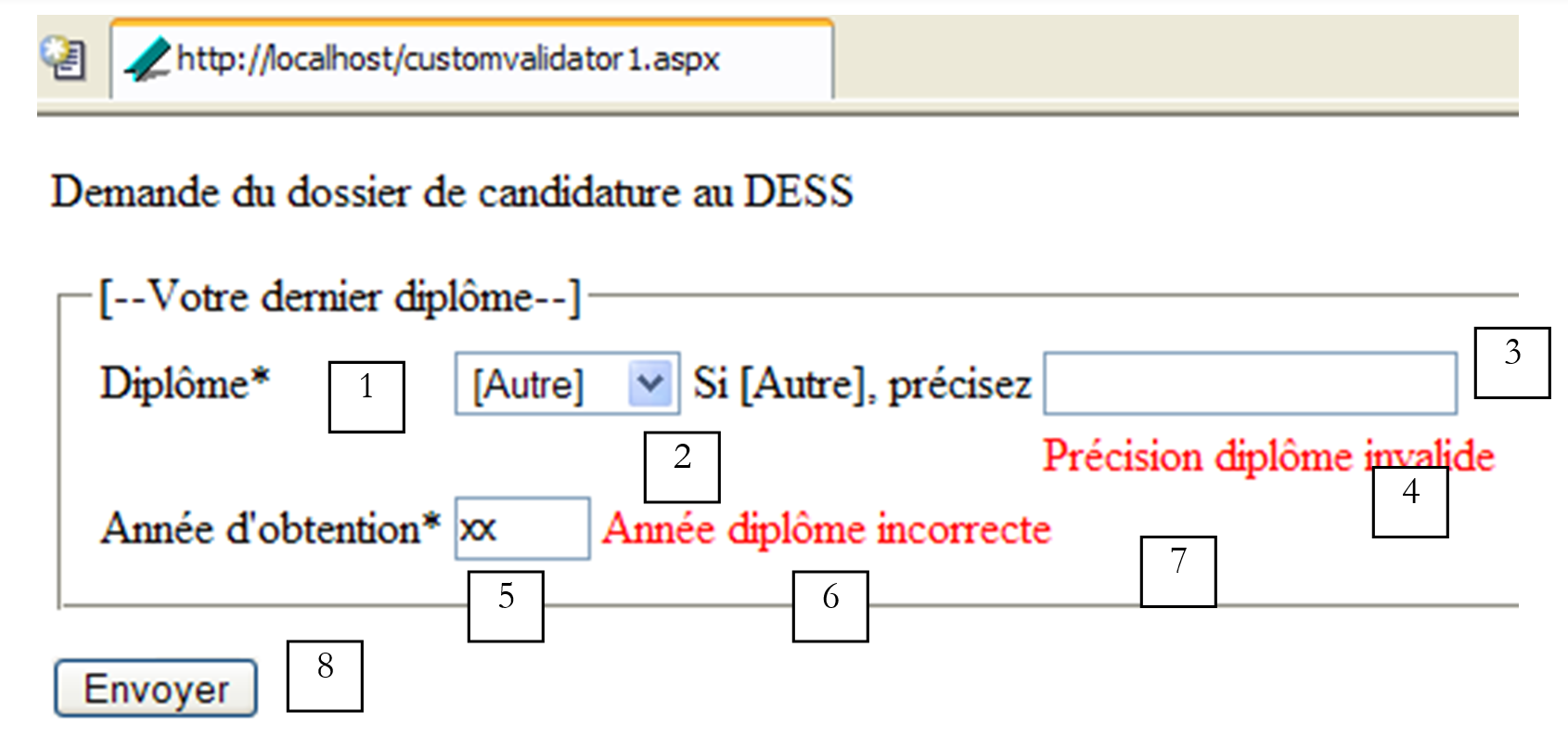
No. | name | type | properties | role |
DropDownList | EnableViewState=true | drop-down list | ||
CompareValidator | EnableViewState=false EnableClientScript=true ErrorMessage=Invalid diploma Operator=NotEqual ValueToCompare=? Type=String | validation component of control [1] | ||
TextBox | EnableViewState=false | input field | ||
CustomValidator | EnableViewState=false EnableClientScript=true ErrorMessage=Invalid degree specification ClientValidationFunction=chkOtherDegree | validation component for field [3] | ||
TextBox | EnableViewState=false | input field | ||
RangeValidator | EnableViewState=false EnableClientScript=true ErrorMessage=Graduation year must be in the range [1990,2004] MinValue=1990 MaxValue=2004 Type=Integer ControlToValidate=txtAnDiplome | field validation component [5] | ||
RequiredFieldValidator | EnableViewState=false EnableClientScript=true ErrorMessage=Graduation year required ControlToValidate=txtAnDiplome | field validation component [5] | ||
Button | EnableViewState=false ValidationReasons=true | [submit] button |
The [RangeValidator] field is used to verify that the value of a control falls between two limits [MinValue] and [MaxValue]. Its properties are as follows:
field whose value must be validated by the component | |
Boolean - when true, indicates that the content of the previous field must also be validated on the client side | |
the error message that the component should display if an error is detected | |
minimum value of the field to be validated | |
maximum value of the field to be checked | |
Type of the field value to be validated |
The [CustomValidator] field allows you to perform validations that cannot be performed by the validation components provided by ASP.NET. This validation is performed by a function written by the developer. This function is executed on the server side. Since validation can also be performed on the client side, the developer may need to develop a JavaScript function to include in the HTML document. Its properties are as follows:
The field whose value must be validated by the component | |
Boolean - when true, indicates that the content of the previous field must also be validated on the client side | |
the error message that the component should display if an error is detected | |
The function to be executed on the client side |
The page template code is as follows:
<%@ Page Language="VB" %>
<script runat="server">
...
</script>
<html>
<head>
</head>
<body>
<form runat="server">
<p align="left">
Demande du dossier de candidature au DESS
</p>
<fieldset>
<legend>[--Votre dernier diplôme--]</legend>
<table>
<tbody>
<tr>
<td>
Diplôme*</td>
<td>
<asp:DropDownList id="cmbDiplomes" runat="server">
<asp:ListItem Value="?">?</asp:ListItem>
<asp:ListItem Value="[Autre]">[Autre]</asp:ListItem>
<asp:ListItem Value="Maîtrise">Maîtrise</asp:ListItem>
<asp:ListItem Value="DESS">DESS</asp:ListItem>
<asp:ListItem Value="DEA">DEA</asp:ListItem>
</asp:DropDownList>
</td>
<td>
Si [Autre], précisez</td>
<td>
<asp:TextBox id="txtAutreDiplome" runat="server" EnableViewState="False"></asp:TextBox>
</td>
</tr>
<tr>
<td>
</td>
<td>
<p>
<asp:CompareValidator id="CompareValidator2" runat="server" ErrorMessage="Diplôme invalide" ControlToValidate="cmbDiplomes" ValueToCompare="?" Operator="NotEqual" ></asp:CompareValidator>
</p>
</td>
<td>
</td>
<td>
<asp:CustomValidator id="CustomValidator1" runat="server" ErrorMessage="Précision diplôme invalide" OnServerValidate="CustomValidator1_ServerValidate_1" EnableViewState="False" ClientValidationFunction="chckAutreDiplome"></asp:CustomValidator>
</td>
</tr>
<tr>
<td>
Année d'obtention*</td>
<td colspan="3">
<asp:TextBox id="txtAnDiplome" runat="server" Columns="4"></asp:TextBox>
<asp:RangeValidator id="RangeValidator1" runat="server" ErrorMessage="Année diplôme doit être dans l'intervalle [1990,2004]" ControlToValidate="txtAnDiplome" MinimumValue="1990" MaximumValue="2004" Type="Integer"></asp:RangeValidator>
<asp:RequiredFieldValidator id="RequiredFieldValidator2" runat="server" ErrorMessage="Année diplôme requise" ControlToValidate="txtAnDiplome"></asp:RequiredFieldValidator>
</td>
</tr>
</tbody>
</table>
</fieldset>
<p>
<asp:Button id="btnEnvoyer" runat="server" Text="Envoyer"></asp:Button>
</p>
</form>
</body>
</html>
The [OnServerValidate] attribute of the [CustomValidator] component allows you to specify the function responsible for server-side validation. In the example above, the [CustomValidator1] component calls the following [CustomValidator1_ServerValidate_1] procedure:
<%@ Page Language="VB" %>
<script runat="server">

    Sub CustomValidator1_ServerValidate_1(sender As Object, e As ServerValidateEventArgs)
        ' field [txtAutreDiplome] must be non-empty if [cmbDiplomes]=[other]
        e.isvalid=not (cmbDiplomes.selecteditem.text="[Autre]" and txtAutreDiplome.text.trim="") _
            and not (cmbDiplomes.selecteditem.text<>"[Autre]" and cmbDiplomes.selecteditem.text<>"?" and txtAutreDiplome.text.trim<>"")
    End Sub

</script>
....
A validation function associated with a [CustomValidator] component receives two parameters:
- sender: the object that triggered the event
- e: the event. The procedure must set the [e.IsValid] property to true if the validated data is correct, and to false otherwise.
Here, the following checks are performed:
- the [cmbDiplomes] drop-down list cannot have [?] as its value. This is verified by the [CompareValidator2] component
- the user selects a degree from the [cmbDiplomes] drop-down list. If their degree does not exist in the list, they can select the [Other] option from the list. They must then enter their degree in the [txtAutreDiplome] input field. If [Other] is selected in [cmbDiplomes], then the [txtAutreDiplome] field must not be empty. If neither [Other] nor [?] is selected in [cmbDiplomes], then the [txtAutreDiplome] field must be empty. This is verified by the function associated with the [CustomValidator1] component.
- The year the degree was obtained must be within the range [1900-2004]. This is verified by [RangeValidator1]. However, if the user leaves the field blank, the validation function of [RangeValidator1] is not used. Therefore, we add the [RequiredFieldValidator2] component to the [ ] to check for the presence of content. This is a general rule. The content of a field is not checked if it is empty. The only case where it is checked is when it is associated with a [RequiredFieldValidator] component.
Here is an example of execution in the [Mozilla] browser:
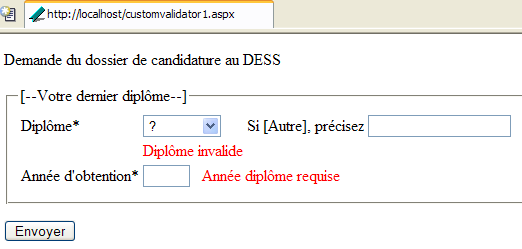
If we use the [IE6] browser, we can add a client-side validation function for the [CustomValidator1] component. To do this, this component has the following properties:
- EnableClientScript=true
- ClientValidationFunction=chkAutreDiplome
The [chkAutreDiplome] function is as follows:
<head>
    <meta http-equiv="pragma" content="no-cache" />
    <script language="javascript">
        function chkAutreDiplome(source,args){
            // vérifie la validité du champ txtAutreDiplome
            with(document.frmCandidature){
                diplome=cmbDiplomes.options[cmbDiplomes.selectedIndex].text;
                    args.IsValid= !(diplome=="[Autre]" && txtAutreDiplome.value=="")
                        && ! (diplome!="[Autre]" && diplome!="?" && txtAutreDiplome.value!="");
            }
        }
        </script>
</head>
The [chkAutreDiplome] function receives the same two parameters as the server function [CustomValidator1_ServerValidate_1]:
- source: the object that triggered the event
- args: the event. This has an [IsValid] attribute that must be set to true by the function if the validated data is correct. A value of false will display the associated error message at the validation component’s location, and the form will not be submitted to the server.
8.2.5. RegularExpressionValidator
We are building the following page [regularexpressionvalidator1.aspx]:
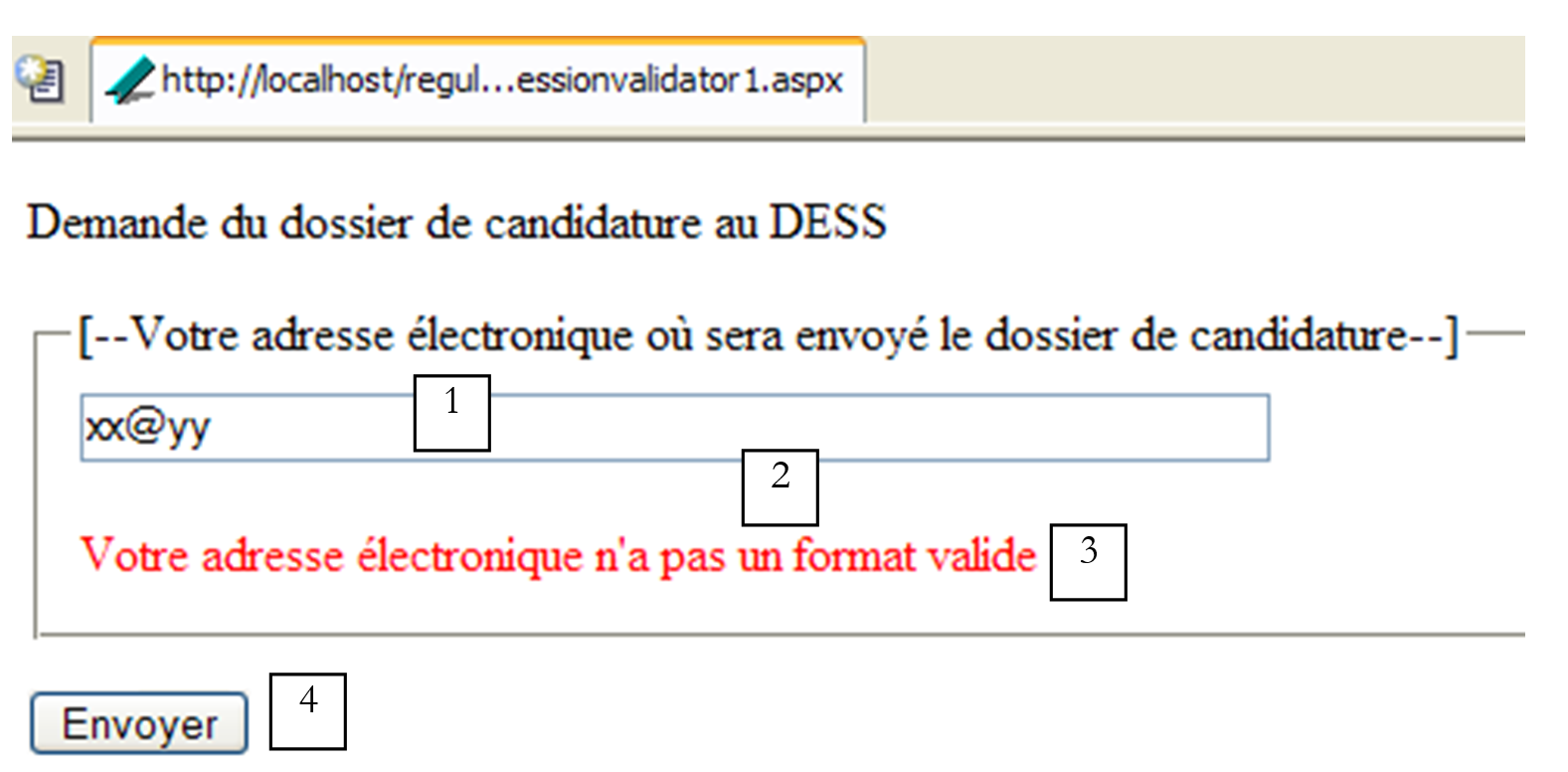
No. | name | type | properties | role |
TextBox | EnableViewState=true | input field | ||
RequiredFieldValidator | ControlToValidate=txtMel Display=Dynamic | control validation component [1] | ||
RegularExpressionValidator | ControlToValidate=txtMel Display=Dynamic | control validation component [1] | ||
Button | EnableViewState=false CausesValidation=true | [submit] button |
Here, we want to validate the format of an email address. We do this using a [RegularExpressionValidator] component, which allows us to validate a field using a regular expression. Remember that a regular expression is a pattern of characters. We therefore check the content of a field against a pattern. Since the content of a field is not checked if it is empty, we also need a [RequiredFieldValidator] component to verify that the email address is not empty. The [RegularExpressionValidator] class has properties similar to those of the component classes already covered:
field whose value must be validated by the component | |
boolean - when true, indicates that the content of the previous field must also be validated on the client side | |
the error message that the component should display if an error is detected | |
the regular expression against which the content of [ControlToValidate] will be compared | |
display mode: Static: the field is always present even if it does not display an error message; Dynamic: the field is present only if there is an error message; None: the error message is not displayed. This field also exists for other components but had not been used until now. |
The regular expression pattern for an email address could be the following: \s*[\w-]+(\.[\w-]+)*@[\w-]+(\.[\w-]+)+\s*
An email address is in the form [champ1.champ2....@champA.champB...]. There must be at least one field before the @ sign and at least two fields after it. These fields consist of alphanumeric characters and the - sign. An alphanumeric character is represented by the symbol \w. The sequence [\w-] means the character \w or the character -. The + sign after a sequence S means that it can be repeated 1 or more times; the * sign means that it can be repeated 0 or more times; the ? sign means that it can be repeated 0 or 1 time.
A field in the email address corresponds to the pattern [\w-]+. The fact that there must be at least one field before the @ sign and at least two after it, separated by the . sign, corresponds to the pattern: [\w-]+(\.[\w-]+)*@[\w-]+(\.[\w-]+)+. We can allow the user to include spaces before and after the address. These will be removed during processing. A sequence of spaces, which may be empty, is represented by the pattern \s*. Hence the regular expression for the email address: \s*[\w-]+(\.[\w-]+)*@[\w-]+(\.[\w-]+)+\s*.
The page layout code is then as follows:
<html>
<head>
</head>
<body>
    <form runat="server">
        <p align="left">
            Demande du dossier de candidature au DESS
        </p>
        <fieldset>
            <legend>[--Votre adresse électronique où sera envoyé le dossier de candidature--]</legend>
            <table>
                <tbody>
                    <tr>
                        <td>
                            <asp:TextBox id="txtMel" runat="server" Columns="60"></asp:TextBox>
                        </td>
                    </tr>
                    <tr>
                        <td>
                            <p>
                                <asp:RequiredFieldValidator id="RequiredFieldValidator3" runat="server" Display="Dynamic" ControlToValidate="txtMel" ErrorMessage="Votre adresse électronique est requise"></asp:RequiredFieldValidator>
                            </p>
                            <p>
                                <asp:RegularExpressionValidator id="RegularExpressionValidator1" runat="server" Display="Dynamic" ControlToValidate="txtMel" ErrorMessage="Votre adresse électronique n'a pas un format valide" ValidationExpression="\s*[\w-]+(\.[\w-]+)*@[\w-]+(\.[\w-]+)+\s*"></asp:RegularExpressionValidator>
                            </p>
                        </td>
                    </tr>
                </tbody>
            </table>
        </fieldset>
        <p>
            <asp:Button id="btnEnvoyer" runat="server" Text="Envoyer"></asp:Button>
        </p>
    </form>
</body>
</html>
8.2.6. ValidationSummary
For aesthetic reasons, you may want to group error messages in a single location, as in the following example [summaryvalidator1.aspx], where we have combined all the previous examples into a single page:
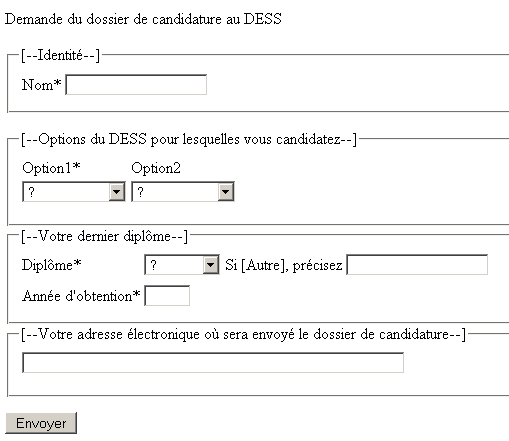
All validation controls have the following properties:
- [Display=Dynamic], which ensures that the controls do not take up space on the page if their error message is empty
- [EnableClientScript=false] to disable all client-side validation
- [Text=*]. This will be the message displayed in case of an error, while the content of the [ErrorMessage] attribute is displayed by the [ValidationSummary] control shown below.
This set of controls is placed in a [Panel] component called [vueFormulaire]. In another [Panel] component called [vueErreurs], we place a [ValidationSummary] control:
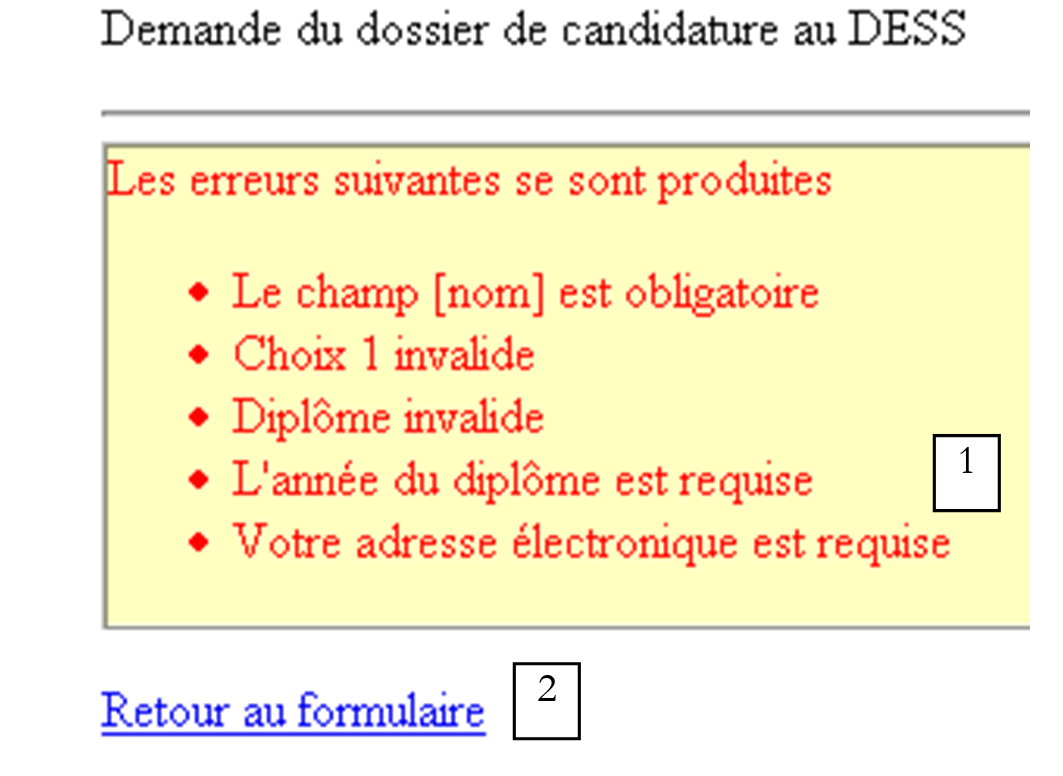
No. | name | type | properties | role |
1 | ValidationSummary | HeaderText=The following errors occurred, EnableClientScript=false, ShowSummary=true | displays errors from all validation controls on the page | |
2 | LinkButton | ValidationCauses=false | link back to the form |
For the [lnkErrorsToForm] link, there is no need to enable validation since this link does not submit any values to be checked.
When all data is valid, the following [info] view is displayed to the user:

1
No. | Name | type | properties | role |
1 | Label | Information message for the user |
The HTML code for this page is as follows:
<html>
<head>
</head>
<body>
    <form runat="server">
        <p align="left">
            Demande du dossier de candidature au DESS
        </p>
        <p>
            <hr />
            <asp:panel id="vueErreurs" runat="server">
                <p align="left">
                    <asp:ValidationSummary id="ValidationSummary1" runat="server" ShowMessageBox="True" BorderColor="#C04000" BorderWidth="1px" BackColor="#FFFFC0" HeaderText="Les erreurs suivantes se sont produites"></asp:ValidationSummary>
                </p>
                <p>
                    <asp:LinkButton id="lnkErreursToFormulaire" onclick="lnkErreursToFormulaire_Click" runat="server" CausesValidation="False">Retour au formulaire</asp:LinkButton>
                </p>
            </asp:panel>
            <asp:panel id="vueFormulaire" runat="server">
....
                    <asp:Button id="btnEnvoyer" onclick="btnEnvoyer_Click" runat="server" Text="Envoyer"></asp:Button>
                </p>
            </asp:panel>
        <asp:panel id="vueInfos" runat="server">
            <asp:Label id="lblInfo" runat="server"></asp:Label>
        </asp:panel>
    </form>
</body>
</html>
Here are some examples of the results obtained. We submit the [form] view without entering any values:
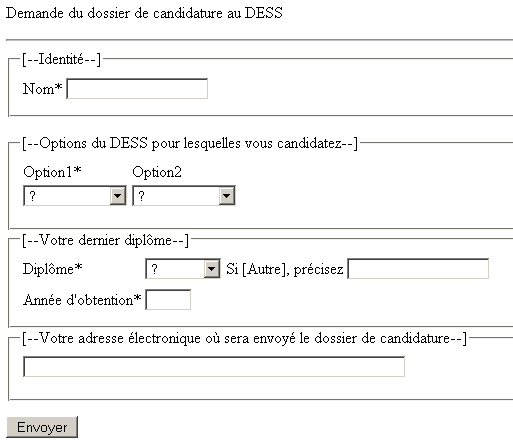
The [Submit] button gives us the following response:
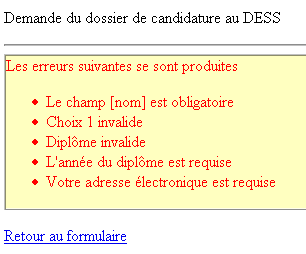
The [errors] view has been displayed. If we use the link to return to the form, we find it in the following state:
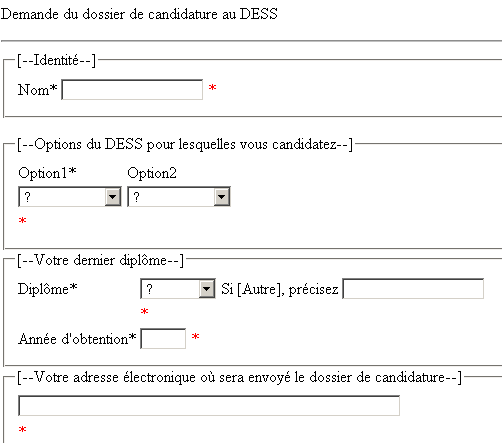
This is the [form] view. Note the [*] character next to the incorrect data. This is the [Text] field of the validation controls that was displayed. If we fill in the fields correctly, we will get the [info] view:

The page control code is as follows:
<%@ Page Language="VB" %>
<script runat="server">

    ' procedure executed when the page is loaded
    Sub page_Load(sender As Object, e As EventArgs)
        ' on the 1st request, we present the [form] view
        if not ispostback then
            afficheVues(true,false,false)
        end if
    end sub

    sub afficheVues(byval formulaireVisible as boolean, _
        erreursVisible as boolean, infosVisible as boolean)
        ' set of views
        vueFormulaire.visible=formulaireVisible
        vueErreurs.visible=erreursVisible
        vueInfos.visible=infosVisible
    end sub

    Sub CustomValidator1_ServerValidate(sender As Object, e As ServerValidateEventArgs)
...
    End Sub

    Sub CustomValidator2_ServerValidate(sender As Object, e As ServerValidateEventArgs)
...
    End Sub

    Sub CustomValidator1_ServerValidate_1(sender As Object, e As ServerValidateEventArgs)
...
    End Sub

    Sub lnkErreursToFormulaire_Click(sender As Object, e As EventArgs)
        ' displays the form view
        afficheVues(true,false,false)
        ' redo validity checks
        Page.validate
    End Sub

    Sub btnEnvoyer_Click(sender As Object, e As EventArgs)
        ' is the page valid?
        if not Page.IsValid then
            ' the [errors] view is displayed
            afficheVues(false,true,false)
        else
            ' otherwise the view [infos]
            lblInfo.Text="Le dossier de candidature au DESS IAIE a été envoyé à l'adresse ["+ _
                        txtMel.Text + "]. Nous vous en souhaitons bonne réception.<br><br>Le secrétariat du DESS."
            afficheVues(false,false,true)
        end if
    end sub

</script>
<html>
...
</html>
- In the [Page_Load] procedure, which runs on every client request, we display the [form] view, while the others are hidden. This is done only on the first request. The procedure calls a utility procedure [displayViews], to which we pass three Booleans to determine whether or not to display the three views.
- When the [btnEnvoyer_Click] procedure is called, data validation has already been performed. The [btnEnvoyer] button has the [CausesValidation=true] property, which triggers this data validation. All validation controls have been executed, and their [IsValid] property has been set. This property indicates whether the data validated by the control was valid or not. Furthermore, the [IsValid] property of the page itself has also been set. It is [true] only if the [IsValid] property of all validation controls on the page has the value [true]. Thus, the [btnEnvoyer_Click] procedure begins by checking whether the page is valid or not. If it is invalid, the [errors] view is displayed. This view contains the [ValidationSummary] control, which lists the [ErrorMessage] attributes of all controls (see screenshot above). If the page is valid, the [info] view is displayed along with an informational message.
- The [lnkErrorsToForm_Click] procedure is responsible for displaying the [form] view in the state in which it was validated. Since all input fields in the [form] view have the [EnableViewState=true] property, their state is automatically regenerated. Curiously, the state of the validation components is not restored. One might expect, upon returning to the [errors] view, to see the invalid controls display their [Text] field. This is not the case. We therefore forced the data validation by using the page’s [Page.Validate] method. This must be done once the [formView] panel has been made visible. There are thus a total of two validations. This should be avoided in practice. Here, the example allowed us to introduce new concepts regarding page validation.
8.3. ListControl Components and Data Binding
A number of the server components covered allow you to display a list of values (DropDownList, ListBox). Others that we haven’t covered yet allow you to display multiple lists of values in HTML tables. For all of them, it is possible to programmatically associate the values in the lists with the corresponding component one by one. It is also possible to associate more complex objects with these components, such as objects of type [Array], [ArrayList], [DataSet], [HashTable], etc., which simplifies the code that associates the data with the component. This association is called a data binding.
All components derived from the [ListControl] class can be associated with a data list. These include the [DropDownList], [ListBox], [CheckButtonList], and [RadioButtonList] components. Each of these components can be bound to a data source. This can take various forms: [Array], [ArrayList], [DataTable], [DataSet], [HashTable], ... generally an object implementing one of the interfaces IEnumerable, ICollection, or IListSource. We will present only a few of them here. A [DataSet] object is a representation of a relational database. It is therefore a set of tables linked by relationships. The [DataTable] object represents such a table. The data source sets the [Text] and [Value] properties of each [Item] in the [ListControl] object. If T is the value of [Text] and V is the value of [Value], the HTML tag generated for each element of [ListControl] is as follows:
<option value="V">T</option> | |
<input type="checkbox" value="V">T | |
<input type="radio" value="V">T |
A [ListControl] component is associated with a data source using the following properties:
a data source [Array], [ArrayList], [DataTable], [DataSet], [HashTable], ... | |
if the data source is a [DataSet], represents the name of the table to be used as the data source. The actual data source is then a table. | |
if the data source is a table ([DataTable], [DataSet]), represents the name of the table column that will provide values to the [Text] field of the [ListControl] items | |
if the data source is a table ([DataTable], [DataSet]), represents the name of the table column that will provide values to the [Value] field of the [ListControl] elements |
Binding a [ListControl] component to a data source does not initialize the component with the values from the data source. The [ListControl].DataBind operation does this.
Depending on the nature of the data source, binding it to a [ListControl] component will be done differently:
[ListControl].DataSource=A The [Text] and [Value] fields of the [ListControl] elements will have the values of the elements in A | |
[ListControl].DataSource=AL The [Text] and [Value] fields of the [ListControl] elements will have the values of the elements in AL | |
[ListControl].DataSource = DT, [ListControl].DataTextField = "col1", [ListControl].DataValueField = "col2" where col1 and col2 are two columns in the DT table. The [Text] and [Value] fields of the [ListControl] items will have the values of the col1 and col2 columns in the DT table | |
[ListControl].DataSource=DS, [ListControl].DataSource="table" where "table" is the name of one of the tables in DS. [ListControl].DataTextField="col1", [ListControl].DatavalueField ="col2" where col1 and col2 are two columns of the "table" table. The [Text] and [Value] fields of the [ListControl] elements will have the values of the col1 and col2 columns of the "table" table | |
[ListControl].DataSource = HT, [ListControl].DataTextField = "key", [ListControl].DataValueField = "value", where [key] and [value] are the keys and values of HT, respectively. |
We apply this information to the following example [databind1.aspx]:
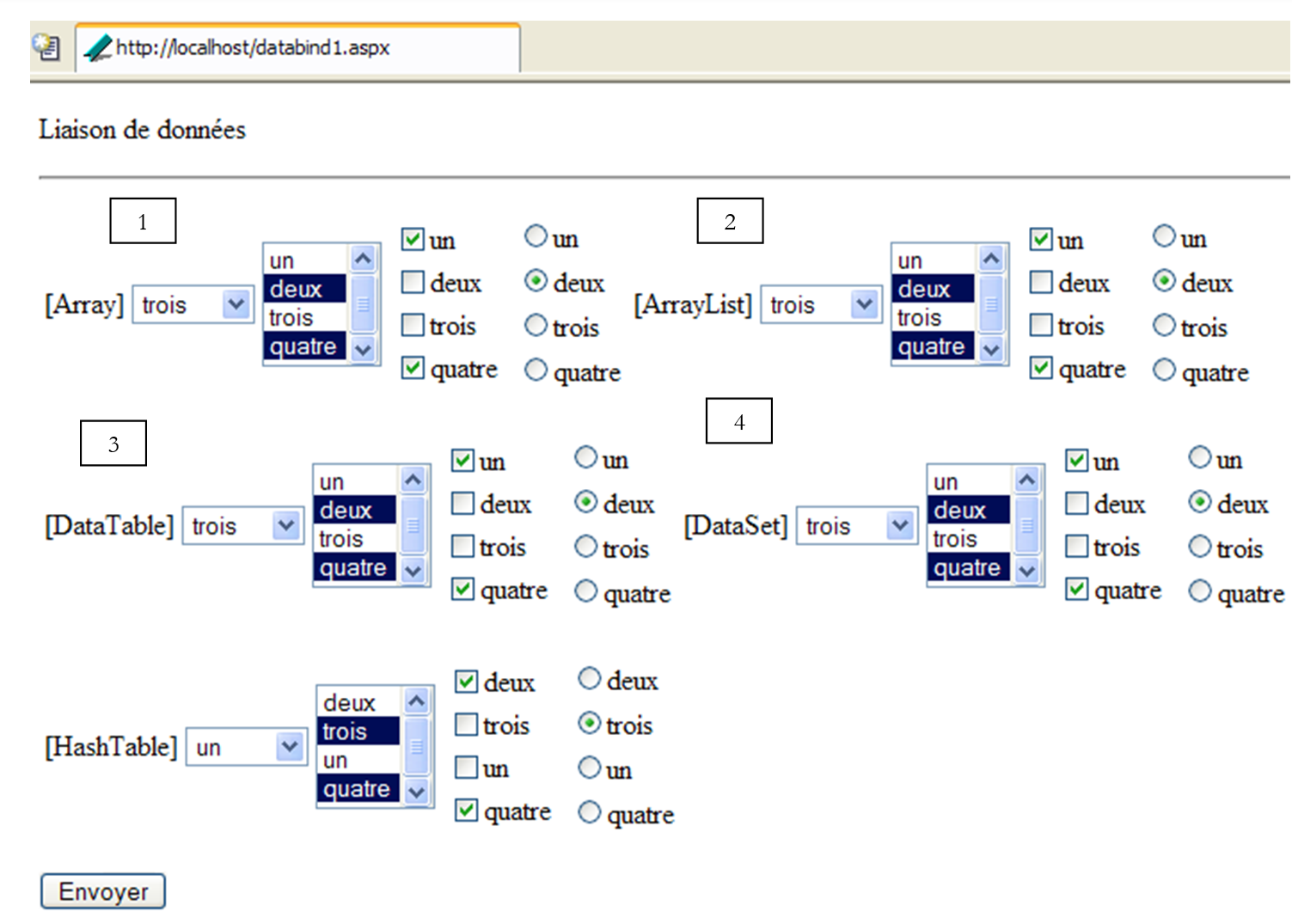 |
Here we have five data bindings, each with four controls of the types [DropDownList], [ListBox], [CheckBoxList], and [RadioButtonList]. The five bindings examined differ in their data sources:
binding | data source |
Array | |
ArrayList | |
DataTable | |
DataSet | |
HashTable |
8.3.1. Component presentation code
The presentation code for the controls in binding 1 is as follows:
<td>
<asp:DropDownList id="DropDownList1" runat="server"></asp:DropDownList>
</td>
<td>
<asp:ListBox id="ListBox1" runat="server" SelectionMode="Multiple"></asp:ListBox>
</td>
<td>
<asp:CheckBoxList id="CheckBoxList1" runat="server"></asp:CheckBoxList>
</td>
<td>
<asp:RadioButtonList id="RadioButtonList1" runat="server"></asp:RadioButtonList>
</td>
The binding for bindings 2 through 5 is identical except for the binding number.
8.3.2. Binding to an Array Data Source
The binding of the four [ListBox] controls above is done as follows in the [Page_Load] procedure of the control code:
' global data
dim textes() as string={"un","deux","trois","quatre"}
dim valeurs() as string={"1","2","3","4"}
dim myDataListe as new ArrayList
dim myDataTable as new DataTable("table1")
dim myDataSet as new DataSet
dim myHashTable as new HashTable

' procedure executed when the page is loaded
Sub page_Load(sender As Object, e As EventArgs)
    if not IsPostBack then
      ' create the data sources to be linked to the components
      createDataSources
      ' link to an array [Array]
      bindToArray
      ' link to a list [ArrayList]
      bindToArrayList
      ' link to a table [DataTable]
      bindToDataTable
      ' link to a data group [DataSet]
      bindToDataSet
      ' link to a dictionary [HashTable]
      bindToHashTable
    end if
End Sub

sub createDataSources
  ' creates data sources to be linked to components
  ' arraylist
  dim i as integer
  for i=0 to textes.length-1
    myDataListe.add(textes(i))
  next
  ' datatable
  ' we define its two columns
  myDataTable.Columns.Add("id",Type.GetType("System.Int32"))
  myDataTable.Columns.Add("texte",Type.GetType("System.String"))
  ' fill the table
  dim ligne as DataRow
  for i=0 to textes.length-1
    ligne=myDataTable.NewRow
    ligne("id")=i
    ligne("texte")=textes(i)
    myDataTable.Rows.Add(ligne)
  next
  ' dataset - a single table
  myDataSet.Tables.Add(myDataTable)
  ' hashtable
  for i=0 to textes.length-1
    myHashTable.add(valeurs(i),textes(i))
  next
end sub

' panel connection
sub bindToArray
        ' association with components
        with DropDownList1
            .DataSource=textes
            .DataBind
        end with
        with ListBox1
            .DataSource=textes
            .DataBind
        end with
        with CheckBoxList1
            .DataSource=textes
            .DataBind
        end with
        with RadioButtonList1
            .DataSource=textes
            .DataBind
        end with
        ' item selection
        ListBox1.Items(1).Selected=true
        ListBox1.Items(3).Selected=true
        CheckBoxList1.Items(0).Selected=true
        CheckBoxList1.Items(3).Selected=true
        DropDownList1.SelectedIndex=2
        RadioButtonList1.SelectedIndex=1
end sub

sub bindToArrayList
....
end sub

sub bindToDataTable
...
end sub

sub bindToDataSet
...
end sub
The controls are bound to the data here only on the first request. After that, the controls will retain their elements via the [VIEWSTATE] mechanism. The binding is performed in the [bindToArray] procedure. Since the data source is of type [Array], only the [DataSource] field of the [ListControl] components is initialized. The control is populated with values from the associated data source using the [ListControl].DataBind method. Only then do the [ListControl] objects have elements. You can then select some of them.
8.3.3. Binding to an ArrayList data source
The data source [myDataList] is initialized in the [createDataSources] procedure:
' global data
dim textes() as string={"un","deux","trois","quatre"}
dim myDataListe as new ArrayList
..

' procedure executed when the page is loaded
Sub page_Load(sender As Object, e As EventArgs)
    if not IsPostBack then
      ' create the data sources to be linked to the components
      createDataSources
...
    end if
End Sub

sub createDataSources
  ' creates data sources to be linked to components
  ' arraylist
  dim i as integer
  for i=0 to textes.length-1
    myDataListe.add(textes(i))
  next
...
end sub
The binding of the four [ListBox] controls in binding 2 is done as follows in the [bindToArrayList] procedure of the control code:
' liaison arraylist
sub bindToArrayList
        ' l'association aux composants
        with DropDownList2
            .DataSource=myDataListe
            .DataBind
        end with
        with ListBox2
            .DataSource=myDataListe
            .DataBind
        end with
        with CheckBoxList2
            .DataSource=myDataListe
            .DataBind
        end with
        with RadioButtonList2
            .DataSource=myDataListe
            .DataBind
        end with
        ' la sélection des éléments
        ListBox2.Items(1).Selected=true
        ListBox2.Items(3).Selected=true
        CheckBoxList2.Items(0).Selected=true
        CheckBoxList2.Items(3).Selected=true
        DropDownList2.SelectedIndex=2
        RadioButtonList2.SelectedIndex=1
end sub
Since the data source is of type [ArrayList], only the [DataSource] field of the [ListControl] components is initialized.
8.3.4. Data source of type DataTable
The data source [myDataTable] is initialized in the [createDataSources] procedure:
' global data
dim textes() as string={"un","deux","trois","quatre"}
dim myDataTable as new DataTable("table1")
...

' procedure executed when the page is loaded
Sub page_Load(sender As Object, e As EventArgs)
    if not IsPostBack then
      ' create the data sources to be linked to the components
      createDataSources
...
    end if
End Sub

sub createDataSources
  ' creates data sources to be linked to components
...
  ' datatable
  ' we define its two columns
  myDataTable.Columns.Add("id",Type.GetType("System.Int32"))
  myDataTable.Columns.Add("texte",Type.GetType("System.String"))
  ' fill the table
  dim ligne as DataRow
  for i=0 to textes.length-1
    ligne=myDataTable.NewRow
    ligne("id")=i
    ligne("texte")=textes(i)
    myDataTable.Rows.Add(ligne)
  next
...
end sub
We start by creating a [DataTable] object with two columns: [id] and [text]. The [id] column will populate the [Value] field of the [ListControl] items, and the [text] column will populate their [Text] fields. The [DataTable] with two columns is created as follows:
  myDataTable.Columns.Add("id",Type.GetType("System.Int32"))
  myDataTable.Columns.Add("texte",Type.GetType("System.String"))
We thus create a table with two columns:
- the first, called "id", is of type integer
- the second, called "text", is of type string
Now that the table structure has been created, we can populate it with the following code:
  dim ligne as DataRow
  for i=0 to textes.length-1
    ligne=myDataTable.NewRow
    ligne("id")=i
    ligne("texte")=textes(i)
    myDataTable.Rows.Add(ligne)
  next
The [id] column will contain integers [0,1,..,n], while the [text] column will contain the values from the [data] array. Once this is done, the [dataList] table is populated. The binding of the four [ListBox] controls in binding 3 is performed as follows in the [bindToDataTable] procedure of the control code:
sub bindToDataTable
        ' l'association aux composants
        with DropDownList3
            .DataSource=myDataTable
            .DataValueField="id"
            .DataTextField="texte"
            .DataBind
        end with
        with ListBox3
            .DataSource=myDataTable
            .DataValueField="id"
            .DataTextField="texte"
            .DataBind
        end with
        with CheckBoxList3
            .DataSource=myDataTable
            .DataValueField="id"
            .DataTextField="texte"
            .DataBind
        end with
        with RadioButtonList3
            .DataSource=myDataTable
            .DataValueField="id"
            .DataTextField="texte"
            .DataBind
        end with
        ' la sélection des éléments
        ListBox3.Items(1).Selected=true
        ListBox3.Items(3).Selected=true
        CheckBoxList3.Items(0).Selected=true
        CheckBoxList3.Items(3).Selected=true
        DropDownList3.SelectedIndex=2
        RadioButtonList3.SelectedIndex=1
end sub
Each [ListControl] component is bound to the [myDataTable] data source by setting the following for each one:
The [myDataTable] table is the data source. The [id] column of this table will populate the [Value] fields of the component elements, while the [text] column will populate their [Text] fields.
8.3.5. DataSet-type data source
The data source [myDataSet] is initialized in the [createDataSources] procedure:
' global data
dim myDataTable as new DataTable("table1")
dim myDataSet as new DataSet
...


' procedure executed when the page is loaded
Sub page_Load(sender As Object, e As EventArgs)
    if not IsPostBack then
      ' create the data sources to be linked to the components
      createDataSources
...
    end if
End Sub

sub createDataSources
  ' creates data sources to be linked to components
  ' dataset - a single table
  myDataSet.Tables.Add(myDataTable)
...
end sub
A [DataSet] object represents a collection of [DataTable] tables. We add the previously created [myDataTable] to the [DataSet]. The binding of the four [ListBox] controls in binding 4 is done as follows in the [bindToDataSet] procedure of the control code:
sub bindToDataSet
        ' l'association aux composants
        with DropDownList4
            .DataSource=myDataSet
            .DataMember="table1"
            .DataValueField="id"
            .DataTextField="texte"
            .DataBind
        end with
        with ListBox4
            .DataSource=myDataSet
            .DataMember="table1"
            .DataValueField="id"
            .DataTextField="texte"
            .DataBind
        end with
        with CheckBoxList4
            .DataSource=myDataSet
            .DataMember="table1"
            .DataValueField="id"
            .DataTextField="texte"
            .DataBind
        end with
        with RadioButtonList4
            .DataSource=myDataSet
            .DataMember="table1"
            .DataValueField="id"
            .DataTextField="texte"
            .DataBind
        end with
        ' la sélection des éléments
        ListBox4.Items(1).Selected=true
        ListBox4.Items(3).Selected=true
        CheckBoxList4.Items(0).Selected=true
        CheckBoxList4.Items(3).Selected=true
        DropDownList4.SelectedIndex=2
        RadioButtonList4.SelectedIndex=1
end sub
Each [ListControl] component is linked to the data source as follows:
The data set [myDataSet] is the data source. Since it may contain multiple tables, we specify the name of the table to be used in [DataMember]. The [id] column of this table will populate the [Value] fields of the component elements, while the [text] column will populate their [Text] fields.
8.3.6. HashTable data source
The data source [myHashTable] is initialized in the [createDataSources] procedure:
' global data
dim textes() as string={"un","deux","trois","quatre"}
dim valeurs() as string={"1","2","3","4"}
dim myHashTable as new HashTable
...

' procedure executed when the page is loaded
Sub page_Load(sender As Object, e As EventArgs)
    if not IsPostBack then
      ' create the data sources to be linked to the components
      createDataSources
...
    end if
End Sub

sub createDataSources
  ' creates data sources to be linked to components
...
  ' hashtable
  for i=0 to textes.length-1
    myHashTable.add(valeurs(i),textes(i))
  next
end sub
The dictionary [myHashTable] can be viewed as a table with two columns called "key" and "value". The [key] column represents the dictionary keys, and the [value] column represents the values associated with them. Here, the [key] column consists of the contents of the [values] array, and the [value] column consists of the contents of the [texts] array. The binding of this source to the controls is performed in the [bindToHashTable] procedure:
sub bindToHashTable
        ' l'association aux composants
        with DropDownList5
            .DataSource=myHashTable
            .DataValueField="key"
            .DataTextField="value"
            .DataBind
        end with
        with ListBox5
            .DataSource=myHashTable
            .DataValueField="key"
            .DataTextField="value"
            .DataBind
        end with
        with CheckBoxList5
            .DataSource=myHashTable
            .DataValueField="key"
            .DataTextField="value"
            .DataBind
        end with
        with RadioButtonList5
            .DataSource=myHashTable
            .DataValueField="key"
            .DataTextField="value"
            .DataBind
        end with
        ' la sélection des éléments
        ListBox5.Items(1).Selected=true
        ListBox5.Items(3).Selected=true
        CheckBoxList5.Items(0).Selected=true
        CheckBoxList5.Items(3).Selected=true
        DropDownList5.SelectedIndex=2
        RadioButtonList5.SelectedIndex=1
end sub
For each component, the binding is established using the following instructions:
The data source is the dictionary [myHashTable]. The control values are provided by the [key] column of the dictionary, and the text by the [value] column. The dictionary elements are inserted into the controls in the order of the keys, which is initially random.
8.3.7. Namespace import directives
A number of namespaces are automatically imported into an ASP.NET page. This is not the case for "System.Data," where the [DataTable] and [DataSet] classes are located. Therefore, this class must be imported. This is done as follows:
<%@ Page Language="VB" %>
<%@ import Namespace="System.Data" %>
<script runat="server">
...
</script>
<html>
...
</html>
8.4. DataGrid Component and Data Binding
The [DataGrid] component allows you to display data in table format, but it goes far beyond simple display:
- it offers the ability to precisely configure the table's "visual rendering"
- it allows you to update the data source
The [DataGrid] component is both powerful and complex. We will present it step by step.
8.4.1. Displaying an Array, ArrayList, DataTable, or DataSet Data Source
The [DataGrid] component allows you to display data sources of type [Array], [ArrayList], [DataTable], and [DataSet] in an HTML table. For these four data types, simply associate the source with the [DataSource] property of the [DataGrid] component:
a data source [Array], [ArrayList], [DataTable], [DataSet], ... | |
if the data source is a [DataSet], represents the name of the table to be used as the data source. The actual data source is then a table. If this field is left blank, all tables in the [DataSet] are displayed. |
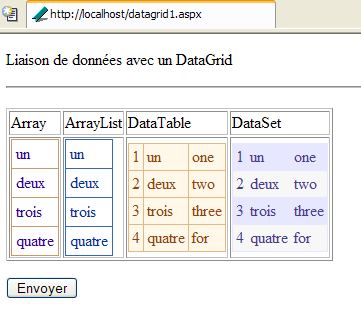
We now present the [datagrid1.aspx] page, which shows a [DataGrid] associated with four different data sources:
The page contains four [DataGrid] components built with [WebMatrix] as follows. We drop the component into its location in the [Design] tab:
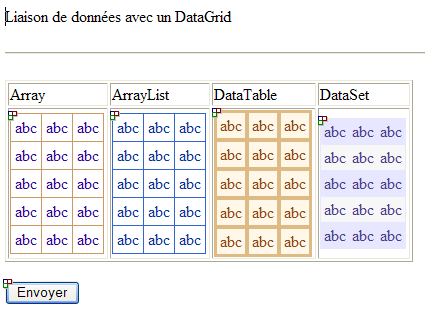
A generic HTML table is then drawn. The properties of a [DataGrid] can be defined at design time. That is what we are doing here for its formatting properties. To do this, we select the [DataGrid] to be configured. Its properties appear in a window at the bottom right:
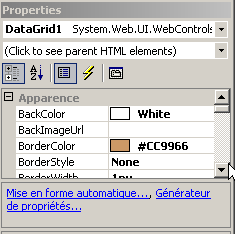
We will use the two links above. The [Property Generator] link provides access to the main properties of the [DataGrid]:
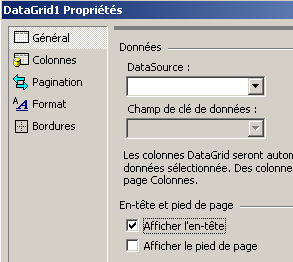
We uncheck the [Show Header] option for the four [DataGrid] components and save the page. The other link, [Auto Format], allows you to choose from several styles for the HTML table that will be displayed:
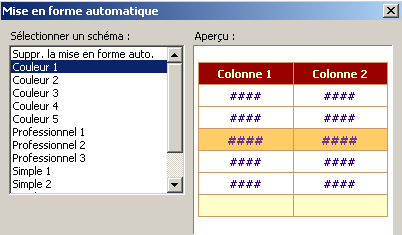
We select [color i] for [DataGrid] #i. These design choices are reflected in the page’s presentation code:
<html>
<head>
</head>
<body>
    <form runat="server">
        <p>
            Liaison de données avec un DataGrid
        </p>
        <hr />
        <p>
            <table>
                <tbody>
                </tbody>
            </table>
            <table border="1">
                <tbody>
                    <tr>
                        <td>
                            Array</td>
                        <td>
                            ArrayList</td>
                        <td>
                            DataTable</td>
                        <td>
                            DataSet</td>
                    </tr>
                    <tr>
                        <td>
                            <asp:DataGrid id="DataGrid1" runat="server" ShowHeader="False" CellPadding="4" BackColor="White" BorderColor="#CC9966" BorderWidth="1px" BorderStyle="None">
                                <FooterStyle forecolor="#330099" backcolor="#FFFFCC"></FooterStyle>
                                <HeaderStyle font-bold="True" forecolor="#FFFFCC" backcolor="#990000"></HeaderStyle>
                                <PagerStyle horizontalalign="Center" forecolor="#330099" backcolor="#FFFFCC"></PagerStyle>
                                <SelectedItemStyle font-bold="True" forecolor="#663399" backcolor="#FFCC66"></SelectedItemStyle>
                                <ItemStyle forecolor="#330099" backcolor="White"></ItemStyle>
                            </asp:DataGrid>
                        </td>
                        <td>
                            <asp:DataGrid id="DataGrid2" runat="server" ShowHeader="False" CellPadding="4" BackColor="White" BorderColor="#3366CC" BorderWidth="1px" BorderStyle="None">
                                <FooterStyle forecolor="#003399" backcolor="#99CCCC"></FooterStyle>
                                <HeaderStyle font-bold="True" forecolor="#CCCCFF" backcolor="#003399"></HeaderStyle>
                                <PagerStyle horizontalalign="Left" forecolor="#003399" backcolor="#99CCCC" mode="NumericPages"></PagerStyle>
                                <SelectedItemStyle font-bold="True" forecolor="#CCFF99" backcolor="#009999"></SelectedItemStyle>
                                <ItemStyle forecolor="#003399" backcolor="White"></ItemStyle>
                            </asp:DataGrid>
                        </td>
                        <td>
                            <asp:DataGrid id="DataGrid3" runat="server" ShowHeader="False" CellPadding="3" BackColor="#DEBA84" BorderColor="#DEBA84" BorderWidth="1px" BorderStyle="None" CellSpacing="2">
                                <FooterStyle forecolor="#8C4510" backcolor="#F7DFB5"></FooterStyle>
                                <HeaderStyle font-bold="True" forecolor="White" backcolor="#A55129"></HeaderStyle>
                                <PagerStyle horizontalalign="Center" forecolor="#8C4510" mode="NumericPages"></PagerStyle>
                                <SelectedItemStyle font-bold="True" forecolor="White" backcolor="#738A9C"></SelectedItemStyle>
                                <ItemStyle forecolor="#8C4510" backcolor="#FFF7E7"></ItemStyle>
                            </asp:DataGrid>
                        </td>
                        <td>
                            <asp:DataGrid id="DataGrid4" runat="server" ShowHeader="False" CellPadding="3" BackColor="White" BorderColor="#E7E7FF" BorderWidth="1px" BorderStyle="None" GridLines="Horizontal">
                                <FooterStyle forecolor="#4A3C8C" backcolor="#B5C7DE"></FooterStyle>
                                <HeaderStyle font-bold="True" forecolor="#F7F7F7" backcolor="#4A3C8C"></HeaderStyle>
                                <PagerStyle horizontalalign="Right" forecolor="#4A3C8C" backcolor="#E7E7FF" mode="NumericPages"></PagerStyle>
                                <SelectedItemStyle font-bold="True" forecolor="#F7F7F7" backcolor="#738A9C"></SelectedItemStyle>
                                <AlternatingItemStyle backcolor="#F7F7F7"></AlternatingItemStyle>
                                <ItemStyle forecolor="#4A3C8C" backcolor="#E7E7FF"></ItemStyle>
                            </asp:DataGrid>
                        </td>
                    </tr>
                </tbody>
            </table>
        </p>
        <asp:Button id="Button1" runat="server" Text="Envoyer"></asp:Button>
    </form>
</body>
</html>
In design mode, we have only set formatting properties. It is in the control code that we associate data with the four components:
<%@ Page Language="VB" %>
<%@ import Namespace="system.data" %>
<script runat="server">

    ' global data
        dim textes1() as string={"un","deux","trois","quatre"}
        dim textes2() as string={"one","two","three","for"}
        dim valeurs() as string={"1","2","3","4"}
        dim myDataListe as new ArrayList
        dim myDataTable as new DataTable("table1")
        dim myDataSet as new DataSet

        ' procedure executed when the page is loaded
        Sub page_Load(sender As Object, e As EventArgs)
            if not IsPostBack then
              ' create the data sources to be linked to the components
              createDataSources
              ' link to an array [Array]
              bindToArray
              ' link to a list [ArrayList]
              bindToArrayList
              ' link to a table [DataTable]
              bindToDataTable
              ' link to a data group [DataSet]
              bindToDataSet
            end if
        End Sub

        sub createDataSources
          ' creates data sources to be linked to components
          ' arraylist
          dim i as integer
          for i=0 to textes1.length-1
            myDataListe.add(textes1(i))
          next
          ' datatable
          ' we define its two columns
          myDataTable.Columns.Add("id",Type.GetType("System.Int32"))
          myDataTable.Columns.Add("texte1",Type.GetType("System.String"))
          myDataTable.Columns.Add("texte2",Type.GetType("System.String"))
          ' fill the table
          dim ligne as DataRow
          for i=0 to textes1.length-1
            ligne=myDataTable.NewRow
            ligne("id")=valeurs(i)
            ligne("texte1")=textes1(i)
            ligne("texte2")=textes2(i)
            myDataTable.Rows.Add(ligne)
          next
          ' dataset - a single table
          myDataSet.Tables.Add(myDataTable)
        end sub

        ' panel connection
        sub bindToArray
          with DataGrid1
            .DataSource=textes1
            .DataBind
          end with
        end sub

        ' arraylist link
        sub bindToArrayList
          with DataGrid2
            .DataSource=myDataListe
            .DataBind
          end with
        end sub

        ' datatable link
        sub bindToDataTable
          with DataGrid3
            .DataSource=myDataTable
            .DataBind
          end with
        end sub

        ' dataset link
        sub bindToDataSet
          with DataGrid4
            .DataSource=myDataSet
            .DataBind
          end with
        end sub

</script>
<html>
...
</html>
The code is quite similar to that in the previous example, so we won’t comment on it specifically. Note, however, how the data binding is done. For each of the four controls, the following sequence is sufficient:
where [data source] is of type [Array], [ArrayList], [DataTable], or [DataSet]. We can see, therefore, that this is a powerful tool for displaying data in tables:
- The layout is created using [WebMatrix] or any other IDE during the design phase
- Data binding is done in the code. With [WebMatrix], it can be done at design time if the data source is an SQL Server database or an Access database. In this case, a [SqlDataSource] or [AccessDataSource] component is placed on the form. This component can be linked at design time to the physical data source, either a SQL Server database or an Access database, as appropriate. If you assign an [SqlDataSource] or [AccessDataSource] object linked to a physical source to the [DataSource] property of a [DataGrid] component, then the actual data will appear in the [DataGrid] component in design mode.
8.5. ViewState of Data List Components
Here, we aim to highlight the [VIEWSTATE] mechanism for data list components. You may hesitate between two methods to maintain the state of a data list component between two client requests:
- set its [VIEWSTATE] attribute to true
- set its [VIEWSTATE] attribute to false and store its data source in the session so that the component can be linked to that source during the next request.
The following example illustrates certain aspects of the [VIEWSTATE] mechanism for data containers. On the client’s first request, the application displays the following view:
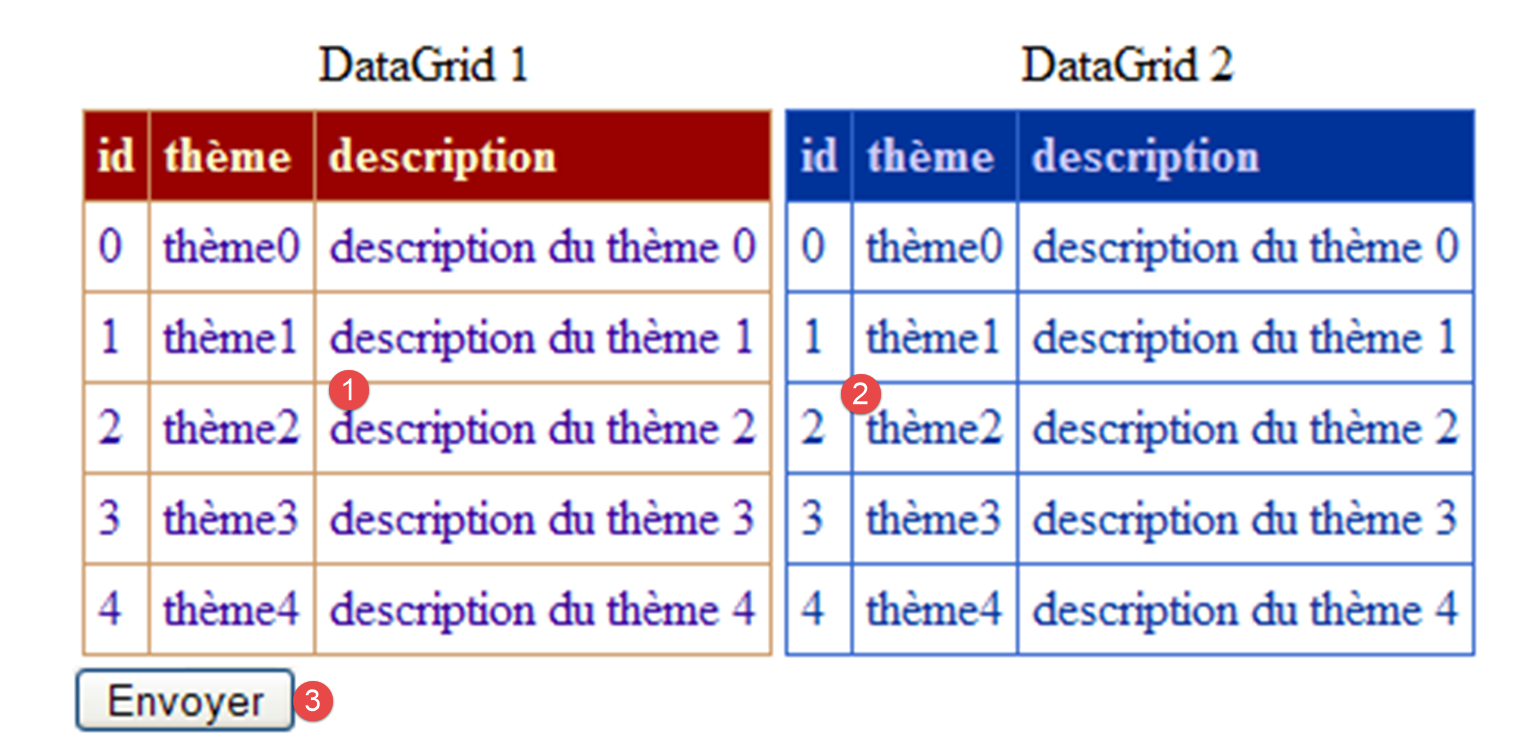 |
No. | name | type | properties | role |
1 | DataGrid | EnableViewState=true | displays a data source S | |
2 | DataGrid | EnableViewState=true | displays the same S data source as [DataGrid1] | |
3 | Button | EnableViewState=false | [submit] button |
The [DataGrid1] component is maintained by the [VIEWSTATE] mechanism. We want to determine whether this mechanism, which regenerates the display of [DataGrid1] with each request, also regenerates its data source. To do this, the data source is linked to the [DataGrid2] component. Its generation on each request is performed via an explicit binding to the data source of [DataGrid1]. Its [EnableViewState] attribute is also set to [true].
The application's [main.aspx] presentation code is as follows:
<%@ page src="main.aspx.vb" inherits="main" autoeventwireup="false" %>
<HTML>
    <HEAD>
        <title></title>
    </HEAD>
    <body>
        <form runat="server">
            <table>
                <tr>
                    <td align="center">DataGrid 1</td>
                    <td align="center">
                        DataGrid 2</td>
                </tr>
                <tr>
                    <td>
                      <asp:DataGrid id="DataGrid1" runat="server" ...>
                            <SelectedItemStyle ...></SelectedItemStyle>
....
                        </asp:DataGrid></td>
                    <td>
                      <asp:DataGrid id="Datagrid2" runat="server" ...>
....
                        </asp:DataGrid></td>
                </tr>
            </table>
            <asp:Button id="Button1" runat="server" Text="Envoyer"></asp:Button>
        </form>
    </body>
</HTML>
The controller [main.aspx.vb] is as follows:
Imports System.Data

Public Class main
    Inherits System.Web.UI.Page

    Protected WithEvents DataGrid1 As System.Web.UI.WebControls.DataGrid
    Protected WithEvents Datagrid2 As System.Web.UI.WebControls.DataGrid
    Protected WithEvents Button1 As System.Web.UI.WebControls.Button

    Private Sub Page_Load(ByVal sender As System.Object, ByVal e As System.EventArgs) Handles MyBase.Load
        ' on the 1st query, the data source is defined and linked to the 1st datagrid
        If Not IsPostBack Then
            'define data source
            With DataGrid1
                .DataSource = createDataSource()
                .DataBind()
            End With
        End If
        ' for each query, datagrid2 is linked to the source of the 1st datagrid
        With Datagrid2
            .DataSource = DataGrid1.DataSource
            .DataBind()
        End With
    End Sub

    Private Function createDataSource() As DataTable
        ' initialize the data source
        Dim thèmes As New DataTable
        ' columns
        With thèmes.Columns
            .Add("id", GetType(System.Int32))
            .Add("thème", GetType(System.String))
            .Add("description", GetType(System.String))
        End With
        ' column id will be primary key
        thèmes.Constraints.Add("cléprimaire", thèmes.Columns("id"), True)
        ' lines
        Dim ligne As DataRow
        For i As Integer = 0 To 4
            ligne = thèmes.NewRow
            ligne.Item("id") = i.ToString
            ligne.Item("thème") = "thème" + i.ToString
            ligne.Item("description") = "description du thème " + i.ToString
            thèmes.Rows.Add(ligne)
        Next
        Return thèmes
    End Function

    Private Sub InitializeComponent()

    End Sub
End Class
The [createDataSource] method creates a data source S of type [DataTable]. We will not dwell on its code, as it is not the focus of this example. This is the method used to build the two [DataGrid] components that interest us:
- the [DataGrid1] component is bound to the S table once, during the first query. It is no longer bound thereafter.
- The [DataGrid2] component is bound to the [DataGrid1.DataSource] source with each new query.
During the first query, we get the following view:
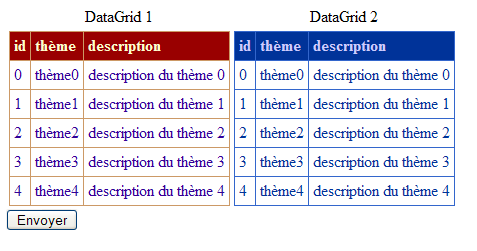
Quite logically, both components display the data source to which they were linked. We use the [Submit] button to trigger a [PostBack] to the server. The resulting view is then as follows:
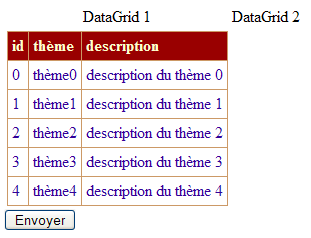
We observe that the [DataGrid1] component has retained its value, but the [DataGrid2] component has not. Explanation:
- Even before the [Page_Load] procedure starts, the [DataGrid1] and [DataGrid2] objects have retrieved the values they had during the previous request, due to the [viewstate] mechanism. In fact, both have their [EnableViewState] property set to [true].
- The [Page_Load] procedure runs. Since this is a [PostBack] operation, the [DataGrid1] component is not modified by [Page_Load] (see code). Therefore, it retains the value retrieved via [viewstate]. This is what the screen above shows.
- The [DataGrid2] component, on the other hand, is [DataBind]-bound to the [DataGrid1.DataSource] data source. It is therefore rebuilt, and the value it had just retrieved via [viewstate] is lost. It would therefore have been beneficial here for its [EnableViewState] property to be set to [false] in order to avoid unnecessary state management. The screen above shows that [DataGrid2] has been bound to an empty source. Since this source is [DataGrid1.DataSource], we can conclude that while the [viewstate] mechanism successfully restores the display of the [DataGrid1] component, it does not restore its properties such as [DataSource].
What can we conclude from this example? You should avoid setting the [EnableViewState] property of a data container to [true] if it needs to be bound (DataBind) to a data source on every request. However, there are certain cases where, even in this scenario, the container’s [EnableViewState] property must remain set to [true]; otherwise, events that you wish to handle will not be triggered. We will encounter an example of this later.
Frequently, a data container’s data source changes over the course of requests. Therefore, the container must be bound to the data source on every request. It is common for the data source to be scoped to the session so that requests can access it. Our second example demonstrates this mechanism. The application provides only a single view:
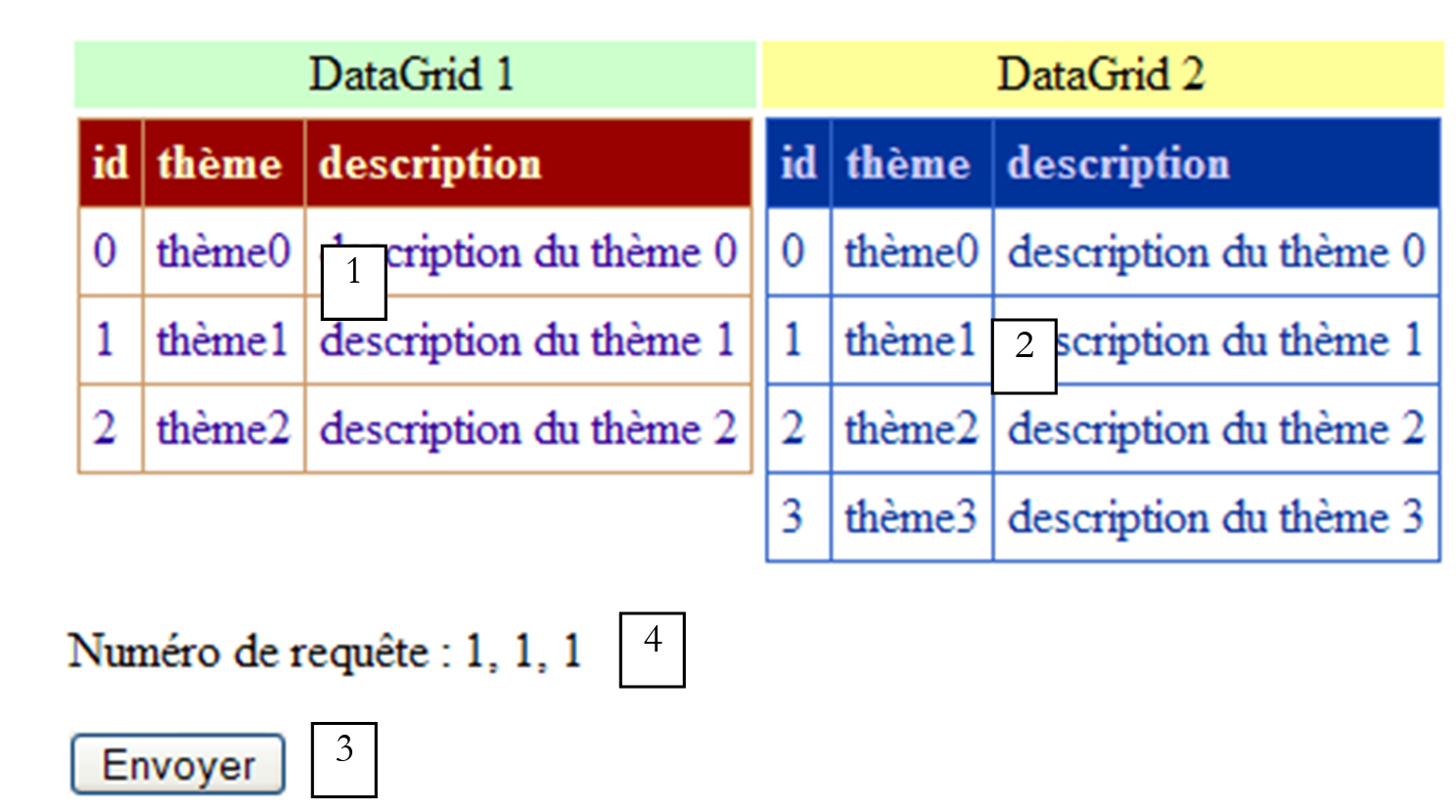 |
No. | name | type | properties | role |
1 | DataGrid | EnableViewState=true | displays a data source S | |
2 | DataGrid | EnableViewState=false | displays the same S data source as [DataGrid1] | |
3 | Button | EnableViewState=false | [submit] button | |
4 | Label | EnableViewState=false | information text |
The [DataGrid1] component is bound to the data only during the first request. It will retain its value across requests thanks to the [viewstate] mechanism. The [DataGrid2] component is bound to a data source with each request, to which an item is added with each new request. Therefore, the [DataGrid2] component must be bound (DataBind) with each request. We have therefore set its [EnableViewState] attribute to [false] as previously recommended. Thus, during the second request (using the [Submit] button), we get the following response:
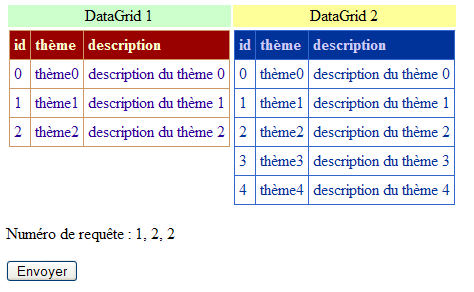
The [DataGrid1] component has retained its initial value. The [DataGrid2] component has one more item. The three values [1,2,2] represent the query number. We can see that one of the values is incorrect. We will try to understand why.
The application's presentation code [main.aspx] is as follows:
<%@ Page src="main.aspx.vb" inherits="main" autoeventwireup="false" Language="vb" %>
<HTML>
<HEAD>
<title></title>
</HEAD>
<body>
<form runat="server">
<table>
<tr>
<td align="center" bgColor="#ccffcc">DataGrid 1</td>
<td align="center" bgColor="#ffff99">DataGrid 2</td>
</tr>
<tr>
<td vAlign="top">
<asp:DataGrid id="DataGrid1" runat="server" ...>
...
</asp:DataGrid>
</td>
<td vAlign="top">
<asp:DataGrid id="Datagrid2" runat="server" ... EnableViewState="False">
....
</asp:DataGrid>
</td>
</tr>
</table>
<P>Numéro de requête :
<asp:Label id="lblInfo1" runat="server" EnableViewState="False"></asp:Label>,
<asp:Label id="lblInfo2" runat="server" EnableViewState="False"></asp:Label>,
<asp:Label id="lblInfo3" runat="server" EnableViewState="False"></asp:Label></P>
<P>
<asp:Button id="Button1" runat="server" Text="Envoyer" EnableViewState="False"></asp:Button></P>
</form>
</body>
</HTML>
The controller code [main.aspx.vb] is as follows:
Imports System.Data
Imports System

Public Class main
    Inherits System.Web.UI.Page

    Protected WithEvents DataGrid1 As System.Web.UI.WebControls.DataGrid
    Protected WithEvents Datagrid2 As System.Web.UI.WebControls.DataGrid
    Protected WithEvents Button1 As System.Web.UI.WebControls.Button
    Protected WithEvents lblInfo1 As System.Web.UI.WebControls.Label
    Protected WithEvents lblInfo2 As System.Web.UI.WebControls.Label
    Protected WithEvents lblInfo3 As System.Web.UI.WebControls.Label

    Dim dtThèmes As DataTable
    Dim numRequête1 As Integer
    Dim numRequête2 As Integer
    Dim numRequête3 As New entier

    Private Sub Page_Load(ByVal sender As System.Object, ByVal e As System.EventArgs) Handles MyBase.Load
        ' on the 1st query, the data source is defined and linked to the 1st datagrid
        If Not IsPostBack Then
            'define data source
            dtThèmes = createDataSource()
            With DataGrid1
                .DataSource = dtThèmes
                .DataBind()
            End With
            ' store information in the session
            Session("source") = dtThèmes
            numRequête1 = 0 : Session("numRequête1") = numRequête1
            numRequête2 = 0 : Session("numRequête2") = numRequête2
            numRequête3.valeur = 0 : Session("numRequête3") = numRequête3
        End If
        ' a new theme is added to each query
        dtThèmes = CType(Session("source"), DataTable)
        Dim nbThèmes = dtThèmes.Rows.Count
        Dim ligne As DataRow = dtThèmes.NewRow
        With ligne
            .Item("id") = nbThèmes.ToString
            .Item("thème") = "thème" + nbThèmes.ToString
            .Item("description") = "description du thème " + nbThèmes.ToString
        End With
        dtThèmes.Rows.Add(ligne)
        'links datagrid2 with the data source
        With Datagrid2
            .DataSource = dtThèmes
            .DataBind()
        End With
        ' info no. of requests
        numRequête1 = CType(Session("numRequête1"), Integer)
        numRequête1 += 1
        lblInfo1.Text = numRequête1.ToString
        numRequête2 = CType(Session("numRequête2"), Integer)
        numRequête2 += 1
        lblInfo2.Text = numRequête2.ToString
        numRequête3 = CType(Session("numRequête3"), entier)
        numRequête3.valeur += 1
        lblInfo3.Text = numRequête3.valeur.ToString
        ' store some information in the session
        Session("numRequête2") = numRequête2
    End Sub

    Private Function createDataSource() As DataTable
....
    End Function
End Class

Public Class entier
    Private _valeur As Integer
    Public Property valeur() As Integer
        Get
            Return _valeur
        End Get
        Set(ByVal Value As Integer)
            _valeur = Value
        End Set
    End Property
End Class
We have not reproduced the code for the [createDataSource] method. It is the same as in the previous application, except that only three lines are included in the source code. Let’s first look at how the data source and the two containers are managed:
    Private Sub Page_Load(ByVal sender As System.Object, ByVal e As System.EventArgs) Handles MyBase.Load
        ' on the 1st query, the data source is defined and linked to the 1st datagrid
        If Not IsPostBack Then
            'define data source
            dtThèmes = createDataSource()
            With DataGrid1
                .DataSource = dtThèmes
                .DataBind()
            End With
            ' store information in the session
            Session("source") = dtThèmes
...
        End If
        ' a new theme is added to each query
        dtThèmes = CType(Session("source"), DataTable)
        Dim nbThèmes = dtThèmes.Rows.Count
        Dim ligne As DataRow = dtThèmes.NewRow
        With ligne
            .Item("id") = nbThèmes.ToString
            .Item("thème") = "thème" + nbThèmes.ToString
            .Item("description") = "description du thème " + nbThèmes.ToString
        End With
        dtThèmes.Rows.Add(ligne)
        'links datagrid2 with the data source
        With Datagrid2
            .DataSource = dtThèmes
            .DataBind()
        End With
...
    End Sub
The [DataGrid1] component is bound to the S data source only during the first query (not IsPostBack). It is then placed in the session. It will not be placed there again thereafter. The data source S placed in the session is retrieved with each request, and a new row is added to it. The [DataGrid2] component is explicitly bound to the source S with each request. This is why its content increases by one row with each request. Note that after modifying the content of the source S, it is not explicitly placed back into the session via an operation:
Why? When a query starts, the session contains a Session("source") object of type [DataTable], which is the data source as it was during the last query. Let’s call the Session("source") object S. When we write:
dtThèmes = CType(Session("source"), DataTable)
[dtThèmes] and [S] are two references to the same [DataTable] object. Thus, when the code in [Page_Load] adds an element to the table referenced by [dtThèmes], it simultaneously adds it to the table referenced by [S]. At the end of the page’s execution, all objects in the session will be saved, including the Session("source") object, i.e., S, i.e., [dtThemes]. Thus, it is indeed the new content of the data source that is saved. There was no need to write:
to perform this save, because Session("source") is already equal to [dtThèmes]. This is no longer true when the data placed in the session are not objects, such as the structures [Integer, Float, ...]. This is demonstrated by query counter management:
    Dim numRequête1 As Integer
    Dim numRequête2 As Integer
    Dim numRequête3 As New entier

    Private Sub Page_Load(ByVal sender As System.Object, ByVal e As System.EventArgs) Handles MyBase.Load
        ' on the 1st query, the data source is defined and linked to the 1st datagrid
....
            ' store information in the session
            Session("source") = dtThèmes
            numRequête1 = 0 : Session("numRequête1") = numRequête1
            numRequête2 = 0 : Session("numRequête2") = numRequête2
            numRequête3.valeur = 0 : Session("numRequête3") = numRequête3
        End If
        ' a new theme is added to each query
....
        ' info no. of requests
        numRequête1 = CType(Session("numRequête1"), Integer)
        numRequête1 += 1
        lblInfo1.Text = numRequête1.ToString
        numRequête2 = CType(Session("numRequête2"), Integer)
        numRequête2 += 1
        lblInfo2.Text = numRequête2.ToString
        numRequête3 = CType(Session("numRequête3"), entier)
        numRequête3.valeur += 1
        lblInfo3.Text = numRequête3.valeur.ToString
        ' store some information in the session
        Session("numRequête2") = numRequête2
    End Sub

    Private Function createDataSource() As DataTable
....
    End Function

    Private Sub InitializeComponent()

    End Sub
End Class

Public Class entier
    Private _valeur As Integer
    Public Property valeur() As Integer
        Get
            Return _valeur
        End Get
        Set(ByVal Value As Integer)
            _valeur = Value
        End Set
    End Property
We store the request counters in three elements:
- numRequest1 and numRequest2 of type [Integer] - [Integer] is not a class but a structure
- numRequest3 of type [integer] - [integer] is a class defined for this purpose
When we write:
        numRequête1 = CType(Session("numRequête1"), Integer)
..
        numRequête2 = CType(Session("numRequête2"), Integer)
..
        numRequête3 = CType(Session("numRequête3"), entier)
..
- The structure [Session("numRequest1")] is copied into [numRequest1]. Thus, when the element [numRequest1] is modified, the element [Session("numRequest1")] itself is not
- The same applies to [Session("numRequest2")] and [numRequest2]
- The elements [Session("numRequête3")] and [numRequête3] are both references to the same object of type [integer]. The referenced object can be modified by either reference.
From this, we can conclude that it is unnecessary to write:
to store the new value of [numRequest3] in the session. Instead, you should write:
to store the new values of the structures [numRequête1] and [numRequête2]. We do this only for [numRequête2], which explains why, in the screenshot obtained after the second query, the counter [numRequête1] is incorrect.
We should therefore note that once data has been added to a session, it does not need to be added repeatedly if it is represented by an object. In other cases, it must be added if it has been modified.
8.6. Displaying a list of data using a paginated and sorted DataGrid
The [DataGrid] component allows you to display the contents of a [DataSet]. So far, we have always built our [DataSets] "by hand." This time, we are using a [DataSet] from a database. We are building the following MVC application:
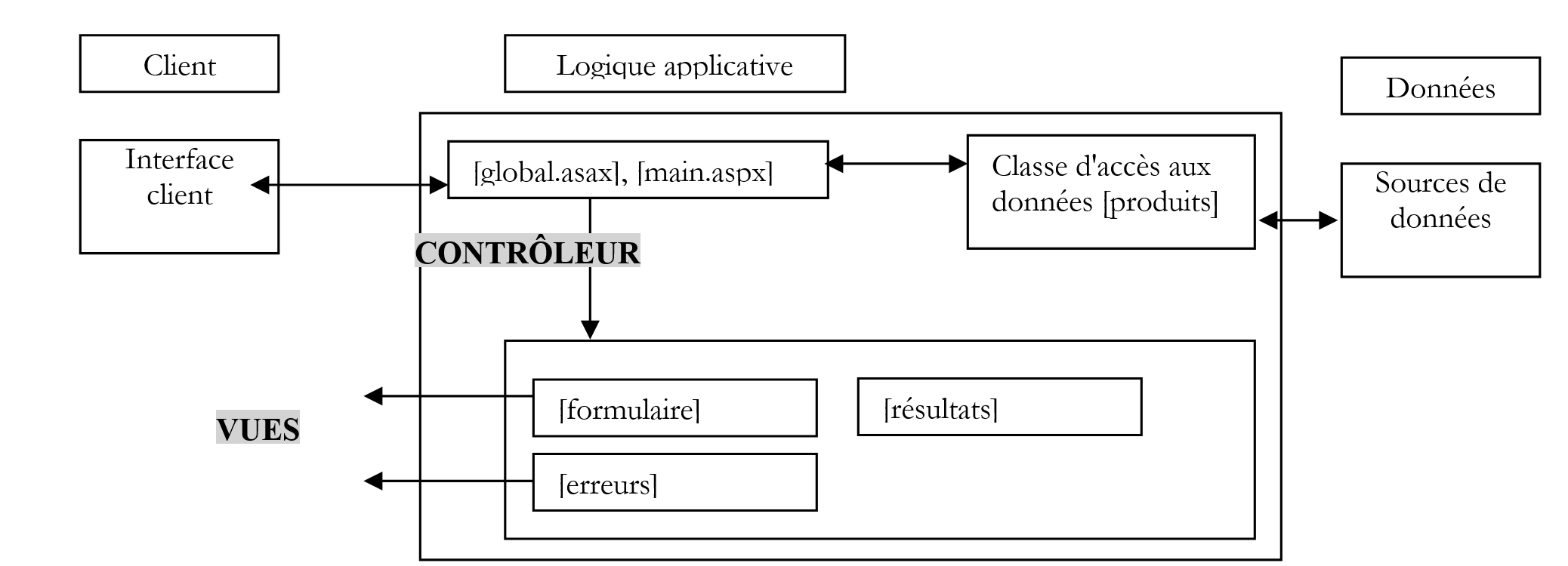 |
The three views will be incorporated into the presentation code of the [main.aspx] controller as containers. Therefore, this application has a single page, [main.aspx].
8.6.1. The business classes
The [products] class provides access to the following ACCESS database:
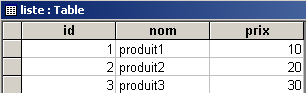
The code for the [products] class is as follows:
Imports System
Imports System.Data
Imports System.Data.OleDb
Imports System.Xml

Namespace st.istia.univangers.fr

    Public Class produits
        Private chaineConnexionOLEDB As String

        Public Sub New(ByVal chaineConnexionOLEDB As String)
            ' save the connection string
            Me.chaineConnexionOLEDB = chaineConnexionOLEDB
        End Sub

        Public Function getDataSet(ByVal commande As String) As DataSet
            ' create a DataAdapter object to read data from source OLEDB
            Dim adaptateur As New OleDbDataAdapter(commande, chaineConnexionOLEDB)
            ' create a memory image of the select result
            Dim contenu As New DataSet
            Try
                adaptateur.Fill(contenu)
            Catch e As Exception
                Throw New Exception("Erreur d'accès à la base de données (" + e.Message + ")")
            End Try
            ' we return the result
            Return contenu
        End Function
    End Class
End Namespace
The ACCESS database will be managed via an OLEDB driver. We provide the constructor of the [products] class with the connection string, the OLEDB driver, and the database to be managed. The [products] class has a [getDataSet] method that returns a [DataSet] obtained by executing an SQL [select] query whose text is passed as a parameter. During the method, several operations take place: establishing the connection to the database, executing the [select] query, and closing the connection. All of this can generate an exception, which is handled here. A test program could look like this:
Option Explicit On
Option Strict On

' namespaces
Imports System
Imports System.Data
Imports Microsoft.VisualBasic

Namespace st.istia.univangers.fr

    ' test pg
    Module testproduits
        Sub Main(ByVal arguments() As String)
            ' displays the contents of a product table
            ' the table is in a ACCESS database whose pg receives the file name
            Const syntaxe1 As String = "pg bdACCESS"

            ' checking program parameters
            If arguments.Length <> 1 Then
                ' error msg
                Console.Error.WriteLine(syntaxe1)
                ' end
                Environment.Exit(1)
            End If

            ' prepare the connection chain
            Dim chaineConnexion As String = "Provider=Microsoft.Jet.OLEDB.4.0; Ole DB Services=-4; Data Source=" + arguments(0)

            ' creation of a product object
            Dim objProduits As produits = New produits(chaineConnexion)

            ' retrieve the product table from a dataset
            Dim contenu As DataSet
            Try
                contenu = objProduits.getDataSet("select id,nom,prix from liste")
            Catch ex As Exception
                Console.Error.WriteLine(("L'erreur suivante s'est produite : " + ex.Message))
                Environment.Exit(2)
            End Try

            ' display its contents
            Dim lignes As DataRowCollection = contenu.Tables(0).Rows
            For i As Integer = 0 To lignes.Count - 1
                ' table line i
                Console.Out.WriteLine(lignes(i).Item("id").ToString + "," + lignes(i).Item("nom").ToString + _
                "," + lignes(i).Item("prix").ToString)
            Next
        End Sub
    End Module
End Namespace
The various components of this application are compiled as follows:
dos>vbc /t:library /r:system.dll /r:system.data.dll /r:system.xml.dll produits.vb

dos>vbc /r:produits.dll /r:system.data.dll /r:system.xml.dll /r:system.dll testproduits.vb

dos>dir
06/05/2004  16:52              118 784 produits.mdb
07/05/2004  11:07                  902 produits.vb
07/04/2004  07:01                1 532 testproduits.vb
07/05/2004  14:21                3 584 produits.dll
07/05/2004  14:22                4 608 testproduits.exe

dos>testproduits produits.mdb
1,produit1,10
2,produit2,20
3,produit3,30
8.6.2. The Views
Now that we have the data access class, we’ll write the controllers and views for this web application. Let’s first see how it works. The first view is as follows:
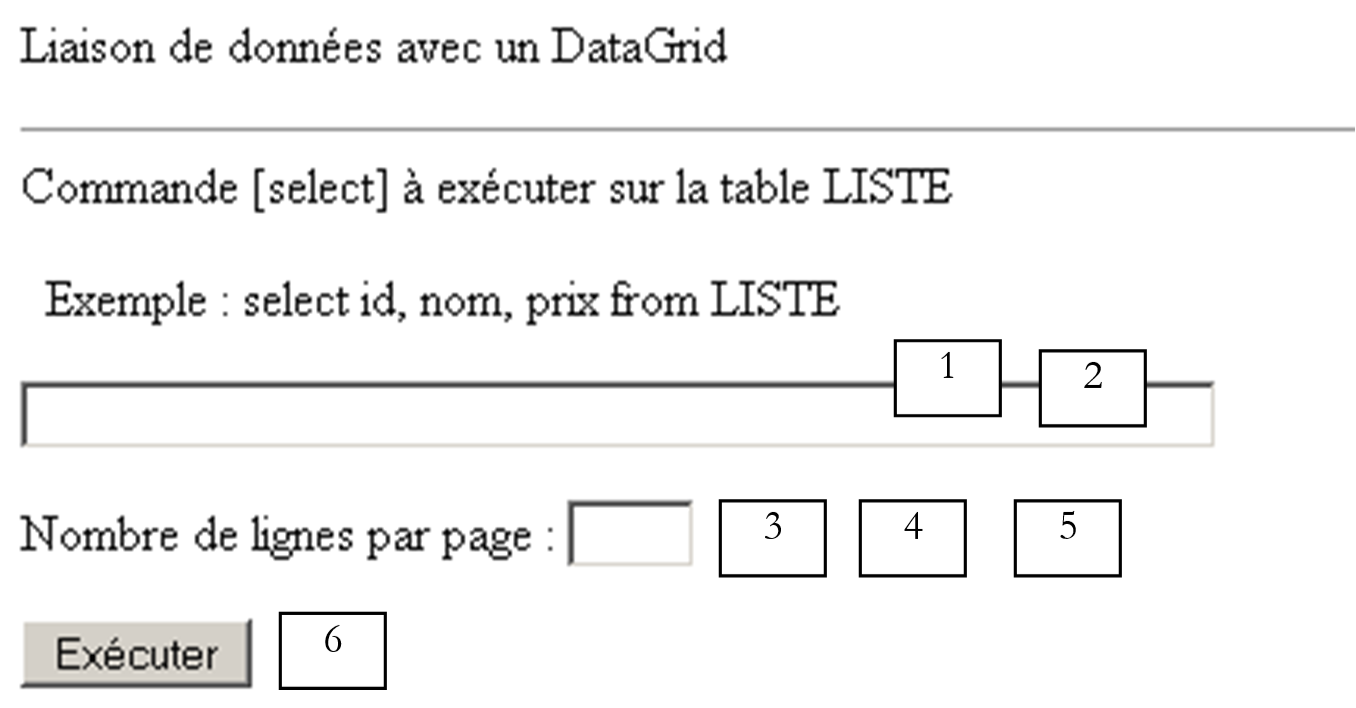 |
No. | name | type | properties | role |
1 | TextBox | EnableViewState=true | select query input field | |
2 | RequiredFieldValidator | EnableViewState=false | checks for the presence of 1 | |
3 | TextBox | EnableViewState=true | input field - specifies the number of rows of data to display per results page | |
4 | RequiredFieldValidator | EnableViewState=false | checks for the presence of 3 | |
5 | RangeValidator | EnableViewState=false | checks that (3) is in the range [1,30] | |
6 | Button | EnableViewState=false | [submit] button |
We will call this view the [form] view. It allows the user to execute an SQL SELECT query on the [products.mdb] database. Executing the query creates a new view:
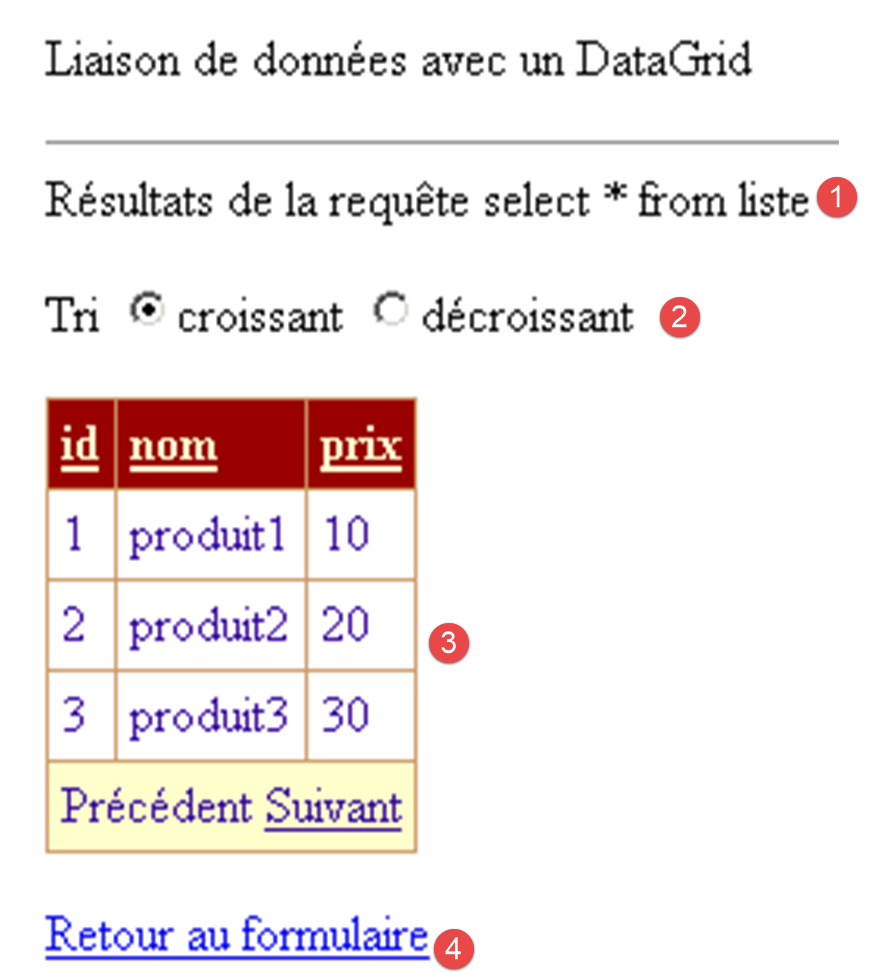 |
No. | name | type | properties | role |
1 | Label | EnableViewState=false | information field | |
2 | RadioButton | EnableViewState=false GroupName=rdSort | allows you to choose a sort order | |
3 | DataGrid | EnableViewState=true AllowPaging=true AllowSorting=true | table displaying the results of the select | |
4 | LinkButton | EnableViewState=false | [submit] button |
We will call this view the [results] view. It contains the [DataGrid] that will display the results of the SQL SELECT statement. The user may make a mistake in their query. Some errors will be reported to them in the [errors] view thanks to validation controls.
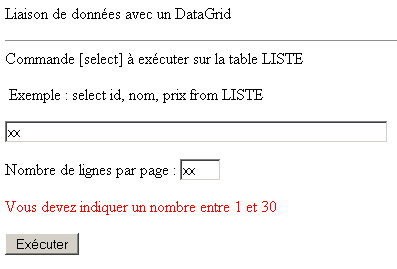
Other errors will be reported to them by the [errors] view:
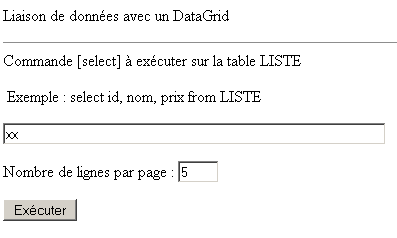
The [errors] view is displayed:
 |
No. | name | type | properties | role |
1 | variable | HTML code required to display errors | ||
3 | LinkButton | EnableViewState=false | [submit] button |
The three views of the application are three different containers (panels) within the same page [main.aspx]. Its presentation code is as follows:
<%@ Page src="main.aspx.vb" inherits="main" autoeventwireup="false" Language="vb" %>
<HTML>
<HEAD>
</HEAD>
<body>
<P>Liaison de données avec un DataGrid</P>
<HR width="100%" SIZE="1">
<form runat="server">
<asp:panel id="vueFormulaire" runat="server">
<P>Commande [select] à exécuter sur la table LISTE</P>
<P> Exemple : select id, nom, prix from LISTE
</P>
<P>
<asp:TextBox id="txtSelect" runat="server" Columns="60"></asp:TextBox></P>
<P>
<asp:RequiredFieldValidator id="RequiredFieldValidator1" runat="server" EnableViewState="False" EnableClientScript="False"
ErrorMessage="Indiquez la requête [select] à exécuter" ControlToValidate="txtSelect" Display="Dynamic"></asp:RequiredFieldValidator></P>
<P>Nombre de lignes par page :
<asp:TextBox id="txtPages" runat="server" Columns="3"></asp:TextBox></P>
<P>
<asp:RequiredFieldValidator id="RequiredFieldValidator2" runat="server" EnableViewState="False" EnableClientScript="False"
ErrorMessage="Indiquez le nombre de lignes par page désirées" ControlToValidate="txtPages" Display="Dynamic"></asp:RequiredFieldValidator>
<asp:RangeValidator id="RangeValidator1" runat="server" EnableViewState="False" EnableClientScript="False"
ErrorMessage="Vous devez indiquer un nombre entre 1 et 30" ControlToValidate="txtPages" Display="Dynamic"
Type="Integer" MinimumValue="1" MaximumValue="30"></asp:RangeValidator></P>
<P>
<asp:Button id="btnExécuter" runat="server" EnableViewState="False" Text="Exécuter"></asp:Button></P>
</asp:panel>
<asp:Panel id="vueRésultats" runat="server">
<P>Résultats de la requête
<asp:Label id="lblSelect" runat="server"></asp:Label></P>
<P>Tri
<asp:RadioButton id="rdCroissant" runat="server" Text="croissant" Checked="True" GroupName="rdTri"></asp:RadioButton>
<asp:RadioButton id="rdDécroissant" runat="server" Text="décroissant" GroupName="rdTri"></asp:RadioButton></P>
<P>
<asp:DataGrid id="DataGrid1" runat="server" BorderColor="#CC9966" BorderStyle="None" BorderWidth="1px"
BackColor="White" CellPadding="4" AllowPaging="True" PageSize="4" AllowSorting="True">
<SelectedItemStyle Font-Bold="True" ForeColor="#663399" BackColor="#FFCC66"></SelectedItemStyle>
<ItemStyle ForeColor="#330099" BackColor="White"></ItemStyle>
<HeaderStyle Font-Bold="True" ForeColor="#FFFFCC" BackColor="#990000"></HeaderStyle>
<FooterStyle ForeColor="#330099" BackColor="#FFFFCC"></FooterStyle>
<PagerStyle NextPageText="Suivant" PrevPageText="Précédent" HorizontalAlign="Center"
ForeColor="#330099" BackColor="#FFFFCC"></PagerStyle>
</asp:DataGrid></P>
<P>
<asp:LinkButton id="lnkRésultats" runat="server" EnableViewState="False">Retour au formulaire</asp:LinkButton></P>
</asp:Panel>
<asp:Panel id="vueErreurs" runat="server">
<P>Les erreurs suivantes se sont produites :</P>
<% =erreursHTML %>
<P>
<asp:LinkButton id="lnkErreurs" runat="server" EnableViewState="False">Retour vers le formulaire</asp:LinkButton></P>
</asp:Panel>
</form>
</body>
</HTML>
8.6.3. Configuring the DataGrid
Let’s take a closer look at the pagination of the [DataGrid] component, a feature we’re encountering for the first time. In the code above, this pagination is controlled by the following attributes:
<asp:DataGrid id="DataGrid1" runat="server" PageSize="4" AllowPaging="True" ...>
...
<PagerStyle NextPageText="Suivant" PrevPageText="Précédent" ...></PagerStyle>
</asp:DataGrid></P>
enables pagination | |
four rows of data per page | |
The link text to go to the next page of the data source | |
The link text to go to the previous page of the data source |
This information can be entered directly in the attributes of the <asp:datagrid> tag. You can also use [WebMatrix]. In the [DataGrid] properties window, click the [Property Generator] link:
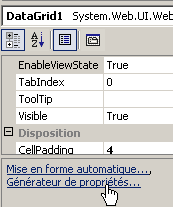
The following wizard appears:
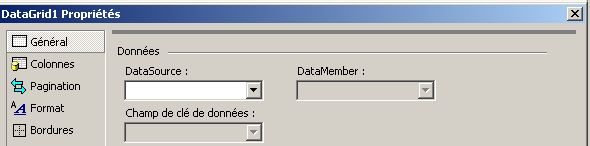
Select the [Pagination] option:
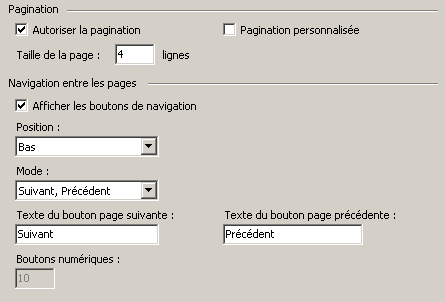
Above, we see the values of the pagination attributes for the [DataGrid] in the presentation code.
Additionally, we enable sorting of the data on one of the [DataGrid] columns. There are several ways to do this. One is to set the [AllowSorting=true] property in the [DataGrid] properties window. You can also use the property generator. Regardless of the method used, this results in the [AllowSorting=true] attribute being present in the component’s <asp:DataGrid> tag:
<asp:DataGrid id="DataGrid1" runat="server" ... AllowPaging="True" PageSize="4" AllowSorting="True">
8.6.4. The controllers
The [global.asax, global.asax.vb] controller is as follows:
[global.asax]
[global.asax.vb]
Imports st.istia.univangers.fr
Imports System.Configuration

Public Class Global
    Inherits System.Web.HttpApplication

    Sub Application_Start(ByVal sender As Object, ByVal e As EventArgs)
        ' create a product object
        Dim objProduits As produits
        Try
            objProduits = New produits(ConfigurationSettings.AppSettings("OLEDBStringConnection"))
            ' put the object in the application
            Application("objProduits") = objProduits
            ' no error
            Application("erreur") = False
        Catch ex As Exception
            'there has been an error, we note it in the application
            Application("erreur") = True
            Application("message") = ex.Message
        End Try
    End Sub
End Class
When the application starts (Application_Start), we create a [products] object and store it in the application so that it is available for all requests from all clients. If an exception occurs during this creation, it is logged in the application. The [Application_Start] procedure will only run once. After that, the [global.asax] controller will no longer be involved. The [main.aspx.vb] controller will then handle the rest:
Imports System.Collections
Imports Microsoft.VisualBasic
Imports System.Data
Imports st.istia.univangers.fr
Imports System
Imports System.Xml

Public Class main
    Inherits System.Web.UI.Page

    ' components page
    Protected WithEvents txtSelect As System.Web.UI.WebControls.TextBox
    Protected WithEvents RequiredFieldValidator1 As System.Web.UI.WebControls.RequiredFieldValidator
    Protected WithEvents txtPages As System.Web.UI.WebControls.TextBox
    Protected WithEvents RequiredFieldValidator2 As System.Web.UI.WebControls.RequiredFieldValidator
    Protected WithEvents RangeValidator1 As System.Web.UI.WebControls.RangeValidator
    Protected WithEvents btnExécuter As System.Web.UI.WebControls.Button
    Protected WithEvents vueFormulaire As System.Web.UI.WebControls.Panel
    Protected WithEvents lblSelect As System.Web.UI.WebControls.Label
    Protected WithEvents DataGrid1 As System.Web.UI.WebControls.DataGrid
    Protected WithEvents lnkRésultats As System.Web.UI.WebControls.LinkButton
    Protected WithEvents vueRésultats As System.Web.UI.WebControls.Panel
    Protected WithEvents lnkErreurs As System.Web.UI.WebControls.LinkButton
    Protected WithEvents vueErreurs As System.Web.UI.WebControls.Panel
    Protected WithEvents rdCroissant As System.Web.UI.WebControls.RadioButton
    Protected WithEvents rdDécroissant As System.Web.UI.WebControls.RadioButton
    ' data page
    Protected erreursHTML As String

    Private Sub Page_Load(ByVal sender As System.Object, ByVal e As System.EventArgs) Handles MyBase.Load
        ' check for application errors
        If CType(Application("erreur"), Boolean) Then
            ' the application has not initialized correctly
            Dim erreurs As New ArrayList
            erreurs.Add("Application momentanément indisponible (" + CType(Application("message"), String) + ")")
            afficheErreurs(erreurs, False)
            Exit Sub
        End If
        '1st request
        If Not IsPostBack Then
            ' the empty form is displayed
            afficheFormulaire()
        End If
    End Sub

    Private Sub afficheErreurs(ByVal erreurs As ArrayList, ByVal afficheLien As Boolean)
        ' displays the error view
        erreursHTML = ""
        For i As Integer = 0 To erreurs.Count - 1
            erreursHTML += "<li>" + erreurs(i).ToString + "</li>" + ControlChars.CrLf
        Next
        lnkErreurs.Visible = afficheLien
        ' the [errors] view is displayed
        vueErreurs.Visible = True
        vueFormulaire.Visible = False
        vueRésultats.Visible = False
    End Sub

    Private Sub afficheFormulaire()
        ' the [form] view is displayed
        vueFormulaire.Visible = True
        vueErreurs.Visible = False
        vueRésultats.Visible = False
    End Sub

    Private Sub afficheRésultats(ByVal sqlTexte As String, ByVal données As DataView)
        ' initialize controls
        lblSelect.Text = sqlTexte
        With DataGrid1
            .DataSource = données
            .PageSize = CType(txtPages.Text, Integer)
            .CurrentPageIndex = 0
            .DataBind()
        End With
        ' the [results] view is displayed
        vueRésultats.Visible = True
        vueFormulaire.Visible = False
        vueErreurs.Visible = False
    End Sub

    Private Sub btnExécuter_Click(ByVal sender As System.Object, ByVal e As System.EventArgs) Handles btnExécuter.Click
        ' valid page?
        If Not Page.IsValid Then
            afficheFormulaire()
            Exit Sub
        End If

        ' execute query SELECT customer
        Dim données As DataView
        Try
            données = CType(Application("objProduits"), produits).getDataSet(txtSelect.Text.Trim).Tables(0).DefaultView
        Catch ex As Exception
            Dim erreurs As New ArrayList
            erreurs.Add("erreur d'accès à la base de données (" + ex.Message + ")")
            afficheErreurs(erreurs, True)
            Exit Sub
        End Try
        ' all's well - the results are in
        afficheRésultats(txtSelect.Text.Trim, données)
        ' put the data in the session
        Session("données") = données
    End Sub

    Private Sub retourFormulaire(ByVal sender As System.Object, ByVal e As System.EventArgs) Handles lnkErreurs.Click, lnkRésultats.Click
        ' set of views
        vueErreurs.Visible = False
        vueFormulaire.Visible = True
        vueRésultats.Visible = False
    End Sub

    Private Sub DataGrid1_PageIndexChanged(ByVal source As Object, ByVal e As System.Web.UI.WebControls.DataGridPageChangedEventArgs) Handles DataGrid1.PageIndexChanged
        ' change page
        With DataGrid1
            .CurrentPageIndex = e.NewPageIndex
            .DataSource = CType(Session("données"), DataView)
            .DataBind()
        End With
    End Sub

    Private Sub DataGrid1_SortCommand(ByVal source As Object, ByVal e As System.Web.UI.WebControls.DataGridSortCommandEventArgs) Handles DataGrid1.SortCommand
        ' sort the dataview
        Dim données As DataView = CType(Session("données"), DataView)
        données.Sort = e.SortExpression + " " + CType(IIf(rdCroissant.Checked, "asc", "desc"), String)
        ' we display it
        With DataGrid1
            .CurrentPageIndex = 0
            .DataSource = données
            .DataBind()
        End With
    End Sub
End Class
When the page loads [Page_Load], we first check whether the application was able to initialize correctly. If not, we display the [errors] view without a link back to the form, since that link is then unnecessary. In fact, only the [errors] view can be displayed if the application was unable to initialize correctly. Otherwise, we display the [form] view if this is the client’s first request. For the rest, we leave it to the reader to understand the code. We will focus only on three procedures: the [btnExecute_Click] procedure, which runs when the user requests execution of the SQL query entered in the [form] view, the [DataGrid1_PageIndexChanged] procedure, which runs when the user uses the [Next] and [Previous] links in the [DataGrid], and the [DataGrid1_SortCommand] procedure, which runs when the user clicks on a column header to sort the data in that order. The sort order—ascending or descending—is determined by the two sort radio buttons.
In the [btnExécuter_Click] procedure, we therefore begin by checking whether the page is valid or not. When the [btnExécuter_Click] procedure runs, the checks related to the page’s various validation controls have already been performed. For each validation control, two attributes have been set:
set to true if the verified data is valid, false otherwise | |
the error message if the verified data is invalid |
For the page itself, an [IsValid] attribute has been set. It is true only if all validation controls have their [IsValid] attribute set to true. If this is not the case, the [form] view must be displayed. This view contains the validation controls that will display their [errorMessage] attribute. If the page is valid, we use the [products] object created by [Application_Start] to obtain the [DataSet] corresponding to the execution of the SQL SELECT query. We convert this into a [DataView] object:
        Dim données As DataView
        Try
            données = CType(Application("objProduits"), produits).getDataSet(txtSelect.Text.Trim).Tables(0).DefaultView
...
We could have simply worked with the [DataSet] and written:
        Dim données As DataSet
        Try
            données = CType(Application("objProduits"), produits).getDataSet(txtSelect.Text.Trim)
...
A [DataSet] object is essentially a collection of tables linked by relationships. In our specific application, the [DataSet] obtained from the [products] class contains only one table, the one resulting from the [select] statement. A table can be sorted, whereas a [DataSet] cannot; however, we are interested in sorting the retrieved data. To work with the result table from the [select] statement, we could have written:
        Dim données As DataTable
        Try
            données = CType(Application("objProduits"), produits).getDataSet(txtSelect.Text.Trim).Tables(0)
...
The [DataTable] object, although representing a database table, does not have a sort method. To do this, you need a view of the table. A view is an object of type [DataView]. You can have different views of the same table using filters. A table has a default view, which is the one where no filters are defined. It therefore represents the entire table. This default view is obtained via [DataTable.DefaultView]. You can sort a view using its [sort] property, which we will discuss later.
If retrieving the [DataSet] from the [products] class is successful, the [results] view is displayed; otherwise, the [errors] view is displayed. The [results] view is displayed via the [displayResults] procedure, to which two parameters are passed:
- the text to place in the [lblSelect] label
- the [DataView] to bind to [DataGrid1]
This example demonstrates the great flexibility of the [DataGrid] component. It can recognize the structure of the [DataView] to which it is bound and adapt to it. Finally, the [btnExécuter_Click] procedure stores the [DataView] it has just obtained in the user’s session so that it is available when the user requests other pages from the same [DataView].
The [DataGrid1_PageIndexChanged] procedure is executed when the user clicks the [Next] and [Previous] links in the [DataGrid]. It receives two parameters:
Private Sub DataGrid1_PageIndexChanged(ByVal source As Object, ByVal e As System.Web.UI.WebControls.) Handles DataGrid1.PageIndexChanged
the object that triggered the event—in this case, one of the [Next] or [Previous] links | |
information about the event. The e.NewPageIndex property is the page number to display in response to the client's request |
The complete code for the event handler is as follows:
    Private Sub DataGrid1_PageIndexChanged(ByVal source As Object, ByVal e As System.Web.UI.WebControls.DataGridPageChangedEventArgs) Handles DataGrid1.PageIndexChanged
        ' change page
        With DataGrid1
            .CurrentPageIndex = e.NewPageIndex
            .DataSource = CType(Session("données"), DataView)
            .DataBind()
        End With
    End Sub
The [DataGrid] component has a [CurrentPageIndex] attribute that indicates the page number it is displaying or will display. We assign the [NewPageIndex] value of the [e] parameter to this attribute. The [DataGrid] is then bound to the [DataView] that was saved in the session by the [btnExécuter_Click] procedure.
One might wonder if the [DataGrid] needs the [EnableViewState=true] attribute since its content is calculated by the code each time the page is reloaded. One might think not. However, if the [DataGrid] has the [EnableViewState=false] attribute, we observe that the [DataGrid1.PageIndexChanged] event is never triggered. This is why we left [EnableViewState=true]. We know that this causes the content of the [DataGrid] to be stored in the page’s hidden field [__VIEWSTATE]. This can significantly slow down the page if the [DataGrid] is large. If this is a problem, you can manage pagination yourself without using the [DataGrid]’s automatic pagination.
The [DataGrid1_SortCommand] procedure is executed when the user clicks on the header of one of the columns displayed by the [DataGrid] to request sorting of the data in the order of that column. It receives two parameters:
Private Sub DataGrid1_SortCommand(ByVal source As Object, ByVal e As System.Web.UI.WebControls.DataGridSortCommandEventArgs) Handles DataGrid1.SortCommand
the object that triggered the event—in this case, one of the [Next] or [Previous] links | |
information about the event. The [e.SortExpression] property is the name of the column clicked for sorting |
The complete code for the event handler is as follows:
    Private Sub DataGrid1_SortCommand(ByVal source As Object, ByVal e As System.Web.UI.WebControls.DataGridSortCommandEventArgs) Handles DataGrid1.SortCommand
        ' sort the dataview
        Dim données As DataView = CType(Session("données"), DataView)
        données.Sort = e.SortExpression + " " + CType(IIf(rdCroissant.Checked, "asc", "desc"), String)
        ' we display it
        With DataGrid1
            .CurrentPageIndex = 0
            .DataSource = données
            .DataBind()
        End With
    End Sub
We retrieve the [DataView] displayed by the [DataGrid] in the current session. It was placed there by the [btnExécuter_Click] procedure. The [DataView] component has a [Sort] property to which we assign the sort expression. This follows the syntax [select ... order by expr1, expr2, ...], where each [expr] can be followed by the keyword [asc] for ascending sort or [desc] for descending sort. The [order by] expression used here is [order by column asc/desc]. The [e.SortExpression] property gives us the name of the [DataGrid] column that was clicked for sorting. The [asc/desc] string is set based on the values of the radio buttons in the [rdTri] group. Once the [DataView]'s sort expression is set, the [DataGrid] is bound to it. We position the [DataGrid] on its first page.
8.7. DataList Component and Data Binding
We will now focus on the [DataList] component. It offers more formatting options than the [DataGrid] but is less flexible. Thus, it cannot automatically adapt to the data source to which it is linked. This adaptation must be done via code if desired. If the structure of the data source is known in advance, then this component offers formatting options that may make it preferable to the [DataGrid].
8.7.1. Application
To illustrate the use of the [DataList], we will build an MVC application similar to the previous one:
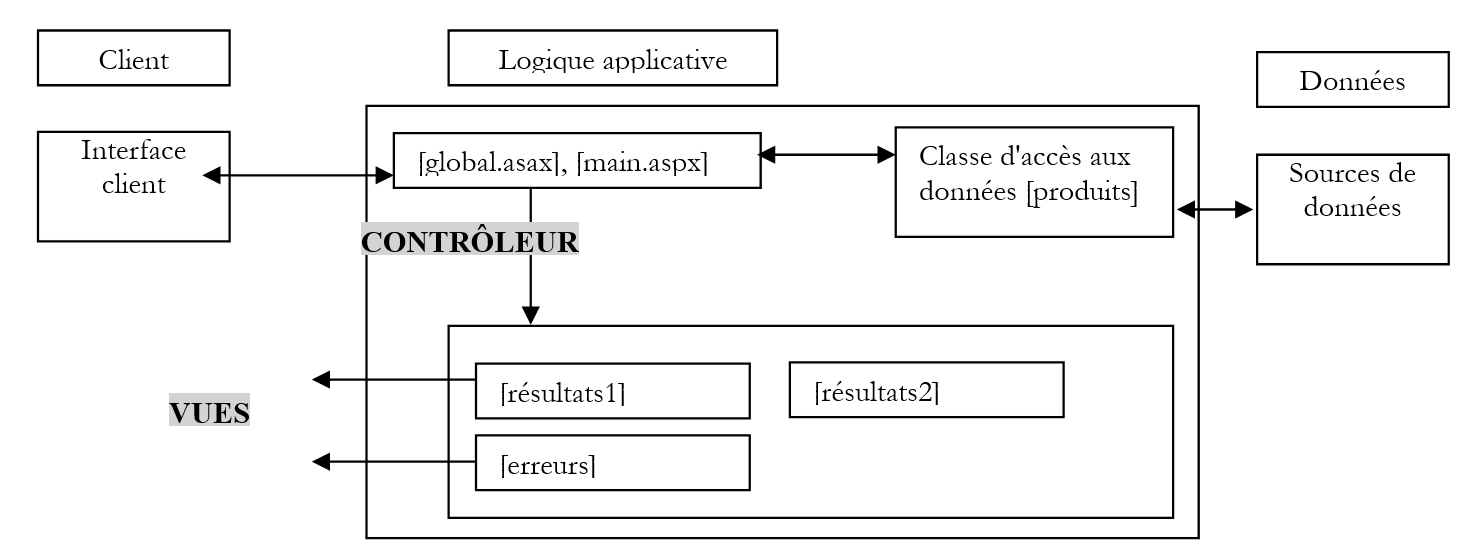 |
The three views will be incorporated into the presentation code of the [main.aspx] controller as containers. Therefore, this application has a single page [main.aspx].
8.7.2. Business Classes
The [products] class is the same as before.
8.7.3. The views
When the user makes their first request to the application, they see the following [results1] view:
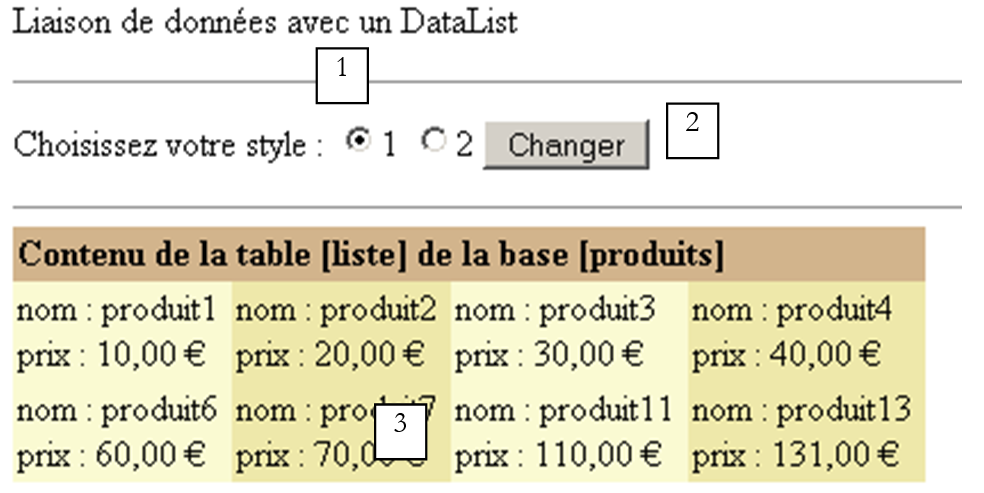 |
No. | name | type | properties | role |
1 | RadioButton | EnableViewState=false | allows you to choose one of two [DataList] styles | |
2 | Button | EnableViewState=false | [submit] button | |
3 | DataList | EnableViewState=true | Data list display field |
If the user selects style #2, they see the following [results2] view:
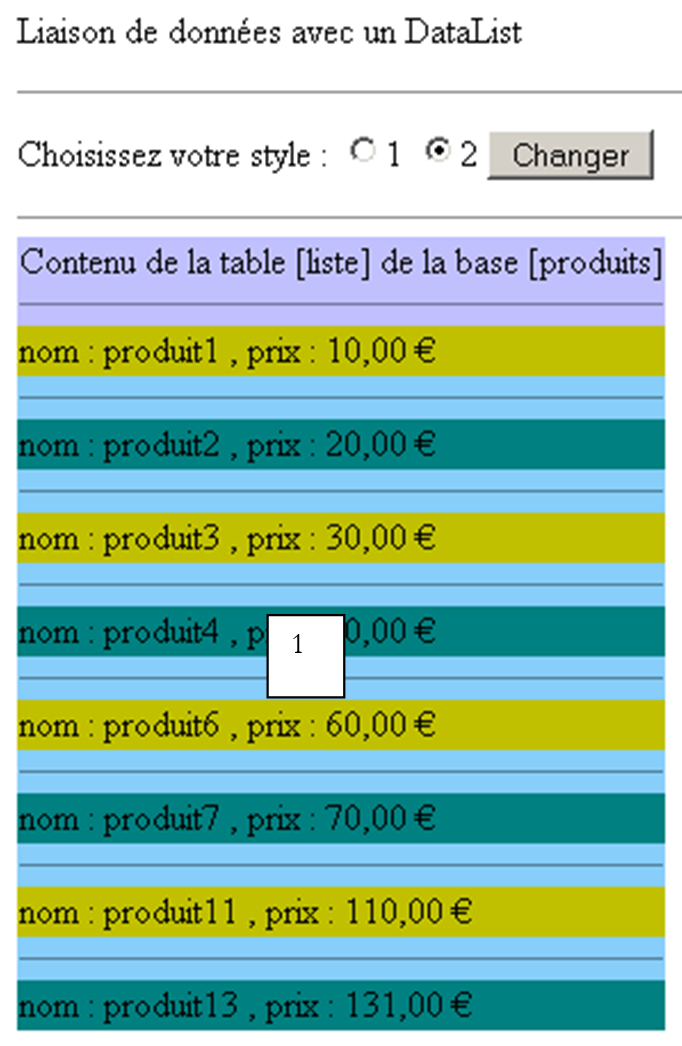 |
No. | name | type | properties | role |
1 | DataList | EnableViewState=true | Data list display field |
The [errors] view indicates a problem accessing the data source:
 |
No. | name | type | properties | role |
1 | variable | HTML code required to display errors |
The three views of the application are three different containers (panels) within the same page [main.aspx]. Its presentation code is as follows:
<%@ Page src="main.aspx.vb" inherits="main" autoeventwireup="false" Language="vb" %>
<HTML>
    <HEAD>
    </HEAD>
    <body>
        <P>Liaison de données avec un DataList</P>
        <HR width="100%" SIZE="1">
        <form runat="server" ID="Form1">
            <asp:Panel Runat="server" ID="bandeau">
                <P>Choisissez votre style :
                    <asp:RadioButton id="RadioButton1" runat="server" EnableViewState="False" Text="1" GroupName="rdstyle"
                        Checked="True"></asp:RadioButton>
                    <asp:RadioButton id="RadioButton2" runat="server" EnableViewState="False" Text="2" GroupName="rdstyle"></asp:RadioButton>
                    <asp:Button id="btnChanger" runat="server" EnableViewState="False" Text="Changer"></asp:Button></P>
                <HR width="100%" SIZE="1">
            </asp:Panel>
            <asp:Panel id="vueRésultats1" runat="server">
                <P>
                    <asp:DataList id="DataList1" runat="server" BorderColor="Tan" BorderWidth="1px" BackColor="LightGoldenrodYellow"
                        CellPadding="2" RepeatDirection="Horizontal" RepeatColumns="4" ForeColor="Black">
                        <SelectedItemStyle ForeColor="GhostWhite" BackColor="DarkSlateBlue"></SelectedItemStyle>
                        <HeaderTemplate>
                            Contenu de la table [liste] de la base [produits]
                        </HeaderTemplate>
                        <AlternatingItemStyle BackColor="PaleGoldenrod"></AlternatingItemStyle>
                        <ItemTemplate>
                            nom :
                            <%# Container.DataItem("nom") %>
                            <br>
                            prix :
                            <%# databinder.eval(Container.DataItem,"prix","{0:C}") %>
                            <br>
                        </ItemTemplate>
                        <FooterStyle BackColor="Tan"></FooterStyle>
                        <HeaderStyle Font-Bold="True" BackColor="Tan"></HeaderStyle>
                    </asp:DataList></P>
            </asp:Panel>
            <asp:Panel id="vueRésultats2" runat="server">
                <P>
                    <asp:DataList id="DataList2" runat="server">
                        <HeaderTemplate>
                            Contenu de la table [liste] de la base [produits]
                            <HR width="100%" SIZE="1">
                        </HeaderTemplate>
                        <AlternatingItemStyle BackColor="Teal"></AlternatingItemStyle>
                        <SeparatorStyle BackColor="LightSkyBlue"></SeparatorStyle>
                        <ItemStyle BackColor="#C0C000"></ItemStyle>
                        <ItemTemplate>
                            nom :
                            <%# Container.DataItem("nom") %>
                            , prix :
                            <%# databinder.eval(Container.DataItem,"prix","{0:C}") %>
                            <BR>
                        </ItemTemplate>
                        <SeparatorTemplate>
                            <HR width="100%" SIZE="1">
                        </SeparatorTemplate>
                        <HeaderStyle BackColor="#C0C0FF"></HeaderStyle>
                    </asp:DataList></P>
            </asp:Panel>
            <asp:Panel id="vueErreurs" runat="server">
                <P>Les erreurs suivantes se sont produites :</P>
                <%= erreursHTML %>
            </asp:Panel>
        </form>
    </body>
</HTML>
8.7.4. Configuring [DataList] Components
Let’s take a look at the various attributes of a [DataList] component. There are many of them, and we’ll cover only a small selection here. You can define up to seven display templates within a [DataList]:
[DataList] header template | |
template for the rows displaying the items in the associated data list. Only this template is required. | |
To visually distinguish between successive displayed items, two templates can be used: ItemTemplate for item n, AlternatingItemTemplate for item n+1 | |
Template for the selected item in the [DataList] | |
Template for the separator between two elements in the [DataList] | |
A [DataList] allows you to edit the values it displays. [EditItemTemplate] is the template for an item in the [DataList] that is currently in "edit" mode | |
Template for the footer of the [DataList] |
The [DataList1] component was built with [WebMatrix]. In its properties window, the [AutoFormat] link was selected:
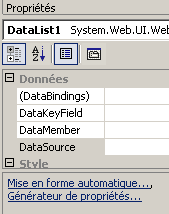 | 1234567 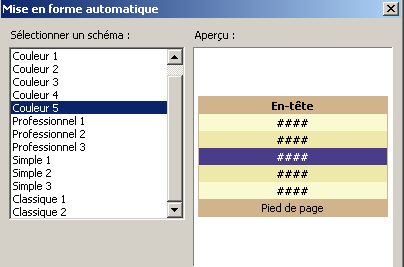 |
Above, the [Color 5] schema will generate a [DataList] with styles for the following templates: HeaderTemplate (1), ItemTemplate (2, 6), AlternatingTemplate (3, 5), SelectedItemTemplate (4), FooterTemplate (7). The generated code is as follows:
                    <asp:DataList id="DataList1" runat="server" BorderColor="Tan" BorderWidth="1px" BackColor="LightGoldenrodYellow"
                        CellPadding="2" ForeColor="Black">
                        <SelectedItemStyle ForeColor="GhostWhite" BackColor="DarkSlateBlue"></SelectedItemStyle>
                        <AlternatingItemStyle BackColor="PaleGoldenrod"></AlternatingItemStyle>
                        <FooterStyle BackColor="Tan"></FooterStyle>
                        <HeaderStyle Font-Bold="True" BackColor="Tan"></HeaderStyle>
                    </asp:DataList></P>
No templates have been defined. It's up to us to do so. We define the following templates:
| |
|
Remember that the [ItemTemplate] template is used to display the items from the data source linked to the [DataList]. This data source is a collection of data rows, each containing one or more values. The current row in the data source is represented by the [Container.DataItem] object. Such a row has columns. [Container.DataItem("col1")] is the value of the "col1" column in the current row. To include this value in the presentation code, we write <%# Container.DataItem("col") %>. Sometimes, we want to display an element of the current row in a special format. Here, we want to display the "price" column of the current row in euros. We use the [DataBinder.Eval] function, which takes three parameters:
- the current row [Container.DataItem]
- the name of the column to format
- the formatting string in the form {0:format}, where [format] is one of the formats accepted by the [string.format] method.
Thus, the code <%# DataBinder.Eval(Container.DataItem,"price",{0:C}) %> will display the [price] column of the current row in currency format (format C=Currency).
We will therefore have a [DataList] that looks like this:
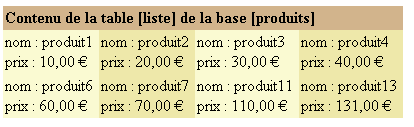
Above, the data has been arranged with four data items per row. This is achieved using the following [DataList] attributes:
Horizontal | |
desired number of columns |
Ultimately, the code for [DataList1] is the one presented in the code snippet above. We leave it to the reader to study the presentation code for [DataList2]. As with the [DataGrid] component, most of the [DataList] properties can be set using a [WebMatrix] wizard. To do this, use the [Property Generator] link in the [DataList] properties window:
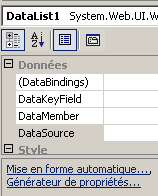 | 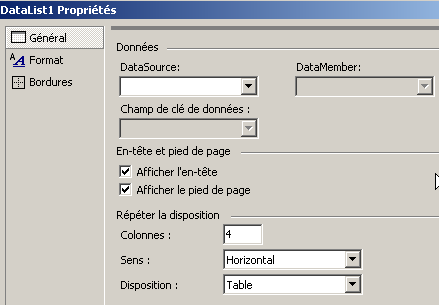 |
8.7.5. The controllers
The [global.asax, global.asax.vb] controller is as follows:
[global.asax]
[global.asax.vb]
Imports System
Imports System.Web
Imports System.Web.SessionState
Imports st.istia.univangers.fr
Imports System.Configuration
Imports System.Data
Imports System.Collections

Public Class Global
    Inherits System.Web.HttpApplication

    Sub Application_Start(ByVal sender As Object, ByVal e As EventArgs)
        ' create a product object
        Try
            Dim données As DataSet = New produits(ConfigurationSettings.AppSettings("OLEDBStringConnection")).getDataSet("select * from LISTE")
            ' put the object in the application
            Application("données") = données
            ' no error
            Application("erreur") = False
        Catch ex As Exception
            'there has been an error, we note it in the application
            Application("erreur") = True
            Application("message") = ex.Message
        End Try
    End Sub
End Class
When the application starts (Application_Start), we create a [dataset] from the [products] business class and add it to the application so that it is available for all requests from all clients. If an exception occurs during this creation, it is logged in the application. The [Application_Start] procedure will run only once. After that, the [global.asax] controller will no longer be involved. The [main.aspx.vb] controller will then handle the work:
Imports System.Collections
Imports Microsoft.VisualBasic
Imports System.Data
Imports st.istia.univangers.fr
Imports System
Imports System.Xml

Public Class main
    Inherits System.Web.UI.Page

    ' components page
    Protected WithEvents vueErreurs As System.Web.UI.WebControls.Panel
    Protected WithEvents DataList1 As System.Web.UI.WebControls.DataList
    Protected WithEvents DataList2 As System.Web.UI.WebControls.DataList
    Protected WithEvents vueRésultats1 As System.Web.UI.WebControls.Panel
    Protected WithEvents vueRésultats2 As System.Web.UI.WebControls.Panel
    Protected WithEvents RadioButton1 As System.Web.UI.WebControls.RadioButton
    Protected WithEvents RadioButton2 As System.Web.UI.WebControls.RadioButton
    Protected WithEvents btnChanger As System.Web.UI.WebControls.Button
    Protected WithEvents bandeau As System.Web.UI.WebControls.Panel
    ' data page
    Protected erreursHTML As String

    Private Sub Page_Load(ByVal sender As System.Object, ByVal e As System.EventArgs) Handles MyBase.Load
        ' check for application errors
        If CType(Application("erreur"), Boolean) Then
            ' the application has not initialized correctly
            Dim erreurs As New ArrayList
            erreurs.Add("Application momentanément indisponible (" + CType(Application("message"), String) + ")")
            afficheErreurs(erreurs, False)
            Exit Sub
        End If
        '1st request
        If Not IsPostBack Then
            ' initialize controls
            With DataList1
                .DataSource = CType(Application("données"), DataSet)
                .DataBind()
            End With
            With DataList2
                .DataSource = CType(Application("données"), DataSet)
                .DataBind()
            End With
            ' the empty form is displayed
            afficheRésultats(True, False)
        End If
    End Sub

    Private Sub afficheErreurs(ByVal erreurs As ArrayList, ByVal afficheLien As Boolean)
        ' displays the error view
        erreursHTML = ""
        For i As Integer = 0 To erreurs.Count - 1
            erreursHTML += "<li>" + erreurs(i).ToString + "</li>" + ControlChars.CrLf
        Next
        ' the [errors] view is displayed
        vueErreurs.Visible = True
        vueRésultats1.Visible = False
        vueRésultats2.Visible = False
        bandeau.Visible = False
    End Sub

    Private Sub afficheRésultats(ByVal visible1 As Boolean, ByVal visible2 As Boolean)
        ' the [results] view is displayed
        vueRésultats1.Visible = visible1
        vueRésultats2.Visible = visible2
        vueErreurs.Visible = False
    End Sub

    Private Sub btnChanger_Click(ByVal sender As System.Object, ByVal e As System.EventArgs) Handles btnChanger.Click
        ' change the style
        afficheRésultats(RadioButton1.Checked, RadioButton2.Checked)
    End Sub
End Class
8.8. Repeater Component and Data Binding
The [Repeater] component allows you to repeat the HTML code for each item in a data list. Suppose we want to display a list of errors in the following format:
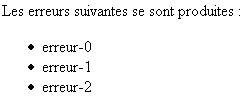
We have already encountered this problem and solved it by including a variable in the presentation code in the form <% =erreursHTML %>, where the value of erreursHTML is calculated by the controller. This value contains HTML code, specifically that of a list. The downside is that if you want to modify the presentation of this HTML list, you have to go into the controller section, which goes against the controller/presentation separation. The [Repeater] component provides a solution. As with the [DataList], we can define the <HeaderTemplate> for the header, <ItemTemplate> for the current item in the data list, and <FooterTemplate> for the end of the data. Here, we could have the following definition for the [Repeater] component:
            <asp:Repeater id="Repeater1" runat="server" EnableViewState="False">
                <HeaderTemplate>
                    Les erreurs suivantes se sont produites :
                    <ul>
                </HeaderTemplate>
                <ItemTemplate>
                    <li>
                        <%# Container.DataItem %>
                    </li>
                </ItemTemplate>
                <FooterTemplate>
                    </ul>
                </FooterTemplate>
            </asp:Repeater>
Note that [Container.DataItem] represents a row of data if the data source has multiple columns. It represents a single data point if the source has only one column. This will be the case here. For example, we are building the following application:
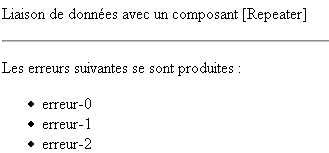
The page layout code is as follows:
<html>
<head>
</head>
<body>
    <form runat="server">
        <p>
            Liaison de données avec un composant [Repeater]
        </p>
        <hr />
        <p>
            <asp:Repeater id="Repeater1" runat="server" EnableViewState="False">
                <ItemTemplate>
                    <li>
                        <%# Container.DataItem %>
                    </li>
                </ItemTemplate>
                <HeaderTemplate>
                    Les erreurs suivantes se sont produites :
                    <ul>
                </HeaderTemplate>
                <FooterTemplate>
                    </ul>
                </FooterTemplate>
            </asp:Repeater>
        </p>
    </form>
</body>
</html>
The control code is as follows:
<%@ Page Language="VB" %>
<script runat="server">

    ' procedure executed when the page is loaded
    Sub page_Load(sender As Object, e As EventArgs)
        if not IsPostBack then
          ' create a data source
          with Repeater1
              .DataSource=createDataSource
              .DataBind
          end with
        end if
    End Sub

    function createDataSource as ArrayList
      ' create an arraylist
      dim erreurs as new ArrayList
      dim i as integer
      for i=0 to 5
        erreurs.add("erreur-"+i.ToString)
      next
      return erreurs
    end function

</script>
<html>
...
</html>
On the client's first request, we associate an [ArrayList] object with the [Repeater] component, which is supposed to represent a list of errors.
8.9. Application
Here, we revisit an application previously implemented with server-side components. The application allows users to simulate tax calculations. It relies on an [impot] class, which we will not revisit here. This class requires data that it retrieves from an OLEDB data source. For this example, we will use an ACCESS data source. We introduce the following new features in this version:
- the use of validation components to check data validity
- the use of server components linked to data sources for displaying results
8.9.1. The application’s MVC structure
The application’s MVC structure is as follows:
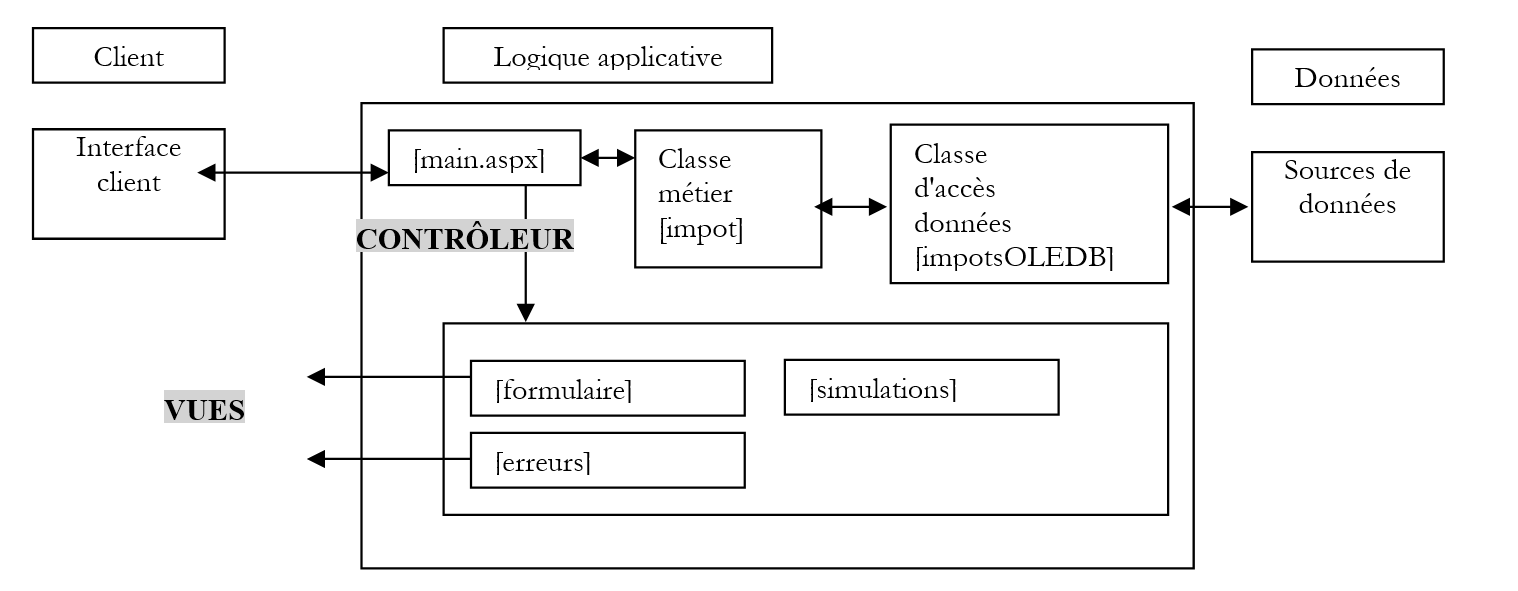 |
The three views will be incorporated into the controller’s presentation code [main.aspx] as containers. Therefore, this application has a single page [main.aspx].
8.9.2. The application's views
The [form] view is the form for entering information used to calculate a user’s tax:
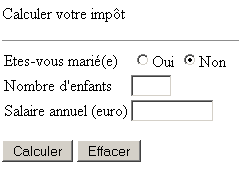
The user fills out the form:
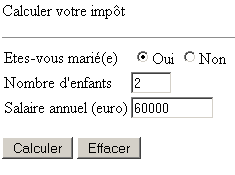
They use the [Submit] button to request a tax calculation. They see the following [simulations] view:
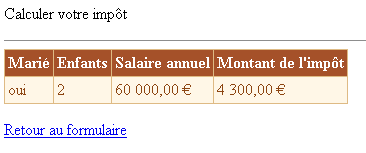
They return to the form via the link above. They find it in the state in which they entered it. They may make data entry errors:
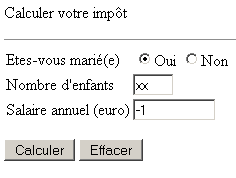
These are flagged on the [form] view:
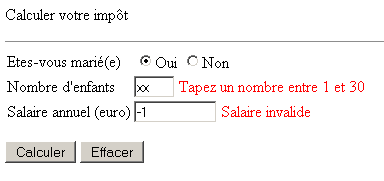
The user then corrects their errors. They can run new simulations:
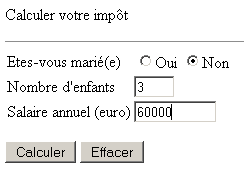
This brings up the [simulations] view with one additional simulation:
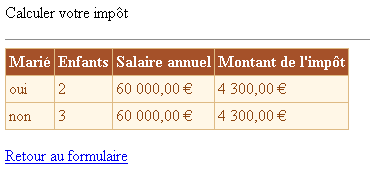
Finally, if the data source is unavailable, the user is notified in the [errors] view:

8.9.2.1. The presentation code
Remember that the [main.aspx] page brings together all the views. It is a single form with three containers:
- [panelform] for the [form] view
- [panelerrors] for the [errors] view
- [panelsimulations] for the [simulations] view
We will now detail the components of these three containers. The [panelform] container has the following visual representation:
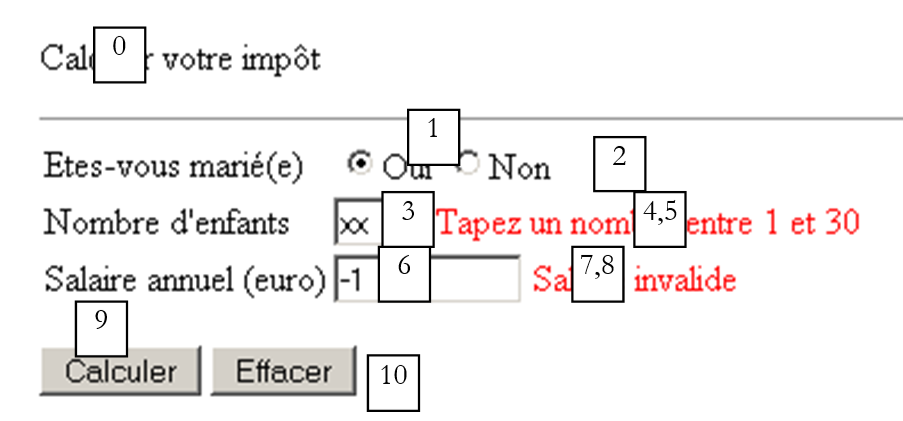 |
No. | name | type | properties | role |
Panel | form view | |||
RadioButton | GroupName=rdmarie | radio buttons | ||
CustomValidator | ErrorMessage=You have not specified your marital status EnableClientScript=false | checks that the client program has sent the expected marital status | ||
TextBox | number of children | |||
RequiredFieldValidator | ErrorMessage=Enter the number of children ControlToValidate=txtChildren | checks that the [txtChildren] field is not empty | ||
RangeValidator | ErrorMessage=Enter a number between 1 and 30 ControlToValidate=txtChildren | checks that the [txtChildren] field is within the range [1,30] | ||
TextBox | EnableViewState=true | annual salary | ||
RequiredFieldValidator | ControlToValidate=txtSalary ErrorMessage=Enter your salary amount | checks that the [txtSalary] field is not empty | ||
RegularExpressionValidator | ControlToValidate=txtSalary ErrorMessage=Invalid salary RegularExpression=\s*\d+\s* | checks that the [txtSalary] field is a sequence of digits | ||
Button | ValidationTriggers=true | [submit] button on the form - starts the tax calculation | ||
Button | Validation=false | form [submit] button - clears the form |
You might be surprised by the [cvMarié] check, which verifies that the user has selected one of the two radio buttons. This is necessary because there is no way to be certain if the user is using the form sent by the server. Since nothing can guarantee this, we must verify all posted parameters. Note also the [CausesValidation=false] attribute of the [btnEffacer] button. When the user clicks this button, the posted data should not be checked since it will be ignored.
All components in the container have the [EnableViewState=false] property except [panelForm, txtEnfants, txtSalaire, rdOui, rdNon]. The [panelerreurs] container has the following visual representation:
 |
No. | name | type | properties | role |
Panel | EnableViewState=false | error view | ||
Repeater | EnableViewState=false | displays a list of errors |
The [rptErrors] component is defined as follows:
                <asp:Repeater id="rptErreurs" runat="server" EnableViewState="False">
                    <ItemTemplate>
                        <li>
                            <%# Container.Dataitem%>
                        </li>
                    </ItemTemplate>
                    <HeaderTemplate>
                        Les erreurs suivantes se sont produites
                        <ul>
                    </HeaderTemplate>
                    <FooterTemplate>
                        </ul>
                    </FooterTemplate>
                </asp:Repeater>
The data list associated with the [rptErrors] component will be an [ArrayList] object containing a list of error messages. Thus, as shown above, <%# Container.Dataitem%> refers to the current error message. The [panelsimulations] container has the following visual representation:
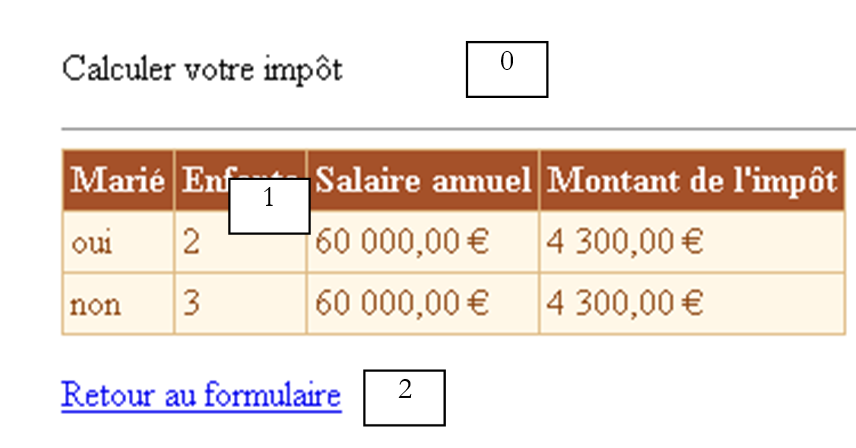 |
No. | name | type | properties | role |
Panel | EnableViewState=false | simulation view | ||
LinkButton | EnableViewState=false | link to the form | ||
DataGrid | EnableViewState=false | responsible for displaying the simulations placed in a [DataTable] object |
The [dgSimulations] component is configured as follows in [Webmatrix]. In the [dgSimulations] properties window, we select the [AutoFormat] link and choose the [Color 3] scheme:
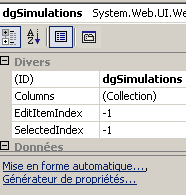 | 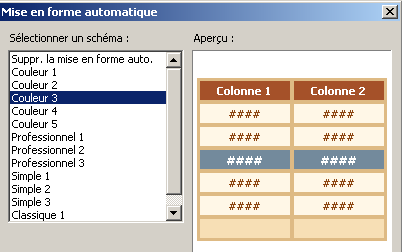 |
Then, still in the [dlgSimulations] properties window, we select the [Property Generator] link. We request that the column headers be displayed:
We select the [Columns] option to define the four columns of the [DataGrid]:
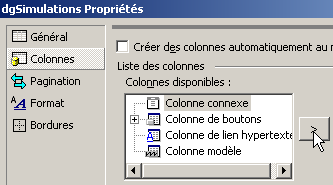
We uncheck the option [Create columns automatically...]. We will define the four columns of the [DataGrid] ourselves. This will be associated with a [DataTable] object containing four columns named "married," "children," "salary," and "tax," respectively. To create a column in the [DataGrid], we select the [Related Columns] option and use the creation button as shown above. A column is created, and we can define its properties. The first column of the simulation table will contain the "married" column from the [DataTable] object that will be associated with the [DataGrid]. This first column of the [DataGrid] is defined as follows in the wizard:
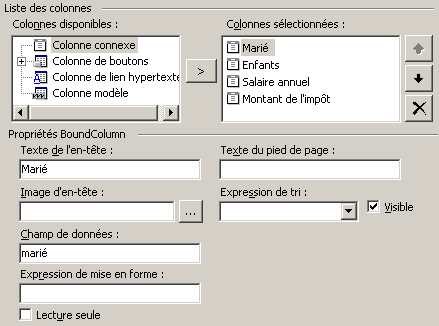
column title, here "Married" | |
Name of the column in the data source that will be displayed by this column of the [DataGrid]. Here, it is the "married" column of the [DataTable]. |
The second column is defined as follows:
Children | |
children |
The third column is defined as follows:
Annual salary | |
salary | |
{0:C} - currency display to obtain the euro sign |
The fourth column is defined as follows:
Tax amount | |
tax | |
{0:C} - currency display to get the euro sign |
We place the presentation code and the control code in two separate files. The first will be in [main.aspx] and the second in [main.aspx.vb]. The code for [main.aspx] is as follows:
<%@ page src="main.aspx.vb" inherits="main" AutoEventWireUp="false" %>
<HTML>
<HEAD>
<title>Calculer votre impôt</title>
</HEAD>
<body>
<P>Calculer votre impôt</P>
<HR width="100%" SIZE="1">
<FORM id="Form1" runat="server">
<asp:panel id="panelform" Runat="server">
<TABLE id="Table1" cellSpacing="1" cellPadding="1" border="0">
<TR>
<TD height="19">Etes-vous marié(e)</TD>
<TD height="19">
<asp:RadioButton id="rdOui" runat="server" GroupName="rdMarie"></asp:RadioButton>Oui
<asp:RadioButton id="rdNon" runat="server" GroupName="rdMarie" Checked="True"></asp:RadioButton>Non
<asp:CustomValidator id="cvMarie" runat="server" ErrorMessage="Vous n'avez pas indiqué votre état marital"
Display="Dynamic" EnableClientScript="False" Visible="False" EnableViewState="False"></asp:CustomValidator></TD>
</TR>
<TR>
<TD>Nombre d'enfants</TD>
<TD>
<asp:TextBox id="txtEnfants" runat="server" Columns="3" MaxLength="3"></asp:TextBox>
<asp:RequiredFieldValidator id="rfvEnfants" runat="server" ErrorMessage="Indiquez le nombre d'enfants" Display="Dynamic"
ControlToValidate="txtEnfants" EnableViewState="False"></asp:RequiredFieldValidator>
<asp:RangeValidator id="rvEnfants" runat="server" ErrorMessage="Tapez un nombre entre 1 et 30" Display="Dynamic"
ControlToValidate="txtEnfants" Type="Integer" MaximumValue="30" MinimumValue="0" EnableViewState="False"></asp:RangeValidator></TD>
</TR>
<TR>
<TD>Salaire annuel (euro)</TD>
<TD>
<asp:TextBox id="txtSalaire" runat="server" Columns="10" MaxLength="10"></asp:TextBox>
<asp:RequiredFieldValidator id="rfvSalaire" runat="server" ErrorMessage="Indiquez le montant de votre salaire"
Display="Dynamic" ControlToValidate="txtSalaire" EnableViewState="False"></asp:RequiredFieldValidator>
<asp:RegularExpressionValidator id="revSalaire" runat="server" ErrorMessage="Salaire invalide" Display="Dynamic"
ControlToValidate="txtSalaire" ValidationExpression="\s*\d+\s*" EnableViewState="False"></asp:RegularExpressionValidator></TD>
</TR>
</TABLE>
<P>
<asp:Button id="btnCalculer" runat="server" Text="Calculer"></asp:Button>
<asp:Button id="btnEffacer" runat="server" Text="Effacer" CausesValidation="False"></asp:Button></P>
</asp:panel>
<asp:panel id="panelerreurs" runat="server" EnableViewState="False">
<asp:Repeater id="rptErreurs" runat="server" EnableViewState="False">
<ItemTemplate>
<li>
<%# Container.Dataitem%>
</li>
</ItemTemplate>
<HeaderTemplate>
Les erreurs suivantes se sont produites
<ul>
</HeaderTemplate>
<FooterTemplate>
</ul>
</FooterTemplate>
</asp:Repeater>
</asp:panel>
<asp:panel id="panelsimulations" runat="server" EnableViewState="False">
<P>
<asp:DataGrid id="dgSimulations" runat="server" BorderColor="#DEBA84" BorderStyle="None" CellSpacing="2"
BorderWidth="1px" BackColor="#DEBA84" CellPadding="3" AutoGenerateColumns="False" EnableViewState="False">
<SelectedItemStyle Font-Bold="True" ForeColor="White" BackColor="#738A9C"></SelectedItemStyle>
<ItemStyle ForeColor="#8C4510" BackColor="#FFF7E7"></ItemStyle>
<HeaderStyle Font-Bold="True" ForeColor="White" BackColor="#A55129"></HeaderStyle>
<FooterStyle ForeColor="#8C4510" BackColor="#F7DFB5"></FooterStyle>
<Columns>
<asp:BoundColumn DataField="marié" HeaderText="Marié"></asp:BoundColumn>
<asp:BoundColumn DataField="enfants" HeaderText="Enfants"></asp:BoundColumn>
<asp:BoundColumn DataField="salaire" HeaderText="Salaire annuel" DataFormatString="{0:C}"></asp:BoundColumn>
<asp:BoundColumn DataField="impôt" HeaderText="Montant de l'impôt" DataFormatString="{0:C}"></asp:BoundColumn>
</Columns>
<PagerStyle HorizontalAlign="Center" ForeColor="#8C4510" Mode="NumericPages"></PagerStyle>
</asp:DataGrid></P>
<P>
<asp:LinkButton id="lnkForm2" runat="server" EnableViewState="False">Retour au formulaire</asp:LinkButton></P>
</asp:panel>
</FORM>
</body>
</HTML>
8.9.3. The application's control code
The application control code is distributed across the [global.asax.vb] and [main.aspx.vb] files. The [global.asax] file is defined as follows:
The [global.asax.vb] file is as follows:
Imports System
Imports System.Web
Imports System.Web.SessionState
Imports st.istia.univangers.fr
Imports System.Configuration
Imports System.Collections
Imports System.Data

Public Class Global
    Inherits System.Web.HttpApplication

    Sub Application_Start(ByVal sender As Object, ByVal e As EventArgs)
        ' create an impot object
        Dim objImpot As impot
        Try
            objImpot = New impot(New impotsOLEDB(ConfigurationSettings.AppSettings("chaineConnexion")))
            ' put the object in the application
            Application("objImpot") = objImpot
            ' no error
            Application("erreur") = False
        Catch ex As Exception
            'there has been an error, we note it in the application
            Application("erreur") = True
            Application("message") = ex.Message
        End Try
    End Sub

    Sub Session_Start(ByVal sender As Object, ByVal e As EventArgs)
        ' start of session - create a list of empty simulations
        Dim simulations As New DataTable("simulations")
        simulations.Columns.Add("marié", Type.GetType("System.String"))
        simulations.Columns.Add("enfants", Type.GetType("System.String"))
        simulations.Columns.Add("salaire", Type.GetType("System.Int32"))
        simulations.Columns.Add("impôt", Type.GetType("System.Int32"))
        Session.Item("simulations") = simulations
    End Sub
End Class
When the application starts (first request made to the application), the [Application_Start] procedure is executed. It attempts to create an object of type [tax] by retrieving its data from an OLEDB source. The reader is encouraged to review Chapter 5, where this class was defined, if they have forgotten it. The creation of the [impot] object may fail if the data source is unavailable. In this case, the error is stored in the application so that all subsequent requests know that it could not be initialized correctly. If the creation is successful, the [impot] object created is also stored in the application. It will be used by all tax calculation requests. When a client makes their first request, a session is created for them by the [Application_Start] procedure. This session is intended to store the various tax calculation simulations they will perform. These will be stored in a [DataTable] object associated with the "simulations" session key. When the session starts, this key is associated with an empty [DataTable] object whose structure has been defined. The information required by the application is placed in its configuration file [wenConfig]:
<?xml version="1.0" encoding="utf-8" ?>
<configuration>
    <appSettings>
        <add key="chaineConnexion" value="Provider=Microsoft.Jet.OLEDB.4.0; Ole DB Services=-4; Data Source=D:\data\devel\aspnet\poly\webforms2\vs\impots6\impots.mdb" />
    </appSettings>
</configuration>
The [connectionString] key specifies the connection string to the OLEDB source. The rest of the control code is located in [main.aspx.vb]:
Imports System.Collections
Imports Microsoft.VisualBasic
Imports st.istia.univangers.fr
Imports System
Imports System.Web.UI.Control
Imports System.Data

Public Class main
    Inherits System.Web.UI.Page

    Protected WithEvents rdOui As System.Web.UI.WebControls.RadioButton
    Protected WithEvents rdNon As System.Web.UI.WebControls.RadioButton
    Protected WithEvents txtEnfants As System.Web.UI.WebControls.TextBox
    Protected WithEvents txtSalaire As System.Web.UI.WebControls.TextBox
    Protected WithEvents btnCalculer As System.Web.UI.WebControls.Button
    Protected WithEvents btnEffacer As System.Web.UI.WebControls.Button
    Protected WithEvents panelform As System.Web.UI.WebControls.Panel
    Protected WithEvents lnkForm2 As System.Web.UI.WebControls.LinkButton
    Protected WithEvents panelerreurs As System.Web.UI.WebControls.Panel
    Protected WithEvents rfvEnfants As System.Web.UI.WebControls.RequiredFieldValidator
    Protected WithEvents rvEnfants As System.Web.UI.WebControls.RangeValidator
    Protected WithEvents rfvSalaire As System.Web.UI.WebControls.RequiredFieldValidator
    Protected WithEvents rptErreurs As System.Web.UI.WebControls.Repeater
    Protected WithEvents dgSimulations As System.Web.UI.WebControls.DataGrid
    Protected WithEvents revSalaire As System.Web.UI.WebControls.RegularExpressionValidator
    Protected WithEvents cvMarie As System.Web.UI.WebControls.CustomValidator
    Protected WithEvents panelsimulations As System.Web.UI.WebControls.Panel

    ' local variables

    Private Sub Page_Load(ByVal sender As System.Object, ByVal e As System.EventArgs) Handles MyBase.Load
...
    End Sub

    Private Sub afficheErreurs(ByRef erreurs As ArrayList)
...
    End Sub

    Private Sub afficheFormulaire()
...
    End Sub

    Private Sub afficheSimulations(ByRef simulations As DataTable, ByRef lien As String)
...
    End Sub

    Private Sub btnCalculer_Click(ByVal sender As System.Object, ByVal e As System.EventArgs) Handles btnCalculer.Click
....
    End Sub

    Private Sub lnkForm1_Click(ByVal sender As System.Object, ByVal e As System.EventArgs)
...
    End Sub

    Private Sub lnkForm2_Click(ByVal sender As System.Object, ByVal e As System.EventArgs) Handles lnkForm2.Click
...
    End Sub

    Private Sub btnEffacer_Click(ByVal sender As System.Object, ByVal e As System.EventArgs) Handles btnEffacer.Click
...
    End Sub

    Private Sub razForm()
...
    End Sub

    Private Sub cvMarie_ServerValidate(ByVal source As System.Object, ByVal args As System.Web.UI.WebControls.ServerValidateEventArgs)
...
    End Sub
End Class
The first event handled by the code is [Page_Load]:
    Private Sub Page_Load(ByVal sender As System.Object, ByVal e As System.EventArgs) Handles MyBase.Load
        ' first, we look at the state of the application
        If CType(Application("erreur"), Boolean) Then
            ' the application failed to initialize
            ' the error view is displayed
            Dim erreurs As New ArrayList
            erreurs.Add("Application momentanément indisponible (" + CType(Application("message"), String) + ")")
            afficheErreurs(erreurs)
            Exit Sub
        End If
        ' no errors - on the 1st request, the form is presented
        If Not IsPostBack Then afficheFormulaire()
    End Sub
Before processing the request, we verify that the application has initialized correctly. If not, we display the [errors] view using the [displayErrors] procedure. If this is the first request (IsPostBack=false), we display the [form] view using [displayForm].
The procedure that displays the [errors] view is as follows:
    Private Sub afficheErreurs(ByRef erreurs As ArrayList)
        ' builds a list of errors
        With rptErreurs
            .DataSource = erreurs
            .DataBind()
        End With
        ' container display
        panelerreurs.Visible = True
        panelform.Visible = False
        panelsimulations.Visible = False
        Exit Sub
    End Sub
The procedure receives as a parameter a list of error messages in [errors] of type [ArrayList]. We simply bind this data source to the [rptErrors] component responsible for displaying it.
The procedure displaying the [form] view is as follows:
    Private Sub afficheFormulaire()
        ' displays the form
        panelform.Visible = True
        ' the other containers are hidden
        panelerreurs.Visible = False
        panelsimulations.Visible = False
    End Sub
This procedure simply makes the [panelform] container visible. The components are displayed with their posted or previous value (VIEWSTATE).
When the user clicks the [Calculate] button in the [form] view, a POST request is sent to [main.aspx]. The [Page_Load] procedure is executed, followed by the [btnCalculate_Click] procedure:
    Private Sub btnCalculer_Click(ByVal sender As System.Object, ByVal e As System.EventArgs) Handles btnCalculer.Click
        ' we check the validity of the data entered; if there are any errors, we report them
        If Not Page.IsValid Then
            afficheFormulaire()
            Exit Sub
        End If
        ' no errors - tax is calculated
        Dim impot As Long = CType(Application("objImpot"), impot).calculer( _
        rdOui.Checked, CType(txtEnfants.Text, Integer), CType(txtSalaire.Text, Long))
        ' the result is added to existing simulations
        Dim simulations As DataTable = CType(Session.Item("simulations"), DataTable)
        Dim simulation As DataRow = simulations.NewRow
        simulation("marié") = CType(IIf(rdOui.Checked, "oui", "non"), String)
        simulation("enfants") = txtEnfants.Text.Trim
        simulation("salaire") = CType(txtSalaire.Text.Trim, Long)
        simulation("impôt") = impot
        simulations.Rows.Add(simulation)
        ' put the simulations in the session
        Session.Item("simulations") = simulations
        ' the simulations page is displayed
        afficheSimulations(simulations, "Retour au formulaire")
    End Sub
The procedure begins by checking the page's validity. Recall that when the [btnCalculate_Click] procedure runs, the validation controls have done their job and the page's [IsValid] attribute has been set. If the page is invalid, the [form] view is displayed again and the procedure ends. The validation components of the [form] view whose [IsValid] attribute is set to [false] will display their [ErrorMessage] attribute. If the page is valid, then the tax amount is calculated using and the [tax] object that was stored in the application upon startup. This new simulation is added to the list of simulations already performed and stored in the session.
Finally, the [simulations] view is displayed by the following [displaySimulations] procedure:
    Private Sub afficheSimulations(ByRef simulations As DataTable, ByRef lien As String)
        ' we link the datagrid to the simulations source
        With dgSimulations
            .DataSource = simulations
            .DataBind()
        End With
        ' link
        lnkForm2.Text = lien
        ' the views
        panelsimulations.Visible = True
        panelerreurs.Visible = False
        panelform.Visible = False
    End Sub
The procedure has two parameters:
- a list of simulations in [simulations] of type [DataTable]
- a link text in [link]
The [simulations] data source is bound to the component responsible for displaying it. The link text is placed in the [Text] property of the [LinkButton] object in the view.
When the user clicks the [Delete] button in the [form] view, the [btnDelete_click] procedure is executed (always after [Page_Load]):
    Private Sub btnEffacer_Click(ByVal sender As System.Object, ByVal e As System.EventArgs) Handles btnEffacer.Click
        ' displays the empty form
        razForm()
        afficheFormulaire()
    End Sub

    Private Sub razForm()
        ' empty the form
        rdOui.Checked = False
        rdNon.Checked = True
        txtEnfants.Text = ""
        txtSalaire.Text = ""
    End Sub
The code above is simple enough that it doesn't need any comments. We still need to handle clicks on the [errors] and [simulations] view links:
    Private Sub lnkForm1_Click(ByVal sender As System.Object, ByVal e As System.EventArgs) Handles lnkForm1.Click
        ' displays the form
        afficheFormulaire()
    End Sub

    Private Sub lnkForm2_Click(ByVal sender As System.Object, ByVal e As System.EventArgs) Handles lnkForm2.Click
        ' displays the form
        afficheFormulaire()
    End Sub
Both procedures simply display the [form] view. We know that the fields in this view will receive a value that is either the value posted for them or their previous value. Since, in this case, the client’s POST request does not send any values for the form fields, they will revert to their previous values. The form is therefore displayed with the values entered by the user.
8.9.4. Tests
All files required by the application are placed in a folder named <application-path>:  | The [bin] folder contains the DLL containing the [impot], [impotsData], and [impotsOLEDB] classes required by the application:  |
If desired, the reader may refer back to Chapter 5, which explains how to create the [impot.dll] file mentioned above. Once this is done, the Cassini server is started with the parameters (<application-path>,/impots6). We then access the URL [http://impots6/main.aspx] using a browser:
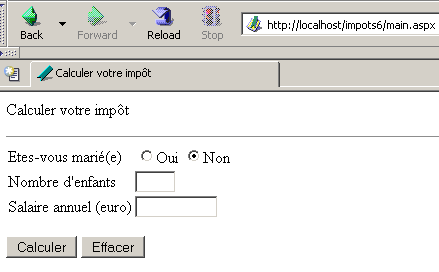
If you rename the ACCESS file [impots.mdb] to [impots1.mdb], you will see the following page:
8.9.5. Conclusion
We have an MVC application that uses only server-side components. Using these components has allowed us to completely separate the presentation layer of the application from its control layer. This had not been possible until now, as the presentation code previously contained variables calculated by the control code, whose values included HTML code. Now this is no longer the case.