2. Getting Started with Vue.js
2.1. Example 01: The Structure of a Vue.js Application
2.1.1. The package.json file
The [package.json] file in the examples folder declares the libraries used and the project commands:
| {
"name": "examples-vuejs",
"version": "1.0.0",
"description": "The small examples of the course [Step-by-step introduction to the Vue.js framework] - a single installation for all of them",
"private": true,
"type": "module",
"scripts": {
"dev": "vite",
"build": "vue-tsc --noEmit && vite build",
"check": "vue-tsc --noEmit"
},
"dependencies": {
"bootstrap": "^5.3.8",
"pinia": "^3.0.4",
"vue": "^3.5.22",
"vue-i18n": "~11.3.2",
"vue-router": "^4.6.3"
},
"devDependencies": {
"@types/node": "^22.10.0",
"@vitejs/plugin-vue": "^6.0.1",
"@vue/tsconfig": "^0.8.1",
"typescript": "~5.9.3",
"vite": "^7.1.12",
"vue-tsc": "^3.1.3"
}
}
|
Let’s go over this file:
- Line 6: The [JavaScript] files in the project are ES modules ([import] / [export]), the standard format of [JavaScript], which is supported by browsers as well as by [Node.js];
- Lines 7–11: the project commands, launched by [npm run <name>]:
- [npm run dev] starts the development server for [Vite];
- [npm run check] has the [TypeScript] types of all files, including [.vue], verified by the [vue-tsc] tool;
- [npm run build] checks the types and then builds the production version of the examples;
- Lines 12–18: the libraries the application needs in the browser: [Vue.js] itself, its router ([vue-router]), [Pinia] for shared state, [vue-i18n] for languages, and [Bootstrap] for formatting;
- lines 19–26: the development tools: [Vite] and its extension for files [.vue], the compiler [TypeScript], and [vue-tsc]. They are not part of the application delivered to users.
The prefix [^] of a version ([^3.5.22]) allows [npm] to install a newer version of the same major version (3.x.y); the prefix [~] ([~11.3.2]) allows only hotfixes (11.3.x). The [vue-i18n] version is intentionally locked to series 11.3: subsequent versions require [Node.js] 22.
2.1.2. The vite.config.ts file
[Vite] is the tool that runs a [Vue.js] application during development and then builds it for production. Its configuration, common to all examples:
| // =========================================================================
// vite.config.ts - the Vite configuration, shared by ALL the examples.
// -------------------------------------------------------------------------
// Vite is both:
// - a development server (npm run dev): it compiles on the fly the
// .vue and .ts files requested by the browser, and reloads the page
// (or only the modified component) on each save;
// - a build tool (npm run build): it produces, in dist/,
// optimized .js and .css files to put on a web server.
//
// Each example is a small independent application, with its own
// index.html: 01-first-application/index.html, 02-reactivity/index.html...
// A single Vite server serves them all: http://localhost:5173/ displays the
// table of contents (index.html of this folder), http://localhost:5173/01-first-application/
// the first example, etc.
// =========================================================================
import { existsSync, readdirSync } from 'node:fs';
import { fileURLToPath } from 'node:url';
import { resolve } from 'node:path';
import { defineConfig } from 'vite';
import vue from '@vitejs/plugin-vue';
const root = fileURLToPath(new URL('.', import.meta.url));
// the example folders: those whose name starts with two digits
const examples = readdirSync(root).filter((d) => /^\d\d-/.test(d) && existsSync(resolve(root, d, 'index.html')));
export default defineConfig({
// the plugin that teaches Vite how to compile .vue files
plugins: [vue()],
server: {
port: 5173,
// the PROXY: any request from the browser to /api/... is forwarded by
// Vite to the RdvMedecins JSON server (port 8080), then the response comes back
// to the browser. For the browser, page and API thus have the SAME origin
// (http://localhost:5173): no CORS to configure, and the cookie of the
// JWT token travels normally (see the chapter on the black box).
proxy: {
'/api': 'http://localhost:8080',
},
},
// npm run build: one HTML entry page per example, plus the table of contents
build: {
rollupOptions: {
input: Object.fromEntries([
['contents', resolve(root, 'index.html')],
...examples.map((d) => [d, resolve(root, d, 'index.html')]),
]),
},
},
});
|
- line 31: the extension that instructs [Vite] to compile the [.vue] files. A browser cannot read a [.vue] file: when it requests one, [Vite] converts it on the fly into a standard [JavaScript] file;
- line 34: the development server’s port;
- lines 40–41: the proxy, which will only be used starting with Example 17: any request from the browser to an address beginning with [/api] is forwarded to the server JSON [RdvMedecins], on port 8080. We’ll come back to this;
- Lines 27 and 46–53: [npm run build] must know all the entry pages for the application. It is provided with the index and the [index.html] file for each folder whose name begins with two digits.
2.1.3. The files tsconfig.json and env.d.ts
| {
"extends": "@vue/tsconfig/tsconfig.dom.json",
"compilerOptions": {
"types": ["vite/client"],
"noUnusedLocals": true,
"noUnusedParameters": true
},
"include": ["*/src/**/*.ts", "*/src/**/*.vue", "common/**/*.ts", "common/**/*.vue", "env.d.ts"]
}
|
- Line 2: We use the [TypeScript] configuration recommended for [Vue.js] ([@vue/tsconfig] package): modern code, strict mode, type checking in the browser (DOM);
- Line 4: Types specific to [Vite] (such as when importing a [.css] or [.svg] file);
- Lines 5–7: An unused variable or parameter is reported as an error;
- line 8: the files to be checked: those in the [src] folders from the examples and the [common] folder.
The file [env.d.ts] contains only one directive, which makes the same types as in [Vite] visible in the editor:
| // the types specific to Vite (import of .css files, import.meta.env...)
/// <reference types="vite/client" />
|
2.1.4. The page index.html
Each example has its own HTML page. The page for Example 01:
| <!doctype html>
<html lang="en">
<head>
<meta charset="utf-8">
<meta name="viewport" content="width=device-width, initial-scale=1">
<title>Example 01 - a first application</title>
</head>
<body>
<!-- the Vue.js application is displayed in this element (see src/main.ts) -->
<div id="app"></div>
<script type="module" src="./src/main.ts"></script>
</body>
</html>
|
This is the only page the browser will load. It is almost empty:
- line 10: the element in which [Vue.js] will display the application;
- line 11: the application program. [Vite] compiles it and sends it to the browser as [JavaScript].
2.1.5. The entry point: main.ts
| // =========================================================================
// 01-first-application/src/main.ts - the entry point of the application
// -------------------------------------------------------------------------
// index.html loads this file (<script type="module" src="./src/main.ts">).
// It builds the Vue.js application from its ROOT component (App.vue)
// and displays it in the <div id="app"> element of the page.
// =========================================================================
import { createApp } from 'vue';
// the Bootstrap style sheet: Vite inserts it into the page
import 'bootstrap/dist/css/bootstrap.min.css';
import App from './App.vue';
// createApp(App): an application whose root component is App;
// mount('#app'): its HTML rendering replaces the content of <div id="app">
createApp(App).mount('#app');
|
- Line 9: the function in [Vue.js] that creates an application;
- line 11: a stylesheet, [CSS], is imported just as a module would be. [Vite] inserts it into the page;
- line 12: the root component of the application, defined in the file [App.vue];
- line 16: the application is created from this component, then “mounted” in the [<div id="app">] element: the HTML produced by [App.vue] replaces its content.
2.1.6. The root component: App.vue
| <!--
=========================================================================
01-first-application/src/App.vue - a first component
-------------------------------------------------------------------------
A .vue file (Single File Component) groups the three facets of a
component:
- <script setup>: the data and the code of the component (TypeScript);
- <template> : the HTML to display, with {{ ... }};
- <style> : its CSS (here "scoped": it only applies to it).
=========================================================================
-->
<script setup lang="ts">
import { ref } from 'vue';
// "ordinary" data: the template can display it
const title = 'Welcome to Vue.js';
const languages = ['TypeScript', 'HTML', 'CSS'];
// ref(...): a REACTIVE piece of data. When its value (.value) changes, Vue
// AUTOMATICALLY updates the places of the page that display it
const counter = ref(0);
const time = ref(new Date().toLocaleTimeString());
// a function called by the button of the template
function increment(): void {
counter.value++;
time.value = new Date().toLocaleTimeString();
}
</script>
<template>
<div class="container py-4">
<!-- {{ expression }}: the value of the expression, inserted into the page -->
<h1 class="h3">{{ title }}</h1>
<p>This page is built in the browser, by Vue.js, from three files: index.html, main.ts and App.vue.</p>
<p>It is written in {{ languages.join(', ') }} ({{ languages.length }} languages).</p>
<!-- @click: the function to call on a click (see example 04) -->
<button class="btn btn-primary" @click="increment">Click me</button>
<!-- in the template, no .value: Vue "unwraps" the refs by itself -->
<p class="mt-3 counter">You clicked {{ counter }} times (last click: {{ time }}).</p>
</div>
</template>
<style scoped>
/* "scoped": this rule only applies to the elements of THIS component */
.counter {
font-weight: bold;
color: #0d6efd;
}
</style>
|
A [.vue] file (Single File Component, or SFC) combines the three facets of a component:
- lines 12–29: the component code, in [TypeScript] ([lang="ts"]). With [setup], all variables and functions declared at the top level of the script are directly usable in the template;
- lines 16–17: two ordinary data items;
- line 21: [ref(0)] creates a reactive data item with an initial value of 0. Its value is read and modified via its property [value]. When it changes, [Vue.js] updates all locations on the page where it is displayed;
- lines 25–27: a function that modifies two reactive data fields. It does not alter the page: [Vue.js] will update it;
- lines 31–43: the component’s HTML:
- line 34: the [{{ expression }}] syntax (the “mustaches”) inserts the value of a [TypeScript] expression into the page. It is escaped: if [title] contained [<b>], [<b>] would be displayed without the tag being interpreted;
- line 36: the expression can be anything: a method call, a calculation;
- line 39: clicking the button calls the function [increment] (see example 04);
- line 41: in the template, you write [counter], not [counter.value]: [Vue.js] automatically “unpacks” the [ref];
- lines 45–51: the component’s CSS. With [scoped], its rules apply only to elements of this component: [Vite] adds a unique attribute to its elements ([data-v-xxxx]) and includes it in the selectors.
2.1.7. Execution
With the [Vite] server running ([npm run dev]), open the URL http://localhost:5173/01-first-application/ and click the button three times:
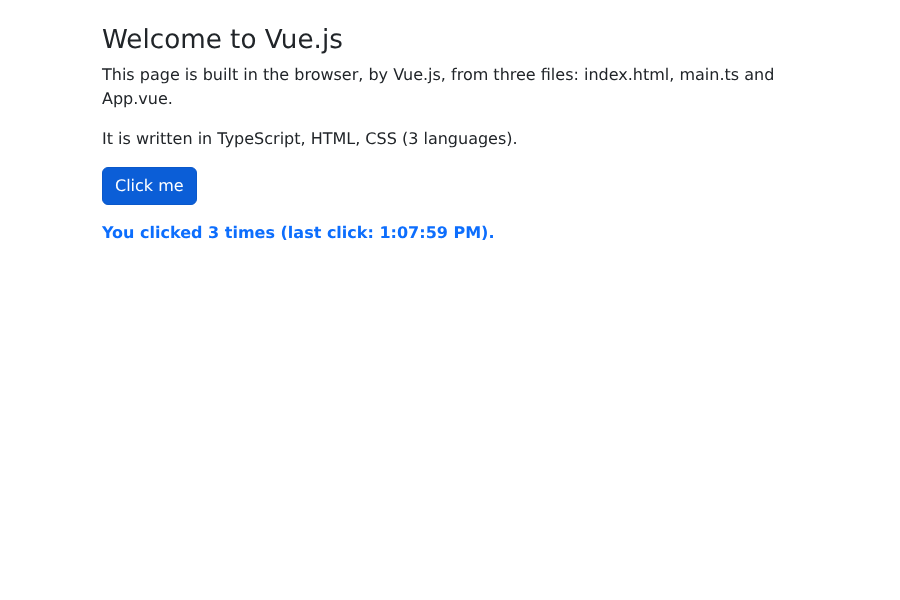
Two experiments to try:
- Edit the title text in [App.vue] and save the file: the page updates immediately, without reloading, and the counter retains its value. This is the hot swap of modules (HMR, [Hot Module Replacement]) from [Vite];
- View the page’s source code (Ctrl-U): it contains only the page [index.html], which is almost empty. The displayed HTML was generated by [Vue.js] within the browser. To view it, use the developer tools inspector (F12, Elements tab) or the [Vue.js devtools] extension, which also displays the components and their data.
2.2. Example 02: Reactivity
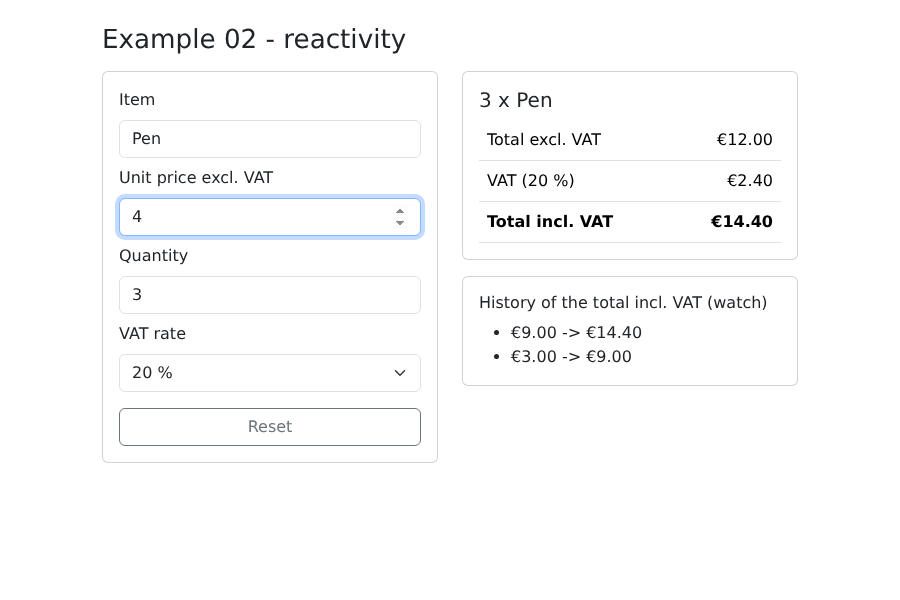
Reactivity is at the heart of [Vue.js]. This example calculates the price including VAT of an item:
| <!--
=========================================================================
02-reactivity/src/App.vue - ref, reactive, computed, watch
-------------------------------------------------------------------------
A small calculator of prices including VAT:
- ref : a simple reactive value (a number, a string...);
- reactive : a reactive OBJECT (all its properties are reactive);
- computed : a value COMPUTED from other ones, recomputed
automatically when they change;
- watch : code executed when a value changes (an "effect").
=========================================================================
-->
<script setup lang="ts">
import { computed, reactive, ref, watch } from 'vue';
// ref: its value is read and written through .value (in the TypeScript code)
const quantity = ref(1);
// reactive: an object, whose properties are read and written directly
const item = reactive({
label: 'Pen',
priceExclVat: 2.5,
vatRate: 20, // in %
});
// computed: never assigned directly, always recomputed. Vue knows which
// data it depends on (quantity, item.priceExclVat, item.vatRate):
// it recomputes it when one of them changes, and only in that case
const totalExclVat = computed(() => quantity.value * item.priceExclVat);
const vatAmount = computed(() => (totalExclVat.value * item.vatRate) / 100);
const totalInclVat = computed(() => totalExclVat.value + vatAmount.value);
// a formatter of amounts in euros, English style (€1,234.50)
const euros = new Intl.NumberFormat('en-US', { style: 'currency', currency: 'EUR' });
// watch: on each change of the total including VAT, we keep a trace
const history = ref<string[]>([]);
watch(totalInclVat, (newValue, oldValue) => {
history.value.unshift(`${euros.format(oldValue)} -> ${euros.format(newValue)}`);
history.value = history.value.slice(0, 5); // the last 5
});
function reset(): void {
quantity.value = 1;
item.priceExclVat = 2.5;
item.vatRate = 20;
}
</script>
<template>
<div class="container py-4">
<h1 class="h3 mb-3">Example 02 - reactivity</h1>
<div class="row g-4">
<div class="col-md-6">
<div class="card p-3">
<!-- v-model links a field to a piece of data, both ways (see example 05) -->
<label class="form-label">Item</label>
<input v-model="item.label" class="form-control mb-2">
<label class="form-label">Unit price excl. VAT</label>
<input v-model.number="item.priceExclVat" type="number" step="0.1" min="0" class="form-control mb-2">
<label class="form-label">Quantity</label>
<input v-model.number="quantity" type="number" min="0" class="form-control mb-2">
<label class="form-label">VAT rate</label>
<select v-model.number="item.vatRate" class="form-select mb-3">
<option :value="5.5">5.5 %</option>
<option :value="10">10 %</option>
<option :value="20">20 %</option>
</select>
<button class="btn btn-outline-secondary" @click="reset">Reset</button>
</div>
</div>
<div class="col-md-6">
<div class="card p-3">
<h2 class="h5">{{ quantity }} x {{ item.label }}</h2>
<table class="table mb-0">
<tbody>
<tr><td>Total excl. VAT</td><td class="text-end">{{ euros.format(totalExclVat) }}</td></tr>
<tr><td>VAT ({{ item.vatRate }} %)</td><td class="text-end">{{ euros.format(vatAmount) }}</td></tr>
<tr class="fw-bold"><td>Total incl. VAT</td><td class="text-end">{{ euros.format(totalInclVat) }}</td></tr>
</tbody>
</table>
</div>
<div class="card p-3 mt-3">
<h2 class="h6">History of the total incl. VAT (watch)</h2>
<ul class="mb-0">
<li v-for="(line, i) in history" :key="i">{{ line }}</li>
</ul>
</div>
</div>
</div>
</div>
</template>
|
- line 17: [ref] accepts a simple value (number, string, boolean);
- lines 20–24: [reactive] makes an entire object reactive: each of its properties is reactive. They are read and written directly ([item.priceExclVat]), without [.value];
- lines 29–31: [computed] defines a value calculated from other values. [Vue.js] stores the data read during the calculation ([quantity], [item.priceExclVat]...) and only recalculates when one of them changes. It is never assigned a value: it is read ([totalExclVat.value]);
- line 34: [Intl.NumberFormat], the number formatting tool integrated into [JavaScript]: [2.5] becomes “€2.50”;
- lines 38–41: [watch] executes code whenever data changes, receiving both the new and old values. It is used for actions such as saving data, sending a request, or writing to the browser’s storage... To display a derived value, we prefer [computed];
- lines 43–46: Simply modify the data; all fields, totals, and the history will update accordingly;
- lines 58–64: [v-model] links each field to a data point, in both directions (see example 05);
- line 77: In the template, a [computed] is used in the same way as a [ref], without [.value];
- line 86: a repeated list for each element of the [history] array (see example 03).
2.3. Example 03: Directives
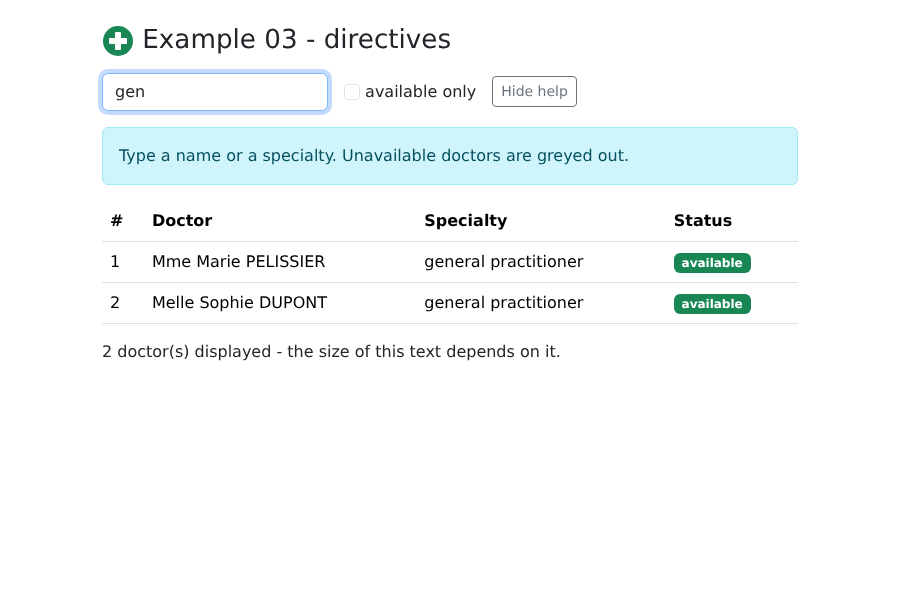
A directive is a special template attribute, prefixed by [v-], that defines the behavior of the element to which it is applied.
| <!--
=========================================================================
03-directives/src/App.vue - the basic directives
-------------------------------------------------------------------------
A DIRECTIVE is a special attribute of the template, prefixed by v-:
- v-bind:attr="expr" (short form :attr="expr"): the value of an HTML
attribute computed by an expression; :class and :style accept
objects and arrays;
- v-if / v-else-if / v-else: the element only exists in the page if
the condition is true;
- v-show: the element always exists, it is only hidden (display:none);
- v-for="x in list": the element is repeated for each x, with a
unique :key that allows Vue to follow each row.
=========================================================================
-->
<script setup lang="ts">
import { computed, ref } from 'vue';
// importing an image: Vite provides its URL (and, in production, an
// optimized copy of the file, with a unique name)
import logoUrl from './assets/doctor.svg';
// a TypeScript interface describes the shape of the objects of the list
interface Doctor {
id: number;
title: string;
firstName: string;
lastName: string;
specialty: string;
available: boolean;
}
const doctors = ref<Doctor[]>([
{ id: 1, title: 'Mme', firstName: 'Marie', lastName: 'PELISSIER', specialty: 'general practitioner', available: true },
{ id: 2, title: 'Mr', firstName: 'Paul', lastName: 'TATOU', specialty: 'pediatrician', available: false },
{ id: 3, title: 'Melle', firstName: 'Sophie', lastName: 'DUPONT', specialty: 'general practitioner', available: true },
]);
const filter = ref(''); // searched text
const onlyAvailable = ref(false);
const showHelp = ref(true);
// the displayed list: a computed, recomputed when the filter changes
const displayedDoctors = computed(() =>
doctors.value.filter(
(m) =>
(!onlyAvailable.value || m.available) &&
`${m.firstName} ${m.lastName} ${m.specialty}`.toLowerCase().includes(filter.value.trim().toLowerCase()),
),
);
</script>
<template>
<div class="container py-4">
<h1 class="h3 mb-3">
<!-- :src: the value of the src attribute is that of the logoUrl variable -->
<img :src="logoUrl" alt="logo" width="32" height="32">
Example 03 - directives
</h1>
<div class="d-flex flex-wrap gap-3 align-items-center mb-3">
<input v-model="filter" class="form-control w-auto" placeholder="search...">
<label class="form-check-label">
<input v-model="onlyAvailable" type="checkbox" class="form-check-input"> available only
</label>
<button class="btn btn-sm btn-outline-secondary" @click="showHelp = !showHelp">
{{ showHelp ? "Hide help" : "Show help" }}
</button>
</div>
<!-- v-show: the paragraph stays in the page, simply hidden -->
<p v-show="showHelp" class="alert alert-info">
Type a name or a specialty. Unavailable doctors are greyed out.
</p>
<!-- v-if / v-else-if / v-else: only one of the three blocks exists at a time -->
<p v-if="doctors.length === 0" class="text-muted">No doctors.</p>
<p v-else-if="displayedDoctors.length === 0" class="text-warning">No doctor matches "{{ filter }}".</p>
<table v-else class="table">
<thead>
<tr><th>#</th><th>Doctor</th><th>Specialty</th><th>Status</th></tr>
</thead>
<tbody>
<!-- v-for: one row per doctor; (m, index) also gives the rank.
:key="m.id": the identity of each row, so that Vue knows
which row to add, move or remove when the list changes -->
<tr v-for="(m, index) in displayedDoctors" :key="m.id" :class="{ 'text-muted': !m.available }">
<td>{{ index + 1 }}</td>
<td>{{ m.title }} {{ m.firstName }} {{ m.lastName }}</td>
<td>{{ m.specialty }}</td>
<td>
<!-- :class with an array: several classes, one of them computed -->
<span :class="['badge', m.available ? 'text-bg-success' : 'text-bg-secondary']">
{{ m.available ? 'available' : 'unavailable' }}
</span>
</td>
</tr>
</tbody>
</table>
<!-- :style with an object: computed CSS properties -->
<p :style="{ fontSize: 12 + displayedDoctors.length * 2 + 'px' }">
{{ displayedDoctors.length }} doctor(s) displayed - the size of this text depends on it.
</p>
</div>
</template>
|
- Line 23: An interface [TypeScript] describes the format of the objects in the list; [ref<Doctor[]>(...)] specifies the data type;
- line 20: an image is imported as a module. [Vite] provides its address; in production, it will create a copy with a unique name (which changes with its content: browsers will never keep an old version in the cache);
- line 43: the displayed list, filtered by the input and the checkbox;
- line 56: [v-bind:src="expression"], abbreviated to [:src="expression"], assigns the value of an expression to the attribute [src]. Without the colon, [src="logoUrl"] would refer to a file named “logoUrl”;
- line 71: [v-show] hides the element ([display: none]) when the condition is false. The element remains on the page;
- Lines 76–78: [v-if], [v-else-if], and [v-else]: Only one of these three elements exists on the page at any given time. We choose [v-show] for an element that is frequently shown and hidden, and [v-if] otherwise;
- Line 86: [v-for] repeats the element for each doctor; [index] is its rank (starting at 0). The attribute [:key="m.id"] gives each row an identity: when the list changes, [Vue.js] knows which rows to add, delete, or move, instead of rebuilding everything from scratch. A key must be unique and stable: we use the object’s identifier, never its rank;
- line 86: [:class] with an object: the class [text-muted] is added if the condition is true;
- line 92: [:class] with an array: multiple classes, including a calculated one;
- line 101: [:style] with an object of calculated properties [CSS] (in [camelCase]).
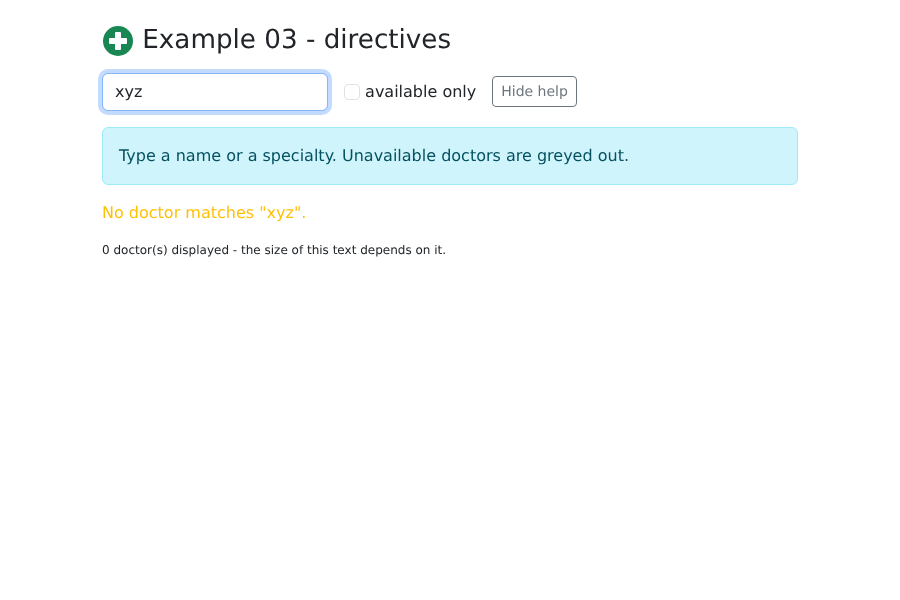
With a filter that returns no results, the [v-else-if] paragraph is displayed:
2.4. Example 04: Events
| <!--
=========================================================================
04-events/src/App.vue - reacting to the user's actions
-------------------------------------------------------------------------
v-on:event="handler" (short form @event="handler"):
- @click="f" calls f(nativeEvent);
- @click="f(3, $event)" calls f with arguments; $event is
the native event of the browser;
- modifiers: @submit.prevent (prevents the classic submission of the
form), @keyup.enter (only the Enter key), @click.stop...
=========================================================================
-->
<script setup lang="ts">
import { ref } from 'vue';
interface Task {
id: number;
label: string;
done: boolean;
}
const tasks = ref<Task[]>([
{ id: 1, label: 'Install Node.js', done: true },
{ id: 2, label: 'Read the chapter on events', done: false },
]);
const newTask = ref('');
const log = ref<string[]>([]);
let nextId = 3;
function trace(message: string): void {
log.value.unshift(`${new Date().toLocaleTimeString()} ${message}`);
}
// called by @submit.prevent: the browser does NOT send the form to the
// server (no page reload), it is our code that acts
function add(): void {
const label = newTask.value.trim();
if (label === '') {
return;
}
tasks.value.push({ id: nextId++, label, done: false });
trace(`added "${label}"`);
newTask.value = '';
}
function remove(task: Task): void {
tasks.value = tasks.value.filter((t) => t.id !== task.id);
trace(`removed "${task.label}"`);
}
// $event: the native event (here a MouseEvent), with its coordinates
function position(event: MouseEvent): void {
trace(`click at (${event.offsetX}, ${event.offsetY})`);
}
</script>
<template>
<div class="container py-4">
<h1 class="h3 mb-3">Example 04 - events</h1>
<!-- @submit.prevent: Enter in the field OR click on the button -->
<form class="d-flex gap-2 mb-3" @submit.prevent="add">
<input v-model="newTask" class="form-control" placeholder="new task" @keyup.esc="newTask = ''">
<button type="submit" class="btn btn-primary">Add</button>
</form>
<ul class="list-group mb-3">
<li v-for="t in tasks" :key="t.id" class="list-group-item d-flex align-items-center gap-2">
<input v-model="t.done" type="checkbox" class="form-check-input" @change="trace(`“${t.label}”: ${t.done ? 'done' : 'to do'}`)">
<span :class="{ 'text-decoration-line-through text-muted': t.done }" class="flex-grow-1">{{ t.label }}</span>
<!-- a handler with an argument: the task of THIS row -->
<button class="btn btn-sm btn-outline-danger" @click="remove(t)">Delete</button>
</li>
</ul>
<div class="area p-3 mb-3 rounded" @click="position($event)">Click in this area</div>
<h2 class="h6">Log</h2>
<ul class="small">
<li v-for="(line, i) in log" :key="i">{{ line }}</li>
</ul>
</div>
</template>
<style scoped>
.area {
background: #e9f2ff;
height: 80px;
cursor: crosshair;
}
</style>
|
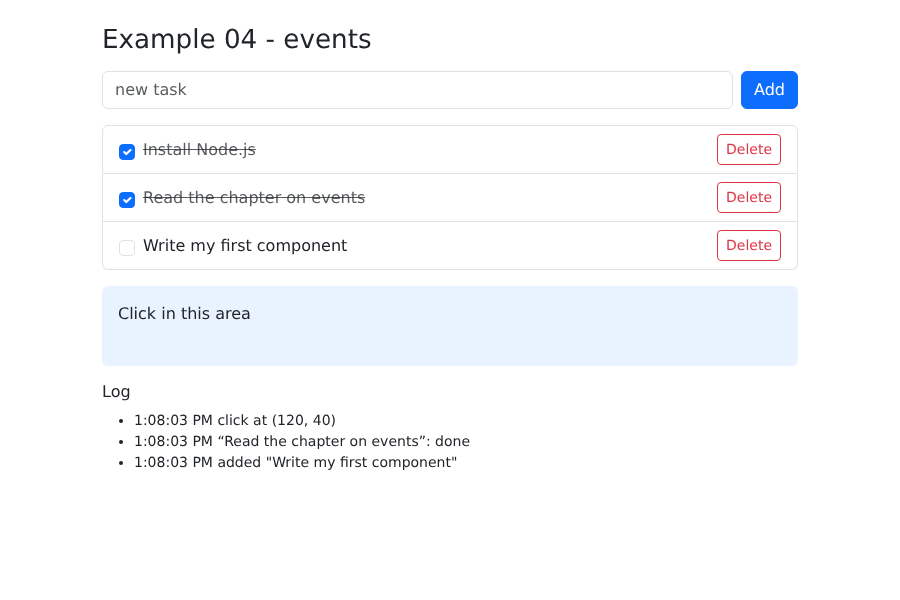
- Line 62: [v-on:submit], abbreviated as [@submit], listens for the [submit] event from the form (pressing Enter in a field or clicking a button). The modifier [.prevent] calls [event.preventDefault()]: the browser does NOT send the form to the server and does not reload the page; the function [add] is the one that executes;
- line 63: a key modifier: only pressing Esc triggers the handler. This is a simple instruction written in the template;
- line 69: a handler can be a function call with arguments;
- line 72: Each button passes ITS task to [remove];
- line 76: [$event] refers to the browser’s native event—in this case, a [MouseEvent]—along with the click coordinates;
- lines 36–43: Adding a task means adding an object to the reactive array; clearing the field means clearing the data to which it is linked;
- lines 46–47: the array is replaced with a filtered copy. [Vue.js] tracks both “in-place” modifications ([push], [splice]) and the complete replacement.
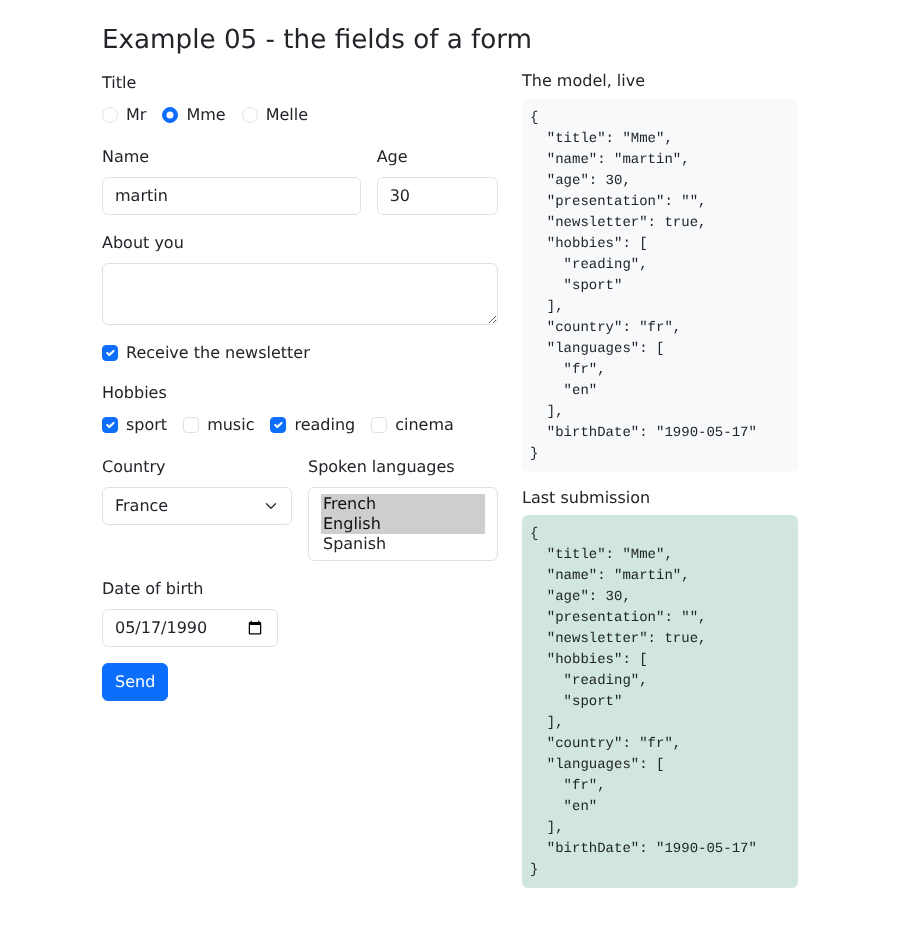
Same form as Example 18 from the [NestJS] course, but everything happens in the browser here:
| <!--
=========================================================================
05-forms/src/App.vue - all the field types, linked by v-model
-------------------------------------------------------------------------
v-model="data" links a form field to a reactive piece of data, in
BOTH directions: typing in the field modifies the data, and modifying the
data (by code) modifies the field. The data received depends on the field:
- text input, textarea -> string
- input + .number -> number
- single checkbox -> boolean
- checkboxes on the same array -> string[] (the checked values)
- radio buttons -> the value of the chosen button
- select / select multiple -> the value / an array of values
- input type="date" -> string "yyyy-MM-dd"
Modifiers: .trim (spaces removed), .number, .lazy (update when
leaving the field rather than on each key).
Same form as example 18 of the NestJS course; but here, no
server: everything happens in the browser.
=========================================================================
-->
<script setup lang="ts">
import { reactive, ref } from 'vue';
const titles = ['Mr', 'Mme', 'Melle'];
const possibleHobbies = ['sport', 'music', 'reading', 'cinema'];
const countries = [
{ code: 'fr', name: 'France' },
{ code: 'be', name: 'Belgium' },
{ code: 'ch', name: 'Switzerland' },
];
// all the values of the form, in ONE reactive object
const form = reactive({
title: 'Mme',
name: '',
age: 30,
presentation: '',
newsletter: false,
hobbies: ['reading'] as string[],
country: 'fr',
languages: [] as string[],
birthDate: '',
});
const sent = ref<string | null>(null);
function send(): void {
// JSON.stringify: what we would send to a server (see example 18)
sent.value = JSON.stringify(form, null, 2);
}
</script>
<template>
<div class="container py-4">
<h1 class="h3 mb-3">Example 05 - the fields of a form</h1>
<div class="row g-4">
<form class="col-md-7" @submit.prevent="send">
<div class="mb-3">
<span class="form-label d-block">Title</span>
<!-- radio buttons: same v-model, one value per button -->
<div v-for="t in titles" :key="t" class="form-check form-check-inline">
<input :id="'title-' + t" v-model="form.title" type="radio" :value="t" class="form-check-input">
<label :for="'title-' + t" class="form-check-label">{{ t }}</label>
</div>
</div>
<div class="row g-3 mb-3">
<div class="col-8">
<label class="form-label" for="name">Name</label>
<!-- .trim: " martin " becomes "martin" -->
<input id="name" v-model.trim="form.name" class="form-control">
</div>
<div class="col-4">
<label class="form-label" for="age">Age</label>
<!-- .number: the data receives a number, not the string "30" -->
<input id="age" v-model.number="form.age" type="number" class="form-control">
</div>
</div>
<div class="mb-3">
<label class="form-label" for="presentation">About you</label>
<textarea id="presentation" v-model="form.presentation" rows="2" class="form-control"></textarea>
</div>
<div class="mb-3 form-check">
<!-- a single checkbox: true / false -->
<input id="newsletter" v-model="form.newsletter" type="checkbox" class="form-check-input">
<label for="newsletter" class="form-check-label">Receive the newsletter</label>
</div>
<div class="mb-3">
<span class="form-label d-block">Hobbies</span>
<!-- several checkboxes on the same array: the checked values -->
<div v-for="h in possibleHobbies" :key="h" class="form-check form-check-inline">
<input :id="'hobby-' + h" v-model="form.hobbies" type="checkbox" :value="h" class="form-check-input">
<label :for="'hobby-' + h" class="form-check-label">{{ h }}</label>
</div>
</div>
<div class="row g-3 mb-3">
<div class="col-6">
<label class="form-label" for="country">Country</label>
<select id="country" v-model="form.country" class="form-select">
<!-- :value: the value transmitted (the code), the displayed text being the name -->
<option v-for="c in countries" :key="c.code" :value="c.code">{{ c.name }}</option>
</select>
</div>
<div class="col-6">
<label class="form-label" for="languages">Spoken languages</label>
<select id="languages" v-model="form.languages" multiple class="form-select" size="3">
<option value="fr">French</option>
<option value="en">English</option>
<option value="es">Spanish</option>
</select>
</div>
</div>
<div class="mb-3">
<label class="form-label" for="birthDate">Date of birth</label>
<input id="birthDate" v-model="form.birthDate" type="date" class="form-control w-auto">
</div>
<button type="submit" class="btn btn-primary">Send</button>
</form>
<div class="col-md-5">
<h2 class="h6">The model, live</h2>
<!-- {{ object }} displays the object in JSON format -->
<pre class="bg-light p-2 rounded small">{{ form }}</pre>
<template v-if="sent">
<h2 class="h6">Last submission</h2>
<pre class="bg-success-subtle p-2 rounded small">{{ sent }}</pre>
</template>
</div>
</div>
</div>
</template>
|
- Lines 33–43: all form values, in a reactive object. The annotations [as string[]] specify to [TypeScript] the type of the arrays, which cannot be inferred from [[]];
- line 62: radio buttons share the same [v-model]; the data receives the value ([:value]) of the selected button;
- line 70: the modifier [.trim] removes leading and trailing spaces;
- line 75: [.number] converts the input to a number. Without it, the data would be set to the string ["30"]: a HTML field contains only text;
- line 84: a checkbox by itself returns a Boolean value;
- Line 91: Multiple checkboxes linked to the same array: it contains the values of the checked checkboxes;
- line 100: for a drop-down list, [:value] is the value transmitted (the country code); the text of the option is simply its label;
- line 105: a multiple-choice list results in an array;
- line 114: a date field returns a string ["yyyy-MM-dd"], regardless of how the browser displays it;
- line 122: [{{ object }}] displays an object in the format JSON: you can see the template change with each keystroke;
- line 49: [JSON.stringify(form, null, 2)] generates the text JSON for an object, indented by 2 spaces. This is what would be sent to a server (see Example 18).
We’ll use the rules from the “Create a patient account” form on the [RdvMedecins] server and verify them in the browser as the user types:
| <!--
=========================================================================
06-validation/src/App.vue - validating a form in the browser
-------------------------------------------------------------------------
The errors are COMPUTED values: they are recomputed on each keystroke.
They are not displayed right away (an empty form covered in red is
unpleasant): only for a field already left ("touched"), or for
all the fields after a submission attempt.
Same rules as the RdvMedecins server ("Create a patient account" form):
title in the list, first name and last name required (20 characters at most),
login in lower case, password of at least 6 characters, confirmation.
WARNING: this validation is only a COMFORT for the user (an
immediate answer, without a round trip to the server). It protects
nothing: anyone can send the server a request built by
hand (curl...). The server therefore ALWAYS revalidates everything (see example 20).
=========================================================================
-->
<script setup lang="ts">
import { computed, reactive, ref } from 'vue';
const TITLES = ['Mr', 'Mme', 'Melle'];
const LOGIN_FORMAT = /^[a-z0-9._-]{1,30}$/;
const PASSWORD_MIN = 6;
type Field = 'title' | 'firstName' | 'lastName' | 'login' | 'password' | 'confirmation';
const input = reactive<Record<Field, string>>({
title: 'Mr',
firstName: '',
lastName: '',
login: '',
password: '',
confirmation: '',
});
// the fields already left by the user (blur event)
const touched = reactive(new Set<Field>());
const submitAttempted = ref(false);
const success = ref(false);
// the error of each field ('' = no error), recomputed on each keystroke
const errors = computed<Record<Field, string>>(() => ({
title: TITLES.includes(input.title) ? '' : 'Choose a title from the list.',
firstName: required(input.firstName, 'The first name') || maximum(input.firstName, 'The first name', 20),
lastName: required(input.lastName, 'The last name') || maximum(input.lastName, 'The last name', 20),
login:
required(input.login, 'The login') ||
(LOGIN_FORMAT.test(input.login.trim())
? ''
: 'Unaccented lower-case letters, digits, dot, hyphen, underscore.'),
password:
required(input.password, 'The password') ||
(input.password.length < PASSWORD_MIN ? `At least ${PASSWORD_MIN} characters.` : ''),
confirmation: input.confirmation === input.password ? '' : 'The confirmation does not match the password.',
}));
const formValid = computed(() => Object.values(errors.value).every((e) => e === ''));
function required(value: string, name: string): string {
return value.trim() === '' ? `${name} is required.` : '';
}
function maximum(value: string, name: string, max: number): string {
return value.trim().length > max ? `${name} must not exceed ${max} characters.` : '';
}
// the error to DISPLAY for a field: only if it has been touched, or after
// a submission attempt
function visibleError(field: Field): string {
return touched.has(field) || submitAttempted.value ? errors.value[field] : '';
}
function send(): void {
submitAttempted.value = true;
success.value = formValid.value;
}
</script>
<template>
<div class="container py-4" style="max-width: 640px">
<h1 class="h3 mb-3">Example 06 - form validation</h1>
<!-- novalidate: the browser's own validation is disabled, to
display OUR messages, in OUR style -->
<form class="card p-4" novalidate @submit.prevent="send">
<div class="mb-3">
<label class="form-label" for="title">Title</label>
<select id="title" v-model="input.title" class="form-select" :class="{ 'is-invalid': visibleError('title') }">
<option v-for="t in TITLES" :key="t">{{ t }}</option>
</select>
</div>
<div class="row g-3 mb-3">
<div class="col-sm-6">
<label class="form-label" for="firstName">First name</label>
<!-- @blur: the user leaves the field, which becomes "touched";
the Bootstrap class is-invalid frames it in red and makes
the following .invalid-feedback appear -->
<input id="firstName" v-model="input.firstName" class="form-control"
:class="{ 'is-invalid': visibleError('firstName') }" @blur="touched.add('firstName')">
<div class="invalid-feedback">{{ visibleError('firstName') }}</div>
</div>
<div class="col-sm-6">
<label class="form-label" for="lastName">Last name</label>
<input id="lastName" v-model="input.lastName" class="form-control"
:class="{ 'is-invalid': visibleError('lastName') }" @blur="touched.add('lastName')">
<div class="invalid-feedback">{{ visibleError('lastName') }}</div>
</div>
</div>
<div class="mb-3">
<label class="form-label" for="login">Login</label>
<input id="login" v-model="input.login" class="form-control" autocomplete="username"
:class="{ 'is-invalid': visibleError('login'), 'is-valid': touched.has('login') && !errors.login }"
@blur="touched.add('login')">
<div class="invalid-feedback">{{ visibleError('login') }}</div>
</div>
<div class="row g-3 mb-4">
<div class="col-sm-6">
<label class="form-label" for="password">Password</label>
<input id="password" v-model="input.password" type="password" class="form-control" autocomplete="new-password"
:class="{ 'is-invalid': visibleError('password') }" @blur="touched.add('password')">
<div class="invalid-feedback">{{ visibleError('password') }}</div>
</div>
<div class="col-sm-6">
<label class="form-label" for="confirmation">Confirmation</label>
<input id="confirmation" v-model="input.confirmation" type="password" class="form-control" autocomplete="new-password"
:class="{ 'is-invalid': visibleError('confirmation') }" @blur="touched.add('confirmation')">
<div class="invalid-feedback">{{ visibleError('confirmation') }}</div>
</div>
</div>
<button type="submit" class="btn btn-primary">Create the account</button>
<div v-if="submitAttempted && !formValid" class="alert alert-danger mt-3 mb-0">The form contains errors.</div>
<div v-if="success" class="alert alert-success mt-3 mb-0">Valid form: it could be sent to the server.</div>
</form>
</div>
</template>
|
- Line 27: the type of the field names. [Record<Field, string>] is an object with exactly these properties: a typo in a field name would be detected at compile time;
- line 39: the fields the user has already left. A reactive [Set]: [touched.add(...)] updates the page;
- lines 44–57: the errors in the fields, recalculated with each keystroke. An empty string means “no error”; [a || b] returns [b] when [a] is empty: this allows us to chain the checks for a field, with the first one that fails triggering the message;
- line 59: true if there are no errors;
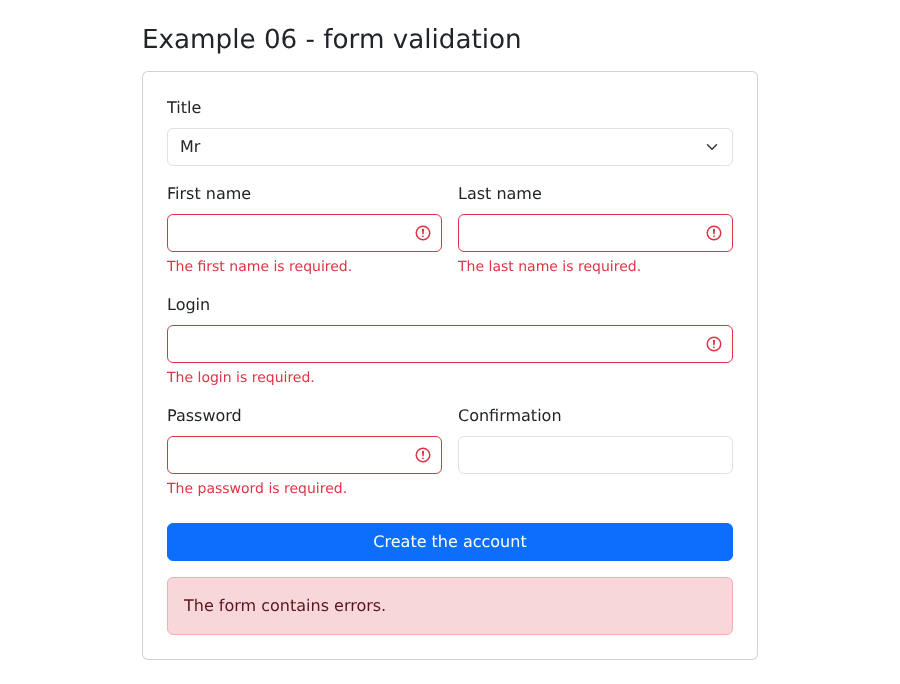
- lines 70–72: a field’s error is displayed only if it has been “touched,” or after an attempt to submit. A blank form highlighted in red before you’ve even started would be unpleasant;
- line 85: [novalidate] disables the browser’s controls (attribute [required]...), so that only our messages are displayed, in our style;
- line 99: the [blur] event: the user leaves the field;
- line 99: the class [Bootstrap] [is-invalid] frames the field in red and displays the [<div class="invalid-feedback">] that follows it;
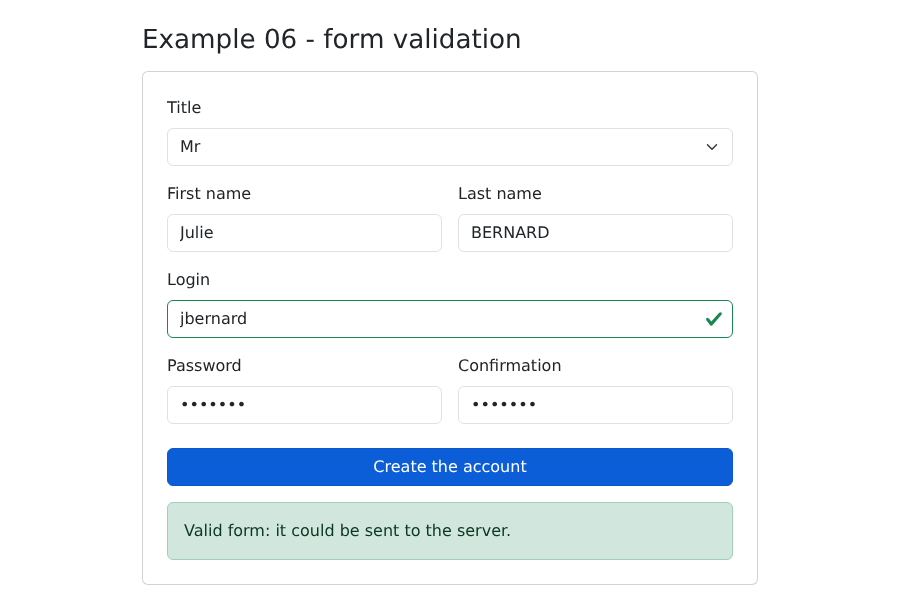
- line 112: [is-valid], conversely, frames it in green.
After clicking “Create the account,” the form is empty:
then, once the form is filled out correctly:
An important note: this validation is merely a convenience. It responds immediately, without a round trip to the server, but it provides no protection: anyone can send a manually crafted request to the server (using [curl], for example), without going through our pages. The server must therefore revalidate what it receives. In Example 20, and later in the case study, we’ll look at another approach: letting the server handle validation and display messages.