6. Client-side JavaScript validation
In the previous chapter, we looked at server-side validation. Let’s return to the architecture of a Spring MVC application:
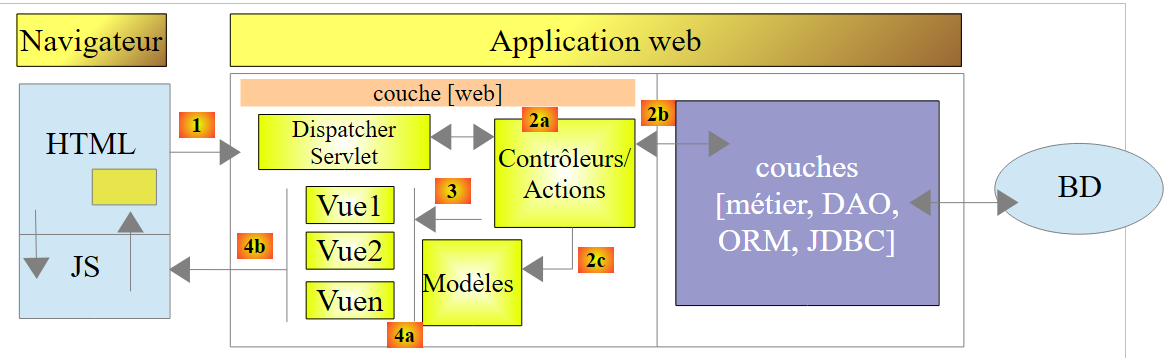 |
DB
So far, the pages sent to the client did not contain any JavaScript. We will now explore this technology, which will initially allow us to perform client-side validation. The principle is as follows:
- JavaScript posts the values to the web server;
- and so before this POST, it can check the validity of the data and prevent the POST if the data is invalid;
We will use the form that we validated on the server side. We will now offer the option to validate it both on the client side and on the server side.
Note: This is a complex topic. Readers not interested in this subject can skip directly to paragraph 7.
6.1. Project Features
We present a few views of the project to showcase its features. The initial page is accessed via the URL [http://localhost:8080/js01.html]
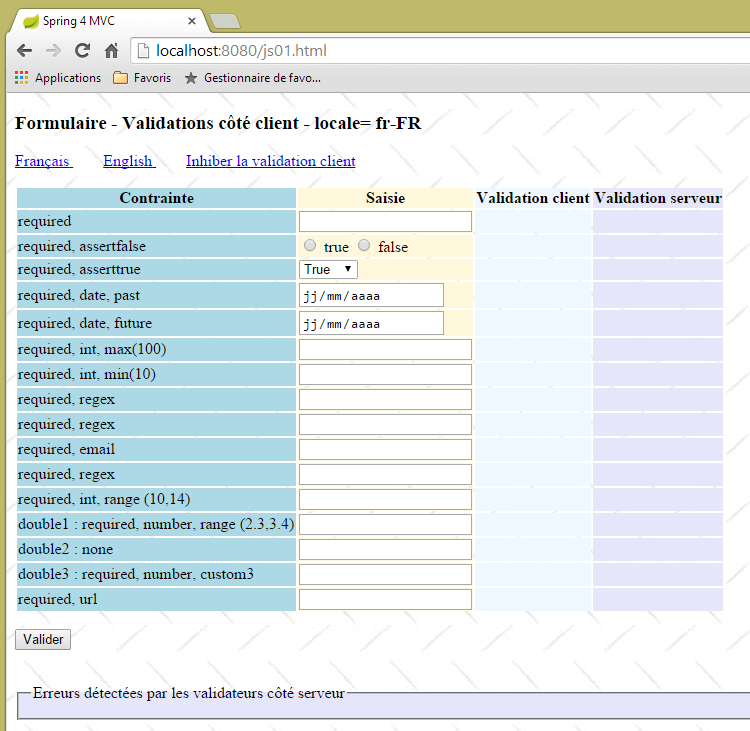 |
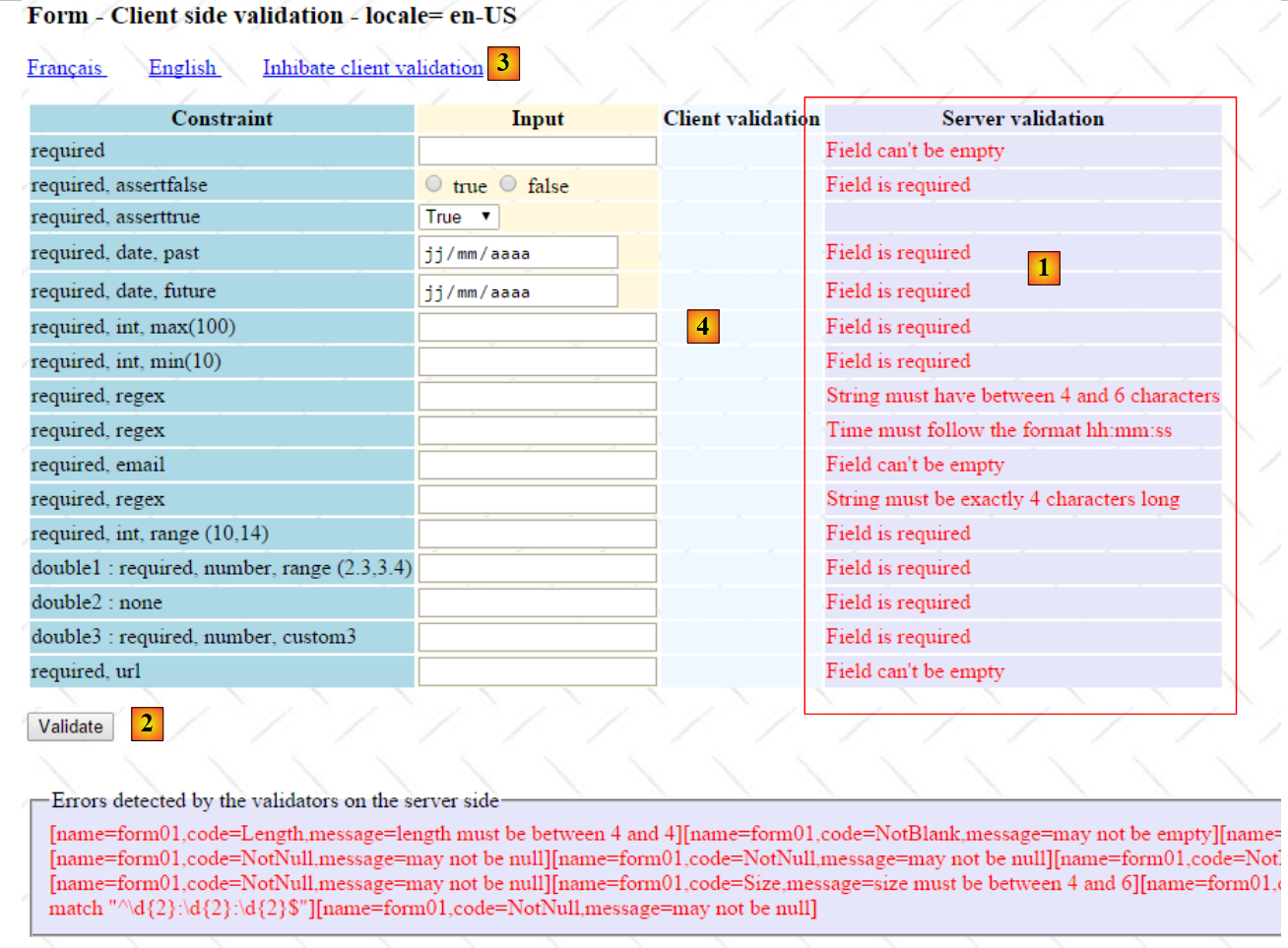
Validations have been implemented on both sides: client and server. Since the POST request only occurs if the values have been deemed valid on the client side, server-side validations always succeed. We have therefore provided a link to disable client-side validations. When in this mode, the behavior is the same as what we have already studied. Here is an example:
123 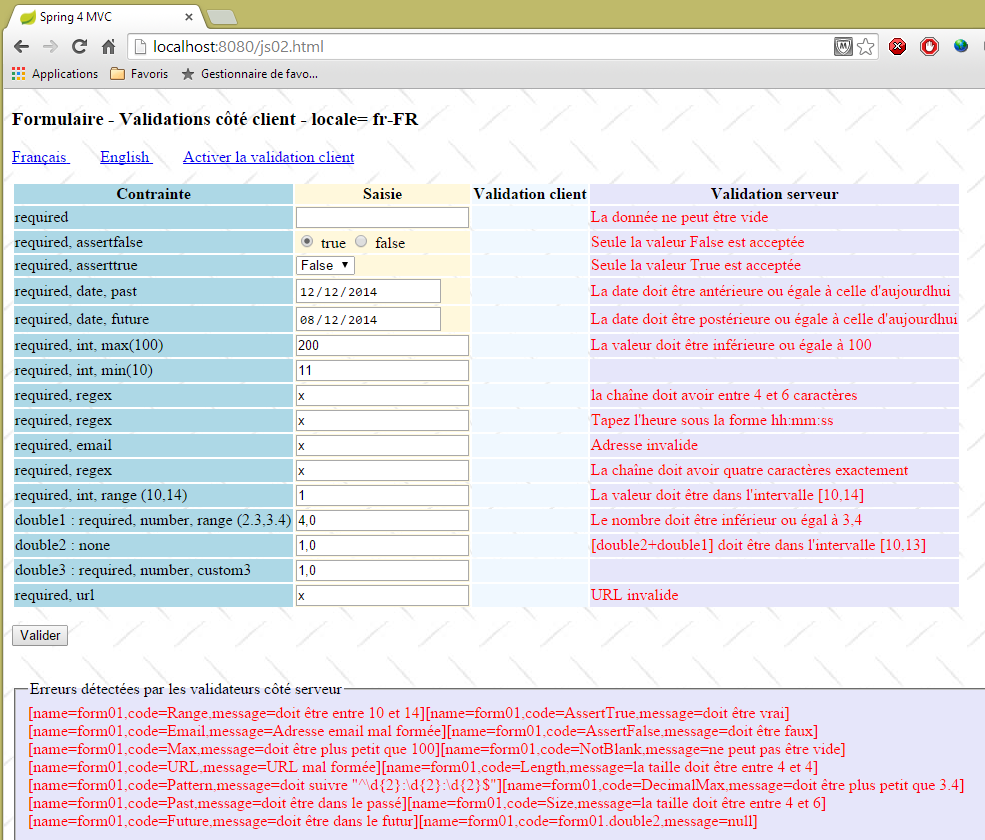 |
- in [1], the entered values;
- in [2], the error messages related to the entries;
- in [3], a summary of the errors, with the following for each:
- the name of the validated field,
- the error code,
- the default message for that error code;
Now, let’s enable client-side validation:
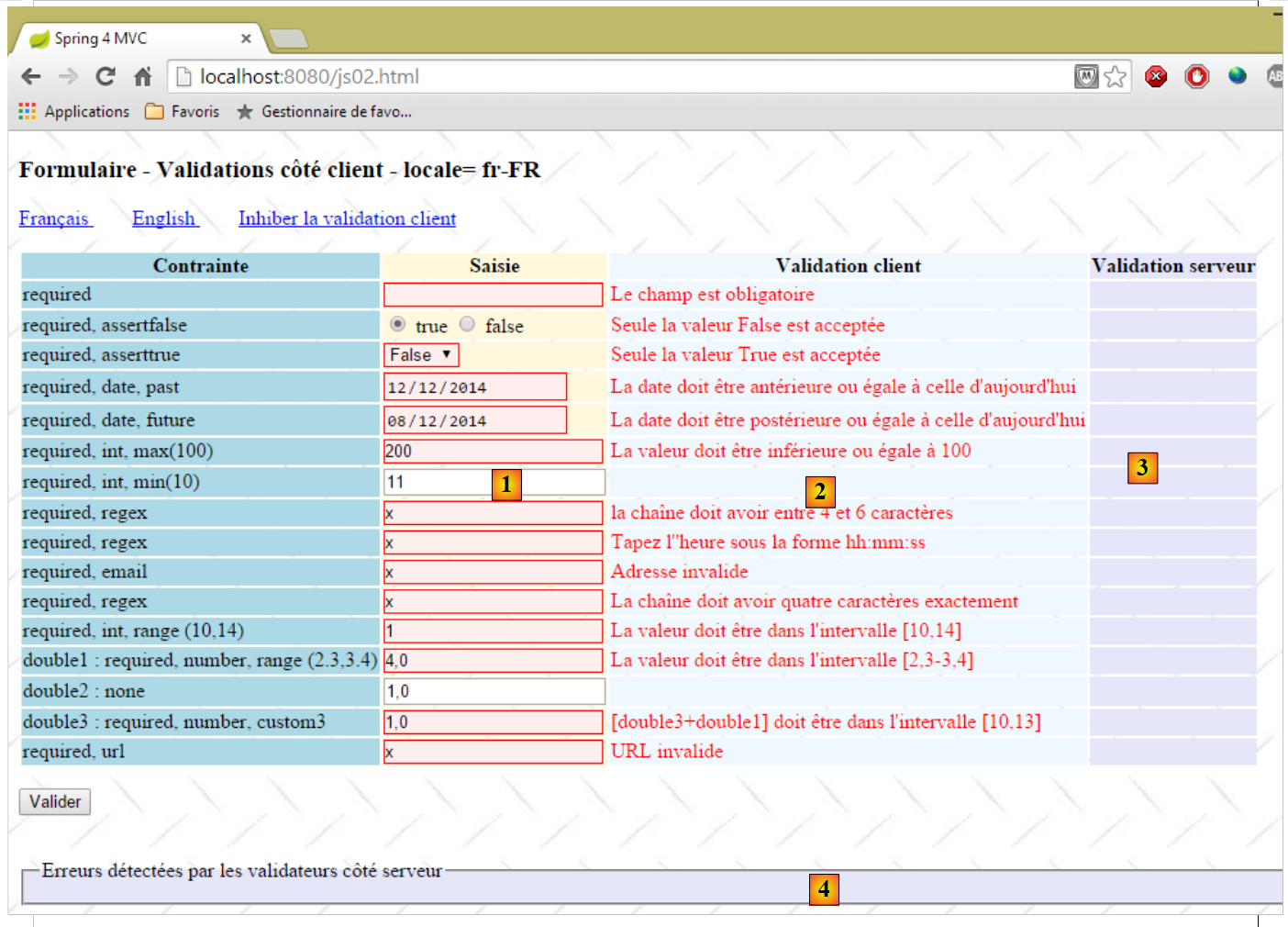 |
- in [1], the entered values. Note that incorrect entries have a specific style;
- in [2], the error messages associated with the incorrect entries. They are identical to those generated by the server;
- in [3-4], there is nothing there because as long as there are incorrect entries, the POST request to the server does not take place;
6.2. Server-side validation
6.2.1. Configuration
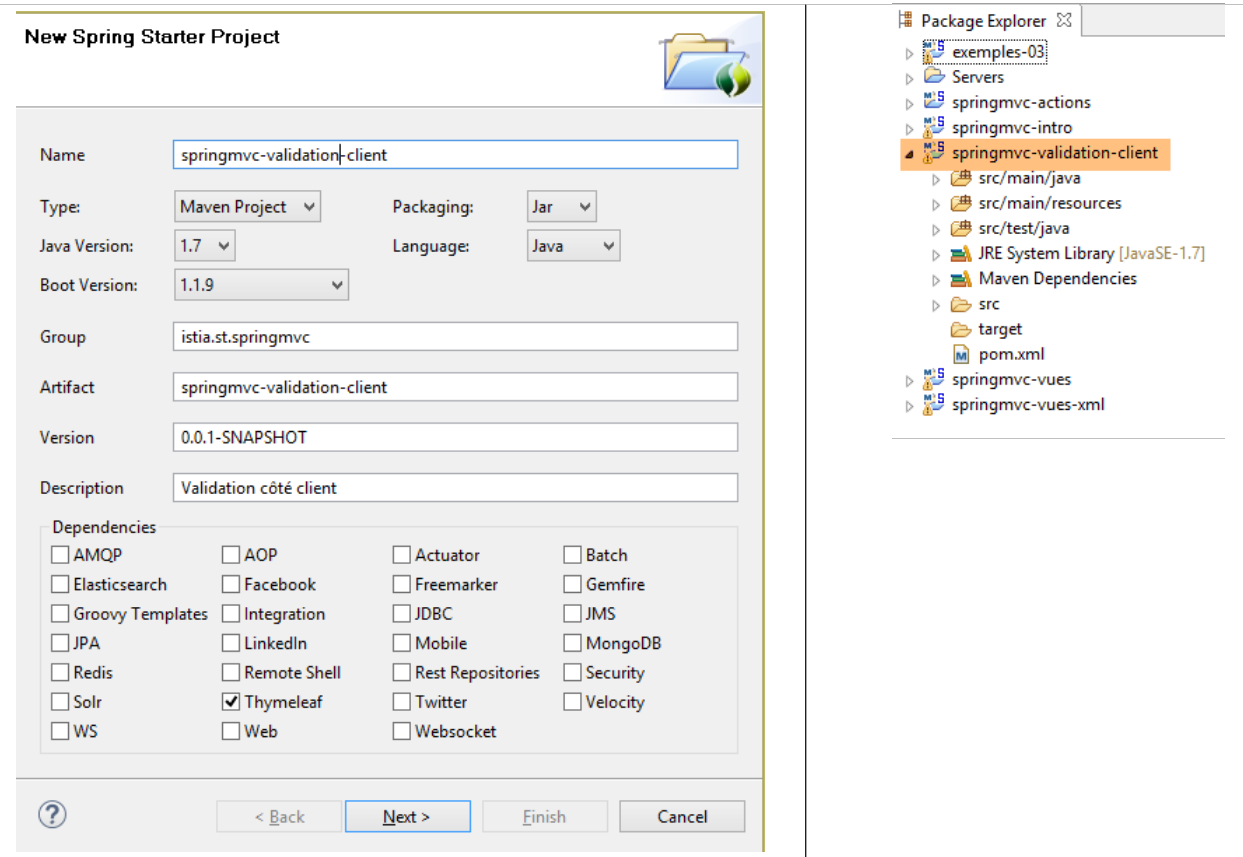
We start by creating a new Maven project [springmvc-validation-client]:
 |
We develop the project as follows:
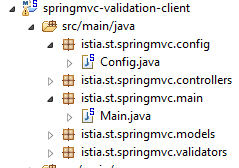 |
The [Config] class configures the project. It is identical to what it was in the previous projects:
package istia.st.springmvc.config;


import java.util.Locale;

import org.springframework.boot.autoconfigure.EnableAutoConfiguration;
import org.springframework.context.MessageSource;
import org.springframework.context.annotation.Bean;
import org.springframework.context.annotation.ComponentScan;
import org.springframework.context.annotation.Configuration;
import org.springframework.context.support.ResourceBundleMessageSource;
import org.springframework.web.servlet.config.annotation.InterceptorRegistry;
import org.springframework.web.servlet.config.annotation.WebMvcConfigurerAdapter;
import org.springframework.web.servlet.i18n.CookieLocaleResolver;
import org.springframework.web.servlet.i18n.LocaleChangeInterceptor;
import org.thymeleaf.spring4.SpringTemplateEngine;
import org.thymeleaf.spring4.templateresolver.SpringResourceTemplateResolver;

@Configuration
@ComponentScan({ "istia.st.springmvc.controllers", "istia.st.springmvc.models" })
@EnableAutoConfiguration
public class Config extends WebMvcConfigurerAdapter {
    @Bean
    public MessageSource messageSource() {
        ResourceBundleMessageSource messageSource = new ResourceBundleMessageSource();
        messageSource.setBasename("i18n/messages");
        return messageSource;
    }

    @Bean
    public LocaleChangeInterceptor localeChangeInterceptor() {
        LocaleChangeInterceptor localeChangeInterceptor = new LocaleChangeInterceptor();
        localeChangeInterceptor.setParamName("lang");
        return localeChangeInterceptor;
    }

    @Override
    public void addInterceptors(InterceptorRegistry registry) {
        registry.addInterceptor(localeChangeInterceptor());
    }

    @Bean
    public CookieLocaleResolver localeResolver() {
        CookieLocaleResolver localeResolver = new CookieLocaleResolver();
        localeResolver.setCookieName("lang");
        localeResolver.setDefaultLocale(new Locale("fr"));
        return localeResolver;
    }

    @Bean
    public SpringResourceTemplateResolver templateResolver() {
        SpringResourceTemplateResolver templateResolver = new SpringResourceTemplateResolver();
        templateResolver.setPrefix("classpath:/templates/");
        templateResolver.setSuffix(".xml");
        templateResolver.setTemplateMode("HTML5");
        templateResolver.setCacheable(true);
        templateResolver.setCharacterEncoding("UTF-8");
        return templateResolver;
    }

    @Bean
    SpringTemplateEngine templateEngine(SpringResourceTemplateResolver templateResolver) {
        SpringTemplateEngine templateEngine = new SpringTemplateEngine();
        templateEngine.setTemplateResolver(templateResolver);
        return templateEngine;
    }

}
The [Main] class is the project's executable class:
package istia.st.springmvc.main;

import istia.st.springmvc.config.Config;

import java.util.Arrays;

import org.springframework.boot.SpringApplication;
import org.springframework.context.ApplicationContext;

public class Main {
    public static void main(String[] args) {
        // launch the application
        ApplicationContext context = SpringApplication.run(Config.class, args);
        // displays the list of beans found by Spring
        System.out.println("Liste des beans Spring");
        String[] beanNames = context.getBeanDefinitionNames();
        Arrays.sort(beanNames);
        for (String beanName : beanNames) {
            System.out.println(beanName);
        }
    }
}
- Line 13: Spring Boot is launched with the [Config] configuration file;
- lines 15–20: For this example, we show how to display the list of objects managed by Spring. This can be useful if you ever feel that Spring isn’t managing one of your components. It’s a way to verify this. It’s also a way to verify the autoconfiguration performed by Spring Boot. On the console, you’ll see a list similar to the following:
We have highlighted the objects defined in the [Config] class.
6.2.2. The form model
Let’s continue exploring the project:
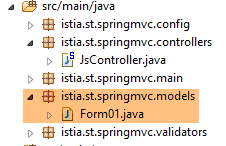 |
The [Form01] class is the class that will receive the posted values. It is as follows:
package istia.st.springmvc.models;

import java.util.Date;

import javax.validation.constraints.AssertFalse;
import javax.validation.constraints.AssertTrue;
import javax.validation.constraints.DecimalMax;
import javax.validation.constraints.DecimalMin;
import javax.validation.constraints.Future;
import javax.validation.constraints.Max;
import javax.validation.constraints.Min;
import javax.validation.constraints.NotNull;
import javax.validation.constraints.Past;
import javax.validation.constraints.Pattern;
import javax.validation.constraints.Size;

import org.hibernate.validator.constraints.Email;
import org.hibernate.validator.constraints.Length;
import org.hibernate.validator.constraints.NotBlank;
import org.hibernate.validator.constraints.Range;
import org.hibernate.validator.constraints.URL;
import org.springframework.format.annotation.DateTimeFormat;

public class Form01 {

    // posted values
    @NotNull
    @AssertFalse
    private Boolean assertFalse;

    @NotNull
    @AssertTrue
    private Boolean assertTrue;

    @NotNull
    @Future
    @DateTimeFormat(pattern = "yyyy-MM-dd")
    private Date dateInFuture;

    @NotNull
    @Past
    @DateTimeFormat(pattern = "yyyy-MM-dd")
    private Date dateInPast;

    @NotNull
    @Max(value = 100)
    private Integer intMax100;

    @NotNull
    @Min(value = 10)
    private Integer intMin10;

    @NotNull
    @NotBlank
    private String strNotEmpty;

    @NotNull
    @Size(min = 4, max = 6)
    private String strBetween4and6;

    @NotNull
    @Pattern(regexp = "^\\d{2}:\\d{2}:\\d{2}$")
    private String hhmmss;

    @NotNull
    @Email
    @NotBlank
    private String email;

    @NotNull
    @Length(max = 4, min = 4)
    private String str4;

    @Range(min = 10, max = 14)
    @NotNull
    private Integer int1014;

    @NotNull
    @DecimalMax(value = "3.4")
    @DecimalMin(value = "2.3")
    private Double double1;

    @NotNull
    private Double double2;

    @NotNull
    private Double double3;

    @URL
    @NotBlank
    private String url;

    // customer validation
    private boolean clientValidation = true;
    // local
    private String lang;
    ...
}
We see validators we’ve encountered before. We’ll also introduce the concept of custom validation. This is a type of validation that cannot be handled by a predefined validator. Here, we’ll require that [double1+double2] be in the range [10,13].
6.2.3. The controller
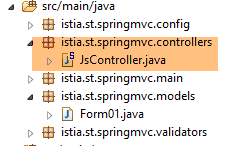
The controller [JsController] is as follows:
 |
package istia.st.springmvc.controllers;

import istia.st.springmvc.models.Form01;
...

@Controller
public class JsController {

    @RequestMapping(value = "/js01", method = RequestMethod.GET, produces = "text/html; charset=UTF-8")
    public String js01(Form01 formulaire, Locale locale, Model model) {
        setModel(formulaire, model, locale, null);
        return "vue-01";
    }
...

    // preparing the view-01 model
    private void setModel(Form01 formulaire, Model model, Locale locale, String message) {
...
    }
}
- line 9, the action [/js01];
- line 10: an object of type [Form01] is instantiated and automatically placed in the model, associated with the key [form01];
- line 10: the locale and the model are injected into the parameters;
- line 11: with this information, the model is prepared;
- line 12: the view [vue-01.xml] is displayed;
The [setModel] method is as follows:
    // preparing the view-01 model
    private void setModel(Form01 formulaire, Model model, Locale locale, String message) {
        // we only manage fr-FR, en-US locales
        String language = locale.getLanguage();
        String country = null;
        if (language.equals("fr")) {
            country = "FR";
            formulaire.setLang("fr_FR");
        }
        if (language.equals("en")) {
            country = "US";
            formulaire.setLang("en_US");
        }
        model.addAttribute("locale", String.format("%s-%s", language, country));
        // any message
        if (message != null) {
            model.addAttribute("message", message);
        }
}
- The purpose of the [setModel] method is to add the following to the model:
- information about the locale,
- the message passed as the last parameter;
- line 14: we put information about the locale (language, country) into the model;
- lines 16–18: any message passed as a parameter is placed in the locale;
- lines 8, 12: locale information is also stored in the [Form01] form. JavaScript will use this information;
The values entered in the [vue-01.xml] form will be posted to the following [/js02] action:
    @RequestMapping(value = "/js02", method = RequestMethod.POST, produces = "text/html; charset=UTF-8")
    public String js02(@Valid Form01 formulaire, BindingResult result, RedirectAttributes redirectAttributes, Locale locale, Model model) {
        Form01Validator validator = new Form01Validator(10, 13);
        validator.validate(formulaire, result);
        ...
}
- Line 2: The annotation [@Valid Form01 form] ensures that the posted values will be submitted to the validators of the [Form01] class. We know that there is a specific validation [double1+double2] within the range [10,13]. When we reach line 3, this validation has not yet been performed;
- line 3: we create the following [Form01Validator] object:
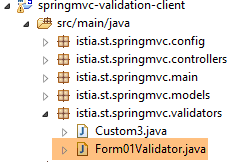 |
package istia.st.springmvc.validators;

import istia.st.springmvc.models.Form01;

import org.springframework.validation.Errors;
import org.springframework.validation.Validator;

public class Form01Validator implements Validator {

    // validation interval
    private double min;
    private double max;

    // manufacturer
    public Form01Validator(double min, double max) {
        this.min = min;
        this.max = max;
    }

    @Override
    public boolean supports(Class<?> classe) {
        return Form01.class.equals(classe);
    }

    @Override
    public void validate(Object form, Errors errors) {
        // validated object
        Form01 form01 = (Form01) form;
        // the value of [double1]
        Double double1 = form01.getDouble1();
        if (double1 == null) {
            return;
        }
        // the value of [double2]
        Double double2 = form01.getDouble2();
        if (double2 == null) {
            return;
        }
        // [double1+double2]
        double somme = double1 + double2;
        // validation
        if (somme < min || somme > max) {
            errors.rejectValue("double2", "form01.double2", new Double[] { min, max }, null);
        }
    }

}
- line 8: to implement a specific validation, we create a class that implements the Spring [Validator] interface. This interface has two methods: [supports] on line 21 and [validate] on line 26;
- lines 21–23: the [supports] method takes an object of type [Class]. It must return true to indicate that it supports this class, false otherwise;
- line 22: we specify that the [Form01Validator] class validates only objects of type [Form01];
- lines 15–18: Recall that we want to implement the constraint [double1+double2] within the interval [10,13]. Rather than limiting ourselves to this interval, we will check the constraint [double1+double2] within the interval [min, max]. This is why we have a constructor with these two parameters;
- line 26: the [validate] method is called with an instance of the validated object—in this case, an instance of [Form01]—and with the collection of currently known errors [Errors errors]. If the validation performed by the [validate] method fails, it must create a new element in the [Errors errors] collection;
- line 43: validation has failed. We add an element to the [Errors errors] collection using the [Errors.rejectValue] method, whose parameters are as follows:
- parameter 1: usually the name of the field with the error. Here we have tested the fields [double1, double2]. We can use either one,
- the associated error message, or more precisely its key in the externalized message files:
[messages_fr.properties]
form01.double2=[double2+double1] doit être dans l''intervalle [{0},{1}]
[messages_en.properties]
form01.double2=[double2+double1] must be in [{0},{1}
Here we have messages parameterized by {0} and {1}. Therefore, two values must be provided for this message. This is what the third parameter of the [Errors.rejectValue] method does.
- The fourth parameter is a default message for the error;
Let’s return to the [/js02] action:
    @RequestMapping(value = "/js02", method = RequestMethod.POST, produces = "text/html; charset=UTF-8")
    public String js02(@Valid Form01 formulaire, BindingResult result, RedirectAttributes redirectAttributes, Locale locale, Model model) {
        Form01Validator validator = new Form01Validator(10, 13);
        validator.validate(formulaire, result);
        if (result.hasErrors()) {
            StringBuffer buffer = new StringBuffer();
            for (ObjectError error : result.getAllErrors()) {
                buffer.append(String.format("[name=%s,code=%s,message=%s]", error.getObjectName(), error.getCode(), error.getDefaultMessage()));
            }
            setModel(formulaire, model, locale, buffer.toString());
            return "vue-01";
        } else {
            redirectAttributes.addFlashAttribute("form01", formulaire);
            return "redirect:/js01.html";
        }
}
- line 4: the validator [Form01Validator] is executed with the following parameters:
- parameter 1: the object being validated,
- parameter 2: the list of errors for this object. This is the [BindingResult result] object passed as a parameter to the action. If validation fails, this object will have one more error;
- line 5: we check if there are any validation errors;
- lines 7–10: we iterate through the list of errors to store the following for each one:
- the name of the validated object,
- its error code,
- its default error message;
- line 10: using this information, we construct the view template [vue-01.xml]. This time, there is a message—the concatenated and abbreviated version of the various error messages;
- lines 12–15: if all posted values are valid, redirect the client to the [/js01] action by setting the posted values as Flash attributes;
6.2.4. The View
The view [view-01.xml] is complex. We will only present a small part of it:
<!DOCTYPE HTML>
<html xmlns:th="http://www.thymeleaf.org">
    <head>
        <title>Spring 4 MVC</title>
        <meta http-equiv="Content-Type" content="text/html; charset=UTF-8" />
        <link rel="stylesheet" href="/css/form01.css" />
        <script type="text/javascript" src="/js/jquery/jquery-1.10.2.min.js"></script>
        ...
    </head>
    <body>
        <!-- title -->
        <h3>
            <span th:text="#{form01.title}"></span>
            <span th:text="${locale}"></span>
        </h3>
        <!-- menu -->
        <p>
...
        </p>
        <!-- form -->
        <form action="/someURL" th:action="@{/js02.html}" method="post" th:object="${form01}" name="form" id="form">
            <table>
                <thead>
                    <tr>
                        <th class="col1" th:text="#{form01.col1}">Contrainte</th>
                        <th class="col2" th:text="#{form01.col2}">Saisie</th>
                        <th class="col3" th:text="#{form01.col3}">Validation client</th>
                        <th class="col4" th:text="#{form01.col4}">Validation serveur</th>
                    </tr>
                </thead>
                <tbody>
                    <!-- required -->
                    <tr>
                        <td class="col1">required</td>
                        <td class="col2">
                            <input type="text" th:field="*{strNotEmpty}" data-val="true" th:attr="data-val-required=#{NotNull}" />
                        </td>
                        <td class="col3">
                            <span class="field-validation-valid" data-valmsg-for="strNotEmpty" data-valmsg-replace="true"></span>
                        </td>
                        <td class="col4">
                            <span th:if="${#fields.hasErrors('strNotEmpty')}" th:errors="*{strNotEmpty}" class="error">Donnée erronée</span>
                        </td>
                    </tr>
...
                </tbody>
            </table>
            <p>
            <!-- validation button -->
            <input type="submit" th:value="#{form01.valider}" value="Valider" onclick="javascript:postForm01()" />
            </p>
        </form>
        <!-- server-side validator message -->
        <br/>
        <fieldset class="fieldset">
            <legend>
                <span th:text="#{server.error.message}"></span>
            </legend>
            <span th:text="${message}" class="error"></span>
        </fieldset>
    </body>
</html>
This page uses a number of messages found in the externalized message files:
[messages_fr.properties]
form01.title=Formulaire - Validations côté client - locale=
form01.col1=Contrainte
form01.col2=Saisie
form01.col3=Validation client
form01.col4=Validation serveur
form01.valider=Valider
server.error.message=Erreurs détectées par les validateurs côté serveur
[messages_en.properties]
form01.title=Form - Client side validation - locale=
form01.col1=Constraint
form01.col2=Input
form01.col3=Client validation
form01.col4=Server validation
form01.valider=Validate
server.error.message=Errors detected by the validators on the server side
Let's go back to the page code:
- line 8: a large number of JavaScript library imports that we can ignore here;
- line 14: displays the locale set in the template by the server;
- line 59: displays the message set in the template by the server;
The code in lines 33–44 is new. Let’s examine it:
<!-- required -->
<tr>
  <td class="col1">required</td>
  <td class="col2">
    <input type="text" th:field="*{strNotEmpty}" data-val="true" th:attr="data-val-required=#{NotNull}" />
  </td>
  <td class="col3">
    <span class="field-validation-valid" data-valmsg-for="strNotEmpty" data-valmsg-replace="true"></span>
  </td>
  <td class="col4">
    <span th:if="${#fields.hasErrors('strNotEmpty')}" th:errors="*{strNotEmpty}" class="error">Donnée erronée</span>
  </td>
</tr>
The simplest approach might be to look at the HTML code generated by this Thymeleaf segment:
<!-- required -->
<tr>
  <td class="col1">required</td>
  <td class="col2">
    <input type="text" data-val="true" data-val-required="Le champ est obligatoire" id="strNotEmpty" name="strNotEmpty" value="" />
  </td>
  <td class="col3">
    <span class="field-validation-valid" data-valmsg-for="strNotEmpty" data-valmsg-replace="true"></span>
  </td>
  <td class="col4">

  </td>
</tr>
We will use a client-side validation library called [jquery.validate]. All [data-x] attributes are for this library. When client-side validation is disabled, these attributes will not be used. So for now, there is no need to understand them. We can simply focus on the following Thymeleaf line:
<input type="text" th:field="*{strNotEmpty}" data-val="true" th:attr="data-val-required=#{NotNull}" />
which generates the following HTML line:
<input type="text" data-val="true" data-val-required="Le champ est obligatoire" id="strNotEmpty" name="strNotEmpty" value="" />
As mentioned above, there is an issue with generating the attribute [data-val-required="This field is required"]. This is because the value associated with the attribute comes from externalized message files. We are therefore forced to use a Thymeleaf expression to obtain it. The expression is as follows: [th:attr="data-val-required=#{NotNull}"]. This expression is evaluated, and its value is inserted as-is into the generated HTML tag. It is called [th:attr] because it is used to generate attributes not predefined in Thymeleaf. We have encountered predefined attributes [th:text, th:value, th:class, ...] but there is no [th:data-val-required] attribute.
6.2.5. The style sheet
Above, we see CSS classes such as [class="field-validation-valid"]. Some of these classes are used by the JavaScript validation library. They are defined in the following [form01.css] file:
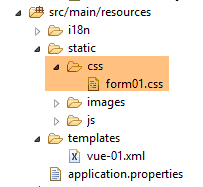 |
@CHARSET "UTF-8";

/*styles perso*/
body {
    background-image: url("/images/standard.jpg");
}

.col1 {
    background: lightblue;
}

.col2 {
    background: Cornsilk;
}

.col3 {
    background: AliceBlue;
}

.col4 {
    background: Lavender;
}

.error {
    color: red;
}

.fieldset{
    background: Lavender;
}
/* Styles for validation helpers
-----------------------------------------------------------*/
.field-validation-error {
    color: #f00;
}

.field-validation-valid {
    display: none;
}

.input-validation-error {
    border: 1px solid #f00;
    background-color: #fee;
}

.validation-summary-errors {
    font-weight: bold;
    color: #f00;
}

.validation-summary-valid {
    display: none;
}
6.3. Client-side validation
6.3.1. Basics of jQuery and JavaScript
Client-side validation is done using JavaScript. We will use the jQuery framework, which provides many functions that simplify JavaScript development. We will cover the basics of jQuery needed to understand the scripts in this chapter and the following ones.
We create a static HTML file [JQuery-01.html] and place it in a folder [static / views]:
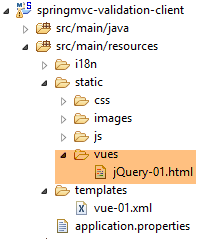 |
This file will have the following content:
<!DOCTYPE html>
<html xmlns="http://www.w3.org/1999/xhtml">
<head>
  <meta http-equiv="Content-Type" content="text/html; charset=utf-8" />
  <title>JQuery-01</title>
  <script type="text/javascript" src="/js/jquery-1.11.1.min.js"></script>
</head>
<body>
  <h3>Rudiments de JQuery</h3>
  <div id="element1">
    Elément 1
  </div>
</body>
</html>
- line 6: importing jQuery;
- lines 10–12: a page element with the ID [element1]. We’re going to work with this element.
We need to download the file [jquery-1.11.1.min.js]. You can find the latest version of jQuery at the URL [http://jquery.com/download/]:
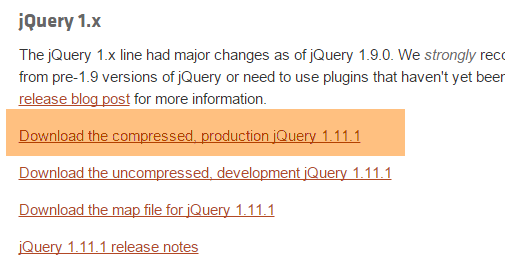
We will place the downloaded file in the [static / js] folder:
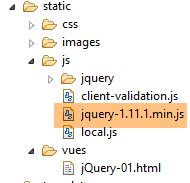 |
Once that’s done, open the static view [jQuery-01.html] in Chrome [1-2]:
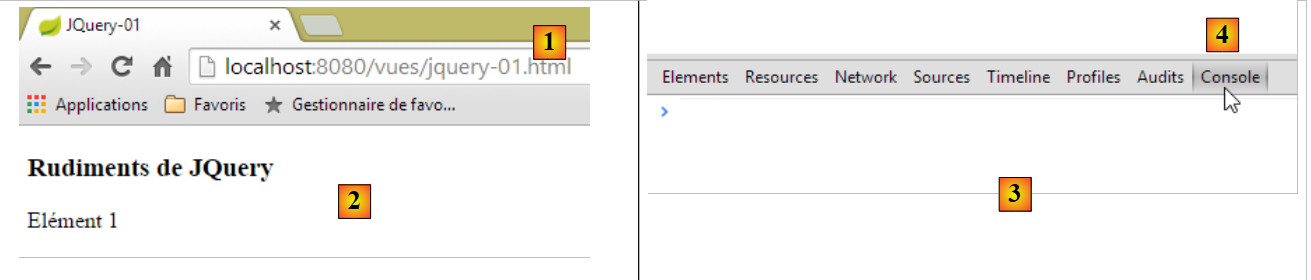 |
In Google Chrome, press [Ctrl-Shift-I] to open the developer tools [3]. The [Console] tab [4] allows you to run JavaScript code. Below, we provide JavaScript commands to type and explain what they do.
JS | result |
|
: returns the collection of all elements with the ID [element1], so normally a collection of 0 or 1 element because you cannot have two identical IDs on an HTML page. | 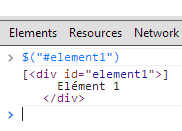 |
|
: sets the text [blabla] for all elements in the collection. This changes the content displayed on the page |  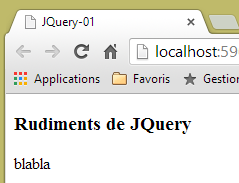 |
|
hides the elements in the collection. The text [blabla] is no longer displayed. |  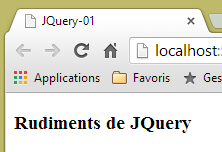 |
|
: displays the collection again. This allows us to see that the element with the ID [element1] has the CSS attribute style='display: none;', which causes the element to be hidden. |  |
|
: displays the elements of the collection. The text [blabla] appears again. The CSS attribute style='display: block;' is responsible for this display. |  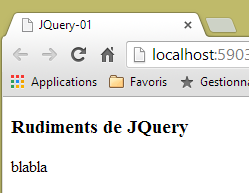 |
|
: Sets an attribute on all elements in the collection. The attribute here is [style] and its value is [color: red]. The text [blabla] turns red. |  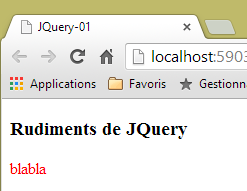 |
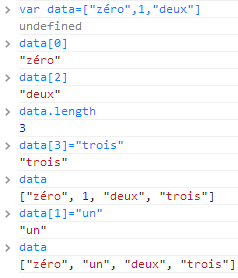 | |
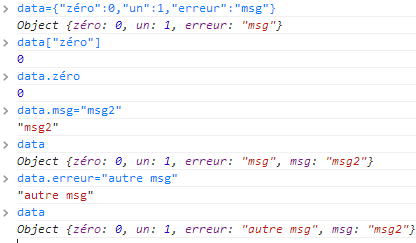 |
Note that the browser’s URL did not change during all these operations. There was no communication with the web server. Everything happens within the browser. Now, let’s view the page’s source code:
<!DOCTYPE html>
<html xmlns="http://www.w3.org/1999/xhtml">
<head>
  <meta http-equiv="Content-Type" content="text/html; charset=utf-8" />
  <title>JQuery-01</title>
  <script type="text/javascript" src="/js/jquery-1.11.1.min.js"></script>
</head>
<body>
  <h3>Rudiments de JQuery</h3>
  <div id="element1">
    Elément 1
  </div>
</body>
</html>
This is the original text. It does not reflect the changes made to the element in lines 10–12. It is important to remember this when debugging JavaScript. In such cases, it is often unnecessary to view the source code of the displayed page.
We now know enough to understand the JavaScript scripts that follow.
6.3.2. JS validation libraries
We will use libraries from the jQuery ecosystem. A number of projects revolve around jQuery, which in turn give rise to libraries. We will use the validation library [jquery.validate.unobstrusive] created by Microsoft and donated to the jQuery Foundation. We will refer to it hereafter as the MS validation library or, more simply, the MS library. To obtain it, you need a Microsoft Visual Studio environment. I haven’t seen any other way to get it. You can use a free version such as [Visual Studio Community] [http://www.visualstudio.com/en-us/news/vs2013-community-vs.aspx] (Dec 2014). Readers not interested in following the steps below can retrieve this library and the ones it relies on from the examples provided on this document’s website.
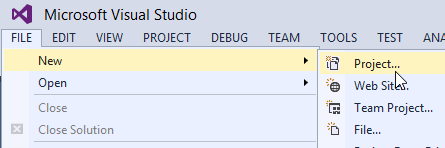
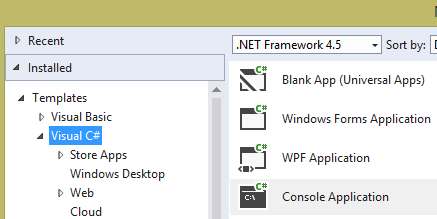
Create a console project with Visual Studio [1-4]:
|
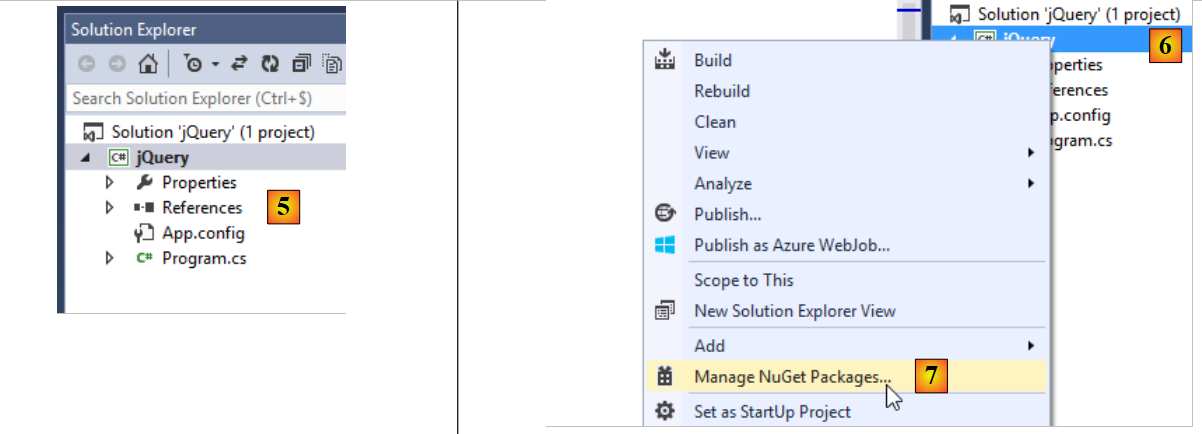 |
- in [5], the console project;
- in [6-7]: we will add [NuGet] packages to the project. [NuGet] is a Visual Studio feature that allows you to download libraries in the form of DLLs as well as JavaScript libraries.
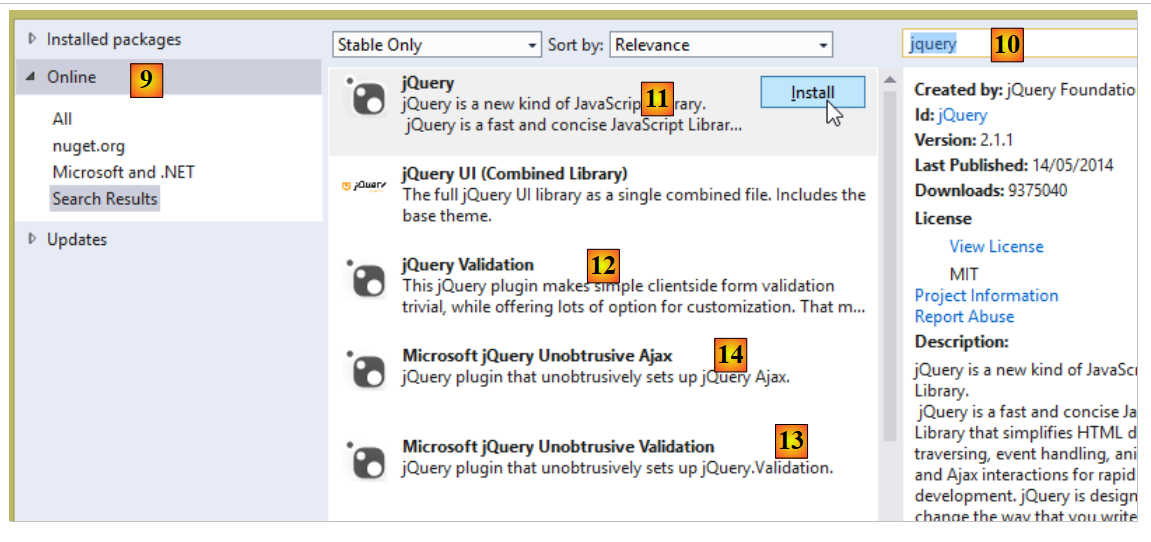 |
- In [9-10], search using the keyword [jQuery];
- In [11-13], download the JavaScript libraries required for client-side validation in the order shown;
- In [14], also download the [Microsoft jQuery Unobtrusive Ajax] library, which we will use shortly;
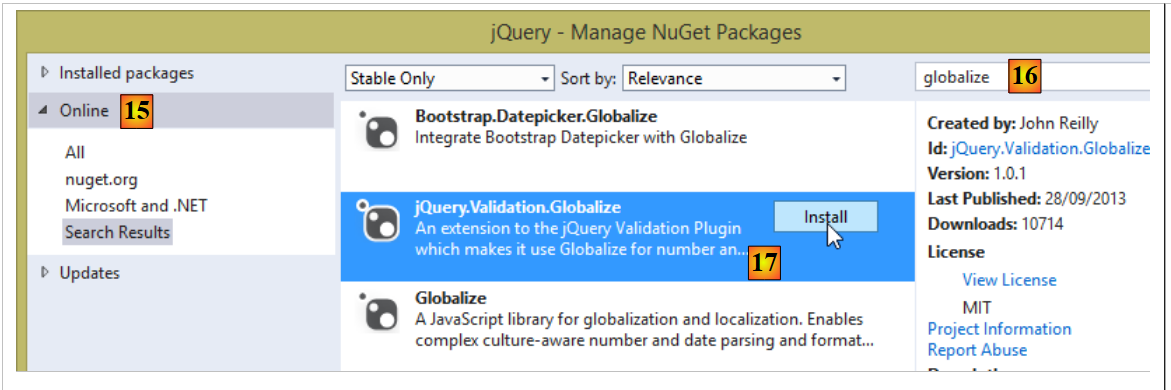 |
- In [15-16], search for packages using the keyword [globalize];
- in [17], download the [jQuery.Validation.Globalize] library;
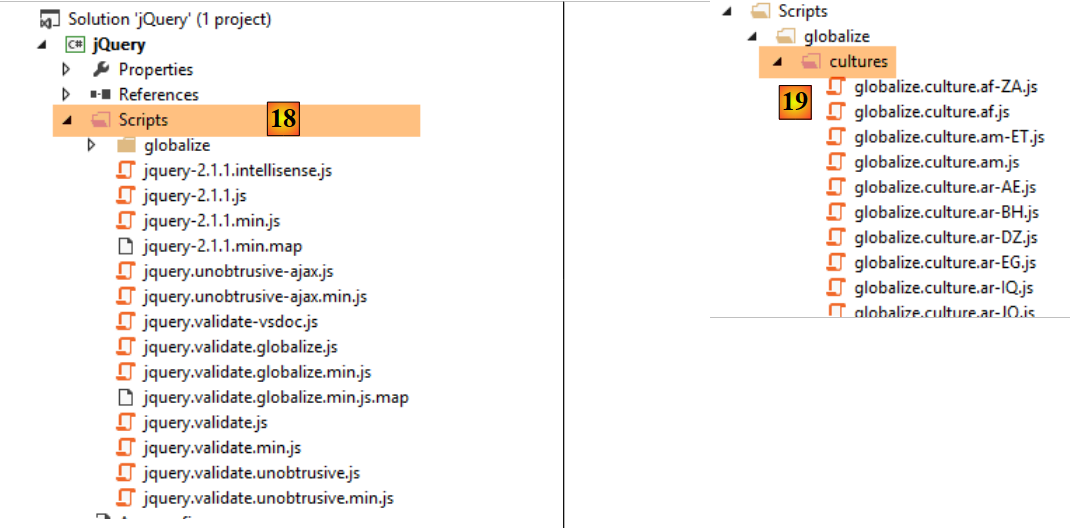 |
These various downloads have installed a number of JavaScript libraries in the [Scripts] folder of the project [18]. Not all of them are useful. Each file comes in two versions:
- [js]: the readable version of the library;
- [min.js]: the unreadable, so-called "minified" version of the library. It isn’t truly unreadable—it’s text—but it isn’t comprehensible. This is the version to use in production because this file is smaller than the corresponding [js] version and thus improves client/server communication speed;
The [min.map] versions are not essential. In the [cultures] folder, you can keep only the cultures managed by the application.
Using Windows Explorer, copy these files to the [static/js/jquery] folder of the [springmvc-validation-client] project and keep only the useful files [20]:
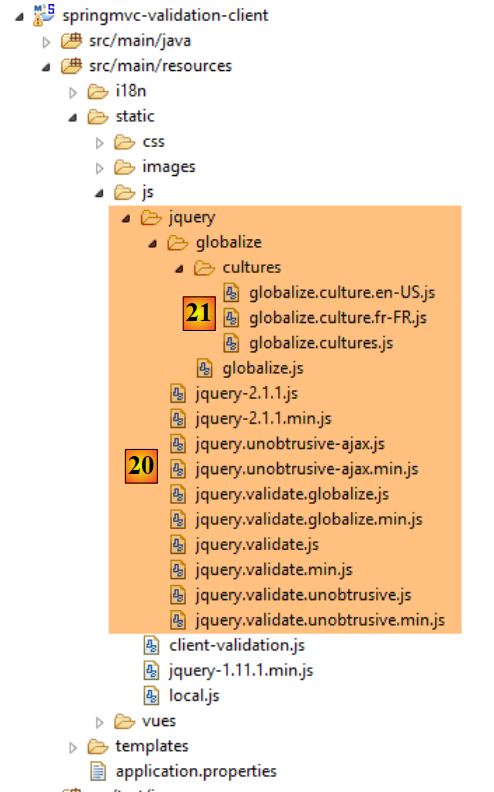 |
In [21], keep only two locales:
- [fr-FR]: French (France);
- [en-US]: US English;
6.3.3. Importing validation JS libraries
To be used, these libraries must be imported by the [vue-01.xml] view:
<head>
        <title>Spring 4 MVC</title>
        <meta http-equiv="Content-Type" content="text/html; charset=UTF-8" />
        <link rel="stylesheet" href="/css/form01.css" />
        <script type="text/javascript" src="/js/jquery/jquery-2.1.1.min.js"></script>
        <script type="text/javascript" src="/js/jquery/jquery.validate.min.js"></script>
        <script type="text/javascript" src="/js/jquery/jquery.validate.unobtrusive.min.js"></script>
        <script type="text/javascript" src="/js/jquery/globalize/globalize.js"></script>
        <script type="text/javascript" src="/js/jquery/globalize/cultures/globalize.culture.fr-FR.js"></script>
        <script type="text/javascript" src="/js/jquery/globalize/cultures/globalize.culture.en-US.js"></script>
        <script type="text/javascript" src="/js/client-validation.js"></script>
        <script type="text/javascript" src="/js/local.js"></script>
        <script th:inline="javascript">
            /*<![CDATA[*/
                    var culture = [[${locale}]];
                    Globalize.culture(culture);
                    /*]]>*/
        </script>
    </head>
- line 11: importing a JavaScript file we haven't discussed yet;
- lines 13–18: a JavaScript script interpreted by Thymelaf. It handles client-side locale;
6.3.4. Client-side locale management
Client-side localization is handled by the following JavaScript script:
<script th:inline="javascript">
            /*<![CDATA[*/
                    var culture = [[${locale}]];
                    Globalize.culture(culture);
                    /*]]>*/
</script>
- Lines 3-4: JavaScript code containing the Thymeleaf expression [[${locale}]]. Note the specific syntax of this expression, as it is written in JavaScript. The expression [[${locale}]] will be replaced by the value of the [locale] key in the view template;
The result in the HTML output generated by these lines is as follows:
<script>
            /*<![CDATA[*/
                    var culture = 'en-US';
                    Globalize.culture(culture);
                    /*]]>*/
</script>
Lines 3-4 set the client-side culture. We only support two: [fr-FR] and [en-US]. That is why we have only imported two culture files:
        <script type="text/javascript" src="/js/jquery/globalize/cultures/globalize.culture.fr-FR.js"></script>
<script type="text/javascript" src="/js/jquery/globalize/cultures/globalize.culture.en-US.js"></script>
The culture to be used on the client side is set on the server side. Let’s go back to the server-side code:
    @RequestMapping(value = "/js01", method = RequestMethod.GET, produces = "text/html; charset=UTF-8")
    public String js01(Form01 formulaire, Locale locale, Model model) {
        setModel(formulaire, model, locale, null);
        return "vue-01";
    }

    // preparing the view-01 model
    private void setModel(Form01 formulaire, Model model, Locale locale, String message) {
        // we only manage fr-FR, en-US locales
        String language = locale.getLanguage();
        String country = null;
        if (language.equals("fr")) {
            country = "FR";
            formulaire.setLang("fr_FR");
        }
        if (language.equals("en")) {
            country = "US";
            formulaire.setLang("en_US");
        }
        model.addAttribute("locale", String.format("%s-%s", language, country));
...
}
- Line 20: The locale [fr-FR] or [en-US] is set in the view template [vue-01.xml] (line 4). Note a potential source of complications. While a French locale is denoted as [fr-FR] on the client side, it is denoted as [fr_FR] on the server side. This is why, on lines 14 and 18, it is stored in this form in the [Form01] object that receives the posted values;
Note the following important point. The script
<script>
            /*<![CDATA[*/
                    var culture = 'en-US';
                    Globalize.culture(culture);
                    /*]]>*/
</script>
changes the client's culture based on the locale sent by the server. This does not internationalize the messages displayed on the page. It only changes how certain information that depends on a country's culture is interpreted. With the [fr_FR] culture, the real number [12.78] is valid, whereas it is invalid with the [en-US] culture. You must therefore write [12.78]. Similarly, the date [12/01/2014] is a valid date in the [fr-FR] culture, whereas in the [en-US] culture you must write [01/12/2014]. The files in the [jquery / globalize] folder handle these kinds of issues:
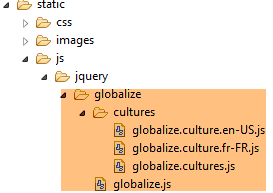 |
The internationalization of error messages is handled solely on the server side. We will see that the HTML/JS page carries error messages corresponding to the locale managed by the server: in French for the [fr_FR] locale and in English for the [en_US] locale.
6.3.5. The message files
The [vue-01.xml] view uses the following internationalized messages:
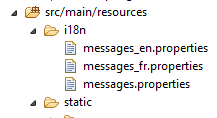 |
[messages_fr.properties]
NotNull=Le champ est obligatoire
NotEmpty=La donnée ne peut être vide
NotBlank=La donnée ne peut être vide
typeMismatch=Format invalide
Future.form01.dateInFuture=La date doit être postérieure ou égale à celle d''aujourd'hui
Past.form01.dateInPast=La date doit être antérieure ou égale à celle d''aujourd'hui
Min.form01.intMin10=La valeur doit être supérieure ou égale à 10
Max.form01.intMax100=La valeur doit être inférieure ou égale à 100
Size.form01.strBetween4and6=La chaîne doit avoir entre 4 et 6 caractères
Length.form01.str4=La chaîne doit avoir quatre caractères exactement
Email.form01.email=Adresse mail invalide
URL.form01.url=URL invalide
Range.form01.int1014=La valeur doit être dans l''intervalle [10,14]
AssertTrue=Seule la valeur True est acceptée
AssertFalse=Seule la valeur False est acceptée
Pattern.form01.hhmmss=Tapez l''heure sous la forme hh:mm:ss
form01.hhmmss.pattern=^\\d{2}:\\d{2}:\\d{2}$
DateInvalide.form01=Date invalide
form01.str4.pattern=^.{4,4}$
form01.int1014.max=14
form01.int1014.min=10
form01.strBetween4and6.pattern=^.{4,6}$
form01.intMax100.value=100
form01.intMin10.value=10
form01.double1.min=2.3
form01.double1.max=3.4
Range.form01.double1=La valeur doit être dans l'intervalle [2,3-3,4]
form01.title=Formulaire - Validations côté client - locale=
form01.col1=Contrainte
form01.col2=Saisie
form01.col3=Validation client
form01.col4=Validation serveur
form01.valider=Valider
form01.double2=[double2+double1] doit être dans l''intervalle [{0},{1}]
form01.double3=[double3+double1] doit être dans l''intervalle [{0},{1}]
locale.fr=Français
locale.en=English
client.validation.true=Activer la validation client
client.validation.false=Inhiber la validation client
DecimalMin.form01.double1=Le nombre doit être supérieur ou égal à 2,3
DecimalMax.form01.double1=Le nombre doit être inférieur ou égal à 3,4
server.error.message=Erreurs détectées par les validateurs côté serveur
[messages_en.properties]
NotNull=Field is required
NotEmpty=Field can''t be empty
NotBlank=Field can''t be empty
typeMismatch=Invalid format
Future.form01.dateInFuture=Date must be greater or equal to today''s date
Past.form01.dateInPast=Date must be lower or equal today''s date
Min.form01.intMin10=Value must be higher or equal to 10
Max.form01.intMax100=Value must be lower or equal to 100
Size.form01.strBetween4and6=String must have between 4 and 6 characters
Length.form01.str4=String must be exactly 4 characters long
Email.form01.email=Invalid mail address
URL.form01.url=Invalid URL
Range.form01.int1014=Value must be in [10,14]
AssertTrue=Only value True is allowed
AssertFalse=Only value False is allowed
Pattern.form01.hhmmss=Time must follow the format hh:mm:ss
form01.hhmmss.pattern=^\\d{2}:\\d{2}:\\d{2}$
DateInvalide.form01=Invalid Date
form01.str4.pattern=^.{4,4}$
form01.int1014.max=14
form01.int1014.min=10
form01.strBetween4and6.pattern=^.{4,6}$
form01.intMax100.value=100
form01.intMin10.value=10
form01.double1.min=2.3
form01.double1.max=3.4
Range.form01.double1=Value must be in [2.3,3.4]
form01.title=Form - Client side validation - locale=
form01.col1=Constraint
form01.col2=Input
form01.col3=Client validation
form01.col4=Server validation
form01.valider=Validate
form01.double2=[double2+double1] must be in [{0},{1}]
form01.double3=[double3+double1] must be in [{0},{1}]
locale.fr=Français
locale.en=English
client.validation.true=Activate client validation
client.validation.false=Inhibate client validation
DecimalMin.form01.double1=Value must be greater or equal to 2.3
DecimalMax.form01.double1=Value must be lower or equal to 3.4
server.error.message=Errors detected by the validators on the server side
The [messages.properties] file is a copy of the English message file. Ultimately, any locale other than [fr] will use English messages. Note that the [messages_fr.properties] file is used for all [fr_XX] locales, such as [fr_CA] or [fr_FR].
The [vue-01.xml] view uses the keys from these messages. If you wish to know the value associated with these keys, please refer back to this section to find it.
6.3.6. Changing the locale
The [vue-01.xml] view contains four links:
<body>
        <!-- title -->
        <h3>
            <span th:text="#{form01.title}"></span>
            <span th:text="${locale}"></span>
        </h3>
        <!-- menu -->
        <p>
            <a id="locale_fr" href="javascript:setLocale('fr_FR')">
                <span th:text="#{locale.fr}"></span>
            </a>
            <a id="locale_en" href="javascript:setLocale('en_US')">
                <span style="margin-left:30px" th:text="#{locale.en}"></span>
            </a>
            <a id="clientValidationTrue" href="javascript:setClientValidation(true)">
                <span style="margin-left:30px" th:text="#{client.validation.true}"></span>
            </a>
            <a id="clientValidationFalse" href="javascript:setClientValidation(false)">
                <span style="margin-left:30px" th:text="#{client.validation.false}"></span>
            </a>
        </p>
        <!-- form -->
        <form action="/someURL" th:action="@{/js02.html}" method="post" th:object="${form01}" name="form" id="form">
            ...
some of which are shown below [1]:
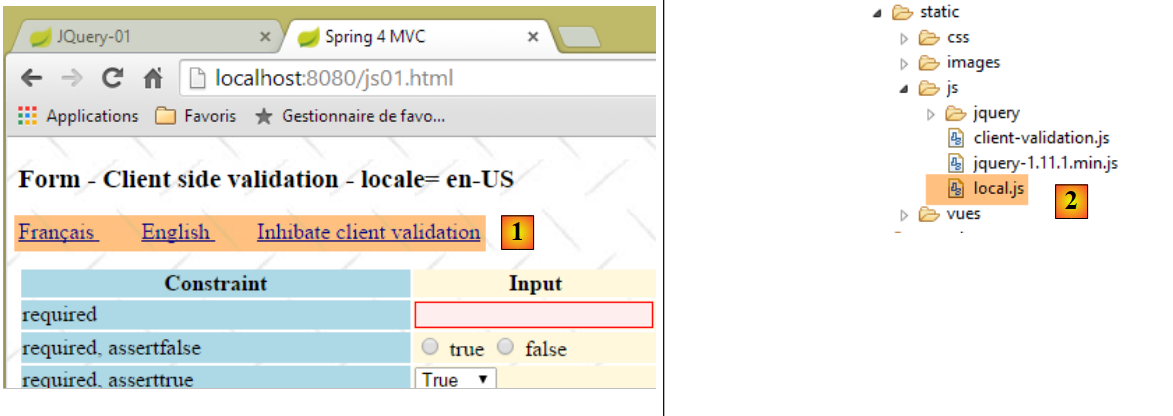 |
Let’s examine the two links that allow you to change the locale to French or English:
            <a id="locale_fr" href="javascript:setLocale('fr_FR')">
                <span th:text="#{locale.fr}"></span>
            </a>
            <a id="locale_en" href="javascript:setLocale('en_US')">
                <span style="margin-left:30px" th:text="#{locale.en}"></span>
</a>
Clicking on these links triggers the execution of a JavaScript script located in the [local.js] file [2]. In both cases, a JavaScript function [setLocale] is called:
// local
function setLocale(locale) {
    // update the locale
    lang.val(locale);
    // we submit the form - this doesn't trigger the client validators - that's why we haven't inhibited client-side validation
    document.form.submit();
}
Understanding line 4 requires some background information. The view [vue-01.xml] includes a hidden field named [lang]:
<input type="hidden" th:field="*{lang}" th:value="*{lang}" value="true" />
which corresponds to a [lang] field in [Form01]:
    // locale
    private String lang;
Hidden fields are useful when you want to enrich the posted values. JavaScript allows you to assign a value to them, and this value is posted as a normal user input. The HTML code generated by Thymeleaf is as follows:
<input type="hidden" value="en_US" id="lang" name="lang" />
The value of the [value] parameter is that of the [Form01.lang] field at the time the HTML is generated. What is important to note is the JavaScript identifier of the [id="lang"] node. This identifier is used by the following [] function:
// global variables
var lang;

// document ready
$(document).ready(function() {
    // global references
    lang = $("#lang");
});

// local
function setLocale(locale) {
    // update the locale
    lang.val(locale);
    // the form is submitted - for some reason this does not trigger the client's validators
    // that's why we didn't inhibit validation
    document.form.submit();
}
- lines 5-8: the JavaScript function [$(document).ready(f)] is a function that runs when the browser has loaded the entire document sent by the server. Its parameter is a function. We use the JavaScript function [$(document).ready(f)] to initialize the JavaScript environment of the loaded document;
- line 7: the expression [$("#lang")] is a jQuery expression. Its value is a reference to the DOM node with the [id='lang'] attribute;
- line 2: variables declared outside a function are global to all functions. Here, this means that the variable [lang] initialized in [$(document).ready()] is also available in the [setLocale] function on line 11;
- line 13: modifies the [value] attribute of the node identified by [lang]. If lang is [xx_XX], then the HTML tag for the node becomes:
<input type="hidden" value="xx_XX" id="lang" name="lang" />
JavaScript allows you to modify the values of DOM (Document Object Model) elements.
- Line 16: [document] refers to the DOM. [document.form] refers to the first form found in this document. An HTML document can have multiple <form> tags and therefore multiple forms. Here we have only one. [document.form.submit] submits this form as if the user had clicked a button with the [type='submit'] attribute. To which action are the form values submitted? To find out, look at the [form] tag in [vue-01.xml]:
        <!-- form -->
        <form action="/someURL" th:action="@{/js02.html}" method="post" th:object="${form01}" name="form" id="form">
The action that will receive the posted values is the one designated by the [th:action] attribute. This will therefore be the action [/js02.html]. Remember that in this name, the [.html] suffix will be removed, and ultimately the action [/js02] will be executed. What’s important to understand is that the new value [xx_XX] of the [lang] node will be posted in the form [lang=xx_XX]. However, we have configured our application to intercept the [lang] parameter and interpret it as a locale change. So on the server side, the locale will become [xx_XX]. Let’s look at the [/js02] action that will be executed:
    @RequestMapping(value = "/js02", method = RequestMethod.POST, produces = "text/html; charset=UTF-8")
    public String js02(@Valid Form01 formulaire, BindingResult result, RedirectAttributes redirectAttributes, Locale locale, Model model) {
        Form01Validator validator = new Form01Validator(10, 13);
        validator.validate(formulaire, result);
        if (result.hasErrors()) {
            StringBuffer buffer = new StringBuffer();
            for (ObjectError error : result.getAllErrors()) {
                buffer.append(String.format("[name=%s,code=%s,message=%s]", error.getObjectName(), error.getCode(),
                        error.getDefaultMessage()));
            }
            setModel(formulaire, model, locale, buffer.toString());
            return "vue-01";
        } else {
            redirectAttributes.addFlashAttribute("form01", formulaire);
            return "redirect:/js01.html";
        }
    }

    // preparing the view-01 model
    private void setModel(Form01 formulaire, Model model, Locale locale, String message) {
        // we only manage fr-FR, en-US locales
        String language = locale.getLanguage();
        String country = null;
        if (language.equals("fr")) {
            country = "FR";
            formulaire.setLang("fr_FR");
        }
        if (language.equals("en")) {
            country = "US";
            formulaire.setLang("en_US");
        }
        model.addAttribute("locale", String.format("%s-%s", language, country));
        ...
}
- line 2: the [/js02] action will receive the new locale [xx_XX] encapsulated in the [Locale locale] parameter:
- lines 5-12: if any of the posted values are invalid, the view [vue-01.xml] will be displayed with error messages using the new locale [xx_XX]. Additionally, line 11 sets the variable [locale=xx-XX] in the model. On the client side, this value will be used to update the client-side locale. We have described this process;
- Lines 14–15: If all posted values are valid, then there is a redirection to the following action [/js01]:
    @RequestMapping(value = "/js01", method = RequestMethod.GET, produces = "text/html; charset=UTF-8")
    public String js01(Form01 formulaire, Locale locale, Model model) {
        setModel(formulaire, model, locale, null);
        return "vue-01";
}
- line 2: the new locale [xx_XX] is injected;
- line 3: the [setModel] method will then set the client's locale to [xx-XX];
Now let’s look at the influence of the locale in the view [view-01.xml]. For now, we haven’t shown the entire view because it has over 300 lines. However, most of the lines consist of a sequence similar to the following:
<!-- required -->
<tr>
  <td class="col1">required</td>
  <td class="col2">
    <input type="text" th:field="*{strNotEmpty}" data-val="true" th:attr="data-val-required=#{NotNull}" />
  </td>
    <td class="col3">
      <span class="field-validation-valid" data-valmsg-for="strNotEmpty" data-valmsg-replace="true"></span>
    </td>
  <td class="col4">
      <span th:if="${#fields.hasErrors('strNotEmpty')}" th:errors="*{strNotEmpty}" class="error">Donnée erronée</span>
  </td>
</tr>
This code displays the following fragment [1]:
 |
The error message [2] comes from the attribute [th:attr="data-val-required=#{NotNull}"] on line 5. [#{NotNull}] is a localized message. Depending on the server-side locale, line 5 generates the tag:
<input type="text" data-val="true" data-val-required="Field is required" id="strNotEmpty" name="strNotEmpty" />
or the tag:
<input type="text" data-val="true" data-val-required="Le champ est obligatoire" id="strNotEmpty" name="strNotEmpty" />
The [data-x] attributes are used by the validation JavaScript library.
Ultimately, note that both locale-switching links:
- trigger a POST request for the entered values;
- change the locale on both the server and client sides;
- generate an HTML page that includes error messages intended for the JavaScript validation library, and ensure that these messages are in the language of the selected locale;
6.3.7. POSTing the entered values
Let’s examine the [Validate] button, which posts the values entered in the [vue-01.xml] view. Its HTML code is as follows:
<!-- validation button -->
<input type="submit" value="Valider" onclick="javascript:postForm01()" />
If JavaScript is enabled in the browser, clicking the button will trigger the execution of the [postForm01] method. If this function returns the boolean [False], then the submission will not take place. If it returns anything else, then it will take place. This function is located in the [local.js] file:
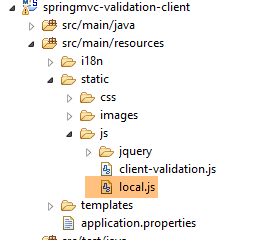 |
It is imported by the [vue-01.xml] view via line 6 below:
    <head>
        <title>Spring 4 MVC</title>
        <meta http-equiv="Content-Type" content="text/html; charset=UTF-8" />
        <link rel="stylesheet" href="/css/form01.css" />
...
        <script type="text/javascript" src="/js/local.js"></script>
</head>
In this file, we find the following code:
// global variables
var formulaire;
var clientValidation;
var double1;
var double2;
var double3;
...
$(document).ready(function() {
    // global references
    formulaire = $("#form");
    clientValidation = $("#clientValidation");
    double1 = $("#double1");
    double2 = $("#double2");
    double3 = $("#double3");
...
});
....
// post form
function postForm01() {
...
}
- lines 8–16: the JavaScript function [$(document).ready(f)] is a function that runs when the browser has loaded the entire document sent by the server. Its parameter is a function. We use the JavaScript function [$(document).ready(f)] to initialize the JavaScript environment of the loaded document;
- Lines 10–14: To understand these lines, you need to look at both the Thymeleaf code and the generated HTML code;
The relevant Thymeleaf code is as follows:
<form action="/someURL" th:action="@{/js02.html}" method="post" th:object="${form01}" name="form" id="form">
...
<input type="text" th:field="*{double1}" th:value="*{double1}" ... />
...
<input type="text" th:field="*{double2}" th:value="*{double2}" />
...
<input type="text" th:field="*{double3}" th:value="*{double3}" ... />
...
<input type="hidden" th:field="*{clientValidation}" th:value="*{clientValidation}" value="true" />
which generates the following HTML code:
<form action="/js02.html" method="post" name="form" id="form">
...
<input type="text" id="double1" name="double1" .../>
....
<input type="text" value="" id="double2" name="double2" />
...
<input value="" id="double3" name="double3" .../>
...
<input type="hidden" value="false" id="clientValidation" name="clientValidation" />
Each [th:field='x'] attribute generates two HTML attributes: [name='x'] and [id='x']. The [name] attribute is the name of the posted values. Thus, the presence of the [name='x'] and [value='y'] attributes for an HTML <input type='text'> tag will place the string x=y in the posted values name1=val1&name2=val2&... The [id='x'] attribute is used by JavaScript. It serves to identify an element of the DOM (Document Object Model). The loaded HTML document is in fact transformed into a JavaScript tree called the DOM, where each node is identified by its [id] attribute.
Let’s return to the code for the [$(document).ready()] function:
// global variables
var formulaire;
var clientValidation;
var double1;
var double2;
var double3;
...
$(document).ready(function() {
    // global references
    formulaire = $("#form");
    clientValidation = $("#clientValidation");
    double1 = $("#double1");
    double2 = $("#double2");
    double3 = $("#double3");
...
});
....
// post form
function postForm01() {
...
}
- line 10: the expression [$("#form")] is a jQuery expression. Its value is a reference to the DOM node with the [id='form'] attribute;
- lines 10–14: we retrieve references to five DOM nodes;
- lines 2–6: variables declared outside a function are global to the functions. Here, this means that the variables [form, clientValidation, double1, double2, double3] initialized in [$(document).ready()] will also be available in the [postForm01] function on line 19;
Now, let’s examine the [postForm01] function:
// post formulaire
function postForm01() {
    // mode de validation côté client
    var validationActive = clientValidation.val() === "true";
    if (validationActive) {
        // on efface les erreurs du serveur
        clearServerErrors();
        // validation du formulaire
        if (!formulaire.validate().form()) {
            // pas de submit
            return false;
        }
    }
    // réels au format anglo-saxon
    var value1 = double1.val().replace(",", ".");
    double1.val(value1);
    var value2 = double2.val().replace(",", ".");
    double2.val(value2);
    var value3 = double3.val().replace(",", ".");
    double3.val(value3);
    // on laisse le submit se faire
    return true;
}
Remember that this JavaScript function is executed before the form is submitted. If it returns [false] (line 11), the form will not be submitted. If it returns anything else (line 22), the form will be submitted.
- The important code is lines 4–12;
- line 4: we retrieve the value of the hidden field [clientValidation]. This value is 'true' if client-side validation must be enabled, 'false' otherwise;
- line 6: in the case of client-side validation, we clear any server error messages that may be present because the user has just changed the locale;
- line 9: remember that the variable [form] represents the node of the HTML tag <form>, i.e., the form. This form contains JavaScript validators that we haven’t covered yet and which will be discussed in the following sections. The expression [form.validate().form()] forces the execution of all JavaScript validators present in the form. Its value is [true] if all tested values are valid, [false] otherwise;
- line 11: the value is set to [false] if at least one of the tested values is invalid. This will prevent the form from being submitted to the server;
- lines 15–20: the identifiers [double1, double2, double3] represent the three real numbers in the form. Depending on the locale, the entered value differs. With the [fr-FR] locale, we write [10,37], whereas with the [en-US] locale, we write [10.37]. That covers the input. With the [fr-FR] locale, the value posted for [double1] will look like [double1=10,37]. Once it reaches the server, the value [10,37] will be rejected because the server expects [10.37], the default format for real numbers in Java. Therefore, lines 15–20 replace the comma with a period in the value entered for these numbers;
- line 15: the expression [double1.val()] returns the string entered for the [double1] node. The expression [double1.val().replace(",", ".")] replaces the commas in this string with periods. The result is a string [value1];
- line 16: the statement [double1.val(value1)] assigns this value [value1] to the node [double1].
Technically, if the user entered [10,37] for the real number [double1], after the previous statements the node [double1] has the value [10.37] and the value that will be posted will be [param1=val1&double1=10.37¶m2=val2], a value that will be accepted by the server;
- Line 22: We set the value to [true] so that the form’s [submit] is executed;
Note that the JavaScript function [postForm01]:
- executes all the form’s JavaScript validators if client-side validation is enabled and prevents the form from being submitted to the server if any of the entered values have been declared invalid;
- allows the [submit] button to be clicked either because client-side validation is not enabled, or because it is enabled and all entered values are valid;
That leaves the statement on line [3]:
    // on efface les erreurs du serveur
clearServerErrors();
The purpose of the [clearServerErrors] function is to clear the messages in column 4 of the [vue-01.xml] view:
 |
In the screenshot above, we clicked the [English] link. We saw that this triggered a POST of the entered values without triggering the JavaScript validators. Upon the POST’s return, the [Server Validation] column fills with any error messages. If we now click the [Validate] button [2] with the JavaScript validators enabled [3], then the [Client Validation] column [4] will fill with messages. If we do nothing, the messages that were present in the [Server Validation] column will remain, which will cause confusion since, in the case of errors detected by the JavaScript validators, the server is not called upon. To avoid this, we clear the [Server Validation] column in the [postForm01] function. The [clearServerErrors()] function does this:
function clearServerErrors() {
    // delete server error msgs
    $(".error").each(function(index) {
        $(this).text("");
    });
}
A distinctive feature of error messages is that they all have the [error] class. For example, for the first row of the table in [vue-01.html]:
<span th:if="${#fields.hasErrors('strNotEmpty')}" th:errors="*{strNotEmpty}" class="error">Donnée erronée</span>
And these are the only nodes in the DOM with this class. We use this property in the [clearServerErrors] function:
function clearServerErrors() {
    // delete server error msgs
    $(".error").each(function(index) {
        $(this).text("");
    });
}
- line 3: the expression [$(".error")] returns the collection of DOM nodes with the [error] class;
- line 3: the expression [$(".error").each(function(index){f}] executes the function [f] for each node in the collection. It receives a parameter [index]—which is not used here—representing the node’s index in the collection;
- line 4: the expression [$(this)] refers to the current node in the iteration. This is an HTML span tag. The expression [$(this).text("")] assigns the empty string to the text displayed by the span tag;
We will now examine various JavaScript validators.
6.3.8. [required] Validator
Let’s examine the first element of the form:
 |
Line [1] is generated by the following sequence in the view [vue-01.xml]:
<!-- required -->
<tr>
  <td class="col1">required</td>
  <td class="col2">
    <input type="text" th:field="*{strNotEmpty}" data-val="true" th:attr="data-val-required=#{NotNull}" />
  </td>
  <td class="col3">
    <span class="field-validation-valid" data-valmsg-for="strNotEmpty" data-valmsg-replace="true"></span>
  </td>
  <td class="col4">
    <span th:if="${#fields.hasErrors('strNotEmpty')}" th:errors="*{strNotEmpty}" class="error">Donnée erronée</span>
  </td>
</tr>
These lines pertain to the [strNotEmpty] field in the [Form01] form:
    @NotNull
    @NotBlank
private String strNotEmpty;
Constraints [1-2] ensure that the [strNotEmpty] field must be a valid string [NotNull], not empty, and not consist solely of spaces [NotBlank]. We want to replicate this constraint on the client side using JavaScript.
Let’s examine lines 5 and 8. Line 11 poses no problem. It displays the error message associated with the [strNotEmpty] field. Let’s start with line 5:
<input type="text" th:field="*{strNotEmpty}" data-val="true" th:attr="data-val-required=#{NotNull}" />
From this code, Thymeleaf will generate the following tag:
<input type="text" data-val="true" data-val-required="Field is required" id="strNotEmpty" name="strNotEmpty" value="x" />
- The [data-val='true'] attribute is used by jQuery validation libraries. Its presence indicates that the node’s value is subject to validation;
- The [data-val-X='msg'] attribute provides two pieces of information. [X] is the name of the validator, and [msg] is the error message associated with an invalid value of the node on which the validator is applied. This is merely informational. It does not cause the error message to be displayed;
- [required] is a validator recognized by Microsoft’s [jquery.validate.unobstrusive] validation library. There is no need to define it. This will not always be the case going forward;
- [data-x] attributes are ignored by HTML5. They are only useful if there is JavaScript to utilize them;
Let’s examine line 8 now:
<span class="field-validation-valid" data-valmsg-for="strNotEmpty" data-valmsg-replace="true"></span>
It is used to display the [required] validator's error message. If there is an error, the validation JavaScript library will dynamically replace the HTML line in the table with the following code:
<tr>
    <td class="col1">required</td>
    <td class="col2">
        <input type="text" data-val="true" data-val-required="Le champ est obligatoire" id="strNotEmpty" name="strNotEmpty" value="" aria-required="true" aria-invalid="true" aria-describedby="strNotEmpty-error" class="input-validation-error">
    </td>
    <td class="col3">
        <span class="field-validation-error" data-valmsg-for="strNotEmpty" data-valmsg-replace="true">
            <span id="strNotEmpty-error" class="">Le champ est obligatoire</span>
        </span>
    </td>
    <td class="col4">
        <span class="error"></span>
    </td>
</tr>
</tr>
- line 4: the class of the [strNotEmpty] node has changed. It has become [input-validation-error], which causes the invalid field to be colored red;
- line 7: the class of the [span] has changed. It has become [field-validation-error], which will display the text of the [span] in red;
- line 8: the [span], which was previously empty, now contains the text [This field is required]. This text comes from the [data-val-required="This field is required"] attribute on line 4;
- line 7: to display the error message for the [strNotEmpty] node on line 4, use the attributes [data-valmsg-for="strNotEmpty"] and [data-valmsg-replace="true"] on line 7;
6.3.9. Validator [assertfalse]
 |
Line [1] is generated by the following sequence in the [vue-01.xml] view:
<!-- required, assertfalse -->
<tr>
    <td class="col1">required, assertfalse</td>
    <td class="col2">
        <input type="radio" th:field="*{assertFalse}" value="true" data-val="true"
            th:attr="data-val-required=#{NotNull},data-val-assertfalse=#{AssertFalse}" />
        <label th:for="${#ids.prev('assertFalse')}">true</label>
        <input type="radio" th:field="*{assertFalse}" value="false" data-val="true"
            th:attr="data-val-required=#{NotNull},data-val-assertfalse=#{AssertFalse}" />
        <label th:for="${#ids.prev('assertFalse')}">false</label>
    </td>
    <td class="col3">
        <span class="field-validation-valid" data-valmsg-for="assertFalse" data-valmsg-replace="true"></span>
    </td>
    <td class="col4">
        <span th:if="${#fields.hasErrors('assertFalse')}" th:errors="*{assertFalse}" class="error">Donnée erronée</span>
    </td>
</tr>
These lines pertain to the [assertFalse] field in the [Form01] form:
    @NotNull
    @AssertFalse
private Boolean assertFalse;
We want to replicate this constraint on the client side using JavaScript. Lines 12–17 are now standard:
- lines 12–14: display, in the event of an error on the [assertFalse] field, the message carried by the [data-val-assertfalse] attribute on line 6 or the one carried by the [data-val-required] attribute on the same line. Note that these messages are localized, i.e., in the language previously selected by the user or in French if no choice was made;
- Lines 5–10: display the radio buttons with JavaScript validators that are triggered as soon as the user clicks one of them.
Both buttons are constructed in the same way. Let’s examine the first one:
<input type="radio" th:field="*{assertFalse}" value="true" data-val="true" th:attr="data-val-required=#{NotNull},data-val-assertfalse=#{AssertFalse}" />
Once processed by Thymeleaf, this line becomes the following:
<input type="radio" value="true" data-val="true" data-val-required="Le champ est obligatoire" data-val-assertfalse="Seule la valeur False est acceptée" id="assertFalse1" name="assertFalse" />
We have validators [data-val="true"]. There are two of them. One validator named [required] [data-val-required="This field is required"] and another named [assertfalse] [data-val-assertfalse="Only the value False is accepted"]. Remember that the value of the [data-val-X] attribute is the error message for validator X.
We’ve seen the [required] validator. What’s new here is that we can attach multiple validators to a single input value. While the [required] validator is recognized by the MS (Microsoft) validation library, this is not the case for the [assertFalse] validator. We will therefore learn how to create a new validator. We will create several of them, and they will be placed in a file named [client-validation.js]:
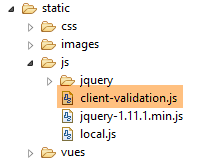 |
This file, like the others, is imported by the [vue-01.xml] view (line 6 below):
    <head>
        <title>Spring 4 MVC</title>
        <meta http-equiv="Content-Type" content="text/html; charset=UTF-8" />
        <link rel="stylesheet" href="/css/form01.css" />
        ...
        <script type="text/javascript" src="/js/client-validation.js"></script>
...
</head>
Adding the [assertfalse] validator simply involves creating the following two JavaScript functions:
// -------------- assertfalse
$.validator.addMethod("assertfalse", function(value, element, param) {
    return value === "false";
});

$.validator.unobtrusive.adapters.add("assertfalse", [], function(options) {
    options.rules["assertfalse"] = options.params;
    options.messages["assertfalse"] = options.message.replace("''", "'");
});
To be perfectly honest, I’m not a JavaScript expert; it’s a language that still feels quite mysterious to me. Its fundamentals are simple, but the libraries built on top of them are often very complex. To write the code above, I drew inspiration from code I found online. It was the link [http://jsfiddle.net/LDDrk/] that showed me the way forward. If it still exists, readers are invited to check it out, as it is comprehensive and includes a working example. It demonstrates how to create a new validator and allowed me to create all the ones in this chapter. Let’s return to the code:
- lines 2–4: define the new validator. The function [$.validator.addMethod] takes the validator’s name as its first parameter and a function defining the validator as its second parameter;
- line 2: the function has three parameters:
- [value]: the value to be validated. The function must return [true] if the value is valid, [false] otherwise;
- [element]: the HTML element to which the value to be validated belongs,
- [param]: an object containing the values associated with a validator’s parameters. We haven’t introduced this concept yet. Here, the [assertFalse] validator has no parameters. We can determine whether the value [value] is valid without additional information. It would be different if we needed to verify that the value [value] was a real number in the interval [min, max]. In that case, we would need to know [min] and [max]. These two values are called the validator’s parameters;
- lines 6–9: a function required by the MS validation library. The function [$.validator.unobtrusive.adapters.add] expects, as its first parameter, the name of the validator; as its second parameter, the array of validator parameters; and as its third parameter, a function;
- the [assertFalse] validator has no parameters. That is why the second parameter is an empty array;
- the function has only one parameter, an [options] object that contains information about the element to be validated and for which two new properties, [rules] and [messages], must be defined;
- line 7: we define the rules [rules] for the validator [assertFalse]. These rules are the parameters of the validator [assertFalse], the same as those of the [param] parameter on line 2. These parameters are found in [options.params];
- line 8: defines the error message for the validator [assertFalse]. This is found in [options.message]. We encounter the following issue with error messages. In the message files, we will find the following message:
Range.form01.int1014=La valeur doit être dans l''intervalle [10,14]
The double apostrophe is required for Thymeleaf. It interprets it as a single apostrophe. If you use a single apostrophe, Thymeleaf does not display it. Now these messages will also serve as error messages for the MS validation library. However, JavaScript will display both apostrophes. On line 8, we therefore replace the double apostrophe in the error message with a single one.
To get a better idea of what’s happening, we can add some JavaScript logging code:
// logs
var logs = {
    assertfalse : true
}


// -------------- assertfalse
$.validator.addMethod("assertfalse", function(value, element, param) {
    // logs
    if (logs.assertfalse) {
        console.log(jSON.stringify({
            "[assertfalse] value" : value
        }));
        console.log("[assertfalse] element");
        console.log(element);
        console.log(jSON.stringify({
            "[assertfalse] param" : param
        }));
    }
    // test validity
    return value === "false";
});

$.validator.unobtrusive.adapters.add("assertfalse", [], function(options) {
    // logs
    if (logs.assertfalse) {
        console.log(jSON.stringify({
            "[assertfalse] options.params" : options.params
        }));
        console.log(jSON.stringify({
            "[assertfalse] options.message" : options.message
        }));
        console.log(jSON.stringify({
            "[assertfalse] options.messages" : options.messages
        }));
    }
    // code
    options.rules["assertfalse"] = options.params;
    options.messages["assertfalse"] = options.message.replace("''", "'");
});
This code uses the JSON3 library [http://bestiejs.github.io/json3/]. If we enable logging (line 3), we get the following output in the console:
Upon initial page load, the following logs appear:
 |
The jS function [$.validator.unobtrusive.adapters.add] was executed. We learn the following:
- [options.params] is an empty object because the [assertFalse] validator has no parameters;
- [options.message] is the error message we constructed for the [assertFalse] validator in the [data-val-assertFalse] attribute;
- [options.messages] is an object containing the other error messages for the validated element. Here we find the error message we placed in the [data-val-required] attribute;
Now let’s enter an incorrect value in the [assertFalse] field and validate:
 |
We then get the following logs:
 |
Here we see the following:
- the value being tested is [true] (line 118);
- the HTML element being tested is the radio button with the ID [assertFalse1] (line 122);
- the [assertFalse] validator has no parameters (line 123);
There you go. What can we take away from all this?
For a jS X validator, we must define:
- in the HTML tag to be validated, the attribute [data-val-X='msg'], which defines both the XJS validator and its error message;
- two JavaScript functions to put in the [client-validation.js] file:
- [$.validator.addMethod("X", function(value, element, param)],
- [$.validator.unobtrusive.adapters.add("X", [param1, param2], function(options)];
Moving forward, we will build on what has been done for this first validator and simply present what is new.
6.3.10. [asserttrue] validator
This validator is, of course, analogous to the [assertFalse] validator.
 |
Line [1] is generated by the following sequence in the [vue-01.xml] view:
<!-- required, asserttrue -->
<tr>
    <td class="col1">asserttrue</td>
    <td class="col2">
        <select th:field="*{assertTrue}" data-val="true" th:attr="data-val-asserttrue=#{AssertTrue}">
            <option value="true">True</option>
            <option value="false">False</option>
        </select>
    </td>
    <td class="col3">
        <span class="field-validation-valid" data-valmsg-for="assertTrue" data-valmsg-replace="true"></span>
    </td>
    <td class="col4">
        <span th:if="${#fields.hasErrors('assertTrue')}" th:errors="*{assertTrue}" class="error">Donnée erronée</span>
    </td>
</tr>
These lines pertain to the [assertTrue] field in the [Form01] form:
    @NotNull
    @AssertTrue
private Boolean assertTrue;
There is nothing new in lines 1–16. They use an [assertTrue] validator that must be defined in the [client-validation.js] file:
// -------------- asserttrue
$.validator.addMethod("asserttrue", function(value, element, param) {
    return value === "true";
});

$.validator.unobtrusive.adapters.add("asserttrue", [], function(options) {
    options.rules["asserttrue"] = options.params;
    options.messages["asserttrue"] = options.message.replace("''", "'");
});
6.3.11. [date] and [past] validators
 |
Line [1] is generated by the following sequence in the view [vue-01.xml]:
<!-- required, date, past -->
<tr>
    <td class="col1">required, date, past</td>
    <td class="col2">
        <input type="date" th:field="*{dateInPast}" th:value="*{dateInPast}" data-val="true"
            th:attr="data-val-required=#{NotNull},data-val-date=#{DateInvalide.form01},data-val-past=#{Past.form01.dateInPast}" />
    </td>
    <td class="col3">
        <span class="field-validation-valid" data-valmsg-for="dateInPast" data-valmsg-replace="true"></span>
    </td>
    <td class="col4">
        <span th:if="${#fields.hasErrors('dateInPast')}" th:errors="*{dateInPast}" class="error">Donnée erronée</span>
    </td>
</tr>
These lines pertain to the [dateInPast] field in the [Form01] form:
    @NotNull
    @Past
    @DateTimeFormat(pattern = "yyyy-MM-dd")
private Date dateInPast;
The line for the date validators is as follows:
<input type="date" th:field="*{dateInPast}" th:value="*{dateInPast}" data-val="true" th:attr="data-val-required=#{NotNull},data-val-date=#{DateInvalide.form01},data-val-past=#{Past.form01.dateInPast}" />
There are three validators [data-val-X]: required, date, and past. We need to define the functions associated with these two new validators in [client-validation.js]:
logs.date = true;
// -------------- date
$.validator.addMethod("date", function(value, element, param) {
    // validity
    var valide = Globalize.parseDate(value, "yyyy-MM-dd") != null;
    // logs
    if (logs.date) {
        console.log(jSON.stringify({
            "[date] value" : value,
            "[date] valide" : valide
        }));
    }
    // result
    return valide;
});

$.validator.unobtrusive.adapters.add("date", [], function(options) {
    options.rules["date"] = options.params;
    options.messages["date"] = options.message.replace("''", "'");
});
and
logs.past = true;
// -------------- past
$.validator.addMethod("past", function(value, element, param) {
    // validity
    var valide = value <= new Date().toISOString().substring(0, 10);
    // logs
    if (logs.past) {
        console.log(jSON.stringify({
            "[past] value" : value,
            "[past] valide" : valide
        }));
    }
    // result
    return valide;
});

$.validator.unobtrusive.adapters.add("past", [], function(options) {
    options.rules["past"] = options.params;
    options.messages["past"] = options.message.replace("''", "'");
});
Before explaining the code, let’s look at the logs when entering a date later than today’s:
 |
The first thing to note is that the date to be validated arrives as a string in the format [yyyy-mm-dd]. This explains the following lines:
var valide = Globalize.parseDate(value, "yyyy-MM-dd") != null;
The [globalize.js] library provides the [Globalize.parseDate] function above. The first parameter is the date as a string, and the second is its format. The result is a null pointer if the date is invalid, or the resulting date otherwise.
The validity of the [past] validator is checked by the following code:
var valide = value <= new Date().toISOString().substring(0, 10);
Here is the evaluation of the expression [new Date().toISOString().substring(0, 10)] in a console:
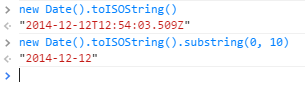 |
The string [value] must come before the string [new Date().toISOString().substring(0, 10)] in alphabetical order to be valid.
Note that the version of Chrome used provides the date in the format [yyyy-mm-dd]. For a browser where this is not the case, the user would need to be explicitly instructed to use this input format.
6.3.12. Validator [future]
 |
Line [1] is generated by the following sequence in the [vue-01.xml] view:
<!-- required, date, future -->
<tr>
    <td class="col1">required, date, future</td>
    <td class="col2">
        <input type="date" th:field="*{dateInFuture}" th:value="*{dateInFuture}" data-val="true" th:attr="data-val-required=#{NotNull},data-val-date=#{DateInvalide.form01},data-val-future=#{Future.form01.dateInFuture}" />
    </td>
    <td class="col3">
        <span class="field-validation-valid" data-valmsg-for="dateInFuture" data-valmsg-replace="true"></span>
    </td>
    <td class="col4">
        <span th:if="${#fields.hasErrors('dateInFuture')}" th:errors="*{dateInFuture}" class="error">Donnée erronée</span>
    </td>
</tr>
These lines pertain to the [dateInFuture] field in the [Form01] form:
    @NotNull
    @Future
    @DateTimeFormat(pattern = "yyyy-MM-dd")
    private Date dateInFuture;
- line 5, a new validator [data-val-future] appears;
This validator is, of course, very similar to the [past] validator. The two functions to add to [client-validation.js] are as follows:
// -------------- future
$.validator.addMethod("future", function(value, element, param) {
    var now = new Date().toISOString().substring(0, 10);
    return value > now;
});

$.validator.unobtrusive.adapters.add("future", [], function(options) {
    options.rules["future"] = options.params;
    options.messages["future"] = options.message.replace("''", "'");
});
6.3.13. [int] and [max] validators
 |
Line [1] is generated by the following sequence in the view [vue-01.xml]:
<!-- required, int, max(100) -->
<tr>
    <td class="col1">required, int, max(100)</td>
    <td class="col2">
        <input type="text" th:field="*{intMax100}" th:value="*{intMax100}" data-val="true"             th:attr="data-val-required=#{NotNull},data-val-int=#{typeMismatch},data-val-max=#{Max.form01.intMax100},data-val-max-value=#{form01.intMax100.value}" />
    </td>
    <td class="col3">
        <span class="field-validation-valid" data-valmsg-for="intMax100" data-valmsg-replace="true"></span>
    </td>
    <td class="col4">
        <span th:if="${#fields.hasErrors('intMax100')}" th:errors="*{intMax100}" class="error">Donnée erronée</span>
    </td>
</tr>
These lines pertain to the [intMax100] field in the [Form01] form:
    @NotNull
    @Max(value = 100)
    private Integer intMax100;
Line 5 contains two new validators: [int] and [max]. The latter has one parameter: the maximum value. Let’s examine the HTML code generated by line 5:
<!-- required, int, max(100) -->
<tr>
    <td class="col1">required, int, max(100)</td>
    <td class="col2">
        <input type="text" data-val="true" data-val-int="Format invalide" data-val-max-value="100" data-val-required="Le champ est obligatoire" data-val-max="La valeur doit être inférieure ou égale à 100" value="" id="intMax100" name="intMax100" />
    </td>
    <td class="col3">
        <span class="field-validation-valid" data-valmsg-for="intMax100" data-valmsg-replace="true"></span>
    </td>
    <td class="col4">

    </td>
</tr>
Let’s review the meaning of the various [data-X] attributes:
- [data-val="true"] indicates that validators are associated with the HTML element;
- [data-val-required] introduces the [required] validator with its message;
- [data-val-int] introduces the [int] validator with its message;
- [data-val-max] introduces the [max] validator with its message;
- [data-val-max-value="100"] introduces a parameter named [value] for the [max] validator. [100] is the value of this parameter. This is the first time we encounter the concept of validator parameters.
The [client-validation.js] file is enhanced with the following [int] validator:
logs.int = true;
// -------------- int
$.validator.addMethod("int", function(value, element, param) {
    // validity
    valide = /^\s*[-\+]?\s*\d+\s*$/.test(value);
    // logs
    if (logs.int) {
        console.log(jSON.stringify({
            "[int] value" : value,
            "[int] valide" : valide,
        }));
    }
    // result
    return valide;
});

$.validator.unobtrusive.adapters.add("int", [], function(options) {
    options.rules["int"] = options.params;
    options.messages["int"] = options.message.replace("''", "'");
});
- Line 5: A regular expression is used to verify that the string [value] is indeed an integer. This integer may be signed;
Here are some examples of logs:
The [max] validator is added as follows in [client-validation.js]
// -------------- max to be used in conjunction with [int] or [number]
logs.max = true;
$.validator.addMethod("max", function(value, element, param) {
    // logs
    if (logs.max) {
        console.log(jSON.stringify({
            "[max] value" : value,
            "[max] param" : param
        }));
    }
    // validity
    var val = Globalize.parseFloat(value);
    if (isNaN(val)) {
        // logs
        if (logs.max) {
            console.log(jSON.stringify({
                "[max] valide" : true
            }));
        }
        // result
        return true;
    }
    var max = Globalize.parseFloat(param.value);
    var valide = val <= max;
    // logs
    if (logs.max) {
        console.log(jSON.stringify({
            "[max] valide" : valide
        }));
    }
    // result
    return valide;
});

$.validator.unobtrusive.adapters.add("max", [ "value" ], function(options) {
    options.rules["max"] = options.params;
    options.messages["max"] = options.message.replace("''", "'");
});
We will now address the case of the [value] parameter of the [max] validator introduced by the [data-val-max-value="100"] attribute.
- line 35, the [value] parameter is passed as the second argument to the [$.validator.unobtrusive.adapters.add] function;
- line 3, the [param] object will no longer be empty, but will contain {"value":100};
To understand the code in lines 3–33, you need to know that when there are multiple validators on the same HTML element:
- the order in which the validators are executed is unknown;
- the execution of validators stops as soon as a validator declares the element invalid. It is then the error message from that validator that is associated with the invalid element;
Let’s examine the code:
- line 12: we check that we have a number. If the [int] validator was executed before the [max] validator, this is necessarily true since an invalid value stops the execution of the validators;
- lines 13–22: if we do not have a number, this means that the [int] validator has not yet been executed. We then indicate that the tested value is valid to let the [int] validator do its job and declare the element invalid with its own error message;
- lines 23–24: calculates the validity of [value];
Here are some logs:
Value entered | logs |
| |
| |
|
6.3.14. [min] validator
 |
Line [1] is generated by the following sequence in the [vue-01.xml] view:
<!-- required, int, min(10) -->
<tr>
    <td class="col1">required, int, min(10)</td>
    <td class="col2">
        <input type="text" th:field="*{intMin10}" th:value="*{intMin10}" data-val="true"             th:attr="data-val-required=#{NotNull},data-val-int=#{typeMismatch},data-val-min=#{Min.form01.intMin10},data-val-min-value=#{form01.intMin10.value}" />
    </td>
    <td class="col3">
        <span class="field-validation-valid" data-valmsg-for="intMin10" data-valmsg-replace="true"></span>
    </td>
    <td class="col4">
        <span th:if="${#fields.hasErrors('intMin10')}" th:errors="*{intMin10}" class="error">Donnée erronée</span>
    </td>
</tr>
These lines concern the [intMin10] field in the [Form01] form:
    @NotNull
    @Min(value = 10)
private Integer intMin10;
Line 5 introduces a new validator [min] [data-val-int=#{typeMismatch}] with a parameter [value] [data-val-min-value=#{form01.intMin10.value}"]. This is similar to the [max] validator. Add the following code to [client-validation.js]:
logs.min = true;
//-------------- min to be used in conjunction with [int] or [number]
$.validator.addMethod("min", function(value, element, param) {
    // logs
    if (logs.min) {
        console.log(jSON.stringify({
            "[min] value" : value,
            "[min] param" : param
        }));
    }
    // validity
    var val = Globalize.parseFloat(value);
    if (isNaN(val)) {
        // logs
        if (logs.min) {
            console.log(jSON.stringify({
                "[min] valide" : true
            }));
        }
        // result
        return true;
    }
    var min = Globalize.parseFloat(param.value);
    var valide = val >= min;
    // logs
    if (logs.min) {
        console.log(jSON.stringify({
            "[min] valide" : valide
        }));
    }
    // result
    return valide;
});

$.validator.unobtrusive.adapters.add("min", [ "value" ], function(options) {
    options.rules["min"] = options.params;
    options.messages["min"] = options.message.replace("''", "'");
});
Here are some execution logs:
Value entered | logs |
| |
| |
|
6.3.15. [regex] Validator
 |
Line [1] is generated by the following sequence in the [vue-01.xml] view:
<!-- required, regex -->
<tr>
    <td class="col1">required, regex</td>
    <td class="col2">
        <input type="text" th:field="*{strBetween4and6}" th:value="*{strBetween4and6}" data-val="true"    th:attr="data-val-required=#{NotNull},data-val-regex=#{Size.form01.strBetween4and6}, data-val-regex-pattern=#{form01.strBetween4and6.pattern}" />
    </td>
    <td class="col3">
        <span class="field-validation-valid" data-valmsg-for="strBetween4and6" data-valmsg-replace="true"></span>
    </td>
    <td class="col4">
        <span th:if="${#fields.hasErrors('strBetween4and6')}" th:errors="*{strBetween4and6}" class="error">Donnée erronée</span>
    </td>
</tr>
These lines pertain to the [strBetween4and6] field in the [Form01] form:
    @NotNull
    @Size(min = 4, max = 6)
    private String strBetween4and6;
Line 5 generates the following HTML:
<input type="text" data-val="true" data-val-required="Le champ est obligatoire" data-val-regex="La chaîne doit avoir entre 4 et 6 caractères" data-val-regex-pattern="^.{4,6}$" value="" id="strBetween4and6" name="strBetween4and6" />
This tag introduces the [regex] validator [data-val-regex="The string must be between 4 and 6 characters"] with its [pattern] parameter [data-val-regex-pattern="^.{4,6}$"]. The [pattern] parameter is the regular expression against which the value to be validated must be checked. Here, the regular expression verifies that the string contains between 4 and 6 characters of any kind. The [regex] validator is predefined in the MS validation library. Therefore, nothing needs to be added to the [client-validation.js] file.
6.3.16. [email] Validator
 |
Line [1] is generated by the following sequence in the [vue-01.xml] view:
<!-- required, email -->
<tr>
    <td class="col1">required, email</td>
    <td class="col2">
        <input type="text" th:field="*{email}" th:value="*{email}" data-val="true"             th:attr="data-val-required=#{NotNull},data-val-email=#{Email.form01.email}" />
    </td>
    <td class="col3">
        <span class="field-validation-valid" data-valmsg-for="email" data-valmsg-replace="true"></span>
    </td>
    <td class="col4">
        <span th:if="${#fields.hasErrors('email')}" th:errors="*{email}" class="error">Donnée erronée</span>
    </td>
</tr>
These lines pertain to the [email] field in the [Form01] form:
    @NotNull
    @Email
    @NotBlank
    private String email;
Line 5 generates the following HTML line:
<input type="text" data-val="true" data-val-required="Le champ est obligatoire" data-val-email="Adresse mail invalide" value="" id="email" name="email" />
This tag introduces the [email] validator [data-val-email="Invalid email address"]. The [email] validator is predefined in the MS validation library. Therefore, nothing needs to be added to the [client-validation.js] file.
6.3.17. [range] validator
 |
Line [1] is generated by the following sequence in the [vue-01.xml] view:
<!-- required, int, range (10,14) -->
<tr>
    <td class="col1">required, int, range (10,14)</td>
    <td class="col2">
        <input type="text" th:field="*{int1014}" th:value="*{int1014}" data-val="true"            th:attr="data-val-required=#{NotNull},data-val-int=#{typeMismatch}, data-val-range=#{Range.form01.int1014},data-val-range-max=#{form01.int1014.max},data-val-range-min=#{form01.int1014.min}" />
    </td>
    <td class="col3">
        <span class="field-validation-valid" data-valmsg-for="int1014" data-valmsg-replace="true"></span>
    </td>
    <td class="col4">
        <span th:if="${#fields.hasErrors('int1014')}" th:errors="*{int1014}" class="error">Donnée erronée</span>
    </td>
</tr>
These lines apply to the [int1014] field in the [Form01] form:
    @Range(min = 10, max = 14)
    @NotNull
    private Integer int1014;
Line 5 generates the following HTML line:
<input type="text" data-val="true" data-val-range-max="14" data-val-range="La valeur doit être dans l''intervalle [10,14]" data-val-int="Format invalide" data-val-required="Le champ est obligatoire" data-val-range-min="10" value="" id="int1014" name="int1014" />
This tag introduces a new [range] validator [data-val-range="The value must be within the range [10,14]"] that has two parameters: [min] [data-val-range-min="10"] and [max] [data-val-range-max="14"].
In the [client-validation.js] file, we define the [range] validator as follows:
// -------------- range to be used in conjunction with [int] or [number]
logs.range=true
$.validator.addMethod("range", function(value, element, param) {
    // logs
    if (logs.range) {
        console.log(jSON.stringify({
            "[range] value" : value,
            "[range] param" : param
        }));
    }
    // validity
    var val = Globalize.parseFloat(value);
    if (isNaN(val)) {
        // logs
        if (logs.min) {
            console.log(jSON.stringify({
                "[range] valide" : true
            }));
        }
        // completed
        return true;
    }
    var min = Globalize.parseFloat(param.min);
    var max = Globalize.parseFloat(param.max);
    var valide = val >= min && val <= max;
    // logs
    if (logs.range) {
        console.log(jSON.stringify({
            "[range] valide" : valide
        }));
    }
    // completed
    return valide;
});

$.validator.unobtrusive.adapters.add("range", [ "min", "max" ], function(options) {
    options.rules["range"] = options.params;
    options.messages["range"] = options.message.replace("''", "'");
});
It is very similar to the [min] and [max] validators we have already discussed.
Here are some examples of logs:
Value entered | logs |
| |
| |
|
6.3.18. [number] Validator
 |
Line [1] is generated by the following sequence in the [vue-01.xml] view:
<!-- double1 : required, number, range (2.3,3.4) -->
<tr>
    <td class="col1">double1 : required, number, range (2.3,3.4)</td>
    <td class="col2">
        <input type="text" th:field="*{double1}" th:value="*{double1}" data-val="true"
            th:attr="data-val-required=#{NotNull},data-val-number=#{typeMismatch},data-val-range=#{Range.form01.double1},data-val-range-max=#{form01.double1.max},data-val-range-min=#{form01.double1.min}" />
    </td>
    <td class="col3">
        <span class="field-validation-valid" data-valmsg-for="double1" data-valmsg-replace="true"></span>
    </td>
    <td class="col4">
        <span th:if="${#fields.hasErrors('double1')}" th:errors="*{double1}" class="error">Donnée erronée</span>
    </td>
</tr>
These lines concern the [double1] field of the [Form01] form:
    @NotNull
    @DecimalMax(value = "3.4")
    @DecimalMin(value = "2.3")
private Double double1;
Line 5 generates the following HTML line:
<input type="text" data-val="true" data-val-number="Format invalide" data-val-range-max="3.4" data-val-range="La valeur doit être dans l'intervalle [2,3-3,4]" data-val-required="Le champ est obligatoire" data-val-range-min="2.3" value="" id="double1" name="double1" />
The tag introduces a new validator [number] with the attribute [data-val-number="Invalid format"]. This validator is defined as follows in the file [client-validation.js]:
// -------------- number
logs.number = true;
$.validator.addMethod("number", function(value, element, param) {
    var valide = !isNaN(Globalize.parseFloat(value));
    // logs
    if (logs.number) {
        console.log(jSON.stringify({
            "[number] value" : value,
            "[number] valide" : valide
        }));
    }
    // result
    return valide;
});

$.validator.unobtrusive.adapters.add("number", [], function(options) {
    options.rules["number"] = options.params;
    options.messages["number"] = options.message.replace("''", "'");
});
Here are some examples of logs:
Value entered | logs |
| |
| |
|
We know that real numbers are culture-sensitive. Above, we are in the [fr-FR] culture. When we enter [2.5] (Anglo-Saxon notation), the number is accepted. This is due to [Globalize.parseFloat], which accepts both notations:
Let’s switch to English and enter [+2,5] and [+2.5]. The logs are as follows:
Input value | logs |
| |
|
There is a problem with [2,5]. It was declared as a valid float, but it should be written as [2.5]. This is due to [Globalize.parseFloat]:
In the example above, [Globalize.parseFloat] ignores the comma and treats the number as 25. In the [en-US] culture, a real number may include a decimal point and commas, which are sometimes used to separate thousands.
Here's how we can improve things:
// -------------- number
logs.number = true;
$.validator.addMethod("number", function(value, element, param) {
    // we manage [fr-FR] and [en-US] cultures only
    var pattern_fr_FR = /^\s*[-+]?[0-9]*\,?[0-9]+\s*$/;
    var pattern_en_US = /^\s*[-+]?[0-9]*\.?[0-9]+\s*$/;
    var culture = Globalize.culture().name;
    // validity test
    var valide;
    if (culture === "fr-FR") {
        valide = pattern_fr_FR.test(value);
    } else if (culture === "en-US") {
        valide = pattern_en_US.test(value);
    } else {
        valide = !isNaN(Globalize.parseFloat(value));
    }
    // logs
    if (logs.number) {
        console.log(jSON.stringify({
            "[number] value" : value,
            "[number] culture" : culture,
            "[number] valide" : valide
        }));
    }
    // result
    return valide;
});
- line 5: the regular expression for a real number in the [fr-FR] locale;
- line 6: the regular expression for a real number in the [en-US] locale;
- line 7: the name of the current culture. In our example, this will be one of the two cultures above;
- lines 9–16: the validity check for the entered value;
- line 15: we have provided for the case where the locale is neither [fr-FR] nor [en-US];
The logs now show the following:
Culture [fr-FR]
Value entered | logs |
| |
| |
| |
|
Culture [en-US]
Value entered | logs |
| |
| |
|
6.3.19. Validator [custom3]
 |
Line [1] is generated by the following sequence in the [vue-01.xml] view:
<!-- double3 : required, number, custom3 -->
<tr>
    <td class="col1">double3 : required, number, custom3</td>
    <td class="col2">
        <input type="text" th:field="*{double3}" th:value="*{double3}" data-val="true"            th:attr="data-val-required=#{NotNull},data-val-number=#{typeMismatch},data-val-custom3=${custom3.message},data-val-custom3-field=${custom3.otherFieldName},data-val-custom3-max=${custom3.max},data-val-custom3-min=${custom3.min}" />
    </td>
    <td class="col3">
        <span class="field-validation-valid" data-valmsg-for="double3" data-valmsg-replace="true"></span>
    </td>
    <td class="col4">
        <span th:if="${#fields.hasErrors('double3')}" th:errors="*{double3}" class="error">Donnée erronée</span>
    </td>
</tr>
These lines concern the [double3] field in the [Form01] form:
    @NotNull
    private Double double3;
Here, we want to examine a validator that validates not just an entered value, but a relationship between two entered values. In this case, we want [double1+double3] to be within the range [10,13].
Line 5 generates the following HTML line:
<input type="text" data-val="true" data-val-custom3-min="10.0" data-val-number="Invalid format"
    data-val-custom3="[double3+double1] must be in [10,13]" data-val-custom3-max="13.0" data-val-custom3-field="double1"    data-val-required="Field is required" value="" id="double3" name="double3" />
This line introduces the new validator [custom3] declared by the attribute [data-val-custom3="[double3+double1] must be in [10,13]"]. This validator has the following parameters:
- [field] declared by the attribute [data-val-custom3-field="double1"]. This parameter designates the field whose value is used to calculate the validity of [double3];
- [min] declared by the attribute [data-val-custom3-min="10.0"]. This parameter is the minimum of the interval [min, max] within which [double1+double3] must fall;
- [max] declared by the attribute [data-val-custom3-max="13.0"]. This parameter is the maximum of the [min, max] range within which [double1+double3] must fall;
This validator is handled as follows in [client-validation.js]:
// -------------- custom3 used in conjunction with [number]
logs.custom3 = true;
$.validator.addMethod("custom3", function(value1, element, param) {
    // second value
    var value2 = $("#" + param.field).val();
    // logs
    if (logs.custom3) {
        console.log(jSON.stringify({
            "[custom3] value1" : value1,
            "[custom3] param" : param,
            "[custom3] value2" : value2
        }))
    }
    // first value
    var valeur1 = Globalize.parseFloat(value1);
    if (isNaN(valeur1)) {
        // let the [number] validator do the work
        if (logs.custom3) {
            console.log(jSON.stringify({
                "[custom3] valide" : true
            }))
        }
        return true;
    }
    // second value
    var valeur2 = Globalize.parseFloat(value2);
    if (isNaN(valeur2)) {
        // we cannot calculate the validity
        if (logs.custom3) {
            console.log(jSON.stringify({
                "[custom3] valide" : false
            }))
        }
        return false;
    }
    // validity calculation
    var min = Globalize.parseFloat(param.min);
    var max = Globalize.parseFloat(param.max);
    var somme = valeur1 + valeur2;
    var valide = somme >= min && somme <= max;
    // logs
    if (logs.custom3) {
        console.log(jSON.stringify({
            "[custom3] valide" : valide
        }))
    }
    // result
    return valide;
});

$.validator.unobtrusive.adapters.add("custom3", [ "field", "max", "min" ], function(options) {
    options.rules["custom3"] = options.params;
    options.messages["custom3"] = options.message.replace("''", "'");
});
Here are some examples of logs:
Values entered [double1,double3] | logs |
| |
| |
| |
|
6.3.20. [url] Validator
 |
Line [1] is generated by the following sequence in the [vue-01.xml] view:
<!-- required, url -->
<tr>
    <td class="col1">required, url</td>
    <td class="col2">
        <input type="text" th:field="*{url}" th:value="*{url}" data-val="true"            th:attr="data-val-required=#{NotNull},data-val-url=#{URL.form01.url}" />
    </td>
    <td class="col3">
        <span class="field-validation-valid" data-valmsg-for="url" data-valmsg-replace="true"></span>
    </td>
    <td class="col4">
        <span th:if="${#fields.hasErrors('url')}" th:errors="*{url}" class="error">Donnée erronée</span>
    </td>
</tr>
These lines pertain to the [url] field in the [Form01] form:
    @URL
    @NotBlank
    private String url;
Line 5 generates the following HTML line:
<input type="text" data-val="true" data-val-url="Invalid URL" data-val-required="Field is required" value="" id="url" name="url" />
It introduces the [url] validator with the [data-val-url] attribute. This validator is predefined in the jQuery validation library. Nothing needs to be added to [client-validation.js].
6.3.21. Enabling/Disabling Client-Side Validation
As long as client-side validation is enabled, server-side validation is never seen because posted values only reach the server if they have been validated on the client side. To see server-side validation in action, you must disable client-side validation. The [vue-01.xml] view provides two links to manage this enablement/disablement:
<a id="clientValidationTrue" href="javascript:setClientValidation(true)">
    <span style="margin-left:30px" th:text="#{client.validation.true}"></span>
</a>
<a id="clientValidationFalse" href="javascript:setClientValidation(false)">
    <span style="margin-left:30px" th:text="#{client.validation.false}"></span>
</a>
These two links are not visible at the same time:
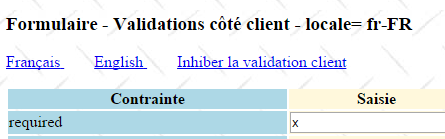 | 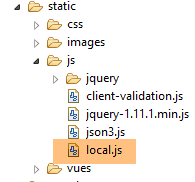 |
The HTML translation of these links is as follows:
<a id="clientValidationTrue" href="javascript:setClientValidation(true)">
    <span style="margin-left:30px">Activer la validation client</span>
</a>
<a id="clientValidationFalse" href="javascript:setClientValidation(false)">
    <span style="margin-left:30px">Inhiber la validation client</span>
</a>
The JavaScript script [setClientValidation] is defined in the file [local.js] (see above). In the [$(document).ready] function of this file, the validation links are used:
// document ready
$(document).ready(function() {
    // global references
...
    activateValidationTrue = $("#clientValidationTrue");
    activateValidationFalse = $("#clientValidationFalse");
    clientValidation = $("#clientValidation");
...
    // validation links
    // clientValidation is a hidden field set by the server
    var validate = clientValidation.val();
    setClientValidation2(validate === "true");
});
- line 5: a reference to the client-side validation activation link;
- line 6: a reference to the client-side validation deactivation link;
- line 7: a reference to a hidden form field that stores the last activation status as a Boolean [true: client-side validation enabled, false: client-side validation disabled]. This field is located in the view [vue-01.xml] in the following form:
<input type="hidden" th:field="*{clientValidation}" th:value="*{clientValidation}" value="true" />
and corresponds to the [clientValidation] field in the [Form01] form:
// validation client
private boolean clientValidation = true;
- Line 11: Retrieve the value of the hidden field;
- Line 12: We call the following [setClientValidation2] function:
function setClientValidation2(activate) {
    // liens
    if (activate) {
        // la validation client est active
        activateValidationTrue.hide();
        activateValidationFalse.show();
        // on parse les validateurs du formulaire
        $.validator.unobtrusive.parse(formulaire);
    } else {
        // la validation client est inactive
        activateValidationFalse.hide();
        activateValidationTrue.show();
        // on désactive les validateurs du formulaire
        formulaire.data('validator', null);
    }
}
- line 1: the [activate] parameter is set to [true] if client-side validation should be enabled, false otherwise;
- lines 5-6: the deactivation link is displayed, the activation link is hidden;
- line 8: for client-side validation to work, the document must be parsed (analyzed) to search for [data-val-X] validators. The parameter of the [$.validator.unobtrusive.parse] function is the JavaScript ID of the form to be parsed;
- lines 11-12: the activation link is displayed, the deactivation link is hidden;
- line 14: the form validators are disabled. From now on, it is as if there were no JavaScript validators in the form;
What is the purpose of this [setClientValidation2] function? It is used to manage POST requests. Since the [clientValidation] field is a hidden field, it is posted and returned with the form sent back by the server. We then use its value to restore client-side validation to the state it was in before the POST. This is because there is no JavaScript state preserved between requests. The server must therefore pass the information needed to initialize the new view’s JavaScript to that view. This is usually done in the [$(document).ready] function.
Let’s return to the [setClientValidation] function, which handles clicks on the links to enable/disable client-side validation:
// validation côté client
function setClientValidation(activate) {
    // on gère l'activation / désactivation de la validation client
    setClientValidation2(activate);
    // on mémorise le choix de l'utilisateur dans le champ caché
    clientValidation.val(activate ? "true" : "false");
    // ajustements supplémentaires
    if (activate) {
        // la validation client est active
        // on efface tous les messages d'erreur du serveur
        clearServerErrors();
        // on valide le formulaire
        formulaire.validate().form();
    } else {
        // la validation client est inactive
        // on efface tous les messages d'erreur du client
        clearClientErrors();
    }
}
- line 4: we use the [setClientValidation2] function we just saw;
- line 6: we store the user's selection in the hidden field to retrieve it when the next POST request returns;
- line 11: if client-side validation is enabled, we clear the error messages from the [server] column of the view. We described the [clearServerErrors] function in section 6.3.7;
- line 13: the JavaScript validators are executed to display any error messages in the [client] column of the view;
- line 17: if client-side validation is disabled, we clear the error messages from the [client] column of the view. Let’s examine the HTML code of an erroneous element in the Chrome developer console:
<td class="col2">
    <input type="text" data-val="true" data-val-int="Format invalide" data-val-max-value="100" data-val-required="Le champ est obligatoire" data-val-max="La valeur doit être inférieure ou égale à 100" value="" id="intMax100" name="intMax100" aria-required="true"        class="input-validation-error" aria-describedby="intMax100-error">
</td>
<td class="col3">
    <span class="field-validation-error" data-valmsg-for="intMax100" data-valmsg-replace="true">
        <span id="intMax100-error" class="">Le champ est obligatoire</span>
    </span>
</td>
- In line 2, we see that in column 2 of the table, the erroneous element has the style [class="input-validation-error"] ;
- line 5, we see that in column 3 of the table, the error message has the style [class="field-validation-error"] ;
This is true for all invalid elements. We use these two pieces of information in the following [clearClientErrors] function:
// clear client errors
function clearClientErrors() {
    // erase client error messages
    $(".field-validation-error").each(function(index) {
        $(this).text("");
    });
    // change the CSS class of erroneous entries
    $(".input-validation-error").each(function(index) {
        $(this).removeClass("input-validation-error");
    });
}
- lines 4-6: we search for all DOM elements with the [field-validation-error] class and clear the text they display. This is how the error messages are cleared;
- lines 8-10: we search for all DOM elements with the class [input-validation-error] and remove that class from them. This restores the original style of the element that had been highlighted in red;