2. Installing a Python interpreter
2.1. ActivePython
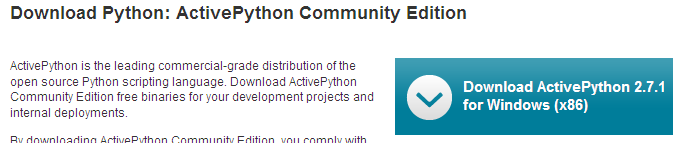
The examples in this document have been tested with the Python interpreter from ActiveState:
 |
Notes:
- Do not download the 64-bit version of Active Python. It does not allow the installation of the MySQLdb module, which is required later in this document.
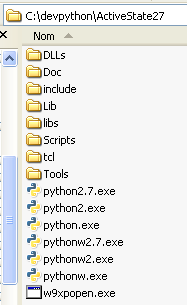
Installing ActivePython creates the following directory structure:
 |
and the following menu in the application tree:
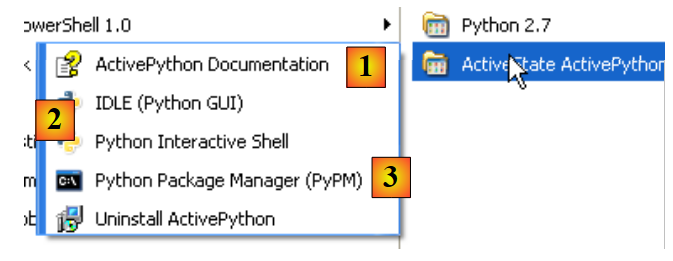 |
- 1: the ActivePython documentation. This is very comprehensive, and it is a good idea to consult it whenever you encounter a problem;
- 2: an interactive Python interpreter;
- 3: the Active Python package manager. We will use this to install the Python package that allows us to work with MySQL databases.
We will not use the interactive Python interpreter. It is simply important to know that the scripts in this document could be run using this interpreter. While it is useful for testing how a Python feature works, it is not very practical for scripts that need to be reused. Here is an example:
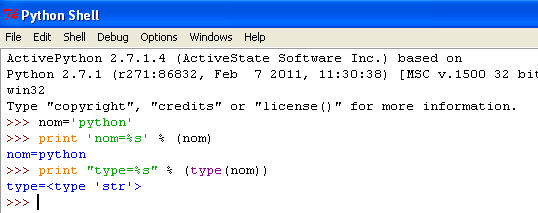 |
The >>> prompt allows you to enter a Python statement that is executed immediately. The code typed above has the following meaning:
Lines:
- 1: initialization of a variable. In Python, you do not declare the type of variables. They automatically take on the type of the value assigned to them. This type may change over time;
- 2: display of the name. 'name=%s' is a display format where %s is a formal parameter denoting a string. (name) is the actual parameter that will be displayed in place of %s;
- 3: the result of the display;
- 4: display of the type of the variable name;
- 5: the variable name is of type str (string).
Below, we provide scripts that have been tested as follows:
- the script can be written using any text editor. Here we used Notepad++, which offers syntax highlighting for Python scripts;
- the script is run in a DOS window.
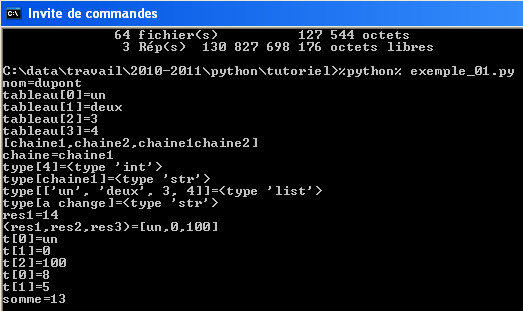 |
- Navigate to the folder containing the script to be tested;
- the %python% variable is a system variable:
- Line 1: displays the value of the %python% environment variable;
- line 2: its value: <installdir>\python.exe where installdir is the installation folder for ActivePython.
2.2. Python Tools for Visual Studio
[Python Tools for Visual Studio] is available (February 2012) at the following link: URL. Running it adds Python features to Visual Studio 2010. Visual Studio 2010 Express is free and available at URL [http://www.microsoft.com/visualstudio/en-us/products/2010-editions/express].
Once the [Python Tools for Visual Studio] extensions are installed, you can create Python projects in Visual Studio 2010:
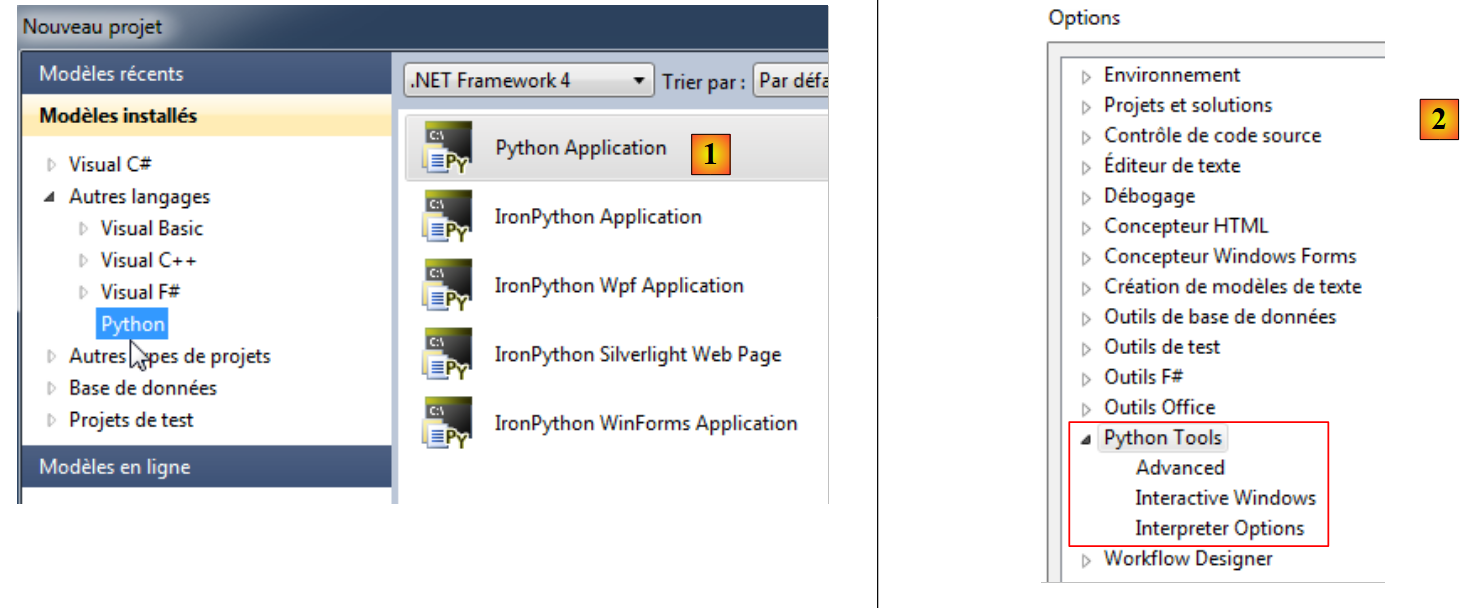 |
- for all examples in this document, the [1] option is appropriate;
- [2]: The menu (Tools / Options) allows you to configure the Python environment.
The ActivePython interpreter must have been detected by Visual Studio [3]:
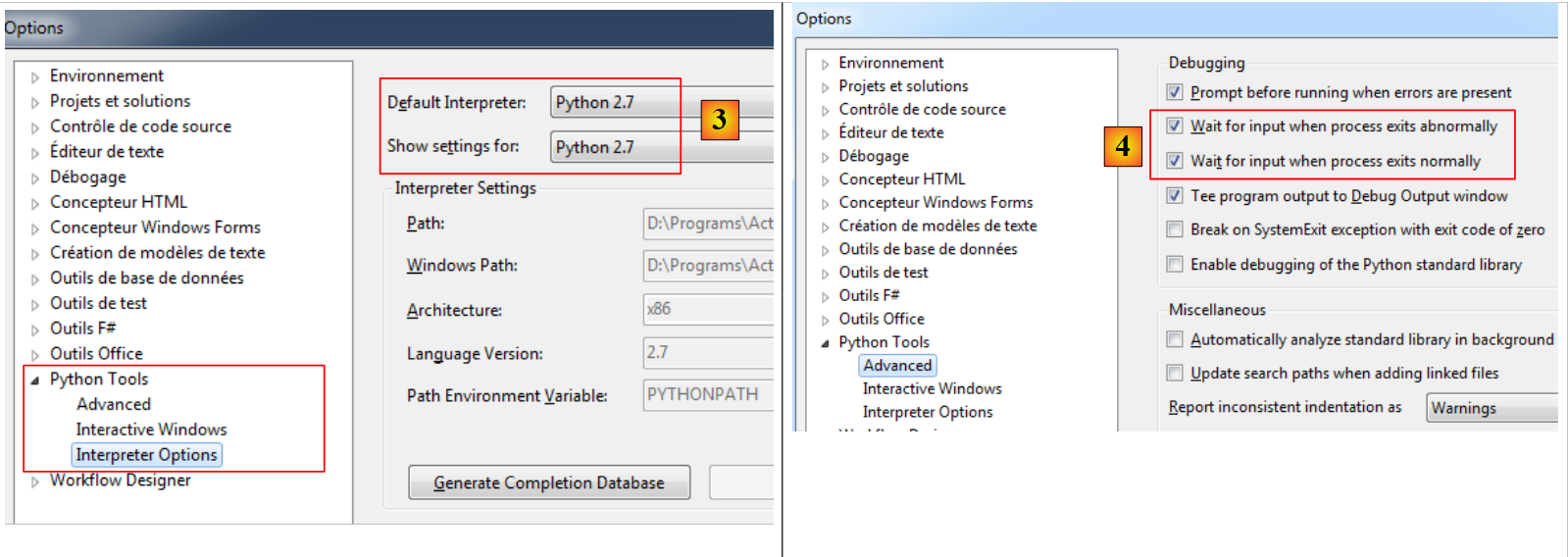 |
- In [4], we specify that the program execution should end with a pause that the user interrupts by pressing a key on the keyboard.
Let’s create a Python project (File / New / Project):
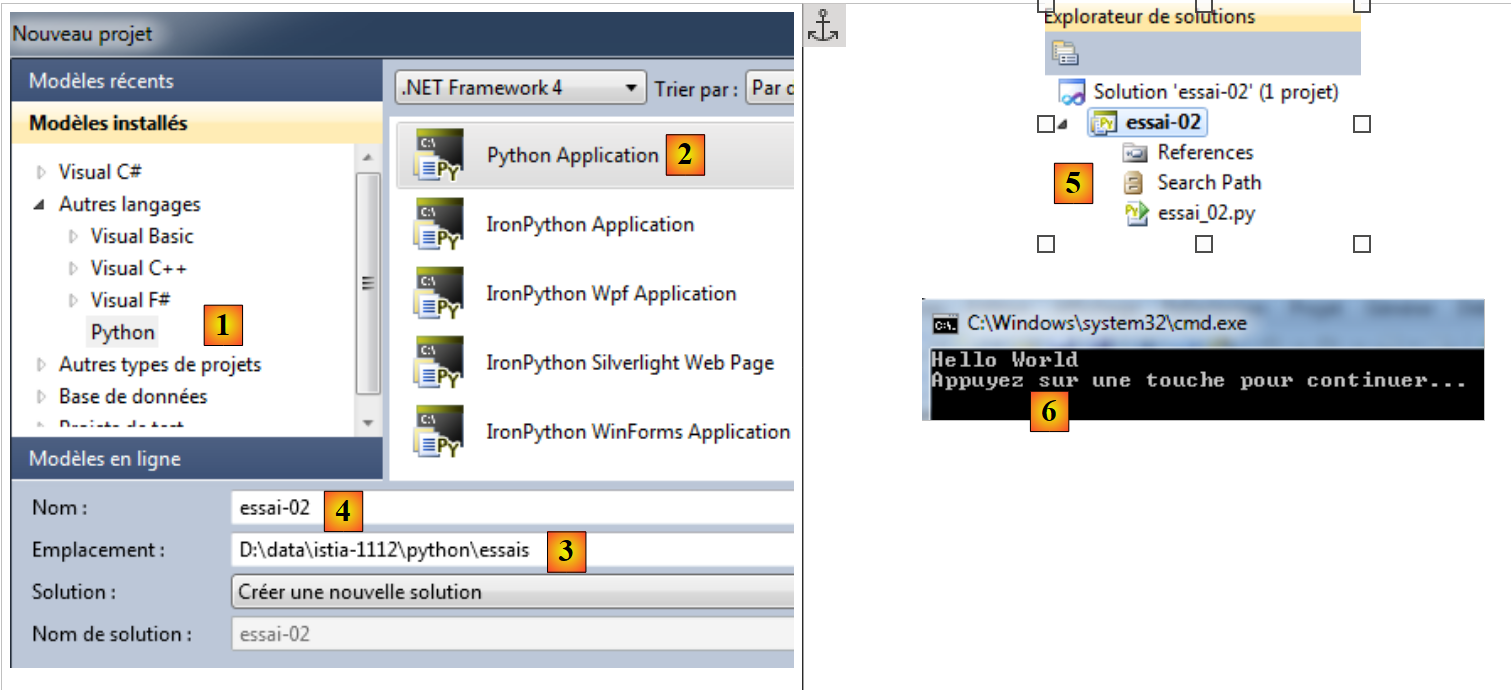 |
- in [1,2]: select a Python project of type [Python Application];
- in [3]: choose a folder for the project;
- in [4]: name the project;
- in [5]: the generated project.
The file [essai_02.py] is a Python program:
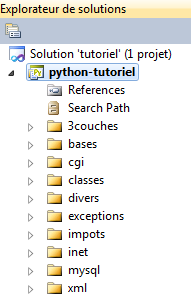
It is executed via [Ctrl-F5]: the result appears in a DOS window [6]. All the code in the document has also been tested in this way. The examples are provided in the form of a VS 2010 solution:
 |