3. The Angular JS client
3.1. References for the Angular JS Framework
Two references for the Angular JS framework were provided at the beginning of this document. We are listing them again here:
- [ref1]: the book "Pro AngularJS" written by Adam Freeman and published by Apress. It is an excellent book. The source code for the examples in this book is available for free at the URL [http://www.apress.com/downloadable/download/sample/sample_id/1527/];
- [ref2]: the official Angular JS documentation [https://docs.angularjs.org/guide];
AngularJS deserves a book all its own. Adam Freeman’s book is over 600 pages long, and not a single page is wasted. We will describe an Angular application, and in the course of this description, we will discuss the fundamentals of this framework. However, we will limit ourselves to only the explanations necessary for understanding the proposed solution. Angular is an extremely rich framework, and there are many ways to achieve the same result. This can be challenging because when you’re just starting out, you don’t know if you’re using a solution that’s better or worse than another. This is the case with the solution presented here. It could be written differently and perhaps using better practices.
3.2. Angular Client Architecture
The Angular client architecture resembles that of a classic MVC web application with a few differences. A Spring MVC web application, for example, has the following architecture:
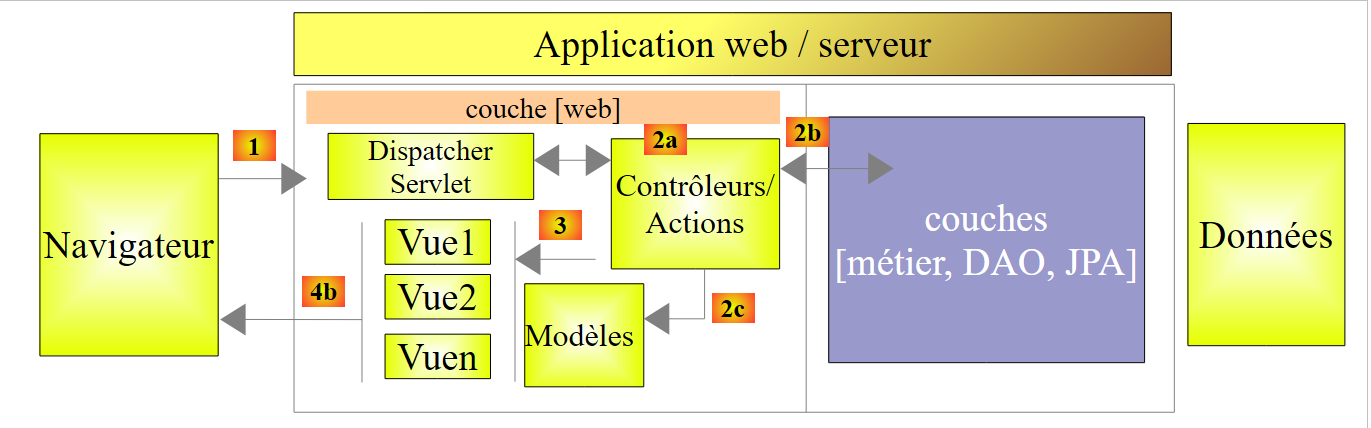 |
The processing of a client request proceeds as follows:
- request - the requested URLs are of the form http://machine:port/contexte/Action/param1/param2/....?p1=v1&p2=v2&... The [Dispatcher Servlet] is the Spring class that handles incoming URLs. It "routes" the URL to the action that should handle it. These actions are methods of specific classes called [Controllers]. The C in MVC here is the chain [Dispatcher Servlet, Controller, Action]. If no action has been configured to handle the incoming URL, the [Dispatcher Servlet] will respond that the requested URL was not found (404 NOT FOUND error);
- processing
- the selected action can use the parameters that the [Dispatcher Servlet] has passed to it. These can come from several sources:
- the path [/param1/param2/...] of the URL,
- the URL parameters [p1=v1&p2=v2],
- from parameters posted by the browser with its request;
- when processing the user's request, the action may need the [business] layer [2b]. Once the client's request has been processed, it may trigger various responses. A classic example is:
- an error page if the request could not be processed correctly
- a confirmation page otherwise
- the action instructs a specific view to be displayed [3]. This view will display data known as the view model. This is the M in MVC. The action will create this M model [2c] and instruct a V view to be displayed [3];
- response - the selected view V uses the model M constructed by the action to initialize the dynamic parts of the HTML response it must send to the client, then sends this response.
The architecture of our Angular client will be similar, with slightly different terminology. First of all, Angular applications are generally single-page web applications (SPAs):
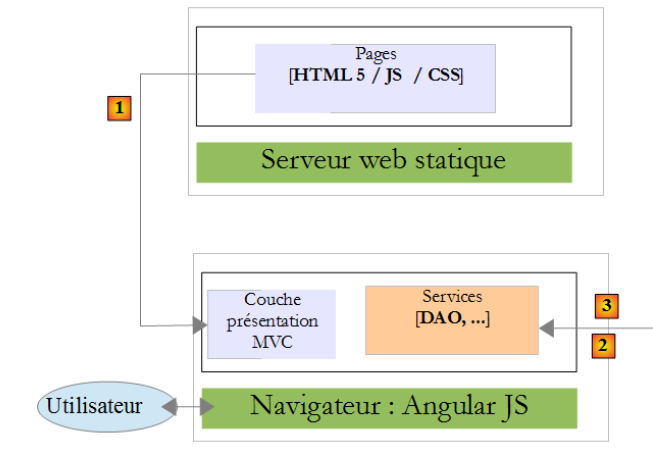
- the user requests the application’s initial URL in the form: http://machine:port/contexte. The browser queries a web server to retrieve the requested document. This is an HTML page styled with CSS and made dynamic by JavaScript;
- then the user interacts with the views presented to them. We can distinguish various types of interactions:
- those that do not require any interaction with external sources, such as hiding or showing view elements. These are handled by embedded JavaScript;
- those that require data from a remote web service. This data will be retrieved via an AJAX (Asynchronous JavaScript and XML) request, a model will be constructed, and a view will be displayed;
- those that require a view other than the initial view. It will be requested via an AJAX call to the server that served the initial page. Then the previous process will repeat. The resulting page will be cached in the browser. On the next request, it will not be fetched from the remote HTML server;
Ultimately, the browser makes only a single HTTP request—the one that fetches the initial page. Subsequent HTTP requests to the HTML page server or remote web services are made by the JavaScript embedded in the pages.
We will now present the application’s architecture within the browser. We will disregard the HTML server that delivers the application’s HTML pages. For the sake of explanation, we can assume that they are all present within the browser’s cache.
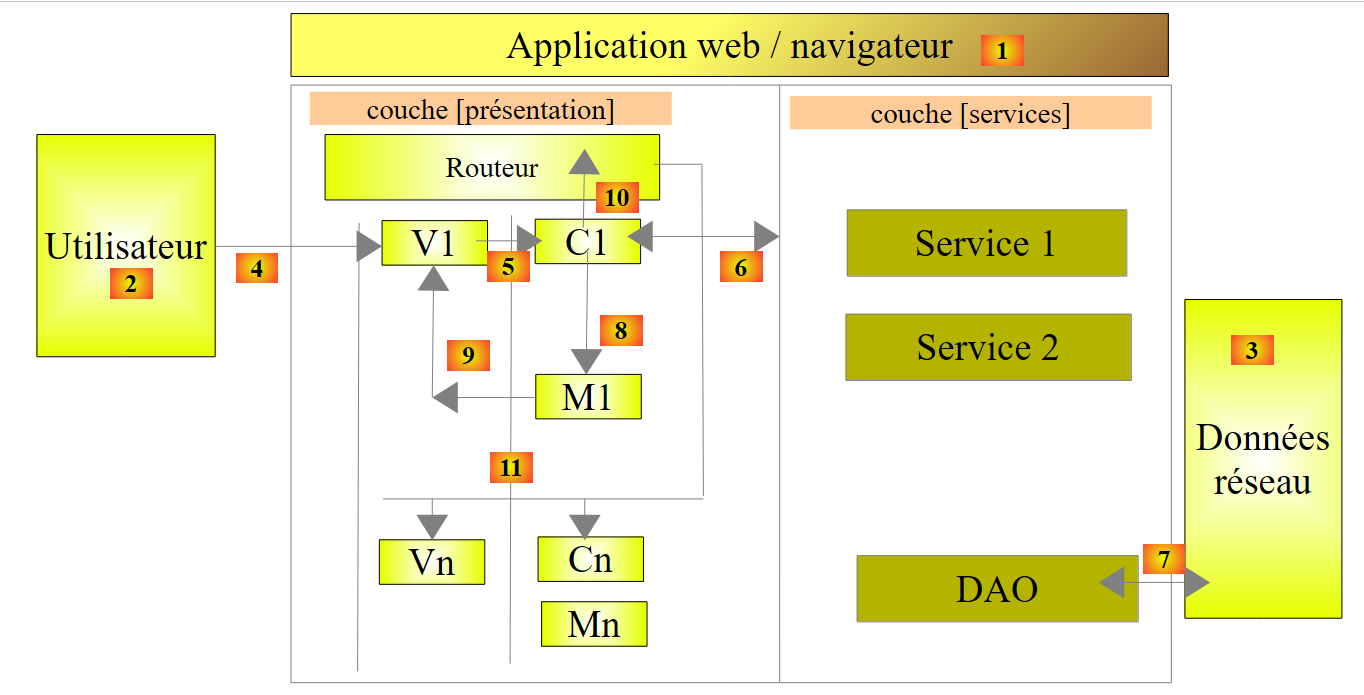 |
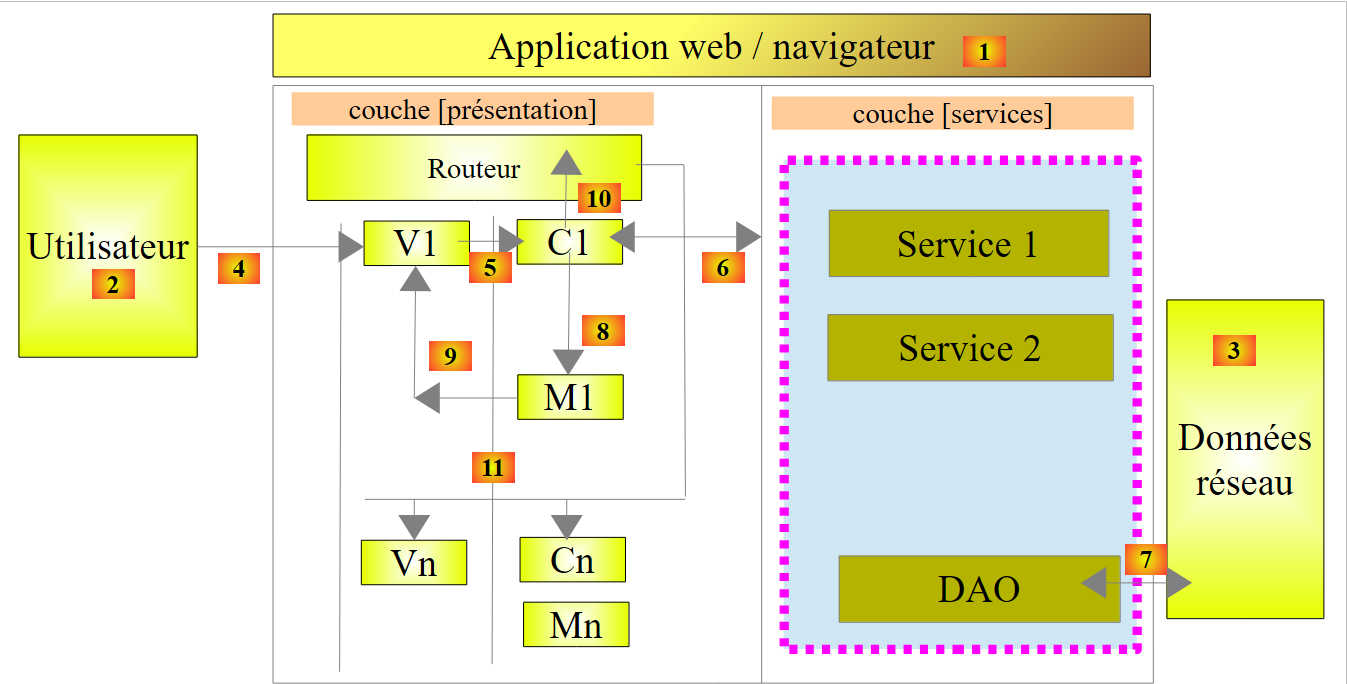
First, we need to situate this architecture:
- in [1], we are in a browser;
- in [2], a user interacts with the views displayed by the browser;
- at [3], data is retrieved from the network, often from web services;
The user interacts with views: they fill out forms and submit them. Let’s explain this process using view V1 above. We’ll assume this is the application’s initial view. It was obtained as follows:
- the user requests the application’s initial URL in the form: http://machine:port/contexte;
- the browser requested the document associated with this URL. It received the HTML/CSS/JS page for view V1;
- the JavaScript embedded in the page then took over and handed control to controller C1 [5];
- the controller built the M1 model [8] [9] for view V1. Building this model may have required the use of internal services [6] and querying external services [7];
The user now has a V1 view in front of them. Let’s imagine it’s a form. They fill it out and then submit it:
- in [4], the user submits the form;
- in [5], this event will be handled by one of the methods of controller C1;
If the event results in only a simple change to view V1 (hiding/showing fields), controller C1 will modify the M1 model of view V1 and then display view V1 again. To do this, it may need one of the services from the [services] layer [6].
If the event requires external data:
- in [6], controller C1 will request the [DAO] layer to retrieve it;
- in [7], the [DAO] layer will make one or more AJAX calls to retrieve it;
- in [8] and [9], the M1 model will be modified and view V1 displayed;
If the event triggers a view change, in both of the previous cases, instead of displaying view V1, controller C1 will request a new URL [10]. This is an internal URL within the browser. It does not immediately result in an HTTP request to the HTML page server. This URL change is handled by a router configured such that each internal URL corresponds to a view V and its controller C. The router then displays the new view Vn. Before display, its controller Cn takes over, constructs the model Mn, and then displays the view Vn [11]. If the HTML page for view Vn is not cached in the browser, it will be requested from the HTML page server.
The [Presentation] layer of this architecture is similar to the JSF (Java Server Faces) architecture:
- the view V corresponds to the JSF Facelet view;
- the controller C corresponds to the JSF bean, a Java class that contains both the model M of the view V and its event handlers;
The [Services] layer differs from the [Services] layers we are accustomed to. In server-side web development, we most often have the following layered architecture:
 |
In the diagram above, the [web] layer communicates with the [DAO] layer only through the [business] layer. Nothing would prevent us from injecting a reference to the [DAO] layer into the [web] layer to enable this communication. But we avoid doing so.
With Angular, we don’t restrict ourselves. The architecture then becomes as follows:
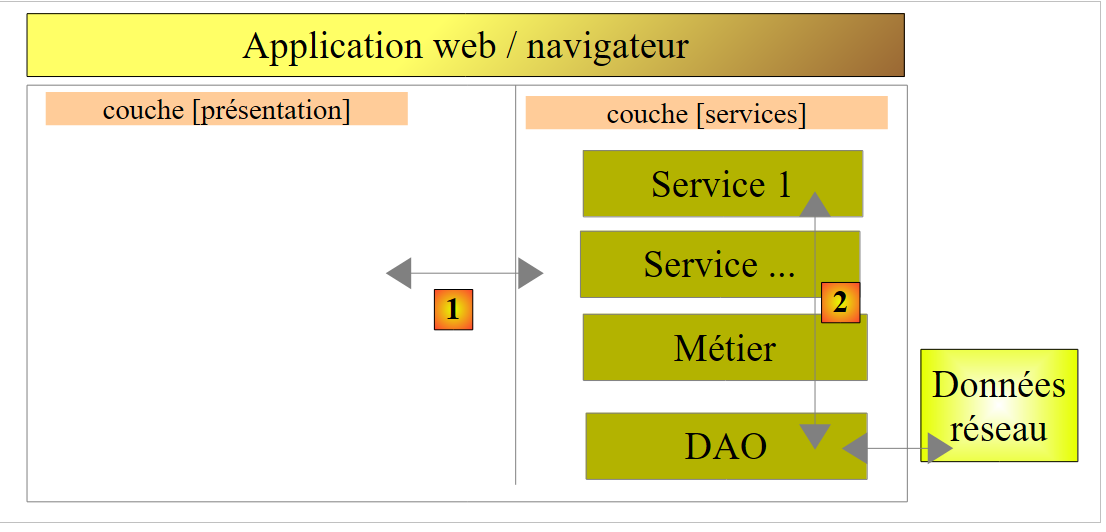 |
- in [1], the [presentation] layer can communicate directly with any service;
- in [2], the services are aware of each other. A service can use one or more other services.
3.3. The Angular client views
The Angular client views were already introduced in Section 1.3.3. To make this new chapter easier to follow, we are repeating them here. The first view is as follows:
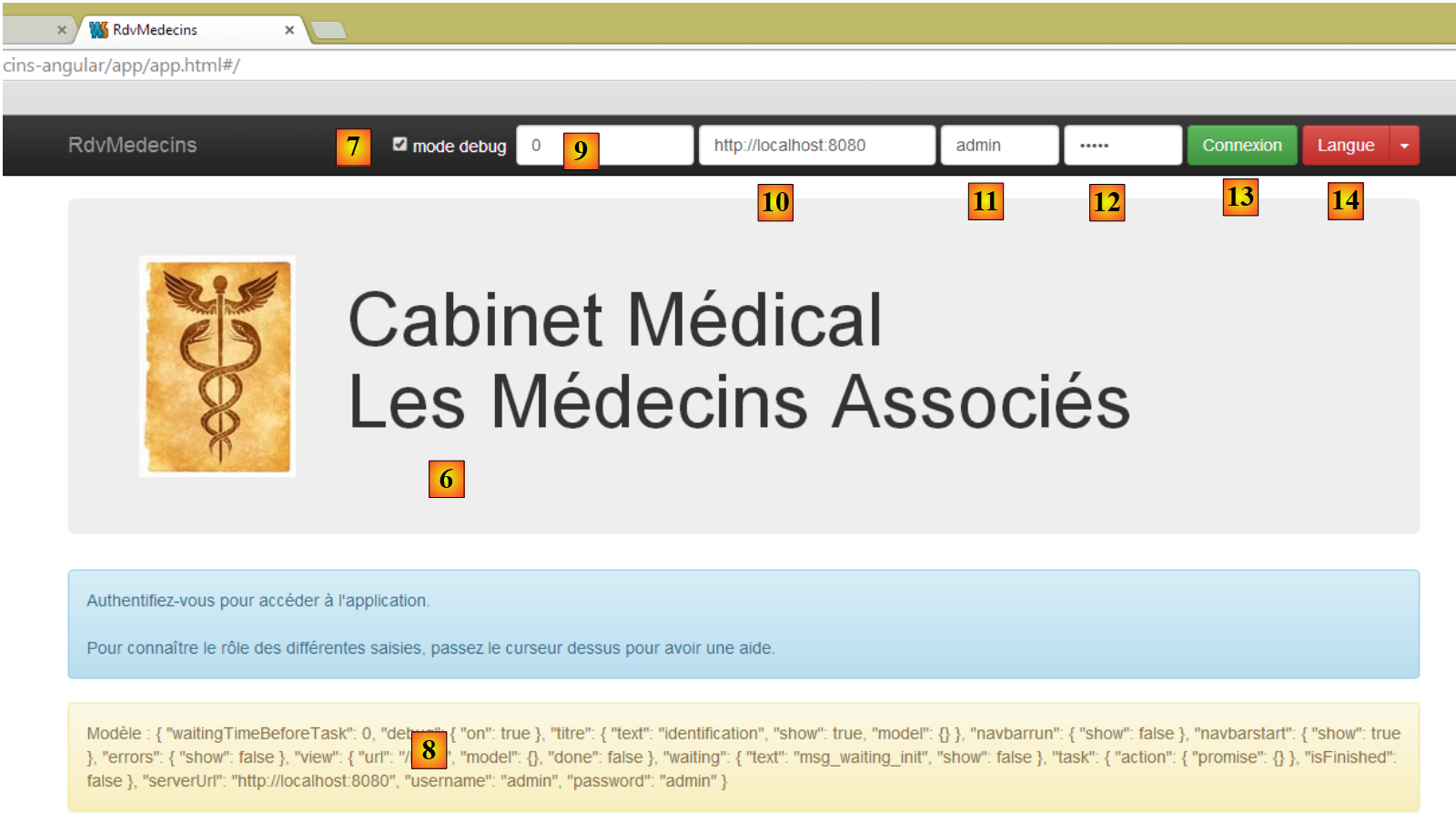 |
- [6], the application’s login page. This is an appointment scheduling application for doctors;
- in [7], a checkbox that allows the user to enable or disable [debug] mode. This mode is indicated by the presence of the [8] panel, which displays the model of the current view;
- in [9], an artificial wait time in milliseconds. It defaults to 0 (no wait). If N is the value of this wait time, any user action will be executed after a wait time of N milliseconds. This allows you to see the wait management implemented by the application;
- in [10], the Spring 4 server URL. Based on what preceded, this is [http://localhost:8080];
- in [11] and [12], the username and password of the user who wants to use the application. There are two users: admin/admin (login/password) with a role (ADMIN) and user/user with a role (USER). Only the ADMIN role has permission to use the application. The USER role is included solely to demonstrate the server’s response in this use case;
- in [13], the button that allows you to connect to the server;
- in [14], the application language. There are two: French (default) and English.
 |
- at [1], you log in;
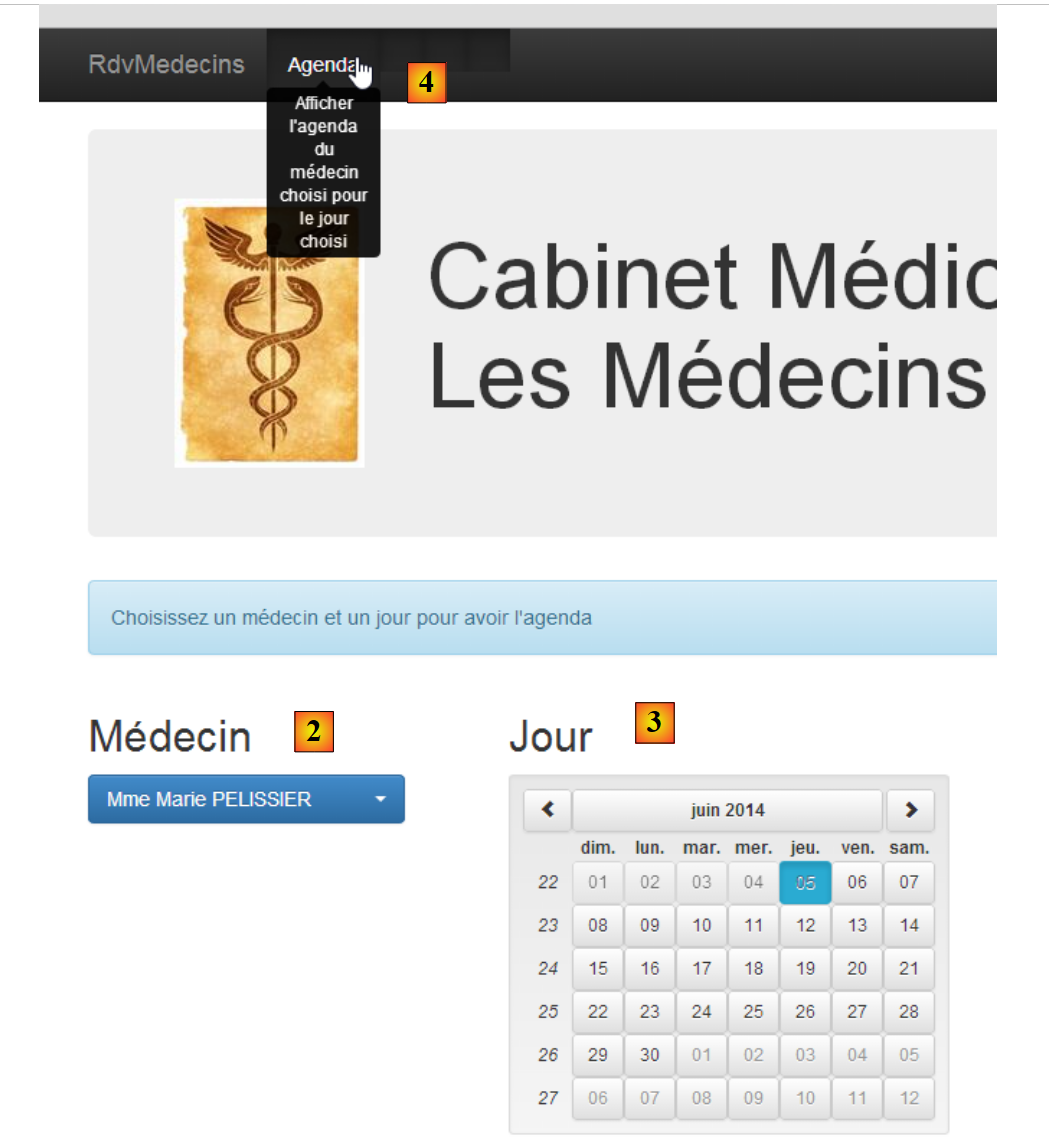 |
- once logged in, you can choose the doctor with whom you want an appointment [2] and the date of the appointment [3];
- In [4], you request to view the selected doctor’s schedule for the chosen day;
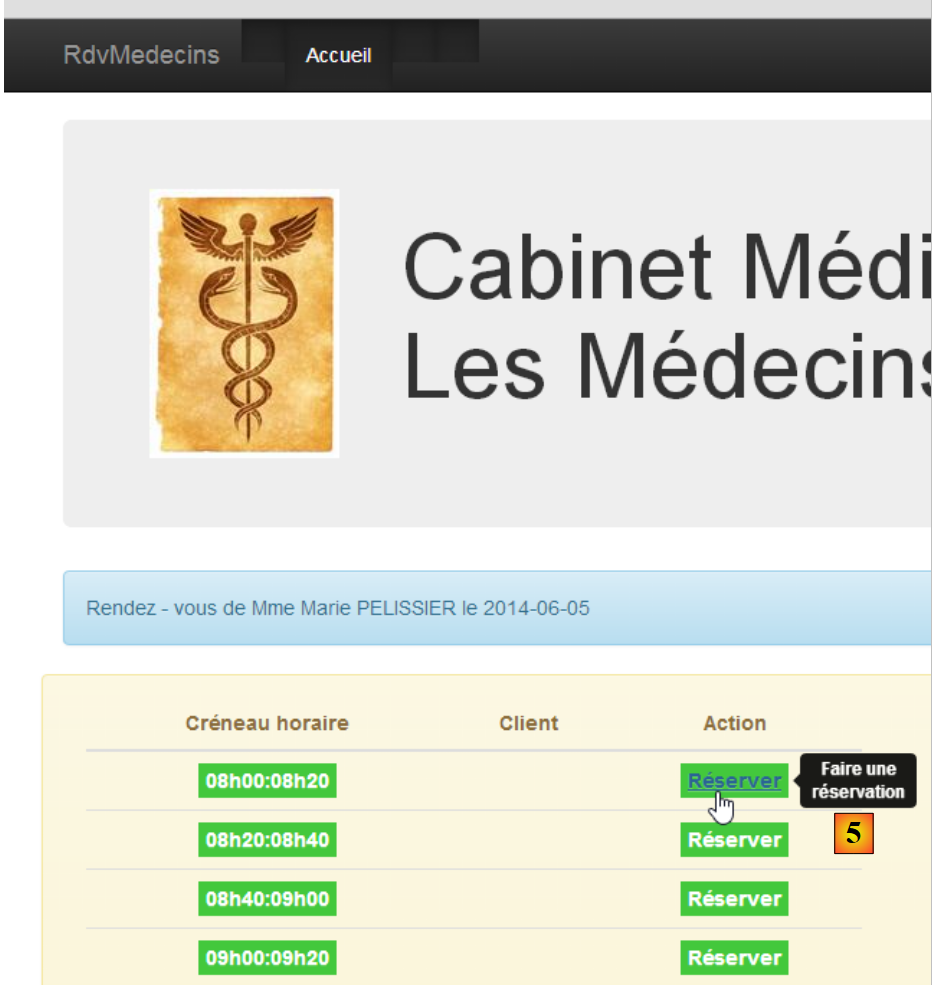 |
- Once the doctor’s schedule is displayed, you can book a time slot [5];
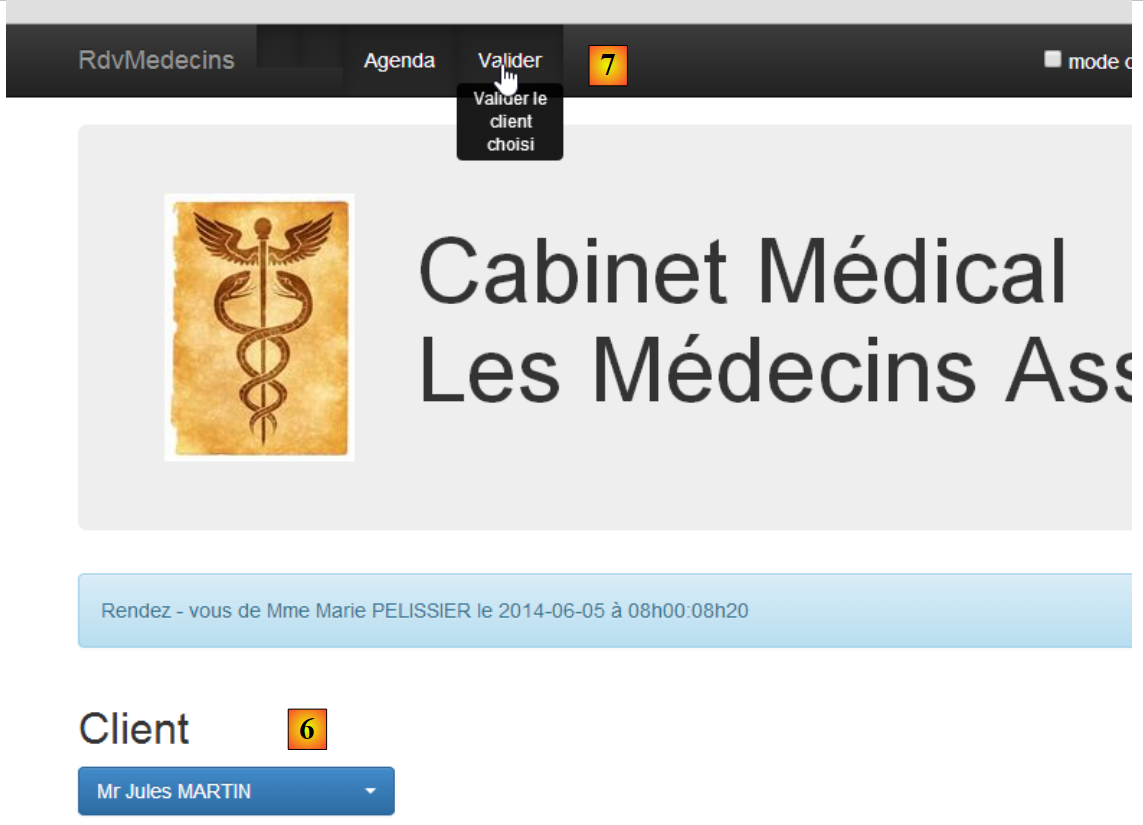 |
- In [6], select the patient for the appointment and confirm your selection in [7];
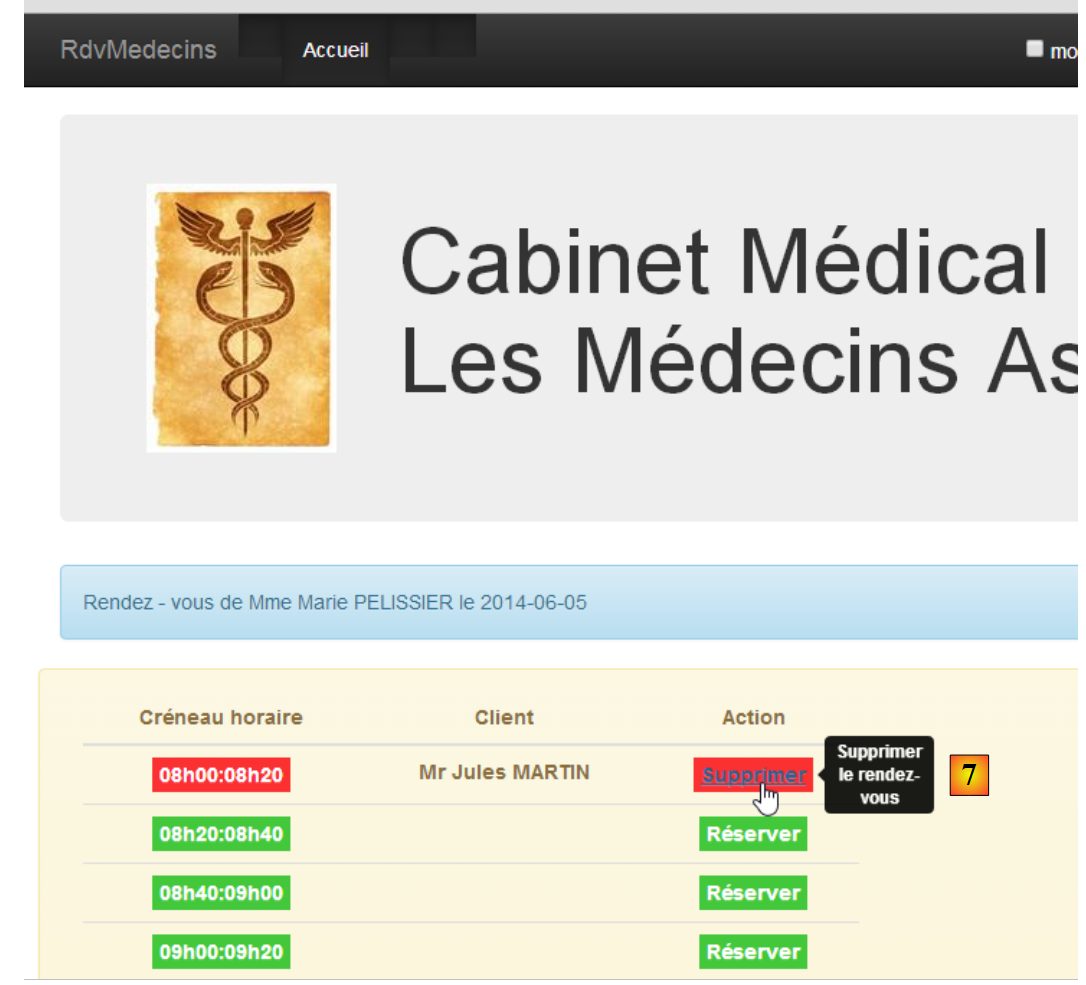 |
Once the appointment is confirmed, you are automatically returned to the schedule where the new appointment is now listed. This appointment can be deleted later [7].
The main features have been described. They are simple. Those not described are navigation functions for returning to a previous view. Let’s conclude with language settings:
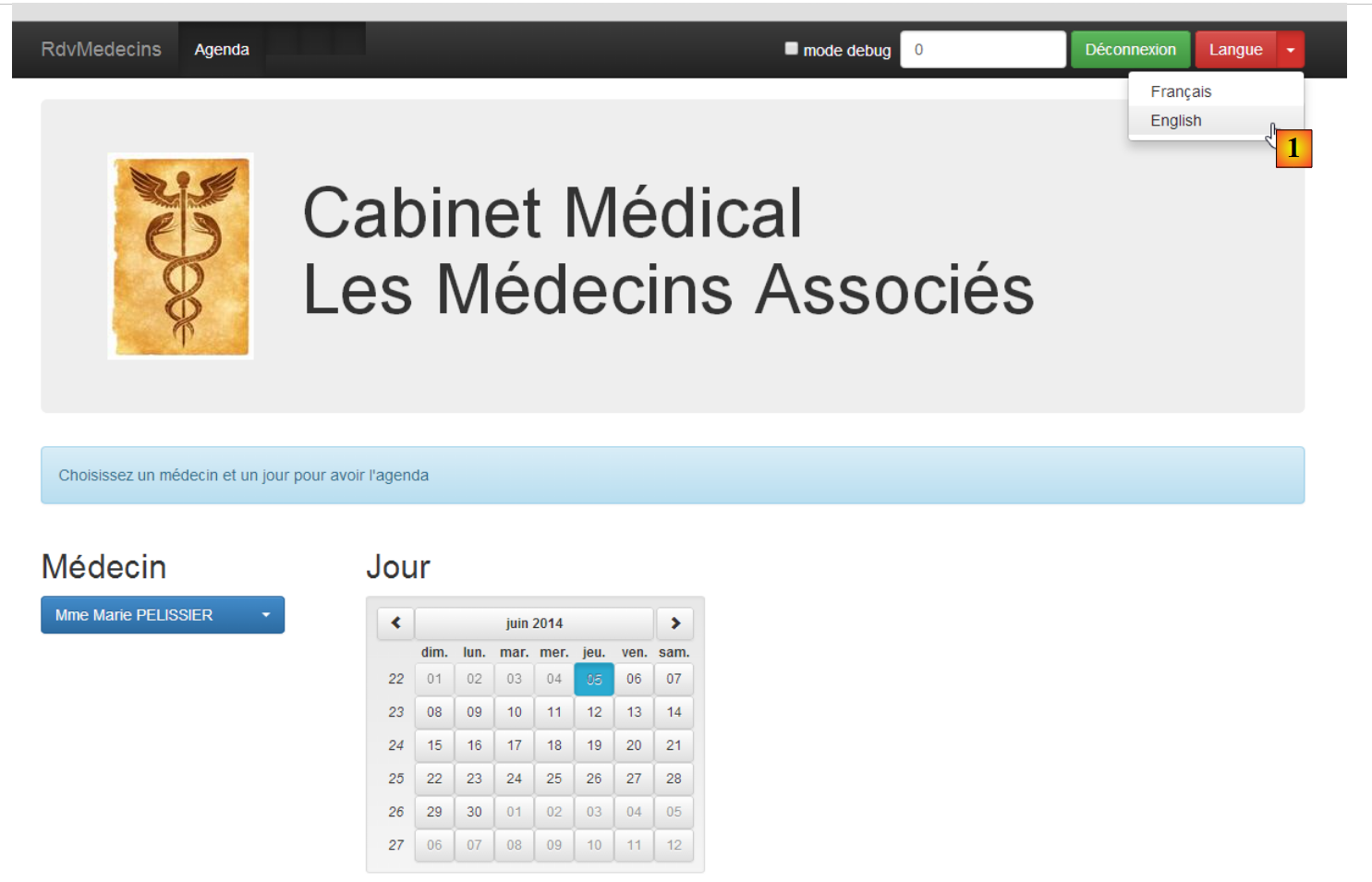 |
- in [1], you switch from French to English;
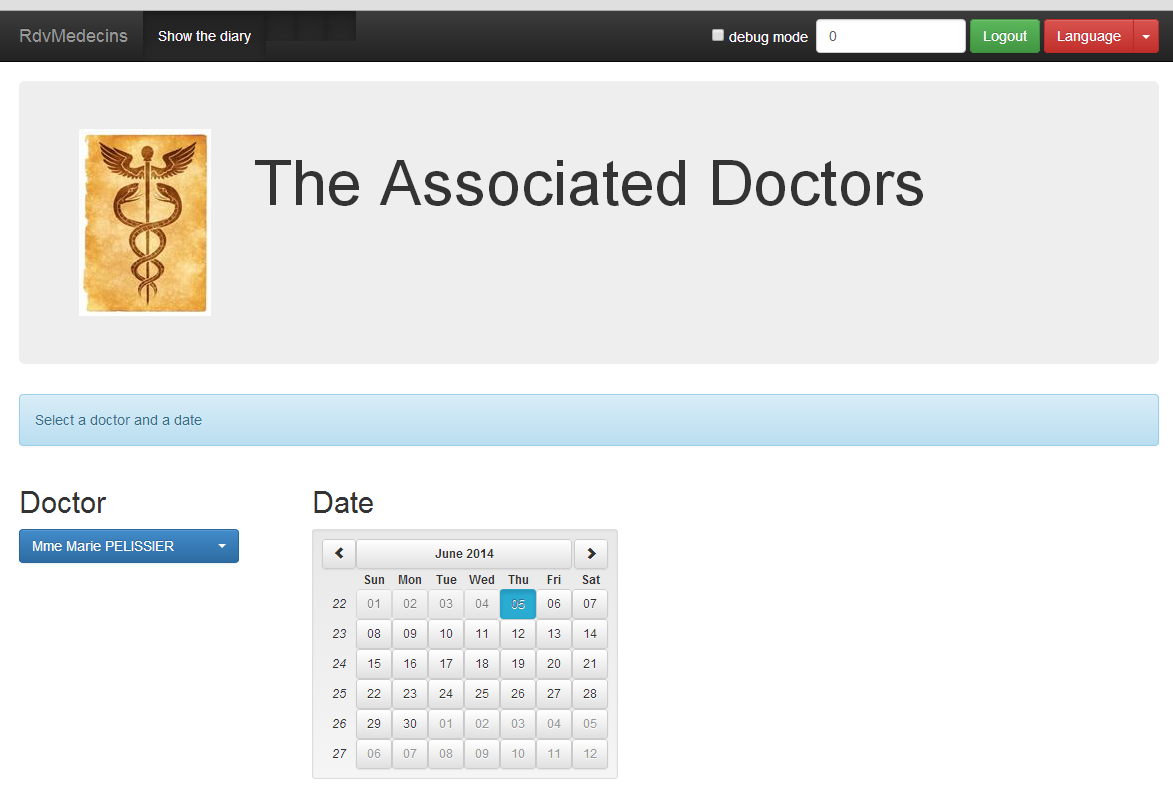
- in [2], the view switches to English, including the calendar;
3.4. Angular Project Setup
We will build our Angular client step by step. We are using the WebStorm IDE.
Let’s create an empty folder [rdvmedecins-angular-v1] and then open it with WebStorm:
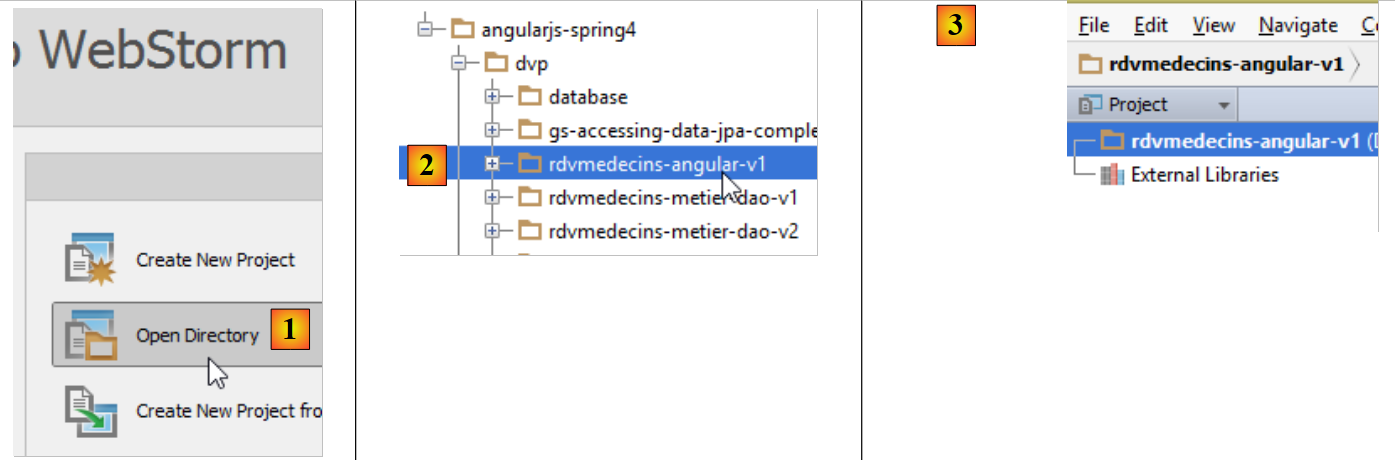 |
- in [1], open a folder;
- In [2], we select the folder we created;
- in [3], we get an empty WebStorm project;
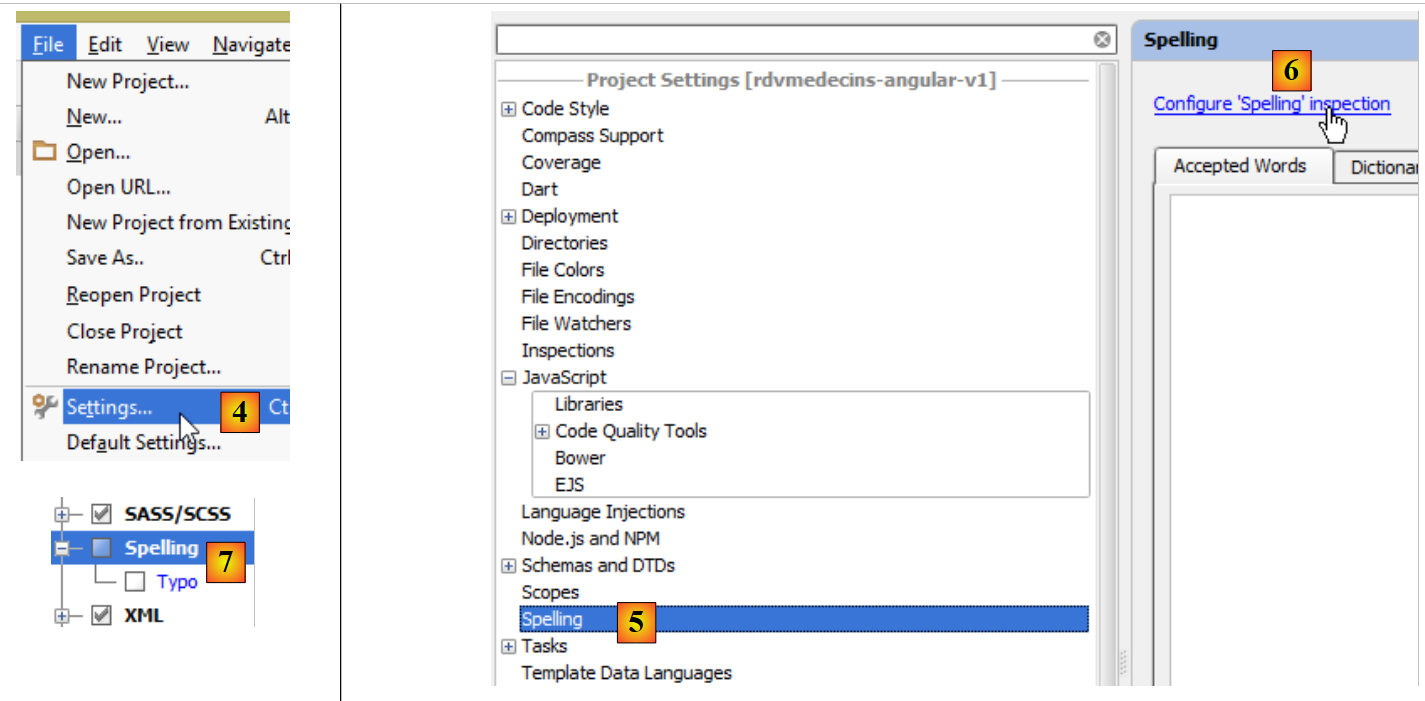 |
- in [4], configure the project via the [File / Settings] option;
- in [5] and [6], we configure the [Spelling] property, which manages spell checking. By default, this is enabled. Since the downloaded software is in English, our French comments in the programs will be underlined as potential spelling errors. We therefore disable this spell check [7];
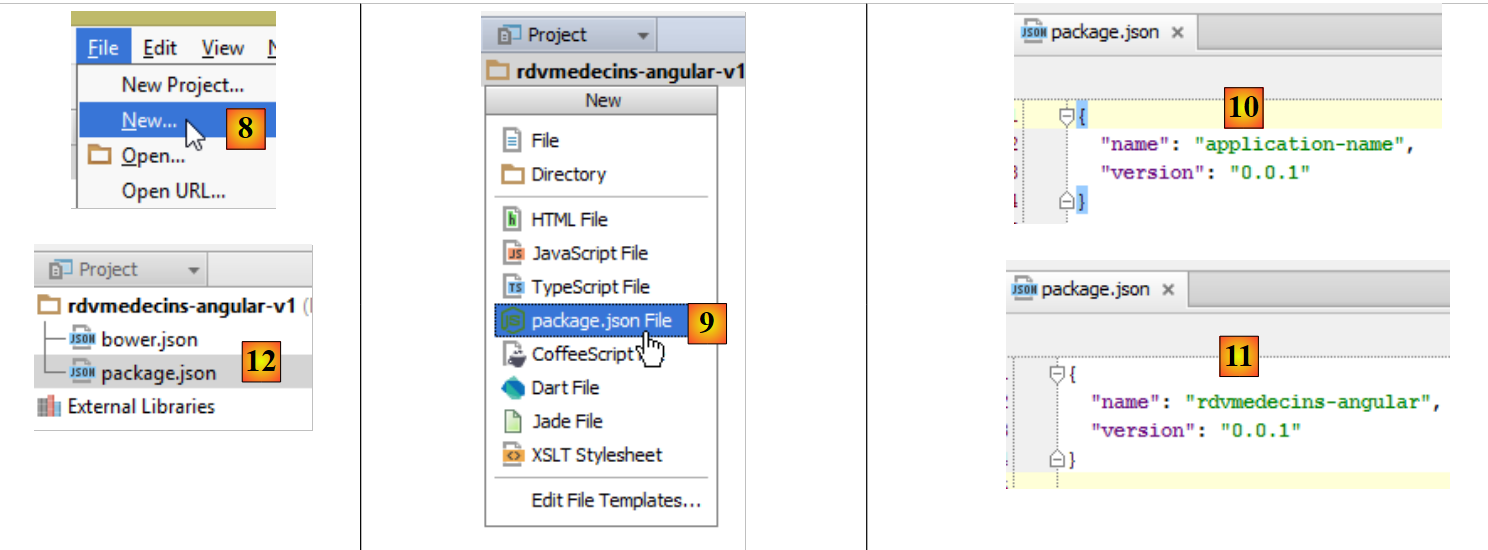 |
- In [8], create a new file;
- In [9], we choose to create the [package.json] file, which describes the application using JSON syntax;
- in [10], the generated file is modified as shown in [11];
- in [12], save this file to both [package.json] and [bower.json];
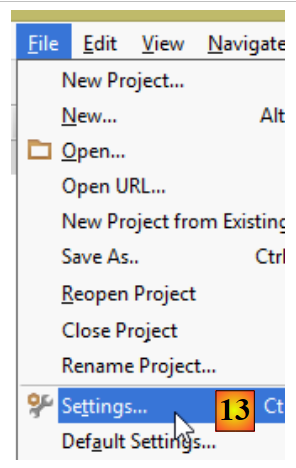 |
- In [13], reconfigure the project;
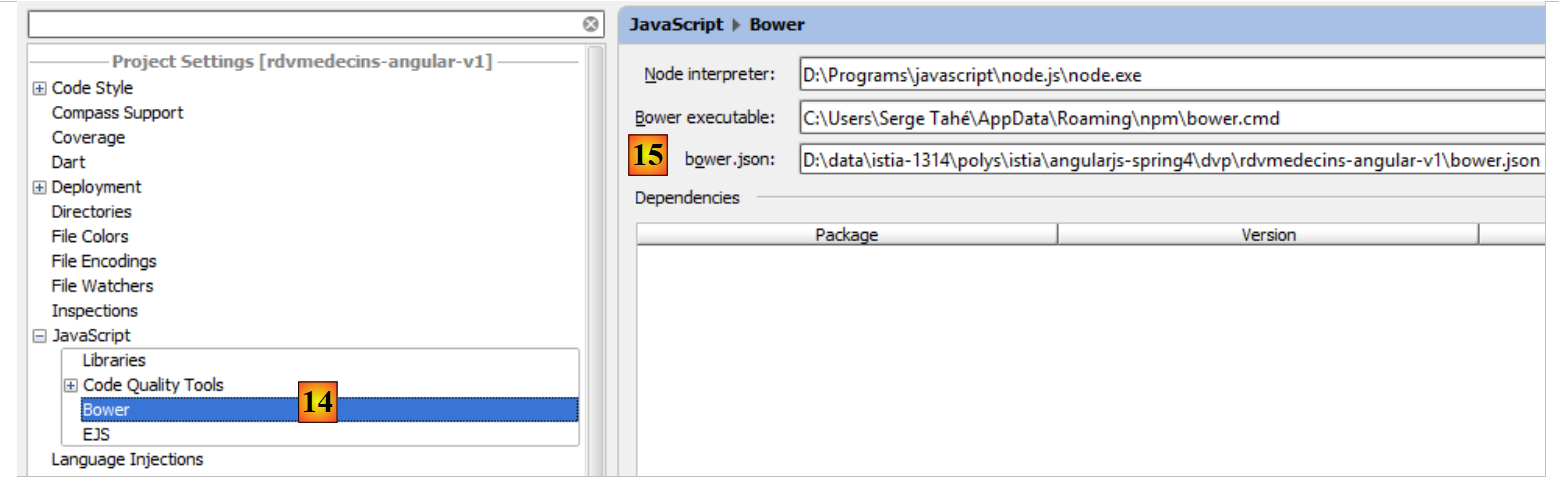 |
- in [14], configure the [Javascript / Bower] property, which will allow us to declare the JavaScript libraries we need;
- in [15], specify the [bower.json] file we just created;
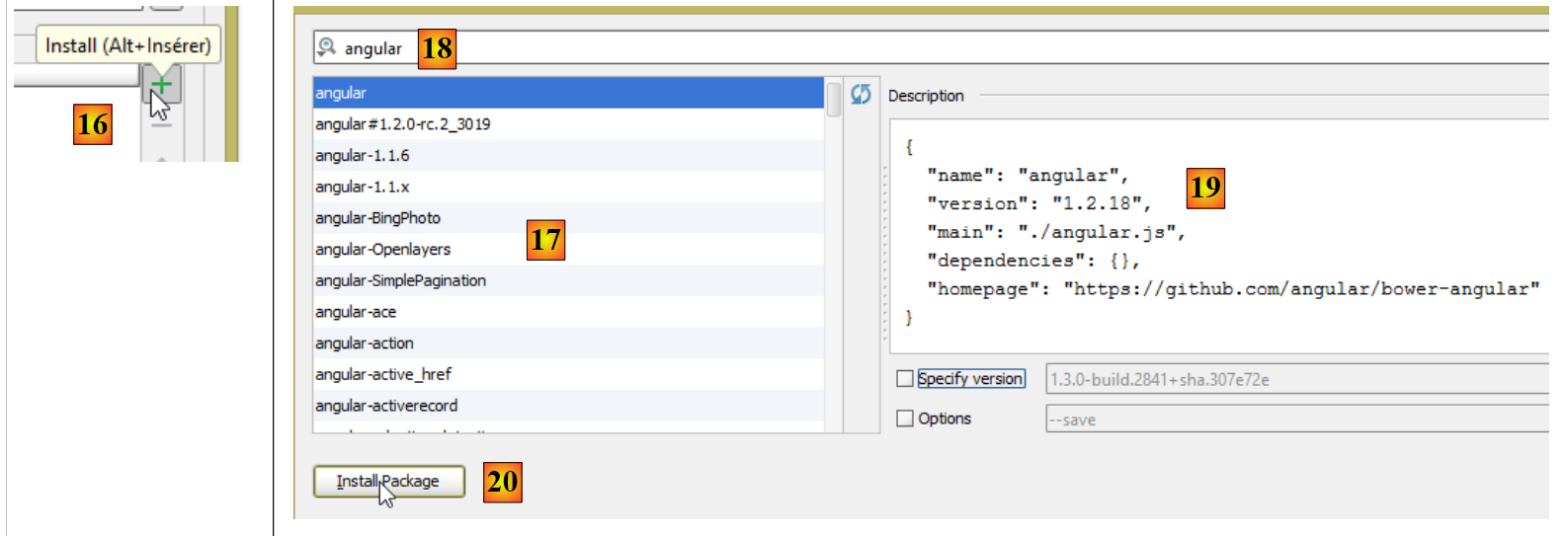 |
- in [16], add a JavaScript library;
- in [17], all downloadable JavaScript libraries are displayed;
- In [18], we can enter a term to filter the list [17]. Here, we specify that we want the [Angular JS] library;
- in [19], the library’s details appear. Here we see that version 1.2.18 of Angular will be downloaded;
- in [20], we download it;
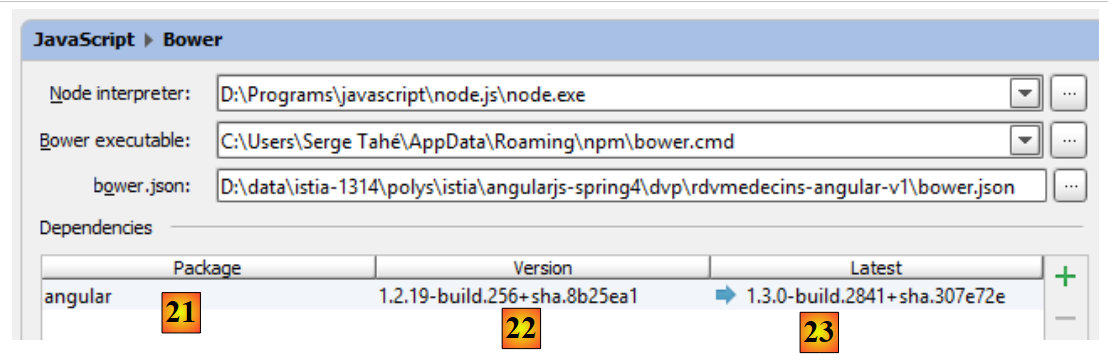 |
- in [21], we see that it has been downloaded;
- in [22], we see the downloaded version. It is actually 1.2.19;
- in [23], we see the latest available version;
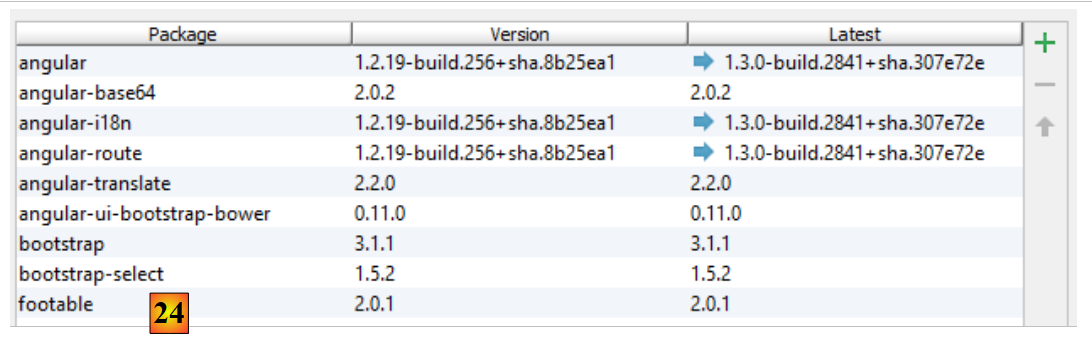 |
- in [24], following the same procedure as before, we download the following libraries:
to encode the string "user:password" in Base64; | ||
to internationalize the calendar | ||
to route the application's internal URLs to the correct controller and view; | ||
enables the internationalization of views. It is a project independent of Angular. Here, two languages will be used: French and English; | ||
provides Bootstrap-compatible visual components. We will use its calendar here; | ||
the Bootstrap CSS framework. Will be used to build the views; | ||
provides a "table" type visual component. It is "responsive" in the sense that it can adapt to the screen size; | ||
provides a "dropdown list" component; |
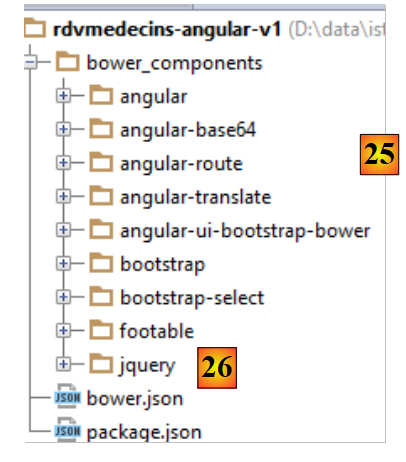 |
- In [25], the downloaded libraries were installed in the [bower_components] folder;
- in [26], we see that the jQuery library has been downloaded. This is because Bootstrap uses it. The system for installing JavaScript dependencies in a project is analogous to Maven in the Java world: if a downloaded library has dependencies of its own, those dependencies are automatically downloaded;
The [bower.json] file has changed:
All downloaded dependencies have been listed in the file.
3.5. The Angular client's initial page
We create an initial version of the Angular client's home page:
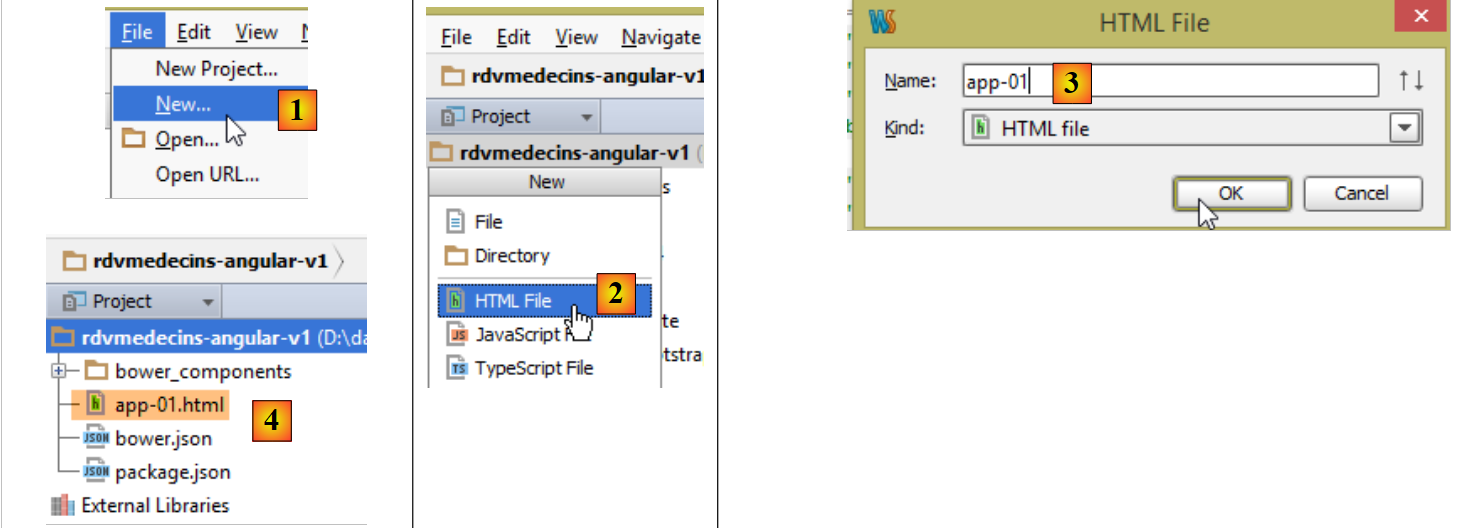 |
- in [1] and [2], we create an HTML file named [app-01] [3] and [4];
The [app-01.html] file will serve as our main page for the time being. We will configure the import of the CSS and JS files required by the application:
<!DOCTYPE html>
<html>
<head>
  <title>RdvMedecins</title>
  <!-- META -->
  <meta http-equiv="Content-Type" content="text/html; charset=utf-8">
  <meta name="viewport" content="width=device-width, initial-scale=1.0">
  <meta name="description" content="Angular client for RdvMedecins">
  <meta name="author" content="Serge Tahé">
  <!-- on CSS -->
  <link href="bower_components/bootstrap/dist/css/bootstrap.min.css" rel="stylesheet" />
  <link href="bower_components/bootstrap/dist/css/bootstrap-theme.min.css" rel="stylesheet"/>
  <link href="bower_components/bootstrap-select/bootstrap-select.min.css" rel="stylesheet"/>
  <link href="bower_components/footable/css/footable.core.min.css" rel="stylesheet"/>
</head>
<body>
<div class="container">
  <h1>Rdvmedecins - v1</h1>
</div>
<!-- Bootstrap core JavaScript ================================================== -->
<script type="text/javascript" src="bower_components/jquery/dist/jquery.min.js"></script>
<script type="text/javascript" src="bower_components/bootstrap/dist/js/bootstrap.min.js"></script>
<script type="text/javascript" src="bower_components/bootstrap-select/bootstrap-select.min.js"></script>
<script type="text/javascript" src="bower_components/footable/dist/footable.min.js"></script>
<!-- angular js -->
<script type="text/javascript" src="bower_components/angular/angular.min.js"></script>
<script type="text/javascript" src="bower_components/angular-ui-bootstrap-bower/ui-bootstrap-tpls.min.js"></script>
<script type="text/javascript" src="bower_components/angular-route/angular-route.min.js"></script>
<script type="text/javascript" src="bower_components/angular-translate/angular-translate.min.js"></script>
<script type="text/javascript" src="bower_components/angular-base64/angular-base64.min.js"></script>
</body>
</html>
- lines 11-12: the CSS files for Bootstrap;
- line 13: the CSS file for the [boostrap-select] component;
- line 14: the CSS file for the [footable] component;
- lines 21-24: the JS files for the Bootstrap components;
- line 21: Bootstrap components are powered by jQuery;
- line 22: the Bootstrap JS file;
- line 23: the JS file for the [boostrap-select] component;
- line 24: the JS file for the [footable] component;
- lines 26–30: the JS files for Angular and related projects;
- line 26: the Angular JS file. It must be loaded after jQuery if that library is used;
- line 27: the JS file for the [angular-ui-bootstrap] project;
- line 28: the JS file for the [angular-route] router;
- line 29: the JS file for the Angular application internationalization module;
- line 30: the JS file for the [angular-base64] module;
The validity of the [app-01.html] file can be verified:
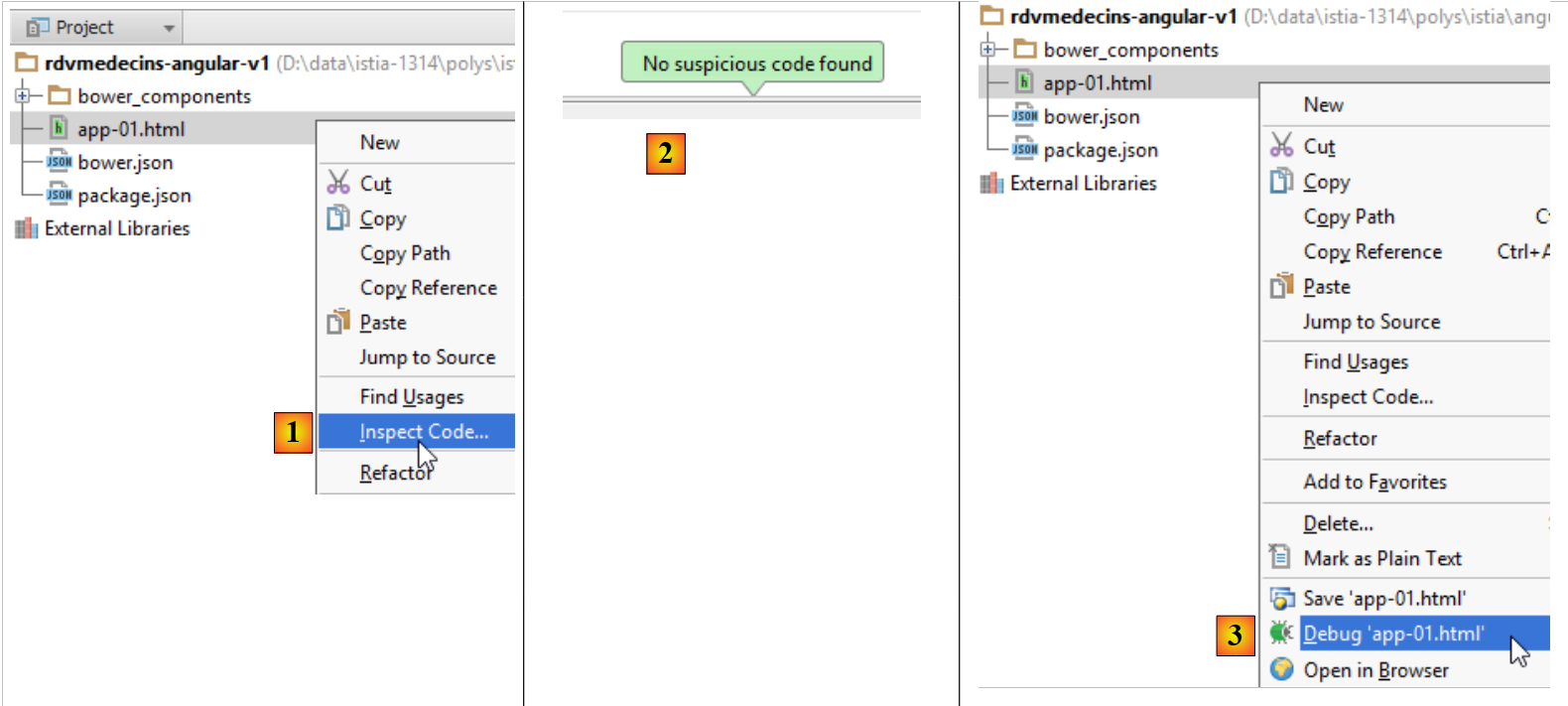 |
- in [1], we request a code inspection;
- in [2], the result when everything is correct;
This systematic code inspection before execution is recommended. Here, this check allows for the detection of any errors in CSS and JS file references. If a path is incorrect, the code inspector will flag it.
- In [3], the page can be loaded into a browser via a debugger. The following result is displayed in the browser:
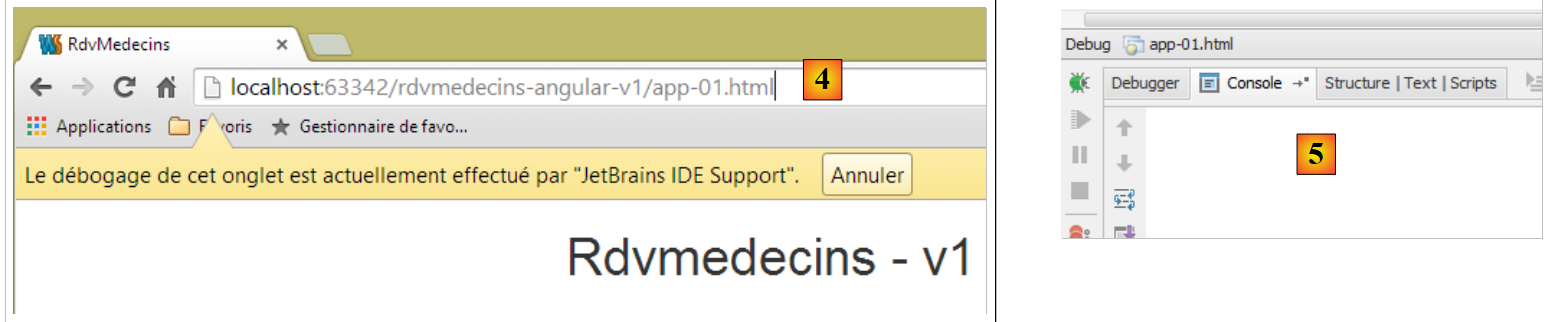 |
- in [4], the page [app-01.html] was served by an internal WebStorm server running here on port 63342;
- In [5], the debugger console. If any errors had occurred, they would have appeared here. This is also where the screen output generated by the JavaScript statement [console.log(expression)] is displayed. We will make extensive use of this feature;
Debug mode allows you to modify the page in WebStorm and see the results of those changes in the browser without having to reload the page. So if we add line 3 below:
<div class="container">
  <h1>Rdvmedecins - v1</h1>
  <h2>Version 1</h2>
</div>
and when we return to the browser, we see that the page has changed:
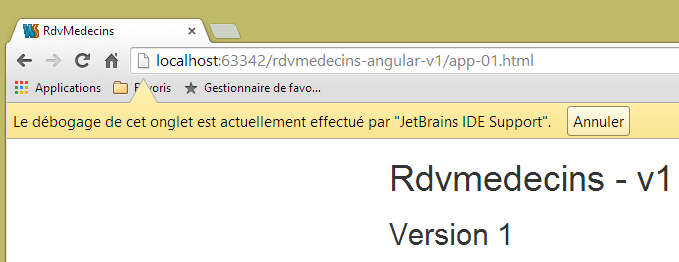 |
3.6. Introduction to Bootstrap
We will now illustrate some of the Bootstrap features used in the application. I have only limited knowledge of this framework, gained by copying and pasting code found on the Internet. I will explain the role of the CSS classes that I believe I understand. I will refrain from commenting on the others.
3.6.1. Example 1
In Angular, operations that fetch information from external sources are asynchronous. This means that the operation is initiated, and control immediately returns to the view, allowing the user to continue interacting with it. The application is notified that the operation has completed via an event. This event is handled by a JavaScript function that can then update or change the current view. If the operation is likely to take a long time, it’s helpful to give the user the option to cancel it. We’ll offer this option systematically. To do this, we’ll use a Bootstrap banner:
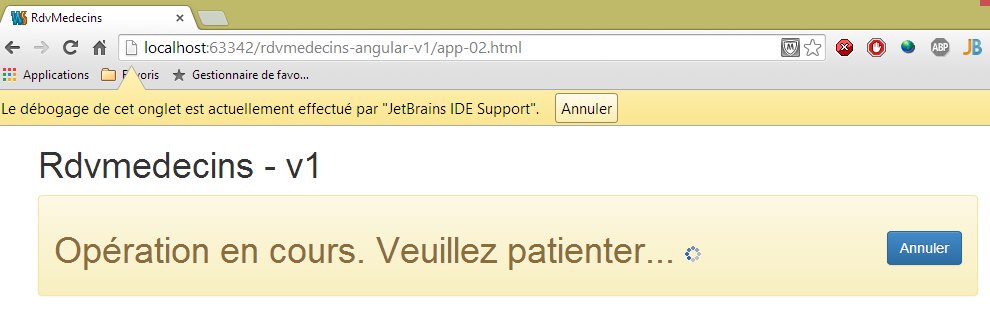
To achieve this result, we duplicate [app-01.html] into [app-02.html] and modify the following lines:
<div class="container">
  <h1>Rdvmedecins - v1</h1>
  <div class="alert alert-warning">
    <h1>Opération en cours. Veuillez patienter...
      <button class="btn btn-primary pull-right">Annuler</button>
      <img src="assets/images/waiting.gif" alt=""/>
    </h1>
  </div>
</div>
- line 1: the CSS class [container] defines a display area within the browser;
- line 3: the CSS class [alert] displays a colored area. The class [alert-warning] uses a predefined color;
- line 5: the [btn] class styles a button. The [btn-primary] class gives it a specific color. The [pull-right] class positions it to the right of the alert banner;
- line 6: an animated loading image;
3.6.2. Example 2
The different views of the application will have a common title:
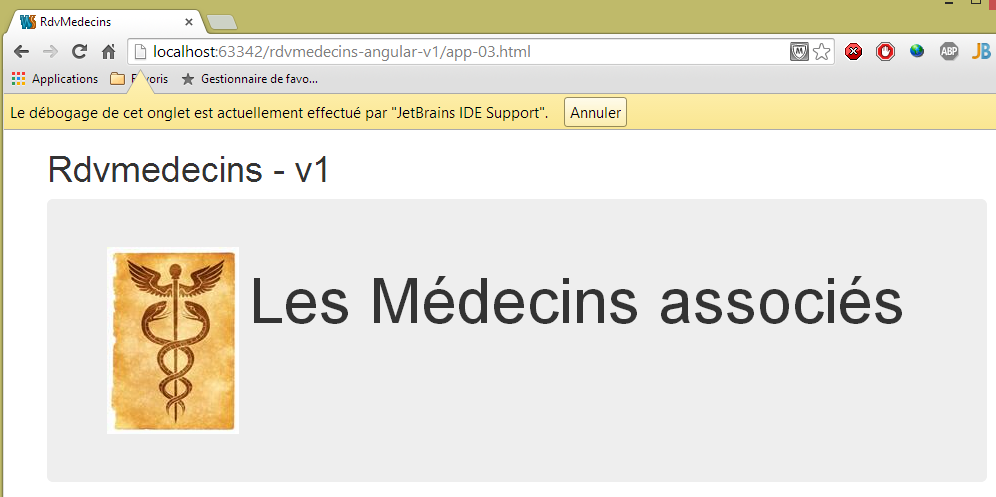
To achieve this, we duplicate [app-01.html] into [app-03.html] and modify the following lines:
<div class="container">
  <h1>Rdvmedecins - v1</h1>
  <!-- Bootstrap Jumbotron -->
  <div class="jumbotron">
    <div class="row">
      <div class="col-md-2">
        <img src="assets/images/caduceus.jpg" alt="RvMedecins"/>
      </div>
      <div class="col-md-10">
        <h1>Les Médecins associés</h1>
      </div>
    </div>
  </div>
</div>
- The colored area is created using the [jumbotron] class in line 4;
- Line 5: The [row] class defines a row with 12 columns;
- line 6: the [col-md-2] class defines a two-column area within the row;
- line 7: an image is placed in these two columns;
- Lines 9–11: Text is placed in the remaining 10 columns;
3.6.3. Example 3
The views will have a top control bar. It will contain control options, links, or buttons. It will also contain form elements. For example:
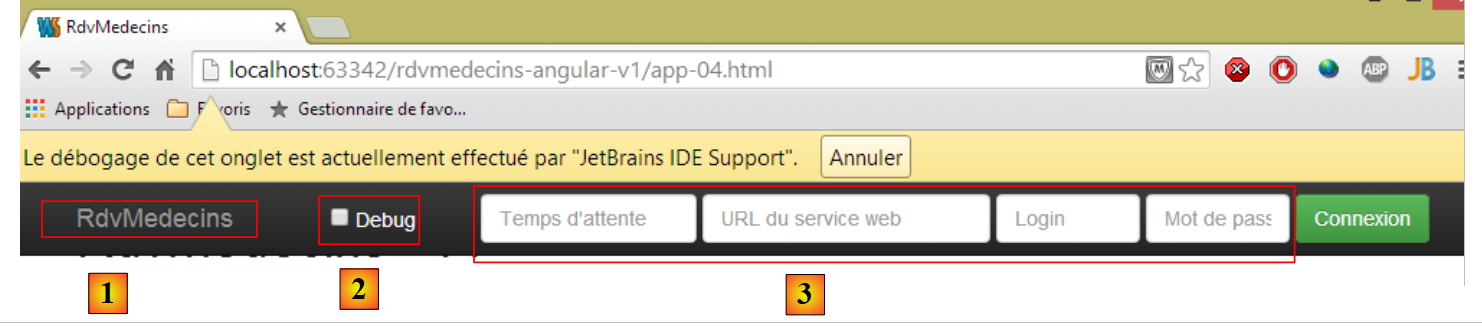 |
To achieve this result, we duplicate [app-01.html] into [app-04.html] and modify the following lines:
<div class="container">
  <h1>Rdvmedecins - v1</h1>

  <div class="navbar navbar-inverse navbar-fixed-top" role="navigation">
    <div class="container">
      <div class="navbar-header">
        <button type="button" class="navbar-toggle" data-toggle="collapse" data-target=".navbar-collapse">
          <span class="sr-only">Toggle navigation</span>
          <span class="icon-bar"></span>
          <span class="icon-bar"></span>
          <span class="icon-bar"></span>
        </button>
        <a class="navbar-brand" href="#">RdvMedecins</a>
      </div>
       <div class="navbar-collapse collapse">
        <form class="navbar-form navbar-right">
          <!-- debug mode -->
          <label style="width: 100px">
            <input type="checkbox">
            <span style="color: white">Debug</span>
          </label>
          <!-- identification form -->
          <div class="form-group">
            <input type="text" class="form-control" placeholder="Temps d'attente"
                   style="width: 150px"/>
            <input type="text" class="form-control" placeholder="URL du service web"
                   style="width: 200px"/>
            <input type="text" class="form-control" placeholder="Login"
                   style="width: 100px"/>
            <input type="password" class="form-control" placeholder="Mot de passe"
                   style="width: 100px"/>
          </div>
          <button class="btn btn-success">
            Connexion
          </button>
        </form>
      </div>
          <button class="btn btn-success">
            Connexion
          </button>
        </form>
      </div>
    </div>
  </div>
</div>
- line 4: the [navbar] class styles the navigation bar. The [navbar-inverse] class gives it a black background. The [navbar-fixed-top] class ensures that when you scroll the page displayed by the browser, the navigation bar remains at the top of the screen;
- Lines 6–14: define area [1]. This is typically a series of classes that I don’t understand. I use the component as-is;
- line 15: defines a "responsive" area of the navigation bar. On a smartphone, this area collapses into a menu area;
- line 16: the [navbar-form] class wraps a form in the command bar. The [navbar-right] class positions it to the right of the form;
- lines 23–32: the four input fields of the form from line 17 [3]. They are inside a [form-group] class that wraps the elements of a form, and each of them has the [form-control] class;
- line 33: the [btn] class we’ve already seen, enhanced with the [btn-success] class, which gives it its green color;
3.6.4. Example 4
The control bar will allow you to change the language using a drop-down list:
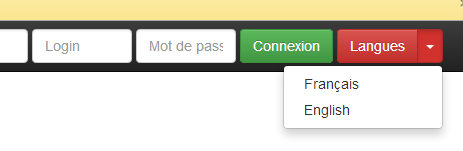
To achieve this, we duplicate [app-01.html] into [app-05.html] and add the following lines to the control bar:
          <button class="btn btn-success">
            Connexion
          </button>
          <!-- languages -->
          <div class="btn-group">
            <button type="button" class="btn btn-danger">
              Langues
            </button>
            <button type="button" class="btn btn-danger dropdown-toggle" data-toggle="dropdown">
              <span class="caret"></span>
              <span class="sr-only">Toggle Dropdown</span>
            </button>
            <ul class="dropdown-menu" role="menu">
              <li>
                <a href="">Français</a>
              </li>
              <li>
                <a href="">English</a>
              </li>
            </ul>
          </div>
</form>
The added lines are lines 4–21.
- Line 5: The [btn-group] class wraps a group of buttons. There are two of them on lines 6 and 9;
- Lines 6–8: The first button defines the label for the dropdown list. The [btn-danger] class gives it a red color;
- lines 9–12: the second button is the dropdown list button. It is placed next to the first one, giving the impression of a single component;
- line 10: displays the down arrow indicating that the button is a dropdown list;
- line 11: for screen readers;
- lines 13–20: the items in the dropdown list are the elements of an unordered list;
3.6.5. Example 5
To submit a form or navigate, the user will have options or buttons in the control bar as shown below:
 |
Menu options have been added in [1]. To achieve this, we duplicate [app-01.html] into [app-06.html] and add the following lines:
<div class="navbar navbar-inverse navbar-fixed-top" role="navigation">
    <div class="container">
      <div class="navbar-header">
...
      </div>
      <!-- menu options -->
      <div class="collapse navbar-collapse">
        <ul class="nav navbar-nav">
          <li class="active">
            <a href="">
              <span>Home</span>
            </a>
          </li>
          <li class="active">
            <a href="">
              <span>Agenda</span>
            </a>
          </li>
          <li class="active">
            <a href="">
              <span>Valider</span>
            </a>
          </li>
          <li class="active">
            <a href="">
              <span>Annuler</span>
            </a>
          </li>
        </ul>
        <!-- right buttons -->
        <form class="navbar-form navbar-right" role="form">
...
        </form>
      </div>
    </div>
  </div>
</div>
- The menu options are generated by lines 8–29. These are again elements of a <ul> list. The [active] class makes the text underlined, indicating that the option is clickable.
3.6.6. Example 6
We will display doctors and clients in dropdown lists as shown below:
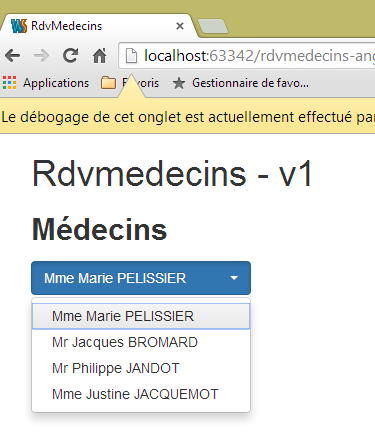 |
The dropdown list used is not a native Bootstrap component. It is the [bootstrap-select] component (http://silviomoreto.github.io/bootstrap-select/). To achieve this result, we duplicate [app-01.html] into [app-07.html] and add the following lines:
<!DOCTYPE html>
<html>
<head>
...
<link href="bower_components/bootstrap-select/bootstrap-select.min.css" rel="stylesheet"/>

</head>
<body>
<div class="container">
  <h1>Rdvmedecins - v1</h1>

  <h2><label for="medecins">Médecins</label></h2>
  <select id="medecins" data-style="btn btn-primary" class="selectpicker">
    <option value="1">Mme Marie PELISSIER</option>
    <option value="1">Mr Jacques BROMARD</option>
    <option value="1">Mr Philippe JANDOT</option>
    <option value="1">Mme Justine JACQUEMOT</option>
  </select>
</div>
<!-- Bootstrap core JavaScript ================================================== -->
...
<script type="text/javascript" src="bower_components/bootstrap-select/bootstrap-select.min.js"></script>
<!-- local script -->
<script>
  $('.selectpicker').selectpicker();
</script>
</body>
</html>
- Line 5: You must import the [bootstrap-select] stylesheet;
- line 13: the [data-style] attribute is used by [bootstrap-select]. It is used to style the dropdown list. Here, we give it the appearance of a blue button [btn-primary];
- line 13: the [class] attribute is used on line 23. It can be anything;
- Lines 14–17: the elements of the dropdown list. These are standard HTML tags;
- line 22: the [bootstrap-select] JS must be imported;
- lines 24–26: a JavaScript script executed when the page finishes loading;
- line 25: a jQuery statement. We apply the [selectpicker] method (selectpicker()) to all elements with the [selectpicker] class ($('.selectpicker')). There is only one: the <select> tag on line 13. The [selectpicker] method comes from the JS file referenced on line 22;
3.6.7. Example 7
To display a doctor’s schedule, we will use a responsive table provided by the [footable] JS library:
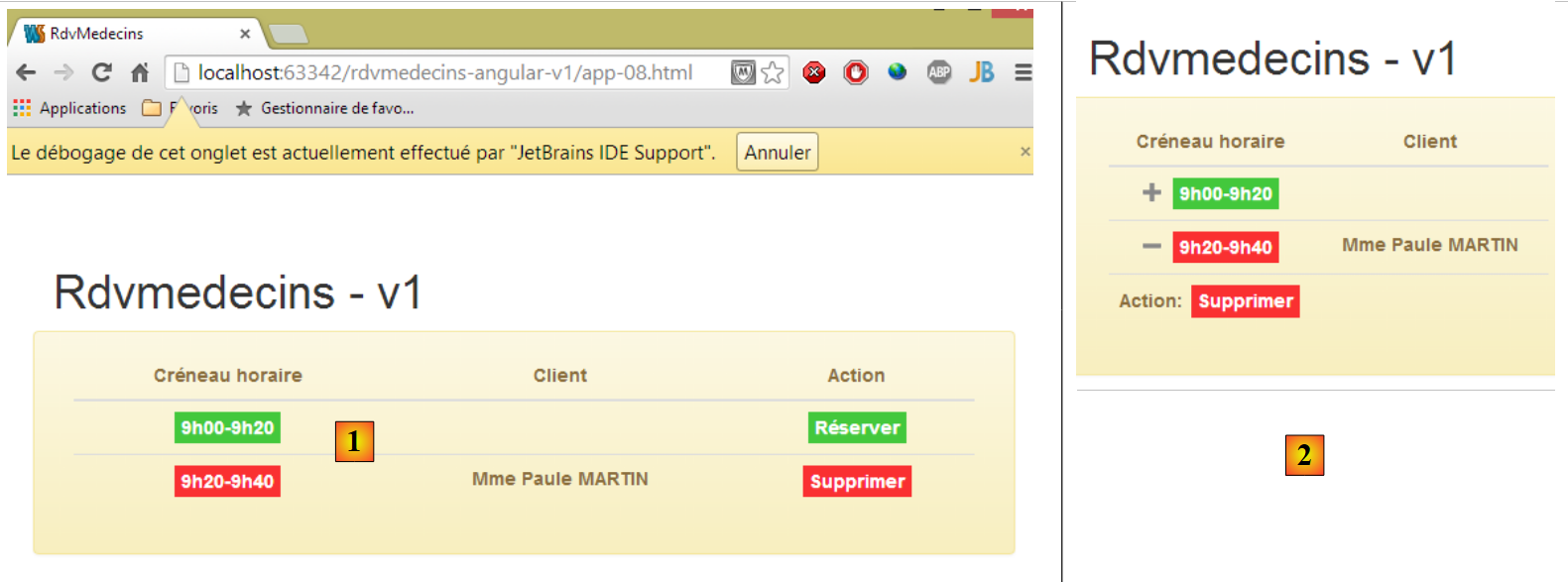 |
- in [1]: the table with a normal display;
- in [2]: the table when the browser window is resized. The [Action] column automatically moves to the next line. This is called a "responsive" or simply adaptive component.
We duplicate [app-01.html] into [app-08.html] and add the following lines:
...
<link href="bower_components/footable/css/footable.core.min.css" rel="stylesheet"/>
<link href="assets/css/rdvmedecins.css" rel="stylesheet"/>
...
<div class="container">
  <h1>Rdvmedecins - v1</h1>

  <div class="row alert alert-warning">
    <div class="col-md-6">
      <table id="creneaux" class="table">
        <thead>
        <tr>
          <th data-toggle="true">
            <span>Créneau horaire</span>
          </th>
          <th>
            <span>Client</span>
          </th>
          <th data-hide="phone">
            <span>Action</span>
          </th>
        </thead>
        <tbody>
        <tr>
          <td>
            <span class='status-metro status-active'>
              9h00-9h20
            </span>
          </td>
          <td>
            <span></span>
          </td>
          <td>
            <a href="" class="status-metro status-active">
              Réserver
            </a>
          </td>
        </tr>
        <tr>
          <td>
            <span class='status-metro status-suspended'>
              9h20-9h40
            </span>
          </td>
          <td>
            <span>Mme Paule MARTIN</span>
          </td>
          <td>
            <a href="" class="status-metro status-suspended">
              Supprimer
            </a>
          </td>
        </tr>
        </tbody>
      </table>
    </div>
  </div>
</div>
...
<script src="bower_components/footable/dist/footable.min.js" type="text/javascript"></script>
- Lines 2 and 60 are already present in [app-01.html]. These are the CSS and JS files provided by the [footable] library;
- Line 3 references the following CSS file:
@CHARSET "UTF-8";

#creneaux th {
    text-align: center;
}

#creneaux td {
    text-align: center;
    font-weight: bold;
}

.status-metro {
  display: inline-block;
  padding: 2px 5px;
  color:#fff;
}

.status-metro.status-active {
  background: #43c83c;
}

.status-metro.status-suspended {
  background: #fa3031;
}
The [status-*] styles come from an example of using the [footable] table found on the library's website.
- line 8: places the table in a row [row] and a colored alert box [alert alert-warning];
- line 9: the table will span 6 columns [col-md-6];
- line 10: the HTML table is formatted by Bootstrap [class='table'];
- line 13: the [data-toggle] attribute specifies the column containing the [+/-] symbol that expands/collapses the row;
- line 19: the [data-hide='phone'] attribute specifies that the column should be hidden if the screen is the size of a phone screen. The value 'tablet' can also be used;
3.6.8. Example 8
To assist the user, we will create tooltips around the main components of the views:
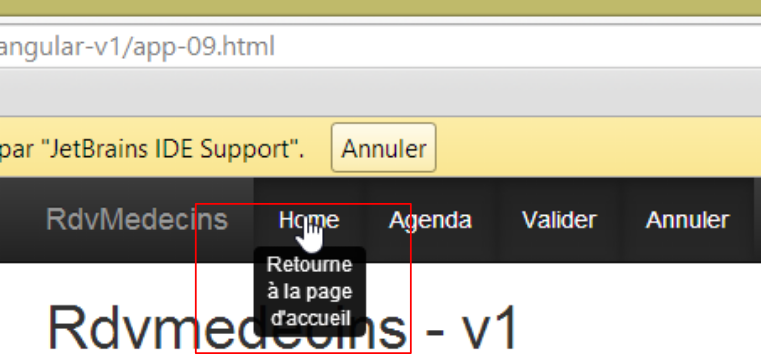 |
To achieve this, we duplicate [app-01.html] into [app-09.html] and add the following lines:
<!DOCTYPE html>
<html ng-app="rdvmedecins">
<head>
...
</head>
<body>
<div class="container">
  <h1>Rdvmedecins - v1</h1>
  <div class="navbar navbar-inverse navbar-fixed-top" role="navigation">
    <div class="container">
      <div class="navbar-header">
        <button type="button" class="navbar-toggle" data-toggle="collapse" data-target=".navbar-collapse">
          <span class="sr-only">Toggle navigation</span>
          <span class="icon-bar"></span>
          <span class="icon-bar"></span>
          <span class="icon-bar"></span>
        </button>
        <a class="navbar-brand" href="#">RdvMedecins</a>
      </div>
      <!-- menu options -->
      <div class="collapse navbar-collapse">
        <ul class="nav navbar-nav">
          <li class="active">
            <a href="">
              <span tooltip="Retourne à la page d'accueil" tooltip-placement="bottom">Home</span>
            </a>
          </li>
          <li class="active">
            <a href="">
              <span tooltip="Affiche l'agenda" tooltip-placement="top">Agenda</span>
            </a>
          </li>
          <li class="active">
            <a href="">
              <span tooltip="Valide le rendez-vous" tooltip-placement="right">Valider</span>
            </a>
          </li>
          <li class="active">
            <a href="">
              <span tooltip="Annule l'opération en cours" tooltip-placement="left">Annuler</span>
            </a>
          </li>
        </ul>
      </div>
    </div>
  </div>
</div>
<!-- Bootstrap core JavaScript ================================================== -->
<...
<script type="text/javascript" src="bower_components/angular-ui-bootstrap-bower/ui-bootstrap-tpls.min.js"></script>
<!-- local script -->
<script>
  // --------------------- module Angular
  angular.module("rdvmedecins", ['ui.bootstrap']);
</script>
</body>
</html>
The tooltips are provided by the [angular-ui-bootstrap] library, which itself relies on the [angular] library. Line 50 imports the [angular-ui-bootstrap] library. To implement the components of the [angular-ui-bootstrap] library, we need to create an Angular module. This is done on lines 52–55. These lines define an Angular module named [rdvmedecins] (first parameter). An Angular module can use other Angular modules. These are called module dependencies. They are provided in an array as the second parameter of the [angular.module] function. Here, the module named [ui.bootstrap] is provided by the [angular-ui-bootstrap] library. This module will provide us with the tooltips.
Line 54 defines an Angular module. By default, this has no effect on the page. We specify that the page should be managed by Angular by attaching it to an Angular module. This is what is done on line 2. The [ng-app='rdvmedecins'] attribute attaches the page to the module created on line 54. The page will then be analyzed by Angular. The [tooltip] attributes will be detected and handled by the [ui.bootstrap] module.
The syntax for the tooltip is as follows:
<span tooltip="Retourne à la page d'accueil" tooltip-placement="bottom">Home</span>
Above, we add a tooltip to the text [Home]:
- [tooltip]: defines the text of the tooltip;
- [tooltip-placement]: defines its position (bottom, top, left, right);
Angular JS allows you to add new tags or attributes to those already existing in HTML. This extension of HTML is achieved using Angular directives. Here, the [tooltip] and [tooltip-placement] attributes are created by [angular-ui-bootstrap].
3.6.9. Example 9
To help the user choose the date of an appointment, we will provide a calendar:
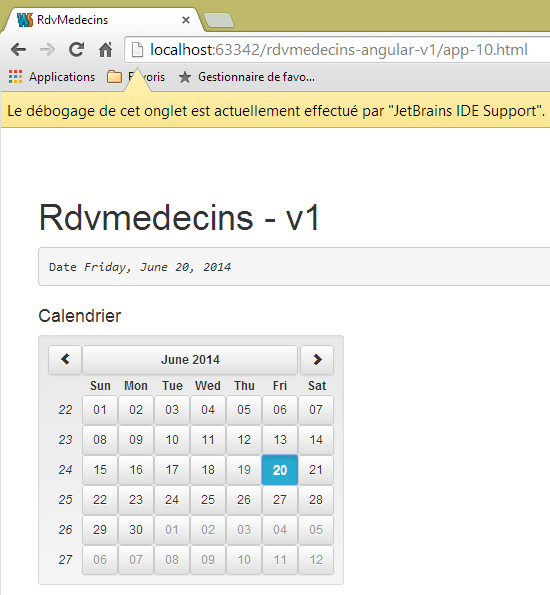
As with the tooltips, this calendar is provided by the [angular-ui-bootstrap] library. To achieve this result, we duplicate [app-01.html] into [app-10.html] and add the following lines:
<!DOCTYPE html>
<html ng-app="rdvmedecins">
<head>
  ...
<body>
<div class="container">
  <h1>Rdvmedecins - v1</h1>

  <div>
    <pre>Date <em>{{jour | date:'fullDate'}}</em></pre>
    <div class="row">
      <div class="col-md-2">
        <h4>Calendrier</h4>

        <div style="display:inline-block; min-height:290px;">
          <datepicker ng-model="jour" show-weeks="true" class="well"></datepicker>
        </div>

        </div>
      </div>
    </div>
  </div>
</div>
...
<!-- local script -->
<script>
  // --------------------- module Angular
  angular.module("rdvmedecins", ['ui.bootstrap'])
</script>

</body>
</html>
As before, the page is associated with an Angular module (lines 2 and 28). The calendar is defined by the <datepicker> tag on line 16, provided by the [angular-ui-bootstrap] library:
- [show-weeks='true']: to display the week numbers;
- [class='well']: to surround the calendar with a gray box with rounded corners;
- [ng-model='day']: the [ng-*] attributes are Angular attributes. The [ng-model] attribute designates data that will be placed in the view model. When the user clicks on a date, it will be placed in the [day] variable of the model. This variable is used on line 10. The {{expression}} syntax evaluates an expression composed of elements from the model. Here, {{day}} will display the value of the [day] variable from the model. A key feature of Angular is that the view automatically updates in response to changes in the [day] variable. Thus, when the user changes the dates, these changes will be immediately displayed on line 10. Generally speaking, the process works as follows:
- a view V is associated with a model M;
- Angular observes the model M and automatically updates the view V when there is a change to its model M;
The syntax {{day|date}} is called a filter. It is not the value of [day] that is displayed, but the value of [day] filtered through a filter called [date]. This filter is predefined in Angular. It is used to format dates. It accepts parameters specifying the desired format. Thus, the expression {{day | date:'fullDate'}} indicates that we want the full date format, here [Friday, June 20, 2014], because the calendar is in English by default. We will discuss its internationalization shortly.
3.6.10. Conclusion
We have presented the elements of the Bootstrap CSS framework that we will be using. These were passive components: their events were not handled. So clicking on buttons or links did nothing. These events will be handled in JavaScript. It is possible to use this language without frameworks, but as was the case on the server side, certain frameworks are essential on the client side. This is the case with the AngularJS framework, which brings a new approach to developing JavaScript applications run by a browser. We’ll introduce it now.
3.7. Introduction to Angular JS
We will now illustrate some of the features of the Angular JS framework used in the application. We have already encountered a few of them:
- an HTML page is powered by Angular JS if a module is attached to it:
<html ng-app="rdvmedecins">
- Angular allows you to create new HTML tags and attributes using directives:
- Angular allows you to create filters:
- A view V displays a model M. Angular watches the model M and automatically updates the view V whenever there is a change to its model M. The value of a variable in the model M is displayed in the view V using:
We will begin by delving deeper into the implementation of the Model–View–Controller design pattern in Angular. Let’s review the relationships between them from an architectural perspective:
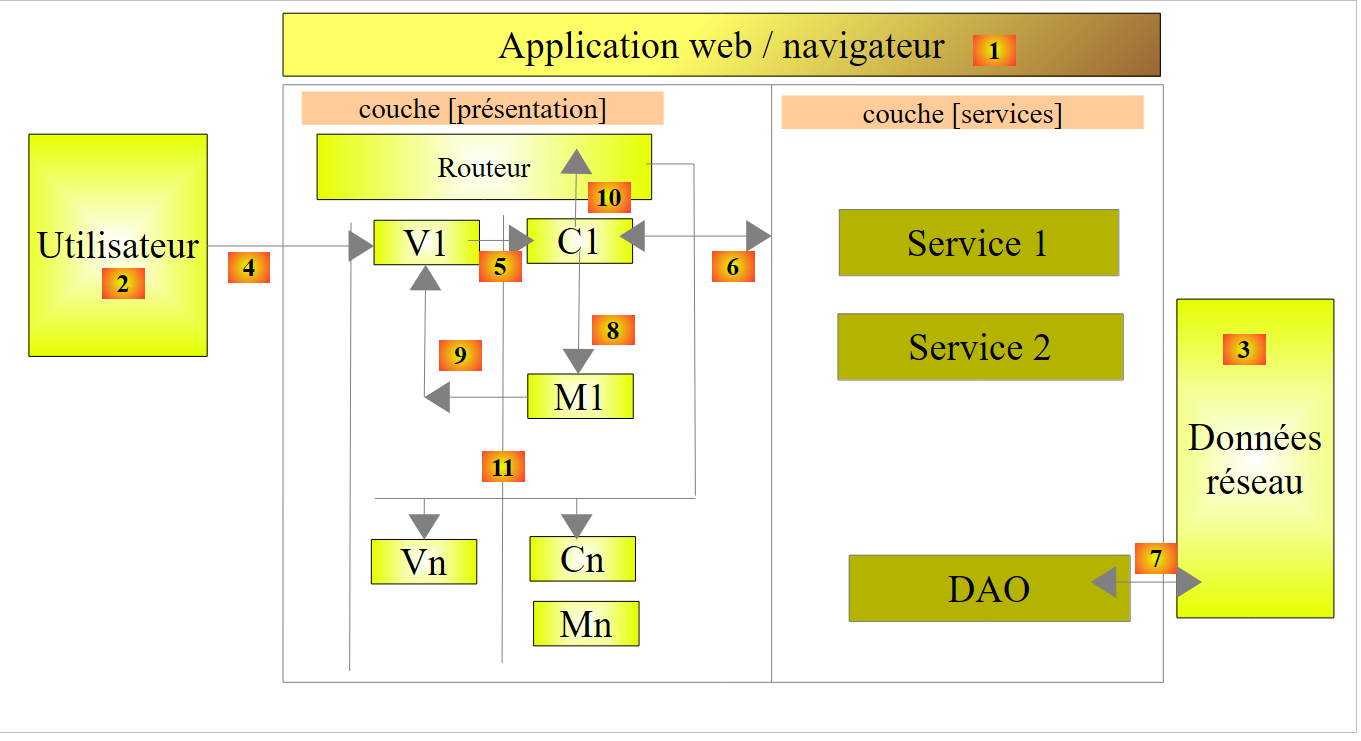 |
- The view V1 displays the model M1 constructed by the controller C1. The controller C1 contains not only the model M1 but also the event handlers for the view V1. We are in cycle 5, 8, 9:
- [5]: An event occurs in view V1. It is handled by controller C1;
- the controller performs its task [6-7] and then builds the M1 model [8];
- [9]: View V1 displays the new model M1. As we mentioned, this final step is automatic. Unlike in other MVC frameworks, there is no explicit push (C1 pushes model M1 into V1) or explicit pull (View V1 fetches model M1 from C1). There is an implicit push that the developer does not see;
- then the cycle 5, 8, 9 resumes;
3.7.1. Example 1: Angular’s MVC model
Let’s revisit the calendar example. We’ve seen the directive that generates it:
<datepicker ng-model="jour" show-weeks="true" class="well"></datepicker>
This directive supports other attributes besides those shown above, including the [min-date] attribute, which sets the earliest date that can be selected in the calendar. This will be useful for us. When the user selects an appointment date, it must be equal to or later than the current date. We will therefore write:
<datepicker ng-model="jour" ... min-date="dateMin"></datepicker>
where [dateMin] will be a variable in the page model with a value equal to today’s date. This will result in the following page:
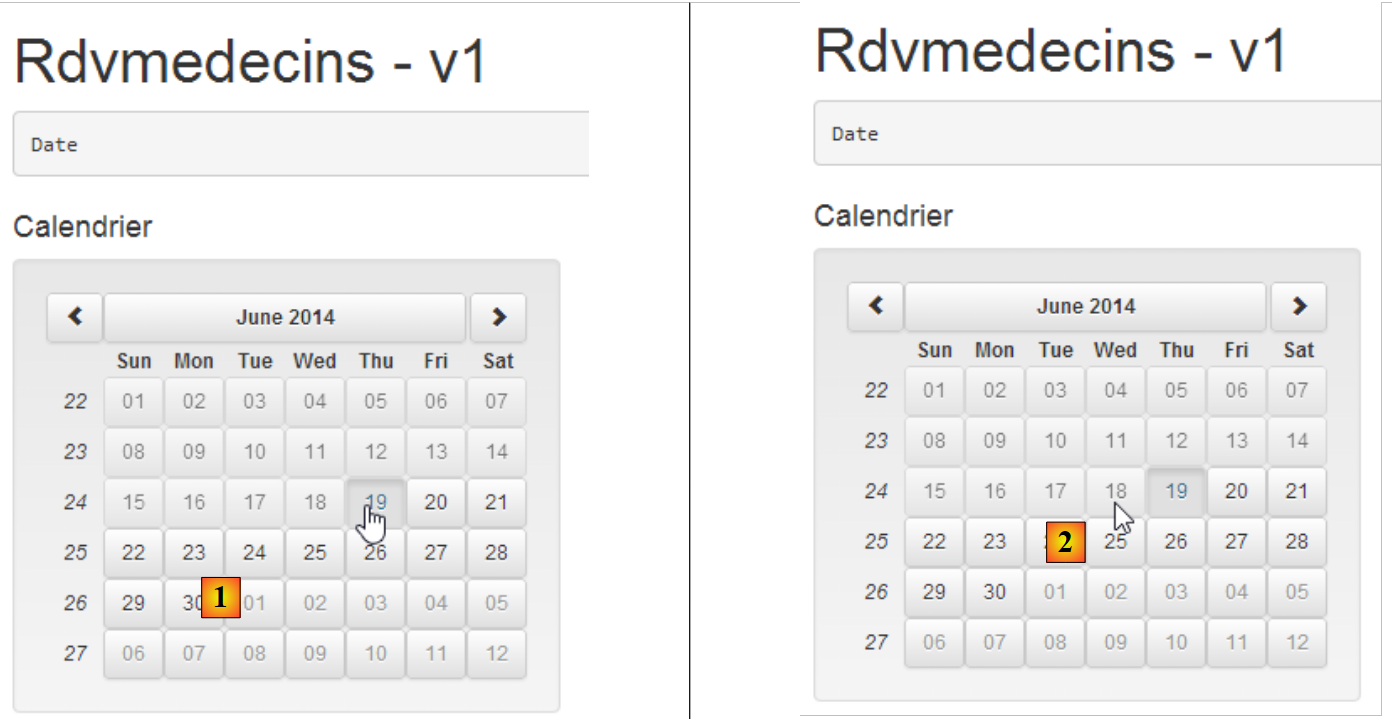 |
- in [1], it is June 19, 2014. The cursor indicates that June 19 can be selected;
- in [2], the cursor indicates that June 18 cannot be selected;
We duplicate [app-10.html] into [app-11.html] and make the following changes:
<!DOCTYPE html>
<html ng-app="rdvmedecins">
<head>
...
</head>
<body ng-controller="rdvMedecinsCtrl">
<div class="container">
  <h1>Rdvmedecins - v1</h1>

  <div>
    <pre>Date <em>{{jour | date:'fullDate' }}</em></pre>
    <div class="row">
      <div class="col-md-2">
        <h4>Calendrier</h4>

        <div style="display:inline-block; min-height:290px;">
          <datepicker ng-model="jour" show-weeks="true" class="well" min-date="minDate"></datepicker>
        </div>
      </div>
    </div>
  </div>
</div>
<!-- Bootstrap core JavaScript ================================================== -->
...
<!-- local script -->
<script>
  // --------------------- module Angular
  angular.module("rdvmedecins", ['ui.bootstrap']);
  // contrôleur
  angular.module("rdvmedecins")
    .controller('rdvMedecinsCtrl', ['$scope',
      function ($scope) {
        // date minimale
        $scope.minDate = new Date();
      }]);

</script>

</body>
</html>
Let’s first examine the local script in lines 26–37:
- line 28: creation of the [rdvmedecins] module with its dependency on the [ui.bootstrap] module, which provides the calendar;
- lines 30–35: creation of a controller. This is what will hold our page’s model. There will be no event handler here;
- Lines 30–31: The [rdvMedecinsCtrl] controller belongs to the [rdvmedecins] module. You can add as many controllers as you want to a module. In our application, we will have:
- an application management module;
- one controller per view;
- the second parameter of the [controller] function is an array of the form ['O1', 'O2', ..., 'On', function(O1, O2, ..., On)]. The last parameter is the function that implements the controller. Its parameters are objects that AngularJS will provide to the function.
Let’s return to the architecture of an Angular application:
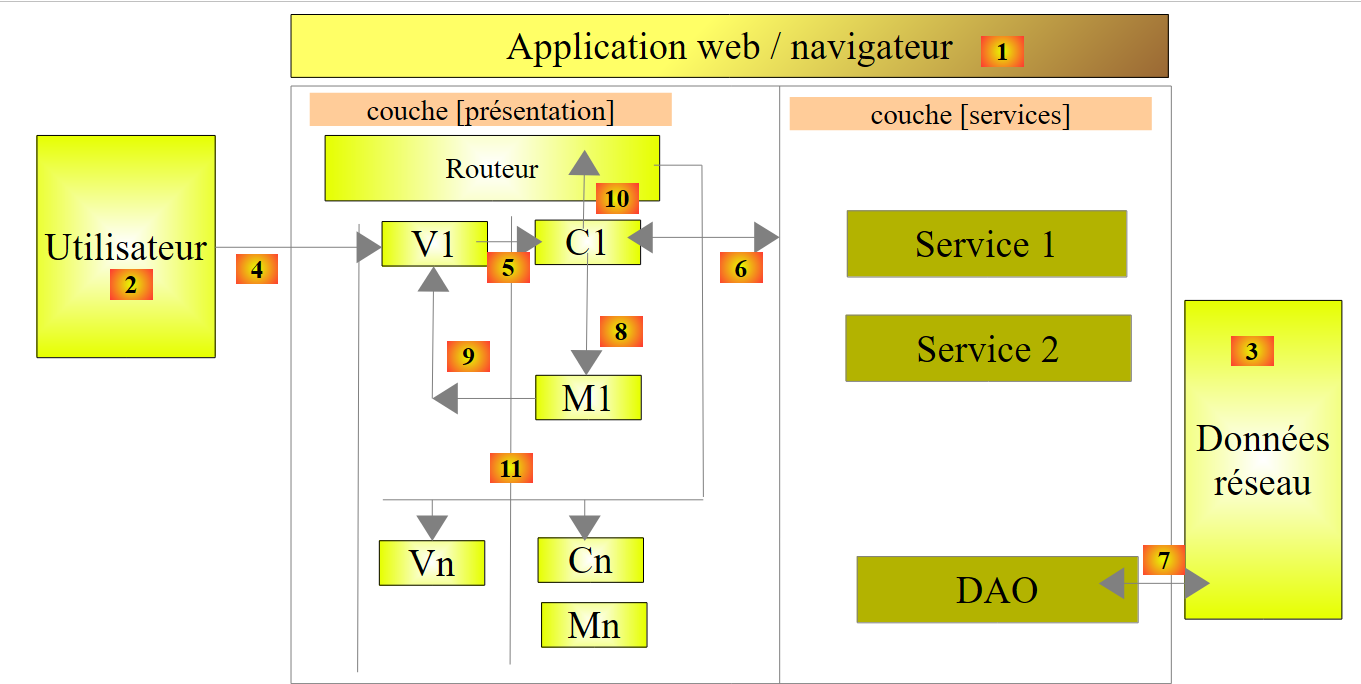 |
Above, the C1 controller contains all the event handlers for the V1 view as well as its M1 model. The event handlers may require one or more services [6] to perform their tasks. We pass all of these as parameters to the controller’s constructor function:
The Si services are singletons. Angular creates a single instance of each. They are identified by an Si name. Why do they appear twice in the table above? In production, the JS scripts are minified. During this minification process, the table above becomes:
The parameters lose their names. However, these are the service names. It is therefore important to preserve these names. This is why they are passed as strings as parameters preceding the function. Strings are not altered during the minification process. When Angular builds the controller using the new array, it will replace a1 with S1, a2 with S2, and so on. The order of the parameters is therefore important. It must match the order of the services preceding the function definition.
Let’s return to the definition of the controller [rdvMedecinsCtrl]:
  // controller
  angular.module("rdvmedecins")
    .controller('rdvMedecinsCtrl', ['$scope',
      function ($scope) {
        // minimum date
        $scope.minDate = new Date();
}]);
- lines 3-4: the only object injected into the controller is the $scope object. This is a predefined object that represents the M model of the views associated with the controller. To enrich a view's model, simply add fields to the $scope object;
- which is what is done on line 6. We create the [minDate] field with the current date as its value;
The V view uses this M model as follows:
<body ng-controller="rdvMedecinsCtrl">
<div class="container">
 ...
        <div style="display:inline-block; min-height:290px;">
          <datepicker ng-model="jour" show-weeks="true" class="well" min-date="minDate"></datepicker>
        </div>
...
</div>
...
- line 1: the body of the page is associated with the [rdvMedecinsCtrl] controller via the [ng-controller] attribute. This means that everything within the <body> tag will use the [rdvMedecinsCtrl] controller to manage its events and retrieve its M model. An HTML page can depend on multiple controllers, whether nested within one another or not:
Above:
- the content of [div1] (lines 1–10) displays template M1 managed by controller c1. Tags in this area can reference event handlers from controller c1;
- the content of [div11] (lines 3-4) displays the M11 model managed by controller c11 as well as the M1 model. There is model inheritance. The tags in this area can reference both event handlers from controller c11 and event handlers from controller c1. They cannot reference either the M12 model from controller c12 or its event handlers. Controller c12 is not defined between lines 3–5;
- lines 7–9: we can apply a similar line of reasoning to the one used previously;
Let’s return to the calendar code:
<datepicker ng-model="jour" show-weeks="true" class="well" min-date="minDate"></datepicker>
The [min-date] attribute is initialized with the [minDate] value from the model. Implicitly, this is [$scope.minDate]. The field is always looked up in the $scope object.
3.7.2. Example 2: Localizing dates
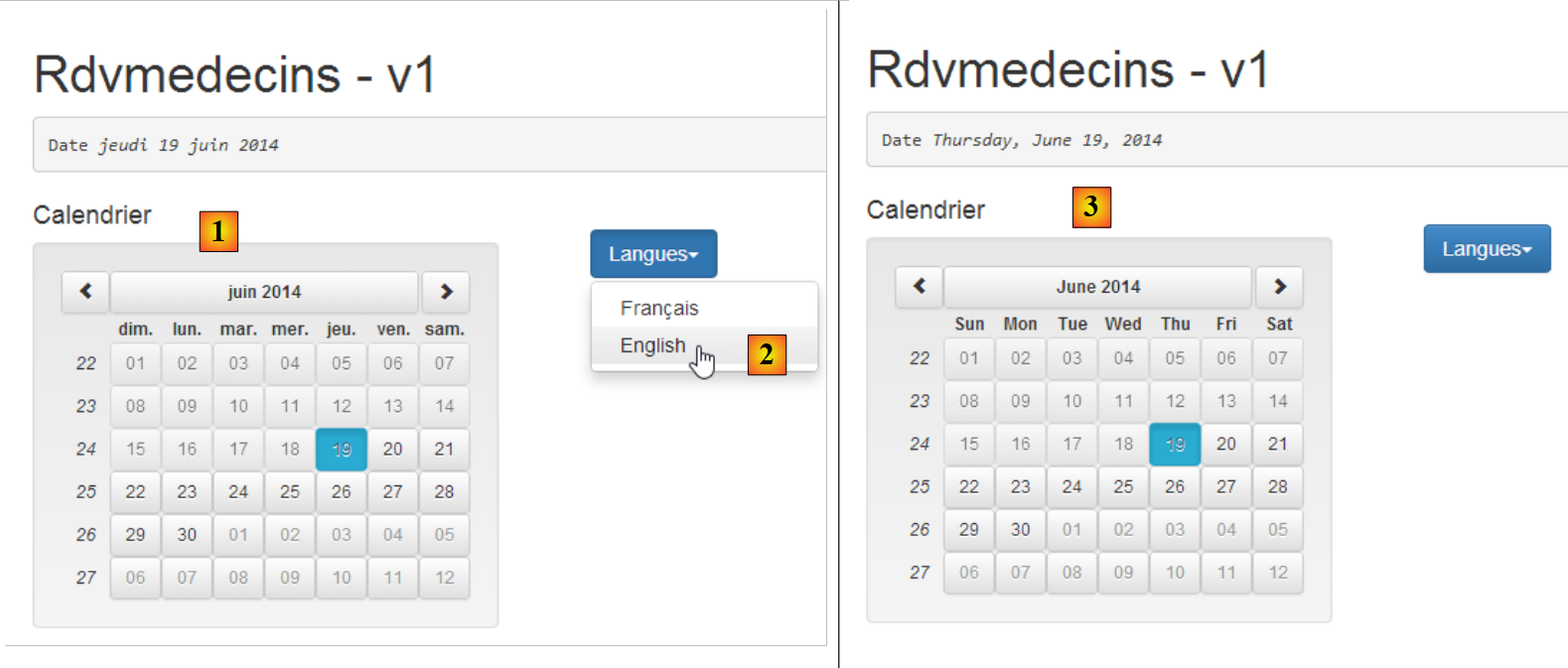
For now, the calendar isn't very useful to us since it's in English. It's possible to localize it:
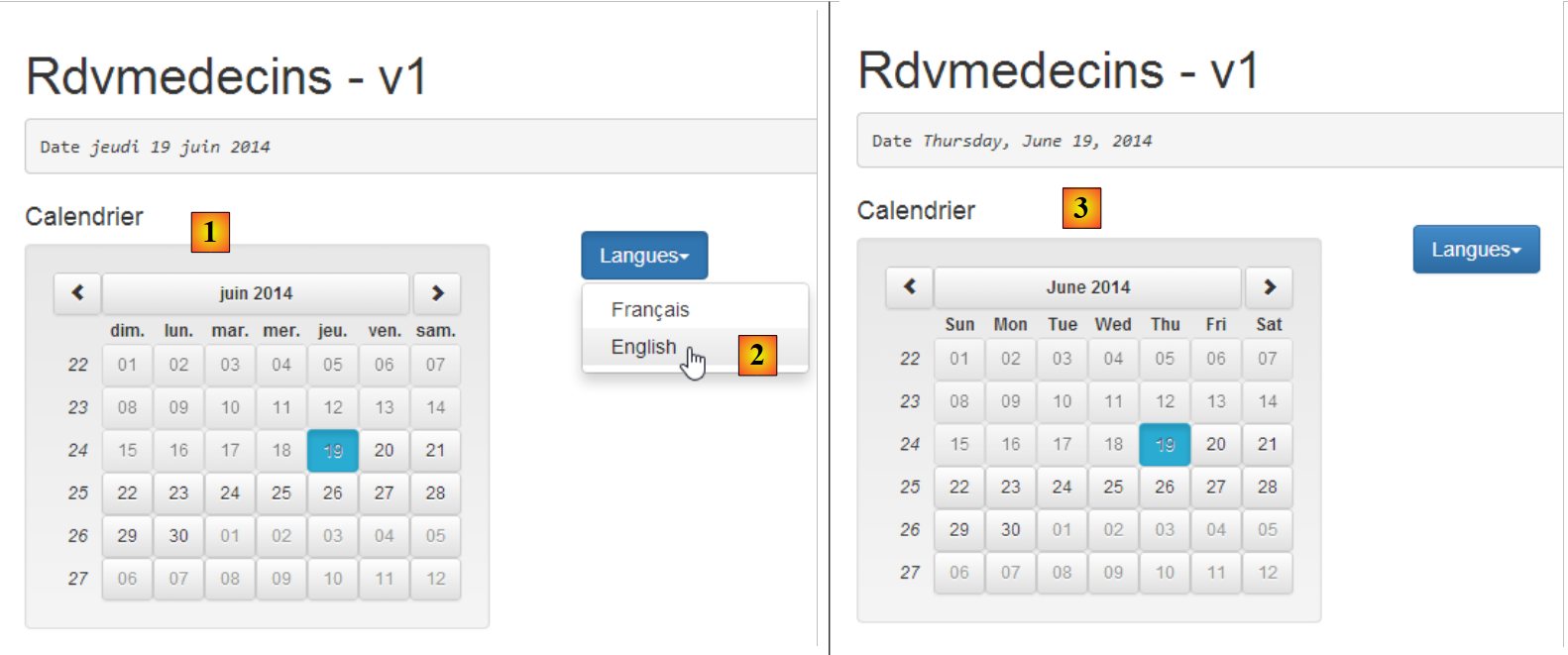 |
- in [1], we have a calendar in French;
- in [2], we switch it to English;
- in [3], the English calendar;
We duplicate the page [app-11.html] into [app-12.html] and then modify the latter as follows:
<!DOCTYPE html>
<html ng-app="rdvmedecins">
<head>
  ...
</head>
<body ng-controller="rdvMedecinsCtrl">
<div class="container">
  <h1>Rdvmedecins - v1</h1>

  <pre>Date <em>{{jour | date:'fullDate' }}</em></pre>
  <div class="row">
    <!-- the calendar-->
    <div class="col-md-4">
      <h4>Calendrier</h4>

      <div style="display:inline-block; min-height:290px;">
        <datepicker ng-model="jour" show-weeks="true" class="well" min-date="minDate"></datepicker>
      </div>
    </div>
    <!-- languages -->
    <div class="col-md-2">
      <div class="btn-group" dropdown is-open="isopen">
        <button type="button" class="btn btn-primary dropdown-toggle" style="margin-top: 30px">
          Langues<span class="caret"></span>
        </button>
        <ul class="dropdown-menu" role="menu">
          <li><a href="" ng-click="setLang('fr')">Français</a></li>
          <li><a href="" ng-click="setLang('en')">English</a></li>
        </ul>
      </div>
    </div>
  </div>
</div>
...
<script type="text/javascript" src="rdvmedecins.js"></script>
</body>
</html>
There are few changes. The only addition is lines 21–31, which contain the language dropdown list. For the first time, we encounter an event handler on lines 27–28:
- line 27: the [ng-click] attribute is an Angular attribute that specifies the event handler to execute when the element with this attribute is clicked. Here, the function [$scope.setLang('fr')] will be executed. It will set the calendar to French;
- line 28: here, we set the calendar to English;
- line 35: since the controller’s JavaScript is quite substantial, we place it in a file named [rdvmedecins.js];
Angular manages view localization with a module called [ngLocale]. The definition of our [rdvmedecins] module will therefore be as follows:
  // --------------------- Angular module
angular.module("rdvmedecins", ['ui.bootstrap', 'ngLocale']);
Line 2: Don’t forget the dependencies, as Angular’s error messages can sometimes be vague. Omitting a dependency is particularly difficult to detect. Here, we have a new dependency on the [ngLocale] module.
By default, Angular only handles the localization of dates, numbers, etc., which have local variants. It does not handle the internationalization of text. For this, we will use the [angular-translate] library. Localization is handled by the [angular-i18n] library. This library includes as many files as there are variants for dates, numbers, etc.
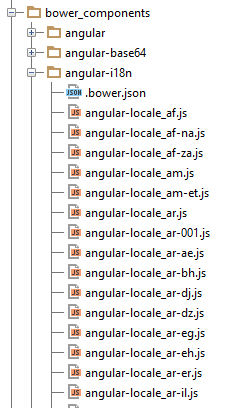 |
For the French calendar, we will use the [angular-locale_fr-fr.js] file, and for the English calendar, the [angular-locale_en-us.js] file. Let’s take a look at what’s in the [angular-locale_fr-fr.js] file, for example:
'use strict';
angular.module("ngLocale", [], ["$provide", function($provide) {
var PLURAL_CATEGORY = {ZERO: "zero", ONE: "one", TWO: "two", FEW: "few", MANY: "many", OTHER: "other"};
$provide.value("$locale", {
  "DATETIME_FORMATS": {
    "AMPMS": [
      "AM",
      "PM"
    ],
    "DAY": [
      "dimanche",
      "lundi",
      "mardi",
      "mercredi",
      "jeudi",
      "vendredi",
      "samedi"
    ],
    "MONTH": [
      "janvier",
      "f\u00e9vrier",
      "mars",
      "avril",
      "mai",
      "juin",
      "juillet",
      "ao\u00fbt",
      "septembre",
      "octobre",
      "novembre",
      "d\u00e9cembre"
    ],
    "SHORTDAY": [
      "dim.",
      "lun.",
      "mar.",
      "mer.",
      "jeu.",
      "ven.",
      "sam."
    ],
    "SHORTMONTH": [
      "janv.",
      "f\u00e9vr.",
      "mars",
      "avr.",
      "mai",
      "juin",
      "juil.",
      "ao\u00fbt",
      "sept.",
      "oct.",
      "nov.",
      "d\u00e9c."
    ],
    "fullDate": "EEEE d MMMM y",
    "longDate": "d MMMM y",
    "medium": "d MMM y HH:mm:ss",
    "mediumDate": "d MMM y",
    "mediumTime": "HH:mm:ss",
    "short": "dd/MM/yy HH:mm",
    "shortDate": "dd/MM/yy",
    "shortTime": "HH:mm"
  },
  "NUMBER_FORMATS": {
    "CURRENCY_SYM": "\u20ac",
    "DECIMAL_SEP": ",",
    "GROUP_SEP": "\u00a0",
    "PATTERNS": [
      {
        "gSize": 3,
        "lgSize": 3,
        "macFrac": 0,
        "maxFrac": 3,
        "minFrac": 0,
        "minInt": 1,
        "negPre": "-",
        "negSuf": "",
        "posPre": "",
        "posSuf": ""
      },
      {
        "gSize": 3,
        "lgSize": 3,
        "macFrac": 0,
        "maxFrac": 2,
        "minFrac": 2,
        "minInt": 1,
        "negPre": "(",
        "negSuf": "\u00a0\u00a4)",
        "posPre": "",
        "posSuf": "\u00a0\u00a4"
      }
    ]
  },
  "id": "fr-fr",
  "pluralCat": function (n) {  if (n >= 0 && n <= 2 && n != 2) {   return PLURAL_CATEGORY.ONE;  }  return PLURAL_CATEGORY.OTHER;}
});
}]);
Here are the elements used to create a French calendar:
- lines 10–18: the array of days of the week;
- lines 19–32: the array of months of the year;
- lines 33–41: the abbreviated table of days of the week;
- lines 42–55: the table of abbreviated months of the year;
- lines 56–63: date and time formats. Line 62 shows the 'dd/mm/yy' format used for French dates;
- lines 65–95: information on number formatting. This is not relevant here;
- line 96: the 'fr-fr' identifier for the file's locale (fr-fr: French from France, fr-ca: French from Canada, ...)
In the file [angular-locale_en-us.js], we have exactly the same thing, but this time for US English (en-us).
The code above isn't very easy to read. If you read it carefully, you'll see that all of this code defines the [$locale] variable on line 4. It is by changing the value of this variable that we achieve the internationalization of dates, numbers, currency, etc. Curiously, Angular does not allow you to change the [$locale] variable at runtime. You define it once and for all by importing the file for the desired locale:
<script type="text/javascript" src="bower_components/angular-i18n/angular-locale_fr-fr.js"></script>
There’s no point in importing all the files for the desired locales, because, as we’ve seen, each file does only one thing: define the [$locale] variable. The last file imported takes precedence, and there’s no way to change the locale afterward.
While browsing the web for a solution to this problem, I couldn’t find one. I’m proposing one here [https://github.com/stahe/angular-ui-bootstrap-datepicker-with-locale-updated-on-the-fly]. The idea is to put the different locales we need into a dictionary. That’s where we’ll retrieve them when we need to change them. The JavaScript code in [rdvmedecins.js] has the following structure:
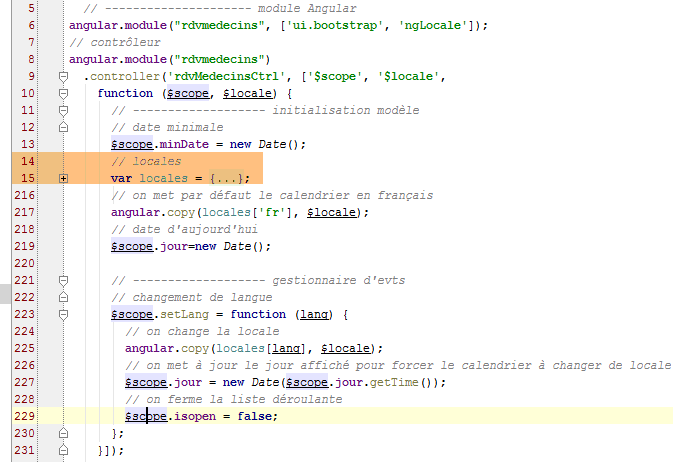 |
If we remove the locale definitions, which take up 200 lines (lines 15–215 above), the code is simple:
- line 6: defines the [rdvmedecins] module and its dependencies;
- lines 8–10: defines the page’s [rdvMedecinsCtrl] controller;
- line 9: the controller constructor takes two parameters:
- $scope: to create the view template;
- $locale: which is the variable that manages the calendar’s locale. This is the one you need to change when switching languages;
- line 13: the model variable [minDate] is initialized with today's date;
- line 15: defines the [locales] dictionary. Note that we did not write [$scope.locales]. The [locales] variable is not part of the model exposed to the view;
- lines 15–215: define a dictionary {'fr':locale-fr-fr, 'en':locale-en-us}. The values [locale-fr-fr] and [locale-en-us] are taken from the JS files [angular-locale_fr-fr.js] and [angular-locale_en-us.js], respectively. The hardest part is not making a mistake with the numerous parentheses in this dictionary...
- line 217: we initialize the $locale variable with locales['fr'], i.e., the French version of the locale. We cannot simply write [$locale=locales['fr']] because that would assign the address of locales['fr'] to $locale. We must perform a value copy. This can be done using the predefined function [angular.copy];
- line 219: the [day] variable in the model is initialized with today’s date. This ensures that the calendar will be displayed with the date set to today;
- Lines 223–230: define the event handler that is called when the language changes. Note the syntax:
to define an event handler named [function_name] that accepts the parameters [param1, param2, ...];
Let’s review the HTML code for the dropdown list:
    <!-- languages -->
    <div class="col-md-2">
      <div class="btn-group" dropdown is-open="isopen">
        <button type="button" class="btn btn-primary dropdown-toggle" style="margin-top: 30px">
          Langues<span class="caret"></span>
        </button>
        <ul class="dropdown-menu" role="menu">
          <li><a href="" ng-click="setLang('fr')">Français</a></li>
          <li><a href="" ng-click="setLang('en')">English</a></li>
        </ul>
      </div>
</div>
- line 8: selecting French triggers the call to [setLang('fr')];
- line 9: selecting English triggers the call to [setLang('en')];
- line 3: the [is-open] attribute is a Boolean that controls whether the dropdown list is open (true) or closed (false). It is initialized with the [isopen] variable from the view model;
Let’s return to the code in [rdvmedecins.js]:
- line 225: we change the value of the variable [$locale] to the appropriate value from the [locales] dictionary;
- line 227: we mentioned that when the model M of a view V changes, the view V is automatically refreshed with the new model. On line 225, we changed the value of the [$locale] variable, which is not part of the model M displayed by view V. We need to find a way to update this model M so that the calendar refreshes and uses its new locale. Here, we change the [day] variable in the calendar model. We initialize it with a new pointer (new) that points to a date identical to the one currently displayed. [$scope.day.getTime()] is the number of milliseconds elapsed between January 1, 1970, and the date displayed by the calendar. Using this number, we reconstruct a new date. Of course, we will get the same date, and the calendar will remain positioned on the date it was displaying. But the value of [$scope.day], which is actually a pointer, will have changed, and the calendar will refresh;
- line 229: we set the value of the [isopen] variable in the template to false. This variable controls one of the attributes of the dropdown list:
<div class="btn-group" dropdown is-open="isopen">
    <button type="button" class="btn btn-primary dropdown-toggle" style="margin-top: 30px">
          Langues<span class="caret"></span>
    </button>
...
</div>
In line 1 above, the [is-open] attribute will change to false, which will close the dropdown list.
3.7.3. Example 3: Internationalization of text
Let’s revisit the calendar’s localization:
 |
In [3], we see that the calendar is in English but the [Calendar, Languages] texts are not. By default, Angular does not provide a tool for internationalizing messages. Here, we will use the [angular-translate] library (https://github.com/angular-translate/angular-translate).
We will develop the following example:
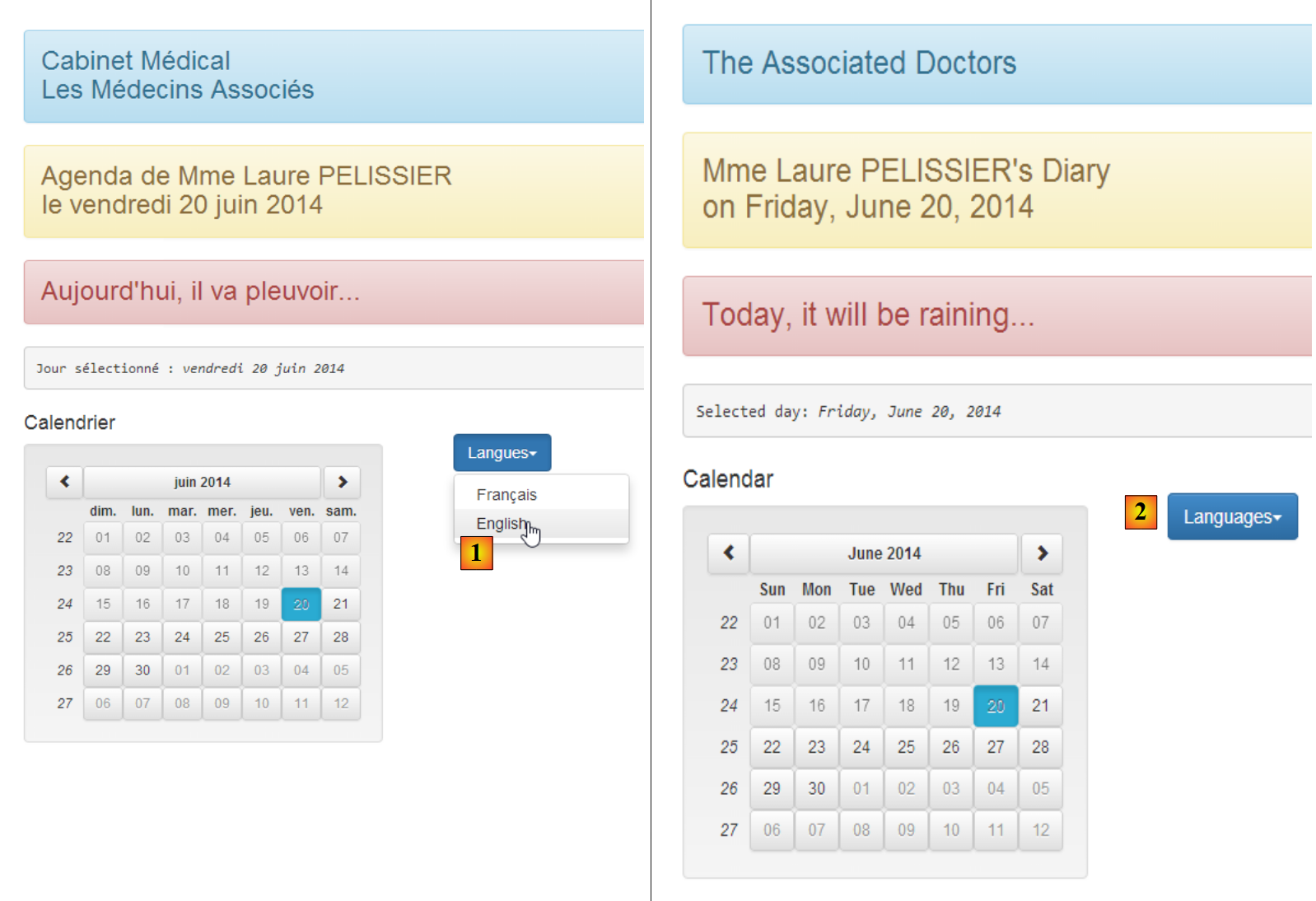 |
- in [1], the view in French;
- in [2], the view in English;
Let’s look at the configuration required for internationalization. The [rdvmedecins.js] script is modified as follows:
  // --------------------- Angular module
angular.module("rdvmedecins", ['ui.bootstrap', 'ngLocale', 'pascalprecht.translate']);
// configuration i18n
angular.module("rdvmedecins")
  .config(['$translateProvider', function ($translateProvider) {
    // messages français
    $translateProvider.translations("fr", {
      'msg_header': 'Cabinet Médical<br/>Les Médecins Associés',
      'msg_langues': 'Langues',
      'msg_agenda': 'Agenda de {{titre}} {{prenom}} {{nom}}<br/>le {{jour}}',
      'msg_calendrier': 'Calendrier',
      'msg_jour': 'Jour sélectionné : ',
      'msg_meteo': "Aujourd'hui, il va pleuvoir..."
    });
    // messages anglais
    $translateProvider.translations("en", {
      'msg_header': 'The Associated Doctors',
      'msg_langues': 'Languages',
      'msg_agenda': "{{titre}} {{prenom}} {{nom}}'s Diary<br/> on {{jour}}",
      'msg_calendrier': 'Calendar',
      'msg_jour': 'Selected day: ',
      'msg_meteo': 'Today, it will be raining...'
    });
    // langue par défaut
    $translateProvider.preferredLanguage("fr");
}]);
- line 2: the first change is the addition of a new dependency. The internationalization of the application requires the Angular module [pascalprecht.translate];
- lines 5–26: define the [config] function of the [rdvmedecins] module. When an Angular application starts, the framework instantiates all services required by the application, including Angular’s predefined services and user-defined services. For now, we have not defined any services. The [config] function of an application’s module is executed before any service is instantiated. It can be used to define configuration information for the services that will subsequently be instantiated. Here, the [config] function will be used to define the application’s internationalized messages;
- line 5: the parameter of the [config] function is an array ['O1', 'O2', ..., 'On', function(O1, O2, ..., On)] where Oi is a known object provided by Angular. Here, the [$translateProvider] object is provided by the [pascalprecht.translate] module. [function] is the function executed to configure the application;
- lines 7–14: the [$translateProvider.translations] function takes two parameters:
- the first parameter is the key for a language. You can use whatever you want. Here, we used 'fr' for French translations (line 7) and 'en' for English translations (line 16),
- the second is the list of translations in the form of a dictionary {'key1':'msg1', 'key2':'msg2', ...};
- lines 7–14: the French messages;
- lines 16–23: the English messages;
- line 25: the [preferredLanguage] method sets the default language. Its parameter is one of the arguments used as the first parameter of the [$translateProvider.translations] function, so here it is either 'fr' (line 7) or 'en' (line 16);
- Note that there are three types of messages:
- messages without parameters or HTML elements (lines 9, 11, 12, ...),
- messages with HTML elements (lines 8, 10, ...),
- messages with parameters (lines 10, 19);
We now duplicate [app-11.html] into [app-12.html] and make the following changes:
<div class="container">
  <!-- a first text with HTML elements in it -->
  <h3 class="alert alert-info" translate="{{'msg_header'}}"></h3>
  <!-- a second text with parameters -->
  <h3 class="alert alert-warning" translate="{{msg.text}}" translate-values="{{msg.model}}"></h3>
  <!-- a third text translated by the controller -->
  <h3 class="alert alert-danger">{{msg2}}</h3>

  <pre>{{'msg_jour'|translate}}<em>{{jour | date:'fullDate' }}</em></pre>
  <div class="row">
    <!-- the calendar-->
    <div class="col-md-4">
      <h4>{{'msg_calendrier'|translate}}</h4>

      <div style="display:inline-block; min-height:290px;">
        <datepicker ng-model="jour" show-weeks="true" class="well" min-date="minDate"></datepicker>
      </div>
    </div>
    <!-- languages -->
    <div class="col-md-2">
      <div class="btn-group" dropdown is-open="isopen">
        <button type="button" class="btn btn-primary dropdown-toggle" style="margin-top: 30px">
          {{'msg_langues'|translate}}<span class="caret"></span>
        </button>
        <ul class="dropdown-menu" role="menu">
          <li><a href="" ng-click="setLang('fr')">Français</a></li>
          <li><a href="" ng-click="setLang('en')">English</a></li>
        </ul>
      </div>
    </div>
  </div>
</div>
- Translations occur on lines 3, 5, 9, 13, and 23;
- there are three distinct syntaxes:
- the syntax [translate={{'msg_key'}}] (line 3), where [msg_key] is one of the keys in a translation dictionary. This syntax is suitable for messages with or without HTML elements but not for those with parameters;
- the syntax [translate={{'msg_key'}} translate-values={{dictionary]}}] (line 5), which is suitable for messages with or without HTML elements and with parameters;
- the syntax [{{'msg_key'|translate}}] (lines 9, 13, 23) is suitable for messages without parameters and without HTML elements;
Let’s look at the different messages in this view:
Medical Office<br/>The Associated Doctors | The Associated Doctors | |
Calendar | Calendar | |
Languages | Languages | |
Selected day: | Selected day: |
Let's now examine line 5:
<h3 class="alert alert-warning" translate="{{msg.text}}" translate-values="{{msg.model}}"></h3>
Note that [msg.text] and [msg.model] are not enclosed in single quotes. These are not strings but model elements:
- msg.text: defines the key of the configured message to be used;
- msg.model: is the dictionary providing the parameter values;
The field names [text, model] can be anything. In the view's [rdvMedecinsCtrl] controller, the [msg] object is defined as follows:
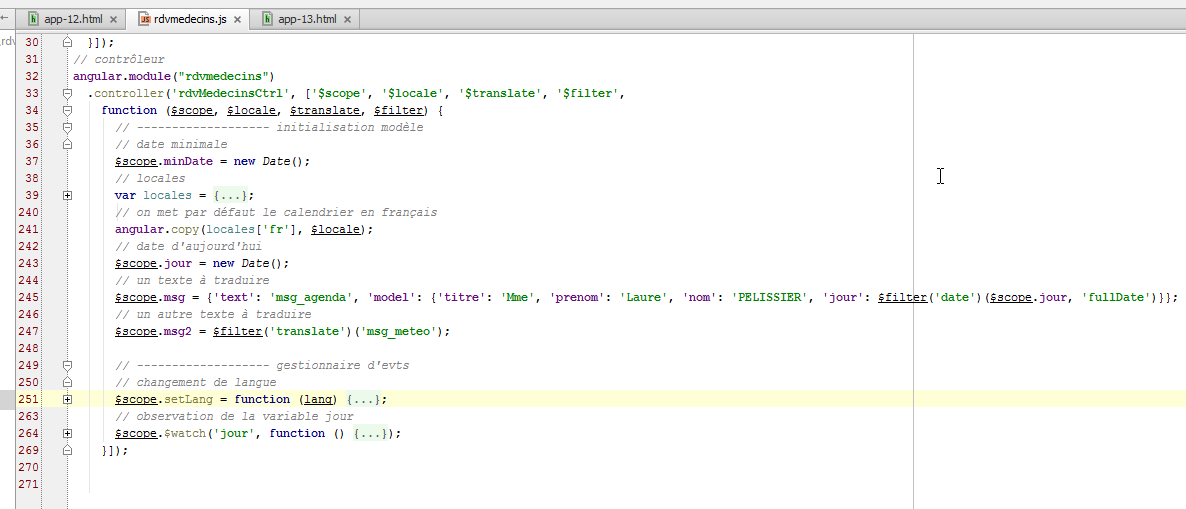
- line 245: the definition of the [msg] object;
- line 245: the [text] field has the value [msg_agenda], which is associated with two values:
- {{title}} {{first_name}} {{last_name}}'s Diary<br/>on {{day}} in the French dictionary;
- {{title}} {{first_name}} {{last_name}}'s Diary<br/> on {{day}} in the English dictionary;
The message to be displayed therefore has four parameters [title, first_name, last_name, day];
- Line 245: The [model] field is a dictionary that assigns values to these four parameters. There is an issue with the [day] parameter. We want to display the full name of the day. This varies depending on whether the language is French or English. We therefore use the [date] filter, which has already been used in the view, in the form {{ day | date:'fullDate'}}. Any filter can be used in the JavaScript code in the form $filter('filter')(value, options), where $filter is a predefined Angular object and 'filter' is the name of the filter;
- lines 33–34: the predefined $filter object is passed as a parameter to the controller, allowing it to be used on line 245;
Let’s return to another line in the displayed view:
  <!-- un troisième texte traduit par le contrôleur -->
<h3 class="alert alert-danger">{{msg2}}</h3>
All previous translations were performed in the view using attributes from the [pascalprecht.translate] module. We can also choose to perform this translation on the server side. That is what is done here. In the controller (line 247 in the screenshot above), we have the following code:
$scope.msg2 = $filter('translate')('msg_meteo');
We use the same syntax as for the 'date' filter because 'translate' is also a filter. Here, we request the message with the key 'msg_meteo'.
Let’s examine the mechanism for language changes. We saw that the [config] function in the [rdvmedecins] module had set French as the default language (line 9 below):
// i18n configuration
angular.module("rdvmedecins")
  .config(['$translateProvider', function ($translateProvider) {
    // french messages
    $translateProvider.translations("fr", {...});
    // english messages
    $translateProvider.translations("en", {...});
    // default language
    $translateProvider.preferredLanguage("fr");
}]);
Note that the default locale was also French. In the initialization of the [rdvmedecins] controller, we wrote:
// we put the locale in French
angular.copy(locales['fr'], $locale);
- line 2: [locales] is a dictionary we created;
There is no connection between the message internationalization provided by the [pascalprecht.translate] module and the date localization we have implemented. The latter uses a $locale variable that is not used by the [pascalprecht.translate] module. These are two processes that are independent of each other.
Now it’s time to look at what happens when the user changes the language:
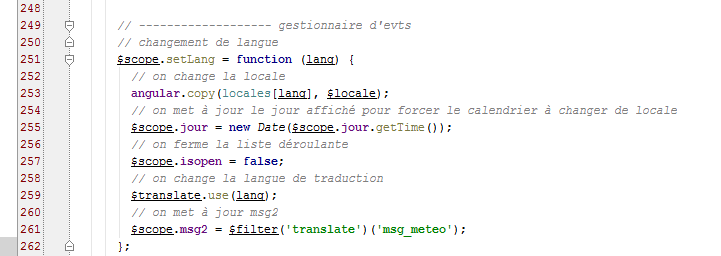
- line 251: when the language changes, the [setLang] function is called with one of the two parameters ['fr','en'];
- lines 252–257: have already been explained—they change the [$locale] variable of the calendar. This has no effect on the language of the translations;
- line 259: we change the translation language. We use the [$translate] object provided by the [pascalprecht.translate] module. To do this, we need to inject it into the controller:
// controller
angular.module("rdvmedecins")
  .controller('rdvMedecinsCtrl', ['$scope', '$locale', '$translate', '$filter',
function ($scope, $locale, $translate, $filter) {
In lines 3 and 4 above, the $translate object is injected;
- the lang parameter of the function [$translate.use(lang)] must be set to one of the keys used in the configuration as the first parameter of the function [$translateProvider.translations], i.e., either 'fr' or 'en'. This is indeed the case;
- Line 261: We recalculate the value of msg2. Why? In the view, after the language change performed by line 259, all existing [translate] attributes will be re-evaluated. This will not be the case for the expression {{msg2}}, which does not have this attribute. Therefore, its new value is calculated in the controller. This must be done after the language change in line 259 so that the new language is used for the calculation of [msg2];
If we stop there, we observe two anomalies:
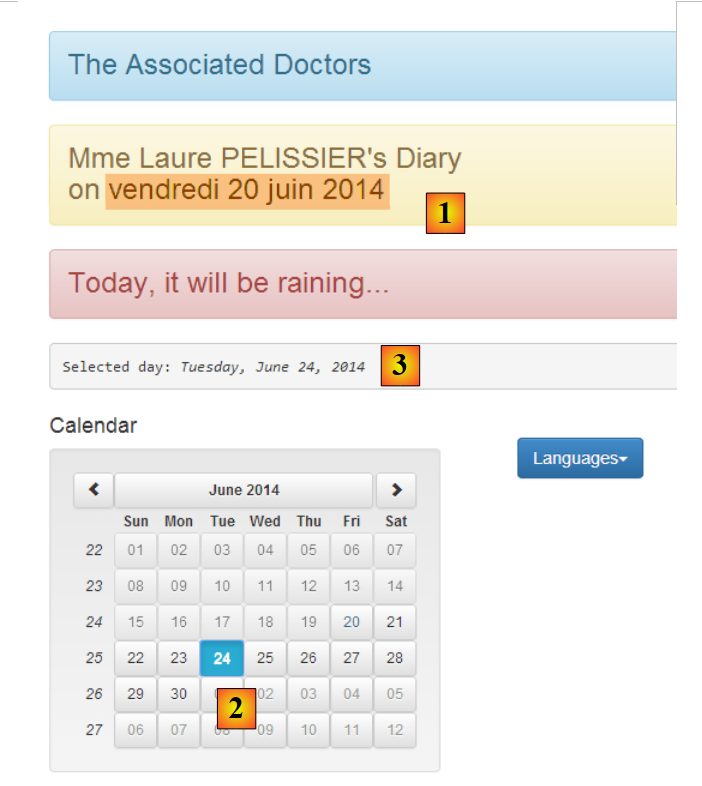 |
- in [1], the day remains in French while the rest of the view is in English;
- in [2] and [3], the selected date is June 24, whereas in [1], the date remains set to June 20;
Let’s try to explain these issues before finding solutions. Message [1] is constructed in the controller with the following code:
$scope.msg = {'text': 'msg_agenda', 'model': {'titre': 'Mme', 'prenom': 'Laure', 'nom': 'PELISSIER', 'jour': $filter('date')($scope.jour, 'fullDate')}};
and displayed in the view with the following code:
<h3 class="alert alert-warning" translate="{{msg.text}}" translate-values="{{msg.model}}"></h3>
The anomaly [1] (the day remained in French while the rest of the view is in English) seems to indicate that while the [translate] attribute is re-evaluated during a language change, this was not the case for the [translate-values] attribute. We can then force this evaluation in the controller:
      // ------------------- evts manager
      // language change
      $scope.setLang = function (lang) {
...
        // update msg2
        $scope.msg2 = $filter('translate')('msg_meteo');
        // and msg day
        $scope.msg.model.jour = $filter('date')($scope.jour, 'fullDate');
};
Every time the language changes, line 8 above recalculates the displayed day. This effectively solves the first problem but not the second (the day displayed in the message does not change when another day is selected in the calendar). The reason for this behavior is as follows. The message is displayed in the view with the following code:
<h3 class="alert alert-warning" translate="{{msg.text}}" translate-values="{{msg.model}}"></h3>
The displayed view V only changes if its model M changes. However, in this case, selecting a new day in the calendar triggers an event that is not handled, which means that the [msg] model does not change and therefore the view does not change either. We update the calendar definition in the view:
<datepicker ng-model="jour" show-weeks="true" class="well" min-date="minDate"
ng-click="calendarClick()"></datepicker>
Above, we specify that the calendar click should be handled by the [$scope.calendarClick] function. This function is as follows:
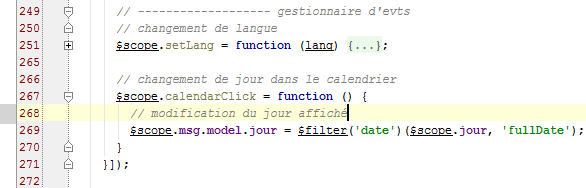
- line 267: the calendar click handler;
- line 269: we force the update of the displayed day using the [msg] message;
3.7.4. Example 4: A configuration service
Let’s revisit the architecture of an AngularJS application:
 |
Here, we will focus on the concept of a service. It is a fairly broad concept. While the [DAO] layer above is clearly a service, any Angular object can become a service:
- a service follows a specific syntax. It has a name, and Angular identifies it by that name;
- a service can be injected by Angular into controllers and other services;
Some of the services we will configure in the [rdvmedecins] module will need to be configured. Since a service can be injected into another service, it is tempting to perform the configuration in a service we will name [config] and inject this into the services and controllers to be configured. We will now describe this process.
We duplicate [app-13.html] into [app-14.html] and make the following changes:
<div class="container">
  <!-- waiting msg control -->
  <label>
    <input type="checkbox" ng-model="waiting.visible">
    <span>Voir le message d'attente</span>
  </label>

  <!-- the waiting message -->
  <div class="alert alert-warning" ng-show="waiting.visible">
    <h1>{{ waiting.text | translate}}
      <button class="btn btn-primary pull-right" ng-click="waiting.cancel()">
            {{'msg_cancel'|translate}}</button>
      <img src="assets/images/waiting.gif" alt=""/>
    </h1>
  </div>
...
</div>
...
<script type="text/javascript" src="rdvmedecins-02.js"></script>
- Lines 3–6: A checkbox that controls whether the waiting message in lines 9–15 is displayed. The value of the checkbox is stored in the [waiting.visible] variable of the M model of the V view. This value is true if the checkbox is checked and false otherwise. This works both ways. If we set the variable [waiting.visible] to true, the checkbox will be checked. There is a bidirectional association between view V and its model M;
- lines 9–15: a waiting message with a button to cancel the wait (line 11);
- line 9: the message is only visible if the variable [waiting.visible] has the value true. So when we check the checkbox on line 4:
- the value true is assigned to the variable [waiting.visible] (ng-model, line 4);
- since there has been a change to the model M, the view V is automatically re-evaluated. The waiting message will then be made visible (ng-show, line 9);
- the reasoning is similar when unchecking the checkbox on line 4: the waiting message is hidden;
- line 10: the waiting message is translated (translate filter);
- line 11: when the button is clicked, the [waiting.cancel()] method is executed (ng-click attribute);
- line 12: the button label is translated;
- line 19: we place the application’s JavaScript code into a new JS file [rdvmedecins-02] so as not to lose the code that has already been written and now needs to be reorganized;
This results in the following view:
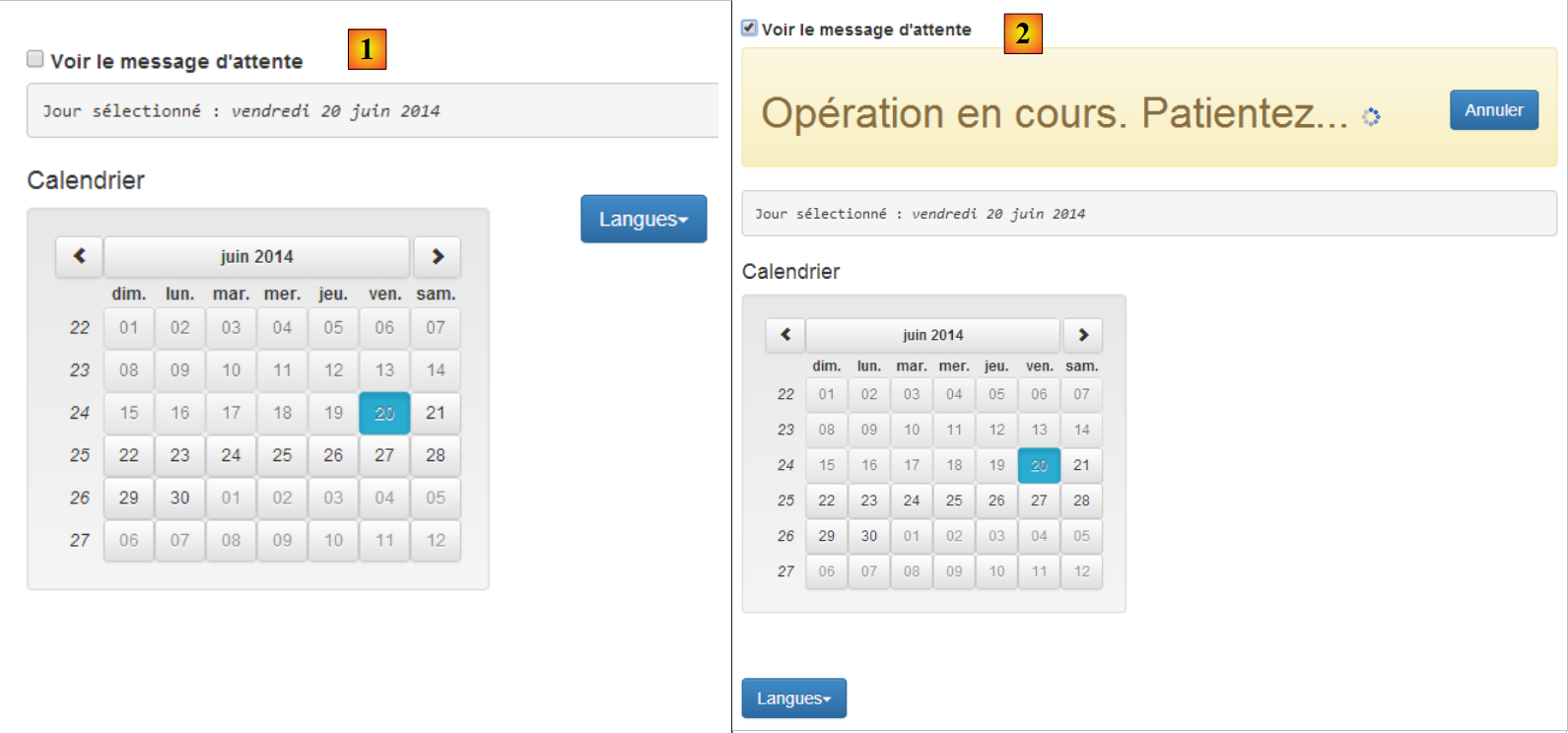 |
- in [1], unchecked box;
- in [2], checkbox checked;
The [rdvmedecins-02] script is a reorganization of the [rdvmedecins] script:
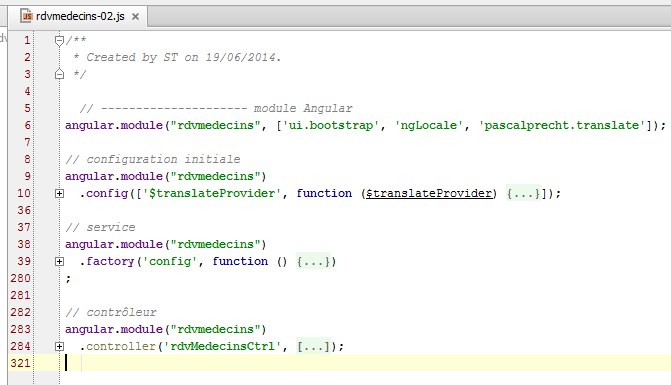
- line 6: the [rdvmedecins] module of the application;
- lines 9-10: the application's configuration function;
- lines 38-39: the [config] service;
- lines 283-284: the [rdvMedecinsCtrl] controller;
Previously, we had defined the dictionary locales={'fr':..., 'en': ...} in the controller, which was 200 lines long. This dictionary is clearly a configuration element, so we are moving it to the [config] service in lines 38–39. This service is defined as follows:
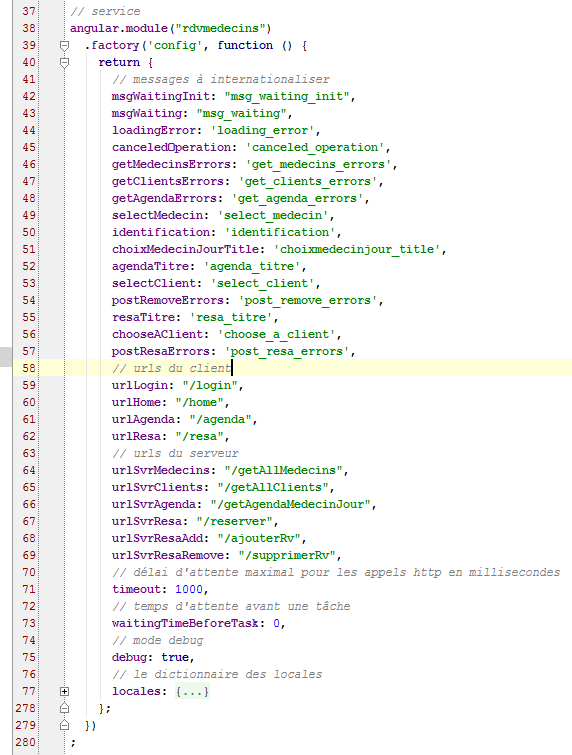
- Lines 38-39: A service is created using the [factory] function of the [angular.module] object. The syntax of this function is the same as for the previous ones: factory('service_name', ['O1', 'O2', ..., 'On', function (O1, O2, ..., On){...}]) where the Oi are object names known to Angular (predefined or created by the developer) that Angular injects as parameters into the factory function. Since the function has no parameters here, we used a shorter, equally valid syntax: factory('service_name', function (){...}]);
- line 40: the [factory] function must implement the service using an object that it returns. This object is the service. This is why the function is called factory (object creation factory);
Generally, service code takes the form:
Angular.module('nom_module')
  .factory('nom_service',['O1','O2', ...., 'On', function (O1, O2, ..., On){
             // service preparation
    ...
     // render the object implementing the service
    return {
         // fields
        ...
                         // methods
        ...
        }
});
- Line 6: We return a JavaScript object that can contain both fields and methods. It is the methods that handle the service;
Here, the [config] service defines only fields and no methods. We will put everything that can be configured in the application here:
- lines 42–47: the keys for the messages to be translated;
- lines 59–62: the application’s URLs;
- lines 64–69: the URLs of the remote web service;
- line 71: an HTTP call to a web service that does not respond may take a long time. Here, we set the maximum wait time for the web service’s response to 1 second. After this time, the HTTP call fails and a JavaScript exception is thrown;
- line 73: before each call to the server, we will simulate a wait whose duration is set here in milliseconds. A wait of 0 means there is no wait. The application will be designed so that the user can cancel an operation they have initiated. For it to be cancellable, it must last at least a few seconds. We will use this artificial wait to simulate long-running operations;
- line 75: in [debug=true] mode, additional information is displayed in the current view. By default, this mode is enabled. In production, we would set this field to false;
- lines 77–278: the dictionary for the two locales, 'fr' and 'en'. It was previously in the [rdvMedecinsCtrl] controller;
With this service, the [rdvMedecinsCtrl] controller evolves as follows:
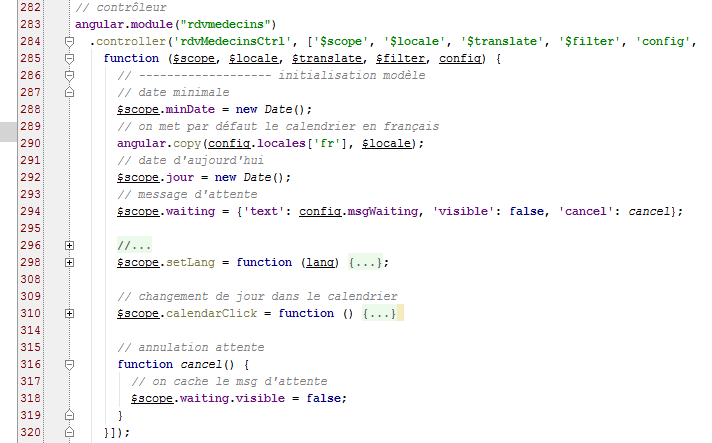
- lines 284-285: the [config] service is injected into the controller;
- line 290: the [locales] dictionary is now found in the [config] service and no longer in the controller;
- line 294: the [waiting] object that controls the display of the waiting message. The key for the waiting message is found in the [config] service (text field). By default, the waiting message is hidden (visible field). The cancel field has as its value the name of the function on line 316. This field is therefore a method or function;
- line 316: the [cancel] function is private (we did not write $scope.cancel=function(){}). Let’s revisit the code for the cancel button:
<button class="btn btn-primary pull-right" ng-click="waiting.cancel()">
When the user clicks the cancel button, the method [$scope.waiting.cancel()] is called. Ultimately, it is the private cancel function from line 316 that is executed. It simply hides the waiting message by setting the model variable [waiting.visible] to false (line 318);
3.7.5. Example 5: Asynchronous Programming
We will now introduce a new service with a new concept: asynchronous programming.
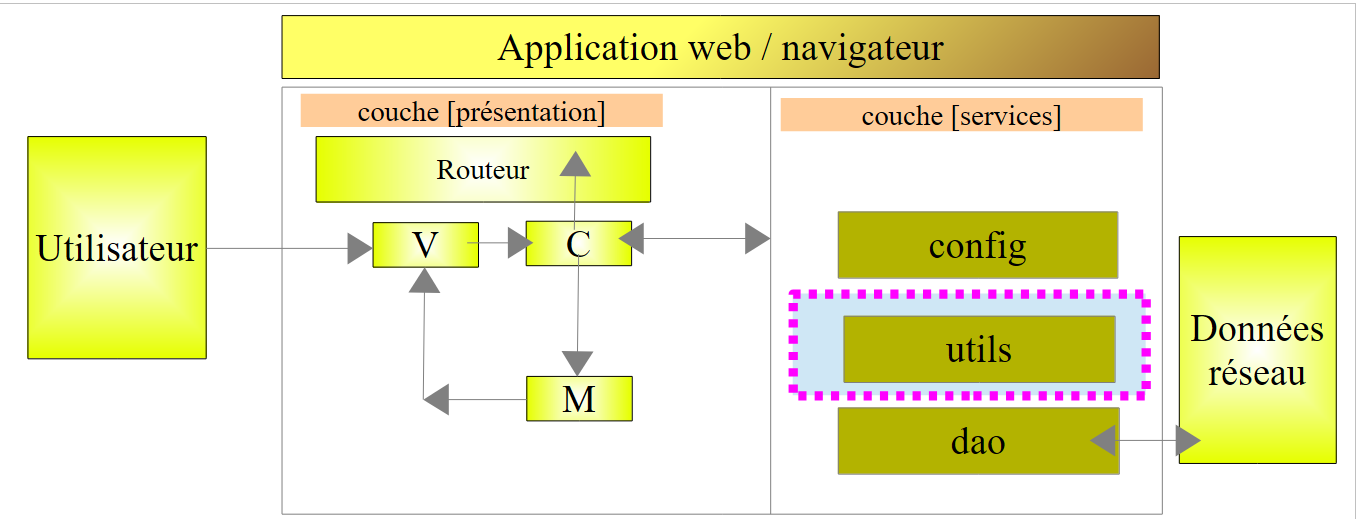 |
Our application will have three services:
- [config]: the configuration service we just introduced;
- [utils]: a utility methods service. We will present two of them;
- [dao]: the service for accessing the appointment scheduling web service. We will introduce it shortly;
We will write the following application:
 |
 |
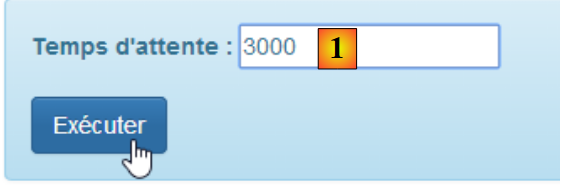
- the goal is to display banner [2] for a duration set by [1]. The wait can be canceled by [3].
We duplicate [app-01.html] into [app-15.html] and modify the code as follows:
<!DOCTYPE html>
<html ng-app="rdvmedecins">
<head>
  <title>RdvMedecins</title>
  ...
</head>
<body ng-controller="rdvMedecinsCtrl">
<div class="container">

  <!-- the waiting message -->
  <div class="alert alert-warning" ng-show="waiting.visible" ng-cloak="">
    <h1>{{ waiting.text | translate}}
      <button class="btn btn-primary pull-right" ng-click="waiting.cancel()">{{'msg_cancel'|translate}}</button>
      <img src="assets/images/waiting.gif" alt=""/>
    </h1>
  </div>

  <!-- the form -->
  <div class="alert alert-info" ng-hide="waiting.visible">
    <div class="form-group">
      <label for="waitingTime">{{waitingTimeText | translate}}</label>
      <input type="text" id="waitingTime" ng-model="waiting.time"/>
    </div>
    <button class="btn btn-primary" ng-click="execute()">Exécuter</button>
  </div>
</div>
..
<script type="text/javascript" src="rdvmedecins-03.js"></script>
</body>
</html>
- line 11: the [ng-cloak] attribute prevents the area from being displayed until its Angular expressions have been evaluated. This prevents the area from briefly appearing before the [ng-show] attribute is evaluated, which will actually cause it to be hidden;
- line 22: the user's input (waiting time) will be stored in the [waiting.time] model (ng-model attribute);
- line 28: the page uses a new script [rdvmedecins-03];
The script [rdvmedecins-03] is as follows:
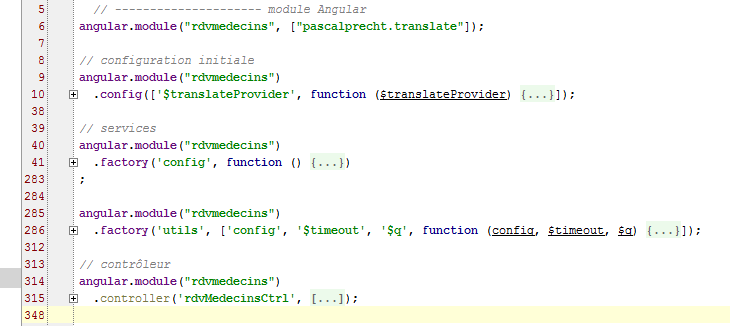
- line 6: the Angular module that manages the application;
- line 10: the [config] function used to internationalize messages;
- line 41: the [config] service we described;
- line 286: the [utils] service that we are going to build;
- line 315: the [rdvmedecinsCtrl] controller that we will build;
We add a new message key to the [config] function (lines 6, 11):
angular.module("rdvmedecins")
  .config(['$translateProvider', function ($translateProvider) {
    // french messages
    $translateProvider.translations("fr", {
...
      'msg_waiting_time_text': "Temps d'attente : "
    });
    // english messages
    $translateProvider.translations("en", {
...
      'msg_waiting_time_text': "Waiting time:"
    });
    // default language
    $translateProvider.preferredLanguage("fr");
}]);
We add a new line (line 6) to the [config] service for this message key:
angular.module("rdvmedecins")
  .factory('config', function () {
    return {
      // messages to be internationalized
      ...
waitingTimeText: 'msg_waiting_time_text',
The [utils] service contains two methods (lines 4, 12):
angular.module("rdvmedecins")
  .factory('utils', ['config', '$timeout', '$q', function (config, $timeout, $q) {
    // display the Json representation of an object
    function debug(message, data) {
      if (config.debug) {
        var text = data ? message + " : " + angular.toJson(data) : message;
        console.log(text);
      }
    }

    // waiting
    function waitForSomeTime(milliseconds) {
      // asynchronous waiting milliseconds milliseconds
      var task = $q.defer();
      $timeout(function () {
        task.resolve();
      }, milliseconds);
      // we return the task
      return task;
    };

    // service authority
    return {
      debug: debug,
      waitForSomeTime: waitForSomeTime
    }
}]);
- line 2: the service is called [utils] (first parameter). It depends on three services: two predefined Angular services, $timeout and $q, and the config service. The [$timeout] service allows a function to be executed after a certain amount of time has elapsed. The [$q] service allows asynchronous tasks to be created;
- line 4: a local function [debug];
- line 12: a local function [waitForSomeTime];
- lines 23–26: the instance of the [utils] service. This is an object that exposes two methods, those on lines 4 and 12. Note that the object’s fields can have any names. For consistency, we have given them the names of the functions they reference;
- lines 4–9: the [debug] method writes a message [message] to the console and, if applicable, the JSON representation of an object [data]. This allows objects of any complexity to be displayed;
- lines 12–20: the [waitForSomeTime] method creates an asynchronous task that lasts [milliseconds] milliseconds;
- line 14: creation of a task using the predefined object [$q] (https://docs.angularjs.org/api/ng/service/$q). Below is the API for the task called [deferred] in the Angular documentation:
- an asynchronous task [task] is created by the statement [$q.defer()];
- it is completed using one of two methods:
- [task.resolve(value)]: which successfully completes the task and returns the value [value] to those waiting for the task to finish;
- [task.reject(value)]: which terminates the task with an error and returns the value [value] to those waiting for the task to finish;
The task [task] can periodically provide information to those waiting for it to finish:
- [task.notify(value)]: sends the value [value] to those waiting for the task to finish. The task continues to run;
Those who want to wait for the task to finish use its [promise] field:
The [promise] object has the following API (http://www.frangular.com/2012/12/api-promise-angularjs.html):
To handle both success and failure of the task, we write:
- Line 1: We retrieve the task's promise;
- line 2: we define the functions to be executed in case of success or failure. We can choose not to include a failure function. The [successCallback] function will only be executed if the [task] completes successfully [task.resolve()]. The [errorCallback] function will only be executed if the [task] fails [task.reject()].
- Line 3: We define the function to be executed after one of the two previous functions has been executed. Here, we place the code common to both functions [successCallback, errorCallback].
Let’s return to the code for the [waitForSomeTime] function:
    // attente
    function waitForSomeTime(milliseconds) {
      // attente asynchrone de milliseconds millisecondes
      var task = $q.defer();
      $timeout(function () {
        task.resolve();
      }, milliseconds);
      // on retourne la tâche
      return task;
};
- line 4: a task is created;
- lines 5–7: the [$timeout] object allows you to define a function (first parameter) that executes after a certain delay expressed in milliseconds (second parameter). Here, the second parameter of the [$timeout] function is the method’s parameter (line 1);
- line 6: after the [milliseconds] delay, the task is successfully completed;
- line 9: the task [task] is returned. It is important to note here that line 9 is executed immediately after the [$timeout] object is defined. We do not wait for the [milliseconds] delay to elapse. The code in lines 2–10 is therefore executed at two different times:
- the first time when the object [$timeout] is defined;
- a second time when the timeout [milliseconds] has elapsed;
This is an asynchronous function: its result is obtained at a later time than its execution.
The controller code that uses the [config] service is as follows:
// controller
angular.module("rdvmedecins")
  .controller('rdvMedecinsCtrl', ['$scope', 'utils', 'config', '$filter',
    function ($scope, utils, config, $filter) {
      // ------------------- model initialization
      // waiting message
      $scope.waiting = {text: config.msgWaiting, visible: false, cancel: cancel, time: undefined};
      $scope.waitingTimeText = config.waitingTimeText;
      // waiting task
      var task;
      // logs
      utils.debug("libellé temps d'attente", $filter('translate')($scope.waitingTimeText));
      utils.debug("locales['fr']=", config.locales['fr']);

      // execution action
      $scope.execute = function () {
        // log
        utils.debug('début', new Date());
        // the waiting msg is displayed
        $scope.waiting.visible = true;
        // simulated waiting
        task = utils.waitForSomeTime($scope.waiting.time);
        // end of wait
        task.promise.then(function () {
          // success
          utils.debug('fin', new Date());
        }, function () {
          // failure
          utils.debug('Opération annulée')
        });
        task.promise['finally'](function () {
          // end of wait in all cases
          $scope.waiting.visible = false;
        });

      };

      // cancel wait
      function cancel() {
        // complete the task
        task.reject();
      }
    }]);
- line 3: the controller uses the [config] service;
- line 7: we added the [time] field to the [$scope.waiting] object. The [$scope.waiting.time] object receives the value of the wait time set by the user;
- line 8: the key for the waiting message displayed by the view is placed in the [$scope.waitingTimeText] model. Generally, everything displayed by a V view must be placed in the [$scope] object;
- line 10: a local variable. It is not exposed to the V view;
- lines 12-13: use of the [debug] method of the [config] service. The following result is displayed on the console:
Line 2: We obtain the JSON representation of the locales['fr'] object.
- Line 16: the method executed when the user clicks the [Execute] button;
- line 18: displays the start time of the method's execution;
- line 22: the [waitForSomeTime] task is launched. We do not wait for it to finish. Execution continues with the following line 24;
- lines 24–30: defines the functions to be executed when the task completes successfully (line 26) and in case of an error (line 29);
- line 26: displays the end time of the method's execution;
- line 29: displays that the operation has been canceled. This occurs only when the user clicks the [Cancel] button. The instruction on line 41 then stops the asynchronous task with a failure code;
- lines 31–34: define the function to be executed after one of the two preceding functions has been executed;
It is important to understand the execution sequence of this code. If the user sets a 3-second delay and does not cancel the wait:
- when they click the [Execute] button, the [$scope.execute] function runs. Lines 16–34 are executed without waiting for the 3 seconds. At the end of this execution, the view V is synchronized with the model M. The waiting message is displayed (ng-show=$scope.waiting.visible=true, line 20) and the form is hidden (ng-hide=$scope.waiting.visible=true, line 20);
- from this point on, the user can interact with the view again. In particular, they can click the [Cancel] button;
- if they do not, after 3 seconds, the [$timeout] function (see lines 5–7 below) executes:
    // attente
    function waitForSomeTime(milliseconds) {
      // attente asynchrone de milliseconds millisecondes
      var task = $q.defer();
      $timeout(function () {
        task.resolve();
      }, milliseconds);
      // on retourne la tâche
      return task;
};
- After 3 seconds, the code is executed. This code completes the task [task] with a success code (resolve). This will trigger the execution of all the code that was waiting for this completion (line 4 below):
        // simulated waiting
        task = utils.waitForSomeTime($scope.waiting.time);
        // end of wait
        task.promise.then(function () {
          // success
          utils.debug('fin', new Date());
        }, function () {
          // failure
          utils.debug('Opération annulée')
        });
        task.promise['finally'](function () {
          // end of wait in all cases
          $scope.waiting.visible = false;
        });
- Line 6 above (successfully finished) will therefore be executed. Then lines 11–14 will be executed. Once this code has run, we return to the V view, which will then be synchronized with its M model. The waiting message is hidden (ng-show=$scope.waiting.visible=false, line 13) and the form is displayed (ng-hide=$scope.waiting.visible=false, line 13);
The screen displays are then as follows:
As shown above, there is a 3-second delay (06:01–05:58) between the start and end of the wait. Conversely, if the user cancels the wait before the 3 seconds are up, the following is displayed:
Finally, it is important to understand that at any given time, there is only one execution thread, known as the UI (User Interface) thread. The completion of an asynchronous task is signaled by an event, just like a button click. This event is not processed immediately. It is placed in the queue of events awaiting execution. When its turn comes, it is processed. This processing uses the UI thread, so during this time, the interface freezes. It does not respond to user input. For this reason, it is important that event processing be fast. Because each event is processed by the UI thread, there is never a need to resolve synchronization issues between threads running simultaneously. At any given moment, only the UI thread is executing.
3.7.6. Example 6: HTTP Services
We now present the [dao] service that communicates with the web server:
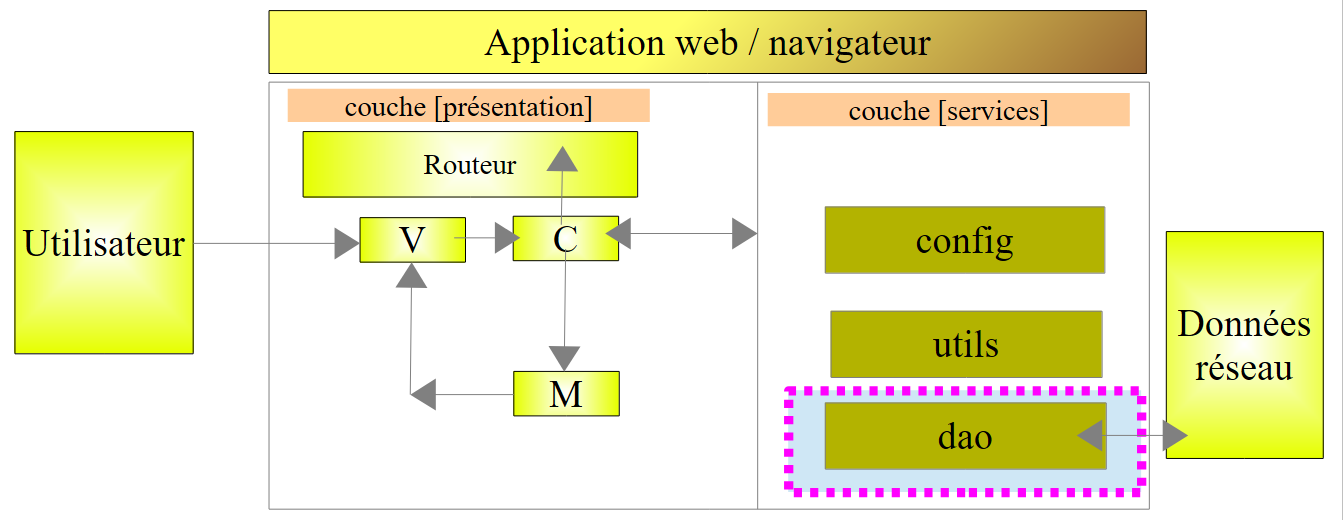 |
3.7.6.1. The V view
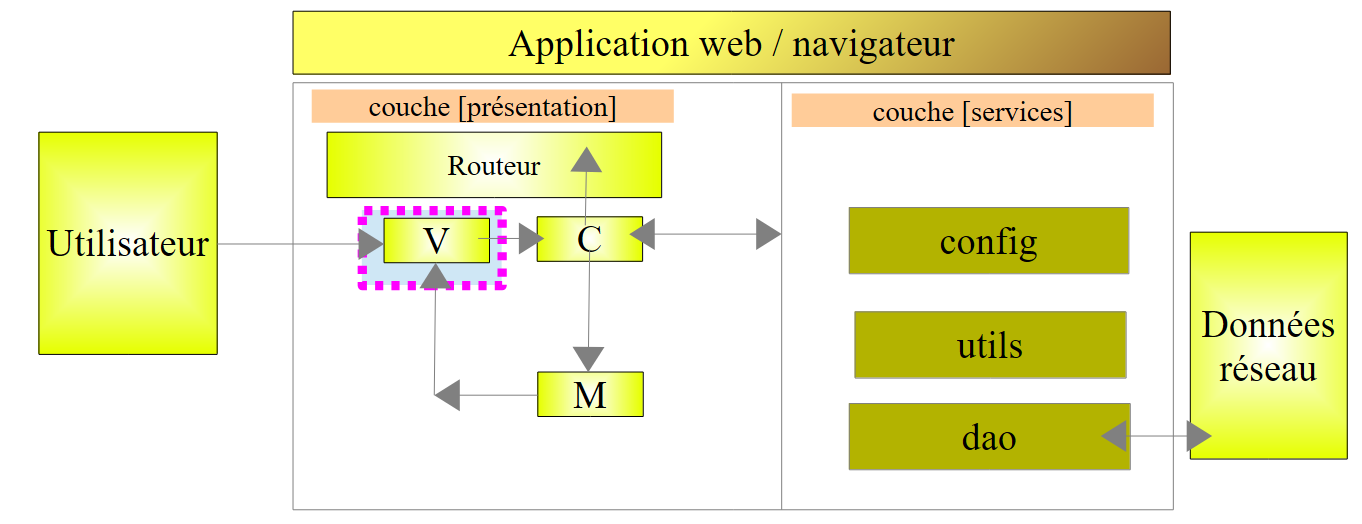 |
We will write a form to request the list of doctors:
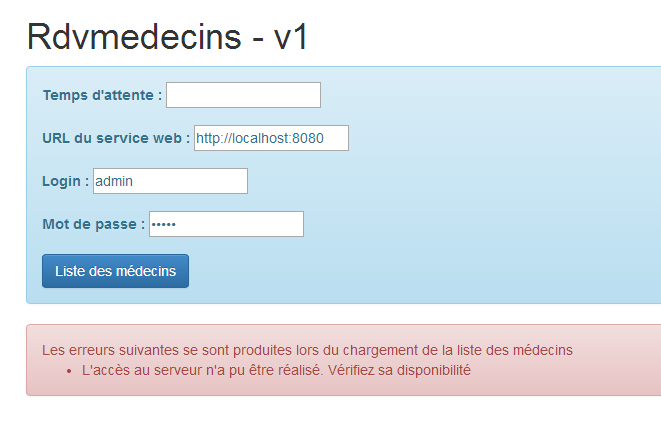
We duplicate [app-01.html] into [app-16.html], which we then modify as follows:
<div class="container" ng-cloak="">
  <h1>Rdvmedecins - v1</h1>

  <!-- the waiting message -->
  <div class="alert alert-warning" ng-show="waiting.visible" ng-cloak="">
    <h1>{{ waiting.text | translate}}
      <button class="btn btn-primary pull-right" ng-click="waiting.cancel()">{{'msg_cancel'|translate}}</button>
      <img src="assets/images/waiting.gif" alt=""/>
    </h1>
  </div>

  <!-- the request -->
  <div class="alert alert-info" ng-hide="waiting.visible">
    <div class="form-group">
      <label for="waitingTime">{{waitingTimeText | translate}}</label>
      <input type="text" id="waitingTime" ng-model="waiting.time"/>
    </div>
    <div class="form-group">
      <label for="urlServer">{{urlServerLabel | translate}}</label>
      <input type="text" id="urlServer" ng-model="server.url"/>
    </div>
    <div class="form-group">
      <label for="login">{{loginLabel | translate}}</label>
      <input type="text" id="login" ng-model="server.login"/>
    </div>
    <div class="form-group">
      <label for="password">{{passwordLabel | translate}}</label>
      <input type="password" id="password" ng-model="server.password"/>
    </div>
    <button class="btn btn-primary" ng-click="execute()">{{medecins.title|translate:medecins.model}}</button>
  </div>

  <!-- list of doctors -->
  <div class="alert alert-success" ng-show="medecins.show">
    {{medecins.title|translate:medecins.model}}
    <ul>
      <li ng-repeat="medecin in medecins.data">{{medecin.titre}}{{medecin.prenom}} {{medecin.nom}}</li>
    </ul>
  </div>

  <!-- the error list -->
  <div class="alert alert-danger" ng-show="errors.show">
    {{errors.title|translate:errors.model}}
    <ul>
      <li ng-repeat="message in errors.messages">{{message|translate}}</li>
    </ul>
  </div>

</div>
...
<script type="text/javascript" src="rdvmedecins-04.js"></script>
- Lines 13–31: implement the form. This form is not visible when the waiting message is displayed (ng-hide="waiting.visible"). Note that the four inputs are stored in (ng-model attributes) [waiting.time (line 16), server.url (line 20), server.login (line 24), server.password (line 28)];
- lines 34–39: display the list of doctors. This list is not always visible (ng-show="medecins.show").
- line 35: an alternative to the syntax <div ... translate="{{medecins.title}}" translate-values="{{medecins.model}}"> already encountered;
- line 36: an unordered list;
- line 37: the list of doctors is found in the [medecins.data] model. The Angular directive [ng-repeat] allows you to iterate through a list. The syntax ng-repeat="doctor in medecins.data" instructs the <li> tag to be repeated for each element in the [medecins.data] list. The current element in the list is called [medecin];
- line 37: for each <li>, we display the title, first name, and last name of the current doctor designated by the variable [medecin];
- lines 42–47: display the list of errors. This list is not always visible (ng-show="errors.show"). This display follows the same pattern as the display of the list of doctors. Generally, to display a list of objects, we use the Angular directive [ng-repeat];
- line 51: the JavaScript code is now in the [rdvmedecins-04] file
3.7.6.2. The C controller and the M model
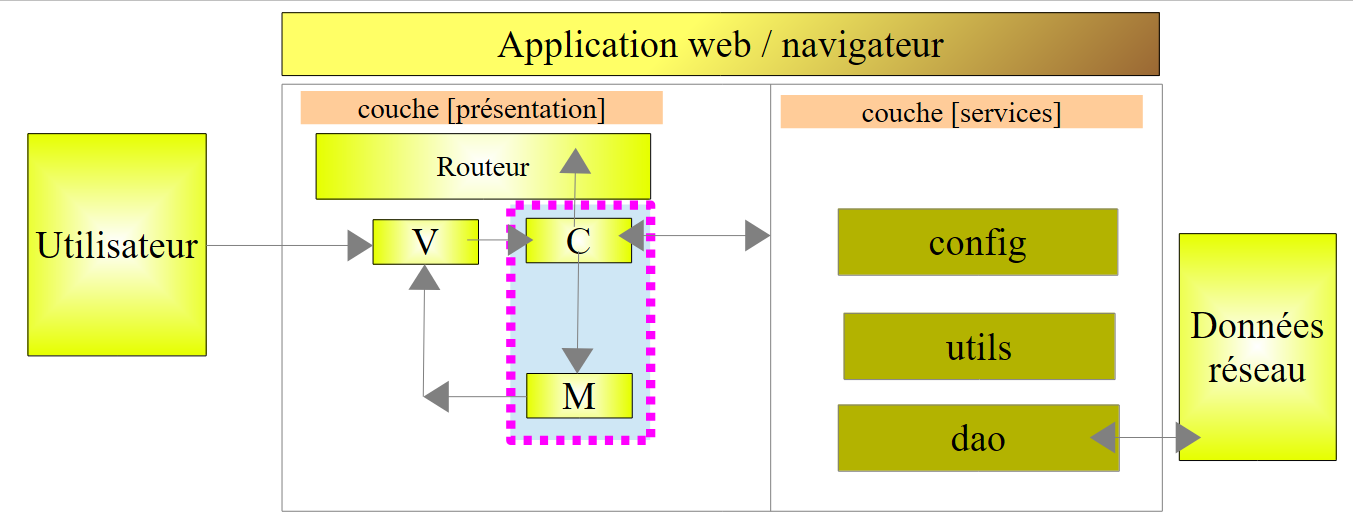 |
The JavaScript code changes as follows:
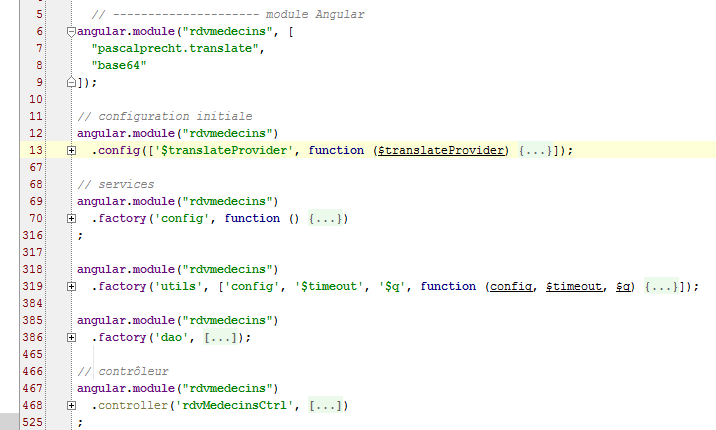
- lines 6–9: the [rdvmedecins] module declares a dependency on the [base64] module provided by the [angular-base64] library, which is one of the project’s dependencies. This module is used to encode the [login:password] string sent to the web service for authentication in Base64;
- lines 12–13: the initialization function containing our internationalized messages. New messages appear. We will not cover them further;
- lines 69–70: the [config] service that configures our application. New message keys have been added here. We will not cover them further;
- lines 318–319: the [utils] service, which contains utility methods. New ones have been added. We will present them;
- lines 385–386: the [dao] service responsible for communication with the web service. This is what we will focus on;
- lines 467–468: the C controller for the V view we just discussed. We’ll cover it now because it acts as the orchestrator that responds to user requests;
3.7.6.3. The C controller
The controller code is as follows:
angular.module("rdvmedecins")
  .controller('rdvMedecinsCtrl', ['$scope', 'utils', 'config', 'dao', '$translate',
    function ($scope, utils, config, dao, $translate) {
      // ------------------- model initialization
      // model
      $scope.waiting = {text: config.msgWaiting, visible: false, cancel: cancel, time: undefined};
      $scope.waitingTimeText = config.waitingTimeText;
      $scope.server = {url: undefined, login: undefined, password: undefined};
      $scope.medecins = {title: config.listMedecins, show: false, model: {}};
      $scope.errors = {show: false, model: {}};
      $scope.urlServerLabel = config.urlServerLabel;
      $scope.loginLabel = config.loginLabel;
      $scope.passwordLabel = config.passwordLabel;

      // asynchronous task
      var task;

      // execution action
      $scope.execute = function () {
        // the UI is updated
        $scope.waiting.visible = true;
        $scope.medecins.show = false;
        $scope.errors.show = false;
        // simulated waiting
        task = utils.waitForSomeTime($scope.waiting.time);
        var promise = task.promise;
        // waiting
        promise = promise.then(function () {
          // we ask for the list of doctors;
          task = dao.getData($scope.server.url, $scope.server.login, $scope.server.password, config.urlSvrMedecins);
          return task.promise;
        });
        // analyze the result of the previous call
        promise.then(function (result) {
          // result={err: 0, data: [med1, med2, ...]}
          // result={err: n, messages: [msg1, msg2, ...]}
          if (result.err == 0) {
            // we put the acquired data into the model
            $scope.medecins.data = result.data;
            // the UI is updated
            $scope.medecins.show = true;
            $scope.waiting.visible = false;
          } else {
            // there were errors in obtaining the list of doctors
            $scope.errors = { title: config.getMedecinsErrors, messages: utils.getErrors(result), show: true, model: {}};
            // the UI is updated
            $scope.waiting.visible = false;
          }
        });
      };

      // cancel wait
      function cancel() {
        // complete the task
        task.reject();
        // the UI is updated
        $scope.waiting.visible = false;
        $scope.medecins.show = false;
        $scope.errors.show = false;
      }

    }
  ])
;
- line 2: the controller has a new dependency, namely the [dao] service;
- lines 6–13: the M model of the V view is initialized for the first time the view is displayed;
- line 8: [$scope.server] will be used to retrieve three of the four pieces of information from form V; the fourth is stored in [$scope.waiting.time] (line 6);
- line 9: [$scope.doctors] will gather the information needed to display the list of doctors:
  <!-- list of doctors -->
  <div class="alert alert-success"  ng-show="medecins.show">
    {{medecins.title|translate:medecins.model}}
    <ul>
      <li ng-repeat="medecin in medecins.data">{{medecin.titre}}{{medecin.prenom}} {{medecin.nom}}</li>
    </ul>
</div>
The [medecins.title] attribute will be the banner's title. It is defined in the [config] service. The [medecins.show] attribute will control whether the banner is displayed or not (ng-show="medecins.show" attribute). The [medecins.model] attribute is an empty dictionary and will remain so. It is simply used to illustrate the use of the translation variant used in line 3. Not yet defined, the [medecins.data] attribute will contain the list of doctors (line 5).
- Line 10: [$scope.errors] will collect the information needed to display the list of errors:
  <!-- the error list -->
  <div class="alert alert-danger"  ng-show="errors.show">
    {{errors.title|translate:errors.model}}
    <ul>
      <li ng-repeat="message in errors.messages">{{message|translate}}</li>
    </ul>
</div>
The [errors.title] attribute will be the banner's title. It is defined in the [config] service. The [errors.show] attribute controls whether the banner is displayed or not (ng-show="errors.show" attribute). The [errors.model] attribute is an empty dictionary and will remain so. It is simply used to illustrate the use of the translation variant used in line 3. Not yet defined, the [errors.messages] attribute will contain the list of error messages to be displayed (line 5).
- Line 16: the asynchronous task. The controller will successively launch two asynchronous tasks. References to these successive tasks will be placed in the [task] variable. This will allow them to be canceled (line 55);
- Line 19: The method executed when the user clicks the [List of Doctors] button:
<button class="btn btn-primary" ng-click="execute()">Liste des médecins</button>
- Lines 21–23: The UI is updated: the loading message is displayed, and everything else is hidden;
- line 25: the asynchronous wait task is created. A signal (task completed) will be received after the time entered by the user in the form has elapsed;
- line 26: we retrieve the promise of the asynchronous task. The program that launches the task works with this promise. However, we must have the reference to the task itself in order to be able to cancel it (line 55);
- lines 28–32: We define the work to be done once the wait is complete;
- line 30: we use the [dao.getData] method to launch a new asynchronous task. We pass it the information it needs:
- the root URL of the web service [$scope.server.url], for example [http://localhost:8080];
- the login [$scope.server.login] to authenticate, for example [admin];
- the password [$scope.server.password] for authentication, for example [admin];
- the URL that returns the requested service [config.urlSvrMedecins], here [/getAllMedecins]. In total, the complete URL will be [http://localhost:8080/getAllMedecins];
The method [dao.getData] returns a result that can take two forms:
- (continued)
- {err: 0, data: [med1, med2, ...]} where [medi] is an object representing a doctor (title, first name, last name),
- {err: n, messages: [msg1, msg2, ...]} where [msg] is an error message and n is not equal to 0;
- line 31: we return the task’s promise. Here, there’s something to understand. We have two promises:
- promise.then(): returns a first promise [promise1];
- return task.promise: returns a second promise [promise2];
- Ultimately, promise = promise.then(...; return task.promise) is a chain of two promises [promise2.promise1]. [promise1] will only be evaluated once the promise [promise2] is resolved, i.e., when the task [dao.getData] is complete. The promise [promise1] does not depend on any asynchronous task. It will therefore be resolved immediately;
- lines 34–50: From the previous explanation, it follows that these lines will only be executed once the task [dao.getData] is complete. The parameter [result] passed to the function on line 34 is constructed by the method [dao.getData] and passed to the calling code via the operation [task.resolve(result)], where [result] has the following form:
- {err: 0, data: [med1, med2, ...]} where [medi] is an object representing a doctor (title, first name, last name),
- {err: n, messages: [msg1, msg2, ...]} where [msg1] is an error message and n is not equal to 0;
- line 37: we check the error code [result.err];
- lines 38–42: if there is no error (result.err == 0), then we retrieve the list of doctors and display it;
- lines 44–47: if, on the other hand, there is an error (result.err != 0), then we retrieve the list of error messages and display it;
- lines 53–56: the loading message with its cancel button remains visible until both asynchronous operations are complete. Let’s see what happens depending on when the cancellation occurs:
- First, it is important to understand that lines 19–50 are executed all at once. Only one asynchronous task has been launched at this point, the one on line 25.
- after this initial execution, view V is updated, and thus the waiting banner and its cancel button are visible. If the user cancels the wait before the task on line 25 is complete, the method on line 53 is then executed and the task is canceled with a failure (line 55);
- Lines 56–59: The interface is updated: the form is redisplayed and everything else is hidden,
- it then returns to the V view, and the browser processes the next event. Since the task has completed, the promise for this task is resolved, which triggers an event. It is then processed;
- lines 28–32 are then executed. There is no function defined for the failure case, so no code is executed. A new promise is obtained, the one always returned by [promise.then] and always resolved,
- the event having been handled, control returns to view V and the browser proceeds to handle the next event. Since the [promise] on line 28 has been resolved, the one on line 34 will be resolved, which will trigger a new event. It is then handled;
- lines 34–49 will then be executed in turn, since the promise used in line 34 has been fulfilled. Again, because there is no function defined for the failure case, no code is executed,
- and we thus reach line 50. There is no longer any task waiting, and the new view V is displayed;
- Now suppose that cancellation occurs while the second asynchronous task [dao.getData] is running. The previous reasoning applies again. The end of the task will trigger the execution of lines 34–50 with a task failure. We will soon discover that the [dao.getData] method makes an asynchronous HTTP call to the web service. This call will not be canceled, but its result will not be used.
It is important to understand this constant back-and-forth between the rendering of view V and the handling of browser events. Events are triggered by the user (a click) or by system operations such as the completion of an asynchronous operation. The browser’s idle state is the rendering of the V view. It is pulled out of this idle state by an event that occurs, which it then processes. As soon as the event has been processed, it returns to its idle state. The V view is then updated if the processed event has modified its M model. The browser is pulled out of its idle state by the next event.
Everything happens in a single thread. Two events are never processed simultaneously. Their execution is sequential. The browser moves on to the next event only when the previous one releases control, usually because it has been fully processed.
There is one more point to explain. To display error messages, we write:
$scope.errors = { title: config.getMedecinsErrors, messages: utils.getErrors(result), show: true, model: {}};
The list of messages is provided by the [utils.getErrors] method defined in the [utils] service. This method is as follows:
// error analysis in server response JSON
    function getErrors(data) {
      // data {err:n, messages:[]}, err!=0
      // errors
      var errors = [];
      // error code
      var err = data.err;
      switch (err) {
        case 2 :
          // not authorized
          errors.push('not_authorized');
          break;
        case 3 :
          // forbidden
          errors.push('forbidden');
          break;
        case 4 :
          // local error
          errors.push('not_http_error');
          break;
        case 6 :
          // document not found
          errors.push('not_found');
          break;
        default :
          // other cases
          errors = data.messages;
          break;

      }
      // if no msg, we put one
      if (! errors || errors.length == 0) {
        errors=['error_unknown'];
      }
      // return the list of errors
      return errors;
    }
- lines 2-3: the [data] parameter received is an object with two attributes:
- [err]: an error code;
- [messages]: a list of messages;
- line 5: we will construct an array of error messages. These messages are internationalized. For this reason, it is not the messages themselves that we put into the array, but their internationalization keys, except on line 27. In this case, we use the [messages] attribute of the [data] parameter. These messages are actual messages and not message keys. However, view V will treat them as message keys, which will then not be found. In this case, the [translate] module displays the message key it did not find—in this instance, an actual message. This is the desired result;
- lines 32–34: handle the case where [data.messages] on line 27 is null. This occurs with the written web service. This scenario should have been avoided.
3.7.6.4. The [dao] service
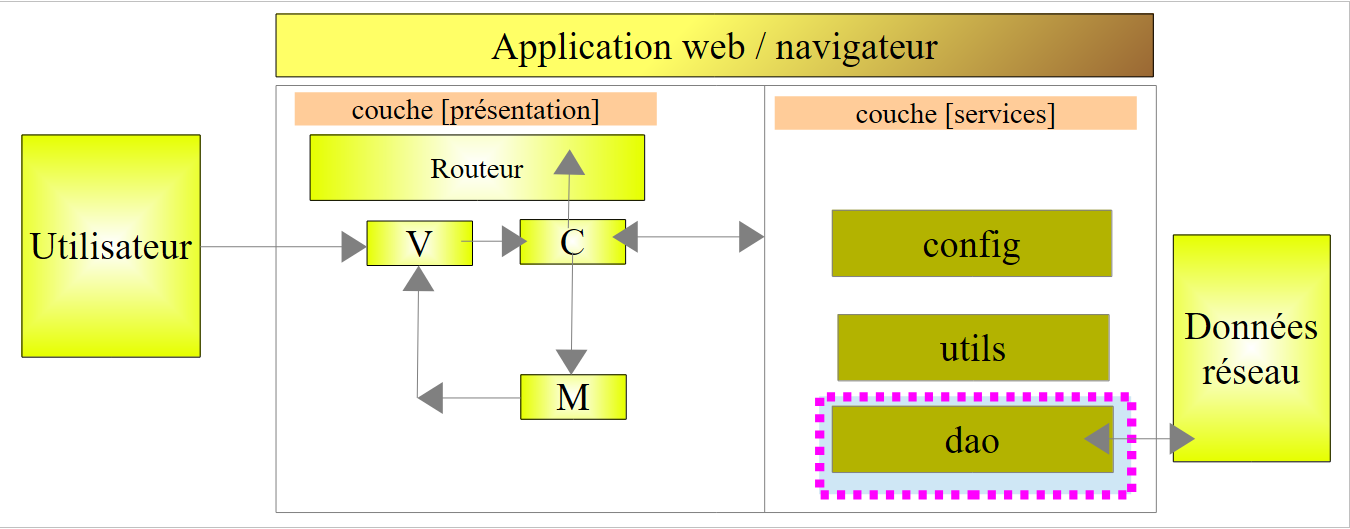 |
The [dao] service handles HTTP exchanges with the web service / JSON. Its code is as follows:
angular.module("rdvmedecins")
  .factory('dao', ['$http', '$q', 'config', '$base64', 'utils',
    function ($http, $q, config, $base64, utils) {

      // logs
      utils.debug("[dao] init");

      // ----------------------------------méthodes privées
      // obtain data from the web service
      function getData(serverUrl, username, password, urlAction, info) {
        // asynchronous operation
        var task = $q.defer();
        // url request HTTP
        var url = serverUrl + urlAction;
        // basic authentication
        var basic = "Basic " + $base64.encode(username + ":" + password);
        // the answer
        var réponse;
        // all http requests must be authenticated
        var headers = $http.defaults.headers.common;
        headers.Authorization = basic;
        // query HTTP
        var promise;
        if (info) {
          promise = $http.post(url, info, {timeout: config.timeout});
        } else {
          promise = $http.get(url, {timeout: config.timeout});
        }
        promise.then(success, failure);
        // the task itself is returned so that it can be cancelled
        return task;

        // success
        function success(response) {
          // response.data={status:0, data:[med1, med2, ...]} or {status:x, data:[msg1, msg2, ...]
          utils.debug("[dao] getData[" + urlAction + "] success réponse", response);
          // answer
          var payLoad = response.data;
          réponse = payLoad.status == 0 ? {err: 0, data: payLoad.data} : {err: 1, messages: payLoad.data};
          // we return the answer
          task.resolve(réponse);
        }

        // failure
        function failure(response) {
          utils.debug("[dao] getData[" + urlAction + "] error réponse", response);
          // status analysis
          var status = response.status;
          var error;
          switch (status) {
            case 401 :
              // unauthorized
              error = 2;
              break;
            case 403:
              // forbidden
              error = 3;
              break;
            case 404:
              // not found
              error = 6;
              break;
            case 0:
              // local error
              error = 4;
              break;
            default:
              // something else
              error = 5;
          }
          // we return the answer
          task.resolve({err: error, messages: [response.statusText]});
        }
      }

      // --------------------- service instance [dao]
      return {
        getData: getData
      }
}]);
- lines 77-79: the service has only one field: the [getData] method, which retrieves information from the web service / JSON;
- line 2: a [$http] dependency appears that we haven’t encountered yet. This is a predefined Angular service that enables HTTP communication with a remote entity;
- line 6: a log to see at what point in the application’s lifecycle the code is executed;
- line 10: the [getData] method accepts five parameters:
- [serverUrl]: the root URL of the web service (http://localhost:8080);
- [urlAction]: the URL of the specific service being requested (/getAllMedecins);
- [username]: the user's login;
- [password]: the user’s password;
- [info]: an object containing additional information when the URL of the specific service being requested is accessed via a POST operation. In the case of the URL (/getAllMedecins), this parameter was not passed. It is therefore [undefined];
- line 12: an asynchronous task is created;
- line 14: the full URL of the requested service (http://localhost:8080/getAllMedecins);
- line 16: authentication is performed by sending the following HTTP header:
where [code] is the Base64-encoded string [username:password];
Line 16 constructs the [Basic code] part of the HTTP header;
- line 18: the web service response;
- line 20: the HTTP headers sent by default by Angular in an HTTP request are defined in the [$http.defaults.headers.common] object. The [Authorization:Basic code] header is not included;
- line 21: we add it to the HTTP headers to be sent systematically. On the left side of the assignment, we have the [Authorization] header to initialize, and on the right, the header’s value—in this case, the value defined on line 16. So if we write:
Angular will send the HTTP header:
- line 23: the methods of the [$http] service return promises. They will be stored in the [promise] variable;
- Line 27: Because here, the [info] parameter has the value [undefined], line 27 is executed. The URL (http://localhost:8080/getAllMedecins) is requested using a GET request. To avoid waiting too long, we set a maximum timeout for receiving the server’s response. By default, this timeout is one second;
- line 29: we define the two methods to be executed when the promise is fulfilled:
- [success]: defined on line 34, is the method to execute when the promise resolves upon successful completion of the task;
- [failure]: defined on line 45, is the method to execute when the promise is resolved due to a task failure;
- Both methods (we should say functions) are defined inside the [getData] function. This is possible in JavaScript. The variables defined in [getData] are accessible within the two internal functions [success] and [failure];
- line 31: we return the task created on line 12. Here, we must recall the calling code:
        promise = promise.then(function () {
          // we ask for the list of doctors;
          task = dao.getData($scope.server.url, $scope.server.login, $scope.server.password, config.urlSvrMedecins);
          return task.promise;
});
Line 3 above retrieves a task.
- Line 34: The [success] function is executed later, once the HTTP request completes successfully. This notion of success is tied to the first line of an HTTP response. It takes the form:
The code is a three-digit number indicating whether the request was successful or not. Generally speaking, 2xx and 3xx codes are success codes, while the others are failure codes. The text is a brief explanatory message. Here are two possible responses, one for success and one for failure:
- Line 36: The server's response is displayed on the console. In the [404 Not Found] error, we get something like:
[dao] getData[/getAllMedecins] error réponse : {"data":"...","status":404,"config":{...},"statusText":"Not Found"}
In this response, we will only use the [data], [status], and [statusText] fields.
- Line 38: We retrieve the [data] field from the response. It will take one of the following forms:
- {status: 0, data: [med1, med2, ...]} where [medi] is an object representing a doctor (title, first name, last name),
- {status: n, data: [msg1, msg2, ...]} where [msg1] is an error message and n is not equal to 0;
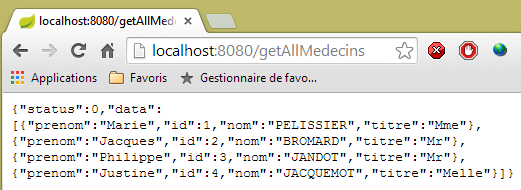 |
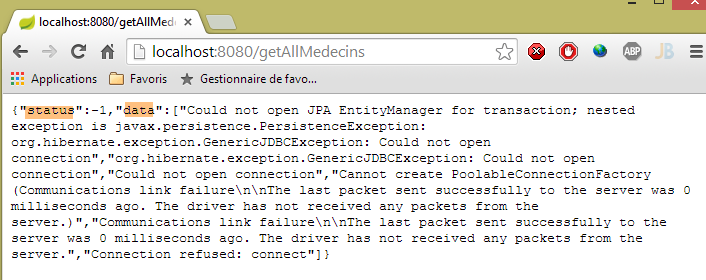
- Line 39: We construct the response {0,data} or {n,messages}. The first response contains the doctors in the [data] field. The second indicates an error that occurred on the server side. The server handled this error, generated an error code in [err], and a list of error messages in [data]. In both cases, it returns an HTTP 200 status code indicating that the HTTP request has been fully processed. This is why both cases are handled in the same function [success];
- line 41: the task is completed [task.resolve] and one of the two responses is returned:
- {err: 0, data: [med1, med2, ...]} where [medi] is an object representing a doctor (title, first name, last name),
- {err: n, messages: [msg1, msg2, ...]} where [msgi] is an error message and n is not equal to 0;
This code must be linked to how this response is retrieved in the controller’s calling code:
        // analyze the result of the previous call
        promise.then(function (result) {
          // result={err: 0, data: [med1, med2, ...]}
          // result={err: n, messages: [msg1, msg2, ...]}
          ...
          }
The response from [task.resolve(response)] is stored in the [result] variable above.
- line 45: the [failure] function when the asynchronous task ends in failure. There are two possible cases:
- the server signals this failure by returning a status code that is neither 2xx nor 3xx,
- Angular cancels the HTTP request. In this case, no request is made. An Angular exception occurs, but no HTTP error code is returned by the server. This happens, for example, if an invalid URL is provided that cannot be accessed;
- line 46: we display the response in the console;
- line 48: we recall that the server's response has the following format:
{"data":"...","status":404,"config":{...},"statusText":"Not Found"}
Line 48: We retrieve the [status] attribute above;
- Lines 50–70: Based on the HTTP error code, we generate a new error code to hide the HTTP nature of the [dao.getData] method from the calling code. We can verify that in the controller using this method, nothing suggests there is an HTTP call within the method;
- line 51: the [401] error corresponds to a failed authentication (incorrect password, for example),
- line 55: the [403] error corresponds to an unauthorized request. The user has authenticated correctly but does not have sufficient permissions to request the URL they requested. This will occur with the user [user / user]. This user does exist in the database but does not have permission to use the application. Only the user [admin / admin] has this permission;
- Line 59: Error [404] indicates a URL not found. The error can have several causes:
- the user made a typo in the service URL;
- the web service has not been launched;
- the web service did not respond quickly enough (default timeout of one second);
- line 63: HTTP error code 0 does not exist. This occurs when Angular did not make the requested HTTP call because the URL entered by the user is invalid and cannot be accessed. We will encounter other cases later where Angular does not execute the requested HTTP call;
- line 72: we successfully complete the task (task.resolve) by returning a response of type {err, messages}, where the [messages] array consists solely of the [response.statusText] message. If Angular did not make the requested HTTP call, we will have an empty string;
Now that we have both a general and detailed view of the application, we can begin testing.
3.7.6.5. Application Testing - 1
Let’s start with valid inputs:
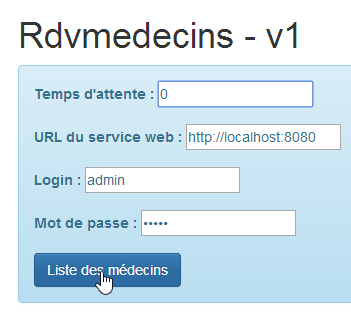
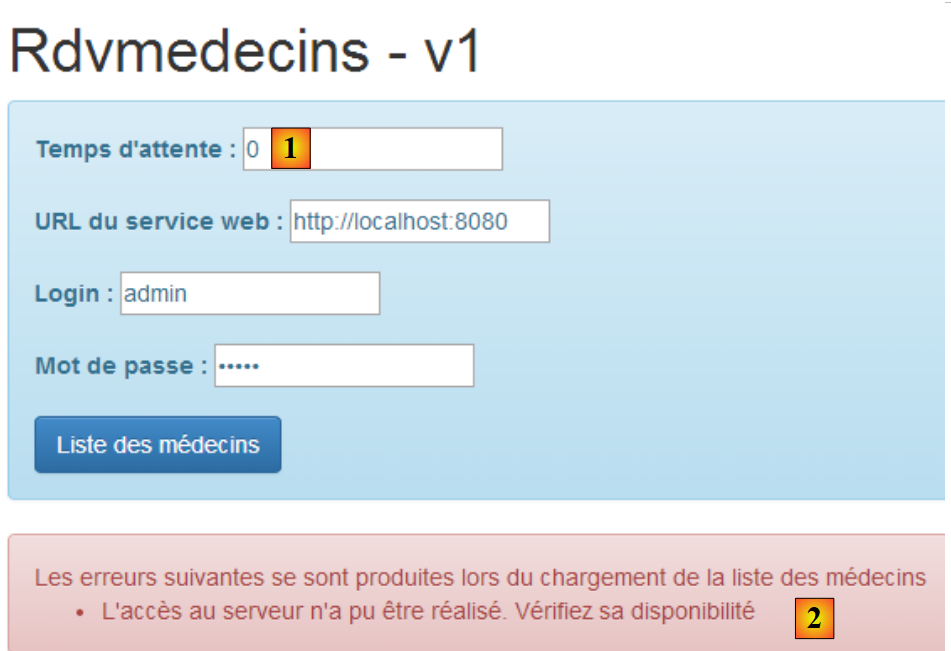 |
- in [1], we enter 0 to avoid any delay;
- in [2], we get an error message even though the inputs are correct. We haven’t covered the different error messages yet. The one displayed in [2] is a generic message associated with error 0, which corresponds to an Angular exception. Angular encountered an issue that prevented it from making an HTTP request. In such cases, you need to check the JavaScript console logs. There are two ways to do this:
- press [F12] in the Chrome browser;
- use the WebStorm console;
In the WebStorm console, we find various messages, including this one:
- Line 1: Angular reports an error, which we will come back to;
- line 2: the log for the [dao.getData] method. There are some interesting details here:
- [status] is 0, indicating that no HTTP request was made. Consequently, [statusText] is empty,
- [url] is equivalent to [http://localhost:8080/getAllMedecins], which is correct;
- the HTTP authentication header [Authorization":"Basic YWRtaW46YWRtaW4=] is also correct;
So why didn’t it work? The key phrase in the logs is [No 'Access-Control-Allow-Origin' header is present]. To understand this, a lengthy explanation is needed. Let’s start by reviewing the general architecture of the client/server application:
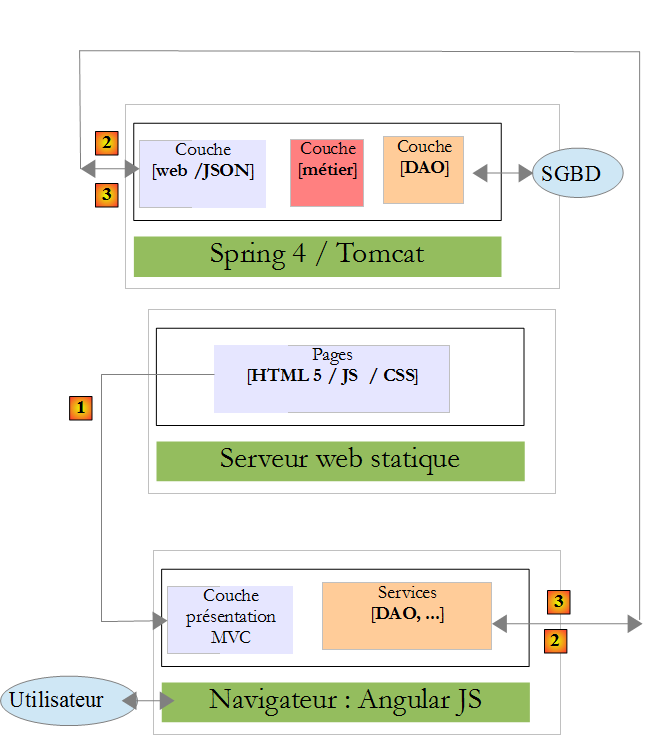
- the HTML/CSS/JS pages of the Angular application come from server [1];
- in [2], the [dao] service makes a request to another server, server [2]. Well, this is blocked by the browser running the Angular application because it’s a security vulnerability. The application can only query the server it came from, i.e., server [1];
In fact, it is inaccurate to say that the browser prevents the Angular application from querying server [2]. It actually queries it to ask whether it allows a client that does not originate from its own domain to query it. This sharing technique is called CORS (Cross-Origin Resource Sharing). Server [2] grants permission by sending specific HTTP headers. It is because our server [2] did not send them here that the browser refused to make the HTTP request requested by the application.
Now let’s get into the details. Let’s examine the network traffic that occurred during the HTTP request. To do this, in the Chrome browser, we press [F12] to open the developer tools and select the [Network] tab to view the network traffic:
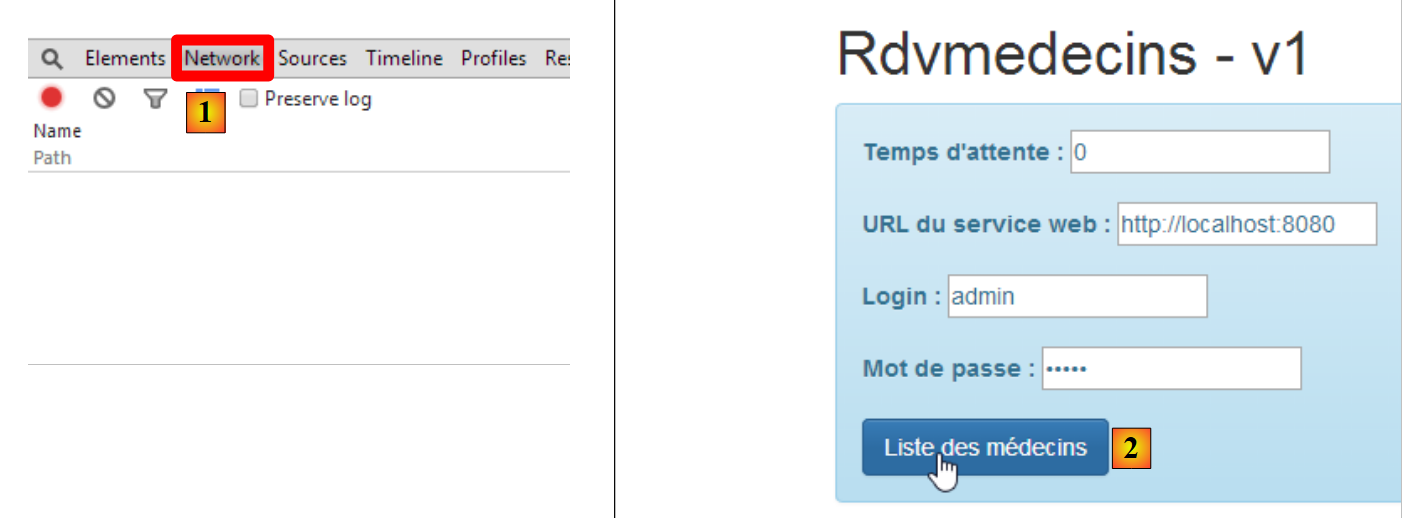 |
- In [1], we select the [Network] tab;
- in [2], we request the list of doctors;
We obtain the following information in the [Network] tab:
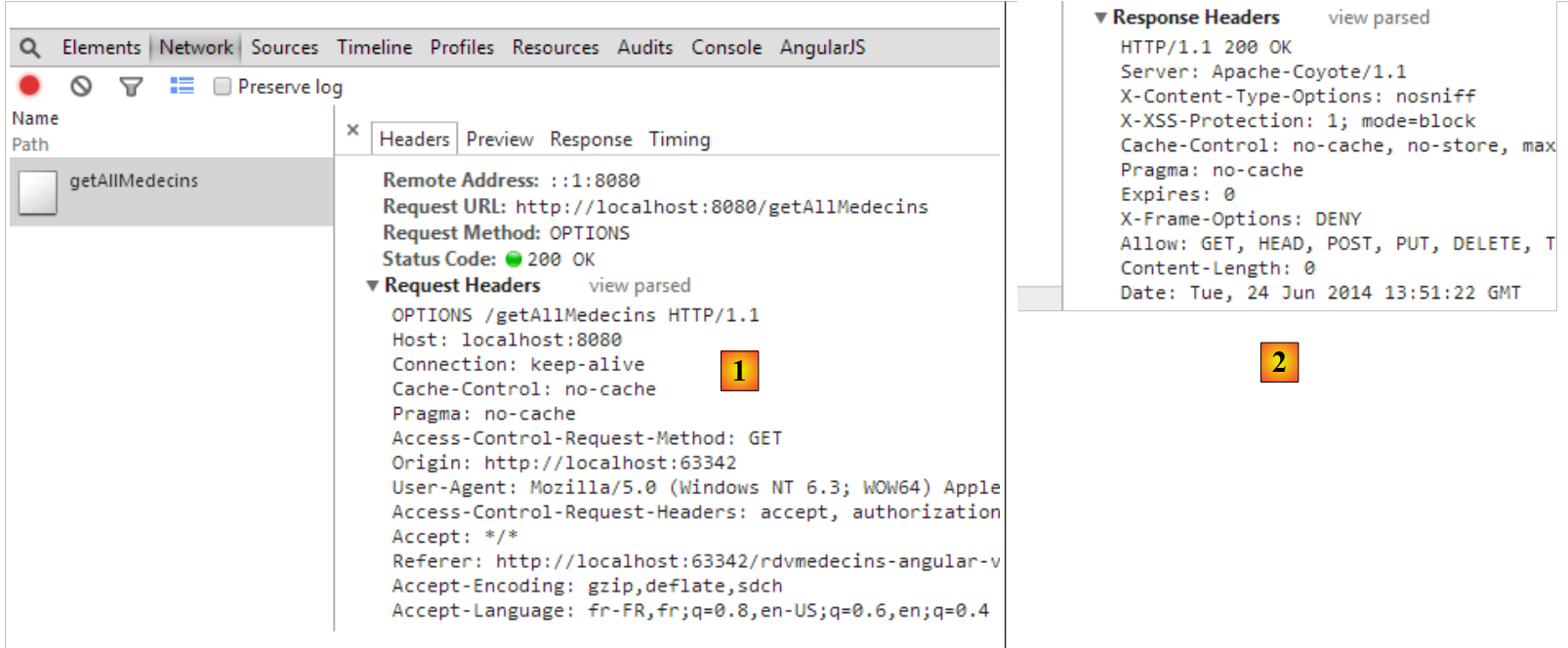 |
- in [1], the information sent to the server;
- in [2], the server’s response;
We can see in [1] that the browser sent an HTTP [OPTIONS] request to the requested URL. [OPTIONS] is one of the HTTP methods, alongside the more well-known [GET] and [POST]. It allows you to request information from a server, particularly regarding the HTTP options it supports, hence the name of the method. The server responds in [2]. To indicate that it accepts requests from clients outside its domain, it must return a specific header called [Access-Control-Allow-Origin]. And because it did not return this header, Angular did not execute the requested HTTP call and returned the error:
XMLHttpRequest cannot load http://localhost:8080/getAllMedecins. No 'Access-Control-Allow-Origin' header is present on the requested resource. Origin 'http://localhost:63342' is therefore not allowed access.
We must therefore modify our server so that it sends the expected HTTP header.
3.7.6.6. Modifying the Web/JSON Server
We return to Eclipse. To preserve our progress, we duplicate the current version of the web server / JSON [rdvmedecins-webapi-v2] into [rdvmedecins-webapi-v3] [1]:
 |
We make an initial modification in [ApplicationModel], which is one of the web service configuration elements:
package rdvmedecins.web.models;

...

@Component
public class ApplicationModel implements IMetier {

    // the [business] layer
    @Autowired
    private IMetier métier;

    // data from the [business] layer
    private List<Medecin> médecins;
    private List<Client> clients;
    private List<String> messages;
    // configuration data
    private boolean CORSneeded = true;

...

    public boolean isCORSneeded() {
        return CORSneeded;
    }

}
- line 17: we create a boolean variable that indicates whether or not clients from outside the server's domain are accepted;
- lines 21–23: the method to access this information;
Then we create a new Spring MVC controller [3]:
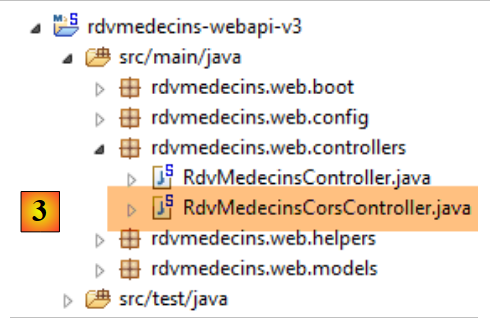 |
The [RdvMedecinsCorsController] class is as follows:
package rdvmedecins.web.controllers;

import javax.servlet.http.HttpServletResponse;

import org.springframework.beans.factory.annotation.Autowired;
import org.springframework.stereotype.Controller;
import org.springframework.web.bind.annotation.RequestMapping;
import org.springframework.web.bind.annotation.RequestMethod;

import rdvmedecins.web.models.ApplicationModel;

@Controller
public class RdvMedecinsCorsController {

    @Autowired
    private ApplicationModel application;

    // sending options to the customer
    private void sendOptions(HttpServletResponse response) {
        if (application.isCORSneeded()) {
            // set header CORS
            response.addHeader("Access-Control-Allow-Origin", "*");
        }

    }

    // list of doctors
    @RequestMapping(value = "/getAllMedecins", method = RequestMethod.OPTIONS)
    public void getAllMedecins(HttpServletResponse response) {
        sendOptions(response);
    }
}
- Lines 28–31: define a controller for the URL [/getAllMedecins] when it is requested with the HTTP [OPTIONS] method;
- line 29: the [getAllMedecins] method takes the [HttpServletResponse] object as a parameter, which will be sent to the client that made the request. This object is injected by Spring;
- line 30: the request handling is delegated to the private method in lines 19–25;
- lines 15–16: the [ApplicationModel] object is injected;
- lines 20–23: if the server is configured to accept clients from outside its domain, then the HTTP header is sent:
Access-Control-Allow-Origin: *
which means the server accepts clients from any domain (*).
We are now ready for further testing. We launch the new version of the web service and find that the problem remains unchanged. Nothing has changed. If we add a console output on line 30 above, it is never displayed, indicating that the [getAllMedecins] method on line 29 is never called.
After some research, we discover that Spring MVC handles [OPTIONS] HTTP requests itself with default processing. Therefore, it is always Spring that responds, and never the [getAllMedecins] method on line 29. This default behavior of Spring MVC can be changed. We introduce a new configuration class to configure the new behavior:
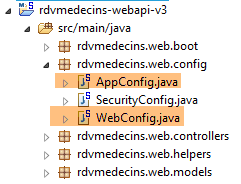 |
The new configuration class [WebConfig] is as follows:
package rdvmedecins.web.config;

import org.springframework.boot.autoconfigure.EnableAutoConfiguration;
import org.springframework.context.annotation.Bean;
import org.springframework.web.servlet.DispatcherServlet;
import org.springframework.web.servlet.config.annotation.WebMvcConfigurerAdapter;

@Configuration
public class WebConfig extends WebMvcConfigurerAdapter {

    // dispatcherservlet configuration for CORS headers
    @Bean
    public DispatcherServlet dispatcherServlet() {
        DispatcherServlet servlet = new DispatcherServlet();
        servlet.setDispatchOptionsRequest(true);
        return servlet;
    }
}
- line 8: the class is a Spring configuration class. It declares beans that will be placed in the Spring context;
- line 12: the [dispatcherServlet] bean is used to define the servlet that handles client requests. It is of type [DispatcherServlet]. This servlet is normally created by default. If we create it ourselves, we can then configure it;
- line 14: we create an instance of type [DispatcherServlet];
- line 15: we instruct the servlet to forward [OPTIONS] HTTP commands to the application;
- line 16: we return the servlet configured in this way;
We still need to modify the [AppConfig] class:
package rdvmedecins.web.config;

import org.springframework.boot.autoconfigure.EnableAutoConfiguration;
import org.springframework.context.annotation.ComponentScan;
import org.springframework.context.annotation.Import;

import rdvmedecins.config.DomainAndPersistenceConfig;

@EnableAutoConfiguration
@ComponentScan(basePackages = { "rdvmedecins.web" })
@Import({ DomainAndPersistenceConfig.class, SecurityConfig.class, WebConfig.class })
public class AppConfig {

}
- Line 11: The new configuration class [WebConfig] is imported;
3.7.6.7. Application Testing - 2
We launch the new version of the web service / JSON and try to retrieve the list of doctors using our Angular client. We examine the network traffic in the [Network] tab:
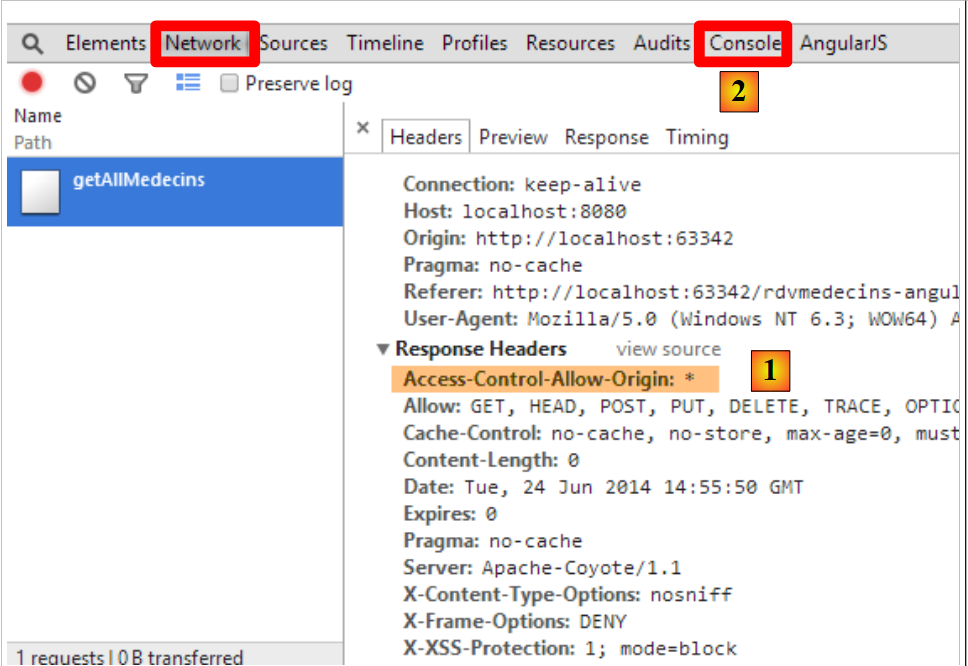 |
- In [1], we can see that the HTTP header [Access-Control-Allow-Origin: *] is now present in the server’s response. And yet it still doesn’t work. We examine the console logs in [2]. There we find the following log:
XMLHttpRequest cannot load http://localhost:8080/getAllMedecins. Request header field Authorization is not allowed by Access-Control-Allow-Headers
We can see that the browser is expecting a new HTTP header [Access-Control-Allow-Headers] that would tell it we have permission to send the authentication header:
This could be a good sign. Angular may have attempted to send the HTTP GET request. However, since this request includes an authentication header, it is checking whether the server accepts it.
We modify our web server / JSON to send this header. The [RdvMedecinsCorsController] class changes as follows:
    // sending options to the customer
    private void sendOptions(HttpServletResponse response) {
        if (application.isCORSneeded()) {
            // set header CORS
            response.addHeader("Access-Control-Allow-Origin", "*");
            // we authorize the header [Authorization]
            response.addHeader("Access-Control-Allow-Headers", "Authorization");
}
- Lines 6–7 add the missing header.
We restart the server and request the list of doctors again using the Angular client:
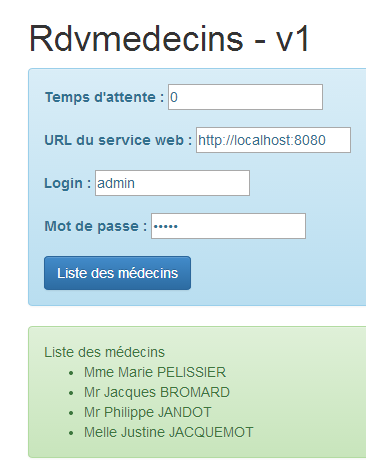 |
This time, it worked. The console logs show the response received by the [dao.getData] method:
[dao] getData[/getAllMedecins] success réponse : {"data":{"status":0,"data":[{"id":1,"version":1,"titre":"Mme","nom":"PELISSIER","prenom":"Marie"},{"id":2,"version":1,"titre":"Mr","nom":"BROMARD","prenom":"Jacques"},{"id":3,"version":1,"titre":"Mr","nom":"JANDOT","prenom":"Philippe"},{"id":4,"version":1,"titre":"Melle","nom":"JACQUEMOT","prenom":"Justine"}]},"status":200,"config":{"method":"GET","transformRequest":[null],"transformResponse":[null],"timeout":1000,"url":"http://localhost:8080/getAllMedecins","headers":{"Accept":"application/json, text/plain, */*","Authorization":"Basic YWRtaW46YWRtaW4="}},"statusText":"OK"}
We can see that:
- the server returned an error code [status=200] with the message [statusText=OK]. This is why we are in the [success] function;
- the server returned a [data] object with two fields:
- [status]: (not to be confused with the HTTP error code [status]). Here, [status=0] indicates that the URL [/getAllMedecins] was processed without error;
- [data]: which contains the JSON list of doctors;
Let’s now look at some other interesting cases:
We enter incorrect credentials [login, password]:
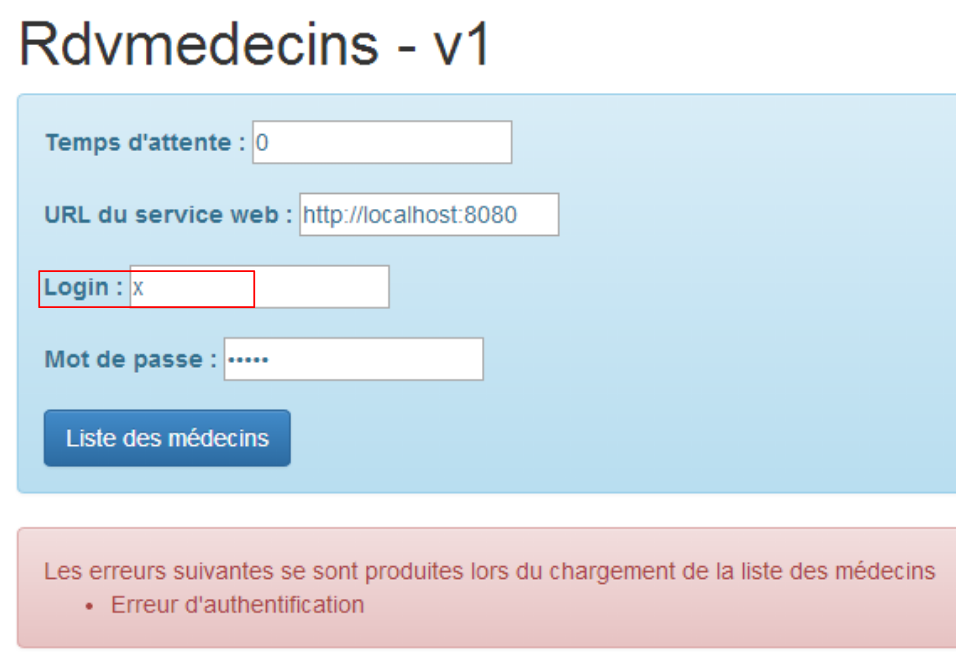 |
We log in as [user / user], who does not have access to the application (only [admin] has access):
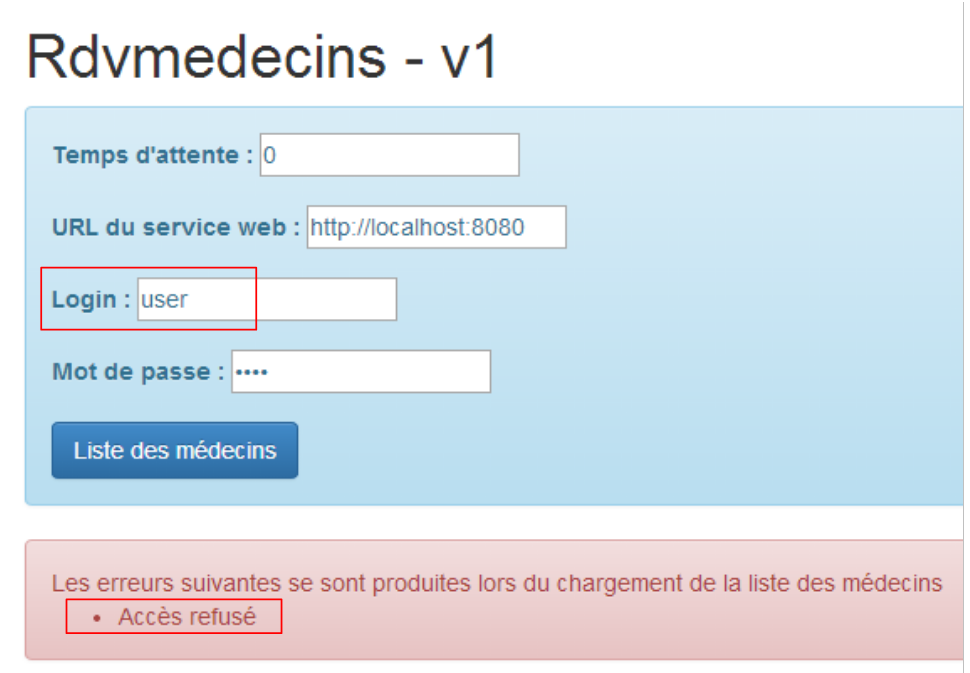 |
This time, the error is no longer [Authentication error] but [Access denied].
3.7.7. Example 7: List of clients
We’ll use the previous application to display the list of clients in a dropdown menu of the [Bootstrap select] type (see section 3.6.6).
3.7.7.1. View V
The initial view will be as follows:
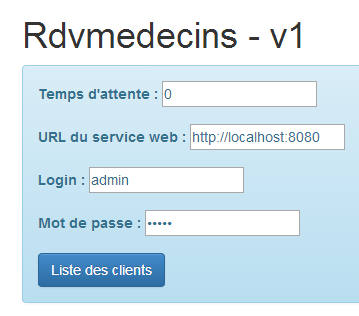 |
To obtain view V, we duplicate the code from [app-16.html] into [app-17.html] and modify it as follows:
<div class="container" >
  <h1>Rdvmedecins - v1</h1>

  <!-- the waiting message -->
  <div class="alert alert-warning" ng-show="waiting.visible" >
...
  </div>

  <!-- the request -->
  <div class="alert alert-info" ng-hide="waiting.visible" >
...
    <button class="btn btn-primary" ng-click="execute()">{{clients.title|translate}}</button>
  </div>

  <!-- customer list -->
  <div class="row" style="margin-top: 20px" ng-show="clients.show">
    <div class="col-md-3">
      <h2 translate="{{clients.title}}"></h2>
      <select data-style="btn-primary" class="selectpicker">
        <option ng-repeat="client in clients.data" value="{{client.id}}">
          {{client.titre}} {{client.prenom}} {{client.nom}}
        </option>
      </select>
    </div>
  </div>

  <!-- the error list -->
  <div class="alert alert-danger"  ng-show="errors.show">
   ...
  </div>

</div>
....
<script type="text/javascript" src="rdvmedecins-05.js"></script>
- lines 5-7: the loading banner does not change;
- lines 10-13: the form does not change, except for the button label (line 12);
- lines 28-30: the error banner does not change;
- lines 16-25: clients are displayed in a dropdown list styled by the [Bootstrap-selectpicker] component (data-style and class attributes, line 19);
- line 20: the [ng-repeat] directive is used to generate the various options in the dropdown list. Note that the label of an option is of type [Mme Julienne Tatou] and that the value of the option is of type [100], where 100 is the ID of the displayed client;
- line 34: the JavaScript code is moved to a new file [rdvmedecins-05];
3.7.7.2. The C controller and the M model
The JavaScript code in the [rdvmedecins-05] file is copied from the [rdvmedecins-04] file:
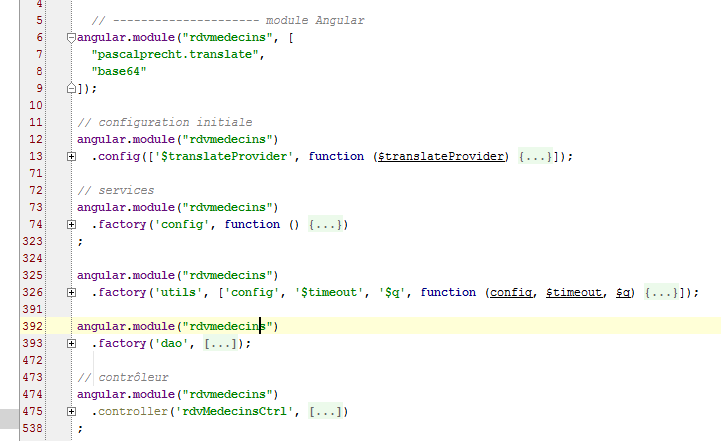
Almost nothing has changed, except in the controller, which is now adapted to provide the list of clients:
angular.module("rdvmedecins")
  .controller('rdvMedecinsCtrl', ['$scope', 'utils', 'config', 'dao', '$translate',
    function ($scope, utils, config, dao, $translate) {
      // ------------------- model initialization
      // model
      $scope.waiting = {text: config.msgWaiting, visible: false, cancel: cancel, time: undefined};
      $scope.waitingTimeText = config.waitingTimeText;
      $scope.server = {url: undefined, login: undefined, password: undefined};
      $scope.clients = {title: config.listClients, show: false, model: {}};
      $scope.errors = {show: false, model: {}};
      $scope.urlServerLabel = config.urlServerLabel;
      $scope.loginLabel = config.loginLabel;
      $scope.passwordLabel = config.passwordLabel;

      // asynchronous task
      var task;

      // execution action
      $scope.execute = function () {
        // the UI is updated
        $scope.waiting.visible = true;
        $scope.clients.show = false;
        $scope.errors.show = false;
        // simulated waiting
        task = utils.waitForSomeTime($scope.waiting.time);
        var promise = task.promise;
        // waiting
        promise = promise.then(function () {
          // we ask for the customer list;
          task = dao.getData($scope.server.url, $scope.server.login, $scope.server.password, config.urlSvrClients);
          return task.promise;
        });
        // analyze the result of the previous call
        promise.then(function (result) {
          // result={err: 0, data: [client1, client2, ...]}
          // result={err: n, messages: [msg1, msg2, ...]}
          if (result.err == 0) {
            // we put the acquired data into the model
            $scope.clients.data = result.data;
            // the UI is updated
            $scope.clients.show = true;
            $scope.waiting.visible = false;
            // style the drop-down list
            $('.selectpicker').selectpicker();
          } else {
            // there were errors in obtaining the customer list
            $scope.errors = { title: config.getClientsErrors, messages: utils.getErrors(result), show: true, model: {}};
            // the UI is updated
            $scope.waiting.visible = false;
          }
        });
      };

      // cancel wait
      function cancel() {
        // complete the task
        task.reject();
        // the UI is updated
        $scope.waiting.visible = false;
        $scope.clients.show = false;
        $scope.errors.show = false;
      }
    }
  ])
;
- Very little has changed in the controller. It used to provide a list of doctors. It now provides a list of clients;
- line 9: [$scope.clients] will be the model for the client banner in the V view;
- line 30: the URL [/getAllClients] is now used;
- lines 35–36: the two response formats returned by the [dao.getData] method. We now have clients instead of doctors;
- line 44: a fairly rare instruction in Angular code. We are directly manipulating the DOM (Document Object Model). Here, we want to apply the [selectpicker] method (part of [bootstrap-select.min.js]) to the DOM elements that have the [selectpicker] class [$('.selectpicker)']. There is only one: the dropdown list:
      <select data-style="btn-primary" class="selectpicker" select-enable="">
....
      </select>
In section 3.6.6, we saw that this styled the dropdown list as follows:
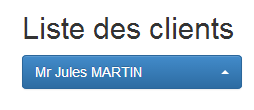 | 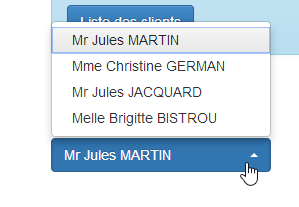 |
As was done for the doctors, we also need to modify the web service.
3.7.7.3. Modifying the web service - 1
 |
The [RdvMedecinsController] class is enhanced with a new method:
package rdvmedecins.web.controllers;

...

@Controller
public class RdvMedecinsCorsController {

    @Autowired
    private ApplicationModel application;

    // sending options to the customer
    private void sendOptions(HttpServletResponse response) {
        if (application.isCORSneeded()) {
            // set header CORS
            response.addHeader("Access-Control-Allow-Origin", "*");
            // we authorize the header [Authorization]
            response.addHeader("Access-Control-Allow-Headers", "Authorization");
        }

    }

    // list of doctors
    @RequestMapping(value = "/getAllMedecins", method = RequestMethod.OPTIONS)
    public void getAllMedecins(HttpServletResponse response) {
        sendOptions(response);
    }

    // customer list
    @RequestMapping(value = "/getAllClients", method = RequestMethod.OPTIONS)
    public void getAllClients(HttpServletResponse response) {
        sendOptions(response);
    }
}
- Lines 29–32: The [getAllClients] method will handle the [OPTIONS] HTTP request sent to it by the browser;
3.7.7.4. Application Testing – 1
We are now ready to test. We start the web server and then enter valid values into the Angular form. We get the following response:
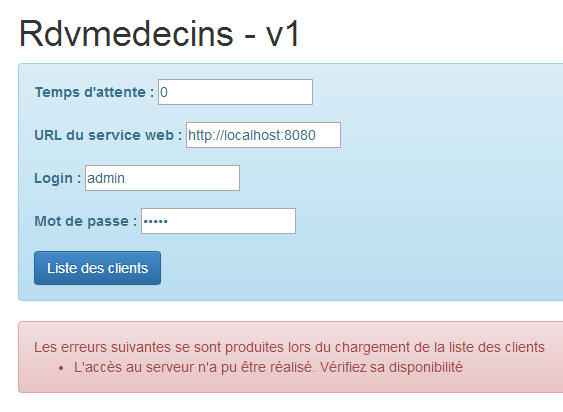
This error message is displayed when Angular was unable to make the requested HTTP request. We must then look for the causes in the console logs. There we find the following message:
XMLHttpRequest cannot load http://localhost:8080/getAllClients. No 'Access-Control-Allow-Origin' header is present on the requested resource. Origin 'http://localhost:63342' is therefore not allowed access.
A problem we thought was solved. Let’s now look at the network traffic that occurred:
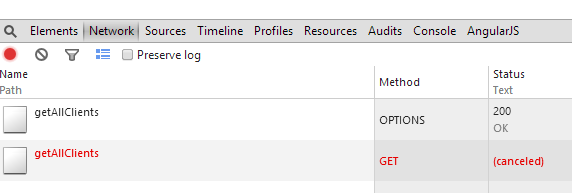
We see that the [getAllClients] operation using the [OPTIONS] HTTP method succeeded, but the [getAllClients] operation using the [GET] HTTP method was canceled. The response to the [OPTIONS] request was as follows:
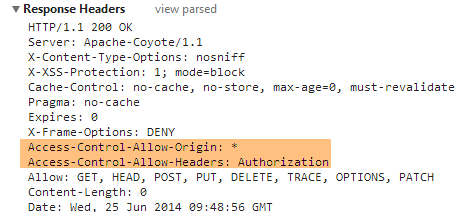
The CORS HTTP headers are indeed present. Let’s now examine the HTTP exchanges during the GET request:
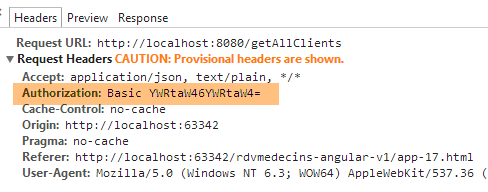
The HTTP request appears to be correct. In particular, we can see the authentication header.
In addition to the previous error message, the following message appears in the console logs:
[dao] getData[/getAllClients] error réponse : {"data":"","status":0,"config":{"method":"GET","transformRequest":[null],"transformResponse":[null],"timeout":1000,"url":"http://localhost:8080/getAllClients","headers":{"Accept":"application/json, text/plain, */*","Authorization":"Basic YWRtaW46YWRtaW4="}},"statusText":""}
This is the log that the [dao.getData] method systematically generates upon receiving the response to its HTTP request. Two things stand out:
- [status=0]: this means that Angular canceled the HTTP request;
- [method=GET]: and it was the GET request that was canceled;
When combined with the first message, this means that Angular is also expecting CORS headers for the GET request. However, currently, our web service only sends them for the [OPTIONS] HTTP request. It is very strange to encounter this error now and not for the list of doctors. I have no explanation.
We therefore need to modify the web service again.
3.7.7.5. Modifying the web service – 2
 |
The [GET] and [POST] methods are handled in the [RdvMedecinsController] class. We need to modify it so that these methods send the CORS headers. We do this as follows:
@RestController
public class RdvMedecinsController {

    @Autowired
    private ApplicationModel application;

    @Autowired
    private RdvMedecinsCorsController rdvMedecinsCorsController;

...

    // customer list
    @RequestMapping(value = "/getAllClients", method = RequestMethod.GET)
    public Reponse getAllClients(HttpServletResponse response) {
        // headers CORS
        rdvMedecinsCorsController.getAllClients(response);
        // application status
        if (messages != null) {
            return new Reponse(-1, messages);
        }
        // customer list
        try {
            return new Reponse(0, application.getAllClients());
        } catch (Exception e) {
            return new Reponse(1, Static.getErreursForException(e));
        }
    }
...
- line 8: we want to reuse the code we placed in the controller [RdvMedecinsCorsController]. So we inject it here;
- line 14: the method that handles the request [GET /getAllClients]. We make two changes:
- line 14: we inject the [HttpServletResponse] object into the method parameters,
- line 16: we use the methods of the [RdvMedecinsCorsController] class to set the CORS headers in this object;
3.7.7.6. Application Testing – 2
We launch the new version of the web service and request the list of clients again. We get the following response:
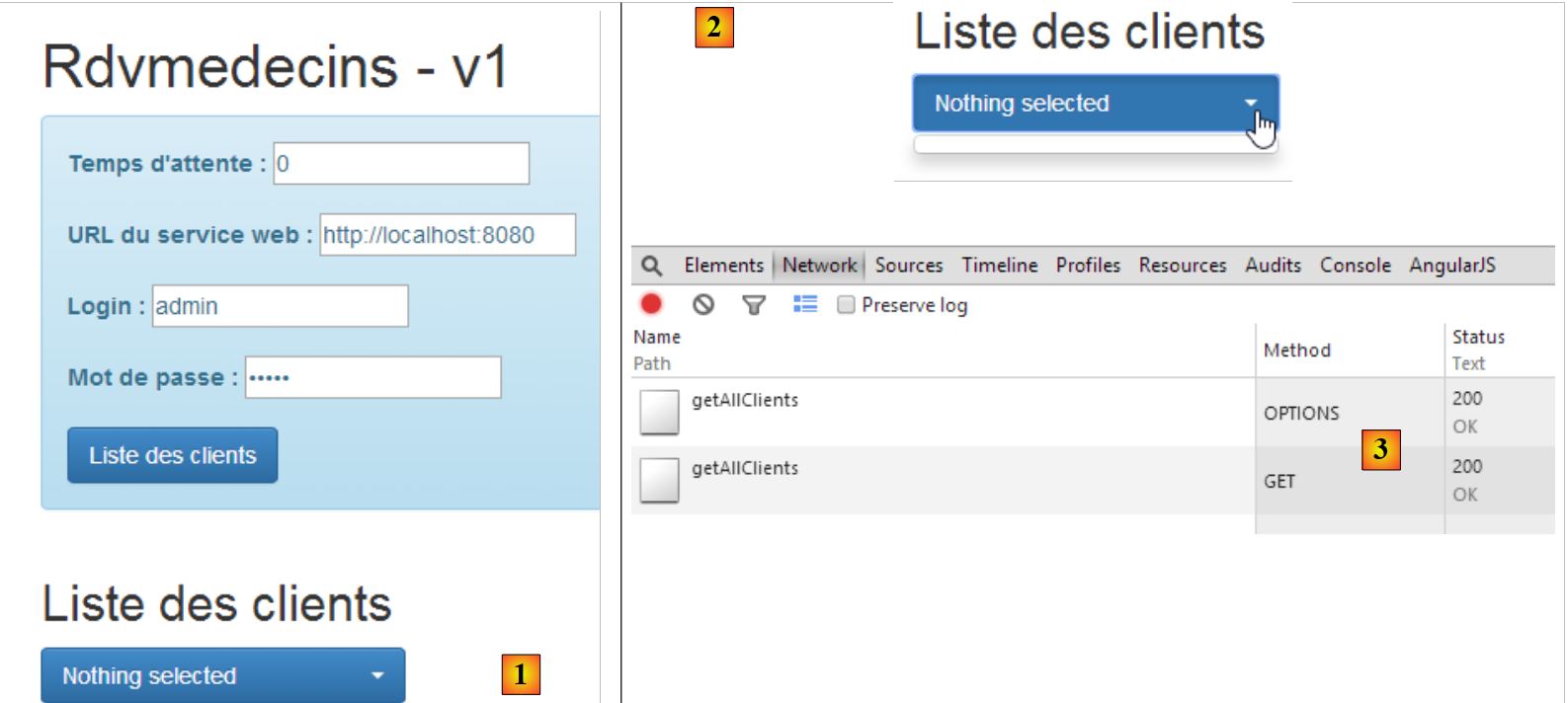 |
- in [1], we do get a response, but it is empty [2];
- in [3]: the network exchanges went smoothly;
In the console logs, the [dao.getData] method displayed the response it received:
[dao] getData[/getAllClients] success réponse : {"data":{"status":0,"data":[{"id":1,"version":1,"titre":"Mr","nom":"MARTIN","prenom":"Jules"},{"id":2,"version":1,"titre":"Mme","nom":"GERMAN","prenom":"Christine"},{"id":3,"version":1,"titre":"Mr","nom":"JACQUARD","prenom":"Jules"},{"id":4,"version":1,"titre":"Melle","nom":"BISTROU","prenom":"Brigitte"}]},"status":200,"config":{"method":"GET","transformRequest":[null],"transformResponse":[null],"timeout":1000,"url":"http://localhost:8080/getAllClients","headers":{"Accept":"application/json, text/plain, */*","Authorization":"Basic YWRtaW46YWRtaW4="}},"statusText":"OK"}
So the method did indeed receive the list of clients. Once the code has been verified, we begin to suspect the following instruction, which we don’t fully understand:
// on style la liste déroulante
$('.selectpicker').selectpicker();
We comment out line 2 and try again. We then get the following response:
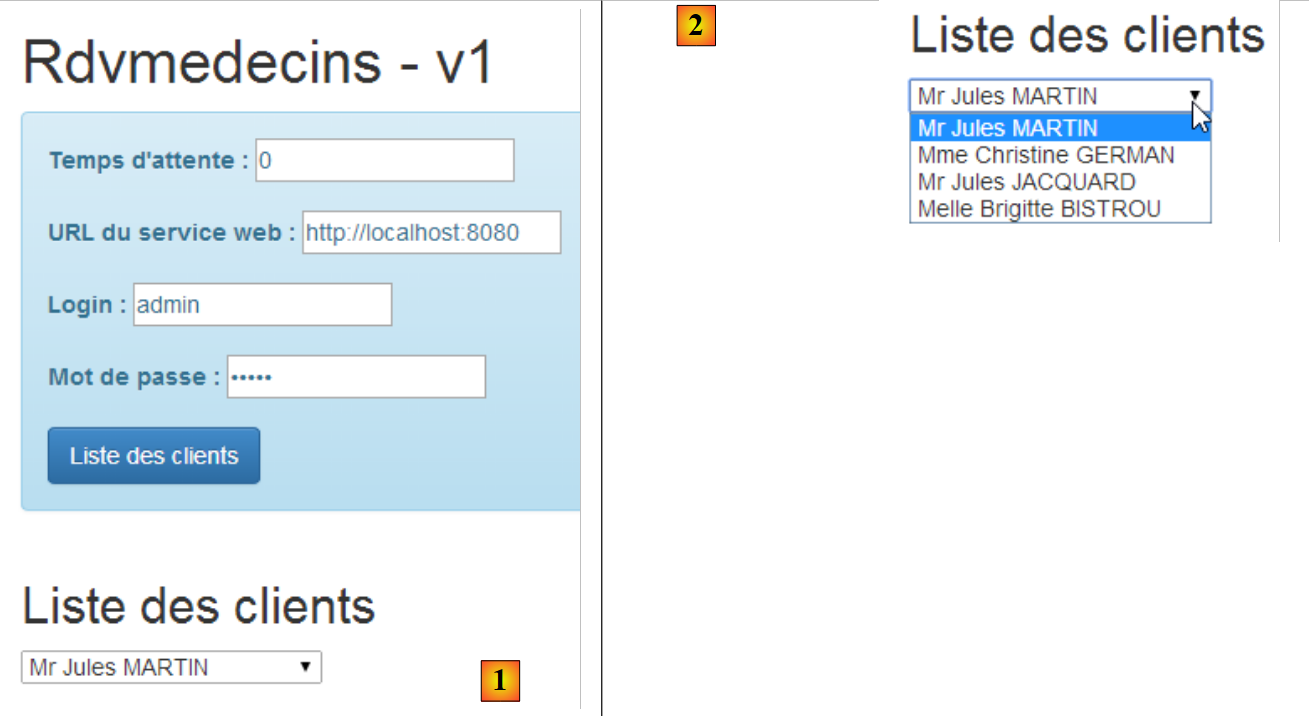 |
We have thus pinpointed the problem. It is the application of the [selectpicker] method to the dropdown list that is causing the issue. When we look at the source code of the page with the error, we see the following:
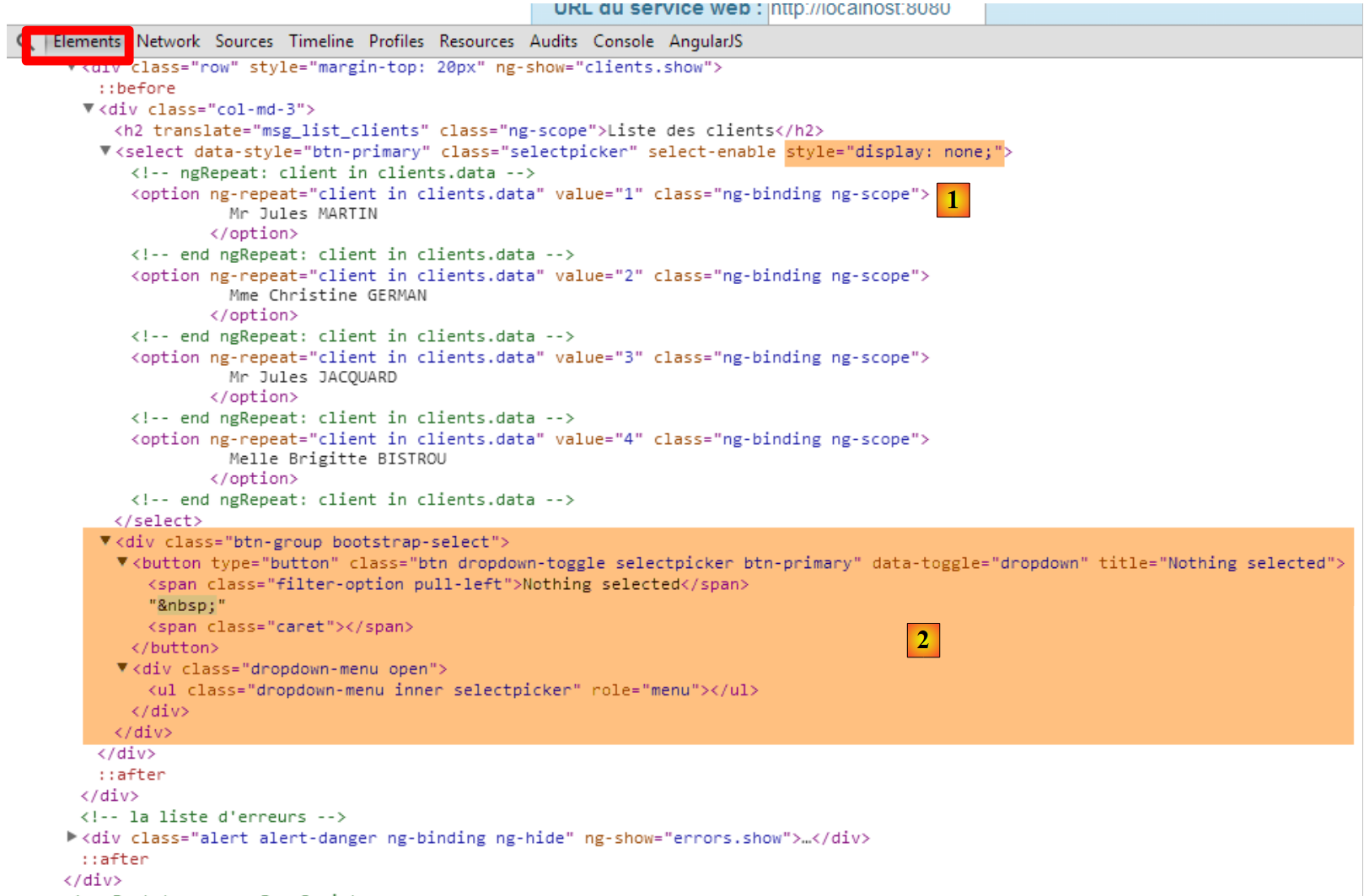 |
- we discover that at [1], the dropdown list is indeed present with its elements but is not displayed [style='display:none'];
- In [2], the [bootstrap select] button is displayed. The items in the dropdown list should appear in the <ul role='menu'> list. They are not there, so we have an empty list. It seems that when the [selectpicker] method was applied to the dropdown list, its content was empty at that time;
While searching the web for a solution, we found this one. We replace the code:
// on style la liste déroulante
$('.selectpicker').selectpicker();
with the following:
            // on style la liste déroulante
            $timeout(function(){
              $('.selectpicker').selectpicker();
});
The [bootstrap-select] style is applied via a [$timeout] function. We have already encountered this function, which allows a function to be executed after a certain delay. Here, the absence of a delay means a delay of zero. The preceding lines place an event in the browser’s event queue. When the current event (click on the [Client List] button) finishes processing, the V view will be displayed. Immediately afterward, the browser will check its event list. Because of its zero delay, the [$timeout] event will be at the top of the list and processed. The [bootstrap-select] style is then applied to a populated dropdown list. Let’s see the result:
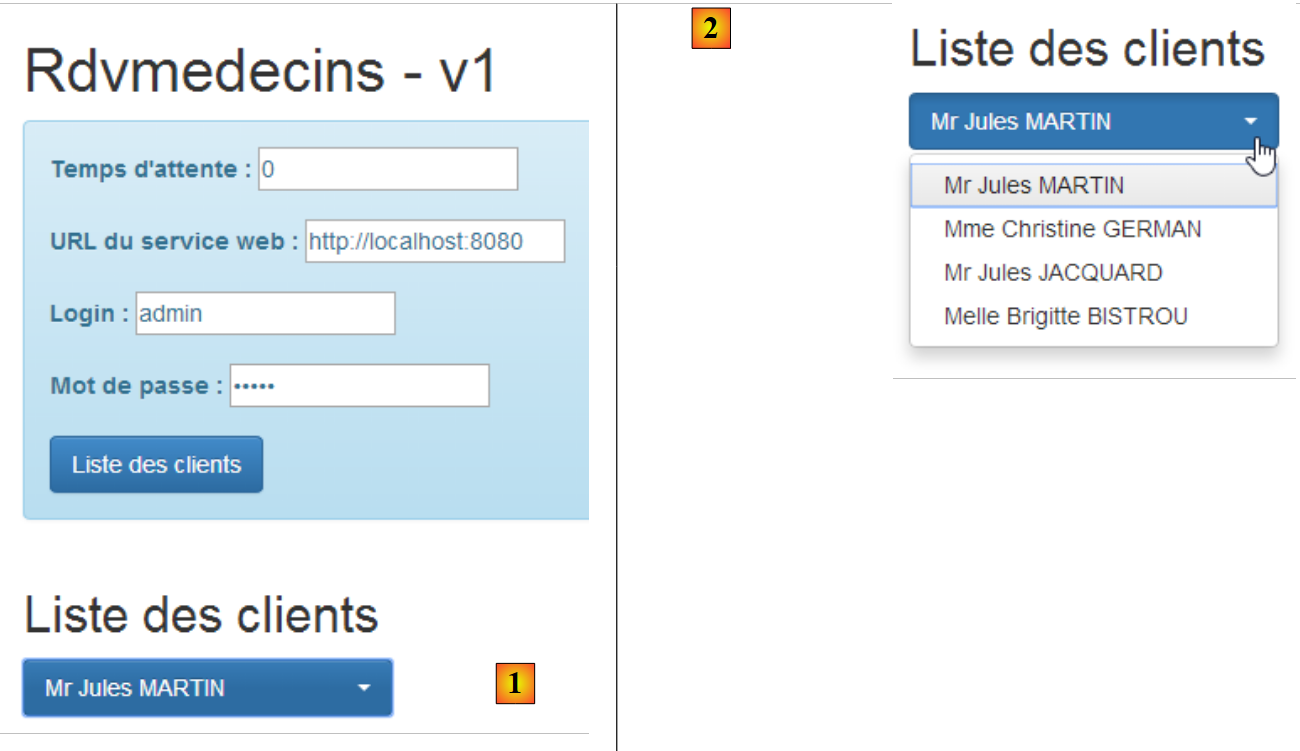 |
If we look again at the source code of the displayed page, we see the following:
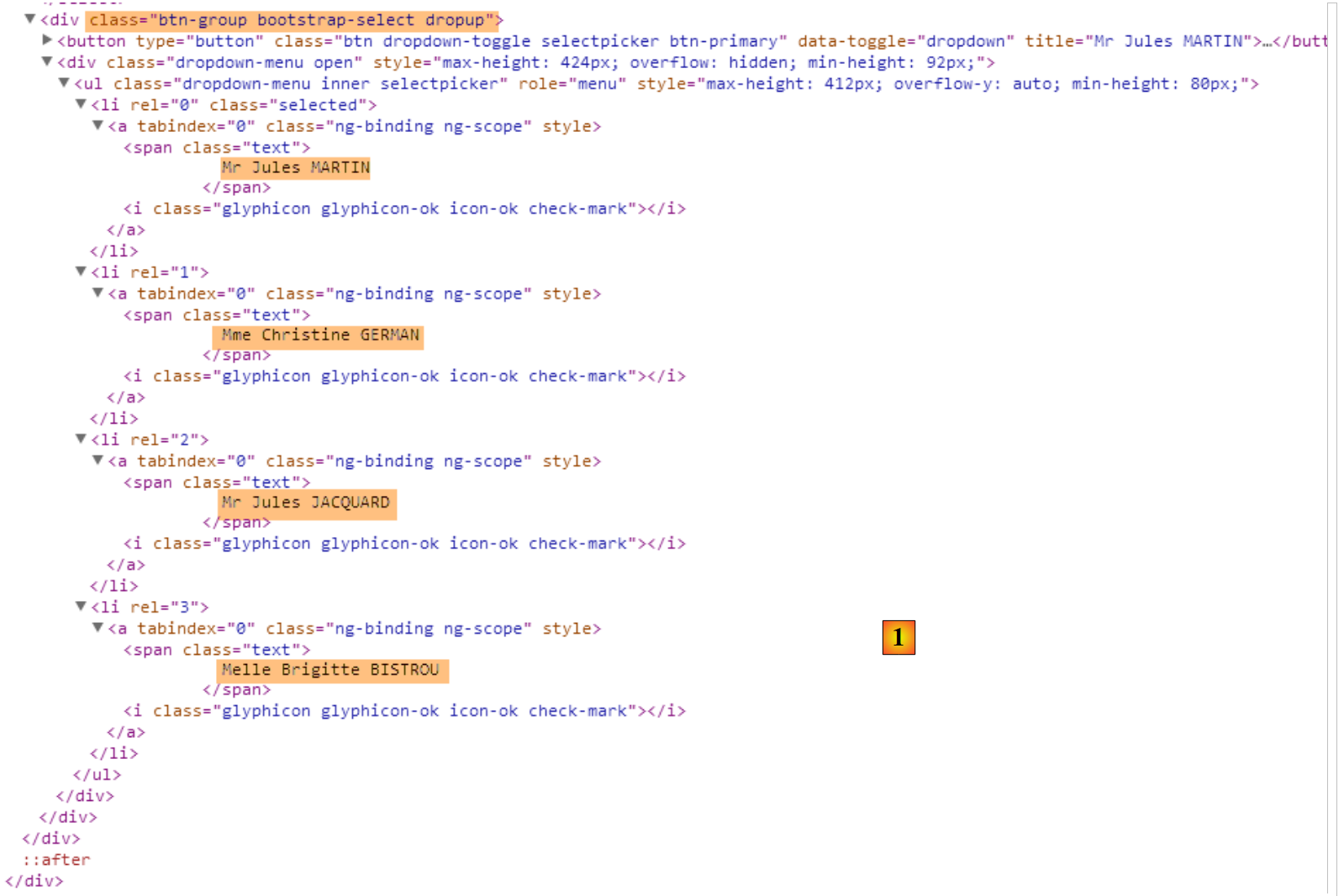 |
The [bootstrap-select] button, which was previously empty, now contains the list of clients.
3.7.7.7. Using a directive
In the C controller of the V view, we encountered the following code:
            // on style la liste déroulante
            $('.selectpicker').selectpicker();
We are manipulating a DOM object. Many Angular developers are averse to manipulating the DOM within controller code. For them, this should be done in a directive. An Angular directive can be viewed as an extension of the HTML language. This makes it possible to create new HTML elements or attributes. Let’s look at a first example:
We create the following JS file [selectEnable]:
angular.module("rdvmedecins").directive('selectEnable', ['$timeout', function ($timeout) {
  return {
    link: function (scope, element, attrs) {
      $timeout(function () {
        var selectpicker = $('.selectpicker');
        selectpicker.selectpicker();
      });
    }
  };
}]);
- The directive follows the controller syntax we are now familiar with:
angular.module("rdvmedecins").directive('selectEnable', ['$timeout', function ($timeout)
The directive belongs to the [rvmedecins] module. It is a function that accepts two parameters:
- (continued)
- the first is the name of the directive [selectEnable];
- the second is an array ['obj1','obj2',..., function(obj1, obj2,...)] where the [obj] are the objects to be injected into the function. Here, the only object injected is the predefined object [$timeout];
- the [directive] function returns an object that may have various attributes. Here, the only attribute is the [link] attribute (line 3). Its value here is a function that takes three parameters:
- scope: the model of the view in which the directive is used;
- element: the view element, the directive’s target;
- attrs: the attributes of this element;
Let’s look at an example. The [selectEnable] directive could be used in the following context:
In the example above, the [select-enable] attribute applies the [selectEnable] directive to the HTML element <div>. A [doSomething] directive can be applied to any HTML element by adding the [do-something] attribute to it. Note the difference in spelling between the directive name and its associated attribute. We switch from [camelCase] to [camel-case].
The [selectEnable] directive could also be used as follows:
Here, the [doSomething] directive is applied in the form of an HTML tag <do-something>.
Let’s return to the syntax
and to the three parameters of the directive’s [link] function, [scope, element, attrs]:
- scope: is the model of the view in which the <div> is located;
- element: is the <div> itself;
- attrs: is the array of attributes for the <div>. These can be used to pass information to the directive. In the example above, we write attrs['selectEnable'] to retrieve the [data] information. Note the change in notation [selectEnable] to refer to the [select-enable] attribute;
Let’s return to the directive’s code:
angular.module("rdvmedecins").directive('selectEnable', ['$timeout', function ($timeout) {
  return {
    link: function (scope, element, attrs) {
      $timeout(function () {
        $('.selectpicker').selectpicker();
      });
    }
  };
}]);
- Lines 14–16: Here we see the code we previously placed in the controller. This code is executed when the [select-enable] directive (as an element or attribute) is encountered while rendering the V view.
To implement this directive, we copy the [app-17.html] file into [app-17B.html] and modify it as follows:
      <select data-style="btn-primary" class="selectpicker" select-enable="">
        <option ng-repeat="client in clients.data" value="{{client.id}}">
          {{client.titre}} {{client.prenom}} {{client.nom}}
        </option>
</select>
- line 1: we apply the [selectEnable] directive to the HTML [select] element. Since there is no information to pass to the directive, we simply write [select-enable=""] ;
We also modify the controller by duplicating the JS file [rdvmedecins-05.js] into [rdvmedecins-05B.js] and we reference the new JS file in the [app-17B.html] file and the [selectEnable.js] directive file. Do not forget this last point. If the directive file is missing, the [select-enable=""] attribute will not be handled, but Angular will not report any errors.
<script type="text/javascript" src="rdvmedecins-05B.js"></script>
<script type="text/javascript" src="selectEnable.js"></script>
In the JS file [rdvmedecins-05B.js], we remove the following lines from the controller:
            // on style la liste déroulante
            $timeout(function(){
              $('.selectpicker').selectpicker();
});
This operation is now handled by the directive.
3.7.7.8. Application Testing – 3
When testing the new application [app-17B.html], the following result is obtained:
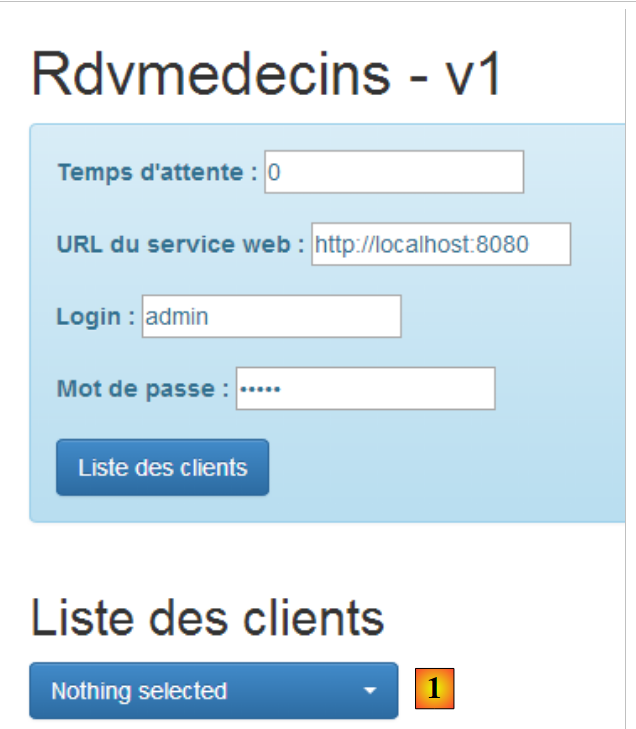 |
- In [1], we get an empty list.
The console logs display the following:
- line 1: initialization of the [dao] service;
- line 2: upon the initial display of view V, the [selectEnable] directive is executed;
- line 3: this line appears when the user clicks the [Client List] button. We can see that the [selectEnable] directive is not executed a second time. Ultimately, it was executed when the client list was empty, so we have an empty dropdown list;
In other words, s the operation:
$('.selectpicker').selectpicker();
did not occur at the right time. We can try to solve the problem in various ways. After numerous unsuccessful tests, we realize that the operation above must occur only once and only when the dropdown list has been populated. To achieve this result, we rewrite the <select> tag as follows:
      <select data-style="btn-primary" class="selectpicker" select-enable="" ng-if="clients.data">
        <option ng-repeat="client in clients.data" value="{{client.id}}">
          {{client.titre}} {{client.prenom}} {{client.nom}}
        </option>
</select>
Line 1: The <select> tag is only generated if [clients.data] exists. This is not the case when view V is initially displayed. Therefore, the <select> tag will not be generated, and the [selectEnable] directive will not be evaluated. When the user clicks the [Client List] button, [clients.data] will have a new value in the M model. Because the M model has changed, the <select> tag will be re-evaluated and generated here. The [selectEnable] directive will therefore be evaluated as well. When it is evaluated, lines 2–4 of the <select> tag have not yet been evaluated. We therefore have an empty list of clients. If we write the [selectEnable] directive as follows:
angular.module("rdvmedecins").directive('selectEnable', ['$timeout', 'utils', function ($timeout, utils) {
  return {
    link: function (scope, element, attrs) {
      utils.debug("directive selectEnable");
      $('.selectpicker').selectpicker();
    }
  }
}]);
Line 5 will be executed with an empty list, and we will then see an empty dropdown list on the screen. We must therefore write:
angular.module("rdvmedecins").directive('selectEnable', ['$timeout', 'utils', function ($timeout, utils) {
  return {
    link: function (scope, element, attrs) {
      utils.debug("directive selectEnable");
      $timeout(function () {
        $('.selectpicker').selectpicker();
      })
    }
  }
}]);
to get the expected result. Because of the [$timeout] in line 5, line 6 will only be executed after the V view has been fully rendered, i.e., at a time when the <select> tag has all its elements.
3.7.8. Example 8: A doctor’s schedule
We now present an application that displays a doctor's schedule.
3.7.8.1. The application’s view V
We will present the following form:
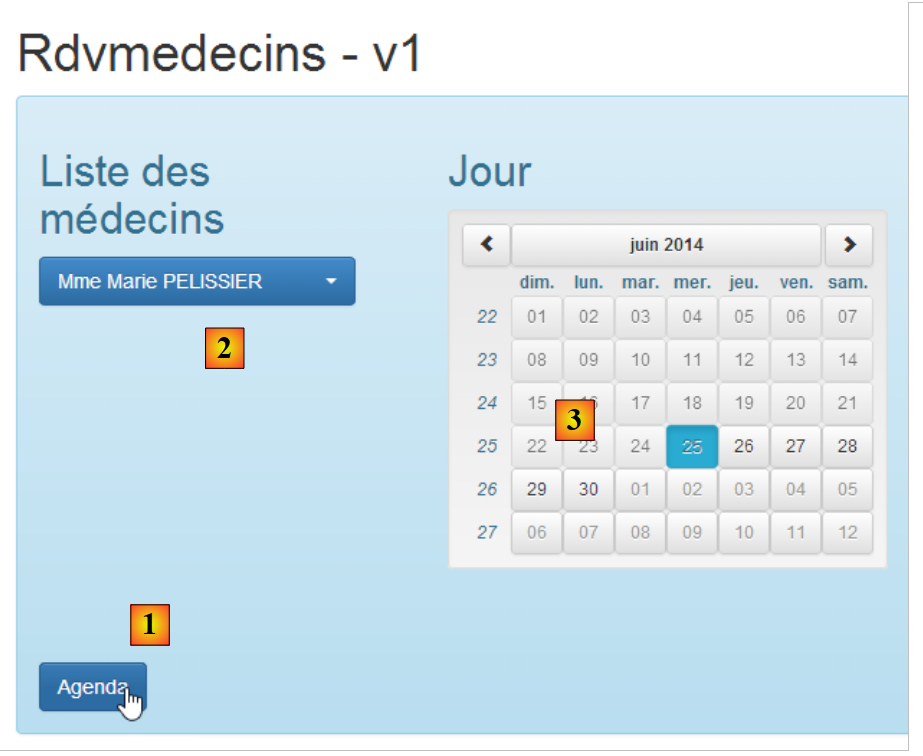 |
- in [1], we request Ms. PELISSIER’s [2] schedule for June 25, 2014 [3];
The following result [4] is obtained:
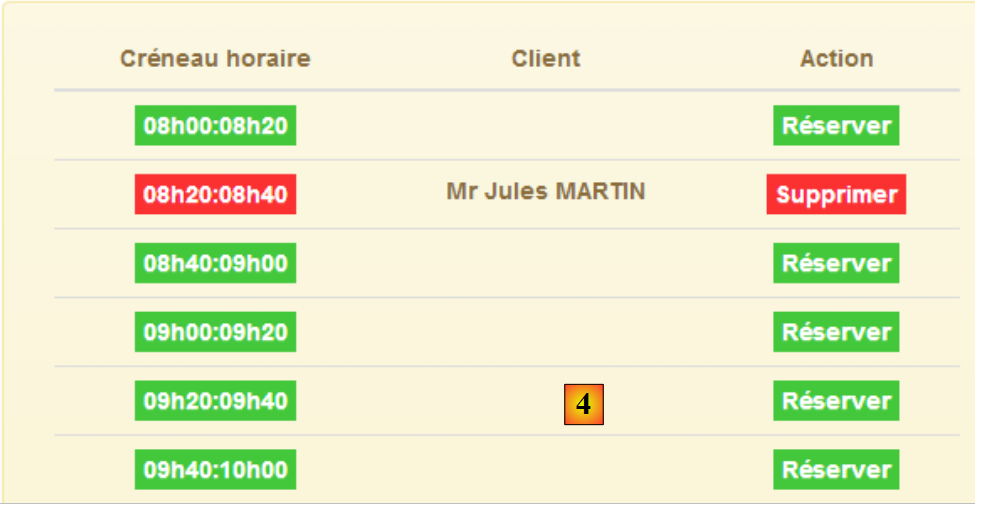 |
We will examine the two views separately.
3.7.8.2. The form
We duplicate the file [app-17.html] into [app-18.html] and then modify the code as follows:
<div class="container">
  <h1>Rdvmedecins - v1</h1>

  <!-- the waiting message -->
  <div class="alert alert-warning" ng-show="waiting.visible">
    ...
  </div>

  <!-- the request -->
  <div class="alert alert-info" ng-hide="waiting.visible">
    <div class="row" style="margin-bottom: 20px">
      <div class="col-md-3">
        <h2 translate="{{medecins.title}}"></h2>
        <select data-style="btn-primary" class="selectpicker">
          <option ng-repeat="medecin in medecins.data" value="{{medecin.id}}">
            {{medecin.titre}} {{medecin.prenom}} {{medecin.nom}}
          </option>
        </select>
      </div>
      <div class="col-md-3">
        <h2 translate="{{calendar.title}}"></h2>
        <div style="display:inline-block; min-height:290px;">
          <datepicker ng-model="calendar.jour" min-date="calendar.minDate" show-weeks="true"
                      class="well well-sm"></datepicker>
        </div>
      </div>
    </div>
    <button class="btn btn-primary" ng-click="execute()">{{agenda.title|translate}}</button>
  </div>

  <!-- the error list -->
  <div class="alert alert-danger" ng-show="errors.show">
...
  </div>

  <!-- the diary -->
  <div id="agenda" ng-show="agenda.show">
...
  </div>
</div>
...
<script type="text/javascript" src="rdvmedecins-06.js"></script>
- lines 5-7: the loading message does not change;
- lines 12-19: the list of doctors using the [bootstrap select] component;
- lines 20-26: the [ui-bootstrap] calendar that we have already presented. Note that the selected day is placed in the [calendar.day] model (ng-model attribute);
- line 28: the button that requests the calendar;
- lines 32–34: the list of errors remains unchanged;
- lines 37–39: the calendar, which we will present later;
- line 42: the JS code is transferred to the [rdvmedecins-06.js] file by copying the [rdvmedecins-05.js] file;
3.7.8.3. The C controller
The application's JS code becomes the following:
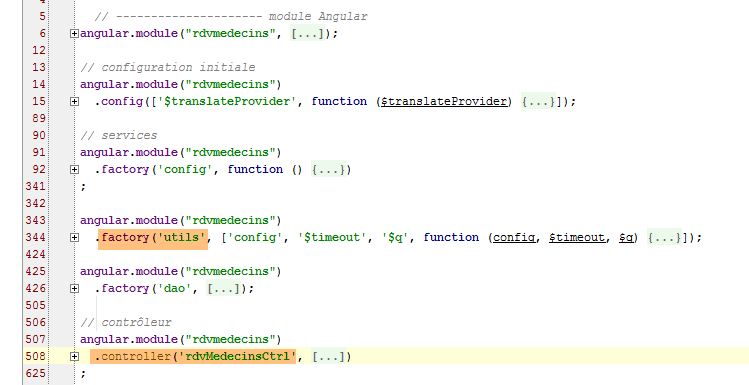
Only the [utils] service and the [rdvMedecinsCtrl] controller will be affected by the changes.
The [rdvMedecinsCtrl] controller becomes the following:
// controller
angular.module("rdvmedecins")
  .controller('rdvMedecinsCtrl', ['$scope', 'utils', 'config', 'dao', '$translate', '$timeout', '$filter', '$locale',
    function ($scope, utils, config, dao, $translate, $timeout, $filter, $locale) {
            // ------------------- model initialization
      // model
      $scope.waiting = {text: config.msgWaiting, visible: false, cancel: cancel, time: 3000};
      $scope.server = {url: 'http://localhost:8080', login: 'admin', password: 'admin'};
      $scope.errors = {show: false, model: {}};
      $scope.medecins = {
        data: [
          {id: 1, version: 1, titre: "Mme", nom: "PELISSIER", prenom: "Marie"},
          {id: 2, version: 1, titre: "Mr", nom: "BROMARD", prenom: "Jacques"},
          {id: 3, version: 1, titre: "Mr", nom: "JANDOT", prenom: "Philippe"},
          {id: 4, version: 1, titre: "Melle", nom: "JACQUEMOT", prenom: "Justine"}
        ],
        title: config.listMedecins};
      $scope.agenda = {title: config.getAgendaTitle, data: undefined, show: false};
      $scope.calendar = {title: config.getCalendarTitle, minDate: new Date(), jour: new Date()};
      // style the drop-down list
      $timeout(function () {
        $('.selectpicker').selectpicker();
      });
      // for the French local calendar
      angular.copy(config.locales['fr'], $locale);
 ...
    }
  ])
;
- line 7: we set a timeout of 3 seconds before making the HTTP request;
- line 8: the elements required for the HTTP connection are hard-coded;
- lines 10–17: the list of doctors is hard-coded;
- line 18: the [agenda] model configures the display of the calendar in the view;
- line 19: the [calendar] model configures the calendar display in the view. We set the minimum date [minDate] to today and the current date to today as well;
- lines 21–23: the dropdown list is styled using the method seen previously;
- line 25: we set the application locale to 'fr'. By default, it is 'en';
The method executed when the calendar is requested is as follows:
// exécution action
      $scope.execute = function () {
        // les infos du formulaire
        var idMedecin = $('.selectpicker').selectpicker('val');

        // vérification
        utils.debug("[homeCtrl] idMedecin", idMedecin);
        utils.debug("[homeCtrl] jour", $scope.calendar.jour);

        // on met le jour au format yyyy-MM-dd
        var formattedJour = $filter('date')($scope.calendar.jour, 'yyyy-MM-dd');
        // mise à jour de la vue
        $scope.waiting.visible = true;
        $scope.errors.show = false;
        $scope.agenda.show = false;
...
      };
- Line 4: We retrieve the [value] attribute of the selected doctor. Here, we again use the [selectpicker] method from the [bootstrap-select.min.js] file. Remember the format of the dropdown list options:
          <option ng-repeat="medecin in medecins.data" value="{{medecin.id}}">
            {{medecin.titre}} {{medecin.prenom}} {{medecin.nom}}
The value (value attribute) of the option is therefore the doctor’s [id].
- line 11: we format the date selected by the user as [yyyy-mm-dd], which is the date format expected by the web server;
- lines 13-15: when the [execute] method is finished, the loading banner will be displayed and everything else hidden;
The code continues as follows:
// simulated waiting
        var task = utils.waitForSomeTime($scope.waiting.time);
        // we ask for the doctor's diary
        var promise = task.promise.then(function () {
          // the URL service path
          var path = config.urlSvrAgenda + "/" + idMedecin + "/" + formattedJour;
          // we ask for the agenda
          task = dao.getData($scope.server.url, $scope.server.login, $scope.server.password, path);
          // we return the promise of task completion
          return task.promise;
        });
        // we analyze the result of the call to service [dao]
        promise.then(function (result) {
          // end of wait
          $scope.waiting.visible = false;
          // mistake?
          if (result.err == 0) {
            // we prepare the agenda model
            $scope.agenda.data = result.data;
            $scope.agenda.show = true;
            // timetable display formatting
            angular.forEach($scope.agenda.data.creneauxMedecin, function (creneauMedecin) {
              creneauMedecin.creneau.text = utils.getTextForCreneau(creneauMedecin.creneau);
            });
            // we create an evt to style the table after the view is displayed
            $timeout(function () {
              $("#creneaux").footable();
            });
          } else {
            // mistakes were made in obtaining the agenda
            $scope.errors = {
              title: config.getAgendaErrors,
              messages: utils.getErrors(result),
              show: true
            };
}
- line 2: the asynchronous task that waits for 3 seconds;
- lines 5–10: the code that will be executed when this wait is complete;
- line 6: the requested URL is constructed [/getAgendaMedecinJour/1/2014-06-25];
- line 8: the URL is queried. An asynchronous task starts;
- Line 10: We make this task asynchronous;
- lines 14–38: the code that will be executed once the HTTP request has returned its response;
- line 13: [result] is the response sent by the [dao.getData] method. Here, we must remember the format of the web server’s response:
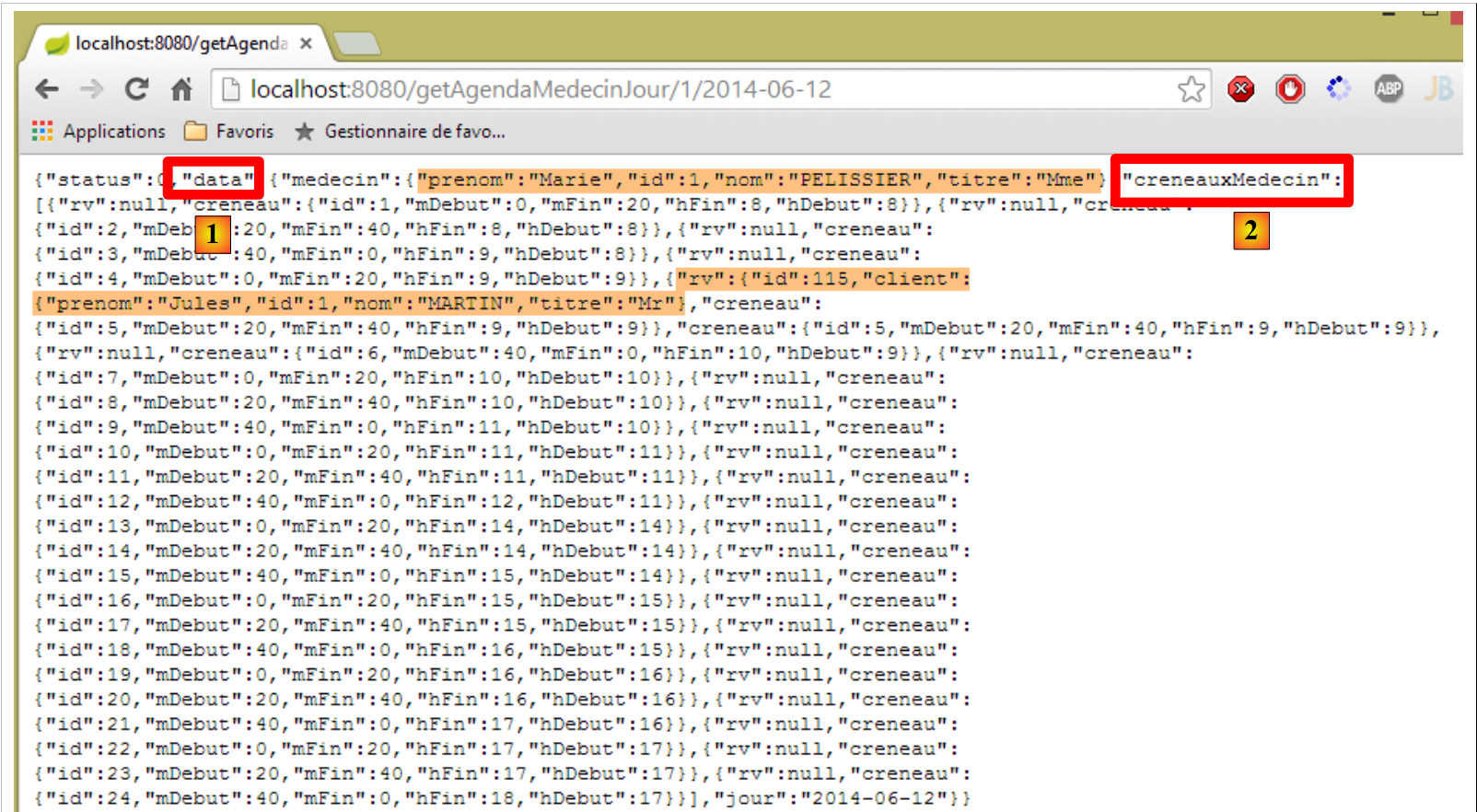 |
The [result.data] parameter on line 19 is the [data] attribute [1] mentioned above. This attribute, in turn, contains the [creneauxMedecin] attribute [2] mentioned above. This is an array of time slots, each containing two pieces of information:
- [rv]: the JSON representation of an appointment, or [null] if no appointment has been scheduled for that slot;
- [hDeb, mDeb, hFin, mFin]: the time information for the slot;
Let’s return to the controller code:
- line 15: the wait is over;
- line 19: we populate the [$scope.agenda] model, which controls the display of the calendar;
- line 20: the calendar is made visible;
- lines 22–24: we iterate through each C element in the [creneauxMedecin] array we just discussed;
- line 23: each element C has an attribute [slot] representing the time slot. This is enhanced with a [text] attribute that will be the textual representation of the time slot in the format [10:20–10:40];
- lines 26–28: we make the HTML table used to display the calendar slots responsive. We covered this concept in section 3.6.7;
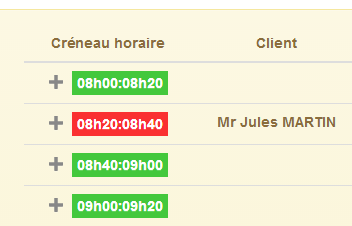 |
- line 27: to make the table responsive, we must apply the [footable] method to it. Here we encounter the same difficulty as with the [bootstrap-select] component. If we simply write line 17, we see that the table is not responsive. We solve this problem in the same way using the [$timeout] function (line 26);
- lines 31–34: the case where the HTTP request failed. Error messages are then displayed;
3.7.8.4. Displaying the calendar
We now return to the calendar code in the [app-18.html] file. It is as follows:
<!-- the diary -->
  <div id="agenda" ng-show="agenda.show">
    <!-- case of a doctor without consultation slots -->
    <h4 class="alert alert-danger" ng-if="agenda.data.creneauxMedecin.length==0"
        translate="agenda_medecinsanscreneaux"></h4>
    <!-- doctor's diary -->
    <div class="row tab-content alert alert-warning" ng-if="agenda.data.creneauxMedecin.length!=0">
      <div class="tab-pane active col-md-6">
        <table creneaux-table id="creneaux" class="table">
          <thead>
          <tr>
            <th data-toggle="true">
              <span translate="agenda_creneauhoraire"></span>
            </th>
            <th>
              <span translate="agenda_client">Client</span>
            </th>
            <th data-hide="phone">
              <span translate="agenda_action">Action</span>
            </th>
          </tr>
          </thead>
          <tbody>
          <tr ng-repeat="creneauMedecin in agenda.data.creneauxMedecin">
            <td>
            <span
              ng-class="! creneauMedecin.rv ? 'status-metro status-active' : 'status-metro status-suspended'">
              {{creneauMedecin.creneau.text}}
            </span>
            </td>
            <td>
              <span>{{creneauMedecin.rv.client.titre}} {{creneauMedecin.rv.client.prenom}} {{creneauMedecin.rv.client.nom}}</span>
            </td>
            <td>
              <a href="" ng-if="!creneauMedecin.rv" translate="agenda_reserver" class="status-metro status-active">
              </a>
              <a href="" ng-if="creneauMedecin.rv" translate="agenda_supprimer" class="status-metro status-suspended">
              </a>
            </td>
          </tr>
          </tbody>
        </table>
      </div>
    </div>
</div>
- Lines 4-5: Recall that [agenda.data] is the calendar, and that [agenda.data.creneauxMedecin] is an array of objects of type [creneauMedecin]. Each element of this type has an attribute [creneauMedecin.creneau] which is a time slot. Each time slot has two elements of interest to us:
- [doctorSlot.slot.appointment] which is the appointment (if any; appointment ≠ null) scheduled for the slot;
- [doctorSlot.slot.text], which is the [start:end] text of the time slot;
- line 4: displays a special message if the doctor has no time slots. This is unlikely, but it turns out that our database is incomplete and this scenario does occur. Whether or not the message is rendered in HTML is controlled by the [ng-if] directive;
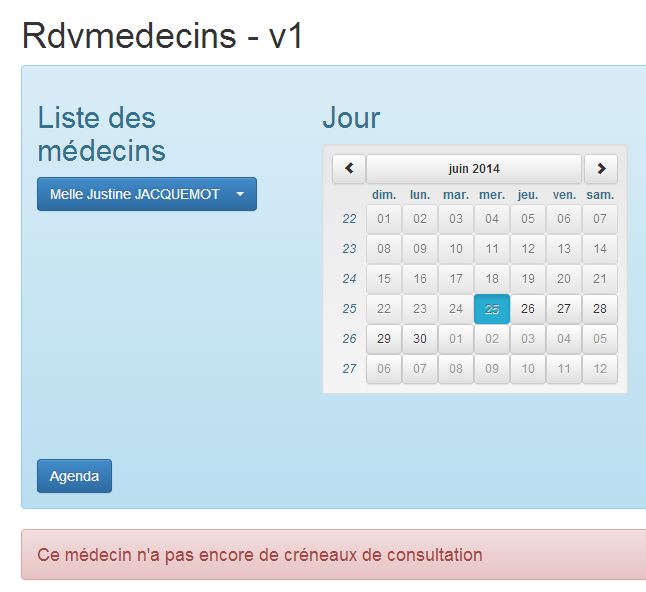
The [ng-if] directive is different from the [ng-show, ng-hide] directives. The latter simply hide an area present in the document. If [ng-if='false'], then the area is removed from the document. We have used it here for illustration purposes;
- Line 9: The [id='creneaux'] attribute is important. It is used in the following statement:
$("#creneaux").footable();
- lines 10–22: display the headers of table [1];
- lines 23–45: display the table content [2];
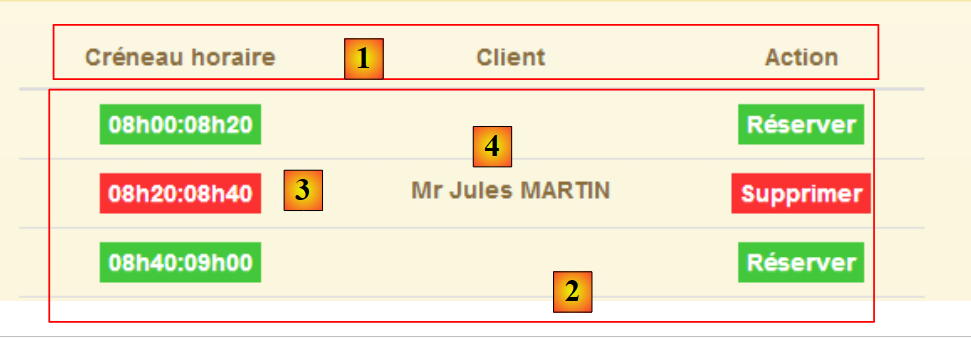 |
- line 24: we iterate through the array [agenda.data.creneauxMedecin];
- lines 26–29: the text is rendered [3]. The [ng-class] directive is used to generate the [class] attribute of the element. Here, if [creneauMedecin.rv == null], this means the slot is available, and the text is given a green background. Otherwise, it is given a red background;
- line 32: we write the name of the client for whom the appointment was made [4]. If [rv==null], this information does not exist, but Angular handles this case correctly and does not throw an error;
- Lines 34–39: Display one of two buttons: [Book] or [Delete]. Whether or not an appointment exists determines which button is selected;
3.7.8.5. Modifying the web server
As in the previous examples, the web server must be modified so that the URL [/getAgendaMedecinJour] sends the CORS headers:
|
In the [RdvMedecinsCorsController] class, add a new method:
    // doctor's diary
    @RequestMapping(value = "/getAgendaMedecinJour/{idMedecin}/{jour}", method = RequestMethod.OPTIONS)
    public void getAgendaMedecinJour(HttpServletResponse response) {
        sendOptions(response);
}
This method will send the CORS headers for the [OPTIONS] HTTP request. We must do the same for the [GET] HTTP request in the [RdvMedecinsController] class:
@RequestMapping(value = "/getAgendaMedecinJour/{idMedecin}/{jour}", method = RequestMethod.GET)
    public Reponse getAgendaMedecinJour(@PathVariable("idMedecin") long idMedecin, @PathVariable("jour") String jour, HttpServletResponse response) {
        // headers CORS
        rdvMedecinsCorsController.getAgendaMedecinJour(response);
...
}
3.7.8.6. Using Directives
As we did previously, we will move DOM manipulation into directives. We have two DOM manipulations:
- when the view is initially displayed:
      // on style la liste déroulante
      $timeout(function () {
        $('.selectpicker').selectpicker();
});
- When the calendar is displayed:
            // we create an evt to style the table after the view is displayed
            $timeout(function () {
              $("#creneaux").footable();
});
For the first case, we will use the [selectEnable] directive already presented. For the second case, we create the [ footable] directive in the following JS file [footable.js]:
angular.module("rdvmedecins").directive('footable', ['$timeout', 'utils', function ($timeout, utils) {
  return {
    link: function (scope, element, attrs) {
      utils.debug("directive footable");
      $timeout(function () {
        $("#creneaux").footable();
      })
    }
  }
}]);
We therefore use the same technique as for the [selectEnable] directive.
The HTML code [app-18.html] is duplicated in [app-18B.html]. Then we modify it as follows:
        <select data-style="btn-primary" class="selectpicker" select-enable="">
          <option ng-repeat="medecin in medecins.data" value="{{medecin.id}}">
            {{medecin.titre}} {{medecin.prenom}} {{medecin.nom}}
          </option>
</select>
- Line 1: Apply the [selectEnable] directive (via the [select-enable] attribute) to the <select> tag for doctors;
    <div class="row tab-content alert alert-warning" ng-if="agenda.data.creneauxMedecin.length!=0">
      <div class="tab-pane active col-md-6">
        <table id="creneaux" class="table" footable="">
          <thead>
<tr>
- line 3: the [footable] directive (via the [footable] attribute) is applied to the calendar's HTML table;
<script type="text/javascript" src="rdvmedecins-06B.js"></script>
<!-- directives -->
<script type="text/javascript" src="selectEnable.js"></script>
<script type="text/javascript" src="footable.js"></script>
- lines 3-4: reference the JS files for both directives;
- line 1: the JS code from [app-18B.html] is the JS code from [app-18.html] duplicated in the file [rdvmedecins-06B.js];
The [rdvmedecins-06B.js] file is identical to the [rdvmedecins-06.js] file except for two details. The lines manipulating the DOM are removed:
      // on style la liste déroulante
      $timeout(function () {
        $('.selectpicker').selectpicker();
});
            // we create an evt to style the table after the view is displayed
            $timeout(function () {
              $("#creneaux").footable();
});
Once this is done, running the [app-18B.html] application yields the same results as running [app-18.html].
3.7.9. Example 9: Creating and Canceling Reservations
We now present an application that allows you to create and cancel reservations.
3.7.9.1. View V of the application
We will present the following form:
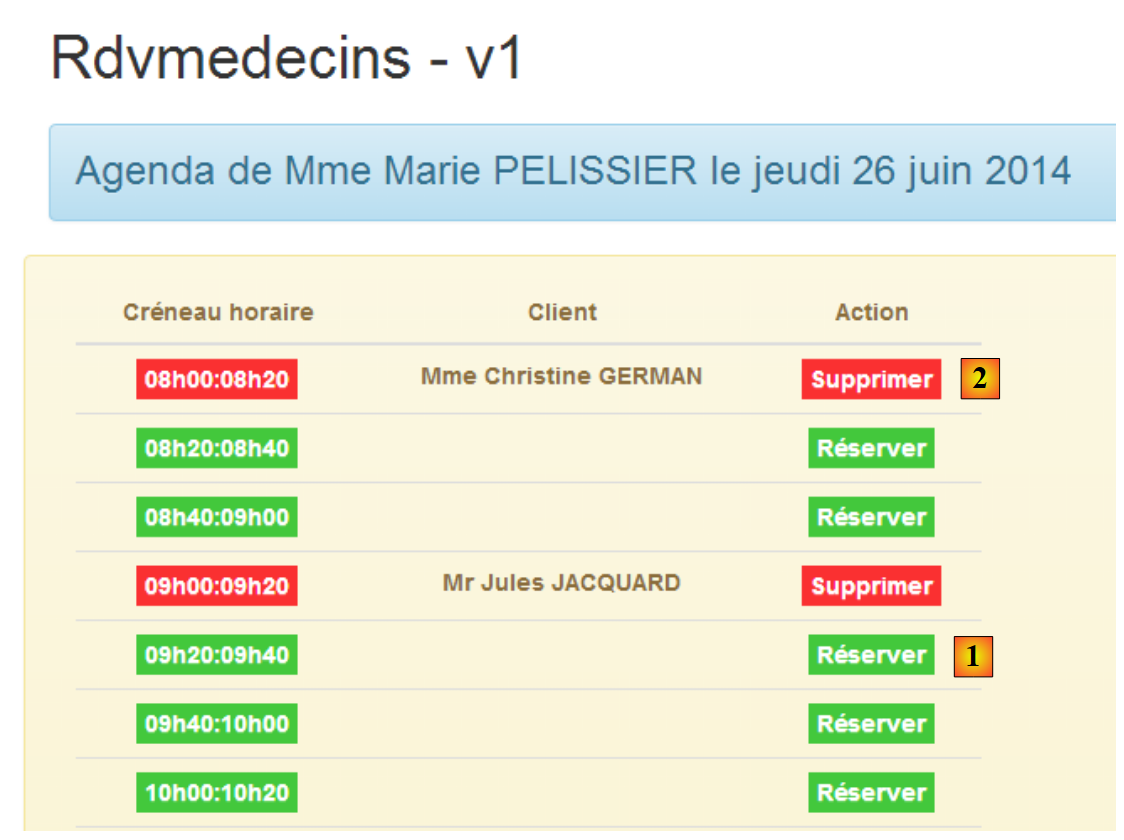 |
- In [1], you can make a reservation. The reservation will be made for a random customer;
- At [2], you can delete the reservations you have made;
We duplicate the [app-18.html] file as [app-19.html], then modify the code as follows:
<div class="container">
  <h1>Rdvmedecins - v1</h1>

  <!-- the waiting message -->
  <div class="alert alert-warning" ng-show="waiting.visible">
  ...
  </div>

  <!-- the error list -->
  <div class="alert alert-danger" ng-show="errors.show">
...
  </div>

  <!-- the diary -->
  <div id="agenda" ng-show="agenda.show">
..
    <!-- doctor's diary -->
    <div class="row tab-content alert alert-warning" ng-if="agenda.data.creneauxMedecin.length!=0">
      <div class="tab-pane active col-md-6">
        <table id="creneaux" class="table" footable="">
...
          <tbody>
          <tr ng-repeat="creneauMedecin in agenda.data.creneauxMedecin">
...
            <td>
              <a href="" ng-if="!creneauMedecin.rv" translate="agenda_reserver" class="status-metro status-active"  ng-click="reserver(creneauMedecin.creneau.id)">
              </a>
              <a href="" ng-if="creneauMedecin.rv" translate="agenda_supprimer" class="status-metro status-suspended" ng-click="supprimer(creneauMedecin.rv.id)">
              </a>
            </td>
          </tr>
          </tbody>
        </table>
      </div>
    </div>
  </div>
</div>
....
<script type="text/javascript" src="rdvmedecins-07.js"></script>
<script type="text/javascript" src="footable.js"></script>
- lines 5-7: the loading message is the same as in the previous version;
- lines 10-12: the error message is the same as in the previous version;
- lines 15-36: the calendar is the same as in the previous version, with two exceptions:
- line 26: clicking the [book] button (ng-click attribute) is handled by the [reserve] method of model M in view V. It is passed the number of the booking time slot;
- line 26: clicking the [delete] button is handled by the [reserve] method of the M model in the V view. It is passed the number of the appointment to be deleted;
- line 39: the JavaScript code that manages the application is in the file [rdvmedecins-07.js];
- line 40: the JS code for the [footable] directive applied on line 20;
3.7.9.2. The C controller
The JavaScript code for [rdvmedecins-07.js] is first created by copying the [rdvmedecins-06.js] file. It is then modified. The usual large blocks of code remain. The changes are mainly made in the controller:
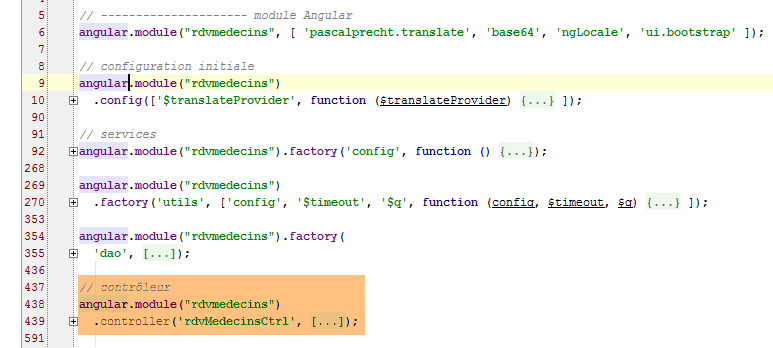
We will describe the C controller for the V view in several steps.
3.7.9.3. Initializing Controller C
The controller initialization code is as follows:
angular.module("rdvmedecins")
  .controller('rdvMedecinsCtrl', ['$scope', 'utils', 'config', 'dao', '$translate', '$timeout', '$filter', '$locale',
    function ($scope, utils, config, dao, $translate, $timeout, $filter, $locale) {
      // ------------------- model initialization
      // model
      $scope.waiting = {text: config.msgWaiting, visible: false, cancel: cancel, time: 3000};
      $scope.server = {url: 'http://localhost:8080', login: 'admin', password: 'admin'};
      $scope.errors = {show: false, model: {}};
      $scope.medecins = {
        data: [
          {id: 1, version: 1, titre: "Mme", nom: "PELISSIER", prenom: "Marie"},
          {id: 2, version: 1, titre: "Mr", nom: "BROMARD", prenom: "Jacques"},
          {id: 3, version: 1, titre: "Mr", nom: "JANDOT", prenom: "Philippe"},
          {id: 4, version: 1, titre: "Melle", nom: "JACQUEMOT", prenom: "Justine"}
        ],
        title: config.listMedecins
      };
      var médecin = $scope.medecins.data[0];
      var clients = [
        {id: 1, version: 1, titre: "Mr", nom: "MARTIN", prenom: "Jules"},
        {id: 2, version: 1, titre: "Mme", nom: "GERMAN", prenom: "Christine"},
        {id: 3, version: 1, titre: "Mr", nom: "JACQUARD", prenom: "Maurice"},
        {id: 4, version: 1, titre: "Melle", nom: "BISTROU", prenom: "Brigitte"}
      ];
      // for the date
      angular.copy(config.locales['fr'], $locale);
      var today = new Date();
      var formattedDay = $filter('date')(today, 'yyyy-MM-dd');
      var fullDay = $filter('date')(today, 'fullDate');
      $scope.agenda = {title: config.agendaTitle, data: undefined, show: false, model: {titre: médecin.titre, prenom: médecin.prenom, nom: médecin.nom, jour: fullDay}};


      // ---------------------------------------------------------------- agenda initial
      // the global asynchronous task
      var task;
      // we ask for the agenda
      getAgenda();

      // ------------------------------------------------------------------ réservation
      $scope.reserver = function (creneauId) {
....
      };

      // ------------------------------------------------------------ suppression RV
      $scope.supprimer = function (idRv) {
...
      };

      // obtaining the agenda
      function getAgenda() {
 ...
      }

      // cancel wait
      function cancel() {
...
      }
} ]);
- line 6: configuration of the wait message. By default, we will wait 3 seconds before making an HTTP request;
- line 7: information required for HTTP requests;
- line 8: error message configuration;
- lines 9–17: hard-coded doctors;
- line 18: a specific doctor. Reservations will be made for this doctor’s time slots;
- lines 19–24: hard-coded clients;
- line 26: we want to handle French dates;
- line 27: appointments will be scheduled for today's date;
- line 28: the web booking service expects dates in the format 'yyyy-mm-dd';
- line 29: today's date in the format [Thursday, June 26, 2014];
- line 30: calendar configuration. The [model] attribute carries the parameters of the internationalized message to be displayed:
agenda_title: "Agenda de {{titre}} {{prenom}} {{nom}} le {{jour}}"
- line 35: the global variable [task] represents the asynchronous task currently being executed at a given moment;
- line 37: the initial calendar is requested;
That is all that is done during the initial page load. If everything goes well, the view displays Ms. PELISSIER’s calendar for the day.
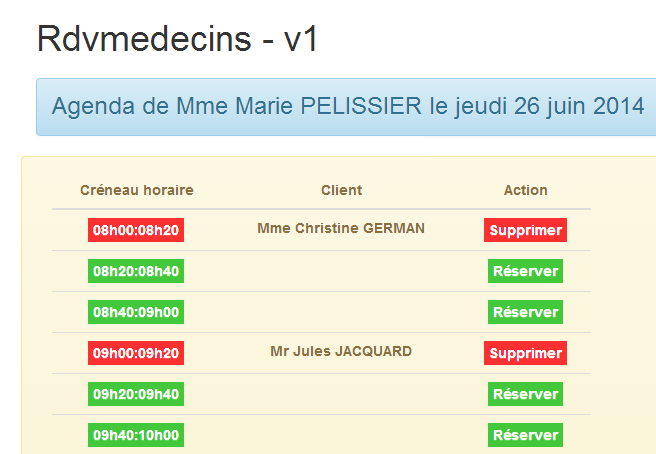
3.7.9.4. Retrieving the calendar
The calendar is retrieved using the following [getAgenda] method:
      // obtaining the agenda
      function getAgenda() {
        // the URL service path
        var path = config.urlSvrAgenda + "/" + médecin.id + "/" + formattedDay;
        // we ask for the agenda
        task = dao.getData($scope.server.url, $scope.server.login, $scope.server.password, path);
        // waiting msg
        $scope.waiting.visible = true;
        // we analyze the result of the call to service [dao]
        task.promise.then(function (result) {
          // end of wait
          $scope.waiting.visible = false;
          // mistake?
          if (result.err == 0) {
            // we prepare the agenda model
            $scope.agenda.data = result.data;
            $scope.agenda.show = true;
            // timetable display formatting
            angular.forEach($scope.agenda.data.creneauxMedecin, function (creneauMedecin) {
              creneauMedecin.creneau.text = utils.getTextForCreneau(creneauMedecin.creneau);
            });
          } else {
            // mistakes were made in obtaining the agenda
            $scope.errors = {title: config.getAgendaErrors, messages: utils.getErrors(result), show: true};
          }
        });
}
This code is the same as the one studied in the previous application. There are two changes:
- there is no simulated wait before the HTTP call;
- line 4: we use the doctor created during controller initialization as well as the formatted day that was constructed;
This code has been isolated into a function because it is also used by the [reserve] and [delete] functions.
3.7.9.5. Booking a time slot
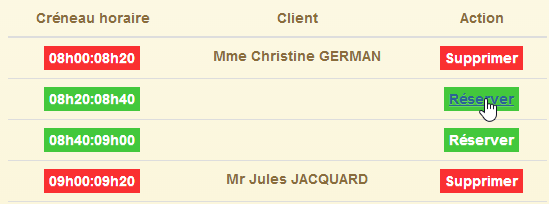 | 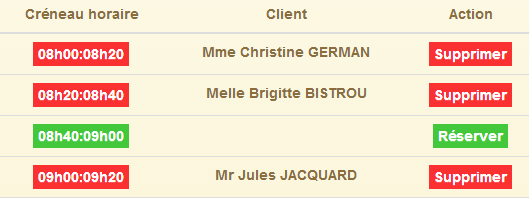 |
Remember that clients are chosen at random.
The reservation code is as follows:
$scope.reserver = function (creneauId) {
        utils.debug("réservation du créneau", creneauId);
        // we create a RV with a random customer in the slot identified by [id]
        var idClient = clients[Math.floor(Math.random() * clients.length)].id;
        utils.debug("réservation du créneau pour le client", idClient);
        // simulated waiting
        $scope.waiting.visible = true;
        var task = utils.waitForSomeTime($scope.waiting.time);
        // we add the
        var promise = task.promise.then(function () {
          // the URL service path
          var path = config.urlSvrResaAdd;
          // data to be sent to the service
          var post = {jour: formattedDay, idCreneau: creneauId, idClient: idClient};
          // start the asynchronous task
          task = dao.getData($scope.server.url, $scope.server.login, $scope.server.password, path, post);
          // we return the promise of task completion
          return task.promise;
        });

        // task result analysis
        promise = promise.then(function (result) {
          if (result.err != 0) {
            // there were errors in validating the appointment
            $scope.errors = {title: config.postResaErrors, messages: utils.getErrors(result, $filter), show: true};
          } else {
            // we ask for the new agenda
            getAgenda();
          }
        });

      };
- line 1: note that the parameter of the [reserve] function is the slot number (id attribute);
- line 4: A customer is randomly selected from the list of customers hard-coded in the initialization code. We retain their identifier [id];
- lines 7–8: the 3-second wait;
- lines 11–18: these lines are executed only after the 3 seconds have elapsed;
- line 12: the URL of the booking service [/ajouterRv]. This URL is different from those we have encountered so far. It is defined as follows in the web service:
    @RequestMapping(value = "/ajouterRv", method = RequestMethod.POST, consumes = "application/json; charset=UTF-8")
public Reponse ajouterRv(@RequestBody PostAjouterRv post, HttpServletResponse response) {
- (continued)
- line 1: the URL has no parameters and is requested via a POST;
- line 2: the posted parameters are in the form of a JSON object. This will be deserialized into the [post] parameter (@RequestBody);
We saw an example of this POST (section 2.12.2):
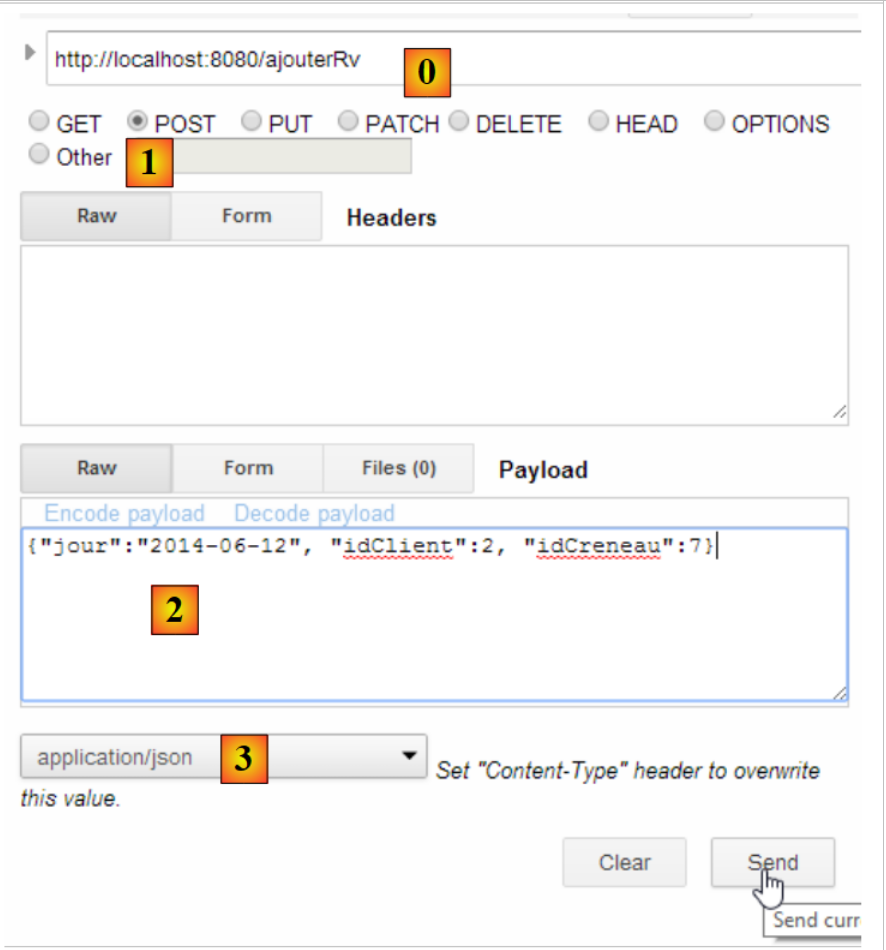 |
- in [0], the web service URL;
- in [1], the POST method is used;
- in [2], the JSON text of the information sent to the web service in the form {day, clientId, slotId};
- in [3], the client informs the web service that it is sending JSON data;
Let’s return to the JS code for the [reserve] function:
- line 14: we create the value to be posted in the form of a JS object. Angular will serialize it into JSON when it is posted;
- line 16: the HTTP request is made. The value to be posted is the last parameter of the [dao.getData] function. When this parameter is present, the [dao.getData] function performs a POST instead of a GET (see the code in section 3.7.6.4);
- Line 18: The promise from the HTTP call is returned;
- lines 23–29: are executed only when the HTTP call has returned its response;
- line 23: the [result] parameter is in the form [err,data] or [err,messages], where [err] is an error code;
- lines 23–26: if there were errors, the error message is displayed;
- line 28: if the reservation was successful, the new calendar is displayed again;
3.7.9.6. Server modification
 |
In the [RdvMedecinsCorsController] class, we add the following method:
    // sending options to the customer
    private void sendOptions(HttpServletResponse response) {
        if (application.isCORSneeded()) {
            // set header CORS
            response.addHeader("Access-Control-Allow-Origin", "*");
            // we authorize the header [authorization]
            response.addHeader("Access-Control-Allow-Headers", "authorization");
        }

    @RequestMapping(value = "/ajouterRv", method = RequestMethod.OPTIONS)
    public void ajouterRv(HttpServletResponse response) {
        sendOptions(response);
}
The addition is made in lines 10–13. The headers in lines 2–8 will be sent for the URL [/addAppt] (line 10) and the HTTP method [OPTIONS] (line 10).
The [RdvMedecinsController] class is modified as follows:
    @RequestMapping(value = "/ajouterRv", method = RequestMethod.POST, consumes = "application/json; charset=UTF-8")
    public Reponse ajouterRv(@RequestBody PostAjouterRv post, HttpServletResponse response) {
        // headers CORS
        rdvMedecinsCorsController.ajouterRv(response);
...
For the [POST] method (line 1) and the [/addAppointment] URL (line 1), the method we just added to [RdvMedecinsCorsController] is called (line 4), thus returning the same HTTP headers as for the [OPTIONS] HTTP method.
3.7.9.7. Tests
Let’s run an initial test where we book any available slot:
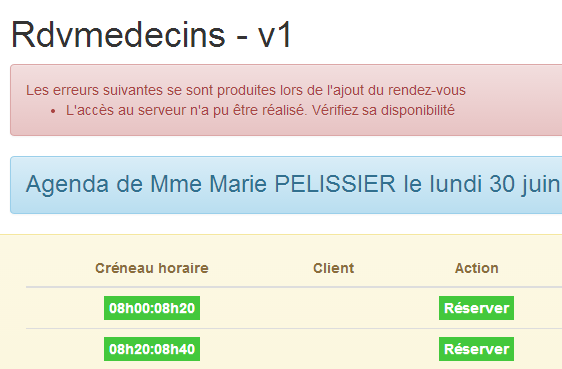 |
As always in these cases, we need to check the console logs:
[dao] getData[/ajouterRv] error réponse : {"data":"","status":0,"config":{"method":"POST","transformRequest":[null],"transformResponse":[null],"timeout":1000,"url":"http://localhost:8080/ajouterRv","data":{"jour":"2014-06-30","idCreneau":1,"idClient":4},"headers":{"Accept":"application/json, text/plain, */*","Authorization":"Basic YWRtaW46YWRtaW4=","Content-Type":"application/json;charset=utf-8"}},"statusText":""}
The [dao.getData] method failed with [status=0], which means that Angular canceled the request. The cause of the error is in the logs:
XMLHttpRequest cannot load http://localhost:8080/ajouterRv. Request header field Content-Type is not allowed by Access-Control-Allow-Headers.
If we look at the network traffic, we see the following:
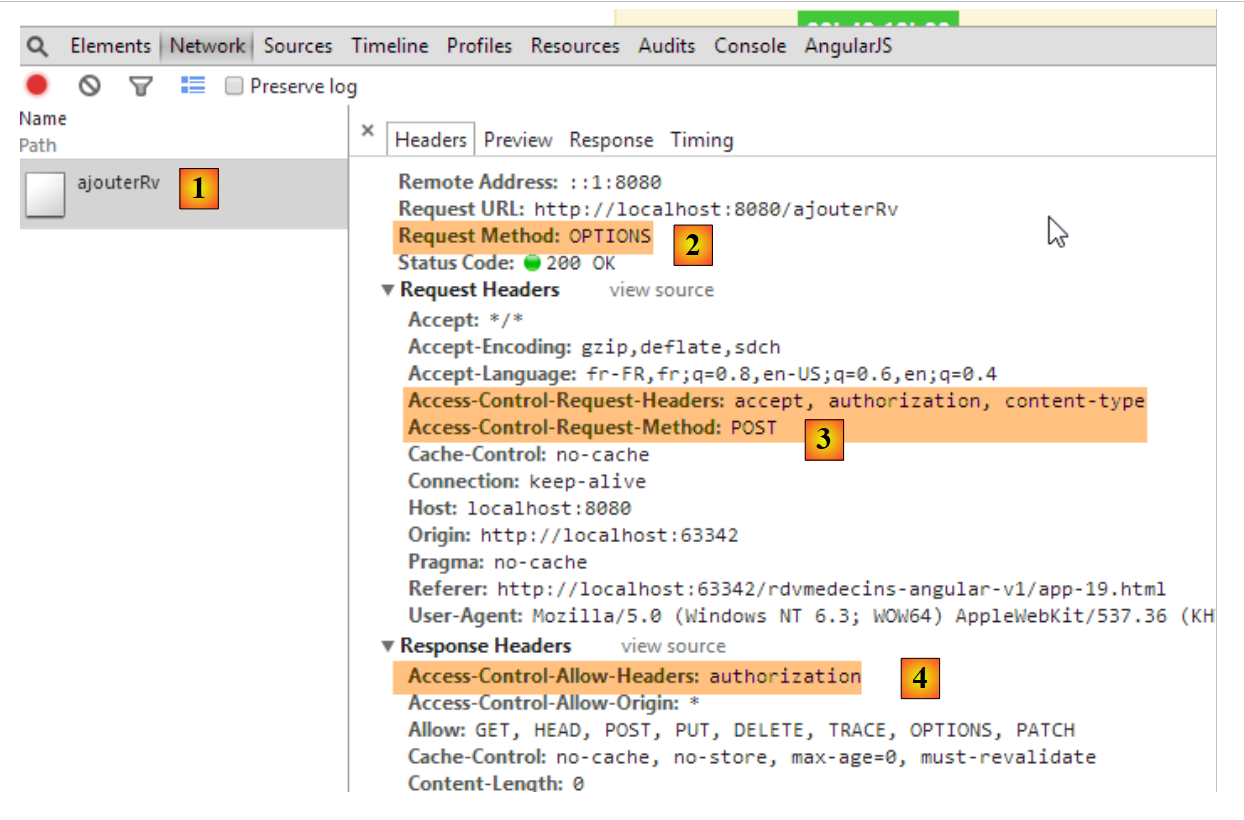 |
- in [1] and [2]: there was only one HTTP request, the [OPTIONS] request;
- in [3], the Angular client requests two permissions:
- permission to send the HTTP headers [accept, authorization, content-type];
- permission to send a POST request;
- in [4]: the server authorizes the [authorization] header. Remember that on the server side, we are the ones sending this authorization;
The new feature is that, for a POST operation, the Angular client requests additional authorizations from the server. We must therefore modify the server to grant them:
|
In the [RdvMedecinsCorsController] class, we modify the private method that generates the HTTP headers sent for OPTIONS, GET, and POST requests:
    // sending options to the customer
    private void sendOptions(HttpServletResponse response) {
        if (application.isCORSneeded()) {
            // set header CORS
            response.addHeader("Access-Control-Allow-Origin", "*");
            // certain headers are allowed
            response.addHeader("Access-Control-Allow-Headers", "accept, authorization, content-type");
            // the POST is authorized
            response.addHeader("Access-Control-Allow-Methods", "POST");
        }
}
- line 7: we added an authorization for the HTTP headers [accept, content-type];
- line 9: we added an authorization for the POST method;
We rerun the test after restarting the server:
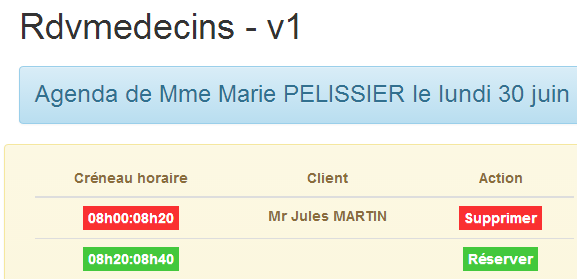 |
This time, the reservation was successful.
3.7.9.8. Deleting an appointment
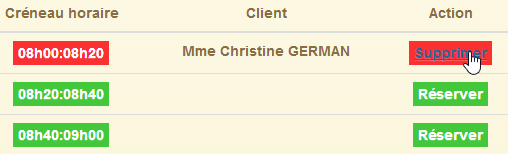 | 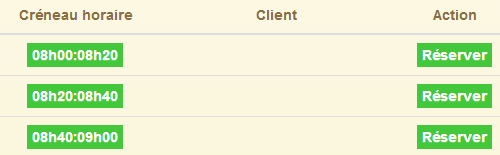 |
The code for the [delete] function is as follows:
$scope.supprimer = function (idRv) {
        utils.debug("suppression rv n°", idRv);
        // simulated waiting
        $scope.waiting.visible = true;
        task = utils.waitForSomeTime($scope.waiting.time);
        // we add the
        var promise = task.promise.then(function () {
          // the URL service path
          var path = config.urlSvrResaRemove;
          // data to be sent to the service
          var post = {idRv: idRv};
          // start the asynchronous task
          task = dao.getData($scope.server.url, $scope.server.login, $scope.server.password, path, post);
          // we return the promise of task completion
          return task.promise;
        });

        // task result analysis
        promise = promise.then(function (result) {
          if (result.err != 0) {
            // there have been errors deleting the rv
            $scope.errors = {title: config.postRemoveErrors, messages: utils.getErrors(result, $filter), show: true};
            // the UI is updated
            $scope.waiting.visible = false;
          } else {
            // we ask for the new agenda
            getAgenda();
          }
        });
      };
- line 1: remember that the function parameter is the appointment ID to be deleted. This code is very similar to the booking code. We will only comment on the differences;
- line 9: the service URL here is [/deleteAppointment] and, as before, it is accessed via a POST request:
    @RequestMapping(value = "/supprimerRv", method = RequestMethod.POST, consumes = "application/json; charset=UTF-8")
public Reponse supprimerRv(@RequestBody PostSupprimerRv post, HttpServletResponse response) {
The posted parameter is again transmitted in JSON format. In section 2.12.17, we demonstrated the nature of the manually performed POST:
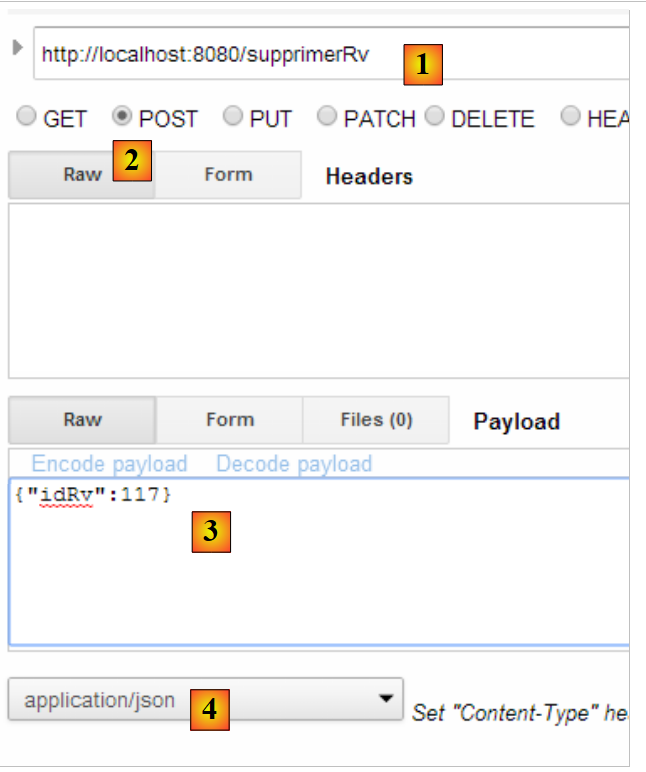 |
- in [1], the web service URL;
- in [2], the POST method is used;
- In [3], the JSON text of the information sent to the web service in the form {idRv};
- in [4], the client informs the web service that it is sending JSON data;
Let’s return to the JS code for the [delete] function:
- line 11: we create the posted object. Angular will automatically serialize it into JSON;
The rest of the code is similar to that of the reservation.
3.7.9.9. Server-side changes
On the server side, we make the following changes:
|
In the [RdvMedecinsCorsController] class, we add the following method:
    // sending options to the customer
    private void sendOptions(HttpServletResponse response) {
        if (application.isCORSneeded()) {
            // set header CORS
            response.addHeader("Access-Control-Allow-Origin", "*");
            // certain headers are allowed
            response.addHeader("Access-Control-Allow-Headers", "accept, authorization, content-type");
            // the POST is authorized
            response.addHeader("Access-Control-Allow-Methods", "POST");
        }
    }
...
    @RequestMapping(value = "/supprimerRv", method = RequestMethod.OPTIONS)
    public void supprimerRv(HttpServletResponse response) {
        sendOptions(response);
}
The addition is made on lines 13–16. The headers from lines 2–10 will be sent for the URL [/deleteAppointment] (line 13) and the HTTP method [OPTIONS] (line 13).
The [RdvMedecinsController] class is modified as follows:
    @RequestMapping(value = "/supprimerRv", method = RequestMethod.POST, consumes = "application/json; charset=UTF-8")
    public Reponse supprimerRv(@RequestBody PostSupprimerRv post, HttpServletResponse response) {
        // headers CORS
        rdvMedecinsCorsController.supprimerRv(response);
...
For the [POST] method (line 1) and the [/deleteAppointment] URL (line 1), the method we just added to [RdvMedecinsCorsController] is called (line 4), thus returning the same HTTP headers as for the [OPTIONS] HTTP method.
3.7.10. Example 10: Creating and Canceling Appointments - 2
We now present the same application as before, but instead of booking for a random client, the client will be selected from a drop-down list.
3.7.10.1. The application’s V view
We will present the following form:
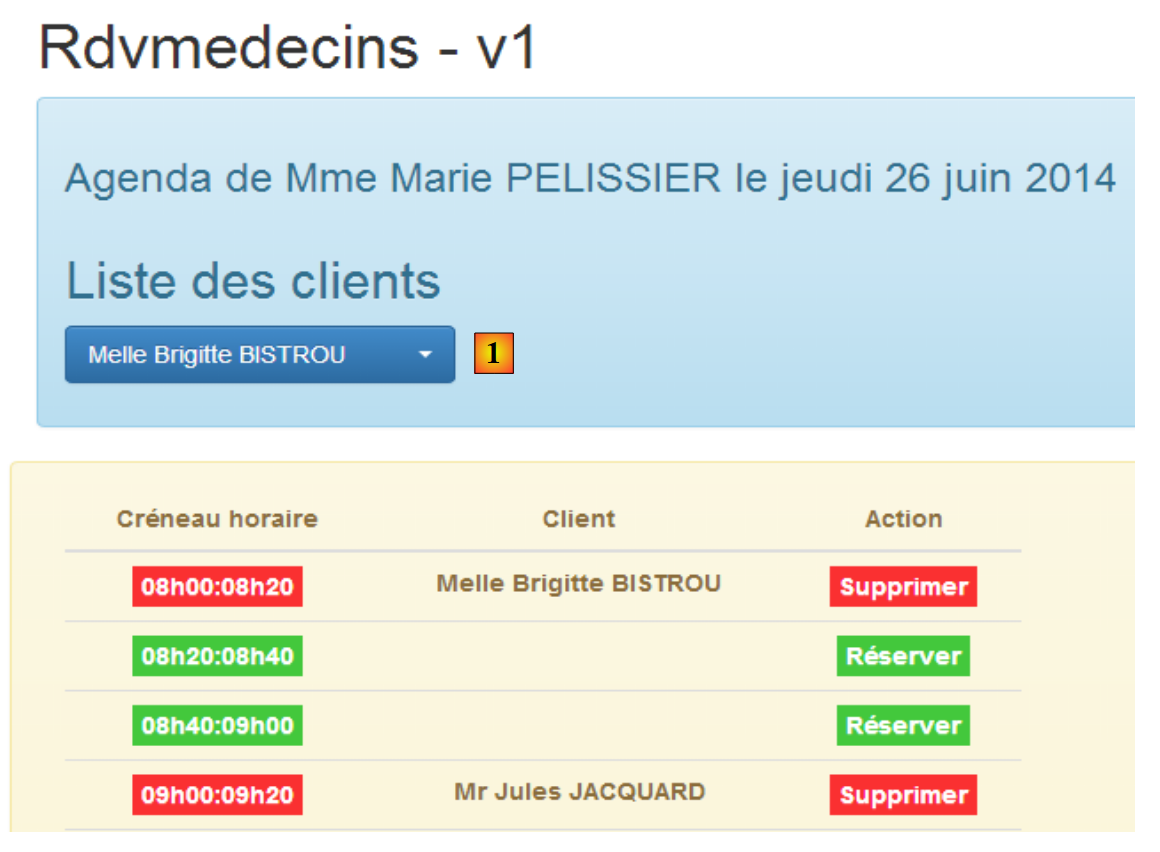 |
Customers will be selected in [1].
The code is similar to that of the previous application, so we will only present the main differences.
We duplicate the file [app-19.html] into [app-20.html], then we create the code for the customer dropdown list [1]:
<!-- customer list -->
  <div class="alert alert-info">
    <h3>{{agenda.title|translate:agenda.model}}</h3>

    <div class="row" ng-show="clients.show">
      <div class="col-md-3">
        <h2 translate="{{clients.title}}"></h2>
        <select data-style="btn-primary" class="selectpicker" select-enable="" ng-if="clients.data">
          <option ng-repeat="client in clients.data" value="{{client.id}}">
            {{client.titre}} {{client.prenom}} {{client.nom}}
          </option>
        </select>
      </div>
    </div>
  </div>
- lines 8–12: the dropdown list will be implemented using the [bootstrap-select] component;
- line 1: the [selectEnable] directive is applied via the [select-enable] attribute;
- line 1: the <select> tag is generated only if [clients.data] exists (# null, undefined). This point is important and was explained in section 3.7.7.8;
Additionally, we import new JS files:
<script type="text/javascript" src="rdvmedecins-08.js"></script>
<!-- directives -->
<script type="text/javascript" src="selectEnable.js"></script>
<script type="text/javascript" src="footable.js"></script>
- Line 1: The file [rdvmedecins-08.js] is created by copying the file [rdvmedecins-0.js];
- Lines 3-4: The files for both directives are imported;
3.7.10.2. Controller C
The code for the C controller evolves as follows:
// controller
angular.module("rdvmedecins")
  .controller('rdvMedecinsCtrl', ['$scope', 'utils', 'config', 'dao', '$translate', '$timeout', '$filter', '$locale',
    function ($scope, utils, config, dao, $translate, $timeout, $filter, $locale) {
      // ------------------- model initialization
...
      // our customers
      $scope.clients = {title: config.listClients, show: false, model: {}};

      //------------------------------------------- initilisation vue
      // the global asynchronous task
      var task;
      // we ask for the customers, then the agenda
      getClients().then(function () {
        getAgenda();
      });
...

      // execution action
      function getClients() {
....
      };
} ]);
- line 8: the object [$scope.clients] configures the client dropdown list in view V;
- lines 14–16: asynchronously, we first request the list of clients, then, once obtained, we request Ms. PELISSIER’s schedule for today. The syntax used here works only because the [getClients] function returns a promise;
The [getClients] method retrieves the list of clients:
function getClients() {
        // the UI is updated
        $scope.waiting.visible = true;
        $scope.clients.show = false;
        $scope.errors.show = false;
        // we ask for the customer list;
        task = dao.getData($scope.server.url, $scope.server.login, $scope.server.password, config.urlSvrClients);
        var promise = task.promise;
        // analyze the result of the previous call
        promise = promise.then(function (result) {
          // result={err: 0, data: [client1, client2, ...]}
          // result={err: n, messages: [msg1, msg2, ...]}
          if (result.err == 0) {
            // we put the acquired data into the model
            $scope.clients.data = result.data;
            // the UI is updated
            $scope.clients.show = true;
            $scope.waiting.visible = false;
          } else {
            // there were errors in obtaining the customer list
            $scope.errors = { title: config.getClientsErrors, messages: utils.getErrors(result), show: true, model: {}};
            // the UI is updated
            $scope.waiting.visible = false;
          }
        });
        // we return the promise
        return promise;
      };
This is code we’ve already encountered and discussed. The important part to note is line 31:
- line 27: we return the promise from line 10, i.e., the last promise obtained in the code. This promise will only be fulfilled once the HTTP request has returned its response;
The [reserve] method changes slightly:
      $scope.reserver = function (creneauId) {
        utils.debug("réservation du créneau", creneauId);
        // on crée un RV pour le client sélectionné
        var idClient = $(".selectpicker").selectpicker('val');
        ...
        });
- Line 4: We no longer book for a random client but for the client selected from the client list.
3.7.11. Example 11: a [selectEnable2] directive
This example revisits directives.
3.7.11.1. The V view
The application displays the following view:
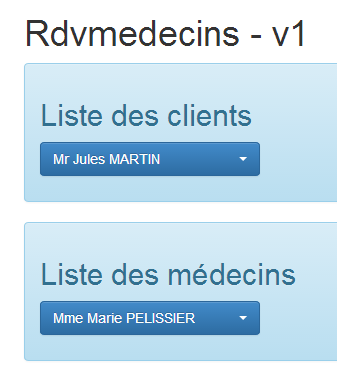 |
3.7.11.2. The HTML code for the view
The HTML code for the [app-21.html] view is as follows:
<div class="container">
  <h1>Rdvmedecins - v1</h1>

  <!-- the waiting message -->
  <div class="alert alert-warning" ng-show="waiting.visible">
    ...
  </div>

  <!-- the error list -->
  <div class="alert alert-danger" ng-show="errors.show">
   ...
  </div>

  <!-- customer list -->
  <div class="alert alert-info">
    <div class="row" ng-show="clients.show">
      <div class="col-md-4">
        <h2 translate="{{clients.title}}"></h2>
        <select data-style="btn-primary" id="selectpickerClients" select-enable2="" ng-if="clients.data">
          <option ng-repeat="client in clients.data" value="{{client.id}}">
            {{client.titre}} {{client.prenom}} {{client.nom}}
          </option>
        </select>
      </div>
    </div>
  </div>

  <!-- list of doctors -->
  <div class="alert alert-info">
    <div class="row" ng-show="medecins.show">
      <div class="col-md-4">
        <h2 translate="{{medecins.title}}"></h2>
        <select data-style="btn-primary" id="selectpickerMedecins" select-enable2="" ng-if="medecins.data">
          <option ng-repeat="medecin in medecins.data" value="{{medecin.id}}">
            {{medecin.titre}} {{medecin.prenom}} {{medecin.nom}}
          </option>
        </select>
      </div>
    </div>
  </div>
</div>
...
<script type="text/javascript" src="rdvmedecins-09.js"></script>
<!-- guidelines -->
<script type="text/javascript" src="selectEnable2.js"></script>
- lines 19–23: the client dropdown list;
- line 19: the [selectEnable2] directive (attribute [select-enable2]) is applied;
- line 19: only if [clients.data] is not empty;
- line 19: the dropdown list is identified by the [id="selectpickerClients"] attribute;
- lines 33-37: the drop-down list of doctors;
- line 33: the [selectEnable2] directive is applied (attribute [select-enable2]);
- line 33: only if [doctors.data] is not empty;
- line 33: the dropdown list is identified by the attribute [id="selectpickerMedecins"];
- line 43: a new JS file [rdvmedecins-09.js] is imported;
- line 45: the JS file for the new directive is imported;
3.7.11.3. The [selectEnable2] directive
The code for the [selectEnable2] directive is as follows:
angular.module("rdvmedecins").directive('selectEnable2', ['$timeout', 'utils', function ($timeout, utils) {
  return {
    link: function (scope, element, attrs) {
      utils.debug("directive selectEnable2 attrs", attrs);
      $timeout(function () {
        $('#' + attrs['id']).selectpicker();
      })
    }
  }
}]);
- line 4: we display the value of the [attrs] parameter to help understand how the code works. We will see that attrs['id']='selectpickerClients' for the client list;
- line 6: to locate an element with [id='x'] in the DOM, we write [$('#x')]. Therefore, we must write [$('#selectpickerClients')] to locate the list of clients. This is achieved using the syntax [$('#' + attrs['id'])];
The [selectEnable2] directive therefore uses the information carried by one of the attributes of the HTML element to which it is applied.
3.7.11.4. Controller C
The C controller is located in the JS file [rdvmedecins-09.js] and has the following structure:
// controller
angular.module("rdvmedecins")
  .controller('rdvMedecinsCtrl', ['$scope', 'utils', 'config', 'dao',
    function ($scope, utils, config, dao) {
      // ------------------- model initialization
      // the waiting msg
      $scope.waiting = {text: config.msgWaiting, visible: false, cancel: cancel, time: 3000};
      // login information
      $scope.server = {url: 'http://localhost:8080', login: 'admin', password: 'admin'};
      // errors
      $scope.errors = {show: false, model: {}};
      // the doctors
      $scope.medecins = {title: config.listMedecins, show: false, model: {}};
      // our customers
      $scope.clients = {title: config.listClients, show: false, model: {}};

      // the global asynchronous task
      var task;
      // ---------------------------------------------------- initialisation vue
      // the UI is updated
      $scope.waiting.visible = true;
      $scope.clients.show = false;
      $scope.medecins.show = false;
      $scope.errors.show = false;
      // we ask for customers, then doctors
      getClients().then(function () {
        getMedecins();
      });

      // customer list
      function getClients() {
        ...
      }

      // list of doctors
      function getMedecins() {
...
      }

      // cancel wait
      function cancel() {
...
      }
    } ]);
- lines 26–28: first we query the clients, then the doctors;
3.7.11.5. Tests
Test this new version.
3.7.12. Example 12: A [list] directive
We’ll use the same example as before, but we want to streamline the HTML code by using a directive. Currently, we have the following HTML code:
<!-- customer list -->
  <div class="alert alert-info">
    <div class="row" ng-show="clients.show">
      <div class="col-md-4">
        <h2 translate="{{clients.title}}"></h2>
        <select data-style="btn-primary" id="selectpickerClients" select-enable2="" ng-if="clients.data">
          <option ng-repeat="client in clients.data" value="{{client.id}}">
            {{client.titre}} {{client.prenom}} {{client.nom}}
          </option>
        </select>
      </div>
    </div>
  </div>
  <!-- list of doctors -->
  <div class="alert alert-info">
    <div class="row" ng-show="medecins.show">
      <div class="col-md-4">
        <h2 translate="{{medecins.title}}"></h2>
        <select data-style="btn-primary" id="selectpickerMedecins" select-enable2="" ng-if="medecins.data">
          <option ng-repeat="medecin in medecins.data" value="{{medecin.id}}">
            {{medecin.titre}} {{medecin.prenom}} {{medecin.nom}}
          </option>
        </select>
      </div>
    </div>
  </div>
Lines 14–26 are identical to lines 1–13. They apply to doctors instead of clients. We would like to be able to write the following:
  <!-- la liste des clients -->
  <list model="clients" ng-if="clients.show"></list>
  <!-- la liste des médecins -->
<list model="medecins" ng-if="medecins.show"></list>
This code uses a new [list] directive, which we will create now.
3.7.12.1. The [list] directive
The [list] directive is placed in the JS file [list.js]. Its code is as follows:
angular.module("rdvmedecins")
  .directive("list", ['utils', '$timeout', function (utils, $timeout) {
    // instance de la directive retournée
    return {
      // élément HTML
      restrict: "E",
      // url du fragment
      templateUrl: "list.html",
      // scope unique à chaque instance de la directive
      scope: true,
      // fonction lien avec le document
      link: function (scope, element, attrs) {
        utils.debug("directive list attrs", attrs);
        scope.model = scope[attrs['model']];
        utils.debug("directive list model", scope.model);
        $timeout(function () {
          $('#' + scope.model.id).selectpicker();
        })
      }
    }
}]);
- line 2: defines a directive named 'list';
- line 6: the [restrict] attribute specifies how the directive can be used. [restrict: "E"] means that the [list] directive can be used as an HTML element <list ...>...</list>. [restrict: "A"] means that the [list] directive can be used as an attribute, for example <div ... list='...'>. [restrict: "AE"] means that the [list] directive can be used as both an attribute and an element;
- line 8: the [templateUrl] attribute specifies the name of the HTML fragment to be used when the tag is encountered. This fragment will be the body of the tag;
- line 10: the [scope] attribute sets the scope of the directive’s template. [scope: true] means that two <list> elements will each have their own template. By default (scope not initialized), they share their templates;
- line 12: the [link] function, which we have already used several times;
To understand the code above, you need to remember how the directive will be used:
  <!-- la liste des clients -->
  <list model="clients" ng-if="clients.show"></list>
  <!-- la liste des médecins -->
<list model="medecins" ng-if="medecins.show"></list>
The [list] directive is used as an HTML <list> element. This element has two attributes:
- [model]: which will have as its value the element of model M from view V in which the [list] directive is located. This element will populate the directive’s model;
- [ng-if]: which ensures that the directive’s HTML code is not generated if there is nothing to display;
Let’s return to the code for the [link] function of the directive:
link: function (scope, element, attrs) {
        utils.debug("directive list attrs", attrs);
        scope.model = scope[attrs['model']];
        utils.debug("directive list model", scope.model);
        $timeout(function () {
          $('#' + scope.model.id).selectpicker();
        })
      }
Let's combine this JS code with the HTML code that uses the directive:
<list model="clients" ng-if="clients.show"></list>
- line 3: attrs['model'] has the value 'clients' here;
- line 3: scope[attrs['model']] has the value scope['clients'] and therefore represents [$scope.clients], i.e., the [clients] field of the view model. This field will have the value {id:'...', data:[client1, client2, ...], show:..., title:'...'};
- line 3: we add a [model] field to the directive’s model. This field inherits from the view’s model in which it is located. We must therefore avoid conflicts with any [model] field that the view might also have. Here, there will be no conflict;
- line 4: we display [scope.model] to better understand the code;
- lines 5-7: we see code we’ve encountered before. The difference is that the component’s ID was previously retrieved from an attrs['id'] attribute. Here, it will be retrieved from [scope.model.id];
Now, let’s look at the HTML code generated by the directive. Because of the directive’s [templateUrl: "list.html"] attribute, we need to look for it in the [list.html] file:
<!-- a list of customers or doctors -->
<div class="alert alert-info" ng-show="model.show">
  <div class="row">
    <div class="col-md-4">
      <h2 translate="{{model.title}}"></h2>
      <select data-style="btn-primary" id="{{model.id}}" ng-if="model.data">
        <option ng-repeat="element in model.data" value="{{element.id}}">
          {{element.titre}} {{element.prenom}} {{element.nom}}
        </option>
      </select>
    </div>
  </div>
</div>
- The first thing to remember when reading this code is that the directive has created an object [scope.model] of the form [{id:'...', data:[client1, client2, ...], show:..., title:'...'}]. This [model] object (scope is implicit in the HTML code) is used by the directive's HTML code;
- line 2: use of [model.show] to show/hide the view generated by the directive;
- line 5: use of [model.title] to set a title;
- line 6: use of [model.id] to assign an ID to the <select> tag. This ID is used by the directive’s JavaScript code;
- line 6: use of [model.data] to generate the <select> only if there is data to display;
- lines 7–9: use of [model.data] to generate the dropdown list items;
3.7.12.2. The HTML code
The HTML code for the application [app-22.html] is as follows:
<div class="container">
  <h1>Rdvmedecins - v1</h1>

  <!-- the waiting message -->
  <div class="alert alert-warning" ng-show="waiting.visible">
    ...
  </div>

  <!-- the error list -->
  <div class="alert alert-danger" ng-show="errors.show">
    ...
  </div>

  <!-- customer list -->
  <list model="clients" ng-if="clients.show"></list>
  <!-- list of doctors -->
  <list model="medecins" ng-if="medecins.show"></list>
</div>
...
<script type="text/javascript" src="rdvmedecins-10.js"></script>
<!-- guidelines -->
<script type="text/javascript" src="list.js"></script>
- line 22: don't forget to include the JS code for the directive;
3.7.12.3. The C controller
The C controller changes very little:
angular.module("rdvmedecins")
  .controller('rdvMedecinsCtrl', ['$scope', 'utils', 'config', 'dao',
    function ($scope, utils, config, dao) {
      // ------------------- model initialization
...
      // the doctors
      $scope.medecins = {title: config.listMedecins, show: false, id: 'medecins'};
      // our customers
      $scope.clients = {title: config.listClients, show: false, id: 'clients'};
...
- Lines 7 and 9: We add the [id] attribute to the doctors and clients models;
3.7.12.4. The tests
The tests yield the same results as in the previous example.
3.7.13. Example 13: Updating a Directive's Model
We continue our study of directives and stick with the dropdown list example. Here, we want to examine the behavior of the [list] directive when the content of the dropdown list changes.
3.7.13.1. The V views
The different views are as follows:
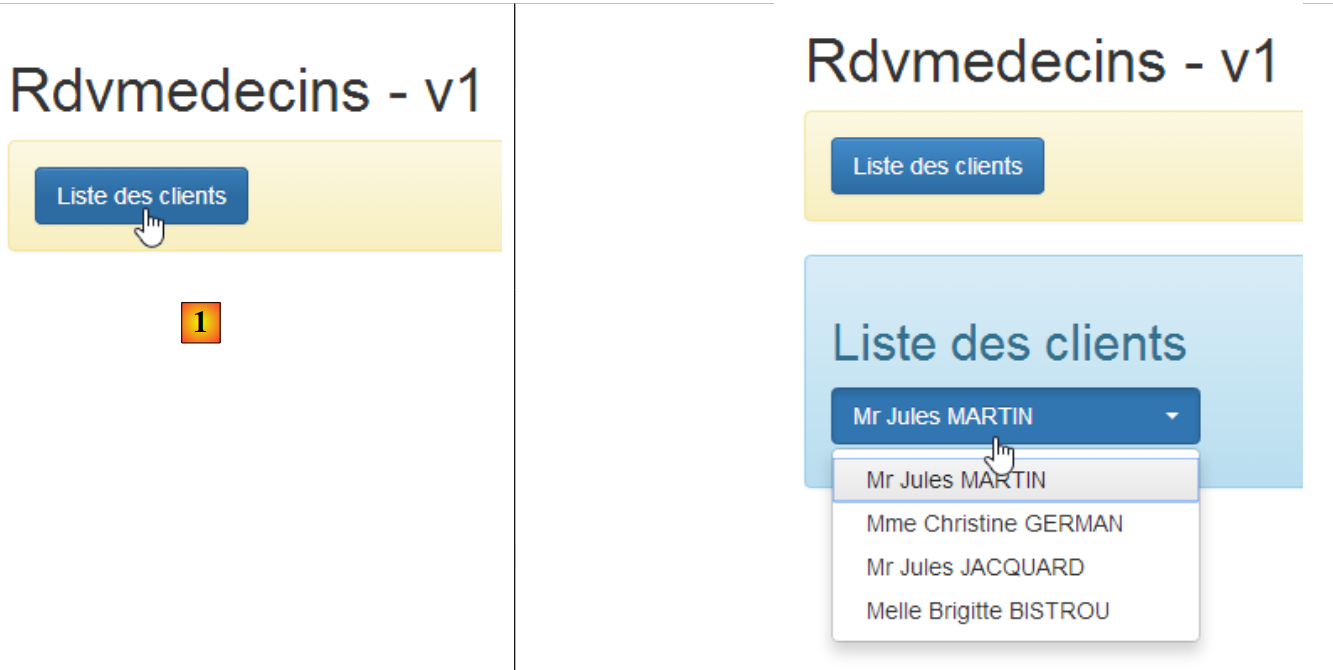 |
- in [1], we request the list of customers for the first time;
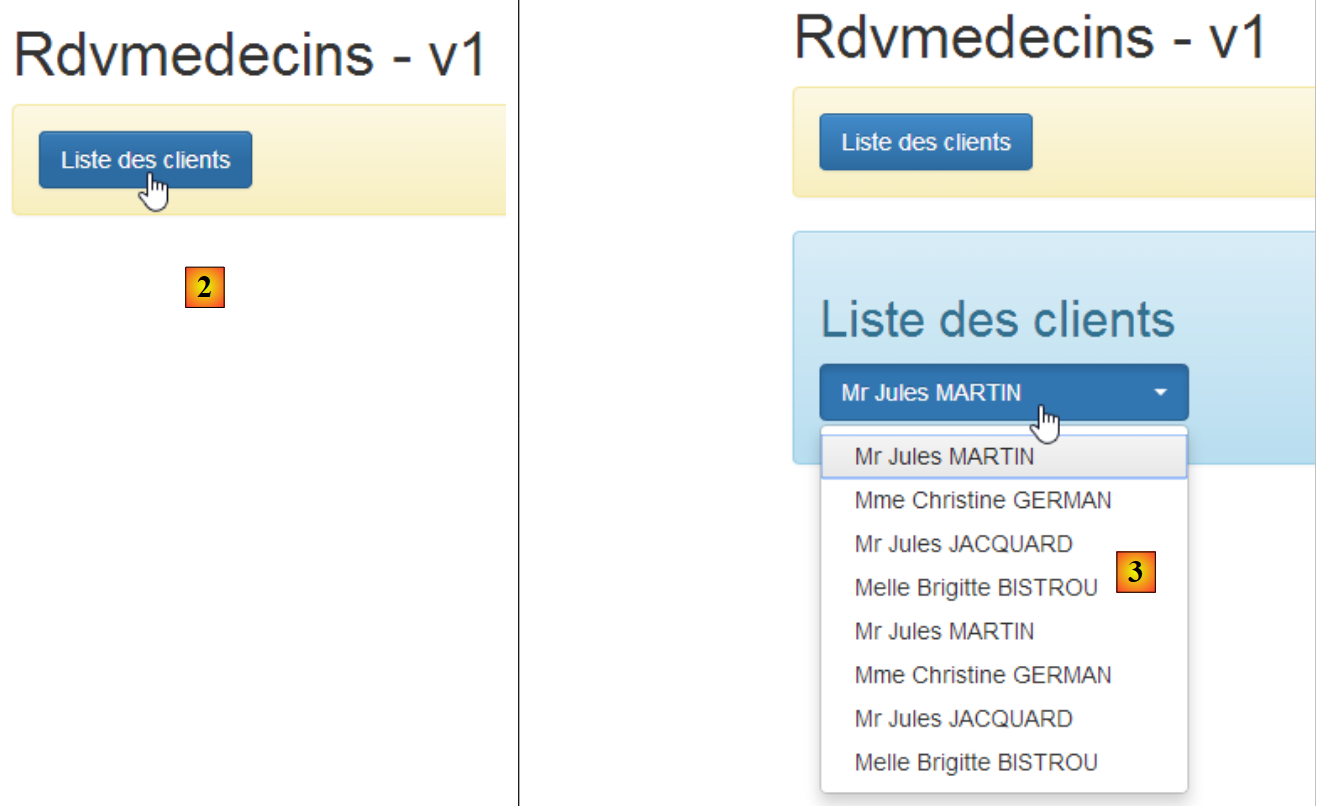 |
- in [2], we request the list of customers a second time. This second list is then combined with the first [3]. It is the update of the [Bootstrap select] component that we want to examine in this example.
3.7.13.2. The HTML page
The HTML page [app-23.html] is created by copying [app-22.html] and then modified as follows:
<div class="container">
  <h1>Rdvmedecins - v1</h1>

  <!-- le message d'attente -->
  <div class="alert alert-warning" ng-show="waiting.visible">
    ...
  </div>

  <!-- la liste d'erreurs -->
  <div class="alert alert-danger" ng-show="errors.show">
    ...
  </div>

  <!-- le bouton -->
  <div class="alert alert-warning">
    <button class="btn btn-primary" ng-click="getClients()">{{clients.title|translate}}</button>
  </div>

  <!-- la liste des clients -->
  <list2 model="clients" ng-if="clients.show"></list2>
</div>
...
<script type="text/javascript" src="rdvmedecins-11.js"></script>
<!-- directives -->
<script type="text/javascript" src="list2.js"></script>
The changes from the previous application are as follows:
- lines 15–17: addition of a button;
- line 20: use of a new directive [list2];
- line 23: use of a new JS file;
- Line 25: Import the JS file from the [list2] directive;
3.7.13.3. The [list2] directive
The [list2] directive in [list2.js] is as follows:
angular.module("rdvmedecins")
  .directive("list2", ['utils', '$timeout', function (utils, $timeout) {
    // instance de la directive retournée
    return {
      // élément HTML
      restrict: "E",
      // url du fragment
      templateUrl: "list.html",
      // scope unique à chaque instance de la directive
      scope: true,
      // fonction lien avec le document
      link: function (scope, element, attrs) {
        utils.debug('directive list2');
        scope.model = scope[attrs['model']];
        $timeout(function () {
          $('#' + scope.model.id).selectpicker('refresh');
        })
      }
    }
}]);
The only difference from the [list] directive is line 16: with the [selectpicker('refresh')] method, we tell the [Bootstrap-select] component to refresh. The idea behind this is that every time the user requests a new list of customers, the dropdown list will be refreshed. It won’t work, but that’s the basic idea.
3.7.13.4. The C controller
The controller is in the [rdvmedecins-11.js] file, created by copying the [rdvmedecins-10.js] file:
      // our customers
      $scope.clients = {title: config.listClients, show: false, id: 'clients', data: []};
...
      // customer list
      $scope.getClients = function getClients() {
        // the UI is updated
        $scope.waiting.visible = true;
        $scope.errors.show = false;
        // we ask for the customer list;
        task = dao.getData($scope.server.url, $scope.server.login, $scope.server.password, config.urlSvrClients);
        var promise = task.promise;
        // analyze the result of the previous call
        promise = promise.then(function (result) {
          // result={err: 0, data: [client1, client2, ...]}
          // result={err: n, messages: [msg1, msg2, ...]}
          if (result.err == 0) {
             // put the acquired data into a new model to force the view to refresh
            $scope.clients = {title: $scope.clients.title, data: $scope.clients.data.concat(result.data), show: $scope.clients.show, id: $scope.clients.id};
            // the UI is updated
            $scope.clients.show = true;
            $scope.waiting.visible = false;
          } else {
            // there were errors in obtaining the customer list
            $scope.errors = { title: config.getClientsErrors, messages: utils.getErrors(result), show: true, model: {}};
            // the UI is updated
            $scope.waiting.visible = false;
          }
        });
}
- line 1: to allow arrays to be concatenated in [clients.data], this object is initialized with an empty array;
- line 18: we concatenate the new list of clients with those already present in the [clients.data] array;
Previously, we had written:
Now we write:
To understand this code, you need to remember how the M model is used in the V view in the case of the [list2] directive:
  <!-- la liste des clients -->
<list2 model="clients" ng-if="clients.show"></list2>
The model used by the [list2] directive is [clients]. It will only be re-evaluated in the view V if [clients] changes in the view’s model M. The first idea that comes to mind for the modification is to write:
to account for the fact that the new list of clients must be appended to the previous ones. Doing so modifies [clients.data] but not [clients]. I am not familiar with the intricacies of JavaScript, but it would not be surprising if [clients] were a pointer, as is [clients.data]. The pointer [clients] does not change when we change the pointer [clients.data]. The directive [list2] is therefore not re-evaluated. This is indeed what we observe when debugging the application (F12 in Chrome).
By writing:
$scope.clients = {title: $scope.clients.title, data: $scope.clients.data.concat(result.data), show: $scope.clients.show, id: $scope.clients.id};
We ensure that [$scope.clients] does indeed receive a new value. The pointer [$scope.clients] points to a new object. The [list2] directive should then be re-evaluated. However, we do not get the desired result. Let’s examine the screenshots when we request the list of clients twice:
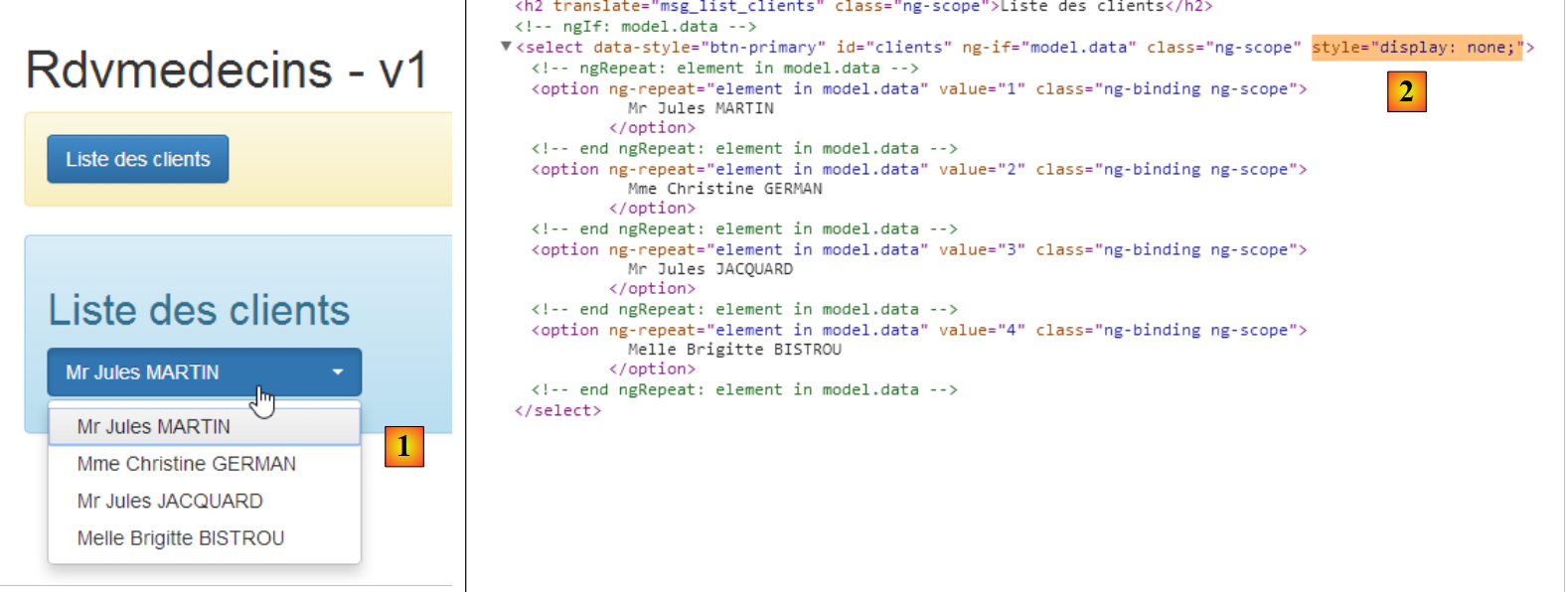 |
- in [1], we only have four elements instead of eight;
- in [2], these four elements are in a [select] element, but it is hidden (style='display: none');
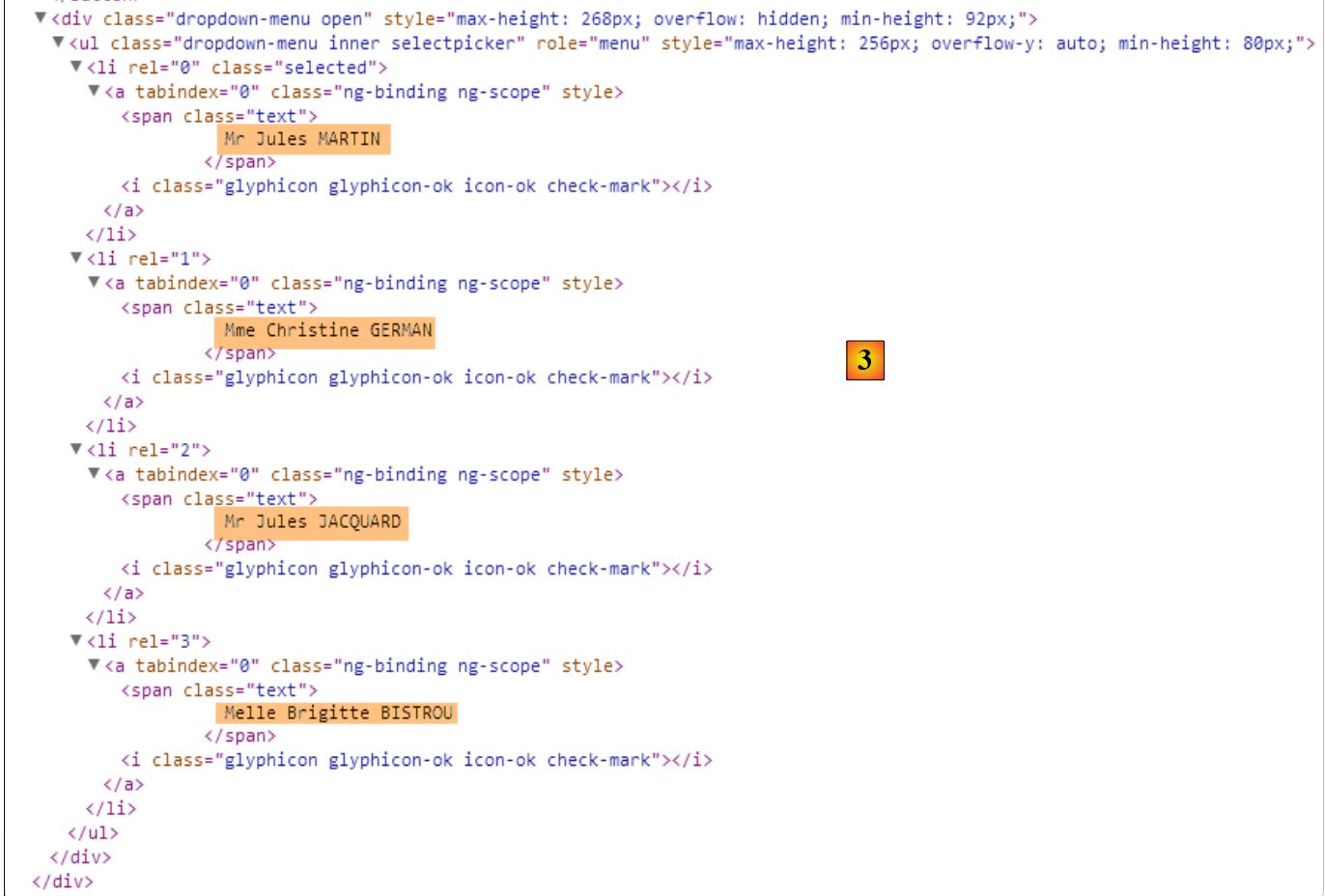 |
- in [3], we find the four clients in a different HTML layout, and this is what the user sees when they click on the dropdown list;
Finally, the console logs show the following:
- line 1: the [dao] service is instantiated;
- line 2: the [dao] service retrieves an initial list of clients;
- line 3: the [list2] directive is executed;
- line 4: the [dao] service retrieves a second list of clients;
The output on line 2 comes from the following code in the directive:
      link: function (scope, element, attrs) {
        utils.debug('directive list2');
        ...
}
Let's examine the lifecycle of the [list2] directive:
- Between lines 1 and 2, it is not activated even though the view has been displayed for the first time. This is due to its [ng-if="clients.show"] attribute in view V:
<list2 model="clients" ng-if="clients.show"></list2>
- line 3: after retrieving the first list of doctors, [clients.show] becomes true and the directive is activated;
- after retrieving the second list of clients, we see that the code for the [list2] directive is not called. This is why we do not see the second list;
To resolve this issue, we modify the [list2] directive as follows:
angular.module("rdvmedecins")
  .directive("list2", ['utils', '$timeout', function (utils, $timeout) {
    // instance de la directive retournée
    return {
      // élément HTML
      restrict: "E",
      // url du fragment
      templateUrl: "list.html",
      // scope unique à chaque instance de la directive
      scope: true,
      // fonction lien avec le document
      link: function (scope, element, attrs) {
        // à chaque fois que attrs["model"] change, le modèle de la directive doit changer également
        scope.$watch(attrs["model"], function (newValue) {
          utils.debug("directive list2 newValue", newValue);
          // on met à jour le modèle de la directive
          scope.model = newValue;
          $timeout(function () {
            $('#' + scope.model.id).selectpicker('refresh');
          })
        });
      }
    }
}]);
- Line 14: The [scope.$watch] function allows you to observe a value in the model. Its syntax is [scope.$watch('var'), f], where [var] is the identifier of a variable in the model and f is the function to execute when that variable changes value. Here, we want to watch the [clients] variable. So we must write [scope.$watch('clients')]. Since we have attrs['model']='clients', we write [scope.$watch(attrs["model"], function (newValue)];
- line 14: the second parameter of the [scope.$watch] function is the function to be executed when the observed variable changes value. The [newValue] parameter is the new value of the variable, so for us, the new value of the [clients] variable in the model;
- line 17: this new value is assigned to the [model] field of the directive’s model;
With this change made, the logs change:
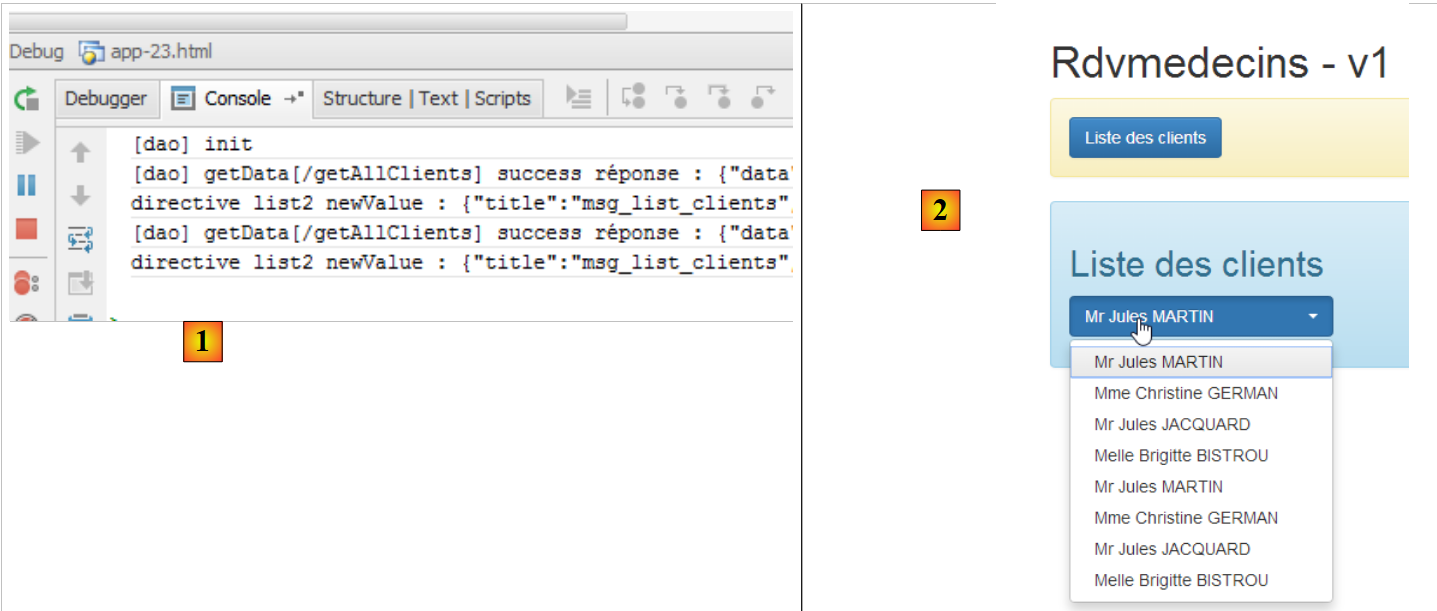 |
Above, we see that after obtaining the second list of clients, the [list2] directive is indeed executed again, as confirmed by the result [2].
3.7.14. Example 14: the [waiting] and [errors] directives
Let’s return to the HTML code from the previous application:
<div class="container">
  <h1>Rdvmedecins - v1</h1>

  <!-- le message d'attente -->
  <div class="alert alert-warning" ng-show="waiting.visible">
  ...
  </div>

  <!-- la liste d'erreurs -->
  <div class="alert alert-danger" ng-show="errors.show">
  ...
  </div>

  <!-- le bouton -->
  <div class="alert alert-warning">
    <button class="btn btn-primary" ng-click="getClients()">{{clients.title|translate}}</button>
  </div>

  <!-- la liste des clients -->
  <list2 model="clients" ng-if="clients.show"></list2>
</div>
- lines 5-7: the loading message;
- lines 10-12: the error message;
We decide to place the HTML code for these two messages inside directives.
3.7.14.1. The new HTML code
The new HTML code [app-24.html] is as follows:
<div class="container">
  <h1>Rdvmedecins - v1</h1>

  <!-- le message d'attente -->
  <waiting model="waiting"></waiting>

  <!-- la liste d'erreurs -->
  <errors model="errors"></errors>

  <!-- le bouton -->
  <div class="alert alert-warning">
    <button class="btn btn-primary" ng-click="getClients()">{{clients.title|translate}}</button>
  </div>

  <!-- la liste des clients -->
  <list2 model="clients" ng-if="clients.show"></list2>
</div>
...
<script type="text/javascript" src="rdvmedecins-12.js"></script>
<!-- directives -->
<script type="text/javascript" src="list2.js"></script>
<script type="text/javascript" src="errors.js"></script>
<script type="text/javascript" src="waiting.js"></script>
- line 5: the directive for the waiting message;
- line 8: the directive for the error message;
- line 19: the new JS file associated with the application;
- lines 21–23: the JS files for the three directives;
3.7.14.2. The [waiting] directive
The JS code for the [waiting] directive is in the following [waiting.js] file:
angular.module("rdvmedecins")
  .directive("waiting", ['utils', function (utils) {
    // returned directive instance
    return {
      // element HTML
      restrict: "E",
      // fragment url
      templateUrl: "waiting.html",
      // scope unique to each directive instance
      scope: true,
      // function link to document
      link: function (scope, element, attrs) {
        // each time attr["model"] changes, the page model must also change
        scope.$watch(attrs["model"], function (newValue) {
          utils.debug("[waiting] watch newValue", newValue);
          scope.model = newValue;
        });
      }
    }
  }]);
This code follows the same logic as that of the [list2] directive already discussed.
On line 8, we reference the following [waiting.html] file:
<div class="alert alert-warning" ng-show="model.show">
  <h1>{{ model.title.text | translate:model.title.values}}
    <button class="btn btn-primary pull-right" ng-click="model.cancel()">{{'cancel'|translate}}</button>
    <img src="assets/images/waiting.gif" alt=""/>
  </h1>
</div>
In the application's JS code, the [$scope.waiting] model for this HTML code will be defined as follows:
// the waiting msg
$scope.waiting = {title: {text: config.msgWaiting, values: {}}, show: false, cancel: cancel, time: 3000};
3.7.14.3. The [errors] directive
The JS code for the [errors] directive is in the following [errors.js] file:
angular.module("rdvmedecins")
  .directive("errors", ['utils', function (utils) {
    // returned directive instance
    return {
      // element HTML
      restrict: "E",
      // fragment url
      templateUrl: "errors.html",
      // scope unique to each directive instance
      scope: true,
      // function link to document
      link: function (scope, element, attrs) {
        // each time attr["model"] changes, the page model must also change
        scope.$watch(attrs["model"], function (newValue) {
          utils.debug("[errors] watch newValue", newValue);
          scope.model = newValue;
        });
      }
    }
}]);
This code follows the same logic as that of the [list2] directive already discussed.
On line 8, we reference the following [errors.html] file:
<div class="alert alert-danger" ng-show="model.show">
  {{model.title.text|translate:model.title.values}}
  <ul>
    <li ng-repeat="message in model.messages">{{message|translate}}</li>
  </ul>
</div>
In the application's JS code, the [$scope.errors] model for this HTML code will be defined as follows:
// there were errors in obtaining the customer list
$scope.errors = { title: { text: config.getClientsErrors, values: {}}, messages: utils.getErrors(result), show: true, model: {}};
3.7.15. Example 15: Navigation
So far, we have used single-page applications. In this example, we will cover multi-page applications and navigation between them.
3.7.15.1. The V views of the application
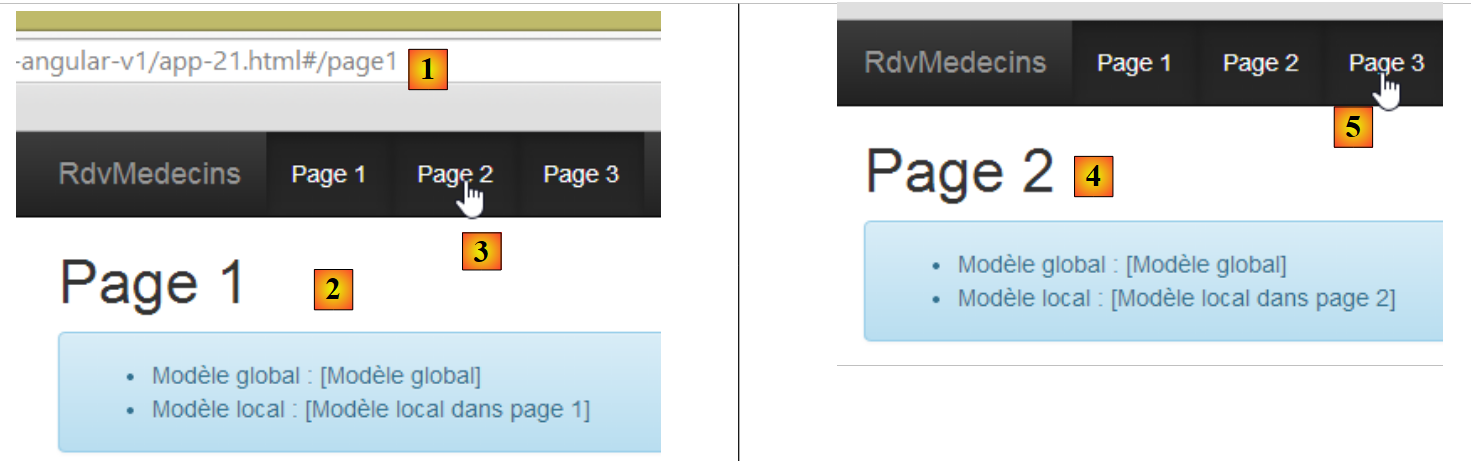 |
- in [1], the URL of view #1;
- in [2], its content;
- in [3], we go to page 2;
- in [4], view #2;
- in [5], we go to page 3;
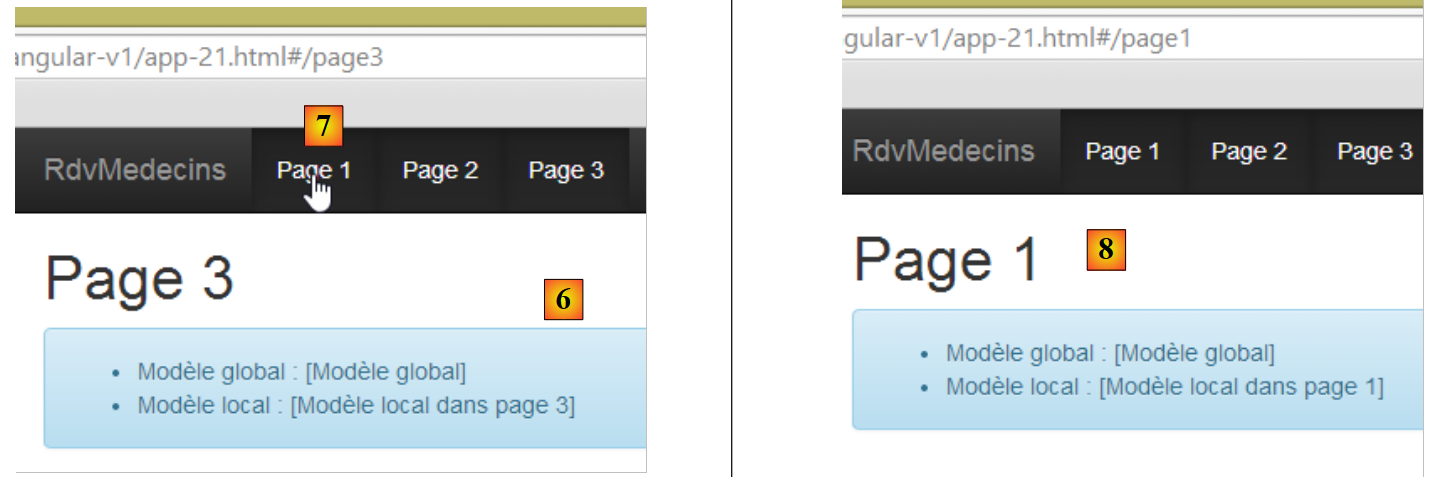 |
- in [6], view #3;
- in [7], go to page 1;
- in [8], we return to view #1;
3.7.15.2. Code Organization
We are starting a new code organization:
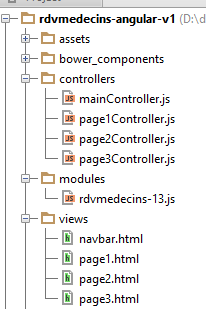 |
- the application views will be placed in the [views] folder;
- the application module will be placed in the [modules] folder;
- The application controllers will be placed in the [controllers] folder;
Similarly, in the final version:
- services will be placed in the [services] folder;
- directives will be placed in the [directives] folder;
3.7.15.3. The view container
The views in the [views] folder will be displayed in the following container [app-25.html]:
<!DOCTYPE html>
<html ng-app="rdvmedecins">
<head>
  ...
</head>
<body>
    <div class="container" ng-controller="mainCtrl">
        <!-- the navigation bar -->
        <ng-include src="'views/navbar.html'"></ng-include>

        <!-- the current view -->
        <ng-view></ng-view>
    </div>

...
<!-- the module -->
<script type="text/javascript" src="modules/rdvmedecins-13.js"></script>
<!-- controllers -->
<script type="text/javascript" src="controllers/mainController.js"></script>
<script type="text/javascript" src="controllers/page1Controller.js"></script>
<script type="text/javascript" src="controllers/page2Controller.js"></script>
<script type="text/javascript" src="controllers/page3Controller.js"></script>
</body>
</html>
- line 7: the container's body is controlled by [mainCtrl];
- line 9: the [ng-include] directive allows you to include an external HTML file, in this case a navigation bar;
- line 12: the different views displayed by the container are rendered within the [ng-view] directive. Ultimately, we have a container that displays:
- always the same navigation bar (line 9);
- different views on line 12;
- lines 16–22: we import the JS files from the application module [rdvmedecins-13.js] and its controllers;
3.7.15.4. The application module
The [rdvmedecins-13.js] file defines the application module and routing between views:
// --------------------- Angular module
angular.module("rdvmedecins", [ 'ngRoute' ]);

angular.module("rdvmedecins").config(["$routeProvider", function ($routeProvider) {
// ------------------------ routage
  $routeProvider.when("/page1",
    {
      templateUrl: "views/page1.html",
      controller: 'page1Ctrl'
    });
  $routeProvider.when("/page2",
    {
      templateUrl: "views/page2.html",
      controller: 'page2Ctrl'
    });
  $routeProvider.when("/page3",
    {
      templateUrl: "views/page3.html",
      controller: 'page3Ctrl'
    });
  $routeProvider.otherwise(
    {
      redirectTo: "/page1"
    });
}]);
- line 1: defines the [rdvmedecins] module. It depends on the [ngRoute] module provided by the [angular-route.min.js] library. This module enables the routing defined in lines 6–24;
- line 4: defines the [config] function of the [rdvmedecins] module. Note that this function is executed before any service is instantiated. It is a module configuration function. Here, its routing is configured. This is done using the [$routeProvider] object provided by the [ngRoute] module;
- Lines 6–10: define the view to display when the user requests the URL [/page1]. This is internal routing within the application. The URL is actually [/rdvmedecins-angular-v1/app-21.html#/page1]. We can see that it is still the container URL [/rdvmedecins-angular-v1/app-21.html] that is used, but with additional information following the # character. It is this additional information that Angular routing handles;
- line 8: specifies the HTML fragment to be inserted into the container’s [ng-view] directive:
- line 9: specifies the name of the controller for this fragment;
- lines 11–15: define the view to display when the user requests the URL [/page2];
- lines 16–20: define the view to display when the user requests the URL [/page3];
- lines 21–24: define the routing to be performed when the requested URL is not one of the three previous ones (otherwise, line 21);
- line 23: redirects to the URL [/page1], and thus to the view defined in lines 6–10;
3.7.15.5. The view container controller
We saw that the view container declared a controller:
<div class="container" ng-controller="mainCtrl">
The [mainCtrl] controller is defined in the [mainController.js] file:
// controller
angular.module("rdvmedecins")
  .controller('mainCtrl', ['$scope', '$location',
    function ($scope, $location) {

      // page templates
      $scope.page1 = {};
      $scope.page2 = {};
      $scope.page3 = {};
      // global model
      var main = $scope.main = {};
      main.text = "[Modèle global]";

      // methods exposed to view
      main.showPage1 = function () {
        $location.path("/page1");
      };
      main.showPage2 = function () {
        $location.path("/page2");
      };
      main.showPage3 = function () {
        $location.path("/page3");
      }
}]);
- line 3: the controller [mainCtrl] needs the object [$location] provided by the routing module [ngRoute]. This object allows you to change views (lines 16, 19, 22);
Let’s go back to the container code:
    <div class="container" ng-controller="mainCtrl">
        <!-- the navigation bar -->
        <ng-include src="'views/navbar.html'"></ng-include>

        <!-- the current view -->
        <ng-view></ng-view>
</div>
- The [mainCtrl] controller builds the model for the 1-7 area;
- the view included on line 6 also has a controller. For example, the [page1] view has the [page1Ctrl] controller. This controller builds the model for the area displayed on line 6. We then have two models in this area:
- the model built by the [mainCtrl] controller;
- the model built by the [page1Ctrl] controller;
There is a naming convention for models. In the view shown on line 6, the models for the controllers [mainCtrl] and [pagexCtrl] are both visible. If two variables in these models have the same name, one will override the other. To avoid this naming conflict, we create four models with four different names:
container | mainCtrl | main | 11 |
page1 | page1Ctrl | page1 | 7 |
page2 | page2Ctrl | page2 | 8 |
page3 | page3Ctrl | page3 | 9 |
- line 12: defines a [text] element in the [main] template;
Lines 7–11 have a very specific effect: they define the [$scope] of the [mainCtrl] controller and, within it, create four variables [main, page1, page2, page3]. These four variables will be used as the respective models for the container and the three views it will contain in turn.
3.7.15.6. The navigation bar
The navigation bar is defined as follows in the container:
    <div class="container" ng-controller="mainCtrl">
        <!-- the navigation bar -->
        <ng-include src="'views/navbar.html'"></ng-include>

        <!-- the current view -->
        <ng-view></ng-view>
</div>
The navigation bar is defined on line 3. This means it only knows the [main] template. Its code is as follows:
<div class="navbar navbar-inverse navbar-fixed-top" role="navigation">
  <div class="container">
    <div class="navbar-header">
      <button type="button" class="navbar-toggle" data-toggle="collapse" data-target=".navbar-collapse">
        <span class="sr-only">Toggle navigation</span>
        <span class="icon-bar"></span>
        <span class="icon-bar"></span>
        <span class="icon-bar"></span>
      </button>
      <a class="navbar-brand" href="#">RdvMedecins</a>
    </div>
    <div class="collapse navbar-collapse">
      <ul class="nav navbar-nav">
        <li class="active">
          <a href="">
            <span ng-click="main.showPage1()">Page 1</span>
          </a>
        </li>
        <li class="active">
          <a href="">
            <span ng-click="main.showPage2()">Page 2</span>
          </a>
        </li>
        <li class="active">
          <a href="">
            <span ng-click="main.showPage3()">Page 3</span>
          </a>
        </li>
      </ul>
    </div>
  </div>
</div>
- On lines 16, 21, and 26, methods from the [main] model are used;
- line 16: clicking the [Page1] link will trigger the execution of the [$scope.main.showPage1] method. This is defined in the [mainCtrl] controller as follows:
      // global model
      var main = $scope.main = {};
      main.text = "[Modèle global]";

      // methods exposed to view
      main.showPage1 = function () {
        $location.path("/page1");
};
- Line 6: From the code above, we can see that the method [main.showPage1] is actually the method [$scope.main.showPage1]. So this is the one that will be executed;
- line 7: we change the application's URL to [/page1]. Let's go back to the routing defined in the main module:
  $routeProvider.when("/page1",
    {
      templateUrl: "views/page1.html",
      controller: 'page1Ctrl'
});
We can see that the fragment [views/page1.html] will be inserted into the container and that its controller is [page1Ctrl].
3.7.15.7. The [/page1] view and its controller
The fragment [views/page1.html] is as follows:
<h1>Page 1</h1>
<div class="alert alert-info">
  <ul>
    <li>Modèle global : {{main.text}}</li>
    <li>Modèle local : {{page1.text}}</li>
  </ul>
</div>
Recall that in the view inserted into the container, the [main] template is visible. This is what we want to check on line 4. Additionally, the [page1Ctrl] controller for the [views/page1.html] fragment defines a [page1] template. This is the one used on line 5.
The code for the [page1Ctrl] controller is as follows:
angular.module("rdvmedecins")
  .controller('page1Ctrl', ['$scope',
    function ($scope) {

      // page 1 template
      var page1=$scope.page1;
      page1.text="[Modèle local dans page 1]";
}]);
- Line 2: The [$scope] injected here is not empty. Since the [page1Ctrl] controller controls an area inserted into a container controlled by [mainCtrl], the [$scope] in line 2 contains the elements of the [$scope] defined by the [mainCtrl] controller. It is important to understand this. The [$scope] defined by the [mainCtrl] controller contains the following elements: [main, page1, page2, page3]. This means we have access to the models of all views. This isn’t necessarily desirable, but it’s the case here. In the final version of the Angular client, we will use this feature to store information that needs to be shared between views in the [main] model. This will be analogous to the server-side 'session' concept;
- line 6: we retrieve the [page1] model for page 1 from the [$scope] and then work with it (line 7). We then get the following display:
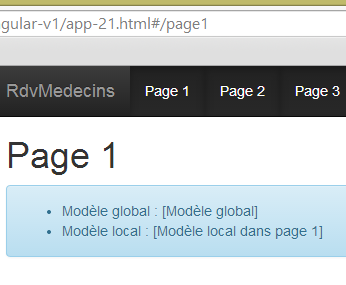 |
The [/page2] and [/page3] views are built on the same model as the [/page1] view (see the screenshots on page 240).
3.7.15.8. Navigation Control
We now want to control navigation as follows [page1 --> page2 --> page3 --> page1]. Thus, if the user is on page 1 [/page1] and types the URL [/page3] into their browser, this navigation should not be accepted, and the user should remain on page 1.
To achieve this, we modify the page controllers as follows:
angular.module("rdvmedecins")
  .controller('page1Ctrl', ['$scope', '$location',
    function ($scope, $location) {
      // authorized navigation?
      var main = $scope.main;
      if (main.lastUrl && main.lastUrl != '/page3') {
        // we return to the last URL
        $location.path(main.lastUrl);
        return;
      }
      // we store the URL of the page
      main.lastUrl = '/page1';
      // page template
      var page1 = $scope.page1;
      page1.text = "[Modèle local dans page 1]";
    }]);
- line 12: when a page is displayed, we store its URL in the [main.lastUrl] model. Here we’re using the concept we discussed earlier: using the [main] model to store information shared by all views. In this case, it’s the last URL visited;
- The code in lines 4–12 is duplicated and adapted for the three views. Here we are in the [/page1] view;
- line 5: we retrieve the [main] model;
- line 6: if the [main.lastUrl] model exists and is different from [/page3], then navigation is prohibited (the last visited URL exists and is not /page3);
- line 8: we then return to the last URL visited;
Let’s give it a try:
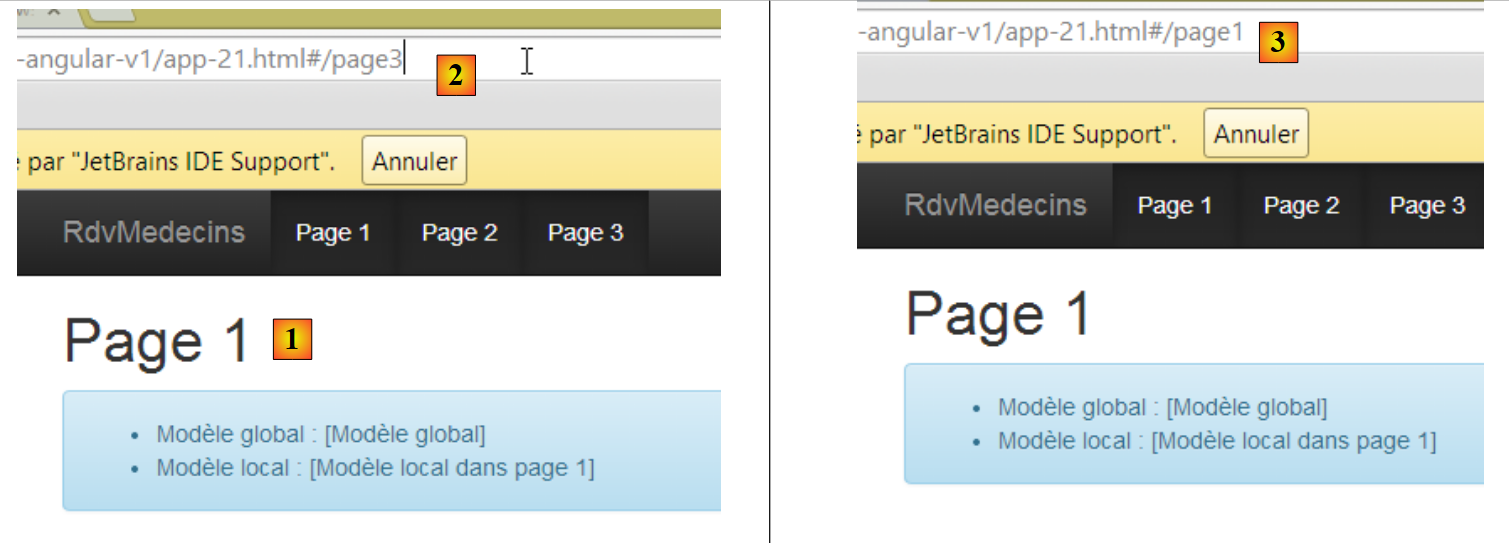 |
- in [1], we are on page 1 and type the URL for page 3 in [2];
- in [3], navigation did not occur and we returned to the URL of page 1;
3.7.16. Conclusion
We have covered all the use cases we will encounter in the final version of the Angular client. When we present it, we will focus more on the application’s features than on its implementation details. For the latter, we will simply refer to the example illustrating the use case under consideration.
3.8. The Final Angular Client
3.8.1. Project Structure
The final project looks like this:
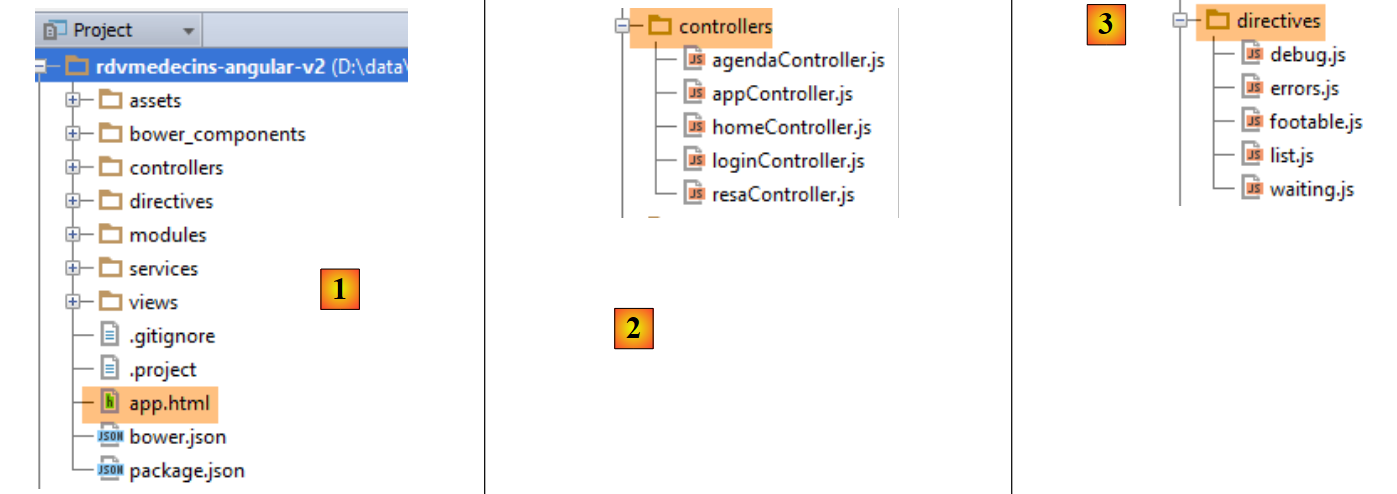 |
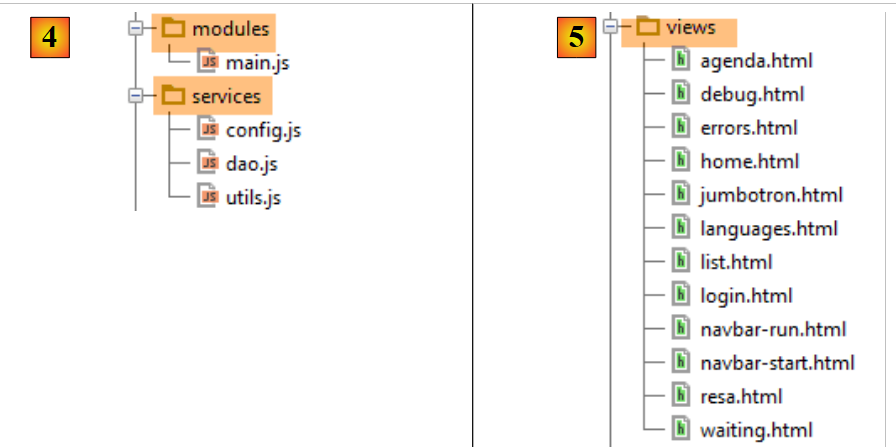 |
- in [1], the entire project. [app.html] is the application’s master page;
- in [2], the controllers;
- in [3], the directives;
- in [4], the services and the Angular module [main.js] of the application;
- in [5], the various views that are inserted into the master page [app.html];
3.8.2. Project dependencies
The project dependencies are as follows:
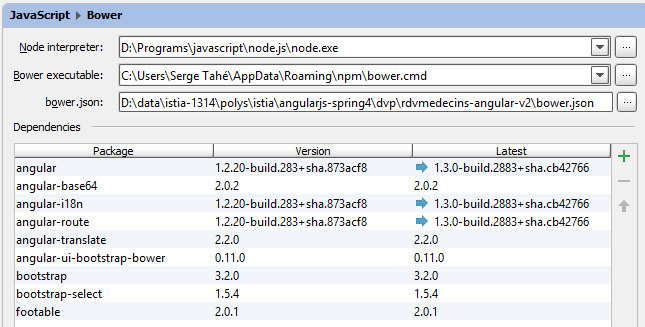 |
The role of these various elements was explained in Section 3.4, page 134.
3.8.3. The master page [app.html]
The master page is as follows:
<!DOCTYPE html>
<html ng-app="rdvmedecins">
<head>
  <title>RdvMedecins</title>
  <!-- META -->
  <meta http-equiv="Content-Type" content="text/html; charset=utf-8">
  <meta name="viewport" content="width=device-width, initial-scale=1.0">
  <meta name="description" content="Angular client for RdvMedecins">
  <meta name="author" content="Serge Tahé">
  <!-- on CSS -->
  <link rel="stylesheet" href="bower_components/bootstrap/dist/css/bootstrap.min.css"/>
  <link href="bower_components/bootstrap/dist/css/bootstrap-theme.min.css" rel="stylesheet"/>
  <link href="bower_components/bootstrap-select/bootstrap-select.min.css" rel="stylesheet"/>
  <link href="assets/css/rdvmedecins.css" rel="stylesheet"/>
  <link href="assets/css/footable.core.min.css" rel="stylesheet"/>
</head>
<!-- controller [appCtrl], model [app] -->
<body ng-controller="appCtrl">
<div class="container">
 ...
</div>
<!-- Bootstrap core JavaScript ================================================== -->
<script type="text/javascript" src="bower_components/jquery/dist/jquery.min.js"></script>
<script type="text/javascript" src="bower_components/bootstrap/dist/js/bootstrap.min.js"></script>
<script type="text/javascript" src="bower_components/bootstrap-select/bootstrap-select.min.js"></script>
<script src="bower_components/footable/js/footable.js" type="text/javascript"></script>
<!-- angular js -->
<script type="text/javascript" src="bower_components/angular/angular.min.js"></script>
<script type="text/javascript" src="bower_components/angular-ui-bootstrap-bower/ui-bootstrap-tpls.min.js"></script>
<script type="text/javascript" src="bower_components/angular-route/angular-route.min.js"></script>
<script type="text/javascript" src="bower_components/angular-translate/angular-translate.min.js"></script>
<script type="text/javascript" src="bower_components/angular-base64/angular-base64.min.js"></script>
<!-- modules -->
<script type="text/javascript" src="modules/main.js"></script>
<!-- services -->
<script type="text/javascript" src="services/config.js"></script>
<script type="text/javascript" src="services/dao.js"></script>
<script type="text/javascript" src="services/utils.js"></script>
<!-- guidelines -->
<script type="text/javascript" src="directives/waiting.js"></script>
<script type="text/javascript" src="directives/errors.js"></script>
<script type="text/javascript" src="directives/footable.js"></script>
<script type="text/javascript" src="directives/debug.js"></script>
<script type="text/javascript" src="directives/list.js"></script>
<!-- controllers -->
<script type="text/javascript" src="controllers/appController.js"></script>
<script type="text/javascript" src="controllers/loginController.js"></script>
<script type="text/javascript" src="controllers/homeController.js"></script>
<script type="text/javascript" src="controllers/agendaController.js"></script>
<script type="text/javascript" src="controllers/resaController.js"></script>
</body>
</html>
- line 18: note that [appCtrl] is the master page controller;
- lines 19–21: the content of the master page;
This content is as follows:
<div class="container">
  <!-- navigation bars -->
  <ng-include src="'views/navbar-start.html'" ng-show="app.navbarstart.show"></ng-include>
  <ng-include src="'views/navbar-run.html'" ng-show="app.navbarrun.show"></ng-include>
  <!-- the jumbotron -->
  <ng-include src="'views/jumbotron.html'"></ng-include>
  <!-- page title -->
  <div class="alert alert-info" ng-show="app.titre.show" translate="{{app.titre.text}}"
       translate-values="{{app.titre.model}}"></div>
  <!-- page errors -->
  <errors model="app.errors" ng-show="app.errors.show"></errors>
  <!-- the waiting message -->
  <waiting model="app.waiting" ng-show="app.waiting.show"></waiting>
  <!-- the current view -->
  <ng-view></ng-view>
  <!-- debug -->
  <debug model="app" ng-show="app.debug.on"></debug>
</div>
Regardless of the view displayed, it will always have the following elements:
- lines 3-4: a command bar. The two bars on lines 3 and 4 are mutually exclusive;


- line 6: an application logo/text:

- line 8: a title

- line 11: an error message:

- line 13: a loading message:

- line 17: debug information:
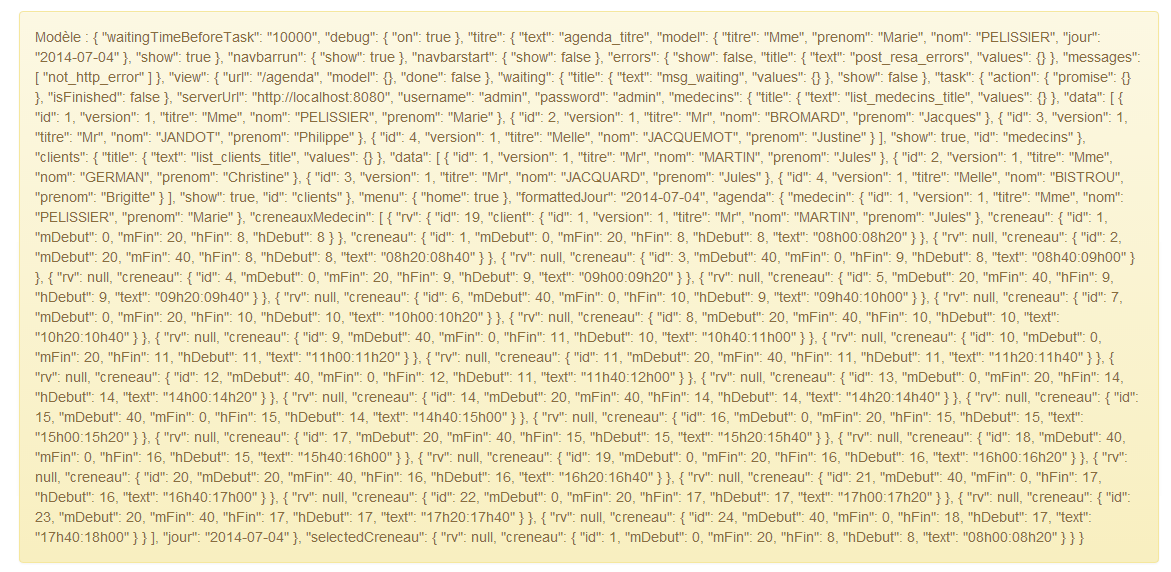
All of the above elements are controlled by an [ng-show / ng-hide] directive, which means that even if they are present, they are not necessarily visible.
3.8.4. The application views
In the master page code, we have:
<div class="container">
  ...
  <!-- the current view -->
  <ng-view></ng-view>
  ...
</div>
Line 4 receives the various views of the application. These are defined in the [main.js] module:
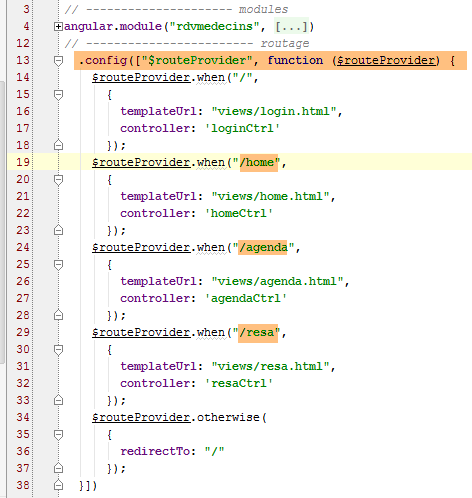
The role of configuring the different routes was explained in section 3.7.15.4, page 242.
The [login.html] view is empty, meaning it does not add any elements to those already present in the master page.
The [home.html] view adds the following element to the master page:
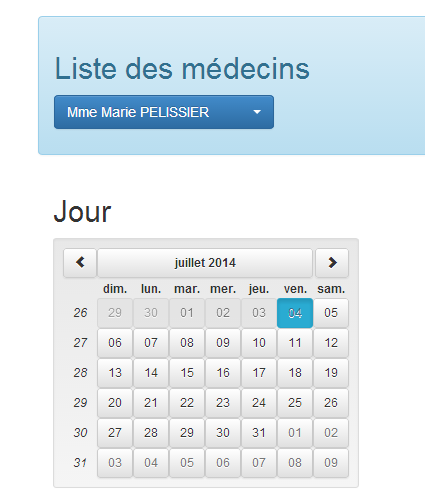
The [agenda.html] view adds the following element to the master page:
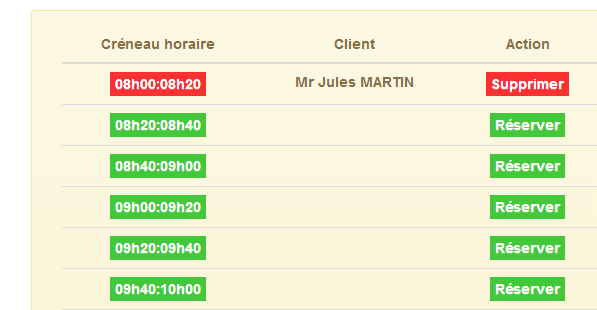
The [resa.html] view adds the following element to the master page:
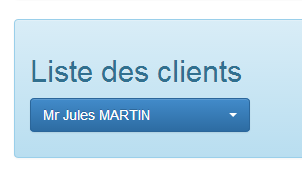
3.8.5. Application Features
The Angular client views were already presented in Section 1.3.3, on page 7. To make this new chapter easier to read, we are repeating them here. The first view is as follows:
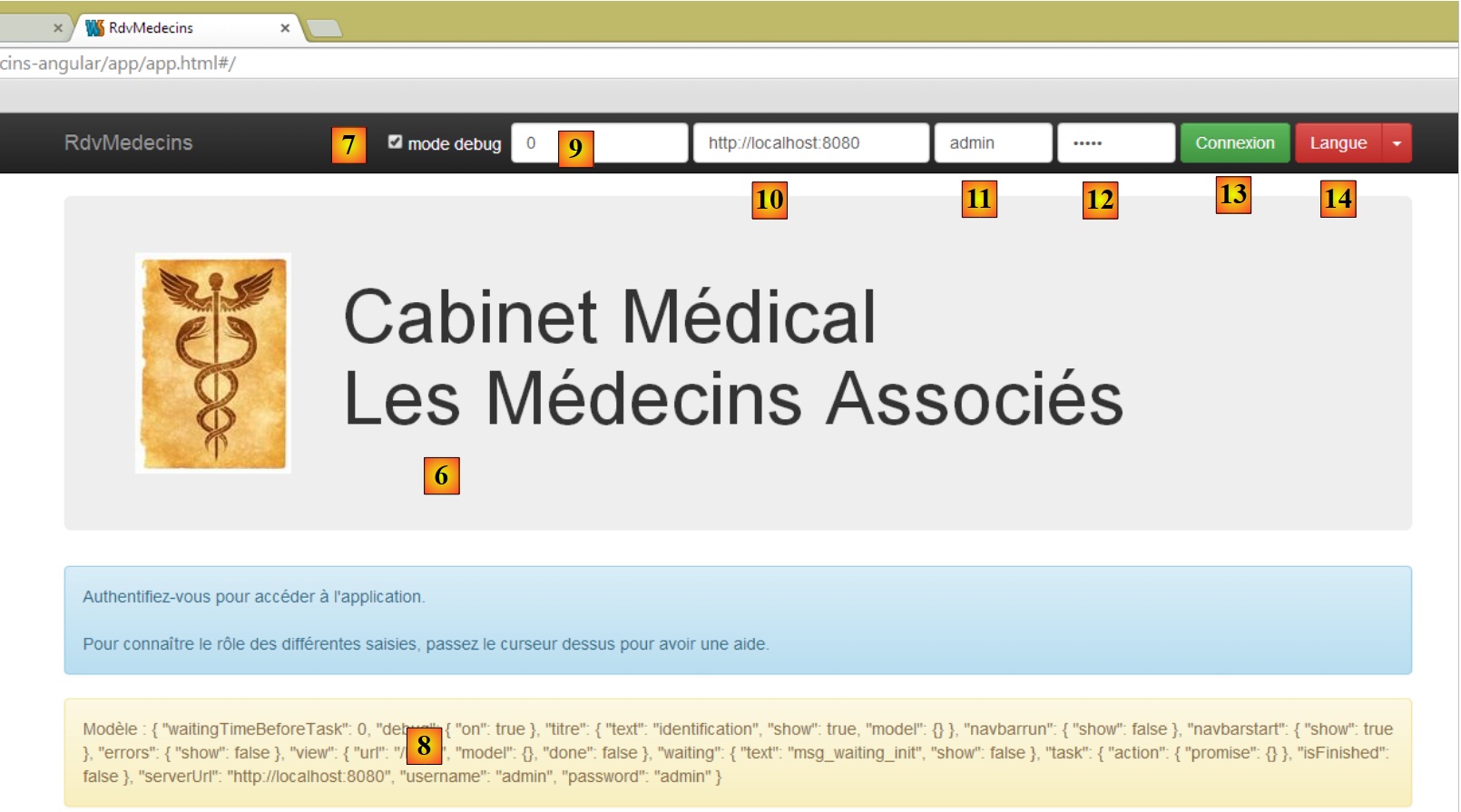 |
- [6], the application’s login page. This is an appointment scheduling application for doctors;
- in [7], a checkbox that allows the user to enable or disable [debug] mode. This mode is characterized by the presence of the [8] panel, which displays the model of the current view;
- in [9], an artificial wait time in milliseconds. It defaults to 0 (no wait). If N is the value of this wait time, any user action will be executed after a wait time of N milliseconds. This allows you to see the wait management implemented by the application;
- in [10], the Spring 4 server URL. Based on what preceded, this is [http://localhost:8080];
- in [11] and [12], the username and password of the user who wants to use the application. There are two users: admin/admin (login/password) with a role (ADMIN) and user/user with a role (USER). Only the ADMIN role has permission to use the application. The USER role is included solely to demonstrate the server’s response in this use case;
- in [13], the button that allows you to connect to the server;
- in [14], the application language. There are two: French (default) and English.
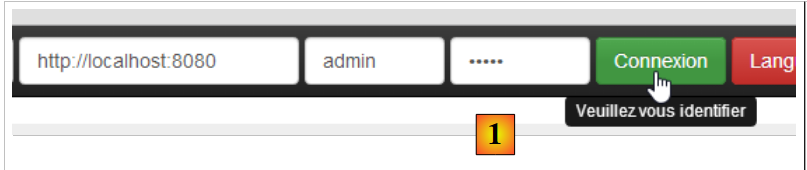 |
- at [1], you log in;
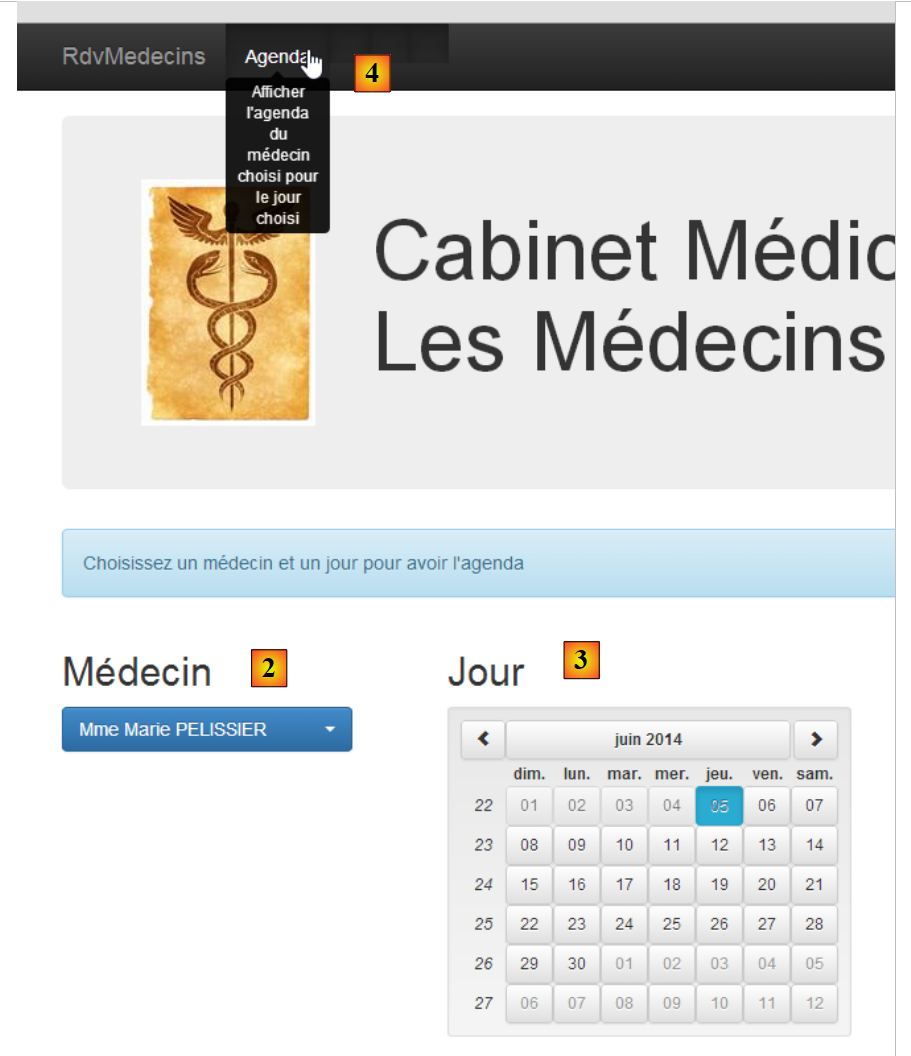 |
- once logged in, you can choose the doctor with whom you want an appointment [2] and the date of the appointment [3];
- In [4], you request to view the selected doctor’s schedule for the chosen day;
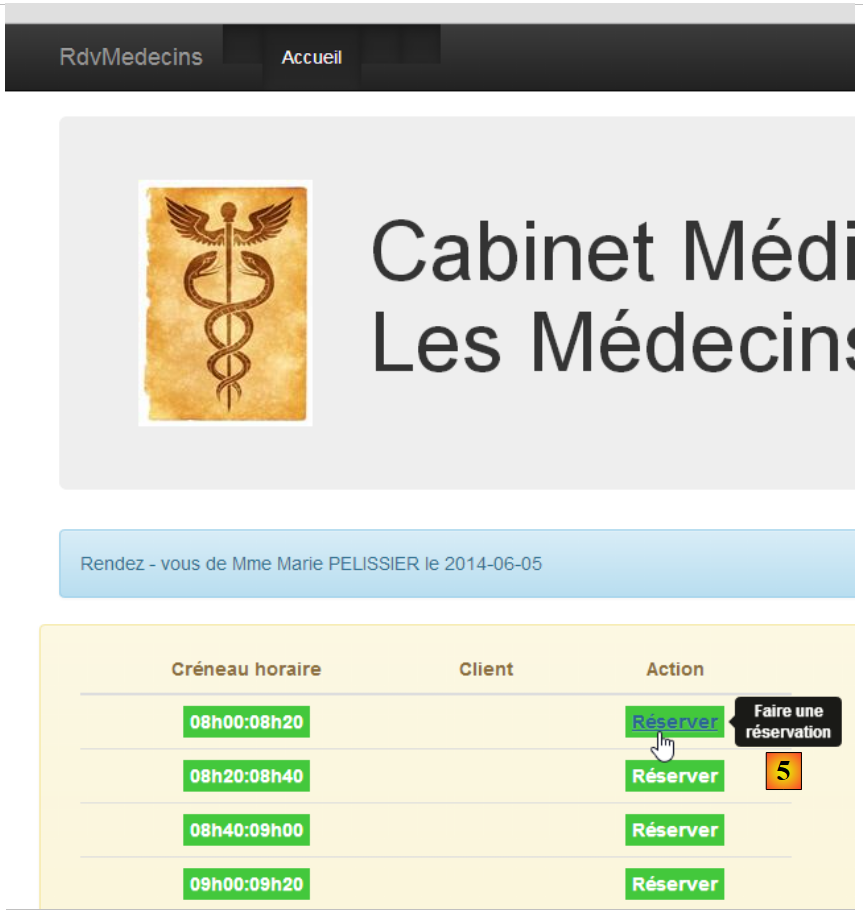 |
- Once the doctor’s schedule is displayed, you can book a time slot [5];
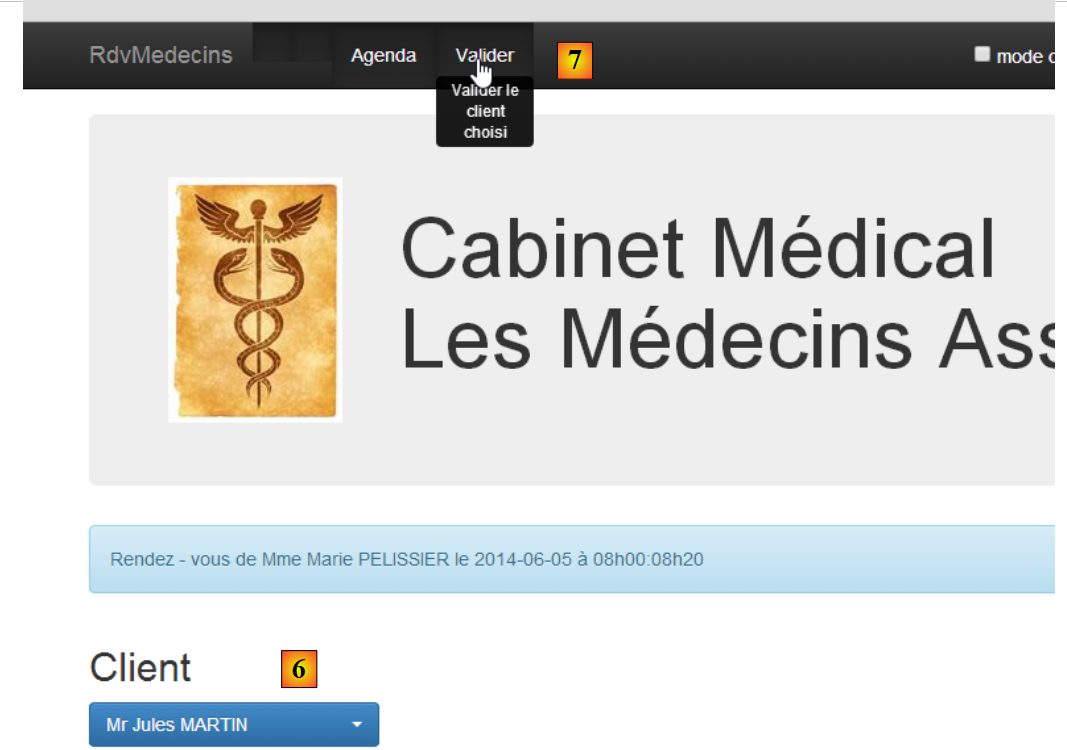 |
- In [6], select the patient for the appointment and confirm your selection in [7];
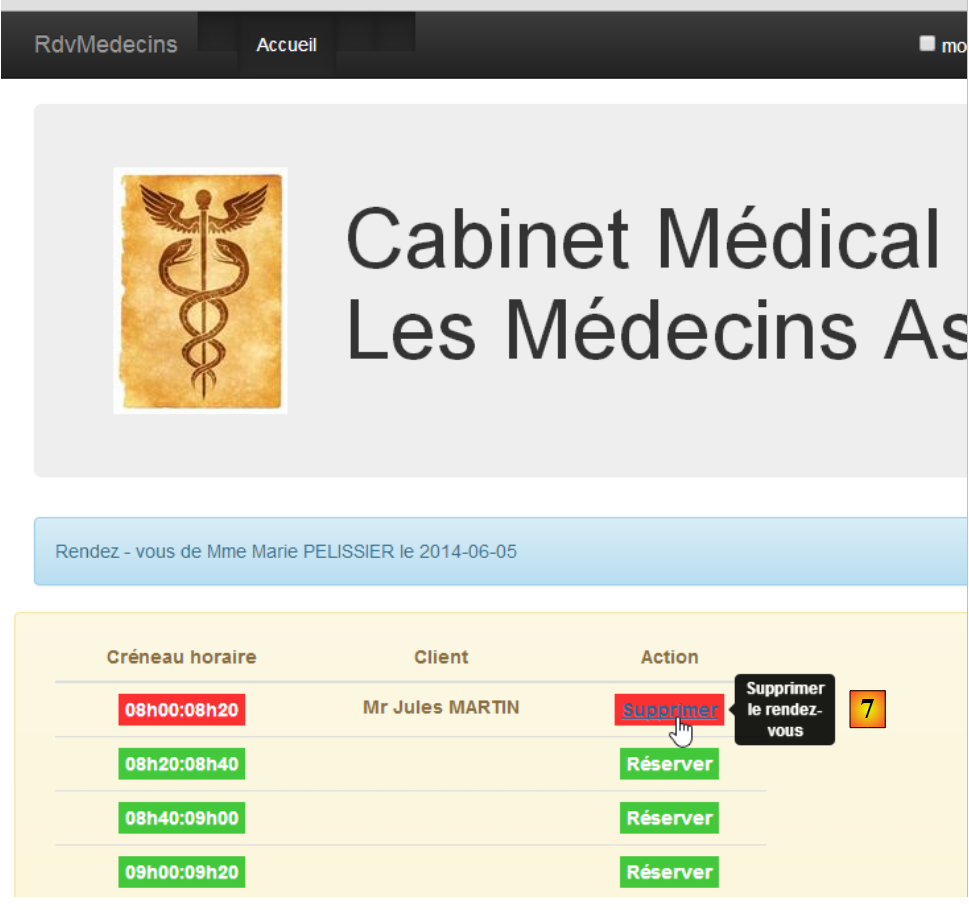 |
Once the appointment is confirmed, you are automatically returned to the schedule where the new appointment is now listed. This appointment can be deleted later [7].
The main features have been described. They are simple. Those not described are navigation functions for returning to a previous view. Let’s conclude with language settings:
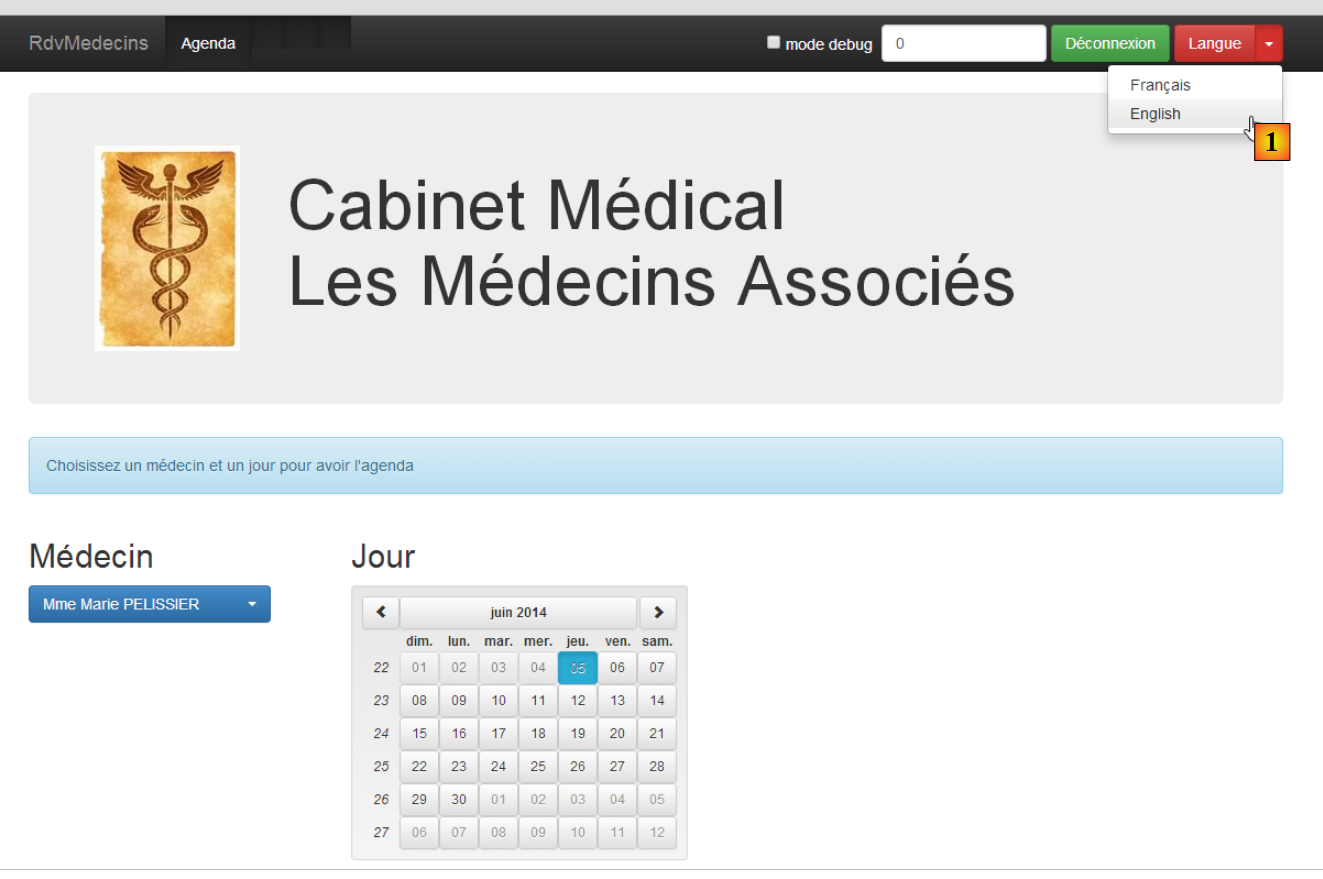 |
- In [1], the language switches from French to English;
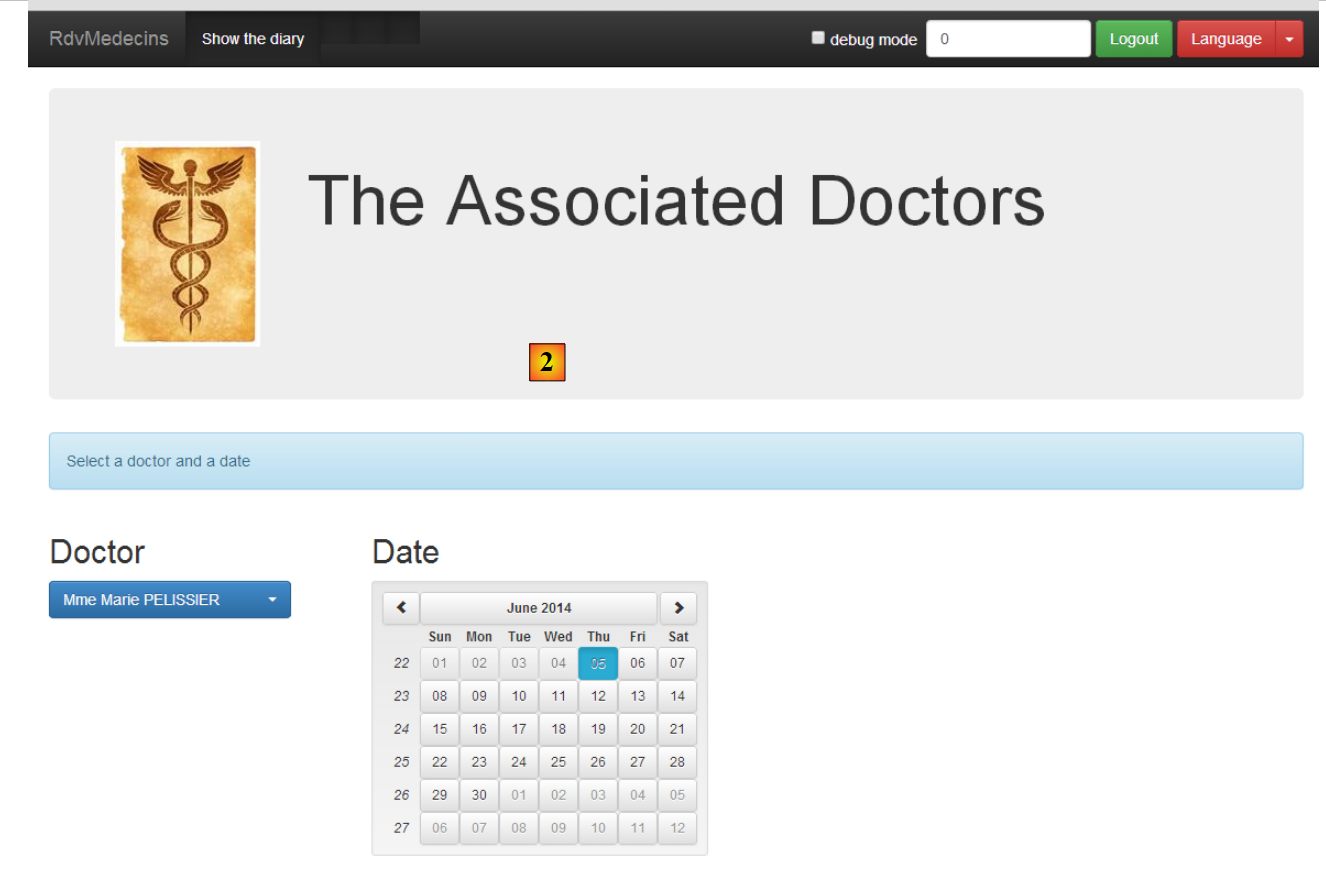 |
- in [2], the view switches to English, including the calendar;
3.8.6. The [main.js] module
The [main.js] module defines the Angular module that will control the application:
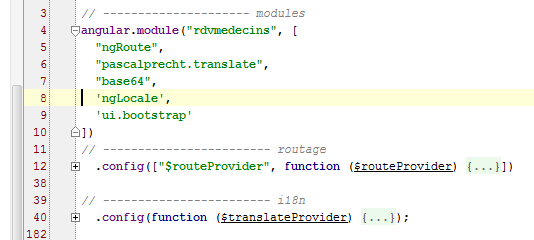 |
- line 4: the module is called [rdvmedecins];
- line 5: the [ngRoute] module is used for URL routing;
- line 6: the [translate] module is used for text internationalization;
- line 7: the [base64] module is used to encode the string 'login:password' in Base64;
- line 8: the [ngLocale] module is used to internationalize the calendar;
- line 9: the [ui.bootstrap] module is used for the calendar;
- line 12: route configuration;
- line 40: message internationalization;
3.8.7. The master page controller
Let’s review the HTML code for the master page [app.html]:
<body ng-controller="appCtrl">
<div class="container">
...
Line 1: The entire body of the master page is controlled by the [appCtrl] controller. Due to its position, this makes it the general and main controller of the application. As explained in Section 3.7.15, the model created by this controller is inherited by all views that will be inserted into the master page.
Its code is as follows:
angular.module("rdvmedecins")
  .controller("appCtrl", ['$scope', 'config', 'utils', '$location', '$locale',
    function ($scope, config, utils, $location, $locale) {

      // debug
      utils.debug("[app] init");

      // ----------------------------------------initialisation page
      // templates for # pages
      $scope.app = {waitingTimeBeforeTask: config.waitingTimeBeforeTask};
      $scope.login = {};
      $scope.home = {};
      $scope.agenda = {};
      $scope.resa = {};
      // current page template
      var app = $scope.app;
      ...

      // ---------------------------------- méthodes

      // cancel current job
      app.cancel = function () {
...
      };

      // disconnect
      app.deconnecter = function () {
        ...
      };

      // this code must remain here as it refers to the preceding [cancel] function
      app.waiting = {title: {text: config.msgWaitingInit, values: {}}, cancel: app.cancel, show: true};
    }])
;
Lines 10–14 define the five models used in the application:
app.html | appCtrl | |
login.html | loginCtrl | |
home.html | homeCtrl | |
reservation.html | resaCtrl | |
agenda.html | agendaCtrl |
It is important to understand that the [$scope] object, being the model of the master page controller, is inherited by all views and controllers. Thus, the [loginCtrl] controller has access to the elements [$scope.app, $scope.login, $scope.home, $scope.resa, $scope.agenda]. In other words, a controller has access to the scopes of other controllers. The application under consideration carefully avoids using this capability. Thus, for example, the [loginCtrl] controller works with only two scopes:
- its own [$scope.login];
- and that of the parent controller [$scope.app];
The same applies to all other controllers. The [$scope.app] model will be used as shared memory between the different controllers. When a controller C1 needs to pass information to controller C2, the following procedure is followed:
In [C1]:
In [C2]:
In both cases, $scope is inherited from the [appCtrl] controller and is therefore identical (it is a pointer) in [C1] and [C2]. The [$scope.app] object, which serves as shared memory between controllers, is often referred to as a "session" in comments, mimicking the session used in traditional web applications, which refers to the shared memory between successive HTTP requests.
Let’s return to the code of the [appCtrl] controller:
      // templates for # pages
      $scope.app = {waitingTimeBeforeTask: config.waitingTimeBeforeTask};
      $scope.login = {};
      $scope.home = {};
      $scope.agenda = {};
      $scope.resa = {};
      // current page template
      var app = $scope.app;
      // [app.debug] and [utils.verbose] must always be synchronized
      app.debug = utils.verbose;
      app.debug.on = config.debug;
      // no page title for the moment
      app.titre = {show: false};
      // no navigation bars
      app.navbarrun = {show: false};
      app.navbarstart = {show: false};
      // no errors
      app.errors = {show: false};
      // local default
      angular.copy(config.locales['fr'], $locale);
      // the current view
      app.view = {url: undefined, model: {}, done: false};
      // the current task
app.task = app.view.model.task = {action: utils.waitForSomeTime(app.waitingTimeBeforeTask), isFinished: false};
- line 8: [$scope.app] will be the model for the master page. It will also serve as the shared memory between the various controllers. Rather than writing [$scope.app.field=value] everywhere, the pointer [$scope.app] is assigned to the variable [app], so we write [app.field=value]. Just remember that [app] is the model exposed to the master page;
- line 11: [app.debug.on] is a boolean that controls the application’s debug mode. By default, it is set to true. Its value is linked to the [debug] checkbox in the navigation bars;
- line 15: [app.navbarrun.show] controls the display of the following navigation bar:

- line 16: [app.navbarstart.show] controls the display of the following navigation bar:

- line 18: [app.errors] is the template for the error banner;

- Line 22: [app.view] will contain information about the current view—the one currently displayed by the [ng-view] tag in the master page. We will include the following information there:
- [url]: the URL of the current view, for example [/agenda];
- [model]: the model of the current view, for example [$scope.agenda];
- [done]: when true, indicates that the current view has finished its work and that we are switching to another view;
This information is used to control navigation.
- line 24: launches an asynchronous task, a simulated wait. The asynchronous task is referenced by two pointers [app.view.model.task.action] and [app.task];
Two methods have been factored into the controller [appCtrl]:
      // cancel current job
      app.cancel = function () {
...
      };

      // disconnect
      app.deconnecter = function () {
        ...
};
- line 2: the [app.cancel] function is used to cancel the current task for which a loading message is currently displayed. All views display this message, so the task will be canceled here;
- line 7: the [app.logout] function returns the user to the login page. All views, except the [/login] view, offer this option;
The [app.deconnecter] function is as follows:
      // disconnect
      app.deconnecter = function () {
        // we return to the login page
        $location.path(config.urlLogin);
};
- line 4: return to the login page at URL [/login];
3.8.8. Asynchronous Task Management
In our application, at any given time, only one asynchronous task will be running. It is possible to have multiple tasks running. For example, when the application starts, it requests the list of doctors from the web service and then the list of clients with two successive HTTP requests. We could do the same thing with two simultaneous HTTP requests. Angular provides the tools for this. Here, we did not choose that approach.
The currently running task is canceled with the following code in the [appCtrl] controller:
      // cancel current job
      app.cancel = function () {
        utils.debug("[app] cancel task");
        // cancel the current view's asynchronous task
        var task = app.view.model.task;
        task.isFinished = true;
        task.action.reject();

        ...
};
- line 5: the task is retrieved from [app.view.model.task]. Therefore, all controllers will ensure that their asynchronous tasks are referenced by this object;
- line 6: to indicate that the task is finished;
- line 7: to terminate the task with a failure. This notation differs from that used in the Angular examples studied:
- in the examples, the [task] object was a [$q.defer()] object that could be terminated;
- in the final version, the [task] object is an object with the fields [action, isFinished], where [action] is the [$q.defer()] object that can be terminated and [isFinished] is a boolean indicating that the action is complete;
Let’s examine the lifecycle of the [task] object using an example. At startup, after the [appCtrl] controller, the [loginCtrl] controller takes over to display the [views/login.html] view. Its initialization code is as follows:
      // retrieve the parent model
      var login = $scope.login;
      var app = $scope.app;
      // current view
app.view = {url: config.urlLogin, model: login, done: false};
Line 5, we have [model=login]. This means that when we modify the [login] object, we modify the [app.view.model] object, i.e., [$scope.app.view.model]. When we want to simulate a wait in the [loginCtrl] controller, we write:
// simulated waiting
var task = login.task = {action: utils.waitForSomeTime(app.waitingTimeBeforeTask), isFinished: false};
By adding the [task] field to the [login] object, it is therefore added to the [$scope.app.view.model] object. If the user cancels the wait, the code in [appCtrl.cancel]:
// current page template
var app = $scope.app;
...
var task = app.view.model.task;
task.isFinished = true;
task.action.reject();
will successfully complete the simulated wait (lines 4–6).
3.8.9. Navigation Control
The navigation rules used in the application are as follows:
any | yes | |
/login | yes if the controller [loginCtrl] has indicated that it has finished its work | |
/home | yes | |
/calendar | yes | |
/home | yes if the controller [homeCtrl] has indicated that it has finished its work | |
/reset | yes | |
/agenda | yes | |
/calendar | yes if the controller [homeCtrl] has indicated that it has finished its work | |
/reset | yes |
This is implemented with the following code:
For [agendaCtrl]:
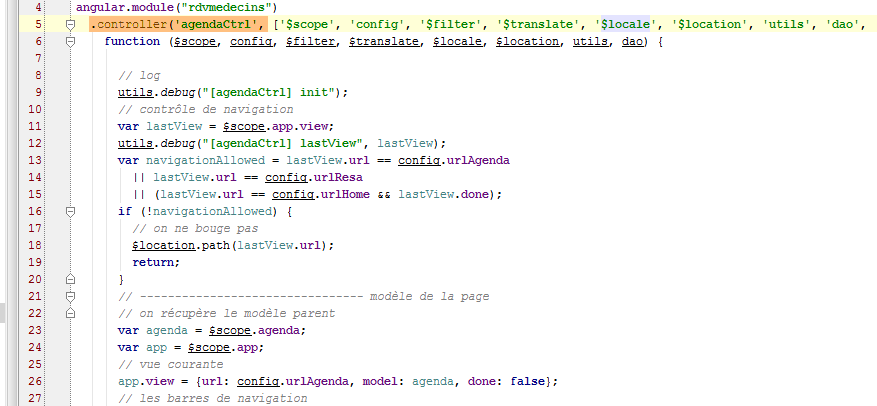
- lines 11–20: implementation of the navigation rule;
- line 26: new current view;
For [resaCtrl]:
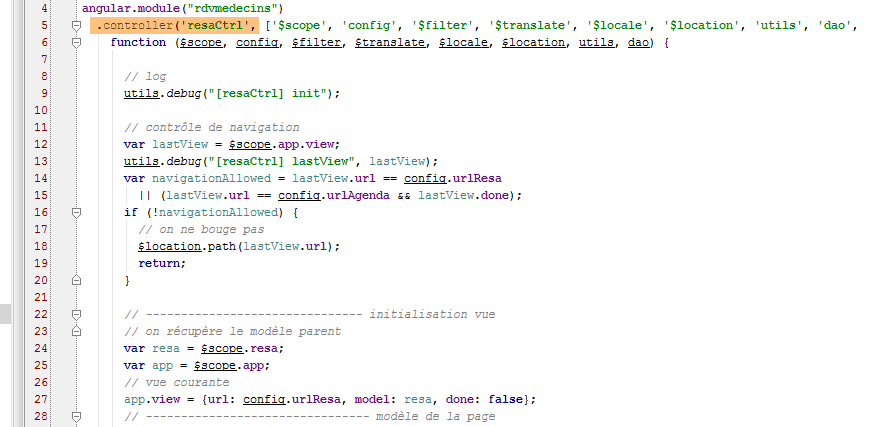
- lines 12–20: implementation of the navigation rule:
- line 27: new current view;
For [loginCtrl]:
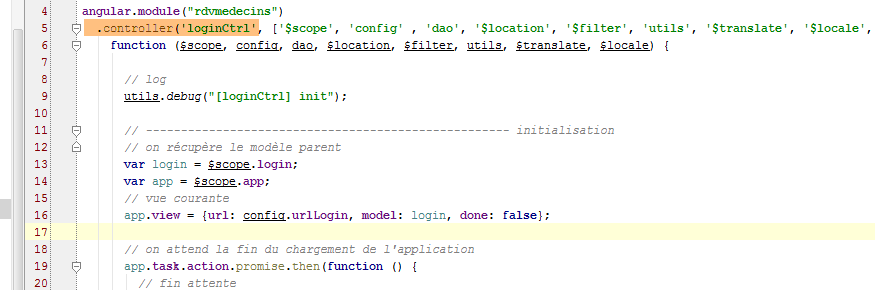
- There is no navigation control here since the rule states that the URL [/login] can be accessed from anywhere. Therefore, if the user types this URL into their browser, it will work regardless of the current view;
- line 16: the new current view;
The code for the [homeCtrl] controller was provided in section 3.8.7.
Finally, for a rule such as:
/home | yes, if the controller [homeCtrl] has indicated that it has finished its work |
here is an example of code that navigates from the URL [/home] to the URL [/agenda]:
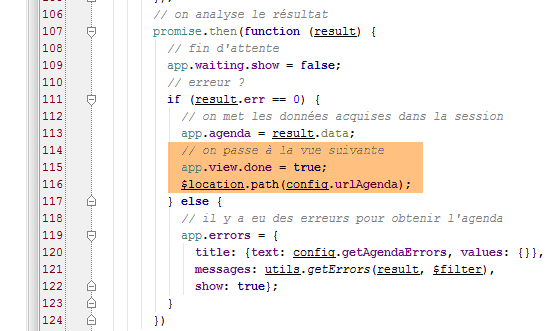 |
Above, we are in the [displayCalendar] method of the [homeCtrl] controller. The user has requested a doctor’s calendar.
- line 107: the HTTP task promise;
- line 109: the variable [app] has been initialized with [$scope.app]. As we have seen, this object is used as the template for the [app.html] view. This template [$scope.app] is also used to store information that needs to be shared between views;
- line 111: the error code returned by the task is analyzed;
- line 113: the result [result.data] is placed in the [app] model;
- line 116: the controller [homeCtrl] will hand off to the controller [agendaCtrl]. It indicates that it has finished its work with the code on line 115. This code will be used by the controller [agendaCtrl] as follows:
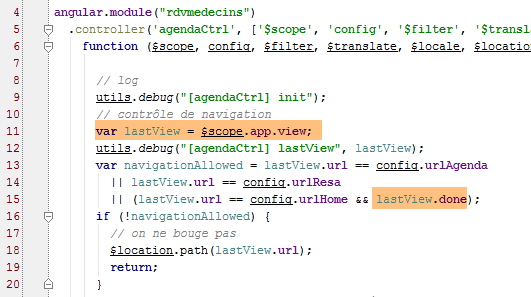
- line 11: the object [$scope.app.view] is retrieved;
- line 15: processing of the [$scope.app.view.done] field initialized by [homeCtrl];
3.8.10. Services
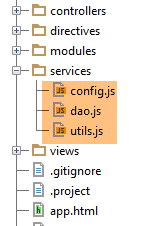 |
The services [config, utils, dao] are those already described in the Angular overview:
- the [config] service was introduced in section 3.7.4;
- the [utils] service was introduced in section 3.7.5;
- the [dao] service was introduced in section 3.7.6;
As a reminder, here is the structure of these services:
[config] service
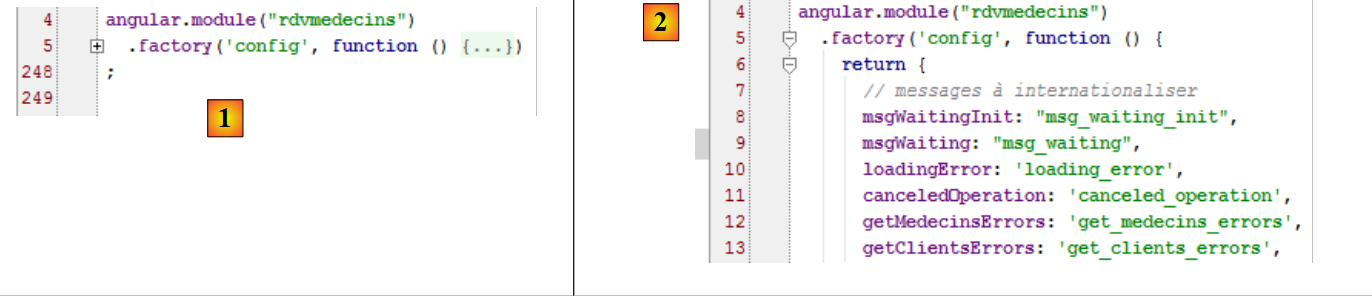 |
- in [1]: we see that the code is about 250 lines long. The bulk of this code involves externalizing the keys for internationalized messages [2]. We avoid hard-coding these keys directly into the code;
[utils] service
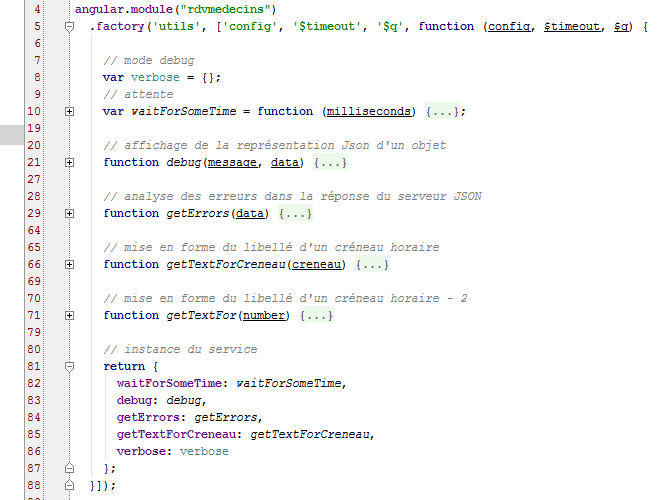 |
- Line 8: We haven’t encountered the [verbose] variable yet. It controls the [debug] function as follows:
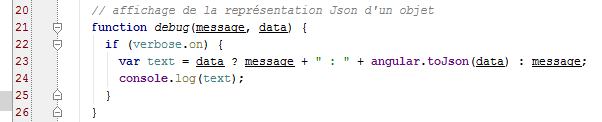 |
- Lines 22–25: The [utils.debug] function does nothing if [verbose.on] evaluates to false. This variable is bound to a variable in the [appCtrl] controller:
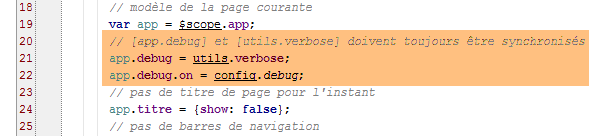 |
- line 21: [app.debug] takes the value of the pointer [utils.verbose]. Therefore, any change made to [app.debug] will also be made to [utils.verbose];
- line 22: the initial value of [app.debug.on] is taken from the configuration file. By default, it is set to true. This value may change over time. The user can change it via the navigation bars:
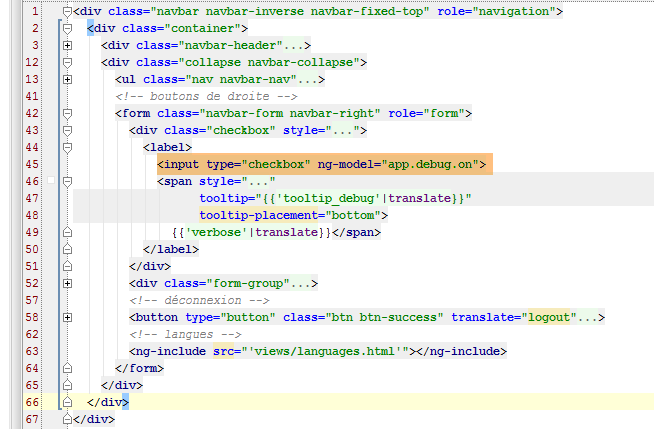  |
- line 45: a checkbox (type=checkbox) allows you to change the value of [app.debug.on] (ng-model attribute);
[dao] Service
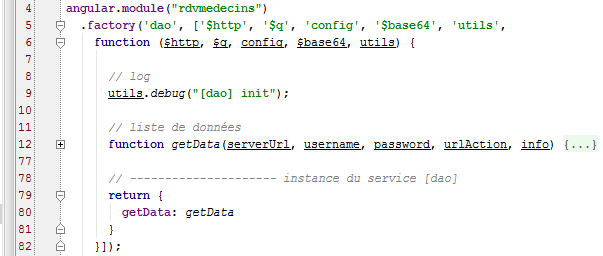 |
3.8.11. Directives
 |
The directives [errors, footable, list, waiting] are those already described in the Angular overview:
- the [footable] directive was introduced in section 3.7.8.6;
- the [list] directive was introduced in section 3.7.12;
- the [errors] and [waiting] directives were introduced in section 3.7.14;
We had not encountered the [debug] directive. It is as follows:
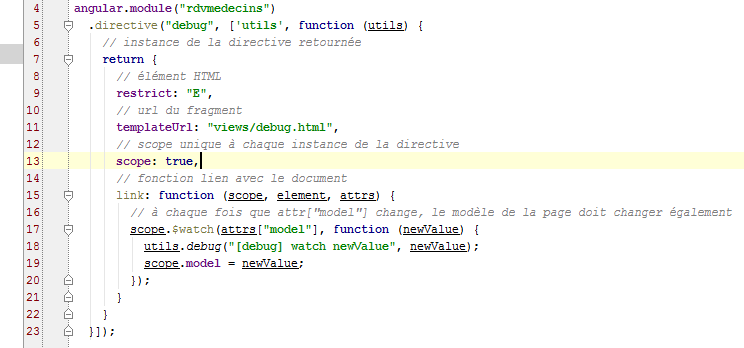 |
The [debug.html] file referenced on line 11 is as follows:
 |
- line 2: the [debug] directive displays its template in JSON format in a Bootstrap banner (line 1);
This directive is only used in the master page [app.html]:
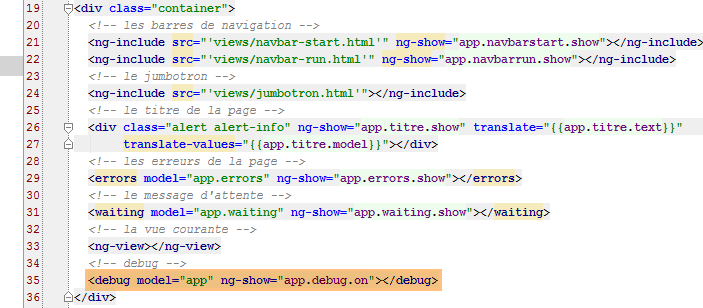 |
- The [debug] directive is used on line 35. It therefore displays the JSON representation of the [$scope.app] model when in debug mode (ng-show attribute). This produces output like the following:
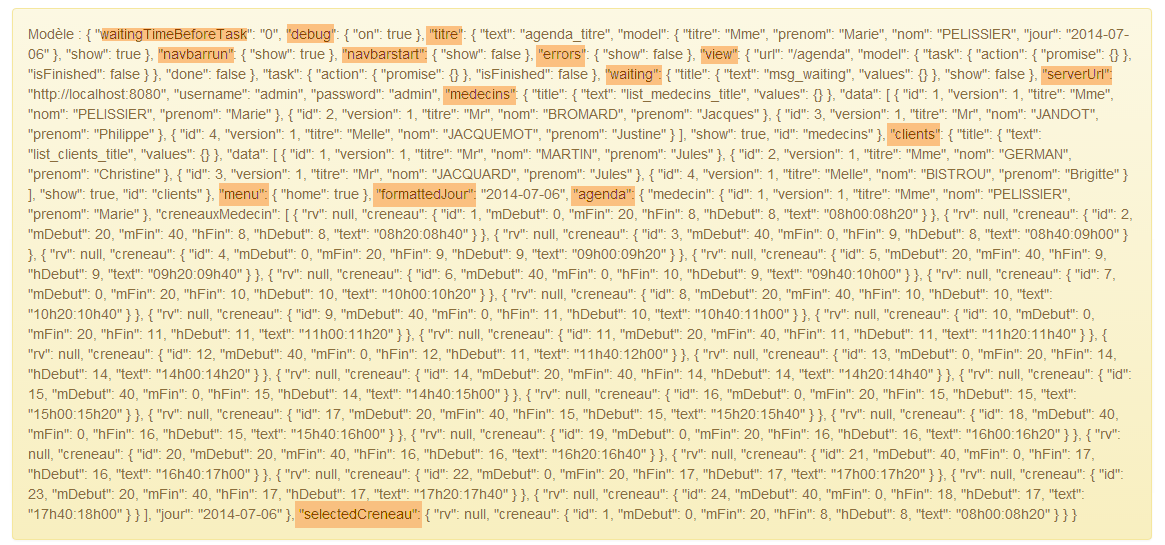 |
This requires a good understanding of the code to interpret, but once that is acquired, the information above becomes useful for debugging. Here, we have highlighted the elements of the displayed [$scope.app] model. Recall that [$scope.app] is the shared memory among controllers;
- [waitingBeforeTask]: the simulated wait time before any HTTP request;
- [debug]: debug mode—is necessarily true if this banner is displayed;
- [navbarrun]: a boolean that controls the display of the following navigation bar:
- [navbarstart]: a boolean that controls the display of the following navigation bar:
- [errors]: template for the [errors] directive;
- [view]: encapsulates information about the currently displayed view;
- [waiting]: template for the [waiting] directive;
- [serverUrl, username, password]: login credentials for the web service;
- [doctors]: model for the [list] directive applied to doctors;
- [clients]: same as above for clients;
- [menu]: controls the displayed menu options. These are defined in [navbar-run.html]:
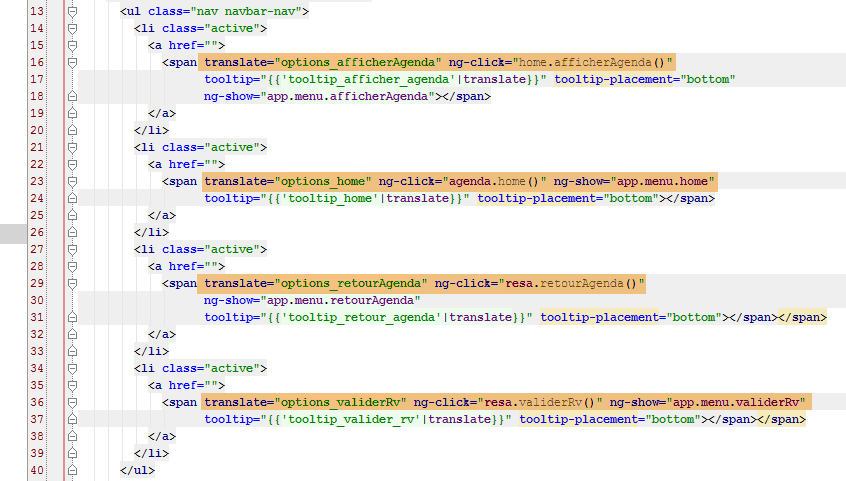
The menu options are on lines 16, 23, 29, and 36.
- [formattedDay]: the day selected in the calendar in the format 'yyyy-mm-dd';
- [agenda]: the doctor’s schedule. It contains available slots (rv==null) and booked slots. For the latter, it includes the name of the client who made the booking;
- [selectedCreneau]: the time slot selected for making a reservation;
3.8.12. The [loginCtrl] controller
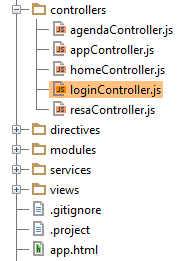 |
The [loginCtrl] controller is associated with the [views/login.html] view, which, when combined with the master page, produces the following page:
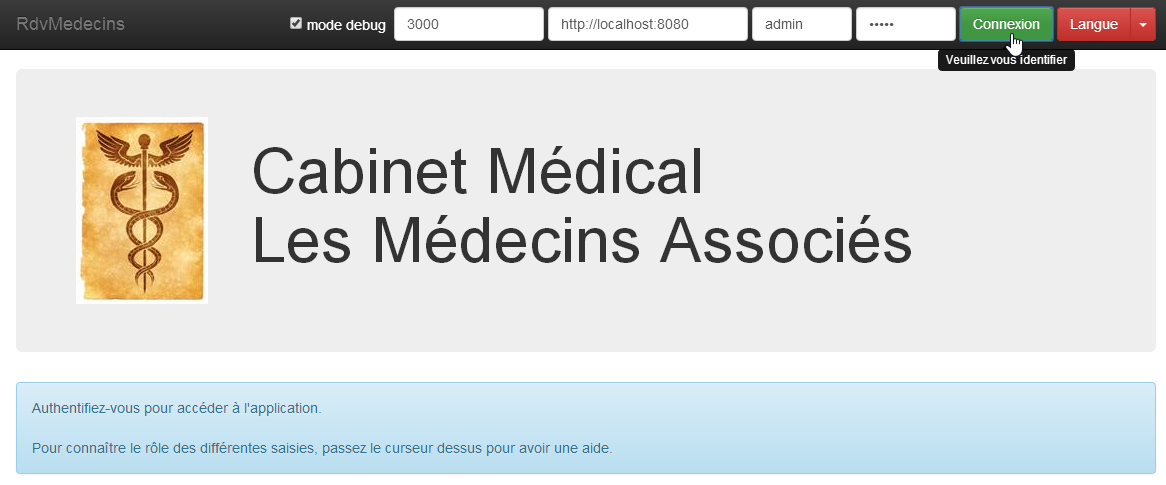
The [loginCtrl] controller is as follows:
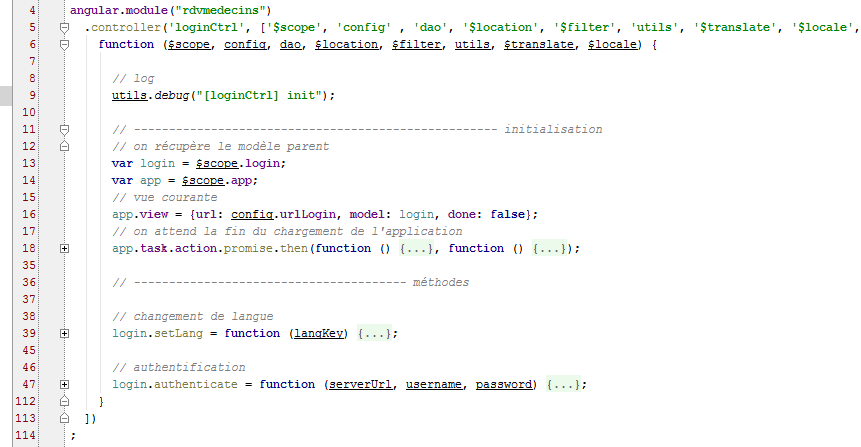
- line 13: [login] will be the model for the current view;
- line 14: [app] is the shared memory between controllers;
- line 16: [app.view] is populated with information from the current view;
This initialization code will be found in every controller. For controller C1 of a view V1 with model M1, we will have the following initialization code:
- line 18: you may recall that [appCtrl] launched a simulated wait referenced by the [app.task.action] object. We use the [promise] of this task to wait for it to finish;
- line 39: the [login.setLang] method handles language switching;
- line 47: the [login.authenticate] method handles user authentication;
Let’s look at the main steps of the authentication method:
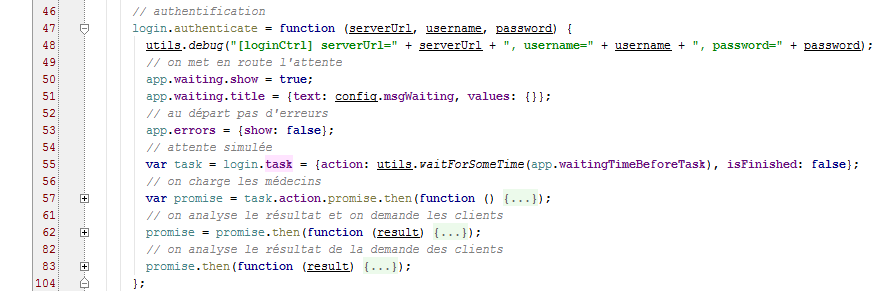
- lines 50–51: [app.waiting] is the model for the loading banner;
- line 53: [app.errors] is the model for the error banner;
- line 55: a simulated wait is initiated. The object [action, isFinished] is referenced by [login.task] and therefore, since [app.view.model=login], by [app.view.model.task]. Recall that this is the condition for the task to be canceled;
- line 57: after the simulated wait ends, the doctors are loaded;
- line 62: once the doctors have been retrieved, their request is analyzed. If the doctors have been obtained, the clients are then requested;
- line 83: the response is analyzed and the final view is displayed. This is done with the following code:
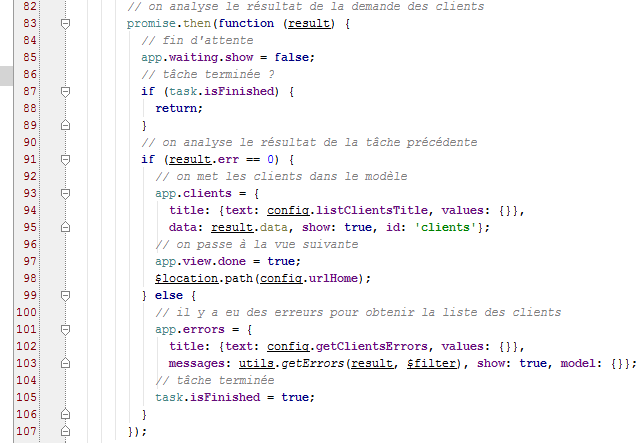
- Line 87: The boolean [task.isFinished] is set to true in the following cases:
- the user canceled the wait;
- the doctors' request ended with an error;
- lines 91–98: the case where we have the customers;
- line 93: [app.clients] is the model for the [list] directive that will display the clients in a dropdown list;
- lines 97–98: we prepare to change views (line 98) but first indicate that the controller has finished its work (line 97). Recall that [$scope.app.view.done] is used for navigation control;
The important point to note here is that the doctors and clients have been cached in the browser. They will no longer be requested from the web service.
3.8.13. The [homeCtrl] controller
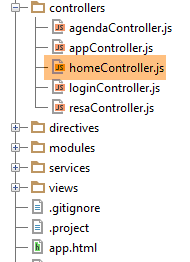 |
The [homeCtrl] controller is associated with the [views/home.html] view, which, when combined with the master page, produces the following page:
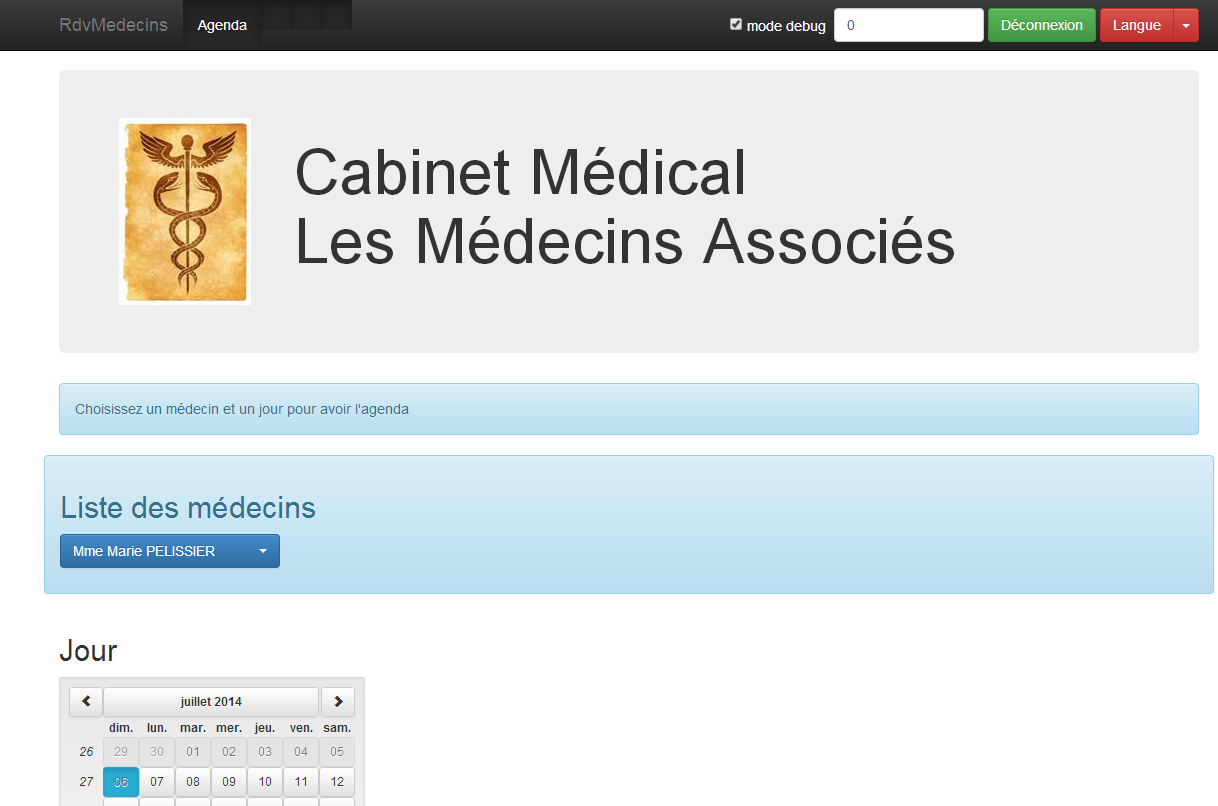
The structure of the [homeCtrl] controller is as follows:
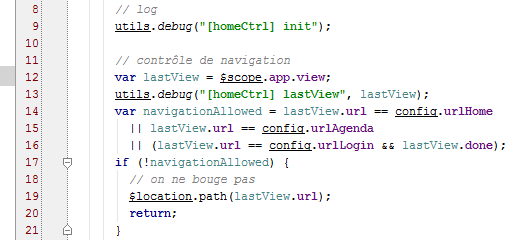
- lines 12–20: this is the navigation control. All controllers have this except [loginCtrl] because the page [/login.html] is accessible without conditions;
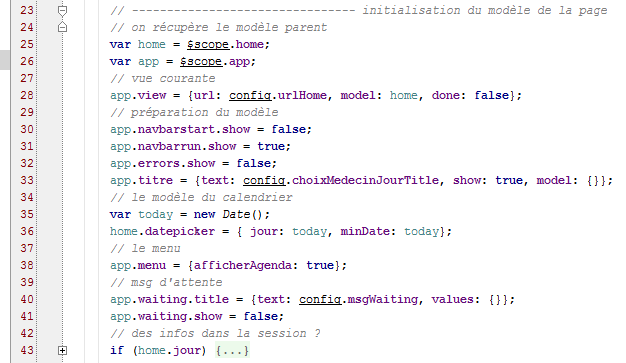
- lines 25–28: here we find lines similar to those in the [loginCtrl] controller. [home] is thus the view template associated with the controller;
- line 33: an attribute we haven’t encountered yet. This is the model for the view’s header bar:

- line 36: [home.datepicker] is the model for the calendar;
- line 38: [app.menu] is the model for the navigation bar menu. Here, the [Schedule] option will be present. This is what allows you to request a doctor’s schedule;
Finally, the controller has two methods:
Displaying the schedule (line 51) was covered in section 3.7.8.
3.8.14. The [agendaCtrl] controller
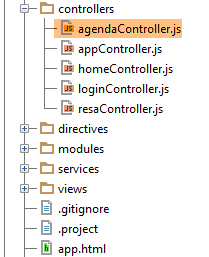 |
The [agendaCtrl] controller is associated with the [views/agenda.html] view, which, when combined with the master page, produces the following page:
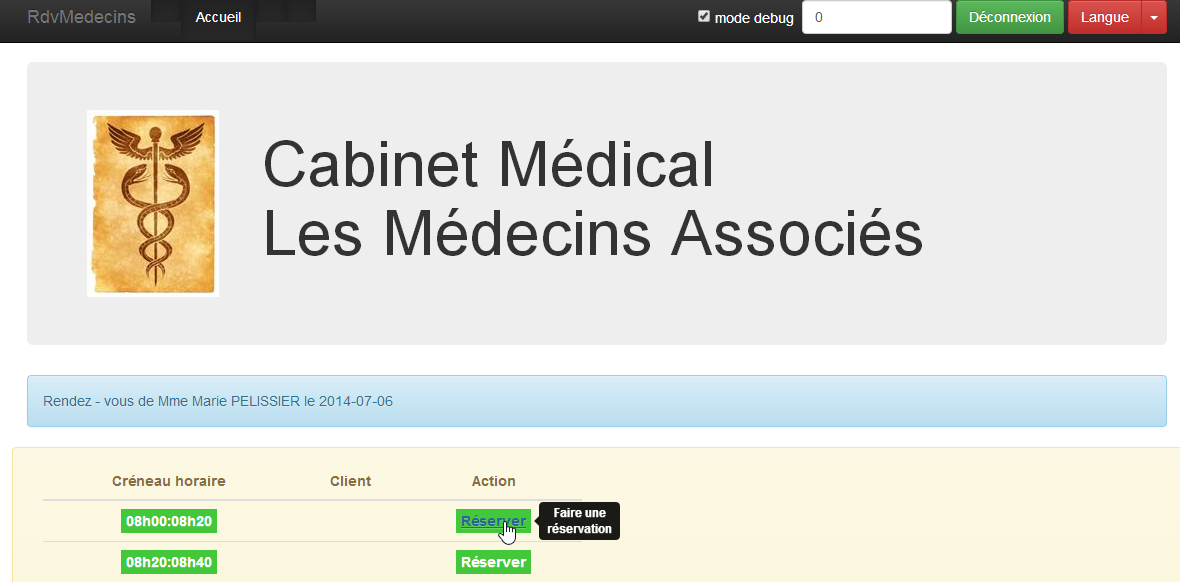
The structure of the [agendaCtrl] controller is as follows:
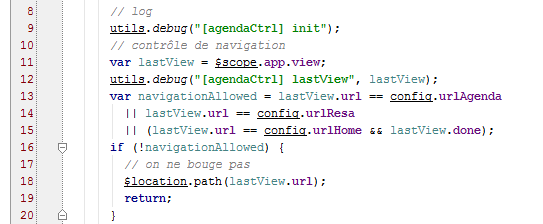
- lines 10–20 handle navigation control;
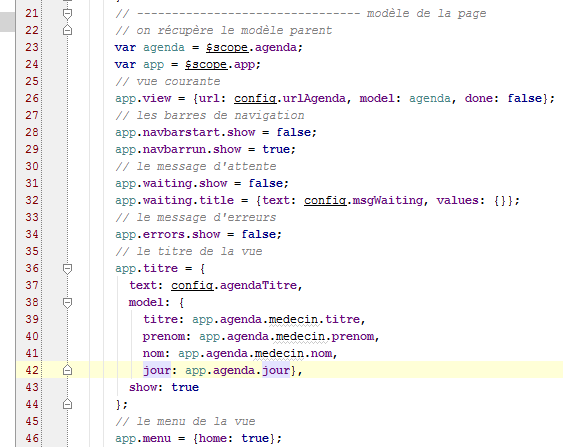
- lines 23–26: [agenda] will be the view template associated with the [agendaCtrl] controller;
- lines 36–44: [app.title] is the template for the following title bar:

- line 46: the menu will have the [Home] option:

The controller’s methods are as follows:
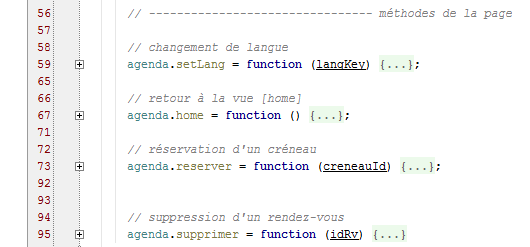
- line 95: the [agenda.delete] method was discussed in section 3.7.9;
The [agenda.home] method is a pure navigation method:
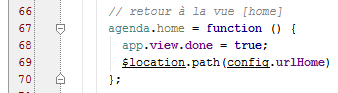
The [agenda.reserve] method is as follows:
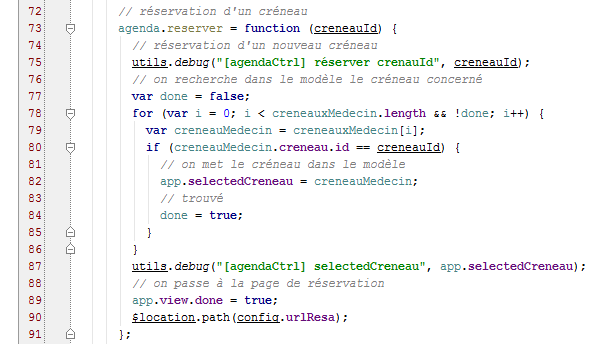
- line 73: the parameter of the [reserve] function is the slot number (id);
- lines 77–86: aim to find the time slot with this identifier;
- line 82: the found time slot is placed in the shared memory [app]. The controller [resaCtrl], which will take over (line 90), will use this information to display its title bar;
- lines 89-90: navigate to [/resa.html];
3.8.15. The controller [resaCtrl]
 |
The controller [resaCtrl] is associated with the view [views/resa.html], which, when combined with the master page, produces the following page:
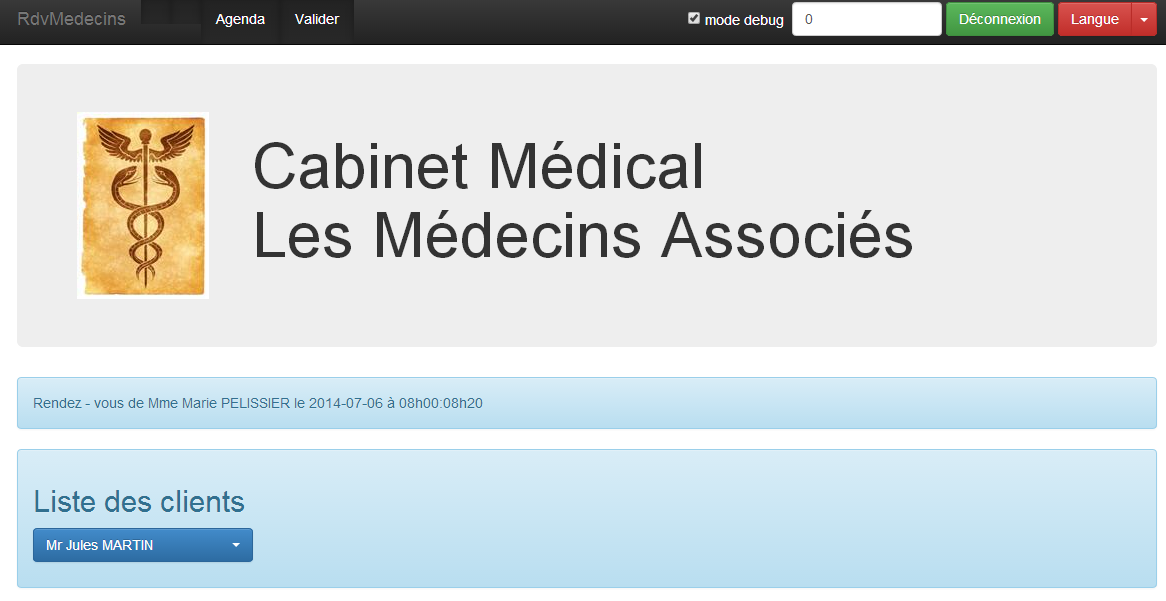
The structure of the [resaCtrl] controller is as follows:
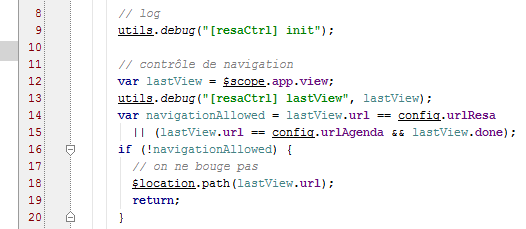
- lines 12–20: navigation control;
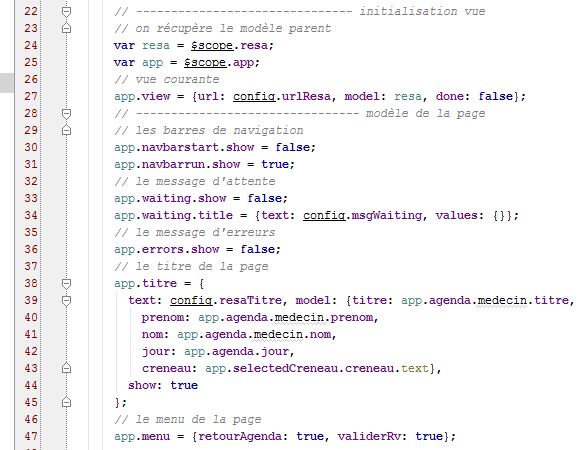
- lines 24-27: [resa] will be the template for the current view;
- lines 38–45: [app.titre] is the template for the following title bar:

- line 47: two menu options are displayed:

The controller’s methods are as follows:
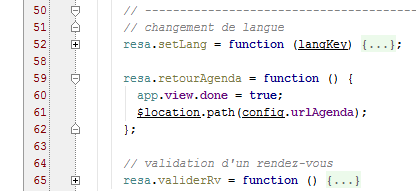
The [resa.valider] method was discussed in section 3.7.9.
3.8.16. Language management
All controllers provide the following [setLang] method:
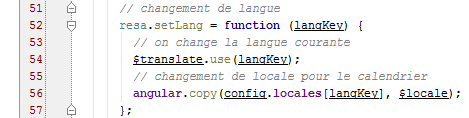
It could have been factored into the [appCtrl] controller.