2. Getting Started with React
2.1. Example 01: The Structure of a React Application
2.1.1. The package.json file
The file [package.json] in the examples folder declares the libraries used and the project commands:
| {
"name": "examples-react",
"private": true,
"version": "1.0.0",
"type": "module",
"scripts": {
"start": "vite --config vite.config.ts",
"build": "vite build --config vite.config.ts",
"check": "tsc --noEmit"
},
"dependencies": {
"@tanstack/react-query": "^5.104.0",
"bootstrap": "^5.3.8",
"i18next": "^26.4.2",
"react": "^19.3.0",
"react-dom": "^19.3.0",
"react-hook-form": "^7.89.0",
"react-i18next": "^17.0.15",
"react-router": "^8.4.0",
"zustand": "^5.0.15"
},
"devDependencies": {
"@types/react": "^19.2.18",
"@types/react-dom": "^19.2.7",
"@vitejs/plugin-react": "^6.1.1",
"typescript": "~6.0.2",
"vite": "^8.3.0"
}
}
|
Let’s break down this file:
- Line 5: The [JavaScript] files in the project are ES modules ([import] / [export]), which is the current language standard;
- Lines 6–10: The project commands, launched by [npm run <name>] (or [npm start] for the [start] command):
- [npm start 05-controlled-fields] launches [vite --config vite.config.ts 05-controlled-fields]: the development server for Example 05;
- [npm run build 05-controlled-fields] launches [vite build ...]: the production version of Example 05, located in the [05-controlled-fields/dist/] folder;
- [npm run check] launches the compiler [TypeScript] ([tsc]), which checks the types of ALL the examples without producing anything ([--noEmit]);
- lines 11–21: the libraries the application needs in the browser: [react] (the core: components, state, hooks) and [react-dom] (display on a web page), [react-router] (the router, examples 17 and 18), [react-hook-form] (example 08), [zustand] (example 20), [i18next] and [react-i18next] (languages, example 21), [@tanstack/react-query] (reading data from the server, example 24), and [Bootstrap] for formatting;
- Lines 22–28: Development tools: [Vite] ([vite]), its plugin for [React] ([@vitejs/plugin-react]), the [TypeScript] compiler, and the type descriptions from [React] for [TypeScript] ([@types/react], [@types/react-dom]). They are not part of the application delivered to users.
The prefix [^] for a version ([^19.3.0]) allows [npm] to install a newer version of the same major version (19.x.y); the prefix [~] ([~6.0.2]) allows only hotfixes (6.0.x).
In a standard project, this file is created by the [npm create vite@latest project-name -- --template react-ts] command, which generates a complete, ready-to-run [React] application. The examples in this course were written by hand so that twenty-five of them could be included in a single folder.
2.1.2. The file vite.config.ts
[Vite] is the recommended build tool for a [React] application: a very fast development server and a production compiler. Its configuration, common to all examples:
| // =========================================================================
// vite.config.ts - the configuration of Vite, common to all the examples
// -------------------------------------------------------------------------
// Vite is the build tool of React: a development server
// (npm start) and a production compiler (npm run build). Each
// example is a folder that has its own index.html page; its
// name is given to Vite, which makes it the ROOT of the application:
//
// npm start 05-controlled-fields -> vite --config vite.config.ts 05-controlled-fields
// npm run build 05-controlled-fields -> the result in 05-controlled-fields/dist/
// =========================================================================
import { defineConfig } from 'vite';
import react from '@vitejs/plugin-react';
export default defineConfig({
// the React plugin: the JSX syntax, and "hot" reloading (a
// modification of the code updates the page without losing the displayed state)
plugins: [react()],
server: {
port: 5173,
// the PROXY: any request of the browser to /api/... is passed on
// to the RdvMedecins JSON server (port 8080). It is only used from
// example 22 on (cf. the chapter "Talking to the server").
proxy: {
'/api': 'http://localhost:8080',
},
},
});
|
- lines 9–10 (comment): the name of the example, provided to the command, becomes the root ([root]) of the application: [Vite] searches for the page [index.html] and the folder [public/], and stores the result of the build ([dist/]) there;
- line 19: the [React] plugin: it compiles the JSX syntax (see below) and enables hot reloading: a change to a component’s code is applied to the page without reloading it, preserving the displayed state as much as possible;
- line 21: the development server port;
- lines 25–27: the proxy, which will only be used starting with Example 22: any request from the browser to an address beginning with [/api] is forwarded to the server JSON [RdvMedecins]. We’ll come back to this later.
2.1.3. The tsconfig.json file
The [TypeScript] configuration common to all examples:
| {
"compilerOptions": {
"target": "ES2023",
"lib": ["ES2023", "DOM", "DOM.Iterable"],
"module": "ESNext",
"moduleResolution": "bundler",
"types": ["vite/client"],
"jsx": "react-jsx",
"strict": true,
"noUnusedLocals": true,
"noUnusedParameters": true,
"noFallthroughCasesInSwitch": true,
"noImplicitReturns": true,
"verbatimModuleSyntax": true,
"erasableSyntaxOnly": true,
"resolveJsonModule": true,
"skipLibCheck": true,
"noEmit": true
},
"include": ["*/src", "common", "vite.config.ts"]
}
|
- lines 3–6: modern [JavaScript] code (ES2023), browser definitions ([DOM]), and modules resolved as done by the build tool;
- line 7: definitions specific to [Vite] (for example, importing a stylesheet, [import './App.css'], is allowed);
- line 8: the JSX syntax is accepted and compiled for [React];
- Lines 9–13: the strict mode of [TypeScript] (strictly checked types, including [null] and [undefined]), and additional checks: an unused variable or parameter is reported as an error;
- line 14: an import that applies only to types is written as [import type { ... }] (or [import { type X }]): this tells the build tool that it no longer exists in the generated [JavaScript] file;
- line 16: a file named JSON can be imported as a module (Example 21);
- line 18: [tsc] only checks the types; it is [Vite] that actually compiles the code (it simply removes the types without checking them: hence the command [npm run check]);
- line 20: the files that are checked: those from all the examples.
The [VS Code] editor uses this configuration: a typo in a component ([{titl}] instead of [{title}]) is underlined in red as soon as it is typed.
2.1.4. The page index.html
Each example has its own page, HTML. The page for Example 01:
| <!doctype html>
<html lang="en">
<head>
<meta charset="utf-8">
<title>Example 01 - a first application</title>
<meta name="viewport" content="width=device-width, initial-scale=1">
</head>
<body>
<!-- the React application is displayed in this element (cf. src/main.tsx) -->
<div id="root"></div>
<!-- the entry point: a JavaScript module, compiled on the fly by Vite -->
<script type="module" src="/src/main.tsx"></script>
</body>
</html>
|
This is the only page the browser will load. It is almost empty:
- line 10: the element in which [React] will display the application;
- line 12: the application’s entry point, a [TypeScript] module. The browser does not understand [TypeScript]: it is [Vite] that compiles this file—and the files it imports—when the browser requests them.
There are no [<link>] tags here: the style sheets are imported by the code (see [main.tsx]), and [Vite] adds them to the page itself.
2.1.5. The entry point: main.tsx
| // =========================================================================
// 01-first-application/src/main.tsx - the entry point of the application
// -------------------------------------------------------------------------
// index.html loads this file. It starts the React application:
// 1. createRoot(element): React takes possession of the <div id="root">
// element of the page;
// 2. root.render(<App />): it displays the ROOT component, App, in it.
// Style sheets are modules like any other: they are imported.
// =========================================================================
import { StrictMode } from 'react';
import { createRoot } from 'react-dom/client';
import 'bootstrap/dist/css/bootstrap.min.css';
import App from './App';
// the "!" tells TypeScript: this element exists (it is in index.html)
createRoot(document.getElementById('root')!).render(
// StrictMode: in development only, React performs additional
// checks (cf. example 13). It displays nothing itself.
<StrictMode>
<App />
</StrictMode>,
);
|
A [.tsx] file is a [TypeScript] file that contains JSX.
- Line 12: the function from [react-dom] that launches an application within a web page;
- line 13: the stylesheet for [Bootstrap]: an unnamed import, used solely to add it to the page;
- Line 14: the root component of the application, the function exported by [App.tsx];
- line 17: [React] takes ownership of the [<div id="root">] element. [document.getElementById('root')] can return [null] for [TypeScript]: [!] asserts that it exists;
- lines 20–22: [render(...)] displays the component [App] within this element. [<App />] is part of JSX: the use of the [App] component as a tag. [<StrictMode>] is a component of [React], which does not display anything itself but enables additional checks during development (example 13).
2.1.6. The root components: App.tsx and App.css
A component named [React] is a function:
| // =========================================================================
// 01-first-application/src/App.tsx - a first component
// -------------------------------------------------------------------------
// A React component is a FUNCTION, whose name starts with an uppercase
// letter, which RETURNS what must be displayed, written in JSX: HTML
// inside the TypeScript code. React calls this function to build the
// page; it calls it AGAIN each time the state of the component changes, and
// updates the page with the new result.
// =========================================================================
import { useState } from 'react';
// a style sheet, imported by the component that uses it
import './App.css';
// "ordinary" data, outside the component: they never change
const title = 'Welcome to React';
const languages = ['TypeScript', 'HTML', 'CSS'];
export default function App() {
// useState(0): a piece of STATE, with initial value 0. We get its
// CURRENT value (counter) and the function that changes it (setCounter).
// Calling setCounter asks React to call App AGAIN to update
// the page. We never modify the page ourselves.
const [counter, setCounter] = useState(0);
const [time, setTime] = useState(() => new Date().toLocaleTimeString());
// a function called by the button
function increment() {
setCounter((n) => n + 1);
setTime(new Date().toLocaleTimeString());
}
// the returned JSX: { expression } inserts the value of an expression;
// className replaces the HTML attribute class (a reserved word in JavaScript)
return (
<div className="container py-4">
<h1 className="h3">{title}</h1>
<p>This page is built in the browser, by React, from index.html, main.tsx and the App component.</p>
<p>
It is written in {languages.join(', ')} ({languages.length} languages).
</p>
{/* onClick: the function to call when clicking (cf. example 04) */}
<button className="btn btn-primary" onClick={increment}>
Click me
</button>
<p className="mt-3 counter">
You clicked {counter} times (last click: {time}).
</p>
</div>
);
}
|
- Line 11: the hook [useState], provided by [React];
- line 13: the component’s style sheet;
- lines 16–17: two ordinary data items, declared outside the component: they never change;
- line 19: the component: a function whose name begins with a capital letter (this is how JSX distinguishes a component, [<App />], from an element, HTML, [<div>]). [export default]: this is what the module exports by default, imported into [main.tsx] by [import App from './App'];
- Line 24: [useState(0)] creates a state variable with an initial value of 0. It returns an array of two elements, which we “unpack”: the current value ([counter]) and the function that changes it ([setCounter]). The state is stored by [React]: it persists from one function call to the next;
- Line 25: You can assign a function to [useState] that calculates the initial value; it is called only the first time the page is displayed;
- Lines 28–30: A function called by the button. It does not modify the page; it changes the state. [setCounter((n) => n + 1)] calculates the new value based on the old one. Each call to the function [setXxx] instructs [React] to call [App]; [React] compares the new result to the old one and updates only the parts of the page that have changed;
- lines 35–51: the returned JSX, i.e., what should be displayed:
- the JSX resembles the HTML, with a few differences: the attribute [class] is written as [className] ([class] is a reserved word for [JavaScript]), each tag must be closed ([<br />], [<input />]), and the entire structure must have ONE root element;
- Line 37: [{ expression }] inserts the value of an expression [TypeScript]. It is escaped: if [title] contained [<b>], [<b>] would be displayed without the tag being interpreted;
- line 40: the expression can be anything: a method call, a calculation;
- line 43: a comment in JSX is written as [{/* ... */}];
- line 44: Clicking the button calls the function [increment] (see Example 04). The function itself is provided without parentheses: [onClick={increment()}] would call it immediately, while it is being displayed;
- line 48: the current value of the state. When the state changes, [App] is called again, and this text changes.
JSX is not the same as HTML: it is a convenient notation for function calls. The compiler transforms [<h1 className="h3">{title}</h1>] into a call of the form [jsx('h1', { className: 'h3', children: title })], which creates an object describing the element. The component therefore returns a tree of objects (the “virtual DOM”), which [React] compares to the previous tree to determine what to change in the actual page.
And its style sheet:
| /* a style sheet imported by App.tsx; WARNING: it applies to the whole
page, and not only to the App component (cf. example 10) */
.counter {
font-weight: bold;
color: #087ea4;
}
|
Unlike [Angular] or [Vue.js], [React] does not isolate a component’s styles: an imported stylesheet applies to the entire page. Example 10 will demonstrate the “CSS modules,” which restrict a class to a single component.
2.1.7. Execution
In the console open to the [examples-react] folder:
npm start 01-first-application
The console displays:
| > examples-react@1.0.0 start
> vite --config vite.config.ts 01-first-application
VITE v8.3.1 ready in 264 ms
➜ Local: http://localhost:5173/
➜ Network: use --host to expose
|
Open the URL http://localhost:5173/ and click the button three times:
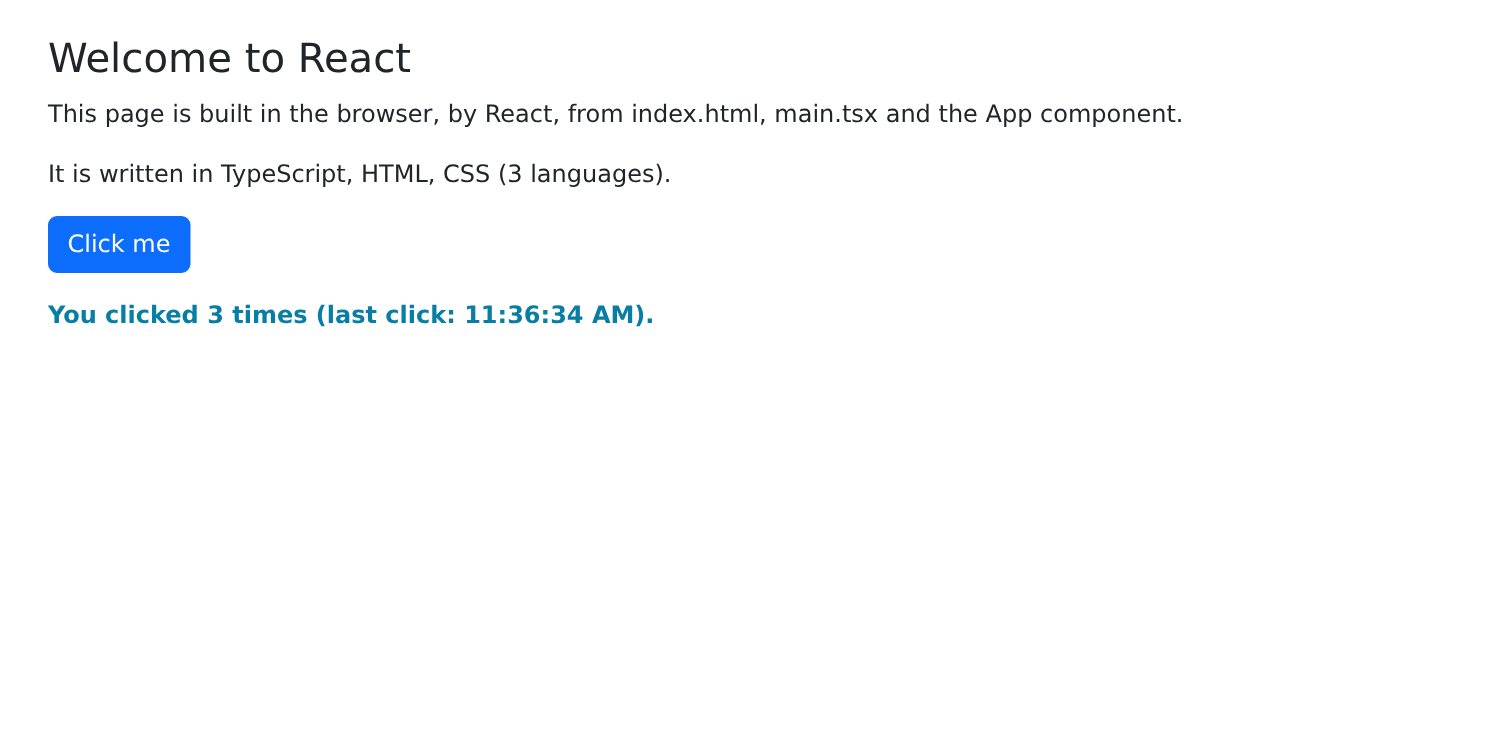
Two experiments to try:
- Change the title text in [App.tsx] and save the file: the page updates immediately, without having to reload it, and the counter retains its value. The development server monitors the files, recompiles the changes, and notifies the browser;
- view the page’s source code (Ctrl-U): you’ll only find the [index.html] page, which is almost empty. The HTML page displayed was generated by [React] within the browser. To view it, use the developer tools inspector (F12, Elements tab) or the [React Developer Tools] extension, which also displays the components and their status.
2.2. Example 02: State and Calculated Values
The state is at the heart of [React]. This example calculates the price of an item including VAT:
| // =========================================================================
// 02-state/src/App.tsx - state, computed values, useEffect
// -------------------------------------------------------------------------
// A small calculator of prices including VAT:
// - useState : a STATE value; changing it (setXxx) calls the
// component again, which builds the page with the new value;
// - a value COMPUTED from the state is NOT a state: it is a
// simple variable, recomputed on each call of the component;
// - useMemo : the same thing, but the computation is only redone if its
// dependencies have changed (useful for a costly computation);
// - useEffect : code executed AFTER the display, when some
// values have changed: a "side effect" (acting on something
// other than the page: here, the title of the tab).
// =========================================================================
import { useEffect, useMemo, useState } from 'react';
// a formatter of amounts in euros, the English way (€1,234.50)
const euros = new Intl.NumberFormat('en-US', { style: 'currency', currency: 'EUR' });
export default function App() {
const [label, setLabel] = useState('Pen');
const [priceExclVat, setPriceExclVat] = useState(2.5);
const [quantity, setQuantity] = useState(1);
const [vatRate, setVatRate] = useState(20); // in %
// COMPUTED values: simple constants, recomputed on each
// call of the component. They are always up to date, nothing to synchronize
const totalExclVat = quantity * priceExclVat;
const vatAmount = (totalExclVat * vatRate) / 100;
// useMemo(computation, [dependencies]): same result, but React only redoes the
// computation if one of the dependencies has changed since the previous call
const totalInclVat = useMemo(() => totalExclVat + vatAmount, [totalExclVat, vatAmount]);
// the history of the totals incl. VAT: it depends on the SUCCESSIVE values of the
// total. The old total is kept in the state; if it differs from the
// new one, the state is adjusted DURING the call of the component (React
// then restarts the call at once, before displaying anything)
const [history, setHistory] = useState<{ id: number; text: string }[]>([]);
const [oldTotal, setOldTotal] = useState(totalInclVat);
if (totalInclVat !== oldTotal) {
setOldTotal(totalInclVat);
const text = `${euros.format(oldTotal)} -> ${euros.format(totalInclVat)}`;
// each line has a unique number (id), which identifies it (cf. key, example 03)
setHistory((h) => [{ id: (h[0]?.id ?? 0) + 1, text }, ...h].slice(0, 5));
}
// useEffect(effect, [dependencies]): the effect is executed AFTER the first
// display, then after each display where totalInclVat has changed
useEffect(() => {
document.title = `Incl. VAT: ${euros.format(totalInclVat)}`;
}, [totalInclVat]);
// changing the item resets the quantity to 1: it is done in the
// event handler, where we know WHY the state changes
function changeLabel(newValue: string) {
setLabel(newValue);
setQuantity(1);
}
function reset() {
setLabel('Pen');
setPriceExclVat(2.5);
setQuantity(1);
setVatRate(20);
}
return (
<div className="container py-4">
<h1 className="h3 mb-3">Example 02 - state and computed values</h1>
<div className="row g-4">
<div className="col-md-6">
<div className="card p-3">
{/* value + onChange: the field displays the state, and each keystroke changes it (cf. example 05) */}
<label className="form-label" htmlFor="label">Item</label>
<input id="label" className="form-control mb-2" value={label}
onChange={(e) => changeLabel(e.target.value)} />
<label className="form-label" htmlFor="price">Unit price excl. VAT</label>
{/* valueAsNumber: the value of the field, as a number (NaN if it is empty) */}
<input id="price" type="number" step="0.1" min="0" className="form-control mb-2" value={priceExclVat}
onChange={(e) => setPriceExclVat(e.target.valueAsNumber || 0)} />
<label className="form-label" htmlFor="quantity">Quantity (back to 1 if the item changes)</label>
<input id="quantity" type="number" min="0" className="form-control mb-2" value={quantity}
onChange={(e) => setQuantity(e.target.valueAsNumber || 0)} />
<label className="form-label" htmlFor="vat">VAT rate</label>
{/* the value of a <select> is a STRING: Number(...) converts it */}
<select id="vat" className="form-select mb-3" value={vatRate}
onChange={(e) => setVatRate(Number(e.target.value))}>
<option value={5.5}>5.5 %</option>
<option value={10}>10 %</option>
<option value={20}>20 %</option>
</select>
<button className="btn btn-outline-secondary" onClick={reset}>Reset</button>
</div>
</div>
<div className="col-md-6">
<div className="card p-3">
<h2 className="h5">{quantity} x {label}</h2>
<table className="table mb-0">
<tbody>
<tr><td>Total excl. VAT</td><td className="text-end">{euros.format(totalExclVat)}</td></tr>
<tr><td>VAT ({vatRate} %)</td><td className="text-end">{euros.format(vatAmount)}</td></tr>
<tr className="fw-bold"><td>Total incl. VAT</td><td className="text-end">{euros.format(totalInclVat)}</td></tr>
</tbody>
</table>
</div>
<div className="card p-3 mt-3">
<h2 className="h6">History of the total incl. VAT</h2>
<ul className="mb-0">
{history.map((line) => (
<li key={line.id}>{line.text}</li>
))}
</ul>
</div>
</div>
</div>
</div>
);
}
|
The [main.tsx] file in this example—and in most of the following examples—is the same as the one in Example 01, without its comments. Only the [main.tsx] files that differ will be shown.
- Line 16: the hooks used, all provided by [React];
- Line 19: an English-style amount formatter (€1,234.50), created once and for all outside the component. Example 09 will present the API and [Intl] files;
- Lines 22–25: four state values. Their type is derived from the initial value: [useState('Pen')] is a state of type [string], and [useState(2.5)] is a state of type [number];
- Lines 29–30: two values calculated from the state. These are NOT states: they are simple constants, recalculated each time the component is called. They are therefore always up to date. This is an important rule in [React]: only store in the state what cannot be calculated; everything else is calculated during display;
- Line 33: [useMemo(computation, [dependencies])] gives the same result, but [React] stores the value and only recalculates it if one of the dependencies has changed since the previous call. For an addition, this is unnecessary; it’s used for a computationally expensive operation (sorting a long list...). We included it here to demonstrate its syntax;
- lines 39–45: the history of the totals incl. VAT depends on successive values of the total, which a calculated value cannot express. We store the old total in the state ([oldTotal]); if, during display, it differs from the new one, we update the state while the component is being called. [React] allows this: it then discards the current result and immediately calls the component again with the new state, before displaying anything. Each line in the history is assigned a unique number, [id], the use of which will be explained in Example 03;
- Lines 50–52: [useEffect(effect, [dependencies])]: The function [effect] is executed after the display: once initially, then every time one of the dependencies (here, [totalInclVat]) changes. This is used for side effects: to affect something other than what the component displays (here, the browser tab title; elsewhere, a timer, a HTTP request);
- Lines 56–58: Changing the item resets the quantity to 1. This is done in the function that handles the field change, where we know why the state is changing. This is the method recommended by [React]: rather than an effect that “monitors” the label, the action is performed in the event handler;
- lines 61–65: several state changes in a row. [React] groups them together: the component is called only once, at the end of the handler.
JSX:
- lines 76–77: a controlled field (see Example 05): [value] displays the state; [onChange] is called with each keystroke, via the [e] event; [e.target.value] is the field text. In JSX, the attribute [for] of a label is written as [htmlFor];
- lines 80–81: for a numeric field, [e.target.valueAsNumber] returns the value as a number ([NaN] if the field is empty, hence [|| 0]);
- lines 87–92: the value of a [<select>] is always a string: [Number(...)] converts it;
- line 110: [map] generates one [<li>] element per line in the history (see example 03).
With the development server running ([npm start 02-state]), we modify the item, price, quantity, and rate:
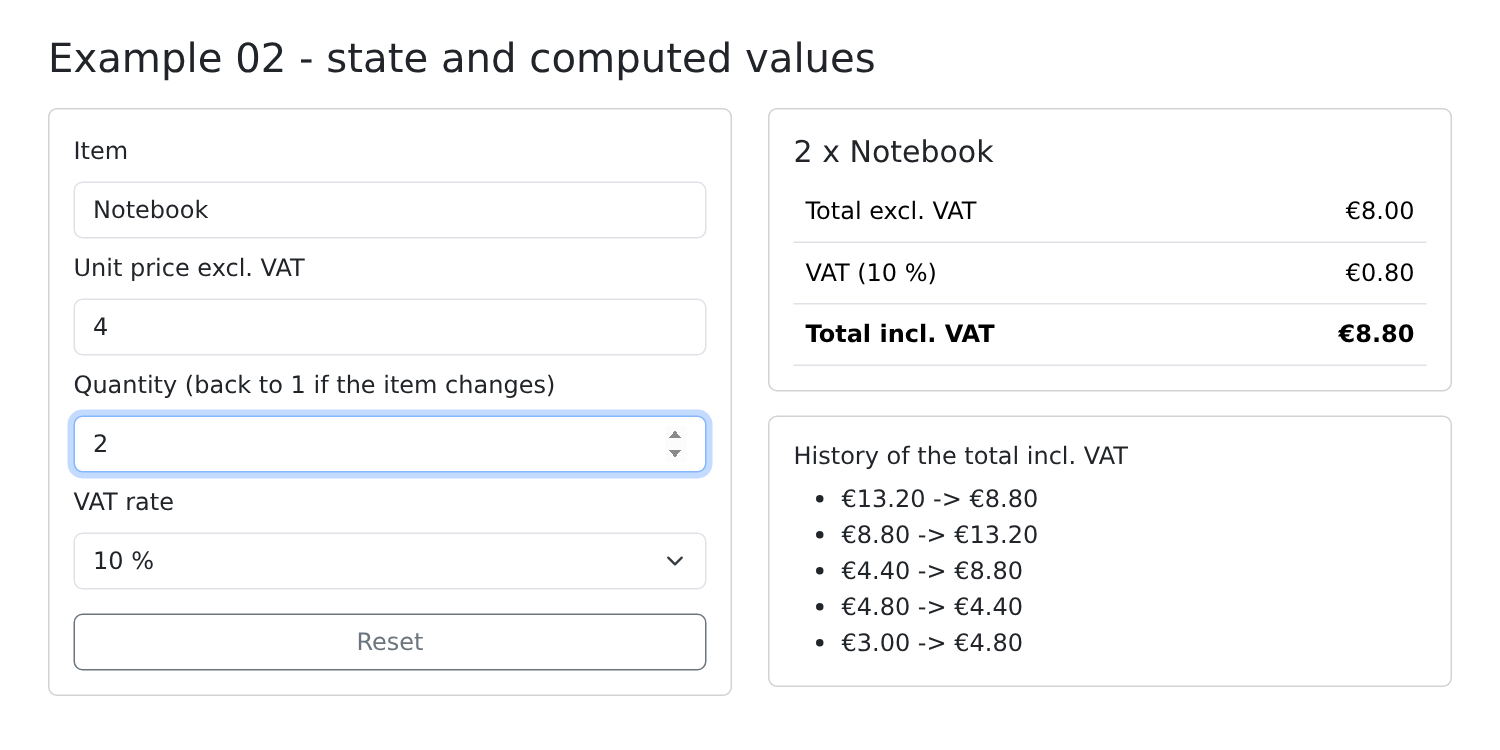
Each time the total incl. VAT changes, a row is added to the history, and the tab title changes. Changing the item resets the quantity to 1.
The difference from [Angular] and [Vue.js] is profound. In these frameworks, the data is reactive (signals, [ref]): the framework knows which data a section of the page uses, and updates only that section. [React] takes a simpler approach: every time the state changes, it re-runs the entire component function (and those of its children), then compares the result to the previous one. The code then reads like an ordinary function: the calculated values are variables, and the conditions are the [if]. The trade-off: you must follow a few rules (never modify the state directly, always call the hooks in the same order), and consider the effects and their dependencies.
2.3. Example 03: The JSX Syntax
JSX is HTML written in the [TypeScript] code, where everything enclosed in curly braces is an expression. This example displays a list of doctors, which can be filtered:
| // =========================================================================
// 03-jsx/src/App.tsx - the JSX syntax
// -------------------------------------------------------------------------
// JSX is HTML written INSIDE the TypeScript code. Each tag becomes
// a function call, and everything between braces is an ordinary
// TypeScript expression:
// - attribute={expression} : the value of an attribute (src, disabled...);
// - className={...} : the CSS classes, a string that we compute;
// - style={{ prop: value }} : an OBJECT of CSS properties (camelCase);
// - {condition && <p/>} : an element that only exists if the
// condition is true;
// - {c ? <A/> : <B/>} : one OR the other;
// - {list.map((x) => <li key={x.id}/>)} : one element per element of the
// list; key gives the IDENTITY of each one.
// No special syntax for conditions and loops: it is plain
// TypeScript. Everything before the return is ordinary code.
// =========================================================================
import { useState } from 'react';
// a TypeScript interface describes the shape of the objects of the list
interface Doctor {
id: number;
title: string;
firstName: string;
lastName: string;
specialty: 'general practitioner' | 'pediatrician' | 'cardiologist';
available: boolean;
}
const DOCTORS: Doctor[] = [
{ id: 1, title: 'Mme', firstName: 'Marie', lastName: 'PELISSIER', specialty: 'general practitioner', available: true },
{ id: 2, title: 'Mr', firstName: 'Paul', lastName: 'TATOU', specialty: 'pediatrician', available: false },
{ id: 3, title: 'Melle', firstName: 'Sophie', lastName: 'DUPONT', specialty: 'cardiologist', available: true },
];
// "one block among several, depending on a value": a switch, in a function
function icon(specialty: Doctor['specialty']) {
switch (specialty) {
case 'pediatrician':
return <span title="children">🧸</span>;
case 'cardiologist':
return <span title="heart">❤️</span>;
default:
return <span title="all patients">🩺</span>;
}
}
export default function App() {
const [doctors] = useState(DOCTORS);
const [filter, setFilter] = useState(''); // searched text
const [onlyAvailable, setOnlyAvailable] = useState(false);
const [showHelp, setShowHelp] = useState(true);
// the displayed list: an ordinary variable, recomputed on each call
const text = filter.trim().toLowerCase();
const displayed = doctors.filter(
(m) => (!onlyAvailable || m.available) && `${m.firstName} ${m.lastName} ${m.specialty}`.toLowerCase().includes(text),
);
// "one of the three blocks": it is computed BEFORE the return, with ifs
let content;
if (doctors.length === 0) {
content = <p className="text-muted">No doctor.</p>;
} else if (displayed.length === 0) {
content = <p className="text-warning">No doctor matches "{filter}".</p>;
} else {
content = (
<table className="table">
<thead>
<tr><th>#</th><th>Doctor</th><th>Specialty</th><th>Status</th></tr>
</thead>
<tbody>
{/* one row per doctor; key: the identity of each row, so that
React knows which row to add, move or remove */}
{displayed.map((m, i) => (
<tr key={m.id} className={m.available ? '' : 'opacity-50'}>
<td>{i + 1}</td>
<td>{m.title} {m.firstName} {m.lastName}</td>
<td>{icon(m.specialty)} {m.specialty}</td>
<td>
{/* a string of classes computed by a template string */}
<span className={`badge ${m.available ? 'text-bg-success' : 'text-bg-secondary'}`}>
{m.available ? 'available' : 'unavailable'}
</span>
</td>
</tr>
))}
</tbody>
</table>
);
}
return (
// <> ... </>: a "fragment", to return several elements without
// wrapping them in an additional HTML element
<>
<div className="container py-4">
<h1 className="h3 mb-3">
{/* the image is in the public/ folder of the example: served as is */}
<img src="/doctor.svg" alt="logo" width={32} height={32} /> Example 03 - the JSX syntax
</h1>
<div className="d-flex flex-wrap gap-3 align-items-center mb-3">
<input className="form-control w-auto" placeholder="search..." value={filter}
onChange={(e) => setFilter(e.target.value)} />
<label className="form-check-label">
<input type="checkbox" className="form-check-input" checked={onlyAvailable}
onChange={(e) => setOnlyAvailable(e.target.checked)} /> available only
</label>
<button className="btn btn-sm btn-outline-secondary" onClick={() => setShowHelp((a) => !a)}>
{showHelp ? 'Hide help' : 'Show help'}
</button>
</div>
{/* &&: the paragraph only EXISTS if showHelp is true */}
{showHelp && (
<p className="alert alert-info">Type a name or a specialty. Unavailable doctors are greyed out.</p>
)}
{content}
{/* style: an object; a number alone is understood as pixels */}
<p style={{ fontSize: 12 + displayed.length * 2 }}>
{displayed.length} doctor(s) displayed - the size of this text depends on it.
</p>
</div>
</>
);
}
|
- lines 22–27: a [TypeScript] interface describes the format of the objects in the list; [specialty] can only take three values;
- lines 38–47: “one block among several, depending on a value.” JSX does not have a syntax for this: it is an ordinary function, with a [switch], which returns JSX. [Doctor['specialty']] is the type of the property [specialty]. [🧸] is a HTML entity (an emoji), allowed in JSX;
- lines 50–53: the page state. Only the value of [useState(DOCTORS)] is retained; it is never modified here;
- lines 56–59: the displayed list: a variable, recalculated each time the component is called;
- lines 62–68: one of three possible contents, selected using [if] before [return]. A segment of JSX is a value like any other: it can be stored in a variable;
- lines 76–88: the list: [map] converts each doctor into a line of [<tr>]. [i] is the doctor’s rank in the list;
- line 77: the attribute [key] identifies each line. When the list changes, [React] uses this to determine which line to add, move, or delete, rather than rebuilding the entire list. The key must be unique among the list’s elements and stable (the same from one display to the next): an identifier, not the rank. [React] indicates in the console that the list has no keys;
- line 77: the CSS classes are a string that is calculated, in this case using the [? :] operator;
- line 80: the JSX returned by the [icon] function;
- line 83: a template string ([
badge ${...}]) builds the list of classes: [badge] and a calculated class.
The [return]:
- line 97: a fragment, [<>...</>], allows you to return multiple elements without wrapping them in an additional HTML element (here, there is only one—this is just for the example);
- line 101: the image is in the [public/] folder in the example: [Vite] serves it as-is, at the root of the site. [width={32}]: a numeric value, enclosed in curly braces;
- lines 105–106: the search field, which is controlled; for a checkbox, [checked] is read and written;
- line 111: an “arrow” function written directly in the attribute: it toggles the state;
- Lines 117–119: [condition && <p>...</p>]: The paragraph exists only if the condition is true (if it is false, [React] displays nothing for [false], [null], or [undefined]). Watch out for this pitfall: [{list.length && <p/>}] would display “0” for an empty list; instead, write [list.length > 0 && ...];
- line 121: the content selected above;
- line 124: the attribute [style] receives an object (hence the double curly braces: the expression, then the object), whose properties CSS are written as “camelCase” ([fontSize] for [font-size]). A number on its own is interpreted as pixels.
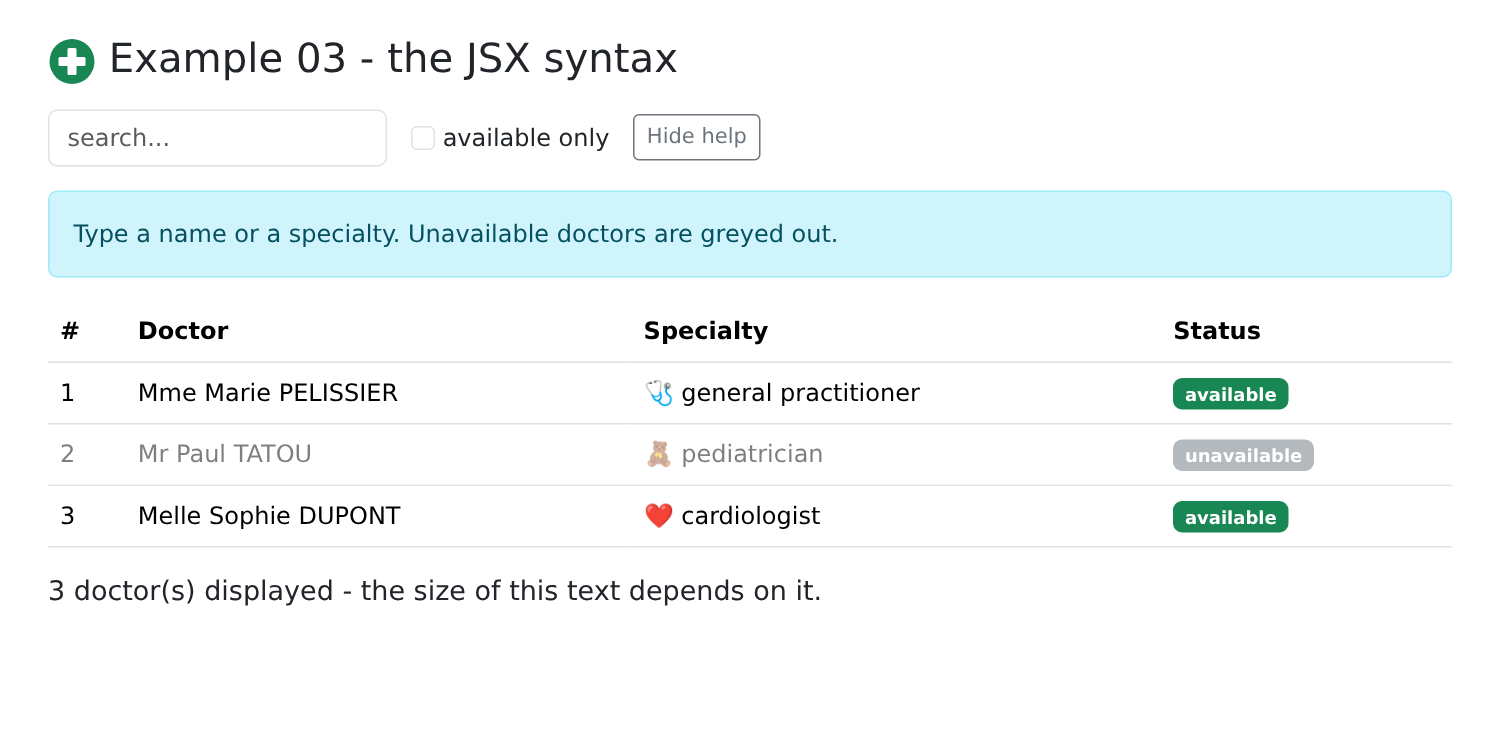
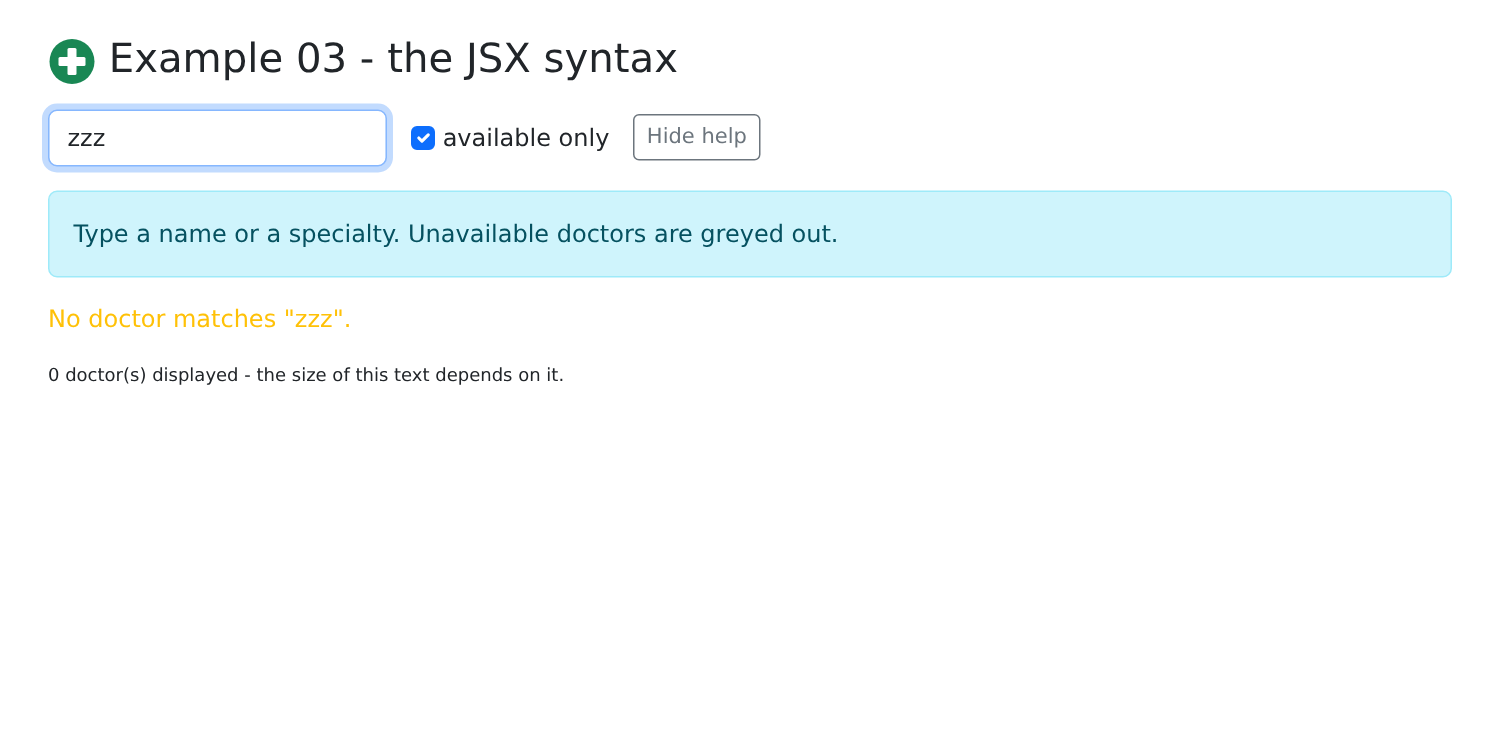
Type “gen” and check “available only,” then type “zzz”:
2.4. Example 04: Events
| // =========================================================================
// 04-events/src/App.tsx - reacting to the user's actions
// -------------------------------------------------------------------------
// onEvent={function}: the function is called when the element emits
// this event:
// - onClick={f} calls f(event);
// - onClick={() => remove(t)} an arrow function, to pass one's
// own arguments;
// - the received event is a React "synthetic event", which has the
// same interface as the browser's event (preventDefault(),
// target, key...); event.nativeEvent gives the original event;
// - useRef: a REFERENCE to an HTML element (ref={field}), to read or
// act on the element itself (field.current.value, .focus()...).
// Here, no state for the input field: we read it ourselves.
// =========================================================================
import { useRef, useState, type FormEvent, type KeyboardEvent, type MouseEvent } from 'react';
interface Task {
id: number;
label: string;
done: boolean;
}
// the style of the clickable area: an object, as for the style attribute
const areaStyle = { background: '#e7f5ff', height: 80, cursor: 'crosshair' };
export default function App() {
const [tasks, setTasks] = useState<Task[]>([
{ id: 1, label: 'Install Node.js', done: true },
{ id: 2, label: 'Read the chapter on events', done: false },
]);
const [log, setLog] = useState<string[]>([]);
// a reference to the <input> of the new task (null as long as it is not displayed)
const field = useRef<HTMLInputElement>(null);
// a reference can also keep a value that is NOT displayed: modifying
// it does not call the component again
const nextId = useRef(3);
function trace(message: string) {
setLog((j) => [`${new Date().toLocaleTimeString()} ${message}`, ...j]);
}
// onSubmit: Enter in the field OR click on the button. preventDefault()
// prevents the browser from sending the form (and reloading the page)
function add(event: FormEvent<HTMLFormElement>) {
event.preventDefault();
const input = field.current!;
const label = input.value.trim();
if (label === '') {
return;
}
// a state that contains an array: it is REPLACED by a new array
// (the old one is never modified: React would not see the change)
setTasks((t) => [...t, { id: nextId.current++, label, done: false }]);
trace(`added "${label}"`);
input.value = '';
input.focus();
}
// a key: event.key gives its name
function onKeyDown(event: KeyboardEvent<HTMLInputElement>) {
if (event.key === 'Escape') {
event.currentTarget.value = '';
}
}
function toggle(task: Task, done: boolean) {
setTasks((t) => t.map((x) => (x.id === task.id ? { ...x, done } : x)));
trace(`"${task.label}": ${done ? 'done' : 'to do'}`);
}
function remove(task: Task) {
setTasks((t) => t.filter((x) => x.id !== task.id));
trace(`removed "${task.label}"`);
}
// the original event (nativeEvent) has the coordinates relative to the area
function position(event: MouseEvent<HTMLDivElement>) {
trace(`click at (${event.nativeEvent.offsetX}, ${event.nativeEvent.offsetY})`);
}
return (
<div className="container py-4">
<h1 className="h3 mb-3">Example 04 - events</h1>
<form className="d-flex gap-2 mb-3" onSubmit={add}>
<input ref={field} className="form-control" placeholder="new task (Esc to clear)" onKeyDown={onKeyDown} />
<button type="submit" className="btn btn-primary">Add</button>
</form>
<ul className="list-group mb-3">
{tasks.map((t) => (
<li key={t.id} className="list-group-item d-flex align-items-center gap-2">
{/* e.target: the checkbox of THIS row; checked: its state */}
<input type="checkbox" className="form-check-input" checked={t.done}
onChange={(e) => toggle(t, e.target.checked)} />
<span className={`flex-grow-1 ${t.done ? 'text-decoration-line-through text-muted' : ''}`}>{t.label}</span>
{/* an arrow function: the task of THIS row as argument */}
<button className="btn btn-sm btn-outline-danger" onClick={() => remove(t)}>Delete</button>
</li>
))}
</ul>
<div className="p-3 mb-3 rounded" style={areaStyle} onClick={position}>Click in this area</div>
<h2 className="h6">Log</h2>
<ul className="small">
{log.map((line, i) => (
// key: the rank of the line counted from the FIRST one added (which
// always has the key 1): each line keeps the same key when others
// arrive at the top of the list
<li key={log.length - i}>{line}</li>
))}
</ul>
</div>
);
}
|
- Line 17: [FormEvent], [KeyboardEvent], [MouseEvent] are event types of [React] (hence the term [type]);
- Line 26: the style of the clickable area, an object;
- line 35: [useRef] creates a reference: an object [{ current: ... }] that [React] retains from one display to the next. Assigned to the [ref] attribute of an element (line 88), it refers to the HTML element itself, once displayed: [field.current.value], [field.current.focus()]...;
- line 38: A reference can also retain any value, which is not displayed. Modifying it ([nextId.current++]) does not reload the component, unlike a state;
- lines 46–59: called by the form’s [onSubmit] event, triggered when you press Enter in the field OR click the [submit] button:
- line 47: prevents the browser from submitting the form to the server, which would reload the page;
- line 48: the [<input>] element; the [!] element confirms that it exists (it is displayed);
- line 55: a state containing an array: it is replaced with a new array ([[...t, newTask]]: the elements of [t], followed by the new task). We NEVER modify the state itself ([t.push(...)]): [React] compares the old and new values; if they are the same array, it concludes that nothing has changed and displays nothing;
- lines 57–58: the field is cleared and focus is returned to it, directly on the HTML element;
- lines 62–66: [event.key] returns the name of the key. [currentTarget] is the element that holds the handler (in this case, the field);
- line 69: modify an array element: a new array, where the element in question is replaced by a modified copy ([{ ...x, done }]);
- line 74: delete an element: a new array, without that element;
- lines 79–81: the event for [React] is a “synthetic” event, which has the same interface as the browser’s event; [nativeEvent] provides the original event, here with the click coordinates relative to the area ([offsetX]).
JSX:
- line 87: the form handler;
- line 88: the reference, and a key handler. This field is not controlled (no [value]): the browser manages its value, which is read when needed;
- Lines 96–97: A manager writes on the spot: an arrowed function that calls [toggle] with the task of THIS row;
- Line 100: Same principle: [onClick={remove(t)}] would call [remove] immediately, during display;
- Line 113: the key for the log lines.
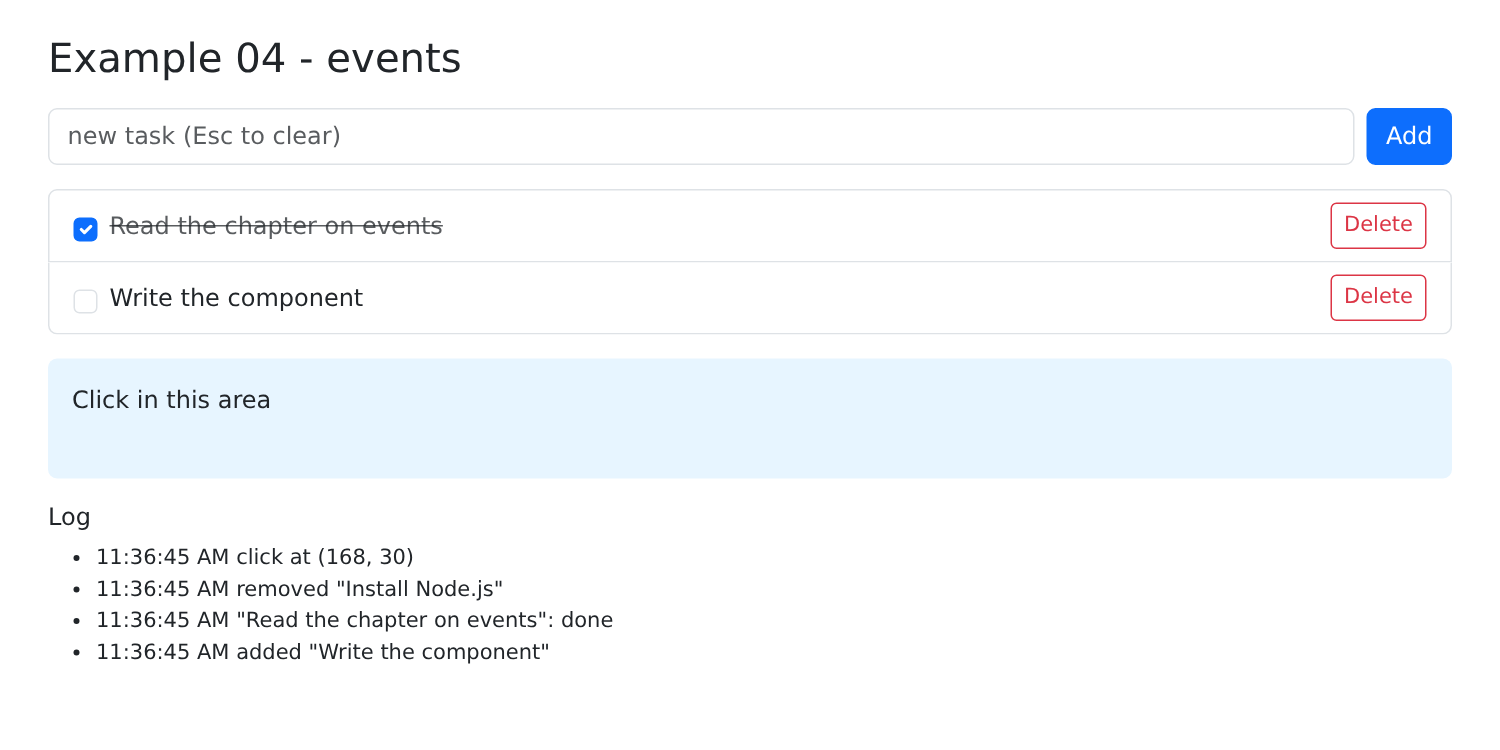
Add a task, check the second one, delete the first one, then click in the field:
2.5. Example 05: Controlled Fields
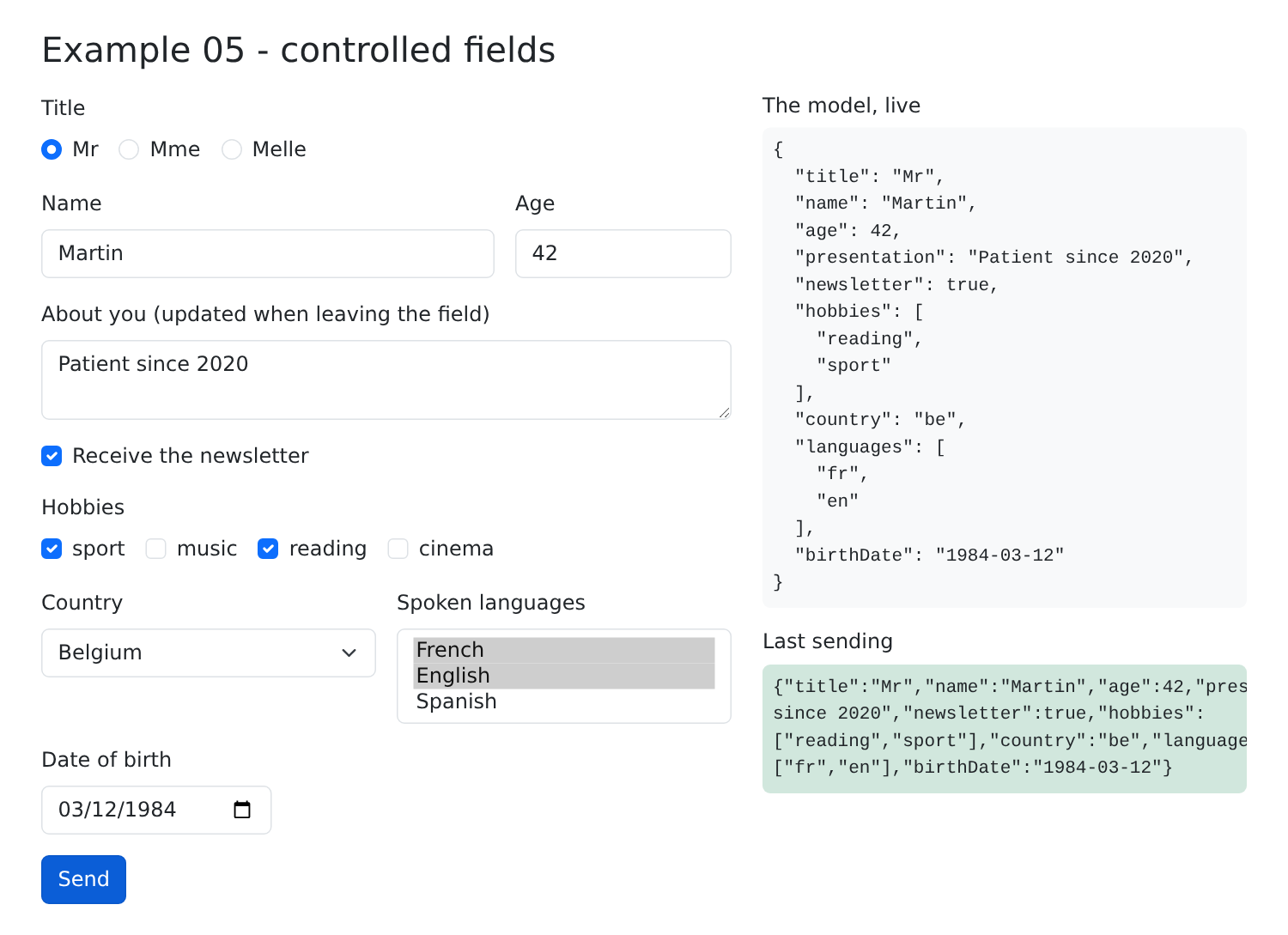
A form with all types of fields, linked to the state:
| // =========================================================================
// 05-controlled-fields/src/App.tsx - all the field types, "controlled"
// -------------------------------------------------------------------------
// A CONTROLLED field displays a value of the state (value={...}) and notifies
// the component of each change (onChange={...}), which updates the
// state. The state is the single source of truth: typing in the field modifies
// the state, and modifying the state (by code) modifies the field.
// It is the "two-way" binding, written by hand. What is read
// in the event depends on the field:
// - text input, textarea -> e.target.value (string)
// - input type="number" -> e.target.valueAsNumber (NaN if empty)
// - checkbox -> e.target.checked (boolean)
// - radio buttons -> e.target.value of the chosen button
// - select -> e.target.value
// - select multiple -> e.target.selectedOptions (several)
// - input type="date" -> e.target.value, "yyyy-MM-dd"
// Same form as example 18 of the NestJS course; but here, no
// server: everything happens in the browser.
// =========================================================================
import { useState, type FormEvent } from 'react';
const TITLES = ['Mr', 'Mme', 'Melle'];
const HOBBIES = ['sport', 'music', 'reading', 'cinema'];
const COUNTRIES = [
{ code: 'fr', label: 'France' },
{ code: 'be', label: 'Belgium' },
{ code: 'ch', label: 'Switzerland' },
];
export default function App() {
// one state per field of the form
const [title, setTitle] = useState('Mme');
const [name, setName] = useState('');
const [age, setAge] = useState<number | null>(30);
const [presentation, setPresentation] = useState('');
const [newsletter, setNewsletter] = useState(false);
const [hobbies, setHobbies] = useState<string[]>(['reading']);
const [country, setCountry] = useState('fr');
const [languages, setLanguages] = useState<string[]>([]);
const [birthDate, setBirthDate] = useState('');
const [sent, setSent] = useState<string | null>(null);
// all the values, gathered in one object (what would be sent to a server)
const model = { title, name: name.trim(), age, presentation, newsletter, hobbies, country, languages, birthDate };
// several boxes for ONE array: the value is added or removed
function toggleHobby(hobby: string, checked: boolean) {
setHobbies((l) => (checked ? [...l, hobby] : l.filter((x) => x !== hobby)));
}
function send(event: FormEvent<HTMLFormElement>) {
event.preventDefault(); // no sending to the server, no reloading
setSent(JSON.stringify(model));
}
return (
<div className="container py-4">
<h1 className="h3 mb-3">Example 05 - controlled fields</h1>
<div className="row g-4">
<form className="col-md-7" onSubmit={send}>
<div className="mb-3">
<span className="form-label d-block">Title</span>
{/* radio buttons: the same state; checked tells which one is checked */}
{TITLES.map((t) => (
<div key={t} className="form-check form-check-inline">
<input type="radio" className="form-check-input" name="title" id={`title-${t}`} value={t}
checked={title === t} onChange={(e) => setTitle(e.target.value)} />
<label className="form-check-label" htmlFor={`title-${t}`}>{t}</label>
</div>
))}
</div>
<div className="row g-3 mb-3">
<div className="col-8">
<label className="form-label" htmlFor="name">Name</label>
<input id="name" className="form-control" value={name} onChange={(e) => setName(e.target.value)} />
</div>
<div className="col-4">
<label className="form-label" htmlFor="age">Age</label>
{/* an empty field gives NaN: null is stored in the state, '' in the field */}
<input id="age" type="number" className="form-control" value={age ?? ''}
onChange={(e) => setAge(Number.isNaN(e.target.valueAsNumber) ? null : e.target.valueAsNumber)} />
</div>
</div>
<div className="mb-3">
<label className="form-label" htmlFor="presentation">About you (updated when leaving the field)</label>
{/* an UNcontrolled field: defaultValue is its initial value, then
the browser manages it alone; onBlur only notifies on leaving */}
<textarea id="presentation" rows={2} className="form-control" defaultValue={presentation}
onBlur={(e) => setPresentation(e.target.value)} />
</div>
<div className="mb-3 form-check">
{/* a single box: true / false */}
<input id="newsletter" type="checkbox" className="form-check-input" checked={newsletter}
onChange={(e) => setNewsletter(e.target.checked)} />
<label htmlFor="newsletter" className="form-check-label">Receive the newsletter</label>
</div>
<div className="mb-3">
<span className="form-label d-block">Hobbies</span>
{HOBBIES.map((l) => (
<div key={l} className="form-check form-check-inline">
<input type="checkbox" className="form-check-input" id={`hobby-${l}`} checked={hobbies.includes(l)}
onChange={(e) => toggleHobby(l, e.target.checked)} />
<label className="form-check-label" htmlFor={`hobby-${l}`}>{l}</label>
</div>
))}
</div>
<div className="row g-3 mb-3">
<div className="col-6">
<label className="form-label" htmlFor="country">Country</label>
{/* value on the <select> (and not selected on the <option>s) */}
<select id="country" className="form-select" value={country} onChange={(e) => setCountry(e.target.value)}>
{COUNTRIES.map((p) => (
<option key={p.code} value={p.code}>{p.label}</option>
))}
</select>
</div>
<div className="col-6">
<label className="form-label" htmlFor="languages">Spoken languages</label>
{/* multiple: value is an ARRAY; selectedOptions, the chosen options */}
<select id="languages" multiple size={3} className="form-select" value={languages}
onChange={(e) => setLanguages([...e.target.selectedOptions].map((o) => o.value))}>
<option value="fr">French</option>
<option value="en">English</option>
<option value="es">Spanish</option>
</select>
</div>
</div>
<div className="mb-3">
<label className="form-label" htmlFor="birthDate">Date of birth</label>
<input id="birthDate" type="date" className="form-control w-auto" value={birthDate}
onChange={(e) => setBirthDate(e.target.value)} />
</div>
<button type="submit" className="btn btn-primary">Send</button>
</form>
<div className="col-md-5">
<h2 className="h6">The model, live</h2>
{/* JSON.stringify(object, null, 2): the JSON, indented by 2 spaces */}
<pre className="bg-light p-2 rounded small">{JSON.stringify(model, null, 2)}</pre>
{sent !== null && (
<>
<h2 className="h6">Last sending</h2>
<pre className="bg-success-subtle p-2 rounded small text-wrap">{sent}</pre>
</>
)}
</div>
</div>
</div>
);
}
|
The principle (lines 4–6): a controlled field displays a value from the state ([value={...}]) and notifies the component of any changes ([onChange={...}]), which then updates the state. The state is the single source of truth: the field simply displays what the state says. If the [onChange] manager did not update the state, the field would not accept user input.
- Lines 33–41: one state per field;
- line 45: all values combined into a single object—what would be sent to a server. This is a calculated value; [name.trim()] removes leading and trailing spaces;
- Lines 48–50: multiple checkboxes for ONE array: the value is added or removed;
- lines 52–55: Submit the form without reloading the page.
JSX, field by field:
- lines 65–68: radio buttons: they share the same state; [checked] specifies which one is selected. [key={t}]: the key for each button;
- line 76: a text field;
- lines 81–82: a numeric field: an empty field yields [NaN]; we then store [null] in the state and display [''] ([age ?? '']: [''] if [age] is equal to [null] or [undefined]);
- lines 89–90: an uncontrolled field: [defaultValue] is its initial value, after which the browser handles it on its own; [onBlur] notifies the component when the field is exited. The state is therefore updated only upon exiting the field;
- line 94: a single checkbox: [checked] and [e.target.checked];
- lines 100–103: the hobbies checkboxes;
- line 112: a list: [value] on [<select>], not [selected] on [<option>];
- lines 121–122: a multiple-choice list: [value] is an array; [e.target.selectedOptions] provides the selected options, which are converted into an array of values ([[...list]] converts a collection into an array);
- line 131: a date, in the form of a string [yyyy-MM-dd];
- line 140: the template, in the format JSON, indented by 2 spaces.
Writing [value] and [onChange] in each field is repetitive: this is the trade-off for the simplicity of [React], which has no equivalent to [v-model] for [Vue.js] or to [[(ngModel)]] for [Angular]. The following examples show how to reduce this repetition: a single state object (Example 06), a function that generates a field’s attributes (Examples 06 and 07), and a library (Example 08).
| // =========================================================================
// 06-use-reducer/src/App.tsx - a form, an object, a reducer
// -------------------------------------------------------------------------
// Example 05 had one useState per field. For a real form, we
// prefer ONE object that contains all the values, the MODEL, and we
// describe its changes in a single function, the REDUCER:
//
// reducer(currentState, action) -> newState
//
// useReducer(reducer, initialState) returns the state and a function
// dispatch(action): the component no longer modifies the state, it DESCRIBES what
// happened ({ type: 'edit', field: 'lastName', value: 'Dupont' }) and the
// reducer deduces the new state from it. All the logic is in one place,
// and it is a PURE function (same input, same output, no side
// effect), easy to test.
//
// The state also keeps, for each field, whether it has been "touched" (left at
// least once); from it we deduce whether it is "modified" (its value differs from
// the initial value) and whether it is disabled.
// =========================================================================
import { useReducer, type ChangeEvent } from 'react';
// the shape of the data of the form
interface Profile {
title: string;
firstName: string;
lastName: string;
age: number;
newsletter: boolean;
email: string;
country: string;
birthDate: string;
presentation: string;
}
const INITIAL: Profile = {
title: 'Mme',
firstName: 'Marie',
lastName: 'PELISSIER',
age: 30,
newsletter: false,
email: '',
country: 'fr',
birthDate: '',
presentation: '',
};
type Field = keyof Profile; // 'title' | 'firstName' | ...: the name of a field
interface State {
values: Profile;
touched: Partial<Record<Field, boolean>>; // the fields already left
}
// the possible actions: a "discriminated union" by the type property
type Action =
| { type: 'edit'; field: Field; value: Profile[Field] }
| { type: 'leave'; field: Field }
| { type: 'uppercase' }
| { type: 'reset' };
// the reducer: it NEVER modifies the received state, it returns a new one
function reducer(state: State, action: Action): State {
switch (action.type) {
case 'edit':
return { ...state, values: { ...state.values, [action.field]: action.value } };
case 'leave':
return { ...state, touched: { ...state.touched, [action.field]: true } };
case 'uppercase': {
const { firstName, lastName } = state.values;
return { ...state, values: { ...state.values, firstName: firstName.toUpperCase(), lastName: lastName.toUpperCase() } };
}
case 'reset':
return { values: { ...INITIAL }, touched: {} };
}
}
const TITLES = ['Mr', 'Mme', 'Melle'];
const TRACKED_FIELDS: Field[] = ['firstName', 'lastName', 'age', 'email'];
export default function App() {
const [state, dispatch] = useReducer(reducer, { values: { ...INITIAL }, touched: {} });
const v = state.values;
// values DEDUCED from the state
const modified = (c: Field) => v[c] !== INITIAL[c];
const disabled = (c: Field) => c === 'email' && !v.newsletter; // the e-mail requires the newsletter
const formModified = (Object.keys(INITIAL) as Field[]).some(modified);
// the attributes common to a text field: a function that builds them
// (id, value, onChange, onBlur, disabled), to "spread" on the element: {...bind('lastName')}
function bind(field: 'firstName' | 'lastName' | 'email' | 'birthDate' | 'presentation' | 'country') {
return {
id: field,
value: v[field],
disabled: disabled(field),
onChange: (e: ChangeEvent<HTMLInputElement | HTMLTextAreaElement | HTMLSelectElement>) =>
dispatch({ type: 'edit', field, value: e.target.value }),
onBlur: () => dispatch({ type: 'leave', field }),
};
}
return (
<div className="container py-4">
<h1 className="h3 mb-3">Example 06 - a form, an object, a reducer</h1>
<div className="row g-4">
<form className="col-md-7" onSubmit={(e) => e.preventDefault()}>
<div className="mb-3">
<span className="form-label d-block">Title</span>
{TITLES.map((t) => (
<div key={t} className="form-check form-check-inline">
<input type="radio" className="form-check-input" id={`title-${t}`} name="title" value={t}
checked={v.title === t} onChange={() => dispatch({ type: 'edit', field: 'title', value: t })} />
<label className="form-check-label" htmlFor={`title-${t}`}>{t}</label>
</div>
))}
</div>
<div className="row g-3 mb-3">
<div className="col-5">
<label className="form-label" htmlFor="firstName">First name</label>
{/* {...object}: each property of the object becomes an attribute */}
<input className="form-control" {...bind('firstName')} />
</div>
<div className="col-5">
<label className="form-label" htmlFor="lastName">Last name</label>
<input className="form-control" {...bind('lastName')} />
</div>
<div className="col-2">
<label className="form-label" htmlFor="age">Age</label>
<input id="age" type="number" className="form-control" value={v.age}
onChange={(e) => dispatch({ type: 'edit', field: 'age', value: e.target.valueAsNumber || 0 })}
onBlur={() => dispatch({ type: 'leave', field: 'age' })} />
</div>
</div>
<div className="row g-3 mb-3 align-items-end">
<div className="col-5">
<div className="form-check">
<input id="newsletter" type="checkbox" className="form-check-input" checked={v.newsletter}
onChange={(e) => dispatch({ type: 'edit', field: 'newsletter', value: e.target.checked })} />
<label htmlFor="newsletter" className="form-check-label">Receive the newsletter</label>
</div>
</div>
<div className="col-7">
<label className="form-label" htmlFor="email">E-mail (if newsletter)</label>
<input type="email" className="form-control" {...bind('email')} />
</div>
</div>
<div className="row g-3 mb-3">
<div className="col-6">
<label className="form-label" htmlFor="country">Country</label>
<select className="form-select" {...bind('country')}>
<option value="fr">France</option>
<option value="be">Belgium</option>
<option value="ch">Switzerland</option>
</select>
</div>
<div className="col-6">
<label className="form-label" htmlFor="birthDate">Date of birth</label>
<input type="date" className="form-control" {...bind('birthDate')} />
</div>
</div>
<div className="mb-3">
<label className="form-label" htmlFor="presentation">About you</label>
<textarea rows={2} className="form-control" {...bind('presentation')} />
</div>
<div className="d-flex gap-2">
<button type="button" className="btn btn-outline-primary" onClick={() => dispatch({ type: 'uppercase' })}>
Name in uppercase
</button>
<button type="button" className="btn btn-outline-secondary" onClick={() => dispatch({ type: 'reset' })}>
Reset
</button>
</div>
</form>
<div className="col-md-5">
<h2 className="h6">The model, live</h2>
<pre className="bg-light p-2 rounded small">{JSON.stringify(v, null, 2)}</pre>
<h2 className="h6">The state of the fields</h2>
<table className="table table-sm small">
<thead><tr><th>field</th><th>touched</th><th>modified</th><th>disabled</th></tr></thead>
<tbody>
{TRACKED_FIELDS.map((c) => (
<tr key={c}>
<td>{c}</td>
<td>{String(state.touched[c] ?? false)}</td>
<td>{String(modified(c))}</td>
<td>{String(disabled(c))}</td>
</tr>
))}
</tbody>
</table>
<p className="small mb-0">form modified: <strong>{String(formModified)}</strong></p>
</div>
</div>
</div>
);
}
|
- lines 25–35: the data structure of the form; [INITIAL] (lines 37–47), their initial values;
- Line 49: [keyof Profile] is the type of the property names for [Profile]: ['title' | 'firstName' | ...];
- Lines 51–54: The complete state: the values and the fields that have already been “visited” (exited at least once). [Partial<Record<Field, boolean>>]: an object whose keys are field names, all of which are optional;
- lines 57–61: the possible actions, in the form of a “discriminated union”: each action has a [type] property, which specifies what action it is, and its own data;
- lines 64–77: the reducer: a function that takes the current state and an action, and returns the NEW state. It never modifies the received state (it creates a modified copy, [{ ...state, ... }]) and does nothing else: it is a pure function, easy to understand and test. [[action.field]: action.value]: a property whose name is computed;
- line 83: [useReducer(reducer, initialState)] returns the state and a function [dispatch(action)]: the component no longer modifies the state; it describes what has happened ([dispatch({ type: 'leave', field: 'lastName' })]), and [React] calls the reducer to deduce the new state;
- lines 87–89: values derived from the state: a field is “modified” if its value differs from the initial value; email is disabled as long as the “newsletter” checkbox is not checked;
- lines 93–102: a function that generates the attributes common to a field: [id], [value], [disabled], [onChange], [onBlur]. These are “applied” to the element using the syntax [{...object}] (line 123): each property of the object becomes an attribute. A single line is then sufficient to link a field to the form.
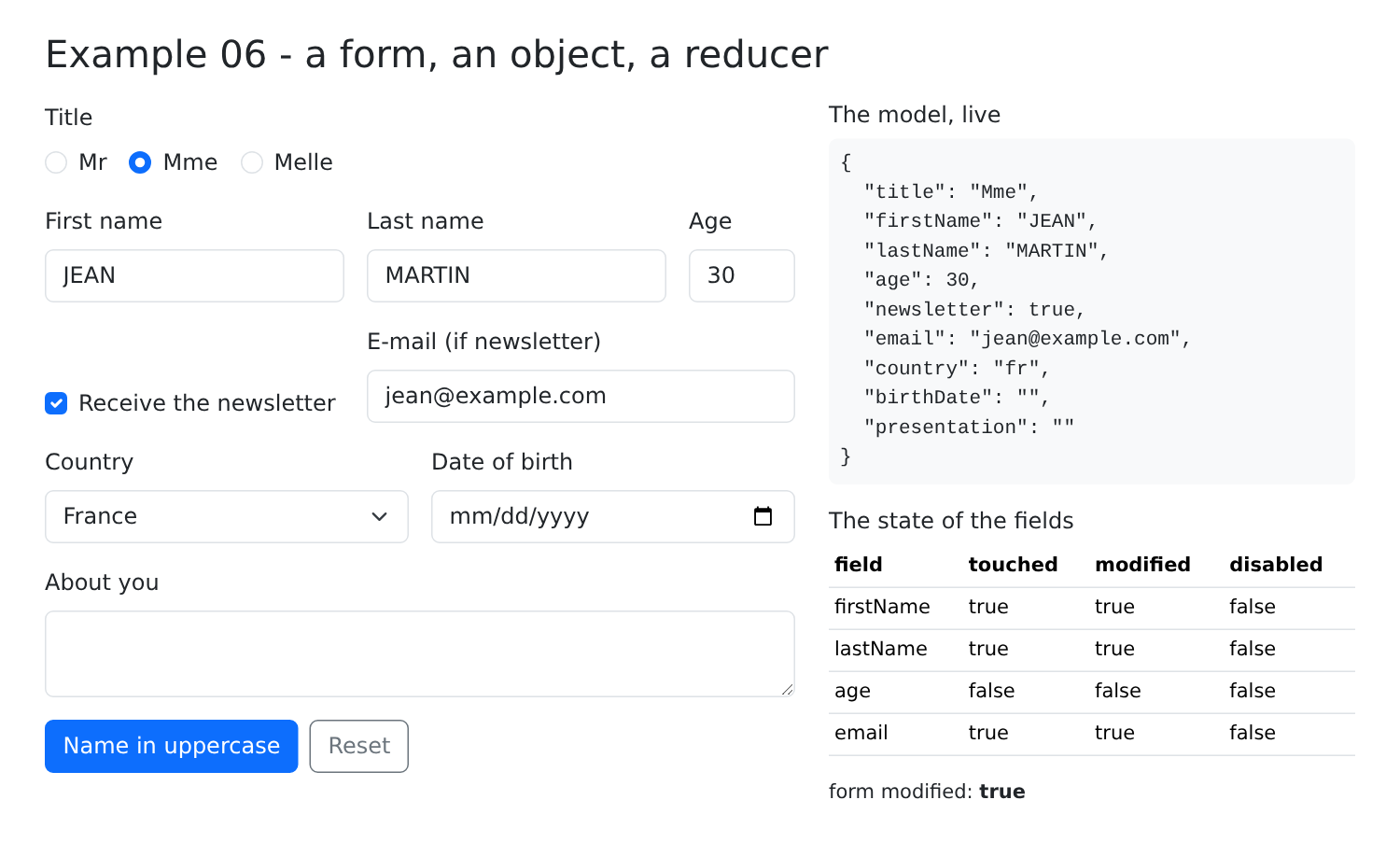
In JSX, specific fields (radio buttons, age, checkbox) call [dispatch] directly; the “Name in uppercase” and “Reset” buttons trigger the corresponding actions. On the right, the live template and the field status.
Enter a first name, enter a last name, check the newsletter box, enter an email address, then click “Name in uppercase”:
[useState] is suitable for independent data; [useReducer] is for a composite state, where changes follow rules: all the logic is in one place, outside the component. This is the same concept as the “stores” in [Redux] or [Vuex], but at the component level.
| // =========================================================================
// 07-validation/src/App.tsx - validating a form in the browser
// -------------------------------------------------------------------------
// React has no validation system: it is ordinary code. A
// PURE function, validate(account), returns the errors of the fields; it is
// called on each display, so the errors are always up to date.
// They are not shown right away (an empty form covered in red is
// unpleasant): only for a field already left ("touched"). Submitting
// marks all the fields as touched, then only acts if the form
// is valid.
//
// Same rules as the RdvMedecins server ("Create an account" form).
// WARNING: this validation is only a CONVENIENCE for the user (an
// immediate answer, without a round trip to the server). It protects
// nothing: anyone can send the server a request built by
// hand (curl...). The server therefore ALWAYS revalidates everything (cf. example 25).
// =========================================================================
import { useState, type FormEvent } from 'react';
interface Account {
title: string;
firstName: string;
lastName: string;
login: string;
password: string;
confirmation: string;
}
type Field = keyof Account;
// at most one error message per field
type Errors = Partial<Record<Field, string>>;
const TITLES = ['Mr', 'Mme', 'Melle'];
const LOGIN_FORMAT = /^[a-z0-9._-]{1,30}$/;
const PASSWORD_MIN = 6;
// the rules: a pure function, which only depends on its arguments
function validate(c: Account): Errors {
const errors: Errors = {};
if (!TITLES.includes(c.title)) errors.title = 'Choose a title from the list.';
if (c.firstName.trim() === '') errors.firstName = 'The first name is required.';
else if (c.firstName.length > 20) errors.firstName = 'The first name must not exceed 20 characters.';
if (c.lastName.trim() === '') errors.lastName = 'The last name is required.';
else if (c.lastName.length > 20) errors.lastName = 'The last name must not exceed 20 characters.';
if (c.login === '') errors.login = 'The login is required.';
else if (!LOGIN_FORMAT.test(c.login)) errors.login = 'Unaccented lower-case letters, digits, dot, hyphen, underscore.';
if (c.password === '') errors.password = 'The password is required.';
else if (c.password.length < PASSWORD_MIN) errors.password = `At least ${PASSWORD_MIN} characters.`;
// a rule that compares TWO fields
if (c.confirmation !== c.password) errors.confirmation = 'The confirmation does not match the password.';
return errors;
}
const EMPTY: Account = { title: 'Mr', firstName: '', lastName: '', login: '', password: '', confirmation: '' };
const ALL: Record<Field, boolean> = { title: true, firstName: true, lastName: true, login: true, password: true, confirmation: true };
export default function App() {
const [account, setAccount] = useState<Account>(EMPTY);
const [touched, setTouched] = useState<Partial<Record<Field, boolean>>>({});
const [submitAttempted, setSubmitAttempted] = useState(false);
const [success, setSuccess] = useState(false);
// the errors: recomputed on each display, never stored in the state
const errors = validate(account);
const errorCount = Object.keys(errors).length;
// the Bootstrap class of a field: red (is-invalid) or green (is-valid),
// only once it has been touched
function cssClass(field: Field, base = 'form-control'): string {
if (!touched[field]) return base;
return `${base} ${errors[field] ? 'is-invalid' : 'is-valid'}`;
}
// the attributes common to all the fields
function bind(field: Field) {
return {
id: field,
value: account[field],
onChange: (e: { target: { value: string } }) => {
setAccount((c) => ({ ...c, [field]: e.target.value }));
setSuccess(false);
},
onBlur: () => setTouched((t) => ({ ...t, [field]: true })),
};
}
function send(event: FormEvent<HTMLFormElement>) {
event.preventDefault();
setSubmitAttempted(true);
setTouched(ALL); // all the errors appear
// here, the account would be sent to the server (cf. example 25)
setSuccess(errorCount === 0);
}
return (
<div className="container py-4" style={{ maxWidth: 640 }}>
<h1 className="h3 mb-3">Example 07 - the validation of a form</h1>
{/* noValidate: the browser's own validation is disabled, to
display OUR messages, in OUR style */}
<form className="card p-4" noValidate onSubmit={send}>
<div className="mb-3">
<label className="form-label" htmlFor="title">Title</label>
<select className={cssClass('title', 'form-select')} {...bind('title')}>
{TITLES.map((t) => <option key={t}>{t}</option>)}
</select>
<div className="invalid-feedback">{errors.title}</div>
</div>
<div className="row g-3 mb-3">
<div className="col-sm-6">
<label className="form-label" htmlFor="firstName">First name</label>
{/* is-invalid frames the field in red AND shows the
.invalid-feedback that follows it: the error of the field is written there */}
<input className={cssClass('firstName')} {...bind('firstName')} />
<div className="invalid-feedback">{errors.firstName}</div>
</div>
<div className="col-sm-6">
<label className="form-label" htmlFor="lastName">Last name</label>
<input className={cssClass('lastName')} {...bind('lastName')} />
<div className="invalid-feedback">{errors.lastName}</div>
</div>
</div>
<div className="mb-3">
<label className="form-label" htmlFor="login">Login</label>
<input className={cssClass('login')} autoComplete="username" {...bind('login')} />
<div className="invalid-feedback">{errors.login}</div>
</div>
<div className="row g-3 mb-4">
<div className="col-sm-6">
<label className="form-label" htmlFor="password">Password</label>
<input type="password" className={cssClass('password')} autoComplete="new-password" {...bind('password')} />
<div className="invalid-feedback">{errors.password}</div>
</div>
<div className="col-sm-6">
<label className="form-label" htmlFor="confirmation">Confirmation</label>
<input type="password" className={cssClass('confirmation')} autoComplete="new-password" {...bind('confirmation')} />
<div className="invalid-feedback">{errors.confirmation}</div>
</div>
</div>
<button type="submit" className="btn btn-primary">Create the account</button>
{submitAttempted && errorCount > 0 && (
<div className="alert alert-danger mt-3 mb-0">The form contains {errorCount} error(s).</div>
)}
{success && <div className="alert alert-success mt-3 mb-0">Valid form: it could be sent to the server.</div>}
</form>
</div>
);
}
|
[React] has no validation system: it’s just regular code.
- Lines 30–32: at most one error message per field;
- lines 39–53: the rules: a pure function that returns field errors; these are the same rules as those in the [RdvMedecins] server for creating an account. The last rule compares two fields;
- Line 65: Errors are recalculated each time the page is displayed and are never cached; they are therefore always up to date;
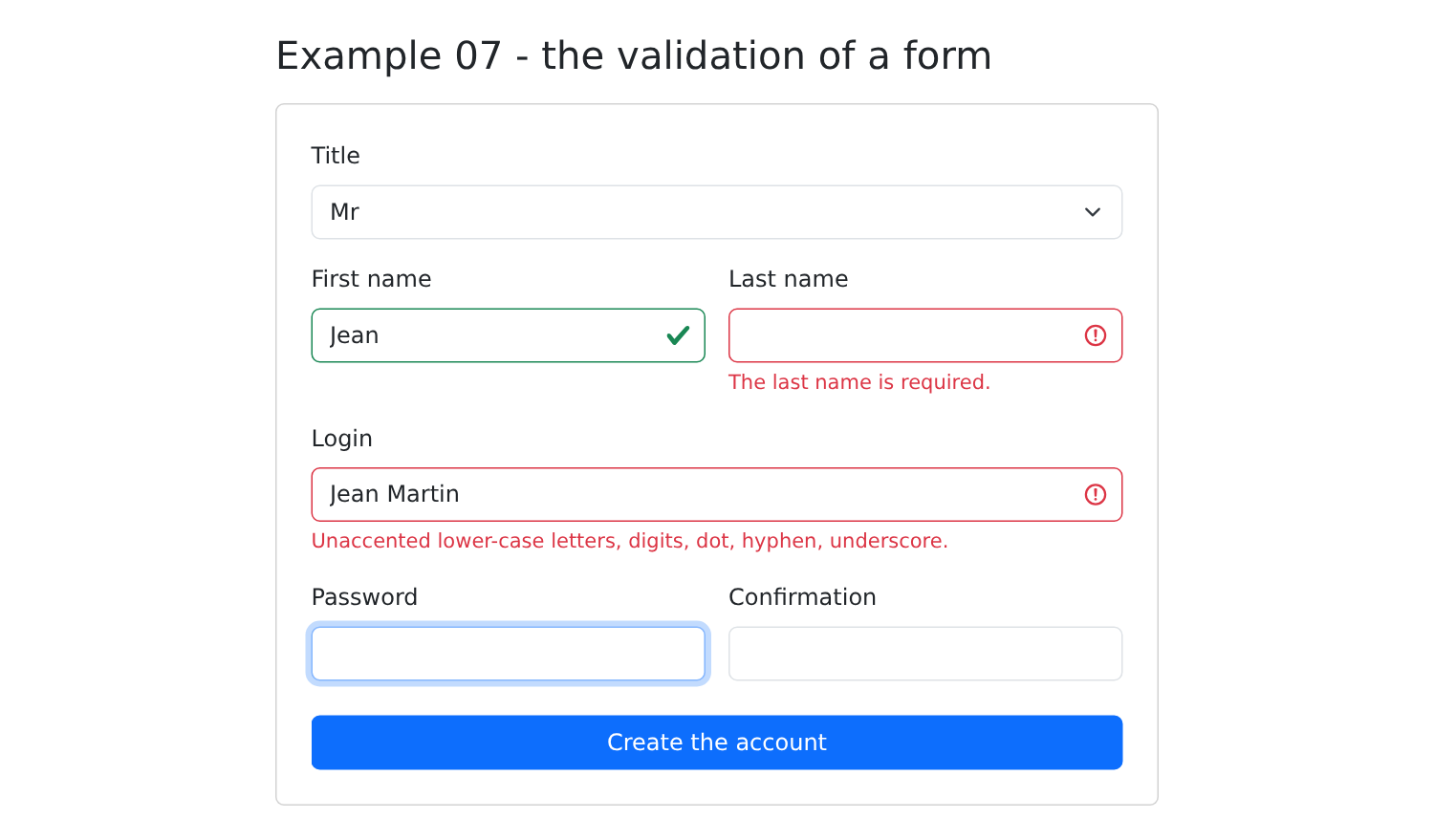
- lines 70–73: the [Bootstrap] class for a field—[is-invalid] (red box) or [is-valid] (green box)—only after the field has been selected: an empty form covered in red would be unappealing;
- lines 76–86: as in Example 06, the common attributes of the fields; leaving a field marks it as selected;
- lines 88–94: submitting the form marks the fields as filled in (their errors appear), and the submission succeeds only if the form is valid.
JSX:
- line 101: browser-specific validation is disabled to display OUR messages in OUR style;
- lines 114–115: the [is-invalid] class frames the field in red, AND displays the following [.invalid-feedback], where the field error is written.
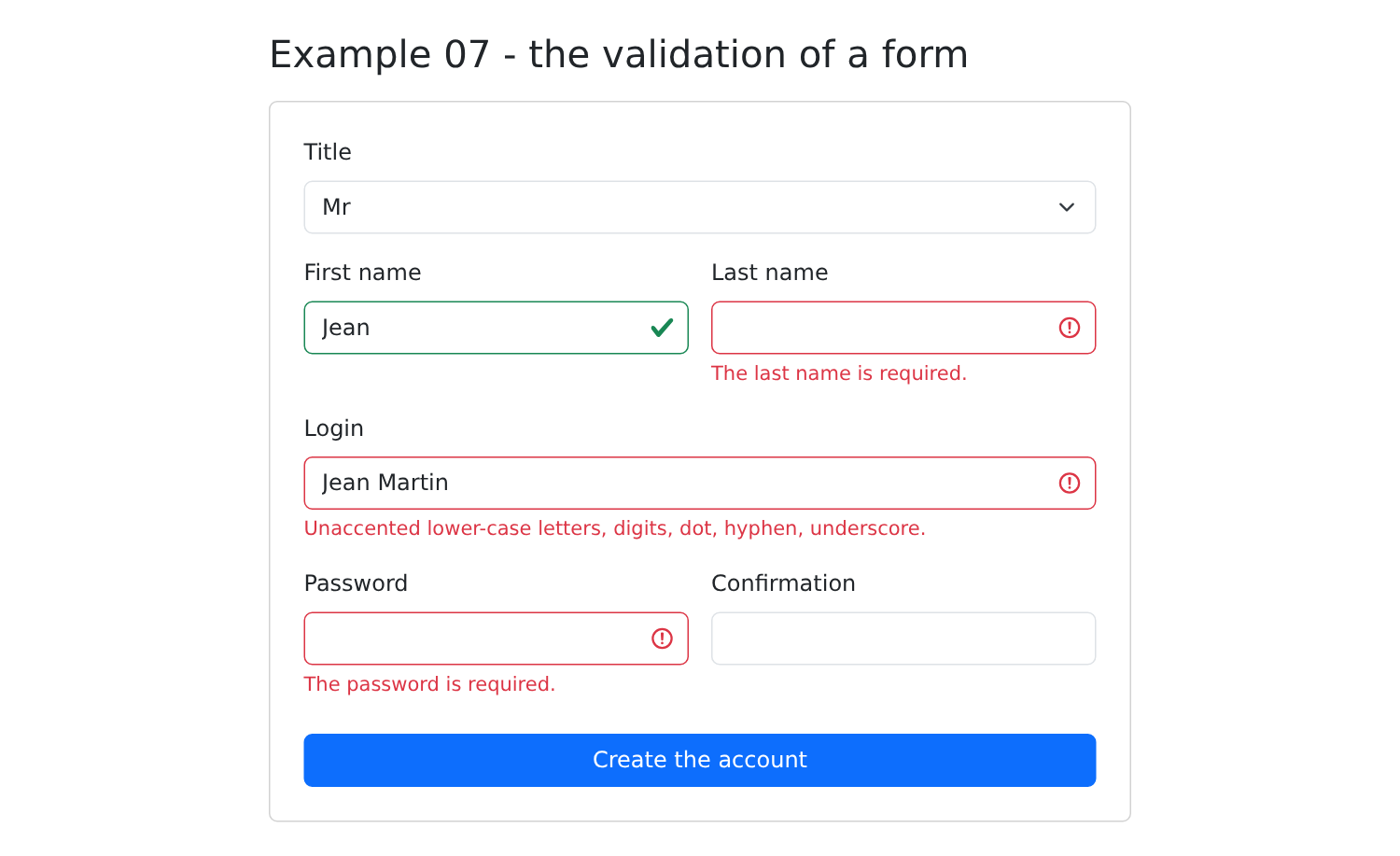
Enter a first name, enter a last name, enter an invalid login:
Click “Create the account”:
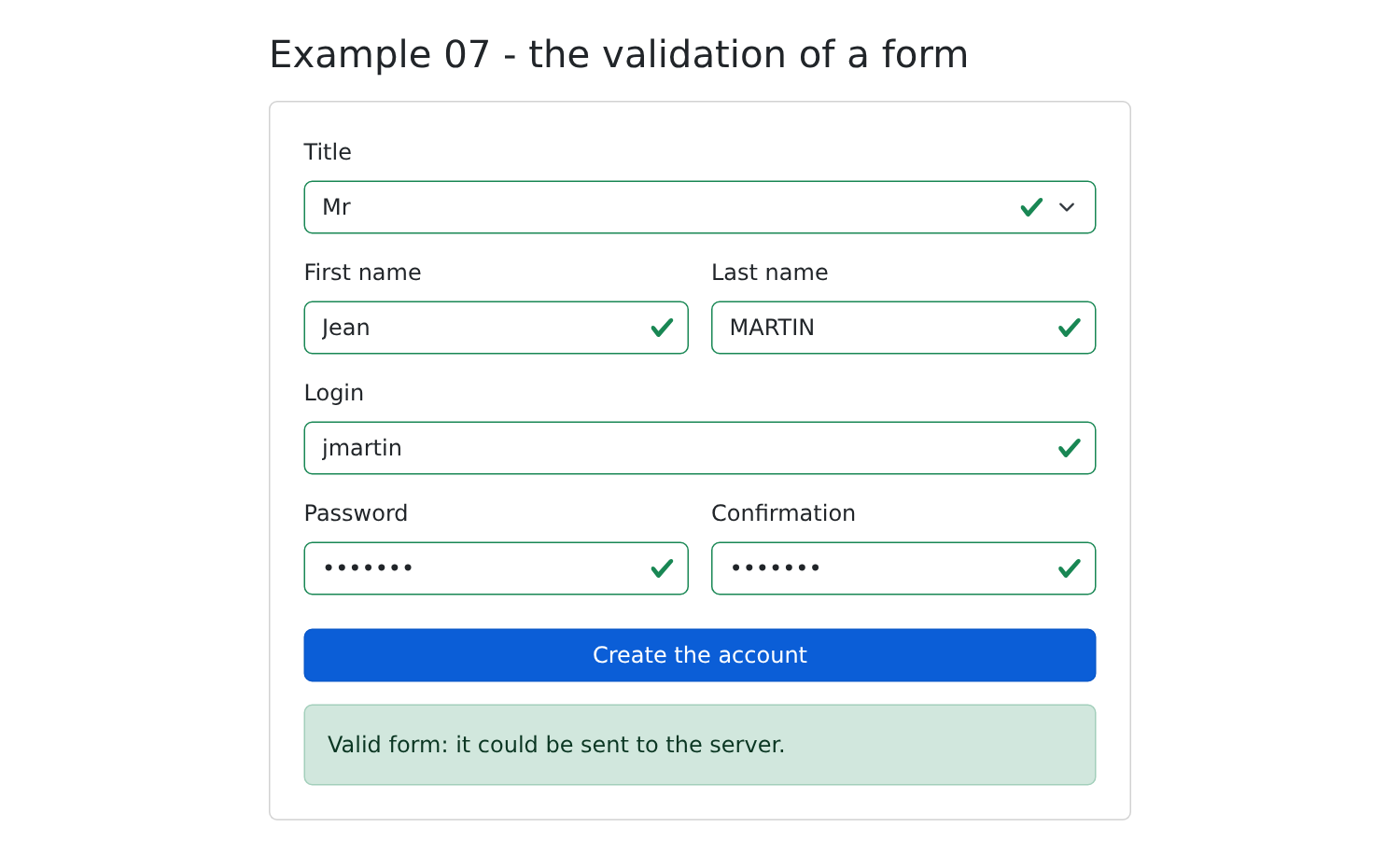
Once everything has been corrected:
WARNING: This validation is merely for the user's convenience (an immediate response, without a round trip to the server). It provides no protection: anyone can send a manually crafted request to the server ([curl]...). The server therefore ALWAYS revalidates everything (see Example 25).
The form from Example 07, written using [React Hook Form], the most widely used form library with [React]:
| // =========================================================================
// 08-react-hook-form/src/App.tsx - a form library
// -------------------------------------------------------------------------
// The form of example 07, written with React Hook Form, the most used form
// library with React. It is found in most
// existing applications.
// - useForm<T>() returns tools for a form of type T;
// - register('lastName', rules) links an HTML field to the field "lastName" of
// the form: it returns the attributes to spread on the element (name,
// ref, onChange, onBlur). The fields are NOT controlled: it is the
// library that reads their value in the page, without calling the
// component again on each keystroke;
// - the rules: required, maxLength, minLength, pattern, validate (a
// "home-made" rule), each with its message;
// - formState.errors: the errors of each field;
// - handleSubmit(action): validates everything; only calls the action if the
// form is valid.
// =========================================================================
import { useState } from 'react';
import { useForm } from 'react-hook-form';
interface Account {
title: string;
firstName: string;
lastName: string;
login: string;
password: string;
confirmation: string;
}
const TITLES = ['Mr', 'Mme', 'Melle'];
export default function App() {
const {
register,
handleSubmit,
getValues,
formState: { errors, isSubmitted },
} = useForm<Account>({
// the initial values
defaultValues: { title: 'Mr', firstName: '', lastName: '', login: '', password: '', confirmation: '' },
// when to validate: when leaving a field, then on each keystroke
mode: 'onTouched',
});
const [sent, setSent] = useState('');
// a field is flagged in error if it has one (errors.lastName exists)
const cssClass = (field: keyof Account) => `form-control${errors[field] ? ' is-invalid' : ''}`;
// called by handleSubmit, ONLY if the form is valid;
// it receives the values, typed
function create(account: Account) {
setSent(JSON.stringify(account));
}
return (
<div className="container py-4" style={{ maxWidth: 640 }}>
<h1 className="h3 mb-3">Example 08 - React Hook Form</h1>
<form className="card p-4" noValidate onSubmit={handleSubmit(create, () => setSent(''))}>
<div className="mb-3">
<label className="form-label" htmlFor="title">Title</label>
<select id="title" className="form-select" {...register('title', { required: true })}>
{TITLES.map((t) => <option key={t}>{t}</option>)}
</select>
</div>
<div className="row g-3 mb-3">
<div className="col-sm-6">
<label className="form-label" htmlFor="firstName">First name</label>
<input id="firstName" className={cssClass('firstName')}
{...register('firstName', {
required: 'The first name is required.',
maxLength: { value: 20, message: '20 characters at most.' },
})} />
{/* errors.firstName?.message: the message of the failing rule */}
<div className="invalid-feedback">{errors.firstName?.message}</div>
</div>
<div className="col-sm-6">
<label className="form-label" htmlFor="lastName">Last name</label>
<input id="lastName" className={cssClass('lastName')}
{...register('lastName', {
required: 'The last name is required.',
maxLength: { value: 20, message: '20 characters at most.' },
})} />
<div className="invalid-feedback">{errors.lastName?.message}</div>
</div>
</div>
<div className="mb-3">
<label className="form-label" htmlFor="login">Login</label>
<input id="login" className={cssClass('login')}
{...register('login', {
required: 'The login is required.',
pattern: { value: /^[a-z0-9._-]{1,30}$/, message: 'Unaccented lower-case letters, digits, dot, hyphen, underscore.' },
})} />
<div className="invalid-feedback">{errors.login?.message}</div>
</div>
<div className="row g-3 mb-4">
<div className="col-sm-6">
<label className="form-label" htmlFor="password">Password</label>
<input id="password" type="password" className={cssClass('password')}
{...register('password', {
required: 'The password is required.',
minLength: { value: 6, message: 'At least 6 characters.' },
// deps: when the password changes, ALSO revalidate the confirmation
deps: ['confirmation'],
})} />
<div className="invalid-feedback">{errors.password?.message}</div>
</div>
<div className="col-sm-6">
<label className="form-label" htmlFor="confirmation">Confirmation</label>
{/* validate: a "home-made" rule; getValues reads ANOTHER field */}
<input id="confirmation" type="password" className={cssClass('confirmation')}
{...register('confirmation', {
validate: (value) => value === getValues('password') || 'The confirmation does not match the password.',
})} />
<div className="invalid-feedback">{errors.confirmation?.message}</div>
</div>
</div>
<button type="submit" className="btn btn-primary">Create the account</button>
{isSubmitted && (
<div className={`alert mt-3 mb-0 ${sent ? 'alert-success' : 'alert-danger'}`}>
{sent ? <>Valid form: <code>{sent}</code></> : 'Invalid form.'}
</div>
)}
</form>
</div>
);
}
|
- line 21: the library’s main hook;
- lines 35–40: [useForm<Account>(options)] returns the components of an [Account]-type form, which are unwrapped: [register], [handleSubmit], [getValues], and [formState], the form status (including [errors], field errors, and [isSubmitted], which is true after the first submission);
- line 42: the initial values;
- line 44: when to validate: upon exiting a field, then after each keystroke;
- line 49: a field is flagged as having an error if it contains one;
- lines 53–55: the submission action, called by [handleSubmit] only if the form is valid; it receives the typed values;
- line 60: [handleSubmit(onValid, onInvalid)] creates the submission handler: it validates all fields, then calls one function or the other;
- lines 71–74: [register('firstName', rules)] links the HTML field to the [firstName] field in the form, using its rules: [required], [maxLength], [minLength], [pattern], and [validate] (a “custom” rule), each with its own message. [register] returns the attributes to be applied to the element ([name], [ref], [onChange], [onBlur]). The fields are NOT controlled: the library reads their values from the page via the reference; therefore, the component is not re-invoked with each keystroke, which is important for large forms;
- line 76: the message for a failed validation rule ([?.]: [undefined] if the field has no errors);
- line 105: when the password changes, revalidate the confirmation as well;
- line 114: a custom rule that compares two fields: [getValues('password')] reads the value of another field. It returns [true] (valid) or the error message.
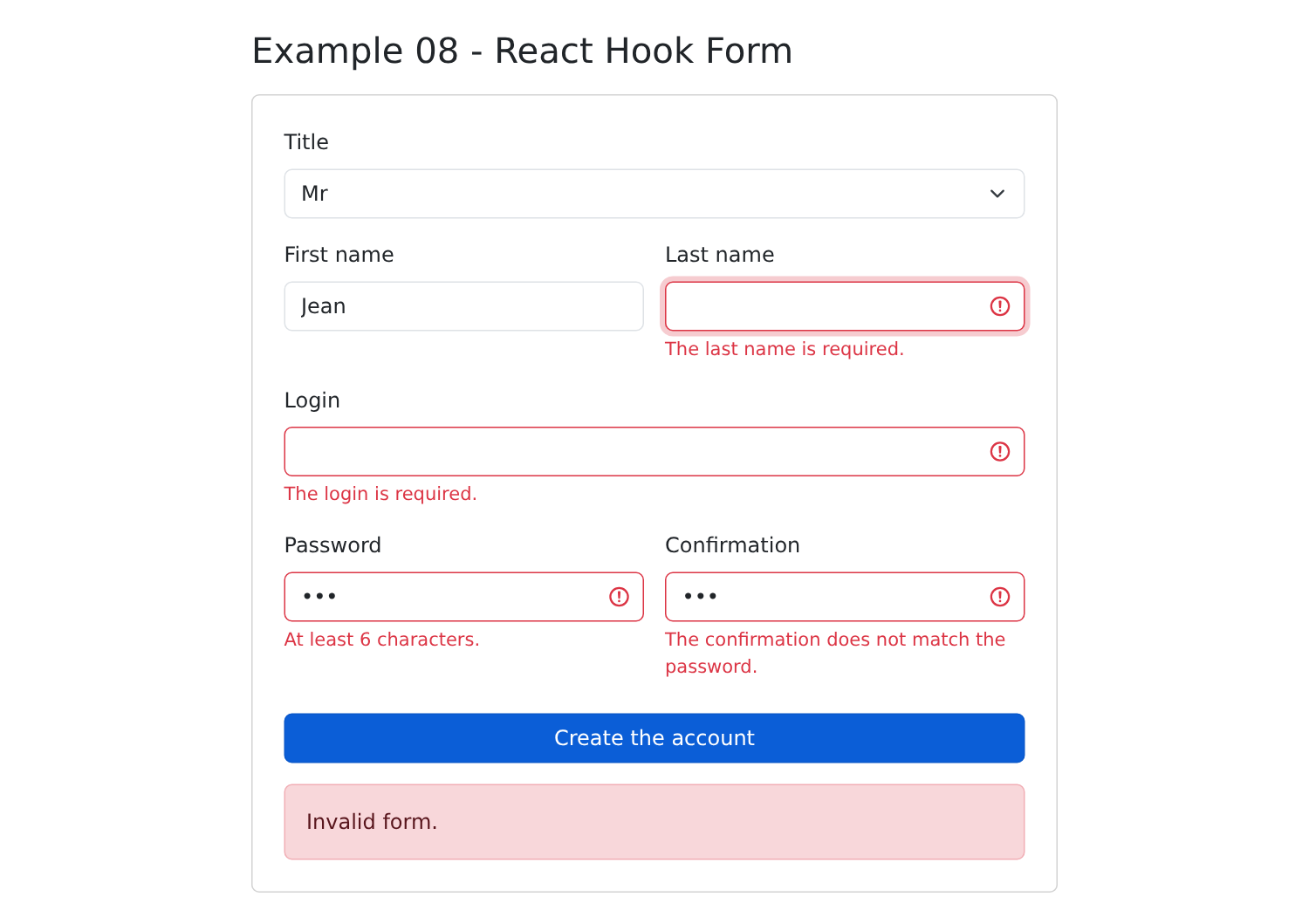
For [React], each requirement has several competing libraries. For forms, we also encounter [Formik], [TanStack Form], and, to describe the rules, [Zod] or [Yup] (validation “schemas” that can be shared with a [Node.js] server). For the case study, where all validation is performed by the server, we will not use a library: controlled fields and a custom hook will suffice.
[Angular] has its own “pipes” for formatting a value in a template. [React] does not have its own mechanism: in JSX, we call functions stored in a module. For dates, numbers, and amounts, the browser provides the API [Intl], which understands the conventions of each language.
| // =========================================================================
// 09-formatting/src/formatting.ts - "home-made" formatting functions
// -------------------------------------------------------------------------
// React has no mechanism of its own for formatting (Angular has its
// "pipes", Vue.js its functions): in JSX, we call ordinary
// FUNCTIONS, stored in a module and testable on their own:
// {timeRange(slot)} -> "8:00 - 8:20"
// {timeRange(slot, 'start')} -> "8:00"
// For dates, numbers, amounts, the browser provides the Intl
// API, which knows the conventions of each language.
// =========================================================================
export interface Slot {
startHour: number;
startMinute: number;
endHour: number;
endMinute: number;
}
// "8:05" rather than "8:5"
function time(h: number, m: number): string {
return `${h}:${String(m).padStart(2, '0')}`;
}
export function timeRange(c: Slot, part: 'all' | 'start' | 'end' = 'all'): string {
switch (part) {
case 'start':
return time(c.startHour, c.startMinute);
case 'end':
return time(c.endHour, c.endMinute);
default:
return `${time(c.startHour, c.startMinute)} - ${time(c.endHour, c.endMinute)}`;
}
}
// "marie pelissier" -> "Marie Pelissier"
export function capitalize(text: string): string {
return text.replace(/\p{L}+/gu, (word) => word[0].toUpperCase() + word.slice(1).toLowerCase());
}
// "Marie PELISSIER" -> "MP"
export function initials(fullName: string): string {
return fullName
.split(/\s+/)
.filter((word) => word !== '')
.map((word) => word[0].toUpperCase())
.join('');
}
// "2026-10-05" (the format of the RdvMedecins API) -> a Date, at midnight UTC
export function toDate(day: string): Date {
return new Date(`${day}T00:00:00Z`);
}
|
- lines 13–18: a time slot, as sent by the [RdvMedecins] server (start and end hours and minutes);
- lines 21–23: [padStart(2, '0')] pads the string on the left: “5” becomes “05”;
- lines 25–34: “8:00 – 8:20,” or just the start or the end, depending on the [part] parameter, which is optional (default value ['all']);
- lines 37–39: [\p{L}+] refers to a sequence of letters, including accented characters (option [u]): the first letter is capitalized;
- lines 51–53: a date of the form API (["2026-10-05"]) becomes a [Date] object at midnight UTC.
2.9.2. The page
| // =========================================================================
// 09-formatting/src/App.tsx - formatting values in JSX
// -------------------------------------------------------------------------
// Each row of the table shows a piece of code and what it displays.
// The Intl formatters are created once and for all, outside the component:
// building them costs more than using them.
// =========================================================================
import { useState } from 'react';
import { timeRange, initials, capitalize, toDate, type Slot } from './formatting';
// dates: dateStyle / timeStyle, or the detail of the parts to display
const shortDate = new Intl.DateTimeFormat('en-US', { dateStyle: 'medium' });
const fullDate = new Intl.DateTimeFormat('en-US', { dateStyle: 'full' });
const timeOnly = new Intl.DateTimeFormat('en-US', { timeStyle: 'medium' });
const longDay = new Intl.DateTimeFormat('en-US', { weekday: 'long', day: 'numeric', month: 'long', year: 'numeric', timeZone: 'UTC' });
const frenchDay = new Intl.DateTimeFormat('fr-FR', { dateStyle: 'long', timeZone: 'UTC' });
// numbers and amounts
const euros = new Intl.NumberFormat('en-US', { style: 'currency', currency: 'EUR' });
const integer = new Intl.NumberFormat('en-US', { maximumFractionDigits: 0 });
const percent = new Intl.NumberFormat('en-US', { style: 'percent', minimumFractionDigits: 1 });
const day = '2026-10-05'; // a date in the format of the RdvMedecins API
const price = 1234.5;
const rate = 0.055;
const name = 'marie pelissier';
const doctor = { title: 'Mme', firstName: 'Marie', lastName: 'PELISSIER' };
const languages = ['TypeScript', 'HTML', 'CSS', 'JavaScript', 'SQL'];
const slots: Slot[] = [
{ startHour: 8, startMinute: 0, endHour: 8, endMinute: 20 },
{ startHour: 8, startMinute: 20, endHour: 8, endMinute: 40 },
{ startHour: 14, startMinute: 5, endHour: 14, endMinute: 25 },
];
export default function App() {
const [now, setNow] = useState(() => new Date());
// [displayed code, value]: a row of the table
const rows: [string, string][] = [
['shortDate.format(now)', shortDate.format(now)],
['fullDate.format(now)', fullDate.format(now)],
['timeOnly.format(now)', timeOnly.format(now)],
['longDay.format(toDate(day))', longDay.format(toDate(day))],
['frenchDay.format(toDate(day))', frenchDay.format(toDate(day))],
['now.toLocaleDateString()', now.toLocaleDateString()],
['euros.format(price)', euros.format(price)],
['integer.format(price)', integer.format(price)],
['percent.format(rate)', percent.format(rate)],
['name.toUpperCase()', name.toUpperCase()],
['capitalize(name)', capitalize(name)],
["'RDV'.toLowerCase()", 'RDV'.toLowerCase()],
["languages.slice(0, 3).join(', ')", languages.slice(0, 3).join(', ')],
['JSON.stringify(doctor)', JSON.stringify(doctor)],
// two functions in a row: the result of the first goes to the second
['initials(capitalize(name))', initials(capitalize(name))],
];
return (
<div className="container py-4" style={{ maxWidth: 820 }}>
<h1 className="h3 mb-3">Example 09 - the formatting of values</h1>
<table className="table table-sm align-middle">
<thead><tr><th>In the code</th><th>Displayed</th></tr></thead>
<tbody>
{rows.map(([code, value]) => (
<tr key={code}><td><code>{`{${code}}`}</code></td><td>{value}</td></tr>
))}
</tbody>
</table>
<h2 className="h6">Object.entries: going through the properties of an object</h2>
<ul>
{Object.entries(doctor).map(([key, value]) => (
<li key={key}>{key} = {value}</li>
))}
</ul>
<h2 className="h6">A home-made function: timeRange</h2>
<ul>
{slots.map((c) => (
<li key={timeRange(c)}>{timeRange(c)} (start: {timeRange(c, 'start')})</li>
))}
</ul>
<button className="btn btn-sm btn-outline-primary" onClick={() => setNow(new Date())}>Refresh the time</button>
</div>
);
}
|
- lines 13–17: date formatters, [Intl.DateTimeFormat(language, options)]: [dateStyle] and [timeStyle] provide predefined formats ([full], [long], [medium], [short]); you can also specify which parts to display ([weekday], [day], [month], [year]). [timeZone: 'UTC']: The date [2026-10-05T00:00:00Z] must remain October 5, regardless of the browser’s time zone;
- Lines 19–21: number formatters: an amount in euros, a number without decimals, a percentage;
- lines 39–56: table rows: the code and its value. The last one chains two functions;
- line 65: the code enclosed in curly braces;
- lines 72–74: [Object.entries(object)] returns the [key, value] pairs of an object, which are iterated over using [map];
- lines 79–81: the custom function [timeRange].
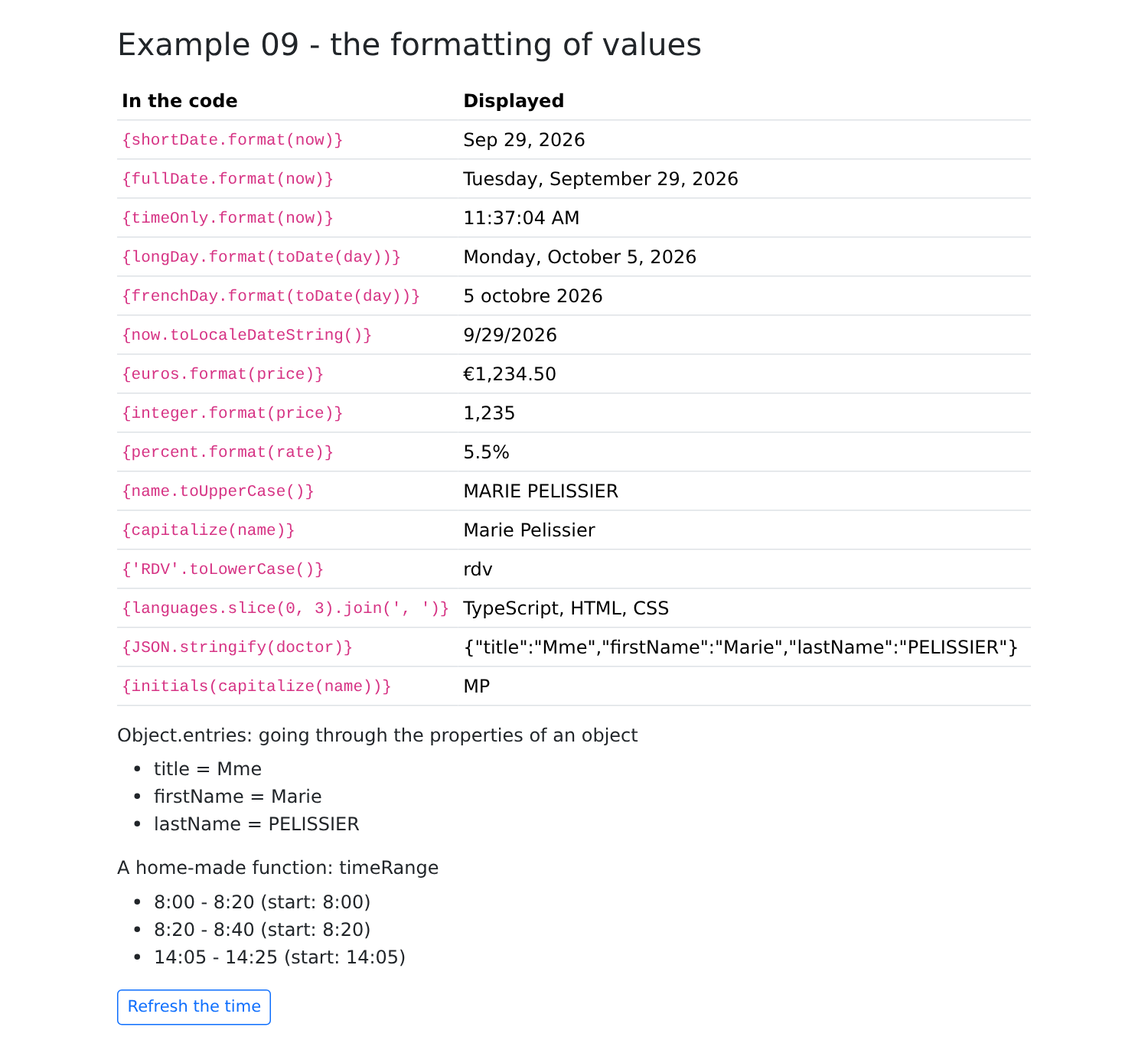
The [Intl] generators are created once and for all, outside the component: creating them costs more than using them. The language is hard-coded there ([en-US], and [fr-FR] for the French line); Example 21 will show how to follow the language chosen by the user.