7. Case Study with Firebird 2.1
7.1. Installing the Tools
The tools to be installed are as follows:
- SGBD: [http://www.firebirdsql.org/en/firebird-2-1-5/];
- an administration tool: EMS SQL Manager for InterBase/Firebird Freeware [http://www.sqlmanager.net/fr/products/ibfb/manager/download].
In the following examples, the user is sysdba with the password masterkey.
Let’s launch Firebird and then the [SQL Manager Lite for Firebird] tool, which we will use to administer SGBD.
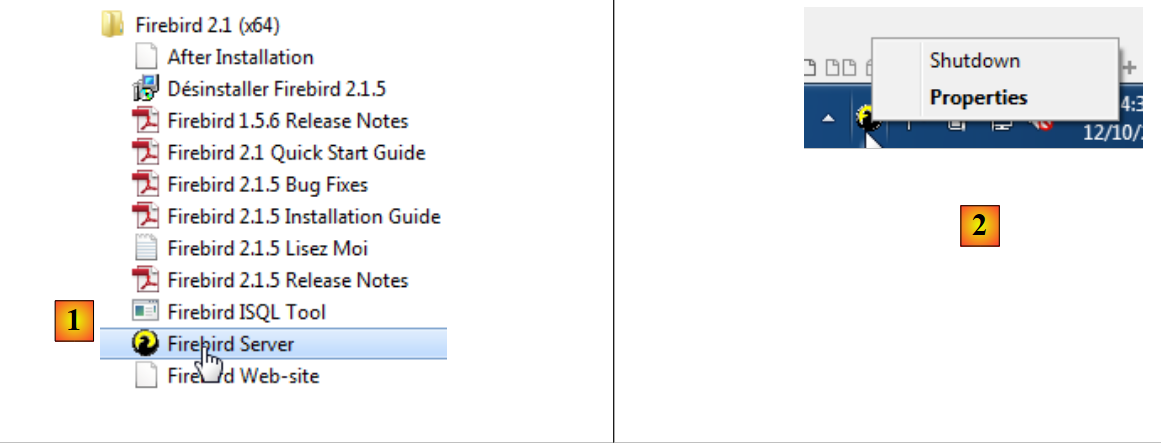 |
- In [1], we launch the SGBD Firebird from the Start Menu. Here, SGBD has not been installed as a Windows service;
- In [2], the service is started. An icon has appeared in the bottom-right corner of the screen. By right-clicking on it, you can stop SGBD.
We now launch the [SQL Manager Lite for Firebird] tool, which we will use to manage SGBD and [3].
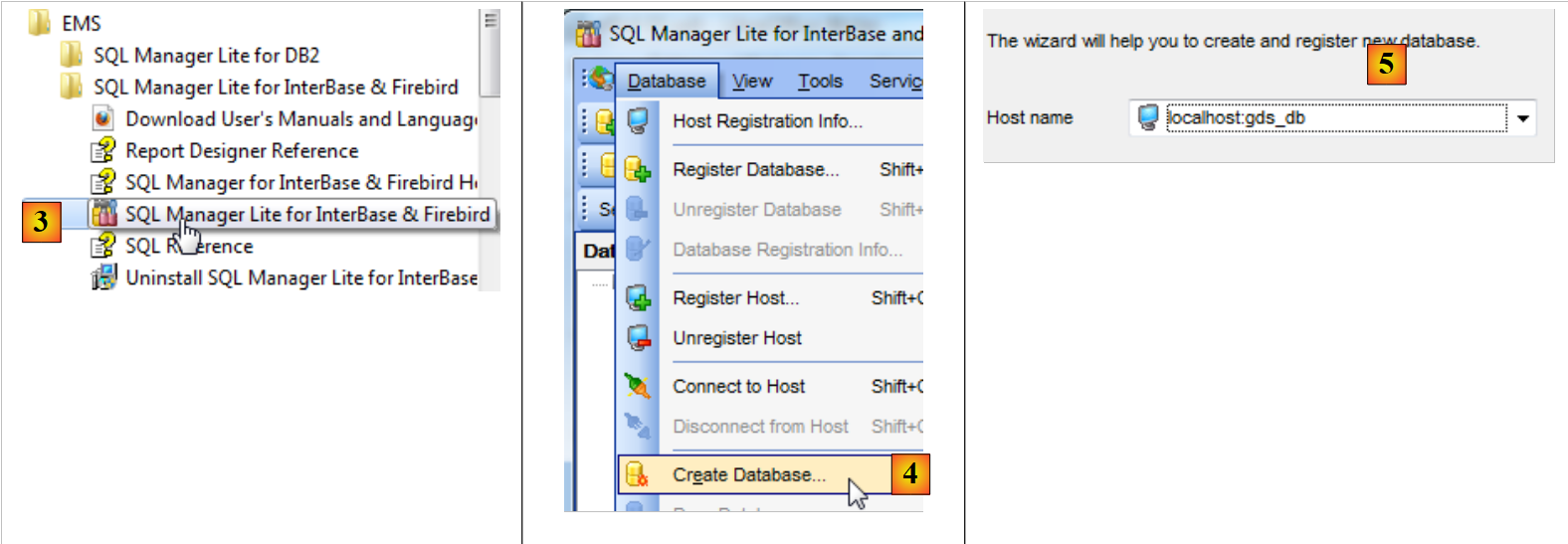 |
- In [4], we create a new database;
- in [5], we accept;
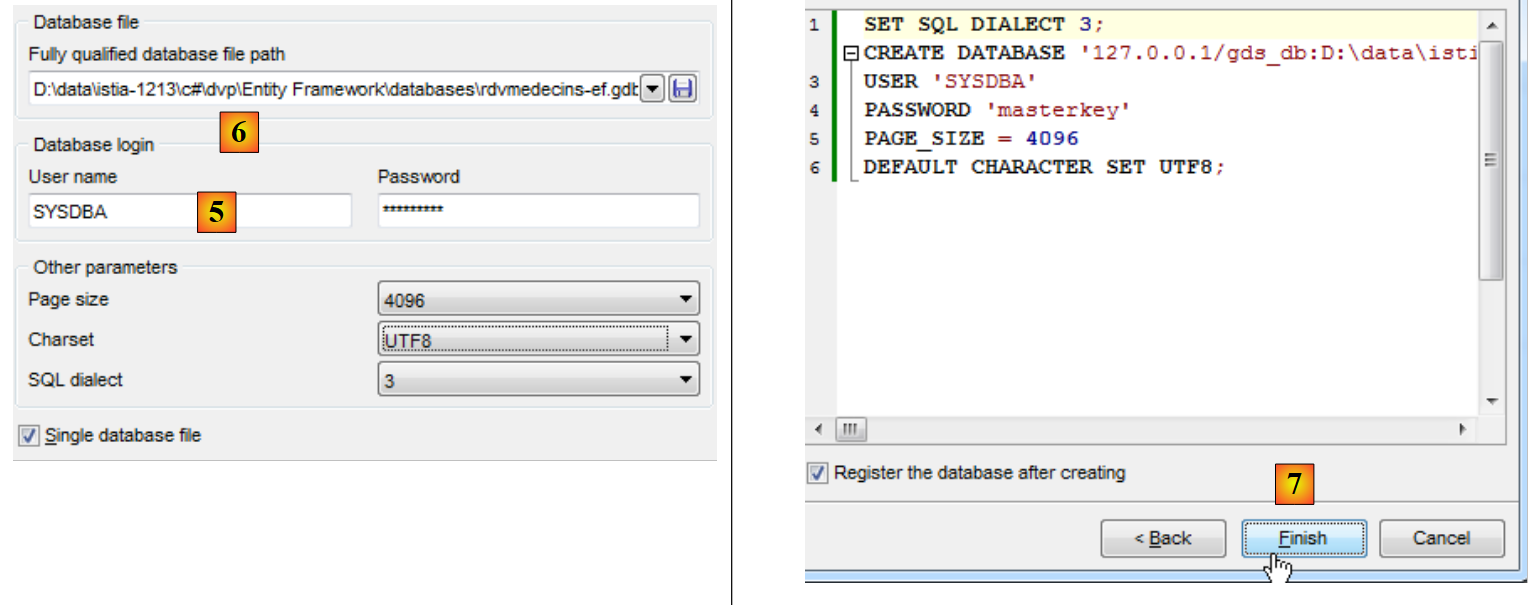 |
- In [5], we log in as SYSDBA / masterkey;
- In [6], we specify the location of the file to be created. The database will be created in a single file;
- In [7], we validate the SQL command to be executed;
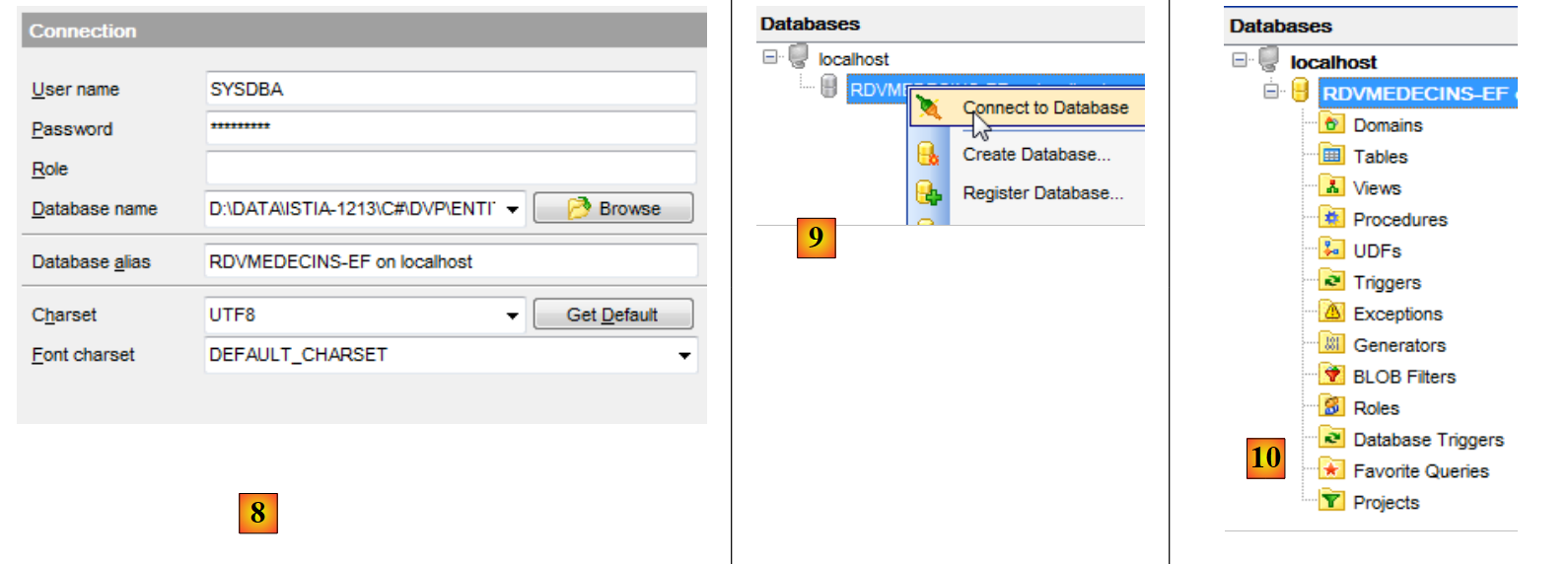 |
- In [8], the database has been created. It must now be saved in [EMS Manager]. The information is correct. We run [OK];
- In [9], we connect to it;
- In [10], [EMS Manager] displays the database, which is currently empty.
We will now connect a 2012 VS project to this database.
7.2. Creating the database from the entities
We start by duplicating the [RdvMedecins-SqlServer-01] project folder into [RdvMedecins-Firebird-01] and [1]:
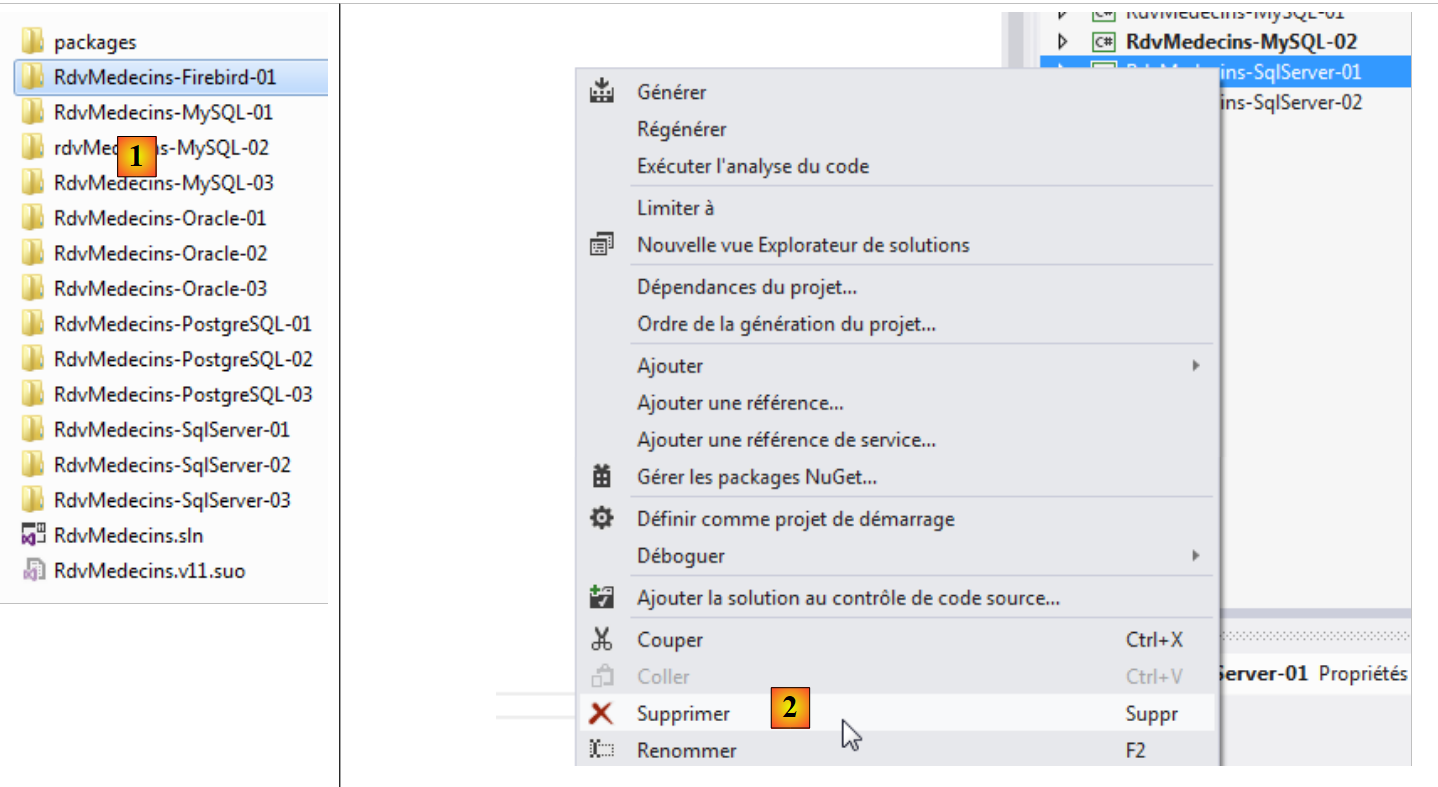 |
- in [2], in VS 2012, we remove the [RdvMedecins-SqlServer-01] project from the solution;
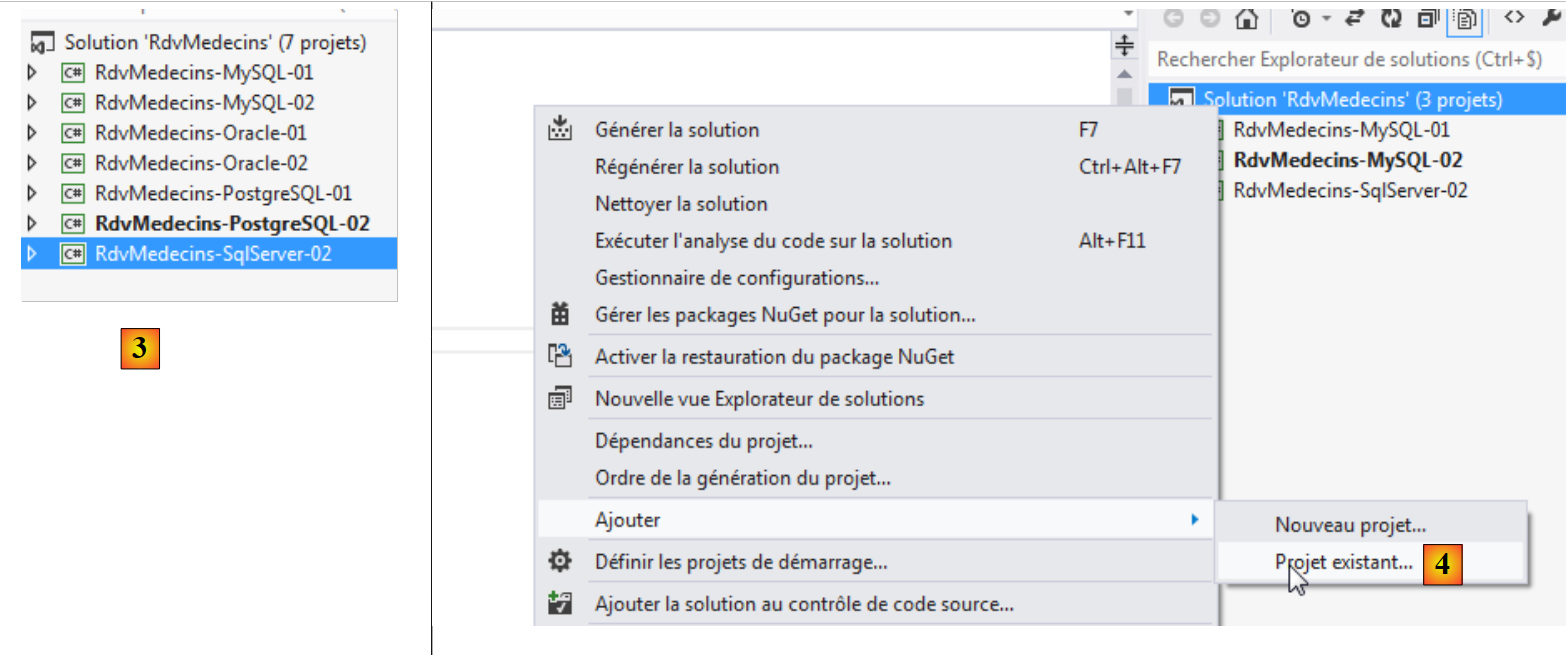 |
- in [3], the project has been removed;
- In [4], we add another one. This one is taken from the [RdvMedecins-Firebird-01] folder that we created previously;
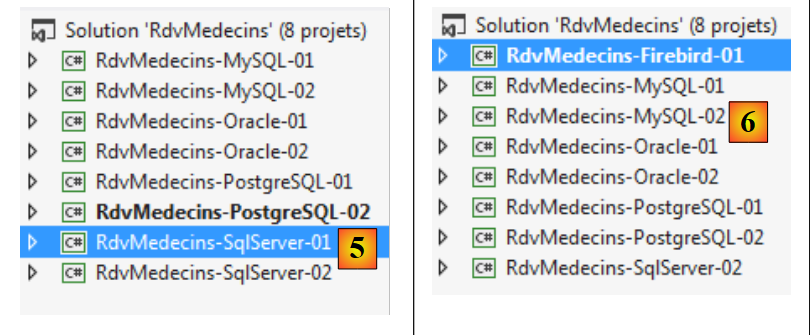 |
- in [5], the loaded project is named [RdvMedecins-SqlServer-01];
- In [6], we rename it to [RdvMedecins-Firebird-01]
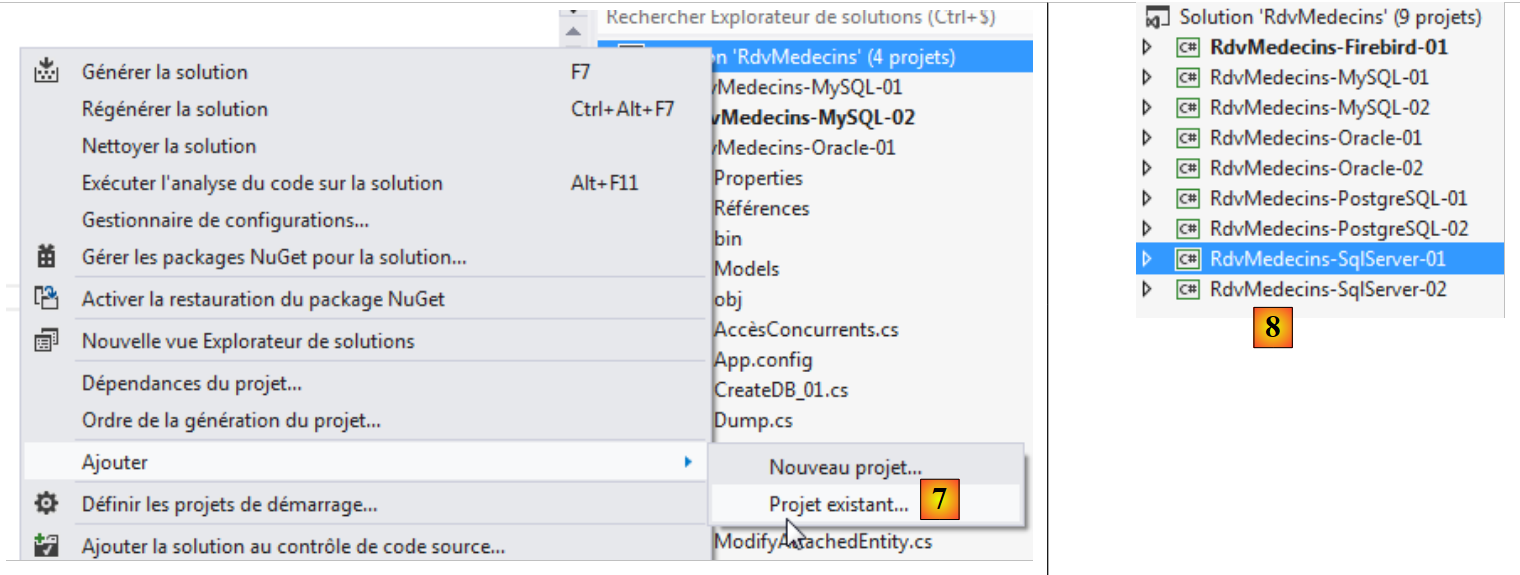 |
- in [7], we add another project to the solution. This project is taken from the [RdvMedecins-SqlServer-01] folder of the project we previously removed from the solution;
- In [8], the project [RdvMedecins-SqlServer-01] has been added back to the solution.
The [RdvMedecins-Firebird-01] project is identical to the [RdvMedecins-SqlServer-01] project. We need to make a few changes. In [App.config], we will modify the connection string and the [DbProviderFactory], which must be adapted for each SGBD.
<!-- connection chain on base -->
  <connectionStrings>
    <add name="monContexte" connectionString="User=SYSDBA;Password=masterkey;Database=D:\data\istia-1213\c#\dvp\Entity Framework\databases\firebird\RDVMEDECINS-EF.GDB;DataSource=localhost;
Port=3050;Dialect=3;Charset=NONE;Role=;Connection lifetime=15;Pooling=true;MinPoolSize=0;MaxPoolSize=50;Packet Size=8192;ServerType=0;" providerName="FirebirdSql.Data.FirebirdClient" />
  </connectionStrings>
  <!-- the factory provider -->
  <system.data>
    <DbProviderFactories>
      <add name="Firebird Client Data Provider" invariant="FirebirdSql.Data.FirebirdClient" description=".Net Framework Data Provider for Firebird" type="FirebirdSql.Data.FirebirdClient.FirebirdClientFactory, FirebirdSql.Data.FirebirdClient, Version=2.7.7.0, Culture=neutral, PublicKeyToken=3750abcc3150b00c" />
    </DbProviderFactories>
  </system.data>
- line 3: the user and password, as well as the full path to the Firebird database;
- lines 8–10: the DbProviderFactory. Line 9 references a DLL and [FirebirdSql.Data.FirebirdClient] that we do not have. We obtain it using NuGet [1]:
 |
- in [2], type the keyword "firebird" in the search field;
- in [3], select the package [Firebird ADO.NET Data Provider]. This is an ADO.NET connector for Firebird;
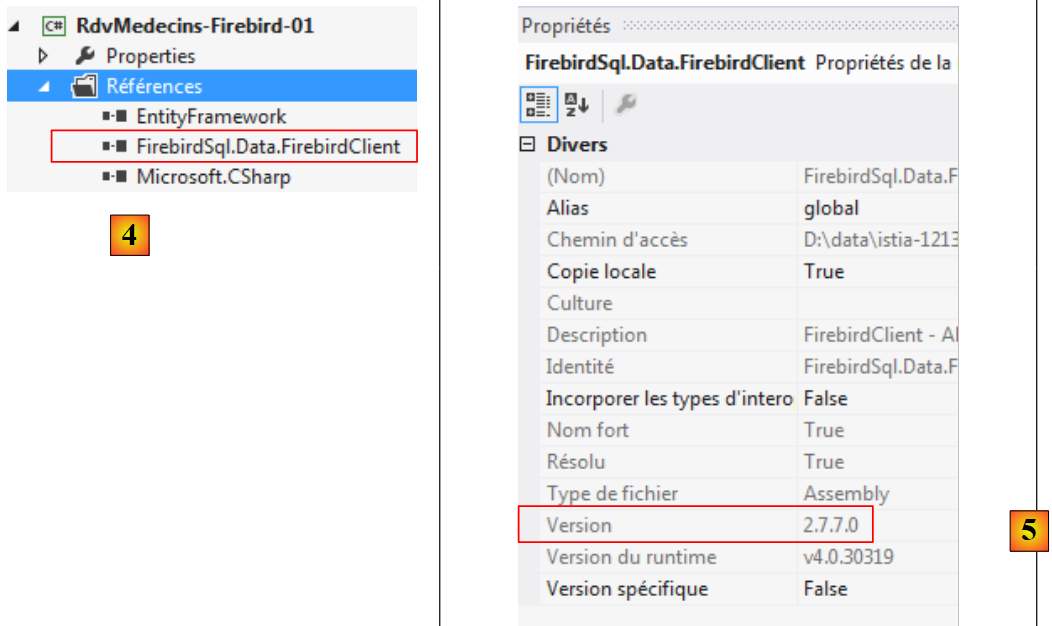 |
- in [4], the new reference;
- In [5], in [App.config], you must enter the correct version from DLL. You can find it in its properties.
In the file [Entites.cs], you need to adjust the schema of the tables that will be generated:
  [Table("MEDECINS")]
  public class Medecin : Personne
  {...}

  [Table("CLIENTS")]
  public class Client : Personne
  {...}

  [Table("CRENEAUX")]
  public class Creneau
  {...}

  [Table("RVS")]
  public class Rv
  {...}
Here, the tables have no schema.
We configure the project build:
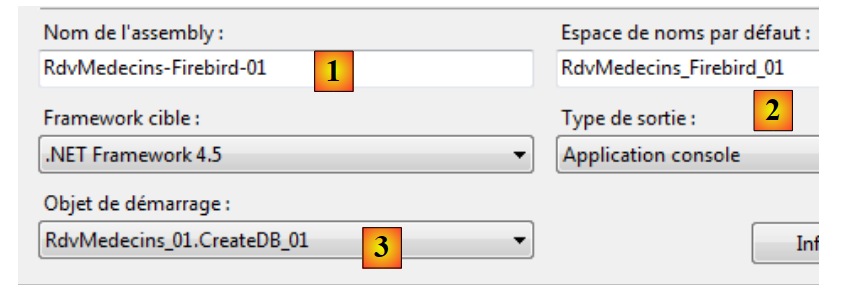 |
- in [1], we give a different name to the assembly that will be generated;
- in [2], we also specify a different default namespace;
- in [3], we specify the program to be executed.
At this stage, there are no compilation errors. Let’s run the program [CreateDB_01]. We get the following exception:
We recall having encountered the same error with MySQL, Oracle, and PostgreSQL. This is related to the type of the Timestamp field in the entities. We make the same modification as with the two previous SGBD files. In the entities, we replace the three lines
    [Column("TIMESTAMP")]
    [Timestamp]
    public byte[] Timestamp { get; set; }
with the following:
    [ConcurrencyCheck]
    [Column("VERSIONING")]
    public int? Versioning { get; set; }
We therefore change the column type from byte[] to int?. In SGBD, we will use stored procedures to increment this integer by one each time a row is inserted or modified.
We make the above change for all four entities and then rerun the application. We then get the following error:
Line 1 indicates that the database is in use. I don’t think that was the case, and I haven’t been able to resolve this issue.
Never mind. We will build the [RDVMEDECINS-EF] database manually using the [EMS Manager for Firebird] tool. We will not describe every step, but only the most important ones.
The Firebird database will be as follows:
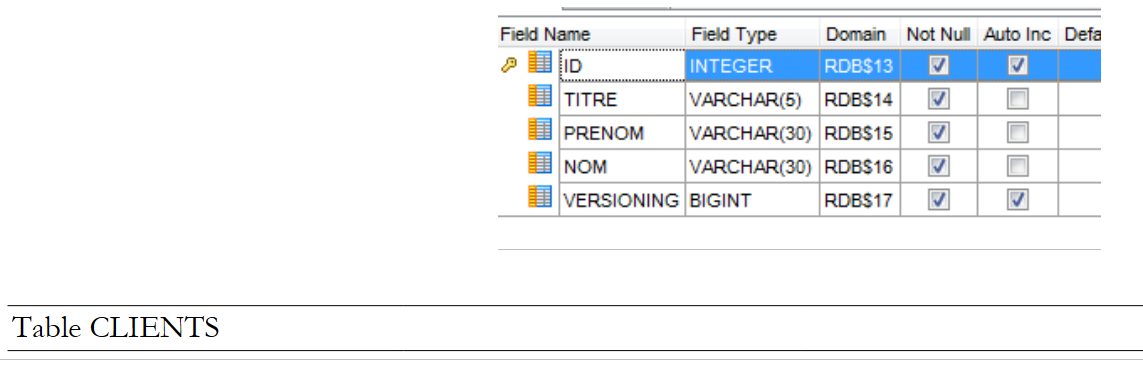
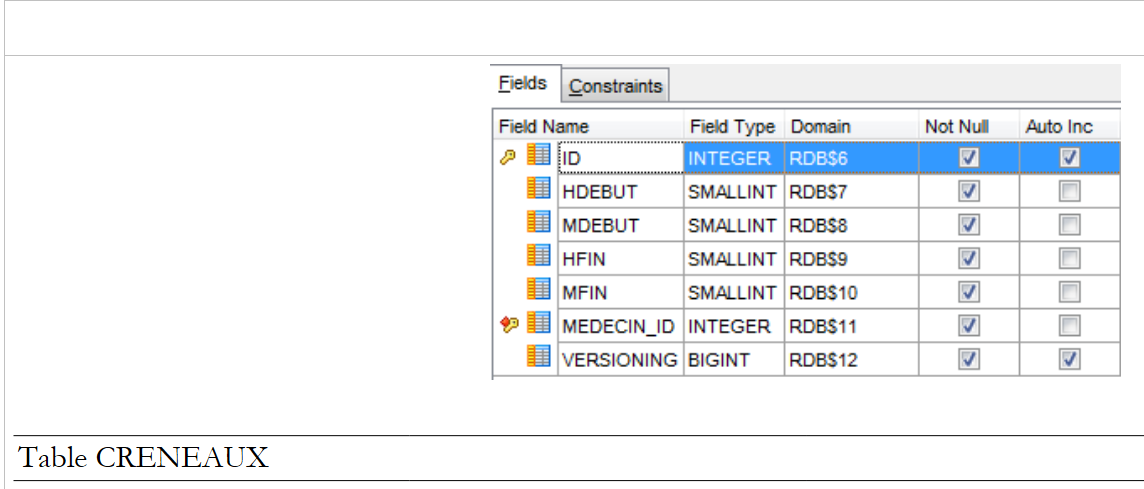
The tables
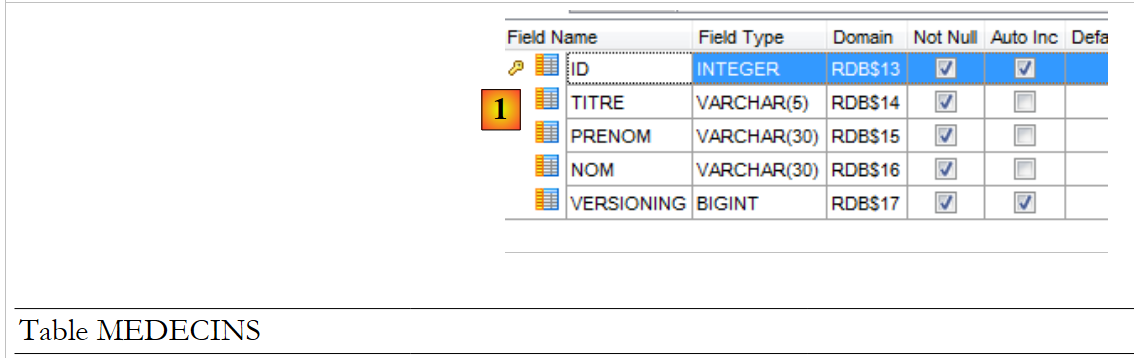 |
- In [1] and ID, there is a primary key with the Autoincrement attribute. It will be generated automatically by SGBD;
 |
 |
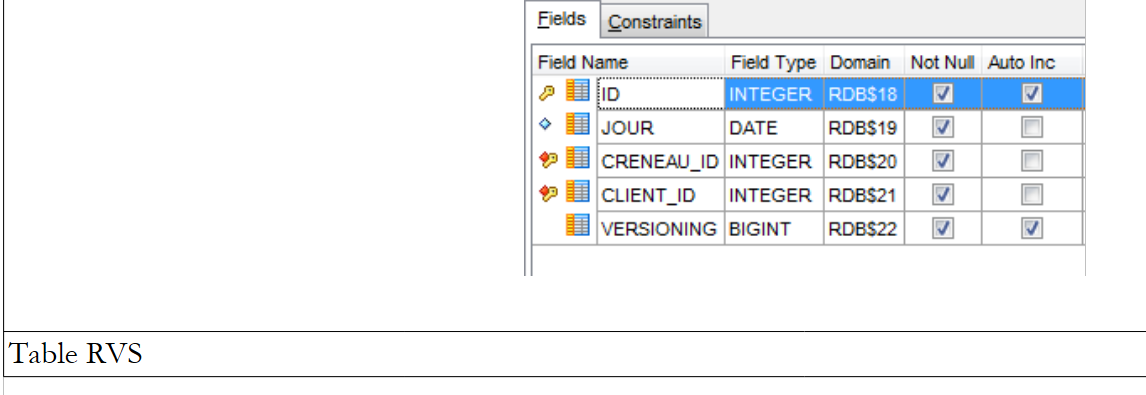 |
The various tables have the primary and foreign keys that these same tables had in the previous examples. The foreign keys have the attribute ON DELETE CASCADE.
The Generators
As with Oracle and PostgreSQL, we have created generators for consecutive numbers. There are 5 of them: [1].
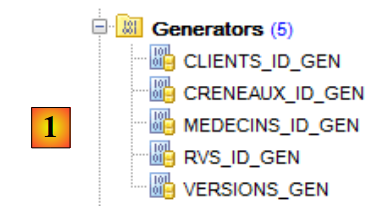 |
- [CLIENTS_ID_GEN] will be used to generate the primary key for table [CLIENTS];
- [MEDECINS_ID_GEN] will be used to generate the primary key for the [MEDECINS] table;
- [CRENEAUX_ID_GEN] will be used to generate the primary key for table [CRENEAUX];
- [RVS_ID_GEN] will be used to generate the primary key for table [RVS];
- [VERSIONS_GEN] will be used to generate the values for the [VERSIONING] columns in all tables.
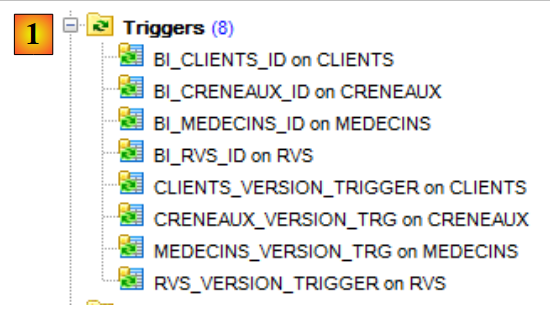
Triggers
A trigger is a procedure executed by SGBD before or after an event (Insert, Update, Delete) in a table. We have 8 of them: [1]:
 |
Let’s look at the code for the DDL trigger, which populates the [ID] column of the [CLIENTS] table:
- Line 2: Before each insertion into table [CLIENTS];
- lines 6-7: if the column ID is NULL, then it is assigned the next value from the number generator [CLIENTS_ID_GEN].
The [ BI_CLIENTS_ID, BI_MEDECINS_ID, BI_CRENEAUX_ID, BI_RVS_ID] triggers are all constructed in the same way.
Let's now look at the code DDL for the trigger [CLIENTS_VERSION_TRIGGER], which populates the column [VERSIONING] in the table [CLIENTS]:
- Lines 1–3: Before each operation INSERT or UPDATE on table [CLIENTS];
- line 6: the ["VERSIONING"] column receives the following value from the [VERSIONS_GEN] number generator. This generator populates the ["VERSIONING"] columns of the four tables.
The [MEDECINS_VERSION_TRIGGER, CRENEAUX_VERSION_TRIGGER, RVS_VERSION_TRIGGER] triggers are similar.
The script for generating the tables in the Firebird database, [RDVMEDECINS-EF], has been placed in the [RdvMedecins / databases / Firebird] folder. The reader can load and run it to create the tables.
Once this is done, the various programs in the project can be run. They produce the same results as with SQL Server, except for the program [ModifyDetachedEntities], which crashes for the same reason it crashed with Oracle and MySQL. The problem is resolved in the same way. Simply copy the [ModifyDetachedEntities] program from the [RdvMedecins-Oracle-01] project into the [RdvMedecins-Firebird-01] project.
7.3. Multi-layer architecture based on EF 5
Let’s return to the case study described in Section 2.
 |
We will start by building the [DAO] data access layer. To do this, we duplicate the console project VS 2012 [RdvMedecins-SqlServer-02] into [RdvMedecins-Firebird-02] [1]:
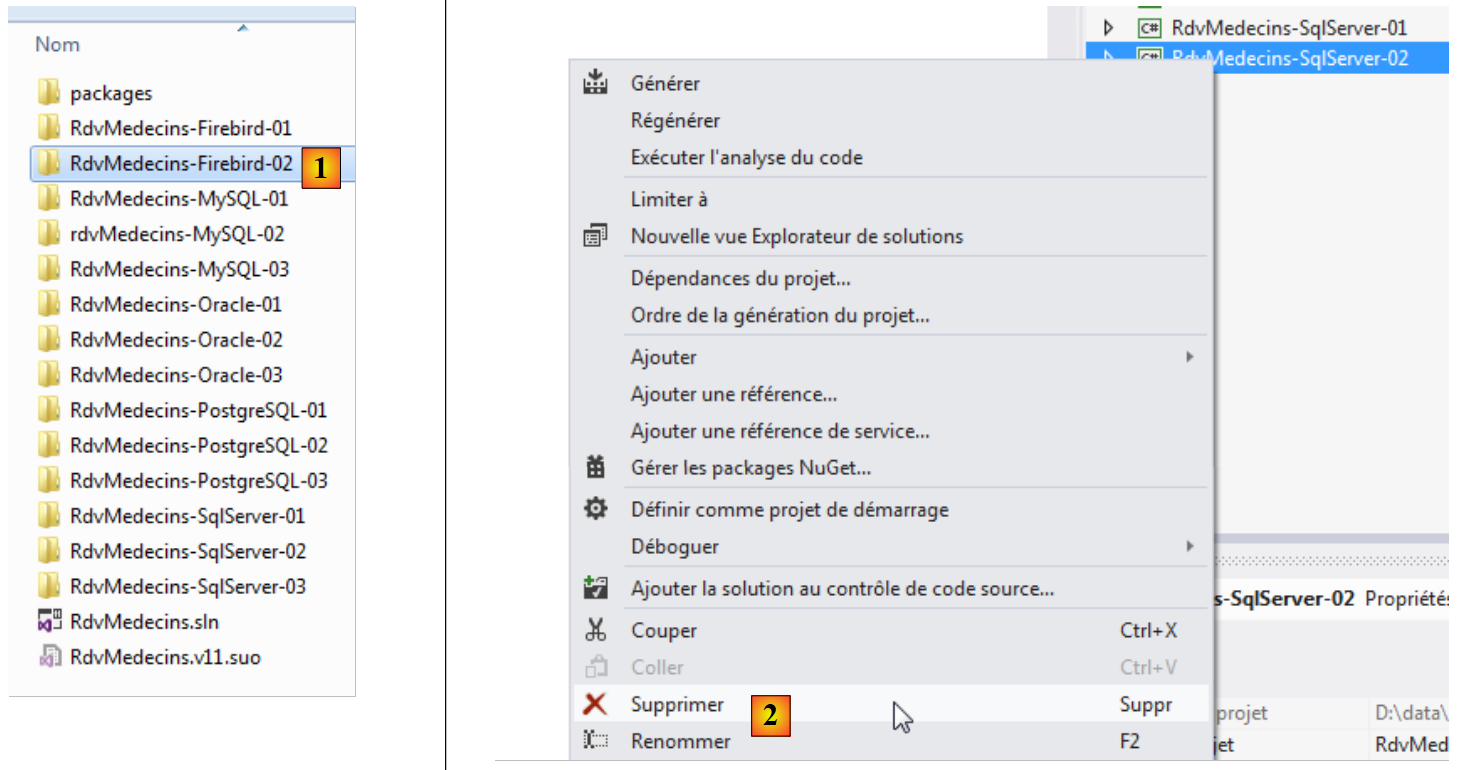 |
- in [2], we delete the project [RdvMedecins-SqlServer-02];
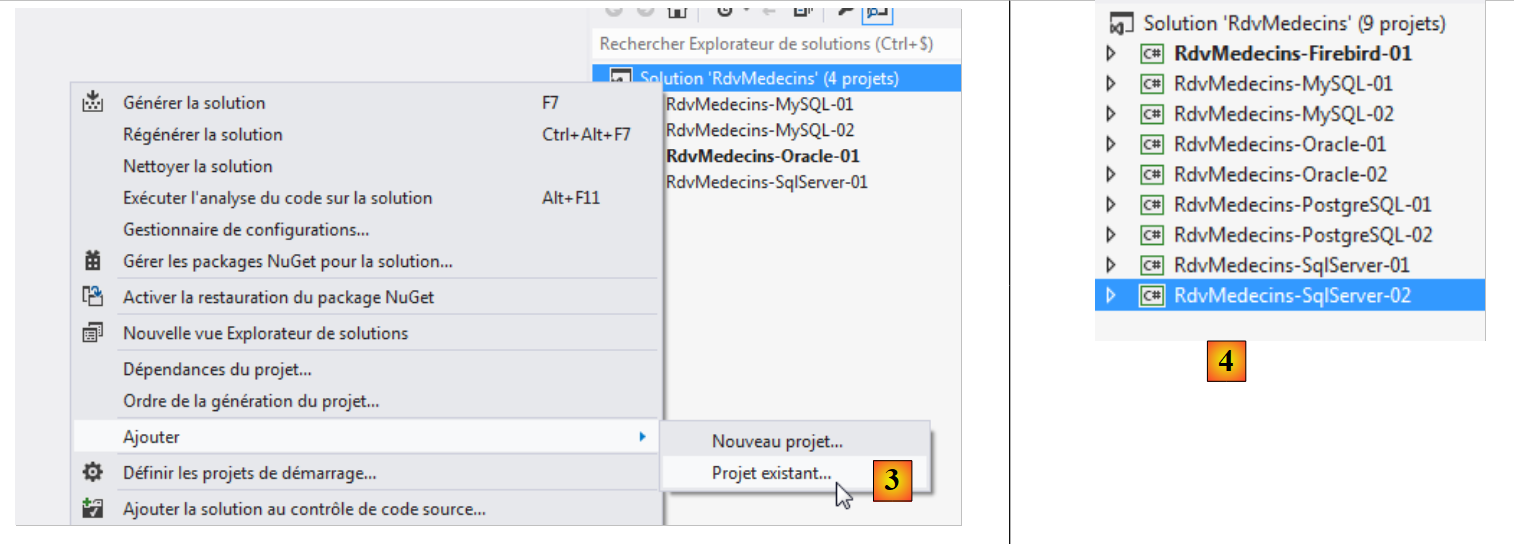 |
- In [3], an existing project is added to the solution. It is taken from the [RdvMedecins-Firebird-02] folder that was just created;
- In [4], the new project has the same name as the one that was deleted. We will rename it;
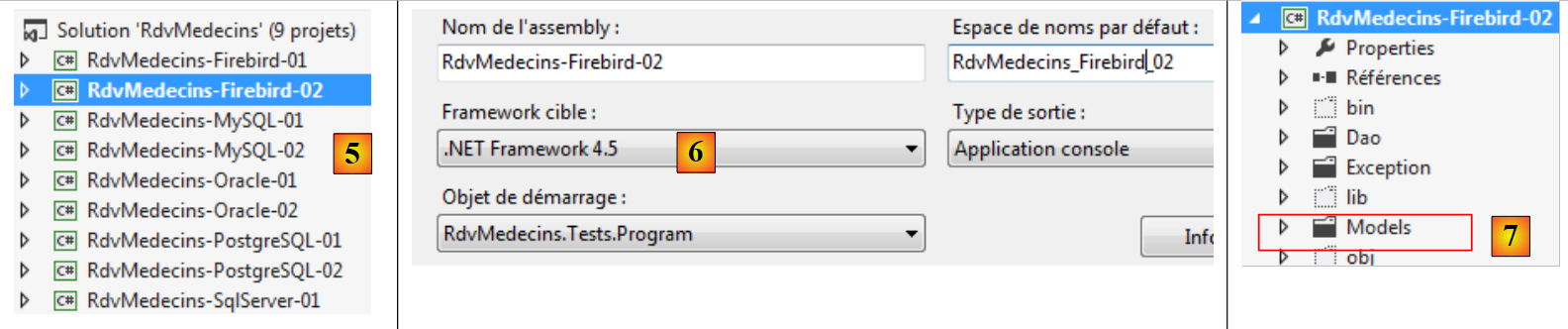 |
- In [5], we have changed the project name;
- In [6], we modify some of its properties, such as the assembly name here;
- in [7], the [Models] folder is deleted and replaced by the [Models] folder from the [RdvMedecins-Firebird-01] project. This is because the two projects share the same templates.
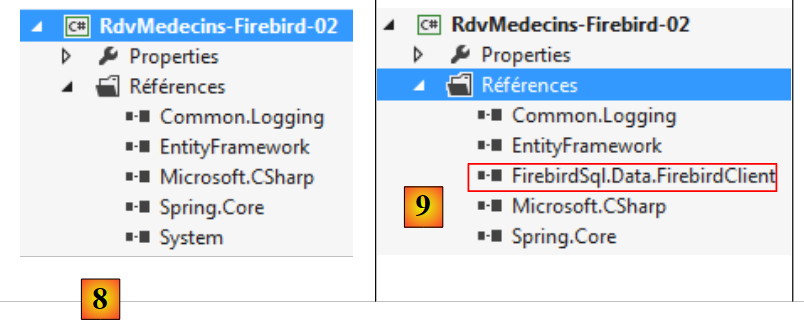 |
- In [8], the current project references;
- In [9], the Firebird ADO connector NET was added using the NuGet tool.
In the file [App.config], the information for the SQL Server database is replaced with that of the Firebird database. This information can be found in the file [App.config] of the [RdvMedecins-Firebird-01] project:
<!-- connection chain on base -->
  <connectionStrings>
    <add name="monContexte" connectionString="User=SYSDBA;Password=masterkey;Database=D:\data\istia-1213\c#\dvp\Entity Framework\databases\firebird\RDVMEDECINS-EF.GDB;DataSource=localhost;
Port=3050;Dialect=3;Charset=NONE;Role=;Connection lifetime=15;Pooling=true;MinPoolSize=0;MaxPoolSize=50;Packet Size=8192;ServerType=0;" providerName="FirebirdSql.Data.FirebirdClient" />
  </connectionStrings>
  <!-- the factory provider -->
  <system.data>
    <DbProviderFactories>
      <add name="Firebird Client Data Provider" invariant="FirebirdSql.Data.FirebirdClient" description=".Net Framework Data Provider for Firebird" type="FirebirdSql.Data.FirebirdClient.FirebirdClientFactory, FirebirdSql.Data.FirebirdClient, Version=2.7.7.0, Culture=neutral, PublicKeyToken=3750abcc3150b00c" />
    </DbProviderFactories>
  </system.data>
The objects managed by Spring also change. Currently we have:
  <!-- spring configuration -->
  <spring>
    <context>
      <resource uri="config://spring/objects" />
    </context>
    <objects xmlns="http://www.springframework.net">
      <object id="rdvmedecinsDao" type="RdvMedecins.Dao.Dao,RdvMedecins-SqlServer-02" />
    </objects>
</spring>
Line 7 references the assembly for the [RdvMedecins-SqlServer-02] project. The assembly is now [RdvMedecins-Firebird-02].
With that done, we are ready to run the test for the [DAO] layer. First, we must ensure the database is populated (program [Fill] from the [RdvMedecins-Firebird-01] project). The test program passes.
We create the DLL for the project as was done for the [RdvMedecins-SqlServer-02] project, and we moveall DLL files from the project into a [lib] folder created within [RdvMedecins-Firebird-02]. These will be the references for the upcoming [RdvMedecins-Firebird-03] web project.
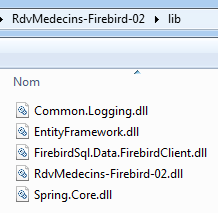 |
We are now ready to build the [ASP.NET] layer of our application:
 |
We will start with the [RdvMedecins-SqlServer-03] project. We duplicate this project’s folder into [RdvMedecins-Firebird-03] and [1]:
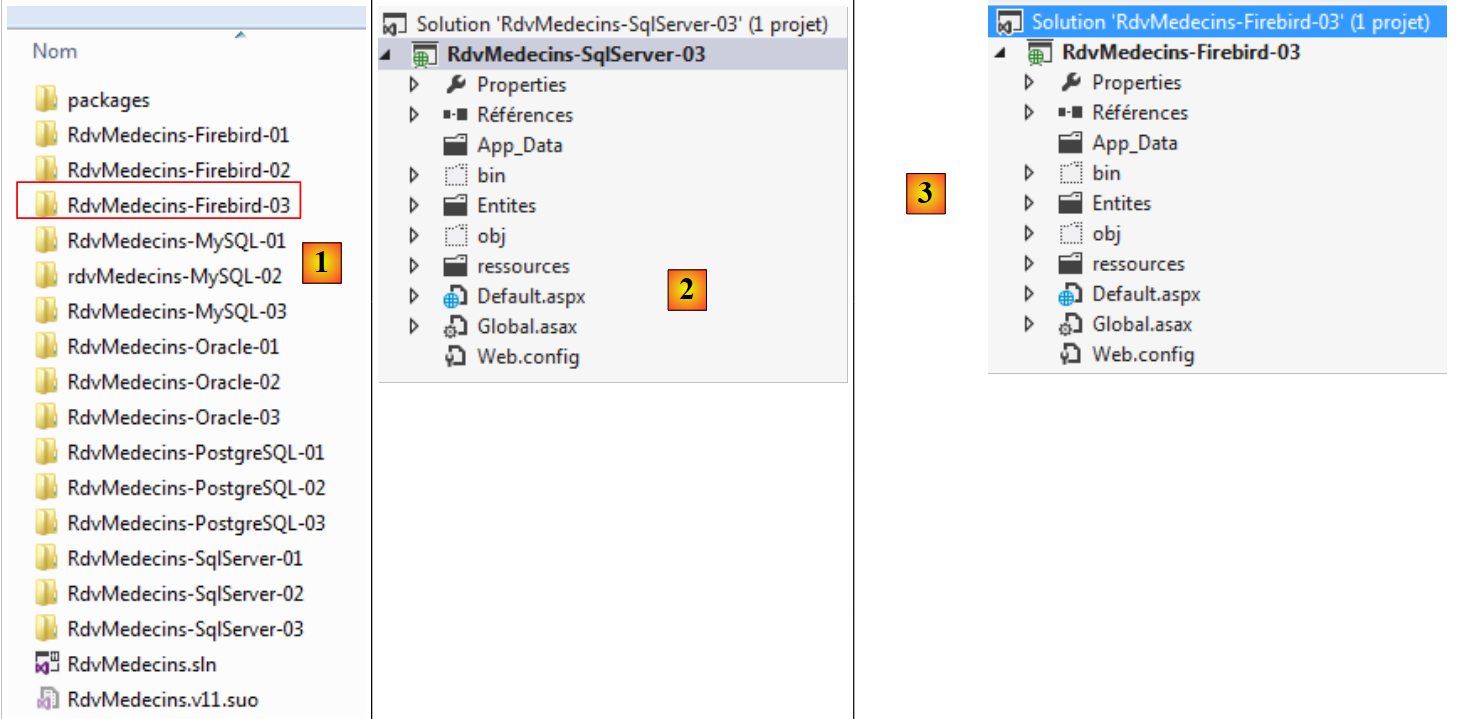 |
- in [2], using VS 2012 Express for the Web, we open the solution in the [RdvMedecins-Firebird-03] folder;
- In [3], we change both the solution name and the project name;
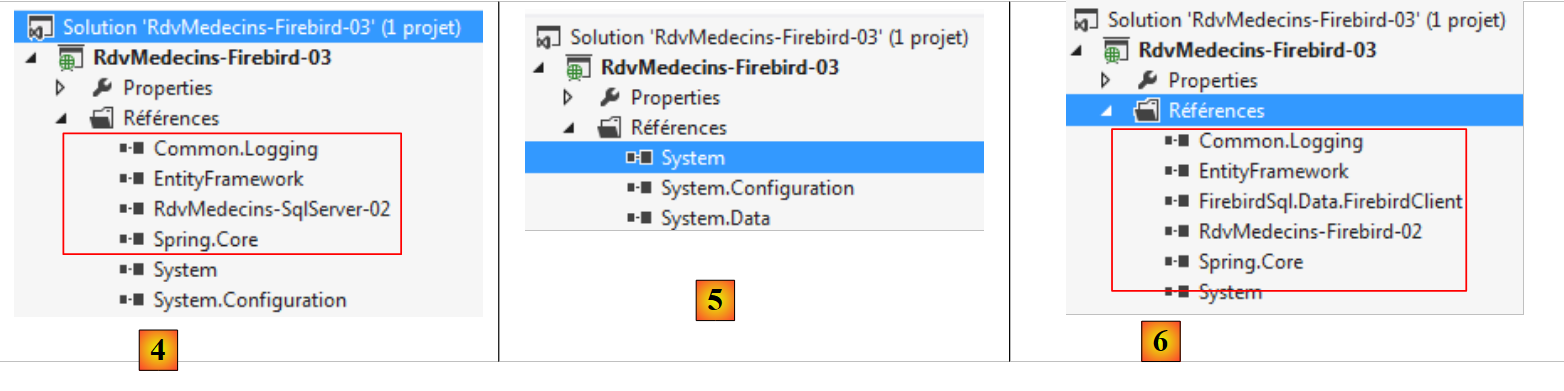 |
- In [4], the current project references;
- In [5], we delete them;
- in [6], to replace them with references to DLL, which we have just saved in a folder named [lib] within the [RdvMedecins-Firebird-02] project.
All that remains is to modify the [Web.config] file. We replace its current content with the content of the [App.config] file from the [RdvMedecins-Firebird-02] project. Once this is done, we run the web project. It works. Don’t forget to populate the database before running the web application.