6. Chapter 5 - Porting the Flutter Application to Mobile, Desktop, and the Web
6.1. A Single Source Code, Multiple Compilation Targets
This is the core of this chapter and the raison d’être of this course variant: NO line of Chapter 4 ([lib/], [pubspec.yaml], [assets/]) changes, regardless of the target selected. “Porting” the application here simply involves choosing a different COMPILATION COMMAND ([flutter run -d <target>] or [flutter build <target>])—never to write, duplicate, or adapt any widgets. This is very different from what a port would have required using the tools covered in the rest of this course: a [Vue.js]/[React]/[Angular] client runs NATIVELY only in a browser—porting it to mobile requires a THIRD-PARTY tool ([Cordova]/[Capacitor], not used in this course) that packages it into a native wrapper containing, in reality, an embedded browser (a [WebView]): the code remains unchanged, but it is STILL NOT a native executable, unlike what [Flutter] produces here for mobile and desktop (see Chapter 3, “What Flutter Is Not”).
The six targets ([Android], [iOS], [macOS], [Windows], [Linux], [web]) are enabled BY DEFAULT in any project created with [flutter create] since [Flutter 3] (see Chapter 1) - No configuration is required on the project side to add one. The only differences from one target to another are: the native compilation tools installed on the development machine ([Xcode], [Visual Studio], [GTK]...), the exact command executed, and—for mobile only—a network configuration detail described later in this chapter.
6.2. Web target
The target already used in Chapter 2 ([flutter run -d chrome]). Two commands are sufficient:
[flutter build web] generates a standalone [build/web/] folder ([index.html], [JavaScript], or [WebAssembly] compiled, resources) - to be deployed on ANY static web server ([Nginx], [Apache], a simple [npx serve]....), exactly like the [dist/] folder generated by [npm run build] on the [Vue.js]/[Vite] side. This build remains a [JavaScript] file served by a browser: it therefore continues to depend on a [NestJS] server REACHABLE from that browser, and thus on [app.enableCors()] (see [src/main.ts] on the server)—which is already active, with no changes required on the server side for this target.
One point to note specific to this target: the “Server URL” field on the login screen (see [_ServerUrlField] in [lib/app.dart], Chapter 4) must then point to an address REACHABLE from the browser running the application—[http://localhost:8080] is acceptable as long as the [NestJS] server is running on the SAME machine as the browser.
6.3. Desktop Target
Three operating systems, three sets of native prerequisite tools (see Chapter 1), but [flutter] commands that are identical in form:
Each [flutter build <target>] command produces a STANDALONE native executable ([.app] on macOS, [.exe] + its libraries on Windows, a [ELF] binary on Linux), in [build/<target>/]—an executable that, unlike the web build, does not run in ANY browser or on ANY [WebView]: this is native code running directly on the operating system, with its own window and title bar, managed by [Flutter] itself.
This target does not require ANY special network configuration: a desktop application runs on the same machine as the user and accesses [http://localhost:8080] exactly as any other program installed on that machine would (the “Server URL” field on the login screen allows you, as with other targets, to point to a remote server if necessary).
This produces the following result:
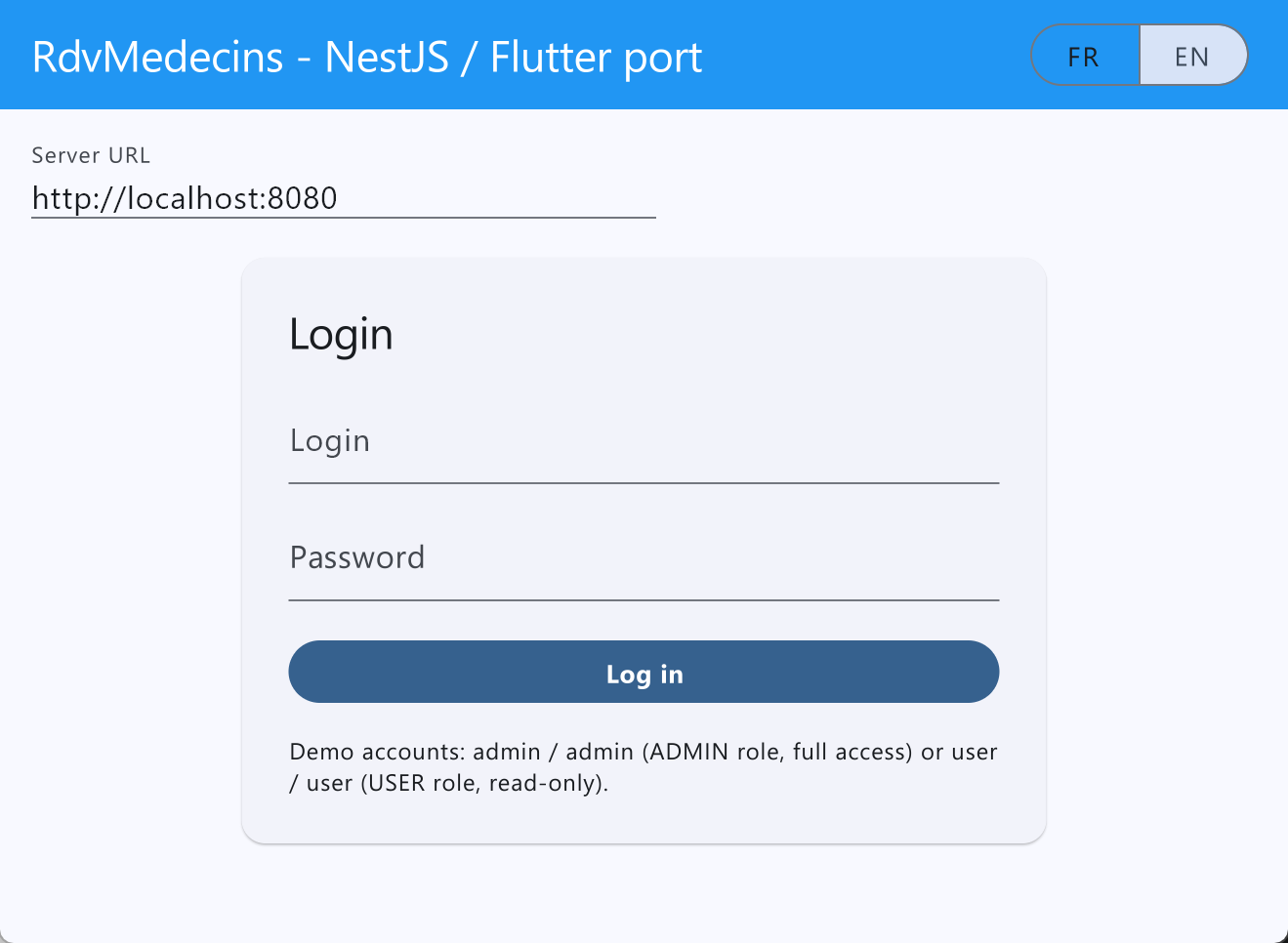
The screen above is not from a browser but from a Windows application. For this to work, certain tools must be available:
- Line 2: Visual Studio must be installed;
To get a clear picture of what’s missing from your Flutter project, type the following command:
6.4. Target emulators
The Flutter app has been tested on an Android emulator:
The result in the emulator:
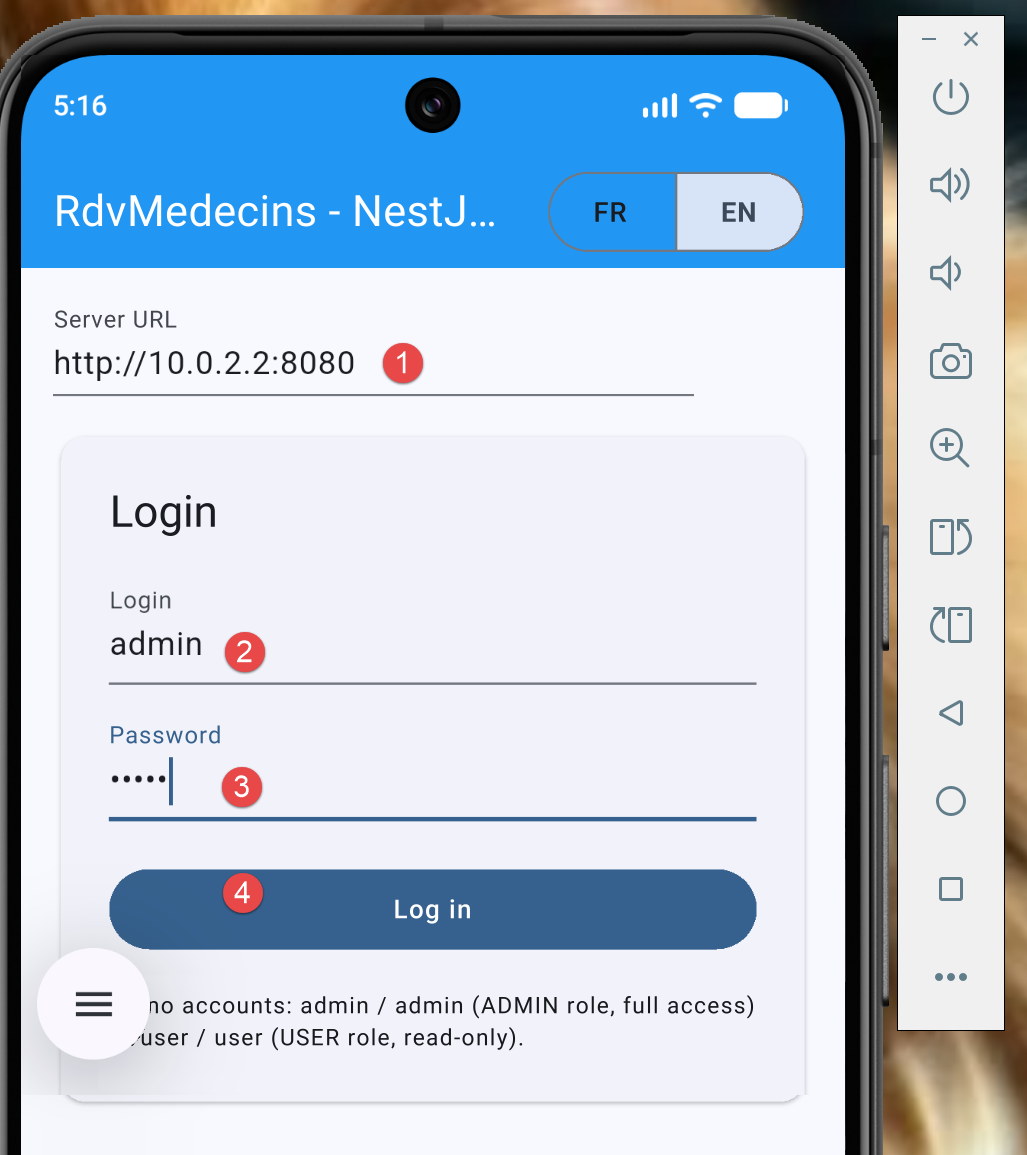
- Note the URL in [1];
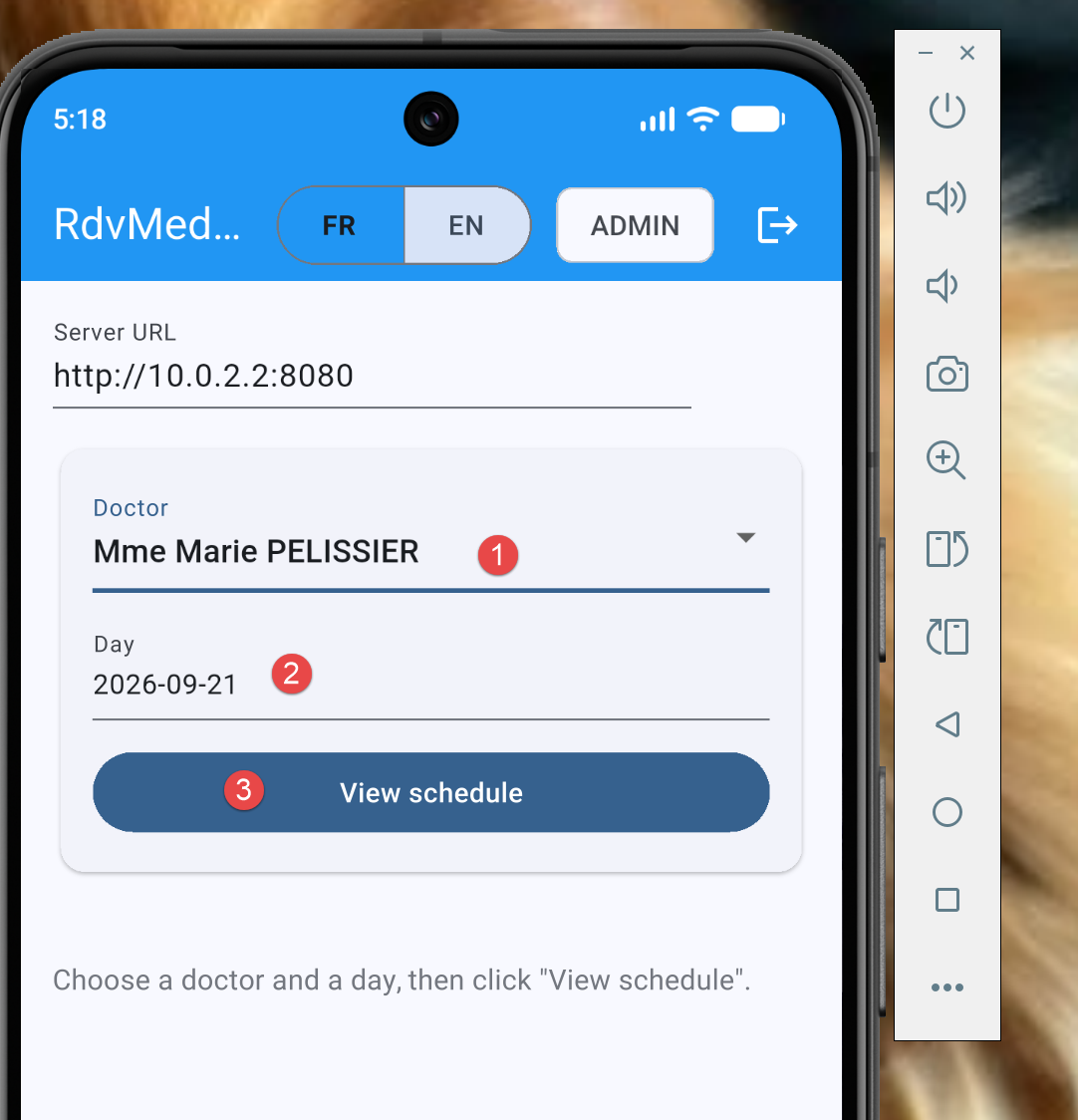
Logging in with admin / admin yields the following result:
Fill out the form and then submit:
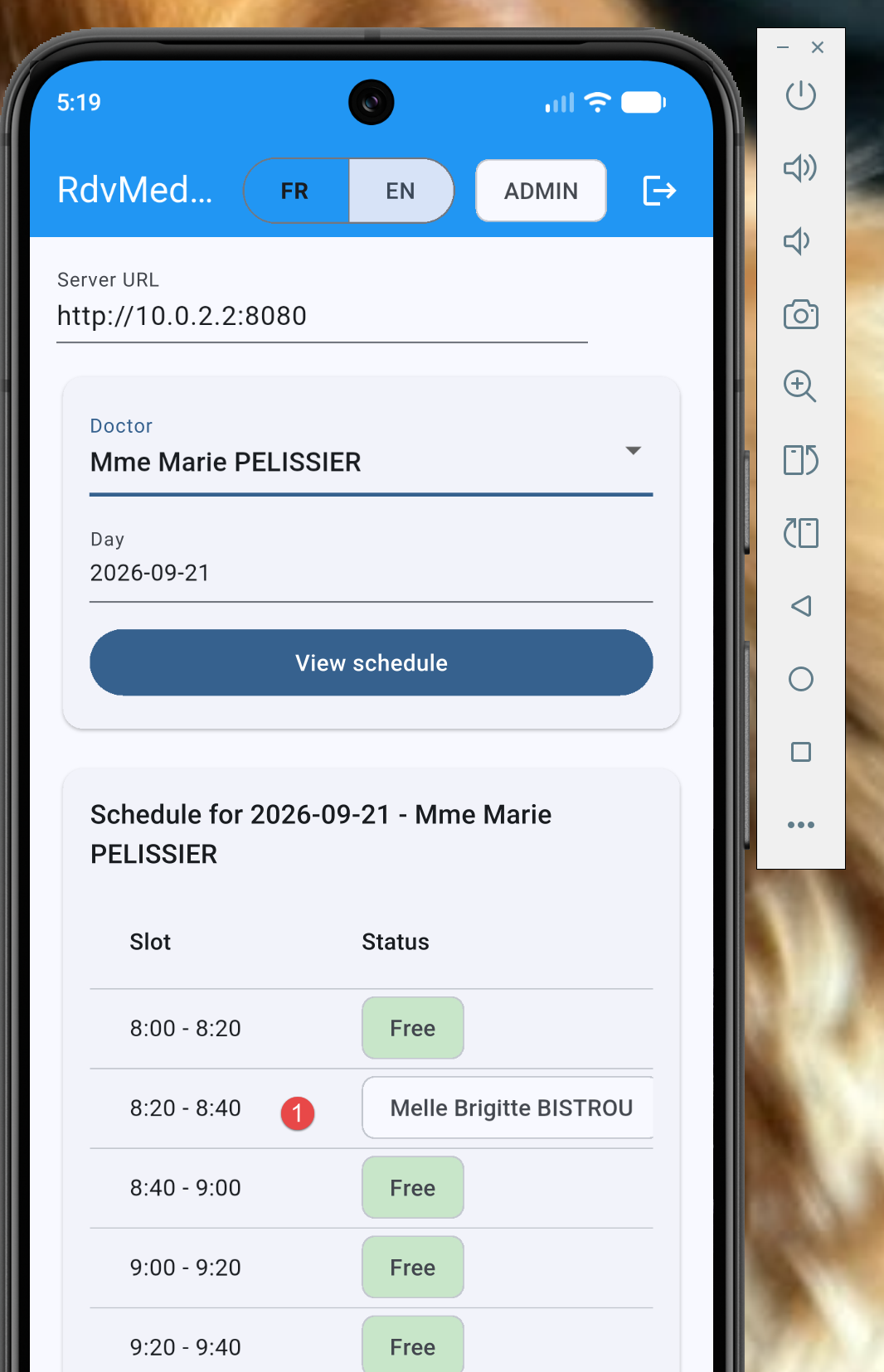
Above is the time slot we reserved using the web app.
6.5. Mobile Target
Note: The reviewer has not tested this section.
This is the area that requires the most attention, due to a detail specific to the emulator/simulator network.
6.5.1. The mobile-specific network pitfall: localhost no longer refers to the development PC
This is THE detail to know for this target, unrelated to [Flutter] itself: [localhost] (or [127.0.0.1]), in the “Server URL” field of the login screen, ALWAYS refers to the machine running the code - and a mobile emulator/simulator is a VIRTUAL machine DISTINCT from the development machine where the server ([NestJS]) is running, even if the two appear to “be on the same computer.”
- [Android] Emulator (created by [Android Studio]): Use [http://10.0.2.2:8080]—a special address specific to the official [Android] emulator, which automatically redirects to [localhost] on the host machine (the development PC).
- [iOS] Simulator (macOS only): [http://localhost:8080] works directly, as the [iOS] simulator shares the host machine’s network (unlike the [Android] emulator).
- Physical device ([Android] or [iOS], connected to the same Wi-Fi network as the development PC): Use the LOCAL [IP] address of this PC on this network (for example, [http://192.168.1.42:8080]), never [localhost] or [10.0.2.2], as both refer to the mobile device itself in this case.
6.5.2. Two additional restrictions specific to the mobile device
- [Android] (since API 28) blocks by default all CLEARTEXT [HTTP] traffic (not encrypted with [https://])—since the server for this course listens on [HTTP] in simple mode, a PRODUCTION-READY [Android] application should declare an explicit exception ([android:usesCleartextTraffic="true"] in the generated [Android] manifest, or a more granular network security configuration)—a native configuration setting, in [android/], outside the [Dart] code presented in this document.
- [iOS] enforces a comparable policy, [App Transport Security] ([ATS]), which also blocks plaintext [HTTP] by default—an equivalent exception is declared in [ios/Runner/Info.plist] ([NSAppTransportSecurity], [NSAllowsArbitraryLoads], or, more specifically, an exception targeted solely at the development server’s domain).
These two settings apply ONLY to development/demonstration with an unencrypted [HTTP] server, such as the one used in this course—a real production deployment would instead expose the [NestJS] server itself in [https://] (for example, behind a [reverse proxy] as [Nginx]), which would render these two exceptions unnecessary.
6.5.3. A Narrower Screen: The Layout Trap
One final difference specific to mobile devices has nothing to do with the network: a phone in portrait orientation is only about 360 pixels wide (in logical pixels of [Flutter]), compared to several hundred more in a browser or desktop window. A screen designed for a large display can therefore become unusable on a phone: this is what happened to the first version of this document’s client, tested on a [Android] emulator. The doctor/day/button selector ([doctor_day_picker.dart]) aligned three fields within a single [Row], and the title bar ([app.dart]) displayed everything at once: the emulator had to be switched to landscape mode to see everything. Chapter 4 shows the fix. Two rules follow from this:
- Never assume a width. To choose a layout, check the actual available width—either at a specific location in the tree using [LayoutBuilder] ([constraints.maxWidth]), or for the entire screen with [MediaQuery.sizeOf(context).width]—then choose [Row] (wide screen) or [Column] (narrow screen).
- Test early on a narrow screen: use the emulator in portrait mode, or a [Chrome] window that you resize to be narrower. In debug mode, [Flutter] indicates that the content is too wide with a yellow and black banner reading “RIGHT OVERFLOWED BY … PIXELS” in the application, as well as a message in the console.
This does not contradict the following observation: the layout adapts based on the screen's SIZE, never the platform—no [if (kIsWeb)] appears. Narrowing a browser or desktop window triggers exactly the same “narrow” layout as a phone does.
6.6. Summary Table
- [web] — [flutter run -d chrome] / [flutter build web] — compiled to [JavaScript]/[WebAssembly], executed by a browser — Server URL: [localhost] (same machine).
- [desktop] (macOS/Windows/Linux) — [flutter run -d <os>] / [flutter build <os>] — native [AOT] compilation, standalone executable — Server URL: [localhost] (same machine).
- [mobile] (Android emulator) — [flutter run] — native [AOT] compilation — Server URL: [10.0.2.2] (special address for the emulator).
- [mobile] (iOS simulator) — [flutter run] — native [AOT] compilation — Server URL: [localhost] (network shared with the host).
- [mobile] (physical device) — [flutter run] — native [AOT] compilation — Server URL: local [IP] address of the development PC, + exception [cleartext]/[ATS].
6.7. What does NOT change in the Dart code
To conclude this chapter, it is worth emphasizing what did NOT need to be written or adapted to cover these three target families: no [if (kIsWeb) { ... } else { ... }] condition appears in Chapter 4, no separate [_mobile.dart]/[_web.dart] file, and no additional abstraction libraries. The few choices already made in Chapter 4 are sufficient, on their own, to make this code portable across the three target families: [shared_preferences] (rather than [localStorage], which is browser-specific) for persistence, [rootBundle.loadString(...)] (rather than a [fetch] to a web server) for embedded translation dictionaries, and the [http] package (rather than a browser-specific API) for networking. This is exactly what the introduction to this document promised: [a single Flutter codebase is enough to build a mobile app, a desktop app and a web app].